C85ANSMT-4K - Television Cello - Free user manual and instructions
Find the device manual for free C85ANSMT-4K Cello in PDF.


| Product Type | 85-inch UHD LED Television |
| Display Resolution | 3840 x 2160 pixels (4K UHD) |
| Screen Size (Diagonal) | 85 inches |
| Brightness | 300 cd/m² |
| Contrast Ratio | 4000:1 |
| Energy Efficiency Class | A |
| Operating Power Consumption | 250 W |
| Standby Power Consumption | < 0.5 W |
| Power Source | AC 100-240 V |
| Dimensions (W x D x H) with Base | 1936 x 328 x 1180 mm |
| Dimensions (W x D x H) without Base | 1936 x 93 x 1116 mm |
| Weight (Net) | 56 kg |
| VESA Wall Mount Size | 800 x 400 mm (M8 x 20 screws) |
| Speaker Power | 10 W + 10 W |
| Connectivity – HDMI | 3 x HDMI (HDCP compatible) |
| Connectivity – USB | 2 x USB (one for Media, one for Android) |
| Other Ports | AV, Digital Audio Out (coaxial), RF Aerial, Network (Ethernet), Micro SD card slot |
| TV System | PAL I/BG/DK, SECAM BG/DK |
| Remote Control Batteries | 2 x AAA (1.5 V) |
| Operating Temperature | 0°C to 40°C |
Frequently Asked Questions - C85ANSMT-4K Cello
User questions about C85ANSMT-4K Cello
0 question about this device. Answer the ones you know or ask your own.
Ask a new question about this device
Download the instructions for your Television in PDF format for free! Find your manual C85ANSMT-4K - Cello and take your electronic device back in hand. On this page are published all the documents necessary for the use of your device. C85ANSMT-4K by Cello.
USER MANUAL C85ANSMT-4K Cello
natural_image
Line drawing of a flat-screen monitor with stand supports at the bottom (no text or symbols)User Guide
Contents
| Unpacking the TV / Accessory's | 1 |
| Installing / Removing the Base Stand | 2 |
| Front / Right Side View and Controls | 3 |
| Rear View and Sockets | 4 |
| Remote Control | 5-6 |
| Installing Batteries in the Remote Control | 7 |
| Remote Control Operation Range | 7 |
| Making Video and Audio Connections | 8 |
| Connecting an AV Device with an HDMI Cable | 8 |
| Connecting a Digital Audio Receiver | 9 |
| Turning the TV on for the First Time | 10 |
| 11noitarepO cisaB | |
| OSD Menu | 12-17 |
| 1. Picture Setting | 12 |
| 2. Audio Setting | 13 |
| 3. Lock Setting | 14-15 |
| 4. Time Setting | 16 |
| 5. Setup Setting | 17 |
| Connecting a USB Storage Device | 18 |
| Viewing Photos | 20 |
| Listening to Music | 20 |
| Watching Movies | 21 |
| Viewing Texts | 21 |
| Maintenance | 22 |
| spiT dna stniH | 22-23 |
| 24sedoM yalpsiD | |
| snoitacificepS | 25 |
| sgniWaytefaS | 26-27 |
| Waste Electrical Recycling | 28 |
Thank you for purchasing your new 85" UHD LED TV.
Your new TV has many features and incorporates the latest technology to enhance your viewing experience. We recommend that you spend some time reading this instruction manual in order that you fully understand these features. You will also find some hints and tips to help you resolve any issues. Read all the safety instructions carefully before use and keep this instruction manual for future reference.
Unpacking the TV / Accessory's

natural_image
Empty white rectangle with a thin border (no text or symbols)TV set

Stand & Screws (M4 x 22 8PCS)

natural_image
Black handheld electronic device with coiled cable and connector (no visible text or symbols)Power Cable

Remote Control

Batteries

Quick Start Guide

Warranty Card
The parts

natural_image
Empty rectangular frame with no text, numbers, or symbols insideTV set
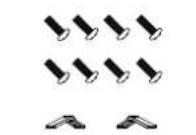
Stand & Screws (M4 x 22 8PCS)
Installation
Place the TV face down on a soft and flat surface (blanket, foam, cloth, etc.) to prevent any damage to the TV.
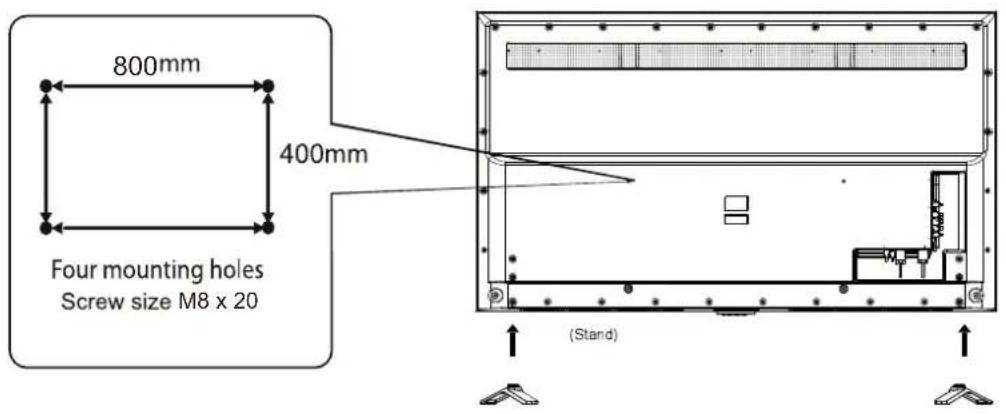
- Attach the stand feet in the positions shown and secure them with supplied screws (M4 x 22)

natural_image
Simple diagram of a blank rectangular panel with two red upward arrows pointing to the bottom corner (no text or symbols)This unit is VESA-Compliant and designed to be wall mounted with a VESA-Compliant 800 x 400 mm mounting kit.
Mount this unit according to the instructions of the wall bracket(not supplied)

| Item | Description | |
| 1 | IR (Infrared Receiver) | Receives IR signals from the remote control.Do not put anything near the sensor, as its function may be affected. |
| 2 | POWER LED | Illuminates green when the TV is turned on. Illuminates red when the TV is in standby mode. The LED will alternate between red and green when the PVR timer programming has started in the standby mode. |
| 3 | VOL + / - | Adjusts the volume.Press to select and adjust a setting in the OSD menu. |
| 4 | ▼ ▲ | Press to select a sub-menu from the OSD menu. |
| 5 | MENU | Displays the OSD (on screen display) menu. |
| 6 | SOURCE | Press to select among different input signal sources:DTV, ATV, AV, SCART, YPBPR, HDMI1, HDMI2, HDMI3, MEDIA,Confirmed the selection on OSD menu. |
| 7 | STANDBY | Switches the TV on from standby mode.Switches the TV back to standby mode. |

| Socket | Description | |
| 1 | POWER | To connect to power supply. |
| 2 | Audio Out L/R | Connect to audio receiver |
| 3 | USB | Allows the insertion of a USB storage device to play video, audio, photo and text files (Media mode). |
| 4 | HDMI IN | To connect to a High-Definition (HD) signal output device, such as a set-top box, blu-ray disc player or AV receiver. |
| 5 | AV | Connect an external device to the composite VIDEO(Y) and AUDIO (L / R) out jacks found on most video equipment. |
| 6 | TV Aerial | To connect to the aerial socket on the wall with the RF coaxial cable. |
| 7 | DIGITAL AUDIO OUT | To connect to the audio socket on the digital/standard 5.1 audio system. |
| 8 | NETWORK | Connect the TV to the Internet |
| 9 | Android USB | Allows the USB storage device to play video,audio,photo and text files in SMART mode,and works with air mouse. |
| 10 | Micro SD | Load external Micro SD memry card |
Dependant on the Model of the TV some keys will have no function

*Dependant on Model
To use your sky remote control with this TV follow the instructions given with the sky remote to programme different codes.
■ Functions of remote control buttons
Dependant on the model of the TV some keys will have no function
■ Functions of remote control buttons
Dependant on the model of the TV some keys will have no function
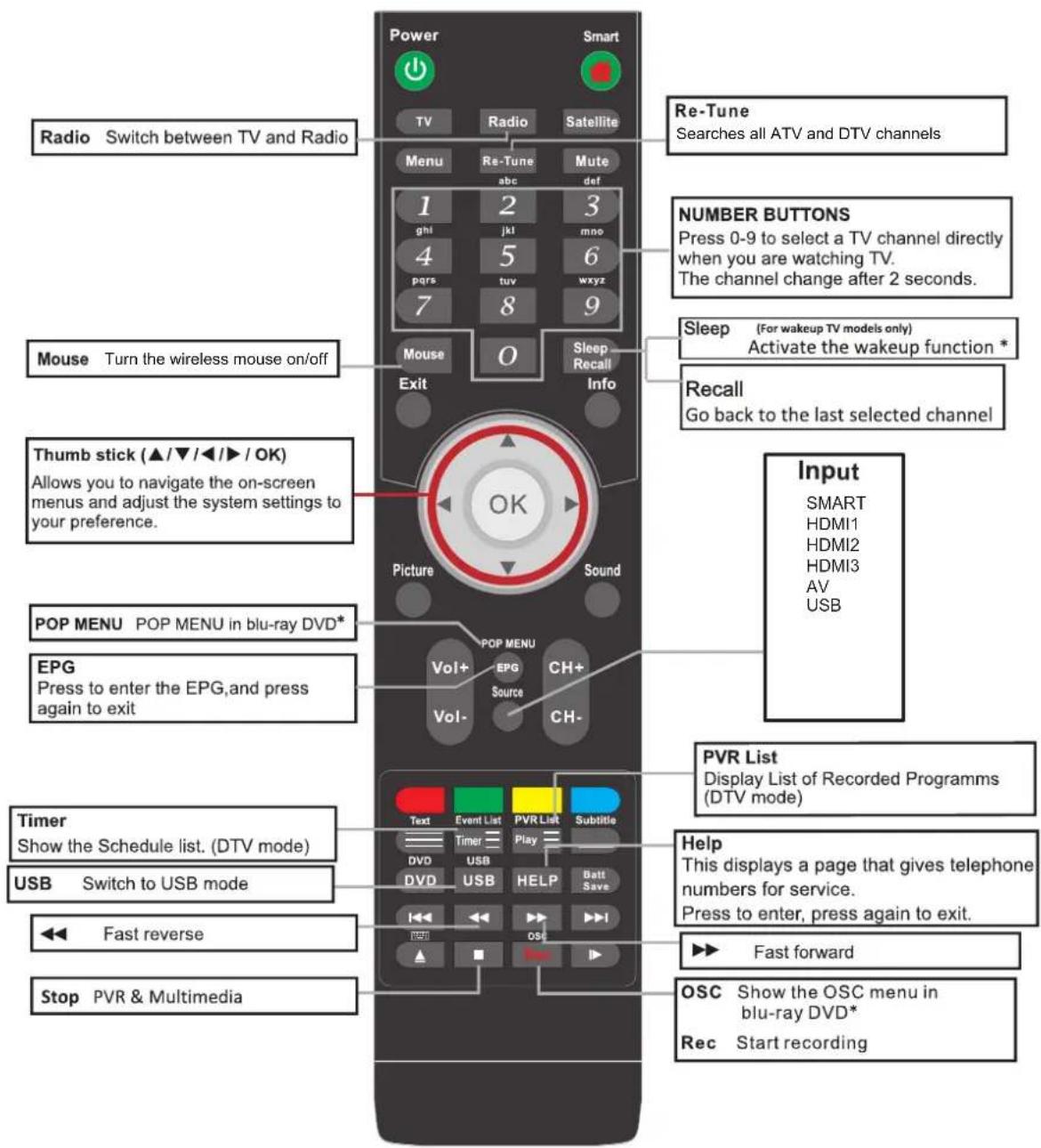
*Dependant on Model
- Press and lift the back cover to open the battery compartment of the remote control.
- Insert two 1.5V AAA size batteries. Make sure to match the (+) and (-) ends of the batteries with the (+) and (-) ends indicated in the battery compartment.
- Close the battery compartment cover.


Handling the Batteries
- Improper or incorrect use of batteries may cause corrosion or battery leakage, which could cause fire, personal injury or damage to property.
- Only use the battery type indicated in this manual.
- When the batteries are exhausted, the remote will not function. Replace both batteries at the same time with new ones.
- Do not install new batteries with used ones and do not mix different types of batteries.
- Do not dispose of used batteries as domestic waste. Dispose of them in accordance with local regulations.

Handling the Remote Control
• Take care of your fingernails when you press and hold the battery release tab.
- Do not drop or cause impact to the remote control.
- Do not spill water or any liquid on the remote control.
- Do not place the remote control on a wet object.
- Do not place the remote control under direct sunlight or near sources of excessive heat.
- Remove the battery from the remote control when not in use for a long period of time, as it could cause corrosion or battery leakage and may result in physical injury and/or property damage including fire.
Remote Control Operation Range
Point the remote control at the TV no more than 5 metres from the remote control sensor on the TV and within 60° in front of the TV. The operating distance may vary depending on the brightness of the room.

To use your sky remote control with this TV follow the instructions given with the sky remote to programme different codes.
Making Video and Audio Connections
Not all AV devices have the ability to connect to a TV, please refer to the owner's manual of your AV device for compatibility and connection procedures.
When connecting any external AV device, do not connect the mains cable to the mains socket until all other connections are complete.
Best Video Performance

| Signal Type | Separate Audio Connection Required | |
 HDMI HDMI | HDMI(480i/480p/576i/576p/720p/1080i/1080p) | No |
 VGA VGA | PC | YesPC AUDIO |
 AV AV | Composite Video | No |
Connecting an AV Device with an HDMI Cable
- This TV can accept High-Definition Multimedia Interface (HDMI) and supports HDCP (High-Bandwidth Digital Content Protection) Protocol.
- The TV has a total of HDMI input sockets, please make sure the correct input source is selected corresponding to your connected HDMI input socket.
- When you connect to the output of an HD ready player (blu-ray disc player, game console, set-top box or computer) switch to the HDMI function and the TV will automatically detect the resolution used by the HDMI source.
-
To get the best picture quality, adjust the blu-ray disc player, game console or set-top box output resolution up to 1920 x 1080p.
-
Use an HDMI cable to connect the TV's HDMI input socket to the external AV device's HDMI output socket.
-
Plug the connected devices into the mains socket
-
Press the STANDBY button on the TV or the ⏻ button on the remote control to turn on your TV.
-
Press the SOURCE button on the TV or the SOURCE button on the remote control to display the Source List. Use the ▲▼ buttons to select HDMI1/2/3 and then press the OK button to confirm.

Although this TV is able to connect to an HDMI device, it is possible that some devices may not operate correctly.
Rear View of TV

Connecting a Digital Audio Receiver
For better sound quality, you may want to play the audio through your multi-channel audio receiver.
- Use an audio cable to connect the TV's Digital Audio out socket to an external audio receiver's audio coaxial input socket.
- Plug the connected devices into the mains socket
- Press the STANDBY button on the TV or the ⏻ button on the remote control
- Press the SOURCE button on the TV or the SOURCE button on the remote control to display the Source List. Use the ▲▼ buttons to select any desired input source and then press the OK button to confirm.

The TV's volume control will have no effect. You may control the audio level via the Audio Receiver.
Rear View of TV
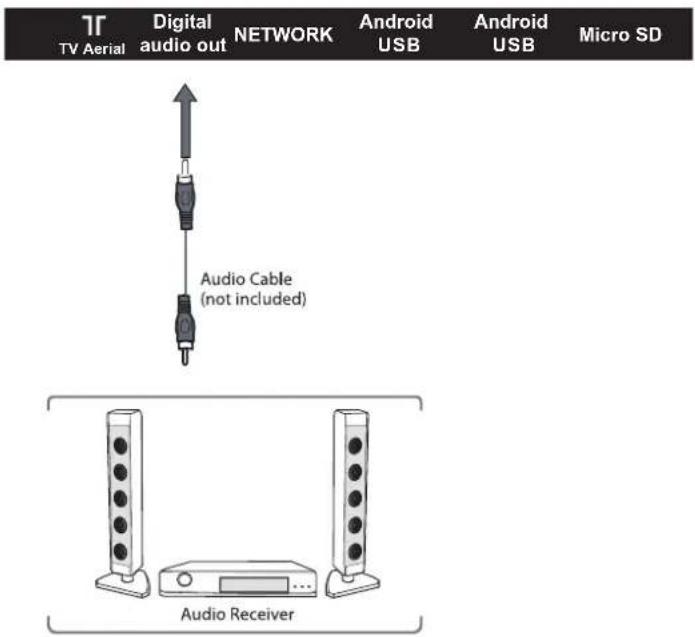
- Connect one end of the RF coaxial cable to the aerial socket on the wall and the other end of the cable to the Aerial socket at the rear bottom of your TV.

Do not connect the TV to the mains supply until you have completed all the connections.
- Connect the mains cable to the mains socket after you have completed all the connections.
- At this stage, the TV switches to standby mode. The red LED indicator will illuminate on the front panel of the TV.
- In standby mode, press the STANDBY button on the TV or the ⏻ button on the remote control to turn the TV on. The LED indicator will change from red to green.

The STANDBY button is located on the rear right side of the TV.

• Always disconnect the TV from the mains socket when not in use for a long period of time.
- The STANDBY button on the rear right side of the TV or the ⏻ button on the remote control is only used for switching the TV into standby, it does not disconnect the TV from the mains power. To completely disconnect the mains power, please remove the mains cable from the mains socket.
-
First Time Installation
-
Make sure your TV is plugged in and that the aerial lead is connected to the TV aerial socket.
- Turn on the TV by pressing the ⏻ key on the remote control or by pressing the standby button on the TV.
- Run the Aurora TV and follow the steps as below.

flowchart
graph TD
    A["Terrestrial"] --> B["Select tuner"]
    B --> C["Disabled"]
    B --> D["Search Filter"]
    B --> E["Only free channels"]
    B --> F["Next"]
    G["Terrestrial Select Tuner"] --> H["Disabled"]
    H --> I["Internal DVB-TT12C"]
    J["Terrestrial"] --> K["Select tuner"]
    K --> L["Skip"]
    M["Available Tuners"] --> N["Next"]
    O["Live TV"] --> P["Welcome Next"]
    Q["Region"] --> R["Ukraine"]
    Q --> S["United Arab Emirates"]
    Q --> T["United Kingdom"]
    Q --> U["United States"]
    Q --> V["United States Minor Culturing Islands"]
    Q --> W["United States Virgin Islands"]
    Q --> X["Uruguay"]
    Y["Verification"] --> Z["Next"]
    AA["The TV is plugged in and that the aerial lead is connected to a aerial socket. The TV by pressing the ⏻ key on the remote control or using the standby button on the TV. Aurora TV and follow the steps as below."]
Selecting the Input Source
- Press the Source button on the TV or the Source button on the remote control to display the Input source list.
- Press the ▲▼ buttons to select the input source that you want: SMART,HDMI1,HDMI2,HDMI3,AV,USB
- Press the OK button to confirm your selection. If you do not press the OK button to confirm, the TV will automatically confirm the selected input source within 4 seconds.

In DTV mode, press the Radio button to switch to TV / digital radio channels directly.
| Input Source |
| SMART |
| HDMI1 |
| HDMI2 |
| HDMI3 |
| AV |
| USB |
Channel Selection
- Press the CH+ / - buttons on the TV or on the remote control repeatedly or the 0-9 buttons on the remote control to select the channel.

Alternative
Press the OK button to enter the Channel List. Then use the ▲▼ buttons to highlight and select the channel. Press the OK button to view the selected channel.
- If a blocked channel is selected, the password screen will be displayed. Press the 0-9 buttons to enter the password, the channel will then be unlocked (refer to page 20 for details on LOCK).
- Press the ⬇ button to return to the previously viewed channel.
Display Channel Information
- Press the i Info button to view the current information.
Volume Adjustment
- Press the VOL+/- button on the TV or on the remote control to adjust the volume.
- If you wish to switch the sound off, press the Mut e Mutton. Press the button again or the VOL+ or - button to resume audio listening.
Allows you to set your preferred picture mode.
- Press the Menu button and then press the ◀▶ buttons to select the PICTURE menu.
- Press the OK or ▼ buttons and then press the ▲▼ buttons to select the following picture options and then press the OK button.

Picture Mode Press the ▲▼ buttons to cycle among picture mode: Dynamic / Standard / Mild / Personal / Theater and then press the MENU button to confirm.
Colour Temperature Press the ▲▼ buttons to cycle among colour temperature: Normal / Personal / Cool / Warm and then press the MENU button to confirm. Adjusts the colour components independently to achieve a warm or cool.
Aspect Ratio Press the ▲▼ buttons to cycle among aspect ratio: 4:3 / 16:9 / Point to Point and then press the MENU button to confirm.
Noise Reduction Press the ▲▼ buttons to select to reduce the noise level of the connected device: Off / Weak / Middle / Strong and then press the Menu button to confirm.
- Press the Menu button to return to the previous menu. Press the Exit button to exit the menu.
Audio Setting
Allows you to select an audio-enhancement technique.
- Press the Menu button and then press the ◀▶ buttons to select the AUDIO menu.
- Press the OK or ▼ buttons and then press the ▲▼ buttons to select the following sound options and then press the OK button.

| Sound Mode | Press the ◀▶ buttons to select an audio-enhancement technique: Standard / Movie / Music / Sports Personal and then press the button to confirm. |
| Digital Output | Press the ◀▶ buttons to select an Digital Output technique: PCM / RAM / Off and then press the Menu button to confirm. |
| Auto Volume | This feature automatically adjusts the audio level when the TV is turned on. This function is activated by selecting"ON". |
| Surround Sound | Turn on/off the surround sound function by selecting "On" or "Off". |
-
Press the Menu button to return to the previous menu. Press the Exit button to exit the menu.
-
Press the Menu button and then press the ▲▼ buttons to select the Lock menu.
- Press the OK or ▼ buttons and then press the ▲▼ buttons to select the following feature options and then press the OK button.
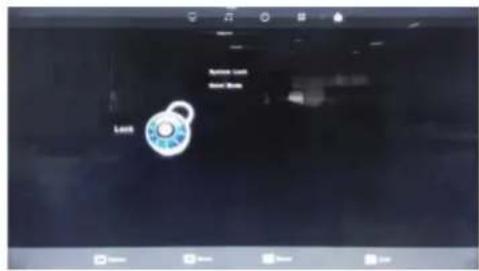
System Lock
- Press the ▲▼ buttons to System Lock then press the OK button to confirm.
- Use the 0-9 buttons to input a 4-digit password to enter the LOCK menu and then press the OK button to turn the Lock System On.

• The default password is "0000".
- If you change the password, be sure to remember the new password! If you forget the new password, press the master password"8899".
Change Password: If you had already changed the password, enter the current password.
Hotel Mode: Enter the Hotel Setting menu.
- Press the Menu button to return back to the main menu.
- Press the Exit button to exit the menu.
Hotel Mode
Press the up/down buttons to select the "Hotel Mode" option and then press OK button to choose between the options ON or OFF.

Power on Source
Press up/down buttons to select the "Default Source" option and then press right button to choose a signal source or OFF. This function lets you set the signal source(SMART//HDMI1/HDMI2/HDMI3/AV/USB) to be used when powering on the unit. It will be used until you select a different signal source or disable this function(OFF).
Max Volume
Press up/down buttons to select the "Max Volume" option and then press left/right button to set the desired volume.
Then the output volume will never exceed the set maximumvalue.
Power on Volume
Press up/down buttons to select the "Power on Volume" option and then press right button to set the default volume.
Clear All
Press up/down buttons to select the "Clear All" option and then press right button to enable it. All hotel settings will remain disabled until you enable the Hotel Lock again.
Time Setting
-
Press the Menu button and then press the ▲▼ buttons to select the Time menu.
-
Press the OK or ▼ buttons and then press the ▲▼ buttons to select the following feature options and then press the OK button.

Sleep Timer
The sleep timer automatically switches the TV to standby after the preset time has elapsed. The clock will be set automatically when receiving a digital signal. Time must be set before using Sleep Timer function.
Press up/down buttons to select a period of time after which the TV automatically switches to standby mode: OFF/5/10/.../180/240 min and then press the OK button to confirm. The timer begins to count down from the number of minutes selected.
-
Press the Menu button and then press the ▲▼ buttons to select the Setup menu.
-
Press the OK or ▼ buttons and then press the ▲▼ buttons to select the following feature options and then press the OK button.

MENU Language
Allows you to select the on screen display menu language.
Restore Default
Home Mode
Allow you to select among: Max Brightness mode Home mode and Max Economy mode.
- Switch off the TV before connecting any USB storage device.
- Connect your USB storage device to the USB port of your TV.
- Plug the connected devices into the mains socket
- Press the STANDBY button on of the TV or the ⏻ button on the remote control to turn on your TV.
- Press the SOURCE button on the TV or the SOURCE button on the remote control to display the Source List. Use the ▲▼ buttons to select Media and then press the OK button to confirm.
Rear View of TV
AUDIO OUT TV HDMI1 HDMI2 L R USB

flowchart
graph TD
    A["USB Hub"] --> B["Portable hard Disk"]
    B --> C["Adapter"]
    C --> D["USB Cable (not included)"]
    D --> E["USB"]
    style A fill:#f9f,stroke:#333
    style B fill:#ccf,stroke:#333
    style C fill:#cfc,stroke:#333
    style D fill:#fcc,stroke:#333
    style E fill:#ffc,stroke:#333

- If a hard disk is used, make sure its mains adapter is connected to the mains supply.
- If a USB hub is used, make sure its mains adapter is connected to the mains supply as the total current consumption may exceed 500mA.
• The maximum supported storage space of the hard disk is 1 TB.
• The file system only supports HiSpeed FS, FAT16, FAT32, NTFS formats (NTFS Compressed files are not supported). - If you want to store the video streaming of a DTV programme, the transfer rate of the USB storage device must not be less than 5MB/s, otherwise the picture and sound of the programme will be affected and a warning statement will be shown on the screen. If this happens, please upgrade your USB storage device.
- The TV screen will be blank temporarily as it will take time to start up and stabilise the connected hard disk. This is normal and the starting time may vary depending on the brand and the memory size of the connected hard disk.
- Disconnect the USB storage device if it is not in use.
- USB output: DC 5V = 500mA
Basic Operation
- Press the SOURCE button on tje remote control to display the input source menu, select the USB source with the up/down buttons and press the OK button to enter the Multimedia menu below.


- Press left/right buttons to select the files on the USB device(PHOTO,MUSIC,MOVIE,TEXT) to view or play.

Press the up/down/left/right buttons to select and the OK button to activate the file or open folder. Press ▶ button to play the files in full screen mode. When in full screen mode press the OK button to show the navigation option menu on the bottom of the screen or press ■ stop button to return to files.
1. Photo
Photo viewing
Press left/right buttons to select the option on the menu, and press the ▶ button to activate.
Play: Play the photo.
Prev./Next: Go to on a picture/Go to the next picture.
Stop: Stop auto turning pages.
Repeat: Select the repeat mode from Repeat All, Repeat1, Repeat None.
Music: Play/Pause the background music of your choice.
Playlist: Display the playlist on the screen and select the photo of your choice.
Info: Display the information of the file.
Rotate: Rotate the photo clockwise/counterclockwise.
Zoom In/Out: Zoom In/Out of your photos.
Move view: Move the photo in Zoom out mode.

2. Music
Listen to music
Press left/right buttons to select the option on the menu, and press the ▶ button to activate.
Play: Play the music.
FB: Retreat quickly.
FF: Fast forward.
Prev./Next: Go to a song/Turn to the next song.
Stop: Stop playing.
Repeat: Select the repeat mode from Repeat All, Repeat1, Repeat None.
Play List: Display the playlist on the screen.
Info.: Display the information of the music file.

3.Movie
Watch a film
Press left/right buttons to select the option on the menu, and press the ▶ button to activate.
Play: Play the movie.
FB: Retreat quickly.
FF: Fast forward.
Prev./Next: Go to a video/Turn to the next video.
Stop: Stop playing.
Repeat: Select the repeat mode from Repeat All, Repeat1, Repeat None.
Aspect Ratio: Select the aspect ratio of the on screen display.
Move View: Moves the enlarged picture area.

4.Text
View text files
Press left/right buttons to select the option on the menu, and press the ▶ button to activate.
Prev/Next page: Turn to previous/next page of the text.
Prev./Next: Turn to previous/next file.
Stop: Stop auto turning pages.
Music: Play/pause the background music of your choice.
Playlist: Display the playlist on the screen.
Info: Display the information of the text file.

Careful and regular cleaning can prolong the life of your TV.

Be sure to Disconnect the mains cable from the mains socket before any cleaning.
- Use a soft dry cloth to wipe away the dust from the screen and surfaces.
- If the surfaces are extremely dirty, clean the TV with a cloth which has been dipped in a weak soapy water. Wring the cloth until it is almost dry, then use it to wipe the TV.
- Ensure there is no excess water on the screen. Allow any water or dampness to evaporate before switching the TV on.

Never use alcohol, benzine, paint-thinner, cleaning fluid or other chemicals. Do not use compressed air to remove dust.

natural_image
Illustration of a hand pointing at a blank screen (no text or symbols)Hints and Tips
The following table contains various hints and tips to get the best performance from your TV. If you require additional assistance please call our UK Call Centre on 0845 6040105.
| The TV does not operate properly. | |
| The TV does not respond when pressing any buttons | · The TV may freeze up during use. Disconnect the mains cable from the mains socket for a few minutes. Reconnect the mains cable and try to operate it again as usual. |
| TV cannot be switched on | · Check that the TV is connected to the mains supply· Make sure all connected AV devices are switched off before switching on your TV. |
| The remote control does not work | · Check to see if there are any objects between the TV and the remote control causing an obstruction. Ensure that you are pointing the remote control directly at the TV.· Ensure that the batteries are installed with the correct polarity (+ to +, - to -).· Install new batteries. |
| Power is suddenly turned off | · Check the power of the TV. The mains supply maybe interrupted.· Check if the sleep timer is set.· Check whether the Auto Standby is activated. |
| The video function does not work. | |
| No Picture & No Sound | · Check whether the TV is switched on.· Try another channel. The problem may be caused by the broadcaster. |
| Picture appears slowly after switching on | · This is normal, the image is muted during the TV startup process. Please contact your service centre, if the picture has not appeared after five minutes. |
| No or poor colour or poor picture | · Adjust the settings in the PICTURE menu.· Try another channel. The problem may be caused by the broadcaster.· Check if the video cables are connected properly. |
| Horizontal / Vertical bar or picture shaking | · Check for local interference such as an electrical appliance or power tool. |
| Poor reception on some channels | · Station or cable channel may be experiencing problems, tune to another station.· Station signal is weak, reposition the aerial for better reception.· Check for sources of possible interference. |
| Lines or streaks in pictures | · Check aerial (Change the position of the aerial.) |
| No pictures when connecting HDMI | · Check if the input source is HDMI. |
| Picture appears in wrong ratio | · Adjust the Aspect Ratio settings in the PICTURE menu. |
| The audio function does not work. | |
| Picture OK but no sound | Press the VOL + / - buttons.Sound muted? Press the Mute button.Try another channel. The problem may be caused by the broadcaster. |
| No output from one of the speakers | Adjust the Balance settings in the SOUND menu. |
| Unusual sound from Inside the TV | A change in ambient humidity or temperature may result in an unusual noise when the TV is switched on or off and does not indicate a fault with the TV. |
| No sound when connecting HDMI | Check if the input source is HDMI. |
| Audio noise | Keep the RF coaxial cable away from the other connected cables. |
| Password | |
| Lost Password | Select the Change Pin Code setting in the FEATURE menu, then enter the following master password "8899". The master password clears your previous password and allows you to enter a new password. |
| There is a problem in PC mode. | |
| The signal is out of range (Invalid format) | Adjust the resolution, horizontal frequency, or vertical frequency. |
| Vertical bar or stripe on background & Horizontal Noise & Incorrect position | Use Auto configure or adjust clock, phase, or H/V position. |
| Screen colour is unstable or single colour | Check the signal cable.Reinstall the PC video card. |
| FAQs (Frequently Asked Questions) | |
| Why have I lost some / all of my channels? | It happens sometimes, if you have a weak signal. Usually it just means you'll need to rescan your digital box or TV. Don't worry, it easy to do. And once you've done it, you should get all the Freeview channels available to you. If problems persist you may need to get your aerial checked. Talk to your retailer or contact your local aerial installer. |
| Why do I get 'blocking' on my digital picture? | In most cases, blocking is caused by a reception problem – either the signal is too weak or there is some kind of interference. Talk to your retailer or contact your local aerial installer.Blocking can also be caused by a digital signal that is too strong. If you are still experiencing blocking and the signal is strong, consult your local aerial installer for advice. |
| Can I watch Freeview using a portable set-top aerial? | Some, but only a few, homes may be able to use a set top aerial. However, for a much better reception, we strongly recommend that you use a rooftop aerial.If you do not have access to a rooftop aerial – for example, if you rent a flat and the aerial is the responsibility of your landlord, or if you're using a second TV in the bedroom and don't want the hassle and expense of using extension cables, a set – top aerial may be your only option. |
| What type of aerial do I need? | If you are installing a new aerial, we recommend a wideband rooftop aerial rather than a loft aerial. Loft aerials generally receive a weaker digital signal and are more likely to get interference from other electrical devices in the home. We suggest you have an aerial survey done before getting an aerial upgrade.Talk to your retailer or contact your local aerial installer. |
The screen resolution has been optimised during production for the display modes listed below.
HDMI Mode
| Resolution | Vertical Frequency (Hz) | Aspect Ratio |
| 480i: 720 x 480 | 60 | 4:3 / 16:9 / Zoom1 / Zoom2 / Just Scan |
| 480P: 720 x 480 | ||
| 576i: 720 x 576 | 50 | |
| 576P: 720 x 576 | ||
| 720P: 1280 x 720 | 50 | |
| 60 | ||
| 1080i: 1920 x 1080 | 50 | |
| 60 | ||
| 1080P: 1920 x 1080 | 50 | |
| 60 |
| Panel System | 85 inch LED Panel |
| Display Resolution | 3840 pixels (horizontal) x 2160 pixels (vertical) |
| Television System | PAL I / BG / DK / SECAM BG / DK |
| Brightness | 300 cd/m² |
| Contrast Ratio | 4000 : 1 |
| Power Source | AC100~240V |
| Energy Efficiency Class | A |
| Operating Power Consumption | 250W |
| Average Annual Energy Consumption | 365 kWh |
| Standby Power Consumption | < 0.5 W |
| Operating Temperature | 0°C– 40°C |
| Vesa Wall mounting size / Screw size | 800 x 400mm / M8 x 20 |
| Speaker Power | 10W+10W |
| Dimension (W x D x H)without base | 1936x93x1116mm |
| Dimension (W x D x H) with base | 1936x328x1180mm |
| Weight (Net) | 56 kg |
Features and specifications are subject to change without prior notice.
This TV has been tested against the European standards for Energy efficiency using the standard signals and conditions specified in the standard. The result is shown on the energy efficiency label. This is the energy that you would expect the TV to consume under normal working conditions when measured over a period of time. At some times the TV will use more power than this and at some times less. The factors that cause this fluctuation are the actual signals being received, and the Volume setting. Generally speaking the mains voltage, brightness / contrast settings and other settings have a very small effect on energy usage and can to all intense and purposes be ignored. The difference between the power consumed when receiving a high bit rate channel with the volume at max and a low bit rate channel with volume at zero is usually less than 3 watts.
- Read all the instructions carefully before using the unit and keep them for future reference.
- Retain the manual. If you pass the unit onto a third party make sure to include this manual.
- Check that the voltage marked on the rating label matches your mains voltage.
Damage
- Please inspect the unit for damage after unpacking.
- Do not continue to operate the unit if you are in any doubt about it working normally, or if it is damaged in any way - switch off, withdraw the mains plug and consult your dealer.
Location of Unit
- The unit must be placed on a flat stable surface and should not be subjected to vibrations.
- Do not place the unit on sloped or unstable surfaces as the unit may fall off or tip over.
- The mains socket must be located near the unit and should be easily accessible.
• This unit is designed for indoor use only.
Temperature
- Avoid extreme degrees of temperature, either hot or cold. Place the unit well away from heat sources such as radiators or gas / electric fires.
- Avoid exposure to direct sunlight and other sources of heat.
Naked Flames
- Never place any type of candle or naked flame on the top of or near the unit.
Moisture
• To reduce the risk of fire, electric shock or product damage, do not expose this unit to rain, moisture, dripping or splashing. No objects filled with liquids, such as vases, should be placed on the unit.
- If you spill any liquid into the unit, it can cause serious damage. Switch it off at the mains immediately. Withdraw the mains plug and consult your dealer.
Ventilation
• To prevent the risk of electric shock or fire hazard due to overheating, ensure that curtains and other materials do not obstruct the ventilation vents.
- Do not install or place this unit in a bookcase, built-in cabinet or in another confined space. Ensure the unit is well ventilated.
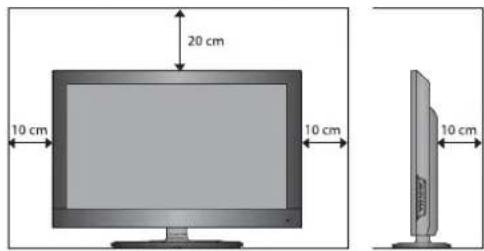
• Make sure that there is a gap of at least 10 cm on both sides and a gap of 20 cm at the top.
Safety
• Always disconnect the unit from the mains supply before connecting / disconnecting other devices or moving the unit.
- Unplug the unit from the mains socket during a lightning storm.
Mains Cable
• Make sure the unit or unit stand is not resting on top of the mains cable, as the weight of the unit may damage the mains cable and create a safety hazard.
- If the mains cable is damaged it must be replaced by the manufacturer, its service agent, or similarly qualified persons in order to avoid a hazard.
Interference
- Do not place the unit on or near appliances which may cause electromagnetic interference. If you do, it may adversely affect the operating performance of the unit, and cause a distorted picture or sound.
Optimum viewing
- View the unit in moderate light to prevent eye strain. It is recommended to watch the unit from a distance 3-7 times that of the screen height.
LED screen
- The LED screen is manufactured using high-precision technology. However, some tiny black points and / or bright points (red, blue or green in colour) may constantly appear on the LED screen. These points are generated in the manufacturing process and are normal.
Screen Burn
- A characteristic of Plasma and LED TV Panels is that displaying the same image for a long time may cause a permanent after-image to remain on the screen. This is called screen burn. Most pictures shown on the unit will be constantly moving and fill the screen. - Examples of images that you need to watch out for are as follows (this is not an all-inclusive list):
-
Black Bars: If black bars appear at the left / right or top / bottom of the screen, it is recommended to change the format so that the picture fills the entire screen.
-
TV Channel Logos: e.g. Shopping channel logos and pricing displays - especially if they are bright and stationary. Moving or low-contrast graphics are less likely to cause ageing of the screen.
3. Time Displays
- Teletext: Do not view a stationary page for long periods of time.
5. TV Menus
- Pause Mode: Do not leave the screen in pause mode for long periods of time, e.g. when watching videos.
- To prevent screen burn if viewing any of the above for long periods of time, reduce contrast and brightness when viewing. Once burn-in occurs it will never disappear completely.
Headphones
- Listening to loud sounds for prolonged periods of time may permanently damage your hearing.
- Before putting on headphones, turn the volume down then put the headphones on and slowly increase the volume until you reach a comfortable listening level.
Standby
- The ⏻ button on the remote control does not switch off the unit completely. The unit will continue to draw electricity from the mains supply while in standby. In the interests of safety and to avoid unnecessary energy consumption, never leave the unit in standby while unattended for long periods of time, e.g. overnight, while on holiday or while out of the house. Switch it off and disconnect the mains plug from the mains socket.
Batteries
- Batteries used in the remote control for this unit are easily swallowed by young children and this is dangerous.
- Keep loose batteries away from young children and make sure that the battery holder tray is secure in the remote control. Seek medical advice if you believe a cell has been swallowed.
- Please dispose of batteries correctly by following the guidance in this manual.
Supervision
• Children should be supervised to ensure that they do not play with the unit and the remote control.
- Never let anyone especially children push anything into the holes, slots or any other openings in the case - this could result in a fatal electric shock.


The lightning flash with arrowhead symbol, within an equilateral triangle, is intended to alert the user to the presence of uninsulated "dangerous voltage" within the unit's enclosure that may be of sufficient magnitude to constitute a risk of electric shock.

The exclamation point within an equilateral triangle is intended to alert the user to the presence of important operating and maintenance (servicing) instructions in the manual accompanying the unit.
Service
• To reduce the risk of electric shock, do not remove screws. The unit does not contain any user-serviceable parts. Please leave all maintenance work to qualified personnel.
- Do not open any fixed covers as this may expose dangerous voltages.
Maintenance
- Ensure to unplug the unit from the mains socket before cleaning.
- Do not use any type of abrasive pad or abrasive cleaning solutions as these may damage the unit's surface.
• Do not use liquids to clean the unit.
Important Note
This TV is fitted with the latest ECO friendly power saving technology. If whilst viewing the TV remote control is not used for a period of 4 hours, the Auto Standby feature will operate and power down the TV. A warning message will be displayed to inform you that the TV is about to power down.

Packaging materials are not toys. Please keep away from children. Plastic bags can cause suffocation when pulled over the head.
Waste Electrical Recycling
Correct disposal of Product
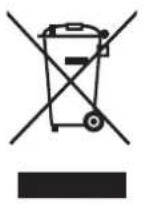
This sign indicates that this product may not be disposed of with your regular household waste. The recycling and separate collection of such products is your responsibility. Please drop off the above mentioned waste at a designated place for recycling waste electrical and electronic equipment. If you do not know where to drop off your waste equipment for recycling, please contact your local city office or household waste collection service.

The crossed out wheeled dust bin symbol indicates that batteries and/or accumulators must be collected and disposed of separately from household waste.
If the battery or accumulator contains more than the specified values of lead (Pb), mercury (Hg), and/or cadmium (Cd) defined in the Battery Directive (2006/66/EC), then the chemicals symbols for lead(Pb), mercury (Hg) and/or cadmium (Cd) will appear below the crossed out wheeled dust bin symbol.

By participating in separate collection of batteries, you will help to assure the proper disposal of products and batteries thus help to prevent potential negative consequences for the environment and human health.
For more detailed information about the collection and recycling programmes available in your country, please contact your local city office or the shop where you purchased this product.

This appliance complies with European Safety and Electrical directives.
It fulfils the following EU regulations:
EN 55022:2006+A1:2007
EN 55013:2001+A1:2003+A2:2006
EN 61000-3-2:2006+A1:2009+A2:2009
EN 61000-3-3:2008
EN 55024:1998+A1:2001+A2:2003
EN 55020:2007
- User Guide
- Thank you for purchasing your new 85" UHD LED TV.
- Unpacking the TV / Accessory's
- The parts
- Installation
- ■ Functions of remote control buttons
- Handling the Batteries
- Handling the Remote Control
- Remote Control Operation Range
- Making Video and Audio Connections
- Connecting an AV Device with an HDMI Cable
- Connecting a Digital Audio Receiver
- Selecting the Input Source
- Channel Selection
- Alternative
- Display Channel Information
- Volume Adjustment
- Audio Setting
- System Lock
- Hotel Mode
- Power on Source
- Max Volume
- Power on Volume
- Clear All
- Time Setting
- Sleep Timer
- MENU Language
- Basic Operation
- Photo
- Photo viewing
- Music
- Listen to music
- 3.Movie
- Watch a film
- 4.Text
- View text files
- Hints and Tips
- Damage
- Location of Unit
- Temperature
- Naked Flames
- Moisture
- Ventilation
- Safety
- Mains Cable
- Interference
- Optimum viewing
- LED screen
- Screen Burn
- Time Displays
- TV Menus
- Headphones
- Standby
- Batteries
- Supervision
- Service
- Maintenance
- Important Note
- Waste Electrical Recycling
Brand : Cello
Model : C85ANSMT-4K
Category : Television