
SV211KDVIGB - KVM switch StarTech.com - Free user manual and instructions
Find the device manual for free SV211KDVIGB StarTech.com in PDF.


| Product Type | 2-Port USB/DVI KVM Switch with Cables |
| Brand | StarTech.com |
| Model | SV211KDVIGB |
| Number of Computer Ports | 2 |
| Console Connectors | 1 x DVI-I female, 4 x USB Type-A female, 1 x 3.5mm microphone jack, 1 x 3.5mm speaker jack |
| Computer Connectors (per port) | 1 x DVI-I female, 1 x USB Type-B female |
| Maximum Digital Video Resolution | 1920 x 1200 |
| Maximum Analog Video Resolution | 2048 x 1536 |
| Audio Support | Yes, with independent microphone and speaker switching |
| USB Hub | Integrated USB 2.0 hub with 2 shared ports |
| Control Methods | Front panel pushbuttons, keyboard hotkeys |
| Hotkey Sequences | Scroll Lock + Scroll Lock + key (1,2,Q,W,F5,F6,up,down,B,H,S, etc.) |
| Power Adapter | 5VDC, 2000mA, type N plug |
| Enclosure Material | Plastic |
| Operating Temperature | 0°C to 40°C (32°F to 104°F) |
| Storage Temperature | -20°C to 60°C (-4°F to 140°F) |
| Humidity | 0% to 90% RH |
| Dimensions (L x W x H) | 154.0mm x 65.5mm x 27.0mm (6.06 x 2.58 x 1.06 in) |
| Included Cables | 2 x 4ft DVI/Audio/MIC combo cables, 2 x 4ft USB cables |
| Included Accessories | Power adapter, instruction manual |
| Warranty | 2 years |
| Cascadable | No |
| Compatible Operating Systems | Windows, Mac, Linux |
Frequently Asked Questions - SV211KDVIGB StarTech.com
User questions about SV211KDVIGB StarTech.com
0 question about this device. Answer the ones you know or ask your own.
Ask a new question about this device
Download the instructions for your KVM switch in PDF format for free! Find your manual SV211KDVIGB - StarTech.com and take your electronic device back in hand. On this page are published all the documents necessary for the use of your device. SV211KDVIGB by StarTech.com.
USER MANUAL SV211KDVIGB StarTech.com
2-Port Compact USB/DVI KVM with Cables
SV211KDVI / SV211KDVIGB / SV211KDVIEU
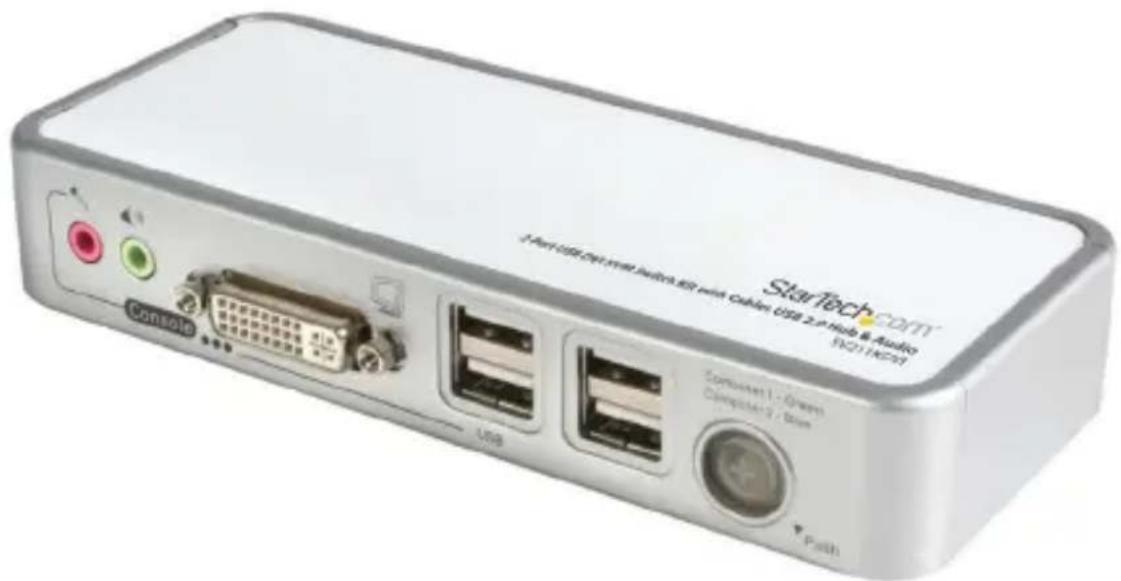
*actual product may vary from photo
For the most up-to-date information, please visit: www.startech.com
FCC Compliance Statement
This equipment has been tested and found to comply with the limits for a Class B digital device, pursuant to part 15 of the FCC Rules. These limits are designed to provide reasonable protection against harmful interference in a residential installation. This equipment generates, uses and can radiate radio frequency energy and, if not installed and used in accordance with the instructions, may cause harmful interference to radio communications. However, there is no guarantee that interference will not occur in a particular installation. If this equipment does cause harmful interference to radio or television reception, which can be determined by turning the equipment off and on, the user is encouraged to try to correct the interference by one or more of the following measures:
• Reorient or relocate the receiving antenna.
- Increase the separation between the equipment and receiver.
- Connect the equipment into an outlet on a circuit different from that to which the receiver is connected.
- Consult the dealer or an experienced radio/TV technician for help.
Use of Trademarks, Registered Trademarks, and other Protected Names and Symbols
This manual may make reference to trademarks, registered trademarks, and other protected names and/or symbols of third-party companies not related in any way to StarTech.com. Where they occur these references are for illustrative purposes only and do not represent an endorsement of a product or service by StarTech.com, or an endorsement of the product(s) to which this manual applies by the third-party company in question. Regardless of any direct acknowledgement elsewhere in the body of this document, StarTech.com hereby acknowledges that all trademarks, registered trademarks, service marks, and other protected names and/or symbols contained in this manual and related documents are the property of their respective holders.
Table of Contents
Introduction ....1
Packaging Contents ....1
System Requirements....1
Front View 2
Rear View....2
Installation ....3
Operation 3
Front Panel Pushbuttons....3
Keyboard Hotkeys4
Specifications ....5
Technical Support 6
Warranty Information 6
Introduction
The SV211KDVI 2 Port USB DVI KVM Switch Kit with Cables USB 2.0 Hub & Audio provides control of two DVI enabled, USB controlled computers, as well as independent audio/microphone switching for uninterrupted audio when switching between PCs.
This USB+DVI KVM Switch features support for high-resolution digital (1920x1200) and analog (2048x1536) video, plus an integrated USB 2.0 hub that allows you to share 2 high-speed USB devices between computers.
Compatible with Mac, Linux and Windows® based computers, this compact DVI KVM is a great space-saving solution for a broad range of environments including SOHO (Small or Home Offices), gaming, multimedia production and more.
Packaging Contents
• 1 x USB DVI KVM switch
• 2 x 4 ft DVI, Audio and MIC combo cables
• 2 x 4 ft USB cables
• 1 x Power Adapter
• 1 x Instruction Manual
System Requirements
• Two PC or Mac-based computers with DVI Video out and USB control capability
• USB capable operating system installed on each computer
• A standard 104-key wired USB keyboard
• A standard 3-button wired USB mouse
• DVI monitor
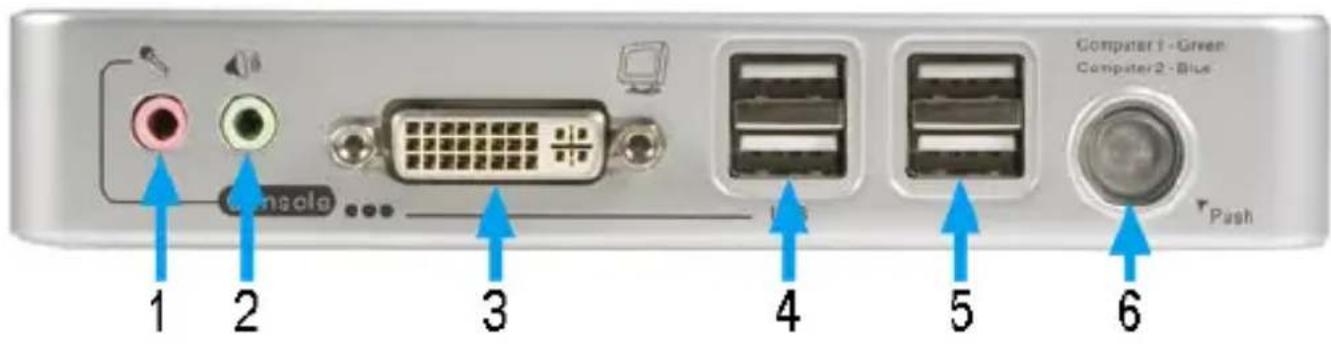
Front View
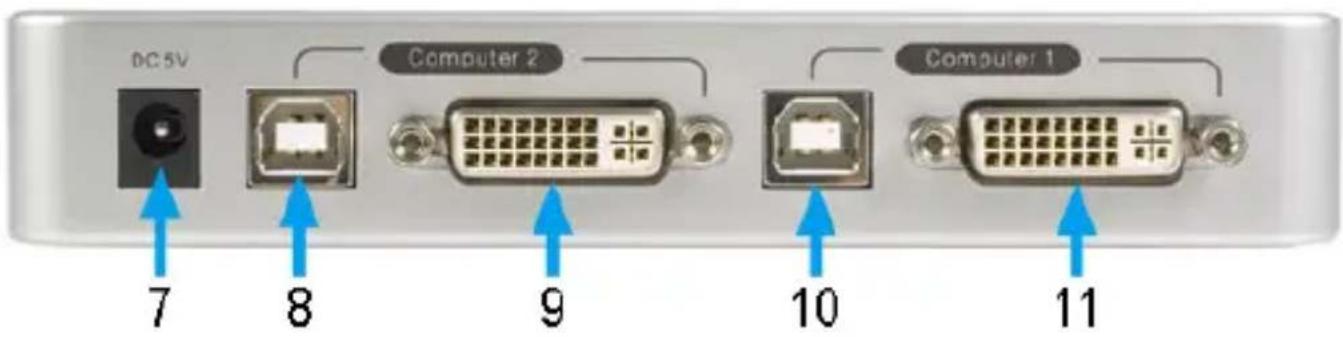
Rear View
1 Microphone IN port
2 Speaker IN port
3 Console DVI out port
4 Shared Console USB ports
5 USB Hub ports
6 Power Button
7 5VDC Power IN
8 USB OUT to Computer 2
9 DVI IN from Computer 2
10 USB OUT to Computer 1
11 DVI IN from Computer 1
Installation
- Connect the USB keyboard and mouse into the Console USB ports on the front of the KVM switch.
- Connect a DVI monitor into the front of the KVM switch.
- OPTIONAL: Connect speakers and a microphone into the audio connectors on the front of the KVM switch.
- OPTIONAL: Connect any extra USB devices you wish to share, to the USB Hub ports on the front of the KVM switch.
- Connect the included power adapter from an electrical outlet to the KVM switch.
- Using the included cables, connect the host computer systems into the Computer 1 and Computer 2 connectors on the rear of the KVM switch.
- Power on Computer 1 first, to ensure functionality of the keyboard/mouse/monitor.
- Switch to Computer 2 and then power on the computer. You should now be able to switch freely between computers.
Operation
There are two methods to control your KVM Switch for PC and Audio/Mic channel selection: front panel pushbuttons or keyboard hotkey sequence.
Front Panel Pushbuttons
The front panel pushbuttons provide direct control over KVM switching operation. Simply press the button to switch to the corresponding PC port (as well as the audio/mic channel ports and USB Hub if binding is enabled). By default, PC port switching, audio/mic port switching, and USB Hub port switching are all bound together, unless you bind the audio to a specific port.
Please note: You can use the front panel pushbuttons to switch to an empty port (not connected to a host computer), however the keyboard hotkey sequence cannot perform this same action.
Keyboard Hotkeys
Please note:
• Each sequential keystroke within a hotkey sequence should be pressed within two seconds. Otherwise, the hotkey sequence will not be validated.
- Hotkeys are only functional while the computer operating system is running. If you wish to switch computer control during the boot phase, please use the front panel pushbuttons as necessary.
Hotkey Sequence Description
| [Scrl Lk] + [Scrl Lk] + [1] or [2] | Switch to PC port 1 or 2.Switches only keyboard/mouse/video if binding is disabled. |
| [Scrl Lk] + [Scrl Lk] + [Q] | Bind keyboard/mouse/video (PC control) and audio/MIC together (default).PC control and audio/MIC are switched together. |
| [Scrl Lk] + [Scrl Lk] + [W] | Unbind keyboard/mouse/video (PC control) and Audio/MIC switching.PC control and audio/MIC can be independently switched. |
| [Scrl Lk] + [Scrl Lk] + [F5] or [F6] | Switch to PC port 1 or 2.Switch only audio/MIC to port 1 or 2 if binding is disabled. |
| [Scrl Lk] + [Scrl Lk] + [up] or [down] | Switch to the next PC port |
| [Scrl Lk] + [Scrl Lk] + [B] Toggle buzzer sounds On/Off. | |
| [Scrl Lk] + [Scrl Lk] + [H] + ? | Change leading hotkey sequence to ? = [Scrl Lk], [Caps Lk], [ESC], [F12], or [Num Lk] |
| [Scrl Lk] + [Scrl Lk] + [S] | Autoscan. Automatically switch between ports at a set interval. Pressing any key will stop Autoscan. |
| [Scrl Lk] + [Scrl Lk] + [S] + [0 ~ 9] | Set the Autoscan interval between 10 ~ 100 seconds.[0]=10, [1]=20, [2]=30, [3]=40, [4]=50, [5]=60, [6]=70, [7]=80,[8]=90, [9]=100 |
Specifications
| Number of Ports | 2 |
| Console Connectors | 1 x DVI-I female4 x USB type A female1 x 3.5mm mic jack female1 x 3.5mm speaker jack female |
| Computer Connectors(per port) | 1 x DVI-I female1 x USB type B female |
| LEDs | 1 x Power/Computer Selection |
| Maximum Video Resolution | 1920x1200 (digital)2048x1536 (analog) |
| Audio Support | Yes |
| Cascadable | No |
| Power Adapter | 5VDC, 2000mA, type N plug |
| Enclosure Material | Plastic |
| Operating Temperature | 0°C ~ 40°C (32°F ~ 104°F) |
| Storage Temperature | -20°C ~ 60°C (-4°F ~ 140°F) |
| Humidity | 0% ~ 90% RH |
| Dimensions | 154.0mm x 65.5mm x 27.0mm |
Technical Support
StarTech.com's lifetime technical support is an integral part of our commitment to provide industry-leading solutions. If you ever need help with your product, visit www.startech.com/support and access our comprehensive selection of online tools, documentation, and downloads.
Warranty Information
This product is backed by a two year warranty.
In addition, StarTech.com warrants its products against defects in materials and workmanship for the periods noted, following the initial date of purchase. During this period, the products may be returned for repair, or replacement with equivalent products at our discretion. The warranty covers parts and labor costs only. StarTech.com does not warrant its products from defects or damages arising from misuse, abuse, alteration, or normal wear and tear.
Limitation of Liability
In no event shall the liability of StarTech.com Ltd. and StarTech.com USA LLP (or their officers, directors, employees or agents) for any damages (whether direct or indirect, special, punitive, incidental, consequential, or otherwise), loss of profits, loss of business, or any pecuniary loss, arising out of or related to the use of the product exceed the actual price paid for the product. Some states do not allow the exclusion or limitation of incidental or consequential damages. If such laws apply, the limitations or exclusions contained in this statement may not apply to you.
Hard-to-find made easy. At StarTech.com, that isn't a slogan. It's a promise.
StarTech.com is your one-stop source for every connectivity part you need. From the latest technology to legacy products — and all the parts that bridge the old and new — we can help you find the parts that connect your solutions.
We make it easy to locate the parts, and we quickly deliver them wherever they need to go. Just talk to one of our tech advisors or visit our website. You'll be connected to the products you need in no time.
Visit www.startech.com for complete information on all StarTech.com products and to access exclusive resources and time-saving tools.
StarTech.com is an ISO 9001 Registered manufacturer of connectivity and technology parts. StarTech.com was founded in 1985 and has operations in the United States, Canada, the United Kingdom and Taiwan servicing a worldwide market.


- 2-Port Compact USB/DVI KVM with Cables
- FCC Compliance Statement
- Use of Trademarks, Registered Trademarks, and other Protected Names and Symbols
- Table of Contents
- Introduction ....1
- Installation ....3
- Operation 3
- Specifications ....5
- Technical Support 6
- Warranty Information 6
- Introduction
- Packaging Contents
- System Requirements
- Installation
- Operation
- Front Panel Pushbuttons
- Keyboard Hotkeys
- Please note:
- Technical Support
- Warranty Information
- Limitation of Liability
Brand : StarTech.com
Model : SV211KDVIGB
Category : KVM switch