
SV431USBAN - KVM switch StarTech.com - Free user manual and instructions
Find the device manual for free SV431USBAN StarTech.com in PDF.


| Product Type | KVM Switch with USB 2.0 Hub and Ethernet Switch |
| Model | SV431USBAN |
| Number of Computer Connections | 4 |
| Video Resolution (Max) | 2048 x 1536; DDC2B compatible |
| USB Hub Ports (Front Panel) | 2 x USB Type A (USB 2.0) |
| Ethernet Switch Ports | 5 x RJ45 (10/100 Mbps) |
| Audio Support | Speaker and microphone switching per port |
| KVM Port Selection | Front panel push buttons, hotkey (Scroll Lock + Scroll Lock or Ctrl + Ctrl) |
| Console Connectors | 1 x USB Type A (keyboard), 1 x USB Type A (mouse), 1 x HDB-15 female (VGA), 1 x speaker jack, 1 x microphone jack |
| Computer Connectors (per port) | 1 x SPHD-15 female (KVM data), 1 x speaker jack, 1 x microphone jack |
| Firmware Upgrade Port | 1 x RJ11 socket |
| LED Indicators | 4 Orange (KVM focus/online), 4 Green (USB connection), 5 Green (Ethernet link), 5 Green (10/100 Mbps speed) |
| Keyboard/Mouse Emulation | USB (PC, Mac, Sun) |
| Scan Interval | 1 - 99 seconds (default 5 seconds) |
| Power Consumption | DC 5.3V, 5W (1000mA) |
| Power Adapter | DC 5.3V, 2.4A (included) |
| Dimensions (L x W x H) | 27.0 x 8.8 x 5.55 cm |
| Weight | 0.92 kg |
| Housing Material | Metal |
| Operating Temperature | 0 - 50°C |
| Storage Temperature | -20 - 60°C |
| Humidity | 0 - 80% RH |
| OS Support | Windows 98 or higher, Mac OS 8.6 or higher, Sun Solaris 8, Linux RedHat 7.1 or higher, FreeBSD 3.51+ |
| Warranty | 2 years |
Frequently Asked Questions - SV431USBAN StarTech.com
User questions about SV431USBAN StarTech.com
0 question about this device. Answer the ones you know or ask your own.
Ask a new question about this device
Download the instructions for your KVM switch in PDF format for free! Find your manual SV431USBAN - StarTech.com and take your electronic device back in hand. On this page are published all the documents necessary for the use of your device. SV431USBAN by StarTech.com.
USER MANUAL SV431USBAN StarTech.com
2 Port USB/ VGA KVM Switch with Ethernet Switch and Audio & USB Hub
SV231USBAN
SV431USBAN

*SV231USBAN shown
For the most up-to-date information, please visit: www.startech.com
FCC Compliance Statement
This equipment has been tested and found to comply with the limits for a Class B digital device, pursuant to part 15 of the FCC Rules. These limits are designed to provide reasonable protection against harmful interference in a residential installation. This equipment generates, uses and can radiate radio frequency energy and, if not installed and used in accordance with the instructions, may cause harmful interference to radio communications. However, there is no guarantee that interference will not occur in a particular installation. If this equipment does cause harmful interference to radio or television reception, which can be determined by turning the equipment off and on, the user is encouraged to try to correct the interference by one or more of the following measures:
• Reorient or relocate the receiving antenna.
- Increase the separation between the equipment and receiver.
- Connect the equipment into an outlet on a circuit different from that to which the receiver is connected.
- Consult the dealer or an experienced radio/TV technician for help.
Use of Trademarks, Registered Trademarks, and other Protected Names and Symbols
This manual may make reference to trademarks, registered trademarks, and other protected names and/or symbols of third-party companies not related in any way to StarTech.com. Where they occur these references are for illustrative purposes only and do not represent an endorsement of a product or service by StarTech.com, or an endorsement of the product(s) to which this manual applies by the third-party company in question. Regardless of any direct acknowledgement elsewhere in the body of this document, StarTech.com hereby acknowledges that all trademarks, registered trademarks, service marks, and other protected names and/or symbols contained in this manual and related documents are the property of their respective holders.
Table of Contents
Introduction ....1
Features .... 1
Packaging Contents .... 1
Hardware Requirements....2
Hardware Guide....3
Hardware Guide....3
SV231USBAN/SV431USBAN 3
Hardware Guide - Continued....4
Installation 6
Cable Connection ....7
Port Numbering....8
Operation 9
Cycling Through the Ports 9
Cycling Through the Ports Cont'd 10
Going Directly to a Port 10
Hotkey Setting Mode (HSM) 12
Invoking Hotkey Setting Mode....12
Alternate HSM Invocation Keys....13
Alternate Port Switching Keys 13
Keyboard Operating Platform 13
List Hotkey Settings....14
USB Reset 14
Hotkey Beeper Control....15
Disable Port Switching Keys....15
Restore Default Settings.... 15
Invoke Firmware Upgrade Mode....15
HSM Summary Table....16
Keyboard Emulation 17
Sun Keyboard 18
The Firmware Upgrade Utility 19
Specifications 23
Technical Support 25
Warranty Information 25
Introduction
This 2 Port USB KVM Switch is a multi-function switch that integrates a USB 2.0 hub, Ethernet Switch, and audio switching capability into a unique USB KVM multimedia switching solution.
For simple integration into multimedia applications, the switch supports high resolution VGA video interfaces and allows you to toggle between audio sources. The KVM switch also provides a built-in 3 port 10/100 Mbps Ethernet Switch that allows you to easily network and share Internet connectivity among connected computers while reducing the number of outlets and cables needed in the area - helping to preserve valuable work space.
Plus, the KVM switch also features a built-in USB 2.0 Hub that allows peripheral sharing (i.e. printers, scanners, portable hard drives, etc.) with support for hi-speed USB 2.0 data transfer rates of up to 480 Mbps.
This USB KVM Switch is cased in a sturdy metal chassis, and offers a compact form factor that helps preserve valuable desk space.
Features
- Bi-directional switching and flexible interoperability; switch permits independent PC, independent peripheral, and independent audio function, regardless of KVM switch focus
• Built-in 3 or 5 port 10/100 Mbps Ethernet switch allows you to easily network and share Internet with your computers
• Built-in USB 2.0 Hub allows peripheral sharing for printers, scanners, portable hard drives, etc., with data transfer rates of up to 480 Mbps
• Hot pluggable - add or remove computers without powering down the switch
Packaging Contents
• 1 x 2-Port KVM Switch
• 2 x USB KVM Cables (SV231USBAN only)
• 4 x USB KVM Cables (SV431USBAN only)
• 1 x Firmware Upgrade Cable
• 1 x Power Adapter
• 1 x Instruction Manual
Hardware Requirements
Console:
- A VGA, SVGA, or Multisync monitor capable of the highest resolution that you will be using on any computer in the installation
• A standard 101/104 key USB style keyboard
• A standard 3-button USB style mouse
Computers:
The following equipment must be installed on each computer that is to be connected to the KVM Switch:
• A DE-15 / VGA D-Sub video port
• A Type A USB port for the keyboard/mouse combo USB cable
• A Type A USB port for the USB hub cable
Cables:
Please note that only Custom KVM cable sets specifically designed to work with this switch may be used. Two (SV231USBAN), or four (SV431USBAN) 1.8m cable sets are provided with this package.
Hardware Guide
SV231USBAN
Front Panel
Hardware Guide
SV431USBAN
Front Panel

SV231USBAN/SV431USBAN
Rear Panel
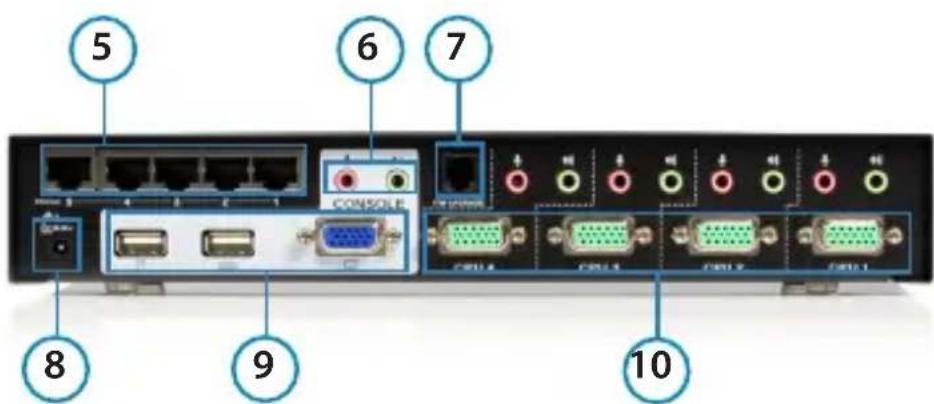
Please note that the SV431USBAN rear panel is identical to that of SV231USBAN, with the exception of the number of the audio and slave connection ports.
For an explanation of the functions corresponding to the numbered components listed above, please see the charts on the following pages.
Hardware Guide - Continued
| Component Description | ||
| 1 | Port Selection Switches | Pressing a switch brings the focus to the computer attached to its corresponding port. |
| 2 | Upper: KVM | DIM Orange: indicates the computer attached to its corresponding port is up and running (Online).Bright Orange: Indicates the computer attached to the corresponding port is the one that has the KVM focus (Selected)Flashes to indicate that the computer attached to the corresponding port is being accessed under Auto Scan mode |
| Lower: USB | Dim Green: Indicates there is a USB cable connection to the computer attached to the corresponding port. Does not light if there is no USB connection to the computer.Bright Green: to indicate the computer attached to the corresponding port has access to the USB peripherals. | |
| 3 | Indicate data transmission status of corresponding ports on the Ethernet hub: | |
| LAN Link | Off: No data connection to the computer attached to its corresponding port.On: Data connection to the computer attached to the corresponding port is detected.Flashing: Data is being transmitted through the port. | |
| 10/100 Mbps | Off: Data transmission speed is 10 MbpsOn: Data transmission speed is 100 Mbps | |
| 4 USB Hub Section USB peripherals can plug into either port | ||
| 5 Ethernet Port Section | The CAT5 LAN cable that connects to the computer's Ethernet port can plug into any available port | |
| 6 Console Audio Jacks | The cables from your microphone and speakers plug in here. Each jack is color coded and marked with an appropriate icon to indicate itself. | |
| 7 | Firmware Upgrade Port | The Firmware Upgrade Cable that transfers the firmware upgrade data to the KVM plugs in here. |
| 8 Power Jack The power adapter cable plugs into this jack | ||
| 9 Console Port Section | Your USB keyboard, USB mouse, and monitor plug in here. | |
| 10 CPU Port Section | The cables that link the switch to your computers plug in here. Each CPU port is comprised of a microphone jack, speaker jack, and KVM data connector | |
Please note: The shape of these 15-pin connectors has been specifically modified so that only KVM cables designed to work with this switch can be connected. Do NOT attempt to use ordinary 15-pin VGA connector cables to link these ports to the computer.
Installation
Warning! Make sure that power to all of the devices you will be connecting to the KVM switch have been turned off.
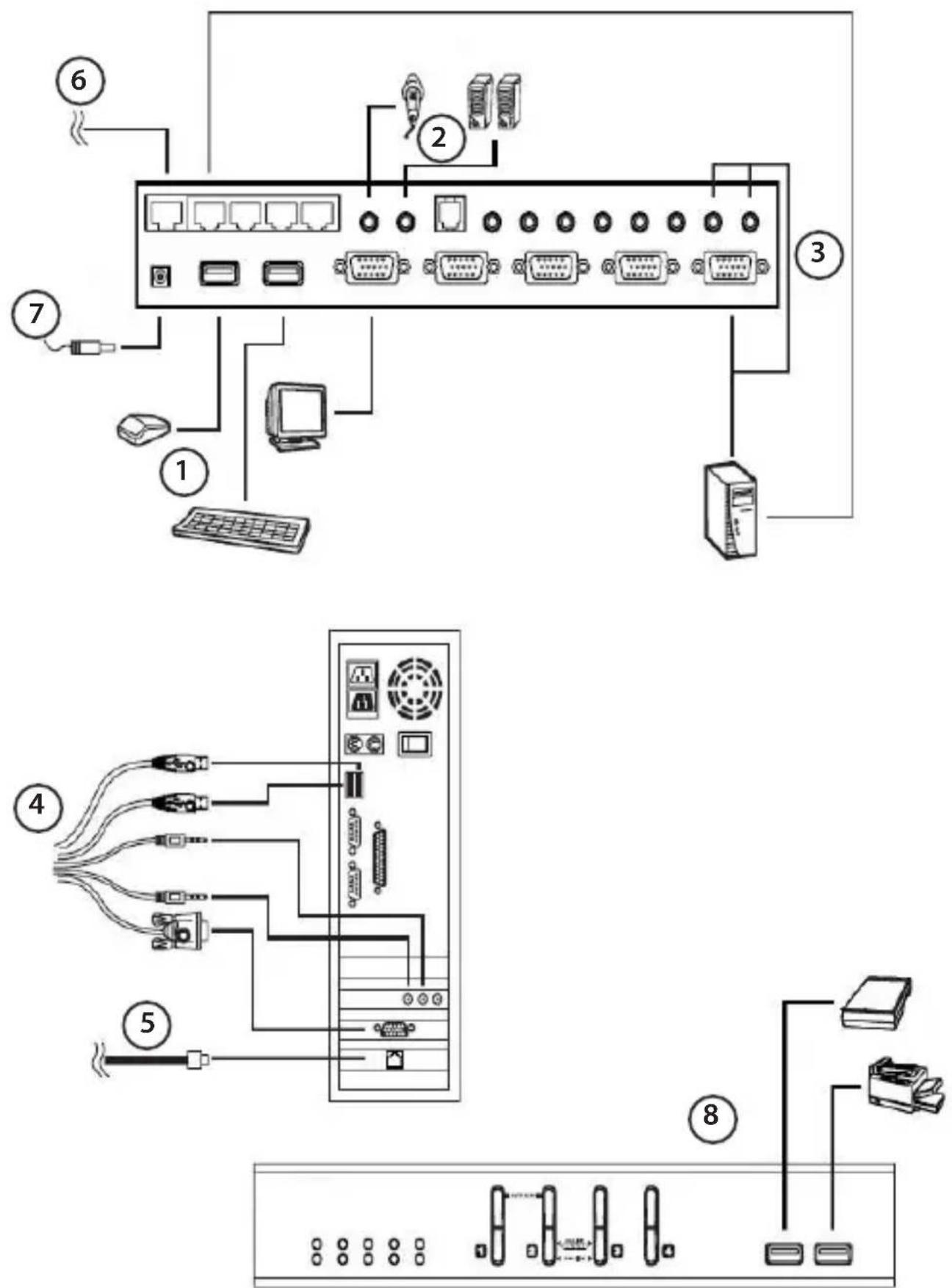
To set up your KVM Switch, refer to the installation diagram on the following page, which corresponds with the following steps:
- Plug your keyboard, mouse and monitor into the Console Ports located on the unit's rear panel.
- Plug your microphone and speakers into the Console microphone and speaker jacks located on the unit's rear panel.
- Using a KVM cable set (included), plug the custom SPHD connector into any available CPU Port on the KVM switch. Plug the accompanying microphone and speaker connectors into the corresponding audio ports for that CPU Port.
Please note:
- The audio connectors and jacks are color coded and marked with an appropriate icon for easy installation.
- Be sure that the audio connectors on the KVM cable set are plugged into the same CPU Port number on the KVM switch.
- At the other end of the KVM cable, plug the USB keyboard/mouse, USB hub, video, microphone and speaker cables into their respective ports on the computer.
- Use CAT5 cable to connect an available Ethernet port on the KVM switch to the computer's Ethernet port. Repeat steps 3-5 for any other computer you are connecting to the KVM switch.
- Plug the cable from your external LAN source into any available Ethernet port on the switch.
- Plug the power adapter that came with the KVM switch, into an AC power source, then plug the power adapter's DC plug into the KVM switches DC jack.
- Plug your USB peripherals into the USB hub section on the front panel.
Cable Connection
Port Numbering
Each CPU port on the KVM switch is assigned a port number
1 or 2 for the SV231USBAN; 1 to 4 for the SV431USBAN). The port numbers are marked on the rear panel of the switch.
The Port ID of a computer is derived from the CPU port number to which it is connected. For example, a computer connected to CPU port 2 has a Port ID of 2. The Port ID is used to specify which computer gets the KVM, USB hub, and audio focus with the Hotkey port selection method.
Powering Off and Restarting
If it becomes necessary to Power Off the KVM Switch unit do the following:
-
Power off the switch, then unplug the KVM cables from the switch's rear panel as well as the power adapter cable.
-
Wait 10 seconds, then reconnect the KVM cables.
-
Plug the switch's power adapter cable back in.
Hot Plugging
The KVM switch supports USB hot plugging. As such, computers can be removed and added back into the installation by unplugging their cables from the CPU ports without the need to shut the unit down.
Operation
There are two convenient methods to switch the KVM, USB hub, and audio focus among the ports: Manual - which involves pressing the push button port selection switches located on the unit's front panel; and Hotkey - which involves entering combinations from the keyboard.
Manual Port Switching
Press and release a switch (for less than three seconds) to bring only the KVM focus to the computer attached to its corresponding port.
Press a switch for longer than three seconds to bring the KVM, USB hub, and audio focus to the computer attached to its corresponding port.
Press switches 1 and 2 simultaneously for 2 seconds to start Auto Scan Mode.
Hotkey Port Switching
All hotkey commands begin with tapping the Scroll Lock key twice. The tables on the following pages describe the actions that each combination performs.
Please Note: If using the Scroll Lock key conflicts with other programs running on the computer, the [Ctrl] key can be used, instead. See Alternate Port Switching Keys.
Cycling Through the Ports
Hotkey Action
[Scroll Lock] [Scroll Lock] [Enter]
Shifts the KVM, USB hub, and audio focus to the next port on the installation (1 to 2; 2 to 1 for the SV231USBAN; 1 to 2; 2 to 3; 3 to 4; 4 to 1 for the SV431USBAN).
Note: The KVM, USB hub and audio focus all go to this port even if they were on different ports originally.
Cycling Through the Ports Cont'd
| [Scroll Lock] [Scroll Lock] [K] [Enter] | Brings only the KVM focus from the port that currently has it to the next port on the installation. The USB hub and audio focus remain where they are. |
| [Scroll Lock] [Scroll Lock] [U] [Enter] | Brings only the USB hub focus from the port that currently has it to the next port on the installation. The KVM and audio focus remain where they are. |
| [Scroll Lock] [Scroll Lock] [S] [Enter] | Brings only the audio focus from the port that currently has it to the next port on the installation. The KVM and USB hub focus remain where they are. |
Going Directly to a Port
| Hotkey Action | |
| [Scroll Lock] [Scroll Lock] [n] [Enter] | Brings the KVM, USB hub, and audio focus to the computer attached to the port corresponding to the specified Port ID.Note: The KVM, USB hub and audio focus all go to this port even if they were on different ports originally. |
| [Scroll Lock] [Scroll Lock] [n],[K] [Enter] | Brings only the KVM focus to the computer attached to the specified port.The USB hub and audio focus remain where they are. |
| [Scroll Lock] [Scroll Lock] [n] [U] [Enter] | Brings only the USB hub focus to the computer attached to the specified port.The KVM and audio focus remain where they are. |
Hotkey Action
| [Scroll Lock] [Scroll Lock] [n] [S] [Enter] | Brings only the audio focus to the computer attached to the specified port. The KVM and USB hub focus remain where they are. |
| [Scroll Lock] [Scroll Lock] [n] [K] [U] [Enter] | Brings the KVM and USB hub focus to the computer attached to the specified port. The audio focus remains where it is. |
| [Scroll Lock] [Scroll Lock] [n] [K] [S] [Enter] | Brings the KVM and audio focus to the computer attached to the specified port. The USB hub focus remains where it is. |
| [Scroll Lock] [Scroll Lock] [n] [U] [S] [Enter] | Brings the USB hub and audio focus to the computer attached to the specified port. The KVM focus remains where it is. |
Please note: The [n] stands for the computer's Port ID number. Replace the [n] with the appropriate Port ID when entering hotkey combinations.
Auto Scanning
The KVM Switch's Auto Scan feature automatically cycles the KVM focus through the computer ports at regular intervals. This allows you to monitor the computer activity without having to take the trouble of switching from port to port manually. See the table below for details.
Hotkey Action
| [Scroll Lock] [Scroll Lock] [A] [Enter] | Starts Auto scan. The KVM focus cycles from port to port at 5 second intervals. |
| [Scroll Lock] [Scroll Lock] [A] [n] [Enter] | Starts Auto Scan. The KVM focus cycles from port to port at n second intervals |
To exit Auto Scan Mode, press the [Esc] key, the Spacebar, or any Port Selection Switch.
Please Note:
The [n] stands for the number of seconds that the KVM Switch should dwell on a port before moving on to the next. Replace the [n] with a number between 1 and 99 when entering this hotkey combination.
Although the video focus switches from port to port, the keyboard, mouse, audio and USB focus doesn't switch. They stay at the port they were on when Auto Scanning started.
While Auto Scan Mode is in effect, ordinary keyboard functions are suspended - only Auto Scan Mode compliant keystrokes can be input. You must exit Auto Scan Mode in order to regain normal control of the keyboard.
Hotkey Setting Mode (HSM) Invoking Hotkey Setting Mode
Hotkey Setting Mode is used to set up your KVM switch configuration. All operations begin with invoking Hotkey Setting Mode (HSM). To invoke HSM do the following:
- Press and hold down the [Num Lock] key
- Press and release the minus [-] key
- Release the [Num Lock] key
When HSM is active, the Caps Lock, and Scroll Lock LEDs flash in succession to indicate that HSM is in effect. They stop flashing and revert to normal status when you exit HSM.
Ordinary keyboard and mouse functions are suspended - only Hotkey compliant keystrokes and mouse clicks (described in the sections that follow), can be input.
At the conclusion of some hotkey operations, you automatically exit HSM. With some operations, you must exit manually. To do so, press the [Esc] key, or the Spacebar.
Alternate HSM Invocation Keys
An alternate set of HSM invocation keys is provided in case the default set conflicts with programs running on the computers. To switch to the alternate HSM invocation set, do the following:
- Invoke HSM (see "Invoking Hotkey Setting Mode").
- Press and release the [H] key
The HSM invocation keys become the [Ctrl] key and [F12] (instead of [Num Lock] and minus [-]).
Please Note: This procedure is a toggle between the two methods. To revert back to the original HSM invocation keys, invoke HSM, then press and release the [H] key again.
Alternate Port Switching Keys
The port switching activation keys can be changed from tapping the Scroll Lock key twice ([Scroll Lock] [Scroll Lock]) to tapping the Ctrl key twice. To change the port switching activation keys, do the following:
- Invoke HSM (see "Invoking Hotkey Setting Mode").
- Press and release the [T] key
Please Note: This procedure is a toggle between the two methods. To revert back to the original [Scroll Lock], [Scroll Lock] method, invoke HSM, then press and release the [T] key again.
Keyboard Operating Platform
The KVM Switch's default port configuration is for a PC Compatible keyboard operating platform. If your requirements call for different port settings (you have a Mac or Sun attached to a port, e.g.), you can change a port's keyboard operating platform configuration as follows:
- Bring the KVM focus to the port you want to set.
- Invoke HSM (see "Invoking Hotkey Setting Mode").
- Press and release the appropriate Function key (see table below). After completing a setting, you automatically exit HSM.
Function Key Operation
| [F2] | Sets the Mac keyboard operating platform. |
| [F3] | Sets the Sun keyboard operating platform. |
| [F10] | Auto detects the keyboard operating platform (for PC compatible systems).Activates Pass Through keyboard mode (keystrokes are sent directly to the computer instead of through the Mac or Sun emulator). |
Please Note: The first time that the Sun system runs from a port, you must configure its port for the Sun keyboard operating platform before you turn the system on, or else the Sun system will not start.
List Hotkey Settings
To see a listing of the current hotkey settings, do the following:
- Invoke HSM (see "Invoking Hotkey Setting Mode").
- Press and release the [F4] function key.
- Open a text editor or word processor and use its Paste function to display the settings.
USB Reset
If the Console USB keyboard and/or mouse loses focus and needs to be reset, do the following:
-
Invoke HSM (see "Invoking Hotkey Setting Mode").
-
Press and release the [F5] function key.
Hotkey Beeper Control
The Beeper can be hotkey toggled On and Off. To toggle the Beeper, do the following:
- Invoke HSM (see "Invoking Hotkey Setting Mode").
- Press and release the [B] key.
The Beeper toggles On or Off. The Command Line displays Beeper On or Beeper Off for one second, then the message disappears and you automatically exit Hotkey Mode.
Disable Port Switching Keys
To disable the Port Switching Keys ( [Scroll Lock], [Scroll Lock] / [Ctrl], [Ctrl] ), do the following:
- Invoke HSM (see "Invoking Hotkey Setting Mode").
- Press [X] [Enter].
To reset the KVM Switch to its default hotkey settings, do the following:
- Invoke HSM (see "Invoking Hotkey Setting Mode").
- Press [R], [Enter].
Invoke Firmware Upgrade Mode
To set the KVM Switch to Firmware Upgrade Mode, do the following:
- Invoke HSM (see "Invoking Hotkey Setting Mode").
- Key in: upgrade.
- Press [Enter].
The front panel port LEDs flash to indicate Firmware Upgrade Mode is in effect.
Please Note: To exit Firmware Upgrade Mode, you must power off the switch.
HSM Summary Table
| Key Function | |
| [H] Toggles between the default and alternate HSM invocation keys. | |
| [T] Toggles between the default and alternate Port Switching keys. | |
| [F2] Sets the Mac keyboard operating platform | |
| [F3] Sets the Sun keyboard operating platform | |
| [F4] | Lists the current hotkey settings via the Paste function of a text editor or WP. |
| [F5] Performs a USB reset. | |
| [F10] | Auto detects keyboard operating platform (PC compatible systems). Activates Pass Through keyboard mode (keystrokes sent directly to computer instead of through Mac or Sun emulator). |
| [B] Toggles the beeper On and Off. | |
| [X] [Enter] Enables/Disables the Port Switching keys. | |
| [R] [Enter] Resets the hotkey settings to their default status. | |
| upgrade [Enter] Invokes Firmware Upgrade Mode. | |
Keyboard Emulation
Mac Keyboard
The PC compatible (101/104 key) keyboard can emulate the functions of the Mac keyboard. The emulation mappings are listed in the table below:
PC Keyboard Mac Keyboard
[Shift] Shift
[Ctrl] Ctrl

[Ctrl] [1]
[Ctrl] [2]
[Ctrl] [3]
[Ctrl] [4]
[Alt] Alt
[Print Screen] F13
[Scroll Lock] F14
ÿ
[Enter] Return
[Backspace] Delete
[Insert] Help
[Ctrl]


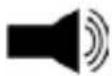

Please Note: When using key combinations, press and release the first key [Ctrl], then press and release the activation key.
Sun Keyboard
The PC compatible (101/104 key) keyboard can emulate the functions of the Sun keyboard when the Control key [Ctrl] is used in conjunction with other keys. The corresponding functions are shown in the table below:
PC Keyboard Sun Keyboard
[Ctrl] [T] Stop
[Ctrl] [F2] Again
[Ctrl] [F3] Props
[Ctrl] [F4] Undo
[Ctrl] [F5] Front
[Ctrl] [F6] Copy
[Ctrl] [F7] Open
[Ctrl] [F8] Paste
[Ctrl] [F9] Find
[Ctrl] [F10] Cut
[Ctrl] [1]
[Ctrl] [2]
[Ctrl] [3]
[Ctrl] [4]
[Ctrl] [H] Help


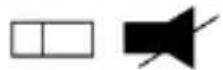


Compose

Please Note: When using key combinations, press and release the first key [Ctrl], then press and release the activation key.
The Firmware Upgrade Utility
The Windows-based Firmware Upgrade Utility (FWUpgrade.exe) provides a smooth, automated process for upgrading the KVM switch's firmware.
The Utility comes as part of a Firmware Upgrade Package that is specific for each device. New upgrade packages are posted on our web site as new firmware revisions become available.
- From a computer that is not part of your KVM installation go to the product listing for the appropriate switch, on our website (http://www.startech.com), and click on Downloads.
- Download the most recent file, if newer than the software currently installed, and extract from the containing (compressed) folder.
- Use the Firmware Upgrade Cable provided with this unit, to connect a COM port on your computer to the Firmware Upgrade Port of your switch:
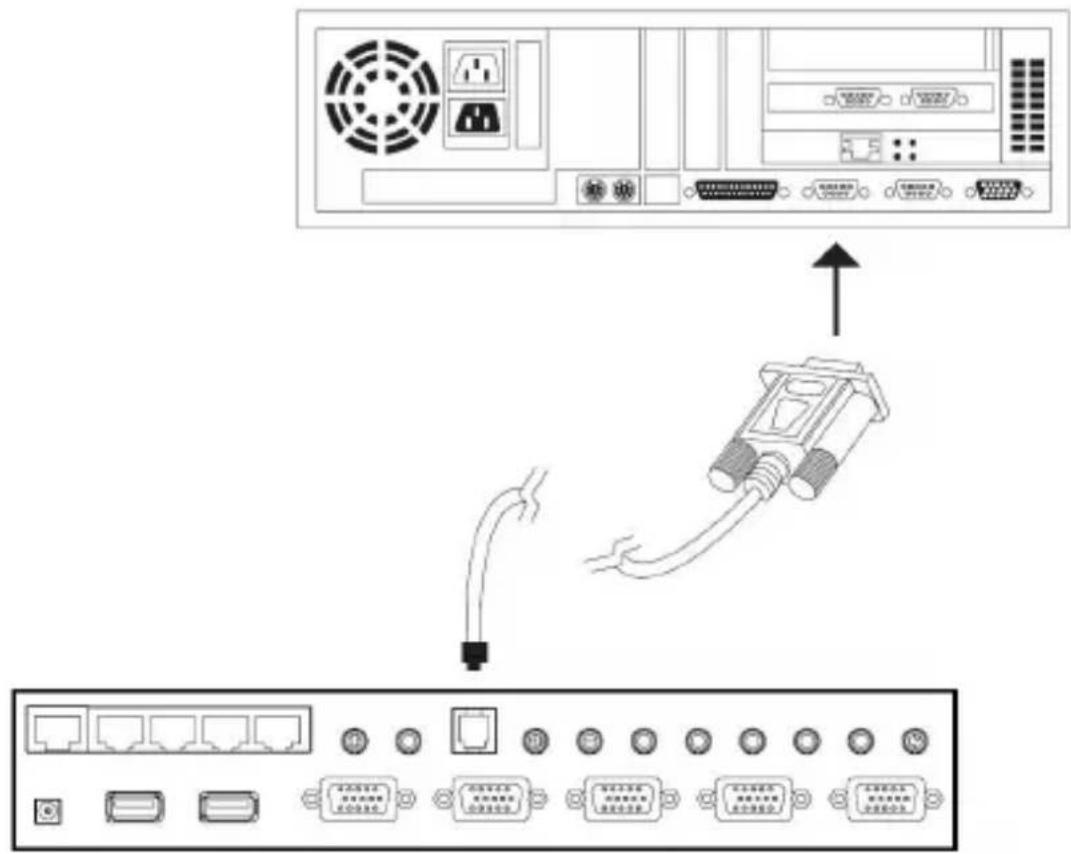
- Unplug the KVM cables from the back of the switch.
- Invoke Firmware Upgrade Mode. The switch's front panel
- LEDs flash to indicate that it is in Firmware Upgrade Mode.
Starting the Upgrade
Please Note: The screenshots in this section are for example purposes. The screens that appear during your firmware upgrade may vary slightly as to their wording and description:
To upgrade your Firmware:
- Run the downloaded Firmware Upgrade Package file - either by double clicking the file icon, or by opening a command line and entering the full path to it.
The Firmware Upgrade Utility will begin to extract the files necessary for installation

- The Firmware Upgrade Utility main screen appears
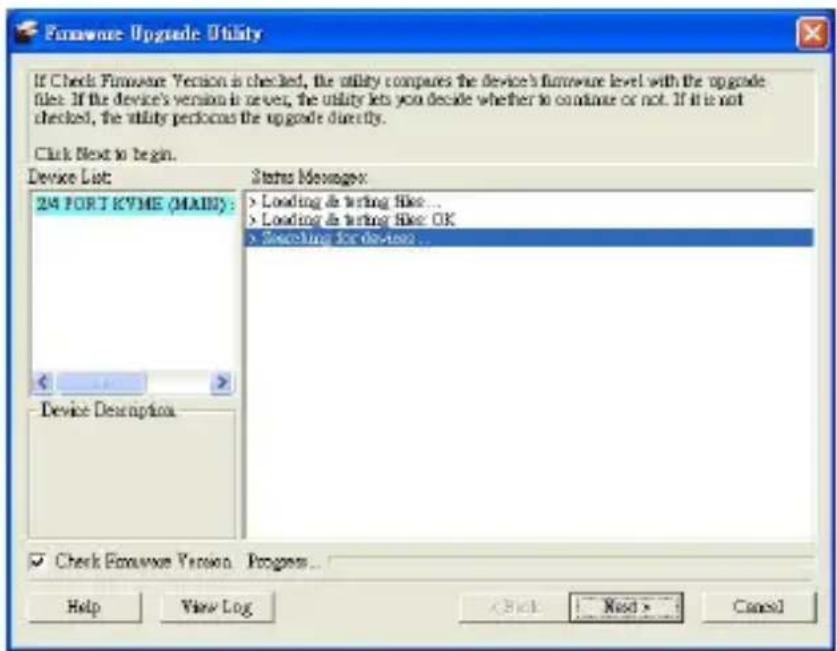
- The Utility inspects your installation. All the devices capable of being upgraded by the package are listed in the Device List panel.
- As you select a device in the list, its description appears in the Device Description panel (shown following page)
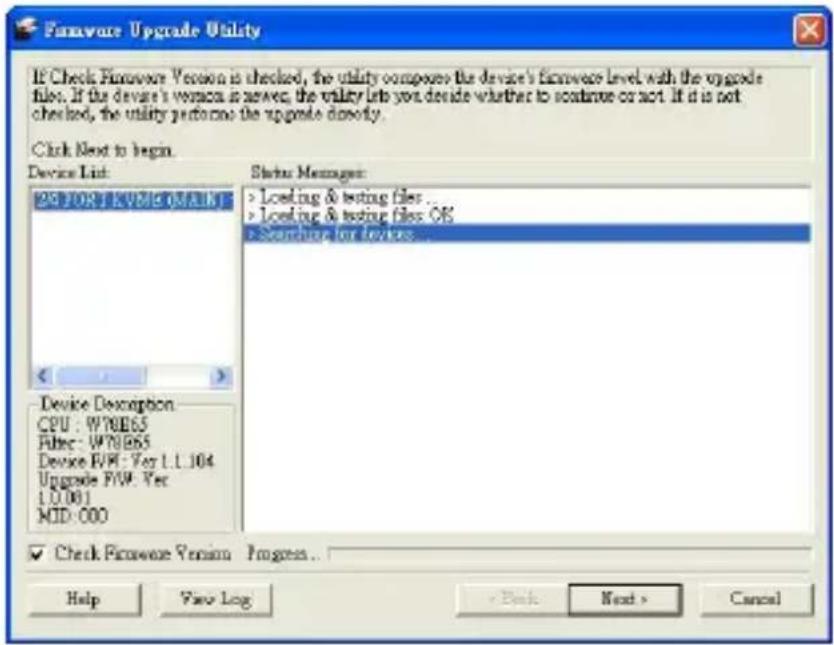
- After you have made your device selection(s), Click Next to perform the upgrade.
- If you enabled Check Firmware Version, the Utility compares the device's firmware level with that of the upgrade files. If it finds that the device's version is equal to, or higher than the upgrade version, it brings up a dialog box informing you of the situation and gives you the option to Continue or Cancel.
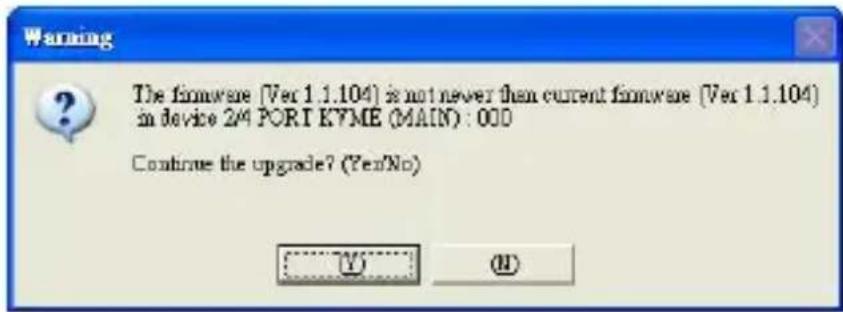
- If you didn't enable Check Firmware Version, the Utility installs the upgrade files without checking whether they are a higher level, or not.
- As the Upgrade proceeds status messages appear in the Status Messages panel, and the progress toward completion is shown on the Progress bar.
Upgrade Succeeded
After the upgrade has completed, a screen appears to inform you that the procedure was successful:

Click Finish to close the Firmware Upgrade Utility.
After a successful completion, the switch exits Firmware Upgrade Mode and resets itself.
Upgrade Failed
If the Upgrade Succeeded screen doesn't appear, it means that the upgrade failed to complete successfully, in which case you should repeat the upgrade procedure from the beginning.
Specifications
Function SV231USBAN SV431USBAN
Computer Connections 24
KVM Port Selection Front Panel Switches; Hotkey
USB/ Audio Port Selection Hotkey
| Console Connectors | Keyboard 1 x USB Type A female | ||
| Mouse 1 x USB Type A female | |||
| Video 1 x HDB - 15 female | |||
| Audio | 1 x Speaker jack | ||
| 1 x Microphone jack | |||
| Computer Connectors | KVM data | 2 x SPHD - 15 female | 4 x SPHD - 15 female |
| Audio | 2 x Speaker jacks | 4 x Speaker jacks | |
| 2 x Microphone jacks | 4 x Microphone jacks | ||
Firmware Upgrade Port 1 x RJ11 socket
| Hubs | USB 2 x USB Type A female | ||
| Ethernet 3 x RJ45 sockets 5 x RJ45 sockets | |||
| LEDs | KVM 2 (Orange) | 4 (Orange) | |
| USB | 2 (Green) | 4 (Green) | |
| Link | 3 (Green) | 5 (Green) | |
| 10/100 Mbps | 3 (Green) | 5 (Green) | |
Keyboard/ Mouse Emulation USB (PC, Mac, Sun)
Video Up to 2048 x 1536; DDC2B
Scan Interval 1 - 99 secs. (5 secs. default)
Function SV231USBAN SV431USBAN
| Power Consumption | DC5.3V; 4.5W;900mA | DC5.3V; 5W;1000mA | |
| Power Adapter 1 x DC 5.3V; 2.4A | |||
| Environment | Operating Temp. 0 - 50°C | ||
| Storage Temp. -20 - 60°C | |||
| Humidity 0 - 80% RH | |||
| Physical Properties | Housing Metal | ||
| Weight 0.71kg 0.92kg | |||
| L x W x H 21.0 x 8.8 x 5.55cm 27.0 x 8.8 x 5.55cm | |||
| OS Support | Windows 98 or higher, Mac OS 8.6 or higher, | ||
| SUN Blade 2000/100 (Sun Solaris 8),Linux RedHat 7.1 or higher, FreeBSD3.51, 4.2, 4.3, 4.5 or newer | |||
Technical Support
StarTech.com's lifetime technical support is an integral part of our commitment to provide industry-leading solutions. If you ever need help with your product, visit www.startech.com/support and access our comprehensive selection of online tools, documentation, and downloads.
For the latest drivers/software, please visit www.startech.com/downloads
Warranty Information
This product is backed by a two year warranty.
In addition, StarTech.com warrants its products against defects in materials and workmanship for the periods noted, following the initial date of purchase. During this period, the products may be returned for repair, or replacement with equivalent products at our discretion. The warranty covers parts and labor costs only. StarTech.com does not warrant its products from defects or damages arising from misuse, abuse, alteration, or normal wear and tear.
Limitation of Liability
In no event shall the liability of StarTech.com Ltd. and StarTech.com USA LLP (or their officers, directors, employees or agents) for any damages (whether direct or indirect, special, punitive, incidental, consequential, or otherwise), loss of profits, loss of business, or any pecuniary loss, arising out of or related to the use of the product exceed the actual price paid for the product. Some states do not allow the exclusion or limitation of incidental or consequential damages. If such laws apply, the limitations or exclusions contained in this statement may not apply to you.
Hard-to-find made easy. At StarTech.com, that isn't a slogan. It's a promise.
StarTech.com is your one-stop source for every connectivity part you need. From the latest technology to legacy products — and all the parts that bridge the old and new — we can help you find the parts that connect your solutions.
We make it easy to locate the parts, and we quickly deliver them wherever they need to go. Just talk to one of our tech advisors or visit our website. You'll be connected to the products you need in no time.
Visit www.startech.com for complete information on all StarTech.com products and to access exclusive resources and time-saving tools.
StarTech.com is an ISO 9001 Registered manufacturer of connectivity and technology parts. StarTech.com was founded in 1985 and has operations in the United States, Canada, the United Kingdom and Taiwan servicing a worldwide market.


- Port USB/ VGA KVM Switch with Ethernet Switch and Audio & USB Hub
- FCC Compliance Statement
- Use of Trademarks, Registered Trademarks, and other Protected Names and Symbols
- Table of Contents
- Introduction ....1
- Installation 6
- Operation 9
- Hotkey Setting Mode (HSM) 12
- Specifications 23
- Technical Support 25
- Warranty Information 25
- Introduction
- Features
- Packaging Contents
- Hardware Requirements
- Console:
- Computers:
- Cables:
- Hardware Guide
- SV231USBAN
- Front Panel
- SV431USBAN
- SV231USBAN/SV431USBAN
- Rear Panel
- Hardware Guide - Continued
- Installation
- Please note:
- Cable Connection
- Port Numbering
- Powering Off and Restarting
- Hot Plugging
- Operation
- Manual Port Switching
- Hotkey Port Switching
- Cycling Through the Ports
- Hotkey Action
- Cycling Through the Ports Cont'd
- Going Directly to a Port
- Auto Scanning
- Hotkey Setting Mode (HSM) Invoking Hotkey Setting Mode
- Alternate HSM Invocation Keys
- Alternate Port Switching Keys
- Keyboard Operating Platform
- List Hotkey Settings
- USB Reset
- Hotkey Beeper Control
- Disable Port Switching Keys
- Invoke Firmware Upgrade Mode
- HSM Summary Table
- Keyboard Emulation
- Mac Keyboard
- Sun Keyboard
- The Firmware Upgrade Utility
- Starting the Upgrade
- To upgrade your Firmware:
- Upgrade Succeeded
- Upgrade Failed
- Specifications
- Function SV231USBAN SV431USBAN
- Computer Connections 24
- USB/ Audio Port Selection Hotkey
- Firmware Upgrade Port 1 x RJ11 socket
- Keyboard/ Mouse Emulation USB (PC, Mac, Sun)
- Technical Support
- Warranty Information
- Limitation of Liability
Brand : StarTech.com
Model : SV431USBAN
Category : KVM switch