
TM-4011LVDS - Tracking Posiflex - Free user manual and instructions
Find the device manual for free TM-4011LVDS Posiflex in PDF.


| Product Type | POS Monitor |
| Brand | Posiflex |
| Model | TM-4011LVDS |
| Display Size | 10.1 inch TFT LCD |
| Resolution | 1280 x 800 (WXGA) |
| Active Area | 216.96 mm (H) x 135.60 mm (V) |
| Viewing Angle | 85°/85°/85°/85° (U/D/L/R) |
| Contrast Ratio | 800:1 |
| Brightness | 350 cd/m² |
| Display Interface | LVDS |
| Touch Type | P-CAP (Projected Capacitive) |
| Touch Interface | USB |
| Power Supply | 12V DC via RT-1016A-G2 LVDS connector |
| Compliance | FCC Part 15 Class A, CE Class A |
| Package Contents | Monitor, Mounting Kits |
| Warranty | Void if opened by unauthorized personnel |
| Recommended Resolutions | See manual for supported timings |
Frequently Asked Questions - TM-4011LVDS Posiflex
User questions about TM-4011LVDS Posiflex
0 question about this device. Answer the ones you know or ask your own.
Ask a new question about this device
Download the instructions for your Tracking in PDF format for free! Find your manual TM-4011LVDS - Posiflex and take your electronic device back in hand. On this page are published all the documents necessary for the use of your device. TM-4011LVDS by Posiflex.
USER MANUAL TM-4011LVDS Posiflex
Package Contents
9.7" TM/LM-4010 or 10.1" TM/LM-4011 or 10.1" TM/LM-4011LVDS POS Monitor....(x 1)
√ Mounting Kits ....(x 1)
Revision History
| Date | Version | Description |
| 2017/09/15 | A0 | For Preliminary Release |
| 2018/05/10 | B0 | Remove power on/off description |
| 2020/03/31 | C0 | Add driver download information |
| 2023/03/07 | D0 | Add TM/LM-4011LVDS model |
| 2024/05/31 | E0 | The mechanical part has modified the hinge neck cover which add two screws to fix. |
SOME IMPORTANT NOTES
FCC NOTES
This system meets industry & government requirements and applicable standards. This equipment generates, uses, and can radiate radio frequency energy and, if not installed and used in accordance with the instructions manual, may cause interference to radio communications. It has been tested and found to comply with limits for a Class A digital device pursuant to subpart B of Part 15 of FCC Rules, which are designed to provide reasonable protection against interference when operated in a commercial environment. Operation of this equipment in a residential area is likely to cause interference in which case the user at his own expense will be required to take whatever measures to correct the interference.
This device complies with part 15 of the FCC Rules. Operation is subject to the following two conditions: (1) This device may not cause harmful interference, and (2) this device must accept any interference received, including interference that may cause undesired operation.
CE CLASS A WARNING
This equipment is compliant with Class A of CISPR 32. In a residential environment this equipment may cause radio interference.
AVERTISSEMENT CE CLASSE A
Warranty will terminate automatically when the machine is opened by any person other than the authorized technicians. The user should consult his/her dealer for the problem happening. Warranty voids if the user does not follow the instructions in application of this merchandise. The manufacturer is by no means responsible for any damage or hazard caused by improper application.
LIMITES DE GARANTIE
This equipment is not suitable for use in locations where children are likely to be present.
CONSIGNES DE SÉCURITÉ
Views of TM/LM-4010 & TM/LM-4011 & TM/LM-4011LVDS
Front View of TM/LM-4010
Camera (Optional)
9.7" LM-4010 LCD Panel
9.7" TM-4010 P-CAP Touch Panel
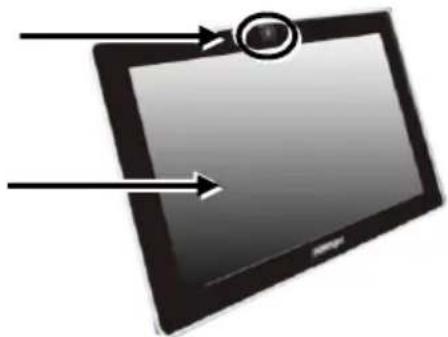
Front View of TM/LM-4011 & TM/LM-4011LVDS
Camera (Optional)
10.1" LM-4011 LCD Panel
10.1" TM-4011 P-CAP Touch Panel
10.1" LM-4011LVDS LCD Panel
10.1" TM-4011LVDS LCD Panel

Rear View
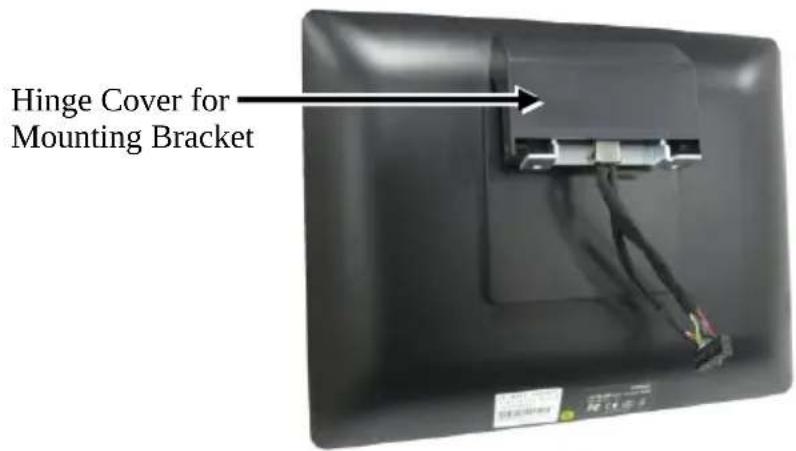
Mounting your Monitor to RT-series POS Terminals
The following instructions are provided to help you mount your TM/LM monitor to Posiflex RT-series POS terminals. During installation, please ensure the terminal is properly turned off and disconnected from the power sources to avoid potential hazards.
- Remove the system back cover.
2.1 If the system back cover is fire-resistant, first locate the screw as indicated in the figure, and then remove it.

2.2 Hold down the release lever at the bottom of the system back cover and then pulling the cover outwards.

- Remove the 2 nd display dummy cover.

- Remove the two countersunk head screws on both sides of the hinge cover.
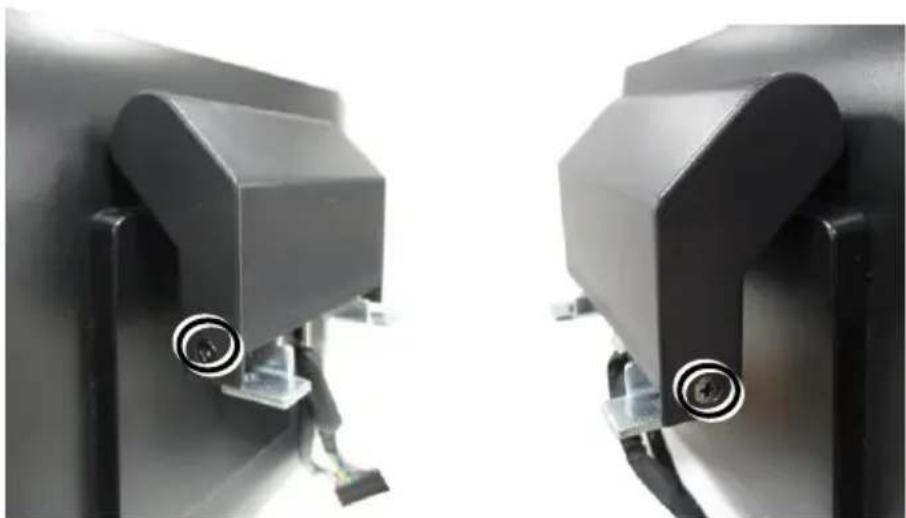
- Remove the hinge cover by both hands.

- Lift the dummy cover a little and then remove it.


- For TM/LM-401x, well insert the cable to the internal VGA port from the mainboard of RT-series terminal, and tuck the extra cable inside the system compartment. Fix the 2nd display hinge to the RT-series terminal with two #6/32 screws.
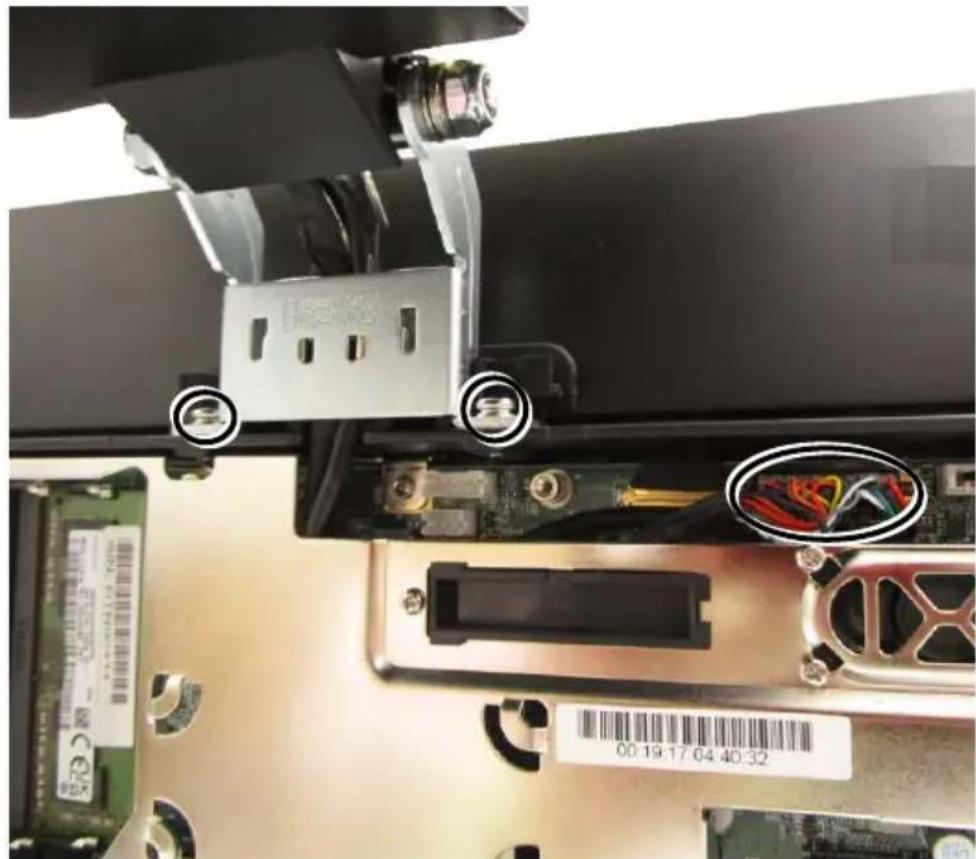
For TM/LM-4011LVDS, well insert the cable to the internal LVDS connector from the mainboard of RT-1016A-G2 terminal, and tuck the extra cable inside the system compartment.

- Place back the system back cover from top side to close the sytem compartment of RT-series terminal.u

- Install the dummy cover to the hinge bracket. Make sure the cover is hooked on the hinge bracket like below picture.


- Close the hinge cover.

- Fix the two original countersunk head screws on both sides of the hinge cover.

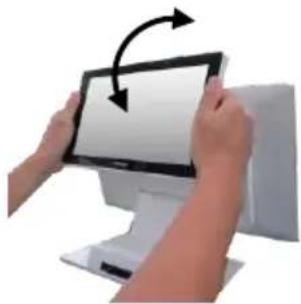
- Tile the monitor screen to your desired angle. While setting up the tilting adjustment, be careful NOT to press on the LCD panel.
Identifying your Monitor as Secondary Touchscreen Monitor in Extended Mode
In the following section the related descriptions will be offered to help you set up TM series as the extended monitor when you attempt to extend the desktop across multiple monitors
For TM-4010/4011/4011LVDS Models with P-CAP Touchscreen
If your monitors are TM-4010/4011/4011LVDS models, you may configure the display settings from Control Panel in Microsoft Windows to identify the monitor as the secondary touchscreen monitor. Please go through the below steps to complete configuration.
- Make sure that the monitor is well connected to your POS terminal.
-
Go to Control Panel>Display Settings, change your display settings to extended mode.
-
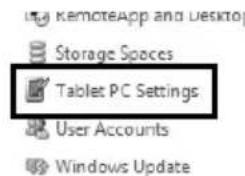
Go to Control Panel, and then click on Tablet PC Settings item.
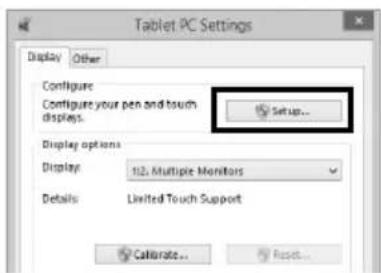
- In Tablet PC Settings dialogue box, click on Setup button.
- Following the instruction shown on the screen, click on the screen that you want to identify as the primary touchscreen display.
Touch this screen to identify it as the touchscreen.
If this is not the Tablet PC screen, press Enter to move to the next screen. To close the tool, press Esc
- Press Enter button to proceed the configuration.
Press Enter to proceed to the next step to complete your configuration
- Click on the screen you want to use as the secondary touchscreen display.
Touch this screen to identify it as the touchscreen.
If this is not the Tablet PC screen, press Enter to move to the next screen. To close the tool, press Esc.
Powering ON/OFF your Monitor
To start up the monitor, please make sure that the monitor is well connected to POS terminals and electricity is supplied to the monitor through POS terminal.
Installing Drivers
Please visit Posiflex official website to download and install the related drivers. (http://Download.posiflex.com/en-global/Download/download)
Setting up Display Resolution for Your Monitor
The below chart defines the list of recommended display settings for TM/LM monito. Improper display configuration will prevent the monitor from properly displaying the image and lead to a warning message of “out of range” prompted on the screen.
9.7" TM/LM-4010
| Display Resolution | Horizontal Frequency (KHz) | Refresh Rate (Hz) |
| 640 x 400 | 37.9 | 70 |
| 640 x 480 | 31.5 | 60 |
| 37.9 | 72 | |
| 37.5 | 75 | |
| 720 x 400 | 37.9 | 70 |
| 800 x 600 | 35.1 | 56 |
| 37.9 | 60 | |
| 48.1 | 72 | |
| 46.9 | 75 | |
| 1024 x 768 | 48.4 | 60 |
10.1" TM/LM-4011 & TM/LM-4011LVDS
| Display Resolution | Horizontal Frequency (KHz) | Refresh Rate (Hz) |
| 640 x 480 | 31.5 | 60 |
| 37.9 | 72 | |
| 37.5 | 75 | |
| 800 x 600 | 37.9 | 60 |
| 48.1 | 72 | |
| 46.9 | 75 | |
| 1024 x 768 | 48.4 | 60 |
| 1280 x 720 | 45.0 | 60 |
| 1280 x 800 | 49.7 | 60 |
Specification
| TM/LM-4011TM/LM-4011LVDS | TM/LM-4010 | |
| Display | ||
| LCD Panel | 10.1" TFT LCD | 9.7" TFT LCD |
| Resolution | 1280(H) x 800 (V) | 1024(H) x 768 (V) |
| Active Area | 216.96mm (H) x135.60mm (V) | 196.61mm (H) x147.46mm (V) |
| Viewing Angle | 85/85/85/85 degree(U/D/L/R) | 70/60/70/70 degree(U/D/L/R) |
| Contrast Ratio | 800 : 1 | 500 : 1 |
| Brightness | 350 cd/m2 | 350 cd/m2 |
| Display Interface | TM/LM-4010 & TM/LM-4011: VGATM/LM-4011LVDS: LVDS | |
| Power Supply | TM/LM-4010 & TM/LM-4011:12V from RT-series VGA PortTM/LM-4011LVDS:12V from RT-1016A-G2 LVDS connector | |
| Touch | ||
| Touch type | TM-4011: P-CAPTM-4011LVDS: P-CAPLM-4011: N/A | TM-4010: P-CAPLM-4010: N/A |
| Interface | TM-4011: USBTM-4011LVDS: USBLM-4011: N/A | TM-4010: USBLM-4010: N/A |
※ The product information and specifications are subject to change without prior notice. To get the detailed information on TM-4010/LM-4010/TM-4011/LM-4011/TM-4011LVDS/LM-4011LVDS please check this model from Posiflex Global Website (http://download.posiflex.com/en-global/Download/download).
BSMI ROHS
| 設備名稱:POS螢幕,型號(型式):TM-4011,LM-4011,TM-4010,LM-4010Equipment name Type designation (Type) | ||||||
| 單元Unit | 限用物質及其化學符號Restricted substances and its chemical symbols | |||||
| 鉛Lead(Pb) | 汞Mercury(Hg) | 鎘Cadmium(Cd) | 六價鉻Hexavalent chromium( Cr-6 ) | 多溴聯苯Polybrominated biphenyls(PBB) | 多溴二苯醚Polybrominated diphenyl ethers(PBDE) | |
| 面板 | ○ | ○ | ○ | ○ | ○ | ○ |
| 外殼 | ○ | ○ | ○ | ○ | ○ | ○ |
| 電路板 | ○ | ○ | ○ | ○ | ○ | ○ |
| 線材 | ○ | ○ | ○ | ○ | ○ | ○ |
| 配件 | ○ | ○ | ○ | ○ | ○ | ○ |
| 備考1. “超出0.1 wt %”及“超出0.01 wt %”係指限用物質之百分比含量超出百分比含量基準值。Note 1: “Exceeding 0.1 wt %” and “exceeding 0.01 wt %” indicate that the percentage content of the restricted substance exceeds the reference percentage value of presence condition.備考2. “○”係指該項限用物質之百分比含量未超出百分比含量基準值。Note 2: “○” indicates that the percentage content of the restricted substance does not exceed the percentage of reference value of presence.備考3. “—”係指該項限用物質為排除項目。Note 3: The “—” indicates that the restricted substance corresponds to the exemption. | ||||||
- PACKAGE CONTENTS
- SOME IMPORTANT NOTES
- FCC NOTES
- CE CLASS A WARNING
- AVERTISSEMENT CE CLASSE A
- LIMITES DE GARANTIE
- CONSIGNES DE SÉCURITÉ
- MOUNTING YOUR MONITOR TO RT-SERIES POS TERMINALS
- IDENTIFYING YOUR MONITOR AS SECONDARY TOUCHSCREEN MONITOR IN EXTENDED MODE
- FOR TM-4010/4011/4011LVDS MODELS WITH P-CAP TOUCHSCREEN
- POWERING ON/OFF YOUR MONITOR
- INSTALLING DRIVERS
- SETTING UP DISPLAY RESOLUTION FOR YOUR MONITOR
Brand : Posiflex
Model : TM-4011LVDS
Category : Tracking