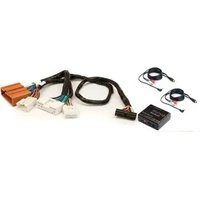
ISMZ531 - Air conditioner PAC - Free user manual and instructions
Find the device manual for free ISMZ531 PAC in PDF.


| Product Type | Auxiliary Audio Input Interface |
| Brand | PAC (iSimple) |
| Model (Vehicle-Specific Harness) | ISMZ531 |
| Compatible Vehicles | Select Mazda models with factory SAT button (see manual for details) |
| Number of Auxiliary Inputs | 2 (AUX1 and AUX2) |
| Input Connectors | RCA (female) and 3.5 mm stereo jack |
| Control Method | Factory radio buttons (SAT, CATEGORY UP/DOWN) |
| Power Source | Via factory radio harness (no external power required) |
| Installation Type | In-dash, behind factory radio |
| Dimensions (Approx.) | 4 x 2 x 1 inches (10 x 5 x 2.5 cm) |
| Weight (Approx.) | 0.2 lbs (90 g) |
| Operating Temperature | -20°C to 60°C |
| Storage Temperature | -30°C to 70°C |
| Warranty | 1 year limited warranty |
| Safety Precautions | Disconnect vehicle battery before installation; keep cables away from moving parts |
| Included Accessories | Vehicle-specific harness (ISMZ531), PXAUX interface, RCA/3.5mm input cables (may vary) |
Frequently Asked Questions - ISMZ531 PAC
User questions about ISMZ531 PAC
0 question about this device. Answer the ones you know or ask your own.
Ask a new question about this device
Download the instructions for your Air conditioner in PDF format for free! Find your manual ISMZ531 - PAC and take your electronic device back in hand. On this page are published all the documents necessary for the use of your device. ISMZ531 by PAC.
USER MANUAL ISMZ531 PAC
Add Auxiliary Audio to Your Factory Radio
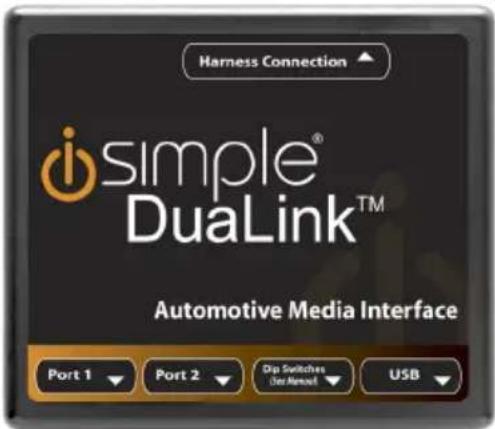
Owner's Manual PXAUX
Table of Contents
Pages
Introduction 4
Compatibility Notes 4
Dipswitch Settings 4
Installation 5
Ford/Lincoln/Mercury ISFD531 6
General Motors ISGM531 6
General Motors ISGM532/ISGM533 7
General Motors ISGM534 7
General Motors ISGM535 7
Honda ISHD531 8
Hyundai ISHY531/ISHY532 8
Mazda ISMZ531 8
Nissan ISNI531/ISNI532 8-9
Toyota ISTY531 9
Volkswagen ISVW532 10
Troubleshooting 10
Warranty Information 12
PXAUX & Optional Add-ons
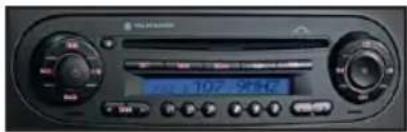
Factory Radio (not included)
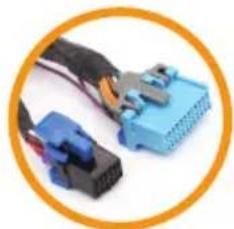
natural_image
Close-up of a blue automotive electrical connector with black and blue plastic connectors, enclosed in an orange circle (no text or symbols visible)Vehicle Specific Harness (actual harness may vary)

PXAUX Interface
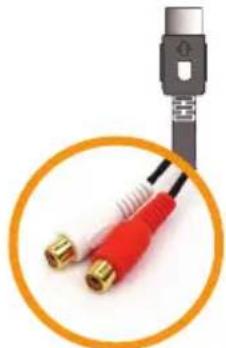
natural_image
Close-up of a black cable connector with two gold-colored connectors, enclosed in an orange circle (no text or symbols visible)OR

natural_image
Close-up of a black cable with red connectors and gold connectors, enclosed in an orange circle (no text or symbols visible)OR
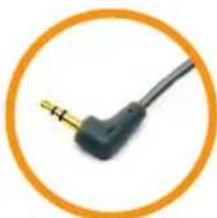
natural_image
Close-up of a black audio jack with gold connector, enclosed in an orange circle (no text or symbols)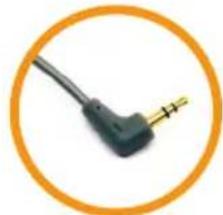
natural_image
Close-up of a black electrical plug with a yellow connector, enclosed in an orange circle (no text or symbols visible)RCA InputRCA Input
3.5mm Input3.5mm Input
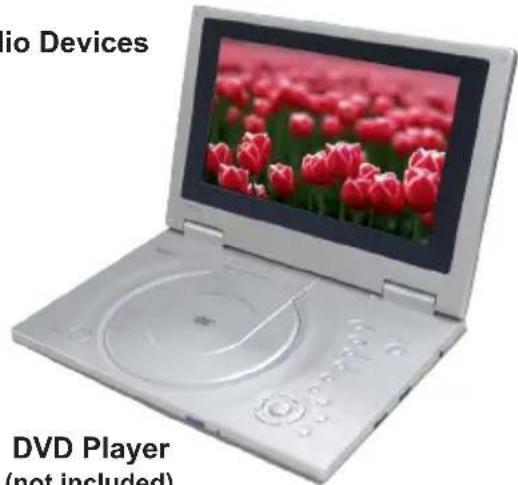
Your Audio Devices

MP3 Player (not included)

Introduction
Thank you for purchasing the iSimple® PXAUX. The PXAUX is designed to provide endless hours of listening pleasure from your factory radio. To ensure that your auxiliary audio input performs correctly with your radio, we recommend that you read this entire manual before attempting installation of the PXAUX. This interface allows connectivity for two auxiliary audio inputs.
Compatibility Notes
Please visit www.isimplesolutions.com for the most up to date application information and to verify your vehicle's compatibility.
Dipswitch Settings
(ISTY531 & ISHD531 ONLY)
| Application | Dipswitch 1 | Dipswitch 2 | Dipswitch 3 | Dipswitch 4 | |
| Honda | All Vehicles with XM button | Of1 | Off | Off | Off |
| All vehicles without XM button | Of1 | Off | OnOf | f | |
| Lexus | 2010+ Vehicles equipped with navigation | OnOffOffOff | |||
| All Vehicles with AM-SAT button | OffOffOffOff | ||||
| All Vehicles without AM-SAT button | Of1 | Off | OnOf | f | |
| Scion | All Vehicles | Of1 | Off | Off | Off |
| Toyota | 2010-2011 Camry with AM-SAT button | OnOf | f | Off | Off |
| 2012+ vehicles equipped with non-navigation touchscreen radio | OnOffOffOff | ||||
| Vehicles equipped with navigation | OnOf | f | Off | Off | |
| All Other Vehicles with AM-Sat button | Of1 | Off | Off | Off | |
| All other Vehicles Wwithout AM-Sat button | Of1 | Off | OnOf | f | |
Installation
- When making electrical connections it is always recommended that the vehicle's battery be disconnected from the electrical system before performing the installation.
Please Note: If the radio is equipped with a built in CD Changer, please remove ALL discs before proceeding to prevent damage to the radio's CD mechanism.
-
Carefully remove the trim panels covering the bolts that secure the radio into the dash cavity. Remove these bolts, and carefully pull the radio from the dash of the vehicle. This will provide access to the factory radio connectors where you will connect the vehicle specific harness.
-
Disconnect the factory harness (if present) from the back of the radio. If you are installing the PXAUX into a Toyota or Honda with an external CD Changer and you are using CD Changer emulation mode, the CD Changer will have to be disconnected at the changer location for proper operation.
-
Connect the 8-Pin auxiliary input cables to the ports on the PXAUX
-
Plug in the male connectors on the vehicle specific harness into the port on the back of the radio. Next, connect the factory harness (if present) into the female connector on the vehicle specific harness. Be sure to make a firm connection but do not force it. Plug the Black micro-fit 24-pin connector on the vehicle specific harness into the PXAUX.
-
To complete the installation secure the PXAUX into the cavity in the dash behind the radio. Be sure that the cables and interface modules are not near moving parts or sharp metal edges as they may damage the cables. To prevent rattling noises inside the dash, use zip ties, tape, or other fasteners to mount the interfaces securely.
-
With all connections made, reconnect the vehicle's battery, insert the key into the ignition, and turn the vehicle on. Check for proper operation of the PXAUX before reinstalling the factory dash panels.
-
Note: The first time you access the PXAUX, your radio may display "DEV INIT" while the device is initializing. If this is displayed, please wait one minute then cycle the ignition off and on. Then access PXAUX mode again to begin normal operation.
Ford/Lincoln/Mercury ISFD531 Operation
Selecting AUX:
Press the “AUX” or “SAT” button (SR123 icon on navigation radio) until “AUX1” is displayed on the screen. When you press the “AUX” button, you will see the corresponding “SAT” modes, a slight delay, and then the current mode will be displayed.
Selecting between AUX1 / AUX2
Press the “AUX” or “SAT” button (SR123 icon on navigation radio) until “AUX1” or “AUX2” is displayed on the screen.
General Motors ISGM531 Operation
Non Navigation
Selecting AUX
Press the “BAND” button a few times until “XM” is displayed on the screen. Immediately turn the rotary knob in the top right hand corner to scroll through available sources. Once “AUX1” is displayed, press the “FWD>>” button to select it. If you are currently in “SAT” mode you will need to press the “▶ I SEEK” button instead of “FWD>>” to select “AUX1” mode.
Selecting between AUX1 / AUX2
If you are currently in “AUX1” or “AUX2” mode turn the rotary knob to cycle through the available sources. Once “AUX1” or “AUX2” is displayed on the screen press the “FWD>>” button to select it.
Navigation radio operation
Selecting AUX
Press the “FM” button then press the “XM” button. Immediately turn the rotary tune knob in the top right hand corner to scroll through available sources. Once “AUX1” is displayed, press the “▶” button on the screen to select it. If you are currently in “SAT” mode, press the “SEEK ▶I” button instead of the “▶” button to select “AUX” mode.
Selecting between AUX1 / AUX2
If you are currently in “AUX1” or “AUX2” mode, turn the rotary knob to cycle through the available sources. Once “AUX1” or “AUX2” is displayed on the screen, press the “▶” button to select it..
General Motors ISGM532/ISGM533 Operation
Selecting AUX
Press the “BAND” button a few times until XM is displayed on the screen. Immediately turn the rotary knob to scroll through available sources. Once “AUX1” is displayed press PRESET 2 to select it.
Selecting between AUX1 / AUX2
If you are currently in “AUX1” or “AUX2” mode turn the rotary knob to cycle through the available sources. Once “AUX1” or “AUX 2” is displayed on the screen press PRESET 2 to select it.
General Motors ISGM534 Operation
Selecting AUX
Press the “AM/FM” button and then the “XM” button. Turn the rotary tune knob clockwise until “AUX1” is displayed. Press the “>>>>” button to select it. (It may be necessary to press the “CAT” button in order to make the “>>>>” button visible.)
Selecting between AUX1 / AUX2
Press the “AM/FM” button and then the “XM” button. Turn the rotary tune knob clockwise until “AUX2” is displayed. Press the “>>>>” button to select it. (It may be necessary to press the “CAT” button in order to make the “>>>>” button
General Motors ISGM535 Operation
Non Navigation
Selecting AUX
Press the “BAND” button until “XM” is displayed on the screen. Immediately turn the rotary knob to scroll through available sources. Once “AUX1” is displayed, press PRESET 6 to select it.
Selecting between AUX1 / AUX2
If you are currently in “AUX1” or “AUX2” mode turn the rotary knob to cycle through available sources. Once “AUX1” or “AUX2” is displayed on the screen press PRESET 6 to select it..
Honda/Acura ISHD531 Operation
Satellite Radio Mode
Selecting AUX
Press the "XM" button to switch to SAT. Immediately turn the rotary knob or press TUNE UP to scroll through available sources. Once "AUX1" is displayed, press PRESET 6 to select it.
Selecting between AUX1 / AUX2
Press the "XM" button to switch to SAT. Immediately turn the rotary knob or press TUNE UP to scroll through available sources. Once "AUX2" is displayed, press PRESET 6 to select it.
CD Changer Mode
Selecting AUX
Press the "DISC" or "AUX" button to switch to CD Changer mode. You are now in the AUX1 mode.
Selecting between AUX1 / AUX2
If you are currently in "AUX1" or "AUX2" mode press the "DISC ▲" button to cycle between AUX1" & "AUX 2". Disc up and down are Preset 5 & Preset 6
Hyundai ISHY531/ISHY532 Operation
Selecting AUX
Press the "XM" button to cycle through the PXAUX sources until "AUX1" or "AUX2" is displayed.
Selecting between AUX1 / AUX2
Press the "XM" button to cycle through the PXAUX sources until "AUX1" or "AUX2" is displayed.
Mazda ISMZ531 Operation
Selecting AUX
Press the “SAT” button to enter satellite radio mode. Press the “CATEGORY UP” or “CATEGORY DOWN” button to scroll through the available sources until “AUX 1” or “AUX 2” is displayed. If satellite radio is present, the PXAUX sources will show up AFTER the last satellite radio category.
Selecting between AUX1 / AUX2
Press the “CATEGORY UP” or “CATEGORY DOWN” button to scroll through the available sources until “AUX 1” or “AUX 2” is displayed.
Nissan ISNI531/ISNI532 Operation
Selecting AUX
Radios equipped with a "SAT" button
Press the “FM” button and then the “SAT” button. Immediately press the “SEEK>>” button to scroll through the available sources. Once “AUX1” is displayed, press the “<<TUNE” button to select it.
Radios equipped with a "RADIO" or "AM/FM/SAT" button
Press the “RADIO” or “AM/FM/SAT” button a few times until “SAT” is displayed. Immediately press the “SEEK ▲” button to scroll through the available sources. Once “AUX1” is displayed, press the “TUNE ▼” button to select it.
Selecting between AUX1 / AUX2
For radios that have a "SAT" button
Press the “FM” button and then the “SAT” button. Immediately press the “SEEK >>” button to scroll through the available sources. Once “AUX2” is displayed, press the “<<TUNE” button to select it.
For radios equipped with a "RADIO" or "AM/FM/SAT" button
Press the “Radio” or “AM/FM/SAT” button a few times until “SAT” is displayed. Immediately press the “SEEK▲” button to scroll through the available sources. Once “AUX2” is displayed, press the “TUNE ▼” button to select it.
Toyota/Scion/Lexus ISTY531 Operation
Satellite Radio Mode
Selecting AUX
Press the “AM/SAT” button to switch to AM then again to switch back to SAT. Immediately turn the rotary knob to scroll through available sources. Once “AUX1” is displayed, press PRESET 6 to select it.
Selecting between AUX1 / AUX2
If you are currently in “AUX1” or “AUX2” mode turn the rotary knob to cycle through the available sources. Once “AUX1” or “AUX2” is displayed on the screen press PRESET 6 to select it.
CD Changer Mode
Selecting AUX
Press the "DISC" or "AUX" button to switch to CD Changer mode. You are now in the AUX1 mode.
Selecting between AUX1 / AUX2
If you are currently in "AUX1" or "AUX2" mode press the "DISC ▲" button to cycle between AUX1" & "AUX 2".
Volkswagen ISVW532 Operation
Selecting AUX
Press the "CD" button twice to switch the radio to the CD Changer source. This will access "AUX1".
Selecting between AUX1 / AUX2
To select "AUX2" press preset #2. To select "AUX1" press preset #1.
Troubleshooting
Symptom Cause Remedy
| Radio shows “DEV INIT” | PXAUX device is initializing. | This only occurs the first time the PXAUX is powered on. Wait a few minutes, cycle ignition off and on then enter SAT mode. |
| Radio does not recognize module. | Dipswitches are not set properly or the unit did not initialize properly. | See connection diagram for proper dipswitch setting. If the dipswitches are set properly disconnect the 24 pin micro-fit connector from the PXAUX for 5 minutes to reset the interface. |
| No sound. Auxiliary cable is not connected to accessory or PXAUX. | Verify that the auxiliary cable is connected to the PXAUX and the accessory. | |
Notes
Warranty Information
One Year Limited Warranty
The quality controls used in the manufacture of this product will ensure your satisfaction. This warranty applies only to the original purchaser of this product from an authorized iSimple® dealer. This warranty covers any supplied or manufactured parts of this product that, upon inspection by iSimple® authorized personnel, is found to have failed in normal use due to defects in material or workmanship. This warranty does not apply to installation expenses. Attempting to service or modify this unit, operating this unit under conditions other than the recommended voltage will render this WARRANTY VOID.
Unless otherwise prescribed by law, iSimple® shall not be liable for any personal injury, property damage and or any incidental or consequential damages of any kind (including water damage) resulting from malfunctions, defects, misuse, improper installation or alteration of this product. All parts of this iSimple® product are guaranteed for a period of 1 year as follows:
Within the first 12 months from date of purchase, subject to the conditions above, iSimple® will repair or replace the product at their discretion, if it is defective in material or workmanship providing it is returned to an Authorized iSimple® dealer, with PROOF OF PURCHASE from an authorized iSimple® dealer.
Warning:
This equipment may be reset by unintentional electrostatic discharge during operation. Exposure to direct sunlight or extreme heat may cause damage or malfunction.

For Best Performance Have It Professionally Installed.

- Add Auxiliary Audio to Your Factory Radio
- Owner's Manual PXAUX
- Table of Contents
- Pages
- PXAUX & Optional Add-ons
- Introduction
- Compatibility Notes
- Dipswitch Settings
- (ISTY531 & ISHD531 ONLY)
- Installation
- Please Note: If the radio is equipped with a built in CD Changer, please remove ALL discs before proceeding to prevent damage to the radio's CD mechanism.
- Ford/Lincoln/Mercury ISFD531 Operation
- Selecting AUX:
- Selecting between AUX1 / AUX2
- General Motors ISGM531 Operation
- Non Navigation
- Selecting AUX
- Navigation radio operation
- General Motors ISGM532/ISGM533 Operation
- General Motors ISGM534 Operation
- General Motors ISGM535 Operation
- Honda/Acura ISHD531 Operation
- Satellite Radio Mode
- CD Changer Mode
- Hyundai ISHY531/ISHY532 Operation
- Mazda ISMZ531 Operation
- Nissan ISNI531/ISNI532 Operation
- Radios equipped with a "SAT" button
- Radios equipped with a "RADIO" or "AM/FM/SAT" button
- For radios that have a "SAT" button
- For radios equipped with a "RADIO" or "AM/FM/SAT" button
- Toyota/Scion/Lexus ISTY531 Operation
- Volkswagen ISVW532 Operation
- Troubleshooting
- Notes
- Warranty Information
- One Year Limited Warranty
- Warning:
Brand : PAC
Model : ISMZ531
Category : Air conditioner