
RFM-RAM1 - Car alarm CRUX - Free user manual and instructions
Find the device manual for free RFM-RAM1 CRUX in PDF.


| Product Type | Vehicle Camera Interface Module |
| Brand | CRUX |
| Model | RFM-RAM1 |
| Compatible Vehicles | RAM 1500, 2500, 3500 (2013-2017) |
| Video Inputs | 7 camera inputs (front, left, right, cargo, trailer, aftermarket backup, OEM backup) + 1 A/V input |
| Camera Outputs | 12V power outputs for each camera (front/rear, left/right, cargo/trailer, AUX) |
| Included Accessories | RFM-RAM1 module, T-harness, CUB-15 harness, 2 adjustable side mirror cameras |
| Optional Add-On Cameras | CDR-31C cargo, CDR-02 tailgate handle, CFF-01/02/03 front cameras (sold separately) |
| Steering Wheel Control | Force view and AV mode via steering wheel buttons |
| Turn Signal Trigger | Automatic side camera display when turn signal activated; can be toggled on/off via BACK button |
| Reverse Trigger | Automatically shows backup camera (OEM or aftermarket) when in reverse |
| Drive Mode | Front camera displays for 7 seconds after shifting from reverse to drive |
| DIP Switch Configuration | 8 DIP switches to enable/disable front, left, right, cargo, trailer, AUX A/V inputs; DIP8 must be ON |
| Power Supply | 12V DC from vehicle harness |
| Installation Method | Plug-and-play T-harness connects between factory radio and vehicle harness |
| Maintenance | Keep connectors clean and dry; inspect cables periodically for damage |
| Safety | Professional installation recommended; ensure proper routing to avoid interference |
| Spare Parts | Optional cameras and accessory cables available from CRUX |
| Repairability | Non-user serviceable; return to dealer or contact CRUX support |
Frequently Asked Questions - RFM-RAM1 CRUX
User questions about RFM-RAM1 CRUX
0 question about this device. Answer the ones you know or ask your own.
Ask a new question about this device
Download the instructions for your Car alarm in PDF format for free! Find your manual RFM-RAM1 - CRUX and take your electronic device back in hand. On this page are published all the documents necessary for the use of your device. RFM-RAM1 by CRUX.
USER MANUAL RFM-RAM1 CRUX
- Adds a reverse camera input, plus 5 video inputs and an additional audio/video input.
- Uses the steering wheel control buttons to toggle between the sources.
- Turn signals automatically trigger the corresponding side camera.
- Turn signal camera trigger can be turned on or off by using the BACK button on the radio.
- Includes 2 adjustable angle cameras for the side mirrors.
PARTS INCLUDED:
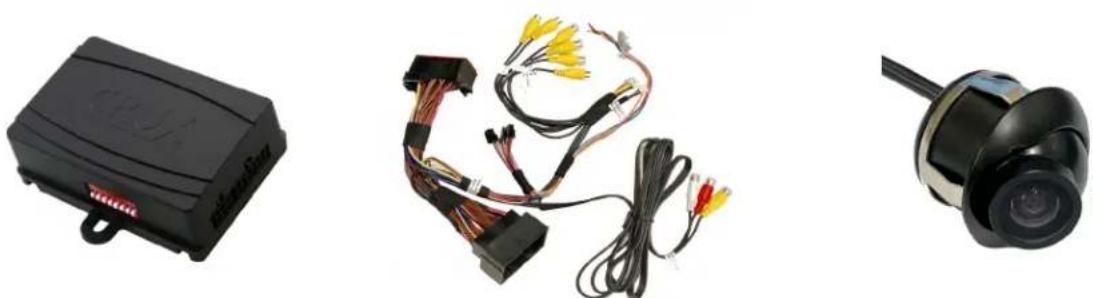
RFM-RAM1 Module RFM-RAM1 Harness CUB-15 Adjustable Angle Side Camera
(2 pieces)
OPTIONAL ADD-ON CAMERAS:
Optional add on cameras are available to complete the multi-view capability of the RFM-RAM1. Cameras available and sold separately include:
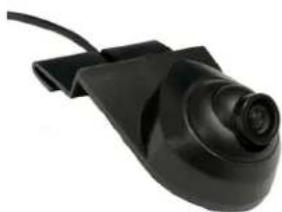
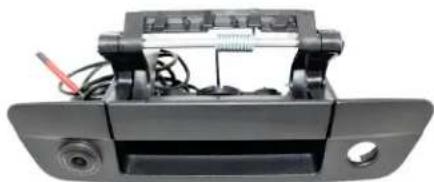
CDR-31C Cargo Camera CDR-02 Tailgate Handle Camera
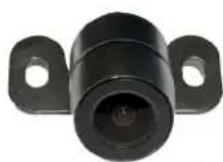
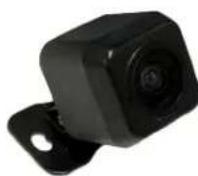

CFF-01 Bullet Type Front Camera CFF-02 Square Body Front Camera CFF-03 Grille Mount Front Camera

INSTALLATION DIAGRAM:
To Vehicle Harness
![graph TD A["To Radio"] --> B["CRUX Camera"] B --> C["Audio/Video Input"] B --> D["Front and Rear Camera Power Output 12V (purple/white)"] B --> E["Left and Right Camera Power Output 12V (green/white)"] B --> F["Cargo and Trailer Camera Power Output 12V (orange/white)"] B --> G["Video AUX Power Outpu…](/content/2026/06/1226919/images/c72d6957b8116a7c6c0abbc94a2ec9b43ba8144116544670337be6fbdcaf8987.jpg)
INSTALLATION INSTRUCTIONS:
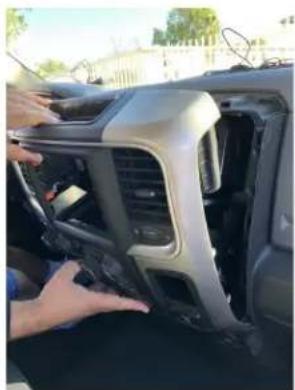
- Carefully remove the radio trim bezel by pulling outward.

- Unplug the connectors behind the radio trim bezel.
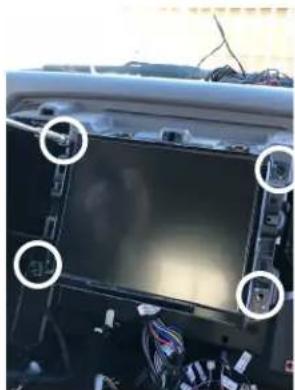
- Remove the factory screen by removing the 4 screws on the corners.
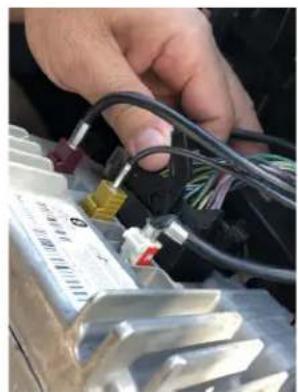


- Unplug the factory 52-pin connector by pulling on the lock lever. 5. Connect the factory 52-pin
connector to the mating connector on the RFM-RAM1 T-harness.


-
Plug the 52-pin connector of the RFM-RAM1 T-harness to the radio and push in the lock lever.
-
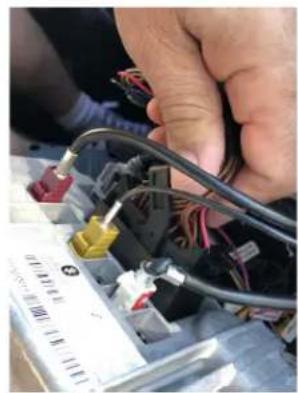
Plug the Molex connectors from the T-harness to the module.



-
Plug the video RCA harness to the module.
-
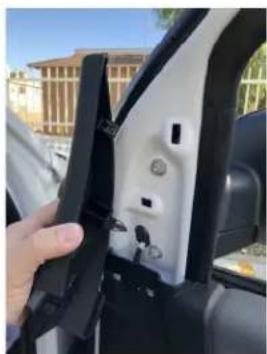
Remove the door panels and side mirror to install the side mirror cameras. Run the cable through the boot for a clean install.
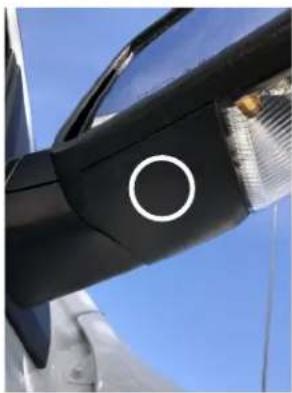
- Use the provided hole saw to drill a hole on the side mirrors for the adjustable angle camera.
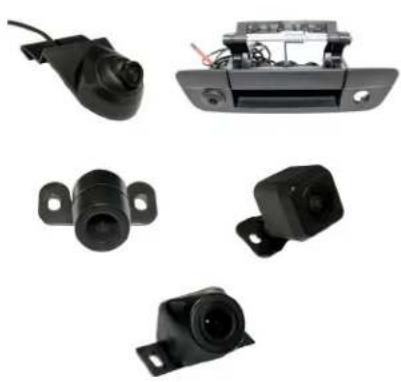
- Mount the other optional front, rear and cargo cameras desired for the install. (Optional cameras sold separately. See page 1)

- Run all the camera cables to the radio cavity.
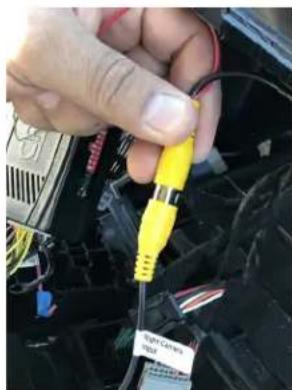
- Plug the camera's male RCAs to the corresponding female RCAs of the RFM-RAM1 video harness. Each RCA is labeled for the input.
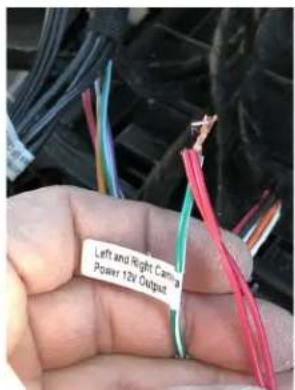
- Connect the camera power wires to the corresponding camera power output wires of the RFM-RAM1 harness. Each wire is labeled.
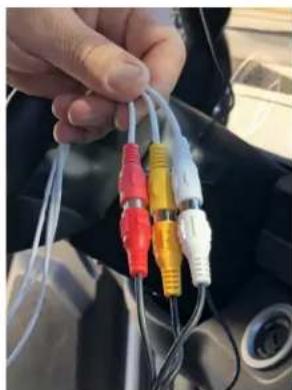
- If you will be using the AV input option, plug in the AV RCAs of your device to the AV Input of the RFM-RAM1. Crux VCIP5 for HDMI input shown here (sold separately).
DIP SWITCH SETTINGS:
| DIP#ONOFF | — | — |
| 1 No Function – Leave OFF | ||
| 2 Front Camera ON Front Camera OFF | ||
| 3 Left Camera ON Left Camera OFF | ||
| 4 Right Camera ON Right Camera OFF | ||
| 5 Cargo Camera ON Cargo Camera OFF | ||
| 6 Trailer Camera ON Trailer Camera OFF | ||
| 7 | AUX A/V ON | AUX A/V OFF |
| 8 | Set to ON | |
OPERATION:
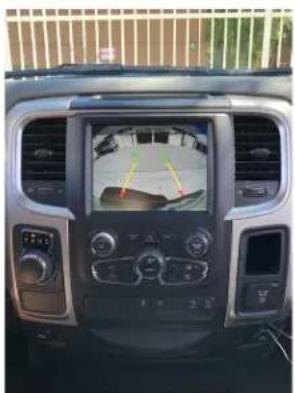
- Whether an aftermarket or OEM backup camera is used, putting the gear in reverse will automatically show the backup camera image on the screen.
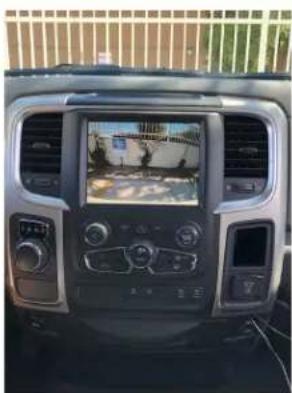
- Putting the gear to drive after the reverse process turns on the front camera for 7 seconds.
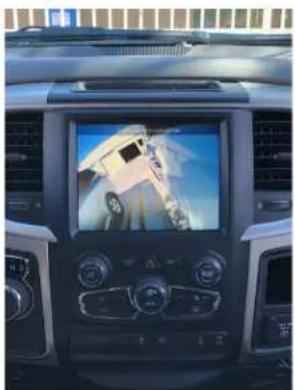
- Using the left and right turn signal triggers the respective side mirror mounted camera to show on the screen. To turn on automatic triggering, move the turn signal switch to the camera to be turned on and press the BACK button on the radio for 3-5 seconds.
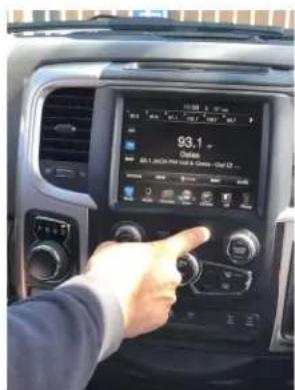
- To turn off the automatic triggering of the side mirror cameras, move the turn signal switch to the camera to be turned off and press the BACK button on the radio for 3-5 seconds. With the turn signal switch in nuetral, the same button turns on the VIM feature.
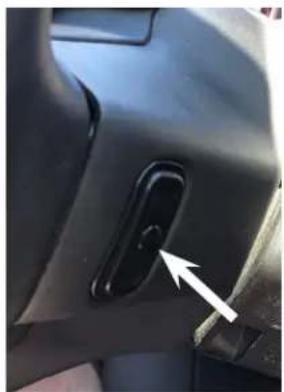
- To force view any of the cameras installed, press and hold the rear right side steering wheel control middle button once to enter force view mode and short press to toggle through all the different cameras.
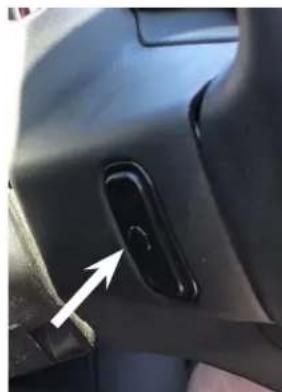
- To use the AV input, press and hold the left rear side steering wheel control middle button to toggle to AV mode. Audio plugged in the AV RCAs will automatically be heard through the OE audio system. No need to plug to the AUX input of the vehicle.
Sample camera views and A/V Input:

Cargo View
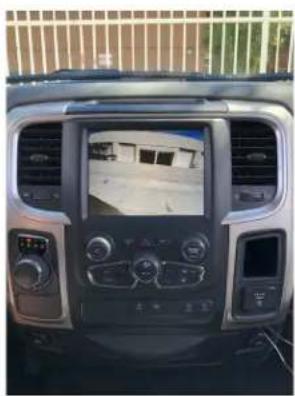
Trailer Hitch View
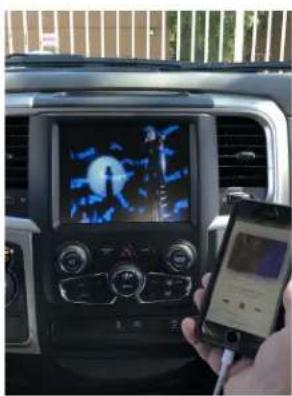
A/V Input Mode
VEHICLE APPLICATIONS:
RAM
2013 - 2017 1500
2013 - 2017 2500
2013 - 2017 3500
Brand : CRUX
Model : RFM-RAM1
Category : Car alarm