
Instinct Synergy - Audio Antelope Audio - Free user manual and instructions
Find the device manual for free Instinct Synergy Antelope Audio in PDF.


| Product Type | Creative modulation real-time effect plugin for Synergy Core interfaces |
| Brand | Antelope Audio |
| Model | Instinct Synergy |
| Category | Audio Effect (Software) |
| Platform Compatibility | Windows 10 x64, macOS 10.12-10.14 |
| Supported Formats | VST, VST3, AU (64-bit); Ableton Live, Bitwig, Reaper, Logic Pro X |
| Processing | Zero-latency real-time processing via Synergy Core FPGA/DSP |
| Oversampling | 4x or 8x with band-limited sinc interpolation |
| Effect Sections | Sculpt (transient shaper), Boost, Drive (tube/transistor models), Filter, Morph, Bias, Post Filter, Amplifier |
| Modulation | Internal envelope follower with sidechain input; parameters can be modulated at audio rate |
| Signal Flow | Series/parallel drive circuits, zero-delay feedback filters |
| Preset Management | Factory presets, custom user presets, init function |
| Parameter Fine-Tuning | Ctrl/Cmd + drag for smaller steps; double-click/Alt+click to reset to default |
| Customer Support | Online ticket, phone (US/UK), live chat, knowledge base, YouTube tutorials |
| Installation | Claim code via email; assign to one Synergy Core device via Registration Wizard |
Frequently Asked Questions - Instinct Synergy Antelope Audio
User questions about Instinct Synergy Antelope Audio
0 question about this device. Answer the ones you know or ask your own.
Ask a new question about this device
Download the instructions for your Audio in PDF format for free! Find your manual Instinct Synergy - Antelope Audio and take your electronic device back in hand. On this page are published all the documents necessary for the use of your device. Instinct Synergy by Antelope Audio.
USER MANUAL Instinct Synergy Antelope Audio
User Manual
Instinct
Synergy
CREATIVE MODULATION REAL-TIME EFFECT
from Inertia Sound Systems and Antelope Audio
Contents
How to install Instinct Synergy 5
Can I use Instinct Synergy on more than one supported device? 6
Using Instinct Synergy with Discrete 4 & 8 Synergy Core ('EasyPanel' devices) 7
Setting Up 8
How to load Instinct Synergy on an audio channel 10
How to output Instinct Synergy audio to headphones, monitors, and DAW 11
Using Instinct with Orion Studio Synergy Core ('Control Panel' devices) 13
Setting Up 13
Routing tab 15
Available audio inputs for Instinct Synergy 16
Available audio outputs for Instinct Synergy 17
Effects tab 18
Take Instinct Synergy audio outside the Orion Studio Synergy Core 19
Output Instinct Synergy audio to external equipment 20
Record Instinct Synergy audio in your DAW 21
Instinct Synergy - Functionality and Parameters Explained 21
Overview 22
Concept & Signal Flow 23
Sections & Parameters 24
SCULPT 24
BOOST 24
DRIVE 25
FILTER 25
MORPH 26
BIAS 26
PF (Post Filter) 26
AMP 27
Preset Browser 27
Displays 28
Default Values & Parameter Fine Tuning 28
Customer Support Information 28
BEFORE YOU BEGIN
Congratulations on your purchase! We'd like to turn your attention to the following:
Custom-built for our Synergy Core interfaces, Instinct Synergy offers the functionality of the unique modulation effect with the benefits of the Synergy Core FX processing platform. Developed by Inertia Sound Systems in cooperation with Antelope Audio, Instinct Synergy allows you to add a variety of flavors to your sound - from smooth analog warmth to totally aggressive distortion. The effect excels when used for dynamics processing and tone shaping. Instinct Synergy is an ideal tool for mixing too. Use it for creative sound design by bringing forward underlying transients or building on weaker sounds.
When accelerated by Synergy Core, the effect is used with imperceptible latency for real-time processing of solo instruments or instrument groups. Load Instinct Synergy and monitor without distracting delay and perform live on stage without adding any CPU load on the host computer.
With compliments,
Inertia Sound Systems & Antelope Audio
How to install Instinct Synergy
After purchasing the product, you will receive a Claim Code at the e-mail address used to register your Antelope Audio user account.
Note: If the e-mail doesn't seem to arrive in your inbox, please check your 'Spam' and 'Junk' folders.
- Log-in to antelopeaudio.com and head to the 'Claim Features' page to enter your Claim Code.
2 Click 'Devices' and launch the Control Panel application for the device you want to assign Instinct Synergy to. This can be any Synergy Core unit. - Click the '?' button, then click 'ADMINISTRATION' to launch the 'Antelope Audio Registration Wizard'. Log-in with your Antelope Audio account information and click 'Continue'.
- Choose 'Register device or assign features' and follow the on-screen instructions to assign Instinct Synergy to your preferred device.
- Congratulations! You can now use Instinct Synergy inside your device's Control Panel application and your preferred DAW (via AFX2DAW).
Note: Click here for an introduction to AFX2DAW and a list of supported Synergy Core devices.
Can I use Instinct Synergy on more than one supported device?
This product can be assigned to only one supported device at a time. If you switch to another device or wish to change between two (or more) connected devices:
- Open Antelope Launcher and launch the Control Panel application for the device that Instinct Synergy Core is currently assigned to.
- Click the '?' button, then click 'ADMINISTRATION' to launch the 'Antelope Audio Registration Wizard'. Log-in with your Antelope Audio account information and click 'Continue'.
- Choose 'Unregister device or unassign features' and follow the on-screen instructions to un-assign Instinct Synergy Core. Close the Control Panel application when finished.
- Launch the Control Panel application for the device you wish to assign Instinct Synergy to.
- Click the '?' button, then click 'ADMINISTRATION' to launch the 'Antelope Audio Registration Wizard'. Log-in with your Antelope Audio account information if needed and click 'Continue'.
- Choose 'Register device or assign features' and follow the on-screen instructions to assign Instinct Synergy to the new device.
- You can now use Instinct Synergy inside your device's Control Panel application and your preferred DAW (via AFX2DAW).
Important! If you are selling your Synergy Core device and wish to keep Instinct Synergy for future use, make sure to un-assign the product and de-register your unit before letting go of your hardware.
Using Instinct Synergy with Discrete 4 & 8 Synergy Core ('EasyPanel' devices)
The EasyPanel control panel application lets you apply Instinct Synergy to any audio source connected to the Discrete 4 & 8 Synergy Core's analog and digital inputs. You can hear the result live and, of course, record it in your DAW.
Audio source and output options
With the Discrete 4 & 8 Synergy Core, your audio source(s) can be any of the following:
• Dynamic and condenser microphones.
- Antelope Audio Edge and Verge modeling microphones with mic emulations applied.
• Line-level sources, such as synthesizers.
- High-impedance (Hi-Z) instruments, such as the electric guitar and bass.
• Audio playback from your DAW.
- ADAT digital audio.
• S/PDIF digital audio.
Note that Instinct Synergy must be configured to linked-stereo mode to process stereo input. When using Instinct Synergy on a stereo track, both channels should feature the same source material.
Your output options are:
• Headphone and monitor outputs.
- Record to DAW.
Instinct Synergy and other Synergy Core FX can be applied on Channels 1 - 4 with the Discrete 4 Synergy Core, and Channels 1 - 8 with the Discrete 8 Synergy Core. Your audio input must be routed to any of these channels in order to apply FX.
Setting Up
Open the Antelope Launcher and launch the Discrete 4 or 8 Synergy Core Control Panel. Look for the following area:
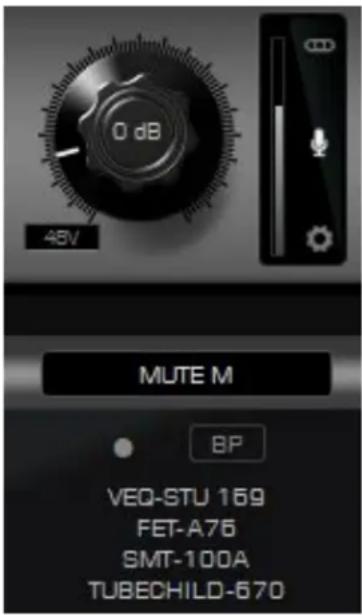
This is a single mic/combo input with a gain adjustment knob, controls, and peak metering. There are four such inputs for the Discrete 4 Synergy Core and eight for the Discrete 8 Synergy Core. Below the preamp controls, you see an Input Selector (where it says 'MUTE M') and an AFX area.
If your audio source is a microphone
When an XLR microphone is connected to any of the inputs, make sure the 'Mic' symbol is visible above the 'Gear' symbol at the bottom. If it's not, click the symbol you are seeing (it can be a stylized guitar or cable connector) until the 'Mic' symbol appears. When using condenser microphones, click the '48V' button to activate phantom power. Proceed to adjust input gain.
If your audio source is an Antelope Audio Edge or Verge modeling microphone
Everything from the paragraph above applies, including for Verge microphones. Due to its look and feel, Verge can be easily mistaken for a dynamic microphone by anyone new to the concept of small-diaphragm condenser mic.
Once connected and powered-up, click the 'Gear' symbol to open the 'Mic Emulations' window. Click and drag the 'Mic Modeling' dial to access the mic emulations available for your Edge or Verge modeling microphone.
For more information about the Edge and Verge modeling microphones and mic emulations, head here.
If your audio source is line-level equipment
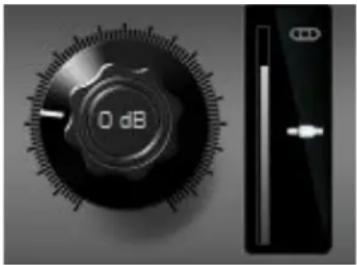
Make sure your input looks like this and adjust gain as required. The ‘Connector’ symbol means an input is configured to accept line-level signal.
Important! Connect line-level sources using TS/TRS cables, period.
If your audio source is a high-impedance (Hi-Z) instrument

Make sure your input looks like this and adjust gain as required. Hi-Z inputs are available on Discrete 4 Synergy Core mic/combo inputs A1 and A2, and on Discrete 8 Synergy Core preamp/combo inputs A1 to A4.
Regardless of your choice for input signal type, incoming audio from the mic/combo inputs is always accessed from the 'PREAMP' section in the Input Selector menu.
If your audio source is DAW playback
- Launch your DAW. Place your desired audio onto a track and assign it to Output 1 – 16 (Discrete 4 SC) or Output 1 – 32 (Discrete 8 SC).
- Launch the Control Panel application. Click the input selector for your desired analog or digital output channel and choose the 'COMPUTER PLAY' input with the same number as the output you assigned in the DAW. e.g. DAW 'Output 1' = 'COMPUTER PLAY 1'. Head back to your DAW and start playback.
If your audio source is ADAT
Click the input selector for your desired channel and choose the 'ADAT IN' channel you want to receive audio from.
If your audio source is S/PDIF
Click the input selector for your desired channel and choose the 'S/PDIF IN' channel you want to receive audio from.
How to load Instinct Synergy on an audio channel

Channels 1 – 4 on the Discrete 4 SC and Channels 1 – 8 on the Discrete 8 SC have these AFX areas. They are visible in the 'MONITORS & HEADPHONES' and 'DAW' tabs. Their content and functionality is identical between tabs.
We presume you have already set up your audio inputs on the FX-capable channels. If not, click the input selector above the AFX area for each channel, choose your desired input source and make gain adjustments (if required). Next, click anywhere inside an AFX area to open the 'Effects' window.

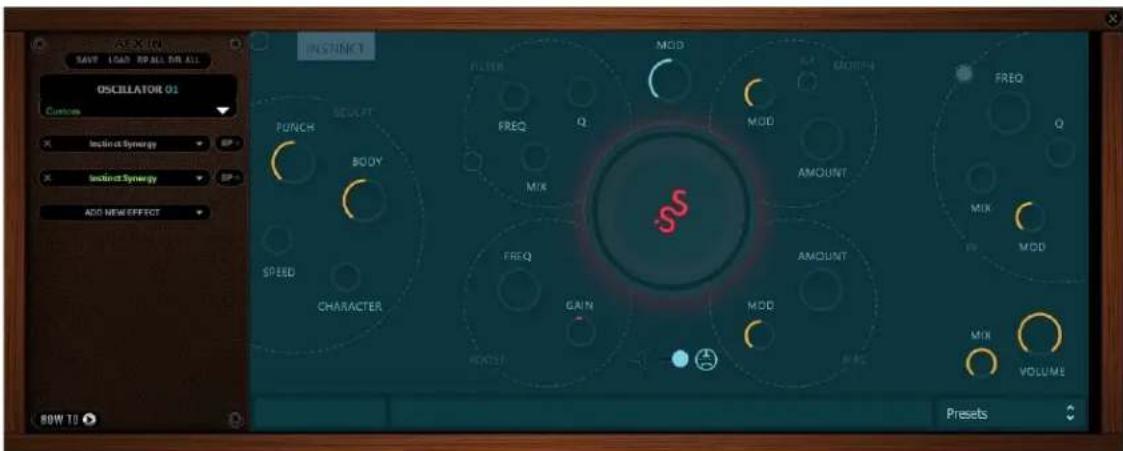
Click the 'ADD NEW EFFECT' drop-down menu and choose 'Instinct Synergy'. The effect will appear in the 'FX Rack' to the right. The following functionality is available to the left:
- Click the 'ADD NEW EFFECT' drop-down menu to choose and add effects. They will appear in the FX Rack to the right. The list on the left lets you click and drag to re-order.
- Use the 'SAVE' and 'LOAD' buttons to store and recall FX chains.
- Use the 'BP ALL' and 'DEL ALL' buttons to bypass or clear all FX in the rack.
- Use the drop-down menu to load FX chains.
- Individual 'BP' (bypass) buttons are available next to each effect to the left.
- Ctrl (Windows) or Command (macOS)-click and drag an FX parameter to adjust it in smaller steps.
If you want to learn how Instinct Synergy works, proceed to the 'Instinct Synergy – Functionality and Parameters Explained' chapter.
How to output Instinct Synergy audio to headphones, monitors, and DAW
Audio to Headphone and Monitor Outputs
Click the 'Monitors and Headphones' tab in the Control Panel. The vertical strip on the left has individual tabs for each of the available outputs:
Discrete 4 Synergy Core – Headphones 1 – 4, Monitor 1
Discrete 8 Synergy Core – Headphones 1 – 2, Monitor 1 – 2
By default, all 16 output channels (Discrete 4 SC) or 32 output channels (Discrete 8 SC) are routed to each of the headphone and monitor outputs. Silence the channels you don't want to hear from an output by muting, bringing the faders down, or not assigning inputs. You can also silence an entire output from the Mute, Dim buttons and Volume control available in the bottom left section.
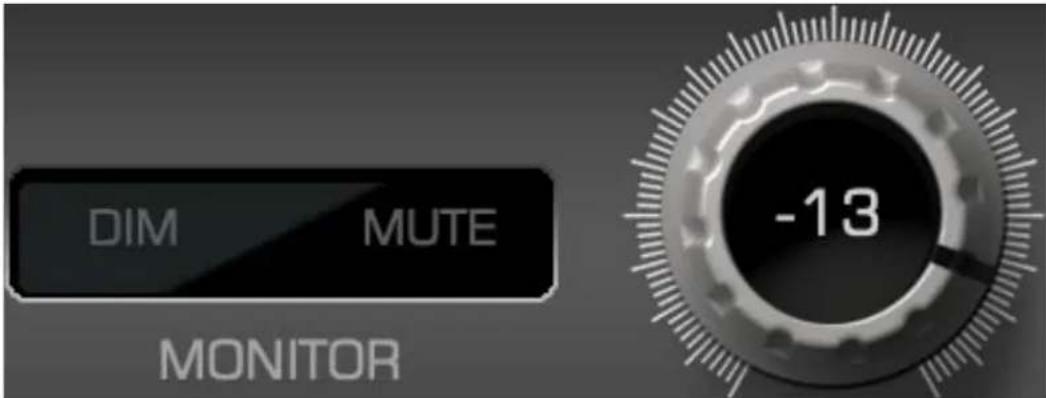
Audio to DAW
By default, all 16 output channels (Discrete 4 SC) or 32 output channels (Discrete 8 SC) are routed to your DAW. They are represented as Inputs 1 – 16 (Discrete 4 SC) or Inputs 1 – 32 (Discrete 8 SC) in your DAW when your Discrete 4 or 8 is chosen as the default interface.
Since you will be recording Instinct Synergy audio from Channels 1 – 4 (Discrete 4 SC) or Channels 1 – 8 (Discrete 8 SC), create the required tracks in your DAW and assign the inputs with the same numbers, e.g. Channel 1 = DAW 'Input 1'. Record audio as you normally do.
Proceed to the ‘Instinct Synergy – Functionality and Controls Explained’ chapter if you wish to learn how Instinct Synergy works.
Using Instinct with Orion Studio Synergy Core ('Control Panel' devices)

With extensive analog and digital connectivity as well as 6 ARM-based DSP processors and 2 proprietary FPGA chips, Orion Studio Synergy Core enables the kind of real-time Instinct Synergy extravaganza that pushes your creativity – but not your computer - to its extremes.
Like those before it, the new Orion Studio uses the Control Panel application where all brakes are off. Inside the Routing Matrix, each and any audio input can be taken into Instinct Synergy and sent to any output for monitoring, recording, treatment with external equipment and so on.
Setting Up
Open the Antelope Launcher and launch the Orion Studio Synergy Core Control Panel application. Look for the following area:

Instinct Synergy User Manual
This is a single mic/combo input with a gain adjustment knob, peak metering and controls. There are 12 such inputs in the Orion Studio Synergy Core Control Panel. Inputs 5 to 12 have built-in mic emulations.
If your audio source is a microphone
When a microphone is connected to any of the inputs, make sure the drop-down menu says 'Mic'. Click the drop-down menu and choose 'Mic' if it doesn't.
When using condenser microphones, click the '48V' button to activate phantom power.
If your audio source is an Antelope Audio Edge or Verge modeling microphone
Everything from the paragraph above applies, including for Verge microphones. Due to its look and feel, Verge can be easily mistaken for a dynamic microphone by anyone new to the concept of small-diaphragm condenser mics...
Mic emulations are available on inputs 5 to 12. Click the 'Mic' symbol to open the 'Mic Emulations' window. Click and drag the 'Mic Modeling' dial to access the mic emulations available for your Edge or Verge microphone.
If your audio source is line-level equipment
Make sure the drop-down menu says 'Line' or 'Direct'.
Important! Record line-level sources using TS/TRS cables, period.
If your audio source is a high-impedance (Hi-Z) instrument
Make sure the drop-down menu says 'Hi-Z'. Hi-Z is available on inputs 1 to 4 (the four front panel mic/combo inputs).
If your audio source is ADAT, S/PDIF, or DAW playback
Keep reading...
How to apply Instinct Synergy to any analog or digital audio input
Using Instinct Synergy to its fullest potential requires a basic understanding of the Control Panel's ‘Routing’ and ‘Effects’ tabs.
Routing tab

This tab contains the Routing Matrix (pictured above) for analog and digital audio routing. The Routing Matrix is row-based. Each row has its own unique color and represents a specific audio in or out with its maximum number of channels.
The Routing Matrix is split in two main sections: From (Source) and To (Destination). Route audio between them by dragging and dropping the colored number blocks.
Functionality
- Click on a number block to highlight the destinations it's currently routed to.
- Double-click a number block to change its text label.
- Right-click (Windows) / Command-click (Mac) a block. Choose 'Mute' to mute this one block. Choose 'Mute All' to mute the entire row.
- Hold Ctrl (Windows) or Command (Mac) and click to select multiple blocks.
- Hold Shift and click to select a block and all blocks before it.
- An alternative grid-based view is available ('MATRIX'). Please read the guide.
- Undo/Redo buttons are available.
- Save/Load buttons let you save and load routing setups (as opposed to entire Sessions).
- The How-To button points your Internet Browser to a YouTube playlist with tutorial videos.
Available audio inputs for Instinct Synergy
Each analog and digital audio input is represented by a dedicated row in the 'From' section.
PREAMP
This row represents the 12 mic/combo inputs, regardless of your choice for input signal type (mic, line, hi-z, direct).
EMU MIC
This row represents mic preamp inputs 5 - 12 with mic emulations applied to incoming audio. This offers some interesting possibilities, such as:
- Simultaneous monitoring and recording of dry microphone audio from the 'PREAMP' row and mic emulation audio from the 'EMU MIC' row on separate audio tracks in your DAW – with or without Instinct Synergy and/or other Synergy Core FX added on top.
- Setting up four individual mixes, e.g. 'dry' mix, 'mic emulation' mix, 'Instinct Synergy' mix, with different FX chains on every mix channel.
COMP PLAY
This row represents computer audio, such as DAW playback. This is where you take DAW audio into Instinct Synergy. You get 32 audio channels over Thunderbolt™ and 24 channels over USB.
To take DAW audio into Instinct Synergy, place it on a dedicated track in your DAW and assign it to Outputs 1 – 32 (Thunderbolt™) or Outputs 1 – 24 (USB). These outputs send audio to 'COMP PLAY' 1 – 32 (Thunderbolt™) blocks or 'COMP PLAY' 1 – 24 (USB) blocks.
Drag the respective 'COMP PLAY' block onto one of the blocks labeled 'AFX IN'. Enter the 'Effects' tab. Click the channel you want to work on. Click 'ADD NEW EFFECT' button and choose 'Instinct Synergy'. Start audio playback in your DAW.
ADAT IN
This row represents up to 16 ADAT optical audio inputs, found on 2 ports of 8 channels each. Note that ADAT runs on S/MUX.
S/PDIF IN
This row represents 2 channels of incoming stereo S/PDIF audio over coaxial RCA cable.
AFX IN
The AFX IN row ('AFX' short for Antelope Effects) lets you route audio into the Synergy Core FX processing. You can route up to 32 mono channels and stack up to 8 effects on each, independent of sample rate. Synergy Core FX are found in the 'Effects' tab. Having dedicated outputs for FX-processed audio (the 'AFX OUT' row) means you can monitor and record 'dry' and 'FX' audio separately.
Note: You must route at least one signal here before any effects are being applied.
MIX CH1 - CH4
The ‘Mixer’ tab is home to four low-latency virtual mixers with 32 channels each. These rows let you route audio to their inputs.
Available audio outputs for Instinct Synergy
Each analog and digital audio input is represented by a row in the 'To' section.
LINE OUT
This row represents 16 line outputs over two D-Sub 25-pin connectors (TASCAM Standard Pin Layout). Each D-Sub connector provides 8 mono audio channels.
HP1
This row represents Headphone output 1 as two mono (L/R) channels.
HP2
This row represents Headphone output 2 as two mono (L/R) channels.
MONITOR A
This row represents Monitor A output as two mono (L/R) channels.
MONITOR B
This row represents Monitor B output as two mono (L/R) channels.
Note: These mastering-grade outputs boast the highest dynamic range in the system.
COMP REC
This is where you send audio to your DAW for recording. The number of 'COMP REC' channels represents the number of inputs your DAW will recognize upon startup. You get 32 channels over Thunderbolt™ and 24 channels over USB.
To record from a 'COMP REC' input - route audio to it, create a new track in your DAW and assign the input with the same number to it – e.g. 'COMP REC' 1 = 'Input 1'.
ADAT OUT
This row lets you route up to 16 mono audio channels to the ADAT outputs (2 ports of 8 mono audio channels each). Note that ADAT runs on S/MUX.
S/PDIF OUT
This row lets you route 2 audio channels to S/PDIF-compliant equipment over coaxial RCA cable.
AFX OUT
The AFX OUT row ('AFX' short for Antelope FX) represents up to 32 mono audio channels with Synergy Core FX applied. You can route them anywhere for monitoring and recording.
Low Latency Mixer Outputs
The ‘MIX1 L/R’ to ‘MIX4 L/R’ rows represent the four 2-channel stereo outputs from the four software mixers in the ‘Mixer’ tab.
At this point, feel free to hook up some equipment and route its inputs to the 'AFX IN' row. We are about to have some fun with Instinct Synergy!
Effects tab

The 'Effects' tab is where you apply Synergy Core FX, including Instinct Synergy. It goes like this:
-
If you haven't done so already - in the 'Routing' tab, drag the colored number blocks representing your desired audio inputs onto those from the row labeled 'AFX IN'.
-
Click the 'Effects' tab. The numbers in this strip correspond to the 'AFX IN' blocks. Click the audio input (or linked pair) you want to work on:
Note: 'Link' buttons are available between each pair of neighboring inputs. Linking two inputs means the exact same FX processing is applied to both.
- Click the 'ADD NEW EFFECT' drop-down menu and choose 'Instinct Synergy'. It will appear in the FX Rack to the right.
The following functionality is available in the 'Effects' tab:
- Click the 'ADD NEW EFFECT' drop-down menu to choose and add effects. They will appear in the FX Rack to the right. The list on the left lets you click and drag to re-order.
- Use the 'SAVE' and 'LOAD' buttons to store and recall FX chains.
- Use the 'BP ALL' and 'DEL ALL' buttons to bypass or clear all FX in the rack.
- Use the drop-down menu to load FX chains.
- Individual 'BP' (bypass) buttons are available next to each effect to the left.
- Ctrl (Windows) or Command (macOS)-click and drag an FX parameter to adjust it in smaller steps.
If you want to learn how Instinct Synergy works, proceed to the 'Instinct Synergy – Functionality and Parameters Explained' chapter.
Take Instinct Synergy audio outside the Orion Studio
Synergy Core
Audio channels with Instinct Synergy and/or other FX processing are accessed from the 'AFX OUT' row in the Routing Matrix. Drag these blocks onto any outputs you desire.
Monitor Instinct Synergy
Drag the colored number blocks labeled 'AFX OUT' that represent your 'Instinct Synergy' output audio onto any of the following rows:
HP1
This row represents Headphone output 1 as two mono (L/R) channels.
HP2
This row represents Headphone output 2 as two mono (L/R) channels.
MONITOR A
This row represents Monitor A output as two mono (L/R) channels.
MONITOR B
This row represents Monitor B output as two mono (L/R) channels.
Use the Orion Studio Synergy Core 'HP' and 'A/B' front panel buttons to switch headphone and monitor outputs.
Note: Concurrent monitoring is possible from Monitor A & B outputs. Open the Control Panel and click the 'A' and 'B' buttons to activate Monitor A outputs and Monitor B outputs. Click the '+' button in-between them to enable concurrent monitoring.
Output Instinct Synergy audio to external equipment
Drag the colored number blocks labeled 'AFX OUT' that represent your 'Instinct Synergy' output audio onto those inside any of the following rows:
LINE OUT
This row represents 16 line outputs over two D-Sub 25-pin connectors (TASCAM Standard Pin Layout). Each D-Sub connector provides 8 mono audio channels.
REAMP
This row represents the two mono ReAmp outputs, used for sending DI audio tracks for re-amping through guitar amplifiers and other suitable equipment.
Note: You can use the ReAmp outputs as Sends for external equipment, such as hardware processors and effects, though this is considered 'off label' use and results may vary.
ADAT OUT
This row lets you route up to 16 mono audio channels to the ADAT outputs (2 ports of 8 mono audio channels each). Note that ADAT runs on S/MUX.
S/PDIF OUT
This row lets you route 2 audio channels to S/PDIF-compliant equipment over coaxial RCA cable.
Note: Monitor A, Monitor B, Headphone 1 and Headphone 2 outputs can be used to output analog audio to external equipment other than speakers and headphones. Obviously, this is 'off label' use. Carefully adjust output volume to prevent overloading any inputs and make sure you know what you are doing.
Record Instinct Synergy audio in your DAW
Head to the Routing Matrix and drag the colored number blocks labeled 'AFX OUT' that represent your 'Instinct Synergy' output audio onto those labeled 'COMP REC'. 'COMP
REC' blocks 1 – 32 (over Thunderbolt™) or 1 - 24 (over USB) send audio to DAW Inputs 1 – 32 (over Thunderbolt™) or 1 - 24 (over USB). To record, create a track and assign it to the Input with the same number as the 'COMP REC' block you want to record from, e.g. DAW Input 1 = 'COMP REC' 1. Record audio as you normally would.
Notes:
- Make sure the Orion Studio Synergy Core is chosen as your main playback and recording device in your operating system and DAW.
- Make sure your device sample rate matches the DAW and operating system sample rates.
Instinct Synergy - Functionality and Parameters Explained
Documentation kindly provided by Inertia Sound Systems.
Instinct Synergy is not just another distortion, dynamics processing, or tone shaping audio engine. It is a sonic monster that can create new worlds from the sound you feed it with, varying from smooth analog warmth or dynamics processing to total destruction, aggressiveness and alienation. Instinct Synergy is an ideal tool for mixing, by bringing forward underlying transients or adding "body" to weak sounds, but it can also be used for creative sound design. Its ambition is to be the producer's and sound designer's tool of choice when it comes to dynamics distortion and tone shaping.
Instinct Synergy can deliver results that vary from smooth saturation or mild dynamics processing, to extremely distorted and noisy breathing sounds, with wide dynamics and a very rich frequency spectrum. The effect features:
- High quality resampling with band limited sinc interpolation. Operating at 4x or 8x oversampling for pristine sound.
- A wide response transient shaper "SCULPT" with controls over time response, character, creating modulation signals at audio rate that can modulate circuit parameters, achieving unique dynamics and distortion shaping.
- High quality, Transistor and Tube models, that can be tweaked and modulated in depth.
- High quality, zero delay feedback, analog modeled, resonant drive and tone filters, with internal saturation, and self oscillation.
- Morph across different transistor models, or internal tube model parameters, with optional modulation.
- Two different "Puncher" transistor models to choose and morph with.
- Control over bias, with optional modulation.
- Versatile signal flow, with one or two drive circuits in series.
- External Sidechain.
- Automated Parameters
- An intuitive and portable preset system
- A Help Display that explains the function of every parameter when the mouse is over it.
Instinct runs on the following OS's, formats and DAWs:
- Windows : Windows 10 x64 - VST / VST3 64bit - Ableton Live, Bitwig, Reaper
- macOS : 10.12 - 10.14 AU / VST / VST3 64bit. - Ableton Live, Bitwig, Reaper, Logic Pro X.
Overview

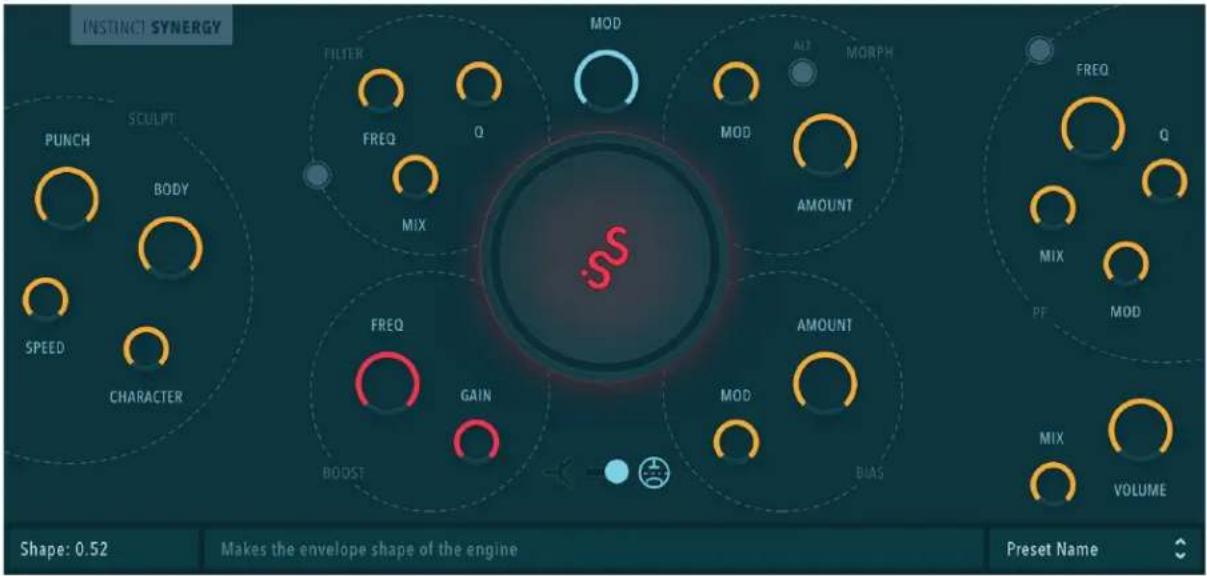
Figure 3: Inertia Sound Systems Instinct
Instinct features the following sections:
- Sculpt, The transient shaper module, with controls for punch, body, character, and speed.
- Boost, A pre - boost filter with controls for frequency and gain.
- Filter, A saturating resonant zero delay feedback VA lowpass filter with controls for frequency, Q, and mix.
- Drive, With controls for gain, gain modulation amount, drive model (transistor / tube).
- Morph, With controls for morph amount (for internal drive parameters) and morph modulation amount.

- Bias / Asym, With controls for bias amount, and bias modulation amount.
- Post Filter, With controls for cutoff frequency, Q, cutoff modulation amount and mix.
- Amplifier, With controls for mix, and output volume.
Concept & Signal Flow
![graph TD A["input"] --> B["Boost"] B --> C["(a)"] C --> D["SCULPT (1)"] D --> E["Drive (2)"] E --> F["(c)"] F --> G["X2"] G --> H["Filter (3)"] H --> I["Filter (3)"] I --> J["Drive (2)"] J --> K["Post Filter"] K --> L["Mix / Amp"] L --> M["output"] N["ext"] --> O["(a)"] O --> P["Boost"] P --> Q["(b)…](/content/2026/06/1226488/images/7a477cc7e9fac710fc610ba1b33fa63973ee559e9b7c6e9da30dced2ee96bea3.jpg)

Figure 4: Signal Flow
The concept behind Instinct, is to have the ability to control tone, drive and drive circuit parameters dynamically, based on a modulation signal that is created by the shaping - sculpting of the intensity envelope of the "SCULPT" section input. This is what makes Instinct's engine alive and pumping. As denoted in figure's 4 legend, the blue buses carry the modulation signal to the modules that can use it. By adding it to the drive circuit's gain parameter a drive / transient shaper effect is produced. The shaped modulation signal can also alter other parameters, such as bias, transistor's circuit shapers, tube's circuit internal voltages, or post filter's cutoff frequency.
Sections & Parameters
SCULPT
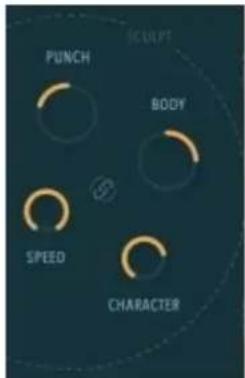
Figure 5: Sculpt
- PUNCH: Increases or decreases the intensity of the transients' attack.
- BODY: Increases or decreases the intensity of the transients' release.
- SPEED: Adjusts the speed of the underlying envelope followers.
- CHARACTER : Adjusts the non linear behavior of the underlying envelope followers. Lower values correspond to a more linear behavior, whereas higher values tend to expand the detected envelope.
- EXT. SIDECHAIN : When active, the SCULPT module operates on the sidechain signal, that depends on the routing chosen in the DAW.
BOOST

Figure 6: Boost
The Boost section increases or decreases the gain around the center frequency set by the FREQ parameter.
• FREQ : Sets the center boost frequency.
• GAIN : Sets the gain of the center frequency.
DRIVE

Figure 7: Drive
- GAIN : Sets the gain of the selected drive circuit selected by the MODEL parameter. Furthermore with Command + Click (mac) or Control + Click (Windows) the user can change the signal path by enabling the drive filter and the 2nd drive circuit.. (see (c) in figure 4).
- MODEL: Selects the tube or transistor circuit models.
- MOD: Sets the modulation amount of the drive circuit's gain.
FILTER
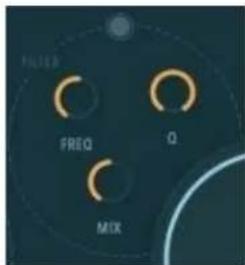
Figure 8: Filter
- FREQ: Sets the cutoff frequency of the filter.
• Q : Sets the resonance amount of the filter.
• MIX : Sets the mix amount of the filter.
- FILTER ONLY: When the transistor model is chosen from the drive circuit section, if FILTER ONLY is enabled the drive circuit is bypassed and the saturation is taking place in the filter's guts creating a different flavor (see (*) in figure's 4 legend).
MORPH
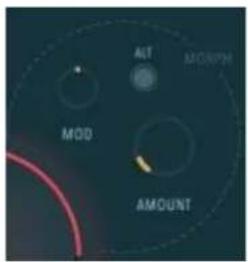
Figure 9: Morph
• AMOUNT : Sets the morph amount.
• MOD : Sets the morph amount modulation.
- ALT : Available only when the transistor model is chosen, selects the type of transistor model morphing. When inactive the result resembles a frequency modulation sound for high morph amounts. When active a more classic puncher morphing is applied.
BIAS

Figure 10: Bias
• AMOUNT : Sets the bias of the drive circuit.
• MOD : Sets the bias modulation amount.
PF (Post Filter)

Figure 11: PF
- FREQ: Sets the cutoff frequency of the filter.
• Q : Sets the resonance amount of the filter. - MOD : Sets the modulation amount of the cutoff frequency.
• MIX : Sets the mix amount of the filter.
• ON / OFF : Activate or deactivate the post filter module.
AMP

Figure 12: Amp
• MIX : Sets the overall mix amount (DRY / WET).
• VOLUME: Sets the overall volume of the plugin.
Preset Browser
Instinct comes with factory presets, and gives the user the ability to create custom ones. The presets are located into
- Windows C:\Users\user\AppData\Roaming\Inertia Sound Systems\Plugin Presets\Instinct
- macOS /Users/Shared/Inertia Sound Systems/Plugin Presets/Instinct
To access the presets click on the preset browser.


Figure 13: Preset Browser
You can load a preset either by clicking the up / down arrows or by choosing a preset from the popup menu.
In the actions section can perform the following
- Save Preset. A new preset is saved in the user preset folder. When a new preset is saved the
plug-in loads it immediately.
- Init. Initializes the plug-in. All parameters are set to their default values.
Displays
MODEL : TUBE Sets the gain when tweaked, 2x drive plus filtering with Command + Click
Figure 14: Parameter and Help Displays
- Parameter Display. Shows the values of the tweaked parameters.
- Help Display. Shows a tooltip whenever the mouse is over a parameter.
Default Values & Parameter Fine Tuning
Each knob of Instinct can be reset to its default value by double clicking or by pressing alt + click on it. Fine tuning parameter values is possible by holding down control (Windows) or command (macOS) while tweaking a knob with the mouse.
Further Reading
For more information about Instinct Synergy, visit Inertia Sound Systems. If you need help with anything Antelope Audio, contact Customer Support.
Customer Support Information
Antelope Audio Customer Support can be reached by the following means:
Online
Visit support.antelopeaudio.com
Instinct Synergy User Manual
Phone
US time: 12AM (midnight) – 8PM (CST), Monday – Friday
US Phone Number: (916) 238-1643
European time: 6AM – 2AM (GMT), Monday – Friday.
UK Phone Number: +44 1925933423
Live Chat
US time: 12AM (midnight) – 2PM (CST), Monday – Friday
European time: 6AM – 8PM (GMT), Monday – Friday.
Note: If you're trying to reach us outside working hours, we advise you to file a ticket in our customer support system or leave a voice message.
Additional Resources
- The Antelope Audio YouTube channel is home to various tutorial videos and endorser content which you may find helpful and inspiring.
- The Antelope Audio Users Facebook group lets you interact with fellow users and some of our employees. Note, however, that it is not meant to be a support group. Please contact our customer support team for such inquiries.
- The Knowledge Base in our Customer Support section is an often-overlooked source of troubleshooting information, answers to commonly asked questions and Antelope know-how.
- INSTINCT
- SYNERGY
- CREATIVE MODULATION REAL-TIME EFFECT
- CONTENTS
- BEFORE YOU BEGIN
- HOW TO INSTALL INSTINCT SYNERGY
- CAN I USE INSTINCT SYNERGY ON MORE THAN ONE SUPPORTED DEVICE
- USING INSTINCT SYNERGY WITH DISCRETE 4 & 8 SYNERGY CORE ('EASYPANEL' DEVICES)
- AUDIO SOURCE AND OUTPUT OPTIONS
- SETTING UP
- IF YOUR AUDIO SOURCE IS A MICROPHONE
- IF YOUR AUDIO SOURCE IS AN ANTELOPE AUDIO EDGE OR VERGE MODELING MICROPHONE
- IF YOUR AUDIO SOURCE IS LINE-LEVEL EQUIPMENT
- IF YOUR AUDIO SOURCE IS A HIGH-IMPEDANCE (HI-Z) INSTRUMENT
- IF YOUR AUDIO SOURCE IS DAW PLAYBACK
- IF YOUR AUDIO SOURCE IS ADAT
- IF YOUR AUDIO SOURCE IS S/PDIF
- HOW TO LOAD INSTINCT SYNERGY ON AN AUDIO CHANNEL
- HOW TO OUTPUT INSTINCT SYNERGY AUDIO TO HEADPHONES, MONITORS, AND DAW
- AUDIO TO HEADPHONE AND MONITOR OUTPUTS
- AUDIO TO DAW
- USING INSTINCT WITH ORION STUDIO SYNERGY CORE ('CONTROL PANEL' DEVICES)
- IF YOUR AUDIO SOURCE IS ADAT, S/PDIF, OR DAW PLAYBACK
- HOW TO APPLY INSTINCT SYNERGY TO ANY ANALOG OR DIGITAL AUDIO INPUT
- ROUTING TAB
- FUNCTIONALITY
- AVAILABLE AUDIO INPUTS FOR INSTINCT SYNERGY
- PREAMP
- EMU MIC
- COMP PLAY
- ADAT IN
- S/PDIF IN
- AFX IN
- MIX CH1 - CH4
- AVAILABLE AUDIO OUTPUTS FOR INSTINCT SYNERGY
- LINE OUT
- HP1
- HP2
- MONITOR A
- MONITOR B
- COMP REC
- ADAT OUT
- S/PDIF OUT
- AFX OUT
- LOW LATENCY MIXER OUTPUTS
- EFFECTS TAB
- TAKE INSTINCT SYNERGY AUDIO OUTSIDE THE ORION STUDIO
- SYNERGY CORE
- MONITOR INSTINCT SYNERGY
- OUTPUT INSTINCT SYNERGY AUDIO TO EXTERNAL EQUIPMENT
- REAMP
- RECORD INSTINCT SYNERGY AUDIO IN YOUR DAW
- NOTES
- INSTINCT SYNERGY - FUNCTIONALITY AND PARAMETERS EXPLAINED
- CONCEPT & SIGNAL FLOW
- SECTIONS & PARAMETERS
- SCULPT
- BOOST
- DRIVE
- FILTER
- MORPH
- BIAS
- PF (POST FILTER)
- AMP
- PRESET BROWSER
- DISPLAYS
- DEFAULT VALUES & PARAMETER FINE TUNING
- FURTHER READING
- CUSTOMER SUPPORT INFORMATION
- ONLINE
- PHONE
- LIVE CHAT
- ADDITIONAL RESOURCES
Brand : Antelope Audio
Model : Instinct Synergy
Category : Audio