
KAWM6WF53PA - Coffee machine Kogan - Free user manual and instructions
Find the device manual for free KAWM6WF53PA Kogan in PDF.


| Product Type | Wi-Fi AC1200 Whole-Home Mesh System (3 Pack, Wi-Fi 5) |
| Model | KAWM6WF53PA |
| Brand | Kogan |
| Number of Nodes | 3 |
| Included Accessories | 3 Power Adapters, 1 Ethernet Cable, User Guide |
| Power Input | 100–240 V, AC, 50/60 Hz, 0.4 A |
| Power Output | 12 V, DC, 1 A |
| Operating Temperature | 0–40°C |
| Operating Humidity | 10–90% RH, non-condensing |
| Wireless Standard | Wi-Fi 5 (802.11ac), AC1200 |
| Ethernet Ports | WAN/LAN on primary node, LAN on all nodes |
| App Support | KoganMesh App (iOS & Android) |
| Primary Node Setup | Connect via Ethernet to modem, power on, wait 40 s |
| Secondary Node Setup | Power on, automatically mesh; LED indicates connection quality |
| LED Indicators | Green (good), Yellow (fair), Red (disconnected) |
| Wall Mounting | Yes, with recommended screws (PA3x14 mm, head Ø 5.2 mm, head thickness 1.8 mm) |
| Network Management | Via KoganMesh App, remote login |
| Factory Reset | Hold Reset button on primary node for 6 seconds |
| Environment | Place in high open area, avoid obstructions and interference |
| Disposal | Recycle responsibly; do not dispose with household waste |
Frequently Asked Questions - KAWM6WF53PA Kogan
User questions about KAWM6WF53PA Kogan
0 question about this device. Answer the ones you know or ask your own.
Ask a new question about this device
Download the instructions for your Coffee machine in PDF format for free! Find your manual KAWM6WF53PA - Kogan and take your electronic device back in hand. On this page are published all the documents necessary for the use of your device. KAWM6WF53PA by Kogan.
USER MANUAL KAWM6WF53PA Kogan
WI-FI AC1200 WHOLE-HOME MESH
(3 PACK, WI-FI 5)
KAWM6WF53PA
COMPONENTS LIST
- Mesh3 Node (x3)
• Power Adapter (x3) - Ethernet Cable
- User Guide
OVERVIEW
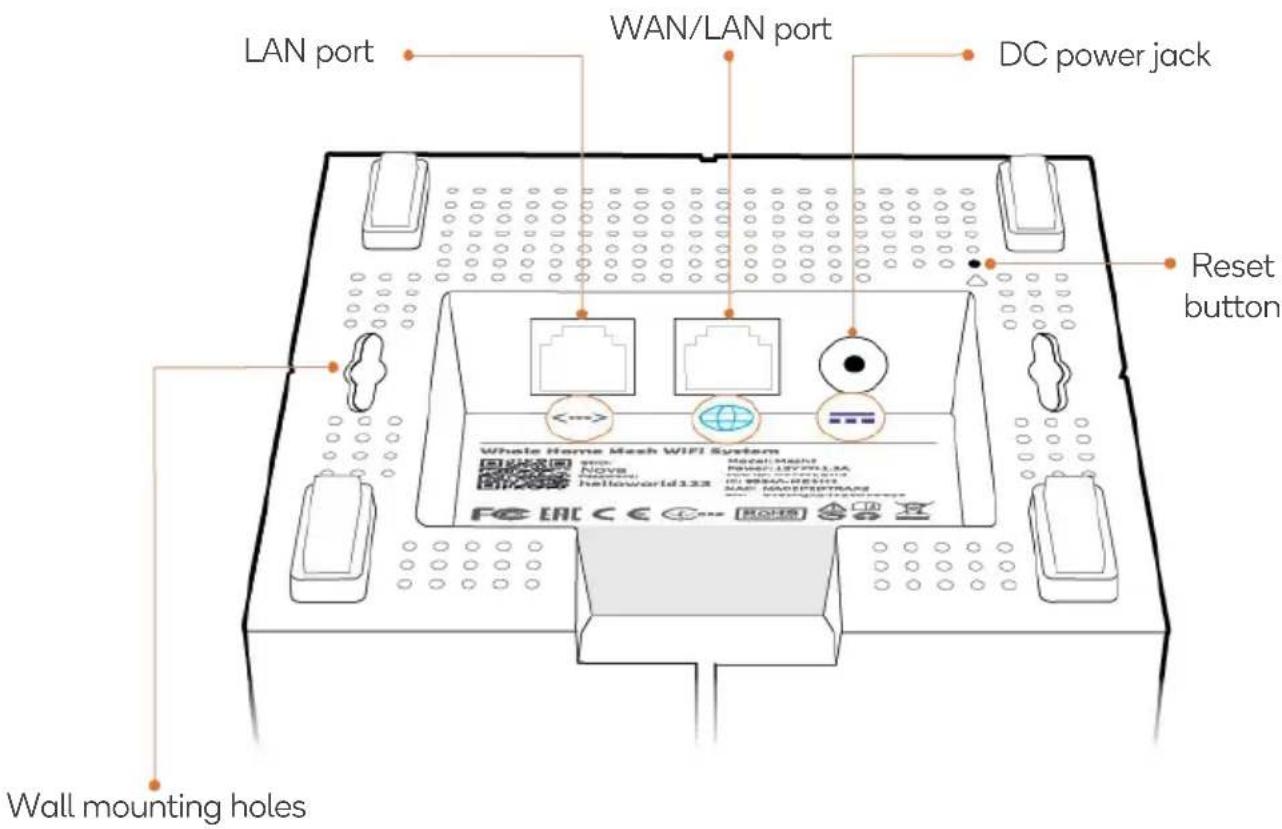
Wall mounting hole
Used to fix the device to the wall. Recommended specifications are:
- Screws: PA3x14 mm; head diameter: 5.2 mm; head thickness: 1.8 mm
- Plastic anchor: inner diameter: 2.4 mm; length: 26.4 mm
INSTALLATION
Install the KoganMesh App
Download the KoganMesh App onto your mobile device by searching for KoganMesh in App Store or Google Play or by scanning the QR code. Then install the KoganMesh App.
KoganMesh App


Available for iOS and Android
Connect the Primary node:
The first node you set up functions as the primary node, while the rest are referred to as the secondary nodes.
![graph TD A["Internet"] --> B["Modem"] B --> C["Ethernet jack"] D["Reset"] --> E["Internet"] style A fill:#f9f,stroke:#333 style B fill:#ccf,stroke:#333 style C fill:#cfc,stroke:#333 style D fill:#fcc,stroke:#333 style E fill:#cff,stroke:#333](/content/2026/06/1226220/images/69d7bd7c59996e60c17f8dbd0089eb6f19208346294f68e930d91367cf2de6d4.jpg)
- Power off your modem and remove its battery (if any).
- Use the included Ethernet cable to connect a LAN port of your modem or the Ethernet jack to the (WAN/LAN) port of one of the nodes. This node is your primary node.
- Reinstall its battery and power on your modem.
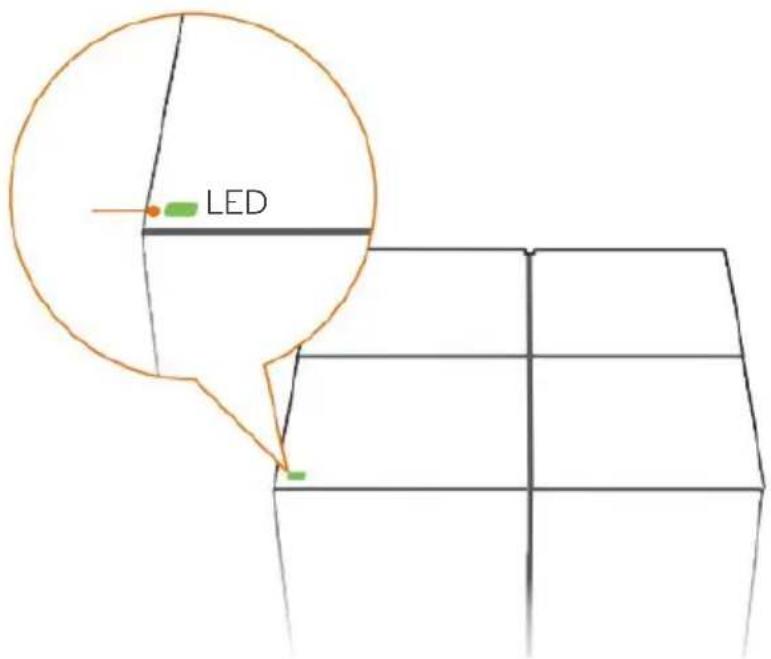
- Use the included power adapter to connect the primary node to a power source, the LED indicator lights solid green. Wait about for 40 seconds. The system completes start-up when the LED indicator blinks green.
Connect the primary node to the internet
- Go to the Wi-Fi network list on your mobile device, select the SSID of the primary node and enter its password. The SSID and password are specified on the bottom label of any node.


- Run the KoganMesh App and follow the onscreen instructions to connect the primary node to the internet. After the primary node is connected to the internet, its LED indicator lights solid green.
Connect the secondary nodes to the internet
- Place each node:
• In a high & open area
- Ensure that there are less than two walls between any two nodes.
- Keep your nodes away from electronics with strong interference, such as microwave ovens, induction cookers and refrigerators.

- Use other power adapters to connect the remaining secondary nodes to power outlets, the LED indicators will turn solid green. Wait for about 40 seconds. The secondary node is connecting to another node when its LED indicator blinks green.
- Observe the LED indicator of the secondary nodes until their LED indicators are one of the following colours:

Solid Green
Good Connection

Solid Yellow
Fair Connection

Solid Red
Disconnected
- If a node's LED indicator does not light solid green, you can relocate it ensuring you avoid obstructions and any electronic interference.
To access the internet:
- Wired devices: Connect wired devices to the LAN ports of your nodes.
- Wireless devices: Connect wireless devices to the Wi-Fi network using the SSID and Wi-Fi password you set.
- To manage the network anytime anywhere, tap “ ” icon in the app and use your account to login.
SPECIFICATIONS
Input 100 - 240 V, AC, 50/60 Hz, 0.4 A
Output 12 V, DC 1 A
Operating Temperature 0-40°C
Operating Humidity (10-90) % RH, non-condensing
FAQ
Q1: How can I remove a node from my Wi-Fi network?
A1: Tap the node on the KoganMesh App, tap ... in the upper-right corner and choose Delete.
Note:
Removing operation restores the node to factory settings.
Q2: Can I add another new set of nodes to expand my network coverage?
A2: Yes. Run the KoganMesh App, tap Settings in the lower-right corner, tap Add nova and follow the on-screen instructions.
Q3: How to restore my network to factory settings?
A3: With your nodes powered on, hold the Reset button of your primary node down using a sharp item (such as a pin) for about 6 seconds and release it when the LED indicator blinks fast. Your network is reset successfully when the LED indicator lights solid green then blinks slow again. All nodes will be restored to factory settings.
Q4. My 2.4 GHz Wi-Fi-enabled devices, such as a home security camera, cannot connect to my nova Wi-Fi network. What should I do?
A4: Please try the following solution:
Step 1: Connect your smart phone used during setup to your Wi-Fi network.
Step 2: Run the KoganMesh App, tap Settings, Smart Assistant and Enable.
Your smart phone will connect to the 2.4 GHz Wi-Fi network.
Step 3: Use the smart phone to set up your 2.4 GHz Wi-Fi-enabled device following the prompts in the app.
Disposal

This marking indicates that this appliance should not be disposed with other household wastes. To prevent possible harm to the environment or human health from uncontrolled waste disposal, recycle it responsibly to promote the sustainable reuse of material resources.
NOTES
Need more information?
We hope that this user guide has given you the assistance needed for a simple set-up.
For the most up-to-date guide for your product, as well as any additional assistance you may require, head online to help.kogan.com
kogan.com

- WI-FI AC1200 WHOLE-HOME MESH
- COMPONENTS LIST
- OVERVIEW
- WALL MOUNTING HOLE
- INSTALLATION
- INSTALL THE KOGANMESH APP
- CONNECT THE PRIMARY NODE
- CONNECT THE PRIMARY NODE TO THE INTERNET
- CONNECT THE SECONDARY NODES TO THE INTERNET
- TO ACCESS THE INTERNET
- SPECIFICATIONS
- FAQ
- Q1: HOW CAN I REMOVE A NODE FROM MY WI-FI NETWORK
- NOTE
- Q2: CAN I ADD ANOTHER NEW SET OF NODES TO EXPAND MY NETWORK COVERAGE
- Q3: HOW TO RESTORE MY NETWORK TO FACTORY SETTINGS
- Q4. MY 2.4 GHZ WI-FI-ENABLED DEVICES, SUCH AS A HOME SECURITY CAMERA, CANNOT CONNECT TO MY NOVA WI-FI NETWORK. WHAT SHOULD I DO
- DISPOSAL
- NOTES
- NEED MORE INFORMATION
Brand : Kogan
Model : KAWM6WF53PA
Category : Coffee machine