
KAPRNTPKLBA - Printer Kogan - Free user manual and instructions
Find the device manual for free KAPRNTPKLBA Kogan in PDF.


| Brand | Kogan |
| Model | KAPRNTPKLBA |
| Product Type | Portable Pocket Bluetooth Label Printer |
| Dimensions | 135 x 79.6 x 29.2 mm |
| Power Input | 5V=2A, USB-C |
| Printing Technology | Thermal printing |
| Consumable Width | 6-15 mm |
| Effective Printing Width | 12 mm |
| Supported Paper | Pre-cut paper, black mark paper, continuous paper |
| Printing Density | Light, standard, dark |
| Printing Resolution | 203 dpi |
| Print Head Life | 50 km |
| Communication Interface | Bluetooth |
| Supported OS | Android/iOS |
| App Required | Print Master (free download) |
| Label Creation Modes | Lite mode (quick edit) and Creation mode (advanced: icons, borders, barcodes, QR, OCR) |
| Cleaning | Use cotton swab with alcohol on print head; allow to dry |
| Safety Compliance | FCC Part 15 Class B |
Frequently Asked Questions - KAPRNTPKLBA Kogan
User questions about KAPRNTPKLBA Kogan
0 question about this device. Answer the ones you know or ask your own.
Ask a new question about this device
Download the instructions for your Printer in PDF format for free! Find your manual KAPRNTPKLBA - Kogan and take your electronic device back in hand. On this page are published all the documents necessary for the use of your device. KAPRNTPKLBA by Kogan.
USER MANUAL KAPRNTPKLBA Kogan
natural_image
Line drawing of a rectangular device with a circular top and handle, no text or symbols presentPORTABLE POCKET BLUETOOTH LABEL PRINTER
KAPRNTPKLBA
Safety & Warnings 3
Components 4
Overview 4
Operation 7
Cleaning & Care 15
Troubleshooting 16
Specifications 17
Notes 18
SAFETY & WARNINGS
FCC Caution
This device complies with part 15 of the FCC Rules. Operation is subject to the following two conditions.
- This device may not cause harmful interference.
- This device must accept any interference received, including interference that may cause undesired operation.
Any Changes or modifications not expressly approved by the party responsible for compliance could void the user's authority to operate the equipment.
Notes:
This equipment has been tested and found to comply with the limits for a Class B digital device, pursuant to part 15 of the FCC Rules. These limits are designed to provide reasonable protection against harmful interference in a residential installation. This equipment generates uses and can radiate radio frequency energy and, if not installed and used in accordance with the instructions, may cause harmful interference to radio communications. However, there is no guarantee that interference will not occur in a particular installation. If this equipment does cause harmful interference to radio or television reception, which can be determined by turning the equipment off and on, the user is encouraged to try to correct the interference by one or more of the following measures.
- Reorient or relocate the receiving antenna.
- Increase the separation between the equipment and receiver.
WARNING: RF warning for Portable device:
- The device has been evaluated to meet general RF exposure requirement.
- The device can be used in portable exposure condition without restrictions.
COMPONENTS
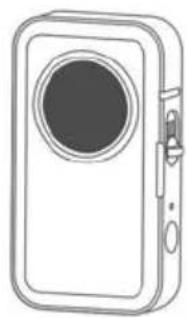
natural_image
Line drawing of a digital camera with a circular lens and rectangular body (no text or symbols)Label Maker
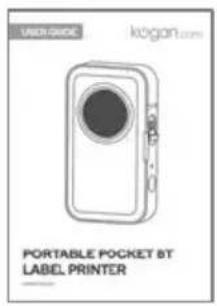
User Guide
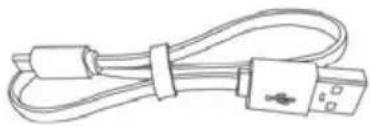
natural_image
Line drawing of a USB cable with two connectors (no text or symbols)USB Charging Cable
OVERVIEW
Label paper
This Bluetooth label printer offers seamless compatibility with a wide range of label paper types, making it incredibly versatile for all your labelling needs.

natural_image
Diagram of a cylindrical object with an arrow indicating upward motion, no text or symbols present
natural_image
Two empty rounded rectangles inside a rectangular border (no text or symbols)Cut paper
Continuous paper
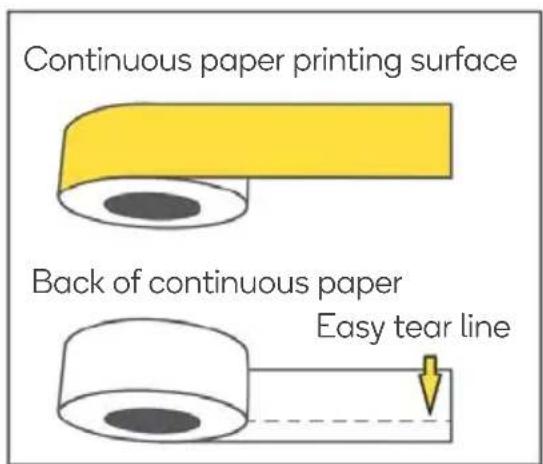
Continuous Label Paper
This label paper features an 'easy tear' line, to help peel off the adhesive backing.
Gently bend the label paper along the 'easy tear' line to make it easier to peel the bottom paper from the adhesive.

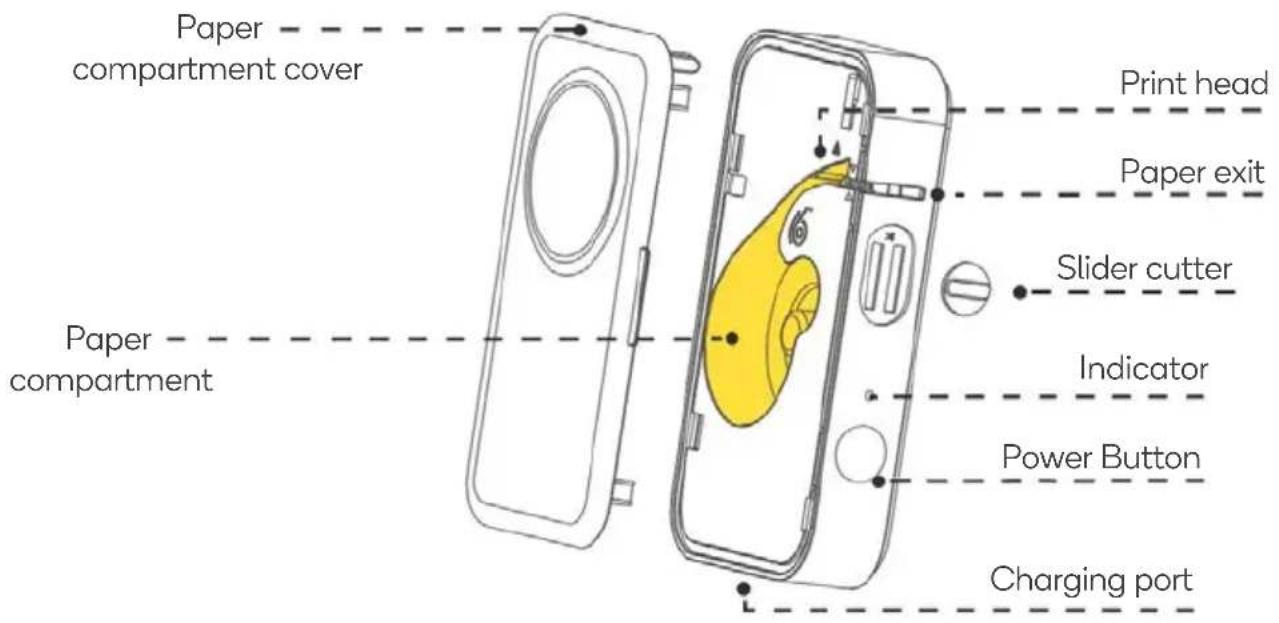
Power Button and Indicator

Power button
| Button | Operation method | Functions |
| Power button | Press and hold for 3s | Turn On/Off |
| Short press | Print out the paper | |
| Double press | Print the content of the self-test paper |
Indicator status
 | Solid Green | Normal status |
 | Slowly flashing Green | Charging with power on |
 | Rapidly flashing Green | Charging with power off |
 | Solid Red | Error (low paper, cover opened, high temperature) |
 | Slowly flashing Red | 10% battery |
 | Rapidly flashing Red | 5% battery |
OPERATION
-
Open the paper compartment cover.
-
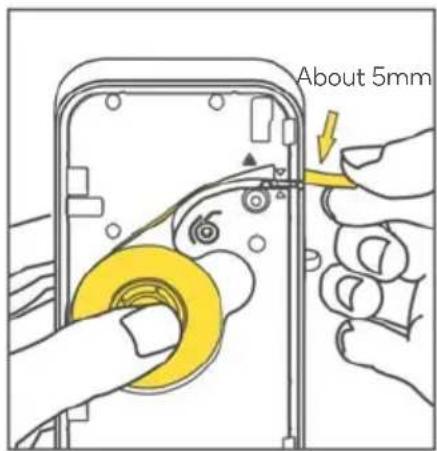
Place the label paper in the paper compartment with the printing side facing up.

natural_image
Illustration of hands assembling a hard disk device into a plastic housing (no text or symbols visible)
-
Pull out approximately 5mm of the label paper.
-
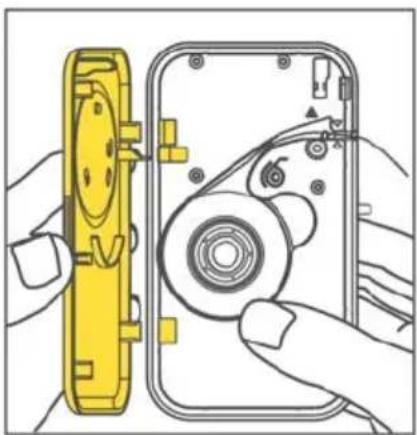
Align the tabs on the cover with the holes in the printer and close the cover.
natural_image
Illustration of hands assembling a camera module into a device casing (no text or symbols visible)-
Press and hold the power button for 3s to turn on.
-
Short press the power button to identify the label position.

natural_image
Line drawing of hands holding a smartphone with a yellow arrow pointing to the pad (no text or symbols)
natural_image
Illustration of hands holding a smartphone with a lock and scroll, showing a yellow arrow pointing to the lock (no text or symbols present)| 7. The printer will eject a small amount of paper. Paper installation is completed. | 8. After printing a label, slide the cutter up to tear off the label. |
 |  |
Notes:
- When installing or replacing the label roll for the first time, the label position identification is required; (Step 6.).
- If the label position identification is not carried out, failures may occur such as first printing missing, not centred etc.
- When using, continuous paper, if will not be required to press the power button for positioning. Instead, pull the paper until it is in position.
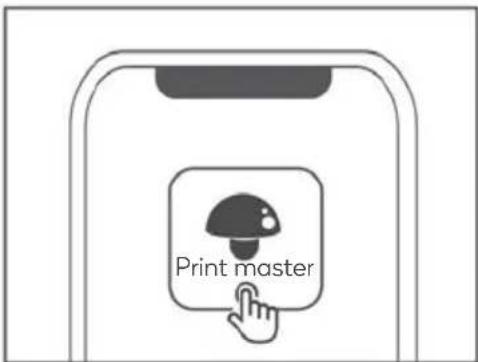
Download the Print Master App
Notes:
- This product requires the Print Master App to operate.
- Android mobile phone will need to enable GPS and confirm the authorisation.
Use your mobile phone to scan the QR code to download the APP.
Alternatively, search for "Print Master" in the App Store (iOS) or Google Play Store (Android) and download.


Pair the Label Printer to your Phone
| 1. Turn on GPS (Android mobile phone only) | 2. Open the App |
 |  |
| 3. Click “Connect now” to search for your device | 4. Once connected the label printer is ready to be used. |
 | 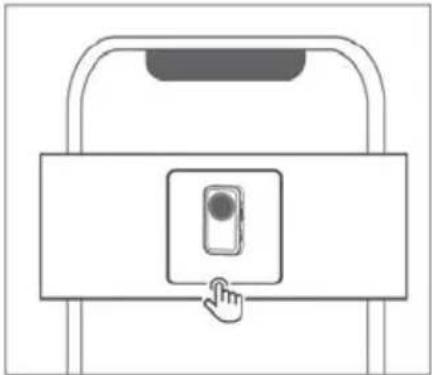 |
Note: When connecting device in the App, make sure that your Label Maker is turned on and Bluetooth is enabled on your mobile phone.
Confirm the Label Size
| Method 1: Check the sticker on the label paper. | Method 2: Check the label paper packaging |
 |  |
| Method 3: Use a ruler to measure | Method 4: Check the label paper pads. |
 |  |
Creating Labels
From the home menu, select from either Lite or Creation mode depending on your requirements.
• Lite mode: Edit simply, print quickly
- Creation mode: Requires more time to edit but has more options (multifunctional, graphic icons, QR codes etc.)
Note: You can view operation tutorials and switch editing versions in the "home" menu.
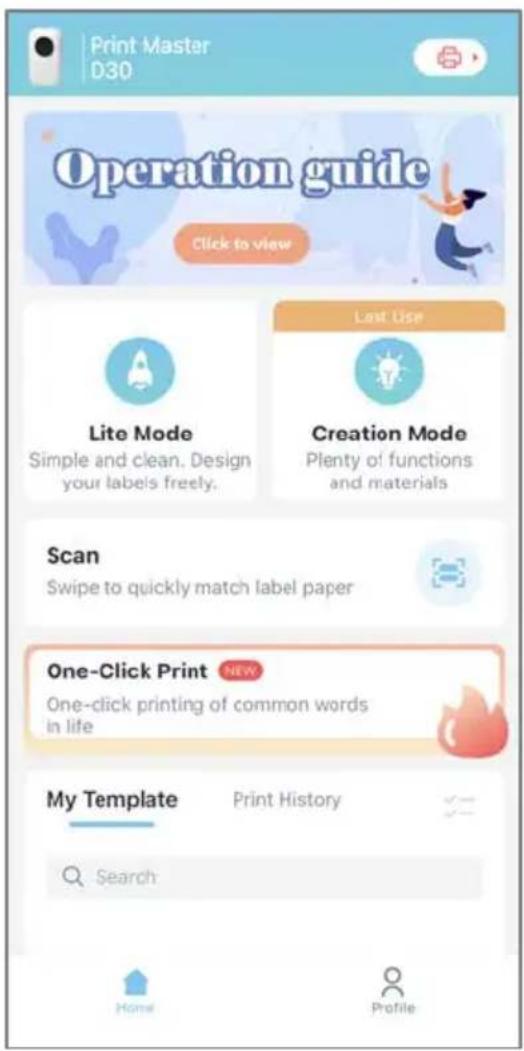
Lite Mode
| 1. Select "Label Setting" | 2. Select the label size | 3. Click "(T)" to input text | |
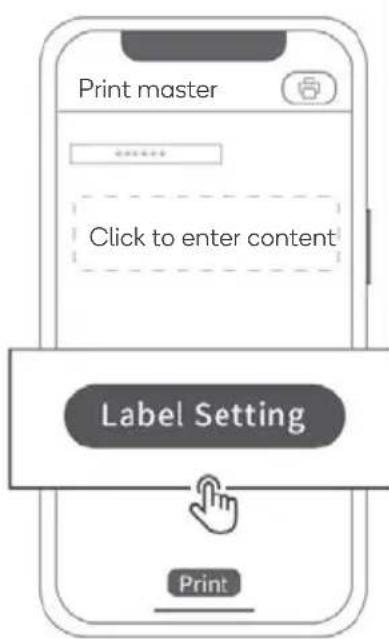 |  |  | |
| 4. Edit function description | 5. After editing, click "Print" | ||
 |  | ||
| 6. After printing, slide the cutter up to tear off the label | 7. If using continuous paper tear off the bottom paper adhesive backing. | ||
 | 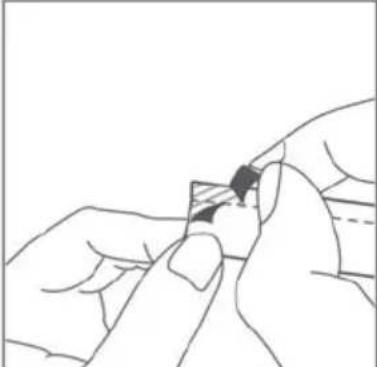 | ||
Note:
If the paper size is selected incorrectly, there will be undesirable results such as misaligned printing layout and uneven layout etc.
| Functions | Operation method | Example |
 | Click to insert text. User can edit the text size, typesetting and select various fonts, etc. |  |
 | Add date |  |
 | Edit specific time point |  |
 | Unit symbol | 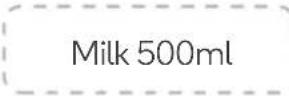 |
Creation Mode
| 1. Select “Label Setting” | 2. Select the label size | 3. Click “(T)” to input text |
 |  | 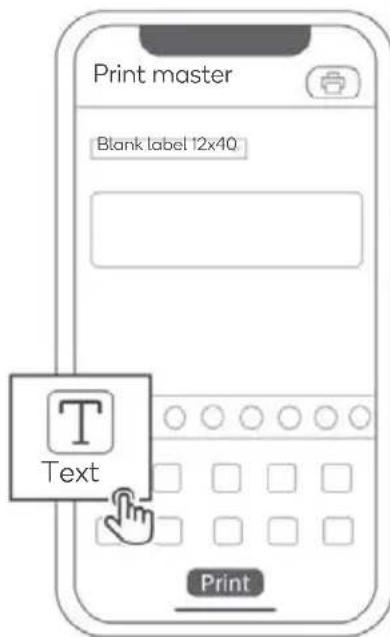 |
| 4. Edit functions | ||
 |  | 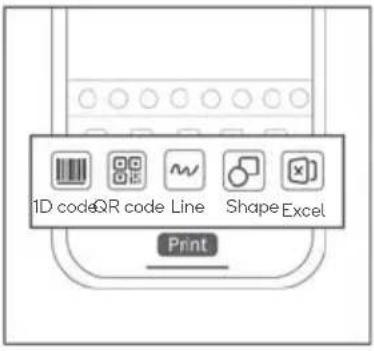 |
| 5. After editing, click to "Print" | 6. After printing, slide the cutter up to tear off the label | 7. If using continuous paper tear off the bottom paper adhesive backing. |
 |  |  |
| Functions | Description |
 | Click to insert text. User can edit the text size, typesetting and select various fonts, etc. |
 | Click to insert all various icons and symbols. |
 | Click border function to select various borders to decorate your label. |
 | Click to insert a picture stored on your device. |
 | Insert date and specific time. |
 | Click to scan the code to identify. It can quickly identify the text content in the QR code. |
 | Click to insert a one-dimensional code. Enter the information to be edited, then a one-dimensional code can be automatically generated and the layout can be adjusted. |
 | Click to insert a QR code. Enter the information to be edited, then a QR code can be automatically generated and the layout can be adjusted. |
 | Insert a line. Select between a dashed line or a solid line. |
 | Click to insert round or square shapes. |
 | Insert a table. |
 | Optical character recognition (OCR). Use your camera to scan text. |
| Note: Functions will continually be updated with new features. Refer to the App for the latest functions. | |
CLEANING & CARE
| 1. Turn off the Label Maker. | 2. Use a cotton swab dipped in a little alcohol. | ||
 |  | ||
| 3. Wipe the print head gently. | 4. Allow the alcohol to evaporate and then turn it on and double click the power button to print labels. | ||
 |  |
Note:
Do not scratch the print head with hard objects, otherwise the thermal film will be permanently damaged and cannot be repaired.
TROUBLESHOOTING
| Problem | Solution |
| The printer cover won’t close. | Ensure the tabs on the paper compartment cover are aligned with the holes in the printer. |
| Label, not centred, misaligned, offset, skipped, poor printing etc. | ·Ensure the paper roll is correctly installed in the printer.·Ensure that the label is placed in the printer with printing side facing left. If it is placed incorrectly (reversed), printing will fail.·Check the label size and image on the label packaging and choose the correct template in the App. To do so, select "Label Setting". |
| Do I need to click the power button to allow the machine to calibrate and position the label? | When installing or replacing label paper roll for the first time, click the power button to print a blank label so that the print head can identify the position of label paper.When using continuous paper, do not click the power button for positioning, just pull out the paper outlet. |
| Printing is blurry. | In the profile menu on the app, select “Printer” and choose “” to view the printer’s batter level.If it is less than 10%, charge the printer using the supplied charging cable. |
| Printer will not connect via Bluetooth. | Ensure the printer is on and Bluetooth is enabled on your phone or device.For android phones, ensure the GPS is on and confirm authorisation in your privacy settings. |
| There is foreign matter or glue on the print head. | Use a cotton swab dipped with a little alcohol to gently wipe the dirt on the print head. Allow to dry before printing. |
SPECIFICATIONS
Printing technology
Consumable width
Effective printing width
Supported paper
Printing density
Printing resolution
Print head service life
Communication interface
Dimensions
Power input
Power supply method
Supported operating system
Thermal printing
6-15mm
12mm
Pre-cut paper, black mark paper, continuous paper
Light, standard, dark
203dpi
50km
Bluetooth
135 × 79.6 × 29.2mm
5V=2A
USB-C
Android/iOS
NOTES
Need more information?
We hope that this user guide has given you the assistance needed for a simple set-up.
For the most up-to-date guide for your product, as well as any additional assistance you may require, head online to help.kogan.com
kogan.com
- PORTABLE POCKET BLUETOOTH LABEL PRINTER
- SAFETY & WARNINGS
- FCC Caution
- Notes:
- WARNING: RF warning for Portable device:
- COMPONENTS
- OVERVIEW
- Label paper
- Continuous Label Paper
- Power Button and Indicator
- OPERATION
- Download the Print Master App
- Pair the Label Printer to your Phone
- Confirm the Label Size
- Creating Labels
- Lite Mode
- Note:
- Creation Mode
- CLEANING & CARE
- TROUBLESHOOTING
- SPECIFICATIONS
- NOTES
- Need more information?
Brand : Kogan
Model : KAPRNTPKLBA
Category : Printer