
KAPR6FHDWAA - Video projector Kogan - Free user manual and instructions
Find the device manual for free KAPR6FHDWAA Kogan in PDF.


| Product Type | Video Projector |
| Brand | Kogan |
| Model | KAPR6FHDWAA |
| Display Technology | LCD |
| Resolution | Full HD (1920x1080) |
| Brightness | 600 ANSI Lumens |
| Aspect Ratio | 16:9 / 4:3 / Auto |
| Keystone Correction | ±30° (Vertical & Horizontal, 4-point) |
| Light Source | LED |
| Focus | Manual |
| Speaker | 5W x 2 |
| Projection Modes | Front / Rear / Ceiling |
| Connectivity | HDMI (x2), USB 2.0, AV, 3.5mm Audio Out |
| Wireless | Wi-Fi (2.4/5GHz), Bluetooth |
| Screen Mirroring | iOS, Android, Mac, Windows (via Eshare) |
| Supported Video Formats | 3GP, AVI, FLV, MP4, MPG, VOB, TS, M2TS, RMVB, MKV |
| Supported Audio Formats | MP3, AAC, FLAC, OGG, WAV, WMA, MID, DTS, M4A |
| Supported Photo Formats | JPG, JPEG, PNG, BMP |
| Dimensions (W x D x H) | 256.9 x 219.6 x 101.5 mm |
| Net Weight | 2.6 kg |
| Power Supply | AC 100-240V, 50/60Hz |
| Included Accessories | Remote Control, AV Cable, HDMI Cable, Power Cable, User Guide |
Frequently Asked Questions - KAPR6FHDWAA Kogan
User questions about KAPR6FHDWAA Kogan
0 question about this device. Answer the ones you know or ask your own.
Ask a new question about this device
Download the instructions for your Video projector in PDF format for free! Find your manual KAPR6FHDWAA - Kogan and take your electronic device back in hand. On this page are published all the documents necessary for the use of your device. KAPR6FHDWAA by Kogan.
USER MANUAL KAPR6FHDWAA Kogan
natural_image
Line drawing of a rectangular electronic device with a circular vent and base mount (no text or symbols)600 ANSI FULL HD WI-FI PROJECTOR (W6)
KAPR6FHDWAA
Safety & Warnings 3
Components 4
Overview 5
Operation 8
Troubleshooting 19
Specifications 20
Notes 21
SAFETY & WARNINGS
- Read this user guide fully and carefully before using the product.
- To avoid eyes injury, do not look directly into the light from the projector.
- A direct burst of intense light can harm your eyes and cause severe damage to the eyes of infants.
- Do not attempt to repair this product yourself. If the product or its power supply experiences any malfunction or damage, cease use immediately and contact help.Kogan.com for support.
- Ensure the projector is a safe distance from any heat-emitting devices or the service life of the projector may be shortened.
- To ensure a stable power supply, ensure the electrical outlet used has the appropriate protection measures, such as grounding.
- Do not use any power cord other than the one supplied with this product.
- This product does not contain any user serviceable parts. Do not disassemble or modify this product in any way.
- Do not place this product on any items that may block the ventilation openings (cloth, blankets, etc.).
- This product is not waterproof, to prevent electric shock, do not expose the device to rain or water.
- Do not place any items containing liquids near the device.
- Do not use or operate this product in a damp, humid environment.
- If this product will not be used for an extended period, disconnect the power cord.
- To avoid damage, when transporting this product, place it back in its original packaging.
COMPONENTS
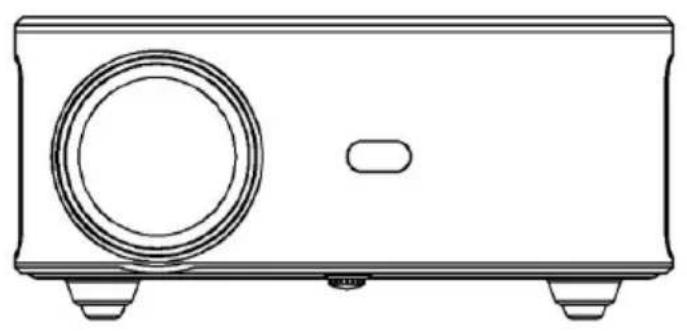
natural_image
Line drawing of a rectangular electronic device with a circular vent and two mounting feet (no text or symbols)Projector

Remote
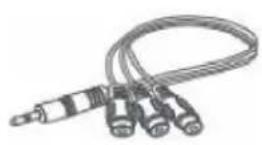
AV Cable
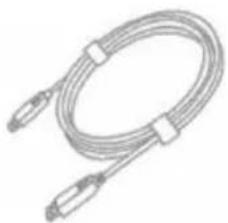
natural_image
Coiled broadband cable with two connectors (no text or symbols visible)HDMI Cable

natural_image
Coiled cable with two connectors (no text or symbols visible)Power Cable

User Guide


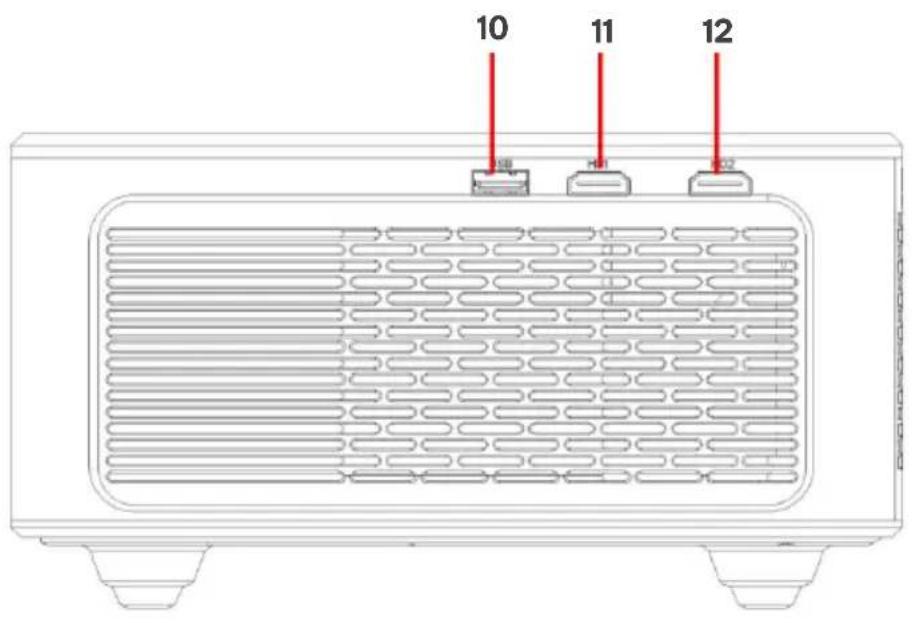
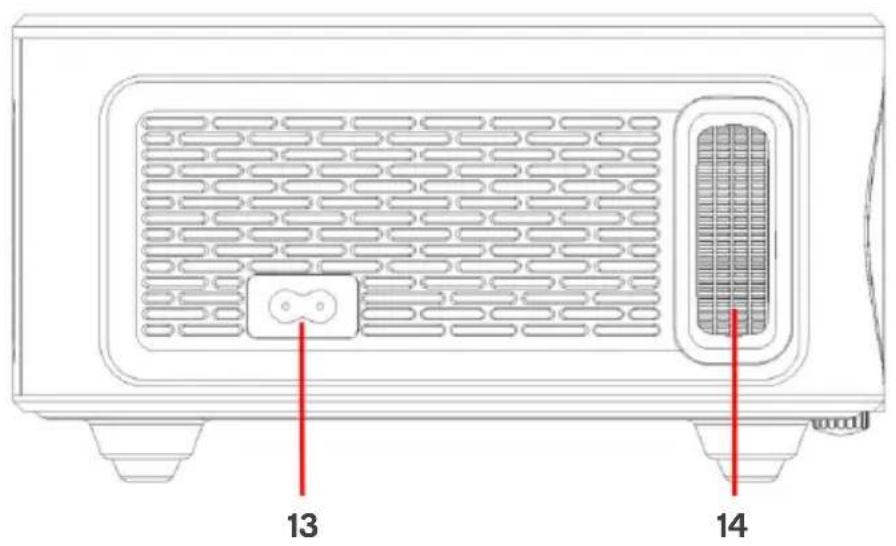
1 Focus lens 9 Removable dust cover release
2 Adjusting knob 10 USB port
3 IR receiver 11 HDMI 1 port
4 3.5mm port for audio output 12 HDMI 2 port
5 AV port 13 Power switch
6 Speaker 14 Focussing ring
7 IR receiver 15 Removable dust cover
8 Removable dust cover

natural_image
Technical line drawing of a square mechanical component with four circular holes and a central square (no text or symbols)Adjusting knob (lifting nut)
Remote Control

OPERATION
Placement and Mounting
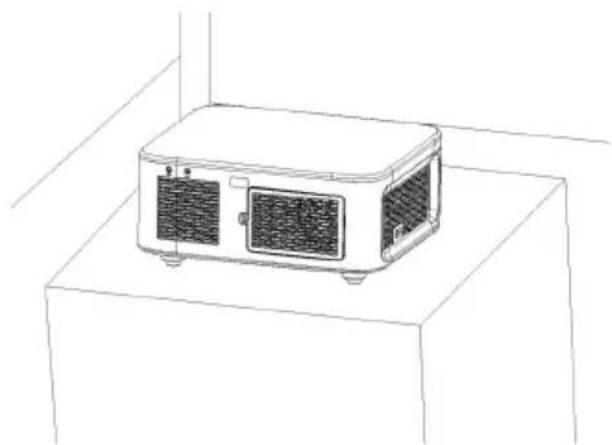
Before using the projector, select an appropriate area that has reduced brightness to allow for the best viewing results.
If the projector will be mounted to the ceiling, this projector supports most universal mounts (sold separately).
natural_image
Line drawing of a portable air conditioner unit on a stand (no text or symbols)
natural_image
Diagram showing a projector mounted on a screen with three seated figures below, no text or symbols present.- Front projection ceiling mount

natural_image
Diagram showing a projector mounted on a surface with three seated human figures below, no text or symbols present.- Rear projection ceiling mount
natural_image
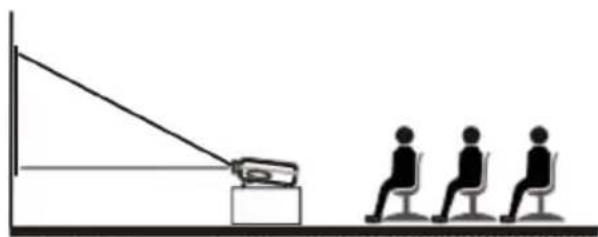
Simple line drawing of a meeting setup with three seated figures and a projector (no text or symbols)- Front projection table mount
natural_image
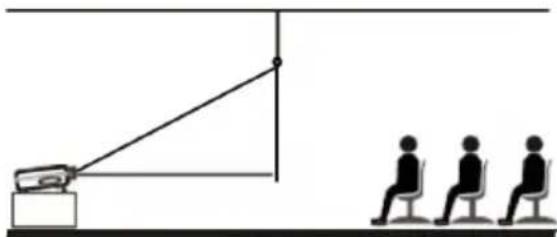
Simple line drawing of a meeting setup with a speaker, projection lines, and three seated figures (no text or symbols)- Rear projection table mount
Notes:
- During the installation, do not connect the power supply, to avoid electric shock hazards and projector circuit failure.
- Keep a gap of at least 30 cm from the wall. Do not cover or block the projector's vents with any objects. Make sure that the projector has enough ventilation to ensure the projectors, performance and reliability.
- If you have a projector screen and need to be mounted on a ceiling, the projector cannot be higher than the upper edge of the screen, otherwise it will affect the image effect.
Ceiling Mounting

- Purchase a universal projector ceiling mount.
- Remove the four rubber pads on the underside of the projector, you will see the screw holes.
- Use the M4x10mm screws to install the ceiling mount.
- Following the instructions included with your mounting kit to mount the projector.
Projection Size and Distance
Follow the data in chart below, to adjust the image size and the distance. Distance provided is measured from lens to projected surface.

bar
| Distance | Height (m) | | :--- | :--- | | 1.56 | 50 | | 2.5 | 80 | | 3.13 | 100 | | 3.76 | 120 | | 4.7 | 150 | | 6.27 | 200 |The recommended projection screen is around 80 inches with a projection distance of approximately 2.5m. Ambient darkness will improve the clarity of the projected images.
Power Connection
- Connect the power cord as shown below and turn on the power outlet.
- Remove the lens cover and press the power button on the remote control to turn on the projector.

natural_image
Line drawing of a portable air conditioner unit connected to a projector (no text or symbols)Focus
The initial projection may be blurry and out of focus. Use the focus dial on the projector until the projection becomes clear.
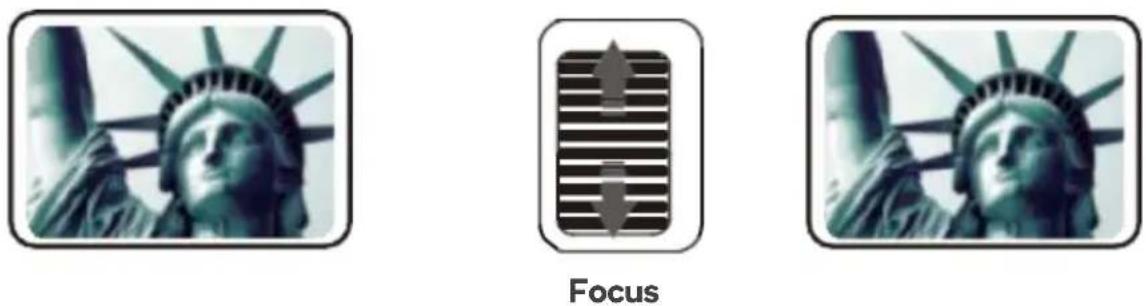
Keystone Adjustment
Vertical keystone correction:
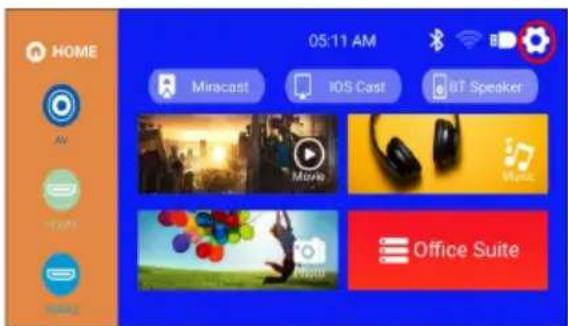
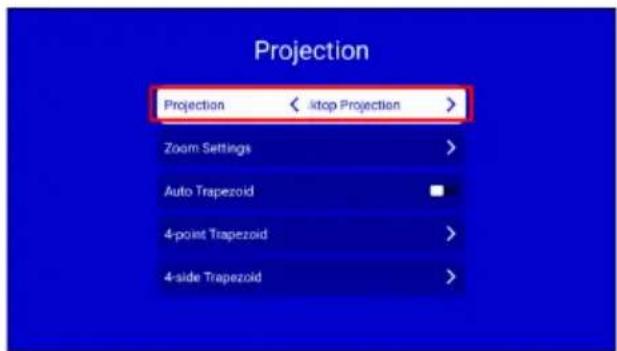
- Press the "Setting" button on the remote or on the projector to enter the settings menu.
- Select "Projection" settings and press "OK" to enter.
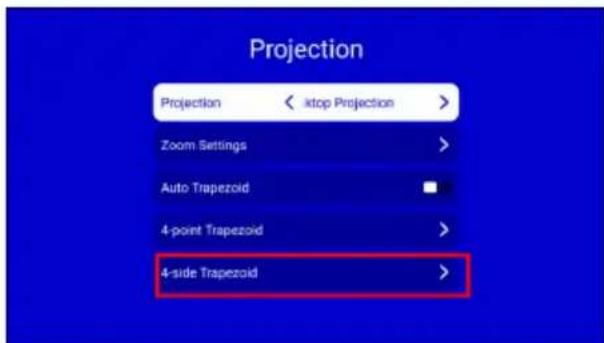
- Turn off "Auto Trapezoid" to enter the manual adjustment mode.

- Select "4-side Trapezoid", press OK to enter the keystone adjustment page, use the remote control or the direction buttons of the projector to adjust the vertical parameters in the manual keystone option until you get a vertical picture.

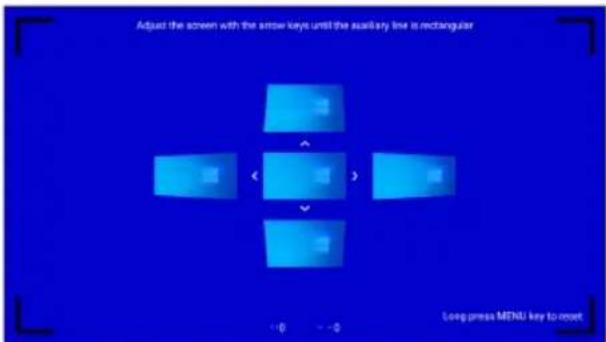
4-point Keystone Correction
Horizontal and vertical keystone correction: When the projected image is not rectangular, it can be adjusted using 4-point keystone correction.
Use the remote control or projector buttons to enter the settings menu.
Select "Projection" settings and press "OK" to enter.
Turn off "Auto Trapezoid" to enter the manual adjustment mode.


-
Select "4-Point Trapezoid" and press "OK" to enter, use the direction buttons of the remote control or the projector to adjust the projected image according to the graphics. After adjusting the current point, press the "OK" button to go to the next corner point.
-
After adjusting the 4 points, press the return key to save the current state.

Input Source
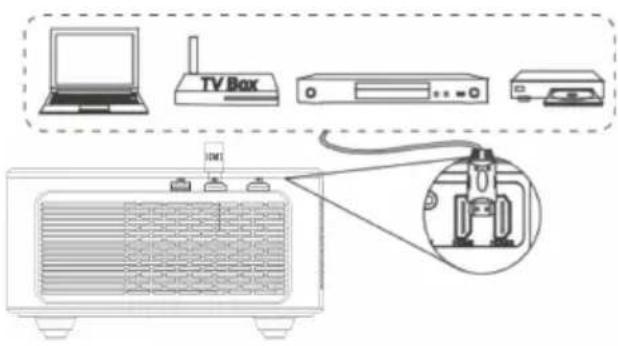
HDMI:
Connect the projector and equipment using the HDMI cable.
Press and hold the source button on the projector or remote control to enter the input source interface or use the direction buttons to select HDMI on the main interface of the projector.
Select the HDMI cable to connect to the corresponding interface HDMI or HDMI2, press the "OK" button to enter the interface and press the "Return" button to exit and return to the main menu.

AV:
Connect the projector and the equipment using the AV cable.
Press and hold the source button on the projector or remote control to enter the input source interface.
Select AV, press "OK" to enter and press the "Return" button to exit and return to the main menu.


USB:
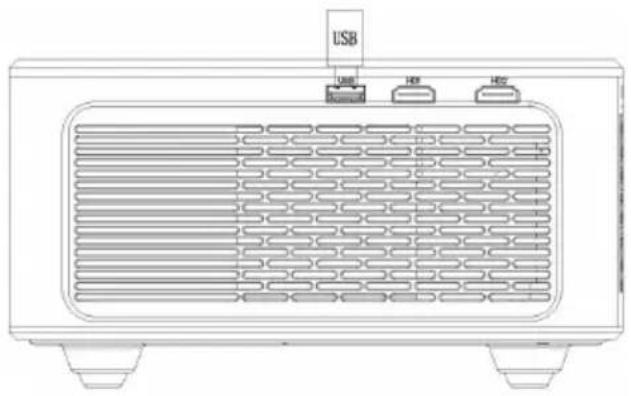
- Insert a USB storage device into the USB Port on the projector.
- Select "USB" form the main menu.
- Select from Movie, Music, Photo or Text options.
- Confirm the file you want to play.
natural_image
Line drawing of a portable electronic device with ventilation grilles and USB port (no text or symbols)
Connecting to Wi-Fi
- Use the remote control or the projector buttons to enter the settings menu.
- Select the "WIFI" settings press the "OK" button to turn on the WIFI.
- Select the name of the Wi-Fi network to be connected, press the "OK" button to display the virtual keyboard.
- Enter the password and press the "OK" button to connect to the Wi-Fi network.


Screen Mirroring
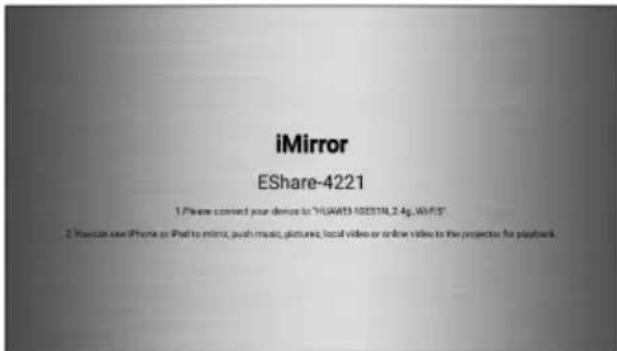
iOS devices (streaming using Wi-Fi):
- Ensure both the projector and your phone are connected to the same Wi-Fi network.
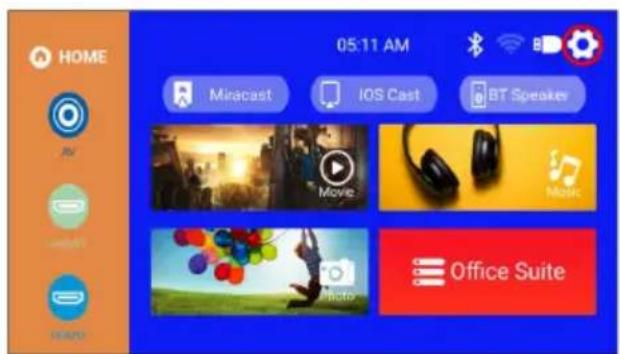
- On the projector's main menu, use the remote control to select "IOS Cast".

- On the iOS device, slide up to enter the options interface then select Screen Mirroring.
- Select the projector name "Eshare-xxxx" to connect.


Android devices (streaming with Wi-Fi):
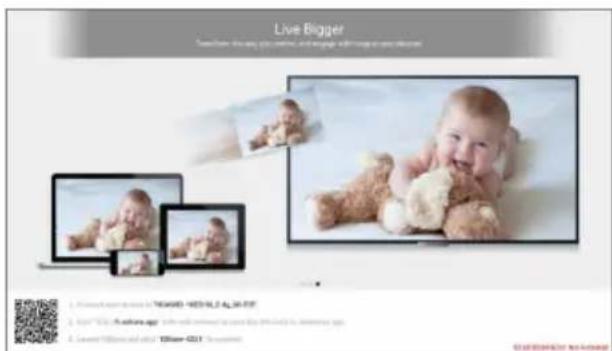
- Ensure both the projector and your phone are connected to the same Wi-Fi network.
- On the projector's main menu, use the remote control to select "Miracast".
- Follow the interface prompts to scan the QR code with your mobile device, download the (Eshare) APP to your mobile device, open the (Eshare) after the download is complete and use the mobile device mirroring function with one-click screen sharing
- After successful connection, the screen content of the Android device will be projected onto the projection surface.

MacBooks
- Ensure both the projector and your Macbook are connected to the same Wi-Fi network.
- On the projector's main menu, use the remote control to select "IOS Cast".


- Open the settings on your MacBook and find the Airplay option, click and search for the projector.
- Select the projector name "Eshare-xxxx" to connect.


Windows PC (Wireless Miracast support Window 7.8.10 system):
-
Ensure the PC and projector are connected to the same Wi-Fi network.
-
Enter the URL "http://h.eshare.app" in a browser on your computer and select the (Eshare for Windows) option to download.
-
After the download is complete, open the Eshare APP, select one-click screen sharing to connect to the projector.

Bluetooth
Note:
The projector can be connected to external speakers via Bluetooth. It can also connect to a smartphone or tablet for music streaming via Bluetooth. In Bluetooth mode, the projector can be used as a Bluetooth speaker.1
Connect to external speakers:
-
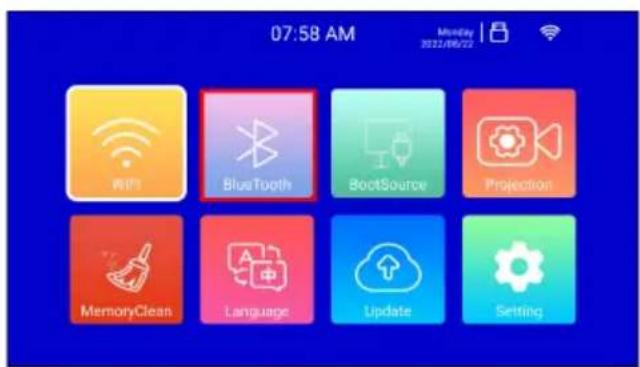
Use the remote control or the projector button to enter the settings menu.
-
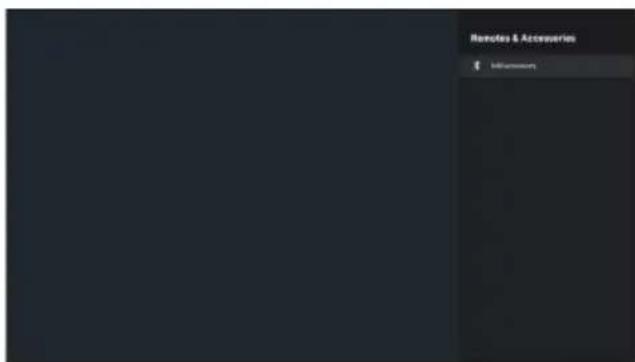
Select the Bluetooth and press "OK" to enter the Bluetooth settings, select Add accessory, a list of Bluetooth devices will be displayed.
-
Select the Bluetooth speaker from the device list to connect, then press "OK" to pair.
Connect the projector to phone via Bluetooth
- Find the "BT Speaker" icon on the main menu and press "OK" to enter.
- Enable Bluetooth of your phone, select "Projector" from the list of Bluetooth devices and click Pair to connect.


TROUBLESHOOTING
Q1. Blurry Image
- Make sure the projection distance is farther than the minimum projection distance of 1.3m.
- Adjust focus ring.
Q2. The projector image shows no signal
- Ensure all cables are connected to the projector properly.
- Check whether the projector input source mode has been selected as the corresponding format.
Q3. How do I watch streaming content (Disney+, Netflix etc.).
- Connect a Fire TV stick, Roku stick or Chromecast (not included), then connect it to the projector to watch the content.
Q4. Remote is unresponsive
- Ensure remote points at IR receiver directly.
- Do not cover IR receiver.
• Install new (AAA) batteries.
Q5. The projector stops automatically after it is used for a period of time.
- Check if the projector's air inlet and outlet are blocked by other objects.
- Ensure the electrical outlet matches the power rating listed in the “Specifications” section of this user guide.
SPECIFICATIONS
| Display Technology | LCD |
| Aspect Ratio | 16:9/4:3/Auto |
| Keystone | ±30° |
| Speaker | 5Wx2 |
| Dimensions | 256.9x219.6x101.5 |
| Supported Photo Formats | JPG/JPEG/PNG/BMP |
| Supported Video Formats | 3GP/AVI/FLV/MP4/MPG/VOB/TS/M2TS/RMVB/MKV |
| Light Source | LED |
| Focus | Manual |
| Projection Mode | Front/Rear/Ceiling |
| Power Rating | AC 100-240V, 50/60Hz |
| Net Weight | 2.6kg |
| Audio Format Supported | MP3/AAC/FLAC/OGG/WAV/WMA/MID/DTS/M4A |
| Ports | HDMI (x2) / USB 2.0 / Audio in / AV |
NOTES
Need more information?
We hope that this user guide has given you the assistance needed for a simple set-up.
For the most up-to-date guide for your product, as well as any additional assistance you may require, head online to help.kogan.com
kogan.com
- ANSI FULL HD WI-FI PROJECTOR (W6)
- SAFETY & WARNINGS
- COMPONENTS
- OPERATION
- Placement and Mounting
- Notes:
- Ceiling Mounting
- Projection Size and Distance
- Power Connection
- Focus
- Keystone Adjustment
- 4-point Keystone Correction
- Input Source
- HDMI:
- AV:
- USB:
- Connecting to Wi-Fi
- Screen Mirroring
- iOS devices (streaming using Wi-Fi):
- Android devices (streaming with Wi-Fi):
- MacBooks
- Windows PC (Wireless Miracast support Window 7.8.10 system):
- Bluetooth
- Note:
- Connect to external speakers:
- Connect the projector to phone via Bluetooth
- TROUBLESHOOTING
- Q1. Blurry Image
- Q2. The projector image shows no signal
- Q3. How do I watch streaming content (Disney+, Netflix etc.).
- Q4. Remote is unresponsive
- Q5. The projector stops automatically after it is used for a period of time.
- SPECIFICATIONS
- NOTES
- Need more information?
Brand : Kogan
Model : KAPR6FHDWAA
Category : Video projector