
AV-1251 - Security Camera AViPAS - Free user manual and instructions
Find the device manual for free AV-1251 AViPAS in PDF.


| Product Type | HD Video Conferencing Camera (HDMI) with PoE |
| Model | AV-1251 |
| Dimensions | 6" x 6" x 5" (151.2 x 152.5 x 126.7 mm) |
| Weight | 3 lb (1.4 kg) |
| Input Voltage | DC 12V |
| Power Consumption | 12W (Max) |
| PoE Support | Yes |
| Sensor | 1/2.8" CMOS, 2.07 MP |
| Optical Zoom | 5x (f=3.1~15.5 mm, F1.8~F2.8) |
| Digital Zoom | 5x |
| Max Resolution | 1920x1080 @ 60 fps |
| Pan Range | ±135° |
| Tilt Range | ±30° |
| Preset Positions | 255 (10 via IR remote) |
| Video Compression | H.265 / H.264 |
| Audio Encoding | AAC, MP3, G.711A |
| Network Protocols | ONVIF, RTSP, RTMP, GB28181 |
| Communication Protocols | VISCA, Pelco-D, Pelco-P |
| Operating Temperature | 20°F to 80°F (-10°C to 50°C) |
| Noise Reduction | 2D & 3D Digital Noise Reduction |
| Low Power Sleep | Yes, <400 mW |
| Accessories Included | Camera, AC adaptor, power cord, RS232 cable, remote control, user manual |
| Cleaning | Soft dry cloth; use diluted neuter detergent if heavily soiled. Avoid solvents. |
Frequently Asked Questions - AV-1251 AViPAS
User questions about AV-1251 AViPAS
0 question about this device. Answer the ones you know or ask your own.
Ask a new question about this device
Download the instructions for your Security Camera in PDF format for free! Find your manual AV-1251 - AViPAS and take your electronic device back in hand. On this page are published all the documents necessary for the use of your device. AV-1251 by AViPAS.
USER MANUAL AV-1251 AViPAS
HD Video Conferencing Camera (SDI) w/ PoE
Model: AV-1251
HD Video Conferencing Camera (HDMI) w/ PoE

User Manual
V1.0
Please read this user manual
thoroughly before using.
www.avipas.com
Preface
Thanks for using this HD Video Conferencing Camera.
This manual introduces the functions, installation process and operation of the HD camera. Prior to installation and usage, please read the manual thoroughly.
Precautions
This product should only be used under the specified conditions in order to avoid any damage to the camera:
■ Do not subject the camera to rain or moisture.
■ Do not remove the cover. Otherwise, you may risk receiving an electric shock. In case of unintended equipment operation, contact an authorized engineer.
■ Never operate under unspecified temperature, humidity or power supply.
■ Please use soft dry cloth to clean the camera. If the camera is very dirty, clean it with diluted neuter detergent; do not use any type of solvents, which may damage the surface.
Note:
This is a class A production. Electromagnetic radiation at certain frequencies may affect the image quality of TV in home environment.
Contents
Attentions....4
Supplied Accessories 4
Quick Start 5
Features......8
Product Specifications 9
Main Units 11
Dimensions 12
IR Remote Control Menu.... 13
RS-232 Interface 14
Serial Communication Control 16
Menu Settings 17
Network Connection 23
Maintenance and Troubleshooting 36
Appendix....38
Attentions
Electric Safety
Installation and operation must accord with electric safety standard.
● Use caution to transport
Avoid stress, vibration or soakage in transport, storage and installation.
● Polarity of power supply
The power supply of this product is +12V, the max electrical current is 2A. Polarity of the power supply plug is shown in the drawing below.

● Installation precautions
Do not grasp the camera lens when carrying it. Do not touch camera lens by hand. Mechanical damage may result from doing so.
Do not use in corrosive liquid, gas or solid environment to avoid any cover (plastic material) damage.
Make sure there is no obstacle within rotation range.
Do not power on before installation is completed.
- Do not dismantle the camera
We are not responsible for any unauthorized modification or dismantling.
CAUTION!
Certain frequencies of electromagnetic field may affect the image of the camera!
Supplied Accessories
When unpacked, check if all supplied accessories are included:
Camera 1PCS
AC power adaptor ....1PCS
Power cord....1PCS
RS232 cable....1PCS
Remote control.... 1PCS
User manual....1PCS
Quick Start
- Camera Interface Illustration (Notice: Each model comes with the corresponding interface. Users should read the manual according to the particular model)


Fig 1.1 Interface of AV-1250
Interface of SDI Model:
- Camera Lens
- Remote Controller Receiver Light
-
Tripod Screw Hole
-
Locating Hole
- RS232 Control Interface (input)
-
RS232 Control Interface (output)
-
SDI Interface
- A-IN Interface
- LAN Interface (PoE supported)
10.DC12V Power Supply Socket


Fig 1.2 Interface of AV-1251
Interface of HDMI Model:
- Camera Lens
- Remote Controller Receiver Light
-
Tripod Screw Hole
-
Locating Hole
- RS232 Control Interface (input)
-
RS232 Control Interface (output)
-
HDMI Interface
- A-IN Interface
- LAN Interface (PoE supported)
- DC12V Power Supply Socket
2. Bracket mount
Note: Bracket can only be wall mounted or ceiling mounted (upside down) on concrete wall, It cannot be installed on plasterboard.
1) Wall mount

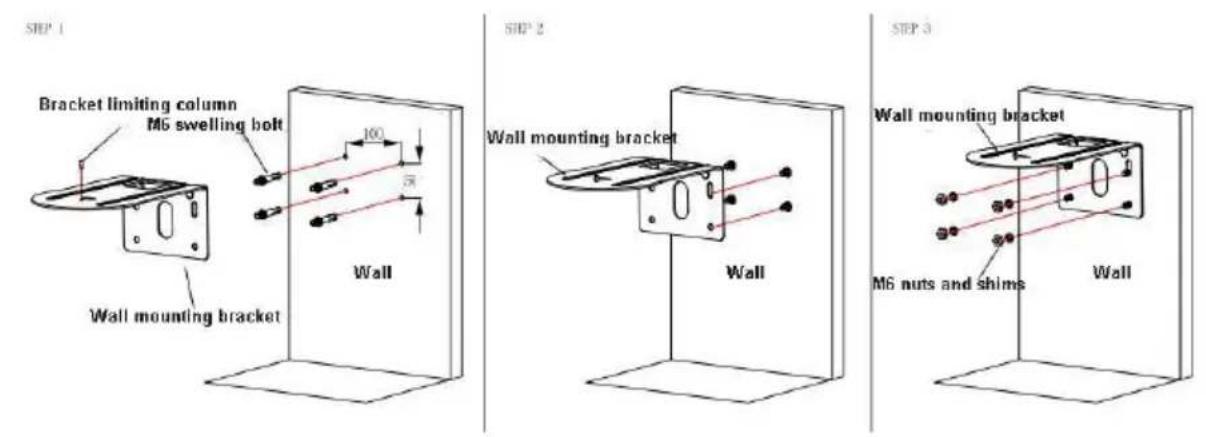
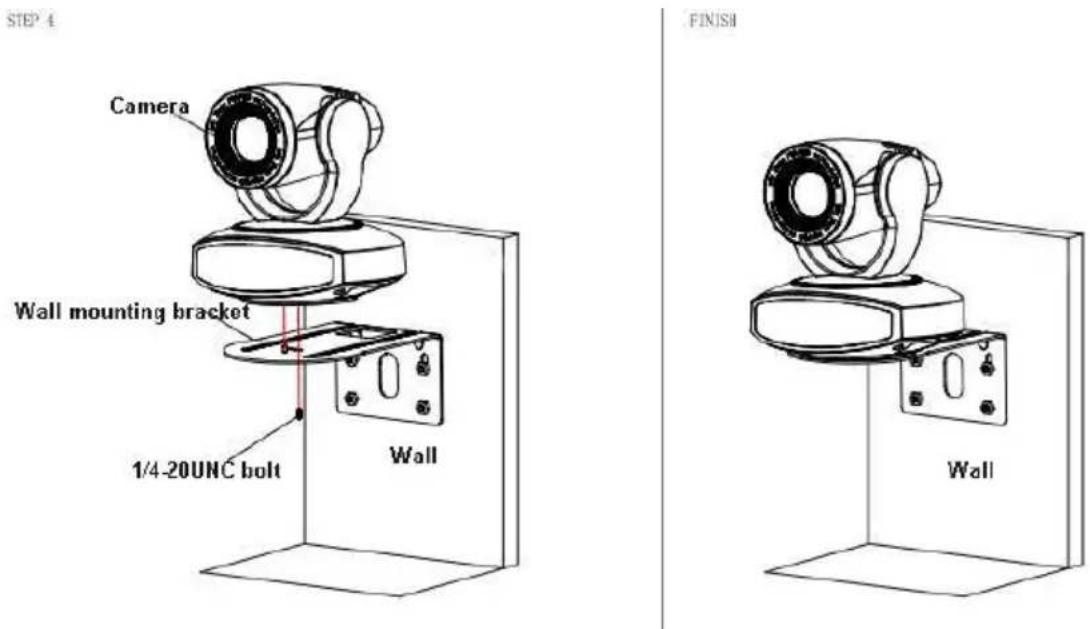
2) Ceiling mount


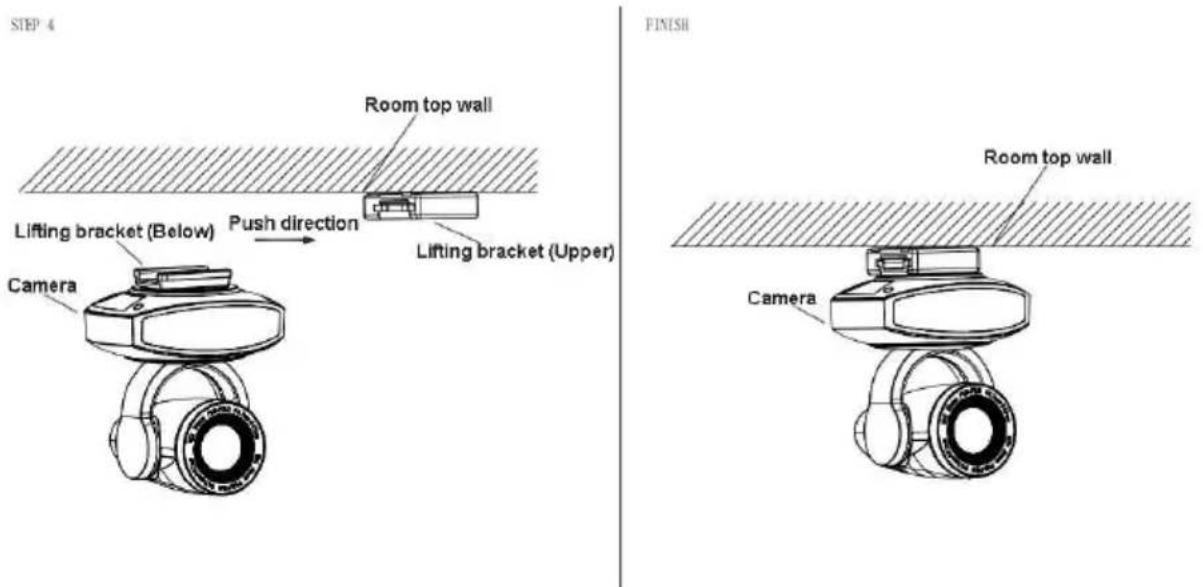
Features
AV-1250 series camera has 5X optical zoom with RS232 out and PoE. It features advanced ISP processing algorithms to provide vivid images with a strong sense of depth, high resolution and fantastic color rendition. It supports H.265/H.264 encoding which makes motion video fluent and clear even under less than ideal bandwidth conditions.
- Superb High-definition Image: It employs 1/2.8" high-quality CMOS sensor. Resolution is up to 1920x1080 with frame rate up to 60 fps.
• Optical Zoom Lens: 5X zoom lens is with 83.7° wide view angle without distortion. - Leading Auto Focus Technology: With innovative algorithm, auto-focusing is fast, accurate and stable.
- Low Noise and High SNR: Low-noise CMOS effectively ensures high SNR of video. Advanced 2D/3D noise reduction technology is also used to further reduce noise while ensuring image sharpness.
- Quiet PTZ Mechanism: By accurate step driving motor mechanism, the camera works extremely quiet and moves smoothly.
• Multi-Format Video Outputs: Support SDI, HDMI and LAN interfaces.
• Multiple Video compression: Support H.265/H.264 video compression. - Audio Input Interface: Support 16000, 32000, 44100, 48000 sampling rates, and AAC, MP3, G.711A audio coding.
- Multiple Network Protocol: Support ONVIF, RTSP protocols, RTMP push mode, easy to link to streaming media server (Wowza, FMS...).
• PoE supported: Provide simple and quick installation. - Low-power sleep function: Support low-power sleep mode, power consumption < 400mW.
• Multiple Communication Protocols: Support VISCA, Pelco-D, Pelco-P protocols. - RS-232 I/O Cascading Function: Support RS-232 cascading port which is convenient for multi-camera installing.
• 255 presets Positions: Up to 255 presets (10 presets by IR remote). - Wide Application: Tele-education, Lecture capture, Webcasting, Videoconferencing, Tele-training, Tele-medicine, Interrogation and Emergency command systems.
Product Specifications
| Name | AV-1250 Series HD Video Conference Camera |
| Camera | |
| Sensor | 1/2.8", CMOS, 16:9, Effective Pixel: 2.07MP |
| Scanning Mode | Progressive |
| Lens | 5x, f=3.1~15.5mm, F1.8 ~ F2.8 |
| Digital Zoom | 5x |
| Minimal Illumination | 0.5 Lux @ (F1.8, AGC ON) |
| Focus | Auto/Manual/ One Push |
| Aperture | Auto/Manual |
| Electronic Shutter | Auto/Manual |
| White Balance | Auto / Manual/ One Push/ 3000K/ 4000K/5000K/6500K |
| Backlight Compensation | On/Off |
| Digital Noise Reduction | 2D&3D Digital Noise Reduction |
| Video SNR | ≥55dB |
| Video Adjustment | Brightness/ Color/ Saturation/ Contrast/ Sharpness/ BW mode/ Gamma |
| View Angle | 20°(tele) ~ 83.7°(wide) |
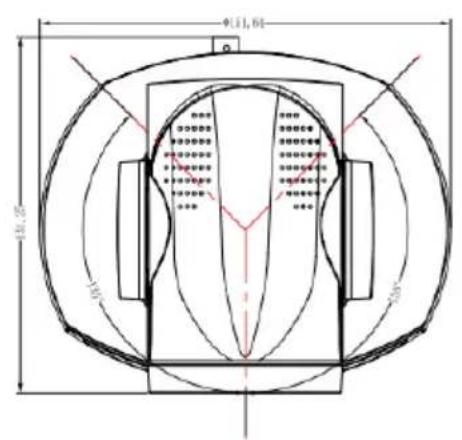
| Pan Rotation Range | ±135° |
| Tilt Rotation Range | ±30° |
| Pan Speed Range | 0.1° ~ 60°/s |
| Tilt Speed Range | 0.1° ~ 30°/s |
| Number of Preset | 255 |
| Preset Accuracy | 0.1° |
| IPC Features | |
| Video coding standard | H.265/H.264 |
| Video Stream | First stream, Second stream |
| Video Format | HDMI/SDI: 1080P60/50/30/25/59.94/29.97; 1080I60/50/59.94;720P60/50/30/25/59.94/29.97Main stream: 1920x1080, 1280x720,640x480Sub stream: 320x180,320x240,640x360,640x480,1280x720,1920x1080 |
| Frame Rate | 50Hz: 1fps ~ 25ps; 60Hz: 1fps ~ 30fps |
| Audio Standard | AAC/ MP3/ G.711A |
| Sampling Rate | 16000/ 32000/ 44100/ 48000 |
| Network Protocols | RTSP/RTMP, ONVIF, GBT28181 |
| Input/Output Interface | |
| Communication Interface | RS232I/O: 8pin Min DIN; Max Distance: 30m |
| Protocol | Pelco-D/ Pelco-P/ VISCA |
| Baud Rate | 115200/9600/4800/2400 |
| Video Output Interface | AV-1250: SDI, LAN, RS232 I/O, A-INAV-1251: HDMI, LAN, RS232 I/O, A-IN |
| Audio Input | 1-ch 3.5mm audio interface, Line In |
| Network interface | 1xRJ45: 10/100/1000M Adaptive Ethernet ports |
| Power Jack | JEITA type (DC IN 12V), Ethernet (PoE supported) |
| Generic Specification | |
| Input Voltage | DC 12V |
| Current Consumption | 1.0A (Max) |
| Operating Temperature | 20°F~80°F (-10°C~50°C) |
| Storage Temperature | 20°F~95°F (-10°C~60°C) |
| Power Consumption | 12W (Max) |
| Size | 6"x6"x5" (151.2mmX152.5mmX126.7mm) |
| Net Weight | 3lb (1.4kg) |
Main Units
1) External interface of SDI models: RS232 (I/O), LAN, SDI Output, Audio Input, DC12V Power Interface.
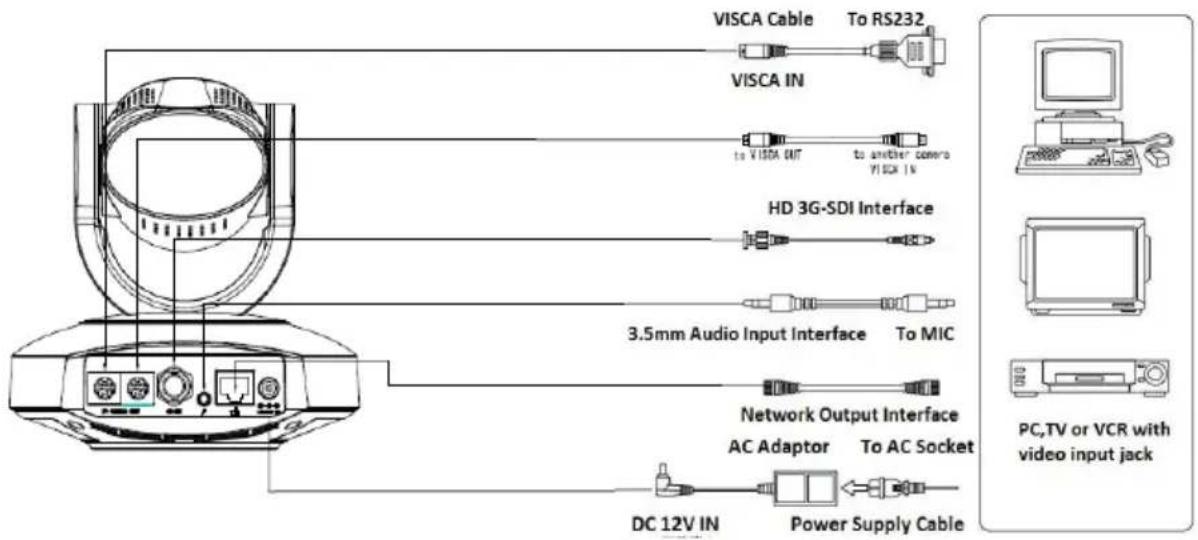
2) External interface of HDMI model: RS232(I/O), LAN, HDMI Output, Audio Input, DC12V Power Interface
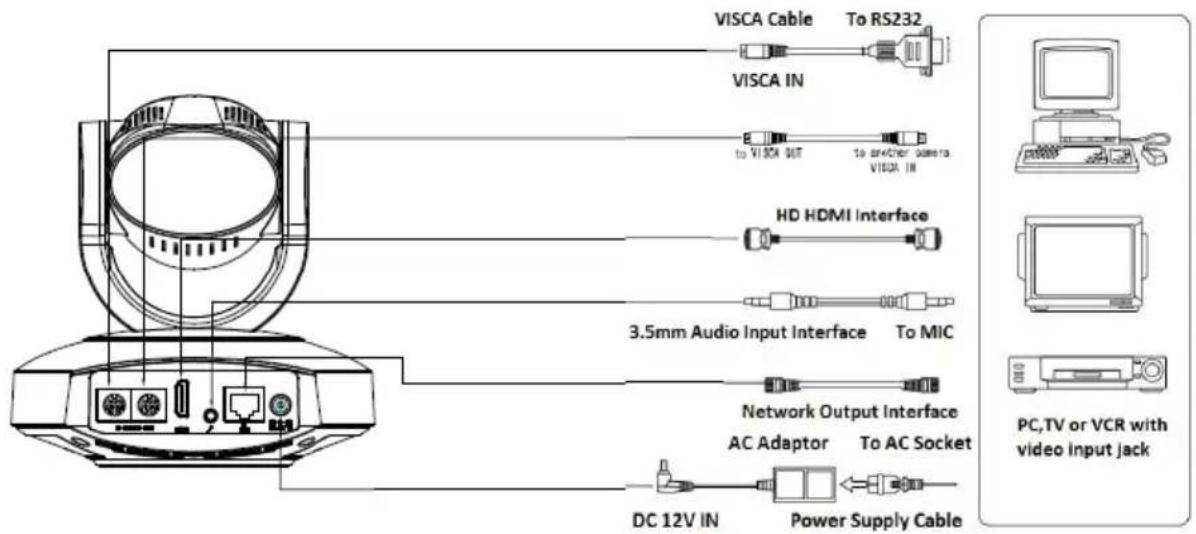
Dimensions



IR Remote Control Menu
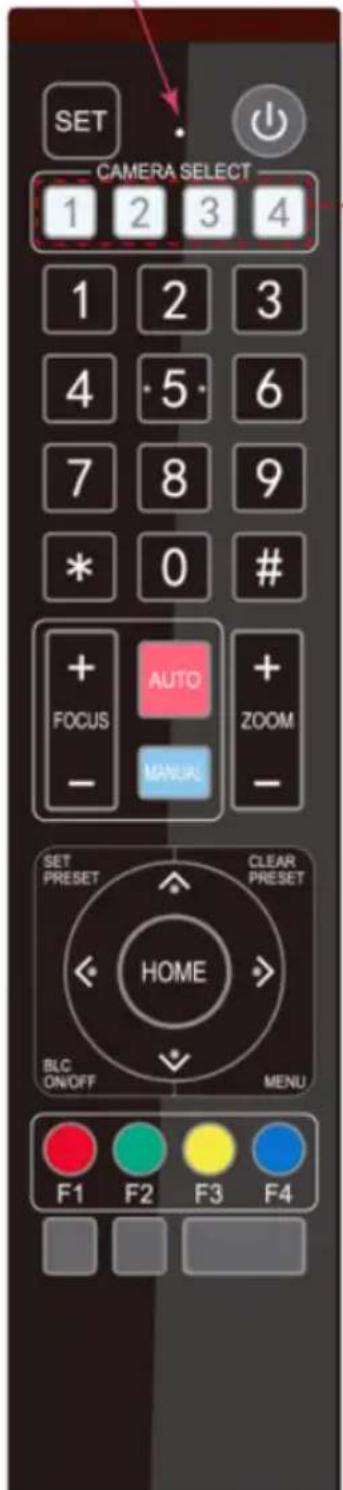
1. Standby Button
Press this button and hold it for 3 secs to enter standby mode. The camera will do self-testing and return back to 【HOME】position. (Note: If Preset 0 is set, and with no operation for 12s, the camera will automatically turn to Preset position 0.
2. Camera Address Selection
Press the camera address number to control the particular camera with the address setting.
3. Number Keys
To set or call 0-9 presets.
4. \*, #, Key Combination
To use as combination with 【F1-F4】 to set camera address.
【*】+【#】+【F1】: Camera Address No.1
【*】+【#】+【F2】: Camera Address No. 2
【*】+【#】+【F3】: Camera Address No. 3
【*】+【#】+【F4】: Camera Address No. 4
5. Focus Control
【AUTO】: to enter auto focus mode.
【MANUAL】: to enter manual focus mode.
Switch the camera focus mode to manual by pressing FOCUS【+】 or FOCUS【-】 to adjust.
6. Zoom Control
ZOOM【+】: Lens near; ZOOM【-】: Lens far
7. Set/ Clear Presets
【SET PRESET】+【0-9】 number key: To set presets
【CLEAR PRESET】+【0-9】number key: To clear presets
8. Pan-Tilt Control Buttons
Press the ▲ Up, ▼ down, ◀ left and ▼ right buttons to adjust the camera position. Press 【HOME】 to return to the center position.
9. BLC Control
【BLC ON/OFF】: To turn on/off the back light.
10. Menu Settings
【MENU】: to open/ close the OSD menu; to enter/ exit the OSD menu, or to return to the previous submenu.
11. Key Combination Functions
7) 【*】+【#】+【MANUAL】: Restore the default user name, PSW and IP address
9)【#】+【#】+【1】: Switch the video format to 1080P50
11)【#】+【#】+【3】: Switch the video format to 1080I50
13)【#】+【#】+【5】: Switch the video format to 720P50
15)【#】+【#】+【7】: Switch the video format to 1080P25
17)【#】+【#】+【9】: Switch the video format to 720P25
2) 【*】+【#】+【6】:Restore factory defaults
4) 【*】+【#】+【AUTO】: Enter the auto mode
6) 【*】+【#】+【4】: Set language to English
8) 【#】+【#】+【0】: Switch the video format to 1080P60
Computer or keyboard o camera connection
![graph TD A["Camera"] --> B["DTR"] A --> C["DSR"] A --> D["TXD"] A --> E["GND"] A --> F["RXD"] A --> G["GND"] A --> H["IR OUT"] A --> I["NC"] J["WindowsDB-9"] --> K["1.DCD"] J --> L["2.RXD"] J --> M["3.TXD"] J --> N["4.DTR"] J --> O["5.GND"] J --> P["6.DSR"] J --> Q["7.RTS"] J --> R["8.CTS"] J --> S[…](/content/2026/06/1225675/images/3d540b36373cfc0b6cf16d975955aa08fea588320d5edcc3422b4287c3c87f4b.jpg)

1) RS-232 Mini-DIN 8-pin Port Definition
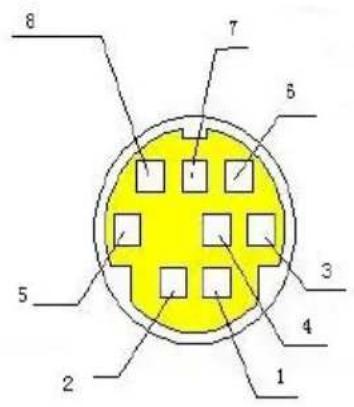
| NO. | Port | Definition |
| 1 | DTR | Data Terminal Ready |
| 2 | DSR | Data Set Ready |
| 3 | TXD | Transmit Data |
| 4 | GND | System Ground |
| 5 | RXD | Receive Data |
| 6 | GND | System Ground |
| 7 | IR OUT | IR Commander Signal |
| 8 | NC | No Connection |
2) RS232 (DB9) Port Definition

| NO. | Port | Definition |
| 1 | DCD | Data Carrier Detect |
| 2 | RXD | Receive Data |
| 3 | TXD | Transmit Data |
| 4 | DTR | Data Terminal Ready |
| 5 | GND | System Ground |
| 6 | DSR | Data Set Ready |
| 7 | RTS | Request to Send |
3) VISCA networking
![graph TD A["VISCA Controller"] --> B["VISCA Equipment"] B --> C["IN OUT"] B --> D["IN OUT"] B --> E["IN OUT"] C --> F["Output"] D --> G["Output"] E --> H["Output"]](/content/2026/06/1225675/images/ce1562aa3b9eb5f00e7453fdc2cced750dce95c13fbb383dff914d6ad1037ac4.jpg)

Serial Communication Control
Under normal working condition, the camera could be controlled through RS232 interface. RS232C
serial parameters are as below:
• Baud rate: 2400/4800/9600/115200bps;
- Start bit: 1; data bits: 8; Stop bit: 1; Parity: None.
Pan-Tilt function rotates the camera to its maximum position of top left upon startup, then it returns to the center, and the process of initialization is finished. (Note: if there is an entry for position preset 0, the corresponding position preset 0 will be called up after initialization.) Then user can control the camera with commands in the command list (See Appendix).
Menu Settings
1. Maun Menu
Press [MENU] to display the main menu on the screen. Use the arrow buttons to move the cursor. Press [HOME] to enter the corresponding sub-menu.
| MENU | |
| Language | English |
| (Setup) | |
| (Camera) | |
| (P/T/Z) | |
| (Video Format) | |
| (Version) | |
| (Restore Default) | |
| [↑↓] Select [←→] Change Value | |
| [MENU] Back [HOME] OK | |
2. SETUP- System Settings
Move the cursor to [SETUP] in the main menu and press [HOME], [SETUP] menu is shown below.
| SETUP | |
| Protocol | Auto |
| Visca Address | 1 |
| Visca Address Fix | OFF |
| PELCO-P Address 1 | |
| PELCO-D Address | 1 |
| Baudrate | 9600 |
PROTOCOL: VISCA/ Pelco-P/ Pelco-D/ Auto
Visca Addr: VISCA:1\~7/ Pelco-P: 1\~255/
Pelco-D: 1\~255
Visca Address Fix: On/ Off
Baud rate: 2400/ 4800/ 9600/ 115200
3. CAMERA- Camera Settings
Move the cursor to [Camera] in the main menu and press [HOME], [Camera] menu is shown below.
LANGUAGE: Language setting, Chinese/English
SETUP: System settings
CAMERA: Camera settings
PTZ OPTION: Pan tilt settings
VERSON: View camera version
Restore Default: Reset settings
| CAMERA | |
| (Exposure) | |
| (Color) | |
| (Image) | |
| (Focus) | |
| (Noise Reduction) | |
| Style | Default |
EXPOSURE: Enter Exposure settings
Move the cursor to [EXPOSURE] and press [HOME], [EXPOSURE] menu is shown below.
| EXPOSURE | |
| Mode | Auto |
| EV | OFF |
| BLC | OFF |
| Flicker | 50Hz |
| G.Limit | 4 |
| DRC | 4 |
EV: On/ Off (only available in auto mode)
Compensation Level: -7\~7 (only available in auto mode & when EV is ON)
BLC: On/ Off (only available in auto mode)
Flicker: anti-flicker: OFF/ 50Hz/ 60Hz (only available in Auto/ Iris priority/ Brightness priority modes)
Gain Limit: 0\~15 (only available in Auto/ Iris priority /Brightness priority mode)
WDR: Off/ 1\~8
Shutter Priority: 1/25, 1/30, 1/50, 1/60, 1/90, 1/100, 1/120, 1/180, 1/250, 1/350, 1/500, 1/1000, 1/2000, 1/3000, 1/4000, 1/6000, 1/10000 (only available in Manual or Shutter priority mode)
IRIS Priority: OFF, F11.0, F9.6, F8.0, F6.8, F5.6, F4.8, F4.0, F3.4, F2.8, F2.4, F2.0, F1.8 (only available in Manual or Iris priority mode)
Brightness: 0\~23 (only available in Brightness priority mode)
COLOR: Enter color settings
Move the cursor to [COLOR] and press [HOME], [COLOR] menu is shown below.
| COLOR | |
| WB Mode | Auto |
| RG Tuning | 0 |
| BG Tuning | 0 |
| Saturation | 100% |
| Hue 7 | |
| AWB Sensitivity | High |
IMAGE: Enter image settings Move the cursor to [IMAGE] and press [HOME], [IMAGE] menu is shown below.
| IMAGE | |
| Brightness | 7 |
| Contrast | 7 |
| Sharpness | 6 |
| Flip-H | OFF |
| Flip-V | OFF |
| B&W-Mode | Color |
| Gamma | Default |
| DZoom | OFF |
| DCI | Close |
WB Mode: Auto/ 3000K/ 3500K/ 4000K/ 4500K/ 5000K/ 5500K/ 6000K/ 6500K/ 7000K/ Manual/ One Push
RG Tuning: -10\~10 (only available in Manual mode)
BG Tuning: -10\~10 (only available in Manual mode)
Red Gain: 0\~255 (only available in Manual mode)
Blue Gain: 0\~255 (only available in Manual mode)
Saturation: 60%, 70%, 80%, 90%, 100%, 110%, 120%, 130%, 140%, 150%, 160%, 170%, 180%, 190%, 200%
Hue: 0\~14
AWB Sensitivity: high/ middle/ low
Brightness: 0\~14
Contrast: 0\~14
Sharpness: 0\~15
Flip-H: On/ Off
Flip-V: On/ Off
B&W Mode: color, black/white
Gamma: default/ 0.45/ 0.50/ 0.55/ 0.63
DZoom: digital zoom options: On/ Off
DCI: Dynamic Contrast: Off/ 1\~8
FOCUS: Enter focus settings Move the cursor to [FOCUS] and press [HOME],
[FOCUS] menu is shown below.
| FOCUS | |
| --- | |
| Focus Mode | Auto |
| AF-Zone | Center |
| AF-Sensitivity | Low |
Focus Mode: Auto/ manual/ one-push
AF-Zone: Up, middle, down, overall
AF-Sensitivity: High, middle, low
Noise Reduction: Enter noise reduction settings
Move the cursor to [NOISE REDUCTION] and press [HOME], [NOISE REDUCTION] menu is shown below.
| NOISE REDUCTION | ||
| NR-2D | 3 | |
| NR-3D | 3 | |
| Dynamic Hot Pixel | OFF | |
4. P/T/Z
Move the cursor to [P/T/Z] in the main menu and press [HOME], [P/T/Z] menu is shown below.
| P/T/Z | |
| Speed by Zoom ON | |
| Zoom speed 8 | |
| Image Freezing OFF | |
| Acc Curve Slow |
Speed by Zoom: Only effective for remote controller. On/ Off (When zoom in, the P/T control speed by remoter will become slow)
Zoom Speed: Set the zoom speed for remote controller. 1\~8
Image Freezing: On/ Off
Accelerating Curve: Fast/ Slow
5. Video Format
Move the cursor to [VIDEO FORMAT] in the main menu and press [HOME], [VIDEO FORMAT] menu is shown below.
2D Noise Reduction: Auto/ close/ 1\~7
3D Noise Reduction: Close/ 1\~8
Dynamic Hot Pixel: Close/ 1\~5
VIDEO FORMAT
| 1080P60 | 1080P50 |
| 1080I60 | 1080I50 |
| 1080P30 | 1080P25 |
| 720P60 | 720P50 |
| 720P30 | 720P25 |
| 1080P59.94 | 1080I59.94 |
| 1080P29.97 | 720P59.94 |
| 720P29.97 |
VERSION
| MCU Version | 2.0.0.15 2015-12-18 |
Camera Version
| 2.0.0.13 2015-12-18 |
| AF Version | 2.0.0.6 | 2015-12-11 |
| Lens | 5X(10X) |
Note: After modifying video format, reboot to save the changes.
6. VERSION
Move the cursor to [VERSION] in the main menu and press [HOME], [VERSION] menu is shown below.
MCU Version: Display MCU version
Camera Version: Display camera version
AF Version: Display the focus version
Lens: Display the lens zoom
7. RESTORE DEFAULT
Move the cursor to [RESTORE DEFAULT] in the main menu and press [HOME], [RESTORE DEFAULT] menu is shown below.
RESTORE DEFAULT
Restore Default? NO
Restore Default: Yes/ No
Note:
- After selecting restore default, the video format won't be restored.
- If the IR address of the camera is not 1 but
2/3/4, the corresponding camera address will be restored to 1 when all parameters or system parameters are restored.
Network Connection
1. Connecting Mode
Direct connection: Connect the camera and computer directly via Ethernet cable.
IP connection mode: Connect the camera to a Router or Switcher. The user can log in to access the device using browser.
Note: Please do not put the power cable and Ethernet cable in places where can be easily touched to prevent video quality loss caused by unstable signal transmission.
Please make sure that your computer is in the same network segment as the camera IP address. The device will not be accessible if the segment is not consistent. For example, AV-1280/1281's default IP address is 192.168.5.163, then segment 5 must be added to your computer. Specific steps are as below:

- Open "Local Area Connection
Properties” on computer, select the “Internet protocol version 4(TCP/IPv4)” as shown in the picture on the left.
- Double click or click the property of
Internet protocol version 4 (TCP/IPv4) to enter the Internet Protocol Version 4(TCP/IPv4) Properties window.
- Select "Advanced" to enter the
Advanced TCP/IP Setting. Add IP and subnet mask
in the IP browser as shown in the picture below. Click “Confirm” to finish the adding IP segment.
- User can add the corresponding network segment according to the revised IP address of the camera.

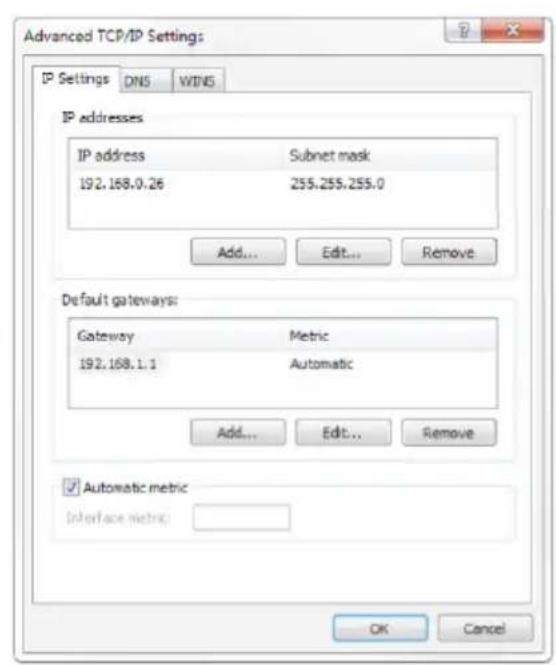
Note: The IP address to be added cannot be same as that of other computers or devices. The existence of this IP address needs to be verified before adding.
2. Confirm Access
Click "Start" and select "Operation". Input "cmd" as shown in the picture below to verify whether the network segment has been successfully added.
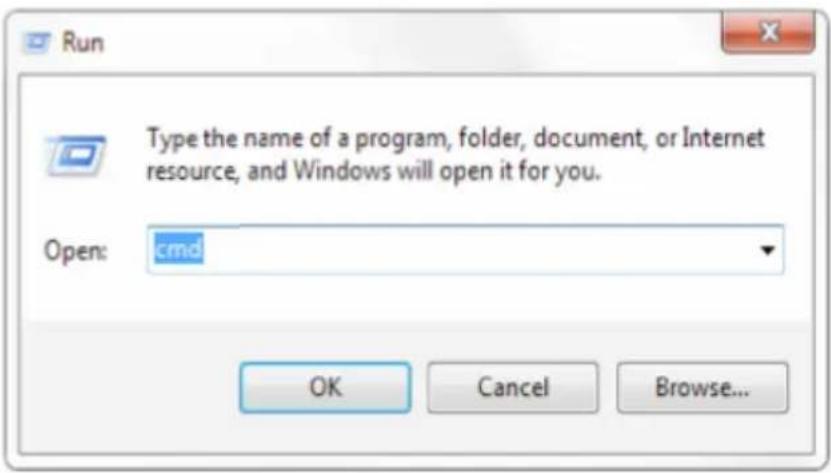
Click “OK” and open the DOS command window. Input ping: 192.168.5.26, and press “Enter”. If the message below shows, it means that network segment is added successfully.
![Microsoft Windows [Version 10.0.16299.19] (c) 2017 Microsoft Corporation. All rights reserved. C:\Users\sheng>ping 192.168.5.26 Pinging 192.168.5.26 with 32 bytes of data: Reply from 192.168.5.26: bytes=32 time<1ms TTL=128 Reply from 192.168.5.26: bytes=32 time<1ms TTL=128 Reply from 192.168.5.26: b…](/content/2026/06/1225675/images/039325be98df24398e528c026fdf276ee0efc8ec3402f68e715a73914da0b994.jpg)
User can also verify network connection as steps above mentioned after the finish of camera self-check. If IP is default, open DOS command window and input 192.168.5.163, then press Enter key. It will show message as below: which means network connection is normal.

3. IE Log In
1) Web client Log In
Input the default IP address 192.168.5.163 of the camera in the address bar of browser, and click "Enter" to enter Web Client login page as shown in the picture below. User can login as administrator and normal user.
- If login as administrator (default user name/password: admin), users can do preview, playback, and configuration in the web interface;
- If login in as normal user (default user name/password:user1 or user2), users can only do preview or playback, no option for configuration.
• Note: Web access supported browsers: IE (recommended), 360 browser and other conventional browsers.
2) Download/Install Plug in
When using IE browser to access the AV-1280/1281 for the first time, a message will show at the login page: "Playback plug-in is not installed, please download and install!". Click on this message, download and install MRWebXinstall.exe according to instruction prompts.
After installing the plug-in, enter user name and password (default user name and password: "admin", users can change the user name and password after first login).
3) Preview
After logging in successfully, the video preview interface will show. In the preview interface, users can control pan, tilt, zoom, focus, video capture, sound, focus, full screen, set/ run/ delete preset positions.
- Login as administrator
Default user name & password: admin
Operation options: PT control; zoom, focus, video capture, sound, zoom, full screen, set/ run/ delete the preset positions. Also, the user can perform preview, playback and configuration of the captured video.
- Login as normal user
Default user name & password: user1 or user2
Operation options: PT control; zoom, focus, video capture, sound, zoom, full screen, set/ run/ delete the preset positions. The user you can only perform preview or playback of the captures video. No configuration operation is allowed for normal user.
4) Playback
- Playback video files
Before Playback, please make sure that you have recorded, snapshot and saved the file. Click “Playback” tag to enter the page, then select “Video File” and click “Search”. Choose the video file you want to play.
- Playback picture (snapshot) files
Before Playback, please make sure that you have recorded, snapshot and saved the file. Click "Playback" tag to enter the page, then select "Picture File" and click "Search". Choose the image file you want to display.
5) Configuration
Click “Configuration” tag to enter the configuration page for parameter settings.
Operation options are as follows: Local configuration, audio configuration, video configuration, network configuration, PTZ configuration, internet access configuration, system configuration. For detailed description, please see below.
Menu Illustration
Local configuration includes video preview mode, record video packing time, record video storage route settings etc.
Audio configuration includes audio compressing format, sampling frequency, sampling precision, compressing code rate settings etc.
Video configuration includes video encoding, video parameters, character-overlapping, character size, video output setting etc.
Network configuration includes Ethernet, DNS, wireless network settings, GB28181 etc.
System configuration includes equipment properties, system time, user management, version update, Reset, Reboot device etc.
1) Local configuration
Video Preview Mode: user can choose real-time priority or fluency priority mode. The delay is shorter under real time priority mode; while fluency will be optimized under fluency priority mode. All parameter settings are based on specific user environment (Default: real time Generally (2), other options: real time best (1), normal fluency (3), relatively fluency (4) and very fluency (5)).
Recording packing time (minute): To set recording video packing time (default is 10, range from 1\~120 minutes).
Recording/Snapshot file type: To set the recording file type (default MP4, other option: TS). Recording/Snapshot file storage route: To set local recording video/snapshot file storage route (default D:\MyIPCam).
Click "Save" to save the settings, and reboot to make settings effective.
2) Audio Configuration
Enable: Check to enable the audio.
Encode Type: To set audio compressing format. The changes will be saved and will take effect after rebooting (default AAC, other options: MP3, G.711A).
Sample Rate: To set the sampling frequency. The changes will be saved and will take effect after rebooting (default 44100, other options: 16000, 32000, 48000).
Sample Bits: To set the sampling precision (default 16bits).
Bit Rate: To set the audio compressing rate (default 64 Kbps, other options: 32, 48, 96, 128 Kbps).
Channel: To set the audio channel (Default: Stereo, other option: Mono).
Input Volume: To set the input audio volume (Default 2, ranges from 1\~10).
Click “SAVE”, and a message will show: “Success! Open audio or change other parameters need to restart.” Please reboot the camera to bring new settings into effect.
4.2.5 Video configuration
1) Video Encode
Stream: To choose from Main/Sub video stream output.
Compressed Format: To set the video compression format (Default: H.264, other option: H.265).
Image Size: To set the video resolution (Main stream default: 1920*1080, other options: 1280*720, 640*480; Sub stream default: 320*180, other options: 640*360, 320*240, 640*480, 1280*720, 1920*1080).
Rate Control: To set the rate control mode (Default CBR- constant bitrate, other option: VBR-variable bitrate).
Image Quality: To set the image quality (Main stream default: Best; Sub stream default: Better).
Bit Rate (Kb/S): To set the video bit rate (Main stream default 4096, ranges from: 64\~12288; substream default 512, ranges from 64-10240).
Frame Rate (F/S): To set the video frame rate (Default: 25, other options: main stream ranges from 5\~60; sub stream ranges from 5\~30).
I Frame Interval: To set the key frame interval (Default: 75, other options: main stream ranges from 1\~300; sub stream ranges from 1\~150).
I Frame Min QP: To set the minimum QP of the key frame (Default 10, ranges from 10\~51).
Stream Name: To set the stream name (Main stream default: live/av0; Sub stream default: live/av1). Note: when modifying the Stream Name, please always reserve "live/", and only modify the latter part.
Click “SAVE”, and a message will show: “Save successfully!” Please reboot the camera to bring new settings into effect.
2) Stream Publish
Stream: To choose from Main/Sub video stream output.
Enable: Check to enable the stream publish.
Protocol Type: RTMP
Host Address: To set the server IP address (Default 192.168.5.11).
Host Port: To set the server port number (Default 1935, ranges from 0\~65535).
Stream Name: To set the stream name (Default: live/av0, live/av1).
User Name: To set the user name.
Password: To set the password.
Click “SAVE”, and a message will show: “Save successfully!” Please reboot the camera to bring new settings into effect.
Note: to obtain RTSP: rtsp://device IP address: 554/live/av0 (av0 main stream; av1 sub stream).
3) RTP Multicast
Stream: To choose from Main/Sub video stream output.
Enable: Check to enable the RTP Multicast.
Protocol Type: To choose the multicast protocol (Default: RTP, TS for option).
Multicast Address: To set the multicast address (Default: 224.1.2.3).
Multicast Port: To set the multicast port (Main stream port default: 4000; sub stream port default: 4002).
Note: Access Method: rtp://224.1.2.3:4000; udp://@224.1.2.3:4000;
4) Video Parameters
a. Focus:
Focus Mode: To set the focus mode (Default: Auto, other options: Manual, OnePush).
AF-Zone: To set the focus range (Default: Center, other options: Top, Bottom, All).
AF-Sensitivity: To set the focus sensitivity (Default: low, other options: high, middle).
b. Exposure:
Exposure Mode: To set the exposure mode (Default: Auto, other options: manual, SAE, AAE, Bright).
EV: To set the exposure compensation (Default: OFF, ranges from -7\~7).
BLC: To set the backlight compensation (Default: OFF).
Flicker: To set the anti-flicker setting (Default: 50Hz, other options: OFF, 60Hz).
G.Limit: To set the gain limit, active when under aperture or brightness priority (Default 4, ranges from 0\~15).
DRC: To set the dynamic range (Default 4, ranges from 0\~8).
c. Color:
WB Mode: To set the white balance mode (Default: Auto, other options: 3000K, 3500K, 4000K, 4500K, 5000K, 5500K, 6000K, 6500K, 7000K, Manual, OnePush). Note: Click the “Adjust” button when selected the One-push mode.
RG Tuning: To set the red gain, active when under Manual (Default 0, ranges from -10\~10).
BG Tuning: To set the blue gain, active when under Manual (Default 0, ranges from -10\~10).
Saturation: To set the saturation value (Default: 100%, other options: 60%, 70%, 80%, 90%, 110%, 120%, 130%, 140%, 150%, 160%, 170%, 180%, 190%, 200%).
Hue: To set the hue value (Default: 7, ranges from 0\~14).
AWB Sensitivity: To set the sensitivity of auto white balance (Default High, other options: low, medium).
d. Image:
Brightness: To set the brightness (Default 7, ranges from 0\~14).
Contrast: To set the contrast (Default 7, ranges from 0\~14).
Sharpness: To set the sharpness (Default 7, ranges from 0\~15).
Gamma: To set the Gamma value (Default, 0.45, 0.50, 0.55, 0.63).
DCI: To set the DCI value (Default: OFF, other options: 1\~8).
B&W Mode: To set black and white mode (Default: color, other option: black/white).
Flip-H: To flip the image horizontally (Default: OFF).
Flip-H: To flip the image vertically (Default: OFF).
DZoom: Default: OFF
e. NR: Noise Reduction:
NR-2D: To set the 2D noise reduction level (Default 3, other options: 1-7, OFF, Auto)
NR-3D: To set the 3D noise reduction level (Default 3, other options: 1-8, OFF)
Dynamic Hot Pixel: To set the dynamic hot pixel correction (Default OFF, other options: 1-5)
f. Style: To set the image style. (Default, Normal, Clarity, Bright, Soft)
5) Video OSD
Show Time: Check to display date and time.
Show Title: Check to display the title.
Time Font Color: To set the font color of time and date display (Default: white, other options: black, yellow, red, blue).
Title Font Color: To set the font color of title (Default: white, other options: black, yellow, red, blue).
OSD Offset: Choose "Title" or "Time" to move the characters. Click the "up, down, left, right" buttons to move the corresponding characters to the desired position.
6) OSD Font Size
According to the resolution Scale size automatically: Check to automatically increase/decrease font size according to the resolution.
Master Stream OSD Font Size: To set the character size of main stream (Default: 48, ranges from 28-200).
Slave Stream OSD Font Size: To set the character size of the sub stream (Default: 48, ranges from 28-200).
7) Video Out
Output Out Format: To set the video output format. 1080P60/ 1080P50/ 1080P30/ 1080P25/ 1080I60/ 1080I50/ 720P60/ 720P50/ 720P30/ 720P25/ 1080P59.94/ 1080I59.94/ 1080P29.97/ 720P59.94/ 720P29.97.
4.2.6 Network Configure
1) Network Port
Port Data: To set the data port (Default 3000, ranges from 0-65535).
Port Web: To set the web port (Default 80, ranges from 0-65535).
Port Onvif: To set the Onvif port (Default 2000, ranges from 0-65535).
Port Soap: To set the soap port (Default 1936, ranges from 0-65535).
Port RTMP: To set the RTMP port (Default 1935, ranges from 0-65535).
Port RTSP: To set the RTSP port (Default 554, ranges from 0-65535).
Port Visca: To set Visca port (Default 3001, ranges from 0-65535).
To access RTSP: RTSP://equipment IP address: 554/live/av0 (av0 main stream; av1 sub stream)
To access RTMP: RTMP://equipment IP address: 1935 / live/av0 (av0 main stream; av1 substream)
2) Ethernet
DHCP: Check to enable obtaining IP automatically.
IP Address: To set the IP address (Default 192.168.5.163). Note: This IP address is the same with the one used to login Web page.
Subnet Mask: To set the subnet mask (Default 255.255.255.0).
Default Gateway: To set the default gateway (Default 0.0.0.0).
MAC Address: To set the physical address (this parameter is read-only, modifying is not recommended).
3) DNS parameters
Preferred DNS server: To set the preferred DNS server (Default 0.0.0.0).
Alternate DNS server: To set the alternate DNS server. (Default 0.0.0.0).
4) GB28181
Enable: Check to enable GB28181.
ClockSync: Check to set time synchronization.
Video Type: To choose the stream (Default: main stream).
Registration Valid Time(s): To set the sign-in effective time (in seconds): Default: 3600, ranges from 5-65535.
Heartbeat time (s): Default 60, ranges from 1-65535.
Register ID: 34020000001320000001
Register Name: IPC
Register Password: 12345678
Equipment ownership: Users can add their own
Administrative regions: Users can add their own
Alarm Zone: Users can add their own
Equipment installation address: Users can add their own
Local SIP Port: 5060, ranges from 0-65535.
Server IP: G28181 IP address of the computer
Server SIP Port: Default 5060, ranges from 0-65535.
Server ID: 34020000002000000001
4.2.7 System configuration
1) SystAttr: Device Properties
Device Name: To set the device name (Default Camera1, user can add their own).
Device ID: To set the device ID (Default 1, Read-Only).
Language: To set the system language (Default English, other option: Simplified Chinese).
2) SysTime: System Time
Date Format: To set the date format (Default YYYY-MM-DD, other options: MM-DD-YYYY, DD-MM-YYYY).
Date separator: To set the date separator (default '/'', other options: '', '-').
Zone: To set the time zone (Default East eight districts, other time zones available).
Hour Type: To set the time types (Default 24 hours, other option: 12 hours).
Update Interval: To set the automatic update time interval of NTP server. Valid after NTP server synchronization is on (Default: one day, ranges from 2-10).
Host Url: To set NTP server address or domain name (Default time.nits.gov). Valid after NTP server synchronization is on.
Host Port: To set the NTP server port (Default 123). Valid after NTP server synchronization is on
Time Settings: To choose time settings (Default Synchronize with computer time, other options: Synchronize with NTP Server, Set manually).
3) SysUser: User Management
Authority: To select users (Default: admin, other options: user 1, user 2).
User Name: To set the user name (Default: admin for Admin User; user1 for common user1; user2 for common user 2; users can add their own).
Password: To set the password (Default: admin for Admin User; user1 for common user1; user2 for common user 2; users can add their own).
Password confirmation: To confirm the input password.
Note: Please note that User Name and Password are case-sensitive.
If login as common user with user1/user2, then one does not have configuration privileges and can only operate on preview, playback and logoff.
4) Update: Release Upgrade
MCU version V2.3.2 2017-5-25
Camera version V2.4.0 2017-4-20
AF(Focus) version V2.4.8 2017-4-21
Note: Version information above is read-only by users.
Update File:
Click "Browse", and choose the upgrade file in the pop-up window.
Click "Upgrade" button, and an upgrade dialog will show. The device will reboot automatically after update successfully. (Note: make sure to keep the power and network connected during the process. or the upgrade will fail.)
Note: After the version upgrade is complete, users need to restore factory defaults, and there are 2 ways: a) through web login, and restore the factory default; b) through the recovery menu; c) using remote control key combination: * # 6. After restoring factory defaults, IP address, user name and password will be restored to the default.
5) Default: Restore factory settings
Click "Restore Factory Defaults" button and choose "yes". The device will restart automatically and restore factory settings.
6) Reboot
Click "Reboot" button and choose "yes". The device will restart automatically and restore factory settings.
4.2.8 Logout
Click "Logout" tag, and a "Confirm" dialog window will pop-up; select "Yes" to exit the current page and return to the user login interface again.
Maintenance and Troubleshooting
Camera Maintenance
- If camera will be idle for a long time, please turn off the power switch and disconnect AC power cord from the outlet.
- Use soft cloth or tissue to clean the camera (lens cleaning not recommended).
- Use soft dry cloth to clean the lens. If the camera is very dirty, clean it with diluted neuter detergent. Do not use any type of solvents, which may damage the surface.
Unqualified Application
- Avoid exposure to light of extremely high intensity or for extended periods of time, such as sunlight or other special light sources, etc.
- Do not operate under unstable lighting conditions, otherwise image will flicker.
- Do not operate close to powerful electromagnetic radiation, such as TV or radio transmitters, etc.
Troubleshooting
Image
- No image
- Check if the power cord is connected, or voltage is right, or POWER light is on.
- Check if the camera can self-test upon start-up.
- Check if video cable is connected correctly.
● Abnormal display of image
Check if video cable is connected correctly.
● Image dithering even at widest zoom position
-
Check if camera is set correctly.
-
Make sure there is no vibration machine or other disturbing devices nearby.
- No video/ image in IE browser
When IPC is accessed by Internet Explorer (or another web browser) for the first time, a plug-in must be installed.
Installation: visit IP Camera address, click "Download". A dialog box will pop up. Select "Run" or "Save" to download. If no dialog box pops up, please go to VLC (player software) website http://www.videolan.org/vlc, download and install VLC. After the download is completed, install as instructed. After successful installation, login again, and the video/ image will show.
- Unable to access IP Camera by IE browser.
- Access network with PC, check if network works. In this way, the user can get rid of any cable failure or network failure.
- Disconnect IP Camera from network. Connect IP Camera to PC, and re-set the IP address following the proper operations.
- Check the server's IP address, subnet mask and gateway address.
- Check if MAC addresses conflict.
- Check if web port is occupied by other devices.
- When modifying the IP address incorrectly (causing the wrong IP address), or if the web password is forgotten, press "[*]+[#]+[Manual]" on the IR remote control to restore the default settings (Default IP: 192.168.100.88; Default username: admin; Default password: admin).
Sound
- No sound
- Check the audio connection to the host PC.
- Check IP Camera audio parameter settings, and check if intercepting function is on.
Control
● IR remote control cannot control the camera
- Change the battery
- Check if the camera is in working mode.
- Check if IR address of the remote control is the same as that of the camera.
- Serial communication cannot control the camera
- Check if the camera is in working mode.
- Check if the control cable is connected correctly.
Appendix
1) VISCA protocol list
- Camera return command
| Ack/Completion Message | ||
| Command packet | Note | |
| ACK | z0 41 FF | Returned when the command is accepted. |
| Completion | z0 51 FF | Returned when the command has been executed. |
* z = camera address + 8
| Error Messages | ||
| Command packet | Note | |
| Syntax Error | z0 60 02 FF | Returned when the command format is different or when a command with illegal command parameters is accepted |
| Command Not Executable | z0 61 41 FF | Returned when a command cannot be executed due to current conditions. For example, when commands controlling the focus manually are received during auto focus. |
- Camera control command
| Command | Function | Command packet | Note |
| AddressSet | Broadcast | 88 30 0p FF | p: Address setting |
| IF_Clear | Broadcast | 88 01 00 01 FF | I/F Clear |
| CommandCancel | 8x 21 FF | ||
| CAM_Power | On | 8x 01 04 00 02 FF | Power ON/OFF |
| Off | 8x 01 04 00 03 FF | ||
| CAM_Zoom | Stop | 8x 01 04 07 00 FF | |
| Tele(Standard) | 8x 01 04 07 02 FF | ||
| Wide(Standard) | 8x 01 04 07 03 FF | ||
| Tele(Variable) | 8x 01 04 07 2p FF | p = 0(low) - F(high) | |
| Wide(Variable) | 8x 01 04 07 3p FF | ||
| Direct | 8x 01 04 47 0p 0q 0r 0s FF | pqrs: Zoom Position | |
| CAM_Focus | Stop | 8x 01 04 08 00 FF | |
| Far(Standard) | 8x 01 04 08 02 FF | ||
| Near(Standard) | 8x 01 04 08 03 FF | ||
| Far(Variable) | 8x 01 04 08 2p FF | p = 0(low) - F(high) | |
| Near (Variable) | 8x 01 04 08 3p FF | ||
| Direct | 8x 01 04 48 0p 0q 0r 0s FF | pqrs: Focus Position | |
| Auto Focus | 8x 01 04 38 02 FF | ||
| Manual Focus | 8x 01 04 38 03 FF | ||
| CAM_Zoom Focus | Direct | 8x 01 04 47 0p 0q 0r 0s 0t 0u 0v 0w FF | pqrs: Zoom Position tuvw: Focus Position |
| CAM_WB | Auto | 8x 01 04 35 00 FF | |
| 3000K | 8x 01 04 35 01 FF | ||
| 4000k | 8x 01 04 35 02 FF | ||
| One Push mode | 8x 01 04 35 03 FF | ||
| 5000k | 8x 01 04 35 04 FF | ||
| Manual | 8x 01 04 35 05 FF | ||
| 6500k | 8x 01 04 35 06 FF | ||
| CAM_RGain | Reset | 8x 01 04 03 00 FF | Manual Control of R Gain |
| Up | 8x 01 04 03 02 FF | ||
| Down | 8x 01 04 03 03 FF | ||
| Direct | 8x 01 04 43 00 00 0p 0q FF | pq: R Gain | |
| CAM_Bgain | Reset | 8x 01 04 04 00 FF | Manual Control of B Gain |
| Up | 8x 01 04 04 02 FF | ||
| Down | 8x 01 04 04 03 FF | ||
| Direct | 8x 01 04 44 00 00 0p 0q FF | pq: B Gain | |
| CAM_AE | Full Auto | 8x 01 04 39 00 FF | Automatic Exposure mode |
| Manual | 8x 01 04 39 03 FF | Manual Control mode | |
| Shutter priority | 8x 01 04 39 0A FF | Shutter Priority Automatic Exposure mode | |
| Iris priority | 8x 01 04 39 0B FF | Iris Priority Automatic Exposure mode | |
| Bright | 8x 01 04 39 0D FF | Bright mode | |
| CAM_Shutter | Reset | 8x 01 04 0A 00 FF | Shutter Setting |
| Up | 8x 01 04 0A 02 FF | ||
| Down | 8x 01 04 0A 03 FF | ||
| Direct | 8x 01 04 4A 00 00 0p 0q FF | pq: Shutter Position | |
| CAM_Iris | ResetUp | 8x 01 04 0B 00 FF8x 01 04 0B 02 FF | Iris Setting |
| Down | 8x 01 04 0B 03 FF | ||
| Direct | 8x 01 04 4B 00 00 0p 0q FF | pq: Iris Position | |
| CAM_Gain Limit | Gain Limit | 8x 01 04 2C 0p FF | p: Gain Position |
| CAM_Bright | Reset | 8x 01 04 0D 00 FF | Bright Setting |
| Up | 8x 01 04 0D 02 FF | ||
| Down | 8x 01 04 0D 03 FF | ||
| Direct | 8x 01 04 4D 00 00 0p 0q FF | pq: Bright Position | |
| CAM_ExpComp | On | 8x 01 04 3E 02 FF | Exposure Compensation ON/OFF |
| Off | 8x 01 04 3E 03 FF | ||
| Reset | 8x 01 04 0E 00 FF | Exposure Compensation Amount Setting | |
| Up | 8x 01 04 0E 02 FF | ||
| Down | 8x 01 04 0E 03 FF | ||
| Direct | 8x 01 04 4E 00 00 0p 0q FF | pq: ExpComp Position | |
| CAM_Back Light | On | 8x 01 04 33 02 FF | Back Light Compensation |
| Off | 8x 01 04 33 03 FF | ||
| CAM_WDRStrength | Reset | 8x 01 04 21 00 FF | WDR Level Setting |
| Up | 8x 01 04 21 02 FF | ||
| Down | 8x 01 04 21 03 FF | ||
| Direct | 8x 01 04 51 00 00 00 0p FF | p: WDR Level Position | |
| CAM_NR (2D) | 8x 01 04 53 0p FF | P=0-7 0:OFF | |
| CAM_NR (3D) | 8x 01 04 54 0p FF | P=0-8 0:OFF | |
| CAM_Gamma | 8x 01 04 5B 0p FF | p = 0 - 4 0: Default1: 0.47 2: 0.50 3:0.52 4: 0.55 | |
| CAM_Flicker | OFF | 8x 01 04 23 00 FF | OFF |
| 50HZ | 8x 01 04 23 01 FF | 50HZ | |
| 60HZ | 8x 01 04 23 02 FF | 60HZ | |
| CAM_Aperture | Reset | 8x 01 04 02 00 FF | Aperture Control |
| Up | 8x 01 04 02 02 FF | ||
| Down | 8x 01 04 02 03 FF | ||
| Direct | 8x 01 04 42 00 00 0p 0q FF | pq: Aperture Gain | |
| CAM_Memory | Reset | 8x 01 04 3F 00 pq FF | pq: Memory Number(=0 to 254)Corresponds to 0 to 9 on the Remote Commander |
| Set | 8x 01 04 3F 01 pq FF | ||
| Recall | 8x 01 04 3F 02 pq FF | ||
| CAM_LR_Reverse | On | 8x 01 04 61 02 FF | Image Flip Horizontal ON/OFF |
| Off | 8x 01 04 61 03 FF | ||
| CAM_PictureFlip | On | 8x 01 04 66 02 FF | Image Flip Vertical ON/OFF |
| Off | 8x 01 04 66 03 FF | ||
| CAM_ColorSaturation | Direct | 8x 01 04 49 00 00 00 0p FF | P=0-70:60% 1:70% 2:80%3:90% 4:100%5:110% 6:120%7:130% |
| CAM_IDWrite | 8x 01 04 22 0p 0q 0r 0s FF | pqrs: Camera ID (=0000 to FFFF) | |
| SYS_Menu | ON | 8x 01 04 06 06 02 FF | Turn on the menu screen |
| OFF | 8x 01 04 06 06 03 FF | Turn off the menu screen | |
| IR_Receive | ON | 8x 01 06 08 02 FF | IR(remote commander)receive On/Off |
| OFF | 8x 01 06 08 03 FF | ||
| IR_ReceiveReturn | On | 8x 01 7D 01 03 00 00 FF | IR(remote commander)receive message via the VISCA communication ON/OFF |
| Off | 8x 01 7D 01 13 00 00 FF | ||
| CAM_SettingReset | Reset | 8x 01 04 A0 10 FF | Reset Factory Setting |
| CAM_Brightness | Direct | 8x 01 04 A1 00 00 0p 0q FF | pq: Brightness Position |
| CAM_Contrast | Direct | 8x 01 04 A2 00 00 0p 0q FF | pq: Contrast Position |
| CAM_Flip | OFF | 8x 01 04 A4 00 FF | Single Command For Video Flip |
| Flip-H | 8x 01 04 A4 01 FF | ||
| Flip-V | 8x 01 04 A4 02 FF | ||
| Flip-HV | 8x 01 04 A4 03 FF | ||
| CAM_VideoSystem | Set camera video system | 8x 01 06 35 00 0p FF | P: 0~E Video format0:1080P608:720P301:1080P509:720P252:1080i60A: 1080P59.943:1080i50B: 1080i59.944:720P60C: 720P59.945:720P50D: 1080P29.976:1080P30E: 720P29.977:1080P25 |
| Pan_tiltDrive | Up | 8x 01 06 01 VV WW 03 01 FF | VV: Pan speed 0x01 (low speed) to 0x18 (high speed)WW: Tilt speed 0x01 (low speed) to 0x14 (high speed)YYYY: Pan PositionZZZZ: Tilt Position |
| Down | 8x 01 06 01 VV WW 03 02 FF | ||
| Left | 8x 01 06 01 VV WW 01 03 FF | ||
| Right | 8x 01 06 01 VV WW 02 03 FF | ||
| Upleft | 8x 01 06 01 VV WW 01 01 FF | ||
| Upright | 8x 01 06 01 VV WW 02 01 FF | ||
| DownLeft | 8x 01 06 01 VV WW 01 02 FF | ||
| DownRight | 8x 01 06 01 VV WW 02 02 FF | ||
| Stop | 8x 01 06 01 VV WW 03 03 FF | ||
| AbsolutePosition | 8x 01 06 02 VV WW 0Y 0Y 0Y 0Y 0Z 0Z 0Z 0Z FF | ||
| RelativePosition | 8x 01 06 03 VV WW 0Y 0Y 0Y 0Y 0Z 0Z 0Z 0Z FF | ||
| Home | 8x 01 06 04 FF | ||
| Reset | 8x 01 06 05 FF | ||
| Pan-tiltLimitSet | Set | 8x 01 06 07 00 0W 0Y 0Y 0Y 0Y 0Z 0Z 0Z 0Z FF | W:1 UpRight 0:DownLeftYYYY: Pan Limit Position(TBD)ZZZZ: Tilt Limit Position(TBD) |
| Clear | 8x 01 06 07 01 0W 07 0F 0F 0F 07 0F 0F 0FF |
- Inquiry command
| Command | Function | Command packet | Note |
| CAM_PowerInq | 8x 09 04 00 FF | y0 50 02 FF | On |
| y0 50 03 FF | Off(Standby) | ||
| CAM_ZoomPosInq | 8x 09 04 47 FF | y0 50 0p 0q 0r 0s FF | pqrs: Zoom Position |
| CAM_FocusAFModeInq | 8x 09 04 38 FF | y0 50 02 FF | Auto Focus |
| y0 50 03 FF | Manual Focus | ||
| CAM_FocusPosInq | 8x 09 04 48 FF | y0 50 0p 0q 0r 0s FF | pqrs: Focus Position |
| CAM_WBModeInq | 8x 09 04 35 FF | y0 50 00 FF | Auto |
| y0 50 01 FF | 3000K | ||
| y0 50 02 FF | 4000K | ||
| y0 50 03 FF | One Push Mode | ||
| y0 50 04 FF | 5000K | ||
| y0 50 05 FF | Manual | ||
| y0 50 00 FF | 6500K | ||
| CAM_RGainInq | 8x 09 04 43 FF | y0 50 00 00 0p 0q FF | pq: R Gain |
| CAM_BGainInq | 8x 09 04 44 FF | y0 50 00 00 0p 0q FF | pq: B Gain |
| CAM_AEModeInq | 8x 09 04 39 FF | y0 50 00 FF | Full Auto |
| y0 50 03 FF | Manual | ||
| y0 50 0A FF | Shutter priority | ||
| y0 50 0B FF | Iris priority | ||
| y0 50 0D FF | Bright | ||
| CAM_ShutterPosInq | 8x 09 04 4A FF | y0 50 00 00 0p 0q FF | pq: Shutter Position |
| CAM_IrisPosInq | 8x 09 04 4B FF | y0 50 00 00 0p 0q FF | pq: Iris Position |
| CAM_Gain LimitInq | 8x 09 04 2C FF | y0 50 0p FF | p: Gain Positon |
| CAM_BrightPosInq | 8x 09 04 4D FF | y0 50 00 00 0p 0q FF | pq: Bright Position |
| CAM_ExpCompModeInq | 8x 09 04 3E FF | y0 50 02 FF | On |
| y0 50 03 FF | Off | ||
| CAM_ExpCompPosInq | 8x 09 04 4E FF | y0 50 00 00 0p 0q FF | pq: ExpComp Position |
| CAM_BacklightModeInq | 8x 09 04 33 FF | y0 50 02 FF | On |
| y0 50 03 FF | Off | ||
| CAM_WDRStrengthInq | 8x 09 04 51 FF | y0 50 00 00 00 0p FF | p: WDR Strength |
| CAM_NRLevel(2D) Inq | 8x 09 04 53 FF | y0 50 0p FF | P: 2DNRLevel |
| CAM_NRLevel(3D) Inq | 8x 09 04 54 FF | y0 50 0p FF | P:3D NRLevel |
| CAM_FlickerModeInq | 8x 09 04 55 FF | y0 50 0p FF | p: Flicker Settings(0: OFF,1: 50Hz,2:60Hz) |
| CAM_ApertureInq | 8x 09 04 42 FF | y0 50 00 00 0p 0q FF | pq: Aperture Gain |
| CAM_PictureEffectModeInq | 8x 09 04 63 FF | y0 50 00 FF | Off |
| y0 50 04 FF | B&W | ||
| CAM_MemoryInq | 8x 09 04 3F FF | y0 50 0p FF | p: Memory number last operated. |
| SYS_MenuModeInq | 8x 09 06 06 FF | y0 50 02 FF | On |
| y0 50 03 FF | Off | ||
| CAM_LR_ReverseInq | 8x 09 04 61 FF | y0 50 02 FF | On |
| y0 50 03 FF | Off | ||
| CAM_PictureFlipInq | 8x 09 04 66 FF | y0 50 02 FF | On |
| y0 50 03 FF | Off | ||
| CAM_ColorSaturationInq | 8x 09 04 49 FF | y0 50 00 00 00 0p FF | p: Color Gain setting 0h (60%) to Eh (130%) |
| CAM_IDInq | 8x 09 04 22 FF | y0 50 0p FF | p: Gamma ID |
| IR_ReceiveInq | 8x 09 06 08 FF | y0 50 02 FF | On |
| y0 50 03 FF | Off | ||
| IR_ReceiveReturn | y0 07 7D 01 04 00 FF | Power ON/OFF | |
| y0 07 7D 01 04 07 FF | Zoom tele/wide | ||
| y0 07 7D 01 04 38 FF | AF ON/OFF | ||
| y0 07 7D 01 04 33 FF | Camera_Backlight | ||
| y0 07 7D 01 04 3F FF | Camera _Memory | ||
| y0 07 7D 01 06 01 FF | Pan_titleDriver | ||
| CAM_BrightnessInq | 8x 09 04 A1 FF | y0 50 00 00 0p 0q FF | pq: Brightness Position |
| CAM_ContrastInq | 8x 09 04 A2 FF | y0 50 00 00 0p 0q FF | pq: Contrast Position |
| CAM_FlipInq | 8x 09 04 A4 FF | y0 50 00 FF | Off |
| y0 50 01 FF | Flip-H | ||
| y0 50 02 FF | Flip-V | ||
| y0 50 03 FF | Flip-HV | ||
| CAM_GammaInq | 8x 09 04 5B FF | y0 50 0p FF | p: Gamma setting |
| CAM_VersionInq | 8x 09 00 02 FF | y0 50 ab cdmn pq rs tu vw FF | ab cd : vender ID(0220)mn pq : model ID ST(0950)U3(3950)rs tu : ARM Versionvw : reserve |
| VideoSystemInq | 8x 09 06 23 FF | y0 50 0p FF | P: 0~E Video format0:1080P608:720P301:1080P509:720P252:1080i60A: 1080P59.943:1080i50B: 1080i59.944:720P60C: 720P59.945:720P50D: 1080P29.976:1080P30E: 720P29.977:1080P25 |
| Pan-tiltMaxSpeedInq | 8x 09 06 11 FF | y0 50 ww zz FF | ww: Pan Max Speedzz: Tilt Max Speed |
| Pan-tiltPosInq | 8x 09 06 12 FF | y0 50 0w 0w 0w 0w0z 0z 0z 0z FF | www: Pan Positionzzzz: Tilt Position |
Note: 【x】in the above table indicates the camera address to be operated, 【y】=【x+8】.
1) Pelco-D protocol command list
| Function | Byte1 | Byte2 | Byte3 | Byte4 | Byte5 | Byte6 | Byte7 |
| Up | 0xFF | Address | 0x00 | 0x08 | Pan Speed | Tilt Speed | SUM |
| Down | 0xFF | Address | 0x00 | 0x10 | Pan Speed | Tilt Speed | SUM |
| Left | 0xFF | Address | 0x00 | 0x04 | Pan Speed | Tilt Speed | SUM |
| Right | 0xFF | Address | 0x00 | 0x02 | Pan Speed | Tilt Speed | SUM |
| Upleft | 0xFF | Address | 0x00 | 0x0C | Pan Speed | Tilt Speed | SUM |
| Upright | 0xFF | Address | 0x00 | 0x0A | Pan Speed | Tilt Speed | SUM |
| DownLeft | 0xFF | Address | 0x00 | 0x14 | Pan Speed | Tilt Speed | SUM |
| DownRight | 0xFF | Address | 0x00 | 0x12 | Pan Speed | Tilt Speed | SUM |
| Zoom In | 0xFF | Address | 0x00 | 0x20 | 0x00 | 0x00 | SUM |
| Zoom Out | 0xFF | Address | 0x00 | 0x40 | 0x00 | 0x00 | SUM |
| Focus Far | 0xFF | Address | 0x00 | 0x80 | 0x00 | 0x00 | SUM |
| Focus Near | 0xFF | Address | 0x01 | 0x00 | 0x00 | 0x00 | SUM |
| Set Preset | 0xFF | Address | 0x00 | 0x03 | 0x00 | Preset ID | SUM |
| Clear Preset | 0xFF | Address | 0x00 | 0x05 | 0x00 | Preset ID | SUM |
| Call Preset | 0xFF | Address | 0x00 | 0x07 | 0x00 | Preset ID | SUM |
| Query Pan Position | 0xFF | Address | 0x00 | 0x51 | 0x00 | 0x00 | SUM |
| Query Pan Position Response | 0xFF | Address | 0x00 | 0x59 | Value High Byte | Value Low Byte | SUM |
| Query Tilt Position | 0xFF | Address | 0x00 | 0x53 | 0x00 | 0x00 | SUM |
| Query Tilt Position Response | 0xFF | Address | 0x00 | 0x5B | Value High Byte | Value Low Byte | SUM |
| Query Zoom Position | 0xFF | Address | 0x00 | 0x55 | 0x00 | 0x00 | SUM |
| Query Zoom Position Response | 0xFF | Address | 0x00 | 0x5D | Value High Byte | Value Low Byte | SUM |
2) Pelco-P protocol command list
| Function | Byte1 | Byte2 | Byte3 | Byte4 | Byte5 | Byte6 | Byte7 | Byte8 |
| Up | 0xA0 | Address | 0x00 | 0x08 | Pan Speed | Tilt Speed | 0xAF | XOR |
| Down | 0xA0 | Address | 0x00 | 0x10 | Pan Speed | Tilt Speed | 0xAF | XOR |
| Left | 0xA0 | Address | 0x00 | 0x04 | Pan Speed | Tilt Speed | 0xAF | XOR |
| Right | 0xA0 | Address | 0x00 | 0x02 | Pan Speed | Tilt Speed | 0xAF | XOR |
| Upleft | 0xA0 | Address | 0x00 | 0x0C | Pan Speed | Tilt Speed | 0xAF | XOR |
| Upright | 0xA0 | Address | 0x00 | 0x0A | Pan Speed | Tilt Speed | 0xAF | XOR |
| DownLeft | 0xA0 | Address | 0x00 | 0x14 | Pan Speed | Tilt Speed | 0xAF | XOR |
| DownRight | 0xA0 | Address | 0x00 | 0x12 | Pan Speed | Tilt Speed | 0xAF | XOR |
| Zoom In | 0xA0 | Address | 0x00 | 0x20 | 0x00 | 0x00 | 0xAF | XOR |
| Zoom Out | 0xA0 | Address | 0x00 | 0x40 | 0x00 | 0x00 | 0xAF | XOR |
| Focus Far | 0xA0 | Address | 0x01 | 0x00 | 0x00 | 0x00 | 0xAF | XOR |
| Focus Near | 0xA0 | Address | 0x02 | 0x00 | 0x00 | 0x00 | 0xAF | XOR |
| Set Preset | 0xA0 | Address | 0x00 | 0x03 | 0x00 | Preset ID | 0xAF | XOR |
| Clear Preset | 0xA0 | Address | 0x00 | 0x05 | 0x00 | Preset ID | 0xAF | XOR |
| Call Preset | 0xA0 | Address | 0x00 | 0x07 | 0x00 | Preset ID | 0xAF | XOR |
| Query Pan Position | 0xA0 | Address | 0x00 | 0x51 | 0x00 | 0x00 | 0xAF | XOR |
| Query Pan Position Response | 0xA0 | Address | 0x00 | 0x59 | Value High Byte | Value Low Byte | 0xAF | XOR |
| Query Tilt Position | 0xA0 | Address | 0x00 | 0x53 | 0x00 | 0x00 | 0xAF | XOR |
| Query Tilt Position Response | 0xA0 | Address | 0x00 | 0x5B | Value High Byte | Value Low Byte | 0xAF | XOR |
| Query Zoom Position | 0xA0 | Address | 0x00 | 0x55 | 0x00 | 0x00 | 0xAF | XOR |
| Query Zoom | 0xA0 | Address | 0x00 | 0x5D | Value High | Value | 0xAF | XOR |
| PositionResponse | Byte | Low Byte |
Warranty
Thank you for your interest in the products of AVIPAS Inc.
This Limited Warranty applies to HD Conference Camera purchased from AVIPAS Inc.
This Limited Warranty covers any defect in material and workmanship under normal use within the
Warranty Period. AVIPAS Inc. will repair or replace the qualified products at no charge.
AVIPAS Inc. provides a one (1)-year warranty (from the date of purchase) for this HD Conference
Camera.
This Limited Warranty does not cover problems including but not limited to: improper handling,
malfunction or damage not resulting from defects in material.
To receive warranty service, please contact AVIPAS Inc. first. We will decide whether a repair or replacement is needed and will advise you of the cost of such repair or replacement.
Copyright Notice
All contents of this manual, whose copyright belongs to our Corporation cannot be cloned, copied or translated without the permission of the company. Product specifications and information which were referred to in this document are for reference only. We may alter the content at any time and without prior notice.
Address: 4320 Stevens Creek Blvd. Suite 227
San Jose, CA 95129
Phone: 1-844-228-4727
Fax: (408) 228-8438
Email: info@avipas.com
Website: http://www.avipas.com

- V1.0
- Preface
- Precautions
- Note
- Contents
- Attentions
- Caution
- Supplied accessories
- Quick start
- Bracket mount
- Wall mount
- Features
- Main units
- Ir remote control menu
- Standby button
- Camera address selection
- Number keys
- Key combination
- Focus control
- Zoom control
- Set/ clear presets
- Pan-tilt control buttons
- Blc control
- Menu settings
- Key combination functions
- Serial communication control
- Menu settings
- Maun menu
- Setup- system settings
- Camera- camera settings
- Exposure: enter exposure settings
- P/t/z
- Video format
- Version
- Restore default
- Restore default
- Restore default: yes/ no
- Network connection
- Connecting mode
- Confirm access
- Ie log in
- Web client log in
- Download/install plug in
- Preview
- Playback
- Configuration
- Menu illustration
- Local configuration
- Audio configuration
- 4.2.5 Video configuration
- Video encode
- Stream publish
- Rtp multicast
- Image
- Nr: noise reduction
- Video osd
- Osd font size
- Video out
- 4.2.6 Network configure
- Network port
- Ethernet
- Dns parameters
- GB28181
- 4.2.7 System configuration
- Systattr: device properties
- Systime: system time
- Maintenance and troubleshooting
- Camera maintenance
- Unqualified application
- Troubleshooting
- Image
- Sound
- Control
- Appendix
- Visca protocol list
- Warranty
- Copyright notice
Brand : AViPAS
Model : AV-1251
Category : Security Camera