
GSmart Classic Pro - Smartphone GIGABYTE - Free user manual and instructions
Find the device manual for free GSmart Classic Pro GIGABYTE in PDF.


| Product Type | Smartphone |
| Brand | Gigabyte |
| Model | GSmart Classic Pro |
| Operating System | Android 5.1 Lollipop |
| Network Support | 3G / 2G (Dual SIM, switchable) |
| Display | Touchscreen (size not specified) |
| Camera | Rear camera with flash, front camera |
| Connectivity | Wi-Fi, Bluetooth, Micro USB, 3.5mm headphone jack |
| Memory | Internal memory, Micro SD card support (up to capacity not specified) |
| Battery | Removable, capacity not specified; charge via USB/AC adapter |
| Power Supply | AC adapter (original recommended) |
| Sensors | Proximity, light, accelerometer (likely) |
| Main Functions | Voice/video calls, SMS/MMS, email, internet browsing, camera, FM radio, GPS, multimedia player |
| Pre-installed Apps | Google suite (Gmail, Chrome, Play Store), Battery Doctor, Clean Master, CM Security, WPS Office |
| Security | Screen lock (pattern, PIN, password, etc.), SIM card lock, factory reset |
| Maintenance & Cleaning | Unplug before cleaning; use damp cloth; avoid water, liquid cleaners, or aerosol cleaners |
| Safety Precautions | Do not disassemble; avoid extreme temperatures; use original charger; do not remove battery while charging |
| Spare Parts & Reparability | Battery is user-replaceable; other repairs by authorized personnel only |
| General Information | Compatible with optional Smart Cover (GSmart flip cover); supports OTG |
Frequently Asked Questions - GSmart Classic Pro GIGABYTE
User questions about GSmart Classic Pro GIGABYTE
0 question about this device. Answer the ones you know or ask your own.
Ask a new question about this device
Download the instructions for your Smartphone in PDF format for free! Find your manual GSmart Classic Pro - GIGABYTE and take your electronic device back in hand. On this page are published all the documents necessary for the use of your device. GSmart Classic Pro by GIGABYTE.
USER MANUAL GSmart Classic Pro GIGABYTE
GSmart Classic Pro
User Manual
Copyright
All mobile products by GIGA-BYTE COMMUNICATIONS INC. mentioned in this document, including the device, accessories, software, text, music, and pictures, are owned by, or authorized by original manufacturers to GIGA-BYTE COMMUNICATIONS INC. Reproduction, transfer, distribution, or storage of part or all of the contents in this document in any form without the prior written permission of GIGA-BYTE COMMUNICATIONS INC. is prohibited.
GIGA-BYTE COMMUNICATIONS INC.
Gsmart
General Information
This section contains important information on safe and efficient operation. Please read this information before using the device. Ignorance of the following notices may lead to violations of the law.
● Before using the device, please make sure you have fully charged the battery.
- Do NOT remove the battery from the device during charging.
● Before inserting SIM card into the device, make sure that the device is switched off.
- Keep the battery in low battery status for long time might cause battery over-discharged or even reduce battery life. To maintain battery in good lifecycle please recharges it once in low battery.
- Please fully charge the battery if you are going to leave the phone without use for long time to prevent battery goes over-discharged.
- Do NOT attempt to dissemble the device on your own. This should be done by an authorized person.
- Use the device in accordance to instructions when in public facilities.
- In some countries, it is a violation against the law to record phone conversations. Always ask permission of the other party when you are going to record a conversation.
- To protect your ears, turn down the volume before you use stereo headsets or other audio devices.
- To avoid damaging the touch screen and the device, do NOT apply excessive pressure on them, and remove the device from your pants' pocket before you sit down. It is also recommended that you only use the stylus or your finger to interact with the touch screen. It is not covered by the warranty that you crack the touch screen because of the improper usage.
- When you use the device for a long time, such as talking on the phone, browsing online, or charging the battery, the device may become warm. In most cases, this condition is normal.
- Do NOT push unauthorized objects into slots and openings in your device.
- The device should be placed away from heat sources such as stoves, radiators, heat registers, or other products that produce heat.
- Condensation may form on or within your device, when you move your device between environments with very different temperature and/or humidity ranges. To avoid damaging your device, make the moisture to evaporate before you use the device.
- To avoid damaging your device, do NOT put your device on an unstable table, stand, bracket, or other places.
- Before you clean your device, unplug it, please. Use a damp cloth for cleaning, but do NOT use water, liquid cleaners, or aerosol cleaners to clean the touch screen.
Table of Contents
| Copyright | 1 |
| General Information | 2 |
| 1. Getting Started | 4 |
| 1.1 Your Phone | 4 |
| 1.2 Install or uninstall the SIM Card, Battery, and Memory Card | 4 |
| 1.3 Charging Battery | 6 |
| 1.4 Turn Phone On or Off | 6 |
| 2. Basic | 7 |
| 2.1 The Home Screen | 7 |
| 2.2 Contacts | 9 |
| 2.3 Phone Lock/Unlock | 9 |
| 2.4 Personalization | 10 |
| 2.5 Date and Time | 10 |
| 2.6 On-The-Go (OTG) | 11 |
| 3. Pre-Installed Programs Introduction | 11 |
| 4. Phone Calls & Messages | 12 |
| 4.1 Voice & Video Calls | 12 |
| 4.2 Create / send text message | 13 |
| 4.3 Multimedia Message | 12 |
| 5. Wi-Fi & Bluetooth | 14 |
| 5.1 Wi-Fi | 14 |
| 5.2 Bluetooth | 14 |
| 6. Camera | 15 |
| 7. Manage Phone | 16 |
| 7.1 Protect Phone | 16 |
| 7.2 Backup or Reset Phone | 16 |
| 8. Smart Cover (Optional Accessory) | 17 |
Gsmart
1. Getting Stared
1.1 Your Phone
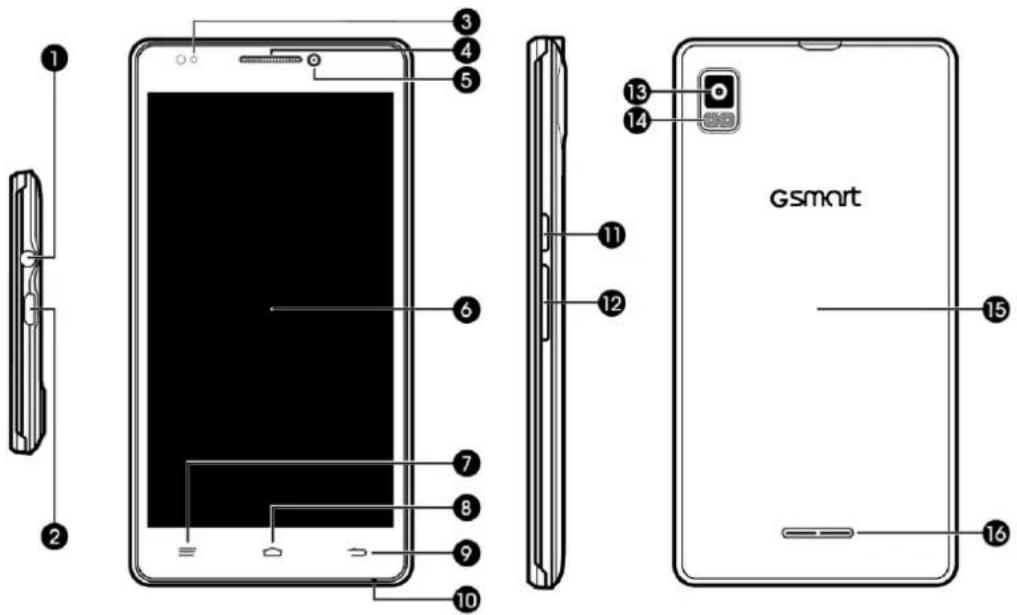
| No | items | No | Items |
| 1 | Earphone Jack | 9 | Back |
| 2 | Micro USB Port | 10 | Microphone |
| 3 | LED Notification | 11 | Power Key |
| 4 | Receiver | 12 | Volume Key |
| 5 | Front Camera | 13 | Camera |
| 6 | Display & Touch Screen | 14 | Flash |
| 7 | Recents | 15 | Battery Cover |
| 8 | Home | 16 | Speaker |
1.2 Install / uninstall SIM Card, Battery, and Memory Card
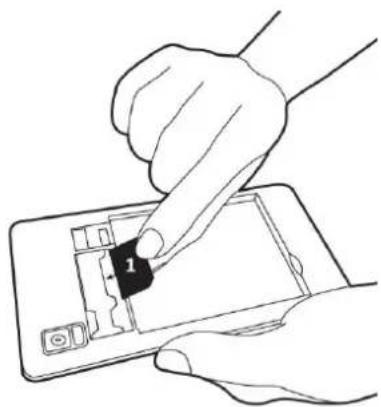
Install SIM card
natural_image
Line drawing of hands inserting a component into a smartphone (no text or symbols)Install the SIM1 card

natural_image
Line drawing of a hand inserting a small black component into a smartphone (no text or symbols)Install the SIM2 card
Gsmart
Remove SIM card
Turn off phone → slide SIM card out. (Don't use sharp object.)
NOTE:
3G Data Service (if the SIM card supports)
- 3G data service is switchable between SIM1 and SIM2.
- One SIM card:
The inserted SIM slot will be assigned to 3G by default.
| In SIM1 | 3G in SIM1 |
| In SIM2 | 3G in SIM2 |
- Two SIM cards:
3G in SIM1 by default and switchable to SIM2.
| SIM1 | SIM2 | |
| Factory default | 3G | 2G |
| User switchable | 2G | 3G |
Tap → More... → Cellular networks → Preferred network type
• Data on/off switch: tap → Data usage → cellular data
Battery
Phone comes with a battery. Battery life may vary depending on availability of local networks and individual usage.
Install battery
Put battery contacts connected to the connectors in battery slot.

natural_image
Line drawing of a hand inserting a card into a smartphone (no text or symbols)Remove battery
Use fingertip to lift battery and remove it.
Replace back cover
(1) Insert cover into slot from the bottom.
(2) Press all around back cover fully until hearing clicks.
Memory card
Micro SD card might be required to store photos, music, videos and other data if internal memory is full.
Gsmart
Install memory card

natural_image
Line drawing of a hand inserting a small electronic component into a smartphone (no text or symbols)To remove the memory card
(1) For safe removal, tap → Storage → Unmount SD card → OK.
(2) Push memory card to eject it from slot.
1.3 Charging Battery
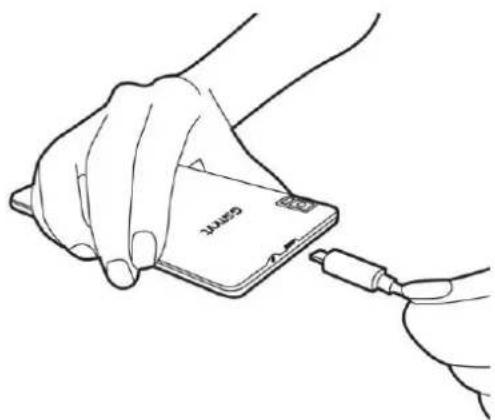
Battery has been partially charged at factory, you may need to recharge it before you can switch on phone for the first time.
(1) Connect USB cable to AC adapter → connect to device via USB cable.
(2) Plug AC adapter to socket → start charging.
(3) For safety, only use original charger that comes with your device. Any possible damage caused by using non-original charger or any other equipment will not be under GIGABYTE Communication Inc.'s liability.
natural_image
Line drawing of a hand inserting a card into a device (no text or symbols)NOTE:
CHARGE PHONE IMMEDIATELY IF BATTERY IS LOW. CHARGE FOR AT LEAST 10 MINUMTES TO REACTIVATE BATTERY IF IT IS OVERDISCHARGED.
For safety, don't remove battery from phone while AC adapter is connected or while it is being charged.
1.4 Turn Phone on / off
Turn phone on
Press and hold power button until phone shown GSmart logo.
Turn phone off
(1) Press and hold power button for few seconds.
(2) A pop-up window appears → tap "Power off" → "OK" to confirm.
2. Basic
2.1 Home Screen
Default Home Screen:

Self-defined Home Screen: Add your favorite APP shortcuts and widgets.
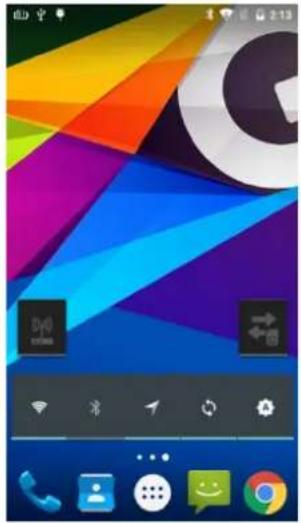
| Icons | Function Switch |
 | Tethering & Portable Hotspot |
 | Data Network |
 | Wi-Fi |
 | Bluetooth |
 | GPS |
 | Data Synchronization |
 | Brightness |
LED Notification

natural_image
Diagram of a device with a green arrow pointing to a circular mark and a horizontal bar at the bottom (no text or symbols)Red LED remains on Charging
Green LED remains on Fully charged
Green LED flashes Unread/Missed notifications
Red LED flashes Low battery (0%\~15%)
Status Icons
| Types | Icons | Descriptions |
| Phone call | [CXY] | Call in progress. |
| [370Y] | Call on hold. | |
| [0TTH] | Call muted. | |
 | Speaker on. | |
| Volume | [0TYZ] | Vibration mode. |
| [D62H] | Wired headset connected. | |
| Battery |  | Battery full. |
| [2K2K] | Battery low. | |
 | Battery in charging. | |
| Network and Connection |  | Signal strength indicator.Left: SIM1Right: SIM2 |
 | HSPA \3G \ EDGE \ GPRS is in progress.H+: HSPA+H: HSPA3G: WCDMAE: EDGEG: GPRS | |
| [TASC] | ||
| [W44Y] | Wi-Fi connected. | |
 | Wi-Fi data in progress. | |
| [6HT7] | Wi-Fi network detected. | |
| [DH6S] | Airplane mode. | |
| [2378] | Portable Wi-Fi hotspot activated. | |
| [024H6] | USB Tethering activated. | |
 | Wi-Fi hotspot activated. | |
| [5064] | Both USB tethering and Wi-Fi hotspot activated. | |
 | Bluetooth on. | |
 | Connected to PC via USB cable. | |
| Notification |  | Unread text message. |
| [7AKS] | Unread e-mail. | |
 | Unread Gmail. | |
 | Alarm. | |
| [TY0Z] | Event notification. | |
| Notification |  | Missed call. |
 | General notification. | |
 | FM radio activated. | |
 | Playing music. | |
 | App downloading. | |
 | App download/updated completed. |
2.2 Contacts
Add a Contact
(1) Tap → add a new contact.
(2) Choose either of Google account/Phone/SIM1/SIM2 to store a new contact.
(3) New contact screen appears.
(4) Fill in contact information → save.
NOTE:
Contact portrait is not editable to contacts stored in SIM cards.
Search for Contacts
Tap to search.
2.3 Phone Lock/Unlock
Sleep mode
Press power key to turn display on or off.
Unlock phone
Drag icon on screen → slide up to unlock.


smart
2.4 Personalization
Wallpaper
Long press Home screen or tap

→ Display → Wallpaper → get into settings.
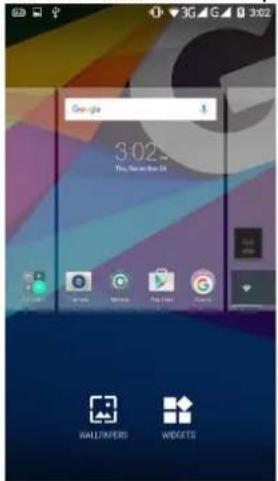

(1) Tap → select pictures.
(2) Tap pictures → preview, tap confirm.
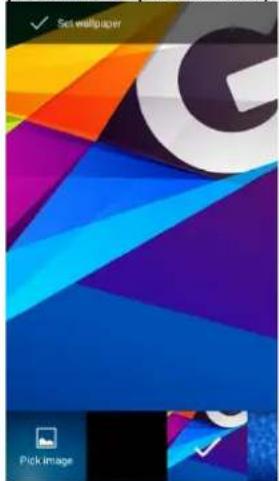
natural_image
Colorful abstract geometric design with no visible text or symbols
2.5 Date and Time
Set up date and time
(1) Tap Time Widget on Home screen.
(2) Tap (lower-right) → to start settings.

smart
Alarms
(1) Tap Time Widget on Home screen.
(2) Tap
(3) Tap
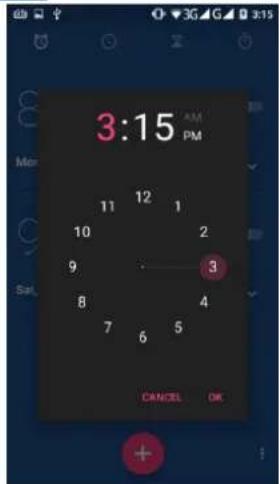
Calendar
Add new event
(1) Tap → tap (upper-right) → add new event.
(2) Fill in event information.
2.6 On-The-Go (OTG)
OTG or On-The-Go is a feature that turns your smartphone into a host and lets you plug USB storage.
3. Pre-Installed Programs Introduction
| Icons | Programs | Description | Icons | Programs | Description |
 | Battery Doctor | Power management. | Browser | Web/Internet browser. | |
 | Calculator | Calculation | Calendar | Schedule management. | |
 | Camera | Capture images/videos. | Chrome | Google browser service. | |
 | Clean Master | System optimizer. | Clock | Arrange alarm clocks. | |
 | CM Security | Antivirus app. | Contacts | Contacts folder. | |
 | Downloads | View downloaded files. | Drive | Google drive. | |
 | E-mail app. | File Manager | Manage all files. | ||
 | FM Radio | FM radio app. | Gallery | Photos / videos folder. | |
| [4408] | Gmail | Google e-mail service. |  | Google app. | |
 | Google Settings | Google settings. |  | Google+ | Google social app. |
 | Hangouts | Messenger. |  | Maps | Map service. |
 | Messaging | SMS/MMS messenger. | [24HG] | Music | Music player. |
| [508H] | Phone | Phone dialer. |  | Photos | Google gallery. |
 | Play Books | e-Bookstore. | [H7BB] | Play Games | Game center. |
| [H2ZS] | Play Movies & TV | Video player. | [45KT] | Play Music | Music player. |
 | Play Newsstand | News services. |  | Play Store | App store. |
 | Settings | Phone settings.. |  | SIM Toolkit | SIM related apps. |
| [WYOK] | Software update | System update information. |  | Sound Recorder | Record voice notes. |
 | Voice Search | Searching by voice. | [YSZO] | WPS Office | Office Software. |
 | YouTube | Video service. |
4. Phone Calls & Messages
4.1 Voice and Video Calls
Make a call from Phone screen
(1) Tap → → Go into Phone screen.
(2) Input phone numbers.
(3) Tap to call.
NOTE:
Tap → delete. Tap and hold → erase entire numbers.
Make a call from Contacts
(1) Tap → CONTACTS.
(2) Tap a contact to call.
Make emergency calls
Dial 112 for emergency call
Answer a call
- Tap and hold

→ slide to

to answer call.
→ slide to

to dismiss call.
→ slide to

to dismiss call and send message.
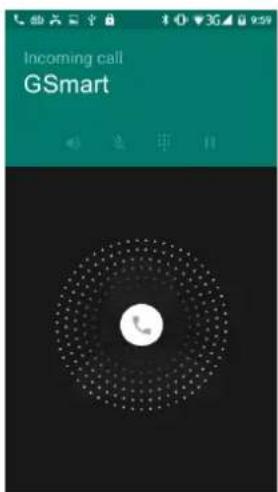

- Tap → answer call.
• Tap × → dismiss call.
GSmart
Incoming call
9:58 AM

DISMISS

ANSWER
End a call
Tap → end call.
Make a video call
(1)


(2) Tap
4.2 Create / send text message
From Message screen
(1) Tap

(2) Tap
→ create new message.
From Contact screen
(1) Tap

(2) Tap

Google keyboard
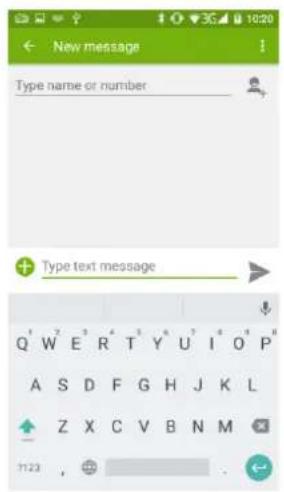
| Icons | Function |
 | Capital letter mode. |
| ?123 | Symbols and numerical keyboard. |
 | Voice typing. |
| [CW80] | Enter. |
 | Input method switch. |
| [BH57] | Delete. |
4.3 Multimedia Message
To send MMS from Message screen
(1) Tap → tap → create new message.
(2) Tap attach pictures, videos, record audio, contact, calendar, or slide show. Message converts to MMS message automatically.
5. Wi-Fi & Bluetooth
5.1 Wi-Fi
(1) Tap → to Wi-Fi main screen.
(2) Switch to turn "Wi-Fi" on or off.
Connect to Wi-Fi network
(1) Choose a Wi-Fi network to connect.
(2) Enter password if it is encrypted.
5.2 Bluetooth
Turn Bluetooth on / off
Tap → to Bluetooth main screen.

smart
6. Camera
Camera Function

Taking photo
Tap → take pictures.
Recording video
(1) Tap → start recording.
(2) Tap pause; tap continue recording.
(3) Tap again → stop recording and saved file.
(5) During recording, tap → take pictures.
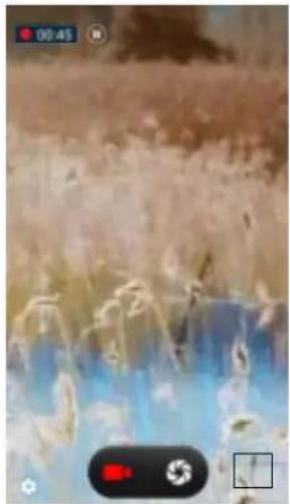
natural_image
Crowd scene with blurred figures and a camera interface (no readable text or symbols)Gsmart
7. Manage Phone
7.1 Protect Phone
Screen lock
There are five screen lock types can protect your phone.

(1) Tap → Security → Screen lock → Choose one screen lock type.
(2) Get into main setting screen and follow the instructions to set up.
Note:
Secure data by screen lock, required different screen unlock types every time after phone is turned on or waked up from sleep mode every time (screen is off).
Disable screen lock security
Tap → Security → Screen lock → Choose one screen lock type to unlock → tap "None" disable it.
Enable the PIN of the SIM card
When PIN is enabled, required to enter PIN before using phone.
(1) Tap → Security → Set up SIM card lock.
(2) Tap "SIM1" or "SIM2". (If SIM2 inserted).
(3) Check "Lock SIM card". Input PIN → tap "OK".
7.2 Backup or Reset Phone
(1) Tap → Backup & reset.
(2) Tap Factory data reset → Reset phone → Erase everything → reset phone.
NOTE:
Before resetting device, please remember to back up all data and information.

smart
8. Smart Cover (Optional Accessory)
NOTE: This function only work with GSmart flip cover.
- Close Smart Cover: Show standby screen.
- Open Smart Cover: Wake up the phone.
- Standby screen (2 styles): Long press standby screen to switch.
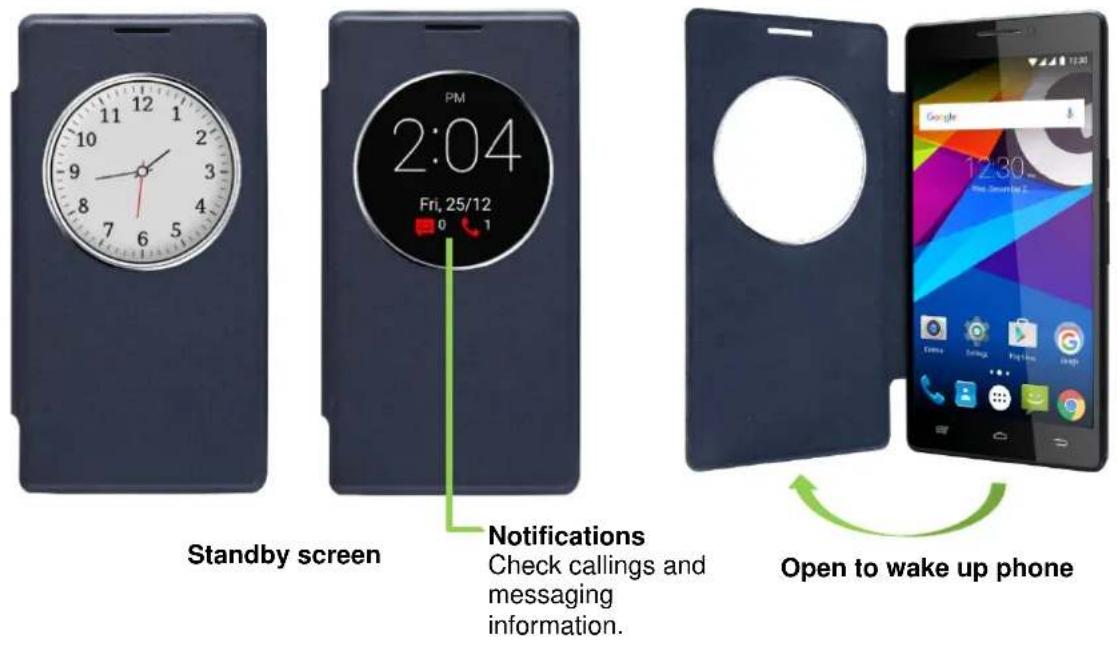
Check callings and messaging information.

Welcome to download the latest version on GSmart official website. www.gigabytecm.com
Android, Google, Google Play and other marks are trademarks of Google Inc.
natural_image
Android robot holding a lollipop with a spiral candy, no text or symbols presentAndroid 5.1, Lollipop User Manual
Gsmart
Set up your device
When you first turn on your phone, you'll see a Welcome screen. Choose the language you want and touch the arrow to continue.
When prompted, sign in with your Google Account or create one at that time. Signing in lets you immediately access everything associated with your Google Account, like Gmail. If you prefer, you can skip this step and create an account later.
After you finish setting up your device, the Home screen appears for the first time. Here, you can add app icons and widgets (an “at-a-glance” view of an app’s most important information) to your Home screens to easily find them.
• To move between Home screens, swipe left or right.
• To see notifications, swipe down from the top of the screen with one finger.
- To open Quick Settings — frequently used settings — swipe down from the top of the screen twice with one finger or once with two fingers.
• To open ⚙️ Settings, swipe down from the top of any screen with two fingers or
swipe twice with one finger, then touch in the top right.
- From the Home screen, touch Google at the top of the screen, or say “Ok Google” to search and start telling Google what to do.
Send an SMS (text message) from your phone
-
Touch Messenger on your Home screen.
-
Touch to create a new message.
-
At the top of the screen, enter a phone number or select a contact, then touch .
Type your message, then touch.
To change your default messaging app, go to

Settings > Wireless & networks
More > Default SMS app.
Gsmart

Make a phone call
-
Touch Phone on a Home or All Apps screen.
-
To choose someone to call, scroll or search. If the keypad is in the way, touch the Back button to lower it.
-
To place a call, touch the contact's name.
To view recent calls, touch the Recents tab. To use the keypad, touch the keypad.

Make a video call
The Hangouts™ app lets you send and receive video calls. To open it, touch
Hangouts on a Home or All Apps screen.
To start a video call:
-
Touch Add at the top of the main Hangouts screen and start typing a name, email address, or phone number. Matching names and numbers from your contacts appear as you type.
-
Choose a name, then touch Video at the top of the screen.
To adjust notification preferences and other settings, touch = Menu > Settings.

Send an email
Use the Gmail app to read and write email from your Gmail or other email addresses.
-
Touch Gmail on a Home or All Apps screen.
-
If you already signed into a Gmail account during setup, your email will be synced to your device. Otherwise, add an email address now.
Status bar
Gsmart
The status bar is at the very top of the screen. On the right, you can see the Wi-Fi and mobile signal strength, how much battery power is left, and the time. On the left, you can see which apps have sent you notifications.
Quick Settings
Use Quick Settings to easily get to frequently used settings, like turning on airplane mode. To open Quick Settings, swipe down from the top of the screen with two fingers or twice with one finger. To change a setting, just touch the icon:
- Wi-Fi network : Turn Wi-Fi on or off. To open Wi-Fi settings, touch the Wi-Fi network name.
- Bluetooth settings ^* : Turn Bluetooth on or off. To open Bluetooth settings, touch the word “Bluetooth”.
- Cellular data ↓↑: See cellular usage data and turn it on or off.
- Airplane mode: Turn airplane mode on or off. Airplane mode means your phone won't connect to Wi-Fi or a cell signal, even if one is available.
- Flashlight : Turn the flashlight on or off.
- Display brightness ⚙️: Slide to lower or increase the brightness of your screen.
- Auto-rotate : Lock your device's orientation in portrait or landscape mode.
Gsmart

Open the main Settings app by touching Settings in the top right.
You can also turn Auto Rotate on or off from Quick Settings, to lock or unlock automatic screen rotation.
Manage battery life
- The status bar shows how much battery you have left, but you can also see the exact percentage and approximate time of battery life remaining. Swipe down
from the top of the screen, then touch Battery.
Your Android device's battery is built to get you through your day. When you're running low, Android battery saver conserves your battery power so you can still
make calls and send SMS (text) messages. To turn it on, go to Settings > Battery
Battery saver.
Get around
At the bottom of every Home screen you'll find the Favorites tray: another quick way to get to your apps.

natural_image
Row of five digital and social app icons on a red background (no text or symbols)To open an app, touch it. To drag an app in or out of the Favorites tray or anywhere else on a Home screen, touch & hold it, then move it with your finger where you want it.
Navigation buttons
At the bottom of most phone or tablet screens, no matter what you're doing, you'll always find the navigation bar with three buttons.

Back
Opens the previous screen you were working in, even if it was in a different app. Once you back up to the Home screen, you can't go back any further.

Home
Opens the central Home screen. To open Google Now ^™ , swipe up.

Overview
Opens a list of thumbnail images of screens you've worked with recently. To open one, touch it. To remove a screen from the list, swipe it left or right or touch on the X.
Organize your Home screens
- To change your wallpaper, add a widget, adjust Search settings, or change screen order, touch & hold the background of any Home screen.
- You can have any number of Home screens to the right. To add a new screen, swipe to the rightmost screen and drag an app or widget to the right edge.
- The screen to the left of the main Home screen is reserved for Google Now, and is available only when Google Now is turned on.
• To create a folder, slide one icon quickly on top of another.
• To name or rename a folder, open it and touch its name.
Gsmart
To change the wallpaper:
- Touch & hold the background, then touch Wallpapers.
- Swipe right to left to choose a wallpaper image. Or choose an image from your Photos, Downloads or Drive.
To add an app icon to a Home screen:
- Go to the Home screen where you want to place the app.
- Touch All Apps.
- Swipe from right to left, if necessary, to find the app you want.
- Touch & hold the app until the Home screen appears, slide it into place, and lift your finger.
To add a widget:
- Touch & hold the background, then touch Widgets.
- Swipe right to choose a widget, which provides a quick view or way to access information on your home screen, like a larger size clock or a view of information in your Google Play™ library.
To move an app or widget to another position:
- Touch & hold the icon.
- Slide your nger to the new posion. To move between Home screens, slide toward the edge of the screen. To bump another icon out of the way, slide slowly into it.
- Li your nger.
Touch & type
To select or acvate something, touch it.
To type something, such as a name, password, or search terms, just touch where you want to type. A keyboard pops up that lets you type into the eld. Other common gestures include:
- Touch & hold. To select an item, touch & hold it by not liing your finger until something happens. This is how you access accent and other special characters on the keyboard. Slide your nger to the accented leer you need.
- Touch, hold, & drag. Touch & hold an item for a moment and then, without liing your nger, move your nger on the screen until you reach the target posion. You can move apps around on the Home screen.
Gsmart
- Swipe or slide. Quickly move your nger across the surface of the screen, without pausing when you rst touch (so you don't drag something instead). Slide a Home screen le or right to view the other Home screens.
• Double-tap. Tap quickly twice on a map or image to zoom in and out.
- Scale. In some apps (such as Maps, Chrome™, and Photos), you can scale by placing two or more ngers on the screen at once and pinching them together (to enlarge scale) or spreading them apart (to reduce it).
- Rotate the screen. The orientation of most screens rotates with your device as you turn it. To keep your screen locked in Portrait mode, swipe down with two
fingers from the top of any screen and touch Portrait/Auto-Rotate in Quick Settings.
Android version & updates
To check your version number or get the latest system update, first go to Settings
System > About phone. Then look for these labels:
- System updates. Touch to check whether you have any pending system updates.
- Android version. Look partway down the list for this heading and the number just below it.
Display
Change the display sengs on your device by following these steps:
Go to Sengs > Device > Display.
- Brightness level: Move the slider to set the brightness level on your device.
- Adapve brightness: Turn on adapve brightness to automacally opmize the brightness level on your device based on the available light around you. Adapve brightness is on by default. You can sll adjust your brightness when needed.
- Sleep: Change how long it takes for your device's screen to go black when you're not using it.
- Daydream: Set up screensavers that display photos, colorful backgrounds, and more when your device is charging or docked.
Prompt & nocaon
You can change the sound and nocaon sengs on your device by going to
Sengs > Device > Prompt & nocaon.
Nocaons alert you to the arrival of new messages, calendar events, and alarms, as well as ongoing events, such as downloads:
- Interrupons. Touch the sengs to turn phone call and message interrupons on or o. If you turn Messages nocaons on, touch Calls/messages from to specify from whom you accept nocaons (Anyone, Starred contacts or Contacts Only). In Downme, select which days and mes you allow for sound nocaons.
- When device is locked. Manage whether nocaons can be seen when your phone is locked, and whether sensitive content in a nocaon can be seen. Sensitive content includes things like the tle of a song you downloaded, who sent you an email, or the details of a calendar event.
- App Noticaons. Modify the nocaon sengs individually for apps such as Gmail. The seng under When device is locked will always take precedence over the seng for an individual app.
- Nocaon access. See which apps can access your nocaons.
When a nocaon arrives, its icon appears at the top of the screen. Icons for pending nocaons appear on the le, and system icons showing things like the Wi-Fi signal, mobile carrier signal, or baery strength are on the right:

Certain nocaons can be expanded to show more informaon, such as email previews or calendar events. The one at the top is always expanded when possible. To expand a nocaon, posion one nger inside it and swipe down slowly.
To open the related app, touch the nocaon icon on the le. Some nocaons also allow you to take speci acons by touching icons within the nocaon. For
Gsmart
example, Calendar nocaons allow you to Snooze (remind you later) or send email to other guests.
When you're nished with a nocaon, swipe it away. To dismiss all nocaons,
touch Dismiss at the very boom of the nocaons list.
Manage accounts on your device
Add an account
-
Go to Sengs > Personal > Accounts. Touch "Add account."
-
Touch the type of account you want to add. You may be able to choose from choices like "Google," "Personal (IMAP)," or "Personal (POP3)." If you're not sure whether to choose IMAP or POP3, try IMAP rst. Many email services use IMAP. i. Choose "Google" if you want to add your Google Account. When you sign in with a Google Account, all the email, contacts, calendar events, and other data associated with that account are automatically synced with your device. ii. Follow the on-screen instrucons to add the account.
To change the sengs of any of the accounts you added, follow these steps:
-
Go to Sengs > Personal > Accounts.
-
Select your account. If you're using a Google Account, touch Google and then your account.
Remove an account
To remove an account from your device, follow these steps:
- Check to see if the account you want to remove is the account you used to set up your device.
- If it's not, go to step 2 and follow the instrucons.
- If it is, reset your device to its factory sengs instead of following the steps below. This erases all of the data from your device and you'll need a Google Account to set up your device again.
-
Open the Sengs menu on your device.
-
Under "Accounts," touch the name of the account you want to remove. If you're using a Google Account, touch Google and then the account.
- When you sign out of your Google Account, all the email, contacts, Calendar
Gsmart
events, and other data associated with that account will no longer automacally sync with your device.
-
Touch : Menu in the top right corner of the screen.
-
Touch Remove account.
Security
-
Go to Sengs > Personal > Security > Screen lock.
-
Touch the type of lock you'd like to use.
Even when your screen is locked, you can perform certain advies.
- Quick Sengs: Slide down from the top of the screen to open Quick Sengs without entering your password.
• Camera: Slide from right to le to open the Camera.
- Access Dialer: Slide from le to right to make a phone call. (First you have to enter your password.)
- Emergency Calls: Slide from le to right to make an emergency phone call without having to enter your password.
Prinng
With Android 5.1, Lollipop, you can preview and print the content of certain screens to a printer on the same Wi-Fi network as your Android device.
Before you can print, you need a prinng service installed on your device. To check
what services are currently available, go to Sengs > System > Prinng.
From here, you can open each available service to turn it on or o, check which printers it makes available, add new printers, and adjust the service's sengs.
-
Touch Menu > Print.
-
In the dialog that appears, adjust sengs such as printer, copies, orientaon, and so on.
-
Touch Print.
Gsmart

File storage
To each an image to an email you're composing, touch the Paper Clip in the top right and choose to either Aach le or Insert from Drive to select stored images in your Drive folder.
From here, you can view any of these sources:
- Recent shows you the photos or videos you've taken or opened most recently.
- Drive lets you attach any les stored in Google Drive™.
• Images displays any photos, videos, or other images on your device. - Downloads includes most les (excluding Play content) you've downloaded from emails or the Web
- Photos lets you browse all the images and videos that are on your device or have been uploaded to your Google account.
Use the Downloads app to view, reopen, or delete les you download from Gmail or other sources (excluding Google Play books, videos, magazines, and other media.)
In the Downloads app:
- Touch an item to open it.
• In your list of downloads, touch & hold an item to select it. Touch Share and
choose a sharing method from the list. Touch to delete.
Google Play streams purchases and rentals via the Internet. So the purchases and rentals don't always occupy storage space when you play them. Although you can download content in Google Play apps to access oine, Google Play content never appears in Downloads.
Screenshots
- Make sure the image you want to capture is displayed on the screen.
- Press the Power and Volume down buons simultaneously.
The screenshot is automatically saved in your Photos.
Gsmart
Use the keyboard
To select a keyboard language other than English, go to Sengs, Personal > Language & input.
Enter & edit text
Use the onscreen keyboard to enter text.
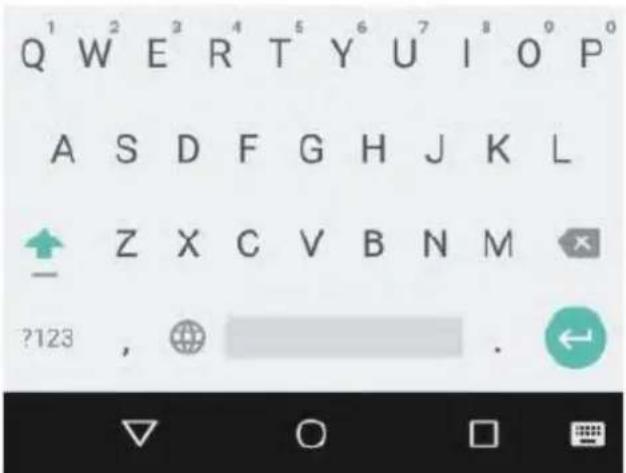
Basic eding
Select text
Touch and hold or double-tap within the text.
The nearest word highlights, with a tab at each end of the selecon. Drag the tabs to change the selecon.
Delete text
Touch the Delete key to delete the characters before the cursor or selected text.
Type capital leers
To switch to capital leers for one leer, touch the Shi key once.
You can also touch and hold the Shi key while you type or you can touch the

Shi key and slide to another key.
Gsmart
When you release the key, the lowercase leers reappear.
Turn caps lock on
Double-tap or touch and hold the Shi key so that it changes to. Touch the Shi key again to return to lowercase.

Change word capitalizaon
If you want to quickly change the capitalizaon of a word you've already typed, you can select it and touch the Shi key.
You'll have the opon to select the capitalized word or the word in all capital leers.
Type a symbol or character
To switch to symbol keys for one word, touch the symbol key once.
You can also touch and hold the symbol key

while you type or you can touch the symbol key

and slide to another
key. When you release the key, the leer keys reappear.
View more symbols and characters
Touch and hold symbols or characters to get accented characters or additional symbols.
Cut, copy, paste
Select the text you want to cut or copy. Then touch the Cut buon or Copy
buon . To paste, touch the space where you want to paste your text and then touch Paste. If you want to replace other text with the text you copied, highlight the text, then touch the Paste buon .
Emoji
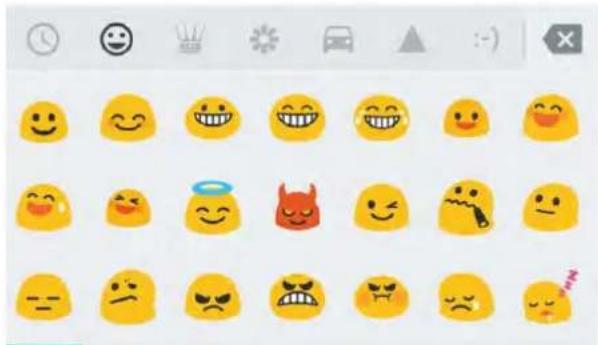
Use Google Keyboard to choose from a variety of small, colorful images used to
Gsmart
express emoon (known as emoji) to add some fun to your messages.
Use next-word suggesons
- Touch the locaon where you want to input text
- Start typing out a word. When the word you want is displayed in a list above the keyboard, touch it.
- Connue to touch words unless the one you want doesn't appear. If so, type it.
Android connues to suggest words as you type.
To change your keyboard and input methods, go to Sengs > Personal >
Language & input.
To turn next-word suggesons on or o, go to
Sengs > Personal > Language &
input > Keyboard & input methods > Google Keyboard > Text correcon > Next-word suggesons.
Gesture typing
To input a word using Gesture Typing:
- Touch the locaon where you want to type to open the keyboard.
- Slide your nger slowly across the leers of the word you want to input.
- Release your nger when the word you want is displayed in the oang preview or the middle of the suggeson strip. To select one of the other words in the suggeson strip, touch it.
If the word you want isn't shown while using Gesture Typing, you can type it out manually. If you gesture a word and want to change it, touch the word to see other choices in the suggeson strip.
Gsmart
If there are leers you want to emphasize, like repeated leers, such as the “e” in sleep, pause over the “e” slightly longer before moving on to the next leer.
Use Gesture Typing without the space bar
When you use Gesture Typing, there's no need to use the space bar — just connue to slide your nger across the leers you want to input, then li your nger to start the next word.
To change Gesture Typing sengs, go to Sengs > Language & input >
Keyboard & input methods > Google Keyboard> Gesture Typing.
Keyboard diconaries
To manage keyboard diconaries, go to Sengs > Personal > Language & input.
Personal diconary
You can add your own words to your personal dictionary so that your device remembers them. To add a word or phrase, including an oponal shortcut, go to
Sengs > Personal > Language & input > Google Keyboard > Text Correcon >
Personal dictionary and the language of the dictionary you want to modify, then choose Add and type in the word. When you use the oponal shortcut when typing, your word or phrase appears as an opon in the suggested words above the keyboard.
Add-on diconaries
- Go to 🎨 Sengs > Personal > Language & input > Google Keyboard > Text
Correcon > Add-on diconaries.
-
You'll see diconaries for other languages that you can download to your device.
-
Touch the diconary you want, then Install.
Type by speaking
You can speak to enter text in most places where you can enter text with the onscreen keyboard.
Gsmart
-
Touch a text eld, or a locaon in the text you've already entered in a text eld.
-
Touch the Microphone key on the onscreen keyboard.
-
When you see the microphone image, speak what you want to type.
In some languages, you can also enter punctuaon by speaking it, like “comma,” “period,” “queson mark,” “exclamaon mark,” or “exclamaon point.” Supported languages include English, French, Italian, German, Spanish, and Russian.
To change your speech sengs, go to
Sengs > Personal > Language & input.

Try Some apps
All apps
This is where you can see all your apps, including those that come with your phone and those you downloaded on Google Play. You can move app icons to any of your Home screens.
From All Apps, you can:
- Move between screens. Swipe le or right.
- Open an app. Touch its icon.
- Place an app icon on a Home screen. Touch & hold the app icon, slide your nger, and li your nger to drop the icon into your desired Home screen.
- Browse widgets. Touch the Widgets tab at the top of any All Apps screen.
• Get more apps. Touch Google Play in the list of app icons.
To remove an app icon from the Home screen without removing it permanently from your device, touch & hold it, slide your nger toward the top of the screen, and drop the app over Remove.
To view info about an app from an All Apps screen, touch & hold it, slide your nger toward the top of the screen, and drop the app over App Info.
Gsmart

Gmail
Use the Gmail app to read and write email from any mobile device. To open it, touch

Gmail on a Home or All Apps screen.
You can use your Gmail account to sign in to all Google Apps™ and services, including these and many more:
• Google Now, for geng the informaon you need at just the right me
- Calendar
• People, for keeping track of your contacts
• Google Drive, for working with documents
While you're reading a message:
- Touch the icons along the top of the screen to archive, throw away, and mark as
read. Touch to mark a message as unread. Look under the Menu to move, change labels, mute, print and do other acons to the email.
- Swipe le or right to read the previous or next conversaon.
Organize your conversaons: From the Inbox, touch & hold a conversaon to select it. Then use the icons and menu along the top of the screen to manage the selected messages.
To change your sengs, add an account, or get help, touch the menu icon or buon.
No maer where you are in Gmail, you can always get back to the Inbox by touching
the Back buon at the top of the screen.
From the Inbox, touch Menu to open the drawer that reveals available accounts, labels, and so on.
To add a non-Gmail email account to Gmail:
-
Go to Sengs > Personal > Accounts > Add account.
-
Touch the type of account you want to add. You may be able to choose from
Gsmart
choices like "Google," "Personal," or "Work."
- Choose "Google" if you want to add your Google Account. When you sign in with a Google Account, all the email, contacts, Calendar events, and other data associated with that account are automatically synced with your device.
- Follow the on-screen instrucons to add the account.
To change the sengs of any of the accounts you added, follow these steps:
- Open the 🎨 Sengs menu on your device.
- Under "Personal," touch "Accounts" and select your account. If you're using a Google account, touch Google and then your account.

Google Play
-
Open the Google Play app.
-
Touch Menu at the top le.
From here, you can view the current account or switch to another, view your purchased apps, check your wish list, and so on.
To set preferences, clear your search history, and turn on user controls, go to
Menu > Sengs. For example, to Iter apps based on maturity level or require a PIN for purchases, touch Content Itering or Require authencaon for purchases.
To nd your content, open any of the Google Play apps from the All Apps screen and touch Menu.
Gsmart
Camera
To open Camera:
• From the the lock screen, swipe from right to le.
• From the Home screen, touch Camera.
The rst me you open Camera, you may be asked if you want it to remember photo locaons. This allows you, for example, to pinpoint the locaon of a parcular photo with Google Maps™.
When you open Camera, you can choose from ve dierent camera modes. To see the modes, swipe le to right.
The Camera icon indicates Camera mode. To take a picture:
-
Frame your subject and watch for the focus ring. To focus on a dierent part of the image, touch it. To zoom in, pinch two ngers outwards. To zoom out, pinch two ngers inwards.
-
When the focus ring brackets disappear, touch the shuer buon, which is the camera buon.
-
To see the image you just took, swipe from right to le. To see stored photos,
touch Photos in the top right. When viewing stored photos, touch to share, Edit to modify photos and to delete.
Keep swiping to see other images in Photos.
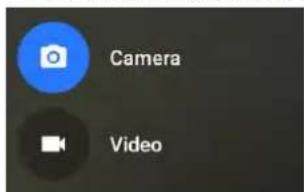
To change to a dierent mode, swipe le to right to show the list of camera modes:
Gsmart
Camera
Touch Camera to take regular pictures.
Video
To start recording a video, touch the video buon. Touch it again to stop.
To change sengs for each mode such as ash, exposure, and so on, touch the circle with the three dots at the boom right of the framed image.

Photos
To open Photos from the:
• Camera app. Swipe from right to le.
• All Apps screen. Touch Photos.
When you're signed into your device with your Google Account, the Photos app makes it easy to auto-backup all the photos and videos you take, organize them, and share with friends.
You can also browse, search, crop, edit, and tag photos, and create albums and movies.
Touch Menu to:
- Switch to or from Google+TM.
- Organize and edit your photos and videos.
• Create and browse albums.
• Explore Auto Awesome animaons, panoramas, or merged group shots created for you automacally. - Browse photos of yourself.

Contacts
Gsmart
When you rst turn on your device and sign into a Google Account, exisng contacts from that account are synced with your Contacts app. Aer that, your contacts stay in sync automacally on your dierent devices or a Web browser.
If you use Exchange, you can also sync that contact informaon with Contacts.
All your Contacts informaon is available from Gmail, Google Talk, and other apps. As you add contacts from dierent sources, they're synced automacally across all the places you need them.
When you open the Contacts app, you can:
• View all contacts or favorites. Choose from the top of the screen.
- Add a contact. Touch Add Contact.
- Read details. Touch a name to see details for a contact or group.
- Share the contact or place a frequently used contact on the Home screen. Touch : Menu.
- Edit details. While viewing a contact, touch Edit at the top of the screen to edit the contact's informaon.
- Change your sengs. While viewing the main list screen, touch *Menu to import or export contacts, choose display opons and add or edit accounts.

Messenger
To read and respond to messages, follow these steps:
-
When you receive a new message, you'll get a nocaon on your device and a new message icon will appear in your nocaon panel.
-
To open and read the message, touch the new message nocaon in the nocaons panel.
-
To respond to a message, touch the Send message box and type your message.
-
To send, touch Send.
To create and send a text message, follow these steps:
- Go to

All Apps and touch

Messenger.
- In the main Messenger screen, touch .

- Enter a name from your contacts or a mobile phone number in the To eld. To
send a group text message, touch the group icon in the To eld and touch additional contacts or enter additional mobile phone numbers.
- Below the To eld, you can choose from your frequent contacts by touching Frequents or your list of contacts by touching All contacts.
- If you're sending a group message, make sure you turn on group messaging in Messenger seng.
-
If you choose to enter a name or mobile number in the To eld, matching contacts appear as you type, if any exist among your contacts. You can touch a suggested recipient or connue entering the phone number.
-
To write your message, touch the Send message box and type your message. Learn more about using Google Keyboard and emoji.
-
If you touch the Back buon while composing a message, it's saved as a dra in Messenger. Touch the conversaon to resume composing it.
-
To send, touch Send.
You can manage your messages, conversaons, nocaons, and contacts right from Messenger home screen. You can also change your sound, nocaon, and other sengs.
Delete messages
- Open a conversaon in Messenger.
- Touch and hold the message you wish to delete.
- When the "Message opons" box appears, touch Delete.
Delete conversaons
While viewing your list of conversaons in Messenger, touch and hold a conversaon to select it.
To delete the conversaon, touch Trash in the top right corner of the screen.
Gsmart
- Archive. Touch ↓ Archive to store the conversaon.
- Delete. Touch to delete the conversaon from the Messenger app.
- Turn nocaons on or o. Touch Nocaon to turn nocaons on or o for the conversaon.
- Add contact. Touch + Add contact to add the conversaon's contact to your list of contacts.

Hangouts
With Hangouts, you can make video calls to anyone with a Google Account. You can share photos and your locaon with others.

Calendar
As you edit events, they're synced automacally across all the places you need them.
To change the Calendar view, touch the : Menu and choose Schedule, Day, or Week from the top of the screen.
From any of these views, you can:
- Read or edit event details. Touch an event to view its details.
- Manage events and calendars. Touch icons across the top of the screen or the menu to search or create events, return to today, or adjust sengs.
To email everyone who is invited to an event, you have two opons:
- Open the event from the Calendar app at any me and touch Email guests. You have a list of quick responses or you can write your own.
Gsmart
- When a nocaon of the event arrives just before the meeng starts, swipe down the nocaon shade. Then swipe using one nger to expand the nocaon if necessary, and touch Email guests.
Accessibility
To use the accessibility opons, open Sengs > System > Accessibility.
Capons: You can turn on capons for your device and specify the language, text size, and style. For some apps, you have to turn on the capons in the app itself.
TalkBack is a screen reader from Google that comes with your Android phone. It uses spoken feedback to describe events, such as nocaons, and the results of your acons, such as opening an app. When TalkBack is on, you have to double-tap in order to select something. TalkBack sengs let you control the nature of TalkBack speech, feedback, and touch exploraon (Explore by touch).



- GSmart Classic Pro
- User Manual
- Copyright
- Gsmart
- General Information
- Getting Stared
- Your Phone
- Install / uninstall SIM Card, Battery, and Memory Card
- Install SIM card
- Remove SIM card
- NOTE:
- Battery
- Install battery
- Remove battery
- Replace back cover
- Memory card
- To remove the memory card
- Charging Battery
- Turn Phone on / off
- Turn phone on
- Turn phone off
- Basic
- Home Screen
- Status Icons
- Contacts
- Add a Contact
- Search for Contacts
- Phone Lock/Unlock
- Sleep mode
- Unlock phone
- smart
- Personalization
- Wallpaper
- Date and Time
- Set up date and time
- Alarms
- Calendar
- Add new event
- On-The-Go (OTG)
- Pre-Installed Programs Introduction
- Phone Calls & Messages
- Voice and Video Calls
- Make a call from Phone screen
- Make a call from Contacts
- Make emergency calls
- Answer a call
- End a call
- Make a video call
- Create / send text message
- From Message screen
- From Contact screen
- Google keyboard
- Multimedia Message
- To send MMS from Message screen
- Wi-Fi & Bluetooth
- Wi-Fi
- Connect to Wi-Fi network
- Bluetooth
- Turn Bluetooth on / off
- Camera
- Taking photo
- Recording video
- Manage Phone
- Protect Phone
- Screen lock
- Disable screen lock security
- Enable the PIN of the SIM card
- Backup or Reset Phone
- Smart Cover (Optional Accessory)
- Android 5.1, Lollipop User Manual
- Set up your device
- Send an SMS (text message) from your phone
- Make a phone call
- Send an email
- Status bar
- Quick Settings
- Manage battery life
- Get around
- Navigation buttons
- Back
- Home
- Overview
- Organize your Home screens
- Touch & type
- Android version & updates
- Display
- Prompt & nocaon
- Manage accounts on your device
- Add an account
- Remove an account
- Security
- Prinng
- File storage
- Screenshots
- Use the keyboard
- Enter & edit text
- Basic eding
- Select text
- Delete text
- Type capital leers
- Turn caps lock on
- Change word capitalizaon
- Type a symbol or character
- View more symbols and characters
- Cut, copy, paste
- Emoji
- Use next-word suggesons
- Gesture typing
- Use Gesture Typing without the space bar
- Keyboard diconaries
- Personal diconary
- Add-on diconaries
- Type by speaking
- Try Some apps
- All apps
- Gmail
- To add a non-Gmail email account to Gmail:
- Google Play
- Camera
- Video
- Photos
- Touch Menu to:
- Contacts
- Messenger
- Delete messages
- Delete conversaons
- Hangouts
- Accessibility
Brand : GIGABYTE
Model : GSmart Classic Pro
Category : Smartphone