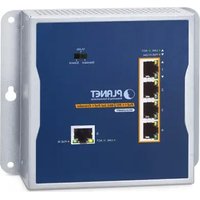
WGS-E304PT - Network Extender Planet - Free user manual and instructions
Find the device manual for free WGS-E304PT Planet in PDF.


| Product Type | Industrial 1-Port 10/100/1000T 802.3bt PoE++ to 4-Port 802.3at PoE+ Wall-mounted Extender |
| Model | WGS-E304PT |
| Manufacturer | Planet Technology Corp. |
| Dimensions (W x D x H) | 148 x 24.2 x 134 mm |
| Weight | 457 g |
| Enclosure | IP30 metal case |
| Network Connectors | 1 x 10/100/1000BASE-T PoE In (RJ45), 4 x 10/100/1000BASE-T PoE Out (RJ45) |
| PoE Standard (In) | IEEE 802.3bt PoE++ Type 4, up to 95W |
| PoE Standard (Out) | IEEE 802.3at PoE+ per port, up to 30.8W |
| PoE Power Budget | 65-70W max with 802.3bt Type 4 input |
| Switch Fabric | 10 Gbps |
| Throughput | 7.44 Mpps at 64 bytes |
| MAC Address Table | 2K with auto learning |
| Jumbo Frame | 9K bytes |
| DIP Switch Modes | Standard, VLAN, Extend (250m at 10Mbps) |
| LED Indicators | LNK/ACT (Green), PoE-in-Use (Amber) per port |
| Power Consumption | 8.6W (idle), 82W (full PoE load) |
| Operating Temperature | -40°C to 75°C |
| Storage Temperature | -40°C to 85°C |
| Regulatory Compliance | FCC Part 15 Class A, CE |
| Stability Testing | IEC60068-2-32 free fall, IEC60068-2-27 shock, IEC60068-2-6 vibration |
| Installation | Wall-mount, DIN-rail, or magnet (kits included) |
| Package Contents | Extender, QR code sheet, DIN-rail kit, wall-mount kit, magnet kit, 5x RJ45 dust caps |
| Cleaning & Maintenance | Wipe with dry cloth; avoid liquids; no user-serviceable parts inside |
Frequently Asked Questions - WGS-E304PT Planet
User questions about WGS-E304PT Planet
0 question about this device. Answer the ones you know or ask your own.
Ask a new question about this device
Download the instructions for your Network Extender in PDF format for free! Find your manual WGS-E304PT - Planet and take your electronic device back in hand. On this page are published all the documents necessary for the use of your device. WGS-E304PT by Planet.
USER MANUAL WGS-E304PT Planet
Industrial 1-Port 10/100/1000T 802.3bt PoE++ to 4-Port 802.3at PoE+ Wall-mounted Extender
WGS-E304PT
User's Manual
Table of Contents
- Package Contents......3
- Hardware Introduction 4
2.1 Front Panel 4
2.2 LED Indicators....4
2.3 DIP Switch....5
2.4 Physical Dimensions....6
- Installation 7
3.1 Wall-Mount Installation....7
3.2 DIN-rail Mounting Installation 9
3.3 Magnet Installation 10
3.4 Connecting WGS-E304PT to PSE 10
3.5 Connecting WGS-E304PT to PD....11
- Power over Ethernet Budget.... 13
- Technical Specifications.... 14
Customer Support.... 17
1. Package Contents
Thank you for purchasing PLANET Industrial 1-Port 10/100/1000T 802.3bt PoE++ to 4-Port 802.3at PoE+ Wall-mounted Extender, WGS-E304PT. In the following sections, the term "Industrial PoE Extender" means the WGS-E304PT.
Open the box of the WGS-E304PT and carefully unpack it. The box should contain the following items:
| Industrial PoE Extender x 1 | QR Code Sheet x 1 DIN-rail Kit x 1 | |
 |  |  |
| Wall-mounted Kit x 1 Magnet Kit x 1 RJ45 Dust Cap x 5 | ||
 |  |  |
If any of these are missing or damaged, please contact your dealer immediately; if possible, retain the carton including the original packing material, and use them again to repack the product in case there is a need to return it to us for repair.
2. Hardware Introduction
This section describes the functionalities of the Industrial PoE Extender's components.
2.1 Front Panel
Figure 2-1 shows the front panel of Industrial PoE Extender.

Figure 2-1: WGS-E304PT Front Panel
2.2 LED Indicators
➢ PoE Input Port (Port 5)
| LED Color Function | ||
| LNK/ACT Green | Lights to indicate the port is linked up. | |
| Blinks to indicate that the WGS-E304PT is actively sending or receiving data over that port. | ||
| PoE-in-Use Amber | Lights to indicate the port is obtaining PoE power from PSE devices. | |
| OFF to indicate the port is not obtaining PoE power from PSE devices. | ||
➢ Per PoE Output Port (Ports 1 \~ 4)
| LED Color Function | ||
| LNK/ACT Green | Lights to indicate the port is linked up. | |
| Blinks to indicate that the WGS-E304PT is actively sending or receiving data over that port. | ||
| PoE-in-Use Amber | Lights to indicate the port is providing PoE power. | |
| OFF to indicate the connected device is not a PoE PD | ||
2.3 DIP Switch
The front panel of Industrial PoE Extender provides one DIP switch for Standard, VLAN and Extend mode selections. The detailed descriptions are shown in the following table.
| DIP Switch Mode Function | |
| Standard (default) | This mode makes the WGS-E304PT operate as a general switch and all ports operate at 10/100/1000Mbps auto-negotiation. |
| VLAN | This mode makes the WGS-E304PT operate as a VLAN isolation switch and Port 1 to port 4 will isolate respectively. Port 1 to port 4 can only communicate with port 5 (uplink port). |
| Extend | This mode makes the WGS-E304PT operate as a distance extension switch and port 1 to port 4 can only transmit distance of 250m at speed of 10Mbps. |

Note
Please reboot the Industrial PoE Extender after adjusting the DIP switch.
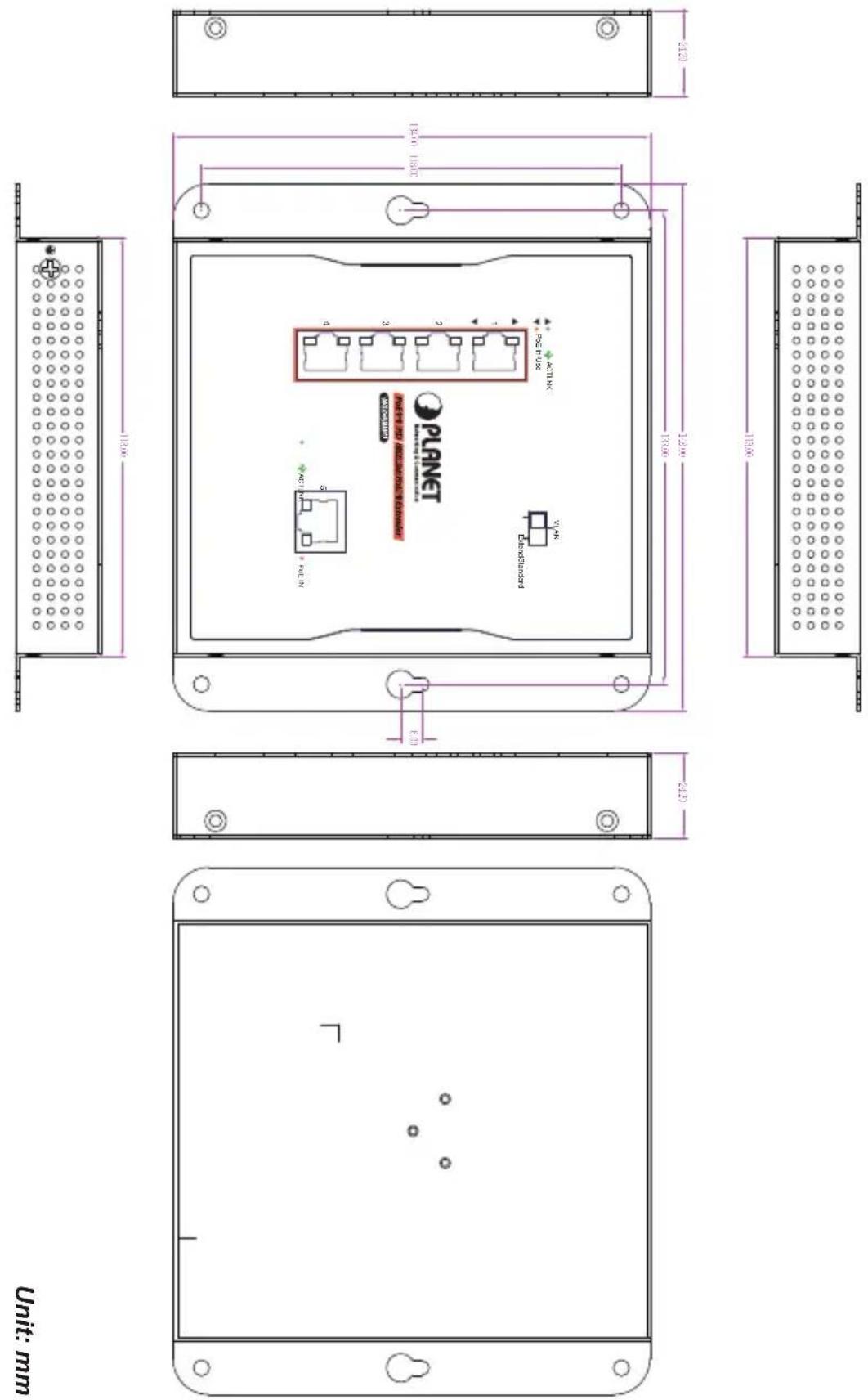
2.4 Physical Dimensions
W x D x H: 148 x 24.2 x 134 mm
3. Installation
This section describes the functionalities of the Industrial PoE Extender's components and guides you to installing it on the wall-mount, DIN rail and magnet Installation. Please read this chapter completely before continuing.

Note
This following pictures show how to install the device. However, the device in the picture is not the WGS-E304PT.
3.1 Wall-Mount Installation
To install the Industrial PoE Extender on the wall, simply follow the following steps:
Step 1: Place the Industrial PoE Extender on the wall and mark the four holes with a pencil.
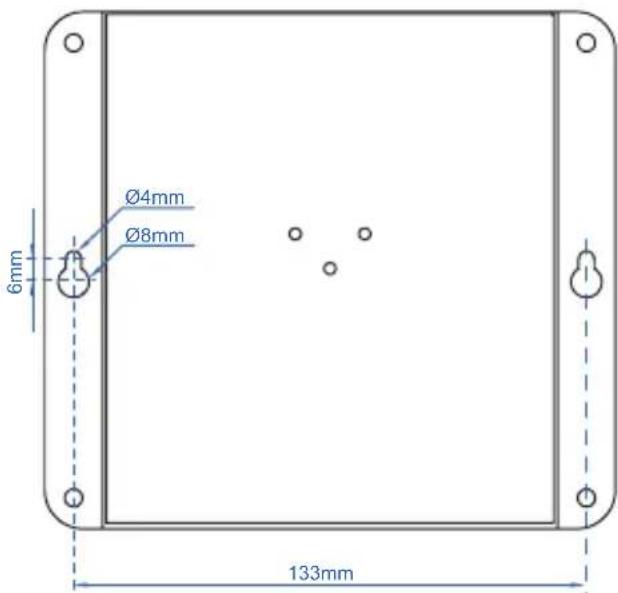
Step 2: Hammer the anchors provided into the four holes and use the four screws to tightly fix the Industrial PoE Extender onto the w screwing them.

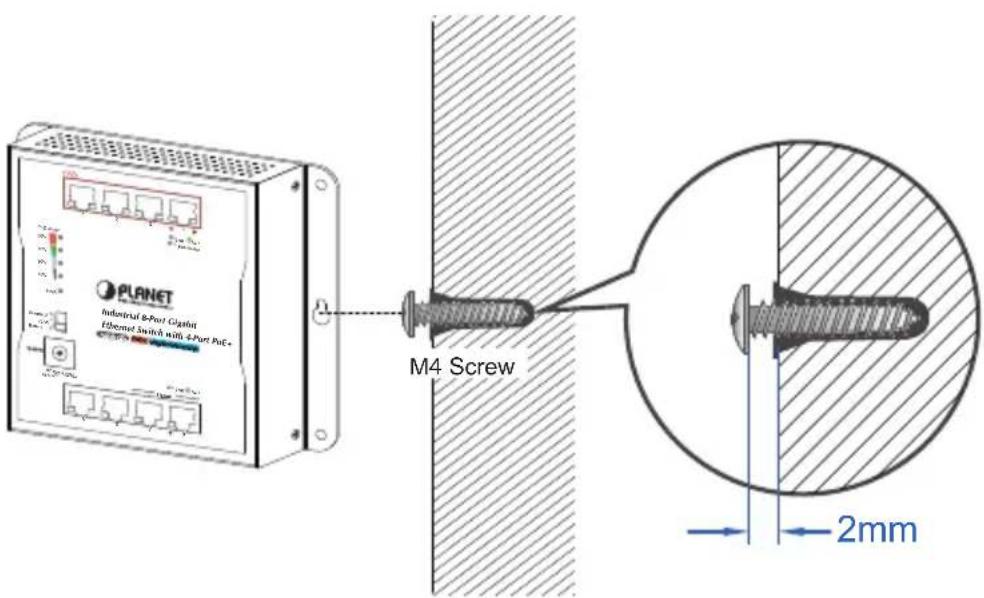
Step 3: Or the Industrial PoE Extender, shown in the picture below, can be hung on the wall by screwing the two screws leaving a space of 2mm apart after the anchors are hammered in.
3.2 DIN-rail Mounting Installation
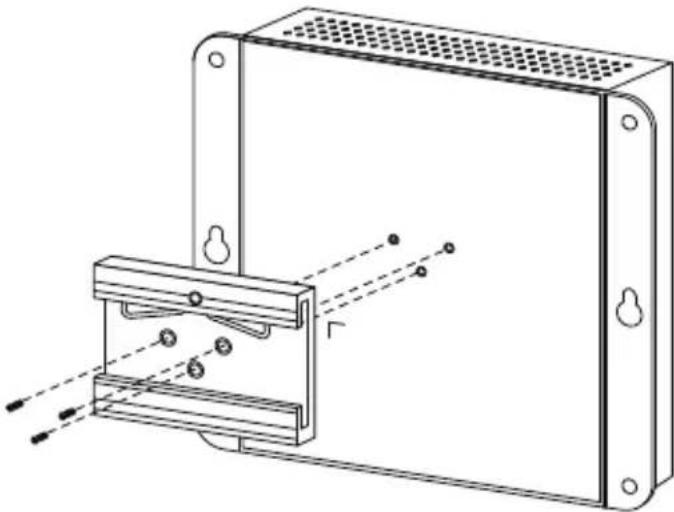
The DIN-rail kit is included in the Industrial PoE Extender package. To hang up the Industrial PoE Extender, follow the steps below:
Step 1: Screw the DIN-rail bracket on the Industrial PoE Extender.
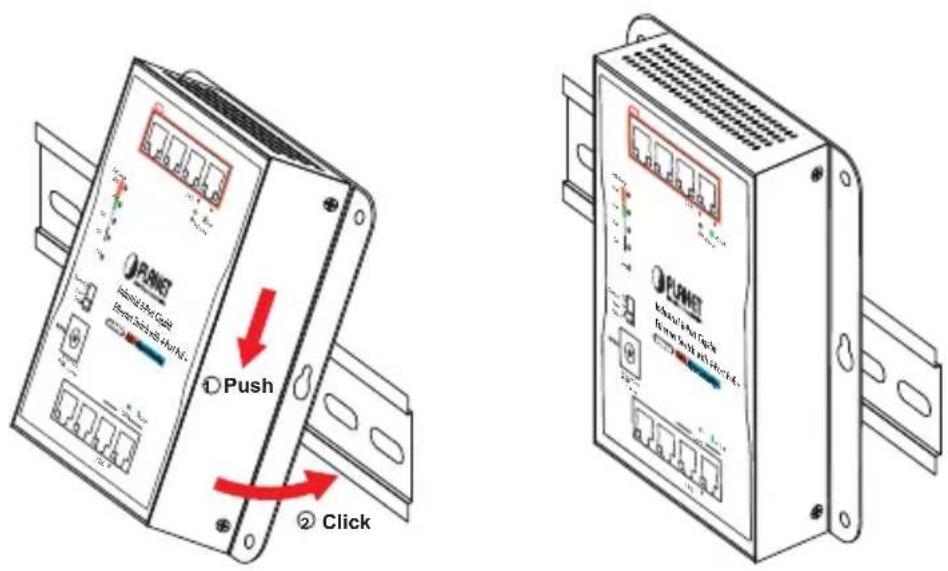
Step 2: Lightly press the bottom of DIN-rail bracket into the track.
Step 3: Check whether the DIN-rail bracket is tightly on the track.
3.3 Magnet Installation
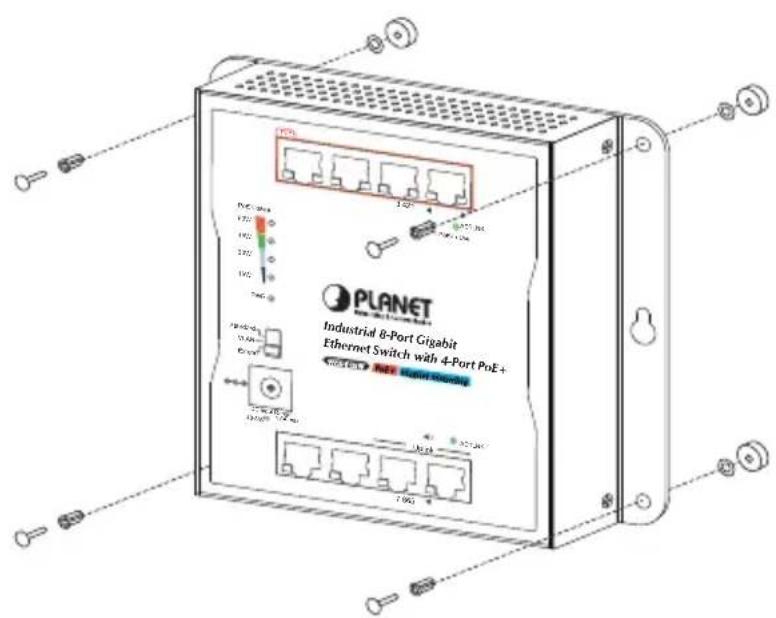
To install the Industrial PoE Extender on a magnetic surface, simply follow the following diagram:
3.4 Connecting WGS-E304PT to PSE
The Industrial PoE Extender has five RJ45 ports of which one is the Port (Port 5) connected to the PSE and the other four are PoE+ Out ports connected to the PDs.
Step 1: Connect a standard Cat5e/6 UTP cable from a remote PSE, such as 802.3bt PoE++ switch, to the "PoE In" port of the Industrial PoE Extender.

Step 2: The PSE delivers both Ethernet Data and PoE power over UTP cable to the Industrial PoE Extender and the "PoE IN" LED will be lit steadily.

-
When the LED turns steady amber, it means the Industrial PoE Extender is being powered successfully with PoE.
-
If the LED is not lit, please check whether the remote PSE or the cable is connected to a PC or a network device, or the use of cable is correct or not. If not, check whether the power injection going to a PD is correct or not.
-
Never connect any non-standard PoE PSE to the Industrial PoE Extender; it will damage the device permanently.
-
Refer to Chapter 2.2 for more information about LED function.
3.5 Connecting WGS-E304PT to PD
Step 1: Connect the additional Cat5e/6 cable from the PoE+ Out of the Industrial PoE Extender to a remote PD.
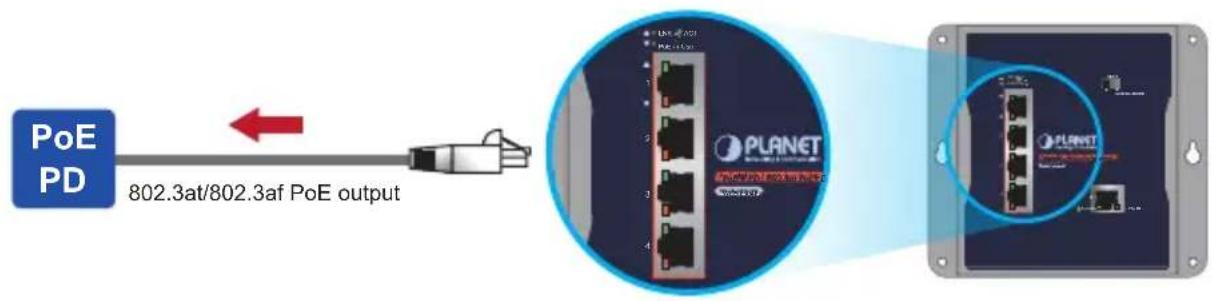
Step 2: The PoE+ Out port is also the power injector, which transmits DC voltage to the Cat5e/6 cable and transfers data and power simultaneously between the PSE and PD.
Step 3: Once the Industrial PoE Extender detects the existence of an IEEE 802.3at/af device, the PoE-in-Use LED indicator will be lit steadily, showing it is providing power.
![graph LR A["PoE PTZ IP Camera"] -->|25w| B["IEEE 802.3at PoE+"] C["PoE PTZ IP Camera"] -->|25w| B B --> D["802.3at PoE++"] D --> E["DC Input"] E --> F["Power Supply"] D --> G["Data"] G --> H["Industrial Switch"]](/content/2026/06/1225140/images/7122666a31a9e4ac7ad1840fc99f3b36b0e979eb6dff299c86c37f921e56b83a.jpg)
![graph LR A["IEEE 802.3at PoE+"] -->|15w| B["WGS-E304PT"] C["PoE Dome IP Camera"] -->|15w| B D["15w"] --> B E["15w"] --> B F["95w"] --> B B --> G["802.3at PoE++"] G --> H["DC Input"] G --> I["Power Supply"] G --> J["Data"] H --> K["Industrial Switch"] I --> K J --> K](/content/2026/06/1225140/images/f4730391656e6eac54067beda82df02cabfd88810d124411c9549eb054b31c1d.jpg)

- If the connected device is not fully complying with IEEE 802.3af/at standard or in-line power device, the PoE-in-Use LED indicator of the Industrial PoE Extender will not be lit steadily.
- According to IEEE 802.3af/at standard, the Industrial PoE Extender will not inject power to the cable if not connecting to a standard IEEE 802.3af/at device.
- DO NOT connect any PSE to ports 1 to 4 of the Industrial PoE Extender; it may damage the device permanently.
4. Power over Ethernet Budget
The following table lists how many PoE devices can be powered by the Industrial PoE Extender under 1m in distance:
| Power Source PoE Output Budget Max. | Number of PDs supported | ||
| 95W 802.3btPoE++Type 4 PSE | 65 watts max. | Class 4 PD@25 watts 2 units | |
| Class 3 PD@12.9 watts 4 units | |||
| Class 2 PD@7 watts 4 units | |||
| 60W 802.3btPoE++Type 3 PSE | 60 watts max. | Class 4 PD@25 watts 2 units | |
| Class 3 PD@12.9 watts 4 units | |||
| Class 2 PD@7 watts 4 units | |||
| 36W 802.3atPoE+ PSE | 36 watts max. | Class 3 PD@12.9 watts 2 units | |
| Class 2 PD@7 watts 4 units | |||
Remarks:
- The PoE output budget means the aggregated power output of the 4 PSE ports.
- The aggregated power consumption will be below 70 watts if with PoE+PSE.
- Please check the power input LED for optimal power output.
5. Technical Specifications
| Model WGS-E304PT | |
| Hardware Specifications | |
| Network Connector | PoE In Port- 1 x 10/100/1000BASE-T Ethernet with 802.3bt PoE++ "Data + DC" in- Auto MDI/MDI-X, auto-negotiation RJ45 connector |
| PoE Out Port- 4 x 10/100/1000BASE-T Ethernet with IEEE 802.3af/at PoE "Data + DC" out- Auto MDI/MDI-X, auto-negotiation RJ45 connector | |
| Switch Architecture Store-and-Forward switch architecture | |
| MAC Address Table 2K MAC address table with auto learning function | |
| Switch Fabric 10Gbps | |
| Switch Throughput 7.44Mpps @ 64Bytes | |
| Flow Control | IEEE 802.3x pause frame for full duplexBack pressure for half duplex |
| Jumbo Frame 9Kbytes | |
| ESD Protection | Air 8KV DCContact 6KV DC |
| Surge Protection 6KV | |
| Enclosure IP30 metal case | |
| Installation DIN-rail kit and wall-mount ear | |
| Dimensions(W x D x H) | 148 x 24.2 x 134 mm |
| Weight 457g | |
| LED | PoE Input Port (Port 5):LNK/ACT (Green)PoE: Power-in-use (Amber)PoE Output Ports (Ports 1~4):LNK/ACT (Green)PoE: Power-in-use (Amber) |
| DIP Switch | Multi-operation mode options(Standard/VLAN/Extend) selection |
| Power Consumption | 8.6 watts/29 BTU (Power On)82 watts/279 BTU (Full loading with PoE function) |
| Power over Ethernet | |
| PoE Standard | PoE in Port- IEEE 802.3bt PoE++ Type 4 standard PD- IEEE 802.3at PoE+ end-span/mid-span PD |
| Per PoE out Port- IEEE 802.3at Power over Ethernet Plus end-span PSE | |
| PoE Power | PoE in Port50~57V DC, max. 95 wattsPer PoE out Port44~55V DC, max. 30.8 watts |
| Power Pin Assignment | PoE in Port1/2(-), 3/6(+), 4/5(+), 7/8(-) or 1/2(+), 3/6(-), 4/5(+), 7/8(-)Per PoE out Port1/2(+), 3/6(-) |
| PoE Power Budget 65-70 | watts (max.) @ 802.3bt PoE++ Type 4 input |
| Standards Conformance | |
| Regulatory Compliance | FCC Part 15 Class A, CE |
| Stability Testing | IEC60068-2-32 free fallIEC60068-2-27 shockIEC60068-2-6 vibration |
| Standards Compliance | IEEE 802.3 EthernetIEEE 802.3u Fast EthernetIEEE 802.3ab Gigabit EthernetIEEE 802.3x Flow ControlIEEE 802.3af Power over EthernetIEEE 802.3at Power over Ethernet PlusIEEE 802.3bt Power over Ethernet Plus Plus |
| Environment | |
| Operating | Temperature: -40 ~ 75 degrees CRelative Humidity: 5 ~ 95% (non-condensing) |
| Storage | Temperature: -40 ~ 85 degrees CRelative Humidity: 5 ~ 95% (non-condensing) |
Customer Support
Thank you for purchasing PLANET products. You can browse our online FAQ resource and user's manual on PLANET Web site first to check if it could your issue. If you need more support information, please contact PLANET switch support team.
PLANET online FAQs:
https://www.planet.com.tw/en/support/faq
Switch support team mail address:
Copyright © PLANET Technology Corp. 2023.
Contents are subject to revision without prior notice.
PLANET is a registered trademark of PLANET Technology Corp.
All other trademarks belong to their respective owners.
Disclaimer
PLANET Technology does not warrant that the hardware will work properly in all environments and applications, and makes no warranty and representation, either implied or expressed, with respect to the quality, performance, merchantability, or fitness for a particular purpose. PLANET has made effort to ensure that this User's Manual is accurate; PLANET disclaim for any inaccuracies or omissions that may have occurred.
Information in this User's Manual is subject to change without notice and does not represent a commitment on the part of PLANET. PLANET assumes no responsibility for any inaccuracies that may be contained in this User's Manual. PLANET makes no commitment to update or keep current the information in this User's Manual, and reserves the right to make improvements to this User's Manual and/or to the products described in this User's Manual, at any time without notice.
If you find information in this manual that is incorrect, misleading, incomplete, we would appreciate your comments and suggestions.
FCC Warning
This equipment has been tested and found to comply with the limits for a Class A digital device, pursuant to Part 15 of the FCC Rules. These limits are designed to provide reasonable protection against harmful interference when the equipment is operated in a commercial environment. This equipment generates, uses, and can radiate radio frequency energy and, if not installed and used in accordance with the Instruction manual, may cause harmful interference to radio communications. Operation of this equipment in a residential area is likely to cause harmful interference in which case the user will be required to correct the interference at his own expense.
CE Mark Warning
This is a Class A product. In a domestic environment, this product may cause radio interference, in which case the user may be required to take adequate measures.
WEEE Warning

To avoid the potential effects on the environment and human as a result of the presence of hazardous substances in electrical and electronic equipment, end users of electrical and electronic equipment should understand the meaning of the crossed-out wheeled bin symbol. Do not dispose of WEEE as unsorted municipal waste and have to collect such WEEE separately.
- INDUSTRIAL 1-PORT 10/100/1000T 802.3BT POE++ TO 4-PORT 802.3AT POE+ WALL-MOUNTED EXTENDER
- TABLE OF CONTENTS
- PACKAGE CONTENTS
- HARDWARE INTRODUCTION
- 2.1 FRONT PANEL
- 2.2 LED INDICATORS
- ➢ PER POE OUTPUT PORT (PORTS 1 \~ 4)
- 2.3 DIP SWITCH
- 2.4 PHYSICAL DIMENSIONS
- INSTALLATION
- 3.1 WALL-MOUNT INSTALLATION
- 3.2 DIN-RAIL MOUNTING INSTALLATION
- 3.3 MAGNET INSTALLATION
- 3.4 CONNECTING WGS-E304PT TO PSE
- 3.5 CONNECTING WGS-E304PT TO PD
- POWER OVER ETHERNET BUDGET
- REMARKS
- TECHNICAL SPECIFICATIONS
- CUSTOMER SUPPORT
- DISCLAIMER
- FCC WARNING
- CE MARK WARNING
- WEEE WARNING
Brand : Planet
Model : WGS-E304PT
Category : Network Extender