
Hybrid Hit - Soundcard STEINBERG - Free user manual and instructions
Find the device manual for free Hybrid Hit STEINBERG in PDF.


| Type de produit | Virtual instrument (HALion plugin) |
| Marque | Steinberg |
| Modèle | Hybrid Hit |
| Plateforme | VST3, AU, AAX (64-bit) |
| Hébergement requis | Steinberg HALion 6 or HALion Sonic (free) |
| Activation | Steinberg Activation Manager (eLicenser) |
| Polyphonie | Up to 64 voices |
| Nombre de couches | 3 (Layer 1-3) + Main layer for FX |
| Types de couche | Generator (oscillator), Sample, Attack, Noise |
| Séquenceur | 32 steps, lanes for trigger/note/modulation |
| Effets intégrés | 15 types: Reverb, Compressor, Distortion, Saturator, etc. |
| Import d’échantillons | Drag-and-drop user samples (WAV, etc.) |
| Préréglages | Catégorisés: Beats, Hits and Stabs, Kick Drum, Hit Percussion |
| Synchronisation | Host tempo sync for LFO and sequencer |
| Modulation | Velocity, LFO, envelope, step modulation |
| Traitement interne | 32-bit floating point |
| Dimensions | Software only; no physical dimensions |
Frequently Asked Questions - Hybrid Hit STEINBERG
User questions about Hybrid Hit STEINBERG
0 question about this device. Answer the ones you know or ask your own.
Ask a new question about this device
Download the instructions for your Soundcard in PDF format for free! Find your manual Hybrid Hit - STEINBERG and take your electronic device back in hand. On this page are published all the documents necessary for the use of your device. Hybrid Hit by STEINBERG.
USER MANUAL Hybrid Hit STEINBERG
Hit, Impact and Rhythm Designer

dvCompTools hybrid hit
About 3
Preset and Categorisation 4
-
Bus and Layer Controls 5
1.1 Bus Controls 5
1.2 Layer Controls 5 -
Amp, Transient and Filter 5
2.1 Amp Envelope 6
2.2 Transient Shaper 6
2.3 Filter 6
- Layer Types 7
3.1 Generator 7
3.2 Sample 7
3.3 Attack
3.4 Noise
- General Layer Parameters
4.1 Voice Settings
4.2 Velocity Modulation
4.3 LFO Modulation
4.4 Envelope Modulation
-
Layer Effect Inserts
-
Sequencer
6.1 Common Sequencer Lane Controls
6.2 Lane Controls 1 14
6.3 Lane Controls 2 14
6.4 Step Depth
6.5 Global Sequencer Functions
8
8
9
9
10
10
11
12
3
13
[Non-Text]
[Non-Text]
14
15
About
Hybrid Hit is a HALion instrument for the design of kicks, hits, impacts, strikes and rhythms.
Although this instrument is aimed at the electronic, gaming and soundtrack music and sound design markets, its usefulness is by no means limited to these genres.
Providing 3 layers with sources ranging from raw samples, to full impacts or constituent parts, Hybrid I can be as simple or as detailed as you need for your design process. This allows you to take current presets and quickly modify them for variation, or build a design from the ground up with preset sample and built in layer effects.
With a 32 step sequencer Hybrid Hit can also achieve tempo synced rhythms for abstract beats, action cues, or impacts with a pickup.
With the ability to add user samples, Hybrid Hit can sonically integrate into your project with ease.
dvCompTools hybrid hit
Preset and Categorisation
Presets in Hybrid Hit are tagged in various ways, but the following denotes the main category types.
- Beats
- Hits and Stabs
- Kick Drum
Hit Percussion
Hits and Stabs can have the Character tag of "Sequenced". In this case the impact or hit has sequenced elements which can either be a buildup, tail or simply having multiple impacts at different positions.
The Percussion presets can be used as is, but are also extremely useful for adding presence and punch to acoustic or "real" percussion in your score.
1. Bus and Layer Controls

1.1 Bus Controls
- Layer 1 - 3 Level : These set the layer bus level in db regardless of which layer is currently selected.
- Level Slider: Sets the level of the currently selected layer.
• R / L : Swaps the left and right channels of the bus - Pan: Standard left, right bus pan control
- Width: Controls the stereo image width.
1.2 Layer Controls
Layer 1 - 3, Main and Sequencer access the layers that the names suggest.
The FX switch shows the bus inserts for layers 1 - 3. The Main layer is only used for insert control, so it will show fx settings regardless of the FX switch status.
The L1, L2 and L3 secondary layer selectors are used for switching bus, amp and filter settings to other layers when on the Main layer. This gives you the opportunity to adjust these settings while working Main layer inserts without leaving the page.
2. Amp, Transient and Filter

dvCompTools hybrid hit
2.1 Amp Envelope
- Attack: Ranged from 0 - 1 second in 1 millisecond intervals.
- Decay: Has 3 states. In standard state the control is ranged from 0 - 15 seconds in 10 millisecond intervals. When sync is active, multiples of the sync note is controlled. If layer voice sustain is engaged, the decay control is changed to release mode.
• Curve : Controls the curve of the decay envelope stage. - Note: Sets the length of the decay stage multiples when sync is active.
2.2 Transient Shaper
The shaper is divided in a Micro and Macro section. This is specifically intended for use with the Generator layer type, but can be used to add a pitched spike to any layer.
Micro adds and pitch envelope with time from 0 - 50 ms for a sharp attack, while Macro deals with 50 - 500 ms for more of a thud character when used with lower frequency sources.
The Depth parameter controls the strength of the envelope in both cases.
2.3 Filter
- Shape : Sets the filter type - Low Pass, High Pass, Band Pass and Band Reject in 12 and 24 db per octave modes. Also includes a Comb filter.
• Filter : Parameter for the filter cutoff point in Hz.
on the Resonance: Controls the filter resonance form 0% to 100% (self resonance), or feedback for the Comb filter.
• Key Follow : Filter cutoff is controlled by keyboard notes. Ranged from 0% - 200%
3. Layer Types

3.1 Generator
The Generator layer type consists a single sweepable oscillator with shapes going from sine to triangle to square.
The Shape parameter controls the oscillator shape.
MIDI and frequency mode. This property is unique to the oscillator layer. The frequency value can be set on the layers voice settings.

3.2 Sample
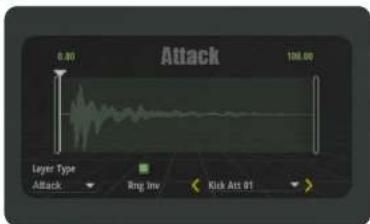
The Sample layer gives you access to a series of samples via the drop down menu showing the sample names. Samples can also be stepped through with the increment and decrement switches.
Sample start and end positions can be set with the handles either side of the sample display. The
offset control (white line and triangle) is used to set the start range position. This allows control of the sample start position through modulation sources such as velocity, lfo or step modulation in the sequencer.
Rng Inv sets the direction of the start offset modulation. While active, with the offset tied to velocity, a higher velocity will start playback closer to the sample beginning, while a lower velocity will start playba closer to the offset marker.
The text values above the start / end handles can be used for fine tuning start / end positions. You can either double click and type a value, click on the value and drag the mouse up or down or use the scroll wheel for extra fine tuning.
dvCompTools hybrid hit
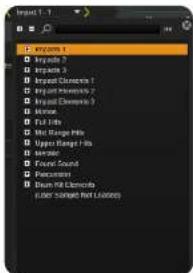
The sample layer can accept user samples through drag and drop on the sample display. Only the sample layer has user drop functionality.
The user sample will be displayed on the bottom of the sample select list in the selection drop down menu. This also puts the user sample in the increment and decrement path.
Should the user sample note be present on loading a preset, a warning box will appear naming the user sample and missing path. The first sample on the menu will be loaded as a placeholder.
3.3 Attack
The Attack layer has all the functionality of the sample layer except user sample drop.
This layer focuses on short attack samples and reverse sounds.
Attack samples can be used to add texture to Generator type layers.

The noise layer contains 36 granular noise samples grouped in analogue, digital and metallic categories.
mouse
4. General Layer Parameters
4.1 Voice Settings

- Fixed Velocity: Sets a fixed velocity when a note is pressed. Fixed turn the function on. Fixed Val sets the velocity from 0 - 127.
- Velocity Range : Excludes a note from being triggered if not in the desired range. GT / LT will trigger the note if the velocity greater than or less then the set threshold. Threshold sets the velocity at which the layer range is active.
- Velocity Curve: Sets the velocity response curve to linear, squared, cubed and its inverses. This feature can be used as a velocity based mixing option between layers. A layer with a cubed response will be less audible at lower velocities than a linear response.
- Note-On : Mono will set the layer to monophonic, which will avoid polyphony overload and phase issues with low kick from the Generator. Trig Delay is very useful in Hybrid Hit. Often sound designs from the Sample layer have a slight fade in or pickup before the major hit. This helps to align other layers to the attack or such a layer.
- Amp Envelope: The standard state for the layer Amp envelope is one shot. This means the envelope will be completed regardless of a note off event. Gated will release the envelope on a note off event. Sustain sets the envelope sustain level to 100% and changes the Amp Decay control on the layer amp settings to a Release control. If you need to sustain background texture until a note off event.
- Frequency / ( Coarse / Fine ): When the Generator layer type is active, pitch can be set to a frequency. Otherwise Coarse and Fine is displayed in this area. Coarse is ranged from -36 to +36 semitones, while Fine is -100 to +100 cents.
dvCompTools hybrid hit
4.2 Velocity Modulation
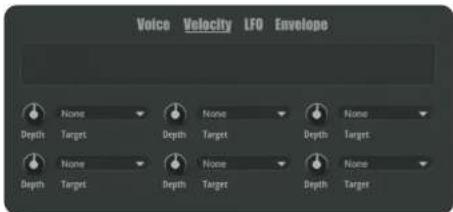
- Depth: Sets the effect of the velocity modulation from -100 to +100.
- Target: Choose the target property to be modulated by the note on velocity.
To add texture variation to a sound at different velocity levels, this feature can be tied to the Sample S Range target. This will move the play head further from the start position at lower velocities. Many of the percussion presets use this technique for timbre variation.
4.3 LFO Modulation
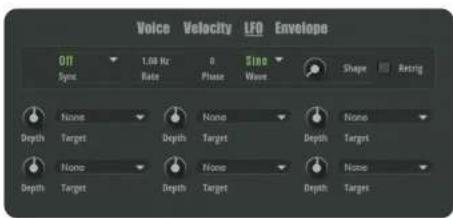
- Sync : Off will run at Hz rate. Tempo and Retrig will sync to host and retrigger the LFO phase if Retrig is active. Tempo and Beat will sync the LFO phase to host position. This has more of an effect with slower rates or triplet / dotted rates.
- Rate: Set in Hz if sync is off, otherwise sync note selection is active.
-
Wave : Select a modulation waveform for the LFO.
-
Shape: Adjusts the shape of the selected LFO waveform.
- Retrig : Resets the LFO phase in the case of a note on event.
4.4 Envelope Modulation
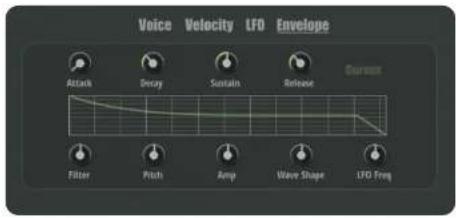
- Attack, Decay, Release : Envelope stages timed from 0 to 15 seconds each.
- Sustain: Sustain level of envelope set from 0 to 100% .
• Curves : Changes the Attack, Decay and Release time controls to curve controls.
• Targets : The bottom controls set the target levels from -100% to +100%.

5. Layer Effect Inserts
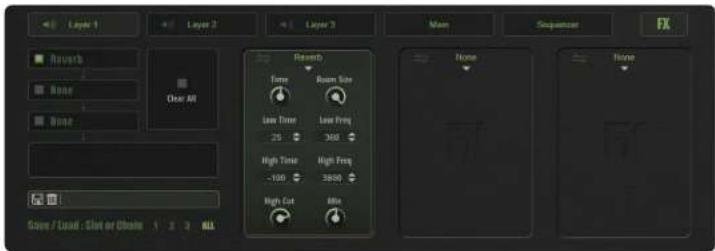
Effects settings and operations are the same for layers 1 - 3 and the main layer.
As previously mentioned, the FX switch is only relevant to layers 1 - 3. The main layer is only an FX
FX List :
| • Reverb | • Envelope Shaper | • Overdrive |
| • Decay | • Compressor | • Enhancer |
| • Equaliser | • Maximiser | • Multiband |
| • Morph Filter | • Bit Reduction | • Flanger |
| • Saturator | • Distortion | • Resonator |
- FX Bypass: Switches to bypass the effect identified in the label to its right.
- Clear All: Removes all FX in one go.
- Save Load 1, 2, 3, All: All, will save or load the entire FX chain whereas selecting a number will only save the effect for that slot.
- Courtesy drag icon: To the top left of each FX slot is an icon to assist with drag and drop. Clicking and dragging in any blank area in the slot, not containing a control, will actually result in a drag and drop action. Having the icon present is purely to remove the guesswork from the process.
6. Sequencer
Hybrid Hit provides a 32 step sequencer with various modes and sync options for beat and pattern creation. Only 16 steps are displayed at a time. The 1 - 16 selector can be used to display the first second bank of triggers, notes and modulation editors.
When a sequencer lane is active, note and velocity data is only determined by the sequencer. The pressed MIDI note merely acts as a trigger for the sequencer lanes, and all it's data is ignored.
The sequencer has 3 main control types: Trigger, note and slider.

Trigger is reserved for note on events

Note sets the pitch of the step. The value can be changed by dragging up or down, using the scroll wheel, or double clicking and typing a note name or number. Frames indicate active steps.
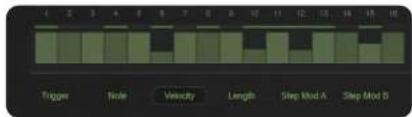
All parameters from velocity onward, use slider to set values. The solid bars above the sliders indicate active steps.
For Length to be audible, the layer needs "Gated" or "Sustain" to be active.
6.1 Common Sequencer Lane Controls
- On Switch: Turns lane sequence on or off.
- Shift: Moves the lane steps to the left or right.
- Lock: Only the currently selected edit target (Trigger, Note or Step Mod A). Other targets are kept in place. This can be used to create interesting or unexpected variations on a pattern.
- Steps: Sets the number of steps for a given lane.
dvCompTools hybrid hit
6.2 Lane Controls 1
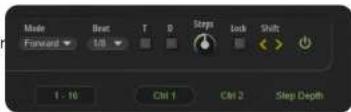
- Mode : Sequencer direction controls. Alt goes in both directions. Alt1 repeats the first and last steps to maintain the sequence phase, whereas Alt2 only plays them once. This will shift the phase by or step on each pass.
- Beat: Sets the step duration.
• T / D : Adjusts the step duration to a triplet or dotted version of the currently selected sync value.
6.3 Lane Controls 2
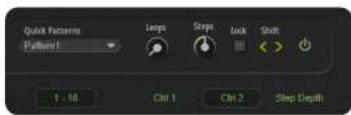
- Quick Patterns: A collection of quick pattern sets covering a few basic needs to assist pattern building.
- Loops: Sets the amount of times a lane will loop. A zero value will have infinite loops. This is useful for sequenced hits that need a pickup or a tail, but no loop.
6.4 Step Depth

- Dest A, Dest B: Whether destination A or B is displayed is dependant on which Step Mod target is selected. Selecting Step Mod A will show the corresponding controls.
- Depth Slider: Controls the depth of step modulation 1 or 2. As with the destinations, depth is also displayed based on the target selection.
6.5 Global Sequencer Functions

- Copy Lanes: Should the need arise, this is a quick way to copy or swap lane data. The source lane selected via the number will be copied to the target number.
- Save / Load (1, 2, 3, All): As with FX this will save or load the whole sequence if "All" is selected or the lane based on the number.
Set by Midi : ( When a note is pressed )
- Record: Will record note and velocity data if the corresponding switches are active. This will show a yellow frame around the target step on the selected lane.
- Auto Step: Automatically advances to the next active step for data capture.
- Note / Velocity : Records the corresponding data if activated.
- Rec. Lane: Will switch the record function to the lane of the same number. This will move the record frame to that lane.
- ABOUT 3
- ABOUT
- PRESET AND CATEGORISATION
- BUS AND LAYER CONTROLS
- 1.1 BUS CONTROLS
- 1.2 LAYER CONTROLS
- AMP, TRANSIENT AND FILTER
- 2.1 AMP ENVELOPE
- 2.2 TRANSIENT SHAPER
- 2.3 FILTER
- LAYER TYPES
- 3.1 GENERATOR
- 3.2 SAMPLE
- 3.3 ATTACK
- GENERAL LAYER PARAMETERS
- SEQUENCER
- 6.1 COMMON SEQUENCER LANE CONTROLS
- 6.2 LANE CONTROLS 1
- 6.3 LANE CONTROLS 2
- 6.4 STEP DEPTH
- 6.5 GLOBAL SEQUENCER FUNCTIONS
- SET BY MIDI : ( WHEN A NOTE IS PRESSED )
Brand : STEINBERG
Model : Hybrid Hit
Category : Soundcard