
U338-000 - Adapter Tripp Lite - Free user manual and instructions
Find the device manual for free U338-000 Tripp Lite in PDF.


| Product Type | USB 3.0 to SATA/IDE Adapter |
| Brand | Tripp Lite |
| Model | U338-000 |
| Supported Drive Types | 2.5", 3.5", 5.25" SATA and IDE hard drives |
| Connectors | 1x USB 3.0 Type-A (male) to host; 1x SATA (7-pin); 1x IDE (40-pin); 1x IDE (44-pin) |
| Data Transfer Rate | Up to 5 Gbps (USB 3.0 SuperSpeed), backward compatible with USB 2.0/1.1 |
| Power Supply | External; Input: 100-240V AC, 50/60Hz, 0.8A; Output: 12V DC, 2A |
| USB Cable Length | 2.5 ft (0.76 m) |
| Power Cable | 4-Pin Molex power cable for IDE drives |
| Simultaneous Drive Support | Yes, can connect one SATA and one IDE drive at the same time for data transfer |
| One-Touch Backup Button | Physical button on adapter to initiate backup |
| Software | AI-OTB One Touch Backup (included on CD), compatible with Windows XP/Vista/7/8/8.1 |
| Operating System Compatibility | Windows, Mac, Linux (backup software Windows only) |
| Interface | USB 3.0 (SuperSpeed), backward compatible with USB 2.0 and 1.1 |
| Connector Type to Computer | USB 3.0 Type-A male |
| Installation | Plug and play; no driver needed for basic drive access |
| Warranty | 1-Year Limited Warranty |
| FCC Certification | Class B |
| Package Contents | Adapter, USB 3.0 cable, external power supply, 4-Pin Molex cable, owner's manual, backup software CD |
| Precautions | Handle drives with anti-static precautions; properly eject before disconnecting |
Frequently Asked Questions - U338-000 Tripp Lite
User questions about U338-000 Tripp Lite
0 question about this device. Answer the ones you know or ask your own.
Ask a new question about this device
Download the instructions for your Adapter in PDF format for free! Find your manual U338-000 - Tripp Lite and take your electronic device back in hand. On this page are published all the documents necessary for the use of your device. U338-000 by Tripp Lite.
USER MANUAL U338-000 Tripp Lite
USB 3.0 to SATA / IDE Adapter
Model:
U338-000
Package Contents 2
Features 2
System Requirements 2
Installation 3
AI-OTB One Touch
Backup Software 3
System Requirements 3
Installation 4
One Button File Backup 5
Status 6
Config 7
OTB Path 8
Backing Up 8
Restore 9
Option 10
About 10
Warranty & Product
Registration 11
PROTECT YOUR INVESTMENT!
Register your product for quicker service and ultimate peace of mind.
You could also win an ISOBAR6ULTRA surge protector—a \$50 value!
www.tripplite.com/warranty


Manufacturing Excellence.
1111 W. 35th Street, Chicago, IL 60609 USA • www.tripplite.com/support
Copyright © 2014 Tripp Lite. All rights reserved.
Package Contents
• U338-000 USB 3.0 to SATA / IDE Adapter
- USB 3.0 Cable – 2.5 ft.
• 4-Pin Molex Power Cable
• External Power Supply (Input: 100-240V, 50/60Hz, 0.8A Output: 12V, 2A)
- Owner's Manual
- Backup Software CD
Features
- Connects a SATA and/or IDE drive to the USB port on your computer
- Supports USB 3.0 SuperSpeed specification; backward compatible with USB 2.0 and 1.1
- Supports simultaneous connection of SATA and IDE drives*, allowing data transfer between them
- Allows easy configuration of hard drives
- Features 40-Pin and 44-Pin connectors for use with 2.5", 3.5" or 5.25" IDE drives*
- Includes software for backing up and restoring your files
* See website for a list of compatible IDE drives.
System Requirements
- Computer with an available USB port. A USB 3.0 port is required to achieve USB 3.0 speeds up to 5 Gbps
• 2.5", 3.5" or 5.25" SATA and/or IDE drive* - AI-OTB One Touch Backup software compatible with Windows® only
• U338-000 compatible with Windows, Mac®, and Linux
* See website for a list of compatible IDE drives.
Installation
Note:
- Hard drives are sensitive to static electricity and must be handled properly to prevent data loss. Always handle your hard drive with caution: wear an anti-static strap when transporting it, or touch a grounded metal surface to discharge yourself of static electricity before picking up the drive.
- If your drive has not been formatted, you need to format it using your computer's Disk Management utility before you can copy and access files.
-
Before unplugging the adapter, make sure to properly eject the drive from your computer to avoid any potential data loss.
-
Connect the U338-000 to your computer using the included USB 3.0 cable.
- Connect the external power supply to the U338-000 and plug it into an appropriate power source. Turn on the power to the U338-000.
- Connect your SATA and/or IDE drive to the appropriate port on the U338-000. Use the included 4-Pin Molex cable to provide power to your IDE drive.
- Upon connecting a drive, your computer will recognize it, making it available for access.
AI-OTB One Touch Backup Software
The included CD contains AI-OTB One Touch Backup software, which allows you to back up and restore your files. This section takes you through the installation of this software, and describes its features and how they work.
System Requirements
• Supports both FAT32 and NTFS
- Users must be logged in as an administrator
- Pentium or above
• 128 MB RAM
• VESA standard compatible display card
• External USB hard drive
- Compatible with Windows XP, Vista, 7, 8, and 8.1
AI-OTB One Touch Backup Software
Installation
- Insert the software CD into your computer and navigate to the AI-OTB.exe file in the CD folder. Select the file, and the AI-OTB Setup Wizard will appear.
- Click the Next button to advance to the next screen in the Setup Wizard. Follow the prompts until you reach the Ready to Install screen.

- Click the Install button to begin installation of the AI-OTB software using the selected settings. Click the Back button if you wish to change any settings.
AI-OTB One Touch Backup Software
- At the end of installation, the Completing the AI-OTB Setup Wizard screen will appear.
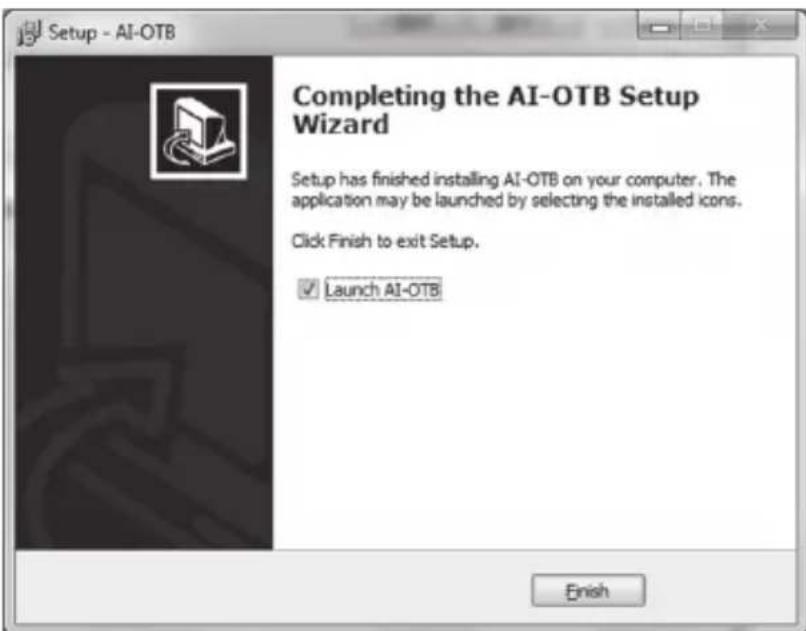
- The Launch AI-OTB box on the screen is checked by default, which causes the AI-OTB interface to open when you click the Finish button. If you don't want the interface to open, uncheck the box. Click the Finish button to complete the installation. If you left the launch box checked, the AI-OTB interface screen will appear. Note: To open the interface yourself, click on the AI-OTB icon in the lower-right corner of your computer screen.
One Button File Backup
The One Button Backup function performs a backup according to the settings you enter in the AI-OTB One Touch Backup utility. See the Config and OTB Path sections in this manual for details. Simply connect your hard drive via the USB port on your computer, and press the backup button on your U338-000 adapter. The backup will take place according to the settings you have entered.
AI-OTB One Touch Backup Software
Status
When the AI-OTB interface opens, the Status screen is the first screen that appears. Use the drop-down menu in the upper-right corner of your computer screen to select a drive and display its information. If a drive is not selected, the Config, OTB Path, and Restore tabs will be grayed out and inaccessible. When a drive is selected, the tabs will be accessible and the selected drive's information will appear. The information provided includes the drive's storage capacity, the type of USB port the drive is connected to (2.0 or 3.0), whether the drive is set to be backed up using the AI-OTB software, and whether the drive is connected to the Original PC it was set up to perform one touch backup with.

AI-OTB One Touch Backup Software
Config
The Config tab is where you assign an Original PC to the selected drive and determine how the backup data is stored on it. To set the Original PC, check the corresponding box, and then select how you want the backup data to appear in the drive. Click the Save button to save these settings. Your drive is now set up to use the AI-OTB One Touch Backup software. Continue to the OTB Path tab to select which files to back up.

AI-OTB One Touch Backup Software
OTB Path
The OTB Path tab is where you determine which computer files you want backed up on the selected drive. Simply check the boxes of the folders/files that you want backed up. Expand a folder to select individual files. When you have selected all of the files you want backed up, click the Save button.

Backing Up
After you have selected the backup settings for your drive in the Config and OTB Path tabs, you can back up your data at any time. To back up your data, press the One Touch Backup button on the U338-000, or click the orange backup icon in the lower-left corner of the AI-OTB interface. Since the backup icon appears on every tab in the interface, you can back up data from any tab.
AI-OTB One Touch Backup Software
Restore
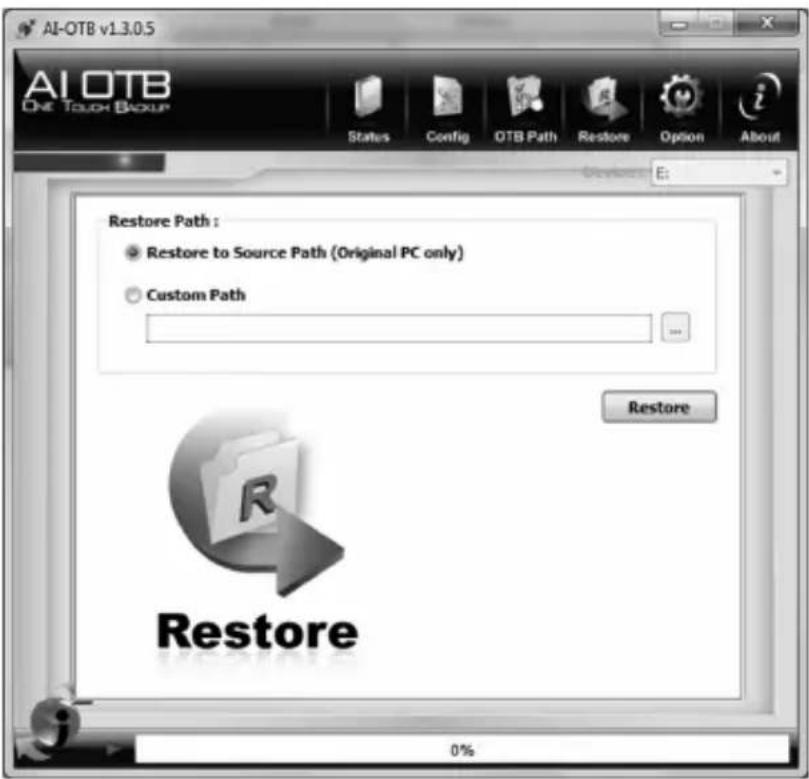
The Restore tab is where you restore backed-up data to your computer in the event of a crash. You can restore data from the drive that was set up in the OTB Path tab, or you can select another location using the Custom Path option in the Restore tab. To restore your data, select an option and click the Restore button.
AI-OTB One Touch Backup Software
Option
The Option tab is where you enable/disable various settings related to the backup software. These settings are described below.
- Check OTB Status – Select this box to allow the One Touch Backup button on the U338-000 to be used to initiate a backup. This option is enabled by default.
- Show AI-OTB Backup Directory In External Disk – Select this box to make the backup data visible to users who access the backup drive. When this option is disabled, users will not see the AI-OTB backup files. This option is disabled by default.
- Confirm Before Backup – Select this box to display a prompt every time a backup is initiated; the prompt will ask the user to confirm that the backup should be performed. This option is enabled by default.
- Shutdown After Backup Completed – Select this box to automatically shutdown the computer after a backup takes place. This option is disabled by default.

About
The About tab displays general information about the AI-OTB One Touch Backup software.
Warranty & Product Registration
1-Year Limited Warranty
TRIPP LITE warrants its products to be free from defects in materials and workmanship for a period of one (1) year from the date of initial purchase. TRIPP LITE's obligation under this warranty is limited to repairing or replacing (at its sole option) any such defective products. To obtain service under this warranty, you must obtain a Returned Material Authorization (RMA) number from TRIPP LITE or an authorized TRIPP LITE service center. Products must be returned to TRIPP LITE or an authorized TRIPP LITE service center with transportation charges prepaid and must be accompanied by a brief description of the problem encountered and proof of date and place of purchase. This warranty does not apply to equipment, which has been damaged by accident, negligence or misapplication or has been altered or modified in any way.
EXCEPT AS PROVIDED HEREIN, TRIPP LITE MAKES NO WARRANTIES, EXPRESS OR IMPLIED, INCLUDING WARRANTIES OF MERCHANTABILITY AND FITNESS FOR A PARTICULAR PURPOSE.
Some states do not permit limitation or exclusion of implied warranties; therefore, the aforesaid limitation(s) or exclusion(s) may not apply to the purchaser.
EXCEPT AS PROVIDED ABOVE, IN NO EVENT WILL TRIPP LITE BE LIABLE FOR DIRECT, INDIRECT, SPECIAL, INCIDENTAL OR CONSEQUENTIAL DAMAGES ARISING OUT OF THE USE OF THIS PRODUCT, EVEN IF ADVISED OF THE POSSIBILITY OF SUCH DAMAGE. Specifically, TRIPP LITE is not liable for any costs, such as lost profits or revenue, loss of equipment, loss of use of equipment, loss of software, loss of data, costs of substitutes, claims by third parties, or otherwise.
Use of this equipment in life support applications where failure of this equipment can reasonably be expected to cause the failure of the life support equipment or to significantly affect its safety or effectiveness is not recommended.
Do not use this equipment in the presence of a flammable anesthetic mixture with air, oxygen or nitrous oxide.
FCC Notice, Class B
This device complies with part 15 of the FCC Rules. Operation is subject to the following two conditions: (1) This device may not cause harmful interference, and (2) this device must accept any interference received, including interference that may cause undesired operation.
Note: This equipment has been tested and found to comply with the limits for a Class B digital device, pursuant to part 15 of the FCC Rules. These limits are designed to provide reasonable protection against harmful interference in a residential installation. This equipment generates, uses and can radiate radio frequency energy and, if not installed and used in accordance with the instructions, may cause harmful interference to radio communications. However, there is no guarantee that interference will not occur in a particular installation. If this equipment does cause harmful interference to radio or television reception, which can be determined by turning the equipment off and on, the user is encouraged to try to correct the interference by one or more of the following measures:
- Reorient or relocate the receiving antenna.
- Increase the separation between the equipment and receiver.
- Connect the equipment into an outlet on a circuit different from that to which the receiver is connected.
- Consult the dealer or an experienced radio/TV technician for help.
Any changes or modifications to this equipment not expressly approved by Tripp Lite could void the user's authority to operate this equipment.
Warranty & Product Registration
WEEE Compliance Information for Tripp Lite Customers and Recyclers (European Union)
Under the Waste Electrical and Electronic Equipment (WEEE) Directive and implementing regulations, when customers buy new electrical and electronic equipment from Tripp Lite they are entitled to:
- Send old equipment for recycling on a one-for-one, like-for-like basis (this varies depending on the country)
- Send the new equipment back for recycling when this ultimately becomes waste
PRODUCT REGISTRATION
Visit www.triplite.com/warranty today to register your new Tripp Lite product. You'll be automatically entered into a drawing for a chance to win a FREE Tripp Lite product!*
* No purchase necessary. Void where prohibited. Some restrictions apply. See website for details.
Tripp Lite follows a policy of continuous improvement. Product specifications are subject to change without notice.


1111 W. 35th Street, Chicago, IL 60609 USA • www.tripplite.com/support
14-06-010 • 93-3357_revA
- USB 3.0 to SATA / IDE Adapter
- Package Contents 2
- Features 2
- System Requirements 2
- Installation 3
- AI-OTB One Touch
- Backup Software 3
- Warranty & Product
- Registration 11
- PROTECT YOUR INVESTMENT!
- Package Contents
- Features
- System Requirements
- Installation
- Note:
- AI-OTB One Touch Backup Software
- One Button File Backup
- Status
- Config
- OTB Path
- Backing Up
- Restore
- Option
- About
- Warranty & Product Registration
- 1-Year Limited Warranty
- FCC Notice, Class B
- WEEE Compliance Information for Tripp Lite Customers and Recyclers (European Union)
- PRODUCT REGISTRATION
Brand : Tripp Lite
Model : U338-000
Category : Adapter