
HDMX88A-18G - HDMI switch KanexPro - Free user manual and instructions
Find the device manual for free HDMX88A-18G KanexPro in PDF.


| Product Type | 8x8 HDMI Matrix Switcher with Audio Extraction |
| Model | HDMX88A-18G |
| Brand | KanexPro |
| Video Resolution | Up to 4K@60Hz (4:4:4, 8-bit), 18Gbps bandwidth |
| HDCP Support | HDCP 1.x and 2.2 compliant |
| Input Ports | 8 x HDMI (Type-A) |
| Output Ports | 8 x HDMI (Type-A), 8 x Analog Stereo (3.5mm) |
| Control Ports | 1 x RS-232 (DE-9), 1 x Ethernet (RJ-45), 1 x IR Extender (3.5mm) |
| Service Port | 1 x USB 2.0 (Type A) for firmware updates |
| EDID Management | 6 internal EDIDs, 8 sink-copied EDIDs, 8 user-uploaded EDIDs |
| Audio Support | LPCM up to 8 channels, bitstream, HD bitstream; analog audio breakout (LPCM 2.0 only) |
| OSD Customization | Up to 2 lines of user text per output, customizable color, size, transparency |
| Control Methods | Front panel buttons with LCD, IR remote, WebGUI, Telnet, RS-232 |
| Power Supply | 24V/2.7A DC (US/EU standards, CE/FCC/UL certified) |
| Power Consumption | 70W |
| Dimensions (W x H x D) | 438mm x 49mm x 269mm (case only); 482mm x 49mm x 274mm (all inclusive) |
| Weight | 3.6kg |
| Chassis Material | Metal (Steel), Black |
| Operating Temperature | 0°C - 40°C (32°F - 104°F) |
| Storage Temperature | -20°C - 60°C (-4°F - 140°F) |
| Humidity | 20 - 90% RH (non-condensing) |
| ESD Protection | ±8kV air discharge, ±4kV contact discharge (HBM) |
| Warranty | 3 years limited warranty |
| Maintenance | Keep vents clear; disconnect power when not in use; clean with dry cloth |
Frequently Asked Questions - HDMX88A-18G KanexPro
User questions about HDMX88A-18G KanexPro
0 question about this device. Answer the ones you know or ask your own.
Ask a new question about this device
Download the instructions for your HDMI switch in PDF format for free! Find your manual HDMX88A-18G - KanexPro and take your electronic device back in hand. On this page are published all the documents necessary for the use of your device. HDMX88A-18G by KanexPro.
USER MANUAL HDMX88A-18G KanexPro
natural_image
Black HDMI Kosovo rack with control panel and display (no visible text or symbols on device body)4K x 2K +
HDCP2.2
Ultra-Fast 8x8 HDMI Matrix Switcher with Audio Extraction 4K/60Hz
All Right Reserved
MPN: HDMX88A-18G
SAFETY PRECAUTIONS
Please read all instructions before attempting to unpack, install or operate this equipment and before connecting the power supply. Please keep the following in mind as you unpack and install this equipment:
• Always follow basic safety precautions to reduce the risk of fire,
• electrical shock and injury to persons.
• To prevent fire or shock hazard, do not expose the unit to rain,
- moisture or install this product near water.
- Never spill liquid of any kind on or into this product.
- Never push an object of any kind into this product through any openings or empty slots in the unit, as you may damage parts inside the unit.
- Do not attach the power supply cabling to building surfaces.
- Use only the supplied power supply unit (PSU). Do not use the PSU if it is damaged.
- Do not allow anything to rest on the power cabling or allow any weight to be placed upon it or any person walk on it.
- To protect the unit from overheating, do not block any vents or openings in the unit housing that provide ventilation and allow for sufficient space for air to circulate around the unit.
- Please completely disconnect the power when the unit is not in use to avoid wasting electricity.
TRADEMARK ACKNOWLEDGMENTS
All products or service names mentioned in this document may be trademarks of the companies with which they are associated.
INTRODUCTION
- Introduction......4
- Applications....4
- Package Contents......4
- System Requirements....4
- Features....4
- Operation Controls and Functions....5
6.1 Front Panel....5
6.2 Rear Panel....6
6.3 Remote Control....7
6.4 IR Cable Pinouts....8
6.5 RS-232 Pinout and Defaults....8
6.6 Front Panel LCD Menu....9
6.7 WebGUI Control....13
6.7.1 Video Switch Tab....14
6.7.2 EDID Settings Tab....19
6.7.3 Device Settings Tab....21
6.7.4 User Config Tab....22
6.7.5 System Settings Tab....22
6.8 Telnet Control....23
6.9 Serial and Telnet Commands....24
- Connection Diagram....38
- Specifications....38
8.1 Technical Specifications....38
8.2 Video Specifications....39
8.3 Audio Specifications....40
8.3.1 Digital Audio....40
8.3.2 Analog Audio....41
8.4 Cable Specifications....41
9. Acronyms....42
1. INTRODUCTION
This 4K UHD+ 8x8 HDMI Matrix provides the ability to connect up to eight 4K UHD+ HDMI sources to up to eight 4K UHD+ HDMI displays and freely switch between them. This unit comes with full support for 18Gbps resolutions up to and including 4K@60Hz (4:4:4, 8-bit) as well as support for 16-bit Deep Color, HDR (High Dynamic Range), HD audio and other features defined by the HDMI 2.0 specification.
Additionally, eight analog stereo audio outputs are paired with each HDMI output to provide breakout audio support when needed. With a comprehensive EDID management feature that includes the ability to select between built in EDIDs, EDIDs copied from connected sink devices, as well as user provided EDIDs, this matrix can solve many interconnectivity problems. The unit's OSD has the ability to display up to 2 lines of user customized text, on top of the video displayed over each output, in the color of your choice. This unit provides an intuitive set of front panel controls with an OSD as well as RS-232, Telnet, WebGUI, and IR remote control options.
2. APPLICATIONS
• Smart Home Control
- Control Center
- Function Room
• Product Showroom
- Ballroom
3. PACKAGE CONTENTS
• 1 x UHD+ 8x8 Matrix with Audio Output
• 1×24V/3.75A DC Power Adapter
• 1 x Remote Control (CR-177)
• 1 x Rackmount Ears (Set of 2)
- 1 x Shockproof Feet (Set of 4)
• 1 x Operation Manual
4. SYSTEM REQUIREMENTS
• HDMI source equipment such as media players, video game consoles or set-top boxes.
- HDMI receiving equipment such as HDTVs, monitors or audio amplifiers.
- The use of Premium High Speed HDMI cables is highly recommended.
5. FEATURES
• HDMI inputs and outputs support 18Gbps 4K UHD+ with HDR signals
• DVI 1.0 compliant with the use of an HDMI to DVI adapter
• HDCP 1.x and 2.2 compliant
- HDMI inputs and outputs support UHD+ resolutions up to 4096x2160@60Hz (4:4:4, 8-bit)
• Supports 16-bit Deep Color up to 1080p60
• Supports pass-through of LPCM (up to 8 channels), bitstream and HD bitstream audio formats
- High-quality DAC (Digital to Analog audio Conversion) with local analog stereo audio breakout for each HDMI output (LPCM 2.0 sources only)
• Supports six internal EDIDs, eight external EDIDs copied from connected devices, and eight user provided EDIDs
- OSD with user customizable information text
- Controllable via front-panel buttons with LCD, WebGUI, Telnet, RS-232, and IR remote
6. OPERATION CONTROLS AND FUNCTIONS
6.1 Front Panel

- POWER Button: Press this button to power the unit on (green LED) or place it into stand-by mode (red LED).
- IR Window: Accepts IR signals from the included IR remote for control of this unit only.
-
IN 1\~8 & OUT A\~H Buttons: Press these buttons to configure the video routing. Selection behavior depends on the current Keypad Action Mode.
-
In Standard Mode: Press the "OUT" buttons (A\~H) of the outputs you wish to route a source to (the letters will flash in the LCD to indicate selection). Next, press the "IN" button of the input (1\~8) you wish to route to the selected outputs. Finally, press "CONFIRM" to confirm your selection and execute the routing change.
-
In User Mode: Press the "OUT" button (A-H) of an output you wish to route a source to (the letter will flash in the LCD to indicate selection). Next, press the "IN" button of the input (1-8) you wish to route to the selected output. Repeat this process as many times as needed to select all new routes. Finally, press "CONFIRM" to confirm your selections and execute the routing changes.
-
CONFIRM Button: Press this button to confirm newly made input/output routing selections
-
CANCEL Button: Press this button to cancel newly made input/output/preset routing selections before they have been confirmed.
-
MENU BUTTON: Press to enter the LCD menu, or to back out from menu items.
-
ENTER Button: Press to confirm a selection within the LCD menu or to go deeper into a menu item.
-
- (PLUS) & - (MINUS) Buttons: Press to move up and down or adjust selections within the LCD menu.
-
ALL Button: Press this button to select all outputs simultaneously for routing. Next, press
the "IN" key of the input (1-4) you wish to route to all outputs. Finally, press "CONFIRM" to confirm your selection and execute the routing change.
- PRESET Button: Press to enter the preset recall menu in the LCD window. Press the “+/-” buttons followed by the “ENTER” button to select and activate the preferred preset.
- LOCK Button: Press to lock all button functions on the front panel. Press and hold for 3 seconds to release the lock function. The LCD will display "Lock" when the function is active.
- MUTE Button: The "MUTE" button functions as a blank audio/video source. To use it, follow the standard matrix routing instructions, but use the "MUTE" button as the input to blank out the selected outputs. When a "MUTE" input is in use it will show up as "M" within the routing display.
- LCD window: Displays the unit's menu, settings and information.
6.2 Rear Panel

- HDMI IN 1\~8 Ports: Connect to HDMI source equipment such as media players, game consoles or set-top boxes.
- HDMI OUT A\~H Ports: Connect to HDMI TVs, monitors, or amplifiers for digital video and audio output.
- AUDIO OUT A\~D Ports: Connect to powered speakers or an amplifier for analog stereo audio output. The audio from each stereo analog output will be the same as the HDMI output it is paired with.
Note: Supports LPCM 2.0 audio sources only.
- IR IN Port: Connect to the provided IR Extender to extend the IR control range of the unit. Ensure that the remote being used is within direct line-of-sight of the IR Extender.
- CONTROL Port: Connect directly, or through a network switch, to your PC/laptop to control the unit via Telnet/WebGUI.
- RS232 Port: Connect directly to a PC, laptop or other serial control device to send RS-232 commands to control the unit.
- SERVICE Port: This slot is reserved for firmware update use only.
- DC 24V Port: Plug the 24V DC power adapter into the unit and connect it to an AC wall outlet for power.
6.3 Remote Control
- POWER Button: Press to power the unit on or place it into stand-by mode.
- 1/A - 8/H Button: Press these keys to configure the video routing. Selection behavior depends on the current Keypad Action Mode.
- In Standard Mode: Press the "OUT" key followed by the key (A-H) of the output you wish to route to. Next, press the "IN" key followed by the input (1-8) you wish to route to the selected output. Repeat this process as many times as needed. Finally, press "ENTER" to confirm your selection.
- In User Mode: Press the "OUT" key followed by the key (A-H) of the output you wish to route to. Next, press the "IN" key followed by the input (1-8) you wish to route to the selected output. Repeat this process as many times as needed. Finally, press "ENTER" to confirm your selection.
-
ALL Button: Press this key to select all outputs simultaneously for routing. Next, press the key of the input (1-4) you wish to route to all outputs. Finally, press "ENTER" to confirm your selection and execute the routing change.
-
MUTE Button: Press this key to mute video output. Press the key of the input (1-4) you wish to route then press mute key to mute video output.
- INFO Button: Switches the information displayed on each output's OSD between the user customized text and the current video/ Ethernet details.
-
PRESET Button: Press to enter the preset call menu in the LCD window. Press the “+/IN” and “-/OUT” buttons followed by the “ENTER” button to select and activate the preferred preset.
-
MENU Button: Press to enter the LCD menu, or to back out from menu items.
ENTER Button: Press to confirm a selection within the LCD menu or to go deeper into a menu item.
CANCEL Button: Press to cancel newly made input/output/preset routing selections before they have been confirmed.
- (PLUS)/IN Button: Press to navigate up within menus or to begin the selection of an input for routing.
- (MINUS)/OUT Button: Press to navigate down within menus or to begin the selection of outputs for routing.

6.4 IR Cable Pinout
IR Extender Cable

6.5 RS-232 Pinout and Defaults
| Serial Port Default Settings | |
| Baud Rate 19200 | |
| Data Bits 8 | |
| Parity Bits None | |
| Stop Bits 1 | |
| Flow Control None | |
DE-9 Female Port

6.6 Front Panel LCD Menu
All primary functions of this unit can be controlled by using the front panel LCD menu which is activated by pressing the MENU button on the front of the unit. Use the + (PLUS), - (MINUS), and ENTER buttons to navigate the LCD menu. Press the MENU button to back out from any menu item and then press it again to close the menu.
| MAIN MENU |
| Video Setup |
| Driver Setup |
| System Setup |
| Network Status |
| Network Setup |
The individual functions of the LCD menu will be introduced in the following section. Items marked in BOLD are the factory default settings.
| VIDEO SETUP | |||
| 2ND LEVEL 3RD LEVEL 4TH LEVEL 5TH LEVEL | |||
| EDID Setup | EDID Mode | ALL MODE | |
| Appoint Mode | |||
| 11 User 1 | IN1~IN8Ch | FHD 2CH | |
| 12 User 2 FHD MCh | |||
| 13 User 3 UHD 2Ch | |||
| 14 User 4 UHD MCh | |||
| 01 FHD 2CH UHD+ 2Ch | |||
| 02 FHD MCh UHD+ MCh | |||
| 03 UHD 2Ch User 1~8 | |||
| 04 UHD MCh Sink A~H | |||
| All Mode EDID | FHD 2CH | ||
| FHD MCh | |||
| UHD 2Ch | |||
| UHD MCh | |||
| UHD+ 2Ch | |||
| UHD+ MCh | |||
| User 1~8 | |||
| Sink A~H | |||
| Preset Setup 1-8 | |||
| Downscale Setup A~H | N (OFF) | ||
| Y (On) | |||
- EDID Setup: Provides a variety of ways to set the EDID(s) used by the inputs on the unit
- EDID Mode: Selects the EDID assignment mode used by the unit. Selecting "All Mode" will assign a single EDID to be used by all inputs. Selecting "Appoint Mode" allows the assignment of a different EDID to each input.
Note: In most cases, changing the EDID mode will cause all inputs to briefly blink out while the source adapts to the new information.
- Appoint Mode EDID: Select the EDID to be used by each input when Appoint Mode is active.
-
All Mode EDID: Select the EDID to be used by all inputs when All Mode is active.
-
Preset Setup: Use the “+”/“-” keys to select a preset number then press the “Enter” key to store the current routing state in that preset.
-
Downscale Setup: Enables or disables the 4K to 1080p downscaling functionality of each output. Press the front panel button associated with each output to toggle the setting and then press the "Enter" key to confirm it. When this setting is turned on, 4K sources will be automatically downscaled to 1080p while maintaining the original framerate.
| Drivers Setup | |
| 2ND LEVEL 3RD LEVEL | |
| Temperature [Info Display] | |
| Fan Ctrl | ALWAYS ON MODE |
| Auto Mode | |
| IR Discrete [Info Display] | |
- Temperature: Provides information about the unit's current internal temperature.
- Fan Ctrl: Controls the behavior of the internal fan. Selecting "Auto Mode" will only activate the fan when the internal temperature exceeds a safe level.
- IR Discrete: Displays the current Discrete IR code prefix.
Note: This code is configured within the WebGUI
| System Setup | ||
| 2ND LEVEL 3RD LEVEL 4TH LEVEL | ||
| Firmware [Current Link Status] | ||
| Firmware Update Do USB Update? | NO | |
| Yes | ||
| Factory Reset Do Factory Reset? | NO | |
| Yes | ||
| Keypad Action Mode | STANDARD MODE | |
| User Mode | ||
| Show Timing Info | A~H | Y (SHOW) |
| N (Don't Show) | ||
- Firmware: Displays the unit's current firmware version.
- Firmware Update: Provides a way to update the unit's firmware. To begin a firmware update, select "Yes" and then insert a USB thumb drive, with a valid firmware file (*.bin format) in the root directory, into the unit's USB service port. After the update is complete the unit will automatically reboot.
- Factory Reset: Selecting YES will reset the unit's settings back to their factory defaults.
Note: The unit will automatically reboot after the factory reset is complete.
- Keypad Action Mode: Provides a way to switch between the "Standard" (single input routing selection) and "User" (multiple output routing selection) keypad action modes.
- Show Timing Info: Enables or disables the display of resolution timing information on the OSD whenever the source's timing changes. Press the front panel button associated with each output to toggle the setting and then press the "Enter" key to confirm it.
| Network Setup | |
| 2ND LEVEL 3RD LEVEL | |
| Link: [Current link status] | |
| Mode: [Current network mode] | |
| IP: [Current IP Address] | |
| Mask: [Current Netmask] | |
| Gate: [Current gateway Address] | |
| MAC: [MAC Address] |
- Network Status: Displays the unit's current networking information or status for each item.
| Network Setup | |
| 2ND LEVEL 3RD LEVEL | |
| Link: | STATIC |
| DHCP | |
| IP: [Editable static IP address] | |
| Mask: [Editable Netmask] | |
| Gate: [Editable gateway Address] | |
-
Mode: Set the unit to Static or DHCP mode. When DHCP mode is selected, all IP address information will be assigned automatically by the local DHCP server. When Static is selected, the IP address, netmask and gateway must be set manually and additional menu items become available.
-
IP: When DHCP is off, the IP address can be set here. Press the "Enter" button to begin editing the address and use the "+" and "-" buttons to adjust each value. Press the "Enter" button to store the current number segment and move to the next segment.
Note: The unit's default static IP address is 192.168.1.50.
-
Mask: When DHCP is off, the netmask can be set here. Press the "Enter" button to begin editing the address and use the "+" and "-" buttons to adjust each value. Press the "Enter" button to store the current number segment and move to the next segment.
-
Gate: When DHCP is off, the gateway address can be set here. Press the "Enter" button to begin editing the address and use the "+" and "-" buttons to adjust each value. Press the "Enter" button to store the current number segment and move to the next segment.
6.7 WebGUI Control
• Device Discovery
Please obtain the "Device Discovery" software from your authorized dealer and save it in a directory where you can easily find it.
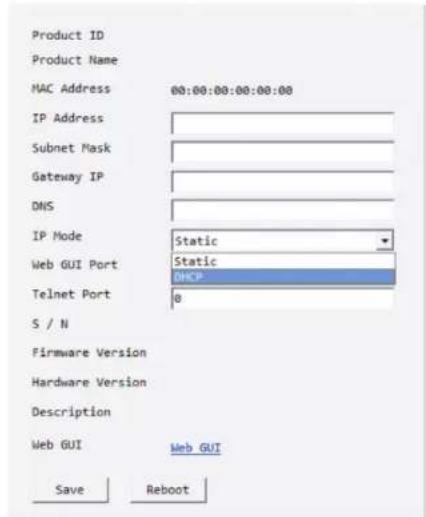
Connect the unit and your PC/Laptop to the same active network and execute the "Device Discovery" software. Click on "Find Devices on Network" and a list of devices connected to the local network will show up indicating their current IP address.
Note: The unit's default IP address is 192.168.1.50.

By clicking on one of the listed devices you will be presented with the network details of that particular device.
-
IP Mode: If you choose, you can alter the static IP network settings for the device, or switch the unit into DHCP mode to automatically obtain proper network settings from a local DHCP server. To switch to DHCP mode, please select DHCP from the IP mode drop-down, then click "Save" followed by "Reboot".
-
WebGUI Hotkey: Once you are satisfied with the network settings, you may use them to connect via Telnet or WebGUI. The network information window provides a convenient link to launch the WebGUI directly.
- WebGUI Overview
After connecting to the WebGUI's address in a web browser, the login screen will appear. Please enter the appropriate user name and password then click "Submit" to log in.
Note: The default user name and password is "admin".
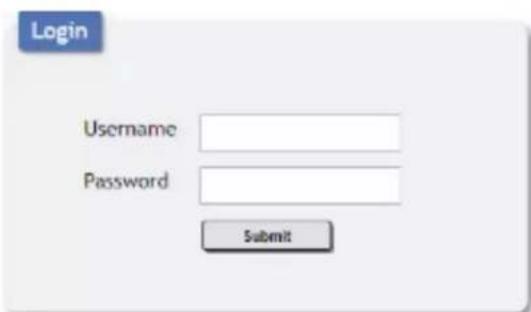
On the left side of the browser you will see the following menu tabs where all primary functions of the unit are controllable via the built in WebGUI. The individual functions will be introduced in the following sections.

Clicking the red "Logout" tab will automatically log the currently connected user out of the WebGUI and return to login page.
6.7.1 Switch Tab
This page provides video routing settings, preset saving/loading, and I/O renaming options. To begin assigning a new video route, please click the button of the HDMI output you wish to send video to and then click on the button of the preferred HDMI input port. If desired, you may select more than one output prior to selecting the input. As you select each button they will change their color to orange. The new route will become active immediately after selecting the input port and the routing information displayed on the buttons will change accordingly.

- Output: Buttons for selecting the output (A\~H) to route A/V Inputs to. Details about the output names and currently selected Input are also displayed here.
- Input: Buttons for selecting the input to route to the selected output(s). Detail about the input names and signal information is also displayed here.

- Output Edit: A variety of output settings, including name, muting, test pattern configuration, downscaling, and OSD options can be configured here. Please click the "Edit" icon ( ) within the Output button to open up the Output Edit window.
- Set Output Name: To rename the output port, type the new name in the space provided in the Edit window. Click the "Save" button to confirm the change.
Note: Blank spaces (") are not allowed in names.
- Mute: Each output can be individually muted (black video, no audio). To mute an output, please click on the switch so it reads "ON".
-
Pattern Timing: This setting configures the output resolution used when "Pattern" has been selected as the input source. The following resolutions are supported: 4K@25/30/50/60Hz, 1080P@50/60Hz and 720P@50/60.
-
Pattern Color Control: This setting configures the contents of the test pattern when "Pattern" is selected as the input source. Available patterns are: black, blue, green, cyan, red magenta, yellow, white, and color bars.
- Downscaling: This switch enables or disables the downscaling functionality of the output. When this setting is turned on, 4K sources will be automatically downscaled to 1080p while maintaining the original framerate.
- OSD: This switch enables or disables the custom text display for this output. When enabled, the OSD text will be displayed in the upper-left corner of the selected output.
- OSD Background Color: Use the dropdown to select the preferred background color for the OSD custom text. Available colors are: black, white, red, green, blue, magenta, yellow, cyan, and gray.
- OSD Text: Each output can display up to 2 lines of customized OSD text. Enter the text here. Click the "Save" button to confirm changes.
Note: Each line of text can have up to 64 characters, after 64 characters the text automatically wraps to the next line.
- OSD Text Size: Use the dropdown to select the preferred size for the OSD custom text. Available sizes are: 1x, 2x, and 4x.
- OSD Text Color: Use the dropdown to select the preferred color for the OSD custom text. Available colors are: black, white, red, green, blue, magenta, yellow, cyan, and gray.
- OSD Transparency: Use the dropdown to select the preferred transparency level of the OSD custom text's background. The available range is from Level 1 (fully opaque) to Level 8 (fully transparent).

- Input Edit: Each input allows for Individual control over the name of the input and the behavior of HDCP. To edit the settings of an input port please click the "Edit" icon (☑) within the appropriate button.
- Set Input Name: To rename the input port, type the new name in the space provided in the Edit window. Click the "Save" button to confirm the change.
Note: Blank spaces (") are not allowed in names.
- HDCP: Provides control over the HDCP behavior of each HDMI input.
- HDCP Support Off: Completely disables support for HDCP on that input.
- Refer to Source: Makes the input port support the same HDCP version as required by the connected source.
- Refer to Display: Makes the input support the HDCP version of the currently routed display.

- Preset Settings: This matrix can store up to eight video routing presets. Presets can be utilized to store multiple different routing states in advance for rapid, hassle-free, recall.
- Store Preset: Once you have the matrix set the way you like, you can click the "Store" icon (☑) in the upper right corner of the window and the Store Current I/O Position window will open. Hovering the mouse over each button will display the current routing stored within it. You may also name the preset at this stage by selecting the "Edit" icon (☑). Click the center of the preset's button to store the current routing state in that preset.
- Recall Preset: When you wish to load a previously stored preset, please click the "Recall" icon (☐) and you will be presented with a choice of the 8 available presets. Hovering the mouse over each button will display the routing stored within it. The preset will load immediately upon clicking the button.
6.7.2 EDID Settings Tab
This matrix provides the option of six standard EDIDs, four sink sourced EDIDs and four user uploaded EDIDs that can be assigned to each input port individually. The names of the four user uploaded EDIDs can changed if desired.

1. Customer EDID Settings:
- Save Name: To change the name of a Customer EDID, type the new name in the space provided, then click on the "Save Name" button.
-
Download: To save an existing user EDID to your local PC please press the "Download" button next to the EDID you would like to save. Depending on your browser settings you will either be asked where to save the downloaded file, or the file will be transferred to the default download location on your PC.
-
Upload: To upload a new user EDID, please click the "Upload" button next to the Customer EDID Settings item you would like to change. An EDID Upload window will appear, allowing you to locate and upload the preferred EDID file (*.bin format) from a local PC. Once the correct file has been selected, please click the "Upload" button in the window, and the file will be transferred to the matrix.
- Sink EDID Download: To save the EDID from one of the connected displays to your local PC, select the appropriate sink from the dropdown list then press the "Download" button. Depending on your browser settings you will either be asked where to save the downloaded file, or the file will be transferred to the default download location on your PC.
- Set EDID Input Content: This section provides controls for assigning EDID to the matrix's inputs. Selecting "Appoint" allows for different EDID to be assigned to each individual input, selecting "ALL" allows for a single EDID to be assigned to all inputs.
- EDID Source: Click on the preferred input(s) to open the EDID Source management window. Multiple inputs can be selected at once, if desired. Select the new EDID source to use and the change will occur immediately.
Note: In most cases, assigning a new EDID to an input will cause the affected input to briefly blink out while the source adapts to the new information.
This matrix provides the following 6 default EDIDs:
| Unit's Default EDID | |
| FHD/2CH | 1920 x 1080p@60Hz (4.95Gbps) & 8-bit color, LPCM 2.0 |
| FHD/MCH | 1920 x 1080p@60Hz (4.95Gbps) & 8-bit color, LPCM 7.1 & Bitstream |
| UHD/2CH | 3840 x 2160p@30Hz (10.2Gbps) & Deep Color (8/10/12-bit), LPCM 2.0 |
| UHD/MCH | 3840 x 2160p@30Hz (10.2Gbps) & Deep Color (8/10/12-bit), LPCM 7.1 & Bitstream |
| UHD+/2CH | 3840 x 2160p@60Hz (18Gbps) & Deep Color (8/10/12-bit), LPCM 2.0 |
| UHD+/MCH | 3840 x 2160p@60Hz (18Gbps) & Deep Color (8/10/12-bit), LPCM 7.1 & Bitstream |
Note: In some rare cases it is possible for custom or external EDIDs to cause compatibility issues with certain sources. If this happens, it is recommended to switch to one of the 6 default EDIDs for maximum compatibility.
6.7.3 Device Settings Tab
This page provides control over the matrix's hardware related settings and options including IR settings and fan control.

- IR Channel: Use the dropdown to select the IR channel used to control the matrix using the included remote. If this setting is changed, the dipswitches inside the remote control's battery compartment must also be changed to match.
Note: : By default both the remote and the unit are set to channel 15.
- IR Discrete Custom Code: Allows setting the discrete IR code prefix, primarily for use with learning remotes, to control the functions of this matrix.
Note: To obtain a complete list of IR control codes please contact your authorized dealer.
- Temperature & Fan Settings: Provides information about the unit's current temperature and the speed of both internal fans. The fan mode can be switched between "Always On" and "Auto". By default, the fan control is set to "Always On".
6.7.4 Telnet Control
This tab provides User Configuration options including changing the password for the Administrator account, and both the user name and password for the General User account.

Note: The General User account has limited access to the WebGUI and can only change video routing, store/recall presets, and modify the General User's own account settings.
6.7.5 System Settings Tab
This tab provides system information, power control, Ethernet configuration options, system configuration backup/restore, and firmware update functions.
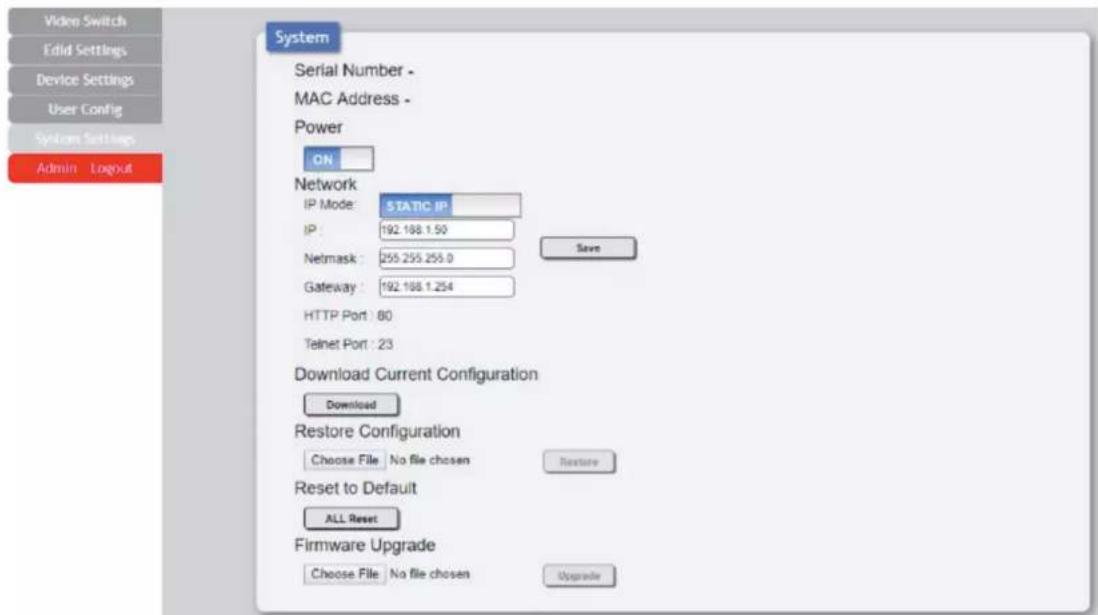
- Power: Press this switch to toggle the unit's power between ON and OFF (standby mode).
Note: While in standby mode the unit's WebGUI, Telnet and RS-232 controls are still active.
- Network: The unit's IP mode may be switched between Static IP or DHCP. In Static IP mode the IP, netmask and gateway addresses may be manually set. When in DHCP mode, the unit will attempt to connect to a local DHCP server and obtain IP, netmask and gateway addresses automatically. Press "Save" after making any changes to the IP configuration or mode.
Note: The unit's default IP address is 192.168.1.50. If the IP address is changed then the IP address required for WebGUI/Telnet access will also change accordingly.
-
Download Current Configuration: The current system configuration, including routing and presets, may be saved as an XML file to a PC. Click the "Download" button to save the current system configuration to your local PC.
-
Restore Configuration: Previously saved system configurations may be restored from a saved XML file. Click the "Choose File" button to locate the saved XML file, then click the "Restore" button.
-
Reset to Default: Press this button to reset the unit to its factory default state. After the reset is complete, the unit will reboot automatically.
-
Firmware Upgrade: To update the unit's firmware, click the "Choose File" button to open the file selection window and then select the firmware update file (*.bin format) located on your local PC. After selecting the file, click the "Upgrade" button to begin the firmware update process.
6.8 Telnet Control
Before attempting to use Telnet control, please ensure that both the unit and the PC are connected to the same active networks.
| To Access the Command Line Interface (CLI) | |
| Windows 7 | Click Start, type “cmd” in the search field, and press Enter. |
| Windows XP | Click Start > Run, type “cmd”, and press Enter. |
| Mac OS X | Click Go > Applications > Utilities > Terminal. |
Once in the Command Line Interface (CLI) type “telnet” followed by the IP address of the unit (and the port number if it is non-standard) and then hit “Enter”. This will connect us to the unit we wish to control.
Microsoft Windows [Version 6.1.7601]
Copyright (c) 2009 Microsoft Corporation. All rights reserved.
C:\Users\Administrator>telnet 192.168.1.50 23
Note 1: If the IP address is changed then the IP address required for Telnet access will also change accordingly.
Note 2: The default IP address is 192.168.1.50.
6.9 Serial and Telnet Commands
| COMMAND |
| Description and Parameters |
| General & System Commands |
| HELP←Show the full command list. |
| ?←Show the full command list. |
| SET FACTORY DEFAULT←Reset the unit to the factory defaults. |
| SET FACTORY IPCONFIG DEFAULT←Reset the unit's network settings to the factory defaults. |
| SET FACTORY OUT ROUTE DEFAULT←Show the unit's current firmware version and routing status. |
| SET POWER N1←Turn the unit on or place it into stand-by mode. |
| Available values for N1:ON [Power On]STANDBY [Standby Mode] |
| GET POWER←Show the unit's current power state.SET UART 1 BAUDRATE N1←Set the baud rate of the RS-232 port.Available values for N1:4800 [4800 baud]9600 [9600 baud]19200 [19200 baud]38400 [38400 baud]57600 [57600 baud]115200 [115200 baud] |
| GET UART 1 BAUDRATE←Show the current baud rate of the RS-232 port. |
| SET IR IN CHANNEL N1←Set the channel for the IR input to use.N1 = 0~15 [IR Channel] |
| GET IR IN CHANNEL←Show the current custom code used by the IR input. |
| SET FAN CONTROL MODE N1←Set the fan control mode. Available values for N1:0 [Always On]1 [Auto] |
| GET FAN CONTROL MODE←Show the current fan control mode. |
| GET FAN N1 SPEED←Show the current rotation speed of the specified fan.N1 = 1~2 [Fan ID number] |
| GET DEVICE TEMPERATURE←Show the unit's current temperature. |
| SET KEYLOCK N1←Enable or disable the front panel key lock. Available values for N1:ON [Locked]OFF [Unlocked] |
| GET KEYLOCK←Show the current front panel lock state. |
| GET FW VER←Show the unit's current firmware version. |
| SET OUT N1 OSD INFO DISPLAY N2←Enable or disable the info OSD for the specified output.N1 = A~H [Output port]Available values for N2:ON [Enabled]OFF [Disabled] |
| GET OUT N1 OSD INFO DISPLAY←Show the current info OSD state for the specified output.N1 = A~H [Output port] |
| Matrix Commands |
| SET OUT N1 ROUTE N2←Route the specified input to the specified output.N1 = A~H [Output port]N2 = 1~8 [Input port] |
| GET OUT N1 ROUTE←Show the current input routed to the specified output.N1 = A~H [Output port] |
| SET OUT ROUTE N1,N1,N1←Set multiple input/output routes simultaneously.N1 = {A-H}{1-8} [Output and Input port pair]Note: Each routing pair consists of the output letter followed by the input number with no space between them. Additional routes are added by separating them with commas (without spaces). (For example:A8,B5,C3,etc.) |
| SET ALL OUT ROUTE N1←Route the specified input to all outputs.N1 = 1-8 [Input port] |
| GET ALL OUT ROUTE←Show the current routing for all outputs. |
| SET CURRENT ROUTE TO PRESET N1←Save all current routing assignments to the specified preset.N1 = 1-8 [Preset number] |
| SET ROUTE PRESET N1←Activate the routing assignments saved in the specified preset.N1 = 1-8 [Preset number] |
| GET ROUTE PRESET N1←List the routing assignments stored in the specified preset.N1 = 1-8 [Preset number] |
| SET ROUTE PRESET N1 NAME N2←Set a name for the specified preset.N1 = 1-8 [Preset number]N2 = {Preset Name} [32 characters max] |
| GET ROUTE PRESET N1 NAME←Show the current name of the specified preset.N1 = 1-8 [Preset number] |
| SET OUT N1 MASK N2←Enable or disable the A/V mute setting on the specified output.N1 = A-H [Output Port]Available values for N2:ON [Mute A/V]OFF [Unmute A/V] |
| GET OUT N1 MASK←Display the current A/V mute setting for the specified output.N1 = A-H [Output port] |
| SET IN N1 NAME N2←Set the name of the specified input.N1 = 1-8 [Input port]N2 = {Input Name} [32 characters max] |
| GET IN N1 NAME←Show the current name of the specified input.N1 = 1-8 [Input port] |
| SET OUT N1 NAME N2←Set the name of the specified output.N1 = A-H [Output port]N2 = {Output Name} [32 characters max] |
| GET OUT N1 NAME←Show the name of the specified output.N1 = A-H [Output port] |
| GET IN NAME LIST←List the names of all inputs on the unit. |
| GET OUT NAME LIST←List the names of all outputs on the unit. |
| SET OUT N1 4K2K DOWNSCALE MODE N2←Enable/disable the 4K to 1080p downscale mode used by the specified output.N1 = A~H [Output port]Available values for N2:0 [Bypass mode]2 [Downscale 4K to 1080p] |
| GET OUT N1 4K2K DOWNSCALE MODE←Show the current 4K to 1080p downscale mode state.N1 = A~H [Output port] |
| Test Pattern Commands |
| SET PATTERN N1 MODE N2←Enable or disable the test pattern on the specified output.N1 = A~H [Output port]Available values for N2:ON [Enabled]OFF [Disabled] |
| GET PATTERN N1 MODE←Show the current state of the specified output's test pattern mode.N1 = A~H [Output port] |
| SET PATTERN N1 TIMING N2←Set the test pattern's resolution for the specified output.N1 = A-H [Output port]Available values for N2:6 [720p@60Hz]10 [1080p@60Hz]12 [720p@50Hz]14 [1080p@50Hz]22 [4K@25Hz]24 [4K@30Hz]25 [4K@50Hz]27 [4K@60Hz] |
| GET PATTERN N1 TIMING←Show the test pattern's current resolution for the specified output.N1 = A-H [Output port] |
| GET PATTERN TIMING LIST←List all available test pattern output resolutions with their local index numbers. |
| SET PATTERN N1 TYPE N2←Set the test pattern type to use on the specified output.N1 = A-H [Output port]Available values for N2:1 [Black]2 [White]3 [Red]4 [Green]5 [Blue]6 [Magenta]7 [Yellow]8 [Cyan]9 [Color Bar] |
| GET PATTERN N1 TYPE←Show the current test pattern type used by the specified output.N1 = A-H [Output port] |
| EDID Commands |
| SET ALL IN EDID MODE N1←Select the EDID management mode to use (All or Appoint) for all inputs. |
| Available values for N1:ON [All mode]OFF [Appoint mode] |
| GET ALL IN EDID MODE N1←Show the current EDID management mode used by all inputs. |
| SET ALL IN EDID N1←Set the EDID to use when the “All” EDID mode is active. |
| Available values for N1:1 [Internal 1]2 [Internal 2]3 [Internal 3]4 [Internal 4]5 [Internal 5]6 [Internal 6]7 [User 1]8 [User 2]9 [User 3]10 [User 4]11 [User 5]12 [User 6]13 [User 7]14 [User 8]15 [Sink A]16 [Sink B]17 [Sink C]18 [Sink D]19 [Sink E]20 [Sink F]21 [Sink G]22 [Sink H] |
| GET ALL IN EDID←Show the current EDID used by the “All” EDID mode. |
SET ALL IN EDID N2←
Set the EDID to use on the specified input in "Appoint" mode.
N1 = 1\~8 [Input port]
Available values for N2:
| 1 | [Internal 1] |
| 2 | [Internal 2] |
| 3 | [Internal 3] |
| 4 | [Internal 4] |
| 5 | [Internal 5] |
| 6 | [Internal 6] |
| 7 | [User 1] |
| 8 | [User 2] |
| 9 | [User 3] |
| 10 | [User 4] |
| 11 | [User 5] |
| 12 | [User 6] |
| 13 | [User 7] |
| 14 | [User 8] |
| 15 | [Sink A] |
| 16 | [Sink B] |
| 17 | [Sink C] |
| 18 | [Sink D] |
| 19 | [Sink E] |
| 20 | [Sink F] |
| 21 | [Sink G] |
| 22 | [Sink H] |
GET IN N1 EDID←
Show the EDID currently being used on the specified input.
N1 = 1\~8 [Input port]
GET ALL IN EDID LIST←
List the EDIDs assigned to all inputs.
GET IN EDID LIST←
List all available EDID selections.
| SET EDID N1 NAME N2←Set the name for the specified EDID.N1 = 7-14 [EDID number]N2 = {EDID Name} [32 characters max]Note: Only User EDIDs may be renamed. |
| GET EDID N1 NAME←Show the name for the specified EDID.N1 = 1-22 [EDID Number] |
| GET INTERNAL N1 EDID DATA←Show the specified Internal EDID as hex data.N1 = 1-6 [Internal EDID number] |
| SET USER N1 EDID DATA N2←Upload a new EDID (in hex format) for use as the specified User EDID.N1 = 1-8 [User EDID number]N2 = {Hex Data} [EDID data]Note: The data block is comma delimited ASCII hex pairs and cannot contain any spaces. |
| GET USER N1 EDID DATA←Show the current contents of the specified User EDID as hex data.N1 = 1-8 [User EDID number] |
| GET SINK N1 EDID DATA←Show the EDID from the display connected to the specified output as hex data.N1 = A-H [Output port] |
| GET IN N1 EDID DATA←Show the EDID currently used by the specified input as hex data.N1 = 1-8 [Input port] |
| HDCP Commands |
| SET IN N1 HDCP MODE N2←Set the HDCP behavior of the specified input.N1 = 1-8 [Input port]Available values for N2:0 [HDCP Disabled]1 [Follow Source]2 [Follow Display] |
| GET IN N1 HDCP MODE←Show the current HDCP behavior used by the specified input.N1 = 1-8 [Input port] |
| GET IN N1 HDCP STATUS←Show the current HDCP status of the specified input.N1 = 1-8 [Input port]Available result codes:0 [HDCP off]1 [HDCP 1.x]2 [HDCP 2.2] |
| GET OUT N1 HDCP STATUS←Show the current HDCP status of the specified output.N1 = A-H [Output port]Available result codes:0 [HDCP off]1 [HDCP 1.x]2 [HDCP 2.2]3 [HDCP 1.x failed]4 [HDCP 2.2 failed] |
| GET IN N1 HDCP ABILITY←Show the HDCP compliance level of the source connected to the specified input.N1 = 1-8 [Input port]Available result codes:0 [No HDCP]1 [HDCP 1.x]2 [HDCP 2.2]3 [HDCP 1.4+2.2] |
| GET OUT N1 HDCP ABILITY←Show the HDCP compliance level of the display device connected to the specified output.N1 = A-H [Output port]Available result codes:0 [No HDCP]1 [HDCP 1.x]2 [HDCP 2.2] |
| Ethernet Commands |
| SET IP MODE N1←Set the IP address assignment mode.Available values for N1:0 [Static IP mode]1 [DHCP mode] |
| GET IP MODE←Show the current IP address assignment mode. |
| GET IPCONFIG←Show the unit's current IP configuration information. |
| SET IPADDR N1←Set the unit's static IP address.N1 = X.X.X.X [X = 0 - 255]GET IPADDR←Show the unit's current IP address. |
| SET NETMASK N1←Set the unit's static netmask.N1 = X.X.X.X [X = 0 ~ 255] |
| GET NETMASK←Show the unit's current netmask. |
| SET GATEWAY N1←Set the unit's static gateway address.N1 = X.X.X.X [X = 0 ~ 255] |
| SET GATEWAY N1←Set the unit's static gateway address.N1 = X.X.X.X [X = 0 ~ 255] |
| GET GATEWAY←Show the unit's current gateway address. |
| GET GATEWAY←Show the unit's current gateway address. |
| GET MAC ADDR←Show the unit's MAC address. |
| SET TELNET PORT N1←Set the unit's Telnet access port.N1 = 0~65535 [Port number] |
| GET TELNET PORT←Show the unit's current Telnet access port. |
| GET HOSTNAME←Show the unit's current hostname. |
| SET WEBGUI USERNAME N1←Set the WebGUI “User” login username.N1 = {User Name} [16 characters max] |
| GET WEBGUI USERNAME←Show the current WebGUI “User” login username. |
| SET WEBGUI PASSWORD N1←Set the WebGUI “User” login password.N1 = {Password} [16 characters max] |
| GET WEBGUI PASSWORD←Show the current WebGUI “User” login password. |
Note: Commands will not be executed unless followed by a carriage return. Commands are not case-sensitive.
- CONNECTION DIAGRAM
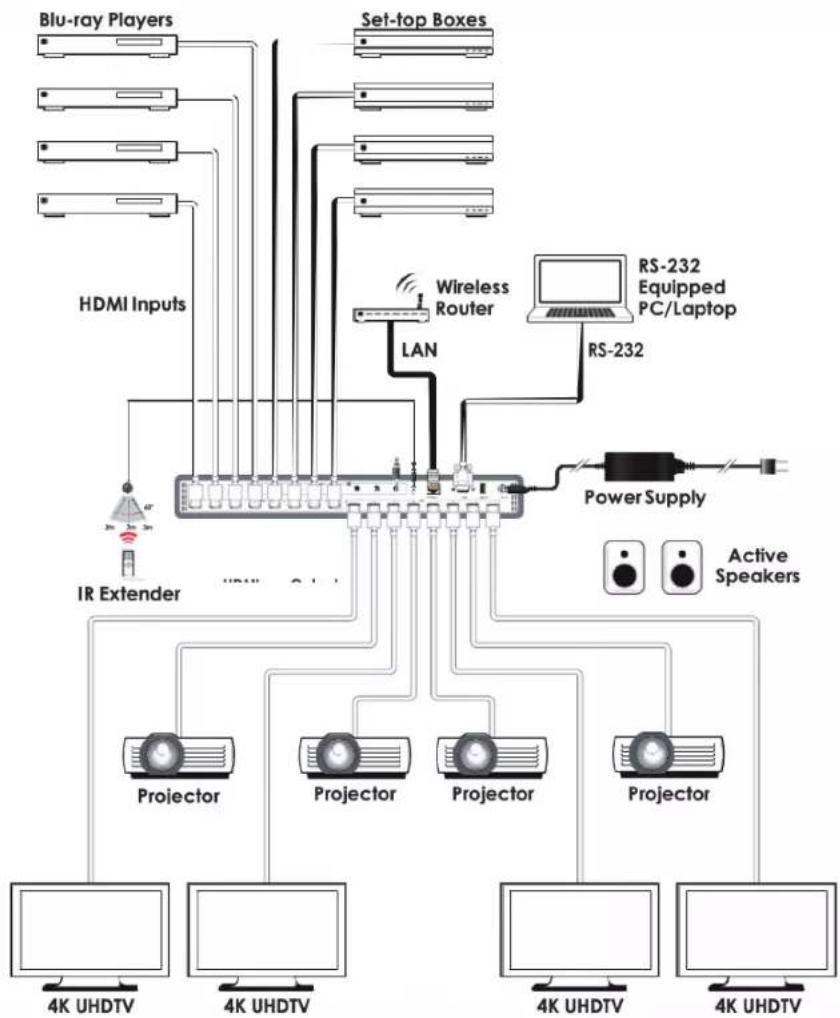
flowchart
graph TD
    A["Blu-ray Players"] --> B["HDMI Inputs"]
    C["Set-top Boxes"] --> D["IR Extender"]
    E["Hybrid Devices"] --> F["Projector"]
    G["Wireless Router"] --> H["Power Supply"]
    I["RS-232 Equipped PC/Laptop"] --> J["Active Speakers"]
    K["4K UHDTV"] --> L["Projector"]
    M["4K UHDTV"] --> N["Projector"]
    O["4K UHDTV"] --> P["Projector"]
    Q["4K UHDTV"] --> R["Projector"]
    S["4K UHDTV"] --> T["Projector"]
    U["4K UHDTV"] --> V["Projector"]
    W["4K UHDTV"] --> X["Projector"]
    Y["4K UHDTV"] --> Z["Projector"]
    AA["4K UHDTV"] --> AB["Projector"]
    AC["4K UHDTV"] --> AD["Projector"]
    AE["4K UHDTV"] --> AF["Projector"]
    AG["4K UHDTV"] --> AH["Projector"]
    AI["4K UHDTV"] --> AJ["Projector"]
    AK["4K UHDTV"] --> AL["Projector"]
    AM["4K UHDTV"] --> AN["Projector"]
    AO["4K UHDTV"] --> AP["Projector"]
    AQ["4K UHDTV"] --> AR["Projector"]
    AS["4K UHDTV"] --> AT["Projector"]
    AU["4K UHDTV"] --> AV["Projector"]
    AW["4K UHDTV"] --> AX["Projector"]
    AY["4K UHDTV"] --> AZ["Projector"]
    BA["4K UHDTV"] --> BB["Projector"]
    BC["4K UHDTV"] --> BD["Projector"]
    BE["4K UHDTV"] --> BF["Projector"]
    BG["4K UHDTV"] --> BH["Projector"]
    BI["4K UHDTV"] --> BJ["Projector"]
    BK["4K UHDTV"] --> BL["Projector"]
    BM["4K UHDTV"] --> BN["Projector"]
    BO["4K UHDTV"] --> BP["Projector"]
    BZ["4K UHDTV"] --> CA["Projector"]
    CB["4K UHDTV"] --> CD["Projector"]
    CE["4K UHDTV"] --> CF["Projector"]
    CG["4K UHDTV"] --> CH["Projector"]
    CI["4K UHDTV"] --> CJ["Projector"]
    CK["4K UHDTV"] --> CL["Projector"]
    CM["4K UHDTV"] --> CN["Projector"]
    CO["4K UHDTV"] --> CP["Projector"]
    CQ["4K UHDTV"] --> CR["Projector"]
    CS["4K UHDTV"] --> CT["Projector"]
    CU["4K UHDTV"] --> CV["Projector"]
    CW["4K UHDTV"] --> CX["Projector"]
8. SPECIFICATIONS
8.1 Technical Specifications
HDMI Bandwidth
18Gbps
Input Ports
8 x HDMI (Type-A)
Output Ports
8 x HDMI (Type-A)
8 x Analog Stereo (3.5mm)
Control Ports
1×RS-232 (DE-9)
1 ×
Ethernet
(RJ-45)
1 x IR Extender (3.5mm)
Service Port
1 x USB 2.0 (Type A)
IR Frequency
38kHz
Baud Rate
19200
Power Supply
24V/2.7A
DC
(US/EU
standards,
CE/FCC/UL
certified)
ESD Protection (HBM) ±8kV (Air Discharge)
±4kV (Contact Discharge)
Dimensions (W x H x D) 438mm x 49mm x 269mm [Case Only]
482mm x 49mm x 274mm [All Inclusive]
Weight 3,600kg
Chassis Material Metal (Steel)
Chassis Color Black
Operating Temperature 0°C - 40°C/32°F - 104°F
Storage Temperature -20°C - 60°C/-4°F - 140°F
Relative Humidity 20 - 90% RH (Non-condensing)
Power Consumption 70W
8.2 Video Specifications
| Supported Resolutions (Hz) | Input | Output |
| HDMI | HDMI | |
| 720 x 400p@70/85 | √ | √ |
| 640 x 480p@60/72/75/85 | √ | √ |
| 720 x 480i@60 | √ | √ |
| 720 x 480p@60 | √ | √ |
| 720 x 576i@50 | √ | √ |
| 720 x 576p@50 | √ | √ |
| 800 x 600p@56/60/72/75/85 | √ | √ |
| 848 x 480p@60 | √ | √ |
| 1024 x 768p@60/70/75/85 | √ | √ |
| 1152 x 864p@75 | √ | √ |
| 1280 x 720p@50/60 | √ | √ |
| 1280 x 768p@60/75/85 | √ | √ |
| 1280 x 800p@60/75/85 | √ | √ |
| 1280 x 960p@60/85 | √ | √ |
| 1280 x 1024p@60/75/85 | √ | √ |
| 1360 x 768p@60 | √ | √ |
| 1366 x 768p@60 | √ | √ |
| 1400 x 1050p@60 | √ | √ |
| 1440 x 900p@60/75 | √ | √ |
| 1600 x 900p@60RB | √ | √ |
| 1600 x 1200p@60 | √ | √ |
| 1680 x 1050p@60 | √ | √ |
| 1920 x 1080i@50/60 | √ | √ |
| 1920 x 1080p@24/25/30 | √ | √ |
| 1920 x 1080p@50/60 | √ | √ |
| 1920 x 1200p@60RB | √ | √ |
| 2560 x 1440p@60RB | √ | √ |
| 2560 x 1600p@60RB | √ | √ |
| 2048 x 1080p@24/25/30 | √ | √ |
| 2048 x 1080p@50/60 | √ | √ |
| 3840 x 2160p@24/25/30 | √ | √ |
| 3840 x 2160p@50/60 (4:2:0) | √ | √ |
| 3840 x 2160p@24, HDR10 | √ | √ |
| 3840 x 2160p@50/60 (4:2:0), HDR10 | √ | √ |
| 3840 x 2160p@50/60 | √ | √ |
| 4096 x 2160p@24/25/30 | √ | √ |
| 4096 x 2160p@50/60 (4:2:0) | √ | √ |
| 4096 x 2160p@24, HDR10 | √ | √ |
| 4096 x 2160p@50/60 (4:2:0), HDR10 | √ | √ |
| 4096 x 2160p@50/60 | √ | √ |
8.3 Audio Specifications
8.3.1 Digital Audio
| HDMI Input/Output | |
| LPCM | |
| Max Channels | 8 Channels |
| Sampling Rate (kHz) | 32, 44.1, 48, 88.2, 96, 176.4, 192 |
| Bitstream | |
| Supported Formats | Standard & High-Definition |
8.3.2 Analog Audio
| Analog Output | |
| Max Audio Level | 2Vrms |
| THD+N | <-60dB@0dBFS 1kHz (A-wt) |
| SNR | >105dB@0dBFS |
| Frequency Response | < ±3dB@20Hz-20kHz |
| Crosstalk | <-60dB@10kHz |
| Impedance | 470Ω |
| Type | Unbalanced |
8.4 Cable Specifications
| Cable Length | 1080p 4K30 4K60 | |||
| 8-bit 12-bit | (4:4:4)8-bit | (4:4:4)8-bit | ||
| High Speed HDMI Cable | ||||
| HDMI Input | 15m 10m | 5m 3m | ||
| HDMI Output | 15m 10m | 5m 3m | ||
Bandwidth Category Examples:
• 1080p (FHD Video)
- Up to 1080p@60Hz, 12-bit color
- Data rates lower than 5.3Gbps or below 225MHz TMDS clock
• 4K30 (UHD Video)
- 4K@24/25/30Hz & 4K@50/60Hz (4:2:0), 8-bit color
- Data rates higher than 5.3Gbps or above 225MHz TMDS clock but below 10.2Gbps
• 4K60 (UHD+ Video)
- 4K@50/60Hz (4:4:4, 8-bit)
- 4K@50/60Hz (4:2:0, 10-bit HDR)
- Data rates higher than 10.2Gbps
9. ACRONYMS
| ACRONYM COMPLETE TERM | |
| ASCII | American Standard Code for Information Interchange |
| Cat.5e | Enhanced Category 5 cable |
| Cat.6 | Category 6 cable |
| Cat.6A | Augmented Category 6 cable |
| Cat.7 | Category 7 cable |
| CEC | Consumer Electronics Control |
| CLI | Command-Line Interface |
| DAC | Digital-to-Analog Converter |
| dB | Decibel |
| DHCP | Dynamic Host Configuration Protocol |
| DVI | Digital Visual Interface |
| EDID | Extended Display Identification Data |
| Gbps | Gigabits per second |
| GUI | Graphical User Interface |
| HDCP | High-bandwidth Digital Content Protection |
| HDMI | High-Definition Multimedia Interface |
| HDR | High Dynamic Range |
| HDTV | High-Definition Television |
| IP | Internet Protocol |
| IR | Infrared |
| kHz | Kilohertz |
| LAN | Local Area Network |
| LCD | Liquid-Crystal Display |
| LED | Light-Emitting Diode |
| LPCM | Linear Pulse-Code Modulation |
| MHz | Megahertz |
| OSD | On-Screen Display |
| SNR | Signal-to-Noise Ratio |
| TCP | Transmission Control Protocol |
| THD+N | Total Harmonic Distortion plus Noise |
| TMDS | Transition-Minimized Differential Signaling |
| UHD | 4K Ultra-High-Definition (10.2Gbps max) |
| UHD+ | 4K Ultra-High-Definition (18Gbps max) |
| UHDTV | Ultra-High-Definition Television |
| USB | Universal Serial Bus |
| VGA | Video Graphics Array |
| WUXGA (RB) | Widescreen Ultra Extended Graphics Array (Reduced Blanking) |
| XGA | Extended Graphics Array |
| Ω | Ohm |
10. Customer Service
The return of a product to our Customer Service implies the full agreement of the terms and conditions hereinafter. There terms and conditions may be changed without prior notice.
1. Warranty
The limited warranty period of the product is fixed 3 (three) years.
Scope
These terms and conditions of Customer Service apply to the customer service provided for the products or any other items sold by authorized distributor only.
2. Warranty Exclusions:
Warranty expiration.
- Factory applied serial number has been altered or removed from the product. Damage, deterioration or malfunction caused by: Normal wear and tear.
- Use of supplies or parts not meeting our specifications.
- No certificate or invoice as the proof of warranty.
- The product model showed on the warranty card does not match with the model of the product for repairing or had been altered.
• Damage caused by force majeure.
• Servicing not authorized by distributor. - Any other causes which does not relate to a product defect. Shipping fees, installation or labor charges for installation or setup of the product.
3. Documentation:
Customer Service will accept defective product(s) in the scope of warranty coverage at the sole condition that the defeat has been clearly defined, and upon reception of the documents or copy of invoice, indicating the date of purchase, the type of product, the serial number, and the name of distributor.
Remarks: For further assistance or solutions, please contact your local distributor, or email directly to us at support@kanexpro.com
- SAFETY PRECAUTIONS
- TRADEMARK ACKNOWLEDGMENTS
- INTRODUCTION
- INTRODUCTION
- APPLICATIONS
- PACKAGE CONTENTS
- SYSTEM REQUIREMENTS
- FEATURES
- OPERATION CONTROLS AND FUNCTIONS
- Front Panel
- Rear Panel
- Remote Control
- IR Cable Pinout
- RS-232 Pinout and Defaults
- Front Panel LCD Menu
- WebGUI Control
- • Device Discovery
- - WebGUI Overview
- Switch Tab
- EDID Settings Tab
- Customer EDID Settings:
- Device Settings Tab
- Telnet Control
- System Settings Tab
- Telnet Control
- Serial and Telnet Commands
- SET ALL IN EDID N2←
- GET IN N1 EDID←
- GET ALL IN EDID LIST←
- GET IN EDID LIST←
- SPECIFICATIONS
- Technical Specifications
- Video Specifications
- Audio Specifications
- Digital Audio
- Analog Audio
- Cable Specifications
- Bandwidth Category Examples:
- • 1080p (FHD Video)
- • 4K30 (UHD Video)
- • 4K60 (UHD+ Video)
- ACRONYMS
- Customer Service
- Warranty
- Scope
- Warranty Exclusions:
- Documentation:
Brand : KanexPro
Model : HDMX88A-18G
Category : HDMI switch