 ManualGo.com
PN-A601 - Professional Monitor SHARP - Free user manual and instructions
Find the device manual for free PN-A601 SHARP in PDF.



Download the instructions for your Professional Monitor in PDF format for free! Find your manual PN-A601 - SHARP and take your electronic device back in hand. On this page are published all the documents necessary for the use of your device. PN-A601 by SHARP.
USER MANUAL PN-A601 SHARP
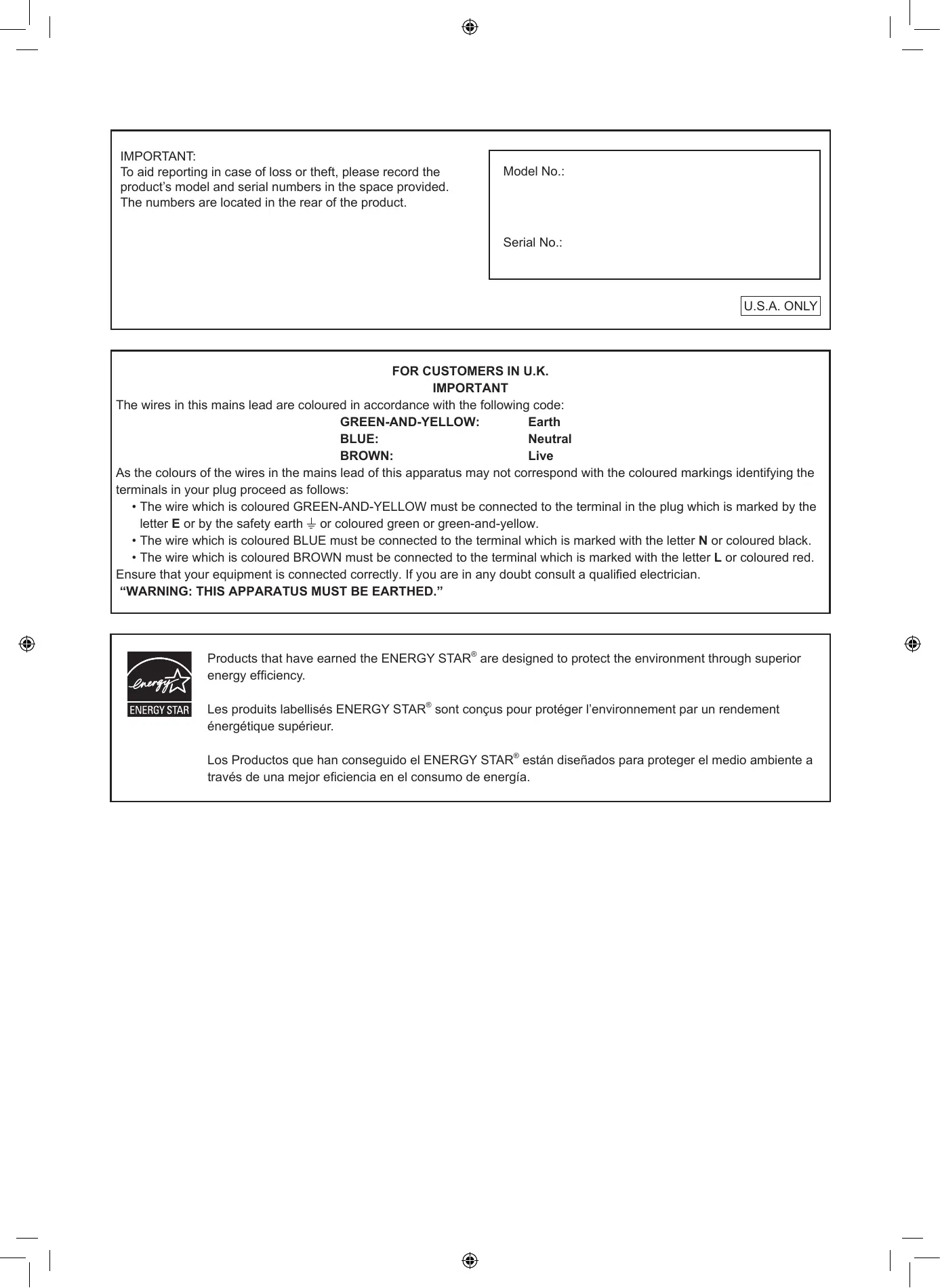
IMPORTANT: To aid reporting in case of loss or theft, please record the product’s model and serial numbers in the space provided. The numbers are located in the rear of the product. Model No.: Serial No.:
U.S.A. ONLY
FOR CUSTOMERS IN U.K. IMPORTANT The wires in this mains lead are coloured in accordance with the following code: GREEN-AND-YELLOW: Earth BLUE: Neutral BROWN: Live As the colours of the wires in the mains lead of this apparatus may not correspond with the coloured markings identifying the terminals in your plug proceed as follows:
- The wire which is coloured GREEN-AND-YELLOW must be connected to the terminal in the plug which is marked by the letter E or by the safety earth or coloured green or green-and-yellow.
- The wire which is coloured BLUE must be connected to the terminal which is marked with the letter N or coloured black.
- The wire which is coloured BROWN must be connected to the terminal which is marked with the letter L or coloured red. Ensure that your equipment is connected correctly. If you are in any doubt consult a qualified electrician.
“WARNING: THIS APPARATUS MUST BE EARTHED.”
- Connection with the Control Kit (optional) p. 6
- Preparing the Remote Control Unit p. 6
- Turning Power On/Off p. 7
- Main Specifications p. 8
- Mounting Precautions (For SHARP dealers and service engineers) ENGLISH Read the manuals in the “Manual” folder of the provided CD-ROM. (Adobe Reader is required to view the manuals.) IMPORTANT INFORMATION p. 8
WARNING: TO REDUCE THE RISK OF FIRE OR ELECTRIC SHOCK, DO NOT EXPOSE THIS PRODUCT
TO RAIN OR MOISTURE. CAUTION
RISK OF ELECTRIC
DO NOT OPEN
CAUTION: TO REDUCE THE RISK OF ELECTRIC SHOCK, DO NOT REMOVE COVER.
NO USER-SERVICEABLE PARTS
REFER SERVICING TO QUALIFIED
SERVICE PERSONNEL. The lightning flash with arrowhead symbol, within an equilateral triangle, is intended to alert the user to the presence of uninsulated “dangerous voltage” within the product’s enclosure that may be of sufficient magnitude to constitute a risk of electric shock to persons. The exclamation point within a triangle is intended to alert the user to the presence of important operating and maintenance (servicing) instructions in the literature accompanying the product.
WARNING:
FCC Regulations state that any unauthorized changes or modifications to this equipment not expressly approved by the manufacturer could void the user’s authority to operate this equipment. NOTE: This equipment has been tested and found to comply with the limits for Class A digital device, pursuant to Part 15 of the FCC Rules. These limits are designed to provide reasonable protection against harmful interference when the equipment is operated in a commercial environment. This equipment generates, uses, and can radiate radio frequency energy and, if not installed and used in accordance with the instruction manual, may cause harmful interference to radio communications. Operation of this equipment in a residential area is likely to cause harmful interference in which case the user will be required to correct the interference at his own expense.
U.S.A. ONLY
DEAR SHARP CUSTOMER
Thank you for your purchase of a SHARP LCD product. To ensure safety and many years of trouble-free operation of your product, please read the Safety Precautions carefully before using this product.
SAFETY PRECAUTIONS Electricity is used to perform many useful functions, but it can also cause personal injuries and property damage if improperly handled. This product has been engineered and manufactured with the highest priority on safety. However, improper use can result in electric shock and/or fire. In order to prevent potential danger, please observe the following instructions when installing, operating and cleaning the product. To ensure your safety and prolong the service life of your LCD product, please read the following precautions carefully before using the product.
1. Read instructions — All operating instructions must be read and understood before the product is operated.
2. K
eep this manual in a safe place — These safety and operating instructions must be kept in a safe place for future reference.
3. Observe warnings — All warnings on the product and in the instructions must be observed closely.
4. Follow instructions — All operating instructions must be followed.
5. Cleaning — Unplug the power cord from the AC outlet before cleaning the product. Use a dry cloth to clean the product. Do not use liquid cleaners or aerosol cleaners.
6. Attachments — Do not use attachments not recommended by the manufacturer. Use of inadequate attachments can result
in accidents. 7. Water and moisture — Do not use the product near water. Do not install the product in a place where water may splash onto it. Be careful of equipment which drains water such as an air-conditioner.
8. Ventilation — The vents and other openings in the cabinet are designed for ventilation.
Do not cover or block these vents and openings since insufficient ventilation can cause overheating and/or shorten the life of the product. Do not place the product on a sofa, rug or other similar surface, since they can block ventilation openings. Do not place the product in an enclosed place such as a bookcase or rack, unless proper ventilation is provided or the manufacturer’s instructions are followed. 9. Power cord protection — The power cords must be routed properly to prevent people from stepping on them or objects from resting on them. 10. The LCD panel used in this product is made of glass. Therefore, it can break when the product is dropped or applied with impact. Be careful not to be injured by broken glass pieces in case the LCD panel breaks.
11. Overloading — Do not overload AC outlets or extension cords. Overloading can cause fire or electric shock.
12. Entering of objects and liquids — Never insert an object into the product through vents or openings. High voltage flows in the product, and inserting an object can cause electric shock and/or short internal parts. For the same reason, do not spill water or liquid on the product.
13. Servicing — Do not attempt to service the product yourself. Removing covers can expose you to high voltage and other
dangerous conditions. Request a qualified service person to perform servicing. 14. Repair — If any of the following conditions occurs, unplug the power cord from the AC outlet, and request a qualified service person to perform repairs. a. When the power cord or plug is damaged. b. When a liquid was spilled on the product or when objects have fallen into the product. c. When the product has been exposed to rain or water. d. When the product does not operate properly as described in the operating instructions. Do not touch the controls other than those described in the operating instructions. Improper adjustment of controls not described in the instructions can cause damage, which often requires extensive adjustment work by a qualified technician. e. When the product has been dropped or damaged. f. When the product displays an abnormal condition. Any noticeable abnormality in the product indicates that the product needs servicing.
15. Replacement parts — In case the product needs replacement parts, make sure that the service person uses replacement
parts specified by the manufacturer, or those with the same characteristics and performance as the original parts. Use of unauthorized parts can result in fire, electric shock and/or other danger.
16. Safety checks — Upon completion of service or repair work, request the service technician to
perform safety checks to ensure that the product is in proper operating condition.
17. Wall mounting — When mounting the product on a wall, be sure to install the product according to the method
recommended by the manufacturer.
18. Heat sources — Keep the product away from heat sources such as radiators, heaters, stoves and other heat-generating
products (including amplifiers). 19. Batteries — Incorrect use of batteries may cause the batteries to burst or ignite. A leaky battery may corrode the equipment, dirty your hands or spoil your clothing. In order to avoid these problems, make sure to observe the precautions below:
- Use the specified batteries only.
- Install the batteries with due attention to the plus (+) and minus (-) sides of the batteries according to the instructions in the compartment.
- Do not mix old and new batteries.
- Do not mix batteries of different types. Voltage specifications of batteries of the same shape may vary.
- Replace an exhausted battery with a new one promptly.
- If you will not use the remote control for a long time, remove the batteries.
- If leaked battery fluid gets on your skin or clothing, rinse immediately and thoroughly. If it gets into your eye, bathe your eye well rather than rubbing and seek medical treatment immediately. Leaked battery fluid that gets into your eye or your clothing may cause a skin irritation or damage your eye. 20. Usage of the monitor must not be accompanied by fatal risks or dangers that, could lead directly to death, personal injury, severe physical damage or other loss, including nuclear reaction control in nuclear facility, medical life support system, and missile launch control in a weapon system. SAFETY PRECAUTIONS (Continued)
WARNING:
This is a class A product. In a domestic environment this product may cause radio interference in which case the user may be required to take adequate counter measures. ENGLISH
21. D
o not stay in contact with the parts of the product that become hot for long periods of time. Doing so may result in low-temperature burns. To maintain compliance with EMC regulations, use shielded cables to connect to the following terminals: PC/AV DVI-D output terminal, PC/AV DVI-D input terminal, PC/AV HDMI input terminal, PC D-SUB input terminal, PC RGB input terminals, and RS-232C input/output terminals. If a monitor is not positioned in a sufficiently stable location, it can be potentially hazardous due to falling. Many injuries, particularly to children, can be avoided by taking simple precautions such as:
- Using fixing devices like wall mount brackets recommended by the manufacturer.
- Only using furniture that can safely support the monitor.
- Ensuring the monitor is not overhanging the edge of the supporting furniture.
- Not placing the monitor on tall furniture (for example, cupboards or bookcases) without anchoring both the furniture and the monitor to a suitable support.
- Not standing the monitors on cloth or other materials placed between the monitor and supporting furniture.
- Educating children about the dangers of climbing on furniture to reach the monitor or its controls. Especially for child safety - Don’t allow children to climb on or play with the monitor. - Don’t place the monitor on furniture that can easily be used as steps, such as a chest of drawers. - Remember that children can become excited while watching a program, especially on a “larger than life” monitor. Care should be taken to place or install the monitor where it cannot be pushed, pulled over, or knocked down. - Care should be taken to route all cords and cables connected to the monitor so that they cannot be pulled or grabbed by curious children. SAFETY INSTRUCTION - Do not use the monitor where there is a lot of dust, where humidity is high, or where the monitor may come into contact with oil or steam, as this could lead to fire. - Ensure that the monitor does not come into contact with water or other fluids. Ensure that no objects such as paper clips or pins enter the monitor as this could lead to fire or electric shock. - Do not place the monitor on top of unstable objects or in unsafe places. Do not allow the monitor to receive strong shocks or to strongly vibrate. Causing the monitor to fall or topple over may damage it. - Do not use the monitor near heating equipment or in places where there is likelihood of high temperature, as this may lead to generation of excessive heat and outbreak of fire. - Do not use the monitor in places where it may be exposed to direct sunlight. The Power Cord - Use only the power cord supplied with the monitor. - Do not damage the power cord nor place heavy objects on it, stretch it or over bend it. Also, do not add extension cords. Damage to the cord may result in fire or electric shock. - Do not use the power cord with a power tap. Adding an extension cord may lead to fire as a result of overheating. - Do not remove or insert the power plug with wet hands. Doing so could result in electric shock. - Unplug the power cord if it is not used for a long time. - Do not attempt to repair the power cord if it is broken or malfunctioning. Refer the servicing to the service representative. - If the monitor is installed in a location exposed to sunlight such as next to a window, measures to reduce ultraviolet and infrared radiation and temperature measures are required. For details, consult your dealer. - The AC outlet shall be installed near the equipment and shall be easily accessible.
MOUNTING PRECAUTIONS
- This product is for use indoors.
- A mounting bracket compliant with VESA specifications is required.
- Since the monitor is heavy, consult your dealer before installing, removing or moving the monitor.
- Mounting the monitor on the wall requires special expertise and the work must be performed by an authorized SHARP dealer. You should never attempt to perform any of this work yourself. Our company will bear no responsibility for accidents or injuries caused by improper mounting or mishandling.
- Use the monitor perpendicular to a level surface. If necessary, the monitor may be tilted up to 20 degrees upward or downward.
- When mounting the monitor horizontally, the optional fan cover (PN-ZR31) is required. For details along with the horizontal mounting conditions, consult your dealer.
- This monitor should be used at an ambient temperature between 32°F (0°C) and 104°F (40°C). Provide enough space around the monitor to prevent heat from accumulating inside. For the monitor in landscape orientation
- Adhere to the following when installing the monitor in its portrait orientation. Failing to adhere to the following may cause malfunctions. - Install the monitor such that the power LED is located on the bottom side. - Set the MONITOR on the SETUP menu to PORTRAIT. (See Operation manual.) - Be sure to secure the power cord (supplied) to the cable clamp attachment with the supplied cable clamp. Make sure that the power cord (supplied) does not supply power to the terminal when being secured and do not over bend the power cord (supplied). Power cord (Supplied) Cable clamp attachment Cable clamp
- Use the supplied vertical sticker when you install the monitor in portrait orientation. 7-7/8 [20] [5]
[5] 2 [5] For the monitor in portrait orientation 7-7/8 [20] Operation panel Unit: inch [cm] 1-3/4 [4.5]
- If it is difficult to provide sufficient space for any reason such as the installation of the monitor inside a housing, or if the ambient temperature may be outside of the range of 32°F (0°C) to 104°F (40°C), install a fan or take other measures to keep the ambient temperature within the required range.
- Temperature condition may change when using the monitor together with the optional equipments recommended by SHARP. In such cases, please check the temperature condition specified by the optional equipments.
- Do not block any ventilation openings. If the temperature inside the monitor rises, this could lead to a malfunction.
- Do not place the monitor on a device which generates heat.
Logo - Do not remove the factory-affixed sticker but affix the logo sticker over it. Be careful not to cover the remote control sensor or buttons.
- After installing the monitor, affix the included protection covers as necessary, and then apply the included protection stickers.
1. Protection
2. Protection
sticker Supplied Components Handle screw (short): 4 Vertical sticker (Operation panel): 1 Vertical sticker (Logo): 1 Blank sticker: 1 Place a blank sticker onto the SHARP logo to cover the logo. Terminal label: 1 Use when attaching the PN-ZB01 Expansion Board (optional). Liquid Crystal Display Monitor: 1 Remote control unit: 1 Cable clamp: 2 Power cord: 1 R-6 battery (“AA” size): 2 CD-ROM (Utility Disk for Windows): 1 Setup manual (this manual): 1 Protection cover: 2 Protection sticker: 2 ENGLISH If any component should be missing, please contact your dealer.
- Sharp Corporation holds authorship rights to the Utility Disk program. Do not reproduce it without permission.
- For environmental protection! Do not dispose of batteries in household waste. Follow the disposal instructions for your area. Connections
When the PN-ZB01 (optional) is attached
- Be sure to turn off the main power switch and disconnect the plug from the power outlet before connecting/disconnecting cables. Also, read the manual of the equipment to be connected.
- Be careful not to confuse the input terminal with the output terminal when connecting cables. Accidentally reversing cables connected to the input and output terminals may cause malfunctions and the other problems. TIPS
- Set the audio input terminal used for each input mode in AUDIO SELECT on the OPTION menu. The factory settings are shown below. Input mode
PC D-SUB, PC DVI-D, PC RGB
AV DVI-D AV component (BNC), AV S-video, AV video (BNC) AV component (D-SUB), AV video (D-SUB)
PC HDMI, AV HDMI
- When connecting the external speaker, attach the speaker cable core (included in the optional PN-ZB01).
- HDMI, the HDMI logo and High-Definition Multimedia Interface are trademarks or registered trademarks of HDMI Licensing LLC.
Connection with the Control Kit (optional) Caution
- When attaching the remote control sensor box, turn the main power switch OFF.
1. Insert the remote control sensor box connection cable
into the control kit terminal. Remote control sensor box Control kit terminal Connection cable TIPS
- When connecting the control kit, select whether to use the remote control sensor and the brightness sensor on the remote control sensor box or the monitor with CONTROL KIT SETTING on the SETUP menu. When attaching the remote control sensor box to this monitor Attach the remote control sensor box to the location shown in the following illustration; For the monitor in landscape orientation For the monitor in portrait orientation
1. Unscrew the screw in the monitor’s remote control
sensor box mounting hole.
2. Secure the mounting bracket by screwing the screw
removed in Step 1. in the monitor’s remote control sensor box mounting hole.
3. Adjust the angle of the remote control sensor box, and
secure it with the fixing screw, so that it may accurately receive signals from the remote control unit. Remote control sensor box mounting hole Mounting bracket Remote control sensor box Angle adjustment Fixing screw Preparing the Remote Control Unit
1. Press the cover gently and slide it in the direction of the
2. See the instructions in the compartment and put in the
batteries (R-6 (“AA” size) x 2) with their plus (+) and minus (-) sides oriented correctly.
3. Close the cover.
Screw (Screw removed from the remote control sensor box mounting hole) Turning Power On/Off
- Turn on the monitor first before turning on the PC or playback device.
- If the time has yet to be set when the monitor is first turned on, the date/time setting screen appears. Set the date and time.
DATE/TIME SETTING
Turning on the main power
12 : 00 ENGLISH nDate/time setting Caution
CANCEL Main power switch OK···[MENU] Caution
- The main power must be turned on/off with the main power switch. Do not connect/disconnect the power cord or turn the breaker on/off while the main power switch is on.
- When switching the main power switch or the POWER button off and back on, always wait for at least 5 seconds.
- For a complete electrical disconnection, pull out the main plug. Turning power on/off
1. Press
to select the date and to change the numerical time, and press values. to select SET and then press MENU .
2. Press
- Be sure to set the date and time.
- The date/time setting screen will close automatically if no operation is performed for about 15 seconds. The date and time can be set using DATE/TIME SETTING from the OPTION menu when the date/time setting screen disappears. TIPS Press the POWER button to turn the power ON/OFF. When the main power switch is off, the monitor cannot be turned on using the POWER button on the remote control unit. Set the date in “Month/Day/Year” order. Set the time on a 12-hour basis. The clock is maintained by the internal battery. If you already set the time but the date/time setting screen appears when the power is turned on, the internal battery may be exhausted. Please contact your local Sharp servicing dealer or service center for assistance with battery replacement.
- Estimated service life of the internal battery: About 5 years (depending on monitor operation)
- The initial battery was inserted at the factory when the monitor was shipped, so it may run out of power before its expected operation life.
Power LED Status of a power LED Status of the monitor Lit green Power on Lit orange Power off (Standby mode) Flashing green Input signal waiting mode
Main Specifications Model Power requirement Operating temperature * Operating humidity Power consumption (maximum) Dimensions (excluding protrusions) Weight PN-A601 AC 100 V - 240 V, 50/60 Hz 32°F to 104°F (0°C to 40°C) 20% to 80% (no condensation) 600 W [When PN-ZB01 (optional) is attached: 620 W] inch (mm) Approx. 54-1/8 (W) x 5-13/16 (D) x 31-1/4 (H) (1,374 x 147 x 793) lbs. (kg) Approx. 99.2 (45) [PN-ZB01 (optional): Approx. 1.102 (0.5)]
- Temperature condition may change when using the display together with the optional equipments recommended by SHARP. In such cases, please check the temperature condition specified by the optional equipments. As a part of our policy of continuous improvement, SHARP reserves the right to make design and specification changes for product improvement without prior notice. The performance specification figures indicated are nominal values of production units. There may be some deviations from these values in individual units. Mounting Precautions (For SHARP dealers and service engineers)
- When installing, removing or moving the monitor, ensure that this is carried out by at least 2 people.
- Be sure to use a wall-mount bracket designed or designated for mounting the monitor.
- This monitor is designed to be installed on a concrete wall or pillar. Reinforced work might be necessary for some materials such as plaster / thin plastic board / wood before starting installation. This monitor and bracket must be installed on a wall which can endure at least 4 times or more the weight of the monitor. Install by the most suitable method for the material and the structure.
- To attach a VESA-compliant mounting bracket, use M6 screws that are 5/16 inch (8 mm) to 3/8 inch (10 mm) longer than the thickness of the mounting bracket.
- When moving the monitor, be sure to hold it with the handles both on the rear and the unit bottom. Do not hold the LCD panel. This may cause product damage, failure, or injury.
- After mounting, please carefully ensure the monitor is secure, and not able to come loose from the wall or mount.
- Do not use any screw holes other than VESA holes for installation.