
DGX-I-DXF-MMD - Switch AMX - Free user manual and instructions
Find the device manual for free DGX-I-DXF-MMD AMX in PDF.


| Product Type | DXLink Multimode Fiber Input Board, Duplex (for Enova DGX Switchers) |
| Model Number | DGX-I-DXF-MMD |
| Part Number | FG1058-622 |
| Compatible Enclosures | Enova DGX 8, DGX 16, DGX 32, DGX 64 |
| Connector Type | LC Duplex (fiber optic) |
| Signal Support | HDMI (with/without HDCP), DVI-D, analog video (RGBHV, RGBS, RGsB, Y/Pb/Pr), embedded audio, digital audio, analog stereo audio |
| HDCP Compatibility | HDCP 1.4 |
| Maximum Resolution | 1920x1200 @ 60 Hz (including 1080p) |
| Data Rate (per channel aggregate max) | 12.8 Gbps (Enova DGX 8/16/32); 26 Gbps (Enova DGX 64) |
| Fiber Type | Multimode |
| Transmission Distance | Up to 3000 ft (914.4 m) from source to enclosure and enclosure to destination (total 6000 ft with output board) |
| Control Protocols | NetLinx, BCS, XNNet, third-party serial (RS-232) |
| Integrated Features | InstaGate Pro, SmartScale (on outputs), EDID management, HDCP handling |
| Power Supply | Powered by enclosure (redundant hot-swappable PSUs) |
| Operating Temperature | 32°F to 104°F (0°C to 40°C) |
| Operating Humidity | 5% to 85% RH (non-condensing) |
| Storage Temperature | -22°F to 158°F (-30°C to 70°C) |
| Board Dimensions | Standard Enova DGX I/O board form factor (varies by enclosure) |
| Weight (board only) | Approximately 1.5 lb (0.68 kg) |
| MTBF | 168,000 hours (enclosure level) |
| Certifications | UL 60950-1, CSA 60950-1, IEC 60950-1, CE, FCC Class A, RoHS, WEEE |
| Warranty | 3 years (standard), 5 years for original installation (per AMX policy) |
| Software Support | DGX Configuration Software, NetLinx Studio, APDiagnostics, WebConsole |
Frequently Asked Questions - DGX-I-DXF-MMD AMX
User questions about DGX-I-DXF-MMD AMX
0 question about this device. Answer the ones you know or ask your own.
Ask a new question about this device
Download the instructions for your Switch in PDF format for free! Find your manual DGX-I-DXF-MMD - AMX and take your electronic device back in hand. On this page are published all the documents necessary for the use of your device. DGX-I-DXF-MMD by AMX.
USER MANUAL DGX-I-DXF-MMD AMX
Enova DGX 8, Enova DGX 16 Enova DGX 32, Enova DGX 64

natural_image
Line drawings of four different AHX industrial electronic devices with visible ports and connectors (no text or labels)AMX Domestic Channel Partner Limited Warranty, Disclaimer and License
(Excerpt from CHANNEL PARTNER TERMS AND CONDITIONS Versions 11.17.2011 with updates for previous version 8.25.2010 [sections 6.1 (a), (b) and (f)])
6. LIMITED WARRANTY; RETURN, REPAIR AND REPLACEMENT
6.1 AMX warrants the Products to be free of material defects in materials and workmanship under normal use for three (3) years from the Shipping Date (or such other period as may be specified below), subject to the following limitations and exceptions (“Limited Warranty”). For any Product, “Warranty Period” means the period during which the Limited Warranty is in effect, as set forth herein.
(a) LCD and LED panels are warranted for three (3) years from the Shipping Date, except for the display and touch overlay components, which are warranted for a period of one (1) year from the Shipping Date.
(b) Disk drive mechanisms, pan/tilt heads and external power supplies are warranted for a period of one (1) year from the Shipping Date.
(c) AMX lighting Products are warranted to switch on and off any load that is properly connected to our lighting Products, as long as the AMX lighting Products are under warranty. AMX also warrants the control of dimmable loads that are properly connected to our lighting Products. The dimming performance or quality thereof is not warranted, due to the random combinations of dimmers, lamps and ballasts or transformers.
(d) AMX software and firmware included in the Products is warranted for a period of ninety (90) days from the Shipping Date.
(e) Batteries and incandescent lamps are not covered under the Limited Warranty.
(f) The Warranty Period for AMX AutoPatch EPICA, Enova DGX, Modula, Modula Series 4, Modula Cat Pro Series and 8Y-3000 Product models will continue for the original installation until five (5) years after the issuance of a PDN with respect to termination of the applicable Product model. However, if the Product is moved from its original installation to a different installation, the Warranty Period will automatically become three (3) years from the Shipping Date and, if more than three (3) years have elapsed since the Shipping Date, the Warranty Period will automatically expire.
Version Date: 11-17-11
Note: The complete Warranty is at www.amx.com.
Contents
ESD Warning 7
Important Safety Information and Instructions....8
Product Overview and General Specifications....12
Applicability Notice 12
Product Notes...... 13
Common Applications.... 15
Front View 16
Rear View....17
Enova DGX 8 – General Specifications ...... 24
Enova DGX 16 – General Specifications ...... 25
Enova DGX 32 – General Specifications ...... 26
Enova DGX 64 – General Specifications ...... 27
Enova DGX – NetLinx and Control Specifications.... 28
Configuration Information and Control Options....29
System Diagnostic Options.... 30
Installation and Setup....31
UL Safety Certifications, Notices, and Recommendations for Laser Products 31
Site Recommendations 32
General Hazard Precautions 32
Unpacking....33
Options for System Setup with DXLink™ Twisted Pair 34
Options for System Setup with DXLink™ Fiber 34
Options for System Setup with SC Fiber 35
Rack Installation and System Setup 35
Attaching Video Input and Output Cables 40
Attaching Audio Input and Output Wires 42
Applying Power and Startup 42
Redundant Power Supply (RPS) 45
System Setup for Using the Integrated NetLinx Master 46
Program Port and LAN 100/1000 Port 47
System Setup via NetLinx Studio....51
Executing a Test Switch....59
Attaching an External Serial Controller 62
CPU Backup with MicroSD Memory Card 69
Integrated Master Functionality 72
Troubleshooting and Technical Support 75
Enova DGX HDMI Boards....77
Enova DGX HDMI Boards – Specifications....78
Attaching Cables 82
HDCP Support on Enova DGX Switchers....82
InstaGate Pro® Technology 84
Troubleshooting Video 85
Troubleshooting Audio 86
Enova DGX DVI Boards 87
Enova DGX DVI Boards – Specifications 89
Attaching Cables 90
Troubleshooting Video 92
Enova DGX DXLink™ Twisted Pair Boards 93
Enova DGX DXLink™ Twisted Pair Boards – Specifications....95
System Setup with DXLink™ Twisted Pair Transmitters and Receivers 99
Power Budget Planning for Enova DGX 32 with DXLink Boards 102
Connecting Switching Systems with DXLink Connectors 103
Attaching Cables 104
Integrating DXLink TXs and RXs in NetLinx Studio 106
Serial Data Transfer and IR Flow Control....107
DXLink™ Fiber Boards, Duplex and Simplex....108
DXLink™ Fiber Hardware Compatibility....110
Enova DGX DXLink™ Fiber Boards – Specifications 112
System Setup with DXLink™ Fiber, Duplex and Simplex Units 116
Attaching Cables 118
Integrating DXLink™ Fiber Units in NetLinx Studio 120
Fiber Optic Transceiver LEDs in Duplex and Simplex Hardware.... 122
Duplex Hardware Directional Mode Configuration 123
Serial Data Transfer and IR Flow Control....125
Replacing an SFP+ Fiber Optic Transceiver 127
DXLink Fiber Troubleshooting....130
Epica DGX SC Optical Boards....131
Epica DGX SC Optical Boards – Specifications 132
System Setup with DGX Fiber Modules....133
Safety Recommendations for Laser Products 134
Attaching Cables 134
Enova DGX Audio Insert/Extract Boards 136
Enova DGX Audio Insert/Extract Boards – Specifications.... 137
Setting Audio Connectors to Insert or Extract.... 140
Removing an AIE Board....140
Setting the DIP Switches 141
Reinstalling an AIE Board 142
Enova DGX 64 Only - AIE Board Numbering Overlays 142
Attaching Wires 143
Testing/Checking the Insert/Extract Functionality....144
AIE Board Troubleshooting 144
Control Panel Operation....146
Control Panel Overview....146
Executing Switches....150
Changing the Virtual Matrix....151
Disconnecting Switches 152
Verifying Signal Status....153
Defining and Executing Global Presets.... 154
Executing Local Presets 155
Locking and Unlocking....156
Setup Options....158
System Error Codes and Troubleshooting 162
NetLinx® Integrated Control....163
WebConsole Overview 163
Opening the NetLinx WebConsole 164
Getting a DHCP IP Address....165
Setting a Static IP Address 166
Enova DGX WebConsole Interface 168
"05002 - Enova DGX [8, 16, 32, 64]" Overview....168
icsp Device Config - Enova DGX 16 Device Config....168
Upgrade - Upgrade Log - Enova DGX 16 Upgrade Log....169
Upgrade - Upgrade Status - Enova DGX 16 Upgrade Status....169
Upgrade - Upgrade Config - Enova DGX 16 Upgrade Config....170
IP Control - Home - Enova DGX 16 Home 170
IP Control - Configuration - Enova DGX 16 Configuration....171
IP Control - Preferences - Enova DGX 16 Preferences....172
IP Control - Controller - XBar Controller 173
Firmware Upgrade & Info for Network Admin 176
Overview 176
Preparation Checklist for Firmware Upgrade 176
Sending Firmware (*.KIT) Files to the Enova DGX 177
Embedding the XBar Applet....179
Changing the Proxy Setting....180
Checking Cache Settings in a Web Browser 182
Integrated Master – NetLinx® Programming 183
Overview 183
Digital Media Switchers: SEND_COMMANDs 184
Appendix A – DGX Configuration Software ....189
DGX Configuration Software Overview....189
Software Installation on PC and Enova DGX Connection.... 189
Scaler Mode View....191
Scaler Override View 193
EDID Programmer View....198
Device between HDMI Output Board and Monitor 202
HDCP Settings View 203
Terminal View 204
Appendix B – Managing Configuration Files ......206
XNConnect Overview 207
Installing and Launching XNConnect 208
Discovering a System....209
Opening an .xcl Configuration File 210
Navigating the Interface 211
Modifying an .xcl Configuration File....212
Loading an .xcl Configuration File 215
Appendix C – APDiagnostics ......217
APDiagnostics Overview....217
Installing APDiagnostics.... 217
Modes....219
Main Screen and Menus....219
Communications 228
Appendix D – Programmer's Interface for System Diagnostics ......229
System Component Information 229
Using BCS to Access System Diagnostic Information....230
Splash Screen Examples 231
Appendix E – Adding or Replacing Boards......233
Applicability....233
Procedure Overview 234
Safety Recommendations for Laser Products....234
Adding or Replacing a Board....234
Board Troubleshooting 238
Appendix F – Program Run Disable Mode......240
Program Run Disable (PRD) Mode (NX Series Integrated Master) 240
Program Run Disable (PRD) Mode (NI Series Integrated Master) 241
Appendix G – Replacing Battery on CPU....244
Removing and Installing 244
Appendix H - DGX\_SHELL Commands....247
Overview DGX_SHELL Commands....247
Basic DGX_SHELL Commands....251
ESD Warning

natural_image
Warning sign depicting a hand holding a tool, enclosed in a triangle (no text or symbols)To avoid ESD (Electrostatic Discharge) damage to sensitive components, make sure you are properly grounded before touching any internal materials.
When working with any equipment manufactured with electronic devices, proper ESD grounding procedures must be followed to make sure people, products, and tools are as free of static charges as possible. Grounding straps, conductive smocks, and conductive work mats are specifically designed for this purpose.
Anyone performing field maintenance on AMX Enova DGX Digital Media Switchers should use an appropriate ESD field service kit complete with at least a dissipative work mat with a ground cord and a UL listed adjustable wrist strap with another ground cord. These items should not be manufactured locally, since they are generally composed of highly resistive conductive materials to safely drain static charges, without increasing an electrocution risk in the event of an accident. ESD protective equipment can be obtained from 3M ® , Desco ® , Richmond Technology ® , Plastic Systems ® , and other such vendors.
Important Safety Information and Instructions
When using and installing your AMX product, adhere to the following basic safety precautions. For more information about operating, installing, or servicing your AMX product, see your product documentation.
- Read and understand all instructions before using and installing AMX products.
- Use the correct voltage range for your AMX product.
- There are no user serviceable parts inside an AMX product; service should only be done by qualified personnel.
- If you see smoke or smell a strange odor coming from your AMX product, turn it off immediately and call technical support.
- For products with multiple power supplies in each unit, make sure all power supplies are turned on simultaneously.
- Use surge protectors and/or AC line conditioners when powering AMX products.
- Only use a fuse(s) with the correct fuse rating in your enclosure.
● Make sure the power outlet is close to the product and easily accessible.
● Make sure the product is on or attached to a stable surface. - Turn off equipment before linking pieces together, unless otherwise specified in that product's documentation.
- For safety and signal integrity, use a grounded external power source and a grounded power connector.
- Turn off and unplug an enclosure before adding or removing boards, unless otherwise specified in that product's documentation.
- To avoid shock or potential ESD (Electrostatic Discharge) damage to equipment, make sure you are properly grounded before touching components inside an AMX product.
AMX ® 2016 (Rev W), all rights reserved. No part of this publication may be reproduced, stored in a retrieval system, or transmitted, in any form or by any means, electronic, mechanical, photocopying, recording, or otherwise, without the prior written permission of AMX. Copyright protection claimed extends to AMX hardware and software and includes all forms and matters copyrightable material and information now allowed by statutory or judicial law or herein after granted, including without limitation, material generated from the software programs which are displayed on the screen such as icons, screen display looks, etc. Reproduction or disassembly of embodied computer programs or algorithms is expressly prohibited.
Liability Notice
No patent liability is assumed with respect to the use of information contained herein.
While every precaution has been taken in the preparation of this publication, AMX assumes no responsibility for error or omissions. No liability is assumed for damages resulting from the use of the information contained herein.
Further, this publication and features described herein are subject to change without notice.
US FCC Notice
The United States Federal Communications Commission (in 47 e-CFR 15.105) has specified that the following notice be brought to the attention of the users of this product.
“Note: This equipment has been tested and found to comply with the limits for a Class A digital device, pursuant to part 15 of the FCC Rules. These limits are designed to provide reasonable protection against harmful interference when the equipment is operated in a commercial environment. This equipment generates, uses, and can radiate radio frequency energy and, if not installed and used in accordance with the instruction manual, may cause harmful interference to radio communications. Operation of this equipment in a residential area is likely to cause harmful interference in which case the user will be required to correct the interference at his own expense.”
Trademark Notices
AMX , Enova , AutoPatch , NetLinx , DXLink TM , InstaGate Pro , and SmartScale are trademarks of AMX.
Windows is a registered trademark of Microsoft Corporation in the United States and other countries.
UL® and the UL logo are trademarks of UL LLC.
3M , Desco , Richmond Technology , and Plastic Systems are registered trademarks.
Ethernet is a registered trademark of the Xerox Corporation.
ENERGY STAR ® is a registered trademark of the U.S. Department of Energy and the U.S. Environmental Protection Agency.
Other products mentioned herein may be the trademarks of their respective owners.
Trademark Logos

Lithium Batteries Notice
Switzerland requires the following notice for products equipped with lithium batteries. This notice is not applicable for all AMX equipment.
Upon shipment of products to Switzerland, the requirements of the most up-to-date Swiss Ordinance Annex 2.15 of SR 814.81 will be met including provision of the necessary markings, documents, and annual reports relative to the disposal of the batteries to the Swiss Authorities.
Warnings and Cautions
This manual uses the following conventions and icons to draw attention to actions or conditions that could potentially cause problems with equipment or lead to personal risk.
ESD Warning: The icon to the left indicates text regarding potential danger associated with the discharge of static electricity from an outside source (such as human hands) into an integrated circuit, often resulting in damage to the circuit.
Warning: The icon to the left indicates text that warns readers against actions or conditions that could cause potential injury to themselves.
Caution: The icon to the left indicates text that cautions readers against actions that could cause potential injury to the product or the possibility of serious inconvenience.

Product Overview and General Specifications
Applicability Notice
The information in this manual applies to the following Enova ® DGX Digital Media Switcher enclosures, plus input, output, and expansion boards, which can be ordered to create custom systems. All of the boards are compatible with any of the Enova DGX enclosures.
Note: All Enova DGX Switchers ship with a standard front control panel.
Enova DGX 8 Enclosure (4 RU)
| Configuration Part # Model | |
| 8x8 FG1060-08* DGX8-ENC (ENOVA DGX 8 ENC) | |
| 8x8 FG1058-08** AVS-ENOVADGX8-ENC (ENOVA DGX 8 ENC) |
Enova DGX 16 Enclosure (4 RU)
| Configuration Part # Model | |
| 16x16 FG1060-16* DGX16-ENC (ENOVA DGX 16 ENC) | |
| 16x16 FG1058-16** AVS-ENOVADGX16-ENC (ENOVA DGX 16 ENC) |
Enova DGX 32 Enclosure (6 RU)
| Configuration Part # Model | |
| 32x32 FG1060-32*** DGX32-ENC-A (ENOVA DGX 32A ENC) | |
| 32x32 FG1059-33** | AVS-ENOVADGX32-ENC-A (ENOVA DGX 32 ENC) |
Enova DGX 64 Enclosure (13 RU)
| Configuration Part # Model | |
| 64x64 FG1060-64*** | DGX64-ENC (ENOVA DGX 64 ENC) |
* This Enova DGX enclosure features an NX Class Controller.
** This Enova DGX enclosure, which features an NI Class Controller, has been discontinued. This manual contains information on it for support.
*** This Enova DGX enclosure features an NX Class Controller and is optimized and ready for 4K board solutions.
Enova DGX Digital Media Switchers Standard Input and Output Boards
Enova DGX Switchers currently support four standard Enova input and output board types: DVI, HDMI, DXLink Twisted Pair, DXLink Fiber, as well as Epica DGX SC Optical Boards. Each board fills one of the standard I/O board slots and has four connectors. Within a system, a source device connected to any of the input boards can be routed to any destination device connected to any of the output boards (check the board chapters for important signal information when routing between board types).
- For general board information, see page 20 and page 40.
- For specific board information, see the applicable board chapter in this manual.
Enova DGX HDMI Boards (page 77)
| Type | Part # | Model |
| HDMI Input | FG1058-540 | DGX-I-HDMI |
| HDMI Output | FG1058-550 | DGX-O-HDMI |
Enova DGX DVI Boards (page 87)
| Type | Part # | Model |
| DVI Input | FG1058-600 | DGX-I-DVI |
| DVI Output | FG1058-610 | DGX-O-DVI |
Enova DGX DXLink Twisted Pair Boards* (page 93)
| Type Part # Model | ||
| DXLink Twisted Pair Input FG1058-5 | 70 DGX-I-DXL | |
| DXLink Twisted Pair Output FG1058-5 | 80 DGX-O-DXL |
* DXLink Twisted Pair Boards must be used in conjunction with DXLink Twisted Pair Transmitters and Receivers or other AMX DXLink signal management solutions. For model numbers of compatible Transmitters and Receivers, see page 95. For system setup information, see page 99.
Enova DGX DXLink Fiber Boards** (page 108)
| Type Part # Model | ||
| DXLink Multimode Fiber Input Board, Duplex FG1058-622 DGX-I-DXF-MMD | ||
| DXLink Multimode Fiber Output Board, Duplex FG1058-632 DGX-O-DXF-MMD | ||
| DXLink Single Mode Fiber Input Board, Duplex FG1058-620 | DGX-I-DXF-SMD | |
| DXLink Single Mode Fiber Output Board, Duplex | FG1058-630 | DGX-O-DXF-SMD |
| DXLink Multimode Fiber Input Board, Simplex | FG1058-623 DGX-- | -DXF-MMS |
| DXLink Multimode Fiber Output Board, Simplex | FG1058-633 | DGX-O-DXF-MMS |
| DXLink Single Mode Fiber Input Board, Simplex | FG1058-621 | DGX-I-DXF-SMS |
| DXLink Single Mode Fiber Output Board, Simplex | FG1058-631 | DGX-O-DXF-SMS |
** DXLink Fiber Boards must be used in conjunction with DXLink Fiber Transmitters and Receivers. For model numbers of compatible Transmitters and Receivers, see page 110. For system setup information, see page 116.
Epica DGX SC Optical Boards^ (page 131)
| Type | Part # | Model |
| SC Optical Input | FG1056-505 | AVS-EPDGX32-OI-SC |
| SC Optical Output | FG1056-510 | AVS-EPDGX32-OO-SC |
^ Epica DGX SC Optical Boards work in Enova DGX enclosures and must be used in conjunction with DGX Fiber Transmitters and Receivers. For model numbers of compatible modules, see page 132. For system setup information, see page 133.
^^ The SC Optical Input Board FG1056-505 is compatible with the Enova DGX 8/16/32/64, replacing SC Optical Input Board FG 1056-500 (discontinued) which was compatible with the Enova DGX 8/16/32 only.
Enova DGX Expansion Boards
Enova DGX Switchers currently support the Audio Insert/Extract Board. This board can be installed in either or both of the expansion slots. The Audio Insert/Extract Board will not fit in a standard input or output board slot.
Enova DGX Audio Insert/Extract Board (page 136)
| Type | Part # | Model |
| Audio Insert/Extract | FG1058-705 ^^ | DGX-AIE |
^^AIE Board FG1058-705 is compatible with the Enova DGX 8/16/32/64, replacing AIE Board FG1058-700 (discontinued) which was compatible with the Enova DGX 8/16/32 only.
Product Notes
The Enova DGX Digital Media Switcher includes an integrated NetLinx Central Control Processor, supports InstaGate Pro ® , DXLink ™ Technology, and SmartScale ® on every output, and manages and distributes analog and digital audio and video including HDMI/HDCP, control, and Ethernet.
The Enova DGX Switcher is available as a custom system, which means it can be ordered in input to output configuration sizes that fit your installation and contain an assortment of input, output, and expansion boards in a single enclosure.
Note: Because Enova DGX Switchers are available as custom systems, the illustrations in this manual may differ from the model(s) you purchased.
Features of the Enova DGX Digital Media Switcher
HDMI, DVI, DXLink Twisted Pair, DXLink Fiber, and Audio
● True HDMI switching, allowing any input to be switched to any or all outputs (including SC Optical).
- Incorporates HDMI® technology – HDMI, DVI, DXLink Twisted Pair, and DXLink Fiber Boards.
- HDCP 1.4 compatible (all boards except SC Optical Boards which cannot pass HDCP).
● Supports uncompressed video resolutions up to 1920x1200 @ 60 Hz, including HDTV up to 1080p.
- Enova DGX 32/64 enclosure and two new Enova DGX 8/16 enclosures are optimized and ready for 4K board solution (see the footnote in the “Applicability Notice” section on page 12).
- DGX Technology provides a common signal transport and matrix switching layer that transcodes between analog and digital signals.
- HDMI and DVI Output Boards, as well as compatible DGX Fiber Receivers, feature SmartScale® Technology which automatically responds to the display's preferred EDID information and scales the video to the best resolution and video parameters for that display without manual setup.
- Pre-loaded with the most common EDID settings on each switcher input connector (other than fiber connectors) to emulate display response when queried, which ensures that transmission of the video from the source device is working.
- Custom EDID settings can be loaded on each DVI and HDMI input with DGX Configuration Software (available at www.amx.com).
- InstaGate Pro® Technology – Easily integrate HDCP into system designs and enjoy hassle-free matrix switching to all compliant displays. No tools, no delays, and no key constraints – it just works.
- DXLink Twisted Pair Boards provide transport over twisted pair cable.
- DXLink Fiber Boards provide transport over fiber cable.
- The Audio Insert/Extract (expansion) Board can be set to insert/extract audio into/out of video input or output boards.
Digital Media Switcher
- The available input/output range starts at 4x4 and goes to 8x8 for the Enova DGX 8, to 16x16 for the Enova DGX 16, to 32x32 for the Enova DGX 32, and to 64x64 for the Enova DGX 64 (all come in increments of four with upgrade potential to the individual product's capacity).
- System self-diagnostics – power monitoring, fan control and monitoring, signal and temperature sensing. APDiagnostics software (available at www.amx.com) monitors, displays, and collects advanced diagnostic information.
- Local presets allow quick recall of a pre-programmed set of switches with a single command; multiple presets can exist within a system at the same time.
- Global presets allow quick recall of a comprehensive snapshot of all switches.
- Fully redundant (hot-swappable) power supplies (RPS) with independent power paths for maximum reliability.
● Rack mounting ears integral to product design.
Control Ports
- Integrated NetLinx Master is an NX Series NetLinx Controller
● LAN 100/1000 port, the network connection for the integrated Master
● Program port (USB mini-AB) used for initial setup with NetLinx Studio
● Control port (standard RS-232) for direct matrix switching control
● Control port (USB mini-B) used as a virtual COM port for serial communication with a PC
Additional Features Available with Epica DGX SC Optical Boards
- Designed for use with single strand multimode fiber.
- Use in conjunction with DGX Fiber Transmitters and Receivers to send video and audio over a single fiber cable up to a total of 6000 feet (1828.8 m), i.e., 3000 feet (914.4 m) from the source to the Enova DGX enclosure and 3000 feet from the Enova DGX enclosure to the destination.
- DGX SC Optical Boards support DVI (non-HDCP) and HDMI (non-HDCP) formats. They also support RGBHV, RGBS, RGsB, and Y/Pb/Pr (Y/Pb/Pr including 1080p) video, depending on the type of DGX Fiber Modules used with them.
- DGX SC Optical Boards support embedded analog stereo audio signals (unbalanced stereo @ a sample rate of 48 kHz) and digital audio signals (PCM over S/PDIF @ 32 kHz, 44.1 kHz, 48 kHz, as well as 96 kHz, which requires a minimum video resolution of 800x600 @ 60 Hz).
Product Support
• AMX Limited Lifetime Warranty included (see www.amx.com)
● 24-hour technical support
Control Features of the Enova DGX Digital Media Switcher
Each Enova DGX enclosure includes an NX Series Control Processor. Each enclosure also features a front control panel for an added level of convenience; the panel can be used for controlling the system's switches. In addition, several other control options are available. Multiple control methods can be used on the same system.
- Integrated NetLinx Master (NX Series) with control via the WebConsole interface
- Includes the XBar Controller
• Server (LAN) connection through the LAN 100/1000 port on the CPU
● Front control panel (standard on all enclosures)
- Compatible with a number of AMX control devices (for NetLinx control programming information, see page 183 and the instruction manual for the specific AMX control device)
- Select AMX NetLinx commands supported
- Supports AMX AutoPatch's simple BCS (Basic Control Structure)* serial control protocol
- Supports AMX AutoPatch's XNNet protocol
● Supports third-party controllers
• BCS tunneling access support over TCP/IP
* BCS commands are sent as ASCII characters through the Control (RS-232) port.
Note: Features and specifications described in this document are subject to change without notice.
Common Applications
Enova DGX Switchers fit in a broad range of digital and analog environments and are controllable from a variety of sources. The Enova DGX Switcher can route and transmit pure high resolution analog and digital video up to 3,000 feet (914.4 m) making it the perfect solution for commercial or residential installations, government agencies, command-and-control environments, universities, hospitals, casinos, retail environments, or any facility that demands the highest quality video be shared between rooms or even buildings.

flowchart
graph TD
    subgraph AMX_AV800-2DLink-DMOS
        A["DC link HDMI Receiver Model 1-4"] --> B["AmX ADC/PGU-7A Matrix Switcher"]
        C["Stuck PC"] --> D["AMX ADC/PGU-7A Matrix Switcher"]
        E["Shang Control"] --> F["AMX ADC/PGU-7A Matrix Switcher"]
        G["Shang Control"] --> H["AMX ADC/PGU-7A Matrix Switcher"]
        I["Shang Control"] --> J["AMX ADC/PGU-7A Matrix Switcher"]
        K["Shang Control"] --> L["AMX ADC/PGU-7A Matrix Switcher"]
    end

    subgraph AMX_NK64-NETPOG
        M["Chipset Pack, Ethernet Switcher 2"] --> N["AMX NK64-NETPOG"]
        O["AMX NK64-NETPOG"] --> P["Chipset Pack, Ethernet Switcher 2"]
        Q["AMX NK64-NETPOG"] --> R["Chipset Pack, Ethernet Switcher 2"]
        S["AMX NK64-NETPOG"] --> T["Chipset Pack, Ethernet Switcher 2"]
        U["AMX NK64-NETPOG"] --> V["Chipset Pack, Ethernet Switcher 2"]
    end

    W["AmX ADC/PGU-7A Matrix Switcher"] --> X["AMX ADC/PGU-7A Matrix Switcher"]
    Y["AMX ADC/PGU-7A Matrix Switcher"] --> Z["AMX ADC/PGU-7A Matrix Switcher"]
    AA["AMX NK64-NETPOG"] --> AB["Chipset Pack, Ethernet Switcher 2"]
    AC["AMX NK64-NETPOG"] --> AD["Chipset Pack, Ethernet Switcher 2"]
    AE["AMX NK64-NETPOG"] --> AF["Chipset Pack, Ethernet Switcher 2"]
    AG["AMX NK64-NETPOG"] --> AH["Chipset Pack, Ethernet Switcher 2"]
    AI["AMX NK64-NETPOG"] --> AJ["Chipset Pack, Ethernet Switcher 2"]
    AK["AMX NK64-NETPOG"] --> AL["Chipset Pack, Ethernet Switcher 2"]
    AM["AMX NK64-NETPOG"] --> AN["Chipset Pack, Ethernet Switcher 2"]
    AO["AMX NK64-NETPOG"] --> AP["Chipset Pack, Ethernet Switcher 2"]
    AQ["AMX NK64-NETPOG"] --> AR["Chipset Pack, Ethernet Switcher 2"]
    AS["AMX NK64-NETPOG"] --> AT["Chipset Pack, Ethernet Switcher 2"]
    AU["AMX NK64-NETPOG"] --> AV["Chipset Pack, Ethernet Switcher 2"]
    AW["AMX NK64-NETPOG"] --> AX["Chipset Pack, Ethernet Switcher 2"]
    AY["AMX ADC/PGU-7A Matrix Switcher"] --> AZ["AMX ADC/PGU-7A Matrix Switcher"]
    BA["AMX ADC/PGU-7A Matrix Switcher"] --> BB["AMX ADC/PGU-7A Matrix Switcher"]
    BC["AMX ADC/PGU-7A Matrix Switcher"] --> BD["AMX ADC/PGU-7A Matrix Switcher"]
    BE["AMX ADC/PGU-7A Matrix Switcher"] --> BF["AMX ADC/PGU-7A Matrix Switcher"]
    BG["AMX NK64-NETPOG"] --> BH["AMX NK64-NETPOG"]
    BI["AMX NK64-NETPOG"] --> BJ["AMX NK64-NETPOG"]
    BK["AMX NK64-NETPOG"] --> BL["AMX NK64-NETPOG"]
    BM["AMX NK64-NETPOG"] --> BN["AMX NK64-NETPOG"]
    BO["AMX NK64-NETPOG"] --> BP["AMX NK64-NETPOG"]
    BQ["AMX NK64-NETPOG"] --> BR["AMX NK64-NETPOG"]
    BS["AMX NK64-NETPOG"] --> BT["AMX NK64-NETPOG"]
    BU["AMX NK64-NETPOG"] --> BV["AMX NK64-NETPOG"]
    BW["AMX NK64-NETPOG"] --> BX["AMX NK64-NETPOG"]
    BYR["AMX NK64-NETPOG"] --> BZ["AMX NK64-NETPOG"]
    CA["AMX NK64-NETPOG"] --> CB["AMX NK64-NETPOG"]
    CC["AMX NK64-NETPOG"] --> CD["AMX NK64-NETPOG"]
    CE["AMX NK64-NETPOG"] --> CF["AMX NK64-NETPOG"]
    CG["AMX NK64-NETPOG"] --> CH["AMX NK64-NETPOG"]
    CI["AMX NK64-NETPOG"] --> CJ["AMX NK64-NETPOG"]
    CK["AMX NK64-NETPOG"] --> CL["AMX NK64-NETPOG"]
FIG. 1 Application featuring the Enova DGX 16
Front View
The enclosure, which is the structural basis of an Enova DGX Switcher, can be controlled using the integrated NetLinx Central Control Processor, standard front control panel, control software, or an external controller. For additional information on control options, see page 29.

FIG. 2 Front view of an Enova DGX 32 enclosure
Power Indicator LED on Front of Enclosure
The Power Indicator LED on the front of the enclosure indicates the status of the redundant power system within an Enova DGX Switcher as follows:
Enova DGX 8/16/32
- Green – both power supplies are powered on
- Red – one of the power supplies is not receiving power or has failed
- Off – neither power supply is receiving power
Enova DGX 64
● Green – all four power supplies are powered on
- Constant Red – one of the power supplies is not receiving power or has failed
- Flashing Red – two (or three) of the power supplies are not receiving power or have failed
- Flashing Green – the system's input/output boards are being upgraded*
- Off – none of the power supplies is receiving power
Important: If two or more power supplies in the Enova DGX 64 are not receiving power, the CPU and the control panel will continue to operate. However, input and output boards will become inoperable and the system will not send or receive signals until at least three power supplies resume functional status.
Rear View
Enclosure
The enclosure's appearance, as viewed from the rear, will vary depending on the number and types of input, output, and expansion boards present. The Enova DGX 8 enclosure in FIG. 3 is fully loaded for 8x8 switching. The Enova DGX 16 enclosure in FIG. 4 is fully loaded for 16x16 switching. The Enova DGX 32 enclosure in FIG. 5 is fully loaded for 32x32 switching. The Enova DGX 64 enclosure in FIG. 6 is fully loaded for 64x64 switching. In addition, the illustrations show two expansion boards for the Enova DGX 8/16/32 and eight expansion boards for the Enova DGX 64.
Enova DGX 8
Input boards (up to 2 in the input board slots) Output boards (up to 2 in the output board slots)
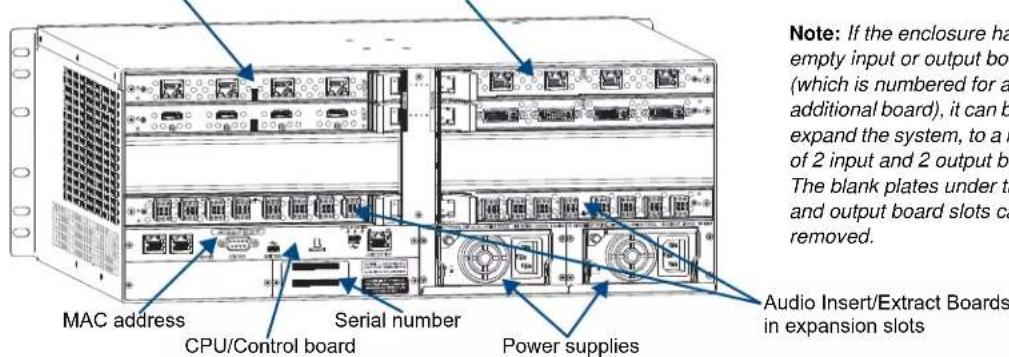
FIG. 3 Rear view of a fully loaded Enova DGX 8 enclosure with two expansion boards
Enova DGX 16
Input boards (up to 4 in input board slots) Output boards (up to 4 in output board slots)
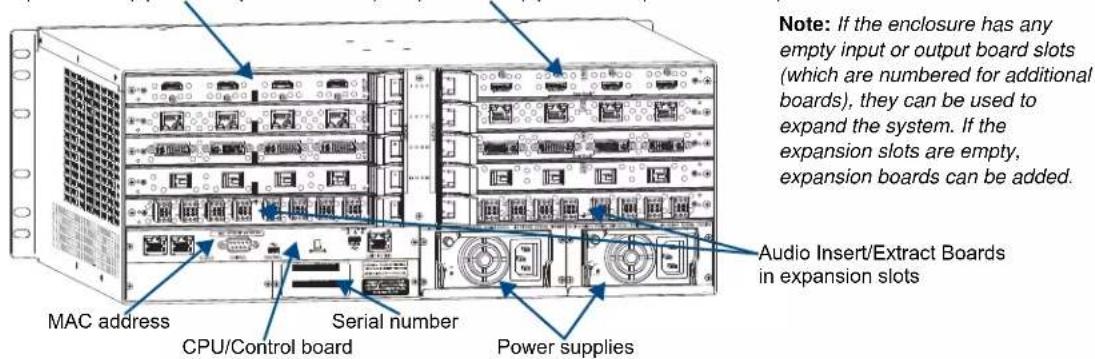
FIG. 4 Rear view of a fully loaded Enova DGX 16 enclosure with two expansion boards
Enova DGX 32

FIG. 5 Rear view of a fully loaded Enova DGX 32 enclosure with two expansion boards
Enova DGX 64

FIG. 6 Rear view of a fully loaded Enova DGX 64 enclosure with eight expansion boards
Rear View Components
- Input and output boards (some slots may be empty, depending on the configuration)
- Expansion boards (optional)
- CPU/Control board
- Enova DGX 8/16/32: two standard redundant power supplies
- Enova DGX 64: four standard power supplies (fourth power supply provides redundancy)
- Serial number
- MAC address
The following sections briefly introduce the hardware on the rear of the enclosure.
CPU/Control Board

FIG. 7 CPU/Control board
The CPU/Control board is on the left rear of the enclosure, directly below the input connectors.
Each CPU includes the following port and slot options:
- Two RJ-45 ports – for connecting autonomous devices (linking of enclosures is not allowed)
- Control port* (DB-9, RS-232) – for attaching an external serial control device (see page 62)
- Control port* (USB mini-B) – for attaching an external control device (see page 64)
- SD card slot – ships with an installed MicroSD memory card for CPU backup (see page 69)
- Program port (USB mini-AB) – for establishing a connection from the Integrated NetLinx Master to the PC's COM port (see page 47) and for initial setup of the system
- LAN 100/1000 port (Ethernet RJ-45) – the connection from the integrated NetLinx Master to a LAN (see page 47) for all runtime control, NetLinx programming, etc.
Each CPU includes four LED indicators:
- System Status LED (to the left of the Control ports) – for system status
- Status, Output, and Input LEDs (above Program connector) – indicate system communication status and when data is sent and received (for modes and blink patterns, see page 47)
* The two Control ports provide direct control of matrix switcher processing (they do not work on the same layer of control as the integrated Master, which uses the LAN 100/1000 and Program ports).
Power Supply Units
Each of the power supply units on the rear of the enclosure (FIG. 8) has a power receptacle that will accept all major international standard power sources. (US power cords are included with all shipments unless ordered otherwise.) Maximum power specifications are provided on the power supply receptacles. For information on applying power, see page 42.
Each power supply unit has two LED indicators:
- AC: Green LED – power is good
• DC: The DC indicator uses a tri-color LED - Green – power is good
- Amber – temperature is above normal
- Red – power supply is in a fault state

FIG. 8 Power supply receptacles for Enova DGX 8/16 (upper left), Enova DGX 32 (upper right), and Enova DGX 64 (below)
Input and Output Boards
A single enclosure can handle a combination of signals depending on the types of input and output boards.
Note: All boards in the table below are HDCP 1.4 compatible except for the SC Optical Boards.
| Input and Output Boards and Supported Signals | ||||||||||||
| I/O Board Types | Signal Types | HDMI w/HDCP | HDMI w/out HDCP | DVI-D w/HDCP | DVI-D w/out HDCP | Embedded Audio | Embedded Audio from Audio Insert Extract Board | Analog Video | Discrete Digital Audio | Analog Stereo Audio | 3D Video | Deep Color |
| Input: HDMI | ● | ● | ●* ●* | ● | ● | ● | ● | |||||
| Output: HDMI | ● | ● | ●* ●* | ● | ● | ● | ||||||
| Input: DVI | ● | ● | ● | ● ●** | ● | ● | ● | |||||
| Output: DVI | ● | ● | ● | ● ●** | ● | ● | ||||||
| Input and Output: DXLink Twisted Pair^ | ● | ● | ● | ● | ● | ● | ● | *** ● | ● | |||
| Input and Output: DXLink Fiber | ● | ● | ● | ● | ● | ● | ● | *** ● | ● | |||
| Input and Output: SC Optical^^ | ● | ● | ● *** ● | ● | ||||||||
* HDMI Boards require a cable adapter to support single-link DVI signals.
** For a DVI Board to support embedded audio on an HDMI signal, the EDID must be updated.
*** Supported analog video signals include RGBHV, RGBS, RGsB, and Y/Pb/Pr in and RGBHV out.
^ Signals supported by DXLink Twisted Pair Boards depend on the type of DXLink Twisted Pair Transmitters and Receivers used.
^^ Signals supported by SC Optical Boards depend of the type of DGX Fiber Transmitters and Receivers used.
Note: The DXLink Twisted Pair Boards also support embedded power, NetLinx control, and Ethernet; the DXLink Fiber Boards also support NetLinx control and Ethernet (Duplex units provide this by default; Simplex units require additional setup).
All signals are automatically converted to the destination device's format, with DXLink Twisted Pair TXs and RXs used for transport of signals with DXLink Twisted Pair Boards, DXLink Fiber TXs and RXs used for transport of signals with DXLink Fiber Boards, and DGX Fiber TXs and RXs used in the conversion process for the DGX SC Optical Boards.
Enova DGX 8
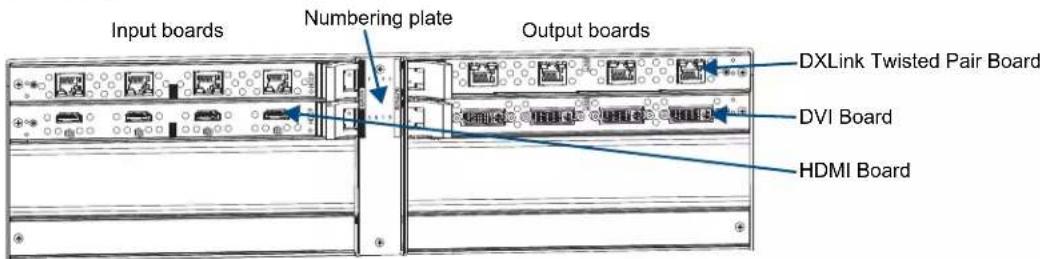
FIG. 9 DGX DXLink Twisted Pair, DVI, and HDMI Input and Output Boards shown
Enova DGX 8 enclosures have four horizontal I/O board slots (two slots each for input and output boards with four connectors each), allowing for a maximum configuration of 8x8.
Enova DGX 16

FIG. 10 DGX HDMI, DXLink Twisted Pair, DVI, and DGX SC Optical Input and Output Boards shown
Enova DGX 16 enclosures have eight horizontal I/O board slots (four slots each for input and output boards with four connectors each), allowing for a maximum configuration of 16x16.
Enova DGX 32

FIG. 11 HDMI, DXLink Twisted Pair, DVI, and SC Optical Input and Output Boards shown
Enova DGX 32 enclosures have 16 vertical I/O board slots (eight slots each for input and output boards with four connectors each), allowing for a maximum configuration of 32x32.
Enova DGX 64

FIG. 12 HDMI, DVI, DXLink Twisted Pair, and DXLink Fiber Input and Output Boards shown
Enova DGX 64 enclosures have 32 horizontal I/O board slots (16 slots each for input and output boards with four connectors each), allowing for a maximum configuration of 64x64.
For information on the boards included in your system, including connector types, cabling directions, installation considerations, and specifications, see the specific board chapter in this manual.
- HDMI Boards – page 77
- DVI Boards – page 87
- DXLink Twisted Pair Boards – page 93
- DXLink Fiber Boards – page 108
• SC Optical Boards – page 131
If a system has empty input or output board slots (which are numbered for additional inputs and outputs), the slots can be used to expand the system. For information on adding or replacing boards, see “Appendix E – Adding or Replacing Boards” on page 233.
Note: The Audio Insert/Extract (expansion) Board is also available. It provides audio insertion and extraction functionality and is used in conjunction with HDMI, DVI, DXLink Twisted Pair, and DXLink Fiber Boards (see "Expansion Boards" on page 23).
Input and Output Board Connectors
The connectors on the input and output boards are the attachment points for source and destination devices that connect to the system. Viewed from the rear of the enclosure, the input connectors (for attaching sources) are on the left, and the output connectors (for attaching destinations) are on the right.
Input and output channel numbers correspond to the connectors and are located as follows:
- Enova DGX 8/16 – on the vertical numbering plate (metal strip) between the input and output connectors.
- Enova DGX 32 – on the horizontal numbering plate (metal strip) directly above the connectors.
- Enova DGX 64 – on the vertical numbering plate (metal strip) between the left and right input and left and right output connectors.
Connectors and Signal Types
| Connector Supported Signals | |
| HDMI • HDMI with or without HDCP or embedded digital audio• DVI-D (single link) with or without HDCP (adapter cable required) | |
| DVI • DVI-D (single link) with or without HDCP• HDMI with or without HDCP or embedded digital audio* | |
| DXLink (RJ-45)(Signal support depends on the type of DXLink Twisted Pair Transmitters and Receivers used.) | • HDMI with or without HDCP or embedded digital audio• DVI with or without HDCP or embedded digital audio• Analog video input (RGBHV, RGBS, RGsB, Y/Pb/Pr)• Digital audio or analog stereo audio• Embedded power, NetLinx, and Ethernet |
| DXLink Fiber (LC Duplex)(Signal support depends on the type of DXLink Fiber Transmitters and Receivers used.) | • HDMI with or without HDCP or embedded digital audio• DVI with or without HDCP or embedded digital audio• Analog video input (RGBHV, RGBS, RGsB, Y/Pb/Pr)• Digital audio or analog stereo audio• NetLinx and Ethernet (DXLink Fiber, Duplex models only)** |
| SC Fiber (SC Optical)(Signal support depends on the type of DGX Fiber Transmitters and Receivers used.) | • HDMI (non-HDCP) output as DVI (adapter cable required)• DVI-D (non-HDCP)• Analog video input (RGBHV, RGBS, RGsB, Y/Pb/Pr)• Analog video output (RGBHV)• Analog stereo audio or S/PDIF |
* For a DVI connector to support embedded audio on an HDMI signal, the EDID must be updated.
** Simplex – control can be provided if a supplemental independent network connection is used (see page 125).
Note: An analog stereo audio signal from a pluggable 3-position terminal block connector can be inserted from an Audio Insert/Extract Board onto a DVI or HDMI signal (replaces any existing embedded digital audio signal). The Audio Insert/Extract Board also works in conjunction with DVI and HDMI signals on DXLink Twisted Pair and DXLink Fiber boards.
Expansion Boards
Expansion boards provide additional functionality to the system. The Enova DGX 8/16/32 can each hold two expansion boards. The Enova DGX 64 can hold eight expansion boards (see FIG. 6 on page 18).
Currently Enova DGX Switchers have one type of expansion board: the Audio Insert/Extract Board. This board is used in conjunction with the embedded audio feed on standard boards, which must be HDMI, DVI, DXLink Twisted Pair, or DXLink Fiber. For additional information on the Audio Insert/Extract Board, see page 136.
Note: Numbers for connectors on expansion boards are on the boards themselves not on the numbering plate at the top which is for the standard input and output boards.

FIG. 13 Audio Insert/Extract (expansion) Boards – shown with a variety of video input and output boards
Note: Enova DGX 8 only – AIE Board connectors 1-8 in the left and right expansion slots correspond to standard connectors 1-8 on the input and output boards respectively. AIE connectors 9-16 are inoperable.
If the expansion board slots in an enclosure are empty, the slots can be used for expansion boards to expand the functionality of the system. The procedure for installing/replacing an Audio Insert/Extract Board and setting it for insertion or extraction starts on page 140.

Caution: Standard input and output boards will not fit in the expansion slots.
Important: Setting the DIP switches is the only mechanism for configuring the Audio Insert/Extract Board to either insert or extract audio. Therefore, setting the switches (which requires removal of the board from the enclosure) needs to be done at the time of installation setup.
Serial Number
The serial number is normally located on the rear of the enclosure on the left.
- Enova DGX 8 – see FIG. 3 on page 17
- Enova DGX 16 – see FIG. 4 on page 17
- Enova DGX 32 – see FIG. 5 on page 18
- Enova DGX 64 – see FIG. 6 on page 18
Before installation, we recommend recording the serial number for the enclosure (and for each module and/or wallplate if applicable) in an easily accessible location.
MAC Address
The MAC address for the system is located directly above the Control (DB-9 serial) port on the CPU.
Enova DGX 8 – General Specifications
| General Specifications | |
| Parameter Value | |
| Approvals UL 60950-1, CSA 60950-1, IEC 60950-1 | CE EN 60950-1, CE EN 55022 Class A, CE EN 55024, FCC CFR Title 47 Part 15 Subpart B Class A, ICES-003 Class A, RoHS, WEEE |
| AC Power 100 VAC to 240 +/-10% VAC single phase, 50/60 Hz | |
| Power Capacity (max.) 977 Watts, with redundancy | |
| Power Consumption (max.) 415 Watts, fully loaded | DXLink Power enclosure with redundancy |
| Power Consumption (typical) 145 Watts, fully loaded | HDMI enclosure with redundancy |
| Thermal Dissipation Full Capacity (max.) 3334 BTU/hr., with redundancy | |
| Thermal Dissipation (max.) | 1416 BTU/hr., fully loaded DXLink Power enclosure with redundancy |
| Thermal Dissipation (typical) 495 BTU/hr., fully loaded HDMI enclosure with redundancy | |
| Power Factor Correction (PFC) Supported, complies with EN60555-2 and EN61000-3-2 | |
| Operational Temperature 32° F to 104° F (0°C to 40°C) | |
| Storage Temperature -22° F to 158° F (-30°C to 70°C) | |
| Operational Humidity 5% to 85% RH (non-condensing) | |
| Storage Humidity | 0 to 90% RH (non-condensing) |
| MTBF | 168,000 hrs. |
| Dimensions | 15 in. (38.1 cm) depth; 16 in. (40.64 cm) depth with extractors 19 in. (48.26 cm) width including integral rack mounting ears 6.84 in. (17.37 cm) height (4 RU) |
| Weight | Approximately 35 lb. (15.9 kg) per loaded enclosure |
| Shipping Weight | Approximately 45 lb. (20.4 kg) per loaded enclosure |
| Per Channel Aggregate Data Rate (max.) | 12.8 Gbps |
| Noise Level | <52.5 dBA @ 1 m (typical @ 25°C) |
| Airflow | Forced air (inlet on side; exhaust on side) |
| Compatible DXLinkTM Twisted Pair Transmitters and Receivers | DXLink Multi-Format Transmitter ModulesDXLink HDMI Transmitter Modules (discontinued product)DXLink Multi-Format Wallplate TransmittersDXLink Multi-Format Decor Style Wallplate Transmitter (US)DXLink HDMI Receiver Modules |
| Compatible DXLinkTM Fiber Transmitters and Receivers | DXLink Multi-Format MM Fiber TX, Duplex/SimplexDXLink Multi-Format SM Fiber TX, Duplex/SimplexDXLink HDMI MM Fiber RX, Duplex/SimplexDXLink HDMI SM Fiber RX, Duplex/Simplex |
| Compatible DGX Fiber Transmitters and Receivers | DGX Fiber DVI Transmitter and Receiver ModulesDGX Fiber HD-15 Transmitter and Receiver Modules |
AMX reserves the right to modify its products and their specifications without notice.
Enova DGX 16 – General Specifications
| General Specifications | |
| Parameter Value | |
| Approvals UL 60950-1, CSA 60950-1, IEC 60950-1 | CE EN 60950-1, CE EN 55022 Class A, CE EN 55024, FCC CFR Title 47 Part 15 Subpart B Class A, ICES-003 Class A, RoHS, WEEE |
| AC Power 100 VAC to 240 +/-10% VAC single phase, 50/60 Hz | |
| Power Capacity (max.) 977 Watts, with redundancy | |
| Power Consumption (max.) 835 Watts, fully loaded | DXLink Power enclosure with redundancy |
| Power Consumption (typical) 362 Watts, fully loaded | HDMI enclosure with redundancy |
| Thermal Dissipation Full Capacity (max.) 3334 BTU/hr., with redundancy | |
| Thermal Dissipation (max.) | 2849 BTU/hr., fully loaded DXLink Power enclosure with redundancy |
| Thermal Dissipation (typical) 1235 BTU/hr, fully loaded HDMI enclosure with redundancy | |
| Power Factor Correction (PFC) Supported, complies with EN60555-2 and EN61000-3-2 | |
| Operational Temperature 32°F to 104°F (0°C to 40°C) | |
| Storage Temperature -22°F to 158°F (-30°C to 70°C) | |
| Operational Humidity 5% to 85% RH (non-condensing) | |
| Storage Humidity | 0 to 90% RH (non-condensing) |
| MTBF | 168,000 hrs. |
| Dimensions | 15 in. (38.1 cm) depth; 16 in. (40.64 cm) depth with extractors 19 in. (48.26 cm) width including integral rack mounting ears 6.84 in. (17.37 cm) height (4 RU) |
| Weight | Approximately 55 lb. (24.95 kg) per loaded enclosure |
| Shipping Weight | Approximately 65 lb. (29.5 kg) per loaded enclosure |
| Per Channel Aggregate Data Rate (max.) | 12.8 Gbps |
| Noise Level | <52.5 dBA @ 1 m (typical @ 25°C) |
| Airflow | Forced air (inlet on side; exhaust on side) |
| Compatible DXLinkTM Twisted Pair Transmitters and Receivers | DXLink Multi-Format Transmitter ModulesDXLink HDMI Transmitter Modules (discontinued product)DXLink Multi-Format Wallplate TransmittersDXLink Multi-Format Decor Style Wallplate Transmitter (US)DXLink HDMI Receiver Modules |
| Compatible DXLinkTM Fiber Transmitters and Receivers | DXLink Multi-Format MM Fiber TX, Duplex/SimplexDXLink Multi-Format SM Fiber TX, Duplex/SimplexDXLink HDMI MM Fiber RX, Duplex/SimplexDXLink HDMI SM Fiber RX, Duplex/Simplex |
| Compatible DGX Fiber Transmitters and Receivers | DGX Fiber DVI Transmitter and Receiver ModulesDGX Fiber HD-15 Transmitter and Receiver Modules |
AMX reserves the right to modify its products and their specifications without notice.
Enova DGX 32 – General Specifications
| General Specifications | |
| Parameter Value | |
| Approvals UL 60950-1, CSA 60950-1, IEC 60950-1, CE EN 60950-1,CE EN 55022 Class A, CE EN 55024, FCC CFR Title 47 Part 15Subpart B Class A, ICES-003 Class A, RoHS, WEEE | |
| AC Power 100 VAC to 240 +/-10% VAC single phase, 50/60 Hz | |
| Power Capacity (max.) 1320 Watts, with redundancy @ 110 VAC1730 Watts, with redundancy @ 230 VAC2640 Watts, without redundancy @ 110 VAC3459 Watts, without redundancy @ 230 VAC | |
| Power Consumption (max.) | 1692 Watts*, fully loaded DXLink Power enclosure without redundancy |
| Power Consumption (typical) 585 Watts, fully loaded HDMI enclosure with redundancy | |
| Thermal Dissipation Full Capacity (max.) 4508 BTU/hr, with redundancy @ 110 VAC5908 BTU/hr, with redundancy @ 230 VAC9016 BTU/hr, without redundancy @ 110 VAC11813 BTU/hr, without redundancy @ 230 VAC | |
| Thermal Dissipation (max.) 5778 BTU/hr*, fully loaded DXLink Power enclosure without redundancy | |
| Thermal Dissipation (typical) 1998 BTU/hr, fully loaded HDMI enclosure with redundancy | |
| Power Factor Correction (PFC) Supported, complies with EN60555-2 and EN61000-3-2 | |
| Operational Temperature 32°F to 104°F (0°C to 40°C) | |
| Storage Temperature -22°F to 158°F (-30°C to 70°C) | |
| Operational Humidity 5% to 85% RH (non-condensing) | |
| Storage Humidity 0 to 90% RH (non-condensing) | |
| Dimensions | 20.08 in. (51 cm) depth; 21.08 in. (53.54 cm) with extractors19 in. (48.26 cm) width including integral rack mounting ears10.45 in. (26.54 cm) height (6 RU) |
| Weight | Approximately 73 lb. (33.1 kg) per loaded enclosure |
| Shipping Weight | Approximately 83 lb. (37.6 kg) per loaded enclosure |
| MTBF | 92,000 hrs. |
| Per Channel Aggregate Data Rate (max.) | 12.8 Gbps |
| Noise Level | <54.0 dBA @ 1 m (typical @ 25°C) |
| Airflow | Forced air (inlet on sides; exhaust on back and top) |
| Compatible DXLinkTM Twisted Pair Transmitters and Receivers | DXLink Multi-Format Transmitter ModulesDXLink HDMI Transmitter Modules (discontinued product)DXLink Multi-Format Wallplate TransmittersDXLink Multi-Format Decor Style Wallplate Transmitter (US)DXLink HDMI Receiver Modules |
| Compatible DXLinkTM Fiber Transmitters and Receivers | DXLink Multi-Format MM Fiber TX, Duplex/SimplexDXLink Multi-Format SM Fiber TX, Duplex/SimplexDXLink HDMI MM Fiber RX, Duplex/SimplexDXLink HDMI SM Fiber RX, Duplex/Simplex |
| Compatible DGX Fiber Transmitters and Receivers | DGX Fiber DVI Transmitter and Receiver ModulesDGX Fiber HD-15 Transmitter and Receiver Modules |
* Use the Enova DGX Configuration Tool located at www.amx.com/enova to determine the power requirements of a configuration and whether any of the DXLink Transmitters or Receivers should be powered with the local power supply to maintain power supply redundancy in the Enova DGX 32 enclosure.
AMX reserves the right to modify its products and their specifications without notice.
Enova DGX 64 – General Specifications
| General Specifications | |
| Parameter Value | |
| Approvals UL 60950-1, CSA 60950-1, IEC 60950-1 | CE EN 60950-1, CE EN 55022 Class A, CE EN 55024, FCC CFR Title 47 Part 15 Subpart B Class A, ICES-003 Class A, RoHS, WEEE |
| AC Power 100 VAC to 240 +/-10% VAC single phase, 50/60 Hz | |
| Power Capacity (max.) 3960 Watts, @ 110 VAC | 5189 Watts, @ 230 VAC |
| Power Consumption (max.) 3240 Watts, fully loaded DXLink Power enclosure | |
| Power Consumption (typical) 1024 Watts, fully loaded HDMI enclosure | |
| Thermal Dissipation Full Capacity (max.) 13524 BTU/hr, @ 110 VAC17721 BTU/hr, @230 VAC | |
| Thermal Dissipation (max.) 11065 BTU/hr, fully loaded DXLink Power enclosure | |
| Thermal Dissipation (typical) 3497 BTU/hr, fully loaded HDMI enclosure | |
| Power Factor Correction (PFC) Supported, complies with EN60555-2 and EN61000-3-2 | |
| Operational Temperature 32°F to 104°F (0°C to 40°C) | |
| Storage Temperature -22°F to 158°F (-30°C to 70°C) | |
| Operational Humidity 5% to 85% RH (non-condensing) | |
| Storage Humidity | 0 to 90% RH (non-condensing) |
| Dimensions | 19.99 in. (50.78 cm) depth; 21.14 in. (53.70 cm) with extractors18.96 in. (48.15 cm) width with rack mounting ears22.72 in. (57.71 cm) height (13 RU) |
| Weight | Approximately 150 lb. (68.0 kg) per loaded enclosure |
| Shipping Weight | Approximately 257 lb. (116.6 kg) per loaded enclosure |
| MTBF | 86,000 hrs |
| Per Channel Aggregate Data Rate (max.) | 26 Gbps |
| Noise Level | <50.1 dBA @ 1 m (typical @ 25°C) |
| Airflow | Forced air (inlet on sides; exhaust on back and top) |
| Compatible DXLinkTM Twisted Pair Transmitters and Receivers | DXLink Multi-Format Transmitter ModulesDXLink HDMI Transmitter Modules (discontinued product)DXLink Multi-Format Wallplate TransmittersDXLink Multi-Format Decor Style Wallplate Transmitter (US)DXLink HDMI Receiver Modules |
| Compatible DXLinkTM Fiber Transmitters and Receivers | DXLink Multi-Format MM Fiber TX, Duplex/SimplexDXLink Multi-Format SM Fiber TX, Duplex/SimplexDXLink HDMI MM Fiber RX, Duplex/SimplexDXLink HDMI SM Fiber RX, Duplex/Simplex |
| Compatible DGX Fiber Transmitters and Receivers | DGX Fiber DVI Transmitter and Receiver ModulesDGX Fiber HD-15 Transmitter and Receiver Modules |
AMX reserves the right to modify its products and their specifications without notice.
Enova DGX – NetLinx and Control Specifications
| NetLinx and Control Specifications | |
| Integrated Controller | |
| LAN/ Ethernet Port NetLinx on-board | Master is an NX Class ControllerTCP/IP uplink port (LAN 10/100/1000)Supports up to 64-port un-managed 10/100 Ethernet Switch*Static IP or DHCP/DNS, SSL, Auto-negotiating, Auto MDI/MDI-X CrossoverSupports IPv4 and IPv6 networksSupports HTTP, HTTPS, Telnet, FTP, TCP/IP, UDP/IP, CIP, SMTP,Built-in Web ServerIncludes support for DXLinkTM devicesRJ-45 connector |
| Processor 1600 MIPS | |
| Memory • SDRAM 512 MB | NVRAM 1 MBFlash 8 GB |
| Program Port (USB) USB Mini-AB con | n nector (used for NetLinx Studio control) |
| Enclosure Control | |
| Control Port (Serial) Bidirectional RS | 232Baud rates of 9600 (default), 19200, 38400, 57600DB-9 connector |
| Control Port (USB) USB Mini-B connector | |
* Cascaded architecture actual throughput dependent on loading.
- Enova DGX 64: Worst case per port throughput is 7 Mbps. Best case is 100 Mbps when used with 64 DXLink Transmitters and 64 DXLink Receivers.
- Enova DGX 32: Worst case per port throughput is 10 Mbps. Best case is 100 Mbps when used with 32 DXLink Transmitters and 32 DXLink Receivers.
- Enova DGX 16: Worst case per port throughput is 10 Mbps. Best case is 100 Mbps when used with 16 DXLink Transmitters and 16 DXLink Receivers.
- Enova DGX 8: Worst case per port throughput is 10 Mbps. Best case is 100 Mbps when used with 8 DXLink Transmitters and 8 DXLink Receivers.
For individual board information and specifications, see the specific board chapter in this manual.
- HDMI Input and Output Boards – page 77
● DVI Input and Output Boards – page 87 - DXLink Twisted Pair Input and Output Boards – page 93
- DXLink Fiber Input and Output Boards – page 108
- SC Optical Input and Output Boards – page 131
- Audio Insert/Extract (expansion) Board – page 136
AMX reserves the right to modify its products and their specifications without notice.
Configuration Information and Control Options
Switching Configuration Information
The configuration file stored on the CPU contains routing and control information for the AMX Enova Routing System.
Note: The configuration file is automatically generated by the system based on its hardware – input and output boards, expansion boards, front control panel, CPU, etc. If boards are added during runtime, they are immediately added to the system's configuration.
From the factory, this configuration normally contains two virtual matrices (VMs) for switching signals:
VM 0 = all signals and VM 1 = video signals. In systems like the Enova DGX Switcher, VM 1 and VM 2 normally route the same signals. On occasion, systems are shipped with custom programmed configurations according to customer specifications.
Important: Embedded audio signals switch with the video channels. Through the use of the Audio Insert/Extract Board, embedded audio can be extracted and external audio matrix switches can be executed (using a separately purchased audio matrix switcher like the Precis DSP) and then reinserted post-switch on the output side.
XNConnect configuration software can be used to customize the configuration file (see page 206). However, unless you need to modify your system, you will not need to use XNConnect. If you do modify the configuration file, we recommend making a copy of it first. Configuration file modifications include creating local presets and setting the Control Panel password, as well as adding or managing hardware. XNConnect graphically displays the Enova DGX Switcher and its control configuration.
Board Configuration Information
DGX Configuration Software is available at www.amx.com for use with HDMI, DVI, DXLink Twisted Pair, and DXLink Fiber Boards. This software can be used to set the Scaler mode, the aspect ratio, and custom resolutions as well as re-program the EDID on input boards (see page 189).
Important: Because signals routed through HDMI, DVI, DXLink Twisted Pair, and DXLink Fiber Boards in an Enova DGX Switcher normally produce a quality image, you will not need to use DGX Configuration Software unless the installation has special scaling, EDID, or HDCP requirements.
Control Options
Integrated NetLinx Central Control Processor
WebConsole interface – The main control method is through the integrated NetLinx Master's WebConsole interface. A server (LAN) connection is established through the LAN 100/1000 port on the CPU (see page 48). For WebConsole information, see page 163. For additional features supported by the NX Series Processor, see the “Integrated Master Functionality” section on page 72.
SEND_COMMANDs – The Enova DGX Switcher can be controlled using AMX SEND_COMMANDs. ICSP is the primary protocol for all system level messaging on integrated NetLinx Central Control Processors and is a peer-to-peer protocol used for both Master-to-Master and Master-to-device communications. For details, see page 183.
Control Panel
The Control Panel is standard on all Enova DGX Switchers (see page 146).
The following external methods of control are also available.
AMX Control Devices
The Enova DGX Switcher is compatible with a number of AMX control devices via Native NetLinx communication. For control programming information, see the chapter on ICSP commands on page 183 and the instruction manual for the specific AMX control device.
IP Control Software
Enova DGX Switchers can be controlled using the XBar (crosspoint control interface) via the device's WebConsole, which can be accessed through PC-based Internet browsing software. The server delivers HTML pages for setting up the system and a Java control applet, which allows for remote control of the Enova DGX Switcher.
BCS (Basic Control Structure) Protocol
The Enova DGX Switcher can be controlled with an external serial controller using BCS* protocol, a command language for programming control operations and for diagnostic purposes.
- Serial control (sends and receives ASCII characters)
- Use the Control (RS-232 serial) port or use the USB Control port (as a virtual COM port); both are located on the CPU
- Commands can be entered into a terminal emulation program on a PC
* For information on BCS commands, see the Instruction Manual – BCS Basic Control Structure Protocol at www.amx.com.
Third-Party Controllers
A third-party controller can be attached to an Enova DGX Switcher via the RS-232 serial port. Third-party control is also possible via a BCS Tunnel over TCP/IP (see page 68). If using a third-party controller, see the controller documentation for operating instructions.
XNNet Protocol
Advanced programmers who want to design their own control programs can use XNNet protocol. The XNNet API Communication Library that supports C, Java, and Visual Basic with examples of the XNNet protocol in use is available at www.amx.com.
System Diagnostic Options
The three system diagnostic options for the Enova DGX Switcher are APDiagnostics software, a programmer's interface, and DGX _SHELL commands. The last two display in a terminal program.
APDiagnostics
APDiagnostics is a software application that monitors and displays advanced diagnostic information about the behavior of the Enova DGX Switcher. This application is available at www.amx.com. APDiagnostics also works with AMX Matrix Switchers that are capable of reporting such data. For information on APDiagnostics, see Appendix C on page 217.
Programmer's Interface for System Diagnostics
The Enova DGX Switcher displays system information in the splash screen for diagnostic purposes. The information indicates the current status and well-being of the system components. The splash screen can be accessed using the terminal in NetLinx Studio (Tools/Terminal Session), DGX Configuration Software (see page 189), or another terminal emulation program. For information on the programmer's interface, see Appendix D on page 229.
DGX\_SHELL Commands
The Enova DGX Switcher supports a number of shell (command-line interpreter) commands for a variety of functions, both basic and advanced (see Appendix H on page 247).
Installation and Setup
SC Optical Boards
Important: If the Enova DGX Switcher contains Epica DGX SC Optical Boards, be sure to read all of the safety information for laser products in this chapter and in the SC Optical Boards chapter.
UL Safety Certifications, Notices, and Recommendations for Laser Products
Per UL requirements, make note of the following:
● The DGX SC Optical Boards comply with IEC Standard: IEC 60825-1, 2001.
- The boards also comply with 21 CFR 1040.10 and 1040.11 except for deviations pursuant to Laser Notice No. 50, dated June 24, 2007.
● The DGX SC Optical Output (TX) Boards are CLASS 1 LASER PRODUCTS.
● The maximum output power of the laser radiation is 4.08 mW.
Since the class of radiation emitted from the fiber port can be Class 3R when the fiber cable or dust plug is removed, a yellow and black label with the following caution is located on the rear of the enclosure.
CAUTION - CLASS 3R INVISIBLE LASER RADIATION WHEN OPEN AVOID DIRECT EYE EXPOSURE
FIG. 14 Caution label for Class 3R laser products
Important: No user serviceable parts are included inside Enova DGX Switchers; service should only be done by qualified personnel.
Caution: Use of controls or adjustments or performance of procedures other than those specified herein may result in hazardous radiation exposure.
Exercise caution when installing DGX Fiber products to avoid direct eye exposure to invisible laser radiation. Follow the recommendations below whenever installing or working with DGX Fiber products.
☐ Be sure to apply the power only after all fiber connections are made and no fiber ends are exposed.
☐ Do not remove dust plugs from SC fiber connectors or the dust caps from the fiber cables until establishing connections; avoid direct eye exposure.
☐ Make sure all cables, including fiber cables, are correctly connected and/or terminated.
Before you unplug a fiber cable on an input board, disconnect the power on the DGX TX that is connected to the input.
Before you unplug a fiber cable on an output board, disconnect the switch for that output connector.

DXLink Fiber Boards
Important: If the Enova DGX Switcher contains Enova DGX DXLink Fiber Boards, be sure to read all of the safety information for laser products in this chapter and in the DXLink Fiber Boards chapter.

Warning: DXLink Fiber units use laser transceivers, which are Class 1 Eye Safe per IEC 60825-1/CDRH requirements. While the Class 1 category indicates that the invisible laser used is safe, we recommend avoiding direct eye exposure when using any optical fiber products (see the OSHA directive on page 118).
Site Recommendations
When placing the enclosure, follow the recommendations and precautions in this section to reduce potential installation and operation hazards.
Environment
☐ Choose a clean, dust free, (preferably) air-conditioned location.
☐ Avoid areas with direct sunlight, heat sources, or high levels of EMI (Electromagnetic Interference).
Chassis Accessibility
Make sure the front and rear panels of the enclosure are accessible, so that you can monitor the Power indicator LED on the front and the other LED indicators on the rear. Leaving adequate clearance at the rear will also allow for easier cabling and service.
Power
Important: We recommend attaching all power cords to a surge protector (20 A) and/or an AC line conditioner.
The source's electrical outlet should be installed near the router, easily accessible, and properly grounded. Power should come from a building branch circuit. We strongly recommend using a dedicated line for the system's power. Use a minimum breaker current rating of 20A for 110V or 10A for 230V .
To avoid an overload, note the power consumption rating of all the equipment connected to the circuit breaker before applying power.
General Hazard Precautions
These recommendations address potential hazards that are common to all installations.
Important: DXLink twisted pair cable runs for DXLink equipment shall only be run within a common building. "Common building" is defined as: Where the walls of the structure(s) are physically connected and the structure(s) share a single ground reference.
Elevated Operating Temperature
The maximum rated ambient temperature for the Enova DGX Switcher is 104°F (40°C).
All equipment should be installed in an environment compatible with the manufacturer's maximum rated ambient temperature. In a closed or multi-unit rack assembly, the operating ambient temperature of the rack environment may be greater than the ambient room temperature.

Caution: To protect the equipment from overheating, do not operate in an area that exceeds 104irc F ( 40irc C) and follow the clearance recommendation below for adequate airflow.
Airflow Restriction
Enova DGX Switchers are designed to adequately dissipate the heat they produce under normal operating conditions; however, this design is defeated if high heat producing equipment is placed directly above or below an enclosure.

Caution: To prevent overheating, avoid placing high heat producing equipment directly above or below the enclosure. The system requires a minimum of one empty rack unit above and below (three empty rack units are recommended). Verify that the openings on the top and sides of the enclosure are not blocked and do not have restricted air flow.
Mechanical (Rack) Loading
When installing equipment in a rack, distribute the weight to avoid uneven mechanical loading. Note that fully loaded, the Enova DGX 8 weighs approximately 35 pounds (15.9 kg), the Enova DGX 16 weighs approximately 55 pounds (24.95 kg), the Enova DGX 32 weighs approximately 73 pounds (33.1 kg), and the Enova DGX 64 weighs approximately 150 pounds (68.0 kg).
Circuit Overloading
When connecting the equipment to the supply circuits, be aware of the effect that overloading the circuits might have on over-current protection and supply wiring.
Reliable Earthing (Grounding)
Reliable earthing of rack-mounted equipment should be maintained. If not using a direct connection to the branch circuit (e.g., plugging into a power strip), pay particular attention to supply connections.

Caution: We strongly recommend attaching all of the power cords to a surge protector and/or an AC line conditioner. After powering up the enclosure, apply power to the source and destination devices.
Unpacking
Enova DGX Switchers are shipped with one enclosure per shipping box. The invoice is sent separately; a packing slip is attached to the outside of each box. Each box contains the following items:
□ Enova DGX Digital Media Switcher
☐ Two standard US power cords for the Enova DGX 8/16/32 (if shipped within the US)
Or
Four standard US power cords for the Enova DGX 64 (if shipped within the US)
☐ Other enclosure related products, as needed
The documentation in the first box includes:
☐ AMX Enova DGX 8/16/32/64 Digital Media Switchers Quick Start Guide
☐ AMX Enova DGX Audio Insert/Extract Board Quick Start Guide
☐ Control Panel Custom Label Kit (for inputs and outputs and for LCD Function menu)
For orders comprising multiple enclosures, the shipping boxes are marked as “Chassis _ of _,” where the first blank is the box number and the second blank is the total number of boxes in the shipment.
Unpacking Tips
Before fully unpacking the enclosure, inspect the shipping box for any signs of damage. If a box is partially crushed or any sides have been broken open, notify the shipping agency immediately and contact your AMX representative (see the warranty at www.amx.com).
☐ Once unpacking is complete, closely check the physical condition of the enclosure.
□ Collect all documentation.
Note: Please save the original shipping container and packing materials. AMX is not responsible for damage caused by insufficient packing during return shipment to the factory. Shipping boxes are available; contact your AMX representative for details.
Options for System Setup with DXLink™ Twisted Pair
The following table contains the options in an Enova DGX Switcher for using DXLink Input and Output Boards in conjunction with DXLink Transmitters and Receivers.
Note: DXLink Modules can also be used as a standalone, end-to-end solution; see the "Instruction Manual – DXLink™ Twisted Pair Transmitters/Receiver."
System Setup Options – Enova DGX Boards with DXLink Modules/Wallplates
| DXLink Module/Wallplate Enova | DGX Input Board Enova DGX | Output Board DXLink Module | |
| HDMI TX Module → | DXLink Twisted Pair → | DXLink Twisted Pair → | HDMI RX Module |
| HDMI TX Modules → | DXLink Twisted Pair → | Any output board* → | Not applicable |
| Multi-Format TX Module → | DXLink Twisted Pair → | DXLink Twisted Pair → | HDMI RX Module |
| Multi-Format TX Module → | DXLink Twisted Pair → | Any output board* → | Not applicable |
| Multi-Format Wallplate TX → | DXLink Twisted Pair → | DXLink Twisted Pair → | HDMI RX Module |
| Multi-Format Wallplate TX → | DXLink Twisted Pair → | Any output board* → | Not applicable |
| Decor Wallplate TX → | DXLink Twisted Pair → | DXLink Twisted Pair → | HDMI RX Module |
| Decor Wallplate TX → | DXLink Twisted Pair → | Any output board* → | Not applicable |
| Not Applicable | Any input board* → | DXLink Twisted Pair → | HDMI RX Module |
* If the board is a DXLink Fiber Board it will need the appropriate DXLink Fiber unit; see the table below.
If the board is an SC Optical Board it will need the appropriate DGX Fiber Module; see the table on the next page.
A typical system setup for a source and destination is illustrated on page 100 and shows an Enova DGX 16 with DXLink Boards used in conjunction with DXLink HDMI Transmitters and Receivers.
Caution: If you plan to connect switching systems via their DXLink ports, be sure to read the information on page 103.

Options for System Setup with DXLink™ Fiber
The following table contains options for using DXLink Fiber Input and Output Boards in conjunction with DXLink Fiber Transmitters and Receivers in an Enova DGX Digital Media Switcher. The input/output boards and TX/RX units can be either Duplex or Simplex, as long as the model types match (multimode to multimode and single mode to single mode).
Important: Compatibility between hardware requires matching model types: multimode to multimode and single mode to single mode.
System Setup Options – Enova DGX Boards with DXLink Fiber Units
| DXLink Fiber TX | DXLink Fiber Input Board | DXLink Fiber Output Board | DXLink Fiber RX |
| Multi-Format MM Fiber TX → | Multimode Fiber → | Multimode Fiber → | HDMI MM Fiber RX |
| Multi-Format MM Fiber TX → | Multimode Fiber → | Single Mode Fiber → | HDMI SM Fiber RX |
| Multi-Format MM Fiber TX → | Multimode Fiber → | Any output board** → | Not applicable |
| Multi-Format SM Fiber TX → | Single Mode Fiber → | Single Mode Fiber → | HDMI SM Fiber RX |
| Multi-Format SM Fiber TX → | Single Mode Fiber → | Multimode Fiber → | HDMI MM Fiber RX |
| Multi-Format SM Fiber TX → | Single Mode Fiber → | Any output board** → | Not applicable |
| Not applicable | Any input board** → | Multimode Fiber → | HDMI MM Fiber RX |
| Not applicable | Any input board** → | Single Mode Fiber → | HDMI SM Fiber RX |
** If the board is a DXLink Twisted Pair Board it will need the appropriate DXLink Twisted Pair Module; see the table above. If the board is an SC Optical Board it will need the appropriate DGX Fiber Module; see the table on the next page.
A typical system setup for a source and destination is illustrated on page 116 and shows an Enova DGX 16 with DXLink Fiber Boards used in conjunction with DXLink Fiber Transmitters and Receivers.
Options for System Setup with SC Fiber
The table below contains the options in an Enova DGX Switcher for using SC Optical Boards in conjunction with DGX Fiber Modules.
Note: DGX Fiber Modules for SC Fiber can also be used as a standalone, end-to-end solution; see the "Instruction Manual – DGX Transmitters & Receivers."
| System Setup Options – Enova DGX Boards with DGX Fiber Modules | |||
| DGX Fiber Module Enova DGX Input Board Enova DGX | Output Board DGX Fiber Module | ||
| HD-15 or DVI TX → | SC Optical → | DVI or HDMI → | Not Applicable |
| HD-15 or DVI TX → | SC Optical → | DXLink Twisted Pair → | (requires DXLink TP RX) |
| HD-15 or DVI TX → | SC Optical → | DXLink Fiber* → | (requires DXLink Fiber RX*) |
| Not Applicable | DVI or HDMI → | SC Optical → | HD-15 or DVI RX |
| (requires DXLink TP TX) | DXLink Twisted Pair → | SC Optical → | HD-15 or DVI RX |
| (requires DXLink Fiber TX*) | DXLink Fiber* → | SC Optical → | HD-15 or DVI RX |
| HD-15 or DVI TX → | SC Optical → | SC Optical → | HD-15 or DVI RX |
* The transceiver on the DXLink Fiber Boards must match the transceiver on the DXLink Fiber unit, multimode to multimode and single mode to single mode.
A typical system setup for a source and a destination is illustrated on page 133 and shows an Enova DGX 32 with DGX SC Optical Boards used in conjunction with DGX Fiber Modules.
The DGX HD-15 and DGX DVI Transmitter Modules can be installed interchangeably. The DGX HD-15 and DGX DVI Receiver Modules are interchangeable as well, providing for an extremely flexible system. For example, in the same system, a source device can send a DVI signal and the destination device(s) can receive an RGBHV signal.
Note: In addition to the system setup options listed in the table above, optical signal flow between Enova DGX Switchers and Epica DGX 16/32/144 enclosures (from SC fiber connector to SC fiber connector) is supported. Contact your AMX representative for these and other system design possibilities.
Rack Installation and System Setup
Enova DGX Switchers can be mounted in a standard EIA 19 in. (48.26 cm) rack. Required Items for Rack Installation:
□ Enclosure
☐ Enova DGX 64 only – two rack mounting handles (provided)
☐ Standard EIA 19 in. (48.26 cm) rack
□ Screwdriver
☐ Screws that fit your rack for mounting the enclosure
Power cords (provided)
□ Surge-protector – highly recommended
Optional Items for Rack Installation:
☐ A PC or laptop computer with a null modem cable for communication with the enclosure via the RS-232 serial (Control) port
Installation Recommendations:
- Write the serial numbers (normally located on rear of enclosure) in an easily accessible location before installing the enclosure in a rack.
- Use earth-grounded power cords and equipment with an Enova DGX Switcher.
- Attach all power cords to a single surge protector and/or an AC line conditioner.
- Apply power to the Enova DGX Switcher before applying power to its source and destination devices.
Safety Recommendations for Laser Products
Important: No user serviceable parts are included inside Enova DGX Switchers; service should only be done by qualified personnel.

Caution - Use of controls or adjustments or performance of procedures other than those specified herein may result in hazardous radiation exposure.
Exercise caution when installing Epica SC Fiber and Enova DGX DXLink Fiber products to avoid direct eye exposure to invisible laser radiation. Follow the recommendations below whenever installing or working with fiber products.
☐ Be sure to apply the power only after all the fiber connections are made and no fiber ends are exposed.
☐ Do not remove dust plugs from fiber connectors or the dust caps from the fiber cables until establishing connections; avoid direct eye exposure.
☐ Make sure all cables, including fiber cables, are correctly connected and/or terminated.
Before you unplug a fiber cable on an input board, disconnect the power on the transmitter that is connected to the input.
Before you unplug a fiber cable on an output board, disconnect the switch for that output connector.
Installation Procedure
A flow chart showing the installation sequence is in FIG. 15. The procedure below the chart provides general steps with references to detailed information found in later sections of the manual.
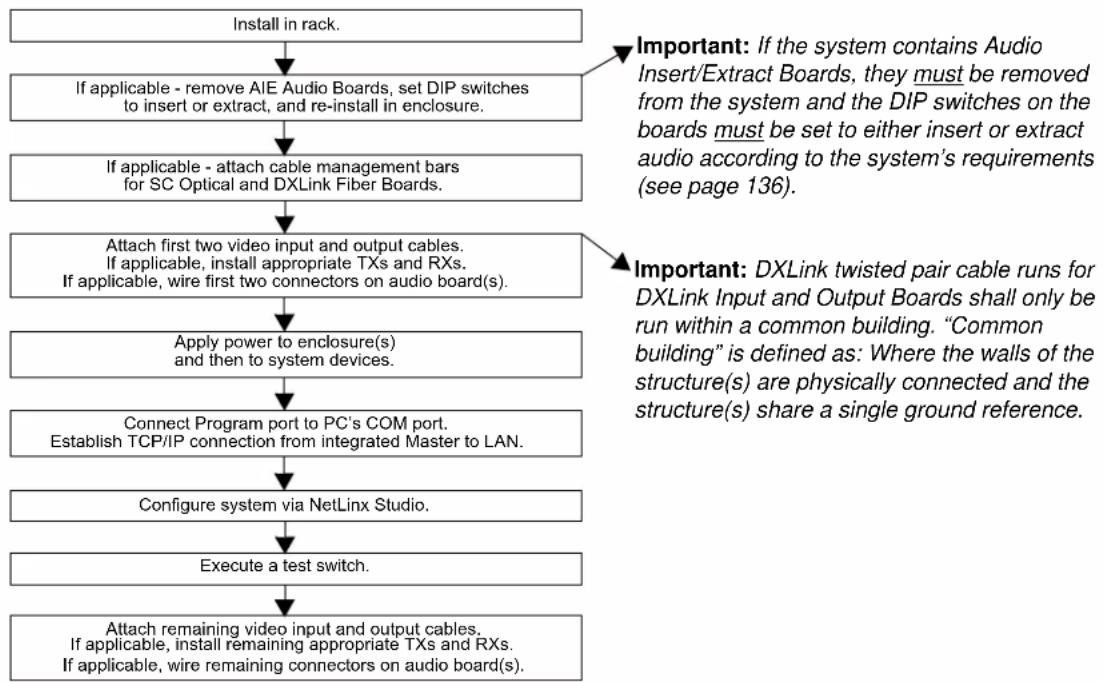
flowchart
graph TD
A["Install in rack."] --> B["If applicable - remove AIE Audio Boards, set DIP switches to insert or extract, and re-install in enclosure."]
B --> C["If applicable - attach cable management bars for SC Optical and DXLink Fiber Boards."]
C --> D["Attach first two video input and output cables.<br>If applicable, install appropriate TXs and RXs.<br>If applicable, wire first two connectors on audio board(s)."]
D --> E["Apply power to enclosure(s) and then to system devices."]
E --> F["Connect Program port to PC's COM port.<br>Establish TCP/IP connection from integrated Master to LAN."]
F --> G["Configure system via NetLinx Studio."]
G --> H["Execute a test switch."]
H --> I["Attach remaining video input and output cables.<br>If applicable, install remaining appropriate TXs and RXs.<br>If applicable, wire remaining connectors on audio board(s)."]
J["Important: If the system contains Audio Insert/Extract Boards, they must be removed from the system and the DIP switches on the boards must be set to either insert or extract audio according to the system's requirements (see page 136)."] --> K["Important: DXLink twisted pair cable runs for DXLink Input and Output Boards shall only be run within a common building. "Common building" is defined as: Where the walls of the structure(s) are physically connected and the structure(s) share a single ground reference."]
FIG. 15 Flow chart for installation procedure

Caution: To prevent overheating and airflow restriction, avoid placing high heat producing equipment directly above or below the enclosure. The system requires a minimum of one empty rack unit above and below (three empty rack units are recommended). Verify that the openings on the top and sides of the enclosure are not blocked and do not have restricted air flow.
Note: If desired, remove any rubber feet present from bottom of enclosure before rack installation.
Installing an Enova DGX 64 Enclosure
This procedure applies to starting the installation of an Enova DGX 64. For either completing the Enova DGX 64 installation or installing an Enova DGX 8/16/32, see the instructions at the bottom of this page.
To start installation of Enova DGX 64 enclosure in rack (requires 3 people minimum):
Important: Do not use the board extractor handles to lift the enclosure or to maneuver it into place. Use the lifting handles provided (see Step 6) to maneuver it. We recommend using a temporary shelf for support.
-
While the shipping box containing the enclosure is still on the pallet, cut loose and remove the outer straps.
-
Remove the cardboard tray from the top of the reusable shipping box.
Note: The shipping box is mounted on wheels.
- Lift the shipping box off of the pallet.
Caution: The Enova DGX 64 weighs approximately 150 lb (68.0 kg) for a fully loaded enclosure. Ensure all parties involved in lifting the shipping box are prepared and follow local requirements as necessary for the task (e.g., wearing proper lifting attire, number of lifters, etc.).
-
Unlock the four latches on the two sides of the shipping box.
-
Lift the top of the shipping box straight up and over the Enova DGX 64 and set aside.
-
Attach the two handles provided for lifting, using either the front or rear position as indicated in FIG. 16 (be sure to tighten down all four screws securely).
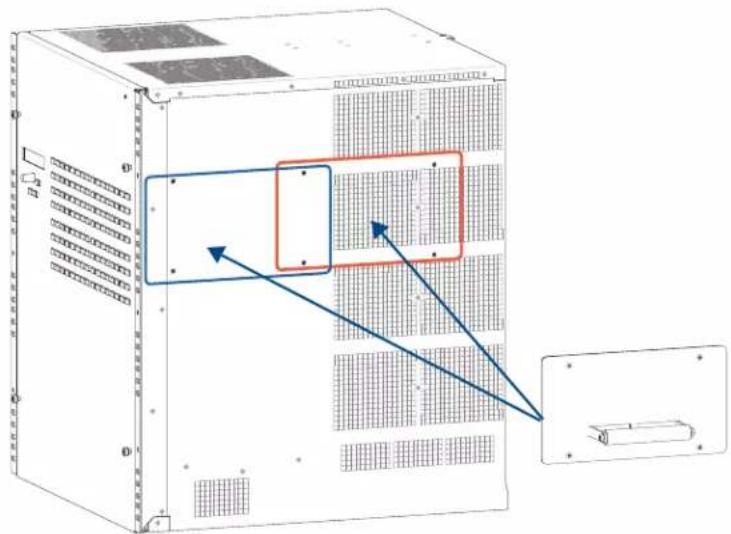
FIG. 16 Handle position options
- Using the bottom of the shipping box, roll the enclosure into position.
- Lift onto a temporary shelf (or some other type of support) in the rack.
- Align as closely as possible and then remove the lifting handles.
- Lift into position and screw in the rack ear screws.
- To complete the setup of the Enova DGX 64, begin the following procedure at Step 4.
Installing an Enova DGX Enclosure
This procedure applies to the Enova DGX 8/16/32/64 (for completing the installation of an Enova DGX 64 enclosure above, start at Step 4).
To install and set up an Enova DGX Switcher:
Important: Installation of the Enova DGX 32 requires a minimum of two people for Step 2; we recommend using three people.
- Enova DGX 64 only – complete the procedure above and then go to Step 4.

- Select a position in the rack for the enclosure that is accessible and does not restrict airflow.
- Position the enclosure in the rack. Screw in the rack ear screws on each side.

natural_image
Technical line drawing of an electronic device chassis with labeled ports and connectors (no readable text or symbols)Important: For position in rack, see "Caution" at bottom of page 36.
Rack mounting screws aligned with rack
- Audio Insert/Extract Boards only – Remove the boards (see page 140) and set the DIP switches to either insert or extract audio (see page 141). This is the only mechanism for configuring the insert/extract functionality.
Caution: On systems with SC fiber connectors and/or fiber transceivers, we recommend using the provided cable management bars or some other type of cable management system to avoid damage to the fiber cables.
- Recommended for SC Optical and DXLink Fiber Boards – Attach the provided cable management bars to the input and output boards (see page 39).
-
Attach only the first two source and destination devices.
-
If connecting devices to HDMI or DVI Boards, see the special information for these boards below.
- If connecting devices to DXLink Twisted Pair Boards, the boards require DXLink HDMI Transmitters and Receivers. Install the Transmitters and Receivers between the first two source and destination devices and the DXLink Boards (see “System Setup with DXLink Transmitters and Receivers” on page 96 and the product’s documentation).
- If connecting devices to DXLink Fiber Boards, the boards require DXLink Fiber Transmitters and Receivers. Install the Transmitters and Receivers between the first two source and destination devices and the DXLink Fiber Boards (see “System Setup with DXLink Fiber, Duplex and Simplex Units” on page 116 and the product’s documentation).
- If connecting devices to SC Optical Boards, the boards require DGX Fiber Modules. Install the modules between the first two source and/or destination devices and the SC Optical Boards (see “System Setup with DGX Fiber Modules” on page 133 and the modules’ documentation).
-
If wiring devices to Audio Insert/Extract Boards, see page 136.
-
Attach power cords to all power receptacles on the enclosure, then turn on the entire system (see page 42).* We recommend using a surge protector and/or an AC line conditioner.
- Set up the system using the integrated NetLinx Master (see page 46).
- Disconnect the factory default switch and execute a test switch to make sure the system is working properly (see page 59).
- When the test switch works correctly, attach the remaining source and destination devices and any additional required transmitters and receivers. If applicable, wire remaining connectors on the Audio Insert/Extract Board(s).
* Power Budget Planning – If an Enova DGX 32 system contains DXLink Twisted Pair Boards, be sure to read the section on “Power Budget Planning” on page 102. The power draw for the system should be calculated in order to maintain the power redundancy of the power supplies in the enclosure. Calculating the power draw also helps determine how many DXLink Twisted Pair Transmitters and Receivers can be powered via the switcher.
Special Information for HDMI and DVI Boards
If the system contains HDMI and/or DVI Boards, configuration of the boards may be necessary. DGX Configuration Software is available for configuring the boards (see page 189). This software is available at www.amx.com.
Special Information for the Audio Insert/Extract Board
If the system contains Audio Insert/Extract Boards, the connector default settings may need to be changed for insertion and extraction of audio, see page 140.

Installation Options
Additional installation tasks may include the following:.
- Establishing external serial control (DB-9 port) – page 63
- Establishing external serial control (USB virtual COM port) – page 64
- CPU backup with MicroSD memory card – page 69
- Setting the Control Panel password – page 160
- Defining local presets – page 213
- Defining global presets – page 154
Attaching Cable Management Bars
If the enclosure has DXLink Fiber or Epica DGX SC Optical Input and Output Boards installed, cable management bars are provided.
Caution: Do not severely bend or kink any type of fiber cable. Irreversible damage can occur. Refer to the physical limitations (bend radius) specified for the cable by the manufacturer. The bend radius for AMX SC terminated fiber cables is 2 inches (5 cm).
To install cable management bars:
- Enova DGX 32 only – Loosen the two captive screws that hold the connector numbering plate at the top of the connectors. Remove the connector numbering plate and set aside.

FIG. 17 Connector numbering plate on Enova DGX 32
- Align the two screw holes on the end of the cable management bar with the two screw holes on the end of the board. (Note the position of the long part of the bar in relation to screw holes.)


Note: On the Enova DGX 8/16/64, the orientation of the cable management bar is reversed from input to output board.
FIG. 18 Installation of cable management bars
- Insert and tighten the two screws at the end of the cable management bar (do not over tighten the screws).
- Align, insert, and tighten the single screw at the other end of the cable management bar (do not over tighten).
- Tie the cable to the cable management bar far enough from the connector to allow for the manufacturer's recommended bend radius.
- Enova DGX 32 only – Replace the connector numbering plate that was removed in Step 1.

Attaching Video Input and Output Cables
Input and output connectors are the attachment points for source and destination devices that connect to the system.
Enova DGX 8/16
Viewed from the rear of the enclosure, the Enova DGX 8/16 input boards (for attaching sources) are on the left, and the output boards (for attaching destinations) are on the right.
- Enova DGX 8 – Enclosures have 4 horizontal board slots (2 slots each for the input and the output boards, with 4 connectors per board), allowing for a maximum configuration of 8x8.
- Enova DGX 16 – Enclosures have 8 horizontal board slots (4 slots each for the input and the output boards, with 4 connectors per board), allowing for a maximum configuration of 16x16 (FIG. 19).
- Input and output channel numbers correspond to the connectors and are located between the input and output boards. For inputs, numbering is consecutive from left to right on each board from the top board to the bottom one; outputs start over at "1" and follow the same pattern.
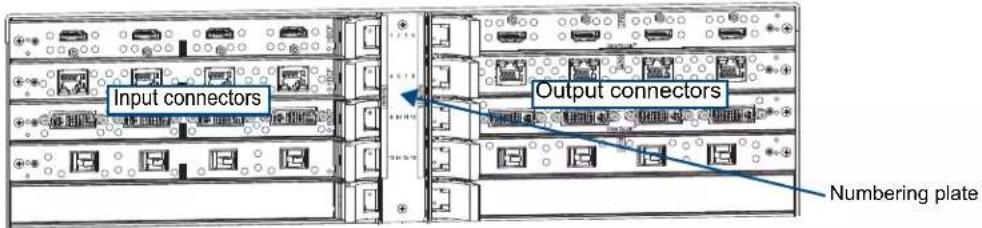
FIG. 19 Numbering on numbering plate indicate input and output board channels (Enova DGX 16 shown)
Enova DGX 32
Viewed from the rear of the enclosure, the Enova DGX 32 input boards (for attaching sources) are on the left, and the output boards (for attaching destinations) are on the right.
- Enclosures have 16 vertical board slots (8 slots each for the input and the output boards, with 4 connectors per board), allowing for a maximum configuration of 32x32 (FIG. 20).
- Input and output channel numbers correspond to the connectors and are located on the numbering plate (metal strip) directly above the boards. For inputs, numbering is consecutive from top to bottom on each board from the left board to right one; outputs start over at "1" and follow the same pattern.

FIG. 20 Numbers on numbering plate indicate input and output board channels
Enova DGX 64
The Enova DGX 64 has input boards at the top of the enclosure's rear and output boards below.
- Enclosures have 32 horizontal board slots (16 slots each for the input and the output boards, with 4 connectors per board), allowing for a maximum configuration of 64x64 (FIG. 12 on page 21).
- Input and output channel numbers correspond to the connectors and are located in the middle of the enclosure between boards on either side. For inputs, numbering is consecutive from left to right on each board from the top input board on the left to the bottom input board on the left, continuing on the top input board on the right to the bottom input board on the right. Outputs start over at "1" and follow the same pattern.

FIG. 21 Numbers on numbering plate indicate input and output board channels
Cabling Specific Connector Types
For information on board connectors and cabling and specifications for specific types of connectors:
- HDMI Boards – page 77
• DVI Boards – page 87 - DXLink Twisted Pair Boards – page 93
- DXLink Fiber Boards – page 108
- DGX SC Optical Boards – page 131

Input and Output Signal Cables
Caution: If you are connecting switching systems via their DXLink ports (applies to DXLink Twisted Pair and DXLink Fiber Boards), be sure to read the information on page 103 (DXLink Twisted Pair) and on page 117 (DXLink Fiber).
If using cable management bars, install them before attaching the cables (see page 39).
Before connecting all of the input and output cables and wires, attach only the ones for the first two sources and destinations (and any applicable transmitters and receivers). Complete the remaining installation tasks (applying power and any system setup though NetLinx Studio), and then disconnect the factory default switch and execute a test switch (see page 59). When the test switch is successful, attach the remaining input and output cables and wires.
Attaching Audio Input and Output Wires
Enova DGX Switchers can be ordered to include an Audio Insert/Extract Board(s). The AIE Audio Board works in conjunction with HDMI, DVI, DXLink Twisted Pair, and DXLink Fiber Boards. The inputs and outputs are configured on a per connector basis to insert or extract audio.
Important: Setting the DIP switches is the only mechanism for configuring insert/extract functionality on the Audio Insert/Extract Board. Therefore, setting the switches (which requires removal of the board from the enclosure) needs to be done at the time of installation setup.
For specifications, connector wiring, and configuration information, see the "Audio Insert/Extract Board" chapter on page 136.

FIG. 22 Audio Insert/Extract Boards in an Enova DGX 32
Applying Power and Startup
The enclosure's universal power receptacles will accept all major international standard power sources. Two US power cords are included with all shipments unless ordered otherwise. Maximum power specifications are on each power receptacle (and are also listed on page 26). Always use earth-grounded power cords and equipment with an Enova DGX Switcher.
The source electrical outlet(s) should be installed near the enclosure, easily accessible, and properly grounded. Power should come from a building branch circuit. We strongly recommend using a dedicated line for the system's power. Use a minimum breaker current rating of 20 A for 110 V or 10 A for 230 V for each circuit. To avoid an overload, note the power consumption rating of all the equipment connected to the circuit breaker before applying power.
Power Budget Planning for Systems with DXLink Twisted Pair Boards
If an Enova DGX 32 system contains DXLink Twisted Pair Boards, be sure to read the section on “Power Budget Planning” on page 102. The power draw for the system should be calculated in order to maintain the power redundancy of the power supplies in the enclosure. Calculating the power draw also helps determines how many DXLink Transmitters and Receivers can be powered via the switcher.
Complete Power Redundancy Setup
Important: For proper redundant operations, all power supplies must be powered at all times.
Power Enova DGX enclosures as follows:
- Enova DGX 8/16 – Cable the power via power strip to an outlet connected to a single 20 A circuit breaker.
- Enova DGX 32 – To take full advantage of the multiple power feeds and redundant power supplies, cable the primary power feed to an outlet connected to one 20 A circuit breaker. The redundant power feed should be cabled to an outlet connected to a second 20 A circuit breaker (FIG. 23).
- Enova DGX 64 – To provide adequate power for an N+1 redundant application, connect each of the four power supplies to its own circuit.

FIG. 23 Power setup for complete redundancy on Enova DGX 32

Caution: We recommend attaching all power cords to a surge protector and/or an AC line conditioner.
Power-Up Sequence
Note: Enova DGX 64 only – Four AC power filtering Ferrites (one per cord) are provided to ensure the system meets or exceeds the radiated emission requirements defined in standards EN55022:2010, FCC 15.109(g):2014, and ICES-003:2012. To install these filters, clamp in place onto the power cords as close to the power supply as reasonably possible for the system.
Important: Enova DGX 64 only – If two or more power supplies are not receiving power, the CPU and the control panel will continue to operate. However, input and output boards will become inoperable and the system will not send or receive signals until at least three power supplies resume functional status.
The following instructions start with attaching only two source and destination devices for the purpose of executing a test switch (after the factory default switch is disconnected).
To apply power:
- Attach the first two source and destination devices (attach the remaining devices in Step 11 after executing the test switch in Step 10).
Do not apply power to the source and destination devices until Step 8.
- If connecting devices to DXLink Twisted Pair Boards, the boards require DXLink HDMI Transmitters and Receivers. Install the Transmitters and Receivers between the first two source and/or destination devices and the DXLink Boards (see "System Setup with DXLink Transmitters and Receivers" on page 96 and the product's documentation).
- If connecting devices to DXLink Fiber Boards, the boards require DXLink Fiber Transmitters and Receivers. Install the Transmitters and Receivers between the first two source and/or destination devices and the DXLink Fiber Boards (see “System Setup with DXLink Fiber, Duplex and Simplex Units” on page 116 and the product’s documentation).
-
If connecting devices to SC Optical Boards, the boards require DGX Fiber Modules. Install the modules for the first two source and/or destination devices and then connect the modules to the SC Optical Boards (see "System Setup with DGX Fiber Modules" on page 133 and the module's documentation).
-
Optional – Attach an external control device/system (see page 62).
-
Plug power cords into all of the power receptacles (two or four depending on the system) on the enclosure.
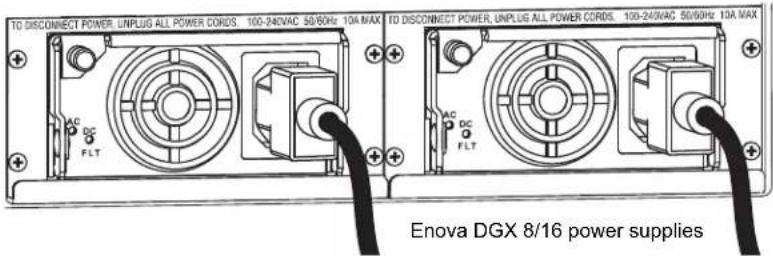
FIG. 24 Attach power cables to both power receptacles (Enova DGX 8/16 shown)

FIG. 25 Attach power cables to both power receptacles (Enova DGX 32 shown)

FIG. 26 Attach power cables to all four power receptacles (Enova DGX 64 shown)
-
Plug the other end of each power cord into its power source (if using a power strip, turn on the power strip).
-
Wait 30 seconds.
The Power indicator LED on the Front Panel illuminates green (showing that all redundant power supplies are working). (The LCD on the Control Panel also illuminates and displays the menu screen.)
- Enova DGX 8/16/32 – if one power supply is not working, the Power indicator will be a constant red (check power connections and switches).
-
Enova DGX 64 – if one power supply is not working, the Power indicator will be a constant red; if two or three power supplies are not working, the Power indicator will be a flashing red (check power connections and switches).
-
Optional - Apply power to a control device/system.
-
For systems with DXLink Fiber Boards – Apply power to the DXLink Fiber TX and RX.
- For systems with SC Optical Boards – Apply power to the DGX TX and RX Fiber Modules.
- Apply power to the source and destination devices.
- Disconnect the factory default switch and execute a test switch (see page 59).
- Attach the remaining sources and destinations and apply power to them.
Important: Whenever the system is powered down, be sure the indicator LEDs on the CPU are off and the fans have stopped before reapplying power.
Indicator Lights at Startup
When the enclosure powers up, the indicator LEDs respond as follows:
| Enova DGX LED Indicators | ||||
| LED Indicates Normal Display Cautionary | ||||
| Front Power | System power status | Constant green | Constant red: one power supply is not workingEnova DGX 64 only -Constant red: one power supply is not receiving power or not workingFlashing red: two or three power supplies are not receiving power or not workingFlashing green: System in upgrade process* | |
| Rear -Power Supplies | AC Power AC power present Constant green Not illuminated: AC failure | |||
| DC Power (Tri-color LED) | DC power presentPower supply temperatureFault Status | Constant green | Not illuminated: DC failureAmber: power supply is over temperatureRed: power supply is in a fault state | |
| Rear -CPU | Status System status | Constant green during power up, then blinking green at 1 second on/off intervals | Blinking red/green: an exception has been logged in IOS (validation failure)Blinking red: dropped into IOS mode** | |
| LAN 100/1000L/ASPD | Cables are connected and terminated correctlyReceiving or transmitting LAN data packets | Constant greenBlinks yellow | ||
* The system was in the process of upgrading the last time it was powered down; wait for upgrade to finish (see page 176). ** IOS (Initial Operating System) is the base layer operating system on Enova DGX Switcher equipment. IOS performs functions such as hosting level run-time software applications. If unexpected critical errors are encountered within such hosted applications, system control of the equipment may be passed to the IOS layer preventing normal system operation until the error is manually cleared. Report all such errors to technical support (see page 75).
Important: If the indicator LEDs do not respond with a normal display as stated in the table above, check power connections, before contacting technical support (see page 75).
Redundant Power Supply (RPS)
Important: Enova DGX 64 only – If two or more power supplies are not receiving power, the CPU and the control panel will continue to operate. However, input and output boards will become inoperable and the system will not send or receive signals until at least three power supplies resume functional status.
Every Enova DGX 8/16/32 enclosure ships with two mutually-redundant (hot-swappable) power supplies; every Enova DGX 64 enclosure ships with four.
- Enova DGX 8/16/32 – Power indicator on the front of the enclosure illuminates constant red if a problem occurs with one or more power supplies.
- Enova DGX 64 – Power indicator on the front of the enclosure is a constant red if a problem occurs with one power supply and flashes red if two or three power supplies experience problems.
Check the AC and DC LED indicators on the left of each power receptacle to determine if a power supply is not working. For additional LED information, see above.
Important: A failed power supply should be replaced as soon as possible to maintain the system's power redundancy. For replacement information, contact technical support (see page 75).
Power Supply Troubleshooting
If a power supply's AC and DC power indicator LEDs are not illuminated: Check to be sure the power cord is completely plugged into the enclosure and the power source.
If a power supply's DC LED illuminates amber or red, contact technical support (see page 75).
Caution: Do not remove a failed power supply until the replacement is ready to install, unless directed to do so by technical support.

System Setup for Using the Integrated NetLinx Master
The Enova DGX Switcher has an integrated NetLinx Central Control Processor (Master) that establishes its LAN (Local Area Network) connection through the LAN 100/1000 port on the CPU. The Master provides a WebConsole interface that allows you to make various configuration settings via a web browser on any PC connected to the same LAN.
The NetLinx Master's WebConsole delivers HTML pages for setting up the system plus the XBar Controller (a Java control applet), which allows for remote control of an Enova DGX Switcher using PC-based Internet browsing software.
Important: The Enova DGX Switcher uses DHCP to retrieve its IP address by default.
The enclosure must be connected to a LAN in order to get an IP address from a DHCP server. After the network assigns a DHCP IP address, a static IP address can be assigned in its place.
Important: Although it is also possible to provide access from outside a LAN via the Internet, security issues for your LAN environment must be taken into account (contact your Network Administrator).
System Setup Overview
Important: The Enova DGX Switcher uses DHCP by default.
The Program (serial USB) port and LAN 100/1000 (Ethernet) port each play a role in conjunction with the integrated Master.
- Program port – used during the initial setup to obtain the IP address from the integrated Master. This port is connected to a PC running NetLinx Studio.
- LAN 100/1000 port – provides functionality for the following protocols: FTP, SSH, Telnet, HTTP, HTTPS/SSL, and ICSP (for protocol descriptions and standard port numbers used, see the table on page 50). This port is connected to a LAN.
The system setup example below for using the integrated NetLinx Master shows an Enova DGX 32 Digital Media Switcher connected to a LAN via the LAN 100/1000 port. Both computers in the illustration have access to the enclosure via the LAN. The PC on the right has established communication via the Program port on the Enova DGX 32 and is running NetLinx Studio to obtain the IP address for the integrated Master.

Caution: Be careful not to create a network (Ethernet) loop. To avoid doing so, see page 103.

flowchart
graph TD
    A["Program port connected to PC running NetLinx Studio"] --> B["Local Area Network"]
    B --> C["Laptop"]
    C --> D["Local Area Network"]
FIG. 27 Enova DGX 32 connected via a LAN to two PCs (Program port is connected for initial set up)
Program Port and LAN 100/1000 Port
Since the Program port and the LAN 100/1000 port are used in conjunction with each other for NetLinx system setup, information for cable requirements, LEDs, etc. on each port is given before the setup information.
Program Port
The Enova DGX Switcher's integrated NetLinx Master is equipped with a low-speed USB connection labeled "Program." Use the provided USB mini-AB adapter cable (CA1090-541) to establish a connection between the Program port on the enclosure and the PC's USB port. This connection provides serial-based communication between the integrated Master and NetLinx Studio. This port is useful for getting and setting the system's IP address (in NetLinx Studio, open Telnet and enter either GET IP
Important: The Program port is not recommended for firmware updates or large file transfers. These more data-intensive operations are better handled via the LAN 100/1000 port connection.
Cable Requirements
☐ USB mini-AB adapter cable (provided) – required to connect an Enova DGX Switcher via its Program port to a PC.
Program Port LEDs – Modes and LED Blink Patterns
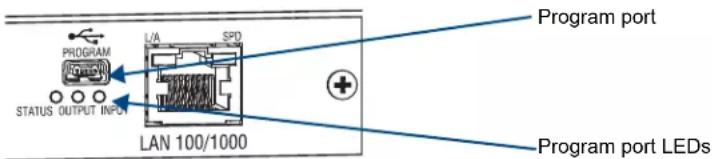
FIG. 28 Program Port LEDs
The following table lists the modes and the blink patterns for the Program port's LED indicators which are associated with each mode. These blink patterns are not evident until the unit is powered.
| Modes and LED Blink Patterns | ||||
| Mode Description | LEDs and Blink Patterns | |||
| Status(Green) | Output(Red) | Input(Yellow) | ||
| OS Start Starting the operating system (OS). On On On | ||||
| Boot Integrated Master is booting. On Off On | ||||
| Contacting DHCP Server | Integrated Master is contacting a DHCP server for IP configuration information. | On Off Fast Blink | ||
| Unknown DHCP Server | Integrated Master could not find the DHCP server. | Fast Blink Off Off | ||
| Downloading Boot Firmware | Downloading Boot firmware to the integrated Master's flash memory.Do not cycle power during this process. | Fast Blink Fast Blink | ||
| No program running Either no program is loaded or the program is disabled. | On Normal* Normal* | |||
| Normal | Integrated Master is functioning normally. | 1 blink per second | On indicates activity | On indicates activity |
* "Normal" is typically off. However, this state may change depending on external inputs.
LAN 100/1000 Port
The LAN 100/1000 (Ethernet) port, which provides the connection from the integrated NetLinx Master to a LAN, is located on the rear of the enclosure on the right-hand side of the CPU.
Important: Because the LAN 100/1000 port is the single, shared connection to the LAN for all connected DXLink Transmitters and Receivers, if the LAN port on the transmitters and receivers will be used for network connectivity, a Gigabit (1000 Mbps) LAN connection between the network and the Enova DGX Switcher's LAN port is strongly recommended. Lower speed connections may result in inferior performance of the embedded Ethernet network.
Important: The two RJ-45 connectors at the far left of the CPU should only be used to connect autonomous devices (to prevent network loops); do not attempt to use either of them for a TCP/IP connection or to link enclosures.
Cable Requirements and Pinouts
☐ RJ-45 link cable (either crossover or straight-through) – required to connect an Enova DGX Switcher to a LAN.
Note: Cable can be wired to either T568A (see below) or T568B (on the next page), as long as the wiring is consistent on both ends.
T568A
The following table lists the pinouts, signals, and pairing for the Ethernet connector when wired for straight-through cable according to T568A.

FIG. 29 shows the connections for Ethernet RJ-45 connector/cable per T568A.

flowchart
graph LR
    A["End X"] --> B["White/Green Stripe"]
    A --> C["Green"]
    A --> D["White/Orange Stripe"]
    A --> E["Blue"]
    A --> F["White/Blue Stripe"]
    A --> G["Orange"]
    A --> H["White/Brown Stripe"]
    A --> I["Brown"]
    B --> J["1"]
    B --> K["2"]
    B --> L["3"]
    B --> M["4"]
    B --> N["5"]
    B --> O["6"]
    B --> P["7"]
    B --> Q["8"]
    C --> R["1"]
    C --> S["2"]
    C --> T["3"]
    C --> U["4"]
    C --> V["5"]
    C --> W["6"]
    C --> X["7"]
    C --> Y["8"]
    D --> Z["1"]
    D --> AA["2"]
    D --> AB["3"]
    D --> AC["4"]
    D --> AD["5"]
    D --> AE["6"]
    D --> AF["7"]
    D --> AG["8"]
    E --> AH["1"]
    E --> AI["2"]
    E --> AJ["3"]
    E --> AK["4"]
    E --> AL["5"]
    E --> AM["6"]
    E --> AN["7"]
    E --> AO["8"]
    F --> AP["1"]
    F --> AQ["2"]
    F --> AR["3"]
    F --> AS["4"]
    F --> AT["5"]
    F --> AU["6"]
    F --> AV["7"]
    F --> AW["8"]
    G --> AX["1"]
    G --> AY["2"]
    G --> AZ["3"]
    G --> BA["4"]
    G --> BB["5"]
    G --> BC["6"]
    G --> BD["7"]
    G --> BE["8"]
FIG. 29 RJ-45 connections per T568A
T568B
The following table lists the pinouts, signals, and pairing for the Ethernet connector when wired for straight-through cable according to T568B.
T568B
| Pin Signals Connections Pairing Color | ||||
| 1 TX- | 1 ----1 1 ----2 Orange - White | |||
| 2 TX- | 2 ----2 Orange | |||
| 3 RX+ | 3 ----3 3 ----6 Green - White | |||
| 4 No connection 4 ----4 Blue | ||||
| 5 No connection 5 ----5 Blue - White | ||||
| 6 RX- | 6 ----6 Green | |||
| 7 No connection 7 ----7 Brown - White | ||||
| 8 No connection 8 ----8 Brown | ||||
T568B Pairing

FIG. 30 shows the connections for Ethernet RJ-45 connector/cable per T568B.
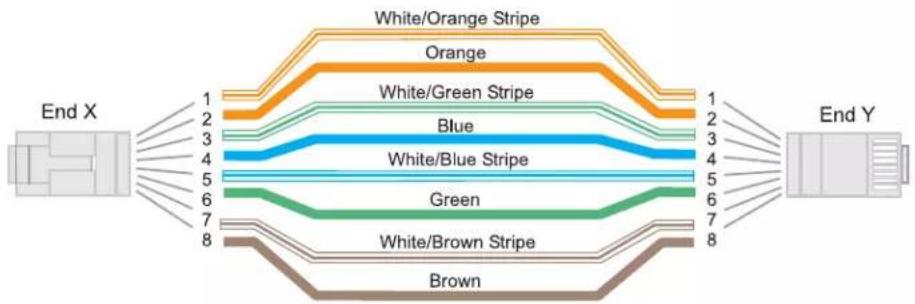
flowchart
graph LR
    A["End X"] --> B["White/Orange Stripe"]
    A --> C["Orange"]
    A --> D["White/Green Stripe"]
    A --> E["Blue"]
    A --> F["White/Blue Stripe"]
    A --> G["Green"]
    A --> H["White/Brown Stripe"]
    A --> I["Brown"]
    B --> J["1"]
    B --> K["2"]
    B --> L["3"]
    B --> M["4"]
    B --> N["5"]
    B --> O["6"]
    B --> P["7"]
    B --> Q["8"]
    C --> R["1"]
    C --> S["2"]
    C --> T["3"]
    C --> U["4"]
    C --> V["5"]
    C --> W["6"]
    C --> X["7"]
    C --> Y["8"]
    D --> Z["1"]
    D --> AA["2"]
    D --> AB["3"]
    D --> AC["4"]
    D --> AD["5"]
    D --> AE["6"]
    D --> AF["7"]
    D --> AG["8"]
    E --> AH["1"]
    E --> AI["2"]
    E --> AJ["3"]
    E --> AK["4"]
    E --> AL["5"]
    E --> AM["6"]
    E --> AN["7"]
    E --> AO["8"]
    F --> AP["1"]
    F --> AQ["2"]
    F --> AR["3"]
    F --> AS["4"]
    F --> AT["5"]
    F --> AU["6"]
    F --> AV["7"]
    F --> AW["8"]
    G --> AX["1"]
    G --> AY["2"]
    G --> AZ["3"]
    G --> BA["4"]
    G --> BB["5"]
    G --> BC["6"]
    G --> BD["7"]
    G --> BE["8"]
    H --> BF["1"]
    H --> BG["2"]
    H --> BH["3"]
    H --> BI["4"]
    H --> BJ["5"]
    H --> BK["6"]
    H --> BL["7"]
    H --> BM["8"]
FIG. 30 RJ-45 connections per T568B
LAN 100/1000 Indicator LEDs

FIG. 31 LAN 100/1000 port and LED indicators
The LAN 100/1000 (RJ-45) port is an Ethernet link connector, handling Ethernet 10/100/1000 connections for 1000 Mbps (megabits per second), 100 Mbps, and 10 Mbps. This connection is compatible with most Ethernet based LANs.
Important: Because the LAN 100/1000 port is the single, shared connection to the LAN for all connected DXLink Transmitters and Receivers, if the LAN port on the transmitters and receivers will be used for network connectivity, a Gigabit (1000 Mbps) LAN connection between the network and the Enova DGX Switcher's LAN port is strongly recommended. Lower speed connections may result in inferior performance of the embedded Ethernet network.
The two small rectangular LEDs on the RJ-45 connector indicate the following:
- Green L/A LED
On - Link is active (when the Ethernet cable is connected and terminated correctly)
- Yellow SPD LED
On - receiving or transmitting LAN data packets
IP Protocols Used by the Enova DGX Integrated Controller
| IP Protocols Used by the Integrated Controller | ||
| Protocol Description Standard Port # | ||
| FTP The integrated Master has a built-in FTP server 21/20 (TCP) | ||
| SSH The SSH port functions using the same interface as Telnet but over a secure shell where it uses SSL as a mechanism to configure and diagnose a NetLinx system. This port value is used for secure Telnet communication.Note: Only SSH version 2 is supported. | 22 (TCP) | |
| Telnet The NetLinx Telnet server provides a mechanism to configure and diagnose a NetLinx system. For maximum flexibility, the Master can be configured to use a different port than 23 or disable Telnet completely from either Telnet or the Program port on the rear of the Enova DGX Switcher. Once disabled, the only way to enable Telnet again is from the Program port. | 23 (TCP) | |
| HTTP The integrated Master has a built-in web server that complies with the HTTP 1.0 specification and supports all of the required features of HTTP v1.1. This port is used for unsecured HTTP Internet communication between the web browser's UI and the integrated Master. | 80 (TCP) | |
| HTTPS/SSL | This port is used by a web browser for secure communication between the web server UI and the integrated Master. This port is also used for simultaneous encryption of this data, using the SSL certificate information on the Master as a key. | 443 (TCP) |
| ICSP The port is used for peer-to-peer protocol for both Master-to-Master and Master-to-device communications. This type of communication is used by various AMX products for communication among themselves (see page 183).Note: The integrated Master can only be configured to use Port 1319, and the ICSP cannot be disabled. | 1319 (UDP/TCP) | |
System Setup via NetLinx Studio
System Requirements
☐ Minimum web browser requirements – Microsoft Internet Explorer 7.0 or later, Mozilla Firefox 3.6.8 or later, or any other web browser compatible with these browsers
☐ JRE v1.5 or later – Java Plug-in for the XBar Controller
Setting up the system to use NetLinx Studio's WebConsole requires completing all of the following items. Detailed instructions for each item are given.
☐ Configure the USB Program port for NetLinx communication
☐ Connect the LAN 100/1000 port to a LAN (Local Area Network)
□ Open NetLinx Studio on the PC*
□ Determine the integrated Master's IP address via zeroconf (zero configuration IP networking)
☐ Change the COM setting for the LAN connection to TCP/IP
☐ Test the connection / open the WebConsole interface
* The PC must be on the same LAN that the enclosure is connected to via the LAN 100/1000 port.
The following Instruction Set applies to PCs running Windows 7.
(For the Instruction Set applicable to Windows 8, see page 52.)
Note: The following instructions are for the NX Series Integrated NetLinx master. For instructions covering the NI Series Integrated NetLinx master, see page 54.
To establish a connection with Integrated master via USB Program port (NX Master):
- Complete the installation of the Enova DGX Switcher (see page 37) including power up of the system.
- Uninstall any current USB Gadget drivers:
a. Navigate to Control Panel\Hardware and Sound\Devices and Printers.
b. Right-click Gadget Serial (COM3) and select Properties.
c. From the Properties dialog box, select the Hardware tab.
d. Click the Properties button at the bottom right.
e. Click Change settings.
f. Select the Driver tab and click Uninstall.
- Install the Gadget Serial driver (see below).
- Set USB device baud rate:
a. Navigate to Control Panel\Hardware and Sound\Devices and Printers.
b. Right-click the Gadget Serial icon and select Properties.
c. From the Properties dialog box, select the Hardware tab.
d. Click the Properties button at the bottom right.
e. Select the Port Settings tab.
f. Set the baud rate to 115200 and click OK.
To install USB Gadget Serial driver (Windows 7 only):
Note: NetLinx Studio v4.0 or later must be installed on the PC prior to USB Program port setup in order to have access to the USBGadgetDriver folder (C:\Program Files\AMX Control Disc\NetLinx Studio 4).
- Power up the Enova DGX 8/16/32/64 and allow the system to fully boot.
- Connect the enclosure to the PC via the USB Program port.
- A device driver software error message appears.

- Navigate to Control Panel\Hardware and Sound\Devices and Printers.
- Right-click Gadget Serial (COM3) and select Properties.
- From the Properties dialog box, select the Hardware tab.
- Click the Properties button at the bottom right.
- Click Change settings.
- Select the Driver tab and click Update Driver.
- Select Browse my computer for driver software.
- Click Browse and select the USBGadgetDriver folder.
- Click Next to install the driver.
- Reboot the Enova DGX 8/16/32/64.
- Set the USB device baud rate (see Step 4 of previous instructions on page 51).
The following Instruction Set applies to PCs running Windows 8.
(For the Instruction Set applicable to Windows 7, see page 51.)
Note: The following instructions are for the NX Series Integrated NetLinx master. For instructions covering the NI Series Integrated NetLinx master, see page 54.
To establish a connection with Integrated master via USB Program port (NX Master):
- Complete the installation of the Enova DGX Switcher (see page 37) including power up of the system.
- Enable the installation of an unsigned driver (see page 53).
- Install the Gadget Serial driver:
a. Install NetLinx Studio v4.x.
b. Connect the enclosure to the PC via the USB Program port. Windows will automatically search for and find the Gadget Serial driver. (A Windows Security popup appears.)
c. Select the option to "Install this driver software anyway."
d. Open NetLinx Studio. The Communications Dialog now has a USB tab that shows the NX Series Integrated master.
To enable installation of an unsigned driver (Windows 8 only):
- Open the Charms Bar (Win + C) and select the Settings Charm.

- Select Change PC settings.
- From the Control Panel, select General.
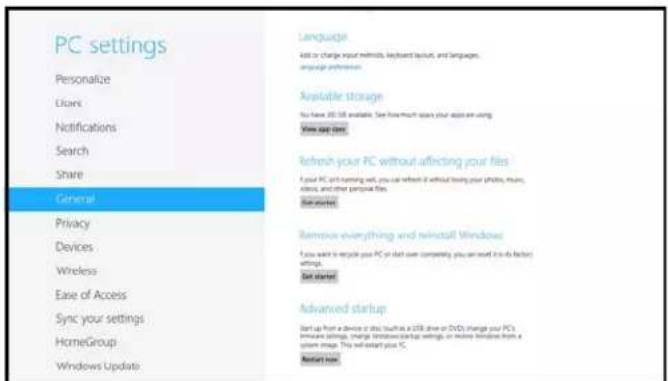
Note: For Windows version 8.0, skip to Step 6. For Windows version 8.1 or later, continue with Step 4.
- Select Update & recovery.
- Select Recovery.
- From Advanced startup, click the Restart now button to reboot the PC.

- From the Choose an option screen, select Troubleshoot.

- Select Advanced options.
- From Advanced options, select Startup Settings.
- Click the Restart button (lower right) to reboot the PC.
- From the Startup settings screen, select "7) Disable driver signature enforcement" by pressing the F7 key to reboot the PC.
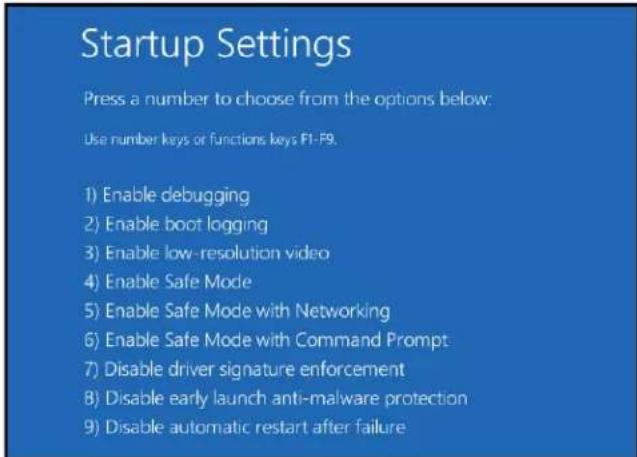
- Install the Gadget Serial driver (see Step 3 of previous instructions on page 52).
To establish a connection with Integrated master via USB Program port (NI Master):
Note: The following instructions are for the NI Series Integrated NetLinx master. For instructions covering the NX Series Integrated NetLinx master, see page 51.
- Complete the installation of the Enova DGX Switcher (see page 37) including power up of the system.
- Insert the USB mini-B connector on the end of the provided USB mini-AB adapter cable into the Program port on the rear of the Enova DGX enclosure.
Important: Before the Program port can be used for communication, the appropriate FTDI driver used to create the virtual COM port must be installed on the PC per Step 3. At www.amx.com, a link for this driver can be found on the product's web page, on the right under "Application Files."
-
Connect the other end of the USB adapter cable to the PC. Either allow Windows to install the driver automatically (Internet connection required) or point the installer to the location where you have previously saved the driver. Either way will create a new virtual COM port on the PC.
-
Edit the Serial Communication settings in NetLinx Studio to use the virtual COM port created in Step 3, and set the communication parameters to match those in the table to the right (be sure that the PC's COM port and terminal program's communication settings also match those in the table).
| PC COM Port Serial Communication Settings | |
| Baud Rate 115200 | |
| Data Bits 8 | |
| Parity None | |
| Stop Bits 1 | |
| Flow Control None | |

Caution: Be careful not to create a network (Ethernet) loop. To avoid doing so, see page 103.
A DHCP capable server must be in the network that the Enova DGX Switcher is being connected to.
To connect an Enova DGX to a LAN via the LAN 100/1000 port:
Important: In order to use the NetLinx WebConsole, the Enova DGX Switcher must establish an active connection to a LAN. Do not connect the LAN 100/1000 port on the Enova DGX Switcher to a PC; it will not work.
- Insert one end of the RJ-45 link cable into the LAN 100/1000 port on the enclosure.
- Connect the other end of the RJ-45 link cable to a LAN hub or switch. The network automatically assigns a DHCP IP address (the assigned IP address can be changed to a static IP address).
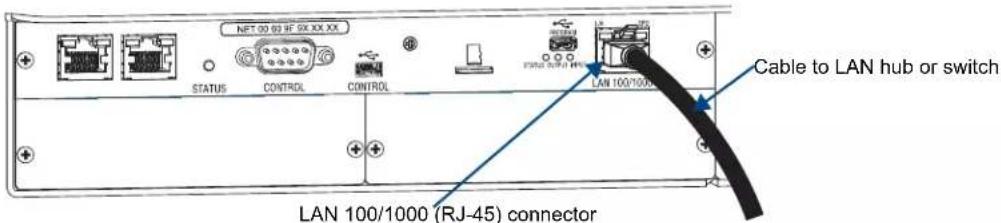
FIG. 32 RJ-45 link cable connected to LAN 100/1000 port
- Check the indicator LEDs for the LAN 100/1000 connector (FIG. 27 on page 46).
Note: When the connection is made, the DHCP server on the network will automatically assign an IP address. If you power down and power back up, the DHCP server will reassign the IP address, which may or may not be the same address it assigned before. To prevent the possibility of the IP address changing at power up, you can change the DHCP address to a static IP address (complete all of the NetLinx system setup instructions first and then see page 166).
Determining the Master's IP Address via Zeroconf in NetLinx Studio
Zero configuration (or zeroconf) technology provides a general method to discover services on a local area network. In essence, it allows you to set up a network without any configuration. NetLinx Studio (v4.0 or later) features a "Zero-Config" tab in the Workspace window. This tab provides zeroconf networking functionality within NetLinx Studio.
The Enova DGX Switcher features a built-in zeroconf networking client that allows NetLinx Studio to determine the unit's DHCP IP address assigned by the network. This address can then be used to open the WebConsole interface.
To determine the IP address of the integrated Master by accessing zeroconf:
- Open NetLinx Studio (v4.0 or later) on the PC.
- In NetLinx Studio, left-click the Zero-Config tab on the Workspace Bar to open the tab.

Tip: Right-click anywhere in the Zero-Config space to open the context menu and select Refresh Zero-Config List to generate an initial listing of all zeroconf devices that have been detected.
-IP address for WebConsole interface
Zero-Config tab
Note: Refer to the NetLinx Studio online help for details on using zeroconf.
FIG. 33 NetLinx Studio showing the Zero-Config tab and the IP address for a WebConsole interface
Note: If you are not using NetLinx Studio and/or are using a third-party controller, contact your Network Administrator for the IP address.
To change the settings to communicate via the LAN 100/1000 port:
- From the Settings menu, select Workplace Communication Settings. The Workplace Communication Settings dialog box opens.

- Click Default Settings. The Communication Settings dialog box opens.
![Communications Settings Current Master Connection Network: USZ 208-45.51 - DGA Master [APRMS/IEAS] OK Cancel Recent Network Serial USB Virtual Nettoles Master IP Address:URL Description Port Ping Host User Name USZ 208-45.51 DGA Master (IPO) $129 TALE Select New... Edit... Delete Delete As Listen For Masters...](/content/2026/06/1223272/images/c6478c25a3ab65affb0b14fa9c63224d629c0d8b2c45960402e9a9ddb48eaa13.jpg)
-
Select the Network tab.
-
Locate and highlight the device you want to adjust settings for.
-
Click Edit. The Edit TCP/IP Setting dialog box opens.
![Edit: TCP/IP Setting IP/URL Address: 192.168.43.51 Description: DGX Master [AMXM94BA50] Port: 1319 User Name: Password: TCP/IP OK Cancel](/content/2026/06/1223272/images/09bdd48bc1bfee84455d294da960437cc090f081ac16f26f5f1743473f61b0af.jpg)
-
Enter the TCP/IP address and an associated description for the connection and verify port number.
-
Verify that the Automatically Ping option is selected to make sure the Master is initially responding online before establishing full communication.
-
If authentication is required for connecting to the Master at this address, enter a previously configured user name and password (with sufficient rights).
-
Click OK to close and return to previous dialog box.
-
Click Select to make the new entry the currently used IP Address communication parameter.
-
Click OK.
-
In the Workplace Communication Settings dialog box, click OK to begin the communication process to the Master (and close the dialog box).
-
If you are currently connected to the Master, a popup asks whether you would want to stop communication to the Master and apply the new settings.
-
Click Yes to interrupt the current communication from the Master and apply the new settings.
-
Click the OnLine Tree tab in the Workspace window to view the devices on the system. The default System value is one (1).
-
Right-click the associated System number and select Refresh System OnLine Tree. This establishes a new connection to the specified system and populates the list with devices on that system. The communication method is then highlighted in green at the bottom of the NetLinx Studio window.
Troubleshooting the Connection
If the connection fails to establish, a Connection Failed dialog box appears.
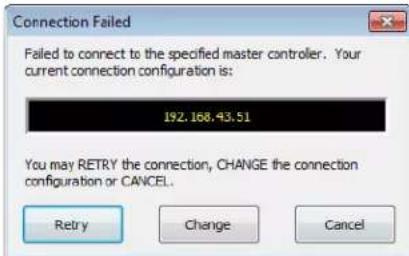
- Try selecting a different IP Address.
- Click Retry to reconnect using the same communication parameters.
- Click Change to alter your communication parameters and repeat the steps above.
Important: For the following procedure, the PC must be on the same subnet (e.g., 192.168.X.X) as the enclosure.
To test the connection / open the WebConsole interface:
1. Right-click on the IP address for the System.
![NetLine Studio File Edit View Project Build Diagnostics Debug Tools Settings Window Help Workspace Bar System 1 Devices 192.168.43.001 00000 - DGK Master [v1.2.28] [0ID=1] - E-boot [v1.2.28] [0ID=2] - Kernel (2.6.35) [0ID=3] - Ports FI [v1.2.28] [0ID=4] - knaTya TF [v1.2.28] Ports - 1 01002 - Kappa DGK 32 [v1.2.8] [0ID=4] - Kova DGK 32 Int [0ID=7] - Kova DGK 32 PM Ports - 1 Ports - 2 Ports - 3 Ports - 4 Dynamas/Virtual Devices 32001 - RSX Application * Refresh System Online Tree Refresh Network Online Tree Show Only Port Counts on Refresh Show NDP Systems during Refresh Network Show Device Properties Hardware Transfer... Check Port Status Online Tree Reporting... Refresh Device Mappings Device Addressing... Network Device Addressing... Network Bind/Unreal Devices... Send Importly Mode Command Robert the Master Web Control Page TELENT Window Expand Tree Expand to Device Level Collapse Tree Preferences... Launch Web Control Page via NetLine Studio Launch Web Control Page via Default Browser Select to open via Default Browser Master(s) Devices Ports 1 2 3 4 Display Workforce Online Tree Data DriveConfig Reads 100 Push Inactive 192.168.43.51 Ln 1 Ctr 1 CDF.UN](/content/2026/06/1223272/images/9835ec22add09d39aa512333b396683bd13065fa5d8a5a664edca8e4dbac6b6a.jpg)
- From the context sensitive menu, select Web Control Page/Launch Web Control Page via Default Browser.
Tip: To access the WebConsole interface after initial setup, simply type the IP address In the address bar of the browser and press Enter.
If the WebConsole interface does not open, see the "NetLinx WebConsole Troubleshooting" below.
WebConsole Related Topics
- The "NetLinx Integrated Control" chapter covers information on settings for using DHCP and static IP address for the WebConsole (see page 163).
- The “Enova DGX WebConsole Interface” chapter contains information for using the XBar Controller, a graphic interface control panel with crosspoints for executing and disconnecting switches (see page 168).
- The “Firmware Upgrade & Info for Network Admin” chapter covers the topics of upgrading the firmware, embedding the XBar applet, and changing the proxy setting (see page 176).
- Complete information for the integrated NetLinx Master (NX Series NetLinx Controller) is documented in the WebConsole & Programming Guide – NX-Series Controllers at www.amx.com.
NetLinx WebConsole Troubleshooting
Check the following:
☐ All power, signal, and link connections on all of the equipment.
☐ LED indicators for the LAN 100/1000 connector on the rear of the Enova DGX Switcher.
☐ If the LED indicators are not illuminated, check the cable type to make sure it meets cable requirements (see page 47).
☐ Ping the system, i.e., at the DOS prompt enter: ping XXX.XXX.XXX.XXX (where XXX.XXX.XXX.XXX is the WebConsole interface IP address).
Try the following:
☐ Try connecting to the WebConsole interface again.
☐ If the WebConsole interface still does not open, you may need to add an exception in the Proxy Setting dialog box (see page 180).
If problems persist, contact technical support (see page 75).
Executing a Test Switch
For new system installations, we recommend executing a test switch to verify the system is working correctly before attaching all inputs and outputs. You must first disconnect the factory default switch of Input 1 routed to all outputs on Virtual Matrix 1 (Level 1).
You can disconnect the factory default switch and execute a test switch from one (or more) of the following:
● NetLinx Central Control Processor (Master)
- XBar Controller (NetLinx WebConsole via TCP/IP)
- Control Panel
- BCS (Basic Control Structure) commands over an external controller
● An external third-party controller (see product directions)
Before executing the test switch:
☐ Disconnect the factory default switch and make sure the first two source devices and the first two destination devices are connected to the input and output connectors (for specific board connector information and specifications, see the board chapter in this manual).
□ Any applicable DGX DXLink Modules / Wallplates or DGX Fiber Modules must also be installed (see the product's documentation).
☐ Power must be applied to the enclosure and then to the source and destination devices.
When executing a test switch, we suggest routing Input (source) 1 to Output (destination) 2 on the default virtual matrix of VM 0, unless you know the system was ordered with custom VMs.
After the test switch has executed successfully:
☐ If necessary, adjust the image with DGX Configuration Software, which is available at www.amx.com. This software is used for configuring HDMI and DVI Boards (see page 189).
☐ Disconnect the test switch before finishing the installation.
HDMI and DVI Boards – Additional Information
Before executing a test switch with HDMI and DVI Boards, we recommend reading the applicable board chapter which covers HDCP issues and any EDID changes that may be needed (see the “Enova DGX HDMI Boards” chapter on page 77 and the “Enova DGX DVI Boards” chapter on page 87).
NetLinx Central Control Processor (Master)
For disconnecting and executing switches using the NetLinx Central Control Processor, see the chapter on NetLinx Programming on page 183.
XBar Controller (NetLinx WebConsole via TCP/IP)
For directions on disconnecting and executing switches using the XBar Controller, see page 175.
Control Panel
For directions on disconnecting and executing switches using the Control Panel on the front, see page 150.
BCS Commands
To enter BCS commands, the system needs to be attached to a serial control device (see page 62) and running a terminal emulation program; e.g., the terminal in NetLinx Studio (Tools/Terminal Session), in DGX Configuration Software (see page 204), or another terminal emulation program. The settings on the PC serial communication software and the enclosure must correspond to each other (for setting information, see page 63).
Note: BCS tunneling over TCP/IP is also supported (see page 68).
When using a terminal emulation program, command characters are entered and sent to the enclosure's CPU. The command characters appear on the screen when the enclosure responds. When all of the entered characters appear, the command has been successfully executed.
Levels in BCS commands are the equivalent of virtual matrices for switching purposes. Level 0 (VM 0) is the default level (virtual matrix).
To disconnect the factory default switch using a BCS command:
- Enter the following BCS command line:
DL0I1T
When the “T” appears, the factory default switch of Input 1 to all outputs on Level 0 is disconnected.
To execute the test switch using a BCS command:
- Enter the following BCS command line:
CL01102T
When the "T" appears, the test switch command routes Input 1 to Output 2 on Level 0.
If any other character(s) appear, the command was not successful. In that case, check to see if the source signal is present (visible and/or audible) at the destination.
To disconnect the test switch using a BCS command:
- Enter the following BCS command line:
DL0I1O2T
When the "T" appears, the test switch is disconnected.
For a complete list of BCS commands and responses, see the Instruction Manual – BCS Basic Control Structure Protocol at www.amx.com.
Test Switch Troubleshooting
Note: Normally the Enova DGX Switcher switches non-encrypted content without problems when the display is non-HDCP compliant. Be aware that when non-encrypted content is being played on a Blu-Ray player, most players pass the content on as though it was encrypted. Therefore, when a Blu-Ray player sends originally non-encrypted content as encrypted content to an Enova and the signal is switched to an output board (e.g., SC Optical Board) or a device that does not support HDCP, the content will not display and the image will be dark red.
If the display is dark red:
If an HDCP protected source device is switched from an HDMI, DVI, or DXLink Board to an SC Optical Board, the encrypted video will be blocked on the destination device and replaced with a dark red screen due to an HDCP authentication failure.
If the image has black bars on all sides:
If the source device is providing video at 1080p @ 60 Hz and black bars appear on all sides of the image:
- Set the input on the source device to either a different input resolution or refresh rate (e.g., 1080p @ 50 Hz). Or
- Select a resolution and refresh rate from the PC's graphic driver control panel and be sure to select "Maintain Display Scaling" as the "Scaling" option.
If the test switch did not execute correctly:
☐ Check the Power indicator on the front of the enclosure.
If it is not illuminated, check the power cords at the enclosure and at the power source.
☐ Verify the status of the test switch. If status returns as routed correctly, the system established a connection between the specified input and output connectors within the enclosure.
- Control panel: use the Control Dial to scroll to Status. Press the Select Key. Press Output Key 2 (turns white). If Input Key 1 turns white, the test switch is routed.
- BCS commands: enter "SL002T". If "SL002T (1)" appears, the test switch is routed.
☐ Check all link and signal connections on the rear of the enclosure(s) to make sure everything is physically set up correctly.
☐ If applicable – check connections on DGX Fiber Modules (also see “Troubleshooting” in the Instruction Manual – DGX Transmitters & Receivers), DXLink Modules/Wallplates (also see “Troubleshooting” in the Instruction Manual – DXLink™ Twisted Pair Transmitters/Receiver), and DXLink Fiber units (also see “Troubleshooting” in the Instruction Manual – DXLink Fiber Transmitters and Receivers).
☐ Check all power switches on the source and destination devices to make sure all are turned on.
☐ Depending on the board type:
- Isolate source/destination equipment and cable problems by patching around the router using a cable adapter to check the overall signal path.


FIG. 34 DVI and SC fiber cable adapters
- Check the SC fiber connectors to make sure they are fully inserted into the DGX Fiber Module and that no dust or debris is on the exposed fiber ends of the cable or on the module.
- Check the documentation for the DGX Fiber Modules to be sure they are installed correctly. Isolate source and destination devices using the modules to bypass the enclosure to check the fiber cable and overall signal path.
- Check the documentation for the DXLink Transmitters and Receivers to be sure they are installed correctly. Isolate source and destination devices using the modules to bypass the enclosure to check the twisted pair cable and overall signal path.
☐ Attempt the switch again.
If the switch still does not work, contact technical support (see page 75).
Attaching an External Serial Controller
Enova DGX Switchers can be controlled externally by attaching a serial control device that uses one of the communication protocols listed below:
- BCS (Serial) – ASCII sent over a null modem serial cable via the serial Control port
- BCS (USB) – ASCII sent over a USB cable via the USB (mini-B) Control port
- XNNet – AMX AutoPatch protocol via the serial port
Note: The two Control ports provide direct serial control of matrix switcher processing (they do not work on the same layer of control as the integrated Master, which uses the LAN 100/1000 and Program ports). For information on establishing TCP/IP control from the integrated NetLinx Central Control Processor to a LAN, see page 46.
External Serial Control Options
Although the main method of control for the Enova DGX Switcher is the integrated NetLinx Central Control Processor (for WebConsole/XBar Controller interface information, see page 168; for ICSP commands, see page 183), several external serial control methods are also available.
The communication protocols listed at the top of this page are used for these control options:
XNNet Protocol
Advanced programmers who want to design their own control programs can use AMX AutoPatch XNNet protocol. The XNNet API Communication Library (an interface library that supports C, Java, and Visual Basic with examples of the XNNet protocol in use) is available at www.amx.com.
BCS Control
AMX AutoPatch has developed a command language, BCS (Basic Control Structure), for executing control operations and for diagnostic purposes. BCS commands are issued via a terminal emulation program; e.g., the terminal in NetLinx Studio (Tools/Terminal Session), DGX Configuration Software (see page 204), or another terminal emulation program. For information on BCS commands, see the Instruction Manual – BCS Basic Control Structure Protocol at www.amx.com.
Third-Party Controllers
Third-party controllers connect to the serial port (DB-9) or USB (mini-B) port on the CPU. Third-party control is also possible via a BCS Tunnel over TCP/IP (see page 68). If using a third-party controller, see the controller documentation for setup and operating instructions.
Connecting Serial Controllers
An external serial controller is any device that can send and receive ASCII code over an RS-232 (null modem) serial cable attached to the serial port (DB-9) on the enclosure's CPU. PCs are common serial controllers. Once a PC is attached to the Enova DGX Switcher, the system can be controlled by entering BCS commands into a terminal emulation program; e.g., the terminal in NetLinx Studio (Tools/Terminal Session), DGX Configuration Software (see page 204), or another terminal emulation program. The USB port can also be used for connecting serial controllers by creating a virtual COM port; see page 64.
PC Requirements for BCS
□ Windows 7 or Windows XP Professional
☐ Terminal emulation program
Serial port or USB port
Serial Connection via Control (DB-9) Port
RS-232 Pin Diagram
A serial connection via the Control port requires a null modem cable that matches the pin diagram in FIG. 35 for RS-232 without hardware flow control. Enova DGX Switchers require pins 2, 3, and 5 only.

FIG. 35 RS-232 null modem cable pin diagram, no hardware flow control
Serial Port Settings
To establish external serial control via the Control (DB-9 serial) port:
- Plug one end of the null modem serial cable into the Control port on the enclosure.
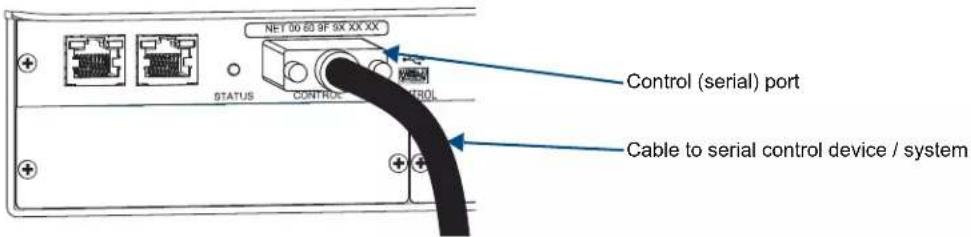
FIG. 36 Null modem serial cable connected to Control port
- Plug the other end of the serial cable into the serial port on the serial controller.
- If not already on, apply power first to the Enova DGX Switcher and then to the source and destination devices (see "Applying Power and Startup" on page 42).
Caution: To avoid system damage, follow the power-up sequence on page 43. We recommend attaching all power cords to a surge protector and/or AC line conditioner.
-
Setup and run the desired method of control:
-
AMX Controller – For control programming information, see the instruction manual for the specific interface.
-
Terminal emulation* – Open the program, set the COM port settings to match the default ones in the “Enova DGX Serial Port Settings” table to the right.
-
Execute a test switch to make sure the system is working properly (see page 59).
* For terminal emulation via the serial port, use the terminal in NetLinx Studio (Tools/Terminal Session), DGX Configuration Software (see page 204), or another terminal emulation program.
| Enova DGX Serial Port Settings | |
| Baud Rate 9600 | |
| Data Bits 8 | |
| Parity None | |
| Stop Bits 1 | |
| Flow Control None | |
Serial Communication Settings
If you are controlling the system with a serial controller, use serial communication software and make sure the baud rate is set correctly for the system. The recommended settings (default settings) for serial communication with Enova DGX Switchers are listed in the table on the previous page.

Enova DGX Switchers support baud rates of 9600 (default), 19200, 38400, and 57600. The settings on the PC serial communication software and the enclosure must correspond to each other. If a change is required to make them match, changing the PC's settings is preferable. If you decide to change the enclosure's settings instead, use XNConnect configuration software (see the Help file).
Serial Connection via Control (USB) Port
Controlling an Enova DGX Switcher using a connection through the USB Control port requires the creation of a virtual COM port. Once created, the virtual COM port is used as if it were a standard serial connection and can connect to a control application or to a terminal emulation program for BCS control. For terminal emulation, use the terminal in NetLinx Studio (Tools/Terminal Session), DGX Configuration Software (sec page 204), or another terminal emulation program.
Important: Enova DGX 64 only – the baud rate must be 115200 for the enclosure's USB port when it is in serial port mode.
Important: You must have adequate rights to install USB device drivers to the PC. Check with your System Administrator to be sure you have the required access.
If you are establishing a new connection, complete all of the steps in the instructions starting below.
Or
If you are reconnecting after previously establishing a USB connection, complete Steps 2 and 3 and then set up and run the desired software program or utility.
To attach a PC to the USB (mini-B) port and establish a virtual COM port:
- Download the APBridge.inf file, which is located at www.amx.com (enter APBridge in the Search AMX.com field in the upper right-hand corner of the site). No user permissions are required.
- Apply power to the enclosure (see page 42).
- Connect the enclosure to a PC running Windows with USB cable (FIG. 37).
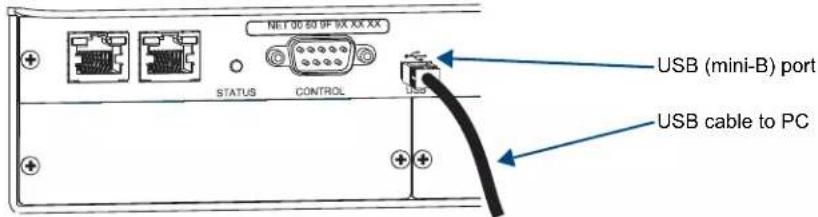
FIG. 37 USB cable connected to USB port on Enova DGX 32 and to PC
- If establishing a new connection, complete the remaining steps.
Or
If reconnecting after previously establishing a USB connection, go to Step 11 to run the desired software.
Note: The following dialog boxes appear only during the initial USB connection. Once the virtual COM port has been assigned to the enclosure, the dialog boxes do not appear again. If they do appear, you have connected the USB plug to a different COM port on the PC than the initial one – either switch to the initial COM port or establish a virtual COM port for the new port on the PC.
The Driver Software Installation window appears. Click Close.

- Open the Device Manager window (Start/Control Panel/Device Manger icon)*, open Other devices, and right-click on the Unknown device icon. Select Properties from the menu.
The Unknown Device Properties window opens.

- In the Driver tab, select the Update Driver button.

* The Device Manager may have a different location depending on the operating system and theme selected.
7. Browse for the APBridge.inf file and select the Next button.

Another Update Driver Software window opens. Click Close.
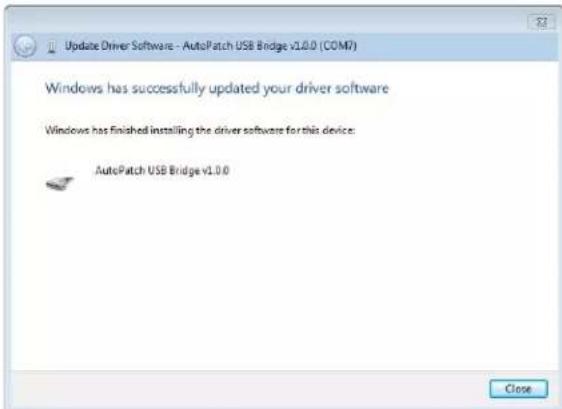
Note: A Windows Security window may open and ask if you want to install a driver with an unverified publisher. Select the "Install this driver software anyway" option.
8. If the AutoPatch USB Bridge port specifies the COM number, go to Step 11.
If the port does not specify a COM number, right-click the AutoPatch USB Bridge, select Properties, and complete all remaining steps.
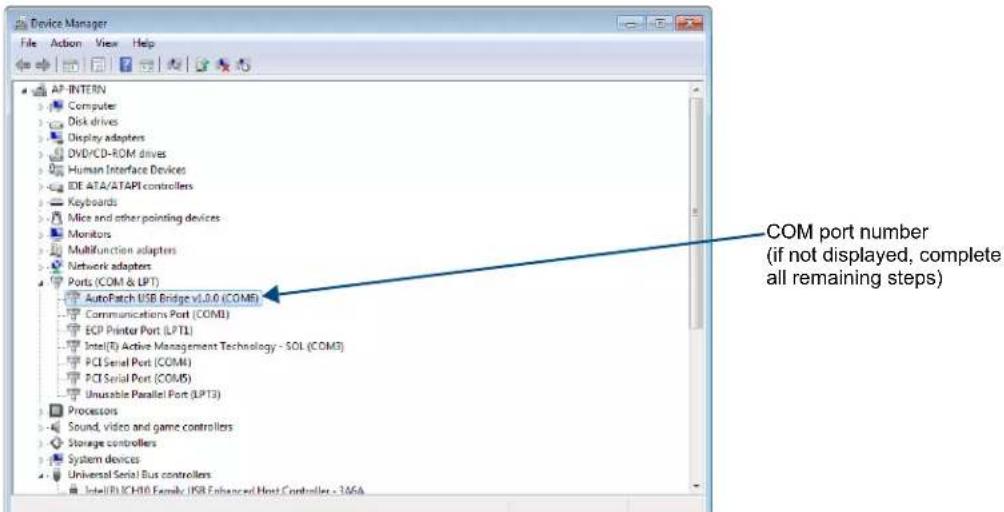
- In the AutoPatch USB Bridge Properties dialog box, select the General tab.

- Make note of the COM port number assigned to the AutoPatch USB Bridge. This port number must be entered when setting a connection in a software program or a terminal emulation program. The PC will always associate a specific USB connector with the assigned virtual COM port. The PC will not recognize the module if you disconnect and reconnect using a different COM port on the PC. However, it will attempt to install a new virtual COM port using the new port. If completed, the new port will be assigned a different COM number.
Important: You must identify the virtual COM port assigned to the USB connector to enable communication between the Control PC and the switcher.
-
Set up and run the desired application:
-
AMX Controller – For control programming information, see the instruction manual for the specific interface.
-
Terminal Emulation – Open the program (see “Terminal Emulation” on the next page). Check to be sure the COM port is set for the port determined in the previous steps. Set the settings to match the default ones: baud rate* – 9600, data bits – 8, parity – 1, stop bits – none, and flow control – 1.
-
Execute a test switch to make sure the Enova DGX Switcher is working properly (see page 59).
* Enova DGX 64 only – the baud rate must be 115200 for the enclosure's USB port when it is in serial port mode.
Important: If power is cycled on the enclosure, the USB connection must be reestablished. (1) Remove the USB cable, (2) close the software application in use, (3) reconnect the USB cable to the same USB connector that was used previously, and (4) reopen the communication software.
Terminal Emulation
For terminal emulation, use the terminal in NetLinx Studio (Tools/Terminal Session), DGX Configuration Software (see page 204), or another terminal emulation program.
When power is applied to the enclosure, the terminal will display a one-line splash screen followed by "Ready." The system is ready to disconnect the factory default switch and to execute a test switch (see page 59).
If you need to access advanced system information, see “Appendix D – Programmer’s Interface for System Diagnostics” on page 229.
![[1:Enclosure] AMX Enova DGX 16 v1.0.1R Ready](/content/2026/06/1223272/images/ffa2a74eb97594c19c666d5c7e6c135e71cb2e289c0f77b4605abbe014c991b5.jpg)
FIG. 38 Power-up splash screen in NetLinx Studio's Terminal
Note: AMX reserves the right to add to the contents of the splash screen at any time, without notice.
BCS (Basic Control Structure) Tunneling Access Support
The following instructions are for establishing a terminal emulation program connection for tunneling BCS commands via TCP/IP over the LAN 100/1000 port. For terminal emulation, use the terminal in NetLinx Studio (Tools/Terminal Session), DGX Configuration Software (see page 204), or another terminal emulation program.
Important: When the BCS tunnel is active, Device ports 2, 3, and 4 in NetLinx Studio (see page 183) are not accessible; upgrades cannot be done; and the XBar Controller will not operate.
Important: DGX_SHELL commands should not be sent over BCS Tunnel as the system will not respond with complete information.
To access a BCS tunnel over TCP/IP:
- Insert one end of a crossover cable or a straight-through patch RJ-45 cable into a network card on a PC.
- Attach the other end of the RJ-45 cable to the LAN 100/1000 port on the right rear of the enclosure. The maximum length for the cable is 100 feet (30.5 meters).
- Open the terminal emulation program.
- When prompted for an IP address, enter the Enova DGX Switcher's IP address.
- When prompted for a port number, * enter 15000 (default).
- Enter the BCS command.**
* To change the port number from the WebConsole, see page 69.
** For information on BCS commands, see the Instruction Manual – BCS Basic Control Structure Protocol at www.amx.com
Changing the BCS Tunnel Port Number
Important: You must be logged in to the device to change the BCS Tunnel Port Number and click the Restart button (which is only available when you are logged in) after the number is changed.
To change the BCS tunnel port number:
- In the WebConsole, select the desired Enova DGX Switcher from the Device drop-down menu in the upper right.
- From the IP Control tab's drop-down menu, select Configuration.

- In the BCS Tunnel Port Number field, enter the number.
- Click Accept.
CPU Backup with MicroSD Memory Card
The system ships with a MicroSD memory card installed in the card slot on the CPU (page 70).
Important: We recommend keeping the card inserted when the system is running for normal operation. Use only the card that was installed at the factory before shipment, unless directed by technical support to install a different one.
The MicroSD memory card serves three purposes. It can be used for:
- Backing up CPU settings (when replacing the CPU, duplicating a system, etc.)
- Refreshing the revocation list (automatically authenticates the System Renewable Message -SRM-list) whenever required
- Updating the firmware*
These cards are considered "removable memory." Firmware updates are periodic and necessary for bug fixes and feature additions.
* Having a physical means to update the firmware is a plus, as a MicroSD memory card can be shipped into strict security installations.
MicroSD Memory Card Removal
If you need to remove the SD card, note that although it is made to "push in to release," a small screwdriver and/or tweezers may be helpful in removing/inserting the card from/into the slot. If you have difficulty removing the card, remove the CPU faceplate for easier access (disconnect cables from the CPU first and then unscrew the two screws on the left and right edges of the faceplate).

FIG. 39 MicroSD memory card and slot for card on CPU with directional outline
MicroSD Memory Card Insertion
To insert the SD card, position it according to the outline above the slot and insert the narrow end into the slot. SD cards are only made to fit one way – do not attempt to force the card as damage to the receptacle may result.
Backing Up and Restoring CPU Settings
The MicroSD memory card can be used to back up and restore settings data on the CPU.
Items that are backed up include:
- Local presets
- Global presets
- Namespaces
- Virtual matrix table
DGX\_SHELL Commands for Backup Operations
Use the following DGX_SHELL commands to back up system settings to the SD card and restore system settings from the SD card.
- config -l save (backs up local presets)
- config -g save (backs up global presets)
- config -n save (backs up namespaces)
- config -t save (backs up virtual matrix table)
- config -l restore (restores local presets)
- config -g restore (restores global presets)
- config -n restore (restores namespaces)
- config -t restore (restores virtual matrix table)
The instructions on the next page assume the enclosure is already powered and the PC has NetLinx Studio (v4.0 or later) installed. For terminal emulation, use the terminal in NetLinx Studio (Tools/Terminal Session) or another terminal emulation program.
Note: For additional information on establishing serial communication between the enclosure and a PC, see page 62.
To back up or restore CPU settings using an SD card:
Important: The DGX_SHELL commands used in Step 8 of this procedure are the only commands that can be used when preparing the CPU for replacement. Otherwise, all of the DGX_SHELL config commands on page 252 are supported.
-
Check to be sure the SD card is in the card slot.
-
Use a null modem serial cable to connect a PC to the Control port (RS-232 serial) on the enclosure (pinout for PC to enclosure: 5 GND to 5 GND, 2 RXD to 3 TXD, and 3 TXD to 2 RXD).
-
Open NetLinx Studio (v4.0 or later).
-
Select Tools/Terminal Session (if you use another terminal emulation program, be sure to set the COM port and the communication settings per Step 5).
The Terminal Window Communication Settings dialog box opens.
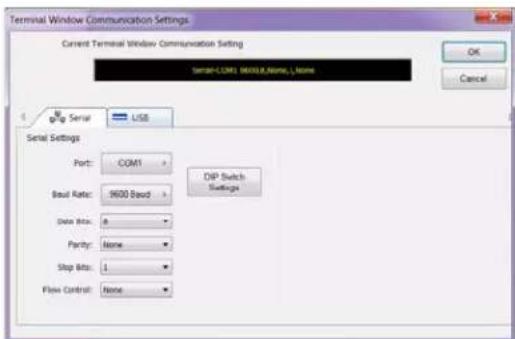
-
Set the COM port and the Serial Settings (Enova DGX default settings: 9600 Baud / 8 / None / 1 / None).
-
Click OK.
The Terminal window opens.
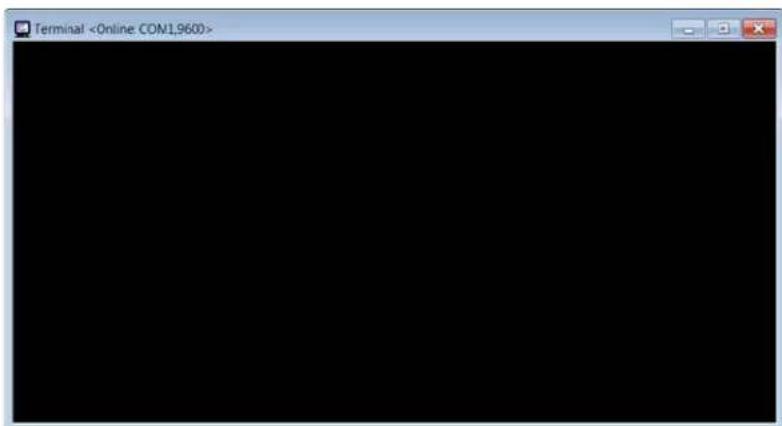
-
Press CTRL+C to exit the terminal emulation program and enter the DGX_SHELL.
-
To back up settings: At the prompt (DGX_SHELL>), enter the following DGX_SHELL commands:
-
config -l save (backs up local presets)
- config -g save (backs up global presets)
- config -n save (backs up namespaces)
- config -t save (backs up virtual matrix table)
Or
To restore settings: At the prompt (DGX_SHELL>), enter the following DGX_SHELL commands:
- config -l restore (restores local presets)
- config -g restore (restores global presets)
- config -n restore (restores namespaces)
- config -t restore (restores virtual matrix table)
Integrated Master Functionality
The integrated NetLinx Master in the currently shipping Enova DGX 8/16/32/64 is an NX Series Class Controller. Previously shipped Enova DGX 8/16/32 Matrix Switchers may have an NI Series Class Controller. For information on NI Series NetLinx Masters, contact Technical Support.
Network Connection
The default IP address for the ICSLan network is 198.18.0.1 with a subnet mask of 255.255.0.0.
Important: The ICSLan and LAN subnets must not overlap. If the LAN 100/1000 port is configured such that its address space overlaps with the ICSLan network, the ICSLan network will be disabled.
DHCP Server
The LAN 100/1000 port has a built-in DHCP server. This DHCP server is enabled by default and will serve IP addresses to any connected devices set to DHCP mode.
The DHCP server can be disabled from Telnet with the command: SET ICSLAN.
The DHCP address range is fixed. The server will provide addresses in the range x.x.0.2 through x.x.63.255.
Devices using static IP addresses on the ICSLan network should be set within the reserved static IP address range of x.x.64.1 to x.x.255.255.
Opening LAN and ICSLan Sockets from Code
The integrated NetLinx Master opens sockets from NetLinx or Java code on whichever network has an IP subnet that matches the address provided in the command to open the socket. No other indications are provided for which network is in use, only whether the socket is successfully created.
Integrated Master Features
The NX Series Integrated Master supports the following features:
● Automatic binding of AMX devices on ICSLan
- Link-local fallback in DHCP mode
● Wired 802.1x (security for protected networks)
- IPv6 network addressing
- Case sensitive file system
- Differences in DEFINE_PROGRAM execution
- USB Program port driver for Windows 7 and Windows 8
● New Telnet Commands for the Enova DGX 8/16/32/64
Note: The Master also supports an SD external card slot for: (1) backing up CPU settings, (2) refreshing the revocation list, and (3) updating the firmware. For information, see page 69.
Automatic Binding of AMX Devices on ICSLan
When an ICSLan device, such as an EXB-MP1, is set to NDP connection mode (the factory default), it will automatically be bound to the Master when connected to its LAN 100/1000 port if its IP address is valid for the ICSLan subnet.
If the Master is set to serve DHCP addresses on ICSLan and the ICSLan device is set to DHCP addressing mode, a valid IP address is assured. Since these are the factory default settings for these devices, automatic binding is the expected behavior for all new equipment.
Even after being automatically bound to a Master in this manner, if the ICSLan device is disconnected and moved to the LAN 100/1000 (or ICSLan) port of a different Master, its old binding will be forgotten and it will bind to the new Master to which it has been connected.
Once bound, the device ID still must be set to match the device definition in code. Once bound, the device can also be configured for a different connection mode if desired.
Link-Local Fallback in DHCP Mode (IPv4 Only)
When the integrated Master's LAN IP addressing mode is set to DHCP, it will attempt to acquire an IPv4 address from a DHCP server for approximately one minute after boot. If the Master does not receive a valid DHCP address in that time (e.g. if a DHCP server is not found), it will fall back to an IPv4 address in the link-local range.
Note: Link-local is not an operational mode for the Master; it is a temporary addressing scheme to permit access over the network so that IP settings can be modified. Do not commission the Master with a link-local IP address.
The default link-local address is 169.254.x.y, where x and y are the least significant two octets of the MAC address. The Master will first verify that this address is not taken by another device on the network. If the address is taken, the Master uses a standard algorithm to find an available IP address in the link-local range.
When the Master is using a link-local IP address, the status light will blink once per second. If the Master's network settings remain in DHCP mode, it will attempt to acquire a DHCP address every five minutes until successful. After each failed attempt to acquire a DHCP address, the Master will execute the link-local algorithm and may not fall back to the same link-local IP address.
Wired 802.1X Support
The integrated NetLinx Master supports 802.1X, an IEEE Standard for Port-based Network Access Control. The Master acts as a supplicant (client device) to an 802.1X enabled network and presents customer-provided X.509 certificates to be allowed access to protected networks.
Support for IPv6 Networks
The NX Series Integrated Master fully supports IPv6 network addressing. If the LAN port is connected to an IPv6 capable network, it will self-select an appropriate IPv6 address based on the discovered address parameters of the network to which it is attached.
The Master simultaneously supports IPv4 network addressing. This means any Master may have more than one valid IP address: one IPv4 and one or more IPv6 addresses.
When opening sockets from NetLinx or Java code, no unique command is available to indicate that you are providing an IPv4 or IPv6 network address. As long as the provided IP address is a valid IPv4 or IPv6 address, the Master will utilize the correct addressing protocol automatically.
Case Sensitive File System
All file names on the integrated Master are case sensitive. This includes all user files created or used within NetLinx or Java code. If your legacy code generates an error when accessing a file, it is likely due to inconsistent use of case in the filename.
Important: If you have legacy code that uses files, verify that every reference to each file is consistent with regard to case.
Differences in DEFINE\_PROGRAM Program Execution
Due to differences in the underlying architecture of the integrated Master, changing variables in the
DEFINE_PROGRAM section of code* can negatively impact program performance. If you have legacy NetLinx code that does change a variable in this section, it is very likely that timing differences will cause your code to run slower and appear less responsive on the Master.
* Changing variables within the DEFINE_PROGRAM section of code is poor programming practice.
USB Program Port Driver
The NX Series Integrated Master is configurable for communication with a PC over the switcher's USB Program port. For instructions on installing the USB Program port driver on a PC running Windows 7 or Windows 8, see page 51.
New Telnet Commands
The table below contains Telnet Commands which are new with the addition of the NX Series Integrated Master to the Enova DGX product line.
Note: For complete WebConsole and programming information for the integrated Master, see the "WebConsole & Programming Guide – NX-Series Controllers" at www.amx.com.
| NX Series Telnet Commands for Special Features | |
| Command Description | |
| AUTO LOCATE(ENABLE|DISABLE|STATUS) | Enables/disables/queries the auto locate feature on the integrated Master. Auto locate adds additional broadcast information for use by AMX Touch Panel devices configured in Auto connect mode Syntax:Auto Locate [enable|disable|status] |
| DOT1X(ENABLE|DISABLE|STATUS) | Enables/disables 802.1x security or displays its current settingsSyntax:DOT1X[status|enable|disable] |
| MANAGE FIRMWARE | Telnet interface to load previous and factory firmware versions for both the integrated Master (device 0) and switcher (device 5001).Example:>manage firmwareDevices----0 - Master5001Select device or press return to cancel:0Current Version: 1.2.259Previous Version: 1.2.258Factory Version: 1.2.250To install a firmware version:Enter P (Previous), F (Factory) or press return to cancel: |
| PROGRAM(ENABLE|DISABLE|STATUS) | Enable/disable the NetLinx program or display the status of the current program execution setting. The default setting is enable.Important: For information on using this command, see Appendix F on page 240.The setting (enable or disable) persists through power down and through firmware updates, etc, until a new command is sent. If the software setting is disabled, then the NetLinx program is disabledSyntax:PROGRAM [status|enable|disable] |
| PROGRAM INFO | Displays a list of program files and modules residing on the integrated Master.Example:>PROGRAM INFO-- Program Name Info-- Module Count = 11 Name is i!-FCLinkPowerPointTest-- File Names = 21 - C:\Program Files\AMX Applications\i!-PCLinkPowerPoint2 - C:\Program Files\Common Files\AMXShare\AXIs\NetLinx.axi2 - Name is MDLPP-- File Names = 21 C:\AppDev\i!-PCLink-PowerPoint\i!-PCLinkPowerPointMod.axs2 C:\Program files\Common Files\AMXShare\AXIs\NetLinx.axi |
| REBOOT | Reboots the integrated Master or specified device. Options for rebooting the Master are cold, soft, and warm. The reboot command with no parameter executes as “reboot cold”.Example (Rebooting device):>REBOOT [0:1:0]Rebooting...Example (Rebooting Master):>reboot coldReboots the Master and restarts the entire operating system.>reboot warm>reboot softReboots the Master but only starts the AMX NetLinx application firmware. |
Troubleshooting and Technical Support
Troubleshooting
This Instruction Manual addresses a number of topics with troubleshooting sections and tips appearing as they apply. The sections below list each of these appearances with linked page references to troubleshooting advice. If the troubleshooting advice does not answer a particular question, the text above or below the advice should also be consulted as those areas may contain relevant material. If the manual has not addressed your particular problem, contact Technical Support.
Enova DGX Switcher Hardware Troubleshooting
- General boards – page 238
- DXLink Twisted Pair Boards – page 107
- DXLink Fiber Boards – page 130
- AIE Boards – page 144
- Test switches – page 60
- Control panel error codes – page 162
● Power supplies – page 45 - CPU troubleshooting after setting PRD Mode Dip Switches – page 243
- CPU troubleshooting after replacing the timekeeper battery – page 246
Video and Audio Troubleshooting
- HDCP video output – page 191
- HDMI Input does not pass video – page 85
- DVI Input does not pass video – page 92
- Image with black bars on all sides – page 75
- Audio, EDID / support / problems / solutions – page 86
● Audio, checking for support – page 202
● AIE Board, extracted audio problems – page 144 - Custom HDMI and DVI EDID files for handling audio concerns – page 201
- Additional audio EDID tip – page 199
AMX Software Troubleshooting
- NetLinx Studio connection – page 57
- NetLinx WebConsole setup – page 58
- WebConsole proxy settings – page 180
Contacting Technical Support
If this manual has not satisfactorily answered your questions regarding the Enova DGX Switcher or the system is not operating as expected, please contact your AMX representative or technical support. Have the serial numbers for your system and any applicable AMX accessory devices ready (the numbers are normally located on the rear of the enclosure or accessory devices).
We recommend recording your system's serial numbers in an easily accessible location.
AMX Contact Information
● 3000 Research Drive, Richardson, TX 75082
800.222.0193
469.624.8000
Fax 469.624.7153
● Technical Support 800.932.6993
www.amx.com
Enova DGX HDMI Boards
Applicability Notice
This chapter pertains to the Enova DGX HDMI Input Board and the HDMI Output Board.
- FG1058-540 Input board
● FG1058-550 Output board

natural_image
Technical line drawing of a dual-chamber electronic device chassis with multiple ports and connectors (no text or symbols visible)FIG. 40 Enova DGX HDMI Input and Output Boards (Enova DGX 32 shown)
Enova DGX 8
Enova DGX 8 enclosures can hold up to four DGX HDMI Boards with four inputs or outputs per board. Each enclosure holds a maximum of two input and two output boards, accommodating connector configurations up to a maximum of 8x8, as well as three subsets (i.e., 4x4, 4x8, or 8x4).
Enova DGX 16
Enova DGX 16 enclosures can hold up to eight DGX HDMI Boards with four inputs or outputs per board. Each enclosure holds a maximum of four input and four output boards, accommodating connector configurations up to a maximum of 16x16, as well as subsets (c.g., 16x8 or 4x12).
Enova DGX 32
Enova DGX 32 enclosures can hold up to sixteen DGX HDMI Boards with four inputs or outputs per board. Each enclosure holds a maximum of eight input and eight output boards, accommodating connector configurations up to a maximum of 32x32, as well as subsets in increments of four (e.g., 12x20 or 24x8).
Enova DGX 64
Enova DGX 64 enclosures can hold up to thirty-two DGX HDMI Boards with four inputs or outputs per board. Each enclosure holds a maximum of sixteen input and sixteen output boards, accommodating connector configurations up to a maximum of 64x64, as well as subsets in increments of four (e.g., 12x48 or 52x8).
Signal Routing
DGX HDMI Input Boards route signals to DGX HDMI Output Boards or to any other type of Enova DGX Output Boards. HDMI Output Boards can also accept signals from all of the other types of Enova DGX Boards. When routing signals between different board types, the Enova DGX Switcher automatically converts the signal format to match the output board.
Whenever HDMI Input Boards are used with DGX SC Optical Output Boards, the signals are converted to fiber and then converted by a DGX Receiver before being sent to the destination. Note that DGX SC Optical boards can be used for non-HDCP signals but do not support HDCP; when HDCP protected video signals are routed to them, the display provides a dark red image to indicate the authentication process failed.
The HDMI connectors are designed to route high-resolution HDMI or DVI signals with or without HDCP (High-bandwidth Digital Content Protection). DVI signals must be single link DVI-D and require the use of a cable adapter. Destinations with DVI-I or single-link DVI-D connectors are supported.
Note: HDMI Boards can also work in conjunction with Audio Insert/Extract Boards (see page 136).
Important: Signals through HDMI Boards in the Enova DGX Switcher normally produce a quality image and provide support for the most flexible audio settings because the connectors are pre-loaded with the most common EDID settings to ensure they will work with the source devices. In addition to common EDIDs on the inputs, SmartScale on every output also greatly helps ensure that all signals are satisfactory. Therefore, adjustments are not necessary unless the installation has special scaling, EDID, or HDCP requirements. If changes to EDID settings or scaling parameters are needed, use DGX Configuration Software (see page 189) which is available at www.amx.com.
InstaGate Pro ® and SmartScale ®
- HDMI Boards are HDCP 1.4 compatible and feature InstaGatePro Technology* for low-latency switching of HDCP protected content and support computer video up to 1920x1200 and HDTV up to 1080p. The HDMI boards also support embedded audio, both linear PCM (stereo audio) and non-linear PCM (Dolby Digital, DTS, Dolby TrucHD, etc.).
- If an HDCP protected signal is switched from an HDMI Input Board to an output board which does not support HDCP (e.g., the DGX SC Optical Output Board), the system will not allow the switch and will provide a dark red image to that output to indicate the authentication process failed.
- HDMI Boards meet HDCP Standards. For complete information on HDCP functionality for HDMI boards, see “HDCP Support on Enova DGX Switchers” on page 82.
- HDMI Boards provide EDID emulation support with plug-and-play information provided by the Enova DGX Switcher.
- HDMI Output Boards feature SmartScale Technology which automatically responds to the display's preferred EDID information and scales the video to the best resolution and video parameters for that display without manual setup (see page 191).
* InstaGate Pro Technology eliminates HDCP latency and interruptions on all displays in a system. (These conditions are typically experienced when HDCP authenticates HDMI source and destination devices.) With InstaGate Pro Technology, when a source requires HDCP encrypted content, the inputs and compliant downstream devices are automatically authenticated – it just works.
Enova DGX HDMI Boards – Specifications
Applies to input board FG1058-540 and output board FG1058-550.
| HDMI Specifications | |
| Compatible Formats HDMI, HDCP, DVI | |
| Signal Type Support • HDMI | • DVI-D (single link with HDMI cable adapter)• DisplayPort ++ (Input only, with HDMI cable adapter) |
| Video Data Rate (max.) 4.95 Gbps / 6.75 Gbps• 6.75 Gbps is only supported when the HDMI Output Scaler is in Bypass mode and format is 1080p60 or less | |
| Video Pixel Clock (max.) 165 MHz / 225 MHz• 225 MHz is only supported when the HDMI Output Scaler is in Bypass mode and format is 1080p60 or less | |
| Progressive Resolution Support 480p up to 1920x1200 @ 60 Hz | |
| Interlaced Resolution Support 480i, 576i, 1080i | |
| 2K Resolution Support 2048x1024 @ 47 Hz, 2048x1080 @ 60 Hz, 2048x1152 @ 60 Hz, 2048x1536 @ 24 Hz• 2K formats are only compatible with DVI, HDMI, and DXLink Fiber Input/Output Boards and require the output or RX Scaler to be set in Bypass mode | |
AMX reserves the right to modify its products and their specifications without notice.
| HDMI Specifications (continued) | |
| Input Equalization Yes, adaptive up to 100 ft. (30 m) at 225 MHz• Cable distance support dependent on cable type and signal format | |
| Input Re-clocking (CDR) Yes | |
| Output Re-clocking Yes | |
| Output Scaling SmartScale, Manual | Configuration, Bypass |
| SmartScale Output Resolution Support | All resolutions between 480p and 1920x1200 @ 60 Hz via automatic SmartScale query of the display's preferred EDID Detailed Timing Definition |
| Deep Color Support 24-bit, 30-bit, 36-bit• 30-bit and 36-bit are only supported when the HDMI Output Scaler is in Bypass mode and format is 1080p60 or less. | |
| Color Space Support RGB 4:4:4 | YCbCr 4:4:4 and 4:2:2• Input signal support for YCbCr 4:4:4 and 4:2:2, output color-space is converted to RGB 4:4:4 |
| 3D Format Support Yes* (HDMI primary formats)• Frame Packing 1080p up to 24 Hz• Frame Packing 720p up to 50/60 Hz• Top-Bottom 1080p up to 24 Hz• Top-Bottom 720p up to 50/60 Hz• Side-by-Side Half 1080i up to 50/60 Hz | |
| Audio Format Support Dolby TrueHD, Dolby Digital, DTS-HD Master Audio, DTS, 2 CH L-PCM, 6 CH L-PCM, 8 CH L-PCM• Dolby Digital and DTS support up to 48 kHz, 5.1 channels | |
| Audio Resolution 16 bit to 24 bit | |
| Audio Sample Rate 32 kHz, 44.1 kHz, 48 kHz, 96 kHz, 192 kHz | |
| Local Audio Support Yes, insertion and/or extraction of 2 CH L-PCM selectable by channel | |
| DDC/EDID Support EDID provided by Enova DGX Digital Media Switcher EDID is user re-programmable | |
| HDCP Support Yes, full matrix HDCP support (includes any input to any or all outputs)• Key Management System• AMX HDCP InstaGate Pro® Technology• Key support up to 16 devices per output, independent of source device | |
| CEC Support None | |
| Input Voltage (nominal) | 1.0 Vpp differential |
| Output Voltage (nominal) | 1.0 Vpp differential |
| Output Rise Time / Fall Time | 100 ps min. to 200 ps max.(20% to 80%)0.16 UI min. to 0.33 UI max. (@ 1.65 Gbps, 20% to 80%) |
| Output +5 V DDC Pin | 50 mA max. per output port |
| Input Propagation Delay | 2 μs |
| Output Propagation Delay | 24 ms for progressive, 48 ms for interlaced, 5 μs when in Bypass mode |
| HDMI Audio Synchronization | Progressive and Interlaced Video Formats @ 60 Hz frame rate: Audio is actively delayed to match video within 8 ms leading or laggingNote: Interlaced and progressive video supported into the HDMI Input Board, progressive only supported out of the HDMI Output Board unless in non-scaling Bypass mode. |
| Connectors | 4 HDMI Type A female ports |
* When used with DXLink Output Boards and the RX Scaler is in Bypass mode.
AMX reserves the right to modify its products and their specifications without notice.
EDID Resolutions Supported through Local DDC
Standard and established timings are given in the tables following along with detailed timing blocks.
Important: The EDID can be re-programmed to support additional resolutions through the local DDC using the EDID programming functionality in the DGX Configuration Software (see page 198).
Standard Timings (Default Shipping EDID*)
| Resolution Refresh Rate Max. | |
| 1920x1080** | 60 |
| 1920x1200 60 Hz | |
| 1680x1050 60 Hz | |
| 1600x1200 60 Hz | |
| 1600x900 60 Hz | |
| 1400x1050 60 Hz | |
| 1440x900 60 Hz | |
| 1360x765 60 Hz | |
| 1280x1024 60 Hz | |
| 1280x900 60 Hz | |
| 1280x800 60 Hz | |
| 1280x720 60 Hz | |
Hz
* The default EDID can be overwritten to include a broad range of features, including HDMI mode, based on installation requirements.
** This is the preferred timing identified in the EDID.
Established Timings
| Resolution Refresh Rate | |
| 1280x1024 75 Hz | |
| 1152x870 75 Hz | |
| 1024x768 60 Hz, 70 Hz, | 75 Hz, 87 Hz |
| 832x624 75 Hz | |
| 800x600 56 HZ, 60 Hz, | 72 Hz, 75 Hz |
| 720x400 70 Hz, 88 Hz | |
| 640x480 60 Hz, 67 Hz, | 72 Hz, 75 Hz |
AMX reserves the right to modify its products and their specifications without notice.
Tip: If you are experiencing audio problems, it may be because you are trying to pass Dolby or DTS or high PCM frequency rates and the destination device does not support them. If you are experiencing video problems, it may be because you are trying to pass a video format that the destination device does not support. In either of these cases, re-programming the EDID may help resolve the problem.
CEA Video Information Code (VIC) Formats
| VIC # Resolution Refresh Rate and Aspect Ratio | ||
| VIC = 1 640x480p 59.94/60 Hz 4:3 | ||
| VIC = 2 720x480p 59.94/60 Hz 4:3 | ||
| VIC = 3 720x480p 59.94/60 Hz 16:9 | ||
| VIC = 4 1280x720p 59.94/60 Hz 16:9 | ||
| VIC = 5 1920x1080i 59.94/60 Hz 16:9 | ||
| VIC = 6 720(1440)x480i 59.94/60 Hz 4:3 | ||
| VIC = 7 720(1440)x480i 59.94/60 Hz 16:9 | ||
| VIC = 14 | 1440x480p 59.94/60 Hz 4:3 | |
| VIC = 15 | 1440x480p 59.94/60 Hz 16:9 | |
| VIC = 16 | Native 1920x1080p | 59.94/60 Hz 16:9 |
| VIC = 17 | 720x576p | 50 Hz 4:3 |
| VIC = 18 | 720x576p | 50 Hz 16:9 |
| VIC = 19 | 1280x720p | 50 Hz 16:9 |
| VIC = 20 | 1920x1080i | 50 Hz 16:9 |
| VIC = 21 | 720(1440)x576i | 50 Hz 4:3 |
| VIC = 22 | 720(1440)x576i 50 Hz 16:9 | |
| VIC = 29 | 1440x576p | 50 Hz 4:3 |
| VIC = 30 | 1440x576p | 50 Hz 16:9 |
| VIC = 31 | 1920x1080p | 50 Hz 16:9 |
| VIC = 32 | 1920x1080p | 23.97/24 Hz 16:9 |
| VIC = 33 | 1920x1080p | 25 Hz 16:9 |
| VIC = 34 | 1920x1080p | 29.97/30 Hz 16:9 |
| VIC = 39 | 1920x1080i | 50 Hz 16:9 |
| VIC = 41 | 1280x720p | 100 Hz 16:9 |
| VIC = 42 | 720x576p | 100 Hz 4:3 |
| VIC = 43 | 720x576p | 100 Hz 16:9 |
| VIC = 44 | 720(1440)x576i 100 Hz 4:3 | |
| VIC = 45 | 720(1440)x576i | 100 Hz 16:9 |
| VIC = 47 | 1280x720p | 119.88/120 Hz 16:9 |
| VIC = 48 | 720x480p | 119.88/120 Hz 4:3 |
| VIC = 49 | 720x480p | 119.88/120 Hz 16:9 |
Audio Data Block
| Channels | Sampling Frequency |
| Basic Audio: 2 Channel L-PCM 32, 44.1, 48 kHz | Sampling frequency at 16, 20, or 24 bits per sample |
Important: For information on troubleshooting audio, including a table on "Audio Format Support on Enova DGX Boards," see page 86.
AMX reserves the right to modify its products and their specifications without notice.
Attaching Cables
Viewed from the rear of the enclosure, the input boards (for attaching sources) are on the left, and the output boards (for attaching destinations) are on the right.
Enova DGX 8/16 – Input and output channel numbers correspond to the connectors and are located between the input and output boards. For inputs, numbering is consecutive from left to right on each board from the top board to the bottom board; outputs start over at “1” and follow the same pattern.
Enova DGX 32 – Input and output channel numbers correspond to the connectors and are located on the numbering plate (metal strip) directly above the boards. For inputs, numbering is consecutive from top to bottom on each board from the left board to right board; outputs start over at “1” and follow the same pattern.
Enova DGX 64 – Input and output channel numbers correspond to the connectors and are located in the middle of the enclosure between boards on either side. For inputs, numbering is consecutive from left to right on each board from the top input board on the left to the bottom input board on the left, continuing on the top input board on the right to the bottom input board on the right. Outputs are in the lower part of the enclosure, start over at “1” on the left, and follow the same pattern.
Note: The HDMI connector has a center screw for locking capability.
To connect HDMI connectors:
- Attach HDMI connectors to HDMI receptacles.

FIG. 41 Attach HDMI connectors to HDMI receptacles
Important: If a device with an EDID (e.g., a video processor) is installed between the output and destination monitor, the scaler override function will read the EDID for that device. If this happens, we suggest you try either reading the EDID directly from the destination device and applying it to the output as a fixed override scaler setting (see page 202) or setting a custom resolution (see page 197).
Executing a Test Switch for an HDMI Board
We recommend becoming familiar with how HDMI switching works in an Enova DGX Switcher by reading the rest of this chapter before executing a test switch. We also recommend executing a test switch to verify the system is working correctly and then disconnecting the test switch before finishing the installation. For information on executing test switches, see page 59.
HDCP Support on Enova DGX Switchers
The Enova DGX HDMI Boards provide true matrix switching for complete distribution of high resolution digital video and embedded audio from the sources to the destinations (audio can also be inserted or extracted with the use of Audio Insert/Extract Boards; see page 136). Full HDMI support allows 1080p protected entertainment content to be switched freely, while its high resolution capabilities (1920x1200) provide the advantage of being able to use this solution to switch high resolution computer images. As a result, a single system can handle a combination of computer images and protected content.
Note: This section also applies to DGX DVI, DXLink Twisted Pair, and DXLink Fiber Boards.
Enova DGX Switchers meet the HDCP Standard, which was established to prevent the unauthorized transfer of protected audiovisual content between devices. In addition, these switchers support InstaGate Pro, which was developed to address the special concerns that arise when protected content needs to be distributed.
The Enova DGX HDMI Boards route HDCP (content-protected) and non-HDCP digital audiovisual signals. If HDCP is applied, the transmitted video is encrypted. The HDMI input connectors act as HDCP receivers (RXs) for upstream devices, and the output connectors act as HDCP transmitters (TXs) for downstream devices.
If the content is protected (HDCP), the Enova DGX Switcher functions as an InstaGate Pro sink and through the HDMI (or DVI) output connectors handles verification of the connected individual downstream sinks / destination devices (and downstream repeaters in the path if applicable). This means that the source device only needs to authenticate the HDMI input. Once the authentication is complete, the encrypted content begins to display on the destinations.
Note: Enova DGX Boards do not support CEC.
HDMI System Conditions
Normally, all devices used in an HDMI system are HDCP compliant. Each HDCP capable device has a unique set of confidential keys (used to encrypt and decrypt the data).
- Normally HDCP is used only when the source content is copyright protected.* Unprotected content is not affected and may be routed as desired.
- Each HDMI input can be routed to any number of outputs. The HDMI input (using InstaGate Pro Technology) is the only sink that the source device is required to verify (unless any repeaters are installed between the source device and the Enova DGX Switcher).
- Each HDMI output goes through a verification process with its connected sink(s).** Each HDMI output can support a maximum of 16 devices (repeaters and destination devices) with seven levels, i.e., the number of times the signal goes through a repeater prior to going to the sink. However, if the HDMI output goes into a device which is also utilizing InstaGate Pro, then the process starts all over again and the Enova DGX Switcher only sees the input of that InstaGate Pro device as the one sink that it needs to verify. So even though the number of sinks each HDMI output on the switcher can handle is finite, the number of sinks can be unlimited if using AMX devices that support InstaGate Pro Technology.
* In some cases, source devices will always enforce HDCP even if the content is not protected. In those cases, when the source device sees that its output is connected to the input of the Enova DGX HDMI board (or another HDCP compliant sink), the source device will always enforce and encrypt the HDMI signal that it sends. If the system's equipment includes this type of source device, be aware that DGX HDMI Boards will not be able to route that source device's signal to a non-HDCP compliant display or through an SC Optical Output Board.
** If the connected downstream sink is not HDCP compliant, then the HDMI output will not send the signal. This does not affect other outputs the source may be routed to. This allows compliant displays to show content from source devices even if the source devices are switched to non-compliant displays. Non-compliant outputs can easily be identified because they display a dark red image to indicate they failed the authentication process.
The content protection process for the point-to-point connection between the upstream transmitter on the source device and an HDMI input connector (which is an RX) on the Enova DGX Switcher through an HDMI output connector (which is a TX) to the destination device includes four steps.
Steps in the Content Protection Process
- The transmitter on the source device uses authentication protocol to verify that the HDMI input is authorized to receive the protected content. (This is true regardless of how many destination devices the source is being routed to.) The content is encrypted and transmitted.
- The Enova DGX Switcher verifies that the display devices are authorized to receive the protected content (this is the part of the process in which renewability of the SRM (System Renewability Message) list is verified; this verification of the display devices occurs inside the switcher). The content is encrypted and transmitted.
- The source device's transmitter periodically verifies that the HDMI input is still synchronized and capable of decrypting the protected content.
- The Enova DGX Switcher periodically verifies that the display devices are still synced and capable of decrypting the protected content.
Note: If the source does not support HDCP, the display device does not need to support HDCP. The unencrypted content from the source is simply routed through the outputs to the display devices.
Supported Number of Sinks
HDCP Source Device
The number of sinks that the source device supports is not relevant when using Enova DGX Switcher boards that support HDCP because the input connector on the board is the only sink that the source device needs to authenticate.
Enova DGX Switcher
The HDMI outputs in an Enova DGX Switcher each support a maximum of 16 downstream devices (repeaters and/or destination devices).
Unsuccessful Transmission in System
If an Enova DGX Switcher does not successfully transmit the protected content to any of the routed sinks, it may indicate one of the following conditions:
- Non-compliant device – The sink device is not HDCP compliant or has had its authentication key revoked.*
- HDMI output sink support limit exceeded – The output is actively routed to more than 16 downstream devices (display devices and/or repeaters) from a single output connector on an Enova DGX Switcher.
* Key revocation is handled strictly by the Enova DGX Switcher. The source does not take any action with respect to revoked keys.
Important: Keep in mind that a “failure condition” (in which HDCP authentication fails to occur) is verified by the Enova DGX Switcher not the source device and will result in the image being a dark red.
Note: Be aware that even when you are playing un-encrypted content on a Blu-Ray player, most Blu-Ray players play all content as encrypted content. Normally the Enova DGX Switcher switches non-encrypted content without problems if the display is non-HDCP compliant. However, when encrypted content is sent from a Blu-Ray player to the Enova and is switched to an output board (e.g., SC Optical Board) or a device that does not support HDCP, the content will not display and the image will be red.
InstaGate Pro® Technology
InstaGate Pro Technology eliminates latency (time required for authentication) in the switcher for HDCP negotiations with the displays in a system. The latency is typically experienced when HDCP authenticates HDMI source and destination devices every time a new switching combination between a source device and display occurs. With InstaGate Pro Technology, when a source requires HDCP encrypted content, the inputs and compliant downstream devices are automatically authenticated – it just works. Key limitations on source devices are also eliminated by allowing them to see only a single sink key from the HDMI Input Board's input connection.
Note: Some destination devices have a longer lag time than others between receiving a signal and displaying that signal. Although InstaGate Pro significantly reduces the latency associated with HDCP authentication, it cannot reduce the inherent lag time of a device as it syncs up to the newly switched video image.
Troubleshooting Video
The following two troubleshooting tips both involve signal support from or to third-party devices. The first tip resolves potential problems from third-party sources and the second resolves potential problems when using third-party destinations.
Problem - The HDMI Input Board does not pass video through the enclosure to a connected display. The likely cause is that the signal is from an incorrectly formatted source (e.g., VTC, wall processor with combined output, or signal generator) and the Enova DGX firmware (v1.6.4.1 and later) includes a background measurement process for detecting valid video. (If the incoming signal fails to meet the Enova DGX criteria, it will not pass the signal.)
Solution - Turn off the firmware's background checks and run video without them:
● Install Enova DGX firmware v1.6.5.13 or later.
- Use the DGX_SHELL command set BCPUx_bg_vsync_disabled=ON (where x is the input board slot number) to disable the background check (affects the entire input board).
(BCPUx_bg_vsync_disabled=OFF enables the background check.)
The video will route through the Enova DGX from source to destination as soon as the command is sent. The board's setting persists through power cycles and will persist the setting when removed from the enclosure and added to another, while a new board replacing the old board will be set to OFF (default).
Tip: A complete list of the DGX_SHELL targets, BCPUx, is in the "Product to Board Slot Correspondence" table on page 249.
Problem – Video from the HDMI Output Board to a third-party device (e.g., VTC, wall processor) does not display or displays with flickers. The problem is usually caused by destination devices with weak or no input equalization (i.e., the video stream from the output board attempts to lock onto the destination; however, the destination is unable to provide a stable connection). This is made worse when signals are passed through low-quality or long-distance cable runs.
Solution - Use one or more of the following work-arounds to avoid the issue:
- Replace low quality cables with higher quality cables.
- Use shorter cable runs.
- Install an EDID emulator, an HDMI equalizer/repeater, or another device that rebuilds/reclocks the signal.
You will know the problem is resolved when the video signal appears on the display device without flickering.
Troubleshooting Audio
Before troubleshooting audio, it helps to understand how the system handles EDID information.
- The source reads and adapts to the pre-loaded EDID on the DGX HDMI input connector.
- The factory default EDID is set to support 2 channel L-PCM audio. This EDID can be modified by using one of the methods described under “Possible Solutions” on page 86.
Audio Format Support on Enova DGX Boards
The following table indicates which audio formats are supported by specific Enova DGX boards.
Audio Format Support on Enova DGX Boards
| Audio Format | Board Types | HDMI Input Boards | HDMI Output Boards | DVI Input Boards | DVI Output Boards | DXLink Twisted Pair Input and Output Boards | DXLink Fiber Input and Output Boards | Audio Insert/Extract Expansion Boards (on either the input or the output side) | SC Optical Output Boards |
| 2 Channel L-PCM | ● | ● | ● | ● | ● | ● | |||
| 6 Channel L-PCM | ● | ● | ● | ● | ● | ● | |||
| 8 Channel L-PCM | ● | ● | ● | ● | ● | ● | |||
| Dolby Digital (AC3) | ● | ● | ● | ●* ●● | |||||
| DTS (AC3) | ● | ● | ● | ●* ●● | |||||
| Dolby True HD | ● | ● | ● | ● | ● | ||||
| DTS-HD Master | ● | ● | ● | ● | ● | ||||
* Dolby Digital and DTS support up to 48 kHz, 5.1 channels.
Note: DVI Boards must have their EDID changed to support HDMI signals with embedded audio.
Important: Because signals routed through HDMI, DVI, DXLink Twisted Pair, and DXLink Fiber Boards in an Enova DGX Switcher feature SmartScale Technology, they normally produce a quality image. If the installation has special scaling, EDID, or HDCP requirements, see page 189.
Audio Problems
The default EDID for input boards only supports 2 channel L-PCM audio. If a sources chooses to ignore this EDID and send a format that is not in the EDID, the audio may not pass through the Enova DGX 8/16/32/64 at all or it may be distorted. To present other types of audio formats to the source, a different EDID must be loaded (see the AMX EDID Library at www.amx.com (search for EDID Library). If after changing the EDID on the input board, the audio is still distorted or is not present on the destination device, then the device may not be capable of supporting the requested audio format with the newly loaded EDID setting. In this case, a standard EDID should be used and the sources set up to only pass the type of audio that the downstream destination devices can handle.
Checking for Support
One way to check if a destination supports a particular type of audio format is to capture the EDID using DGX Configuration software's EDID Programmer tab and paste the EDID data into a free-ware EDID reader program (e.g., www.edidreader.com).
Possible Solutions
If you encounter audio problems, we recommend trying these solutions:
- Use the EDID programming functionality in the DGX Configuration Software (see page 198) to read the EDID from the destination device (see page 200) and to write it to the HDMI input on the Enova DGX Switcher (see page 201).
- Use DGX Configuration Software to write an EDID to the HDMI input on the Enova DGX Switcher that best represents the downstream destination. Check the AMX EDID Library to determine if one of the custom EDID files meets your needs. (The custom EDID files are variants of base EDIDs.) For additional information on custom EDID files, see page 201.
Enova DGX DVI Boards
Applicability Notice
This chapter pertains to the following DVI Input Board and Output Board for the Enova DGX Switcher:
- FG1058-600 Input board
● FG1058-610 Output board

natural_image
Technical line drawing of a rack-mounted server or server unit with multiple vertical panels and connectors (no visible text or labels)FIG. 42 DVI Input and DVI Output Boards
Enova DGX 8
Enova DGX 8 enclosures hold up to four DVI Boards with four inputs or outputs per board. Each enclosure holds a maximum of two input and two output boards, accommodating connector configurations up to a maximum of 8x8, as well as three subsets (i.e., 4x4, 4x8, or 8x4).
Enova DGX 16
Enova DGX 16 enclosures hold up to eight DVI Boards with four inputs or outputs per board. Each enclosure holds a maximum of four input and four output boards, accommodating connector configurations up to a maximum of 16x16, as well as subsets (e.g., 16x8 or 4x12).
Enova DGX 32
Enova DGX 32 enclosures hold up to sixteen DVI Boards with four inputs or outputs per board. Each enclosure holds a maximum of eight input and eight output boards, accommodating connector configurations up to a maximum of 32x32, as well as subsets in increments of four (e.g., 12x20 or 24x8).
Enova DGX 64
Enova DGX 64 enclosures hold up to thirty-two DVI Boards with four inputs or outputs per board. Each enclosure holds a maximum of sixteen input and sixteen output boards, accommodating connector configurations up to a maximum of 64x64, as well as subsets in increments of four (e.g., 12x48 or 52x8).
Signal Routing
DGX DVI Input Boards route signals to DGX DVI Output Boards or to any other type of Enova DGX Output Boards. DVI Output Boards can also accept signals from all of the other types of Enova DGX Boards. When routing signals between different board types, the Enova DGX Switcher automatically converts the signal format to match the output board.
DGX DVI Boards can also accept HDMI/HDCP with embedded audio signals, but require an EDID change on the input board to allow a source device to send out signals in that format.
When DGX DVI Input Boards are used with DGX SC Optical Output Boards, the signals are converted to fiber and then converted by a DGX Receiver before being sent to the destination; see page 133. Note that DGX SC Optical boards can be used for non-HDCP signals but do not support HDCP; when HDCP protected video signals are routed to them, the display provides a dark red image to indicate the authentication process failed.
The DVI connectors are designed to route high-resolution DVI signals with or without HDCP
(High-bandwidth Digital Content Protection). DVI Boards support only single link DVI-D signals. The connectors on the boards are DVI-I connectors, which allow use of cables with either single link DVI-D or DVI-I connectors (for DVI-I, the analog pins are not used; for DVI-I connector pinout information, see page 91).
Note: If the signal is HDMI formatted, DGX DVI Boards can also work in conjunction with Audio Insert/Extract Boards (page 136).
Important: Signals through DVI Boards in the Enova DGX Switcher normally produce a quality image because the connectors are pre-loaded with the most common EDID settings to ensure they will work with the source devices. In addition to common EDIDs on the inputs, SmartScale on every output also greatly helps ensure that all signals are satisfactory. Therefore, adjustments are not necessary unless the installation has special scaling, EDID, or HDCP requirements. If re-programming of boards is necessary, DGX Configuration Software (page 189) is available at www.amx.com.
InstaGate Pro ® and SmartScale ®
- If an HDCP protected signal is switched from a DVI Input Board to an output board which does not support HDCP (e.g., the DGX SC Optical Output Board), the system will not allow the switch and will provide a dark red image to that output to indicate the authentication process failed.
- DVI Boards meet HDCP Standards and support InstaGate Pro Technology. For complete information on HDCP functionality for DVI Boards, see “HDCP Support on Enova DGX Switchers” on page 82.
- DVI Input Boards provide EDID emulation support with plug-and-play information provided by the Enova DGX Switcher.
- DVI Output Boards feature SmartScale Technology which automatically responds to the display's preferred EDID information and scales the video to the best resolution and video parameters for that display without manual setup.
- DVI Boards are HDCP 1.4 compatible and feature InstaGate Pro Technology* for low-latency switching of HDCP protected content and support computer video up to 1920x1200 and HDTV up to 1080p. The EDID of the input will need to be changed to allow for HDMI formatted signals, so that the source device can send out that signal style. If the EDID on the input board has been properly modified and the downstream sink has proper declarations in its EDID, the DVI connectors also support embedded audio, both linear PCM (stereo audio) and non-linear PCM (Dolby Digital, DTS, Dolby TrueHD, etc.).
* InstaGate Pro Technology eliminates HDCP latency and interruptions on all displays in a system. (These conditions are typically experienced when HDCP authenticates HDMI source and destination devices.) Key limitations on source devices are also eliminated by allowing them to see only a single sink key from the DVI Input Board's input connection. With InstaGate Pro Technology, when a source requires HDCP encrypted content, the inputs and compliant downstream devices are automatically authenticated – it just works.
Note: Enova DGX Boards do not support CEC.
DVI Board Support for HDMI Signals - Changing the Default EDID Setting
The DVI Input Boards come pre-loaded with EDIDs typical for DVI output devices (computer monitors, etc.), which do not support embedded audio signals. However, they will allow HDMI with embedded audio formats through if the default EDID setting is changed via DGX Configuration Software using a file from the EDID Library (see page 199).
Note: HDMI-to-DVI or DVI-to-HDMI conversion requires an applicable conversion cable.
Audio Support on DVI Boards
When DVI Boards are set up to support HDMI signals, the audio information in the HDMI Board chapter applies (see page 86).
Enova DGX DVI Boards – Specifications
Applies to input board FG1058-600 and output board FG1058-610.
| Digital Video - DVI Specifications | |
| Parameter Value | |
| Compatible Formats DVI, HDCP | |
| Signal Type DVI-D (single link) | HDMI (with DVI cable adapter)DisplayPort ++ (input only, with DVI cable adapter) |
| HDMI Mode Support DVI Boards can be run in HDMI mode with an EDID update which will provide full HDMI functionality and board specifications | |
| Video Data Rate (max.) 4.95 Gbps | |
| Video Pixel Clock (max.) 165 MHz | |
| Progressive Resolution Support 480p up to 1920x1200 @ 60 Hz | |
| Interlaced Resolution Support 480i, 576i, 1080i | |
| 2K Resolution Support 2048x1024 @ 47 Hz, 2048x1080 @ 60 Hz, 2048x1152 @ 60 Hz, 2048x1536 @ 24 Hz• 2K formats are only compatible with DVI, HDMI, and DXLink Fiber Input/Output Boards and require the output or RX Scaler to be set in Bypass mode | |
| Input Equalization Yes, adaptive up to 100 ft. (30 m) at 165 MHz* | |
| Input Re-clocking (CDR) Yes | |
| Output Re-clocking Yes | |
| Output Scaling | SmartScale, Manual Configuration, Bypass |
| SmartScale Output Resolution Support | All resolutions between 480p and 1920x1200 @ 60 Hz via automatic SmartScale query of the display's preferred EDID Detailed Timing Definition |
| Color Depth Support 24-bit | |
| Color Space Support | RGB 4:4:4 |
| Local Audio Support Yes, insertion and/or extraction of 2 CH L-PCM selectable by channel | |
| DDC/EDID Support | EDID provided by the Enova DGX Digital Media Switcher EDID is user re-programmable |
| HDCP Support | Yes, full matrix HDCP support (includes any input to any or all outputs, except for SC Optical Inputs and Outputs)Key Management SystemAMX HDCP InstaGate Pro® TechnologyKey support up to 16 devices per output, independent of source device |
| Input Voltage (nominal) | 1.0 Vpp differential |
| Output Voltage (nominal) | 1.0 Vpp differential |
| Output Rise Time / Fall Time | 100 ps min. to 200 ps max. (20% to 80%)0.16 UI min. to 0.33 UI max. (@ 1.65 Gbps,20% to 80%) |
| Output +5 V DDC Pin | 50 mA |
| DVI Input Board Propagation Delay | 2 μs |
| DVI Output Board Propagation Delay | 24 ms for progressive, 48 ms for interlaced, 5 μs when in Bypass mode |
| Connector | 4 DVI-I ports (DVI-D single link is the supported signal type) |
* Cable distance support is dependent on cable type and signal format.
Note: Interlaced and progressive video are supported into the HDMI Input Board; progressive video is only supported out of the HDMI Output Board, unless in non-scaling bypass mode.
AMX reserves the right to modify its products and their specifications without notice.
EDID Resolutions Supported through Local DDC
Standard Timings (Default shipping EDID*)
| Resolution Refresh Rate Max. | |
| 1920x1080** 60 Hz | |
| 1920x1200 60 Hz | |
| 1680x1050 60 Hz | |
| 1600x1200 60 Hz | |
| 1600x900 60 Hz | |
| 1400x1050 60 Hz | |
| 1440x900 60 Hz | |
| 1360x765 60 Hz | |
| 1280x1024 60 Hz | |
| 1280x900 60 Hz | |
| 1280x800 60 Hz | |
| 1280x720 60 Hz | |
* The default EDID can be overwritten to include a broad range of features, including HDMI mode, based on installation requirements.
** This is the preferred timing identified in the EDID.
Established Timings
| Resolutions Refresh Rate Max. | |
| 1280x1024 75 Hz | |
| 1152x870 75 Hz | |
| 1024x768 60 Hz, 70 Hz, 75 Hz, 87 Hz | |
| 832x624 75 Hz | |
| 800x600 56 HZ, 60 Hz, 72 Hz, 75 Hz | |
| 720x400 70 Hz, 88 Hz | |
| 640x480 60 Hz, 67 Hz, 72 Hz, 75 Hz | |
AMX reserves the right to modify its products and their specifications without notice.
Important: For information on troubleshooting audio, including a table on "Audio Format Support on Enova DGX Boards," see page 86.
Attaching Cables
Viewed from the rear of the enclosure, the input boards (for attaching sources) are on the left, and the output boards (for attaching destinations) are on the right.
Enova DGX 8/16 – Input and output channel numbers correspond to the connectors and are located between the input and output boards. For inputs, numbering is consecutive from left to right on each board from the top board to the bottom one; outputs start over at “1” and follow the same pattern.
Enova DGX 32 – Input and output channel numbers correspond to the connectors and are located on the numbering plate (metal strip) directly above the boards. For inputs, numbering is consecutive from top to bottom on each board from the left board to right one; outputs start over at “1” and follow the same pattern.
Enova DGX 64 – Input and output channel numbers correspond to the connectors and are located in the middle of the enclosure between boards on either side. For inputs, numbering is consecutive from left to right on each board from the top input board on the left to the bottom input board on the left, continuing on the top input board on the right to the bottom input board on the right. Outputs are in the lower part of the enclosure, start over at “1” on the left, and follow the same pattern.
Important: We strongly recommend screwing down the DVI connector retention screws to ensure as good of a seating of the cable into the receptacle as possible.
To connect DVI inputs and outputs:
- Fasten the DVI-I (or DVI-D) connectors on the cable ends onto the DVI-I receptacles on the boards. (For DVI pinout information, see below.)

FIG. 43 Fasten cables onto input and output connectors
DVI Pinout
Pinout information for the DVI-I connector on the DVI Input and Output Boards is listed in the chart in FIG. 44.

DVI-I Pinout
- Data 2-9. Data 1-17. Data 0-C1. No connect
- Data 2+ 10. Data 1+ 18. Data 0+ C2. No connect
- Ground 11. Ground 19. Ground C3. No connect
- No connect 12. No connect 20. No connect C4. No connect
- No connect 13. No connect 21. No connect C5. No connect
- DDC-CLK 14. +5 V* 22. Ground
- DDC-Data 15. Ground 23. CLK+
- No connect 16. Hot-Detect 24. CLK-
* DVI output pin 14 (+5 VDC out) supplies 50 mA per each of the four output connectors.
FIG. 44 DVI-I connector pinout
Troubleshooting Video
The following two troubleshooting tips both involve signal support from or to third-party devices. The first tip resolves potential problems from third-party sources and the second resolves potential problems when using third-party destinations.
Problem – The DVI Input Board does not pass video through the enclosure to a connected display. The likely cause is that the signal is from an incorrectly formatted source (e.g., VTC, wall processor with combined output, or signal generator) and the Enova DGX firmware (v1.6.4.1 and later) includes a background measurement process for detecting valid video. (If the incoming signal fails to meet the Enova DGX criteria, it will not pass the signal.)
Solution - Turn off the firmware's background checks and run video without them:
● Install Enova DGX firmware v1.6.5.13 or later.
- Use the DGX_SHELL command set BCPUx_bg_vsync_disabled=ON (where x is the input board slot number) to disable the background check (affects the entire input board).
(BCPUx_bg_vsync_disabled=OFF enables the background check.)
The video will route through the Enova DGX from source to destination as soon as the command is sent. The board's setting persists through power cycles and will persist the setting when removed from the enclosure and added to another, while a new board replacing the old board will be set to OFF (default).
Tip: A complete list of the DGX_SHELL targets, BCPUx, is in the "Product to Board Slot Correspondence" table on page 249.
Problem – Video from the DVI Output Board to a third-party device (e.g., VTC, wall processor) does not display or displays with flickers. The problem is usually caused by destination devices with weak or no input equalization (i.e., the video stream from the output board attempts to lock onto the destination; however, the destination is unable to provide a stable connection). This is made worse when signals are passed through low-quality or long-distance cable runs.
Solution - Use one or more of the following work-arounds to avoid the issue:
- Replace low quality cables with higher quality cables.
- Use shorter cable runs.
- Install an EDID emulator, an HDMI equalizer/repeater, or another device that rebuilds/reclocks the signal.
You will know the problem is resolved when the video signal appears on the display device without flickering.
Enova DGX DXLink™ Twisted Pair Boards
Applicability Notice
This chapter pertains to the following Enova DGX DXLink Twisted Pair Input and Output Boards:
- FG1058-570 Input board
- FG1058-580 Output board

natural_image
Technical line drawing of a dual-chamber network device with multiple ports and connectors (no text or symbols)FIG. 45 DXLink Twisted Pair Boards, shown in an Enova DGX 32
Important: DXLink Twisted pair Boards must be used in conjunction with DXLink Twisted Pair Transmitters and Receivers or other AMX DXLink signal management solutions.
Enova DGX 8
Enova DGX 8 enclosures can hold up to four DXLink Boards with four RJ-45 inputs or outputs per board. Each enclosure holds a maximum of two input and two output boards, accommodating connector configurations up to a maximum of 8x8, as well as three subsets (i.e., 4x4, 4x8, or 8x4).
Enova DGX 16
Enova DGX 16 enclosures can hold up to eight DXLink Boards with four RJ-45 inputs or outputs per board. Each enclosure holds a maximum of four input and four output boards, accommodating connector configurations up to a maximum of 16x16, as well as subsets (e.g., 16x8 or 4x12).
Enova DGX 32
Enova DGX 32 enclosures can hold up to sixteen DXLink Boards with four RJ-45 inputs or outputs per board. Each enclosure holds a maximum of eight input and eight output boards, accommodating connector configurations up to a maximum of 32x32, as well as subsets (e.g., 12x24 or 32x8).
Enova DGX 64
Enova DGX 64 enclosures can hold up to thirty-two DXLink Boards with four RJ-45 inputs or outputs per board. Each enclosure holds a maximum of sixteen input and sixteen output boards, accommodating connector configurations up to a maximum of 64x64, as well as subsets (e.g., 12x48 or 52x8).
Signal Routing
DXLink Twisted Pair Input Boards route signals to DXLink Output Boards or to any other type of Enova DGX Output Boards. DXLink Twisted Pair Output Boards can also accept signals from all of the other types of Enova DGX Boards. When routing signals between different board types, the Enova DGX Switcher automatically converts the signal format to match the output board.
Signals that can be sent over DXLink Boards include: HDMI, DVI-D, analog video, analog audio, digital audio, and embedded audio. DXLink Boards also work in conjunction with Audio Insert/Extract Boards (see page 136).
Whenever non-HDCP signals from DXLink Input Boards are routed to DGX SC Optical Output Boards, the signals are converted to fiber and then converted by a DGX Receiver before being sent to the destination (see page 133). Note that DGX SC Optical boards do not support HDCP; when HDCP protected video signals are routed to them, the display provides a dark red image to indicate the authentication process failed.
Important: Because the DXLink, DVI, and HDMI Boards in the Enova DGX Switcher normally produce a quality image, you will not need to make adjustments or custom scaler settings unless the installation has special scaling, EDID, or HDCP requirements (if adjustments are necessary, see page 189).
Note: Enova DGX DXLink Boards do not support CEC.
HDCP Compliance
If a connected downstream sink is not HDCP compliant, then the DXLink output will not send the signal to it. This does not affect other outputs the source may be routed to. This allows compliant displays to show content from source devices even if the source devices are switched to non-compliant displays. Non-compliant displays can easily be identified because they display a dark red image (via an HDMI/DVI Output) or an orange image (via a DXLink RX) to indicate that the authentication process failed.
InstaGate Pro ® Technology
- DXLink Boards meet HDCP standards and support InstaGate Pro Technology. For complete information on HDCP functionality for DXLink boards, see “HDCP Support on Enova DGX Switchers” on page 82.
- DXLink Boards provide EDID emulation support with plug-and-play information provided by the Enova DGX Switcher.
- DXLink input and output connectors incorporate HDMI Technology, are HDCP 1.4 compatible, and feature InstaGate Pro Technology* for low-latency switching of HDCP protected content and support computer video up to 1920x1200 and HDTV up to 1080p. The DXLink connectors also support embedded audio, both linear PCM (stereo audio) and non-linear PCM (Dolby Digital, DTS, and Dolby TrueHD, etc.).
* InstaGate Pro Technology eliminates HDCP latency and interruptions on all displays in a system. (These conditions are typically experienced when HDCP authenticates HDMI source and destination devices.) Key limitations on source devices are also eliminated by allowing them to see only a single sink key from the DXLink Input Board's input connection. With InstaGate Pro Technology, when a source requires HDCP encrypted content, the inputs and compliant downstream devices are automatically authenticated.
Enova DGX DXLink™ Twisted Pair Boards – Specifications
Applies to input board FG1058-570 (DGX-I-DXL) and output board FG1058-580 (DGX-O-DXL).
Compatible AMX DXLink Twisted Pair Transmitters and Receiver:
- DXLink Multi-Format TX: FG1010-310 (DX-TX)
- DXLink HDMI TX: FG1010-300 (AVB-TX-HDMI-DXLINK)*
- DXLink Multi-Format Wallplate TX: FG1010-320-BL (DX-TX-WP-BL)**
- DXLink Multi-Format Wallplate TX: FG1010-320-WH (DX-TX-WP-WH)**
- DXLink Multi-Format Decor Style Wallplate TX (US): FG1010-325-BL (DX-TX-DWP-BL)* *
- DXLink Multi-Format Decor Style Wallplate TX (US): FG1010-325-WH (DX-TX-DWP-WH)**
- DXLink HDMI RX: FG1010-500 (DX-RX)***
* The DXLink HDMI TX has been discontinued and replaced by the DXLink Multi-Format TX (DX-TX).
** These Transmitters are available with a black front (BL) or a white front (WH).
*** The Receiver features SmartScale Technology and is also compatible with the DXLink output connections on Enova DVX Solutions.
Important: DXLink twisted pair cable runs for DXLink equipment shall only be run within a common building.
"Common building" is defined as: Where the walls of the structure(s) are physically connected and the structure(s) share a single ground reference.
| Enova DGX DXLink Twisted Pair Board Specifications | |
| Parameter Value | |
| Compatible AMX DXLinkTM Products | DXLink HDMI TX, Multi-Format TX, Multi-Format Wallplate TX, Decor Wallplate TX, and DXLink RX; and other AMX DXLink signal management products |
| Compatible Formats HDMI video, audio, Ethernet, USB (HID), power, and control | |
| Signal Type Support DXLink | |
| Transport Layer Throughput (max.) 10.2 Gbps | |
| Video Data Rate (max.) 4.95 Gbps / 6.75 Gbps^ | |
| Video Pixel Clock (max.) 165 MHz / 225 MHz^ | |
| Progressive Resolution Support 480p up to 1920x1200 @ 60 Hz | |
| Interlaced Resolution Support* 480i, 576i, 1080i | |
| Deep Color Support 24-bit, 30-bit^, 36-bit^ | |
| Color Space Support RGB 4:4:4 | YCbCr^^ 4:4:4 and 4:2:2 |
| 3D Format Support Yes^^^ (HDMI primary formats)Frame Packing 1080p up to 24 HzFrame Packing 720p up to 50/60 HzFrame Packing 1080i up to 50/60 HzTop-Bottom 1080p up to 24 HzTop-Bottom 720p up to 50/60 HzSide-by-Side Half 1080i up to 50/60 Hz | |
^ Only supported when the HDMI Output Scaler is in Bypass mode and format is 1080p 60 Hz or less.
^^ Input signal support for YCbCr 4:4:4 and 4:2:2, output color-space is converted to RGB 4:4:4.
^^^ When used with DXLink Output Boards and the RX Scaler is in Bypass mode.
AMX reserves the right to modify its products and their specifications without notice.
| Enova DGX DXLink Twisted Pair Board Specifications (continued) | |
| Audio Format Support | Dolby TrueHD, Dolby Digital*, DTS-HD Master Audio, DTS*, 2 CH L-PCM, 6 CH L-PCM, 8 CH L-PCM |
| Audio Resolution 16 bit to 24 bit | |
| Audio Sample Rate 32 kHz, 44.1 kHz, 48 kHz, 96 kHz, 192 kHz | |
| Local Audio Support Yes, insertion and/or extraction of 2 CH L-PCM selectable by channel | |
| EDID Support • EDID provided | by Enova DGX Digital Media Switcher to the DXLink HDMI TX• EDID provided by Enova DGX Digital Media Switcher to the digital (HDMI) input on the DXLink Multi-Format TX• EDID is user re-programmable |
| HDCP Support | Yes, full matrix HDCP support (includes any input to any or all outputs, except for SC Optical inputs and outputs)• Key Management System• AMX HDCP InstaGate Pro® Technology• Key support up to 16 destinations per output, independent of source device |
| CEC Support None | |
| ICSP, TCP/IP, USB, IR, and Control Management | Control Distribution is managed by the Enova DGX Digital Media Switcher on-board NetLinx Master and Ethernet Switch |
| DXLink Power | DXLink Transmitters and Receivers can have power supplied over twisted pair cable when connected to a DXLink Input or Output Board on the Enova DGX Digital Media Switcher |
| Input Board Propagation Delay | 5 μs |
| Output Board Propagation Delay | 5 μs |
| Connectors 4 RJ-45 ports | |
| Twisted Pair Cable Type Shielded Cat6, Cat6A, Cat7** | |
| Twisted Pair Cable Length Up to 328 ft. (100 m)** | |
| Important Notice | DXLink twisted par cable runs for DXLink equipment shall only be run within a common building.*** |
* Dolby Digital and DTS support up to 48 kHz, 5.1 channels.
** For more details and helpful cabling information, reference the white paper titled "Cabling for Success with DXLink" available at www.amx.com or contact your AMX representative.
*** "Common building" is defined as: Where the walls of the structure(s) are physically connected and the structure(s) share a single ground reference.
AMX reserves the right to modify its products and their specifications without notice.
EDID Resolutions Supported through Local DDC
Standard and established timings are given in the tables following along with detailed timing blocks.
Important: The EDID can be re-programmed to support additional resolutions through the local DDC using the EDID programming functionality in the DGX Configuration Software (page 198).
Standard Timings (Default Shipping EDID*)
| Resolution Refresh Rate Max. | |
| 1920x1080** 60 Hz | |
| 1920x1200 60 Hz | |
| 1680x1050 60 Hz | |
| 1600x1200 60 Hz | |
| 1600x900 60 Hz | |
| 1400x1050 60 Hz | |
| 1440x900 60 Hz | |
| 1360x765 60 Hz | |
| 1280x1024 60 Hz | |
| 1280x900 60 Hz | |
| 1280x800 60 Hz | |
| 1280x720 60 Hz | |
* The default EDID can be overwritten to include a broad range of features based on installation requirements.
** This is the preferred format DTD timing identified in the EDID.
Established Timings
| Resolution Refresh Rate | |
| 1280x1024 75 Hz | |
| 1152x870 75 Hz | |
| 1024x768 60 Hz, 70 Hz, | 75 Hz, 87 Hz |
| 832x624 75 Hz | |
| 800x600 56 Hz, 60 Hz, | 72 Hz, 75 Hz |
| 720x400 70 Hz, 88 Hz | |
| 640x480 60 Hz, 67 Hz, | 72 Hz, 75 Hz |
Tip: If you are experiencing audio problems, it may be because you are trying to pass Dolby or DTS or high PCM frequency rates and the destination device does not support them. If you are experiencing video problems, it may be because you are trying to pass a video format that the destination device does not support. In either of these cases, re-programming the EDID may help resolve the problem (see page 198).
AMX reserves the right to modify its products and their specifications without notice.
CEA Video Information Code (VIC) Formats
| VIC # Resolution Refresh Rate and Aspect Ratio | ||
| VIC = 1 640x480p | 59.94/60 Hz 4:3 | |
| VIC = 2 720x480p | 59.94/60 Hz 4:3 | |
| VIC = 3 720x480p | 59.94/60 Hz 16:9 | |
| VIC = 4 1280x720p | 59.94/60 Hz 16:9 | |
| VIC = 5 1920x1080 | 59.94/60 Hz 16:9 | |
| VIC = 6 720(1440)x | 480i 59.94/60 Hz 4:3 | |
| VIC = 7 720(1440)x | 480i 59.94/60 Hz 16:9 | |
| VIC = 14 1440x480p | 59.94/60 Hz 4:3 | |
| VIC = 15 1440x480p | 59.94/60 Hz 16:9 | |
| VIC = 16 | Native 1920x1080p | 59.94/60 Hz 16:9 |
| VIC = 17 | 720x576p | 50 Hz 4:3 |
| VIC = 18 | 720x576p | 50 Hz 16:9 |
| VIC = 19 1280x720p | 50 Hz 16:9 | |
| VIC = 20 | 1920x1080i | 50 Hz 16:9 |
| VIC = 21 | 720(1440)x576i | 50 Hz 4:3 |
| VIC = 22 | 720(1440)x576i 50 Hz 16:9 | |
| VIC = 29 1440x576p | 50 Hz 4:3 | |
| VIC = 30 1440x576p | 50 Hz 16:9 | |
| VIC = 31 | 1920x1080p | 50 Hz 16:9 |
| VIC = 32 | 1920x1080p | 23.97/24 Hz 16:9 |
| VIC = 33 | 1920x1080p | 25 Hz 16:9 |
| VIC = 34 | 1920x1080p | 29.97/30 Hz 16:9 |
| VIC = 39 | 1920x1080i | 50 Hz 16:9 |
| VIC = 41 1280x720p | 100 Hz 16:9 | |
| VIC = 42 | 720x576p | 100 Hz 4:3 |
| VIC = 43 | 720x576p | 100 Hz 16:9 |
| VIC = 44 | 720(1440)x576i 100 Hz 4:3 | |
| VIC = 45 | 720(1440)x576i | 100 Hz 16:9 |
| VIC = 47 1280x720p | 119.88/120 Hz 16:9 | |
| VIC = 48 | 720x480p | 119.88/120 Hz 4:3 |
| VIC = 49 | 720x480p | 119.88/120 Hz 16:9 |
Audio Data Block
| Channels | Sampling Frequency |
| Basic Audio: 2 Channel L-PCM 32, 44.1, 48 kHz | Sampling frequency at 16, 20, or 24 bits per sample |
Important: For information on troubleshooting audio, including a table on "Audio Format Support on Enova DGX Boards," see page 86.
AMX reserves the right to modify its products and their specifications without notice.
System Setup with DXLink™ Twisted Pair Transmitters and Receivers
DXLink Twisted Pair Input and Output Boards must be used in conjunction with AMX DXLink Transmitters and Receivers or other AMX DXLink signal management solutions. This combination creates an end-to-end extender solution for transmission of HDMI (or DVI via adapter cable) over twisted pair cable. In addition to transport of HDMI, the DXLink Transmitters and Receivers provide Native NetLinx control functionality (Ethernet connectivity, IR control*, and serial data transfer*).
The DXLink Multi-Format TX, DXLink Multi-Format Wallplate TX, and DXLink Decor Wallplate TX also have an input for analog video (composite, Y/c, Y/Pb/Pr, RGB, RGBS, or RGBHV).
- Compatible DXLink Transmitters and Receivers are listed at the bottom of page 95.
- System setup options are listed in the table below.
- For TX and RX installation details, see the Transmitter and Receiver's Quick Start Guide or Instruction Manual.
* DXLink wallplate models do not support IR control or serial data transfer.
When the Transmitters and Receivers are installed in conjunction with the DXLink Boards, image adjustment and EDID scaling is automatically applied. For almost every installation, the automatic features on the Transmitters and Receivers result in a quality image on the monitor.
If the installation has special requirements and needs additional adjustment, page 189. If you need additional information on the Transmitters and Receivers or their specifications, refer to the Instruction Manual – DXLink™ Twisted Pair Transmitters/Receiver at www.amx.com
The distance from a DXLink Transmitter to a DXLink Input Board can be up to 328 feet (100 m) and another 328 feet (100 m) from the DXLink Output Board to the DXLink Receiver.
Important: DXLink twisted pair cable runs for DXLink Input and Output Boards shall only be run within a common building. "Common building" is defined as: Where the walls of the structure(s) are physically connected and the structure(s) share a single ground reference.
Note: Along with the video signal, the DXLink Boards support embedded digital audio and analog stereo audio from the DXLink Transmitters and Receiver.
Options for DXLink System Setup
The following table contains several options in an Enova DGX Switcher for using DXLink Input and/or Output Boards in conjunction with DXLink Transmitters and Receivers.
Note: DXLink Transmitters and Receivers can be also be used together as a standalone solution without a switcher (wallplate models connected directly to a DXLink HDMI RX must use a DXLink power injector); see the "Instruction Manual – DXLink™ Twisted Pair Transmitters/Receiver."
System Setup Options – Enova DGX Boards with DXLink Modules/Wallplates
| DXLink Module/Wallplate Enova DGX Input Board Enova DGX Output Board DXLink Module | |||
| HDMI TX Module → | DXLink → | DXLink → | HDMI RX Module |
| HDMI TX Module → | DXLink → | Any output board* → | Not applicable |
| Multi-Format TX Module → | DXLink → | DXLink → | HDMI RX Module |
| Multi-Format TX Module → | DXLink → | Any output board* → | Not applicable |
| Multi-Format Wallplate TX → | DXLink → | DXLink → | HDMI RX Module |
| Multi-Format Wallplate TX → | DXLink → | Any output board* → | Not applicable |
| Decor Wallplate TX → | DXLink → | DXLink → | HDMI RX Module |
| Decor Wallplate TX → | DXLink → | Any output board* → | Not applicable |
| Not Applicable Any input board* | → | DXLink → | HDMI RX Module |
* If the board is an SC Optical Board it will need the appropriate DGX Fiber Module; see the table on page 35. If the board is a DXLink Fiber Board it will need the appropriate Transmitter or Receiver; see the table on page 110.
DXLink Transmitter/Receiver Grounding
When using DXLink Power from an Enova DGX Switcher, we recommend wiring a technical ground for the ungrounded sources/destinations with respect to the DXLink Transmitters/Receivers and switcher. For complete grounding information, see the Instruction Manual – DXLink™ Twisted Pair Transmitters/Receiver.
Important: If one DXLink Transmitter or Receiver is grounded, any remaining ungrounded units that are connected to the same board on the Enova DGX Switcher must also be grounded.
Example of Typical Setup with DXLink Transmitter and Receiver
A typical system setup for a source and a destination is illustrated below and shows an Enova DGX 16 with DXLink Boards used in conjunction with DXLink Transmitters and Receivers for transport of HDMI signals.
This type of setup also supports DVI-D signals with the use of a cable adapter and analog video through a Multi-Format TX, Wallplate TX, or Decor Wallplate TX.
The Transmitter receives an HDMI signal and an audio signal from a source device. The audio can be either digital audio embedded with the HDMI signal, digital audio over S/PDIF, or analog stereo audio. Both the video and embedded audio are transmitted over twisted pair cable to the RJ-45 connector on the DXLink Input Board. The signal is routed through the desired DXLink Output connector to the DXLink Receiver, which in turn sends the HDMI signal with embedded audio on to a destination device. Audio (whether embedded or not) received on the Transmitter can be output on the stereo audio port.

FIG. 46 DXLink Boards used in conjunction with DXLink Transmitter and Receiver
Tip: For systems with special requirements – Before installing in the final location, place the equipment close together, so a PC for control and the destination monitor can be seen simultaneously if adjustments are necessary. Adjustments can be made using DGX Configuration Software (see page 189).

Caution: Be careful not to create a network (Ethernet) loop. To avoid doing so, see page 103.
Functions of DXLink Transmitters and Receivers
The diagram in FIG. 47 shows the functions of DXLink Transmitters and Receivers and the example descriptions contain the device HDCP key count when used in conjunction with DXLink Boards in an Enova DGX Digital Media Switcher.
Enova DGX

flowchart
graph LR
    A["Source"] -->|TX acts like a sink| B["Twisted pair cable"]
    B --> C["DXLink In"]
    B --> D["DXLink Out"]
    C --> E["RX acts like a source"]
    D --> E
    E --> F["Destination"]
    style A fill:#f9f,stroke:#333
    style F fill:#f9f,stroke:#333
Enova DGX

flowchart
graph LR
    A["Source"] -->|TX acts like a sink| B["Twisted pair cable"]
    B --> C["DXLink In"]
    B --> D["HDMI Out"]
    C --> E["Destination"]
    D --> E
    style A fill:#f9f,stroke:#333
    style E fill:#ccf,stroke:#333
Enova DGX

flowchart
graph LR
    A["Source"] -->|HDMI cable| B["Acts like sink"]
    B -->|HDMI In| C["Twisted pair cable"]
    C -->|DXLink Out| D["RX acts like a source"]
    D -->|HDMI cable| E["Destination"]
Example A: When a Receiver acts like a source, its key does not count. Source device sees 1 key (Transmitter).
Example B: When a Transmitter acts like a sink, the source device sees 1 key (Transmitter).
Example C: When a source device is connected directly to a switcher, the source sees 1 key (switcher input).
FIG. 47 Repeater and source functions of Transmitters and Receivers (A and B also apply to TX wallplate models)
Important Power Considerations for Enova DGX 32 with DXLink Endpoints
Note: This section does not apply to the Enova DGX 8/16/64 because the system is capable of providing power for the maximum number of DXLink Transmitters and Receivers required when the enclosure contains all DXLink Twisted Pair Input and Output boards.
When the Enova DGX Switcher has DXLink Transmitters and/or Receivers attached (with units in Endpoint Mode), the Transmitters and Receivers can be powered either locally, remotely, or via the switcher (the last two are considered DXLink power since power is received via the DXLink line).
- Local power – Local power on a DXLink Transmitter or Receiver always takes precedence over power via the DXLink line from the switcher. However, if a locally powered Module is connected to a switcher and the local power is lost (i.e., unplugged or turned off), the Module will power down and then automatically power back up using power from the switcher via the DXLink connection (increasing the overall power draw on the switcher). When local power is restored, it automatically replaces the power over the DXLink line.
- DXLink power – When DXLink Transmitters or Receivers are being powered by an Enova DGX DXLink board or DXLink power injector* (using power via the DXLink line), to maintain the switcher's power redundancy, we recommend that you:
- Determine the power budget based on the input/output boards used and the quantity of powered endpoints (DXLink Modules and Wallplates); see the following page.
- Do not use the local DC power jack on the Module (even if the local power adapter is off).
*AMX supports the use of DXLink power injector PDXL-2 (FG1090-170) and PS-POE-AT-TC (FG423-84); other power injectors may potentially damage the DXLink equipment.
Important: If local power is used for the DXLink Modules, it must come from the provided desktop power supplies, which must not be altered in any way.
Power Budget Planning for Enova DGX 32 with DXLink Boards
Before installing an Enova DGX 32 Switcher and connecting any required DXLink Transmitters and Receivers, the power draw for the system should be calculated in order to maintain the power redundancy of the power supplies in the enclosure. (Each Enova DGX 32 enclosure ships with two mutually-redundant power supplies.)
Important: If you do not want to draw power from the Enova DGX 32 enclosure's power supplies, you must power the DXLink Transmitter and Receiver Modules with local power (must use the provided desktop power supply) or remote power (must be a DXLink power injector). Local or remote power always overrides power from the switcher. If local or remote power is turned off, the DXLink Transmitters and Receivers do not power down but immediately start drawing power from the switcher.
Power Budget Calculation
Calculating the power budget helps determine how many DXLink Transmitters and Receivers can be powered via the Enova DGX 32 Switcher while maintaining power redundancy if one of the power supplies should fail. The Enova DGX Configuration Tool is used to determine the switcher's power budget. Simply enter the types of boards and the number of DXLink Transmitters and Receivers to be powered via the switcher, and the calculator shows the resulting power draw. The Enova DGX Configuration Tool is located at www.amx.com/enova. If more DXLink units are required than the switcher can support while maintaining redundancy, they must be powered using the provided desktop power supplies (which must not be altered in any way) or a DXLink power injector; otherwise, damage may occur.
Foregoing Power Supply Redundancy
Depending on particular Enova DGX 32 Switcher input and output board configurations, operating over the redundant power supply level may be necessary on a permanent basis for some installations. While foregoing the benefits associated with a redundant power supply should be understood, operating without redundancy is in no way detrimental to the system, as long as both power supplies are operational. In this case, necessary power will be pulled evenly from both supplies. However, the loss of one power supply will result in the system being non-operational from a normal “non-redundant” system capability perspective.
In the Event of a Power Supply Failure
If an Enova DGX 32 power supply fails, check the table below to determine which situation applies and any actions that may be required:
| System Condition | Result / Required Action | |
| Enova DGX 32 | Within power budget The system will continue to run; okay to leave it powered until the failed power supply is replaced. | |
| Over power budget The remaining power supply will turn off. If enough DXLink Transmitter or Receiver Modules are removed (or otherwise powered) to bring the system's power budget within its maximum limit, the system will be able to run until the failed power supply is replaced. (You can also remove some input and/or output boards.) | ||
Note: The table above does not apply to the Enova DGX 8/16/64 because the system is capable of providing power for the maximum number of DXLink Transmitters and Receivers required when the enclosure contains all DXLink Twisted Pair Input and Output boards.
In both the situations in the table above, the power supply should be replaced as soon as possible to restore power redundancy to the system or to allow the system to become fully operational again. Unless the Enova DGX 32 has exceeded its power budget, it should operate normally with a failed power supply. For power supply replacement information, contact technical support (see page 75).
Connecting Switching Systems with DXLink Connectors
Switching systems with DXLink Twisted Pair support (e.g., an Enova DGX Switcher and an Enova DVX-3150HD) can be connected via their DXLink (RJ-45) ports.
Important: This section does not refer to the linking of enclosures from CPU to CPU, which is not supported in the Enova DGX Switcher.
In an installation with a multiple-stage switching system, the following applies:
- When two switching systems with DXLink support are connected via their DXLink ports, only video and audio will be passed through the DXLink connection.
- When a DXLink input or output on one switching system determines that it is connected to a DXLink input or output on another switching system, the DXLink port will automatically disable all Ethernet, power, and control on that connection port so that the only things passed down the DXLink line are the video and audio signals.
- When connecting switching systems via DXLink ports, AMX recommends no more than 3 switcher throughputs.*
● Network loops must be avoided (see below).
* For example, the path through 3 switchers could be: source device → Enova DVX-3150HD (out a DXLink/HDMI port) → Enova DGX 32, DXLink input (out a DXLink port) → Enova DGX 16, DXLink input (out a DXLink port) → DXLink Receiver → display device as an HDMI signal.
Avoiding Network (Ethernet) Loops
Caution: Be careful not to create a network (Ethernet) loop.
Only one connection to a LAN is permitted within a switching system with DXLink support.** Network loops must be avoided. A network loop is created when the enclosure and one or more DXLink Modules or Wallplates within the system are connected to a common LAN. The Enova DGX Switcher does not support STP (Spanning Tree Protocol).
** This applies to systems with DXLink Twisted Pair and/or DXLink Fiber Boards in Bidirectional Mode.
Important: The network guidelines for DXLink Twisted Pair modules and DXLink Fiber units are slightly different. When connecting both to the same switcher, be sure to carefully read and follow both sets of guidelines to avoid network loops.
Example
In the example in FIG. 48, a network loop was created when an Enova DGX 16 was connected to a LAN and one of its DXLink Transmitters was connected to the same LAN. The DXLink Transmitter needs to be disconnected from the LAN. The same problem would also occur if an enclosure and one (or more) of its DXLink Receivers were connected to a common LAN.
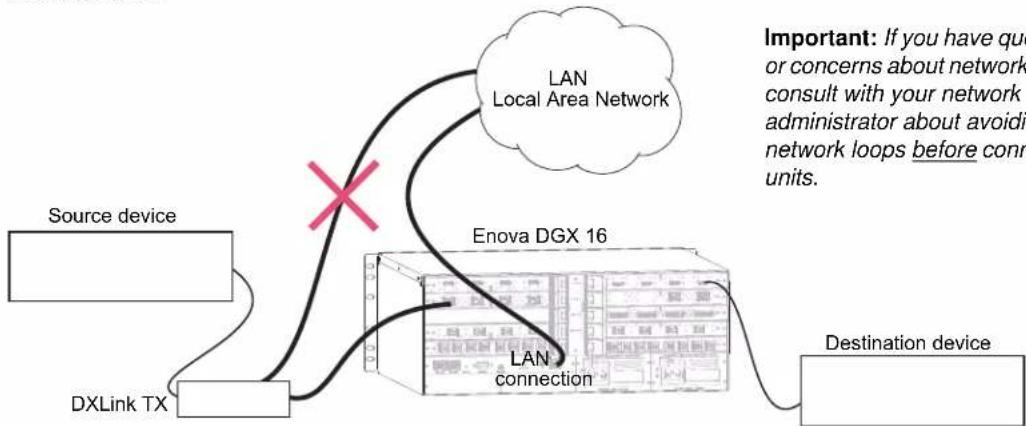
flowchart
graph TD
    A["Source device"] --> B["DXLink TX"]
    B --> C["Enova DGX 16"]
    C --> D["Destination device"]
    C --> E["LAN Connection"]
    E --> F["Local Area Network"]
    style A fill:#f9f,stroke:#333
    style B fill:#ccf,stroke:#333
    style C fill:#cfc,stroke:#333
    style D fill:#fcc,stroke:#333
    style E fill:#cff,stroke:#333
    style F fill:#ffc,stroke:#333
FIG. 48 Avoid network loops

Attaching Cables
Viewed from the rear of the enclosure, the input boards (for attaching sources) are on the left, and the output boards (for attaching destinations) are on the right.
Enova DGX 8/16 – Input and output channel numbers correspond to the connectors and are located between the input and output boards. For inputs, numbering is consecutive from left to right on each board from the top board to the bottom one; outputs start over at "1" and follow the same pattern.
Enova DGX 32 – Input and output channel numbers correspond to the connectors and are located on the numbering plate (metal strip) directly above the boards. For inputs, numbering is consecutive from top to bottom on each board from the left board to right one; outputs start over at “1” and follow the same pattern.
Enova DGX 64 – Input and output channel numbers correspond to the connectors and are located in the middle of the enclosure between boards on either side. For inputs, numbering is consecutive from left to right on each board from the top input board on the left to the bottom input board on the left, continuing on the top input board on the right to the bottom input board on the right. Outputs are in the lower part of the enclosure, start over at "1" on the left, and follow the same pattern.
Important: If the system has DXLink input and output connectors in use, we strongly recommend that the LAN 100/1000 port use a connection speed of 1000 Mbps.
Important Twisted Pair Cabling Requirements and Recommendations
The following requirements and recommendations apply to cabling DXLink (RJ-45) connectors:
- DXLink cable runs require shielded category cable (STP) of Cat6 (or better).
- DXLink twisted pair cable runs for DXLink equipment shall only be run within a common building.*
- DXLink delivers 10.2 Gb/s throughput over shielded category cable. Based on this bandwidth requirement, we recommend following industry standard practices designed for 10 Gigabit Ethernet when designing and installing the cable infrastructure.
- The cables should be no longer than necessary to reach the end-points. We recommend terminating the cable to the actual distance required rather than leaving any excess cable in a service loop.
- For complete cable specifications, see page 96.
* "Common building" is defined as: Where the walls of the structure(s) are physically connected and the structure(s) share a single ground reference.
For more details and helpful cabling information, reference the white paper titled "Cabling for Success with DXLink" available at www.amx.com or contact your AMX representative.
Twisted Pair Cable Pinouts
Use either the T568A or T568B pinout specification for termination of the twisted pair cable used between the Transmitter or Receiver and the enclosure.
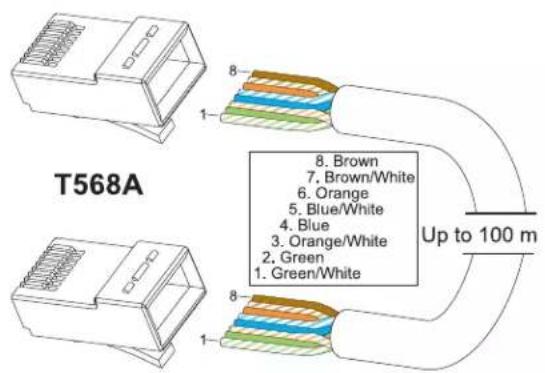
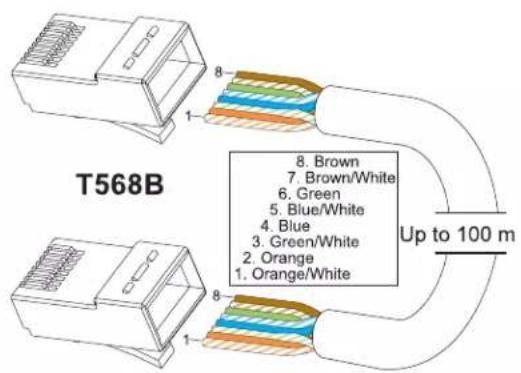
FIG. 49 Twisted pair cable pinouts for T568A and T568B
To connect sources and destinations to DXLink inputs and outputs via TX/RX:
- Attach an HDMI cable from the source device to the HDMI connector on the DXLink Transmitter.
- Attach a twisted pair cable to the DXLink Transmitter's Output (RJ-45) connector.
- Attach the other end of the twisted pair cable to the input connector on the DXLink Input Board.

natural_image
Diagram of a network switch device with multiple ports and a cable, no visible text or labelsFIG. 50 Fasten cables onto input and output connectors
- Attach a second twisted pair cable to the output connector on the DXLink Output Board.
- Attach the other end of the second twisted pair cable to the Input (RJ-45) connector on the DXLink Receiver.
- Attach a second HDMI cable to the HDMI Output connector on the Receiver.
- Attach the other end of the second HDMI cable to the destination device.
- Repeat steps above for additional source and destination devices.
- If the enclosure is not being used as the source of power, attach the provided desktop power supplies to the transmitters and receivers.*
- Apply power to the source and destination devices.
* If the enclosure already has power applied, as soon as transmitters and receivers are connected they will have power.
Note: DXLink Boards can also work in conjunction with Audio Insert/Extract Boards (see page 136).
DXLink Connector LEDs
The following information applies to the LEDs on the DXLink connectors on the DXLink Input and Output Boards.

- Yellow:
- On – Authenticated HDCP (handshaking has occurred successfully)
- Flashing – Video active; no HDCP
- Off - No video
- Green:
- On - Speed status is 100 Mbps
- Off – Speed status is 10 Mbps
FIG. 51 DXLink connector LEDs (left Enova DGX 32 board orientation; right Enova DGX 8/16/64 Output Board orientation)
Integrating DXLink TXs and RXs in NetLinx Studio
DXLink Transmitters and Receivers must have their DIP switch toggles set before they will display as part of an Enova DGX system in NetLinx Studio (v4.0 or later is required). In NetLinx Studio, the DXLink TXs and RXs can be bound to the integrated Master by right-clicking on the device and selecting Network Bind/Unbind Device.
DIP Switch Toggles
The following table contains some of the most common scenarios for setting up DXLink Transmitters and Receivers with an Enova DGX Switcher (the default for all four DIP switch toggles is OFF).
Important: Find the scenario in the table below that you want to use and set the DIP switches accordingly.
The DIP switches are on the bottom of the DXLink Modules, on the rear of the DXLink Wallplate, and on the front of the DXLink Decor Style Wallplate (hidden by front cover plate). A detailed description of functions for each toggle is provided in the Instruction Manual – DXLink™ Twisted Pair Transmitters/Receiver at www.amx.com.
| Common Scenarios DIP Switch Toggle Settings | ||||
| Switcher Setup – TX/RX with Enova DGX 8/16/32/64 1 2 3 4 | ||||
| AV signals only OFF OFF OFF OFF | ||||
| AV with Ethernet pass through to networked device* ON | OFF OFF OFF | |||
| AV with NetLinx control of TX/RX unit and serial/IR ports | OFF | OFF | ON | OFF |
| AV with NetLinx control of TX/RX unit and serial/IR ports, plus Ethernet pass through to networked device* | ON | OFF | ON | OFF |
* Connect the ICS LAN 10/100 port of the DXLink unit to the network device (e.g., laptop, IP controlled projector, AMX ICSLan EXB device).
Tip: Each toggle's ON position is toward the connectors on the rear of the DXLink Modules or toward the top of the unit for the DXLink Wallplate TXs and Decor Wallplate TXs.
Binding DXLink TXs and RXs to Enova DGX Integrated Master
After you set the DIP switches per the table above, follow the instructions below to display the DXLink units in NetLinx Studio.
To bind DXLink units to Enova DGX integrated Master:
- Verify the following:
a. Verify that an Ethernet/RJ-45 cable is connected from the Enova DGX Switcher's integrated Master to the network (e.g., from the switcher's LAN 100/1000 port to a LAN).
b. Verify that the target Transmitter or Receiver is connected via its DXLink connector to a DXLink Input or Output Board (respectively) on the switcher.
c. Verify that the switcher is powered on.
-
Launch NetLinx Studio and open the OnLine Tree.
-
Bind the target Transmitter or Receiver to the integrated Master:
a. Select and right-click the TX or RX.
b. From the context sensitive menu, select Network Bind/Unbind Device (be sure the check box is selected).
c. Click OK.
Note: For additional information on DXLink Modules and Wallplates, see the "Instruction Manual – DXLink™ Twisted Pair Transmitters/Receiver."
Offline Recovery Mechanism for DXLink Devices
Offline Recovery Mechanism – A new, optional, recovery mechanism for DXLink Twisted Pair Transmitters and Receivers in the rare occurrence that these devices move from online to offline status for an extended period of time.
The default setting for the recovery mechanism is OFF, but may be enabled for environments where the DXLink device could lose connectivity to the Master for 5 minutes or longer.
The following Telnet Commands enable, disable, and query the Offline Recovery Mechanism:
- Set recovery mechanism to ON: WD_ON
- Set recovery mechanism to OFF: WD_OFF
- Query recovery mechanism current status: WD
Once the device's recovery mechanism is set to the ON state via Telnet, the recovery mechanism monitors the ICSP connection to the Master. The recovery mechanism is not armed until the DXLink device is brought online. Entering an offline state triggers an internal timer in the DXLink device which, after 5 continuous minutes in the offline state, in turn triggers the recovery mechanism to issue a full reboot command to the DXLink device. During this time the DXLink device will reboot and all functions (including video and audio delivery) will be disabled while the reboot occurs. This process takes up to 45 seconds to complete.
This functionality is an option intended to be a safety net for the rare occasions when a device falls offline and remains there for a long enough period of time that the likelihood of the device coming back online on its own diminishes. The reboot is intended to restart the device and allow it another opportunity to connect with the Master it is bound to.
• Usage considerations include:
- Once a device reboots, the recovery mechanism will not become armed again until the device reaches an online state with a Master.
- Because video is lost during the reboot process, consideration should be given to certain installation designs where a Master or the network connection between the Master and a DXLink endpoint might regularly be disabled or turned off, but video might continue to flow through the DXLink device. In these environments, we recommend not enabling the Offline Recovery Mechanism.
- Additional capabilities of recovery mechanism – Although highly unlikely, the recovery mechanism also monitors the following states and provides a self-recovery mechanism if these states are ever encountered.
- If a DXLink device processor enters an unstable processing condition
- If the DXLink device's allowable minimum memory threshold is exceeded
Serial Data Transfer and IR Flow Control
The illustration in FIG. 52 shows the bidirectional serial data transfer and IR flow control when an Enova Digital Media Switcher is used with DXLink Modules in Endpoint Mode. The switcher has an integrated NetLinx Central Control Processor which provides native AMX control at each remote location fed by a DXLink Transmitter or Receiver. Control is sent over twisted pair cable (via the DXLink ports).

flowchart
graph TD
    A["DXLink TX"] -->|HDMI| B["Computer"]
    C["DXLink"] -->|IR and/or S-232| B
    D["Enova DGX 16"] -->|DXLink| E["DXLink RX"]
    F["DXLink"] -->|DXLink| E
    G["DXLink RX"] -->|IR and/or RS-232| H["Computer"]
    I["HDMI"] -->|HDMI| H
FIG. 52 Serial data transfer and IR flow control
DXLink™ Fiber Boards, Duplex and Simplex
Applicability Notice
This chapter pertains to DXLink Fiber Input and Output Boards, Duplex, which handle simultaneous, bidirectional or unidirectional data transfer. It also covers DXLink Fiber Input and Output Boards, Simplex, which only handle unidirectional data transfer (by removing the fiber return path, Simplex hardware provides an added layer of security). Board models are listed in the tables below.
DXLink Fiber Boards, Duplex
| Part # Model Name Model Number, Description | ||
| FG1058-622 | Enova DGX DXLink Multimode Fiber Input Board, Duplex | DGX-I-DXF-MMD, ENOVA DGX DXLINK MM FIBER INPUT BOARD, DUPLEX |
| FG1058-632 | Enova DGX DXLink Multimode Fiber Output Board, Duplex | DGX-O-DXF-MMD, ENOVA DGX DXLINK MM FIBER OUTPUT BOARD, DUPLEX |
| FG1058-620 | Enova DGX DXLink Single Mode Fiber Input Board, Duplex | DGX-I-DXF-SMD, ENOVA DGX DXLINK SM FIBER INPUT BOARD, DUPLEX |
| FG1058-630 | Enova DGX DXLink Single Mode Fiber Output Board, Duplex | DGX-O-DXF-SMD, ENOVA DGX DXLINK SM FIBER OUTPUT BOARD, DUPLEX |
DXLink Fiber Boards, Simplex
| Part # Model Name Model Number, Description | ||
| FG1058-623 | Enova DGX DXLink Multimode Fiber Input Board, Simplex | DGX-I-DXF-MMS, ENOVA DGX DXLINK MM FIBER INPUT BOARD, SIMPLEX |
| FG1058-633 | Enova DGX DXLink Multimode Fiber Output Board, Simplex | DGX-O-DXF-MMS, ENOVA DGX DXLINK MM FIBER OUTPUT BOARD, SIMPLEX |
| FG1058-621 | Enova DGX DXLink Single Mode Fiber Input Board, Simplex | DGX-I-DXF-SMS, ENOVA DGX DXLINK SM FIBER INPUT BOARD, SIMPLEX |
| FG1058-631 | Enova DGX DXLink Single Mode Fiber Output Board, Simplex | DGX-O-DXF-SMS, ENOVA DGX DXLINK SM FIBER OUTPUT BOARD, SIMPLEX |

FIG. 53 DXLink Fiber Boards, Simplex and Duplex (shown in Enova DGX 32 with dust plugs)
DXLink Fiber Boards, Duplex and Simplex have four input or output connectors per board.
DXLink Fiber Boards, Simplex are labeled "Simplex." DXLink Fiber Boards, Duplex are not labeled.
Tip: When powered on, Duplex transceiver LEDs are yellow and green; Simplex transceiver LEDs are blue.
Enova DGX 8
Enova DGX 8 enclosures can hold up to four DXLink Fiber Boards. Each enclosure holds a maximum of two input and two output boards, accommodating connector configurations up to a maximum of 8x8, as well as three subsets (i.e., 4x4, 4x8, or 8x4).
Enova DGX 16
Enova DGX 16 enclosures can hold up to eight DXLink Fiber Boards. Each enclosure holds a maximum of four input and four output boards, accommodating connector configurations up to a maximum of 16x16, as well as subsets (e.g., 16x8 or 4x12).
Enova DGX 32
Enova DGX 32 enclosures can hold up to sixteen DXLink Fiber Boards with four inputs or outputs per board. Each enclosure holds a maximum of eight input and eight output boards, accommodating connector configurations up to a maximum of 32x32, as well as subsets (e.g., 12x24 or 32x8).
Enova DGX 64
Enova DGX 64 enclosures can hold up to thirty-two DXLink Fiber Boards. Each enclosure holds a maximum of sixteen input and sixteen output boards, accommodating connector configurations up to a maximum of 64x64, as well as subsets (e.g., 12x48 or 52x8).
Signal Routing
DXLink Fiber Input Boards route signals to DXLink Fiber Output Boards or to any other type of Enova DGX Output Boards. DXLink Fiber Output Boards accept signals from all types of Enova DGX Boards. When routing signals between different board types, the Enova DGX Switcher automatically converts the signal format to match the output board.
Important: These boards are compatible only with other AMX products that support the DXLink Fiber Technology. They are not compatible with third-party optical distribution amplifiers or multimode to single mode converters.
Currently, the following signals from a DXLink Fiber unit can be sent over DXLink Fiber Boards: HDMI, DVI-D, analog video, and digital or analog stereo audio. Supported analog video input signals include RGBHV, RGBS, RGsB, Y/Pb/Pr (converted to RGsB), and an RGBHV output signal. DXLink Fiber Boards must be used in conjunction with DXLink Fiber units (see the compatibility table on page 112 and the system setup information on page 116).
HDCP Compliance
If a connected downstream sink is not HDCP compliant, then the DXLink fiber output will not send the signal to it. This does not affect other outputs the source may be routed to. This allows compliant displays to show content from source devices even if the source devices are switched to non-compliant displays. Non-compliant displays can easily be identified because they display a dark red image (via HDMI/DVI outputs) or an orange image (via a DXLink Fiber RX) to indicate that the authentication process failed.
InstaGate Pro® Technology
- DXLink Fiber Boards meet HDCP standards and support InstaGate Pro Technology. For complete information on HDCP functionality for DXLink Fiber Boards, see “HDCP Support on Enova DGX Switchers” on page 82.
- DXLink Fiber Boards provide EDID emulation support with plug-and-play information provided by the Enova DGX Switcher.
- DXLink fiber input and output connectors incorporate HDMI Technology, are HDCP 1.4 compatible, feature InstaGate Pro Technology* for low-latency switching of HDCP protected content, and support computer video up to 1920x1200 and HDTV up to 1080p. The DXLink fiber connectors also support embedded audio, both linear PCM (stereo audio) and non-linear PCM (Dolby Digital, DTS, and Dolby TrueHD, etc.).
* InstaGate Pro Technology eliminates HDCP latency and interruptions on all displays in a system. (These conditions are typically experienced when HDCP authenticates HDMI source and destination devices.) Key limitations on source devices are also eliminated by allowing them to see only a single sink key from the DXLink Fiber Input Board's input connection. With InstaGate Pro Technology, when a source requires HDCP encrypted content, the inputs and compliant downstream devices are automatically authenticated.
DXLink™ Fiber Hardware Compatibility
This section applies to DXLink Fiber Input or Output Boards and their corresponding TX or RX units. Connections are allowed between matching hardware (Duplex to Duplex or Simplex to Simplex) as well as between mixed hardware (Simplex to Duplex or Duplex to Simplex) as long as the constraints of multimode to multimode and single mode to single mode are maintained.
Important: Compatibility between hardware requires matching model types: multimode to multimode and single mode to single mode.
Compatible DXLink Fiber Transmitters and Receivers
| Part # Model | Name Model Number, Description | |
| FG1010-362* | DXLink Multi-Format Multimode Fiber Transmitter, Duplex DXF- | TX-MMD,DXLINK MULTI-FORMAT MM FIBER TX,DUPLEX |
| FG1010-562* | DXLink Multi-Format Single Mode Fiber Transmitter, Duplex DXF- | RX-MMD,DXLINK MULTI-FORMAT SM FIBER TX,DUPLEX |
| FG1010-360** | DXLink HDMI Multimode Fiber Receiver, Duplex DXF-TX-SMD, | DXLINK HDMI MM FIBER RX, DUPLEX |
| FG1010-560** | DXLink HDMI Single Mode Fiber Receiver, Duplex DXF-RX-SMD, | DXLINK HDMI SM FIBER RX, DUPLEX |
| FG1010-363* | DXLink Multi-Format Multimode Fiber Transmitter, Simplex DXF- | TX-MMS,DXLINK MULTI-FORMAT MM FIBER TX,SIMPLEX |
| FG1010-563* | DXLink Multi-Format Single Mode Fiber Transmitter, Simplex DXF- | RX-MMS,DXLINK MULTI-FORMAT SM FIBER TX,SIMPLEX |
| FG1010-361** | DXLink HDMI Multimode Fiber Receiver, Simplex DXF-TX-SMS, | DXLINK HDMI MM FIBER RX, SIMPLEX |
| FG1010-561** | DXLink HDMI Single Mode Fiber Receiver, Simplex DXF-RX-SMS, | DXLINK HDMI SM FIBER RX, SIMPLEX |
* On the rear of all Transmitter units, the number will be FG1010-36X, indicating they share a common metal box design.
** On the rear of all Receiver units, the number will be FG1010-56X, indicating they share a common metal box design.
The multimode and single mode fiber optic transceivers allow for in-the-field replacement.
The next section explains the functionality and limitations inherent in the three Directional Modes used for control communication. An understanding of these modes is necessary, especially if you are not using the default for the specific hardware type (Duplex or Simplex). For information on setting the Directional Modes for DXLink Fiber, Duplex Boards, see page 123.
DXLink Fiber Directional Modes
DXLink Fiber Directional Modes for control communication are comprised of Bidirectional Mode, Unidirectional Mode, and Data Link-lost Mode. DXLink Fiber, Duplex hardware has a default setting of Bidirectional Mode, but can be configured for Unidirectional Mode or drop into Data Link-lost Mode (when the return path is removed or not connected). DXLink Fiber, Simplex hardware is limited to Unidirectional Mode only.
Note: For instructions on configuring DXLink Fiber, Duplex Input and Output Boards, see "Duplex Hardware Directional Mode Configuration" on page 123. For instructions on setting Duplex TX and RX units to a particular Directional Mode, see their "Instruction Manual."
Bidirectional Mode
When data flows in two directions, the flow is bidirectional. For example, a source device sends audio, video, and communication data to a TX. From the TX, all three signals are sent via fiber to an input board on the switcher. The input board routes the audio and video to an output board, while the integrated Master processes the communication data. The output board sends audio and video (along with any necessary communication data) via its RX to the destination device. If needed, communication data from the destination device can return to the Master for processing via the same path. Bidirectional is the default Directional Mode for DXLink Fiber, Duplex hardware when both fiber strands are connected. Enabling Unidirectional Mode on Duplex hardware (for an explanation of this mode, see below) requires sending a command to the boards (see page 124) and setting DIP switch #4 Toggle on the TX and RX units to ON. Removing or not connecting a return fiber path will drop the board/unit into Data Link-lost Mode (see below also).
Unidirectional Mode
When data flows in only one direction, the flow is unidirectional, i.e., only audio/video signals travel from a TX unit via the switcher's input/output boards to an RX unit and no signals are passed back to the TX. In Unidirectional Mode, the RX does not send an optical signal trying to establish a return data path connection. Simplex hardware always operates in this mode and does not require additional setup. Unidirectional Mode is a configurable setting for DXLink Fiber, Duplex hardware and requires sending a command to the boards (see page 124) and setting DIP switch #4 Toggle on the TX and RX to ON.
Note: Simplex hardware is designed to only provide a single direction of data flow and not receive return data flow (i.e., transmits only video and audio signals in one direction).
Data Link-lost Mode
When Duplex hardware is configured for Bidirectional Mode (the default), but the data return path has been removed or is not connected, the hardware is in Data Link-lost Mode. In Data Link-lost Mode, the TX unit only sends audio and video via the switcher's input/output boards to the RX unit over a single fiber path, but the units/boards are actively ready for the addition of the return path which will enable Bidirectional Mode. For example, an audio/video signal travels from a TX via the switcher's input/output boards to an RX and no signals are passed back to the TX, but the RX and input board's return lasers still transmit light and attempt to establish connections.

Caution: In Data Link-lost Mode, the data return path is disconnected but both transceivers' lasers are still active. If left uncovered, transceiver lasers may constitute a health hazard. This hazard should be avoided by restoring Bidirectional Mode (see page 124), configuring DXLink Fiber Boards for Unidirectional Mode (see page 124), or covering exposed lasers.
Important: When using Duplex hardware in mixed modes (where boards and their units are configured for different Directional Modes) or using both Duplex and Simplex hardware (where the Duplex hardware is in Bidirectional Mode), we recommend that the hardware be configured to avoid Data Link-lost Mode (see Caution above).
Enova DGX DXLink™ Fiber Boards – Specifications
Applies to Duplex multimode boards FG1058-622 (input) and FG1058-632 (output) and Duplex single mode boards FG1058-620 (input) and FG1058-630 (output); also applies to Simplex multimode boards FG10-58-623 (input) and FG1058-633 (output) and Simplex single mode boards FG1058-21 (input) and FG1058-31 (output).
| DXLink Fiber, Duplex and Simplex – Specifications | |
| Parameter Value | |
| Compatible Formats HDMI video / audio / | Ethernet* / USB (HID)* / control* |
| Signal Type Support DXLink Fiber** | |
| Transport Layer Throughput 10.3125 Gbps | |
| Video Data Rate (max.) 4.95 Gbps / 5.568 | Gbps^ |
| Video Pixel Clock (max.) 165 MHz / 185.625 MHz^ | |
| Progressive Resolution Support 480p up to | 1920x1200 @ 60 Hz |
| Interlaced Resolution Support 480i, 576i, 1080i | |
| 2K Resolution Support 2048x1024 @ 47Hz | 2048x1080 @ 60Hz, 2048x1152 @ 60 Hz,2048x1536 @ 24 Hz• 2K formats are only compatible with DVI, HDMI, and DXLink Fiber Input/Output Boards and require the output or RX Scaler to be set in Bypass mode |
| Deep Color Support 24-bit, 30-bit^ | |
| Color Space Support RGB 4:4:4 | YCbCr^^ 4:4:4 and 4:2:2 |
| 3D Format Support Yes*** | Frame Packing 1080p up to 24 HzFrame Packing 720p up to 50/60 HzFrame Packing 1080i up to 50/60 HzTop-Bottom 1080p up to 24 HzTop-Bottom 720p up to 50/60 HzSide-by-Side Half 1080i up to 50/60 Hz |
| Audio Format Support Dolby TrueHD, Dolby Digital****, DTS-HD Master Audio, DTS****, 2 CH through 8 CH L-PCM | |
| Audio Resolution | 16 bit to 24 bit |
| Audio Sample Rate | 32 kHz, 44.1 kHz, 48 kHz, 96 kHz, 192 kHz |
| Local Audio Support Yes, insertion and/or | extraction of 2 CH L-PCM selectable by channel |
* Duplex boards/units support bidirectional control over fiber. Simplex boards/units do not support EDID transfer and control transport (such as Ethernet, USB, IR, and Serial Control) over fiber; although when used as part of a complete Enova DGX solution, control can be provided if a supplemental independent network connection is used (see page 125).
** Connectivity between products requires matching model types: multimode to multimode or single mode to single mode.
*** The scaler on the corresponding output board or DXLink Fiber RX must be set to Bypass mode.
**** Dolby Digital and DTS support up to 48 kHz, 5.1 channels.
^ The scaler on the corresponding output board or DXLink Fiber RX must be set to Bypass mode using CEA-861 formats and the resolution is 1080p @60 or less.
^^ Input signal support is for YCbCr 4:4:4 and 4:2:2; output color-space is converted to RGB 4:4:4.
AMX reserves the right to modify its products and their specifications without notice.
| DXLink Fiber, Duplex and Simplex – Specifications (continued) | |
| EDID Support • EDID provided by an Enova DGX 8/16/32/64 to the connected DXLink Fiber Transmitter*• EDID is user re-programmable | |
| HDCP Support Yes | • Full matrix HDCP support (includes any input to any or all outputs)• Key Management System• AMX HDCP InstaGate Pro® Technology• Key support up to 16 devices per output, independent of source device |
| USB (HID) Transport Use the Enova DGX | Digital Media Switcher in conjunction with DXLink Transmitters and Receivers (twisted pair and/or fiber). Connect a DXLink Transmitter to a PC and a DXLink Receiver to a keyboard and mouse; the system then emulates commands from the Receiver back to the PC.** |
| CEC Support None | |
| ICSP, TCP/IP, USB, IR, Control Management | Control distribution is managed by the Enova DGX on-board NetLinx Master and Ethernet switch.* |
| Fiber Transceiver Type 10G SFP+ | |
| Connectors 4 LC Duplex Fiber ports (used on both Duplex and Simplex boards)conforming to ANSI TIA/EIA 604-10 (FOCIS 10A)• On the DXLink MM / SM Duplex input and output ports, both receive and transmit portions of the SFP+ module are active.• On the DXLink MM / SM Simplex output ports, only the transmit portion of the SFP+ module is active.• On the DXLink MM / SM Simplex input ports, only the receive portion of the SFP+ module is active. | |
| Fiber Cable Types and Supported Length | • Single mode models, duplex/simplex - 9/125 μm @ 6.21 miles (10 km)• Multimode models, duplex/simplex - OM3 50/125 μm @ 984 ft. (300 m) |
| Optical Wavelength • Single mode - 1310 nm• Multimode - 850 nm | |
| Single Mode Optical Budget • 7.4 dB (typical) between DXLink Fiber transceivers• Optical Modulation Amplitude (OMA): -5.2 dBm (min.)• Optical Modulation Amplitude (OMA) Sensitivity: -12.6 dBm (typical) | |
| Single Mode Optical Transceiver Mean Output Power | -8.2 dBm to 0.5 dBm (average power) |
| Multimode Optical Budget • 6.8 dB (typical) between DXLink Fiber transceivers• Optical Modulation Amplitude (OMA): -4.3 dBm (min.)• Optical Modulation Amplitude (OMA) Sensitivity: -11.1 dBm (typical) | |
| Multimode Optical Transceiver Mean Output Power | -1 dBm (average power) |
| DXLink Fiber Input Board Propagation Delay | 5 μs |
| DXLink Fiber Output Board Propagation Delay | 5 μs |
| Safety Certifications Class 1 Eye Safe per requirements of IEC 60825-1 / CDRH | |
* Duplex boards/units support bidirectional control over fiber. Simplex boards/units do not support EDID transfer and control transport (such as Ethernet, USB, IR, and Serial Control) over fiber; although when used as part of a complete Enova DGX solution, control can be provided if a supplemental independent network connection is used (see page 125).
** A list is available of HID devices which have been tested and found to be working well with the latest firmware (see "DXLink - HID supported Devices" on the DXLink Fiber Receiver's product page at www.amx.com).
AMX reserves the right to modify its products and their specifications without notice.
EDID Resolutions Supported through Local DDC
Standard and established timings are given in the tables following along with detailed timing blocks.
Important: The EDID can be re-programmed to support additional resolutions through the local DDC using the EDID programming functionality in the DGX Configuration Software (see page 198).
Standard Timing Identification (Default Shipping EDID*)
| Resolution Refresh Rate Max. | |
| 1920x1080** | 60 |
| 1920x1200 60 Hz | |
| 1680x1050 60 Hz | |
| 1600x1200 60 Hz | |
| 1600x900 60 Hz | |
| 1400x1050 60 Hz | |
| 1440x900 60 Hz | |
| 1360x765 60 Hz | |
| 1280x1024 60 Hz | |
| 1280x900 60 Hz | |
| 1280x800 60 Hz | |
| 1280x720 60 Hz | |
Hz
* The default EDID can be overwritten to include a broad range of features based on installation requirements.
** This resolution is the preferred timing identified in the EDID.
Established Timing
| Resolution Refresh Rate | |
| 1280x1024 75 Hz | |
| 1152x870 75 Hz | |
| 1024x768 60 Hz, 70 Hz, | 75 Hz, 87 Hz |
| 832x624 75 Hz | |
| 800x600 56 HZ, 60 Hz, | 72 Hz, 75 Hz |
| 720x400 70 Hz, 88 Hz | |
| 640x480 60 Hz, 67 Hz, | 72 Hz, 75 Hz |
AMX reserves the right to modify its products and their specifications without notice.
CEA Video Information Code (VIC) Formats
| VIC # Resolution Refresh Rate and Aspect Ratio | ||
| VIC = 1 640x480p | 59.94/60 Hz 4:3 | |
| VIC = 2 720x480p | 59.94/60 Hz 4:3 | |
| VIC = 3 720x480p | 59.94/60 Hz 16:9 | |
| VIC = 4 1280x720p | 59.94/60 Hz 16:9 | |
| VIC = 5 1920x1080i | 59.94/60 Hz 16:9 | |
| VIC = 6 720(1440)x480i | 59.94/60 Hz 4:3 | |
| VIC = 7 720(1440)x480i | 59.94/60 Hz 16:9 | |
| VIC = 14 1440x480p | 59.94/60 Hz 4:3 | |
| VIC = 15 1440x480p | 59.94/60 Hz 16:9 | |
| VIC = 16 | Native 1920x1080p | 59.94/60 Hz 16:9 |
| VIC = 17 | 720x576p | 50 Hz 4:3 |
| VIC = 18 | 720x576p | 50 Hz 16:9 |
| VIC = 19 1280x720p | 50 Hz 16:9 | |
| VIC = 20 | 1920x1080i | 50 Hz 16:9 |
| VIC = 21 | 720(1440)x576i | 50 Hz 4:3 |
| VIC = 22 | 720(1440)x576i | 50 Hz 16:9 |
| VIC = 29 1440x576p | 50 Hz 4:3 | |
| VIC = 30 1440x576p | 50 Hz 16:9 | |
| VIC = 31 | 1920x1080p | 50 Hz 16:9 |
| VIC = 32 | 1920x1080p | 23.97/24 Hz 16:9 |
| VIC = 33 | 1920x1080p | 25 Hz 16:9 |
| VIC = 34 | 1920x1080p | 29.97/30 Hz 16:9 |
| VIC = 39 | 1920x1080i | 50 Hz 16:9 |
| VIC = 41 1280x720p | 100 Hz 16:9 | |
| VIC = 42 | 720x576p | 100 Hz 4:3 |
| VIC = 43 | 720x576p | 100 Hz 16:9 |
| VIC = 44 | 720(1440)x576i | 100 Hz 4:3 |
| VIC = 45 | 720(1440)x576i | 100 Hz 16:9 |
| VIC = 47 1280x720p | 119.88/120 Hz 16:9 | |
| VIC = 48 | 720x480p | 119.88/120 Hz 4:3 |
| VIC = 49 | 720x480p | 119.88/120 Hz 16:9 |
Audio Data Block
| Channels | Sampling Frequency |
| Basic Audio: 2 Channel L-PCM 32, 44.1, 48 kHz | Sampling frequency at 16, 20, or 24 bits per sample |
Important: For information on troubleshooting audio, including a table on "Audio Format Support on Enova DGX Boards," see page 86.
AMX reserves the right to modify its products and their specifications without notice.
System Setup with DXLink™ Fiber, Duplex and Simplex Units
DXLink Fiber Input and Output Boards must be used in conjunction with DXLink Fiber TX and RX units. Compatible DXLink Fiber units are listed on page 110. System setup options are listed in the lower table on page 34. For TX and RX installation details, see the unit's Quick Start Guide or Instruction Manual.
When TX and RX units are installed, image adjustment and EDID scaling is automatically applied. For almost every installation, the automatic features on the units result in a quality image on the monitor. If the installation has special requirements and needs additional adjustment or if you need product specifications for the modules, refer to the Instruction Manual – DXLink Fiber Transmitters and Receivers at www.amx.com.
The distance from a DXLink Fiber TX unit to a DXLink Fiber Input Board can be up to the maximum specified in the table below and the same for the distance from the DXLink Fiber Output Board to the DXLink Fiber RX unit. The cable run length depends on the quality of the cable (see the specifications in the table below, which apply to both Duplex and Simplex hardware).
DXLink Fiber Model / Cable / Distance
| Model Cable Type Maximum Distance | ||
| Multimode – Duplex/Simplex Models | OM3 50/125 μm | 984 ft. (300 m) |
| Single mode – Duplex/Simplex Models | 9/125 μm | 6.21 miles (10 km) |
The system setup in FIG. 54 illustrates DXLink Fiber Boards, Duplex used in conjunction with a DXLink Fiber, Duplex Transmitter and Receiver. Setup for DXLink Fiber, Simplex equipment is similar but without the return path.
Important: Be sure to read "DXLink Fiber Hardware Compatibility" on page 110.
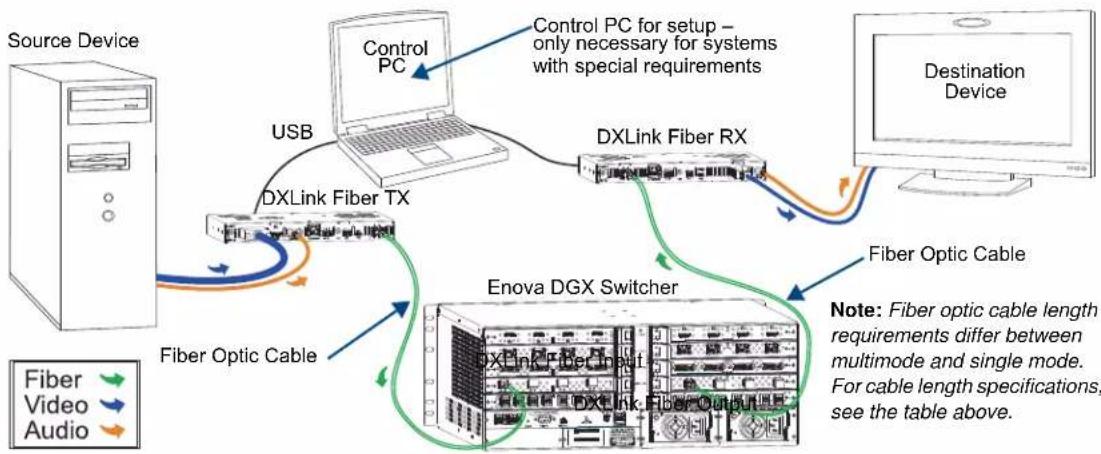
flowchart
graph TD
    A["Source Device"] -->|USB| B["DXLink Fiber TX"]
    B --> C["Control PC"]
    C --> D["DXLink Fiber RX"]
    D --> E["Destination Device"]
    E --> F["Fiber Optic Cable"]
    F --> G["Enova DGX Switcher"]
    G --> H["DXLink Fiber Input"]
    H --> I["Fiber Optic Cable"]
    style A fill:#f9f,stroke:#333
    style E fill:#ccf,stroke:#333
    style G fill:#cfc,stroke:#333
FIG. 54 DXLink Fiber Boards are used in conjunction with DXLink Fiber units
Tip: For systems with special requirements – Before installing in the final location, place the equipment close together, so the Control PC and the destination monitor can be seen simultaneously if adjustments are necessary.
Destination Device Support Problems
Occasionally destination devices can cause problems in the system due to lack of signal support.
- Audio – If you experience audio problems, it may be because you are trying to pass Dolby or DTS or high PCM frequency rates and the destination device does not support them.
- Video – If you experience video problems, it may be because you are trying to pass a video format that the destination device does not support.
In either of these cases, re-programming the EDID may help resolve the problem (see page 199).
Connecting Switching Systems with DXLink Fiber Connectors
Enova DGX switching systems with DXLink Fiber support can be connected via their DXLink Fiber ports.
Important: This section does not refer to the linking of enclosures from CPU to CPU, which is not supported in the Enova DGX Switcher.
In an installation with a multiple-stage switching system, the following applies:
- When two switching systems with DXLink Fiber support are connected via their DXLink Fiber ports, only video and audio will be passed through the DXLink Fiber connection.
- When a DXLink Fiber input or output on one switching system determines that it is connected to a DXLink Fiber input or output on another switching system, the DXLink Fiber port will automatically disable all Ethernet and control on that connection port so that the only things passed down the DXLink Fiber line are the video and audio signals.
- Compatibility between boards types from switcher to switcher must be maintained: multimode to multimode and single mode to single mode.
- When connecting systems via DXLink Fiber ports, we recommend no more than 3 switcher throughputs.*
● Network loops must be avoided (see below).
* For example, the path through 3 switchers could be: source device →Enova DGX 8 (out a DXLink Fiber port) →Enova DGX 32, DXLink Fiber input (out a DXLink Fiber port) →Enova DGX 16, DXLink Fiber input (out a DXLink Fiber port) →DXLink Fiber Receiver →display device as an HDMI signal.
Avoiding Network (Ethernet) Loops
Caution: Be careful not to create a network (Ethernet) loop.
Only one connection to a LAN is permitted within a switching system with DXLink Fiber support.* Network loops must be avoided. A network loop is created when the enclosure and one or more DXLink Fiber, Duplex units in Bidirectional Mode within the system are connected to a common LAN. The Enova DGX Switcher does not support STP (Spanning Tree Protocol).
* This applies to systems with DXLink Fiber, Duplex Boards in Bidirectional Mode and/or DXLink Twisted Pair Boards (see page 103).
Example
In the example in FIG 55, a network loop was created when an Enova DGX 16 was connected to a LAN and one of its DXLink Fiber, Duplex Transmitters in Bidirectional Mode was connected to the same LAN. The DXLink Fiber, Duplex Transmitter needs to be disconnected from the LAN. The same problem would also occur if an enclosure and one (or more) of its DXLink Fiber, Duplex Receivers were connected to a common LAN.

flowchart
graph TD
    A["Source device"] --> B["DXLink Fiber TX"]
    B --> C["Enova DGX 16"]
    C --> D["Destination device"]
    C --> E["LAN Connection"]
    E --> F["Local Area Network"]
    style A fill:#f9f,stroke:#333
    style B fill:#ccf,stroke:#333
    style C fill:#cfc,stroke:#333
    style D fill:#fcc,stroke:#333
    style E fill:#cff,stroke:#333
    style F fill:#ffc,stroke:#333
FIG. 55 Avoid network loops
Important: For Duplex hardware in Bidirectional Mode connected to an Enova Digital Media Switcher, we recommend connecting the switcher to the network for all network connection needs. Network connections via the switcher are faster and more reliable. Never connect both the TX and RX, the TX and switcher, or the switcher and RX to the same network: Avoid network loops.

Attaching Cables

Warning: DXLink Fiber units use laser transceivers, which are Class 1 Eye Safe per IEC 60825-1/CDRH requirements. While the Class 1 category indicates that the invisible laser used is safe, we recommend avoiding direct eye exposure when using any optical fiber products (see the OSHA directive below).
Tips for Fiber Optic Connections
☐ Keep dust plugs in transceivers until you are ready to make a connection.
- Clean fiber optic cable ends before attaching to transceivers (be sure to follow the cable manufacturer's instructions for inspecting and cleaning the cable ends).
☐ Use gentle pressure when connecting fiber cables to transceivers (normally an audible click is heard when the connector engages).
☐ If unsure the connection is properly seated, gently tug on the transceiver.
☐ If fiber cables are removed from the transceivers, reinsert dust plugs.
☐ Multimode transceivers only – If you are unsure that a multimode transceiver is passing a signal, hold the unattached end of the fiber optic cable away from you and take a picture of it with a digital camera (or cell phone camera). The image will show a bright light if the signal is being passed (works on some digital cameras and cell phone cameras).
OSHA Directive
The OSHA Technical Manual (at https://www.osha.gov/dts/osta/otm/otm_iii/otm_iii_6.html) under “VI. Control Measures and Safety Programs” states: “Direct exposure on the eye by a beam of laser light should always be avoided with any laser, no matter how low the power.”
Important: Before attaching cables, be sure to set the DXLink Fiber unit's DIP switch toggles if necessary (see the "Instruction Manual – DXLink Fiber Transmitters and Receivers").
Wiring for Directional Modes
Fiber Optic Cable Wiring for Bidirectional Mode – Duplex Only (Default)
When wiring fiber optic cable for bidirectional full system capabilities, a dual set of fiber optic cables is used to wire from a DXLink Fiber Transmitter to a DXLink Fiber Input Board and another dual set of fiber optic cables from a DXLink Fiber Output Board to a DXLink Fiber Receiver (or directly from TX to RX). This wiring provides not only video and audio but Ethernet, IR, serial, and USB functionality as well.
Fiber Optic Cable Wiring for Unidirectional Mode – Simplex (Default) or Duplex (Configurable)
When wiring fiber optic cable for secure unidirectional system capabilities, a single fiber optic cable is used to wire from a DXLink Fiber Transmitter to a DXLink Fiber Input Board and another single fiber optic cable from a DXLink Fiber Output Board to a DXLink Fiber Receiver (or directly from TX to RX). This wiring provides video and audio only. Configuring Duplex boards for secure Unidirectional Mode communication requires additional actions (see “Duplex Hardware Directional Mode Configuration” on page 123).
Fiber Optic Cable Wiring for Data Link-lost Mode – Duplex Only
When a DXLink Fiber Duplex cable run in Bidirectional Mode has one or both ends of the fiber optic cable on the return path removed, the system automatically drops into Data Link-lost Mode. In Data Link-lost Mode, video and audio continue to flow from source to destination, but network and control no longer transmit over the fiber optic path. Restoring the cable(s) on the return path moves the system back into Bidirectional Mode. Configuring Duplex boards for secure Unidirectional Mode communication requires additional actions (see “Duplex Hardware Directional Mode Configuration” on page 123).
Note: Simplex hardware is designed to only provide a single direction of data flow and not receive return data flow (i.e., transmits only video and audio signals in one direction).
Connector Location and Numbering
For the Enova DGX 8/16/32 - Viewed from the rear of the enclosure, input boards (for attaching sources) are on the left, and output boards (for attaching destinations) are on the right. For the Enova DGX 64, see description following.
Enova DGX 8/16 – Input and output channel numbers correspond to the connectors and are located between the input and output boards. For inputs, numbering is consecutive from left to right on each board from the top board to the bottom one; outputs start over at “1” and follow the same pattern.
Enova DGX 32 – Input and output channel numbers correspond to the connectors and are located on the numbering plate (metal strip) directly above the boards. For inputs, numbering is consecutive from top to bottom on each board from the left board to the right one; outputs start over at “1” and follow the same pattern.
Enova DGX 64 – Input and output channel numbers correspond to the connectors and are located in the middle of the enclosure between boards on either side. For inputs, numbering is consecutive from left to right on each board from the top input board on the left to the lowest input board on the left, continuing on the top input board on the right to the lowest input board on the right. Outputs are in the lower part of the enclosure, start over at “1” on the left, and follow the same pattern as the inputs.
Fiber Optic Transceivers
Fiber optic transceivers are self-contained modules that send and receive optical signals over fiber cable. DXLink SFP+ fiber optic transceivers* are either multimode or single mode and must be wired with the corresponding cable type.
* SFP+ = enhanced small form-factor pluggable fiber optic transceiver rated at 10 Gbps transmission data rate.
Board Types / Cable Types / Cable Runs
The type of DXLink Fiber Board determines the maximum length of cable runs possible. Cable quality is also a determining factor.
| DXLink Fiber Devices | |||
| Board Type DXLink | Fiber Boards Required Cable Type | Maximum Distance | |
| Multimode • DGX-I-DXF-MMD• DGX-O-DXF-MMD• DGX-I-DXF-MMS• DGX-O-DXF-MMS | 50/125 μm multimode fiber optic 984 ft. (300 m) | ||
| Single Mode • DGX-I-DXF-SMD• DGX-O-DXF-SMD• DGX-I-DXF-SMS• DGX-O-DXF-SMS | 9/125 μm single mode fiber optic 6.21 miles (10 km) | ||
All DXLink Fiber Boards are designed for transmission of an HDMI signal over fiber optic cable.
Tip: When powered on, Duplex transceiver LEDs are yellow and green; Simplex transceiver LEDs are blue.
Fiber Optic Cable Requirements
● Fiber optic cable with LC termination for snap coupling with SFP+ transceivers
● Cable with LC Duplex connectors conforming to ANSI TIA-EIA 604-10 (FOCIS 10A)
● MM duplex/simplex units require OM3 50/125 μm multimode fiber optic cable; maximum 984 feet (300 m)
- SM duplex/simplex units require 9/125 µm single mode fiber optic cable; maximum 6.21 miles (10 km)
Note: Instructions for attaching cable management bars are on page 39. These bars are recommended and provided with each DXLink Fiber Board.

Caution: Do not severely bend or kink the fiber optic cable. Irreversible damage can occur. Refer to the physical limitations (bend radius) specified for the cable.
To connect DXLink Fiber inputs and outputs:
- Recommended — Install the provided cable management bars (see page 39). We also recommend the use of soft ties (e.g., Velcro type hook-and-loop strips) instead of nylon cable ties, which can break fiber cables.

Warning: DXLink Fiber units use laser transceivers, which are Class 1 Eye Safe per IEC 60825-1/CDRH requirements. While the Class 1 category indicates that the invisible laser used is safe, we recommend avoiding direct eye exposure when using any optical fiber products (see the OSHA directive on page 118).
- Remove the dust plugs from the DXLink SFP+ transceiver and fiber cable connectors and save for future use.
- Attach the fiber optic cable to the DXLink Fiber Input or Output Board's fiber optic transceiver. (Normally an audible click is heard when the connector engages.)
- Tie the DXLink fiber cable to the cable management bar far enough below the connector to allow for the manufacturer's recommended bend radius.
Enova DGX 32

FIG. 56 Attach cables to input and output connectors (shown with cable management bar)
- Attach the free-running end of the fiber optic cable to the transceiver on the DXLink Fiber Transmitter or Receiver.
- Repeat the previous steps for the remaining fiber cables.
Note: When fiber optic transceivers are not cabled (e.g., for shipping or storage), replace the dust plugs that originally shipped with the product.
Integrating DXLink™ Fiber Units in NetLinx Studio
DXLink Fiber Transmitters and Receivers must have their DIP switch toggles set before they will display as part of an Enova DGX system in NetLinx Studio (v4.0 or later is required). In NetLinx Studio, the DXLink Fiber units can be bound to the switcher's integrated Master by right-clicking on the device and selecting Network Bind/Unbind Device.
Scenarios / DIP Switch Settings Table for Bidirectional Mode
The table on the next page contains some of the most common scenarios for setting up DXLink Fiber, Duplex Transmitters and Receivers in Bidirectional Mode with an Enova DGX Switcher (the default for all four DIP switch toggles is OFF).
Important: In the table at the top of the next page, find the scenario that you want to use and set the DIP switches accordingly.
Tip: Each toggle's ON position is toward the connectors on the rear of the DXLink Fiber units.
The DIP switches are on the bottom of the DXLink Fiber units. A detailed description of functions for each toggle is provided in the Instruction Manual – DXLink Fiber Transmitters and Receivers at www.amx.com.
| Common Scenarios for Bidirectional Mode DIP Switch Toggle Settings | ||||
| Switcher Setup – TX/RX with Enova DGX 8/16/32/64 | #1 | #2 | #3 | #4 |
| AV signals only OFF OFF OFF OFF | ||||
| AV with Ethernet pass through to network device* ON | OFF OFF OFF | |||
| AV with NetLinx control of TX/RX unit and serial/IR ports | OFF | OFF | ON | OFF |
| AV with NetLinx control of TX/RX unit and serial/IR ports, plus Ethernet pass through to a network device** | ON | OFF | ON | OFF |
* Connect the ICS LAN 10/100 port on one of the DXLink Fiber units to the network device (e.g., laptop, IP controlled projector, AMX ICSLan EXB device).
** With both DXLink Fiber units connected to boards in an Enova DGX Digital Media Switcher (which provides integrated NetLinx control), connect the ICS LAN 10/100 port on one of the DXLink Fiber units to the network device (e.g., laptop, IP controlled projector, AMX ICSlan EXB Device).
Scenarios / DIP Switch Settings Table for Unidirectional Mode
The following table contains the most common scenarios for setting up an Enova Digital Media Switcher with DXLink Fiber, Duplex Transmitters and Receivers in Unidirectional Mode (also applies to Data Link-lost Mode) or with DXLink Fiber, Simplex Transmitters and Receivers.
Important: Find the scenario in the table below that you want to use and set the DIP switches accordingly.
Tip: Each toggle's ON position is toward the connectors on the rear of the DXLink Fiber units.
Note: DXLink Fiber, Simplex only – DIP switch #4 is non-functional. It can be set to ON or OFF.
The DIP switches are on the bottom of the DXLink Fiber units. A detailed description of functions for each toggle is provided in the Instruction Manual – DXLink Fiber Transmitters and Receivers at www.amx.com.
| Common Scenarios for Unidirectional Mode | DIP Switch Toggle Settings | |||
| Switcher Setup – TX/RX with Enova DGX 8/16/32/64 #1 #2 #3 #4 | ||||
| AV signals only OFF OFF OFF ON* | ||||
| AV with NetLinx control of TX/RX unit and serial/IR ports** | ON | OFF | ON | ON* |
* Does not apply to DXLink Fiber, Simplex units; the toggle can be set to ON or OFF.
** Requires ICSLan connection to network.
Binding DXLink Fiber Units to an Enova DGX Integrated Master
After you set the DIP switches per the tables above, follow the instructions below to display the DXLink Fiber units in NetLinx Studio.
To bind DXLink Fiber units to an Enova DGX integrated Master:
- Verify the following:
a. Verify that an Ethernet/RJ-45 cable is connected from the Enova DGX Switcher's integrated Master to the network (e.g., from the switcher's LAN 100/1000 port to a LAN).
b. Unidirectional Mode only – Verify that the target Transmitter or Receiver is connected via its ICS LAN port to the same network as the integrated Master.
C. Verify that the target Transmitter or Receiver is connected via its DXLink Fiber connector to a DXLink Fiber Input or Output Board (respectively) on the switcher.
d. Verify that the switcher is powered on.
-
Launch NetLinx Studio and open the OnLine Tree.
-
Bind the target Transmitter or Receiver to the integrated Master:
a. Select and right-click the TX or RX.
b. From the context sensitive menu, select Network Bind/Unbind Device (be sure the check box is selected).
c. Click OK.
Note: For additional information on DXLink Fiber units, see the "Instruction Manual – DXLink Fiber Transmitters and Receivers" at www.amx.com
Fiber Optic Transceiver LEDs in Duplex and Simplex Hardware

FIG. 57 DXLink Fiber Boards, Simplex and Duplex
DXLink Fiber Boards, Simplex are labeled "Simplex." DXLink Fiber Boards, Duplex are not labeled.
Fiber optic transceiver LEDs* have different functionality for each of the data Directional Modes (see page 110). Duplex hardware is designed for Bidirectional Mode, but can be configured for Unidirectional Mode. Simplex hardware is limited to Unidirectional Mode only. When Duplex hardware in Bidirectional Mode loses its return path, it drops into Data Link-lost Mode.
Regardless of the Directional Mode that Duplex hardware is using, the transceiver's TX LED is yellow and its RX LED is green. Simplex transceiver LEDs are always blue.
Note: For instructions on setting Duplex hardware to a particular Directional Mode and information about each of the available modes, see "Duplex Hardware Directional Mode Configuration" on page 123.
* Location of TX and RX LEDs depends on board orientation. Enova DGX 8/16 – TX LED is right on input boards and left on output boards; RX LED is reversed. Enova DGX 32 – TX LED is on bottom an RX LED is on top for both input and output boards. Enova DGX 64 – TX LED is right on I/O boards in left side of enclosure and is left on I/O boards in right side of enclosure; RX LED is reversed.
Transceiver LEDs in Bidirectional Mode – Duplex Only
The following information applies to the LEDs for the fiber optic transceiver on DXLink Fiber, Duplex Boards (and on DXLink Fiber TX and RX units) in Bidirectional Mode (as well as in Data Link-lost Mode.)

FIG. 58 Fiber optic transceiver LEDs on Duplex Input Board
Transceiver LEDs in Unidirectional Mode – Simplex (Default) or Duplex (Configurable)
The following information applies to the LEDs for the fiber optic transceivers on Simplex or Duplex Boards in Unidirectional Mode (also applies to transceivers on DXLink Fiber Transmitter and Receiver units).
Note: Only one transceiver LED, either the TX LED or the RX LED, will operate in Unidirectional Mode. The operational LED illuminates on the side of the transceiver where data enters or leaves the hardware and indicates the individual port where the fiber optic cable should be attached during cabling (see page 119).
DXLink Input Board – Data Transport LEDs:
TX is: Off – Transceiver port is not operational
RX is: On (solid) - Available for use; not receiving data Blinking - Receiving data

RX
TX
DXLink Output Board – Data Transport LEDs:
TX is: On (solid) - Available for use; not sending data Blinking - Sending data
RX is: Off – Transceiver port is not operational

RX
TX
FIG. 59 Fiber optic transceiver LEDs on DXLink Fiber, Simplex Board (Enova DGX 32)
Tip: When powered on, Duplex transceiver LEDs are yellow and green; Simplex transceiver LEDs are blue.
Duplex Hardware Directional Mode Configuration
Directional Mode refers to the flow of signals and communication data within the system.
The following section applies to DXLink Fiber, Duplex hardware and describes configuration of hardware for Bidirectional or Unidirectional Mode. The instructions that follow require access to the DXLink Fiber, Duplex board(s) and associated Transmitters/Receivers and a terminal emulation program.
Note: The Directional Modes are explained on page 110.
Warning: DXLink Fiber units use laser transceivers, which are Class 1 Eye Safe per IEC 60825-1/CDRH requirements. While the Class 1 category indicates that the invisible laser used is safe, we recommend avoiding direct eye exposure when using any optical fiber products (see the OSHA directive on page 118).
Caution: In Data Link-lost Mode, the data return path is disconnected but both of the transceivers' lasers are still active. If left uncovered, transceiver lasers may constitute a health hazard. This hazard should be avoided by restoring Bidirectional Mode (see page 124), configuring DXLink Fiber boards/units for Unidirectional Mode (see page 124), or covering exposed lasers.
Need to Know for Hardware Configuration
☐ When different pieces of DXLink Fiber, Duplex hardware are in different modes (e.g., a Transmitter in Bidirectional Mode and an Input board in Unidirectional Mode) the entire run drops into Data Link-lost Mode until the hardware is configured for matching modes.
☐ Configuration of DXLink Fiber, Duplex Input and Output boards in a Directional Mode requires using DGX_SHELL commands from a terminal emulation program (directions on next page).
☐ The only way to configure DXLink Fiber, Duplex Transmitters and Receivers for Unidirectional Mode is to adjust the setting of DIP switch #4 on the bottom of the unit. After setting the DIP switch (ON for Unidirectional Mode and OFF for Bidirectional Mode), power must be cycled to use in the enabled state.
☐ When Duplex and Simplex hardware are connected, the Duplex hardware will always operate in Data Link-lost Mode unless it is set to Unidirectional Mode.
Setting a Duplex board connector's configuration (to Unidirectional or Bidirectional Modes) persists between power cycles and board swaps (i.e., a board with connectors set to Unidirectional Mode will persist these settings when removed from its enclosure and added to another, while a new DXLink Fiber Board, Duplex placed in the old board's slot will not have any connectors set to Unidirectional Mode.


Configuring Duplex I/O Board Hardware for Unidirectional Communication
The following directions assume that the Duplex hardware is in Bidirectional Mode (factory default). For hardware currently in Data Link-lost Mode (see following note), you must return the hardware to Bidirectional Mode (restore the fiber optic cables that provide the data return path) before beginning the instructions below.
Note: If the data return path is disconnected while the system is configured for Bidirectional Mode, the system automatically drops into Data Link-lost Mode.
The next three sets of instructions require a connection to a PC running NetLinx Studio (v4.0 or later) with a Terminal Session running (for directions on how to set up the connection and start the Terminal Session, see page 247).
The set command requires BCPUx or just BCPU (to target all boards) after set and preceding the rest of the command to direct it (see the "Product to Board Slot Correspondence" table on page 249). The parameters for the command are the channel(s) that need to be changed, separated by commas.
Note: Changing the enable state (ON or OFF) on any or all channels will cause the DXLink Fiber Board to undergo a reset 5 seconds after receiving the command for it to take effect. Video will be lost during this time on all four channels.
Tip: A complete list of the DGX_SHELL targets, BCPUx, is in the "Product to Board Slot Correspondence" table on page 249.
To configure Duplex I/O board hardware for Unidirectional Mode:
-
Press CTRL+C to exit the terminal emulation program and enter the DGX_SHELL.
-
At the prompt (DGX_SHELL>), type the command (to determine the BCPUx variable, see the table on page 249): set BCPUx_dxlink_force_uni_mode_en=[channel(s) separated by commas]
Example - To change the first and second connectors on the Input board in the system's third board slot to Unidirectional Mode, the command reads:
set BCPU3_dxlink_force_uni_mode_en=1,2
The system returns:
BCPU3_dxlink_force_uni_mode_en=1,2 (Enables Unidirectional Mode on connectors 1 and 2 of the board in the enclosure's third slot).
-
Wait five seconds for the change to take effect (board reboots).
-
Disconnect the data return path for each of the runs placed in Unidirectional Mode.
-
Units connected to DXLink board connectors – Place DIP switch #4 (on the bottom of Transmitters/Receivers) in the ON position to enable Unidirectional Mode and then cycle power to the unit(s) to reboot in Unidirectional Mode.
Configuring Duplex Hardware for Bidirectional Communication
When starting from Unidirectional Mode (or Data Link-lost Mode), the following instructions explain how to restore Duplex hardware configuration to Bidirectional Mode (default).
For hardware beginning in Data Link-lost Mode, simply restore the fiber optic cables that provide the data return path.
The following directions assume that the Duplex hardware is in Unidirectional Mode and uses an Input board with connected Transmitters for the examples. To configure an Output board and its connected Receivers, use the same instructions.
To configure Duplex hardware for Bidirectional Mode:
-
Reconnect the data return path for each of the runs to be placed in Bidirectional Mode.
-
Press CTRL+C to exit the terminal emulation program and enter the DGX_SHELL.
-
At the prompt (DGX_SHELL>), type the command (to determine the BCPUx variable, seethe table on page 249): set BCPUx_dxlink_force_uni_mode_en=[channel(s) separated by commas]
Example 1 – To change all the connectors on the Input board in the system's third board slot to Bidirectional Mode, the command reads:
set BCPU3_dxlink_force_uni_mode_en=,,
The system returns:
BCPU3_dxlink_force_uni_mode_en=none (Enables Bidirectional Mode on all connectors of the board in the enclosure's third slot)
Example 2 – To change selected connectors on the Input board in the system's third board slot to Bidirectional Mode, the command reads:
set BCPU3_dxlink_force_uni_mode_en=2
The system returns:
BCPU3_dxlink_force_uni_mode_en=2 (Enables Bidirectional Mode on connectors 1, 3, and 4 and Unidirectional Mode on connector 2)
-
Wait five seconds for the change to take effect (board reboots).
-
Set the DIP Switches on the Transmitters:
a. When connected to an Input board with all connectors in Bidirectional Mode, place DIP switch #4 in the OFF position for all Transmitters.
b. When connected to an Input board with some connectors in Bidirectional Mode, place DIP switch #4 in the OFF position for Transmitters connected to Input board connectors in Bidirectional Mode and place DIP switch #4 in the ON position for Transmitters connected to Input board connectors in Unidirectional Mode.
- Cycle power on all DXLink Fiber, Duplex Transmitters and Receivers that received a new DIP switch setting in Step 5 (reboots in Bidirectional Mode or Unidirectional Mode).
Checking DXLink Fiber, Duplex Hardware Directional Mode Settings
The Directional Mode settings on a DXLink Fiber, Duplex Input or Output Board can be checked using a DGX_SHELL command.
Note: To discover the Directional Mode setting of a DXLink Fiber, Duplex TX or RX unit, check the #4 DIP switch on the bottom of the unit (ON = unidirectional; OFF = bidirectional).
To discover the current setting of DXLink Fiber Board Directional Mode(s):
- Press CTRL+C to exit the terminal emulation program and enter the DGX_SHELL.
- At the prompt (DGX_SHELL>), type the command (to determine the BCPUx variable, see the table on page 249): set {BCPUx}_dxlink_mode_actual and press Enter.
Example – To discover the mode setting on all four connectors on the DXLink Fiber, Duplex board in the third board slot, the command reads:
set BCPU3_dxlink_mode_actual
The system returns:
BCPU3_dxlink_mode_actual=1(Link-lost),2(Bi),3(Link-lost),4(Uni)
Serial Data Transfer and IR Flow Control
The illustration in FIG. 60 shows Bidirectional Mode serial data transfer and IR flow control when an Enova Digital Media Switcher with DXLink Fiber, Duplex Boards is used with DXLink Fiber, Duplex units. The illustration also shows the video/audio signal path. The switcher has an integrated NetLinx Central Control Processor which provides native AMX control at each remote location fed by a DXLink Fiber unit. Control is sent over fiber cable (via the DXLink Fiber ports).

flowchart
graph TD
    A["DXLink Fiber TX"] <--> B["Enova DGX 16"]
    C["DXLink Fiber RX"] <--> D["Computer"]
    B -->|Ethernet* over Fiber optic cable| B
    B -->|Ethernet* over Fiber optic cable| B
    B -->|AV signal| E["Computer"]
    style B fill:#f9f,stroke:#333
    style A fill:#ccf,stroke:#333
    style C fill:#cfc,stroke:#333
    style D fill:#fcc,stroke:#333
FIG. 60 Serial data transfer and IR flow control with Duplex hardware in Bidirectional Mode
Important: For Duplex hardware in Bidirectional Mode connected to an Enova Digital Media Switcher, we recommend connecting the switcher to the network for all network connection needs. Network connections via the switcher are faster and more reliable. Never connect both the TX and RX, the TX and switcher, or the switcher and RX to the same network: Avoid network loops.
Note: For systems with DXLink Fiber, Simplex Boards, the return path is not available.
The illustration in FIG. 61 shows a DXLink Fiber Transmitter in Unidirectional Mode* and a DXLink Fiber Receiver in Bidirectional mode with a setup that allows the units IR, USB, and serial communication via LAN when the system is in Endpoint Mode with an Enova Digital Media Switcher.
* The Transmitter can either be Duplex configured for Unidirectional Mode or Simplex, which can only support Unidirectional Mode. In either case, the fiber cable attached to the Transmitter has no data return path.

flowchart
graph TD
    A["DXLink Fiber TX (Unidirectional Mode)"] -->|Ethernet**| B["LAN Local Area Network"]
    C["ENova DGX 16"] -->|Fiber optic cable| B
    D["DXLink Fiber RX (Bidirectional Mode)"] -->|Ethernet** over Fiber optic cable| B
    E["AV signal"] --> A
    F["AV signal"] --> C
    G["External network"] --> A
    H["External network"] --> D
    I["External network"] --> E
    J["External network"] --> F
    K["External network"] --> G
    L["External network"] --> H
    M["External network"] --> I
    N["External network"] --> J
    O["External network"] --> K
    P["External network"] --> L
    Q["External network"] --> M
    R["External network"] --> N
FIG. 61 Serial data transfer and IR flow control with TX in Unidirectional mode and RX in Bidirectional Mode

Caution: In a source-to-destination signal run that includes hardware in more than one Directional Mode, take precautions against creating network loops with hardware in Bidirectional mode (see page 117).
Replacing an SFP+ Fiber Optic Transceiver
This section applies to replacement of SFP+ fiber optic transceivers for DXLink Fiber boards (and DXLink Fiber units).
Important: Compatibility between hardware requires matching model types: multimode to multimode and single mode to single mode.
Items Required
□ Replacement SFP+ fiber optic transceiver
☐ DXLink Fiber Board or DXLink Fiber unit
☐ ESD wristband and cord with alligator clip
☐ ESD shielded bag for storage of removed transceiver
Multimode SFP+ Fiber Optic Transceiver
The multimode SFP+ fiber optic transceiver is used on DXLink Fiber, Duplex and Simplex Boards. Depending on the transceiver model, it will have a black latch or a black label on the latch top with white triangles showing data flow direction.
The multimode SFP+ fiber optic transceiver requires multimode fiber optic cable, which allows numerous optical waves to transverse the optic core. Multimode fiber optic cable has a significantly larger optical core (which results in a higher dispersion rate) and results in comparative shorter distance runs than the single mode cable.
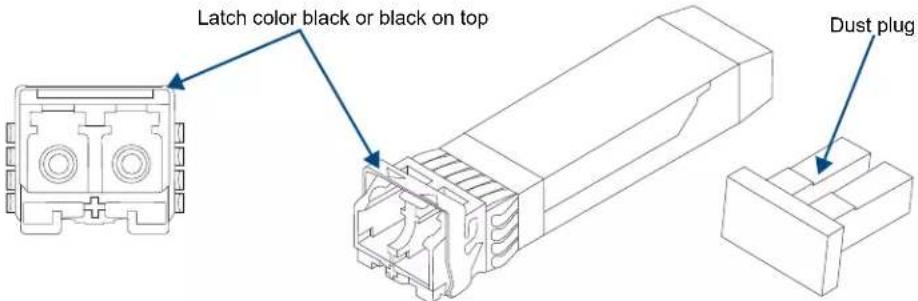
FIG. 62 Multimode SFP+ fiber optic transceiver (model with black label on latch top shown)
Single Mode SFP+ Fiber Optic Transceiver
The single mode SFP+ fiber optic transceiver is used on DXLink Fiber, Duplex and Simplex Boards. Depending on the transceiver model, it will have a bright blue latch or a blue label on the latch top with white triangles showing data flow direction.
The single mode SFP+ fiber optic transceiver requires single mode fiber optic cable, which allows a single optical wave to traverse through the optic core. Single mode fiber optic cable has a significantly smaller diameter optical core than multimode fiber optic cable and is generally associated with longer distance transport capabilities.
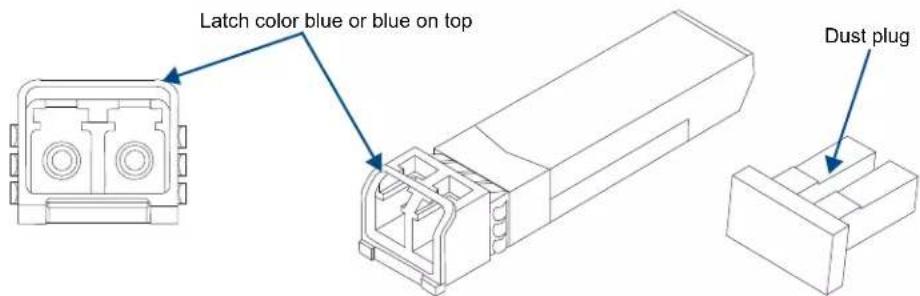
FIG. 63 Single mode SFP+ fiber optic transceiver (model with blue handle shown)
Important Information for Fiber Transceiver Replacement

Warning: DXLink Fiber units use laser transceivers, which are Class 1 Eye Safe per IEC 60825-1/CDRH requirements. While the Class 1 category indicates that the invisible laser used is safe, we recommend avoiding direct eye exposure when using any optical fiber products (see the OSHA directive on page 118).
- Replacement transceivers must match those replaced: either multimode or single mode.
- Adding or replacing SFP+ transceivers should be done only by personnel trained to handle ESD sensitive parts and assemblies.
- If disposal of transceivers is necessary, dispose of them as mandated by your area or country guidelines.
Note: When fiber optic transceivers are not cabled (e.g., for shipping or storage), replace the dust plugs that originally shipped with the product.

ESD Warning: To avoid ESD (Electrostatic Discharge) damage to sensitive components, make sure you are properly grounded before touching any internal Enova DGX 8/16/32/64 materials. Use an ESD wristband and cord with an alligator clip attached to a good ground source.
Note: The process for removing and replacing transceivers is the same in DXLink Fiber Boards as it is in DXLink Fiber units and the same for multimode transceivers (black latch) as it is for single mode transceivers (bright blue latch). The photographs in the procedure below show a DXLink Fiber unit.
In the following procedure, read each step entirely. The steps include helpful tips to avoid damage to DXLink Fiber products. We also suggest reading the “Tips for Fiber Optic Connections” on page 118.
To remove and replace an SFP+ fiber optic transceiver:
- If applicable – Label and disconnect fiber optic cables (release the locking tab on the cable connector to disconnect the cable from the transceiver) or remove dust plugs from the transceiver. If cables from adjoining transceivers or boards obstruct access, label and disconnect them as necessary.
- Using the tip of the index finger, swing the transceiver latch out and down (orientation of DXLink Fiber Boards varies from system to system).
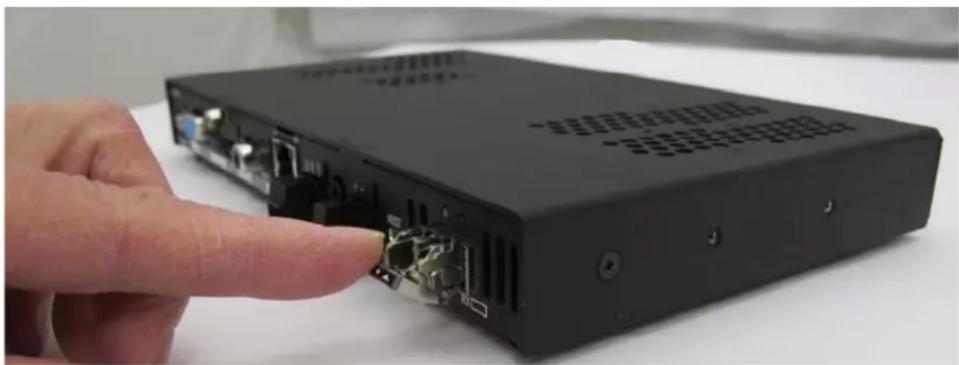
natural_image
Hand pointing at a black electronic device with visible internal components and ports (no text or symbols)FIG. 64 Flip transceiver latch out and down (DXLink Fiber Transmitter shown)
- Use the handle to release and carefully pull the transceiver completely free from its socket.

natural_image
Hand inserting a USB into a black electronic device (no visible text or symbols)FIG. 65 Pull transceiver free from transceiver socket
- Restore the removed transceiver's latch to an upright position and replace the dust plug that originally shipped with the transceiver. Place the transceiver in an ESD shielded bag and set aside.
Tip: Leave the dust plug in the replacement transceiver for Step 5 to reduce the possibility of damaging the transceiver / socket.
- With the replacement transceiver's latch in the up (locked) position, gently insert the transceiver straight into the transceiver socket until resistance is felt (an audible click will be heard when it is fully seated).
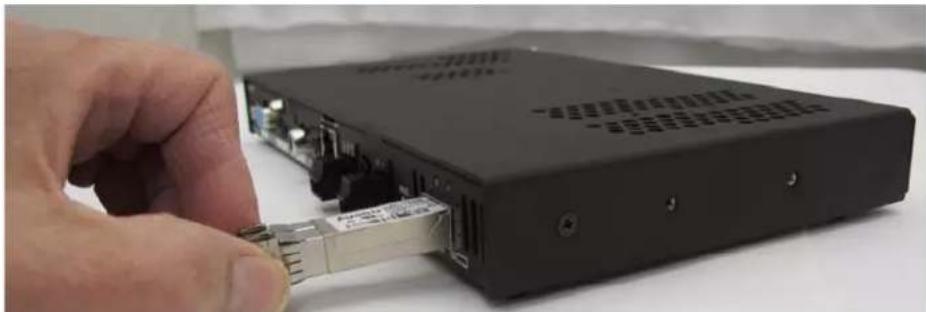
natural_image
Close-up of a hand inserting a USB into a black electronic device (no visible text or symbols)FIG. 66 Insert transceiver into transceiver socket
-
Verify proper seating by gently pulling on the transceiver with the latch in the locked position.
-
Remove the dust plug and save for future use.
-
Attach the fiber cable (see page 119).
-
Test the signal path.
DXLink Fiber Troubleshooting
General Signal Problems
If you are experiencing general signal problems, it may be because of fiber cable quality issues. Be sure to check the "Fiber Optic Cable Requirements" section on page 119.
Audio Problems
If you are experiencing audio problems, it may be because you are trying to pass Dolby, DTS, or high PCM frequency rates and the destination device does not support them. Re-programming the EDID may help resolve the problem (see page 199).
Video Problems
If you are experiencing video problems:
- It may be because you are trying to pass a video format that the destination device does not support. Re-programming the EDID may help resolve the problem (see page 199).
- Check the Scaling setting on the attached RX unit to ensure it is in either Auto or Manual Mode.
Verify Optical Signal – Multimode Transceivers Only
If you are unsure that a multimode transceiver is passing a signal:
- Hold the unattached end of the fiber optic cable away from you and take a picture of it with a digital camera (or cell phone camera). The image will show a bright light if the signal is being passed (works on some digital cameras and cell phone cameras).
Verify Bidirectional Mode Fiber Path (Duplex only)\*
If you are unsure of data being passed over fiber:
● Yellow LED: fast blink = unencrypted video present
● Yellow LED: slow blink = free-run video present**
● Yellow LED: solid = HDCP video present
● Green LED: solid = full bidirectional link established
● Green LED: off = link not established
- Green LED: blinking = Data Link-lost Mode*** (no Ethernet, RS-232, IR, or USB). If Bidirectional Mode is required, check return fiber path for proper connections and make sure DIP switch Toggle #4 is OFF.
Verify Unidirectional Mode Fiber Path\*
If you are unsure whether or not audio and video is being passed over fiber:
- Illuminated LED: solid = available for use; not sending audio and video (never present: Ethernet, RS-232, IR, or USB)
- Illuminated LED: blinking = receiving or transmitting audio and video (never present: Ethernet, RS-232, IR, or USB)
* With Simplex hardware or when Duplex hardware is in Unidirectional Mode, only one LED operates, either the transceiver's TX LED or RX LED. In Unidirectional Mode, the operational LED illuminates on the side of the transceiver where data enters or leaves the hardware and indicates the individual port where the fiber optic cable should be attached during cabling.
** Free run video is a video mode internal to the DXLink system. When free run video is indicated, video is not displayed (nor is black video present) out the endpoint RX unit. This identifies a good connection with video flow between endpoints.
*** When a DXLink Fiber Duplex cable run in Bidirectional Mode has one or both of the fiber optic cables on the return path removed, the system automatically drops into Data Link-lost Mode. In Data Link-lost Mode, video and audio continue to flow from source to destination, but network and control no longer transmit over the fiber optic path.
Epica DGX SC Optical Boards
Applicability Notice
This chapter pertains to the following Epica DGX SC Optical Input and Output Boards which are compatible in Enova DGX enclosures:
● FG1056-505 Input board
● FG1056-510 Output board
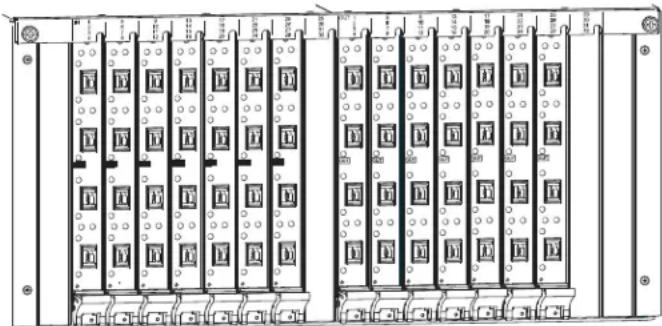
natural_image
Technical line drawing of a multi-chamber electrical enclosure unit (no text or symbols visible)FIG. 67 Epica DGX SC Optical Boards, shown in an Enova DGX 32
Epica DGX SC Optical Boards have four input or output connectors per board.
Enova DGX 8
Enova DGX 8 enclosures can hold up to four Epica DGX SC Optical Boards. Each enclosure holds a maximum of two input and two output boards, accommodating connector configurations up to a maximum of 8x8, as well as three subsets (i.e., 4x4, 4x8, or 8x4).
Enova DGX 16
Enova DGX 16 enclosures can hold up to eight Epica DGX SC Optical Boards. Each enclosure holds a maximum of four input and four output boards, accommodating connector configurations up to a maximum of 16x16, as well as subsets (e.g., 16x8 or 4x12).
Enova DGX 32
Enova DGX 32 enclosures can hold up to sixteen Epica DGX SC Optical Boards. Each enclosure holds a maximum of eight input and eight output boards, accommodating connector configurations up to a maximum of 32x32, as well as subsets (e.g., 12x24 or 32x8).
Enova DGX 64
Enova DGX 64 enclosures hold up to thirty-two Epica DGX SC Optical Boards with four inputs or outputs per board. Each enclosure holds a maximum of sixteen input and sixteen output boards, accommodating connector configurations up to a maximum of 64x64, as well as subsets in increments of four (e.g., 12x48 or 52x8).
Signal Routing
DGX SC Optical Input Boards route signals to DGX SC Optical Output Boards or to any other type of Enova DGX Output Boards. DGX SC Optical Output Boards accept signals from all types of Enova DGX Boards. These boards can be used for non-HDCP signals but do not support HDCP. When routing signals between different board types, the Enova DGX Switcher automatically converts the signal format to match the output board.
Important: Signals which are not supported are: HDCP, 3D formats, any other video signal above 1920x1200, Deep Color, and any audio signals originating in a format other than 2 channel PCM digital or analog stereo audio. When HDCP protected video signals are routed through fiber, the display provides a dark red image to indicate the authentication process failed. When compressed audio signals are routed, the display goes blank. Non-HDCP signals are accepted.
Currently, the following signals can be sent over DGX SC Optical Boards: HDMI, DVI-D, analog video, and digital or analog stereo audio. Supported analog video input signals include RGBHV, RGBS, RGsB, and Y/Pb/Pr (converted to RGsB) and an RGBHV output signal.
DGX SC Optical Boards must be used in conjunction with DGX Fiber Modules (see the compatibility list on the next page and the system setup information on page 133).
Epica DGX SC Optical Boards – Specifications
Applies to input board FG1056-505 and output board FG1056-510.
Compatible AMX DGX Fiber Modules:
- FG1010-200-01 - AVB-TX-DGX-HD15-SC Fiber
● FG1010-210-01 – AVB-TX-DGX-DVI-SC Fiber - FG1010-400-01 - AVB-RX-DGX-SC Fiber-HD15
● FG1010-410-01 – AVB-RX-DGX-SC Fiber-DVI
Note: Either Transmitter (TX) Module can be used with an SC Optical Input Board to route signals to any of the output boards in the system. A signal with a compatible video format from any of the input boards can be routed through an SC Optical Output board to a destination device via either Receiver (RX) Module.
| Epica DGX SC Optical Specifications | |
| Parameter Value | |
| Compatible AMX Products DGX HD-15 TX | and RX, DGX DVI TX and RX;other AMX DGX SC Fiber signal management products |
| Signal Types over Fiber Video, audio | Video signal must be present to pass audio |
| Resolution Support 640x480 @ 60 Hz up to | 1920x1200 @ 60 Hz |
| Interlaced Resolution Support 1080i 60, 59 | 94, 50 (fields per second)576i 100, 50 (fields per second)*480i 60 (fields per second)* |
| Audio Support Analog stereo or S/PDIF (2 CH L-PCM S/PDIF up to 96 kHz sample rate**) | |
| Local Audio Support None | |
| Serial Data Support None | |
| Fiber Cable Type Multimode Simplex (with SC termination)50/125 μm (preferred) or 62.5/125 μm | |
| Fiber Cable Length | Up to 3000 ft. (914.4 m) in with 50 μm cable***Up to 3000 ft. (914.4 m) out with 50 μm cable***Up to 1500 ft. (457.2 m) in with 62.5 μm cableUp to 1500 ft. (457.2 m) out with 62.5 μm cable |
| Optical Budget 9.75 dBm (typical) between | DGX TX and input board9.75 dBm (typical) between output board and DGX RXOptical Modulation Amplitude (OMA) Output: -6.25 dBm (typical)Optical Modulation Amplitude (OMA) Input Sensitivity: -16.0 dBm (typical) |
| Fiber Input Board Propagation Delay 1 μs | |
| Fiber Output Board Propagation Delay 2 μs | |
| HDCP Support | No |
| Power Output of Laser Radiation (max.) | 4.08 mW (SC Optical Output Board) |
| Safety Certifications | Class 1 Laser Product (Class 3R Laser Product when fiber is disconnected from the unit) IEC 60825-1, 2001 (SC Optical Output Board) |
| Fiber Connector | 4 SC optical ports |
* 480i and 576i are only available when being transmitted from a DGX HD-15 TX as a Y-Pb-Pr signal.
** 96 kHz audio is only available when the source video resolution is 800x600 @ 60 Hz (40 MHz video pixel clock) or greater. Otherwise 48 kHz is the maximum.
*** 3000 ft. cable requires 50/125 μm OM2 class low loss fiber cable.
Important: These boards are compatible only with other AMX products that support the DGX Single Fiber Technology. They are not compatible with third-party optical distribution amplifiers or multimode to single mode converters.
AMX reserves the right to modify its products and their specifications without notice.
System Setup with DGX Fiber Modules
Epica DGX SC Optical Input and Output Boards must be used in conjunction with AMX DGX Fiber TX and RX Modules. Compatible DGX Fiber Modules are listed on page 132. System setup options are listed in a table on page 34. For module installation details, see the module's Quick Start Guide or Instruction Manual.
Note: Along with the video signal, the DGX SC Optical Boards support embedded digital audio and analog stereo audio from the DGX Fiber Modules. When installed in an Enova DGX Switcher, these boards do not support serial data or control.
When the TX / RX Modules are installed, image adjustment and EDID scaling is automatically applied. For almost every installation, the automatic features on the modules result in a quality image on the monitor. If the installation has special requirements and needs additional adjustment or if you need product specifications for the modules, refer to the Instruction Manual – DGX Transmitters & Receivers at www.amx.com.
The distance from a DGX Fiber TX Module to a DGX SC Optical Input Board can be up to 3,000 feet (914.4 m) and another 3,000 feet (914.4 m) from the DGX SC Optical Output Board to the DGX Fiber RX Module. For specifications details, see page 132.
Important: Signals which are not supported are: HDCP, 3D formats, any other video signal above 1920x1200, Deep Color, and any audio signals originating in a format other than 2 channel PCM digital or analog stereo audio. When HDCP protected video signals are routed through fiber, the display provides a dark red image to indicate the authentication process failed. When compressed audio signals are routed, the display goes blank. Non-HDCP signals are accepted.
The system setup in FIG. 68 illustrates DGX SC Optical Boards used in conjunction with DGX Fiber Modules. The DGX HD-15 TX and the DGX DVI TX Modules can be installed interchangeably.
DGX HD-15 RX and the DGX DVI RX Modules are interchangeable as well, providing for an extremely flexible system. For example, in the same system the source device can send a DVI signal and the destination device can receive an RGBHV signal.

flowchart
graph TD
    A["Source Device"] -->|USB| B["DGX TX"]
    B --> C["Control PC for setup - only necessary for systems with special requirements"]
    C --> D["Destination Device"]
    B --> E["SC fiber up to 3000 ft. (914 m)"]
    E --> F["Enova DGX 32 with SC Optical Boards"]
    F --> G["DGX RX"]
    G --> H["Source Device"]
    style A fill:#f9f,stroke:#333
    style B fill:#ccf,stroke:#333
    style C fill:#cfc,stroke:#333
    style D fill:#fcc,stroke:#333
    style E fill:#cff,stroke:#333
    style F fill:#ffc,stroke:#333
    style G fill:#fcc,stroke:#333
    style H fill:#fcc,stroke:#333
FIG. 68 SC Optical Boards are used in conjunction with DGX Fiber Modules
Tip: For systems with special requirements – Before installing in the final location, place the equipment close together, so the Control PC and the destination monitor can be seen simultaneously if adjustments are necessary.
Safety Recommendations for Laser Products
Important: No user serviceable parts are included inside Enova DGX enclosures; service should only be done by qualified personnel.

Caution: Use of controls or adjustments or performance of procedures other than those specified herein may result in hazardous radiation exposure.
Exercise caution when installing Epica SC Fiber products to avoid direct eye exposure to invisible laser radiation. Follow the recommendations below whenever installing or working with Epica SC Fiber products.
☐ Be sure to apply the power only after all fiber connections are made and no fiber ends are exposed.
☐ Do not remove dust plugs from Epica SC fiber connectors or the dust caps from the fiber cables until establishing connections; avoid direct eye exposure.
☐ Make sure all cables, including fiber cables, are correctly connected and/or terminated.
Before you unplug a fiber cable on an input board, disconnect the power on the DGX TX that is connected to the input.
Before you unplug a fiber cable on an output board, disconnect the switch for that output connector.
Attaching Cables
Viewed from the rear of the enclosure, the input boards (for attaching sources) are on the left, and the output boards (for attaching destinations) are on the right.
Enova DGX 8/16 – Input and output channel numbers correspond to the connectors and are located between the input and output boards. For inputs, numbering is consecutive from left to right on each board from the top board to the bottom one; outputs start over at “1” and follow the same pattern.
Enova DGX 32 - Input and output channel numbers correspond to the connectors and are located on the numbering plate (metal strip) directly above the boards. For inputs, numbering is consecutive from top to bottom on each board from the left board to right one; outputs start over at "1" and follow the same pattern.
Enova DGX 64 – Input and output channel numbers correspond to the connectors and are located in the middle of the enclosure between boards on either side. For inputs, numbering is consecutive from left to right on each board from the top input board on the left to the bottom input board on the left, continuing on the top input board on the right to the bottom input board on the right. Outputs are in the lower part of the enclosure, start over at “1” on the left, and follow the same pattern.
Note: Instructions for attaching cable management bars are on page 39. These bars are recommended and provided with each DGX SC Optical Board.
Caution: Do not severely bend or kink the SC fiber cable. Irreversible damage can occur. Refer to the physical limitations (bend radius) specified for the cable. The bend radius for AMX SC terminated fiber cables is 2 inches (5 cm).

Check When Fastening Fiber Cables:
☐ Make sure that no dust or debris is on the exposed ends of the fiber cable.
☐ Make sure that the fiber cable connectors seat firmly into the board and module fiber connectors. (Normally an audible click is heard when a connector engages.)
To connect SC fiber inputs and outputs:
- Recommended – Install the provided cable management bars (see page 39).
Caution: CLASS 3R INVISIBLE LASER RADIATION WHEN OPEN; AVOID DIRECT EYE EXPOSURE.
- Clean the fiber cable connector — Follow the manufacturer's recommendations.
- Remove the protective cap from the SC fiber connector.
- Insert the fiber cable connector into the input and output SC fiber receptacles (FIG. 69).

FIG. 69 Fasten cables onto input and output connectors (shown with cable management bar)
- Tie the SC fiber cable to the cable management bar far enough below the connector to allow for the manufacturer's recommended bend radius. The bend radius for AMX SC terminated fiber cables is 2 inches (5 cm).
- Repeat the previous steps for the remaining fiber cables.
Note: An SC Optical Board cannot work in conjunction with an Audio Insert/Extract Board that is located on the same side of the enclosure as it is, i.e., the Audio Insert/Extract Board cannot insert or extract audio directly onto or out of an SC Optical Board. However, SC Optical Boards can handle audio signals from or to other types of boards that do work in conjunction with Audio Insert/Extract Boards. For example, if a video signal with embedded audio is routed from an SC Optical input Board to an HDMI Output Board, the audio can be extracted at the HDMI output, or if an audio signal is inserted onto an HDMI Input Board, the resulting video with embedded audio signal can be routed through an SC Optical Output Board.
Important: In the event that an HDCP protected signal is switched to an SC Optical Output Board, the image will show as red and will not pass the image. This is a visual confirmation that the output does not support HDCP protected content and as such has failed authentication with the Enova DGX Switcher. For HDCP protected signals to display, we recommend the use of local output boards which support HDCP protected source signals.

Enova DGX Audio Insert/Extract Boards
Applicability Notice
This chapter pertains to the following Enova DGX Audio Insert/Extract Board (referred to here as the AIE Board) which supports analog stereo audio
- FG1058-705 Audio Insert/Extract Board*

FIG. 70 AIE Boards (shown with HDMI Input and Output Boards in Enova DGX 32)
* AIE Board FG1058-705 is compatible with the Enova DGX 8/16/32/64, replacing AIE Board FG1058-700 (discontinued) which was compatible with the Enova DGX 8/16/32 only.
The Enova DGX Audio Insert/Extract Board works in conjunction with HDMI, DVI, DXLink Twisted Pair, and DXLink Fiber Input or Output Boards. The AIE Board can be installed in any of the AIE slots on the rear of the Enova DGX enclosure. The AIE Board can provide audio insertion and/or extraction functionality for either the input or output boards. The board's DIP switches must be set per the individual system's requirements. The configuration process requires removing the board from the enclosure and setting its DIP switches (for details, see page 140). By default, the AIE Board is set with the extract/insert function enabled. In addition, the connectors default to "extract" audio.
Important: Setting the DIP switches is the only way to configure the AIE Board's insert/extract functionality. Therefore, if the switches require setting (which involves removal of the board from the enclosure), it needs to be done during system setup.
AIE Board Information – Must Know for System Setup
- Individual connectors on an AIE Board in either AIE slot can be configured by setting the DIP switches to insert or extract audio (default = "Enable/Extract").
- If an AIE connector is set to "Disable," then it must also be set to "Extract."
- When audio is “extracted” from an HDMI signal, the audio signal is not only sent to separate audio equipment but also remains intact as embedded audio on the HDMI signal which is handled by the Enova DGX Switcher.
- When audio is “inserted” onto an HDMI signal, the audio signal replaces the embedded audio on the HDMI signal which is handled by the Enova DGX Switcher.
- Left AIE slot (Enova DGX 8/16/32) and top AIE slots (Enova DGX 64) – AIE Board connectors correspond numerically to the standard input connectors. The audio signal on AIE Input 1 is either inserted or extracted onto/from standard Input 1 (2 works with 2, 3 works with 3, etc.).**
- Right AIE slot (Enova DGX 8/16/32) and bottom AIE slots (Enova DGX 64) – AIE Board connectors correspond numerically to the standard output connectors. The audio signal on AIE Output 1 is either inserted or extracted onto/from standard Output 1 (2 works with 2, 3 works with 3, etc.).
● The audio is always inserted or extracted as analog stereo audio at line level. - Insert/Extract settings provide unity gain to and from the digital domain.
** For example, when AIE Input 1 in the left AIE slot is set to insert and then you route HDMI Input 1, the audio signal for AIE Input 1 is embedded on the HDMI signal.
Important: The AIE Boards do not form an independent switching matrix. When an AIE Board is used on the input side, audio signals cannot be controlled separately, but must either switch with the HDMI as embedded audio (insert function) or are sent to supplemental audio equipment (extract function). When an AIE Board is used on the output side, audio signals have already been switched as embedded audio with HDMI and can be either replaced or extracted, depending on which function is set.
Enova DGX Model Specific AIE Notes
- Enova DGX 8 only – Depending on location, ATE Board connectors 1-8 correspond to standard input or output connectors 1-8. Connectors 9-16 are inoperable.
- Enova DGX 32 only – AIE Boards will not work in conjunction with standard input and output connectors 17-32, which are on the boards in the last four input and last four output board slots. Remaining standard board slots should be reserved for input/output boards without audio insert/extract needs.
- Enova DGX 64 only – Numbering overlays are provided for AIE Boards to simplify wiring (see page 142). In the Enova DGX 64, AIE Boards in the top portion of the enclosure work with input boards that are also located in the top portion of the enclosure. AIE Boards in the bottom portion of the enclosure work with output boards that are also located in the bottom portion of the enclosure.
Enova DGX Audio Insert/Extract Boards – Specifications
Applies to Audio Insert/Extract Board FG1058-705.
| Enova DGX Local Analog Audio Specifications | |
| Audio Insertion | |
| Audio Signal Type • Enova DGX 8: Analog | stereo, up to 8 channels per enclosure• Enova DGX 16/32: Analog stereo, up to 16 channels per enclosure• Enova DGX 64: Analog stereo, up to 64 channels per enclosure |
| Analog Input Level (max.) +3 dBu, unbalanced | |
| Input Impedance 10 kohms | |
| Analog to Digital Conversion 48 kHz sample rate, 24-bit | |
| Analog to Digital Reference Level +3 dBu = | 0 dBfs |
| Optimal Analog Audio Operating Range -30 dBu to +2 dBu | |
| Connectors 8 pluggable, dual three-position, terminal blocks each containing two single-ended stereo contacts (supports 28 to 18 AWG) | |
| Audio Extraction | |
| Audio Signal Type • Enova DGX 8: Analog | stereo, up to 8 channels per enclosure• Enova DGX 16/32: Analog stereo, up to 16 channels per enclosure• Enova DGX 64: Analog stereo, up to 64 channels per enclosure |
| Audio Signal Type Support Requires 2 CH | L-PCM (32, 44.1, 48, 88.2, 96, 176.4, and 192 kHz at bit depths of 16, 20, and 24) |
| Analog Output Level (max.) +2.8 dBu, unbalanced, >=5 kohms | |
| Output Frequency Response <+/-0.3 dB, 20 Hz to 20 kHz | |
| Audio Output THD+N <0.04%, 1 kHz, -10 dBu to +2.8 dBu | |
| Audio Output SNR >95 dB, 20 Hz to 20 kHz, Vin = +3 dBu | |
| Digital to Analog Resolution 24 bit, 2 Channel (stereo audio) | |
| Digital to Analog Reference Level 0 dBfs = | +3 dBu |
| Optimal Digital Audio Operating Range | -30 dBfs to -2 dBfs |
| Audio Synchronization | Progressive and interlaced video formats @ 60 Hz frame rate: Audio is actively delayed to match video within 6.7 ms leading up to 9.3 ms lagging |
| Connector | 8 pluggable, dual three-position, terminal blocks each containing two single-ended stereo contacts (supports 28 to 18 AWG) |
Note: Only 2 channel L-PCM audio is supported from the AIE extraction port. Multi-channel (>2 channel) L-PCM formats will pass incomplete audio if extracted (only 2 of the multiple channels will be extracted). All other audio formats will be muted at the extraction port.
AMX reserves the right to modify its products and their specifications without notice.
System Examples
The examples below show some uses for the insertion/extraction functionality on the AIE Board. Individual connectors on an AIE Board can be set to insert or extract audio onto/from their numerically corresponding standard inputs/outputs.
Note: The Enova DGX 64 enclosure's AIE Boards are located top and bottom on the rear. Therefore, this section's references to left and right AIE slots correspond to the top and bottom AIE slots respectively on the Enova DGX 64.
AIE Board in Left AIE Slot - Extract Function
Extracted audio remains intact from standard input to standard output but is also sent on to an auxiliary audio system for further distribution.

FIG. 71 Audio extracted from HDMI input signal and sent to auxiliary audio system
AIE Board in Left AIE Slot – Insert Function
Inserted audio is received separately from PC source, embedded onto the HDMI signal, and routed from standard input through standard output(s) to destination(s) as an HDMI signal with embedded audio.

FIG. 72 Audio inserted onto HDMI input signal
AIE Board in Right AIE Slot – Insert Function
Inserted audio from auxiliary audio system replaces embedded audio on HDMI signal and is sent to the destination device.

FIG. 73 Audio inserted onto HDMI output signal
AIE Board in Right AIE Slot – Extract Function
Audio is extracted by the AIE Board on the output side for use in supplemental audio equipment as well as remaining intact as HDMI with embedded audio from the output to the destination device.

FIG. 74 Audio extracted from HDMI output signal
AIE Boards in Both AIE Slots – Insert and Extract Functions
On left - embedded audio is extracted from standard input side and is sent on for audio processing.
On right - inserted audio replaces embedded audio on HDMI signal and is sent to the destination device.
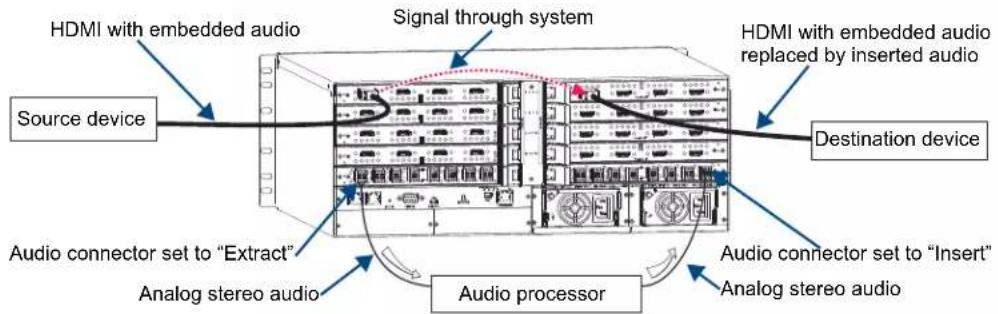
FIG. 75 Audio extracted from HDMI input signal and inserted onto HDMI output signal(s)
Note: When audio is routed through a separate Audio Matrix Switcher, the audio can be inserted back into the original system on multiple audio insert/extract connectors.
Important: When audio is "extracted" from an HDMI signal, the audio also remains intact as embedded audio on the HDMI signal.
Setting Audio Connectors to Insert or Extract
Important: If the factory default of enable/extract meets all of the system's needs, this process is not necessary.
Setting AIE functionality to insert or extract audio requires removing the AIE Board, setting the DIP switches, and reinstalling the board.
Important: Setting the DIP switches is the only mechanism for configuring the AIE Board's insert/extract functionality. Therefore, setting the switches (which requires removal of the board from the enclosure) needs to be done at the time of installation setup.
Removing an AIE Board

Caution: The AIE Board has an EMI (Electromagnetic Interference) gasket along one edge of the faceplate. Handle the boards carefully to avoid dislodging or damaging the gasket on the board being handled and the gasket on the adjacent board or blank plate.
Note: If an AIE connector is set to "Disable," then it must also be set to "Extract."
To remove an AIE Board:
-
Power down the enclosure (the AIE board is not hot-swappable).
-
Enova DGX 32 only – Loosen the captive screw on each end of the numbering plate above the boards, and set the plate aside.

FIG. 76 Enova DGX 32 only - two captive screws hold numbering plate above boards
-
Remove the pan head screw that holds the AIE Board in place.
-
Push on the board's extractor handle as far as it will go (about a 45st angle). With the handle extended, carefully pull the board straight out of the AIE slot.

FIG. 77 Remove screw, push board extractor handle down, then pull board straight out (Enova DGX 32 shown)
- Set the Dip switches according to the information on the following page, and then reinstall the board according to the directions on page 142.
Setting the DIP Switches
Important: When an AIE connector is set to insert audio, audio on the corresponding video signal will always be replaced with the input from the AIE connector. When the AIE connector does not have a valid audio signal to insert, "no signal" is the input that will be inserted – resulting in no sound.
The individual AIE connectors on the AIE Board must have their DIP switches set according to how the audio for each connector is to be used in the system.
Each board has two DIP switches per AIE connector with the corresponding AIE connector number displayed vertically between the switches (labeled “Channel Setting” – see FIG. 78 below).

FIG. 78 Flip DIP switches to change settings
The DIP switch on the left is used for enabling or disabling the extract/insert functionality. The DIP switch on the right can be set to either “extract audio from” or “insert audio onto” the signal routed on numerically corresponding standard input or output connectors.
Important: When disabling extraction/insertion functionality for connectors on the AIE board, use the DIP switch settings "Disable/Extract"; do not use the settings "Disable/Insert."
Note: We recommend writing down the setting for each connector before reinstalling the AIE Board into the Enova DGX enclosure. This will make verifying correct audio switching (see page 144) easier.
Enable/Disable DIP Switches
- Located on the left (see blue rectangle in FIG. 78).
- To enable, flip left. Enable must be selected for the insert/extract function to work.
● To disable, flip right. Disable turns off the insert/extract function for that port.
Extract/Insert DIP Switches
- Located on the right (see red rectangle in FIG. 78).
- To extract audio, flip left. The AIE connector will pull the embedded audio signal off the corresponding standard input or output connector's signal (the embedded audio remains intact on the HDMI signal).
- To insert audio, flip right. The AIE connector will insert the connected audio signal onto the corresponding standard input or output connector's signal.
When shipped from the factory, the DIP switches are set to "Enable" and "Extract."
Reinstalling an AIE Board

Caution: The AIE Board has an EMI (Electromagnetic Interference) gasket along one edge of the faceplate. Handle the boards carefully to avoid dislodging or damaging the gasket on the board being installed and the gasket on the adjacent board or blank plate.

Caution: Do not try to install an AIE Board in any of the standard input or output board slots. (Standard board slots are indicated by the numbers on the numbering plate that is above the slots on an Enova DGX 32 and between the input and output slots on an Enova DGX 8/16/64.) An AIE Board can only be installed in an I/O expansion board slot.
To reinstall an AIE Board:
- Enova DGX 32 – With the board's extractor handle in the extended (unlocked) position, line up the board's edges on the board guides that are along the top and bottom of the AIE slot. Or
Enova DGX 8/16 /64 – With the board's extractor handle in the extended (unlocked) position, line up the board's edges on the board guides that are along the left and right of the AIE slot. Note that boards on the input side have guides at the top of the slot and that guides for boards on the output side are at the bottom of the slot due to their reversed orientation in the enclosure. (For placement of AIE boards in the Enova DGX 64, see page 18).
- Begin pushing the AIE Board into the AIE slot until the extractor handle starts to engage the metal extractor plate (the extractor handle moves into its folded position).
When the extractor handle starts to lift, flip the handle toward the center of the board until it snaps into its folded (locked) position, which firmly seats the board. - Insert and tighten the screw (removed previously) that holds the board in place.
- Enova DGX 32 only – When wiring is complete and functionality is checked, replace the connector numbering plate that was removed previously.
- Re-apply power to the enclosure.
Important: If for any reason an I/O expansion board slot is left empty, be sure to attach a blank plate to cover the empty slot prior to re-applying power to the enclosure.
Enova DGX 64 Only - AIE Board Numbering Overlays
The Enova DGX 64 can hold up to eight AIE Boards (four on the upper rear of the enclosure and four on the lower rear). The AIE Boards in the upper slots work in conjunction with the Input Boards; the AIE Boards in the lower slots work in conjunction with the Output Boards.
Because all AIE boards are numbered 1 through 16, overlays are provided to simplify AIE connector wiring on the Enova DGX 64. The overlays provided include: two each for the faceplates for connectors 1-16, 17-32, 33-48, and 49-64. The numbers on the overlays (when installed per the instructions below) directly correlate to the input and output connectors.
Important: The orientation of the AIE Boards in the right AIE slots places the lowest connector number for these boards on the far right (e.g., the overlay for the board in the top right slot will read left-to-right as 48 though 33).
Note: The audio connectors will need to be removed before applying the overlays.
To apply overlays to AIE Board faceplates:
- Check the numbering on the overlay to determine which board it applies to (see numbering in FIG. 79 on the next page).
- Peel the backing off the overlay and discard the backing.
Tip: For Step 3, start at the screw end and work across to the extractor handle end.
-
Align the overlay carefully on the AIE Board's faceplate and then press firmly on the overlay to set the adhesive on the faceplate.
-
Repeat Steps 1 through 3 as necessary for the remaining overlays.

flowchart
graph TD
    A["Input Boards"] --> B["1 - 16"]
    A --> C["17 - 32"]
    D["Input Boards"] --> E["33 - 48"]
    D --> F["49 - 64"]
    G["Output Boards"] --> H["1 - 16"]
    G --> I["17 - 32"]
    J["Output Boards"] --> K["33 - 48"]
    J --> L["49 - 64"]
    M["CPU Board"] --> N["Power Supplies"]
    O["AIE Board slots"] --> P
FIG. 79 AIE Board slot numbering on Enova DGX 64
Attaching Wires
When attaching audio wires, you may find it easier to unplug the audio connectors before you start. For connector details, see Audio Specifications on page 137.
Important to Know When Wiring AIE Boards
- Audio boards and connectors are positioned vertically on the Enova DGX 32 and horizontally on the Enova DGX 8/16/64. Be sure to note the labeling for the wiring on the "R" (right channel) and the "L" (left channel) wires in FIG. 80.
- Enova DGX 8/16/64 only – the orientation of Audio Insert/Extract Board in the right ATE slot places the number 1 audio connector on the far right of the board.
Note: If wiring the audio connectors to balanced audio input devices, see page 145 for options.
To wire audio connectors:
- Press a very small tip screwdriver (or a T-pin) into the square hole to release the tension clamp (if the clamp does not release fully, you may need to use the screwdriver as a lever to release it).
-
Insert the wire into the round hole.
-
Remove the screwdriver from the square hole so that the clamp places tension on the wire.

FIG. 80 Audio wiring for AIE Board
- Test/check the Insert/Extract functionality (see below).
Testing/Checking the Insert/Extract Functionality
Insertion – If the DIP switch setting results in being inserted onto the corresponding video input or output signal, execute a test switch using the video signal. If you need test switch details, see page 59.
Extraction - If the DIP switch setting results in audio being extracted from a video input or output signal, check the auxiliary or supplemental audio equipment involved to be sure the audio signal is present where expected.
If the system does not handle the audio in the expected manner, see "AIE Board Troubleshooting" on page 144.
AIE Board Troubleshooting
Problem - The audio is not present or is not at the expected destination device.
Possible Solution #1 - Re-wire to a different connector:
- To verify input and/or output connection, check the connector numbers on the AIE Boards. The AIE connector numbers correspond directly to the numbers for the standard input or output connectors that they insert audio into or extract audio from. AIE 1 works with standard Input 1, AIE 2 works with standard Input 2, etc.
- Enova DGX 8 only – Depending on location, AIE Board connectors 1-8 correspond to standard input or output connectors 1-8. Connectors 9-16 are inoperable.
- Enova DGX 32 only – Remember that the AIE Boards will not work with connectors 17-32, which are on the boards in the last four input and last four output board slots.
Possible Solution #2 - Re-install board:
- Verify that the AIE Board is seated correctly by repeating the re-installation procedure.
- Test/check the insert/extract functionality again.
Problem - Connecting to a balanced audio input device results in the extracted audio buzzing.
Solution - Re-wire audio connections:
- Wire the AIE connector as follows: AIE L to device L+; AIE R to device R+; AIE ground to device R-; and a jumper from device R- to device L- (see FIG. 82 on next page).
Problem – AIE extracted audio from an HDMI output drops out over time. Probably due to upstream unstable/garbage video introduced onto the HDMI output port with no sink connected.
Solution - Connect a sink to the HDMI output port:
- Verify the cause by sending the DGX_SHELL commands: power OFF EXPOUT followed by power ON EXPOUT. If the audio signal recovers, not having a sink connected to the HDMI output port was likely the cause.
- Connect a sink with a valid EDID to the open HDMI output port. The sink can be something like an EDID emulator or a monitor. Optionally, you can loop back the HDMI output port to an unused HDMI input port.
You will know the problem is resolved when the AIE extracted audio no longer drops out.
Options for Wiring AIE to Balanced Audio Input Device
Standard Wiring
The wiring in FIG. 81 is the standard way to wire an AIE connector to a balanced audio input device.
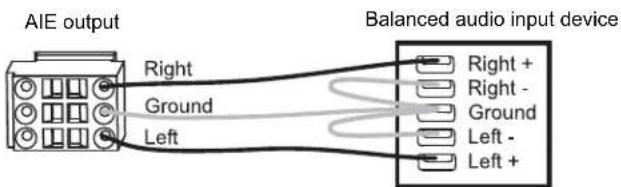
FIG. 81 Standard wiring from AIE to balanced audio input device
If Necessary – Wiring to Eliminate Buzzing
The wiring in FIG. 82 can be used if the extracted audio buzzes when connected to a balanced audio input device.

FIG. 82 Wiring from AIE to balanced audio input device if buzzing occurs
Control Panel Operation
Control Panel Overview
The Enova DGX Control Panels (standard on all enclosures) are used for controlling system switches and system attributes. All Enova DGX Switcher control panels function the same, but have input and output key support respective to their size.
Note: For information on additional control options, see page 29.
The Control Panel has an LCD, a Function Key, Control Dial, Select Key, Cancel Key, Take Key, Input and Output Keys, and Power Indicator. The Control Dial and Select Key work together for scrolling through the menu items displayed on the LCD to place the system into various modes (the types of operations, e.g., Change Mode to execute switches) or to access lists for control operations. Once in the desired mode, use the Input and Output Keys to select values and the Take Key to execute the operations (some modes require using the Control Dial and Select Key to select values).
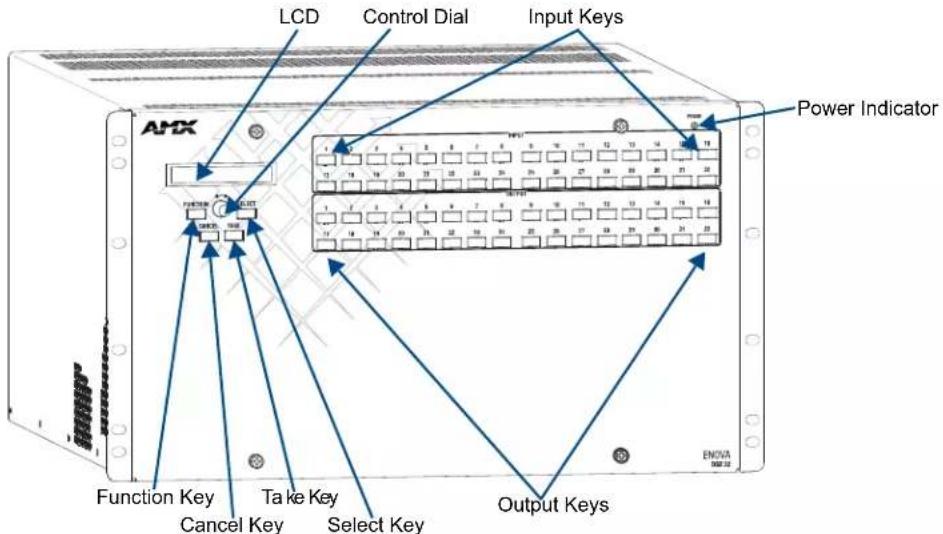
FIG. 83 Control Panel, shown on an Enova DGX 32
Control Keys and Dial
Function Key
The Function Key accesses the Function menu on the LCD. As the Control Dial is scrolled, the menu displays the various command options, e.g., Change and Status. The Function Key can be pressed at any time to return the display to the Function menu. For an overview of the menu options, see page 148.
Select Key
The Select Key enters a selection. In addition, the Select Key can be used to execute global or local presets. However, the Select Key cannot execute or disconnect switches. Pressing the Take key executes or disconnects switches.
Cancel Key
Pressing the Cancel Key clears an incomplete operation and returns the display to the beginning of a submenu or list. The Cancel Key cannot undo a completed operation, e.g., an operation followed by the pressing of the Take Key. If the Cancel Key flashes, an error has occurred; a flashing Cancel Key must be pressed before continuing.
Take Key
The Take Key functions much like the Enter Key on a computer keyboard. Pressing the Take Key instructs the system to execute or disconnect a switch. Prior to pressing the Take Key, the individual operation component(s) are selected by pressing the appropriate key(s).
Control Dial
The Control Dial scrolls through the menu options and adjusts values. The Control Dial is used in conjunction with the Select Key to choose the commands and values on the LCD and change virtual matrices between standard virtual matrix configurations and any custom virtual matrices.
Input and Output Keys
Input and Output Keys correspond to the input and output connections on the rear of the enclosure. These keys are used to select the inputs and outputs for routing source signals to destination devices, as well as for status operations. Input Keys are also used for locking and unlocking the Control Panel.
When an Input or Output Key is pressed, the channel name (e.g., O_Ch:0003 for Output 3) displays on the LCD. Hold the key down to display the name longer.
The color of the Input and Output Keys indicate availability or selection:
- Blue key – indicates the input or output is available for selection as part of the current operation.
- White or flashing white key – indicates an input or output has been selected and that additional action is required to complete the operation. When verifying Status, the key corresponding to the selected input or output is white; a key(s) for the input or outputs that are connected to the selected key turn white. When a key is flashing white, it cannot be unselected and does not display label information on the LCD when pressed. Select another key or press the Cancel Key to unselect.
- Non-illuminated key – indicates the input or output is not available for the current operation, e.g., if the enclosure's configuration size is not a full 32x32, some keys are always unavailable (never illuminated) because they do not have a corresponding connector on the rear.
FIG. 84 shows various keys states while in Change Mode. Input Key 19 is flashing white, indicating that input was selected first. Outputs Keys 4 and 5 are white, indicating that those outputs have also been selected (and can be unselected). The switch from Input 19 to Outputs 4 and 5 will be executed when the Take Key is pressed. Note that Keys 21 through 24 in the second row of inputs are not available.

FIG. 84 Example of key states during Change Mode (Control Panel on an Enova DGX 32)
Menus and Modes
The Function menu and its submenus access the modes and functions used to control the system. The modes are Change, Virtual Matrix, Status, Disconnect, Setup Options, Lock Panel, Global Preset, and Local Preset. While in a mode, the same command can be repeated, without having to return to the Function menu to re-select the mode, e.g., executing more than one local preset.
Use the Control Dial and Select Key to navigate the Function menu, and submenus. The Function menu and the submenus are loop menus, which means that each menu returns to its first item after you scroll past its last item.
Note: A clear label with white lettering that shows the entire LCD Function menu (as shown on the right) is included in the Control Panel Label Kit shipped with the system. Dust surface of panel near the LCD with a dry cloth (if necessary, use a non-abrasive cleaner), peel the backing off of the label, and firmly press the label on the panel.
The Function menu (see right) and its submenus access the following modes and functions:
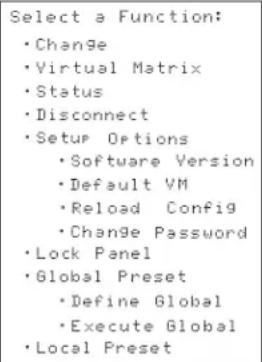
Function menu structure
Change
Selecting Change places the system in Change Mode. The Control Panel must be in Change Mode to execute switches. While in Change Mode, select the Input and Output(s) Keys followed by the Take Key to execute switches (see page 150).
Virtual Matrix
Selecting the Virtual Matrix Mode accesses the virtual matrices designated for the system in the configuration file (VM 0, VM 1, and any custom virtual matrices). The Virtual Matrix Mode can be selected to change the virtual matrix currently used to execute operations (see page 151).
Status
Selecting Status places the system in Status Mode. Status Mode is used to confirm signal routing or routing to multiple outputs without risk of accidentally executing a switch (see page 153).
Disconnect
Selecting Disconnect places the system in Disconnect Mode. While in Disconnect Mode, select the Input or Output Key(s) followed by the Take Key to disconnect switches (see page 152). While in Disconnect Mode, the Control Panel does not indicate the current routing of selected inputs or outputs.
Setup Options
Selecting Setup Options (see page 158) accesses the Setup Options submenu to check the software version, change the default virtual matrix, reload the configuration file (when directed to do so by technical support), and change the Control Panel password.
Lock Panel
Selecting Lock Panel places the Control Panel in Lock Mode at which time the password is entered to lock the panel. Locking the panel prohibits access to the system and can prevent accidental switching (see page 156).
Global Preset
Selecting Global Preset accesses the Global Preset submenu to execute global presets or define global presets (see page 154).
Local Preset
Selecting Local Preset accesses the list of local presets that can be executed (see page 156). Local Preset will only appear as an option on the Function menu if local presets have been defined in XNConnect configuration software for the selected virtual matrix.
Enova DGX Control Panel operation consists of the following four basic tasks:
- Choosing a mode, submenu, or list: press the Function Key to access the Function menu. Use the Control Dial and Select Key to choose the desired mode, submenu, list, or list item.
- Selecting inputs or outputs: press the corresponding Input or Output Key. Selected keys will change color or flash, depending on the routing state.
- Selecting values for fields: use the Control Dial and Select Key (e.g., virtual matrices or global presets).
- Executing a command: press the Take Key.
Labeling Input and Output Keys
Each Enova DGX Switcher ships with a kit for custom labeling. To order additional kits, contact your AMX representative. The Control Panel Label Kit (KA1056-01) includes:
- Perforated card stock sheets – Print, separate labels, and slide into holders.
- Label holders – Attach to the front panel above each row of Input and Output Keys.
- LCD Function menu label – Shows entire LCD menu structure (see Note on previous page).
The label template (an .xlt template formatted in Microsoft Excel) for labeling the input and output keys is available at www.amx.com.
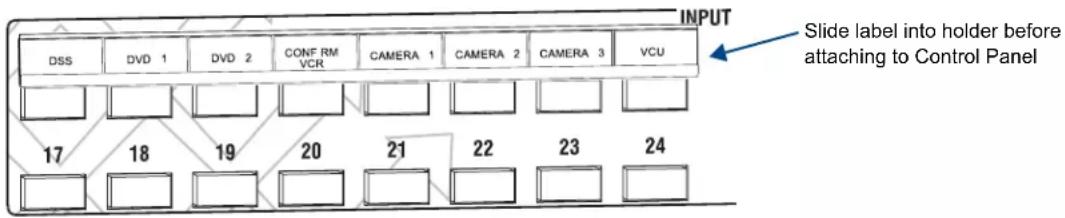
FIG. 85 Customize labels to designate sources and destinations (Control Panel on an Enova DGX 32)
Tip: When the labels are ready to print, we recommend printing a sample on plain paper first.
To create and install labels for Input and Output Keys:
- At www.amx.com, search for Control Panel Label Form Template.
- Under AutoPatch Tools in the right-hand column, click on Control Panel Label Form Template.
- Type the labels in the pre-formatted cells on the template according to the instructions in the template (if desired, use standard Excel editing tools to alter font size, spacing, color, etc.). Do not modify the cell size.
- Save the file for future use (recommended).
- Print the labels on the perforated sheets provided, using any standard laser printer.
- Trim off the excess label insert material where indicated.
- Separate the label strips at their perforations (bend back and forth first).
- Slide the first label strip into a plastic label holder (position with open edge of holder up).
- Peel the adhesive backing off the label holder and press the holder firmly onto the Control Panel above the appropriate Input or Output Keys. The silk screened labels on the front panel will aid in label holder alignment.
- Repeat Steps 8 and 9 for the remaining labels.
Executing Switches
A switch is an active connection between an input (source) device and one or more output (destination) devices. The signals routed in a switching operation are individual signals or groups of individual signals coming through the connectors on the rear of an enclosure. You can execute switches from the Control Panel using the steps below or by defining and executing a global preset (see page 154) or by executing a local preset (see page 156).
The LCD displays VM 0 or VM 1 (or any custom virtual matrix) in the upper-right corner; this is the virtual matrix that operations are currently being executed on. Switches are executed on the default virtual matrix unless otherwise specified. When specifying a virtual matrix, be sure it includes the signal(s) you want to route.
Note: When audio is transmitted along with video, the audio switches on the same VM as the video (the audio and video cannot be switched independently). Audio transmission occurs one of three ways: with the video over fiber, embedded with HDMI, or inserted via the Audio Insert/Extract Board.
Virtual matrix definitions reside in the configuration information in an enclosure's CPU. If you need to change the virtual matrix that switches are being executed on, see “Changing the Virtual Matrix” on page 151. If you decide to change the default virtual matrix, see page 158 for “Setup Options.”
When an Input or Output Key is pressed, the LCD displays the channel name (e.g., O_Ch:0003 for Output 3). Hold the key down to display the name longer.
Return to the Function menu at any time by pressing the Function Key.
Note: When you put the panel in Change Mode, available keys will be illuminated in blue and any unavailable ones will not be illuminated. The first blue key selected flashes white and the next key(s) selected turns white. You can toggle the non-flashing white keys between the selected (white) and unselected (blue) state before pressing the Take Key. For an example, see FIG. 84 on page 147.
In an execute switch command either an input or an output may be selected first. To switch to multiple outputs, the Input Key must be selected first. Use the Control Panel to select and unselect Input and Output Keys to modify the switch as long as the keys are not flashing. Once satisfied with the switch selections, press the Take Key to execute it. (Or, if not satisfied with the selections, press the Cancel Key and start over.)
For new installations, we recommend executing a test switch to verify the system is working correctly before attaching all inputs and outputs. To execute a test switch, attach the first input (source) and first output (destination) and then complete the directions below. For more information on test switches, see page 59.
Before executing the test switch below, use the directions on page 152 to disconnect the factory default switch (i.e., disconnect Input 1 which is connected to all outputs on Virtual Matrix 1 when it leaves the factory).
The directions below switch Input 1 to Output 2 on VM 0.
To execute a test switch:
- Press the Function Key.
The Function menu appears.

- Press the Select Key to choose Change.
The system is in Change Mode (the available Input and Output Keys turn blue).

- Press Input Key 1.
Input Key 1 flashes indicating that it is ready to switch.
(Any outputs currently connected to a selected input will turn white.)
- Press Output Key 2.
Output Key 2 illuminates indicating that it is ready to accept the switch.
- Press the Take Key.
Input 1 switches to Output 2, and the keys turn blue.
The panel remains in Change Mode until the Function Key is pressed.
- Press Input Key 1 again to toggle it off, and Press the Take Key to disconnect the test switch.
Changing the Virtual Matrix
Enova DGX Switchers support two virtual matrices for switching signals, VM 0 = "All" and VM 1 = "Video." The system also supports any custom virtual matrices created in XNConnect configuration software; 2 digits are the maximum allowed (0 through 99). VM 0 is the factory default, and for the Enova DGX Switcher, VM 0 normally routes the same as VM 1. If you create a custom configuration, you will need to change the virtual matrix on the Control Panel to execute switches (or other operations) using the custom virtual matrix.
Note: When audio is embedded on HDMI, the audio switches on the same VM as the video (the audio and video cannot be switched independently).
The directions below give the steps to change from routing signals on VM 0 to routing on a custom configuration (VM 2).
To change the virtual matrix:
- Press the Function Key.
The Function menu appears.
- Locate Virtual Matrix by scrolling with the Control Dial.
Select a Function:
- Virtual Matrix
- Press the Select Key.
The V.Matrix list appears.
V. Matrix
- 0:All
Current virtual matrix
- Scroll with the Control Dial to 2:Custom.
V. Matrix
· 2: Custom
VMO
- Press the Select Key to enter your selection.
The display returns to the top of the V.Matrix submenu.
VM 2 "Custom" becomes the new virtual matrix used for all operations.
V. Matrix
- 0: A11
Newly selected virtual matrix
- Press the Function Key to return to the Function menu.
The system is ready to execute operations on VM 2. The system will remain on VM 2 for all operations until the virtual matrix is changed or the power is cycled (at which time the Control Panel will switch on the default virtual matrix).
Note: To change the default virtual matrix, see the instructions on page 159.
Disconnecting Switches
Disconnecting a switch deactivates the connection between an input (source) and one or more output (destination) devices. Disconnecting an input will disconnect all outputs currently receiving the input's signal. An output can only be connected to one input; therefore, disconnecting an output will only disconnect the connection between the output and the input that is routed to it. Inputs and outputs can be selected in the same disconnect command.
Disconnect inputs or outputs from the Control Panel using the steps below. If you need to change the virtual matrix, see “Changing the Virtual Matrix” on page 151.
Note: When you put the panel in Disconnect Mode, the available keys will be illuminated in blue and any unavailable ones will not be illuminated. When you select a blue key, it turns white. You can toggle the keys between the selected (white) and unselected (blue) state before pressing the Take Key. An example is provided in FIG. 84 on page 147.
Once the Control Panel is in Disconnect Mode, inputs and outputs can be selected and unselected by pressing the corresponding Input and Output Keys. The disconnect command is not executed until the Take Key is pressed. Pressing the Cancel Key clears an incomplete disconnect command and returns the display to the beginning of the submenu. While in Disconnect Mode, the Control Panel will not show current routing for the inputs and outputs that are selected.

Caution: Disconnecting an input disconnects all outputs receiving that source signal even if a specific output(s) is selected at the same time.
The example on the following page disconnects Inputs 1 and 3 and all outputs connected to them as well as Output 9.
To disconnect inputs and outputs:
- Press the Function Key.
The Function menu appears.
Select a Function: - Change
- Locate Disconnect by scrolling with the Control Dial.
Select a Function: - Disconnect
- Press the Select Key.
The system is in Disconnect Mode (all the available Input and Output Keys turn blue).
- Press Input Keys 1 and 3 and Output Key 9.
The keys turn white indicating that they are selected.
Disconnect:
Press I/O then Take
Virtual matrix
- Press the Take Key.
Inputs 1 and 3 (and all outputs connected to them) and Output 9 are disconnected as soon as the Take Key is pressed and the keys turn blue.
- Make additional disconnects.
Or
Press the Function Key to return to the Function menu.
Verifying Signal Status
The status of inputs or outputs can be checked using the Enova DGX Control Panel. Signal status can be verified to confirm that a switch has executed properly or to confirm correct routing to multiple outputs (destinations). Verifying an input will illuminate all outputs currently receiving the input's signal. An output can only be connected to one input (source); therefore, verifying the status of an output will illuminate only the one input that is currently routed to it. Once the Control Panel is in Status Mode, inputs and outputs can be selected by pressing the corresponding Input and Output Keys without changing the routing state. The panel stays in Status Mode until the Function Key is pressed. To verify signal status on a different virtual matrix, see “Changing the Virtual Matrix” on page 151.
To verify the status of a signal:
- Press the Function Key.
The Function menu appears.
Select a Function:
- Change
- Locate Status by scrolling with the Control Dial.
Select a Function:
- Status
- Press the Select Key.
The system is in Status Mode (all available Input and Output Keys turn blue).
Status:
Press I/O Key
Virtual matrix
- Press the Input Key that corresponds to the input you want to check.
The selected Input Key turns white, and any Output Keys receiving the input signal also turn white.
Or
Press the Output Key that corresponds to the output you want to check.
The selected Output Key turns white, and if an Input Key routed to it, that key also turns white.
- Select another signal to verify.
Or
Press the Function Key to return to the Function menu.
Defining and Executing Global Presets
Global presets are predefined sets of switches that can easily be executed at one time. A global preset number can be assigned to a routing state during runtime and stored by the system, allowing you to replicate an entire system state. (The system state includes any special settings and all signal routings.) That system state can be restored at any time by selecting the assigned global preset number. Global presets can be defined or recalled using either the Control Panel or BCS commands interchangeably.
The Control Panel on the Enova DGX Switcher supports up to 64 global presets.
A global preset is a snapshot of an entire system's state which enables that system state to be recalled at a later time. Before defining a global preset, the system must be routed to the desired state.
Because all 64 potential global preset numbers are displayed in the Global Preset submenu, be aware that nothing indicates which of the numbers have been assigned a routing state.

Caution: We strongly recommend keeping track of the number and the system state routing used for each global preset. If a previously used number is assigned to another system state (using either the Control Panel or BCS commands), the former state will be automatically overwritten.
The instructions below define an example Global Preset 3, and the instructions on the next page execute a predefined Global Preset 3.
Important: Wait approximately ten seconds for the system to permanently store the global preset setting before executing another operation.
To define a global preset:
- Route the system to the desired state.
- Press the Function Key. The Function menu appears.
- Locate Global Preset by scrolling with the Control Dial.
Select a Function:
- Global Preset
- Press the Select Key. The Global Preset submenu appears.
Global Preset:
- Define Global
- Scroll with the Control Dial to Define Global. Press the Select Key. The Define Global list appears.
Define Global:
- 1:Global Preset 1
- Scroll with the Control Dial until Global Preset 3 appears.
Define Global:
- 3:Global Preset 3
-
Press either the Select Key or the Take Key.
-
Wait approximately ten seconds for the system to store the global preset setting.
The current routing state can now be recalled as Global Preset 3, and the system returns to the Global Preset submenu.
- Press the Function Key to return to the Function menu.
To execute a global preset:
- Press the Function Key.
The Function menu appears.
-
Locate Global Preset by scrolling with the Control Dial.
-
Press the Select Key.
Execute Global appears.
- Press the Select Key.
The Execute Global Preset list appears.
Execute Global:
- 1:Global Preset 1
- Scroll with the Control Dial until Global Preset 3 appears.
Execute Global:
· 3:Global Preset 3
- Press either the Select Key or the Take Key.
Global Preset 3 is executed. The system now reflects the routing state that it was in when Global Preset 3 was defined.
The system returns to the Global Preset submenu.
- Press the Function Key to return to the Function menu.
Note: Status is not invalidated by global presets.
Executing Local Presets
A local preset is a predetermined set of switches on a particular virtual matrix that are routed simultaneously. They are stored in each enclosure's configuration file and can be executed at any time. Local Preset will not appear as a submenu option in the Function menu if local presets have not already been defined. In addition, they will not appear if the system is on a virtual matrix that does not have local presets. The Enova DGX supports 335 local presets.
Local presets are not programmed (defined) at the factory. To program them, use XNConnect configuration software (see page 213) or contact your AMX representative (for contact information, see page 75). Once the local presets have been defined as part of the configuration file, the new file must be loaded to the system's CPU (see page 215) and reloaded to the Control Panel (see page 160).
Make sure the Control Panel is switching on the virtual matrix where the local preset resides. If no local presets have been defined for the selected VM, the Local Preset submenu option will not be available on the Function menu.
Note: Executing a local preset does not change any system routings that are not part of the preset.
The example below executes Local Preset 3 "Discon Conf Rm B" on VM 0.
To execute a local preset:
- Press the Function Key.
The Function menu appears.

- Locate Local Preset by scrolling with the Control Dial.

- Press the Select Key.
The Local Preset list appears.

- Scroll to Local Preset 3.

- Press either the Select Key or the Take Key.
Local Preset 3 is executed.
- Execute another local preset.
Or
Press the Function Key to return to the Function menu.
Locking and Unlocking
Locking the Enova DGX Control Panel prohibits access to the system and can prevent accidental switching. While the panel is locked, BCS commands still work; however, they cannot be used to unlock the panel. The panel remains locked if the power is cycled.
The password used to lock and unlock the panel consists of a sequence of five input keys. The factory default password is the first five Input Keys (1-2-3-4-5). A new password can be set using any combination of five keys from Input 1 through Input 8 (for instructions, see page 160).

Caution: We strongly recommend recording passwords in a secure place; Enova DGX Switchers cannot retrieve a lost password.
If the password is lost while the system is locked, contact technical support (see page 75).
Locking the Control Panel
If you enter the wrong password while attempting to lock the Control Panel, the LCD displays "Invalid Password" and the Cancel Key flashes. Press the Cancel Key to clear the error and enter the correct password.
Note: For security purposes, the Input Keys do not turn white when pressed while locking and unlocking the panel.
To lock the Control Panel:
- Press the Function Key.
The Function menu appears.
Select a Function:
- Change
- Locate Lock Panel by scrolling with the Control Dial.
Select a Function:
"Lock Panel
- Press the Select Key.
The system is in Lock Mode (Input Keys 1 through 8 turn blue).
- Press the Input Keys in the following order: 1, 2, 3, 4, 5 (default password).
Lock Panel:
Password=**__
The panel is locked, and all Input and Output Keys turn off.
PANEL IS LOCKED
Press any Key
Unlocking the Control Panel
When the panel is locked and you press any key, the Unlock Panel Screen appears. You have ten (10) seconds to enter the password or the Control Panel remains locked. If you wait longer than 10 seconds, press any key again before entering the password.
If you enter the wrong password while attempting to unlock the Control Panel, an invalid password message appears and the Cancel Key flashes. Press the Cancel Key to clear the error and enter the correct password.
To unlock the Control Panel:
- Press any key.
The Unlock Panel Screen appears (Input Keys 1 through 8 turn blue).
You must enter the password within ten (10) seconds.
Unlock Panel:
Password=**__
- Press the Input Keys in the following order: 1, 2, 3, 4, 5 (default password).
The panel unlocks and returns to the Function menu.
Setup Options
The following options are available under the Setup Options submenu:
- Software Version – to display software version information for the Control Panel
- Default VM – to change the factory default virtual matrix
- Reload Config – is not used in normal operations; use only when loading local presets to the Control Panel or when directed to do so by technical support
- Change Password – to change the password from the factory default
Software Version
The Software Version Screen provides the following information:
- Driver – Control Panel's firmware version
Built – date the Control Panel's software was built - Host – software version of the initial operating system (IOS) for the Control Panel
- XNet ID – Control Panel's XNet device number
- FP Link baud 115200 – indicates the Control Panel (FP = Front Panel) and the baud rate
Use the following steps to check the software version information for the Control Panel.
To check the software version information:
- Press the Function Key.
The Function menu appears.
Select a Function:
- Change
- Locate Setup Options by scrolling with the Control Dial.
Select a Function:
- Setup Options
- Press the Select Key.
The Setup Options submenu appears.
Locate Software Version by scrolling with the Control Dial.
Setup Options:
- Software Version
- Press the Select Key again to choose Software Version.
The Software Version Screen appears.
Software Version:
• Driver: va.b.c
Version number
-
Scroll with the Control Dial to see additional Software Version information.
-
Press the Cancel Key to return to the Setup Options submenu.
Or
Press the Function Key to return to the Function menu.
Default Virtual Matrix
The factory default virtual matrix for the Enova DGX Switcher is VM 0. You have the option of changing the factory default virtual matrix for your system. When you choose a new default virtual matrix, the system will revert to that virtual matrix each time the system is powered up even if you changed the virtual matrix using the V.Matrix list during normal operation. The power must be cycled before the default virtual matrix changes are implemented. If you want to immediately switch on the default matrix, either change the current virtual matrix (see page 151) or cycle the power. The following example changes the default virtual matrix from VM 0 to VM 2, a custom virtual matrix.
To change the default virtual matrix:
1. Press the Function Key.
The Function menu appears.
Select a Function:
- Change
2. Locate Setup Options by scrolling with the Control Dial.
Select a Function:
- Setup Options
3. Press the Select Key.
The Setup Options submenu appears.
4. Scroll to Default VM.
Press the Select Key.
The Default VM list appears.
Default VM:
- 0: A11
- Current default virtual matrix
5. Scroll to 2:Custom.
Default VM:
- 2:Custom
VM:0
6. Press the Select Key.
The display returns to the top of the Setup Options submenu.
7. Cycle power to implement VM 2 as the default virtual matrix.
Or
Change the virtual matrix (see page 151) to immediately execute operations on the new default virtual matrix without cycling power. (The next time power is cycled, VM 2 will be implemented as the default virtual matrix.)
Reload Config
The Reload Config option is not used in normal operations. Use this option only when loading local presets to the Control Panel (or when directed to do so by technical support).
To reload the configuration file to the Control Panel:
- Press the Function Key.
The Function menu appears.
Select a Function:
- Change
- Locate Setup Options by scrolling with the Control Dial.
Select a Function:
- Setup Options
- Press the Select Key.
The Setup Options submenu appears.
- Scroll to Reload Config.
Setup Options:
•Reload Config
- Press the Select Key.
The configuration file reloads to the Control Panel and the display returns to the top of the Setup Options submenu.
- Press the Function Key to return to the Function menu.
Setting the Password
The Enova DGX Control Panel's default password is "1 2 3 4 5" entered using the first five input keys. A new password can be set using any combination of five of the Input Keys 1 through 8 when the LCD displays "Enter New PWD" (Step 5 in the following procedure). In the Change Password Mode (selected in Step 4), the keys available to use in a password will illuminate blue.
If a password has been created and downloaded to the system from XNConnect configuration software, a new password can be set from the front panel to replace it; however, the previous one must be entered first.
Caution: We strongly recommend recording the new password in a secure place; an Enova DGX Switcher cannot retrieve a lost password.
If the password is lost while the system is locked, a new password can be set and downloaded to the system using XNConnect (see page 212).
To set the password:
- Press the Function Key.
The Function menu appears.
Select a Function:
- Change

- Locate Setup Options by scrolling with the Control Dial.
Select a Function:
- Setup Options
- Press the Select Key.
The Setup Options submenu appears.
Locate Change Password by scrolling with the Control Dial.
Setup Options:
- Change Password
- Press the Select Key.
The LCD displays the prompt Enter Current PWD.
Using the illuminated keys, input the current password. (The default password is 1 2 3 4 5.)
Enter Current PWD:
Password=____
- The LCD displays the prompt Enter New PWD.
Using any combination of the illuminated keys, input the new password.
(To change any entries, press the Cancel Key – restarting the process – and reenter from the start.)
Enter New PWD: Password=____
The LCD displays Reenter New PWD.
Reenter New PWD: Password=____
- Re-enter the new password.
If the re-entered password matches, the system accepts it as the new password, and the LCD displays Password Reset. Press the Take Key and go to Step 7.
PASSWORD RESET
Press Take
Or
If the re-entered password does not match, the LCD displays Invalid Password. Press the Cancel Key to return to Enter New PWD screen and repeat Steps 5 and 6.
INVALID PASSWORD
Try Again
- When the new password is successfully reset, press the Cancel Key to return to the Setup Options submenu.
Or
Press the Function Key to return to the Function menu.
System Error Codes and Troubleshooting
This section provides an overview of the most common error codes that may appear on an Enova DGX Control Panel. The table below lists the error code, the name of the code, the meaning of the code, and some basic troubleshooting strategies (additional error code troubleshooting strategies are included on page 162). The codes in the table are not intended to be comprehensive. If an error code appears that is not listed, note the specific number and contact technical support (see page 75).
The first letter of the error code indicates the following:
E = Error
● W = Warning
- A = Alarm* (requires immediate attention)
- I = Information*
* Because these codes very rarely appear, they are not included in the table.
For the following instructions, establish serial control and open a terminal emulation program, e.g., the terminal in NetLinx Studio (Tools/Terminal Session), DGX Configuration Software (see page 204), or another terminal emulation program.
To enable error code reporting:
1. Enter \$ERR=1!
The system responds with a V.
Note: If the power is cycled after this procedure, you will need to enable error code reporting again.
To turn off error code reporting:
1. Enter \$ERR=0!
| Most Common System Error Code | |||
| Error Code Name Meaning Basic Troubleshooting Strategies | |||
| EFF8002 | Enclosure timeout error | The operation was not completed before the timer expired. | • Resend the command.• Check the power indicators.• Check that the command was sent using the correct virtual matrix. |
Error Code Troubleshooting
Error codes can appear either on the Control Panel LCD or in a terminal emulation program, e.g., the terminal in NetLinx Studio (Tools/Terminal Session), DGX Configuration Software (see page 204), or another terminal emulation program.
When you are using a Control Panel, one of the most common troubleshooting strategies is to resend the command to see if the error was simply a timeout error.
When you are using BCS commands, one common troubleshooting strategy is to enter the command again. Often the command has just been entered incorrectly (e.g., omitting an output in a Change command). In other cases, the command has specified a value that is not valid (e.g., a global preset number that does not correspond to a defined global preset). If the error code persists after correcting and resending the command, contact technical support (see page 75).
NetLinx® Integrated Control
WebConsole Overview
When the WebConsole is accessed through NetLinx Studio, the interface delivers HTML pages for setting up the system and a Java control applet, which allows for remote control of an Enova DGX Switcher using PC-based Internet browsing software.
Important: The instructions in this chapter assume that the system setup instructions for using the integrated NetLinx Master have been completed. If this is not the case, see page 46.
This chapter provides WebConsole information for the Network Administrator doing the initial setup.
- Opening the Network Interface
- Getting a DHCP IP address (default)
- Setting a static IP address (optional)
Additional information for the WebConsole is covered as follows:
- The next chapter (see page 168) contains complete information on the WebConsole pages that cover the Enova DGX Switcher, including using the XBar Controller – a graphic interface control panel with crosspoints for executing and disconnecting switches.
- The chapter "Firmware Upgrade & Info for Network Admin" (see page 176) covers the topics of upgrading the firmware, embedding the XBar applet, and changing the proxy setting.
- Complete information for the integrated NetLinx Master (NX Series NetLinx Controller) is documented in the WebConsole & Programming Guide – NX-Series Controllers at www.amx.com.
In the WebConsole, the Device drop-down menu lists the "System Number," the "DGX Master" (NetLinx Master) which is integrated into the Digital Media Switcher, and the switcher: Enova DGX 8, Enova DGX 16, Enova DGX 32, or Enova DGX 64 (FIG. 86).

FIG. 86 Device menu in the Master Configuration Manager
The WebConsole & Programming Guide – NX-Series Controllers at www.amx.com provides information on the following:
• D:P:S specification
● Navigation of the WebConsole user interface
● Basic configuration of the system
- Firmware upgrades
- Options on the WebConsole pages for the System, Master, and devices
- NetLinx programming
- NetLinx security options
- SSL Certificate information for the system
- Terminal commands for the Program port and Telnet
- IPSec Configuration file
- Clock Manager NetLinx Programming API

Caution: We strongly recommend a Network Administrator set up the system even if DHCP (Dynamic Host Configuration Protocol), gateways, firewalls, etc. are not being used.

Opening the NetLinx WebConsole
Caution: We strongly recommend that the NetLinx WebConsole interface site be placed inside your network firewall and that system security be turned on.
To open the NetLinx WebConsole interface:
- From the NetLinx Studio Zero-Config tab – Double-click on “Enova DGX [8, 16, 32, or 64]” or right-click and select one of the launch browser options. (If the “Enova DGX [8, 16, 32, or 64]” option is not displayed, see the instructions on page 55.)
The Manage WebControl Connections page opens.
Or
In the address bar of your PC's browser – Type the IP address and press Enter (to determine the IP address, see the instructions on page 55 or contact your Network Administrator).
The PC must be on the same subnet (e.g., 192.168.X.X).
The Manage WebControl Connections page opens.

FIG. 87 The Manage WebControl Connections page (default page)
- Complete any necessary configuration of the system.
If the WebConsole does not open, see the "NetLinx WebConsole Troubleshooting" section on page 58.
Note: The WebConsole does not have a Master Connection page since the NetLinx Master is integrated into the Enova DGX Switcher and is not modifiable.
Getting a DHCP IP Address
By default, the WebConsole is set to use a DHCP (Dynamic Host Configuration Protocol) IP address (a connection must be established with a network that contains a DHCP server).
If the IP address has been changed to a static IP address and you want to change back to a DHCP IP address, use the following directions.
To force invocation of a DHCP IP address:
- From the Devices drop-down list in the upper right-hand corner, select DGX Master. The Network Settings page opens.
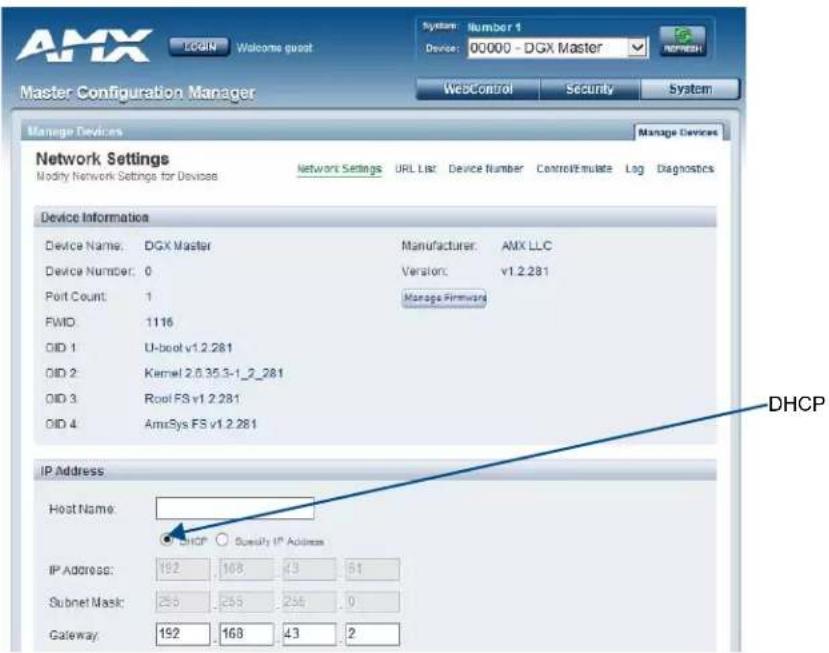
FIG. 88 Network Settings page
- If DHCP is not selected under IP Address, click to enable.
- Click Accept at the bottom of the page.
- Click Reboot. The WebConsole begins searching for a DHCP server. If the search times out, the address will revert to the previous IP address.
Important: Any time you click "Reboot" from any page in the WebConsole, the server reboots. The reboot updates information between the Enova DGX Master and the server. The Enova DGX Switcher itself does not reboot.
Setting a Static IP Address
The current IP address is displayed on the Network Settings page.
Note: When the TCP/IP connection is made, the DHCP server on the network automatically assigns an IP address. If you power down and power back up, the DHCP server will reassign the IP address, which may or may not be the same address it assigned previously. Setting a static IP address prevents the possibility of the IP address changing at power up.
To enter a static IP address:
- From the Devices drop-down list in the upper right-hand corner, select DGX Master. The Network Settings page opens.
- If Specify IP Address is not selected under IP Address, click to enable.

FIG. 89 Network Settings page with static IP Address
- Enter the static IP address in the IP Address fields.
- Click Accept at the bottom of the page.
- Click Reboot.
Important: Any time you click "Reboot" from any page in the WebConsole, the server reboots. The reboot updates information between the Enova DGX Master and the server. The Enova DGX Switcher itself does not reboot.
Note: A static IP address can also be set without using a DHCP server by following the directions on the next page.
A static IP address can be set without using a DHCP server by following the directions below.
PC Requirements
☐ Windows 7 or Windows XP Professional (32-bit)
☐ Terminal emulation program
USB port
To set a static IP address via a terminal program:
- Connect a PC to the enclosure via the Program port using a USB to Mini-USB cable.
- Open a terminal emulation program on the PC.
- Set the COM port in the terminal emulation program to a baud rate of 115200.
- Power up the system and press the Enter key twice to wake up the port.
- Enter echo on (note that this command does not appear on the screen). Press the Enter key.
- Enter set ip and follow the prompts (see example below).
Set IP Example
In the following example, echo on has been entered but cannot be seen. The characters/numbers in bold have been entered and appear. The reboot command uses D:P:S notation (Device:Port:System).
set ip
--- Enter New Values or just hit Enter to keep current settings ---
Enter Host Name: master
Enter IP type. Type D for DHCP or S for Static IP and then Enter: DHCP S
Enter IP Address: 192.168.1.101 192.168.1.105
Enter Subnet Mask: 255.255.255.0
Enter Gateway IP: 192.168.1.1
You have entered: Host Name master
Type Static IP
IP Address 192.168.1.105
Subnet Mask 255.255.255.0
Gateway IP 192.168.1.1
Is this correct? Type Y or N and Enter -> Y
Settings written. Device must be rebooted to enable new settings.
reboot 0:1:0
Important: The reboot updates information between the Enova DGX Master and the server. The Enova DGX Switcher itself does not reboot.
Enova DGX WebConsole Interface
"05002 - Enova DGX [8, 16, 32, 64]" Overview
The WebConsole includes pages specifically for the Enova DGX Switcher. When it is selected in the Device drop-down list in the upper right of the WebConsole's Master Configuration Manager (FIG. 90), the pages provide an interface for certain system attributes that the integrated Master monitors and controls.
Note: The default Device Number for the Enova DGX Switcher is 5002.
This chapter uses examples that assume an Enova DGX 16 is connected to a LAN via its ICS 100/1000 port (see page 55) and that the WebConsole has been accessed (see page 58).
Important: For information on using the WebConsole for Master functions, refer to the "WebConsole & Programming Guide – NX-Series Controllers" (available at www.amx.com).
icsp Device Config - Enova DGX 16 Device Config
The icsp Device Config tab opens to the Enova DGX 8/16/32/64 Device Config page (Enova DGX 16 shown in FIG. 90). On the left of the page is a field for editing the device number for the Enova DGX 8/16/32/64. On the right under Current Application Information, the version for the interface is displayed.
Important: You must be logged in to a device to change its device number.
The three tabs available on the icsp Device Config page are:
- icsp Device Config
- Upgrade
- IP Control

FIG. 90 icsp Device Config tab/page – Enova DGX 16 Device Config
Upgrade - Upgrade Log - Enova DGX 16 Upgrade Log
Tip: Open the Upgrade Log or Upgrade Status page before starting an upgrade because these pages are not available via the Master during the upgrade (the Enova DGX Switcher is offline then).
When the "Enova DGX 16" option is selected in the drop-down list at the upper right of the Master Configuration Manager, select Upgrade Log from the Upgrade tab's drop-down menu to go to the Enova DGX 16 Upgrade Log page. This page is read-only for viewing upgrade logs and has a Refresh List button to update the information. This page displays the Date/Time, Type, and Text description for the last upgrade.
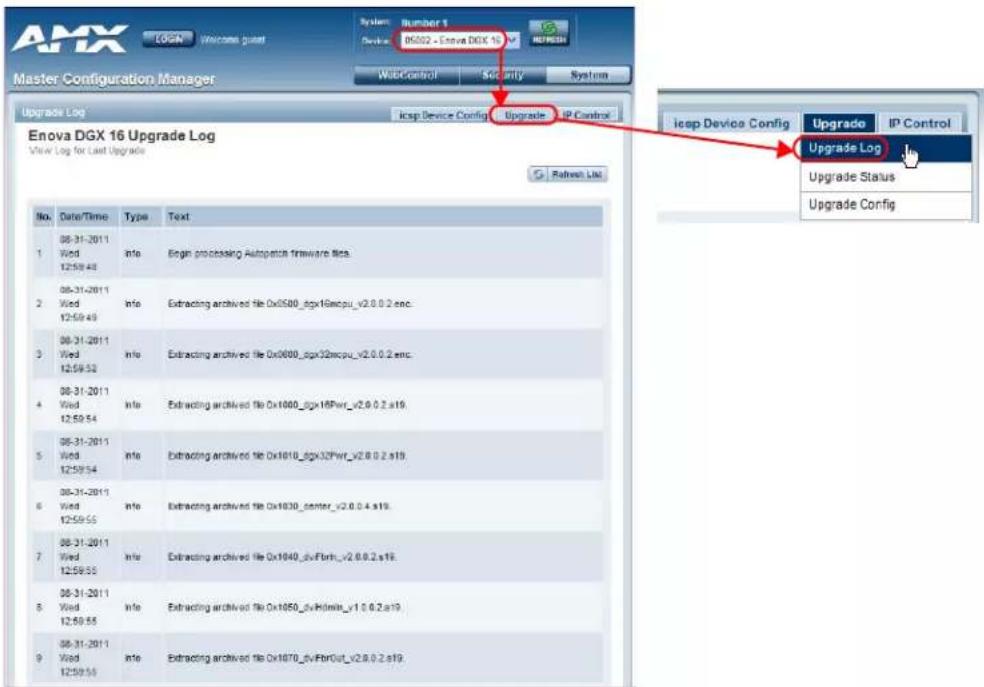
FIG. 91 Enova DGX 16 Upgrade Log page
Upgrade - Upgrade Status - Enova DGX 16 Upgrade Status
When the "Enova DGX 16" option is selected in the drop-down list at the upper right of the Master Configuration Manager, select Upgrade Status from the Upgrade tab's drop-down menu to go to the Enova DGX 16 Upgrade Status page. This page is read-only for viewing the status of the upgrade.
Note: Before starting a firmware upgrade, we recommend checking the cache settings (used for storing pages) in your web browser and changing the setting to "Every time I visit the webpage" (otherwise, the progress status of the upgrade will not be accurate). When the upgrade is complete, remember to change back to the original cache settings. If you need instructions, see page 182.

FIG. 92 Enova DGX 16 Upgrade Status page
Upgrade - Upgrade Config - Enova DGX 16 Upgrade Config
When the "Enova DGX 16" option is selected in the drop-down list at the upper right of the Master Configuration Manager, select Upgrade Config from the Upgrade tab's drop-down menu to go to the Enova DGX 16 Upgrade Configuration page. This page is read-only for viewing the last firmware image configuration.
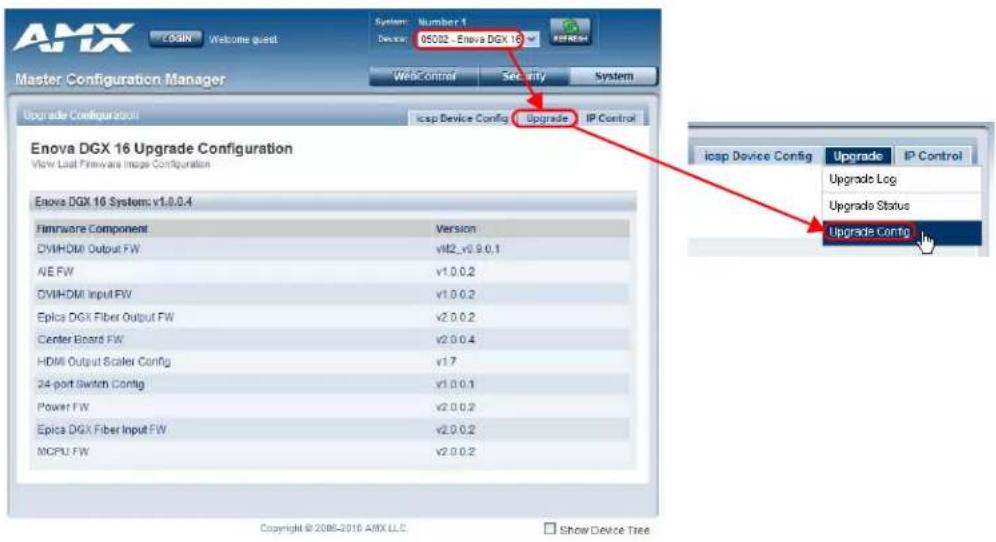
FIG. 93 Enova DGX 16 Upgrade Configuration page
IP Control - Home - Enova DGX 16 Home
IP Control Drop-Down Menu (4 Options)
The IP Control tab opens a drop-down menu with four options: Home, Configuration, Preferences, and Controller (the XBar Controller).

FIG. 94 IP Control tab drop-down menu
When you select Home from the IP Control drop-down list, the Enova DGX 16 Home page opens. This page displays read-only information for the Current System VM (virtual matrix) Configurations, Hardware Devices on the Network, and Host Device Discovery Beacon Properties.

FIG. 95 Enova DGX 16 Home page
Note: The default VM is always the first VM listed on the Enova DGX 16 Home page.
IP Control - Configuration - Enova DGX 16 Configuration
Important: You must be logged in to the device to change the BCS Tunnel Port Number and click the Restart button (which is only available when you are logged in) after the number is changed.
Log in and select Configuration from the IP Control drop-down list to open the Enova DGX 16 Configuration page. The BCS Tunnel Port Number can be edited (available numbers are 1025-65535, except 1319). (The Serial Port Baud Rate field is non-editable.)

FIG. 96 Enova DGX 16 Configuration page (logged in)
IP Control - Preferences - Enova DGX 16 Preferences
When you select Preferences from the IP Control tab's drop-down menu, the Enova DGX 16 Preferences page opens. This page allows you to customize the XBar Controller. The XBar, a cross-point controller, is available from the IP Control drop-down menu; see page 173.
Options for customizing the XBar from Preferences page are:
- Setting the initial VM that will display in the VM title block
- Setting the size of the XBar window

FIG. 97 Enova DGX 16 Preferences page
Setting the Initial VM that will Display
Note: The virtual matrix (VM) for XBar Control can be changed at any time from VM title block.
The current VM (virtual matrix) is displayed in the VM title block in the upper left corner of the XBar.
The VM that initially displays in the VM title block is set at the factory to VM 0 (the default) unless the system is ordered to do otherwise. To change a VM at any time, see Step 2 in the directions on page 175.
The default VM for executing switches that will display for all XBar Controllers that are launched for the system can be specified from the Preferences page. The default VM is always the first VM listed on the Enova DGX 16 Home page (access from the IP Control drop-down list).
If the XBar is open, close before using the following instructions. The "Enova DGX 16" option must be selected in the Device drop-down list at the upper right of the WebConsole.
To set the initial virtual matrix that will display in the XBar Controller:
-
From the IP Control drop-down menu, select Preferences.
-
In the Initial VM Displayed field, enter the virtual matrix number.*
For example, the Enova DGX Switcher normally has two virtual matrices: VM 0 = all; VM 1 = video.
- Click Accept.
The next time the XBar is launched, the newly designated default VM will display in the VM title block and will be the first VM listed on the Enova DGX 16 Home page.
* If you want the default VM for display in the XBar to be the first virtual matrix discovered during bootup regardless of its number, enter a value of -1; otherwise, enter the specific VM number.
Setting the Size of the XBar Controller Window
The size of the XBar applet window can be changed at any time.
- Default = 800x580
● Minimum = 300x300
● Maximum = 2000x2000
You may need to experiment a little to find the optimal display size for your PC.
The "Enova DGX 16" option must be selected in the Device drop-down list at the upper right of the WebConsole.
To set the size of the XBar applet window:
- If the XBar is open - close before continuing.
- From the IP Control drop-down menu, select Preferences.
-
In the Window Size fields, enter the desired width and height for the window.
-
Click Accept.
The next time the XBar is launched, it will open at the new setting size.
IP Control - Controller - XBar Controller
XBar Controller Overview
When you select Controller from the IP Control tab's drop-down menu, the XBar Controller opens (FIG. 99). This graphic interface control panel allows for remote control of the switcher using PC-based Internet browsing software and has crosspoints for executing and disconnecting switches.

FIG. 98 Select Controller to open the XBar Controller
The XBar can control specific parts of the system through virtual matrices (VMs). For example, if an Enova DGX Switcher is configured to control a subset of its inputs and outputs as a separate VM, the XBar will only be able switch those inputs and outputs when that VM is selected.
Any WebConsole for a single system can be accessed from up to five PCs at the same time. The XBar for the system can be operated simultaneously from all of the PCs using the same or different VMs.
Simultaneous XBar users can open the VM Selection Pad and update status as needed. Keep in mind that executing switches on one VM may affect the routing state on the other VMs.
Note: Multiple independent AMX Routing Systems (each with its own server connection) can be controlled from a single PC. Each WebConsole can be assigned a unique IP address. The individual addresses can then be entered as needed in the browser. The IP address displays at the top of the XBar Controller, indicating which XBar you are using.
Navigating the XBar Controller
The crosspoint images in the XBar's crossbar field represent the intersections of the input channels and the output channels on the switcher (the example below shows an Enova DGX 32).
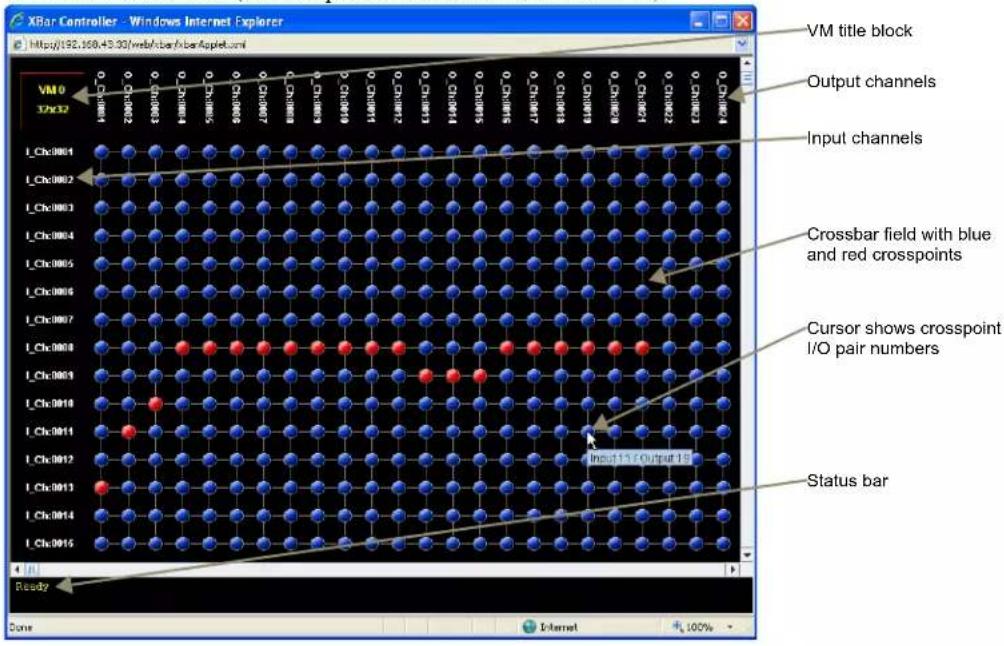
FIG. 99 XBar Controller
Use the following features to navigate the XBar:
- VM title block – click to open the VM Selection Pad to change the virtual matrix (VM) or update system status.
- Input channels (on left) – indicate the numbers of the source channels.
- Output channels (on top) – indicate the numbers of the destination channels.
- Blue crosspoint – blue indicates that there is no active signal; click to route the signal (the crosspoint will remain blue if the switch is not completed).
- Red crosspoint – red indicates an actively routed signal; click to disconnect the signal.
- Cursor over crosspoint – move the cursor over an I/O pair to display its channel numbers.
- Status bar – as crosspoints are selected and deselected, the Status bar displays the corresponding BCS* (Basic Control Structure) command and indicates when the command is successfully executed.
* For complete information on BCS commands, see the Instruction Manual – BCS Basic Control Structure Protocol at www.amx.com.
Executing and Disconnecting Switches with the XBar Controller
Note: The VM (virtual matrix) that initially displays in the VM title block is set at the factory to VM 0 (default). To change the VM, see Step 2 below. To change the initial VM that is displayed every time you open the XBar, see the directions on page 172. To set the size of the XBar window, see page 173.
Important: When the BCS tunnel is active, the XBar Controller will not operate.
To execute or disconnect switches on the XBar Controller:
- From the IP Control drop-down menu, select Controller. The XBar Controller opens.
- Optional (to change the virtual matrix) – Click the VM title block in the upper left corner. The VM Selection Pad dialog box opens.
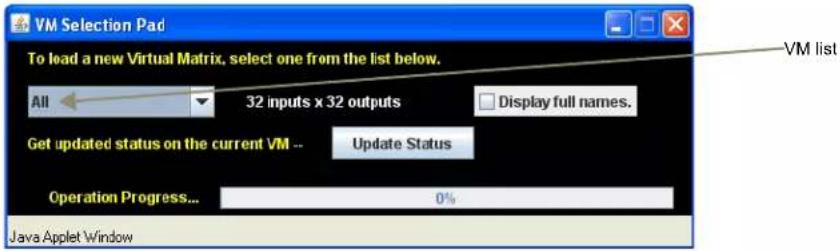
FIG. 100 VM Selection Pad
- From the VM drop-down list, select the new virtual matrix.
-
Close the VM Selection Pad.
-
Click a blue (inactive) crosspoint to execute a switch. The blue crosspoint image turns red as the switch is routed.
Or
Click a red (active) crosspoint to disconnect a switch. The red crosspoint image turns blue as the switch is disconnected.
Tip: To select or deselect consecutive crosspoints, hold down the Control key and move the mouse across the desired crosspoints (do not hold down any of the mouse buttons).
When the XBar is used simultaneously by multiple users or when other control options (such as control panels or external serial controllers) are also being used, system status can be updated from the VM Selection Pad.
To update system status when using multiple control points:
- Click the VM title block in the upper left corner of the XBar. The VM Selection Pad dialog box opens.
- Click Update Status (FIG 100). Status of the update is shown in the Operation Progress status bar.
- Close the VM Selection Pad when the update is complete. The most current routing state of the crosspoints is displayed.
Firmware Upgrade & Info for Network Admin
Overview
The NetLinx Studio software application (available for free download from www.amx.com) provides the ability to transfer firmware KIT files to a NetLinx device or a Master (such as the integrated Master on the Enova DGX Switcher).
This chapter also includes two additional tasks normally handled by Network Administrators:
- Embedding the XBar applet (page 179)
● Changing the proxy setting (page 180)
Preparation Checklist for Firmware Upgrade
Important: Verify that you are using the latest version of NetLinx Studio and the latest firmware KIT files for both the integrated Master and the Enova DGX Switcher.
Preparation Checklist:
☐ Launch NetLinx Studio. Under the Settings menu, check the Master Communication Settings.
☐ Verify that the latest version of NetLinx Studio is on your PC. If the version is not the latest –
- Open NetLinx Studio's Help menu and select Web Update to obtain the latest version. Or
Go to www.amx.com and login as a Dealer to download the latest version.
☐ If you need to establish a LAN connection – Insert one end of an RJ-45 cable into the LAN 100/1000 port on the Enova DGX enclosure, and connect the other end of the RJ-45 cable to a network with a DHCP server. (The upgrade can also be done with a static IP address.)
☐ Verify that the Enova DGX Switcher is powered on. If not, apply power according to the directions on page 43.
Open the OnLine Tree (OnLine Tree tab of the Workspace window), which displays information about each online device, including the current firmware version.
☐ Determine the Device Number assigned to the target Enova DGX Switcher.
- The integrated Master's device number is always 0 (zero) and cannot be changed. By default, the Device Number assigned to the Enova DGX Switcher in NetLinx Studio is 05002.
- The Device Number can be viewed/edited in the Device Configuration page in the Configuration Manager (for details, see page 168).
Before attempting to upgrade the firmware, you must have the appropriate KIT files. Go to www.amx.com and download the latest firmware files for the system from the Enova DGX 8, Enova DGX 16, Enova DGX 32, or Enova DGX 64 Enclosure page.
☐ Check the cache settings in your web browser and set to “Every time I visit the webpage” (otherwise, the progress status will not be accurate). When the upgrade is complete, remember to change back to the original cache settings. If you need instructions, see page 182.
Tip: Place KIT files on a local drive for speedy throughput.
Important: When the BCS tunnel is active upgrades cannot be done.
Sending Firmware (\*.KIT) Files to the Enova DGX
Note: A KIT file (*.KIT) is a package of several files, all of which are required to upgrade the firmware and are available online at www.amx.com. Firmware download links are provided in the relevant product page.
NetLinx Devices such as the Enova DGX Switcher use KIT files for firmware upgrades.
The Enova DGX Switcher contains two components (devices) which each require a Kit file. These two components must be kept at compatible firmware versions for proper operation.
- NetLinx integrated Master Controller – Device ID 0 (zero)
Enova DGX 8/16/32/64 Switcher – Default Device ID 5002
Important: Any programs using the USB connection to the Enova DGX 8/16/32/64 must be halted prior to the upgrade process being initiated to avoid breaking the USB link to the PC.
Caution: If for any reason the KIT file transfer or the upgrade process fails, continue to retry until successful. Do not reboot or power cycle the Enova DGX Switcher or change the connections until the files are transferred and the upgrade process is complete. Failure to complete both the transfer of files and the upgrade successfully may require a factory repair of the Enova DGX Switcher.
To send a KIT file to the Enova DGX:
- Complete any necessary items under the "Preparation Checklist" on the previous page.
- In NetLinx Studio, choose Tools > Firmware Transfers > Send to NetLinx Device to open the Send to NetLinx Device dialog (FIG. 101).
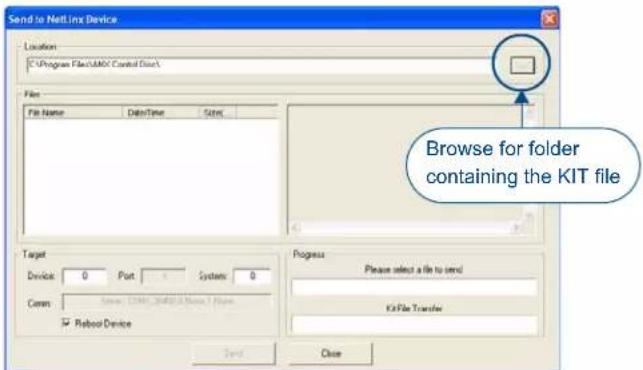
FIG. 101 Send To NetLinx Device dialog (NetLinx Studio)
- Click the Browse (...) button to navigate to the target directory (FIG. 102) in the Browse For Folder dialog. Select the desired files (for the Master upgrade and the switcher upgrade); click OK.

FIG. 102 Browse For Folder dialog

- Select the "Master" KIT file from the Files list.
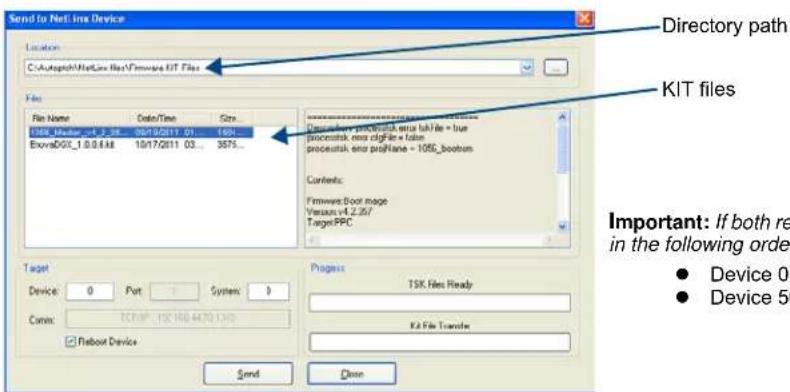
Important: If both require updates, always upgrade in the following order:
● Device 0 – NetLinx integrated Master
● Device 5002 (default) – Enova DGX
FIG. 103 Send To NetLinx Device dialog showing KIT file for the integrated Master selected
- The selected directory path is displayed in the Send to NetLinx Device dialog (Location field).
-
Assuming the specified target directory contains one or more KIT files, the KIT files in the selected directory are displayed in the Files list along with the last modified date and time.
-
Check the number for the device to be upgraded in the Device text box.
-
The device number assigned to the integrated Master is 0 (zero).
-
The switcher's default device number is 5002. (If the device number has been changed, use the OnLine Tree to determine it.)
-
Review the File, Connection, Address, and Target Device information before you send the KIT file.
-
Important – Select the Reboot Device check box. This ensures that the system reboots when the download of the KIT files is complete.
Master Upgrade
- Click Send. A status bar is provided under Progress. NetLinx Studio transfers the files to the integrated Master on the Enova DGX Switcher and then tells the system to reboot.
- During the Master's upgrade process, some of the LEDs on the CPU go through an extended series of blinking. When finished, all LEDs return to their normal state.
Enova DGX Switcher Upgrade (Offline Upgrade)
Important: Upgrading the switcher's firmware can take a considerable amount of time depending on the components being upgraded in the system. If you want to check the progress, the upgrade status is displayed in the WebConsole and updates periodically. In the WebConsole after the IP address, enter /web/upgrade/systemUpgradeStatus.xml (for example, http://192.168.44.60/web/upgrade/systemUpgradeStatus.xml). Since the switcher is offline, the direct path must be used. Enova DGX 64 only – the power indicator LED on the front flashes green to indicate the system's input/output boards are being upgraded.*
-
Select the "Enova DGX" KIT file from the files list. Click Send. A status bar is provided under Progress. NetLinx Studio transfers the files to the Enova DGX Switcher and then tells the system to restart, at which time the upgrade process begins.
-
During the switcher's upgrade process:
- The Enova DGX Switcher stays offline (does not display in OnLine Tree).
- Some of the LEDs on the CPU blink** depending on the components being upgraded.
- Power cycles will not abort the upgrade; let it run until completion.
- Once the upgrade is complete (to determine when, see "Important" above Step 9):
• The LEDs return to normal. - The Enova DGX Switcher comes back online (displays in OnLine Tree).
* The LED's response to power functions supersedes the upgrade function.
** During normal operation a blinking red Status LED is cause for concern (indicates the system is in IOS mode). However, during firmware upgrade the system may be in IOS mode for a period of time.
Embedding the XBar Applet
The XBar applet can be embedded in a custom website by using the applet tag shown below.
Make any of the following adjustments to the code to fit your particular system's requirements.
- Replace the code base value with the IP address for your system.
- Set the width and height for the display based on the initial virtual matrix size (smaller VMs look fine in a smaller size, while larger VMs require a larger size to minimize scrolling).
- Optional – Specify the "InitialVM" value, or the lowest numbered VM will display by default.
- Optional – Include the "VMLockDown" information if you want to limit control to a particular virtual matrix; otherwise, all virtual matrices will be accessible from the VM title block. Specify "locked" or "unlocked" for the value. The XBar defaults to the unlocked state if this option is not included in the tag.
- Optional – Specify the "AllowGain" value, if you want the input gain adjustment feature enabled. Specify "true" for the value.
- Optional – Specify the "AllowVolume" value, if you want the output volume adjustment feature enabled. Specify "true" for the value.
Important: If you do not want either or both of the "Allow Gain" and "Allow Volume" options, omit those parameter(s) entirely.
XBar Applet Tag
<HTML>
<BODY>
<!-- Your custom html code goes here. -->
<APPLET code="CrossBar.class" codebase="http://192.168.0.251" archive="CrossBar.jar" width=400 height=500 >
<param name = "InitialVM" value = "0">
<param name = "VMLockDown" value = "locked">
<param name = "AllowGain" value = "true">
<param name = "AllowVolume" value = "true">
</APPLET>
</BODY>
</HTML>
Changing the Proxy Setting
If the WebConsole does not open during setup, try the following troubleshooting strategies:
☐ Check all power, signal, and link connections on all of the equipment.
☐ Check LED indicators for the TCP/IP (RJ-45) connector on the Enova DGX enclosure.
☐ If the LED indicators are not illuminated, check the cable type to make sure it meets cable requirements (see page 47).
☐ Ping the system, i.e., at the DOS prompt enter: ping XXX.XXX.XXX.XXX (where XXX.XXX.XXX.XXX is the NXB-AP-1000 Interface IP address; see page 55).
☐ Try connecting to the WebConsole again.
If the WebConsole still does not open, you may need to add an exception in the Proxy Setting dialog box.
The following instructions apply to Internet Explorer. To change these settings in another browser, consult its Help file.
To add an exception to the proxy setting information:
- From the Tools menu on the browser, select Internet Options.
The Internet Options dialog box opens.

2. Select the Connections tab.

3. Click LAN Settings.
The Local Area Network (LAN) Settings dialog box opens.
If the Proxy server box is checked, go to Step 4.
If the Proxy server box is not checked, check it before going to Step 4.

4. Click Advanced.
The Proxy Settings dialog box opens.
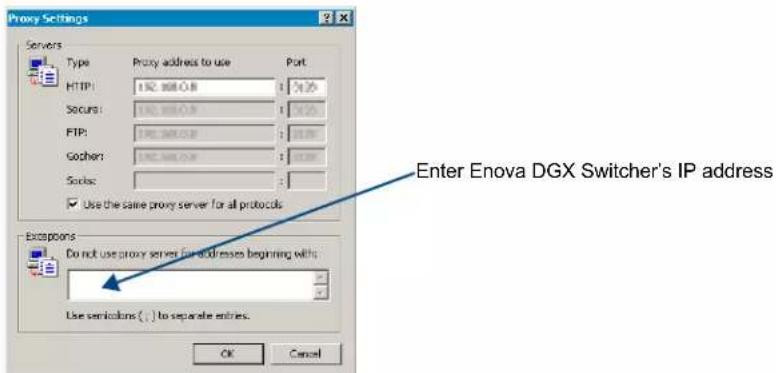
- In the Exceptions field, enter the appropriate IP address for the Enova DGX Switcher (see page 55).
- Click OK to exit each of the dialog boxes used in these steps.
Checking Cache Settings in a Web Browser
Before starting a firmware upgrade, we recommend checking the cache settings (used for storing pages) in your web browser and changing the setting to "Every time I visit the webpage" (otherwise, the progress status of the upgrade will not be accurate).
To check and change the cache settings in a web browser:
-
Open Internet Explorer.
-
From the Tools menu (sometimes displayed as a gear icon in upper right of screen), select Internet Options. The Internet Options dialog box opens.

- On the General tab under Browsing History, click Settings. The Website Data Settings dialog box opens
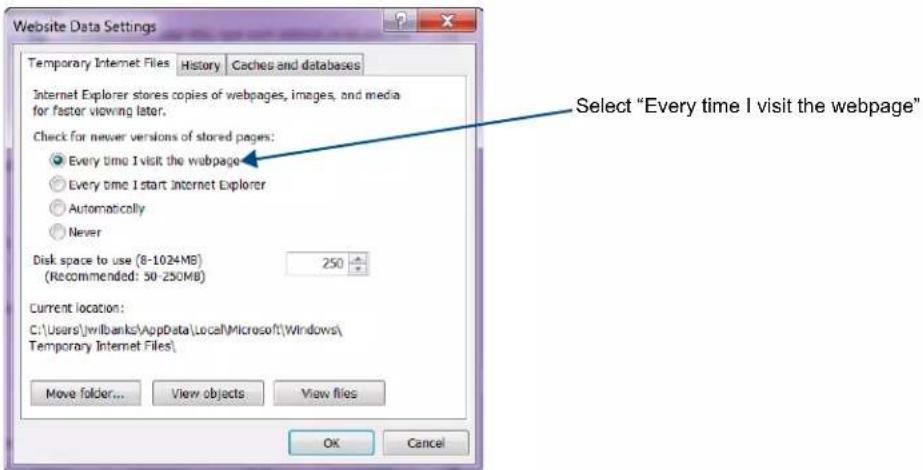
-
Under "Check for new versions of stored pages," click the "Every time I visit the webpage" radio button.
-
Click OK to exit.
-
When the upgrade is complete, repeat steps to restore original setting.
Integrated Master – NetLinx® Programming
Overview
Important: The SEND_COMMANDs listed in this chapter are for the switcher only. For information on using NetLinx Studio, the WebConsole, and additional NetLinx commands, see the "WebConsole & Programming Guide – NX-Series Controllers" (available at www.amx.com).
The integrated NetLinx Master on the Enova DGX Switcher recognizes NetLinx SEND_COMMANDs with embedded BCS (Basic Control Structure) commands. Use NetLinx Studio (v4.0 or later is required) to send these commands to the Enova DGX Switcher, or use these commands in standard compiled NetLinx Programming code running on the integrated NetLinx Master.
The Device in
Note: If a single Master control point is desired for multiple Enova DGX enclosures, write the NetLinx code to provide the connection between the Masters.
Device Numbering
The DGX Master number (00000) and the Device ID number (default 05002) are listed in NetLinx Studio's OnLine Tree (FIG. 104). The Device number is also listed in the WebConsole's Master Configuration Manager on the icsp Device Config page.
![NetLine Studio File Edit View Project Build Diagnostics Debug Tools Settings Window Help Workspace Bar Design 1 Devices [192.105.13.7] 0006 - DGX Master [v1.2.261] [0ID=1] - D-boost (v1.2.261) [0ID=2] - Kernel (2.6.35.3-1_2_261) [0ID=3] - Root FS (v1.2.261) [0ID=4] - AnxSya FS (v1.2.261) Port - 1 05002 Enova DGX 32 (v1.6.8.2) [0ID=6] - Enova DGX 32 Integrated Device (v1.2.1.10) [0ID=7] - Enova DGX 32 FW Configuration (v1.6.8.2) Port - 1 Port - 2 Port - 3 Port - 4 Ports 1-4 on Enova DGX 32 (8/16/64) Dynamic/Virtual Devices 82001 - RSK Application (v4.8.1.1517) OnLine Tree tab Master(s) Devices Ports 1 2 6 Display Workspace Online Tree Data Zero Config Ready Push-inactive 192.108.43.51 Ln 1 Call 1 CAP ON](/content/2026/06/1223272/images/b834de1a7bcca1e9a6a17a86b759f990657acd5e9a2d97a1e5173fbecf26b046.jpg)
FIG. 104 NetLinx Studio OnLine Tree - indicating Master number and device number and ports for Enova DGX
Device Ports
Important: Only one port at a time can send or receive communication.
In the OnLine Tree (FIG. 104), the Enova DGX Switcher is listed under its integrated Master as a device with four ports:
- Port 1 – Reserved for future functionality (commands/strings sent to this port are ignored)
- Port 2 – Supports basic BCS commands incorporated into SEND_COMMANDs (up to 1024 characters packaged in a single BCS command) for Enova DGX control and switching
- Other commands are rejected with a notice being sent back to the NetLinx Master
-
This port requires a wait-for-response (e.g., wait for the T or wait for the full command to be returned with a T in the response).
-
Port 3 – Supports diagnostic and auxiliary BCS commands built into SEND_COMMANDs
- Due to the amount of data associated with some of these commands, responses may take up to 15 seconds to be returned.
- Supports bursting of one or more BCS commands in a single SEND_COMMAND which cannot exceed 1024 characters before waiting for all responses
- Port 4 – The connection for the AMX AutoPatch Duet Module
Note: For additional information on using NetLinx Studio, refer to the "Instruction Manual – NetLinx Studio" (available at www.amx.com).
Important: When the BCS tunnel is active, Device ports 2, 3, and 4 in NetLinx Studio are not accessible.
Digital Media Switchers: SEND\_COMMANDs
Important: The SEND_COMMANDs listed in this chapter are for the switcher only. For additional information on NetLinx commands used in conjunction with this product, see the "WebConsole & Programming Guide – NX-Series Controllers" (available at www.amx.com).
For the Enova DGX Switcher:
- SEND_COMMANDs with embedded basic BCS commands for control operations are sent to Port 2 (see page 185).
- SEND_COMMANDs with embedded diagnostic or auxiliary BCS commands are sent to Port 3 (see page 187).
SEND_COMMANDs for switching control of the Enova DGX Switcher are not limited to the ones in the first table but can include additional “wrapped” BCS commands as well (e.g., execute local presets and define and execute global presets).
For complete information on BCS commands supported by Enova DGX Switchers, see the product specific information in the Instruction Manual – BCS Basic Control Structure Protocol at www.amx.com.
Parts of a command:
SEND_COMMAND [initiates the command]
Note the following port information:
- Commands derive their port addressing from the target D:P:S (Device:Port:System).
- To distinguish the functionality of signal input and output ports from the overlapped device port numbers, the signal input and output numbers are part of the command's action.
- Signal inputs and outputs range from 1-8 (Enova DGX 8), 1-16 (Enova DGX 16), 1-32 (Enova DGX 32), and 1-64 (Enova DGX 64) for video.*
* Because the Audio Insert/Extract Board can be set to insert/extract audio into/out of video inputs or outputs, the audio signals from these boards switch in conjunction with the corresponding video signals.
Note: All text is based on a Unicode index.
Basic BCS SEND\_COMMANDs
Important: Only one port at a time can send or receive communication.
The commands in the table below are sent to Port 2.
Note: In Change commands (those starting with a "C"), multiple outputs can be entered by separating them with commas or spaces, e.g., CL0I2O5,7,9T or CL0I2O5 7 9T.
| SEND_COMMANDs - Basic BCS Commands | |
| Command Description | |
| CLI0TConnect inputs to outputs on the specified level (virtual matrix). | Syntax:SEND_COMMAND,"'CL1#>O<0'T"Note:The "Device" number is assigned by the integrated NetLinx Master. Variables:L# = level number (virtual matrix number) either 0 or 1 (both switch video along with any embedded audio)I# = input port number (for Enova DGX 8: 1-8 = Inputs 1-8,Enova DGX 16: 1-16 = Inputs 1-16, Enova DGX 32: 1-32 = Inputs 1-32,Enova DGX 64: 1-64 = Inputs 1-64)O# = output port number (for Enova DGX 8: 1-8 = Outputs 1-8,Enova DGX 16: 1-16 = Outputs 1-16, Enova DGX 32: 1-32 = Outputs 1-32,Enova DGX 64: 1-64 = Outputs 1-64)Example 1:SEND_COMMAND 5002:2:0,"'CL0I2O4T'"Connect Input 2 to Output 4 on Level 0 (Virtual Matrix 0).Example 2:SEND_COMMAND 5002:2:0,"'CL0I3O4,7,8T'"OrSEND_COMMAND 5002:2:0,"'CL0I3O4 7 8T'"Connect Input 3 to Outputs 4, 7, and 8 on Level 0 (Virtual Matrix 0). |
| CI0TConnect inputs to outputs on the default level (virtual matrix). | Syntax:SEND_COMMAND,"'CI1#>O<0'T"Note:The "Device" number is assigned by the integrated NetLinx Master. Variables:I# = input port number (for Enova DGX 8: 1-8 = Inputs 1-8,Enova DGX 16: 1-16 = Inputs 1-16, Enova DGX 32: 1-32 = Inputs 1-32,Enova DGX 64: 1-64 = Inputs 1-64)O# = output port number (for Enova DGx 8: 1-8 = Outputs 1-8,Enova DGX 16: 1-16 = Outputs 1-16, Enova DGX 32: 1-32 = Outputs 1-32,Enova DGX 64: 1-64 = Outputs 1-64)Example 1:SEND_COMMAND 5002:2:0,"'C16O4T'"Connect Input 6 to Output 4 on default level.Example 2:SEND_COMMAND 5002:2:0,"'CI3O7,8,15T'"OrSEND_COMMAND 5002:2:0,"'CI3O7 8 15T'"Connect Input 3 to Outputs 7, 8, and 15 on default level. |
| DL<T or DL<T#>O<T Disconnects an input or an output on the specified level (virtual matrix). Note: Specifying an input disconnects all outputs connected to it. | Syntax:SEND_COMMAND," 'DL<T#>I<T#>T' "Note: The "Device" number is assigned by the integrated NetLinx Master. Note: In Disconnect commands, multiple inputs or outputs can be entered by separating them with commas or spaces, e.g., DL005,7,9T or DL013 4 6T. Important: Do not disconnect inputs and outputs in the same command. Variables:• L# = level number (virtual matrix number) either 0 or 1 (both switch video along with any embedded audio)• I# = input port number (for Enova DGX 8: 1-8 = Inputs 1-8,Enova DGX 16: 1-16 = Inputs 1-16, Enova DGX 32: 1-32 = Inputs 1-32,Enova DGX 64: 1-64 = Inputs 1-64)• O# = output port number (for Enova DGX 8: 1-8 = Outputs 1-8,Enova DGX 16: 1-16 = Outputs 1-16, Enova DGX 32: 1-32 = Outputs 1-32,Enova DGX 64: 1-64 = Outputs 1-64)Example 1:SEND_COMMAND 5002:2:0," 'DL012T'" Disconnect Input 2 on Level 0 (Virtual Matrix 0).Example 2:SEND_COMMAND 5002:2:0," 'DL004,7,8T'" Disconnect Outputs 4, 7, and 8 on Level 0 (Virtual Matrix 0). |
| DI<T or DO<T Disconnects an input or an output on the default level (virtual matrix). Note: Specifying an input disconnects all outputs connected to it. | Syntax:SEND_COMMAND," 'DI<T' "Note: The "Device" number is assigned by the integrated NetLinx Master. Note: In Disconnect commands, multiple inputs or outputs can be entered by separating them with commas or spaces, e.g., DL005,7,9T or DL013 4 6T. Important: Do not disconnect inputs and outputs in the same command. Variables:• I# = input port number (for Enova DGX 8: 1-8 = Inputs 1-8,Enova DGX 16: 1-16 = Inputs 1-16, Enova DGX 32: 1-32 = Inputs 1-32,Enova DGX 64: 1-64 = Inputs 1-64)• O# = output port number (forEnova DGX 8: 1-8 = Outputs 1-8,Enova DGX 16: 1-16 = Outputs 1-16, Enova DGX 32: 1-32 = Outputs 1-32,Enova DGX 64: 1-64 = Outputs 1-64)Example 1:SEND_COMMAND 5002:2:0," 'DI2T'" Disconnect Input 2 on the default level. |
| SLI<1#>T(input status)orSLO<0#>T(output status)Returns connection status.(To verify status on the default level, omit L.) | Syntax:SEND_COMMAND,"'SLI"orSEND_COMMAND,"'SL"Note:The "Device" number is assigned by the integrated NetLinx Master. |
| Variables:L#=level number (virtual matrix number) either 0 or 1 (both switch video along with any embedded audio)I#=input port number (for Enova DGX 8: 1-8 = Inputs 1-8,Enova DGX 16: 1-16 = Inputs 1-16, Enova DGX 32: 1-32 = Inputs 1-32,Enova DGX 64: 1-64 = Inputs 1-64)O#=output port number (for Enova DGX 8: 1-8 = Outputs 1-8,Enova DGX 16: 1-16 = Outputs 1-16, Enova DGX 32: 1-32 = Outputs 1-32,Enova DGX 64: 1-64 = Outputs 1-64)Example 1:SEND_COMMAND 5002:2:0,"'SL0I3T'"Returns which outputs are connected to Input 3 on Level 0 (Virtual Matrix 0).Example 2:SEND_COMMAND 5002:2:0,"'SL0O25T'"Returns which input is connected to Output 25 on Level 0 (Virtual Matrix 0).Response is of the form:SLI<1#>T(0#) or SLO<0#>T(I#)or the parentheses will be empty ( ) if a connection is not present.For example: SL0I3T(4 7 16) shows that Outputs 4, 7, and 16 are connected to Input 3 on Level 0 (Virtual Matrix 0). | |
Diagnostic and Auxiliary BCS SEND\_COMMANDs
Important: Only one port at a time can send or receive communication.
The commands in the table below are sent to Port 3.
Note: For information on BCS commands for diagnostic purposes, see Appendix D on page 229.
SEND_COMMANDs – Diagnostic and Auxiliary BCS Commands
| Command Description | |
| ~scri\v#!Diagnostic – Requests a level of detailed diagnostic information for all or one of seven system components. | Syntax:SEND_COMMAND,"'~scri\v!'"Note:The "Device" number is assigned by the integrated NetLinx Master. Variables:i# = identity number 0-7 (use 0 for all components; 1-7 specify individual components)v# = verbosity number 0-3 (specifies level of detail from 0 the lowest level to 3 the highest level)Example:SEND_COMMAND 5002:3:0,"'~scri6v3!'"Requests the highest level of detail on the power system. |
| ~app!Auxiliary – Causes a warm reboot of the system. | Syntax:SEND_COMMAND,"'~app!'"Note:The "Device" number is assigned by the integrated NetLinx Master. Example:SEND_COMMAND 5002:3:0,"'~app!'"Causes a warm reboot of the system. |
Additional BCS Commands
SEND_COMMANDs for switching control of the Enova DGX Switcher are not limited to the ones in the first table but can include additional “wrapped” BCS commands as well (e.g., disconnect switches, execute local presets, and define and execute global presets).
For complete information on BCS commands supported by Enova DGX Switchers, see the product specific information in the Instruction Manual – BCS Basic Control Structure Protocol at www.amx.com.
Appendix A – DGX Configuration Software
DGX Configuration Software Overview
Important: Because signals routed through HDMI, DVI, DXLink Twisted Pair, and DXLink Fiber Boards in an Enova DGX Switcher normally produce a quality image, you will not need the information in this appendix unless the installation has special scaling, EDID, or HDCP requirements.
AMX provides a single program, DGX Configuration Software, to handle a variety of tasks for the HDMI, DVI, DXLink Twisted Pair, and DXLink Fiber Boards. This program provides functionality for the following:
- Scaler Mode – Use to set the Scaler mode to Auto, Bypass, or Manual (override). Also used to set the Aspect Ratio.
- Scaler Override – Use to set custom resolutions.
- EDID Programmer – Use to re-program the EDID EEPROM chips on the input boards, allowing for custom configuration of the EDID data that is stored on the boards.
- HDCP Settings – Use to enable or disable HDCP Support for specific inputs.
- Terminal – Provides a basic terminal emulation interface for entering BCS commands, etc.
The program is available at www.amx.com and includes a standard Help file with detailed information.
PC System Requirements for DGX Configuration Software v1.0.6
☐ Windows 7 and Windows XP Professional
☐ Minimum Hardware: 166 MHz, 128 MB RAM, 20 MB of free disk space*, 800x600 display, serial port, video card with dual outputs (see Caution below)
☐ Recommended Hardware: 2.0 GHz, 512 MB RAM*, 1024x768 display
* The installation process requires 20 MB of disk space for the DGX Configuration Software installer. Once installed, the program requires 10 MB of disk space.
Caution: We strongly urge the user not to use video cards with DMS-59 connectors. Video cards with DMS-59 connectors have been shown to fail consistently and, in the worst case, can corrupt an EDID data file. A laptop PC with a VGA or DVI out is a good solution. Cards with 2 DVI connectors, 2 VGA connectors, or 1 DVI and 1 VGA connector are also acceptable.
Important: Administrator rights are required to install DGX Configuration Software.

Software Installation on PC and Enova DGX Connection
To install DGX Configuration Software:
- From the switcher's product page at www.amx.com (under Application Files in the right-hand column), double-click DGX Configuration Software.
- Click "I Accept" for the AMX License Agreement, and then select Open to download the file.
- Optional - Select DGX_Config_SoftwareReadMe_vX_X to read about the software before installation.
- Click the application file (which is zipped).
- In the Compressed (zipped) Folders dialog box, click Extract All.
- Select a destination for the files.
- When the download is complete, click the application file and follow the directions in the installation wizard.
Note: If you plan to use the terminal emulation function of the software, a serial connection is required.
To use DGX Configuration Software with the Enova DGX Switcher:
- Ethernet connection - Attach an RJ-45 crossover cable or a straight-through patch cable to one of the two RJ-45 ports on the left rear of the enclosure (do not use the LAN 100/1000 port on the right). The maximum length for the cable is 100 feet (30.5 meters).
Or
Serial connection (DB-9) – Attach a null modem serial cable without hardware flow control to the serial Control port (DB-9 connector) on the enclosure. Use a serial cable that matches the RS-232 pin diagram in FIG. 105. Enova DGX equipment uses pins 2, 3, and 5 only.

FIG. 105 RS-232 pinout for null modem serial cable
- Ethernet connection - Attach the open end of the RJ-45 cable to the PC where the DGX Configuration Software was installed.
Or
Serial connection - Attach the open end of the serial cable (DB-9) to the PC where the DGX Configuration Software was installed.
-
Apply power to the enclosure.
-
On the PC, open the DGX Configuration Software.
-
If changing the type of communication is necessary:
Ethernet connection – From the Communication menu, select Ethernet and then select Change Settings to select the NIC Card setting.
Or
Serial connection (DB-9 only) – From the Communication menu, select Serial Port and then select Change Settings to change the serial port and/or the baud rate for the PC's serial port. The baud rate for the PC must match the baud rate for the enclosure. The recommended (default) baud rate setting for serial communication with an Enova DGX Switcher is 9600.
- Select the desired tab in the interface (defaults to the Scaler Mode tab).
For information on the tabbed views see:
- Scaler Mode – page 191
- Scaler Override – page 193
• EDID Programmer – page 198 - HDCP Settings – page 203
- Terminal – page 204
General Notes for Working with DGX Configuration Software
- DGX Configuration Software only displays inputs and/or outputs that can be modified.
- File menu – Select Open File to load a file to the program (the file type available depends on the selected view). Select Save to File to save a file containing the currently displayed settings in the currently selected view.
- Communication menu – Use to change the communication settings for the DB-9 serial and Ethernet ports. This menu also includes the option to “Refresh Device Lists,” which affects all device lists in the program.
- Help menu – Access the Help file for the program, open a link for the Web Update option (to download updates for the program), and view current version information.
- Messages in the bottom pane of the DGX Configuration Software dialog box report status of operations. Messages can be copied* for technical support purposes.
- DXLink Fiber hardware – Only Duplex hardware in Bidirectional Mode with both fibers connected will allow DGX Configuration Software to read EDID data from a destination device.
* Right-click on a message to access a short-cut menu with options to Copy Selected, Copy All, or Clear. When copying multiple messages: either select consecutive items by holding down the Shift key and clicking the first and last item or select nonconsecutive items by holding down the Control key and clicking on each item.
Scaler Mode View
The HDMI Output Board supports SmartScale ® Technology** to ensure appropriate output resolution regardless of the type of incoming video. For systems with special requirements, a Bypass option and a Manual (override) option for setting custom resolutions are also available.
In the Scaler Mode view, the default settings for the Current and Default scaler modes are both “Auto” (SmartScale) and the default setting for Aspect Ratio is “Maintain Aspect Ratio.”
** SmartScale automatically responds to the display's preferred EDID information and delivers a custom scaled image based not only on the preferred resolution but also on the additional information associated with that resolution (e.g., horizontal and vertical pixel count, detailed timing, and color space chromaticity). SmartScale eliminates the incompatibilities between sources and displays operating at different resolutions by accepting the highest resolution of every source device ensuring every display operates at its preferred resolution.
Troubleshooting Tip: If the SmartScale functionality on the boards does not result in a good image, the reason may be because of the display device's handling of the image, e.g., cutting the display short or adding too much space around the display. These types of concerns need to addressed through the display device's control menu or by consulting the display device's customer support department.
Scaler Modes
Auto Mode
Auto Mode is the factory default setting and provides SmartScale Technology, which configures the output(s) to automatically scale the video to the best resolution (up to 1920x1200) and the video parameters for that display without manual setup. If the image is satisfactory, no further action is required.
Bypass Mode
Bypass mode allows the video signal to pass un-scaled through the system.
If an output connector fails to read the EDID from its attached destination device on power up (i.e., no resolution data is available from the device), the output connector reverts to the Bypass mode until the video cable is unplugged and then plugged in, at which time it will attempt to read the EDID again.
Note: When Bypass mode is selected, both interlaced and replicated format can be passed.
Manual (Override) Mode
When you select Manual in the Scaler Mode view, the program sets up the video scaler with the factory default values (1280x1024 @ 60 Hz) for the selected outputs.
The Manual mode allows you to manually configure a specific or a custom scaled output resolution to send to the display monitor(s). In this mode, the system ignores the EDID data being received from a display up to 1920x1200. When you select and set the Manual (override) scaler mode, select the Scaler Override tab to configure the resolution (see page 193).
To change the Scaler Mode settings:
1. Select the Scaler Mode tab.
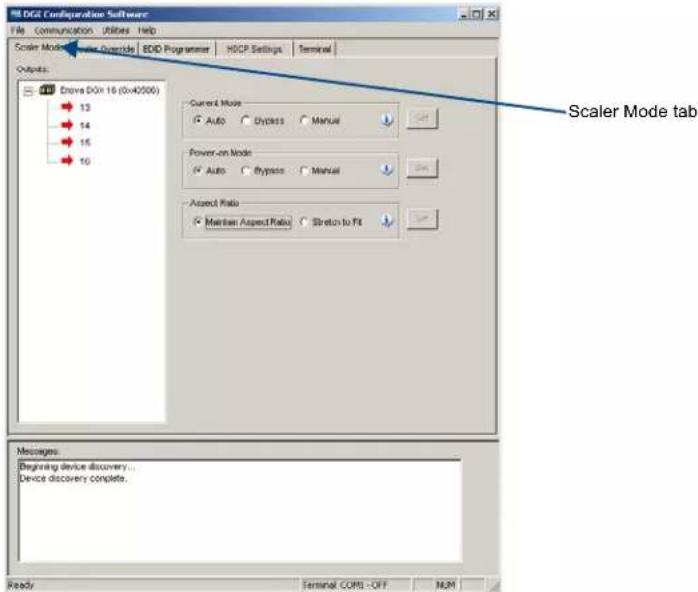
FIG. 106 Scaler Mode view
2. Select the desired output(s).\*
3. Click any or all of the following:
- The desired Current and Default scaler modes (for explanations of the three modes, see the previous page)
● The Aspect Ratio of the display (for an explanation of the aspect ratio options, see the top of the next page)
4. Click the appropriate Set button(s) to persist the setting(s).
* When selecting multiple outputs: either select consecutive outputs by holding down the Shift key and clicking the first and last output or select nonconsecutive outputs by holding down the Control key and clicking on each output.
Maintain Aspect Ratio and Stretch to Fit
In the Scaler Mode view, you can select one of the two aspect ratio options for the selected outputs: Maintain Aspect Ratio (default) and Stretch to Fit.
To set the aspect ratio:
-
Select the desired output(s).
-
Select one of the Aspect Ratio options:
- Maintain Aspect Ratio – This option maintains the incoming video's aspect ratio. The image is scaled until the display's video fills either horizontally or vertically first. If the vertical direction is filled first, then the video will have pillar box, black bars on the sides of the display (on left in FIG. 107). If the horizontal direction is filled first, then the video will have letter box, black bars on the top and bottom of the display (not shown).
- Stretch to Fit – This option scales the video to fill the display in both the horizontal and vertical directions (display on right in FIG. 107). Black bars do not show when Stretch to Fit is selected.

FIG. 107 Example of displays set to Maintain Aspect Ratio and Stretch to Fit
- Click the Set button to the right.
The selected aspect ratio will now persist to the Auto and Manual (override) modes. The Bypass mode remains unaffected.
Scaler Override View
From the Scaler Override view (Manual mode), an output can be selected under "EDID Source." Click Refresh EDID to determine the attached destination device's resolution and then apply it to one or more outputs which have been selected in the device tree on the left.
In some special installation cases, you will need to use the settings in the Scaler Override view to override the automatic scaling and set (configure) a specific or a custom resolution for the display monitor. When an Enova DGX Switcher is connected to a PC running DGX Configuration Software, the program displays the resolutions supported by the selected destination monitor (or other destination device) based on the set of supported resolutions in the monitor's EDID.
Settings can then be selected and applied to the output. When you select Manual in the Scaler Mode view, the selected connector sets up the video scaler with factory default values (1280x1024 @ 60 Hz). EDID preferred resolution parameters are used if available, unless scaler setup parameters were previously uploaded.
Important: If a device with an EDID (e.g., a video processor) is installed between the output and destination monitor, see page 202.
Note: When the following timings are in the EDID data, the Scaler Override view will not display them: 720x400 @ 70 Hz, 720x400 @ 88 Hz, 640x480 @ 67 Hz, 832x624 @ 75 Hz, and 1152x870 @ 75 Hz. These timings can be entered in the program as custom resolutions.
Get Current Timing, Apply, and Save Buttons
- Get Current Timing button – Click to retrieve timing currently stored on the selected output. This allows you to either apply those settings to other outputs that are connected to similar destination devices or to save the current timing as a backup before making any modifications.
- Apply button – Click to see how well settings work. Sends currently displayed settings to the destination. Selecting Apply does not store or persist settings. If Apply was just selected and you close the program without saving any changes in the settings, the program asks whether or not to save the applied settings.
- Save button – Click to preserve currently displayed settings on the output connector. Sends displayed settings to an output to store and persist them in the output's memory. This button also persists the Scaling Override (Manual) option on the output.
File Menu Options: Open File and Save to File
- Open File – Select to load the settings from a file to the program.
- Save to File – Select to save the currently displayed settings to a file. The file type available depends on the selected view.
Tip: When selecting outputs: select multiple, consecutive outputs by holding down the Shift key and clicking the first and last output or select multiple, nonconsecutive outputs by holding down the Control key and clicking on each output.
To retrieve (read) EDID timings from a destination device:
Note: DXLink Fiber hardware in Unidirectional or Data Link-lost Mode – EDID timings are not accessible as there is no return path available to receive the information.
- From the Scaler Mode tab, select and set Manual (override) as the mode.
- Select the Scaler Override tab.
- Under EDID Source, select the Enclosure and select the Output number connected to the desired destination from the drop-down lists. The system is queried for all compatible devices found with the default (or last saved) communication link setting.
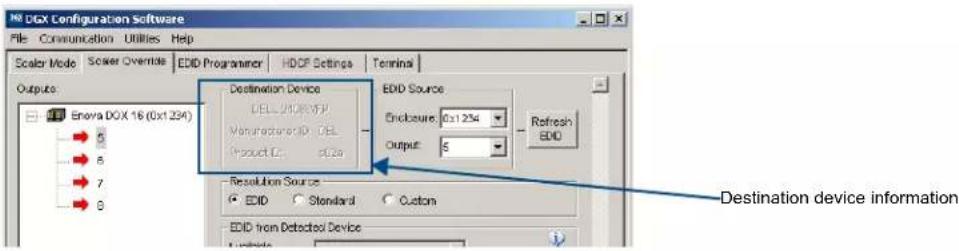
FIG. 108 Destination device's description, Manufacturer ID, and Product ID
-
Click Refresh EDID. A short description of the destination device displays to the left of the drop-down list along with the Manufacturer ID and Product ID (e.g., DELL 2408WFP; DEL; a02a).
The Scaler Override view is populated with the EDID timings from the detected device. -
Complete one of the following options (each option includes a step for saving the EDID):
(A) To set the EDID timings that were read from the device that was detected in the previous step, see the next page.
(B) To set a standard preset, which applies standard timing, see page 196.
(C) To set a custom resolution with the option of applying advanced detailed timing parameters, see page 197.
Time Saving Tip: When a number of outputs are connected to destination devices of the same type, the Get Current Timing button can be used to retrieve the settings from a single output connector. Save those settings to a file and then load the settings to the other outputs.
The instructions for options A, B, and C assume that the previous instructions for reading an EDID have been completed and the DGX Configuration Software is open to the Scaler Override view.
(A) To set an EDID timing that was read from the detected device:
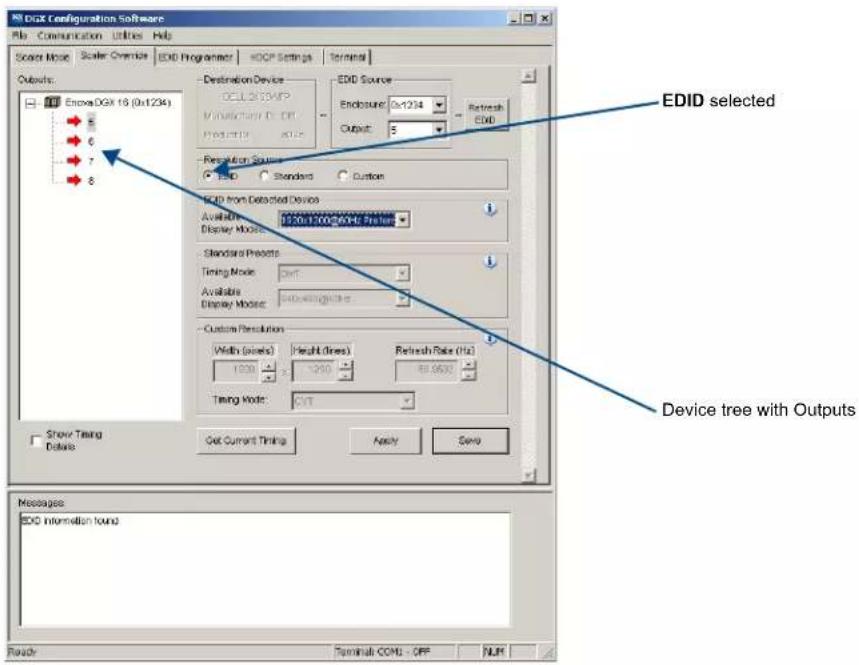
FIG. 109 Scaler Override view with EDID selected
- Under Resolution Source, click EDID.
- Under EDID from Detected Device – From the Available Display Modes drop-down list, select the desired resolution (only resolutions supported by the detected device are included).
- In the device tree on the left, select an output to send the resolution information to that output. Multiple outputs may be selected.
- Click Apply to transmit the selected information to the output(s). This action is temporary until settings are stored on the connector(s) in Step 6. Otherwise, the settings last only until power is cycled. The display re-syncs with the input(s).
- Verify that the display is satisfactory before proceeding.
- Click Save to store the currently displayed settings to the connector(s) and persist them in memory. (If the settings have been changed since clicking Apply, the newest settings will be saved.)
(B) To set a standard EDID preset:
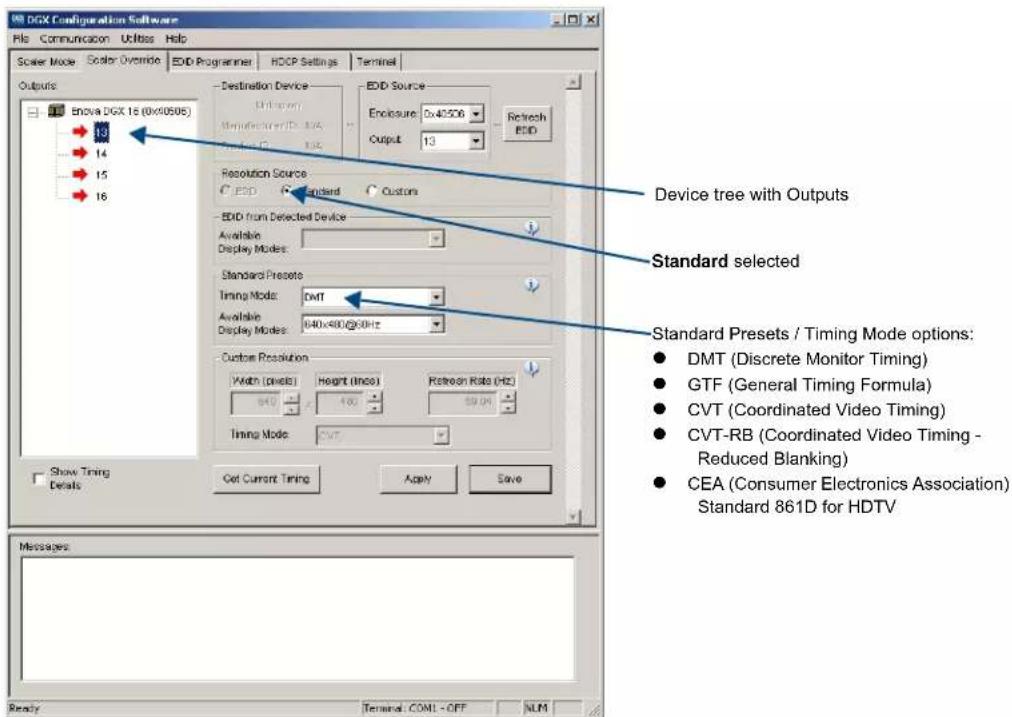
FIG. 110 Scaler Override view with Standard Presets selected
- Under Resolution Source, click Standard.
- Under Standard Presets, select the desired timing mode from the Timing Mode drop-down list.
- Under Standard Presets, select the resolution from the Available Display Modes drop-down list.
- In the device tree on the left, select an output to send the resolution information to that output. Multiple outputs may be selected.
- Click Apply to transmit the selected information to the output(s). This action is temporary until settings are stored on the connector(s) in Step 7. Otherwise, the settings last only until power is cycled. The display re-syncs with the output(s).
- Verify that the display is satisfactory before proceeding.
- Click Save to store the currently displayed settings to the connector and persist them in memory. (If the settings have been changed since clicking Apply, the newest settings will be saved.)
(C) To set a custom resolution with optional advanced detailed timing parameters:

Show Timing Details selected for viewing Advanced Timing Parameters
FIG. 111 Scaler Override view with a Custom Resolution selected (left); Advanced Timing Parameters selected (right)
- Under Resolution Source, click Custom.
- Under Custom Resolution, enter the width, height, and refresh rate.
- Under Custom Resolution, select the timing mode from the Timing Mode drop-down list.
If Advanced is selected from the list (FIG. 111, on the right), the Advanced Timing Parameters section opens. (Select Show Timing Details if desired.) Complete all remaining steps.
If another timing mode is selected from the list (FIG. 111, on the left), go to Step 5. - Advanced only – Under Horizontal Geometry, enter the values in number of pixels. Under Vertical Geometry, enter the values in number of lines. Select HSync (+ or -) and VSync (+ or -) Polarity.
- In the device tree on the left, select an output to send the resolution information to that output. Multiple outputs may be selected.
- Click Apply to transmit the selected information to the output(s). This action is temporary until settings are stored on the connector(s) in Step 8. Otherwise, the settings last only until power is cycled. The display re-syncs with the output(s).
- Verify that the display is satisfactory before proceeding.
- Click Save to store the currently displayed settings to the connector(s) and persist them in memory. (If the settings have been changed since clicking Apply, the newest settings will be saved.)
Or
Note: Down scaling to 800x600 – When using the program to scale from 1280x1024 down to 800x600, occasionally the video changes to a solid color screen and needs to be reset to restore the image. Auto Scaling is recommended when possible.
EDID Programmer View
From the EDID Programmer view, EDID EEPROM chips on each of the DGX HDMI and DGX DVI Input Board connectors can be re-programmed independently if necessary.
EDID Overview
EDID (Extended Display Identification Data) is a data structure established by the Video Electronics Standards Association (VESA) to enable plug-and-play support by enabling easy configuration of a computer's graphics subsystem based on the capabilities of the attached display device.
EDID information includes items such as the following:
- Manufacturer's name
- Product type
● Supported video resolutions and refresh rates
● Color space and filter chromaticity - Detailed timings
When a computer is directly connected to a display device, it can use the display device's EDID information to determine an initial compatible video signal to send. With the computer's display controls, the user can modify this selection to another compatible signal based on the provided EDID information.
With DVI and HDMI signals (both require EDID on the display devices), using EDID information has extended beyond computers to other source devices, such as DVD players. As long as the source device sends a compatible signal, the plug-and-play feature will work.
Digital Media Switchers and EDID
Digital Media Switchers, such as the Enova DGX, provide the ability to route one source signal to many potentially different types of display devices. In almost all cases through the use of compatible DXLink Receivers or DGX SC Fiber Receivers (both featuring SmartScale Technology), incompatibilities between source device resolutions and displays are automatically resolved as each receiver independently scales each source device's video to the display's native resolution.
In cases where local DVI or HDMI outputs are used and a resolution incompatibility exists (or if a source device needs a specific resolution), the DGX DVI and DGX HDMI Input Boards have the ability to update the EDID emulation file (by updating each input's EEPROM chip) which comes pre-loaded with an AMX AutoPatch EDID set.
This EDID set consists of some of the most common EDID settings in use today, including VESA and HDTV settings encompassing resolutions for Standard Timings and resolutions for Established Timings (for HDMI timing details, see page 80; for DVI, see page 90). In many cases, the switcher can be used straight out of the box with no adjustments (see “Determining the Need for EDID Re-programming” on page 199).
The DGX Configuration Software with EDID programming functionality has been provided for cases where additional in-field programming of a board's input connectors EDID chips is needed. The EDID Programmer view can be used for the following:
- Reading and saving EDID data in hexadecimal from an output receiving the information from its attached destination device
- Writing EDID data to the Enova DGX input connector's associated EDID EEPROM
Important: Any analysis or editing of the EDID data necessary to support the equipment specific to the installation will need to be done separately prior to using the EDID Programmer view. A variety of freeware tools can be found on the Internet to help with these tasks.
Keep in mind that the EDID information for some equipment may not be compatible with the remaining equipment even with re-programming. In those cases, the signals will have limited routing options.
Tip: If the signal from some of the equipment can only be routed to part of the destinations due to incompatible EDIDs, control can be simplified by creating a separate virtual matrix for the inputs and outputs involved (see “Creating a New Virtual Matrix” in the XNConnect Help file).
The remaining sections for the EDID Programmer view provide information on:
● Determining the need for EDID re-programming
- Reading and saving EDID data from an output, which received the information from its attached destination device
● Writing data to an Enova DGX input connector
● Additional HDMI EDID files for handling audio concerns
Determining the Need for EDID Re-programming
Ideally EDID analysis will have been completed during installation specification. Consideration should be given to the use of DXLink Output Boards and corresponding DXLink Receivers or DGX SC Optical Output Boards and corresponding DGX SC Fiber Receivers which (in almost every case) will remedy incompatible source and destination resolution issues. If EDID analysis was not possible but all of the system's devices are now available, the most effective way to proceed is to test if the signal from each source device can be routed through the Enova DGX Switcher to each of the destination devices. If they can be routed, then EDID re-programming is not necessary.
A method of control is not specified in the following instructions. Any board you think might need EDID re-programming must have the destination devices (and modules if applicable) attached before completing the following procedure.
To determine if EDID re-programming is necessary:
- Route the first input to all of the applicable outputs.
- Check each destination display to verify that the picture is present, making note of any that are not.
- Repeat Steps 1 and 2 for each of the remaining inputs.
Important: If any of the destinations do not display a picture, analysis or editing of the EDID data may be necessary prior to using the EDID Programmer view in the DGX Configuration Software. A variety of freeware tools can be found on the Internet to help with these tasks.
Board Support for DVI and HDMI Signals – Changing the EDID Setting
Another reason to reprogram EDIDs is to support different source signals on a single board. Because each input can be changed independently (e.g., an HDMI Board can support both HDMI and DVI sources), inputs can be set up for specific sources or for the most common source device expected to be connected.
Note: HDMI-to-DVI or DVI-to-HDMI conversion requires an applicable conversion cable.
The EDID resolution and audio support variances between HDMI and DVI (which are provided as defaults) help to identify if they need to change from the original (factory loaded) EDIDs on each input.
DVI Boards
The DVI Input Boards come pre-loaded with EDIDs typical for DVI output devices (computer monitors, etc.) which do not support embedded audio signals. However, they will allow HDMI with embedded audio formats through if the default EDID setting is changed via DGX Configuration Software using a file from the EDID Library (see Option 2 below).
HDMI Boards
The HDMI Input Boards come preloaded with EDIDs typical for HDMI output devices (DVD players, etc.). However, they will allow DVI formats through if the default EDID setting is changed via DGX Configuration Software using a file from the EDID Library (see Option 2 below).
Options for Re-programming EDIDs
If EDID re-programming is necessary, use one of the following two options.
- Option 1: Install the DGX Configuration Software and open the EDID Programmer view. Read the EDID from the output connected to the destination device and write it to the DXLink, DVI, or HDMI input connector.
- Option 2: Install the DGX Configuration Software and open the EDID Programmer view. Check the AMX_EDID_Library file at www.amx.com (search for EDID Library) to determine if one of the custom EDID files meets the needs of the equipment. (The custom EDID files are variants of base EDIDs.) Open and write the custom EDID file to the DXLink, DVI, or HDMI input connector.
Troubleshooting Tip: If you have changed EDID from the default (which supports 2 channel L-PCM as embedded audio) and are experiencing audio problems, it may be because you are trying to pass Dolby or DTS or high PCM frequency rates and the destination device does not support them. If you are experiencing video problems, it may be because you are trying to pass a video format that the destination device does not support. In either of these cases, re-programming the EDID may help resolve the problem.
Reading and Saving EDID Data from a Destination Device
Tip: In the EDID Programmer view, the Save to File option under the File menu can be used to save the EDID information as an .edid file. The saved file can be opened as a text file (from the File menu, select Open File) and edited or opened and written to an input (click the Write button).
The instructions that follow tell how to use the EDID Programmer view to read and save the EDID information from an output, which is receiving the EDID information from a destination device.
Note: DXLink Fiber hardware in Unidirectional or Data Link-lost Mode – EDID timings are not accessible as there is no return path available to receive the information.
Note: The availability of the Read and Write buttons depends on whether an input or output is selected in the device tree on the left. (Read from an output and write to an input.)
To read and save EDID data:
- On the PC, open the DGX Configuration Software and select the EDID Programmer tab.

FIG. 112 EDID Programmer view
- From the Inputs/Outputs device tree on the left, select an output from which to read the EDID information that it receives from the destination device.
- Click Read to read the EDID information. The results display in the large read-only area.
- From the File menu, select Save to File (select location, enter file name, and click Save). Leave the EDID Programmer view open for using the instructions on writing the EDID to a DGX Digital Media Switcher input connector on the next page.
Writing EDID Data to DGX DXLink, DVI, or HDMI Input Connector
The instructions that follow tell how to use the EDID Programmer view to write the EDID information from an output or from a saved file to the EDID chip for an input connector on a DGX DXLink, DVI, or HDMI Input Board.
Note: DXLink Fiber hardware in Unidirectional or Data Link-lost Mode – EDID timings are not accessible as there is no return path available to receive the information.
To write EDID data to the EDID chip for an input connector:
- In the DGX Configuration Software interface, select the EDID Programmer tab.
-
Save the board's EDID default as a backup (assumes the board has factory default EDID programming).
a. Select the input connector.
b. Click Read.
C. From the File menu, select Save to File (select location, enter file name, and click Save). -
If an EDID was just read from an output (see page 200), select the input to which you want to write that EDID information.
Or
From the File menu, select Open File to select an .edid file to be written to the DXLink, DVI, or HDMI input connector.
-
Click Write to write the EDID information to the input connector.
-
If applicable – Repeat any of the steps that are necessary for any additional DXLink, DVI, or HDMI input connectors.
Custom HDMI and DVI EDID Files for Handling Audio/Video Concerns
HDMI, DVI, DXLink Twisted Pair, or DXLink Fiber Boards will be connected to multiple source and sink devices. These devices often support different video and audio formats. Potentially, neither the video nor the audio routed by the system can be displayed on one or more of the destination devices.
Customizing the EDID content at the Enova DGX input channels is one way to be sure that the formats provided by the source are compatible with most/all of the destination devices.
The HDMI and DXLink Twisted Pair Boards are preprogrammed with the equivalent of the file "AMX_HDMI1v3__Standard.edid" to support basic audio only (2 CH L-PCM 32 kHz, 44.1 kHz, and 48 kHz). The DXLink Fiber Boards initially do not have EDIDs loaded; however, they obtain EDIDs (on a per channel basis) as soon as they are connected to DXLink Fiber Transmitters. The DVI Board is preprogrammed with the equivalent of the file "AMX_DVI1v1_BaseBlockOnly.edid." Both files are in the AMX_EDID_Library.
The files in the following two tables are located in the AMX_EDID_Library file at www.amx.com (search for EDID Library). Additional files provided in the EDID Library include support for 3D deep color and High Bit Rate (HBR) Audio.
Files using 1080p (VIC 16) as the preferred and native video resolution:
| File Name Monitor Name Description | ||
| AMX_HDMI1v3__Standard.edid* AMX_HDMI1v3 Supports basic audio only: uncompressed 2 CH L-PCM stereo audio with sample rate of 32 kHz, 44.1 kHz, or 48 kHz. | ||
| AMX_HDMI1v3_A__Surround.edid* | AMX_HDMI1v3_A | Supports surround sound: audio up to 192 k for 48 kHz Dolby Digital (5.1), 48 kHz DTS (5.1), and basic audio (uncompressed 2 CH L-PCM stereo audio with sample rate of 32 kHz, 44.1 kHz, or 48 kHz). |
Files using 720p (VIC 4) as the preferred and native video resolution:
| File Name Monitor Name Description | ||
| AMX_HDMI1v3_B__720p.edid* AMX_HDMI1v3_B Supports basic audio only: uncompressed 2 CH L-PCM stereo audio with sample rate of 32 kHz, 44.1 kHz, or 48 kHz. | ||
| AMX_HDMI1v3_C__720p_Surround.edid* | AMX_HDMI1v3_C | Supports surround sound: audio up to 192 k for 48 kHz Dolby Digital (5.1), 48 kHz DTS (5.1), and basic audio (uncompressed 2 CH L-PCM stereo audio with sample rate of 32 kHz, 44.1 kHz, or 48 kHz). |
* File names containing "AMX_HDMI1v3" do not in any way refer to the HDMI v1.3 standard.
Audio Troubleshooting
The default EDID for input boards only supports 2 channel L-PCM audio. If a source chooses to ignore this EDID and send a format that is not in the EDID, the audio may not pass through the Enova DGX 8/16/32/64 at all or it may be distorted. To present other types of audio formats to the source, a different EDID must be loaded (see the AMX EDID Library at www.amx.com (search for EDID Library). If after changing the EDID on the input board, the audio is still distorted or is not present on the destination device, then the device may not be capable of supporting the requested audio format with the newly loaded EDID setting. In this case, a standard EDID should be used and the sources set up to only pass the type of audio that the downstream destination devices can handle.
Checking for Support
One way to check if a destination supports a particular type of audio format is to capture the EDID using DGX Configuration software's EDID Programmer tab and paste the EDID data into a free-ware EDID reader program (e.g., www.edidreader.com). For additional information and a table showing which types of audio the different types of boards support, see page 86.
Note: The default EDID supports 2 channel L-PCM audio so that signals routed to SC Optical Output Boards or being inserted onto or extracted from Audio Insert/Extract Board will work without needing to change the EDID.
Device between HDMI Output Board and Monitor
Sometimes a device (e.g., a video processor) between a DGX HDMI Output Board and the destination monitor is intentionally installed to alter the image scale. If that is not the case and you have image problems, you need to be aware that the scaler override function is responding to the EDID from the extra device rather than from the monitor. One possible solution is to use the DGX Configuration Software to read and save the EDID directly from the monitor and then apply the override values to the output (directions follow).
To read EDID directly from monitor and apply override values to output:
- Remove the device between the output and the monitor.
- Connect the output directly to the monitor.
- Install and open the DGX Configuration Software (see page 189).
- Select the Scaler Override tab.
- Under EDID Source, select the Enclosure and select the Output number connected to the desired destination from the drop-down lists.
- Click Refresh EDID.
- From the File menu, select Save to File and save the settings to a file.
- Replace the device between the output and the monitor.
- From the File menu, select Open File and open the previously saved file.
- Click Apply to transmit the settings in the file to the output. This action is temporary until the settings are stored on the connector in Step 12. Otherwise, the settings last only until power is cycled. The display re-syncs with the output.
- Verify that the display is satisfactory before proceeding.
- Click Save to store the currently displayed settings to the connector and persist them in memory. (If the settings have been changed since clicking Apply, the newest settings will be saved.)
HDCP Settings View
The HDCP Settings view controls HDCP support, enabling and disabling support on specific HDMI or DVI inputs. The default setting is for HDCP to be enabled.
To enable or disable HDCP support for an HDMI or DVI input:
- Select the input (or select multiple inputs) on the left.

FIG. 113 HDCP Settings view
- Under HDCP Support, click the desired option: Enable or Disable.
- Click the Set button.
- Repeat as necessary for additional inputs.
Note: To enable or disable HDCP support over the DXLink line, send the appropriate SEND_COMMAND (HDCP-
Terminal View
The Terminal view provides basic terminal emulation. This view allows you to enter and send BCS (Basic Control Structure), auxiliary, diagnostic, and DGX_SHELL commands to the system.
Note: If you plan to use the terminal emulation function of the software, a serial connection is required.
Important: You must click the Connect button to establish serial communication with the system before you can use the terminal emulation function in the DGX Configuration Software. When done, be sure to click the Disconnect button.
BCS Commands
AMX AutoPatch has developed BCS protocol (a command language) for control operations. For complete information on BCS commands, see the Instruction Manual – BCS Basic Control Structure Protocol at www.amx.com.
Auxiliary BCS Commands
Auxiliary commands are also included in the Instruction Manual – BCS Basic Control Structure Protocol at www.amx.com. The two most common auxiliary commands are: \~app! (to cause a warm reboot) and \~scr! (to view a splash screen).
Diagnostic BCS Commands
Diagnostic commands are covered in Appendix D (see page 229).
DGX\_SHELL Commands
The Enova DGX Switcher supports a number of shell (command-line interpreter) commands for a variety of functions, both basic and advanced (see page 247).
Note: DGX_SHELL Commands are case-sensitive.
To send a command to the system:
- In the DGX Configuration Software interface, select the Terminal tab.
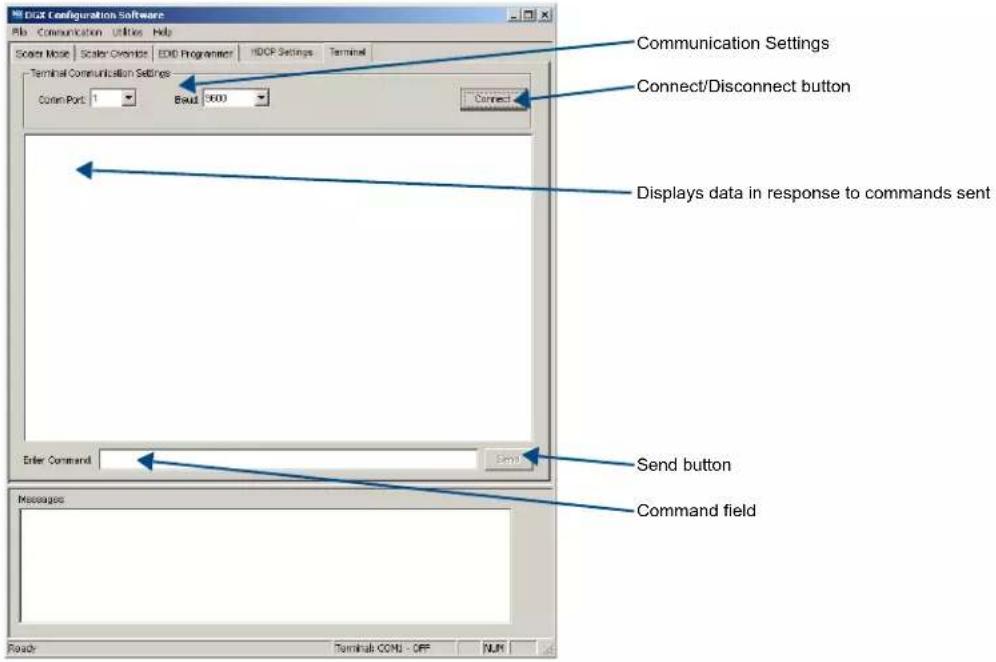
FIG. 114 Terminal view
- Select and set the Terminal Communication Settings: Comm Port and Baud (rate). (The default baud rate for the Enova DGX Switcher is 9600.)
- Click Connect.
- BCS only – Enter the BCS command in the Enter Command field* and click Send. DGX_SHELL only – Place the cursor in the response window (large text field). Press CTRL+C to enter the DGX_SHELL. Type help in the Enter Command field and click Send.** Enter the desired commands.
- Enter additional commands as necessary.
- When done, click Disconnect.
* BCS Commands can also be entered directly into the response window (the large text field). After the final character, press the Enter key.
** Once in the DGX_SHELL, commands can be typed in either field.
To save the current data in the terminal window to a file:
- From the File menu, select Save to File (select location, enter file name, and click Save). The file format defaults to a .txt file.
Tip: Select and copy any or all of the data in the terminal window and then paste it into another program.
Appendix B – Managing Configuration Files
Applicability Notice
This appendix applies to XNConnect version 2.12.3. XNConnect software's version information is found under its Help menu.
This appendix covers the following general information on using XNConnect configuration software and basic modifications for customizing the configuration:
- Installing XNConnect (page 208)
● Discovering a system (page 208) - Opening an .xcl configuration file (page 210)
● Navigating the interface (page 211) - Setting the Control Panel password (page 212)
- Creating local presets (page 213)
- Loading an .xcl configuration file (page 215)
For complete coverage of XNConnect including modifying virtual matrices and hardware, see the XNConnect Help file. If your configuration file needs any type of advanced modification, we strongly recommend contacting technical support to request a modified .xcl file or ask for assistance.
Standard Virtual Matrices and XNConnect
The standard virtual matrix for switching signals in the Enova DGX Switcher is VM 0, which routes video.
For video sources that also include audio (e.g., sources with video and embedded audio routed through DGX HDMI or DGX SC Optical Boards), VM 0 routes the video and any embedded audio. Embedded audio does not have a separate virtual matrix for switching and cannot be broken away from the video.
VM 1, which switches exactly the same as VM 0, is also provided as an option for compatibility purposes with control software and equipment.
Additional VMs can be created and are useful in some situations. Control can be simplified by creating a separate virtual matrix for the inputs and outputs involved, e.g., if the signal from some of the equipment can only be routed to part of the destinations due to incompatible EDIDs or to provide restricted access to certain source or destinations. The XNConnect Help file contains information on creating new VMs.

Caution: Virtual matrix modifications are an advanced feature of XNConnect that should not be attempted unless you are extremely familiar with XNConnect and the switcher being configured.
Note: If you use the advanced feature of creating a new virtual matrix (VM), be aware that the Control Panel for the Enova DGX Switcher supports a maximum of two digits for virtual matrix numbers.
XNConnect Overview

Caution: Unless you need to reload the .xcl configuration file or modify your system's configuration from the original specifications, you will not need to use XNConnect. We recommend making a copy of the current file every time the file is modified.
XNConnect can be used to modify a system's configuration information which contains routing and control information. XNConnect is available at www.amx.com. Configuration file modifications include basic tasks, such as creating local presets and setting the Control Panel password.
Most Enova DGX Switchers are configured automatically based on the hardware in the system; on occasion custom systems are conventionally created per the user's request.
Automatic Configuration
The configuration file for an Enova DGX Switcher is automatically generated based on its installed hardware (applies to most Enova DGX single-enclosure systems). The configuration is constructed internally with a standard virtual matrix (see previous page) by the CPU upon initial boot up of the system.
When a system is automatically configured, the configuration information can be accessed for modification in only one way since a configuration (.xcl) file does not exist for the system. XNConnect can be used to discover the configuration information from the CPU. The discovered configuration information can then be saved as an .xcl file. After the configuration is modified in XNConnect, the file information is loaded back onto the CPU (replacing the automatically constructed configuration). If necessary, the automatically constructed configuration can be restored (see page 216).

-When discovered, an automatically constructed configuration does not show a file name until after it has been saved in XNConnect
FIG. 115 Example of discovery information for automatically constructed configuration
Conventional Configuration
When an .xcl configuration file is created and saved in XNConnect and then downloaded to the switcher's CPU before shipment, the file is considered to be conventionally configured (applies to some custom Enova DGX systems).
When a system comes with a conventionally configured .xcl file, the file can be accessed for modification in one of two ways. The first way (recommended) is to use XNConnect to discover the .xcl file on the CPU. The second way is to request a copy of the conventional (.xcl) file from technical support and then use XNConnect to open it. In either case, after the configuration has been modified in XNConnect, the modified .xcl file can be loaded onto the CPU (replacing the original, conventionally configured .xcl file).
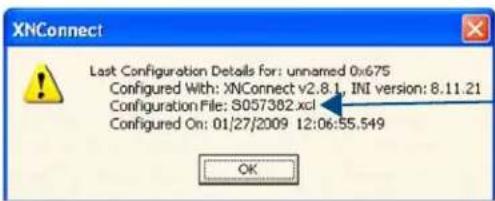
- Discovery shows file name for conventionally configured .xcl file
FIG. 116 Example of discovery information for conventionally configured .xcl file
Installing and Launching XNConnect
Use this software only if you need to customize or change the configuration information from the original specification.
Important: Even if XNConnect is already on your PC, install the latest version from www.amx.com. We strongly recommend uninstalling the old version of XNConnect before installing a new version.
System Requirements
Windows XP Professional
233 MHz processor
☐ Minimum of 128 MB of RAM
☐ 20 MB of available hard drive space
☐ 800x600 screen resolution (1024x768 is recommended)
☐ Serial port and RS-232 null modem cable
Note: Your account must have required permissions to download XNConnect from www.amx.com.
To install XNConnect from www.amx.com:
- Close all other applications currently running on your PC.
- From the www.amx.com/products/XNConnect.asp website page (under Application Files on the right), click XNConnect, click I Accept for the license, and then select Open to download the file.
-
Optional - Select XNConnectReadMe_x_x_x to read about the software before installation.
-
Click the application file (which is zipped).
-
In the Compressed (zipped) Folders dialog box, click Extract All.
-
Select a destination for the files.
-
When the download is complete, click the application file and follow the directions in the installation wizard.
-
Before using XNConnect, download and install the latest .ini file by clicking AutoPatch INI Updater (at www.amx.com/products/XNConnect.asp, under AutoPatch Tools on the right).
Note: The AutoPatch INI Updater file provides XNConnect with information for new support devices and input and output boards (an account is not required).
To launch XNConnect:
- From the Start menu at the lower left of the PC screen, select All Programs.
- Select AutoPatch Applications (or other file group you specified during the installation).
- Select the XNConnect folder and then select XNConnect.

Discovering a System
When XNConnect is open, you can discover the system. This works for both automatically and conventionally configured systems.
The discovery process queries the attached system for configuration information and properties, including information regarding assigned signals and virtual matrix definitions. The discovery process may take several minutes to complete. We recommend disconnecting any third-party control devices from the enclosure's serial ports before starting the discovery process.
To discover a system:
- Disconnect any third-party control devices from the enclosure's serial (Control) port.
- Connect the enclosure to the PC (see page 62).
- (If not already open) Launch XNConnect (see previous page).
- Open the Communication menu; select Serial Port.
- If applicable – For a serial port other than COM 1 (default), open the Communication menu again, select Change Comm Settings. Check the settings for the selected port and adjust if necessary (the default is COM 1, baud rate 9600).
- Optional – Click Test to verify that communication has been established with the enclosure. Click OK.
- From the File menu, select Discover System (the discovery may take a few minutes).
- From the File menu, select Save to save the discovered configuration information to the PC.
- From the File menu, select Save As and save an .xcl file with a new name to the PC. (We recommend making a duplicate copy every time the file is modified.)
The discovered configuration file is ready to be modified. Whenever changes are made, the new file must be loaded onto the system to implement the changes (see page 215).
Opening an .xcl Configuration File
If technical support has provided an .xcl file or if someone else has previously created an .xcl file for the system, follow the directions below to open it in XNConnect and then modify the file as desired. After modifications are complete, the new configuration information must be loaded onto the system to implement the changes (see page 215).
Important: Even if XNConnect is already on your PC, install the newest version from www.amx.com. We strongly recommend uninstalling the old version of XNConnect before installing the new version.

Caution: Use XNConnect only if you need to load or reload the .xcl configuration file or modify your system's configuration from the original specification. Make a copy of the original file every time the file is modified.
To open an .xcl file:
- Launch XNConnect.
- From the Getting Started dialog box, click Open Configuration File. (If the dialog box does not appear, from the File menu select Open.)

-
Use the standard Open dialog box to locate and open the .xcl configuration file.
-
From the File menu, select Save As and save an .xcl file with a new name to the PC. (We strongly recommend making a duplicate copy every time the file is modified.)
The .xcl file is ready to be modified. Whenever changes are made, the new file must be loaded onto the system to implement the changes (see page 215).
Navigating the Interface
XNConnect displays configuration information in two panes. The graphics are located in the left pane, and the properties of the currently selected graphic are in the right pane. At the top of the left pane are two tabs, Hardware and Virtual Matrices, for accessing the Hardware and Virtual Matrices views (see below). To see the details and components of a device or a virtual matrix, click the plus "+" symbol to the left of the device or the virtual matrix.
Most configuration file modifications involve entering information in a series of dialog boxes that are accessed by right-clicking a hardware device or virtual matrix icon and selecting an option from the shortcut menu. If you have a question regarding an open dialog box, press the F1 key for Help.
Hardware View
The Hardware view (FIG. 117) displays the system's hardware, such as enclosures and serial ports. This is the view used when setting the Control Panel password (see page 212).
Virtual Matrices View
The Virtual Matrices view displays properties of the existing virtual matrices. Most common tasks are conducted from this view, including creating local presets.
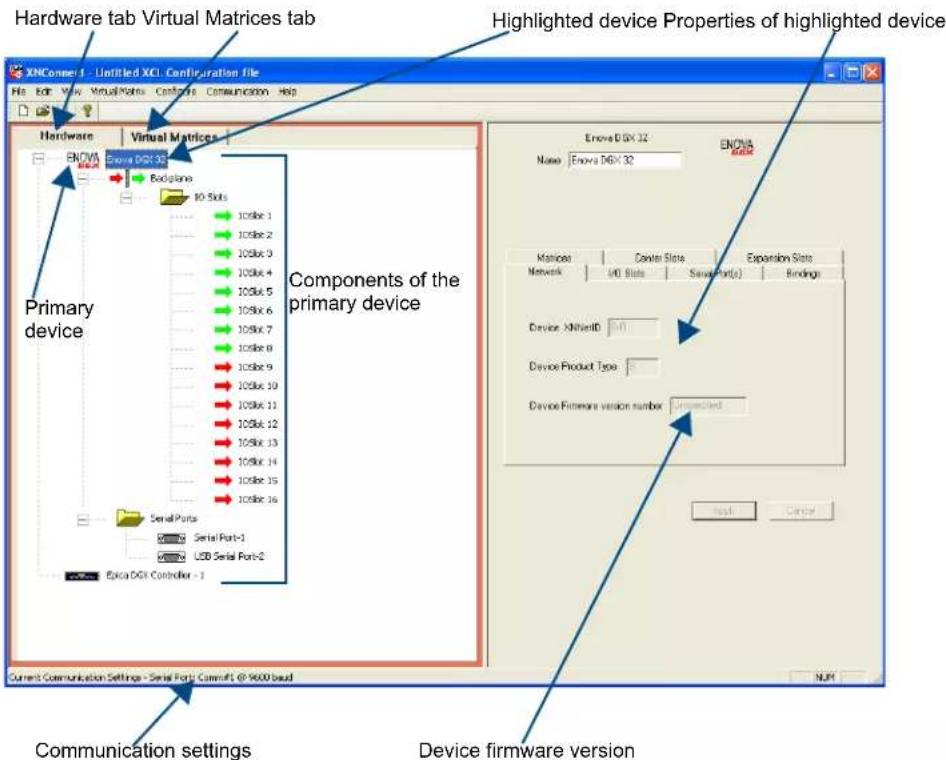
FIG. 117 XNConnect interface with Hardware tab selected
Modifying an .xcl Configuration File
Modifying an .xcl configuration file with XNConnect involves entering information in a field or in a series of dialog boxes. A brief look at the contents in the Help file provides a quick overview of the possible modifications. This section provides instructions for two common tasks: setting the Control Panel password and creating local presets. For complete coverage of configuration related tasks, see the XNConnect Help file.
Setting the Control Panel Password
The Control Panel can be locked and unlocked (for directions, see page 157). Locking the panel prohibits access to the system and can prevent accidental switching. The password can be set either with the Control Panel (see page 160) or with XNConnect (see below). If a password has been created and downloaded to the system from XNConnect, a new password can be set from the Control Panel to replace it; however, the previous one must be entered first. If a password is set with the Control Panel, a new password can be set and downloaded to the system using XNConnect.
The password consists of five digits between 1 and 8 that are entered on the Control Panel using a combination of five of the first eight Input Keys (keys can be used multiple times).
The system connected to the PC must be powered up before the password can be loaded to the Control Panel. If not already connected, complete the first five steps of the instructions for “Discovering a System” on page 208.
To set the password and load it to the Control Panel:
- Discover the system (see page 208) or open the .xcl file (see page 210).
- In the Hardware view, right-click the Control Panel icon (CP-15 style). If the Control Panel icon is not displayed, double-click the Enova DGX icon.
- Select Set Password from the drop-down menu. The Set Control Panel Password dialog box opens.

-
Enter a single digit between one and eight (inclusive) in each field.
-
Check the box for Configure Password Immediately.
Important: If you use the Configure menu instead of checking the box, the only configuration option that will load password information is Configure \ Configure Special - Hardware \ Configure All Passwords.
-
Click OK. The updated password information is immediately loaded to the Control Panel, and the new password sequence must be used to lock and unlock the Control Panel.
-
From the File menu, select Save As and save an .xcl file with a new name to the PC. (We strongly recommend making a duplicate copy every time the file is modified.)
Creating Local Presets
A local preset is a predetermined collection of switches on the same virtual matrix to be routed simultaneously. Executing a local preset affects only those inputs and outputs specified, not the whole system. Local presets are defined using XNConnect and can be executed using the Control Panel or using BCS commands entered in a terminal emulation program. The process for creating local presets involves three dialog boxes that cover managing, naming, and modifying presets.
The Enova DGX Switcher supports a maximum of 64 local presets.
The following instructions are for creating a local preset. For detailed information on modifying and deleting local presets, see the XNConnect Help file.
To create a new preset:
- In the Virtual Matrices view, right-click the virtual matrix the preset will be created for and select Manage Local Presets from the shortcut menu.
The Manage Local Presets dialog box opens.
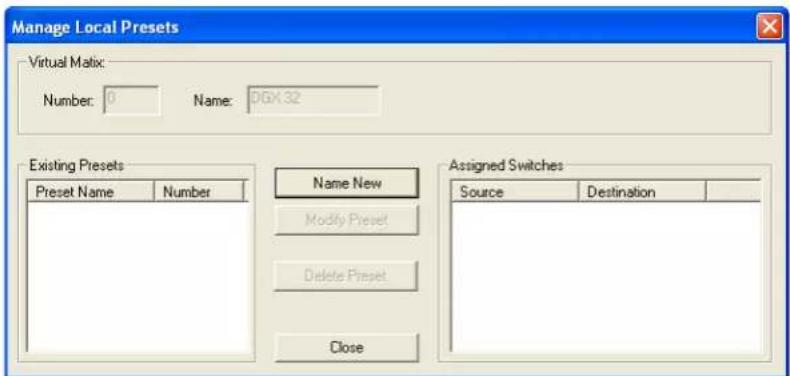
- Click Name New.
The Name New Preset dialog box opens.

-
Optional - Enter a different preset number (local presets do not need to be numbered sequentially).
-
Enter a name for the new preset.
-
Click OK.
The Modify Preset dialog box opens.
- For the first switch, click the source channel (input) and one or more destination channels (outputs). Select multiple destination channels by holding down the Control key while selecting the channels.

- Click Assign Switch.
The input appears in the Assignment column of the Destination Channels list; the switch will execute when the local preset is executed.
- Disconnect inputs* or outputs as part of the local preset by selecting either the source or destination channel and clicking Disconnect.
The input or output appears in its corresponding Disconnected Channels list; the input or output will be disconnected when the local preset is executed.
* Disconnecting an input will disconnect all outputs it is connected to.
- Repeat Steps 6, 7, and 8 for all switches and/or disconnects to be included in the preset.
Note: For information on the other buttons and preset modifications, press F1 while the Manage Local Presets dialog box is open.
-
After all switches for the preset have been assigned, click OK and then close the Manage Local Presets dialog box.
-
Define additional local presets by repeating the steps.
Caution: The system must not be actively switching when loading this information onto the system.
-
When all local presets have been defined, load the .xcl configuration file onto the system (see page 215). If the .xcl configuration file has been previously loaded to the system and local presets are the only modifications that have been made to the .xcl file, select Configure \ Configure Special – Virtual Matrix \ Configure All VM Local Presets. If the .xcl file is being loaded for the first time (assumes an automatically constructed configuration is on the CPU), select Configure \ Configure All.
-
From the File menu, select Save As and save an .xcl file with a new name to the PC. (We strongly recommend making a duplicate copy every time the file is modified.)
-
Reload the .xcl file from the CPU to the Control Panel according to the directions on page 160.

Loading an .xcl Configuration File
Once modifications have been made to the .xcl configuration file, the new file must be loaded onto the system's CPU for the changes to be implemented.
The two basic options for loading an .xcl configuration file are:
- Load the entire file using the "Configure All" option (see Caution below).
- Load part of the file using one of the "Configure Special" options.
To determine which configuration option to use, see "Configure Menu Commands" in the Help file.
When loading any part of an .xcl configuration file, the switcher must not be actively switching. You may want to lock the Control Panel (see page 157) and disconnect any external controllers to make sure that no switches are executed during the loading of the file.

Caution: Using the "Configure All" option or the "Configure All Virtual Matrices" option will erase any global presets that have already been defined for the system (for information on defining and executing global presets, see the "Instruction Manual – BCS Basic Control Structure Protocol").
To load an .xcl configuration file to the enclosure's CPU:
Important: The switcher must not be actively switching when loading any part of or all of the .xcl configuration file.
- Recommended – Lock the Control Panel and/or disconnect any external controllers to make sure that no switches are executed during the loading of the file.
- If you have not already done so – From the File menu, select Save As and save an .xcl file with a new name to the PC. (We strongly recommend making a duplicate copy every time the file is modified.)
- Connect the Enova DGX enclosure to the PC (see page 62).
- In XNConnect, open the Communication menu and select Serial Port.
- Open the Communication menu again, select Change Comm Settings.
- Check the settings for the selected port and adjust if necessary (the default is COM 1 with a baud rate of 9600).
- Optional - Click Test to verify that communication has been established with the Enova DGX Switcher. Click OK.
- From the Configure menu, select the appropriate configuration option. For an explanation of Configure menu options, see the Help file. (The Configure All option will not load password information. For instructions on loading password information, see page 212.)
The system automatically reboots (applies to non-hardware configuration options only; for hardware, select the appropriate configuration option and then select Configure > Reboot All Devices).
- If local presets were created and loaded to the CPU – Reload the .xcl file from the CPU to the Control Panel according to the directions on page 160.

Restoring the Automatic Configuration
Caution: Restoring the automatically constructed configuration will result in the loss of all custom .xcl configuration file modifications (local presets, passwords, etc.).
To restore the automatically constructed configuration:
-
Use a null modem serial cable to connect a PC to the Control port (RS-232 serial) on the enclosure (pinout for PC to enclosure: 5 GND to 5 GND, 2 RXD to 3 TXD, and 3 TXD to 2 RXD).
-
Open NetLinx Studio (v4.0 or later).
-
Select Tools/Terminal Session (if you use another terminal emulation program, be sure to set the COM port and the communication settings per Step 4).
The Terminal Window Communication Settings dialog box opens.

-
Set the COM port and the Serial Settings (Enova DGX default settings: 9600 Baud / 8 / None / 1 / None).
-
Click OK.
The Terminal Window opens.

-
Enter the command: \~def! (to restore the configuration) and press the Enter key.
-
Wait for a "V" to be returned (may take several seconds).
Appendix C – APDiagnostics
APDiagnostics Overview
APDiagnostics is a software application that monitors and displays advanced diagnostic information about the Enova DGX Digital Media Switcher. (APDiagnostics also works with AMX Matrix Switchers that are capable of reporting such data.) This application is available at www.amx.com.
System Requirements
☐ Windows XP Professional or Windows 7 Professional
☐ Java Runtime Environment (JRE): v1.5 or the latest version
☐ Minimum Hardware: 166 MHz, 128 MB RAM, 20 MB of free disk space*, 800x600 display, serial port
☐ Recommended Hardware: 2.0 GHz, 512 MB RAM, 100 MB free disk space*, dual 1024x768 monitor display, Ethernet port**
* The installation process requires 20 MB of disk space for the APDiagnostics installer and 200 MB of disk space for the JRE v1.5 that is packaged with the installer (if required). Once installed, APDiagnostics requires 5 MB and JRE v1.5 requires approximately 100 MB of disk space.
** We strongly encourage using an Ethernet connection (instead of serial) whenever possible, due to the volume of data involved with monitoring diagnostics. For additional information, see “Communications” on page 228.
Installing APDiagnostics
You will need administrative rights to install APDiagnostics; contact your Network Administrator.
Important: Do not use the ICS LAN 100/1000 port (RJ-45 connector) on the right-hand side of the CPU when installing APDiagnostics.
To install APDiagnostics using an RJ-45 port (recommended):
- Connect an RJ-45 (null modem) crossover cable to one of the two RJ-45 ports on the far left-hand side of the CPU. Use a null modem crossover RJ-45 cable wired to TIA/EIA specification TIA/EIA-568-B on one end and TIA/EIA-568-A on the other.
- Attach the other end of the RJ-45 cable to a PC.
- From the www.amx.com/products/APDiagnostics.asp website page (under Matrix Switcher Tools on the right), click APDiagnostics and select Save to download the file.
- Optional – Select APDiagnosticsReadMe_x_x_x to read about the software before installation.
- Click the application file (which is zipped).
- In the Compressed (zipped) Folders dialog box, click Extract All.
- Select a destination for the files.
- When the download is complete, click the application file and follow the directions in the installation wizard.
- Before using APDiagnostics, download and install the latest Bounds.ini file by clicking AutoPatch INI Updater (also at www.amx.com/products/APDiagnostics.asp).
- Open APDiagnostics in Acquisition mode.
- Select Comm / Settings.
- Select the Ethernet tab and enter the NIC ID (MAC address).
Tip: The MAC address may automatically fill in the text field. If not, enter the MAC address located on the rear of the enclosure immediately above the Control Port (e.g., 00-1E-4F-A1-82-5D).

FIG. 118 Mac address label on CPU board
- Click Accept.
To install APDiagnostics using the serial port:
- Attach a null modem serial cable without hardware flow control to the Control (DB-9 serial) port on the Enova DGX Switcher. Use a null modem cable that matches the pin diagram below for RS-232. Enova DGX equipment requires pins 2, 3, and 5 only.

- Attach the other end of the null modem cable to a PC.
- Use serial communication software to make sure the PC's baud rate is set correctly for the system. The recommended (default) settings for serial communication for Enova DGX Switchers are listed in the table to the right.
- From the www.amx.com/products/APDiagnostics.asp website page (under Matrix Switcher Tools on the right), click APDiagnostics and select Save to download the file.
- Optional – Select APDiagnosticsReadMe_x_x_x to read about the software before installation.
- Click the application file (which is zipped).
- In the Compressed (zipped) Folders dialog box, click Extract All.
- Select a destination for the files.
- When the download is complete, click the application file and follow the directions in the installation wizard.
- Before using APDiagnostics, download and install the latest Bounds.ini file by clicking AutoPatch INI Updater (also at www.amx.com/products/APDiagnostics.asp).
- Open APDiagnostics in Acquisition mode (default).
- Select Comm / Settings.
- Select the Serial Port tab and set the Comm ID and baud rate (9600).
- Click Accept.
Note: DGX_SHELL commands are another resource for accessing diagnostic information for a system (see page 247).
| Enova DGX Serial Port Settings | |
| Baud Rate 9600 | |
| Data Bits 8 | |
| Parity None | |
| Stop Bits 1 | |
| Flow Control None | |
Modes
This program can be opened in one of two modes: Acquisition (default) or Emulation.
Acquisition Mode
Note: Only a single instance of the application can run on a PC when in Acquisition mode.
Acquisition mode is used to gather and display real-time diagnostic data from an Enova DGX Switcher attached to the PC running APDiagnostics. For this mode to be used effectively, we recommend using a dedicated PC because the Enova DGX Switcher must be connected to your PC via an RJ-45 Ethernet 10/100 port (default) or Control (DB-9 serial) port and the program must be running continuously to acquire data. This data consists of system-critical operating parameters, as well as general information about hardware and control configuration. As the data is gathered, it is automatically archived on the host PC's hard-drive. The three distinct types of files maintained by APDiagnostics are: date-stamped log files, .acp (packet) files, and activity files. The archived files can be emailed to technical support for trend analysis and troubleshooting or can be opened by APDiagnostics in Emulation mode for analysis.
Emulation Mode
This mode is an “off-line” mode used to process and display data that was gathered from an actual system while in Acquisition mode. This mode allows the user to “play back” the system’s behavior during a specified period of time for trend analysis and troubleshooting.
Main Screen and Menus

FIG. 119 Main screen in Emulation mode (the Comm menu option is not available in this mode)
Note: Custom window colors can be applied to the Main Screen. For instructions on modifying the Main Screen's color, see the APDiagnostics Help file.
Categories Pane
The Categories pane is the left-most pane in the Main Screen and presents the highest-level information about the overall system status. The Categories pane has two tabs: Diagnostics and System.
When maximum and minimum levels of operation for various components in the system are exceeded, APDiagnostics flags that information as warnings or errors (depending on the data received) by changing the color of the Categories buttons in the Categories pane to yellow for warning or red for error and by displaying the information as Warnings or Errors in the Event Status Notebook.
Diagnostics Tab

The two buttons on the Diagnostics tab (Temperature and Power System) will turn green, yellow, or red indicating Good, Warning, or Error state, respectively. A yellow for warning or red for error button indicates that the maximum or minimum levels of functioning for various components in the system has been exceeded. This allows you to "drill down" into that particular system for more detailed information about the state of its lowest-level constituents.
To display diagnostic information for Temperature and Power System groups:
- In the Categories pane, select the Diagnostics tab.
- Click either the Temperature or Power System button. Visual, Plot, and Details buttons display in the Information pane (see page 221).
System Tab

The six buttons on the System tab offer general information for the following:
- Enclosure Info
- VM Configurations
- Hardware Boards
● Power Supply Info - Fan Status*
● Signal Sense (for inputs and outputs)
To display general information for a particular component:
- In the Categories pane, select the System tab.
- Click one of the buttons on the System tab.
The details display in the Information pane (see page 221).
* A fan should be replaced if the speed drops significantly lower than its setting value, indicating that it will eventually fail. If a fan has failed completely, its speed will be reported as 0 RPM.
Information Pane
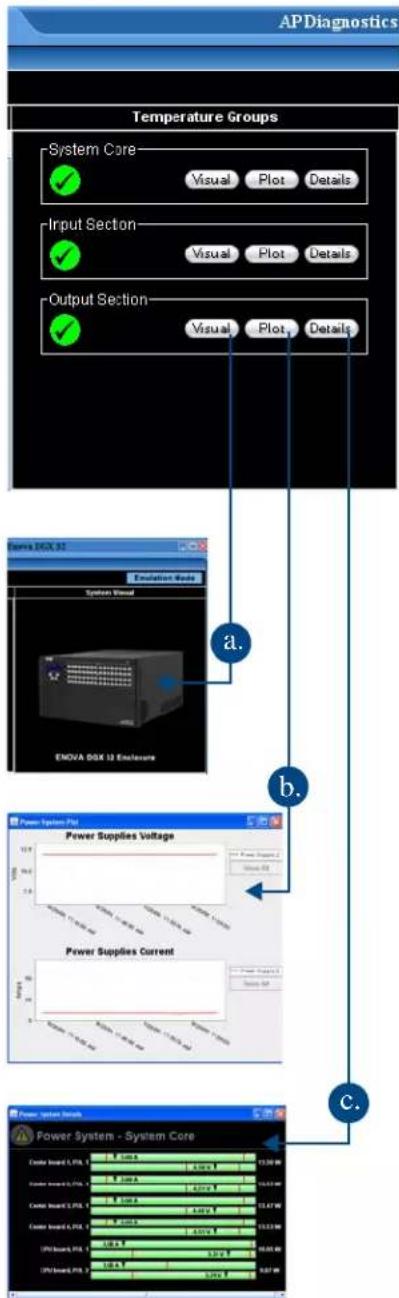
The Information pane is the center panel in the Main Screen and offers the next level of "drill down" into the system status. Information pane buttons access information for each of the specific group components listed. The type of information displayed in the Information pane depends on which tab is active in the Categories pane and which Categories button is selected.
To display diagnostic information:
- In the Categories pane, select the Diagnostic tab.
- Select either the Temperature or Power System buttons as applicable.
- In the Information pane:
a. Click Visual to display visual details on the enclosure in the System Visual pane. For more information, see page 223.
b. Click Plot to display a Plot View with a graph of data points for information being gathered (Acquisition mode) or already gathered (Emulation mode) for a specific component. The data is date stamped as it is added to the graph. For more information, see page 222.
c. Click Details to display a set of analog status meters each representing current data for its associated component. The meters provide an analog representation of a component's current value with respect to its Warning and Error setpoints. If the value is below its minimum or exceeds its maximum Warning or Error setpoint, the color of the meter changes from green (Good) to yellow (Warning) or red (Error), making problem areas easy to identify at a glance.
Information Pane Plot Views
A Plot Views window displays a graph of data points for the components for which it is associated.
The graph has a legend at the right and is time-stamped in intervals across the bottom. The amount of historical data points presented in the graph can be determined by changing the settings in the Application Preferences dialog box (see page 225).
Legend items in a Plot View are selectable; doing so will filter the view so that only the selected items are displayed. Furthermore, if only a single item is selected, its Warning and Error setpoint values will also display in the window for reference.
Tip: For a hard copy of a graph, save as a .png file, then print the .png.

line
| Time | Center Board 1, PDL 1 | Center Board 2, PDL 1 | Center Board 3, PDL 1 | Center Board 4, PDL 1 | CFO Board, PDL 1 | CFO Board, PDL 2 | Center Board 1, Sensor 1 | Center Board 2, Sensor 1 | Center Board 3, Sensor 1 | Center Board 4, Sensor 1 | | ---------- | --------------------- | --------------------- | --------------------- | --------------------- | ---------------- | ---------------- | ------------------------ | ------------------------ | ------------------------ | ------------------------ | | 11:00 AM | ~38 | ~37 | ~36 | ~35 | ~34 | ~33 | ~39 | ~38 | ~37 | ~36 | | 11:00 PM | ~38 | ~37 | ~36 | ~35 | ~34 | ~33 | ~39 | ~38 | ~37 | ~36 |To access graph options:
- Right-click on the graph and select a shortcut menu item.
Properties – opens a Chart Properties dialog box with three tabs: Title, Plot, and Other.
Save as – opens a standard Save dialog box.
Print – opens a standard Page Setup dialog box.
Zoom In – provides options to zoom in on Both Axes, Domain Axis, or Range Axis.
Zoom Out – provides options to zoom out on Both Axes, Domain Axis, or Range Axis.
Auto Range – provides options for auto display of Both Axes, Domain Axis, or Range Axis.
For information on changing the viewing of the graph, see the APDiagnostics Help file.
To display System information:
- In the Categories pane, select the System tab.
- Click the desired System button to display its corresponding details in the Information pane:

- Enclosure Info – XNNet ID, Firmware Version, Host IOS Version, and FW (Firmware) Build Date.
- VM Configurations – A table with the VM Name, VM Number, Inputs, and Outputs.
- Hardware Boards – A table with board numbers for Inputs, Outputs, and Center boards (Center boards are internal and handle switching).
- Power Supply Info – Model number, Serial number, Revision, and Service Hours for each power supply. (If a power supply is listed as “not reporting,” either it is not physically present or it is not being reported by the enclosure.)
- Fan Status – a table indicates Fan #, Speed (RPS), and Health with an icon for wellbeing (green check mark, yellow !, or red !).
- Signal Sense – A table indicates whether a signal is present on each of the input and output channel connections on the switcher. The signal may or may not be routed, but the source device must be connected and powered on for the table to indicate that the signal is present.
Note: The Signal Sense table does not show crosspoint status.
System Visual Pane

The System Visual pane is the right-most panel in the Main Screen and presents a simple graphic representation of the different groups being monitored by the application.
To display an appropriate image in System Visual pane:
- In the Categories pane, select the Diagnostics tab.
- Click either the Temperature or Power System button.
- In the Information pane, click Visual for the applicable Temperature Groups or Power System Groups (Power Supplies are illustrated in the graphic to the left).
Event Status Notebook
The Event Status Notebook is the panel with five tabs at the bottom of the Main Screen. The tabs in the Event Status Notebook provide current data (Acquisition mode) or previous data (Emulation mode). The Notebook provides updated status entries as the system is being monitored, providing a snapshot glance of the most recent state of the system.
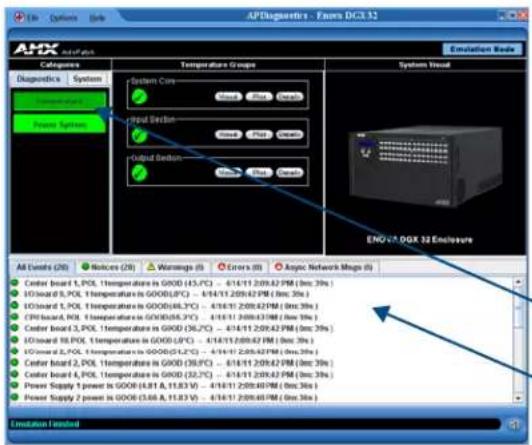
When components in the system exceed their maximum and minimum levels of operation, APDiagnostics flags that information as warnings or errors depending on the data received. APDiagnostics changes the color of the Categories buttons in the Categories pane (top arrow) to yellow for warning or red for error and displays the information as Warnings or Errors in the Event Status Notebook (bottom arrow).
The information displayed in the Event Status Notebook is sorted under the following tabs: All Events, Notices, Warnings, Errors, and Async Network Msgs (Messages).

Note: A yellow or red outline around a data line indicates that the component was previously in a Warning or Error state.
To view information in the Event Status Notebook:
1. Click the applicable tab:
- All Events – comprehensive and sequential listing of all Notices, Warnings, and Errors
- Notices (green checkmark) – data list collected indicating a status of “Good”
- Warnings (yellow!) – data list collected that indicates the Warning set point (high or low) has been exceeded
- Errors (red!) – data list collected that indicates an Error state, i.e., has surpassed or exceeded its allowable maximum or minimum set point
- Async Network Msgs (red!) – list of asynchronous messages received from the connected enclosure that indicate a condition that may need to be addressed
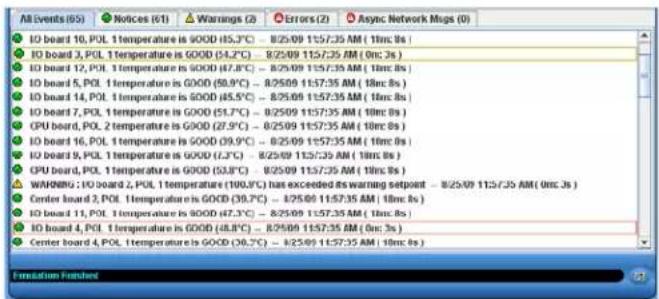
Data lines display for every component that is queried and provide:
● "Green checkmark" (Notice) or "yellow!" (Warning) or "red!" (Error)
- Component description (e.g., Center board 2, POL 2 power)
- General status description (e.g., GOOD, has surpassed ..., has exceeded ..., etc.)
● Date/time stamp for the event (e.g., 8/03/07 5:15:50 PM)
- Elapsed time in minutes and seconds that the component has been in that state (e.g., 7m:25s)
To access a data line context menu:
- Select and then right-click a data line in a list. The context menu options are:
● Show Graph – opens a Plot View of the data points for that component
- Icon/Date/time stamp* (information only; not selectable) – indicates the most recent time that the component was in that respective state
- Reset Selected Item*
- Reset All Items
* These menu items only appear when a data line is outlined in yellow or red.
Types of Files
The following three types of files are zipped and archived. The file name for each includes the date and time zipped: for example, Diagnostic_03.02.09_14.24.50.zip (zipped on March 2, 2009 at 2:24:50 pm).
- Log (.apd, .zip) – contains all data displayed in the APDiagnostics interface in text format. Can be loaded when the program is opened in Emulation mode to view data for trend analysis and troubleshooting; see page 227.
- Packet (.acp) – contains all system activity data (packet transactions between APDiagnostics and the enclosure) in libpcap format. Advanced users can open .acp files with a packet/network analyzer, such as "Analyzer" (http://analyzer.polito.it/).
- Activity (.log) – displays system activity in the Activity Log dialog box in text format.
Application Preferences
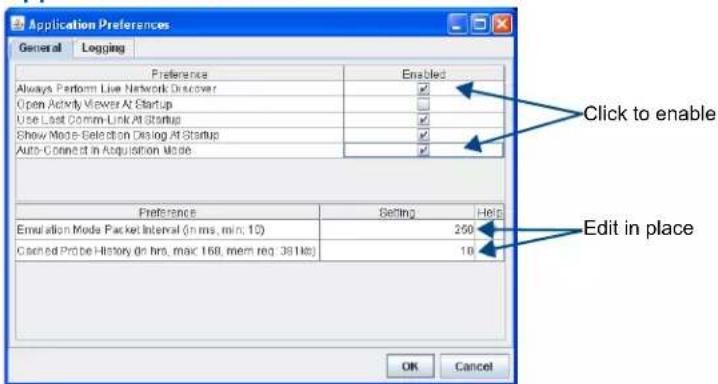
To access the Application Preferences dialog box and set preferences:
- Select Options > Preferences.
The Preferences dialog box has two tabs: General and Logging.
General Tab
To set general application preferences:
- For the upper set of preferences, click the applicable Enabled check boxes.
● Always Perform Live Network Discover* (selected by default)
- Open Activity Viewer at Startup
- Use Last Comm-Link at Startup (selected by default)
● Show Mode-Selection Dialog at Startup (selected by default)
● Auto-Connect in Acquisition mode (selected by default)
- For the lower set of preferences, edit information in place (Help boxes appear).
● Emulation Mode Packet Interval
- Cached Probe History
- Click OK.
* If this preference is "off," the program will use the last XNNet ID stored in its registry (and expects that enclosure to be present).
When processing a set of archived files in Emulation mode for analysis, you can control how fast or slow the files are processed by adjusting the "Emulation Mode Packet Interval" setting on the General tab of the Application Preferences dialog box. If you are viewing graphs while the data is being processed, specifying a larger interval value will allow the program to be more responsive as the Plot Views can be processor intensive in the face of fast playbacks.
Important: APDiagnostics keeps a cache of historical data points in memory for status of all components that it monitors. These data points can then be displayed in the Plot Views for trend analysis. You can control the amount of system memory APDiagnostics will use for this historical data by setting the "Cached Probe History" value on the General tab. (The Max. Cached Probe History is 168 hours. For default values, see the dialog box.) Large history sets may impede performance of the application, so set this value in accordance with the resources available on the target PC.
Logging Tab

To set the preference for Start .acp Logging At Startup:
- Click the Enabled check box.
- Click OK.
To change settings:
-
Edit in place (for default values, see the dialog box):
-
Log File Maximum Size*
● Diagnostic Log Directory Max Size -
ACP Log Directory Max Size
● Activity Log Viewer Directory Max Size -
Click OK.
* Log files are automatically zipped when the maximum size specified in this field is reached. This size value applies to all three log file types.
Tip: The amount of disk space allocated for archived files can be controlled by specifying the amount of disk space to allocate for each of the three file types that are generated and archived while APDiagnostics is running in Acquisition mode. You can also specify how big the active Log file should get before it is archived and a new one is started. These parameters are specified on the Logging tab.
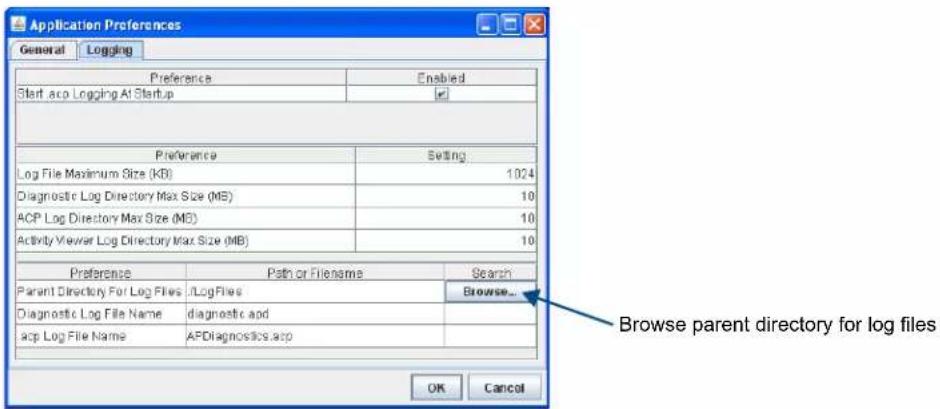
To specify the root level folder for storing all Log files:
1. Browse the parent directory for log files.
Once specified, the files are stored as follows:
- .apd files in a subfolder named "diagnostic"
- .acp in a subfolder named "acp"
- .log files in a subfolder named "activity"
Note: The "Diagnostic Log File Name" and the ".acp Log File Name" can be changed by editing in place, but cannot have a specified path.
Zip Log Files
In the event that you need to zip a set of files and send them to technical support, use the Log File Zip Utility dialog box to create a single archive file to email.

To zip log files:
- Select File > Zip Log Files.
- Under Include, click the check box for each of the files needing zipped.
- Click individually or use any of the first three option buttons along the bottom.
- Select multiple, consecutive files by holding down the Shift key and clicking the first and last files in a range of files.
- Select multiple, nonconsecutive files by holding down the Control key and clicking on individual files.
-
Click Zip Files.
-
Click Close.
Load Log Files (Emulation Mode Only)
To load log files:
- Select File > Load Log File.
- From the Open dialog box, navigate to the location the application is storing the .apd files (the default location is LogFiles > Activity in the installation directory).
- Open the desired .apd and/or .zip file(s). The Status bar at the bottom indicates which file is being processed (for example, "Processing file 2 of 3").
Activity Log
A diagnostics window where all activity is logged in detail keeps track of the application's activity while it is running. The logging can be paused and resumed as required. The logged information can also be deleted (Clear Pad). The level of logging can be specified as: Critical, General (default), or Detailed.

To select options in the Activity Log:
-
Select Options > Show > Activity Log.
-
Click Pause Logging or Clear Pad as needed (change Log Level if desired).
Communications
APDiagnostics communicates with a single enclosure at a time in Acquisition mode. (Only a single instance of the application can run on a PC when in Acquisition mode.)
Note: The Comm menu item is available only in Acquisition mode because communication with a system is not required to run APDiagnostics in Emulation mode.
The communication link can be disconnected at anytime (thus freeing up the COM port for use by other applications) and then reconnected when needed. The program will reset itself when the reconnection occurs. Due to the potentially high volume of information being processed from the attached enclosure, we recommend using the Ethernet connection whenever possible.
To change the Comm Settings (in Acquisition mode only):

-
Select Comm > Settings. The Comm Setting Dialog box opens.
-
Ethernet – Select the Ethernet tab and enter the NIC ID.* Or
Serial Port – Select the Serial Port tab and enter the Comm ID and baud rate (default 9600).
- Click Accept.
* The NIC ID, which is also known as the MAC address (e.g., 00-1E-4F-A1-82-5D), is provided on a label directly above the Control port on the CPU (see FIG. 7 on page 19).

Appendix D – Programmer's Interface for System Diagnostics
System Component Information
The Enova DGX Switcher displays system information in the splash screen* for diagnostic purposes. The information indicates the current status and well-being of the system components.
![scr! [1:Enclosure] AMX Enova DGX 32 [2:Storage Blocks] cleared [3:Communication Interfaces] count = 3 [4:Hardware Boards] detected [5:VM Configuration] count = 1 [6:Power System] good [7:System Sensors] detected](/content/2026/06/1223272/images/7a9cc1a21279dff80b1cdc2d50931054fb436f6ad3391ecb7717ff84fdeae90d.jpg)
Command entered to display minimal information for all system components
The system's component identity numbers are to the left of each component
FIG. 120 Example of a default Enova DGX 32 splash screen
The splash screen can be accessed using a terminal emulation program, e.g., the terminal in NetLinx Studio (Tools/Terminal Session), DGX Configuration Software (see page 189), or another terminal emulation program. One of four verbosity** settings is specified, which provides either a list of the seven system components with minimal information (FIG. 120) or a level of detailed information on one of the seven components. Only one verbosity setting and one component setting can be entered in a command. The order in which the verbosity and component settings are entered is interchangeable.
* AMX reserves the right to add to the contents of the splash screen at any time, without notice.
**Verbosity (i.e., wordiness) refers to the amount of information given; the higher the verbosity setting, the more information is displayed.
Note: DGX_SHELL commands are another resource for accessing diagnostic information for a system (see page 247).
Verbosity Settings
The verbosity (v) settings (v0, v1, v2, v3) correspond to the level of detail that will be displayed, with v0 being the lowest level of detail and v3 being the highest level.
Component Identity Settings
Detailed information for a single system component can be specified by using its identity (i) number setting (i1 through i7 and i9) in the following table. Minimal information for the first seven components can be specified by using the identity number i0.
| Component Identity Number | |
| All Components i0 | |
| Enclosure i1 | |
| Storage Blocks i2 | |
| Communication Interfaces i3 | |
| Hardware / Boards i4 | |
| VM Configuration i5 | |
| Power System i6 | |
| System Sensors i7 | |
| Board CPU Information* i9 | |
* The BCPU component does not show in response to the \~scr! command. For an example of the component's display, see FIG. 126 on page 232.
Default Settings
- At system boot, the \~scrv0il setting is displayed (FIG. 121 on page 231).
- If the verbosity setting is omitted, the verbosity level will be the lowest (v0).
- The component setting must be included; otherwise, entering any of the verbosity settings alone will result in a display equivalent to v0i0.
- If both settings are omitted during a query (\~scr!), the information displayed will be at the lowest verbosity level for all components (v0i0) (FIG. 120 on page 229).
Using BCS to Access System Diagnostic Information
Instructions are given for accessing the lowest level of verbosity for all components and for accessing a specific level of verbosity for a specific component.
To access the lowest level of verbosity for all components:
- Enter \~scr! or \~scrv0i0!
Note: Either of these commands provides a "menu" of the identity numbers and their corresponding components (FIG. 120 on page 229).
Only one verbosity setting and one component setting can be entered in a command. The order in which the verbosity and component settings are entered is interchangeable.
To access a specific level of verbosity for a specific component:
- Enter \~scr (to access the splash screen).
- Enter the verbosity level setting v# and the component identity setting i#. Either may be specified first.
- Enter! (to send the command).
Example
\~scrv3i6! or \~scri6v3! (Either displays the highest level of detail for the Power System.)
Splash Screen Examples
Note: AMX reserves the right to add to the contents of the splash screen at any time, without notice.
Power-Up Splash Screen
The first example is of the splash screen that displays when power is applied to the enclosure. When “Ready” appears, BCS commands can be entered for executing switches, verifying status, querying the system for diagnostic information, etc.
![[1:Enclosure] ANX Enova DGX 16 v1.0.18 Razdy Firmware version](/content/2026/06/1223272/images/de7b0a8bd3a1e99f03aaaad11f48d828fda403b696bf52f4fad2560fc2f63435.jpg)
FIG. 121 Power-up splash screen in DGX Configuration Software's Terminal view
Splash Screens Displaying System Information
Following are six examples of splash screen information from an Enova DGX 16 that could display when different verbosity/component settings are specified. Depending on the amount of detail provided, you may need to scroll to see the entire display.
The command in the first example, \~scrv3i1, can be used to check the host software (IOS) version and the hardware driver (appcode) version.
![scrv3ill! [1:Enclosure] ANX Enova DGX 16 [host software] v3.6.0 [hardware driver] v1.0.1 R [build date] July 22 2011 11:29:26 [pld variation] A' [anet address] 0x11023 [ay system id] 0x0 [nyram status] valid.. user preference restored [nyram magic] 0xeddafaba [nyarav id] 1](/content/2026/06/1223272/images/fac7a32dbd2f9eb611d1747f39b63587e9d8696ee63ffeb08f6a9300094c1f78.jpg)
FIG. 122 Display for v3i1 (verbosity 3, component 1)
![-serv117: [7:system sensors] detected [10 board 1 sensors] detected [10 board 2 sensors] detected [10 board 5 sensors] detected [10 board 8 sensors] detected [center board 1 sensors] detected [signal sense] [fan controller 1] detected](/content/2026/06/1223272/images/fe0d038fb40cf6c98e96553439973cd9fce70278ac245aa858c01b9953bb53cb.jpg)
FIG. 123 Display for v1i7 (verbosity 1, component 7)
![[7:system sensors] detected [10 board 1 sensors] detected [temp 1] 25.0c [10 board 2 sensors] detected [temp 1] 25.0c [10 board 5 sensors] detected [temp 1] 26.0c [10 board 8 sensors] detected [temp 1] 26.0c [center board 1 sensors] detected [temp 1] 26.0c [signal data]](/content/2026/06/1223272/images/1acac51d2cfd76fe89433cf1b3661a56c59677fd6d36fb791b3f8b992bef153d.jpg)
FIG. 124 Display for v2i7 (verbosity 2, component 7)
![-scrv3161 [6:Power System] good [status flags] 0x0001 [available system power] 936w [required system power] 236w [ac power slot ] good [status flags] 0x00 [available power] 936w [output power] 120.31w [voltage] 12.031v [current] 10.000s [ran speed] 5020 rpm [service hours] xxx [model#] CAROS172PPEX701A](/content/2026/06/1223272/images/91594d82316ebe7f8437374d6b9394ce072ba0a3053f29862c395ffe4dfcd430.jpg)
FIG. 125 Display for v3i6 (verbosity 3, component 6)
![serv319 [9:8CPU info] [input board 1] [current state' on [version] vi.0.5.1 [hardware id] 0 [target id] 0 [sysrev id] 1 [input board 2] [current state, empty [input board 3] [current state, on [version] vi.2.0.15 [hardware id] 1 [target id] 0 [sysrev id] 1](/content/2026/06/1223272/images/4fbd0b830bbdb7ced56105b330780d8da697f38bee58c439e911e6eb67250c32.jpg)
FIG. 126 Display for v3i9 (verbosity 3, component 9)
![[4:Hardware Boards] detected [switching drivers] count = 1 [mtx driver 1.1] 16x16 switching driver [revision] 0x35 [mtx driver 1.2] 16x16 switching driver [revision] 0x35 [input boards] count = 2 [board 1] c0ed [board 2] c0e0 [board 3] 0000 [board 4] 0000 [output boards] count = 2 [board 5] 8000](/content/2026/06/1223272/images/99668000f16a13e34042869fe215967560c77c08a549e069858adca5c8181629.jpg)
FIG. 127 Display for v3i4 (verbosity 3, component 4)
Appendix E – Adding or Replacing Boards
Applicability
This appendix covers the removal and replacement procedure for the Enova DGX input and output boards listed in the tables below. Enova DGX input and output boards are hot-swappable, i.e., the procedure can be done while the system is powered up. (If the board being removed or installed is a DGX SC Optical Board, be sure to read the first Caution in "Safety Recommendations for Laser Products" on the next page.) The Enova DGX AIE Boards are not hot-swappable.
Input and Output Boards
Enova DGX DVI Boards
| Type Part # Model | |
| Input FG1058-600 DGX-I-DVI | |
| Output FG1058-610 DGX-O-DVI |
Enova DGX HDMI Boards
| Type Part # Model | |
| Input FG1058-540 DGX-I-HDMI | |
| Output FG1058-550 DGX-O-HDMI |
Enova DGX DXLink Twisted Pair Boards
| Type Part # Model | |
| Input FG1058-570 DGX-I-DXL | |
| Output FG1058-580 DGX-O-DXL |
DXLink Fiber Boards
| Type Part # Model | ||
| Input FG1058-622 DGX-I-DXF-MMD | ||
| Output FG1058-632 DGX-O-DXF-MMD | ||
| Input | FG1058-620 | DGX-I-DXF-SMD |
| Output FG1058-630 | DGX-O-DXF-SMD | |
| Input FG1058-623 DGX-I-DXF-MMS | ||
| Output FG1058-633 DGX-O-DXF-MMS | ||
| Input | FG1058-621 | DGX-I-DXF-SMS |
| Output FG1058-631 | DGX-O-DXF-SMS | |
Epica DGX SC Optical Boards
| Type Part # Model | |
| Input FG1056-505 | AVS-EPDGX32-OI-SC |
| Output FG1056-510 | AVS-EPDGX32-OO-SC |
Expansion Boards
The Enova DGX Audio Insert/Extract Board (FG1058-705) can be replaced or added using the procedure in this appendix. However, we recommend using the procedure in the “Audio Insert/Extract Board” chapter because it includes instructions for setting the DIP switches to insert or extract audio (see page 140).
Important: If you plan to use the instructions in this appendix, remember that the Audio Insert/Extract Board must be installed in an expansion slot. This board is not hot-swappable; be sure to power down the system.
Procedure Overview
Important: Adding or replacing boards should only be done by personnel trained to handle ESD sensitive parts and assemblies.

ESD Warning: To avoid ESD (Electrostatic Discharge) damage to sensitive components, make sure you are properly grounded before touching any internal Enova DGX materials. Use an ESD wristband and cord with an alligator clip attached to a good ground source.
Items Required
- Enova DGX board(s)
- Phillips #1 screwdriver
● ESD wristband and cord with alligator clip
● PC with terminal emulation program and a null modem serial cable (RS-232)
Safety Recommendations for Laser Products

Warning: DXLink Fiber uses a Class 1 laser product to send signals. While the Class 1 category indicates that the invisible laser used is safe, we recommend avoiding direct eye exposure when using any optical fiber product.
Caution: The safety recommendations for laser products include applying power last. If instead of powering down during the board replacement procedure, you decide to take advantage of the DGX SC Optical Board's ability to hot-swap, be sure that you follow the rest of the laser safety recommendations here and in the instructions when replacing DGX SC Optical Boards.
Caution: Use of controls or adjustments or performance of procedures other than those specified herein may result in hazardous radiation exposure.
Important: No user serviceable parts are included inside Enova DGX enclosures; service should only be done by qualified personnel.
Exercise caution when installing Epica SC Fiber and DXLink Fiber products to avoid direct eye exposure to invisible laser radiation. Follow the recommendations below whenever installing or working with these fiber products.
☐ Be sure to apply the power only after all fiber connections are made and no fiber ends are exposed.
☐ Do not remove dust plugs from SC fiber and DXLink Fiber connectors or the dust caps from the fiber cables until establishing connections; avoid direct eye exposure.
☐ Make sure all cables, including fiber cables, are correctly connected and/or terminated.
Before you unplug a fiber cable on an input board, disconnect the power on the DGX TX that is connected to the input.
Before you unplug a fiber cable on an output board, disconnect the switch for that output connector.
Adding or Replacing a Board
Important: When replacing a board, be sure to install the new board in the same slot that held the original board to make sure the switching commands are correct.
In almost all cases, Enova DGX Switchers are configured to accommodate a full enclosure's worth of boards and do not require modification to the configuration file when a board is added. If you cannot execute switches with the new board after it has been installed, the configuration file may need to be updated; see "Board Troubleshooting" on page 238.

Caution: Cable management bars are not to be used as handles to remove or install boards.
In the following procedure, read each step entirely. The steps include helpful tips to avoid damage to the enclosure's internal cables and connectors.
Important: The Audio Insert/Extract board is not hot-swappable; when installing an AIE Board, be sure to power down the system.
To remove and replace an Enova DGX board:
-
Optional – If the board being replaced has custom settings that have not been saved, use DGX Configuration Software to save the settings now (see page 189).
-
Optional – For SC Optical Boards, we recommend unplugging the AC power cords from both of the power supplies (be sure to read the first Caution at the top of this page.)
-
Enova DGX 32 only – Loosen the captive screw on each end of the connector numbering plate above the boards, and set the plate aside.

FIG. 128 Enova DGX 32 only - Two captive screws hold numbering plate above boards
-
If applicable – Label and disconnect all cables on the board being replaced. If cables from adjoining boards obstruct access, label and disconnect them as necessary. If the enclosure is not powered down:
-
For disconnecting an SC Optical Input Board – Before disconnecting the fiber cables, disconnect the power on the DGX TX Modules that are connected to the inputs.
-
For disconnecting an SC Optical Output Board – Before disconnecting the fiber cables, disconnect the switches for those output connectors.
-
Remove blank board plate – Remove the screw that holds the board plate in place (for Enova DGX 32, see FIG. 129; for Enova DGX 8/16/64, see FIG. 130). Pull the plate out of the board slot opening (the tab on the end of the board plate fits in a slot near where the ejector handle would otherwise go). The plate consists of an aluminum sleeve with a black metal piece, which slides in and out of the sleeve, and an EMI (Electromagnetic Interference) gasket.
Or
Remove current board – Remove the pan head screw that holds the board in place (for the Enova DGX 32, see FIG. 129; for the Enova DGX 8/16/64, see FIG. 130). Push on the board's extractor handle as far as it will go (about a 45" angle). With the handle extended, carefully pull the board straight out of the board slot. Place the board in an ESD approved static shield bag and set aside.
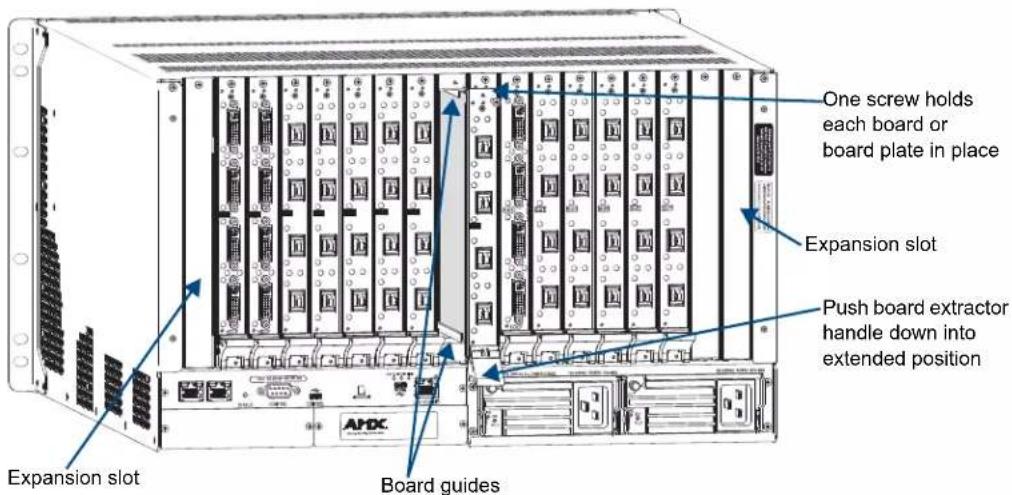
FIG. 129 Enova DGX 32 - Remove screw, push board extractor handle down, and then pull board straight out
Important: If for any reason you need to reinsert a board back into the same slot, be sure to allow at least 15 seconds between removal and reinsertion to allow time for the board to power up.
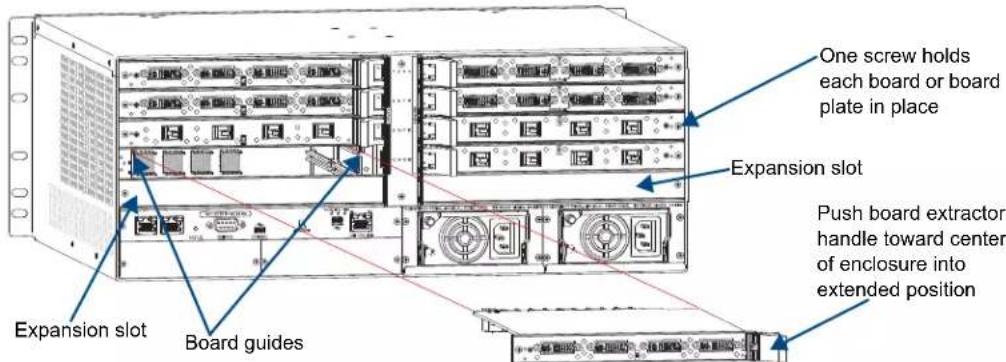
FIG. 130 Enova DGX 8 (16/64) - Remove screw, push extractor handle right (input) or left (output), pull board straight out
Caution: Each Enova DGX board has an EMI gasket along one edge of the faceplate. Handle the boards carefully to avoid dislodging or damaging the gasket on the board being installed and the gasket on the adjacent board or blank plate.
Caution: For SC Optical and DXLink Fiber Boards, do not remove dust plugs from their fiber connectors until Step 12.
- Audio Insert/Extract Boards only – See page 140 for information on setting the DIP switches (this is the only way to configure the insert/extract functionality). Flip the DIP switch for each connector that needs its setting changed. We recommend writing down the setting for each connector to make verifying correct audio switching behavior easier in Step 14. AIE Boards can only be installed in an expansion slot (FIG. 129 and FIG. 130).
- Install board in Enova DGX 32 - With the board's extractor handle in the extended (unlocked) position, line up the board's edges on the board guides that are along the top and bottom of the board slot (FIG. 129).
Or
Install board in Enova DGX 8/16/64 – With the board's extractor handle in the extended (unlocked) position, line up the board's edges on the board guides that are along the left and right of the board slot (FIG. 130). Note that input boards have board guides at the top of the slot and board guides for the output boards are at the bottom of the slot due to their reversed orientation in the enclosure.
- Begin pushing the board into the slot until the extractor handle starts to engage the metal extractor plate (the extractor handle moves into its folded position).
When the extractor handle starts to lift, flip the handle toward the center of the board until it snaps into its folded (locked) position, which firmly seats the board. - Fasten the screw (which was removed in Step 5) that holds the board in place. This screw must be tightened securely before connectors are attached in Step 13.
- If the enclosure was powered down – Plug the AC power cords back into the power supplies.
- Verify that the system recognizes the board:
a. Attach a PC to the serial port on the enclosure with an RS-232 null modem cable (pinout for PC to enclosure: 5 GND to 5 GND, 2 RXD to 3 TXD, and 3 TXD to 2 RXD).
b. Open NetLinx Studio (v4.0 or later).
C. Select Tools/Terminal Session (if you use another terminal emulation program, be sure to set the COM port and the communication settings per the next sub-step). The Terminal Window Communication Settings dialog box opens.
d. Set the COM port and the Serial Settings (Enova DGX default settings: 9600 Baud / 8 / None / 1 / None); click OK.
e. Enter the command \~scri4v3! and press the Enter key.

f. Check to be sure the new board is included in the input or output boards list (FIG. 131). (Audio Insert/Extract Boards are listed under "expansion boards.") If not, re-seat the board and enter the command again. (Do not disconnect the terminal program until after Step 16 is successful.)
![~scri4v3! [4:Hardware Boards] detected [switching drivers] count = 1 (Scroll past switching drivers information to view board information.) [input boards] count = 8 [board 1] c0e0 [board 2] c0e0 [board 3] c0e0 [board 4] c0e0 [board 5] c0e0 [board 6] c0e0 [board 7] c0e0 [board 8] c0e0 Number of boards listed must match the actual number of boards in the enclosure](/content/2026/06/1223272/images/7a2072cbb245759e69bb113a5837de3de981e325f22362766a2fa276e4fa3ae7.jpg)
FIG. 131 Splash screen showing boards in the system (Enova DGX 32 example with 8 input boards)
- Optional for systems with SC Optical Boards – Power down the enclosure again.
Note: If using a cable management bar, tie the cable to the cable management bar far enough below the connector to allow for the manufacturer's recommended bend radius. The bend radius for AMX SC terminated fiber cables is 2 inches (5 cm).
- Attach cables to the board's connectors* and reconnect any other cables that were disconnected in Step 4 (if applicable – tie cables to cable management bars).
If the enclosure is not powered down:
- For connecting an SC Optical Input Board – Avoid direct eye exposure as you (a) remove the dust plugs from the SC fiber connectors on the board, (b) remove the dust caps from the fiber cables, (c) establish the connections, and (d) apply power to the DGX TX Modules that are connected to the inputs.
-
For connecting an SC Optical Output Board – Avoid direct eye exposure as you (a) remove the dust plugs from the SC fiber connectors on the board, (b) remove the dust caps from the fiber cables, and (c) establish the connections.
-
If the enclosure was powered down – Reapply power.
- Optional – If you have custom board settings to load to the board, use DGX Configuration Software to load them now (see page 189).
- Execute a test switch using a connection on the new board to be sure that video is present at the destination (Control Panel: press Function Key, Select Key, Input Key, Output Key, and Take Key).
• Additional testing for Audio Insert/Extract Board functionality:
- Insert function – If the DIP switch for the audio connector is set to insert, the video signal from the corresponding video input or output will carry the inserted audio; check that the inserted audio is present with the display.
- Extract function – If the DIP switch for the audio connector is set to extract, the audio will be extracted from the corresponding video input or output signal; check the auxiliary or supplemental audio equipment involved to be sure the extracted audio signal is present where expected.
If the test switch does not work, see "Board Troubleshooting" on the next page.
- Enova DGX 32 only – Replace the connector numbering plate that was removed in Step 2.
* If you need cabling information, see the specific board chapter in this manual.
Important: If for any reason a board slot is left empty, be sure to attach a blank plate to cover it.
Additional Board Information
HDMI and DVI Boards
If the boards do not have custom settings, they will default to the Scaler mode of “Auto” and an override resolution of 1280x1024. If necessary, DGX Configuration Software is available for configuring these boards (see page 189). DGX Configuration Software is available at www.amx.com
DXLink Twisted Pair Boards
For information on DXLink Boards and system setup with DXLink Transmitters and Receivers, see page 99.
DXLink Fiber Boards
For information on DXLink Fiber Boards and system setup with DXLink Fiber Transmitters and Receivers, see page 108.
SC Optical Boards
For information on SC Optical Boards and system setup with DGX Fiber Modules, see page 133.
Audio Insert/Extract Board
For compete information on the Audio Insert/Extract Board, see page 136.
Board Troubleshooting
Problems with Board Power Up
If for any reason, you remove a board and then reinstall the board in the same slot, be sure to allow at least 15 seconds in between removal and reinsertion, or the board may not power up correctly. To verify that all I/O boards have been powered up after hot-swapping, enter \~scri6v3! in a terminal emulation program and verify that none of the boards report an “alarm” (see FIG. 132 below).
![~scri6v3! [io board 13 pol 1] good [status flags] 0x0 [voltage] 4.93v [current] 1.33a [temp] 29.2c [io board 14 pol 1] alarm [status flags] 0x2 [voltage] 0.00v [current] 0.35a [temp] 0.0c [10 board 15 pol 1] good [status flags] 0x0 [voltage] 4.96v [current] 1.33a [temp] 29.1c](/content/2026/06/1223272/images/35cb7cd18dcdc5ce17c3e28418b8d567213df5c10243df230f6b466773417059.jpg)
FIG. 132 Terminal information showing an "alarm" for a board that has not powered up correctly
If an alarm is reported, the board must be manually powered back up using the DGX_SHELL command power ON BCPUx where x is the slot number of the board (for additional information on DGX_SHELL commands, see page 254).
Tip: A complete list of the DGX_SHELL targets, BCPUx, is in the "Product to Board Slot Correspondence" table on page 249.
Problems with Executing Switches
If you cannot execute switches with the new board after it has been installed, the first thing to do is verify the system's configuration by entering \~scri5v3! in a terminal emulation program (FIG. 133). This command retrieves information on the crosspoint size of the virtual matrices (VMs), which determine the routing of signals.
Note: The configuration file is automatically generated by the system based on its hardware – input and output boards, expansion boards, front control panel, CPU, etc. If boards are added during runtime, they are immediately added to the system's configuration.
From the factory, the automatically generated configuration contains two VMs: VM 0 = all signals and VM 1 = video signals.
The crosspoint size for each VM is set at:
- 8x8 for an Enova DGX 8 (two input and two output boards)
- 16x16 for an Enova DGX 16 (four input and four output boards)
- 32x32 for an Enova DGX 32 (eight input and eight output boards)
- 64x64 for an Enova DGX 64 (sixteen input and sixteen output boards)
![~scri5v3! [5:VM Configuration] count = 2 [vm 0] 'All' 32x32x1 [vm 1] 'Video' 32x32x1 [vm 0 master] 0x11000 master 0 0 1 (self) [vm 1 master] 0x11000 master 0 0 1 (self)](/content/2026/06/1223272/images/82b2f0eafecb64bbea497daf7ff2ff9df6954fc2dbf72cf53295db22be531bb5.jpg)
FIG. 133 Splash screen information indicating a standard configuration file for an Enova DGX 32
If the crosspoint size is less than full (e.g., 24x24 in an Enova DGX 32) and the new board increases the size past the size indicated on the splash screen, then the system was customized for a non-standard crosspoint size that is not large enough to accommodate the new board. The configuration file must be updated before the new board will work (see "Updating the Configuration File" below).
If the crosspoint size is large enough to accommodate the new board and you still cannot execute switches, contact technical support (see page 75).
Updating the Configuration File
If the configuration file requires updating (as explained in the previous section), read both choices listed to determine how to proceed.
- If the system's configuration file has not been modified since it was shipped from the factory, enter \~def! in a terminal emulation program* to establish the default configuration of 8x8, 16x16, 32x32, or 64x64 with two VMs.
- If the original configuration has been modified in any way (e.g., local presets were added), we recommend sending a copy of the modified file to technical support (see page 75), so they can add support for the board change to the modified file before you download the file to the CPU (downloading requires XNConnect software; see page 215).
* Use the terminal in NetLinx Studio (Tools/Terminal Session), DGX Configuration Software (see page 189), or another terminal emulation program.
Appendix F – Program Run Disable Mode
Important: The information in this appendix is not applicable under normal operating conditions.
The Program Run Disable (PRD) mode prevents the NetLinx program stored in the integrated Master from running during the Enova DGX enclosure's power-up.
This appendix provides instructions for the following:
- Enova DGX 8/16/32/64 with an NX Series Master – Placing the system in PRD mode (immediately following).
- Enova DGX 8/16/32 with an NI Series Master – Removing a CPU board and setting the Configuration DIP switch to place the integrated Master in PRD mode (see next page).
Important: The PRD mode should only be used if the resident NetLinx program is causing inadvertent communication and/or control problems.
Program Run Disable (PRD) Mode (NX Series Integrated Master)
The following information applies when the system has an NX Series Integrated Master.
Two methods are available for placing the integrated Master into PRD Mode: using a Telnet command (recommended) or using the Configuration DIP switch on the CPU daughter board (requires removing the CPU from the enclosure).
To change the PRD Mode and resolve communication and/or control problems:
- Send the Telnet command: program disable (places the integrated Master into PRD Mode).
- Use NetLinx Studio (v4.0 or later) to resolve the communication and/or control problems with the resident NetLinx program.
- Download the corrected program.
- Send the Telnet command: program enable (places integrated Master back into Normal mode).
- Try communication and/or control again.
NX Series – Configuring DIP Switch Mode Settings (optional)
The Configuration DIP switch can be used to set the integrated Master to PRD Mode according to the settings listed in the table below. Although the procedure for CPU board removal (to expose the Configuration DIP switch) is similar to that used for the NI Series Master, the NX Series Master Configuration DIP switch is located on the top of the CPU daughter board, rather than on the side (the system must be powered down). We recommend using the Telnet option in the procedure above to place the integrated Master into PRD Mode.
| NX Series PRD Mode Settings | ||
| Mode Position 1 | ||
| Normal Mode (default) OFF | Normal Mode | |
| PRD Mode ON | PRD Mode | |
Important: Regardless of any markings on the Configuration DIP switch, the settings shown here are the correct settings for the NX Series integrated Master: All switches are towards the "0" for OFF and only switch #1 towards the "1" for ON.
Program Run Disable (PRD) Mode (NI Series Integrated Master)
The following information applies when the system has an NI Series Integrated Master.
The CPU board must be removed from the enclosure to access the DIP switch, which is mounted on the right side of the board. The procedure can be done while the enclosure is in a rack, but the system must be powered down.
NI Series – Configuration DIP Switch Mode Settings
The Configuration DIP switch is used to set the integrated Master to PRD Mode according to the settings listed in the table below.
| NI Series PRD Mode Settings | ||
| Mode Position 1 | ||
| Normal Mode (default) OFF | Normal Mode NO | Important: The DIP switch is mounted with the ON position at the bottom. |
| PRD Mode ON | PRD Mode NO | |
Note: Think of the PRD mode (ON) equating to a PC's "SAFE" mode setting. PRD mode allows you to power a unit, update the firmware, and download a new program while circumventing any problems with a currently downloaded program. Power must be cycled to the enclosure after activating/deactivating this mode on the Configuration DIP switch Position #1.
Removing the CPU Board (NI Series only) and Setting the DIP Switch
Caution: Do not remove the CPU board until you are ready to change the Configuration DIP switch.
Items Required
- Phillips #1 screwdriver
● ESD wristband and cord with an alligator clip

FIG. 134 CPU board
Note: The following procedure requires that the CPU board be removed, the DIP switch set to PRD mode, the CPU board reinstalled, and resolution of the communication and/or control problem. The procedure also includes removal of the CPU board a second time to reset the DIP switch back to Normal mode.

ESD Warning: To avoid ESD (Electrostatic Discharge) damage to sensitive components, make sure you are properly grounded before touching any internal Enova DGX materials. Use an ESD wristband and cord with an alligator clip attached to a good ground source.
To remove an Enova DGX 8/16/32 CPU board and set the DIP switch:
- Disconnect both AC power cords. Make sure that none of the power supply LEDs are illuminated.
-
Disconnect all cables connected to the CPU.
-
Remove the two screws from the CPU faceplate: one each on the far left and far right.
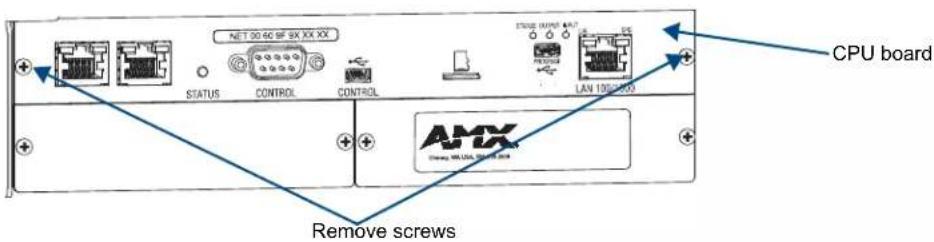
FIG. 135 Remove screws indicated
- Remove the CPU faceplate and set aside.
Tip: Removal of the CPU board is easier if the two metal plates under the CPU are removed first.
- Use the tab indicated in FIG. 136 to pull the CPU board straight out of the enclosure.
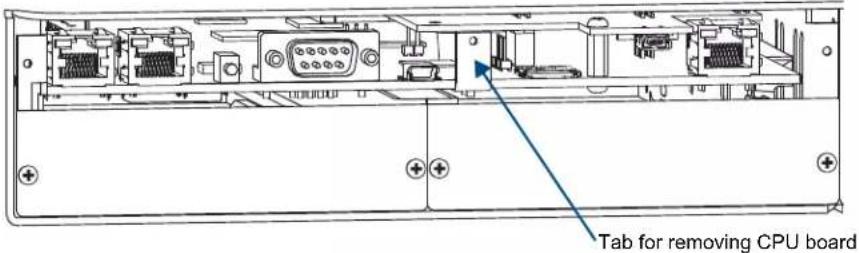
FIG. 136 Use tab to pull CPU board straight out
- Set the Position #1 DIP switch to ON (places the integrated Master into PRD mode). Note that the DIP switch is mounted with the ON position toward the bottom of the board.
Important: NX Series only – DIP switch for setting PRD Mode is located on top of the CPU daughter board, rather than on the side. Take care to use the switch settings for NX Series integrated Masters (see page 240).

FIG. 137 Set Position #1 DIP switch to ON for NI Series
- Slowly slide the CPU board back into the empty slot, being careful to align the edges in the board guides along the insides (FIG. 137).
- Push the CPU board into the enclosure firmly enough to make a good electrical connection (avoid pushing on the connectors). When fully inserted, the faceplate on the CPU board should sit flush with the back metal.
- Reattach the faceplate to the enclosure with the two screws that were removed in Step 3.
-
Plug in both AC power cords.
-
Check the System Status LED on the CPU for indications of normal display (see the table below).

FIG. 138 Check System Status LED indicator
| CPU LED Indicator Normal Display Cautionary Display | ||
| System Status Constant | green during power up, then blinking green at 1/2 second on/off intervals (this applies whether the Master is in Normal mode or PRD mode) | Blinking red/green: an exception has been logged in IOS (validation failure)Blinking red: dropped into IOS mode* |
* A system is in IOS mode when an unexpected, temporary, critical error is trapped and logged and control is passed to the host software (IOS) which prevents the normal appcode from running until the error is manually cleared. Please report all such errors to technical support (see page 75).
- Re-attach the cables that were removed in Step 2.
- Execute a test switch to make sure the system is working correctly (see page 59).
- Use NetLinx Studio (v4.0 or later) to resolve the communication and/or control problems with the resident NetLinx program.
- Download the corrected program.
- Follow Steps 1 through 13 again for removing the CPU board and resetting the DIP switch. This time, on Step 6, reset the Position #1 DIP switch to OFF (places integrated Master back into Normal mode).
- Try communication and/or control again.
CPU Troubleshooting
First:
☐ Check all cable connections, check the System Status LED, and execute a test switch.
If the System Status LED is still not illuminated or the test switch does not work:
☐ Remove and re-seat the CPU board to see if the CPU establishes the connection.
If the System Status LED on the CPU does not display normal indications:
☐ Contact technical support (see page 75).
Appendix G – Replacing Battery on CPU
This appendix provides instructions for removing and installing the battery on the CPU for the Enova DGX and setting the CPU's clock. The procedure can be done while the enclosure is in a rack, but the system must be powered down.
The Enova DGX Switcher uses a coin-type (button cell) lithium battery in a timekeeper function. Only one CPU battery is installed within a given enclosure. The battery can be expected to have up to 4.25 years of usable life under very adverse conditions. Actual life is appreciably longer under normal operating conditions. This calculation is based on storing the unit without power in 50irc C ( 122irc F) temperature until battery levels are no longer acceptable.

Warning: Risk of explosion if battery is replaced by an incorrect type. Dispose of used batteries according to the instructions.
Removing and Installing

Caution: Do not remove the CPU board until you are ready to install the CPU battery, unless directed to do so by technical support.
Items Required
● Replacement battery for Enova DGX CPU
- Phillips #1 screwdriver
● ESD wristband and cord with alligator clip

ESD Warning: To avoid ESD (Electrostatic Discharge) damage to sensitive components, make sure you are properly grounded before touching any internal Enova DGX materials. Use an ESD wristband and cord with an alligator clip attached to a good ground source.
To remove and install an Enova DGX CPU battery and set the CPU's clock:
- Disconnect all AC power cords (Enova DGX 8/16/32 – two power cords; Enova DGX 64 – four power cords). Make sure that none of the power supply LEDs are illuminated.
- Disconnect all cables connected to the CPU.
- Remove the screws from the CPU faceplate per the locations indicated in FIG. 139: Enova DGX 8/16/32 – three screws; Enova DGX 64 – seventeen screws.
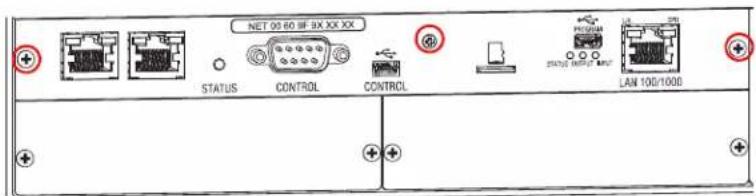
Enova DGX 8/16/32
Enova DGX 64
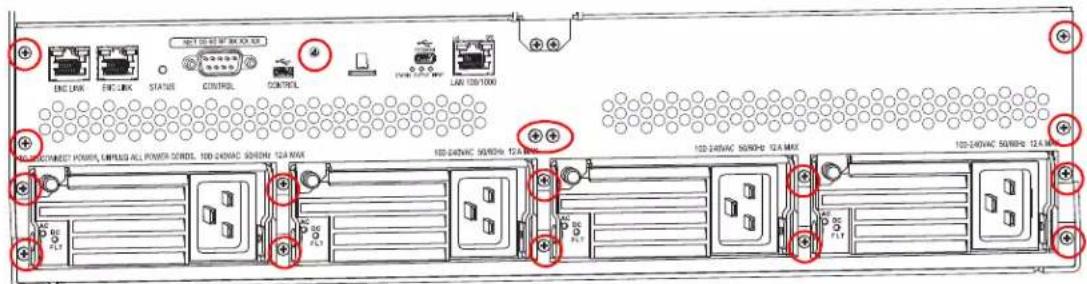
FIG. 139 Remove screws that hold faceplate
- Remove the CPU faceplate and set aside.
Tip: Enova DGX 8/16/32 only – Removal of the CPU board is easier if the two metal plates under the CPU are removed first.
- Use the tab indicated in FIG. 140 to pull the CPU board approximately four inches straight out of the enclosure.
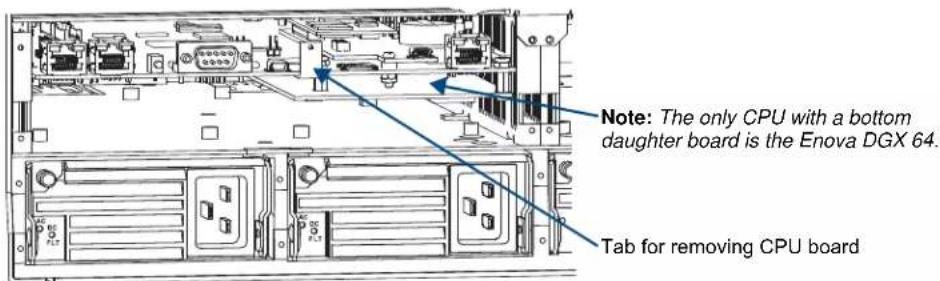
FIG. 140 Use tab to pull CPU board straight out (Enova DGX 64 shown)
- Locate the CPU battery on top of the CPU.
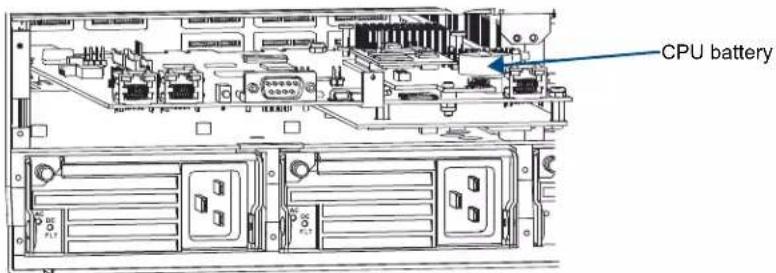
FIG. 141 Locate CPU battery in battery bracket (Enova DGX 64 shown)
- Pull the dead battery out from under the bracket that holds it in place.
Tip: Place thumbnail into access slot under front side of battery and simultaneously push down on the far lip of the battery while pulling the battery clear of the bracket.
- Slide the replacement battery, positive side up (+), into place under the battery bracket.
- Slowly push the CPU board back into the slot firmly enough to make a good electrical connection (avoid pushing on the connectors). When the board is fully inserted, the faceplate that covers the CPU should sit flush with the back metal.
- Reattach the faceplate with the screws that were removed in Step 3.
- Plug in all AC power cords.
- Check the Status LED on the CPU for indications of normal display (see the table at the top of the next page).
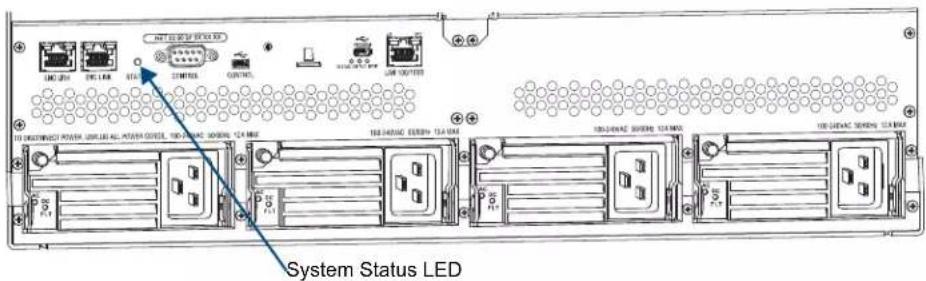
FIG. 142 Check System Status LED indicator (Enova DGX 64 shown)
| CPU LED Indicator Normal Display Cautionary Display | ||
| System Status Constant | green during power up, then blinking green at 1/2 second on/off intervals. | Blinking red/green: an exception has been logged in IOS (validation failure).Blinking red: dropped into IOS mode.* |
* A system is in IOS mode when an unexpected, temporary, critical error is trapped and logged and control is passed to the host software (IOS) which prevents normal appcode from running until the error is manually cleared. Please report all such errors to technical support (see page 75).
13. Re-attach the cables that were removed in Step 2.
14. Execute a test switch to be sure the system is working correctly (see page 59).
Steps 15 through 18 are not optional. They must be completed to set the date and time information on the CPU's clock.
- Establish serial communication and open a terminal:
a. Attach a PC to the serial port on the enclosure with an RS-232 null modem cable (pinout for PC to enclosure: 5 GND to 5 GND, 2 RXD to 3 TXD, and 3 TXD to 2 RXD).
b. Open NetLinx Studio (v4.0 or later).
C. Select Tools/Terminal Session (if you use another terminal emulation program, be sure to set the COM port and the communication settings per the next sub-step).
The Terminal Window Communication Settings dialog box opens.
d. Set the COM port and the Serial Settings (Enova DGX default settings: 9600 Baud / 8 / None / 1 / None); click OK.
-
Enter the command: CTRL+C (to exit BCS and enter the DGX_SHELL)
-
At the prompt (DGX_SHELL>), enter: date -s epoch_count (epoch_count = the current epoch / POSIX time. To calculate epoch time, see http://www.epochconverter.com/.) Example: DGX_SHELL>date -s 1312373647 (Where 1312373647 translates to Wed, 3 Aug 2011 12:14:07 UTC, which is local time)
-
Optional - To display a list** of variables for setting time zone and daylight savings offsets - Enter: DGX_SHELL>set
** datetime_dst=OFF (dst is daylight savings, which can be set to OFF or ON)
    datetime_dst_offset=3600 (dst_offset is daylight savings offset, which is expressed in seconds)
    datetime_tz_offset=0 (tz_offset is time zone offset, which is expressed in seconds)
Offset amounts are entered in seconds (3600 seconds = 1 hour). For example, when setting Pacific Standard Time (PST) in the US, the offset would be -28800 (-8 x 3600, the equivalent of eight hours off Greenwich mean time).
CPU Troubleshooting
First:
☐ Check all cable connections, check the System Status LED, and execute a test switch.
If the System Status LED is still not illuminated or the test switch does not work:
☐ Remove and re-seat the CPU board to see if the CPU establishes the connection.
If the System Status LED on the CPU does not display normal indications:
☐ Contact technical support (see page 75).
Appendix H - DGX\_SHELL Commands
Overview DGX\_SHELL Commands
The Enova DGX Switcher supports a number of shell (command-line interpreter) commands for a variety of functions, both basic and advanced.
General Rules and Information for DGX_SHELL Commands
- DGX_SHELL commands are case sensitive.
- All commands in the DGX_SHELL require an Enter to execute.
- To exit a standard terminal interface (used for BCS commands) and enter the DGX_SHELL, press CTRL+C.
- To exit the DGX_SHELL and return to the standard terminal interface, type bcs and press Enter.
- The DGX_SHELL will timeout automatically; BCS resumes. The length of time can be set using a set command (see page 256). The value zero (0) allows for an infinite timeout.
- Enter help or ? to display a list of the commands supported in the DGX_SHELL.
- Enter help
for detailed usage and options on a specific command. - Enter help -v to display all commands and descriptions.
Although the Help file lists all of the DGX_SHELL commands available for the Enova DGX Switcher, only information on the basic commands (those most useful during installation and setup) are provided in this appendix. The remaining commands (which are also listed in the Help file) are used mainly by technical support for troubleshooting. For additional information on any of the advanced commands, contact www.amx.com/techsupport.

Caution: Incorrect use of advanced DGX_SHELL commands has the potential to alter the operation of the system. We recommend that advanced commands only be entered in conjunction with instructions from technical support.
To enter the DGX\_SHELL from a NetLinx Studio Terminal Session:
- Use a null modem serial cable to connect a PC to the Control port (RS-232 serial) on the enclosure (pinout for PC to enclosure: 5 GND to 5 GND, 2 RXD to 3 TXD, and 3 TXD to 2 RXD).
- Open NetLinx Studio (v4 or later).
- Select Tools/Terminal Session (if you use another terminal emulation program, be sure to set the COM port and the communication settings per Step 4).
The Terminal Window Communication Settings dialog box opens.
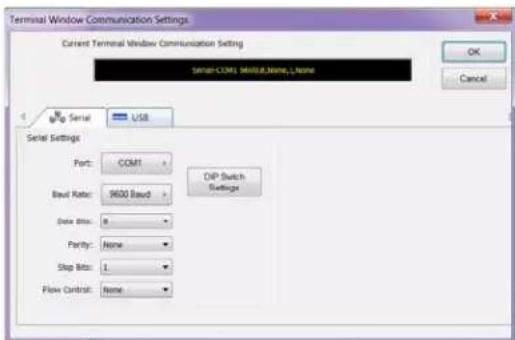
- Set the COM port and the Serial Settings (Enova DGX default settings: 9600 Baud / 8 / None / 1 / None).
5. Click OK.
The Terminal window opens.
-
Press CTRL+C to exit the terminal emulation program and enter the DGX_SHELL.
-
At the prompt (DGX_SHELL>), type the command and press Enter.
Product to Board Slot Correspondence
When a board slot is the target in a DGX_SHELL command, the command specifies BCPUx, where x is the board slot number. To determine the number of the correct board slot to enter in this command, see the following table which provides board slot to product correspondence for Enova DGX Switchers. Note that the board slot numbering starts with the first input board and continues through the output boards.
Note: For targets that need to pinpoint the specific channel on a board, use BCPU:x:y, where the variable y = 0, 1, 2, or 3 (i.e., 0 = the first input or output channel on the board, 1 = the second channel, 2 = the third channel, and 3 = the forth channel).
Product to Board Slot Correspondence
Note: Board slot numbering does not include boards in the expansion slots.
| Product to Board Slot Correspondence | |||
| Product Board Orientation Board Slot Number Connector Numbers | |||
| Enova DGX 8 Horizontal | 1 Inputs 1-4 | ||
| 2 Inputs 5-8 | |||
| 3 Outputs 1-4 | |||
| 4 Outputs 5-8 | |||
| Enova DGX 16 Horizontal | 1 Inputs 1-4 | ||
| 2 Inputs 5-8 | |||
| 3 Inputs 9-12 | |||
| 4 Inputs 13-16 | |||
| 5 Outputs 1-4 | |||
| 6 Outputs 5-8 | |||
| 7 Outputs 9-12 | |||
| 8 Outputs 13-16 | |||
| Enova DGX 32 Vertical | 1 Inputs 1-4 | ||
| 2 Inputs 5-8 | |||
| 3 Inputs 9-12 | |||
| 4 Inputs 13-16 | |||
| 5 Inputs 17-20 | |||
| 6 Inputs 21-24 | |||
| 7 Inputs 25-28 | |||
| 8 Inputs 29-32 | |||
| 9 Outputs 1-4 | |||
| 10 Outputs 5-8 | |||
| 11 | Outputs 9-12 | ||
| 12 | Outputs 13-16 | ||
| 13 | Outputs 17-20 | ||
| 14 | Outputs 21-24 | ||
| 15 | Outputs 25-28 | ||
| 16 | Outputs 29-32 | ||
| Product to Board Slot Correspondence (continued) | |||
| Product Board Orientation Board Slot Number Connector Numbers | |||
| Enova DGX 64* Horizontal | 1 Inputs 1-4 | ||
| 2 Inputs 5-8 | |||
| 3 Inputs 9-12 | |||
| 4 Inputs 13-16 | |||
| 5 Inputs 17-20 | |||
| 6 Inputs 21-24 | |||
| 7 Inputs 25-28 | |||
| 8 Inputs 29-32 | |||
| 9 Inputs 33-36 | |||
| 10 Inputs 37-40 | |||
| 11 Inputs 41-44 | |||
| 12 Inputs 45-48 | |||
| 13 Inputs 49-52 | |||
| 14 Inputs 53-56 | |||
| 15 Inputs 57-60 | |||
| 16 Inputs 61-64 | |||
| 17 Outputs 1-4 | |||
| 18 Outputs 5-8 | |||
| 19 Outputs 9-12 | |||
| 20 Outputs 13-16 | |||
| 21 Outputs 17-20 | |||
| 22 Outputs 21-24 | |||
| 23 Outputs 25-28 | |||
| 24 Outputs 29-32 | |||
| 25 Outputs 33-36 | |||
| 26 Outputs 37-40 | |||
| 27 Outputs 41-44 | |||
| 28 Outputs 45-48 | |||
| 29 Outputs 49-52 | |||
| 30 Outputs 53-56 | |||
| 31 Outputs 57-60 | |||
| 32 Outputs 61-64 | |||
* In the Enova DGX 64, the numbering for input boards starts at the top left of the enclosure going down half way, continuing at the top right of the enclosure going down; the output boards repeat the same pattern in the lower portion of the enclosure (for illustration, see page 21).
Basic DGX\_SHELL Commands
The DGX_SHELL commands listed in the table below can be sent directly to the Enova DGX Switcher via any standard emulation terminal once you enter the DGX_SHELL.
Note: BCPU is the acronym for Board CPU, and AIE is the acronym for Audio Insert/Extract (board).
At the DGX_SHELL prompt, type help or a question mark (?) and press Enter to access the Help Menu, which displays all of the DGX_SHELL commands, including the basic ones described in the table below.
| Basic DGX_SHELL Commands | |
| Command Description | |
| ?help | Either of these commands displays all of the supported commands: those listed in this table, plus advanced commands for troubleshooting (for technical support; see page 75). |
| help -ahelp -v | The help -a command displays a list of all available commandsThe help -v (verbose) command lists the commands and their descriptions.Usage: help {-a} {-v}Note: -a and -v can also be used with the ?. |
| help? | Either of these commands displays detailed usage and options for the command specified.Usage: help {} or ? {} |
| announce | This command sends a network message via a proprietary protocol. Devices on the network that understand the protocol (e.g., HDMI and DXLink Input and Output Boards) respond with identifying information (e.g., IP address) which then gets printed in the shell. |
| bcschannel | This command is used to exit the DGX_SHELL and launch the standard terminal interface where BCS commands can be entered. (No re-logging is required once you leave the DGX_SHELL session.)Usage: bcs {}= bcs syntax command string• bcs with a command argument will execute and then return to the shell.• bcs without a command argument will remain in the BCS Interpreter until exited with a CTRL+C.This is used to read or write video settings for the designated channel (using the command alone results in a dump of the entire system).Important:The channel index (BCPUx:y) relates to the physical input or output port on an input or output board, whose hardware numbering is complex due to the varying orientation of the boards on different Enova DGX products (see the "Product to Board Slot Correspondence" table on page 249). We recommend using the variables 1x and 0x to specify the desired input and output channels (e.g., enter channel -v I25 for Input 25).Note:To persist the -m scaler change to flash (for power on scaler setting), the -p (persist) must also be sent.Usage:channel {-a}{-d{-m{-o{-p}}{-s{-v}{Ix|0x|BCPU|BCPUx|BCPUx:y}Options:-a ar_policy-d flash_dtd-m mode00 = Auto, 01 = Manual, 02 = Bypass-o override_dtd-p persist-v verboseTarget:BCPUBCPUx x = 1-32 (boardID) where x = 1-32 for Enova DGX 64; x = 1-16 for Enova DGX 32; x = 1-8 for Enova DGX 16; x = 1-4 for Enova 8BCPUx:y y = 0-3 (channel-hardware order)Example 1:channel -v BCPU19:0Output: 9 (BCPU19:0) Video: 1920 x 1080p @ 59.9 Hz Audio: 48 kHz, 16 bits DTD:02 3A 80 18 71 38 2D 4058 2C 45 00 00 00 00 0000 1EAUX_MODE:00 01 00AUX_POLICY:01 01 00AUX_SHARPNESS:02 01 00Example 2:channel -m 02 BCPU7:0 //sets the scaler mode of BCPU7:0 to Bypass (02)Output: BCPU7 Channel: 0 port: 0 Video: 1920 x 1080p @ 60.0 Hzchannel -p BCPU7:0 //persists the power-on scaler mode to flash for BCPU7:0Output: BCPU7 Channel: 0 port: 0 Video: 1920 x 1080p @ 60.0 Hz |
| config This command is used to save (back up) or restore configuration settings.Usage: config {aglnpstv} [save|restore]Options:-a archive logs-g global presets-l local presets-n namespace-p partitions-s secondary-do not use during CPU replacement-t vmtable-v shellvarsAlias: ~sysb! [save] | ~sysr! [restore] (do not use during CPU replacement)Important: Do not use the config command's -s option or the ~sysb! and ~sysr! commands during CPU replacement. For instructions on saving and restoring CPU settings for CPU replacement, see page 71.Basic DGX_SHELL Commands (continued) | |
| date | This command displays both run-time clock and system time information and the time of the last NTP (Network Time Protocol) update and is used to update or set the RTC (Real Time Clock). For the four "datetime" variables that affect the date, see thesetcommand.rtc is the time held by the real time clock chip. The last updated is the beginning of unix time.systime (system time) is the time known by the coldfire and is generated locally.Usage:date{-r|-s<seconds}>-r resync Force a real time clock update of the system clock.-s<epoch_seconds> Set the RTC to UTC in seconds from epoch (1970)Example:rttime: Sat, 11 Aug 2012 15:27:45 UTC last updated: Thu, 01 Jan 1970 00:00:00 UTC systime: Sat, 11 Aug 2012 15:27:46 UTC last updated: Fri, 10 Aug 2012 12:47:52 UTC Periodically, the systime is re-synced to the rtc chip. This is the time shown as "last updated" for systime.Tip: To calculate epoch time, see http://www.epochconverter.com/. |
| edid | This command displays hex contents of the EDID divided into labeled (block 0, block 1) blocks of 128 bytes each.Important:The "edid" command only applies toEnova DGX Switchers that contain an NX master.Note:Input and output boards both show EDID blocks. DXLink Fiber Input Boards only return a valid EDID if they have a TX connected to the requested port (otherwise, the response is all "FF"). All output boards only return an EDID if a sink is attached (DXLink Fiber and DXLink Twisted Pair both require an endpoint and a sink; HDMI only requires a sink); otherwise, the command elicits no response.Target:BCPUBCPUx x = 1-32 (boardID), where x = 1-32 for Enova DGX 64BCPUx:y y = 0-3 (channel-hardware order)BCPUx:y:z z = 0, 3, or 4 (port); where "0" displays EDIDs from HDMI, DVI, and DXLink Twisted Pair Input Boards, "3" displays the EDID on the HDMI input of a DXLink Fiber Input Board, and "4" displays the EDID on the analog (HD-15) input of a DXLink Fiber Input BoardNote:For an input board where no y is used, the response displays the EDID of all 4 inputs. If no valid EDID is present, or the command is used on a DXLink Fiber Input Board, the response shows all FFs.Note:For an output board where no y is used, only those outputs that have a valid EDID will be shown.Example of edid query/response for input board (partial due to length - shows first block of EDID data):edid BCPU9:0Input: 36-0 (BCPU9:0:0)EDID BLOCK 0:00 FF FF FF FF FF FF 0005 B8 00 11 03 00 00 0001 18 01 03 80 00 00 780E EE 95 A3 54 4C 99 260F 50 54 FF FF 80 D1 00B3 00 A9 40 81 00 81 C081 80 8B C0 95 00 02 3A80 18 71 38 2D 40 58 2C45 00 00 00 00 00 00 1E00 00 00 FC 00 41 4D 585F 48 44 4D 49 31 76 330A 20 00 00 00 FD 00 1778 0F 66 11 00 0A 20 2020 20 20 00 00 00 FA00 D1 C0 A9 C0 90 40 8140 01 01 01 0A 01 A4 |
| ping This command sends an echo request message to the target. | |
| powerrebootset | This command queries power subsystems. The query provides information relating to power consumption and temperature for various components.Note:DXLink Twisted Pair I/O Boards only - The power command includes the option to enable/disable power (ON/OFF) on a BCPU in the system (use the y variable to specify the connector attached to the endpoint you want to power down). When the OFF option is used, the DXLink Twisted Pair Input or Output Board cannot provide DXLink power to its connected DXLink Twisted Pair Module or Wallplate.Usage:power [OFF|ON|STATUS|INFO] {MAIN|MAINx}{AUX}{BCPU|BCPUx|BCPUx:y}{CENTER|CENTERx}{PPIC}{EXPIN}{EXPOUT}Options:ONOFFSTATUSINFOTarget:MAINMAINx where x = 1-2AUXBCPUBCPUx x = 1-32 (boardID) where x = 1-32 for Enova DGX 64; x = 1-16 for Enova DGX 32; x = 1-8 for Enova DGX 16; x = 1-4 for Enova 8BCPUx:y y = 0-3 (channel-hardware order, variable only applies to DXLink Twisted Pair I/O Boards)CENTER use for an Enova DGX 8/16 or to target all centers in an Enova DGX 32/64CENTERx where x = 1-4 for an Enova DGX 32/64PPICEXPIN (AIE expansion board in the input section of the enclosure)EXPINx where x = 1-4 for an Enova DGX 64 (AIE expansion board in input section of enclosure)EXPOUT (AIE expansion board in the output section of the enclosure)EXPOUTx where x = 1-4 for an Enova DGX 64 (AIE expansion board in output section of enclosure)Example for power STATUS (partial example due to length):BCPU1: [volts] 4.97v, [amps] 1.30a, [temp] 57.2BCPU2: [volts] 4.91v, [amps] 1.36a, [temp] 55.7BCPU3: [volts] 4.34v, [amps] 1.21a, [temp] 62.0BCPU4: [volts] 4.34v, [amps] 1.71a, [temp] 61.2This command can be used to reboot individual components or the system as a whole.Note:DXLink Twisted Pair I/O Boards only - The reboot command can be used to reboot a specific endpoint connected to the board. Use the y variable to specify the connector attached to the endpoint (the DXLink Twisted Pair Module or Wallplate) you want to reboot.Usage: reboot {adf:iprs}{MCPU}{BCPU|BCPUx|BCPUx:y}{CENTER|CENTERx}{PPIC}{EXPIN}{EXPOUT}Note: EXPIN refers to the expansion board on the input side of the enclosure; EXPOUT refers to the expansion board on the output side.Options:-a ac power cycle-d delay-f force (suppress prompting)-i immediate-p ppic reset line; hardware reboot of the PowerPic - toggle its MCLR (Hardware Master Clear) pin-r redundant reset (backplane reset line) hardware reboot of all boards except the CPU board - toggles their MCLR (Hardware Master Clear) pins-s staged resetTarget:MCPUBCPUBCPUx x = 1-32 (boardID) where x = 1-32 for Enova DGX 64; x = 1-16 for Enova DGX 32; x = 1-8 for Enova DGX 16; x = 1-4 for Enova 8BCPUx:y y = 0-3 (channel-hardware order, variable only applies to DXLink Twisted Pair I/O Boards)CENTER use for an Enova DGX 8/16 or to target all centers in an Enova DGX 32/64CENTERx where x = 1-4 for an Enova DGX 32/64PPICEXPIN (AIE expansion board in the input section of the enclosure)EXPINx where x = 1-4 for an Enova DGX 64 (AIE expansion board in input section of enclosure)EXPOUT (AIE expansion board in the output section of the enclosure)EXPOUTx where x = 1-4 for an Enova DGX 64 (AIE expansion board in output section of enclosure)If no specific targets are chosen, the command will apply to all possible targets.If -r is selected, a hardware line to all I/O boards is forced low then released, causing the boards to experience a hard MCLR (Hardware Master Clear).If -s is selected, in addition to having the main power supplies turned off, a hardware connection to the PowerPIC is forced low then released, causing the PowerPIC to experience a hard MCLR.This command displays a list of configuration variables indicating the current setting. A variable's setting can be altered, except for the ones marked "# READONLY." "# VOLATILE" indicates that the value set will be reset to the default value if the MCPU reboots.aie_broadcast=ON # VOLATILEbdf_writeprotect=OFFcom1_baudrate=9600 # VOLATILEcom1_flowcontrol=0 # VOLATILEcom2_baudrate=115200 # VOLATILEcom2_flowcontrol=0 # VOLATILEdatetime_broadcast=ON # VOLATILEdatetime_dst=OFFdatetime_dst_offset=3600datetime_tz_offset=0debug_port=COM2dxlink_force_uni_mode_en=none [For an explanation of forcing unidirectional Mode, see page 124.]dxlink_mode_actual # READONLY [provides status of Directional Mode]event_logfile=ONmaster_dns_ip_assignment=OFFmaster_ip_address=0.0.0.0 # READONLYmaster_subnet_mask=0.0.0.0 # READONLYmaster_default_gateway=0.0.0.0 # READONLYremote_timeout=15shell_timeout=0shell_start_cmdstr=bcsshell_stop_cmdstr=suppress_hdcp_support=noneUsage:set {-d}{-v}{<name>}{=}{value}Options:-d default Restore the variable's default value.-v verbose Print the variable's description and syntax.Target(target names contain a following underscore):BCPU_BCPUx where x = 1-32 for Enova DGX 64; x = 1-16 for Enova DGX 32; x = 1-8 for Enova DGX 16;x = 1-4 for Enova 8CENTER use for an Enova DGX 8/16 or to target all centers in an Enova DGX 32/64CENTERx where x = 1-4 for an Enova DGX 32/64PPIC_EXPIN (AIE expansion board in the input section of the enclosure)EXPINx where x = 1-4 for an Enova DGX 64 (AIE expansion board in input section of enclosure)EXPOUT (AIE expansion board in the output section of the enclosure)EXPOUTx where x = 1-4 for an Enova DGX 64 (AIE expansion board in output section of enclosure)EXPCPU.Note:For additional information on datetime variables, see the date command on page 253. |
| show This command displays version information for the MCPU and the BCPUs.Note:When displaying information for BCPUs, DXLink Fiber Boards will report as "DxLinkFiber" for Duplex Boards and "DxLinkSimplex" for Simplex Boards. | |
| Basic DGX_SHELL Commands (continued) | |
| help show | This command lists the variables that can be used in conjunction with show to display hardware and firmware information for the enclosure and each of its boards.Usage:show {aie | status | stats | version | fwid}The showcommands display data that can be used to assist technical support in troubleshooting the system.Examplesponse forshow fwid(firmware ID):<00000600|00001050|00001050|00001040|00001040|00001070|00001080|00001070|000010B0|00001030|00001030|00001030|00001030|00001010>Note:The broadcast setting for the AIE Boards can be enabled or disabled by entering:set aie_broadcast=ONor set aie_broadcast=OFF(The default state at boot up is ON.) |
| splash This command prints splash screen information. | |
| switch | This command graphically displays a matrix switching table 16x16 (8x8, 32x32, 64x64) with outputs on the top and inputs on the left, indicating the routing state of the switches.Examples:For an example of the matrix switching table showing Input 1 routed to all outputs, see FIG. 143 at the bottom of this page. |
| time | This command displays both run-time clock and system time information.Usage:time{-r|-s} -r resync the system clock with real time clock-sset the real time clock to UTC in seconds from epoch (1 Jan 1970)The time is displayed in epoch (unix) time.Examplesof response:rtctime:Tue, 28 Mar 2012 15:27:45 UTC last updated:Thu, 01 Jan 1970 00:00:00 UTC systime:Thu, 29 Mar 2012 12:51:11 UTC last updated:Thur, 29 Mar 2012 12:47:52 UTCNote:For time conversion information, see http://www.epochconverter.com. |
| ~sysb! | This command is used to save (back up) system configuration settings from the SD card.For additional information on the SD card, see page 69. (This command is also a BCS alias command.)Alias:config save |
| ~sysr! | This command is used to restore system configuration settings to the SD card. For additional information on the SD card, see page 69. (This command is also a BCS alias command.)Alias:config restore |

FIG. 143 DGX_SHELL switch command displays matrix switching status in a table (Enova DGX 16 shown)
AMX UNIVERSITY
Increase Your Revenue through education + knowledge
In the ever-changing AV industry, continual education is key to success. AMX University is dedicated to ensuring that you have the opportunity to gather the information and experience you need to deliver strong AMX solutions. Plus, AMX courses also help you earn CEDIA, NSCA, InfoComm, and AMX continuing education units (CEUs).
Visit AMX University online for 24/7/365 access to:
- Schedules and registration for any AMX University course
- Travel and hotel information
- Your individual certification requirements and progress


- AMX Domestic Channel Partner Limited Warranty, Disclaimer and License
- LIMITED WARRANTY; RETURN, REPAIR AND REPLACEMENT
- Contents
- ESD Warning 7
- Important Safety Information and Instructions....8
- Product Overview and General Specifications....12
- Installation and Setup....31
- Enova DGX HDMI Boards....77
- Enova DGX DVI Boards 87
- Enova DGX DXLink™ Twisted Pair Boards 93
- DXLink™ Fiber Boards, Duplex and Simplex....108
- Epica DGX SC Optical Boards....131
- Enova DGX Audio Insert/Extract Boards 136
- Control Panel Operation....146
- NetLinx® Integrated Control....163
- Enova DGX WebConsole Interface 168
- Firmware Upgrade & Info for Network Admin 176
- Integrated Master – NetLinx® Programming 183
- Appendix A – DGX Configuration Software ....189
- Appendix B – Managing Configuration Files ......206
- Appendix C – APDiagnostics ......217
- Appendix D – Programmer's Interface for System Diagnostics ......229
- Appendix E – Adding or Replacing Boards......233
- Appendix F – Program Run Disable Mode......240
- Appendix G – Replacing Battery on CPU....244
- Appendix H - DGX\_SHELL Commands....247
- ESD Warning
- Important Safety Information and Instructions
- Liability Notice
- US FCC Notice
- Trademark Notices
- Trademark Logos
- Lithium Batteries Notice
- Warnings and Cautions
- Product Overview and General Specifications
- Applicability Notice
- Enova DGX Digital Media Switchers Standard Input and Output Boards
- Enova DGX Expansion Boards
- Product Notes
- Features of the Enova DGX Digital Media Switcher
- Digital Media Switcher
- Control Ports
- Additional Features Available with Epica DGX SC Optical Boards
- Product Support
- Control Features of the Enova DGX Digital Media Switcher
- Common Applications
- Front View
- Power Indicator LED on Front of Enclosure
- Enova DGX 8/16/32
- Enova DGX 64
- Rear View
- Enclosure
- Enova DGX 8
- Enova DGX 16
- Rear View Components
- Each CPU includes the following port and slot options:
- Each CPU includes four LED indicators:
- Power Supply Units
- Input and Output Boards
- Input and Output Board Connectors
- Expansion Boards
- Serial Number
- MAC Address
- Configuration Information and Control Options
- Switching Configuration Information
- Board Configuration Information
- Control Options
- Integrated NetLinx Central Control Processor
- Control Panel
- AMX Control Devices
- IP Control Software
- BCS (Basic Control Structure) Protocol
- Third-Party Controllers
- XNNet Protocol
- System Diagnostic Options
- APDiagnostics
- Programmer's Interface for System Diagnostics
- DGX\_SHELL Commands
- Installation and Setup
- SC Optical Boards
- UL Safety Certifications, Notices, and Recommendations for Laser Products
- CAUTION - CLASS 3R INVISIBLE LASER RADIATION WHEN OPEN AVOID DIRECT EYE EXPOSURE
- 14 Caution label for Class 3R laser products
- DXLink Fiber Boards
- Site Recommendations
- Environment
- Chassis Accessibility
- Power
- General Hazard Precautions
- Elevated Operating Temperature
- Airflow Restriction
- Mechanical (Rack) Loading
- Circuit Overloading
- Reliable Earthing (Grounding)
- Unpacking
- Unpacking Tips
- Options for System Setup with DXLink™ Twisted Pair
- Options for System Setup with DXLink™ Fiber
- Options for System Setup with SC Fiber
- Rack Installation and System Setup
- Optional Items for Rack Installation:
- Installation Recommendations:
- Safety Recommendations for Laser Products
- Installation Procedure
- Installing an Enova DGX 64 Enclosure
- To start installation of Enova DGX 64 enclosure in rack (requires 3 people minimum):
- Installing an Enova DGX Enclosure
- To install and set up an Enova DGX Switcher:
- Special Information for HDMI and DVI Boards
- Special Information for the Audio Insert/Extract Board
- Installation Options
- Attaching Cable Management Bars
- To install cable management bars:
- Attaching Video Input and Output Cables
- Enova DGX 8/16
- Enova DGX 32
- Cabling Specific Connector Types
- Input and Output Signal Cables
- Attaching Audio Input and Output Wires
- Applying Power and Startup
- Power Budget Planning for Systems with DXLink Twisted Pair Boards
- Complete Power Redundancy Setup
- Power-Up Sequence
- To apply power:
- Indicator Lights at Startup
- Redundant Power Supply (RPS)
- Power Supply Troubleshooting
- System Setup for Using the Integrated NetLinx Master
- System Setup Overview
- Program Port and LAN 100/1000 Port
- Program Port
- Cable Requirements
- LAN 100/1000 Port
- T568A
- T568B
- System Setup via NetLinx Studio
- System Requirements
- The following Instruction Set applies to PCs running Windows 7.
- To establish a connection with Integrated master via USB Program port (NX Master):
- To install USB Gadget Serial driver (Windows 7 only):
- The following Instruction Set applies to PCs running Windows 8.
- To enable installation of an unsigned driver (Windows 8 only):
- To establish a connection with Integrated master via USB Program port (NI Master):
- To connect an Enova DGX to a LAN via the LAN 100/1000 port:
- Determining the Master's IP Address via Zeroconf in NetLinx Studio
- To determine the IP address of the integrated Master by accessing zeroconf:
- To change the settings to communicate via the LAN 100/1000 port:
- Troubleshooting the Connection
- To test the connection / open the WebConsole interface:
- Right-click on the IP address for the System.
- WebConsole Related Topics
- NetLinx WebConsole Troubleshooting
- Check the following:
- Try the following:
- Executing a Test Switch
- Before executing the test switch:
- After the test switch has executed successfully:
- HDMI and DVI Boards – Additional Information
- NetLinx Central Control Processor (Master)
- XBar Controller (NetLinx WebConsole via TCP/IP)
- BCS Commands
- To disconnect the factory default switch using a BCS command:
- To execute the test switch using a BCS command:
- To disconnect the test switch using a BCS command:
- Test Switch Troubleshooting
- If the display is dark red:
- If the image has black bars on all sides:
- If the test switch did not execute correctly:
- Attaching an External Serial Controller
- External Serial Control Options
- BCS Control
- Connecting Serial Controllers
- PC Requirements for BCS
- Serial Connection via Control (DB-9) Port
- RS-232 Pin Diagram
- Serial Port Settings
- To establish external serial control via the Control (DB-9 serial) port:
- Serial Communication Settings
- Serial Connection via Control (USB) Port
- Or
- To attach a PC to the USB (mini-B) port and establish a virtual COM port:
- Browse for the APBridge.inf file and select the Next button.
- If the AutoPatch USB Bridge port specifies the COM number, go to Step 11.
- Terminal Emulation
- BCS (Basic Control Structure) Tunneling Access Support
- To access a BCS tunnel over TCP/IP:
- Changing the BCS Tunnel Port Number
- To change the BCS tunnel port number:
- CPU Backup with MicroSD Memory Card
- MicroSD Memory Card Removal
- MicroSD Memory Card Insertion
- Backing Up and Restoring CPU Settings
- DGX\_SHELL Commands for Backup Operations
- To back up or restore CPU settings using an SD card:
- Integrated Master Functionality
- Network Connection
- DHCP Server
- Opening LAN and ICSLan Sockets from Code
- Integrated Master Features
- Automatic Binding of AMX Devices on ICSLan
- Link-Local Fallback in DHCP Mode (IPv4 Only)
- Wired 802.1X Support
- Support for IPv6 Networks
- Case Sensitive File System
- Differences in DEFINE\_PROGRAM Program Execution
- USB Program Port Driver
- New Telnet Commands
- Troubleshooting and Technical Support
- Troubleshooting
- Enova DGX Switcher Hardware Troubleshooting
- Video and Audio Troubleshooting
- AMX Software Troubleshooting
- Contacting Technical Support
- AMX Contact Information
- Enova DGX HDMI Boards
- Signal Routing
- InstaGate Pro ® and SmartScale ®
- Enova DGX HDMI Boards – Specifications
- EDID Resolutions Supported through Local DDC
- Attaching Cables
- To connect HDMI connectors:
- Executing a Test Switch for an HDMI Board
- HDCP Support on Enova DGX Switchers
- HDMI System Conditions
- Steps in the Content Protection Process
- Supported Number of Sinks
- HDCP Source Device
- Enova DGX Switcher
- Unsuccessful Transmission in System
- InstaGate Pro® Technology
- Troubleshooting Video
- Troubleshooting Audio
- Audio Format Support on Enova DGX Boards
- Audio Problems
- Checking for Support
- Possible Solutions
- Enova DGX DVI Boards
- DVI Board Support for HDMI Signals - Changing the Default EDID Setting
- Audio Support on DVI Boards
- Enova DGX DVI Boards – Specifications
- To connect DVI inputs and outputs:
- DVI Pinout
- DVI-I Pinout
- Enova DGX DXLink™ Twisted Pair Boards
- HDCP Compliance
- InstaGate Pro ® Technology
- Enova DGX DXLink™ Twisted Pair Boards – Specifications
- System Setup with DXLink™ Twisted Pair Transmitters and Receivers
- Options for DXLink System Setup
- DXLink Transmitter/Receiver Grounding
- Example of Typical Setup with DXLink Transmitter and Receiver
- Functions of DXLink Transmitters and Receivers
- Important Power Considerations for Enova DGX 32 with DXLink Endpoints
- Power Budget Planning for Enova DGX 32 with DXLink Boards
- Power Budget Calculation
- Foregoing Power Supply Redundancy
- In the Event of a Power Supply Failure
- Connecting Switching Systems with DXLink Connectors
- Avoiding Network (Ethernet) Loops
- Caution: Be careful not to create a network (Ethernet) loop.
- Example
- Important Twisted Pair Cabling Requirements and Recommendations
- Twisted Pair Cable Pinouts
- To connect sources and destinations to DXLink inputs and outputs via TX/RX:
- DXLink Connector LEDs
- - Yellow:
- - Green:
- Integrating DXLink TXs and RXs in NetLinx Studio
- DIP Switch Toggles
- Binding DXLink TXs and RXs to Enova DGX Integrated Master
- To bind DXLink units to Enova DGX integrated Master:
- Offline Recovery Mechanism for DXLink Devices
- Serial Data Transfer and IR Flow Control
- DXLink™ Fiber Boards, Duplex and Simplex
- DXLink™ Fiber Hardware Compatibility
- DXLink Fiber Directional Modes
- Bidirectional Mode
- Unidirectional Mode
- Data Link-lost Mode
- Enova DGX DXLink™ Fiber Boards – Specifications
- System Setup with DXLink™ Fiber, Duplex and Simplex Units
- Destination Device Support Problems
- Connecting Switching Systems with DXLink Fiber Connectors
- Tips for Fiber Optic Connections
- OSHA Directive
- Wiring for Directional Modes
- Fiber Optic Cable Wiring for Unidirectional Mode – Simplex (Default) or Duplex (Configurable)
- Fiber Optic Cable Wiring for Data Link-lost Mode – Duplex Only
- Connector Location and Numbering
- Fiber Optic Transceivers
- Board Types / Cable Types / Cable Runs
- Fiber Optic Cable Requirements
- To connect DXLink Fiber inputs and outputs:
- Integrating DXLink™ Fiber Units in NetLinx Studio
- Scenarios / DIP Switch Settings Table for Bidirectional Mode
- Scenarios / DIP Switch Settings Table for Unidirectional Mode
- Binding DXLink Fiber Units to an Enova DGX Integrated Master
- To bind DXLink Fiber units to an Enova DGX integrated Master:
- Fiber Optic Transceiver LEDs in Duplex and Simplex Hardware
- Transceiver LEDs in Bidirectional Mode – Duplex Only
- Transceiver LEDs in Unidirectional Mode – Simplex (Default) or Duplex (Configurable)
- DXLink Input Board – Data Transport LEDs:
- DXLink Output Board – Data Transport LEDs:
- Duplex Hardware Directional Mode Configuration
- Need to Know for Hardware Configuration
- Configuring Duplex I/O Board Hardware for Unidirectional Communication
- To configure Duplex I/O board hardware for Unidirectional Mode:
- Configuring Duplex Hardware for Bidirectional Communication
- To configure Duplex hardware for Bidirectional Mode:
- Checking DXLink Fiber, Duplex Hardware Directional Mode Settings
- To discover the current setting of DXLink Fiber Board Directional Mode(s):
- Replacing an SFP+ Fiber Optic Transceiver
- Items Required
- Multimode SFP+ Fiber Optic Transceiver
- Single Mode SFP+ Fiber Optic Transceiver
- Important Information for Fiber Transceiver Replacement
- To remove and replace an SFP+ fiber optic transceiver:
- DXLink Fiber Troubleshooting
- General Signal Problems
- Video Problems
- Verify Optical Signal – Multimode Transceivers Only
- Verify Bidirectional Mode Fiber Path (Duplex only)\*
- Verify Unidirectional Mode Fiber Path\*
- Epica DGX SC Optical Boards
- Epica DGX SC Optical Boards – Specifications
- System Setup with DGX Fiber Modules
- Check When Fastening Fiber Cables:
- To connect SC fiber inputs and outputs:
- Enova DGX Audio Insert/Extract Boards
- AIE Board Information – Must Know for System Setup
- Enova DGX Model Specific AIE Notes
- Enova DGX Audio Insert/Extract Boards – Specifications
- System Examples
- AIE Board in Left AIE Slot - Extract Function
- AIE Board in Left AIE Slot – Insert Function
- AIE Board in Right AIE Slot – Insert Function
- AIE Board in Right AIE Slot – Extract Function
- AIE Boards in Both AIE Slots – Insert and Extract Functions
- Setting Audio Connectors to Insert or Extract
- Removing an AIE Board
- To remove an AIE Board:
- Setting the DIP Switches
- Enable/Disable DIP Switches
- Extract/Insert DIP Switches
- Reinstalling an AIE Board
- To reinstall an AIE Board:
- Enova DGX 64 Only - AIE Board Numbering Overlays
- To apply overlays to AIE Board faceplates:
- Attaching Wires
- Important to Know When Wiring AIE Boards
- To wire audio connectors:
- Testing/Checking the Insert/Extract Functionality
- AIE Board Troubleshooting
- Options for Wiring AIE to Balanced Audio Input Device
- Standard Wiring
- If Necessary – Wiring to Eliminate Buzzing
- Control Panel Operation
- Control Panel Overview
- Control Keys and Dial
- Function Key
- Select Key
- Cancel Key
- Take Key
- Control Dial
- Input and Output Keys
- Menus and Modes
- Change
- Virtual Matrix
- Status
- Disconnect
- Setup Options
- Lock Panel
- Global Preset
- Local Preset
- Enova DGX Control Panel operation consists of the following four basic tasks:
- Labeling Input and Output Keys
- To create and install labels for Input and Output Keys:
- Executing Switches
- To execute a test switch:
- Changing the Virtual Matrix
- To change the virtual matrix:
- Disconnecting Switches
- To disconnect inputs and outputs:
- Verifying Signal Status
- To verify the status of a signal:
- Defining and Executing Global Presets
- To define a global preset:
- To execute a global preset:
- Executing Local Presets
- To execute a local preset:
- Locking and Unlocking
- Locking the Control Panel
- To lock the Control Panel:
- Unlocking the Control Panel
- To unlock the Control Panel:
- Software Version
- To check the software version information:
- Default Virtual Matrix
- To change the default virtual matrix:
- Press the Function Key.
- Locate Setup Options by scrolling with the Control Dial.
- Press the Select Key.
- Scroll to Default VM.
- Scroll to 2:Custom.
- Press the Select Key.
- Cycle power to implement VM 2 as the default virtual matrix.
- Reload Config
- To reload the configuration file to the Control Panel:
- Setting the Password
- To set the password:
- System Error Codes and Troubleshooting
- To enable error code reporting:
- Enter \$ERR=1!
- To turn off error code reporting:
- Enter \$ERR=0!
- Error Code Troubleshooting
- NetLinx® Integrated Control
- WebConsole Overview
- Opening the NetLinx WebConsole
- To open the NetLinx WebConsole interface:
- Getting a DHCP IP Address
- To force invocation of a DHCP IP address:
- Setting a Static IP Address
- To enter a static IP address:
- PC Requirements
- To set a static IP address via a terminal program:
- Set IP Example
- Enova DGX WebConsole Interface
- "05002 - Enova DGX [8, 16, 32, 64]" Overview
- icsp Device Config - Enova DGX 16 Device Config
- Upgrade - Upgrade Log - Enova DGX 16 Upgrade Log
- Upgrade - Upgrade Status - Enova DGX 16 Upgrade Status
- Upgrade - Upgrade Config - Enova DGX 16 Upgrade Config
- IP Control - Home - Enova DGX 16 Home
- IP Control - Configuration - Enova DGX 16 Configuration
- IP Control - Preferences - Enova DGX 16 Preferences
- Setting the Initial VM that will Display
- To set the initial virtual matrix that will display in the XBar Controller:
- Setting the Size of the XBar Controller Window
- To set the size of the XBar applet window:
- IP Control - Controller - XBar Controller
- XBar Controller Overview
- Navigating the XBar Controller
- Executing and Disconnecting Switches with the XBar Controller
- To execute or disconnect switches on the XBar Controller:
- To update system status when using multiple control points:
- Firmware Upgrade & Info for Network Admin
- Overview
- Preparation Checklist for Firmware Upgrade
- Preparation Checklist:
- Sending Firmware (\*.KIT) Files to the Enova DGX
- To send a KIT file to the Enova DGX:
- Master Upgrade
- Enova DGX Switcher Upgrade (Offline Upgrade)
- Embedding the XBar Applet
- Changing the Proxy Setting
- To add an exception to the proxy setting information:
- Select the Connections tab.
- Click LAN Settings.
- Click Advanced.
- Checking Cache Settings in a Web Browser
- To check and change the cache settings in a web browser:
- Integrated Master – NetLinx® Programming
- Device Numbering
- Device Ports
- Digital Media Switchers: SEND\_COMMANDs
- For the Enova DGX Switcher:
- Parts of a command:
- Note the following port information:
- Basic BCS SEND\_COMMANDs
- Diagnostic and Auxiliary BCS SEND\_COMMANDs
- Additional BCS Commands
- Appendix A – DGX Configuration Software
- DGX Configuration Software Overview
- PC System Requirements for DGX Configuration Software v1.0.6
- Software Installation on PC and Enova DGX Connection
- To install DGX Configuration Software:
- To use DGX Configuration Software with the Enova DGX Switcher:
- General Notes for Working with DGX Configuration Software
- Scaler Mode View
- Scaler Modes
- Auto Mode
- Bypass Mode
- Manual (Override) Mode
- To change the Scaler Mode settings:
- Select the Scaler Mode tab.
- Select the desired output(s).\*
- Click any or all of the following:
- Click the appropriate Set button(s) to persist the setting(s).
- Maintain Aspect Ratio and Stretch to Fit
- To set the aspect ratio:
- Scaler Override View
- Get Current Timing, Apply, and Save Buttons
- File Menu Options: Open File and Save to File
- To retrieve (read) EDID timings from a destination device:
- EDID Programmer View
- EDID Overview
- Digital Media Switchers and EDID
- Determining the Need for EDID Re-programming
- To determine if EDID re-programming is necessary:
- Board Support for DVI and HDMI Signals – Changing the EDID Setting
- DVI Boards
- HDMI Boards
- Options for Re-programming EDIDs
- Reading and Saving EDID Data from a Destination Device
- To read and save EDID data:
- Writing EDID Data to DGX DXLink, DVI, or HDMI Input Connector
- To write EDID data to the EDID chip for an input connector:
- Custom HDMI and DVI EDID Files for Handling Audio/Video Concerns
- Audio Troubleshooting
- Device between HDMI Output Board and Monitor
- To read EDID directly from monitor and apply override values to output:
- HDCP Settings View
- To enable or disable HDCP support for an HDMI or DVI input:
- Terminal View
- Auxiliary BCS Commands
- Diagnostic BCS Commands
- To send a command to the system:
- To save the current data in the terminal window to a file:
- Appendix B – Managing Configuration Files
- Standard Virtual Matrices and XNConnect
- XNConnect Overview
- Automatic Configuration
- Conventional Configuration
- Installing and Launching XNConnect
- To install XNConnect from www.amx.com:
- To launch XNConnect:
- Discovering a System
- To discover a system:
- Opening an .xcl Configuration File
- To open an .xcl file:
- Navigating the Interface
- Hardware View
- Virtual Matrices View
- Modifying an .xcl Configuration File
- Setting the Control Panel Password
- To set the password and load it to the Control Panel:
- Creating Local Presets
- To create a new preset:
- Loading an .xcl Configuration File
- To load an .xcl configuration file to the enclosure's CPU:
- Restoring the Automatic Configuration
- To restore the automatically constructed configuration:
- Appendix C – APDiagnostics
- APDiagnostics Overview
- Installing APDiagnostics
- To install APDiagnostics using an RJ-45 port (recommended):
- To install APDiagnostics using the serial port:
- Modes
- Acquisition Mode
- Emulation Mode
- Categories Pane
- To display diagnostic information for Temperature and Power System groups:
- To display general information for a particular component:
- To display diagnostic information:
- Information Pane Plot Views
- To access graph options:
- To display System information:
- System Visual Pane
- To display an appropriate image in System Visual pane:
- Event Status Notebook
- To view information in the Event Status Notebook:
- Click the applicable tab:
- To access a data line context menu:
- Types of Files
- To access the Application Preferences dialog box and set preferences:
- General Tab
- To set general application preferences:
- To set the preference for Start .acp Logging At Startup:
- To change settings:
- To specify the root level folder for storing all Log files:
- Browse the parent directory for log files.
- Zip Log Files
- To zip log files:
- Load Log Files (Emulation Mode Only)
- To load log files:
- Activity Log
- To select options in the Activity Log:
- Communications
- To change the Comm Settings (in Acquisition mode only):
- Appendix D – Programmer's Interface for System Diagnostics
- System Component Information
- Verbosity Settings
- Component Identity Settings
- Default Settings
- Using BCS to Access System Diagnostic Information
- To access the lowest level of verbosity for all components:
- To access a specific level of verbosity for a specific component:
- Splash Screen Examples
- Power-Up Splash Screen
- Splash Screens Displaying System Information
- Appendix E – Adding or Replacing Boards
- Applicability
- Procedure Overview
- Adding or Replacing a Board
- To remove and replace an Enova DGX board:
- Additional Board Information
- HDMI and DVI Boards
- DXLink Twisted Pair Boards
- Audio Insert/Extract Board
- Board Troubleshooting
- Problems with Board Power Up
- Problems with Executing Switches
- Updating the Configuration File
- Appendix F – Program Run Disable Mode
- Program Run Disable (PRD) Mode (NX Series Integrated Master)
- To change the PRD Mode and resolve communication and/or control problems:
- NX Series – Configuring DIP Switch Mode Settings (optional)
- Program Run Disable (PRD) Mode (NI Series Integrated Master)
- NI Series – Configuration DIP Switch Mode Settings
- Removing the CPU Board (NI Series only) and Setting the DIP Switch
- To remove an Enova DGX 8/16/32 CPU board and set the DIP switch:
- CPU Troubleshooting
- Appendix G – Replacing Battery on CPU
- Removing and Installing
- To remove and install an Enova DGX CPU battery and set the CPU's clock:
- First:
- Appendix H - DGX\_SHELL Commands
- Overview DGX\_SHELL Commands
- To enter the DGX\_SHELL from a NetLinx Studio Terminal Session:
- Click OK.
- Product to Board Slot Correspondence
- Basic DGX\_SHELL Commands
- AMX UNIVERSITY
- Increase Your Revenue through education + knowledge
Brand : AMX
Model : DGX-I-DXF-MMD
Category : Switch