DTE329 - DVD player Emerson - Free user manual and instructions
Find the device manual for free DTE329 Emerson in PDF.


| Product Type | DVD Player |
| Brand | Emerson |
| Model | DTE329 |
| Power Supply | AC 120V, 60Hz |
| Power Consumption | Approximately 15W |
| Disc Compatibility | DVD, DVD±R/RW, CD, CD-R/RW, Kodak Photo CD |
| Region Code | 1 |
| Video Output | Composite video (RCA), Coaxial digital audio |
| Audio Output | Analog stereo L/R (RCA), Coaxial digital audio |
| Audio Decoding | Dolby Digital |
| Remote Control | Full function remote with 31 buttons, requires 2x AA batteries |
| Dimensions (Approx.) | 17.0 x 10.0 x 3.0 inches (430 x 254 x 76 mm) |
| Weight (Approx.) | 5.5 lbs (2.5 kg) |
| Special Features | Multiple angle view, subtitle selection, audio language change, zoom, A-B repeat, random play, parental control, key lock |
| On-Screen Display Languages | English, German, Spanish, French |
| TV System | NTSC / PAL selectable |
| Certifications | FCC Class B, UL listed, Class 1 Laser product |
| Warranty | 90 days parts and labor (refer to manual for details) |
| Cleaning Instructions | Unplug, clean with a damp cloth; do not use liquid or aerosol cleaners |
| Repairability | Refer to qualified service personnel only; no user-serviceable parts |
Frequently Asked Questions - DTE329 Emerson
User questions about DTE329 Emerson
0 question about this device. Answer the ones you know or ask your own.
Ask a new question about this device
Download the instructions for your DVD player in PDF format for free! Find your manual DTE329 - Emerson and take your electronic device back in hand. On this page are published all the documents necessary for the use of your device. DTE329 by Emerson.
USER MANUAL DTE329 Emerson
DVD Player with Remote Control
OWNER'S MANUAL DTE329
Copyright 2005 Viacom International Inc. All Rights Reserved. Nickelodeon, Nick Jr., Nicktronics, Dora the Explorer and all related titles, characters and logos are trademarks of Viacom International Inc.
Welcome.....
Emerson Radio Corp. has produced this audio/video product under license from Nickelodeon. We have taken great care to make sure your unit was in perfect working order when it left our factory.
Thank you for purchasing this Compact Audio/Video System. This state of the art system includes everything you need to experience digital video and audio in the comfort of your own living room. The only thing you need to add is your own TV. We have designed this system to be easy to set up, and even easier to use. But please, review this manual before you operate your system. Have it handy while you are setting the system up. Keep it available for future reference in the unlikely event that you encounter any unexpected problems. The manual begins with a description of the important controls on the main unit and the remote. It then explains how to connect your TV, and how to operate the DVD/CD player. If you follow the instructions carefully you can have the system up and operating in less than an hour.
All of the optional system settings have been preset at our factory for correct operation of the system in North America. All you have to do is insert a disk, sit back, and enjoy a great audio/video experience.
Eventually you may want to change some of the optional settings. A description of all the optional settings, and instructions for changing them, is found in the second half of the manual.
This system was designed to provide you with many years of reliable operation with a minimum of care and maintenance. Every component in your system was in perfect working condition when it left our factory. If you experience any problems with the set up or operation of this system please review the Trouble Shooting Guide at the end of this manual before you contact your dealer or the Emerson Customer Service Department.
Warning
To prevent fire or shock hazard, do not expose the unit to rain or moisture.
To avoid electrical shock, do not open the cabinet.
Refer servicing to qualified service personnel only.
The AC cord must only be changed at qualified service facility.
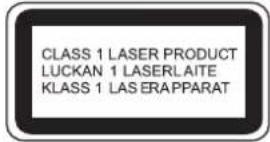
• This appliance is classified as a CLASS 1 LASER product.
• The CLASS 1 LASER PRODUCT MARKING is located on the rear panel.
- This product contains a low power laser device. To ensure continued safety, do not remove any cover or attempt to again access to the inside of the product. Refer all servicing to qualified personnel only.
This product incorporates copyright protection technology that is protected by method claims of certain U.S. patents and other intellectual property rights owned by Macrovision Corporation and other rights owners. Use of this copyright protection technology must be authorized by Macrovision Corporation, and is intended for home and other limited viewing uses only unless otherwise authorized by Macrovision Corporation. Reverse engineering or disassembly is prohibited.
Apparatus Claims of U.S. Patent Nos. 4,631,603, 4,819,098, 4,907,093, 5,315,448 and 6,516,132 licensed for limited viewing uses only.
Caution
Refer servicing to qualified service personnel only.
The rating label and caution marking is located at the bottom of the unit.


This symbol is intended to alert the user of the presence of uninsulated "dangerous voltage" within the product enclosure that may be of sufficient magnitude to constitute a risk of electric shock to persons.

This symbol is intended to alert the user to the presence of important operating and maintenance (servicing) instructions in the literature accompanying the appliance.

The symbol for class II (Double insulation)
IMPORTANT SAFETY INSTRUCTIONS
Before using the unit, be sure to read all operating instructions carefully. Please note that these are general precautions and may not pertain to your unit. For example, this unit may not have the capability to be connected to an outdoor antenna.
1. READ INSTRUCTIONS
All the safety and operating instructions should be read before the product is operated.
2. RETAIN INSTRUCTIONS
The safety and operating instruction should be retained for future reference.
3. HEED WARNINGS
All warning on the product and in the operating instructions should be adhered to.
4. FOLLOW INSTRUCTIONS
All operating and use instructions should be followed.
5. CLEANING
Unplug this product from the wall outlet before cleaning. Do not liquid cleaners or aerosol cleaners. Use a damp cloth for cleaning.
6. ATTACHMENTS
Do not use attachments not recommended by the product's manufacturer as they may cause hazards.
7. WATER AND MOISTURE
Do not use this product near water- for example, near a bathtub, washbowl, kitchen sink, or laundry tub, in a wet basement, or near a swimming pool.
8. ACCESSORIES
Do not place this product on an unstable cart, stand, tripod, bracket, or table. The product may fall, causing serious injury and serious damage to the product. Use only with a cart, stand, tripod, bracket, or table recommended by the manufacturer or sold with the product. Any mounting of the product should follow the manufacturer's instructions, and should use a mounting accessory recommended by the manufacturer.
8A. An appliance and cart combination should be moved with care. Quick stops, excessive force, and uneven surface may cause the appliance and cart combination to overturn.
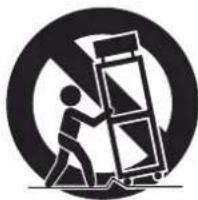
natural_image
Symbolic icon of a person pushing a ladder inside a circle (no text or symbols)9. VENTILATION
Slots and openings in the cabinet and in the back or bottom of the cabinet are provided for ventilation and to ensure reliable operation of the product and to protect it from overheating. These openings must not be blocked or covered. The openings should never be blocked by placing the product on a bed, sofa, rug, or other similar surface. This product should never be placed near or over a radiator or heat source. This product should not be placed in a built-in installation such as a bookcase or rack unless proper ventilation is provided or the manufacturer's instructions have been adhered to.
10. POWER SOURCES
This product should be operated only from the type of power source indicated on the marking label. If you are not sure of the type of power supply to your home, consult your appliance dealer or local power company. For products intended to operate from battery power, or other sources, refer to the operating instruction.
11. GROUNDING OR POLARIZATION
This product is equipped with an alternating-current line plug (a plug having one blade wider than the other). This plug will fit into the power outlet only one way. This is a safety feature. If you are unable to insert the plug fully into the outlet, try reversing the plug. If the plug should still fail to fit, contact your electrician to replace your obsolete outlet.
Do not defeat the safety purpose of the polarized plug.
12. POWER-CORD PROTECTION
Power-supply cords should be routed so that they are not likely to be walked on or pinched by items placed upon or against them, paying particular attention to cords at plugs, convenience receptacles, and the point where they exit from the appliance.
13. LIGHTNING
To protect your product from a lightning storm, or when it is left unattended and unused for long periods of time, unplug it from the wall outlet and disconnect the antenna or cable system. This will prevent damage to the product due to lightning and power-line surges.
14. POWER LINES
An outside antenna system should not be located in the vicinity of overhead power lines or other electric light or power circuits, or where it can fall into such powerlines or circuits. When installing an outside antenna system, extreme care should be taken to keep from touching such power lines or circuits as contact with them might be fatal.
IMPORTANT SAFETY INSTRUCTIONS (CONTINUED)
15. OVERLOADING
Do not overload wall outlets and extension cords as this can result in a risk of fire or electric shock.
16. OBJECT AND LIQUID ENTRY
Never push objects of any kind into this product through openings as they may touch dangerous voltage points or short out parts that could result in fire or electric shock. Never spill or spray any type of liquid on the product.
17. OUTDOOR ANTENNA GROUNDING
If an outside antenna is connected to the product, be sure the antenna system is grounded so as to provide some protection against voltage surges and built-up static charges. Section 810 of the National Electric Code, ANSI/NFPA 70, provides information with respect to proper grounding of the mast and supporting structure, grounding of the lead-in wire to an antenna discharge product, size of grounding conductors, location of antenna discharge product, connection to grounding electrodes, and requirements for grounding electrode.
18. SERVICING
Do not attempt to service this product yourself as opening or removing covers may expose you to dangerous voltage or other hazards. Refer all servicing to qualified service personnel.
19. REPLACEMENT PARTS
When replacement parts are required, be sure the service technician uses replacement parts specified by the manufacturer or those that have the same characteristics as the original part. Unauthorized substitution may result in fire, electric shock or other hazards.
20. SAFETY CHECK
Upon completion of any service or repairs to this product, ask the service technician to perform safety checks to determine that the product is in proper operating condition.
21. WALL OR CEILING MOUNTING
The product should be mounted to a wall or ceiling only as recommended by the manufacturer.
22. DAMAGE REQUIRING SERVICE
Unplug the product from the wall outlet and refer servicing to qualified service personnel under the following conditions:
a. When the power-supply cord or plug is damaged.
b. If liquid has been spilled, or objects have fallen into the product.
c. If the product has been exposed to rain or water.
d. If the product does not operate normally by following the operating instructions. Adjust only those controls that are covered by the operating instructions, as an adjustment of other controls may result on damage and will often require extensive work by a qualified technician to restore the product to its normal operation.
e. If the product has been dropped or the cabinet has been damaged.
f. When the product exhibits a distinct change in performance - this indicates a need for service.
23. HEAT
The product should be situated away from heat sources such as radiators, heat registers, stoves, or other products (including amplifiers) that produce heat.
24. NOTE TO CATV SYSTEM INSTALLER
This reminder is provided to call the CATV system installer's attention to Article 820-40 of NEC that provides guidelines for proper grounding and, in particular, specifies that the cable ground shall be connected to the grounding system of the building, as close to the point of cable entry as practical.

IMPORTANT SAFETY INSTRUCTIONS (CONTINUED)
Any use of the controls or an adjustment to the procedures other than those specified herein may result in hazardous radiation. TO REDUCE THE RISK OF ELECTRIC SHOCK, DO NOT REMOVE COVER (OR BACK). THERE ARE NO USER-SERVICEABLE PARTS INSIDE. PLEASE REFER ANY SERVICING TO QUALIFIED SERVICE PERSONNEL.
WARNING: Changes or modifications to this unit not expressly approved by the party responsible for compliance could void the user's authority to operate the equipment.
FCC NOTICE:
This equipment has been tested and found to comply with the limits for a Class B digital device, pursuant to part 15 of the FCC Rules. These limits are designed to provide reasonable protection against harmful interference in a residential installation. This equipment generates, uses, and can radiate radio frequency energy and, if not installed and used in accordance with the instructions, may cause harmful interference to radio communications.
However, there is no guarantee that interference will not occur in a particular installation. If this equipment does cause harmful interference to radio or television reception, which can be determined by turning the equipment off and on, the user is encouraged to try to correct the interference by one or more of the following measures:
- Consult the dealer or an experienced radio/TV technician for help.
FCC CAUTION:
To assure continued compliance, follow the attached installation instructions and use only shielded cables when connecting to other devices. Also, any changes or modifications not expressly approved by the party responsible for compliance could void the user's authority to operate the equipment.
Table of Contents
Warnings and Cautions
Welcome 1
UL Safety Instructions 1-3
FCC Notice 4
FCC Caution 4
Basic System Information
Index 5
Location of Controls & Indicators 6
Location of Jacks and Terminals 7
Remote Control 8
Important Safeguards and Precautions 9
Features of This System 10
Important Information Regarding This Manual ....10
High Quality Digital Audio 10
Compatible with a wide range of DVD Digital Audio Output Formats
10
Locale Management Information ....10
Types of Discs That Can be Played on This System ....11
Notes on Disc Handling 12
Installations and Connections
Unpacking 13
Inserting Batteries into the Remote Control 13
Protect Your Furniture 13
TV and Optical Component Connections 14
Connecting the AC power Cord 14
DVD Playback
Basic Play 15
Skipping Chapters or Tracks 16
Slow-motion play by remote control only 16
Selecting Scenes by Chapter Number 16
Selecting a Start Point using the Title Time Code 17
Selecting a Start Point using the Chapter Time Code....17
Repeat Play 17
Repeat sections between two specific points (Repeat A-B) .....18
Random Play 18
Changing the Audio Output Signal Audio CDs ....18
CD-R/RW playback 19
Picture CD Operation 19
Convenient Functions
Changing Audio Soundtrack Language ....20
Viewing from another angle 20
Clearing & Displaying of Subtitles 20
Changing Subtitle Language 21
Selection of Titles ....21
Using a DVD Menu 21
Audio CD Playback 22
Basic Play 22
When the unit is not in use 22
Setting and Adjustments
TV Display 23
TV Type 23
Angle Mark 23
On Screen Display Language 24
Captions 24
Screen Saver 24
Downmix 25
Dynamic 25
Audio 25
Subtitle 26
Disc Menu 26
Parental 26
Password 27
Other Functions
Zoom 27
Common Procedure 27
Key Lock 27
Additional Information
Troubleshooting 28-29
Contact Customer Service 29
Warranty 30
LOCATION OF CONTROLS AND INDICATORS
MAIN UNIT (Front View)
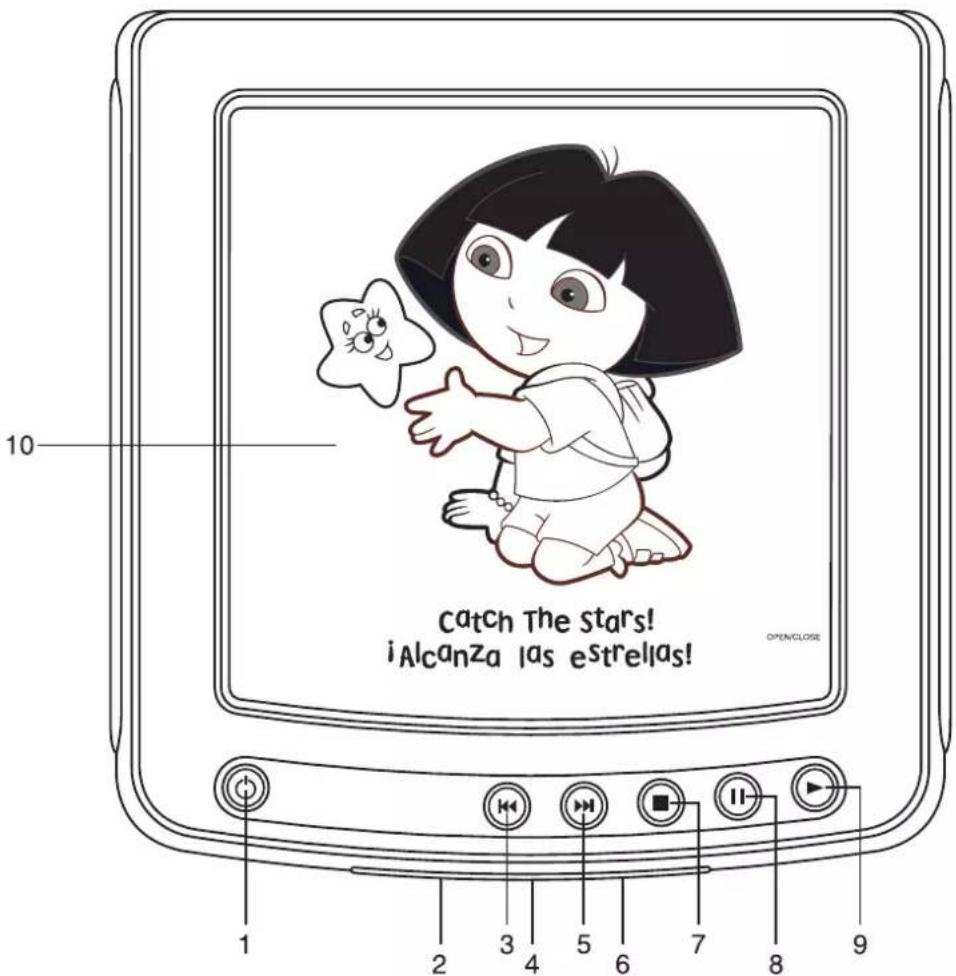
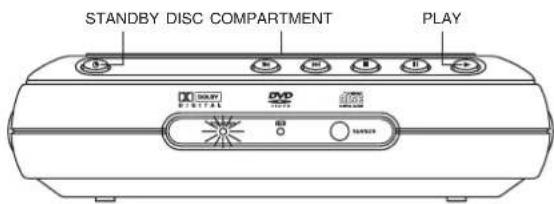
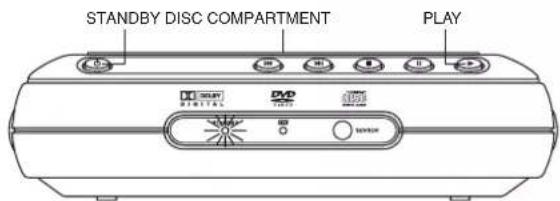
1.) Standby Button.
Turns the system 'On/Off'.
2.) STANDBY LED Indicator.
Lights up to indicate standby mode.
3.) Skip Reverse Button.
Skip to previous chapter.
4.) IR Remote Sensor Indicator.
Flashes when receiving signal from remote control.
5.) Skip Forward Button.
Skip to next chapter.
6.) Remote SENSOR.
Receives the commands from the remote control.
7.) Stop Button.
Stop playing the disc.
8.) Pause Button.
Press to pause playback.
9.) Play Button.
Press to begin playback.
10.) Disc Compartment.
LOCATION OF JACK AND TERMINALS
MAIN UNIT (Back Panel)
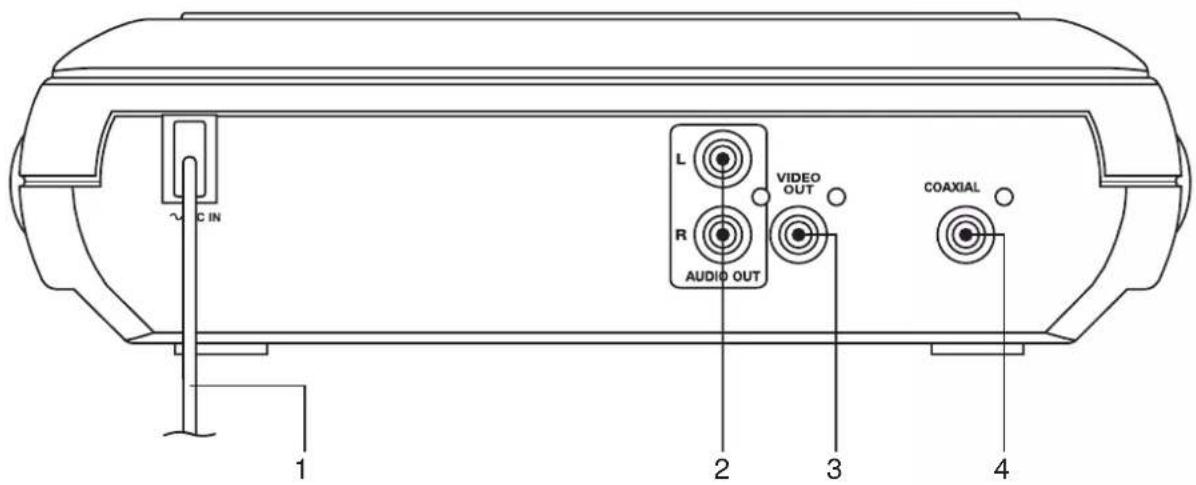
1.) AC Power Cord.
2.) AUDIO OUT L/R Jacks.
3.) VIDEO OUT Jack.
4.) COAXIAL Digital Out Jack.
REMOTE CONTROL
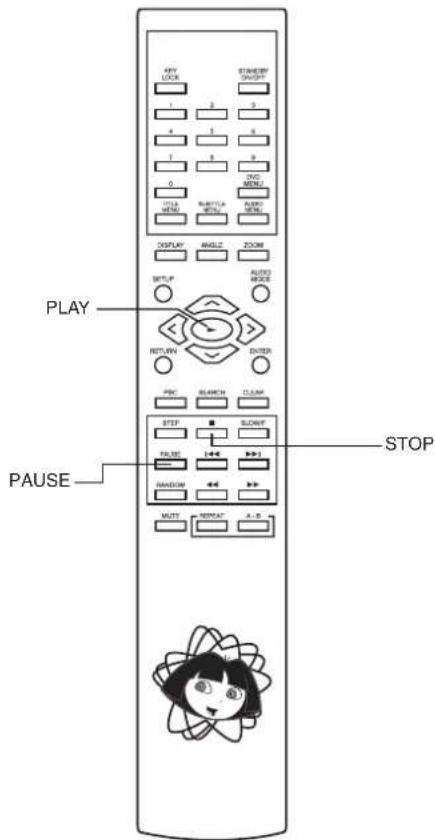
1.) KEY LOCK Button.
2.) Numeric (0-9) Buttons.
3.) TITLE MENU Button.
4.) SUBTITLE MENU Button.
5.) DISPLAY Button.
6.) ANGLE Button.
7.) SETUP Button.
8.) ∧ / ∨ / < / > Navigation Buttons.
9.) RETURN Button.
10.) PBC Button.
11.) STOP Button.
12.) STEP Button.
13.) PAUSE Button.
14.) Search Reverse Button.
15.) RANDOM Button.
16.) MUTE Button.
17.) REPEAT Button.
18.) A-B Repeat Button.
19.) Search Forward Button.
20.) Ship Forward Button.
21.) Skip Reverse Button.
22.) SLOW/F Button.
23.) CLEAR Button.
24.) SEARCH Button.
25.) ENTER Button.
26.) Play Button.
27.) AUDIO MODE Button.
28.) ZOOM Button.
29.) AUDIO MENU Button.
30.) DVD MENU Button.
31.) STANDBY ON/OFF Button.

Important Safeguards and Precautions
Power Cord Protection
To avoid any malfunctions of the unit, and to protect against electric shock, fire or personal injury, please observe the following:
- Hold the plug firmly when connecting or disconnecting the AC power cord.
- Keep the AC power cord away from heating appliances.
- Never put any heavy object on the AC power cord.
- Do not attempt to repair or reconstruct the AC power cord in any way.
Location and Handling
- Air vents are provided in the cabinet to prevent excessive temperatures inside the unit. Do not place this unit in closed spaces, cover it, or otherwise block the vents.
- Do not place this unit in direct sunlight, or near heat sources.
- Keep this unit away from strong magnetic objects.
- Do not insert or drop anything into this unit through the air vents as this could cause serious damage possibly resulting in fire.
- Do not place any object containing water or other liquids on this unit. In the event that liquid should enter the cabinet, unplug this unit immediately and contact the retailer or service center immediately.
- Do not remove the cabinet. Touching parts inside the cabinet could result in electric shock and / or damage to the unit.
- Do not use the unit in a car. The operation can not guaranteed.
Non-Use Periods
- When the unit is not being used, turn the unit off.
- When left unused for a long period of time, the unit should be unplugged from the household AC outlet.
No Fingers or Other Objects Inside
Do not put any foreign object on the disc tray.
Stacking
Place the unit in a horizontal position, and do not place anything heavy on it.
Condensation
Moisture may form on the pickup lens in the following conditions:
- Immediately after a heater has been turned on.
• In a steamy or very humid room. - When the unit is suddenly moved from a cold environment to a warm one.
If moisture forms inside this unit, it may not operate properly. In this case, turn on the power and wait about one hour for the moisture to evaporate.
On Adjusting Volume
Do not turn up the volume while listening to a portion with very low level inputs or no audio signals. If you do, the speakers may be damaged when a peak level portion is played.
If There is Noise Interference on the TV While a Broadcast is Being Received
Depending on the reception condition of the TV, interference may appear on the TV monitor while you watch a TV broadcast and the unit is left on. This is not a malfunction of the unit or the TV. To watch a TV broadcast, turn off the unit.
Service
- Do not attempt to service the unit yourself.
- Please call 1-800-898-9020 for the name of the nearest service center.
Copyright
Audio-visual material may consist of copyrighted works which must not be recorded without the authority of the owner of the copyright. Please refer to relevant laws covering copyright protection.
Copy protection
This DVD player supports Macrovision copy protection. On DVD discs that include a copy protection code, if the contents of the DVD disc are copied using a VCR, the copy protection code prevents the videotape copy from playing normally.
Recommended measures for Optimum Performance
This unit is a precision device that is constructed using extremely accurate technology. Soiling or friction affecting the pickup lens or disc drive can impair the image quality. In the worst case, neither video nor audio will be played back. To obtain optimum picture quality, the player should be checked (cleaning and replacement of some parts) every 1,000 hours. Note that this period varies depending on the environment (temperature, humidity, dust, etc.) in which the player is used.
Do not attempt to clean the pickup lens yourself.
Notes:
- Periodically inspect for damage, if damaged properly repair the DVD player before use.
• Adult supervision recommended.
Features of This System
• DVD player with Dolby Digital* Audio output.
- Compatible with DVD, CD-R/RW, KODAK PHOTO CDs and CD discs.
• DVD navigation functions.
- On screen display menu.
• Full function remote control.
* Manufactured under license from Dolby Laboratories. "Dolby", "AC-3", "Pro Logic" and the double-D symbol are trademarks of Dolby Laboratories. Confidential Unpublished Works. ©1992-1997 Dolby Laboratories, Inc. All rights reserved.
Important Information Regarding This Manual
- The types of functions and operations that can be used for a particular disc vary depending on the features of that disc. In some cases, these functions and operations may differ from the descriptions given in this Operations Manual. In this event, follow the instructions given on the screen. This Operations Manual only covers basic disc operations.
- For some operations, the "INVALID KEY" statement may appear on the screen. This indicates that the operation described in this Operations Manual is not available on the disc in the player.
- The drawings about the TV screen used in this Operations Manual are purely for the purposes of explanation. The actual displays may differ slightly from what are shown here.
High Quality Digital Audio
- With the linear PCM sound of 48 kHz /16 bit through 96 kHz / 20 bit, audio quality exceeding that of audio CDs is possible.
Compatible with a wide range of DVD Digital Audio Output Formats
DVDs are recorded in one of four types of digital audio formats (as of October 1998). The digital audio output jack of this player can output Dolby Digital*, MPEG, and linear PCM digital bitstreams.
Locale Management Information:
This DVD player is designed and manufactured to respond to the Locale Management Information that is recorded on a DVD disc. If the Locale number described on the DVD disc does not correspond to the Locale number of this DVD player, this DVD player cannot play that disc.
TYPES of DISCS That Can be Played on This System
This player can playback discs bearing any of the following marks:
  |  |
| DVDs12cmdisc/8cmdisc | Audio CDs12cmdisc/8cmdiscSupport CD, CD-R/RWKODAK PHOTO CD |
Note-1
- DVD players and discs are designed with region numbers which dictate the regions in which a disc can be played. If the region number on the disc you want to play does not match the region number in your DVD player, you will not be able to play the disc. If you try to play the DVD, the message "WRONG REGION" will appear on the screen display.
The region number for this DVD player is 📄. The region code of this player is printed on the rear of the unit.

flowchart
graph LR
    A["1"] --> B["4"]
    B --> C["2"]
    C --> D["5"]
    D --> E["ALL"]
    style A fill:#f9f,stroke:#333
    style B fill:#f9f,stroke:#333
    style C fill:#f9f,stroke:#333
    style D fill:#f9f,stroke:#333
    style E fill:#ccf,stroke:#333
    note right of D: Disc playable in all regions
Note-2
- The specific playback functionality for some DVD and video CD discs is determined by the disc manufacturer. Because this DVD player plays disc data in accordance with the disc manufacturer's guidelines, some functions may not be available on some discs. Be sure to read the instructions provided with the disc.
The "Prohibited" statement displayed during DVD player operation indicates that such manufacturer imposed restrictions apply.
Note-3
- The audio on a DVD disc recorded in MPEG version 2.0 format may not play properly on some discs, only the image will appear in this case.
Discs that Cannot be Played
- You cannot play CD-G, CD-EXTRA, CD-ROM and DVD-ROM discs.
- You cannot play illegally produced discs.
- You cannot play scratched discs.
- You cannot play discs that are dusty, soiled or marked with fingerprints.
Icons used on DVD discs
Sample Icons:

Glossary of Disc Terms
- Title (DVD)
The longest sections of picture or a music piece on a DVD, a movie, etc., for a picture piece on a video disc; or an album, etc., for a music piece on an audio disc. Each title is assigned a title number enabling you to locate the title you want.
• Chapter (DVD)
Sections of a picture or a music piece that are smaller than titles. A title is composed of several chapters. Each chapter is assigned a chapter number enabling you to locate the chapter you want. Some discs may not contain chapters.

- Track (Audio CD)
Sections of a music piece on an audio CD. Each track is assigned a track number enabling you to locate the track you want.
Notes on Discs
Disc handling precautions
- To keep the disc clean, handle the disc by its edge. Do not touch the surface.
- Do not stick paper or tape on the disc.
If there is glue (or a similar substance) on the disc, remove the glue completely before using the disc.

natural_image
Illustration of three hands holding a CD or DVD disc, with one being inserted and the other being placed on top (no text or symbols present)- Do not expose the disc to direct sunlight or sources such as hot air ducts, or leave it in a car parked indirect sunlight as there can be considerable rise in temperature inside the car.
• After playing, store the disc in its case. - Do not write on the label side with a ball-point pen or other writing utensils.
- Be careful not to drop or bend the disc.
Disc cleaning precautions
- Before playing, clean the disc with a cleaning cloth. Wipe the disc from the center out.

natural_image
Illustration of a hand holding a circular object with directional arrows, next to a cross symbol (no text or labels)- Do not use solvents such as benzine, thinner, commercially available cleaners or anti-static spray intended for vinyl LPs.
Disc installing precautions
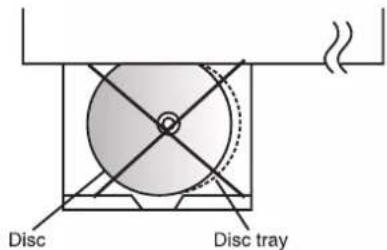
- Do not install more than 1 disc on disc tray.
- Do not place the disc on the tray up-side down.
- Do not try to close the disc tray when the disc is not installed and centered properly.
Installation
This section describes how to connect the system to a TV monitor with audio/video input jacks. You cannot connect this system to a TV monitor which does not have a video input connector. Be sure to turn off the power of each component before making the connections.
Unpacking
Check that you have the following items:
- Main unit (1).
- Remote control (1).
• Audio/Video cable (4 feet x 1). - Owner's Manual (1).
Inserting Batteries into the Remote Control
You can control the system using the supplied remote. Insert two "AA" batteries by matching the + and - on the batteries with the markings in the battery compartment. When using the remote, point it at the remote sensor on the front panel of this system.

natural_image
Technical line drawing of a mechanical assembly with battery plates and rotating components (no text or symbols)Notes:
- Do not leave the remote in an extremely hot or humid place.
- Do not use a new battery with an old one.
- Do not drop any foreign object into the remote casing, particularly when replacing the batteries.
- Do not expose the remote sensor to direct sunlight or lighting apparatuses. Doing so may cause a malfunction.
- If you do not use the remote for an extended period of time, remove the batteries to avoid possible damage from battery leakage and corrosion.
- Use only the size and type of batteries specified.
- Be sure to follow the correct polarity when installing the batteries as indicated in the battery compartment. Reversed batteries may cause damage to the device.
- Do not mix different types of batteries together (e.g. Alkaline and Carbon-zinc) or old batteries with fresh ones.
Protect Your Furniture
This model is equipped with non-skid rubber 'feet' to prevent the product from moving when you operate the controls. These 'feet' are made from non-migrating rubber material specially formulated to avoid leaving any marks or stains on your furniture. However certain types of oil based furniture polishes, wood preservatives, or cleaning sprays may cause the rubber 'feet' to soften, and leave marks or a rubber residue on the furniture. To prevent any damage to your furniture we strongly recommend that you purchase small self-adhesive felt pads, available at hardware stores and home improvement centers everywhere, and apply these pads to the bottom of the rubber 'feet' before you place the product on fine wooden furniture.
TV and Optional Component Connections
Required cords
• Video cord for connecting a TV set (included).

• Audio cords (included).
When connecting a cord, be sure to match the color-coded pins to the appropriate jacks on the components.

Notes:
• TV Connection-Normal (Connection Cable Included):
To view the video from DVD discs on your TV set connect the Video Out jack of this system to the Video In jack of your TV set. The Video jacks are usually colored yellow. Use the included video cable with yellow plugs on each end.
• TV Connection-Audio (Connection Cables Included):
Connect the Left/Right audio output jacks of your system to the Left/Right audio input jacks of the TV set.
- External Decoder Connection-Not Required:
The Coaxial Digital Audio output jack allows digital audio signals to be fed to an external Dolby Digital decoder if desired. The Coaxial digital audio connection cable is not included.
Connecting the AC Power Cord
Notes:
• The Power Requirement is: AC 120V, 60Hz.
- Connecting to power other than the one listed above may damage the system or cause abnormal operation.
- Before connecting the AC power cord of this system to a wall outlet, connect the speakers and other component cables to the system.
- Connect the AC power cords of your TV and any optional connect to a wall outlet.

DVD Playback
Preparations
- Switch on the TV set power and select "Video" as the TV input.
- Switch on the stereo system's power if the player has been connected to a stereo system.
Basic Play
- Press down on the disc compartment lid (OPEN/CLOSE) to open the disc compartment.
- Place a disc into the disc compartment. Hold the disc without touching either of its surfaces and with the printed title side facing up. Align it with the guides and place it in its proper position.
- Close the disc compartment.
- Press the PLAY ▶ button if the movie has not started automatically.

- If the disc has one or more titles recorded on it, a menu screen will appear on the TV screen after a few moments.
- Select the preferred title by using the (<, >, ∧, ∨) Navigation buttons, followed by the ENTER button, or press the number button corresponding to the menu.
- Play of the selected title now commences.
When the menu continues onto another screen
After step 3 on previous page, press SKIP ▶.
• To return to the previous menu screen, press SKIP ◀.
- For further details, refer also to the disc jacket.
Stopping play and returning to the menu screen
Press the DVD MENU button.
- Play is suspended and the menu screen is displayed.
When the unit is not in use
When the unit is not in use, remove the disc and press the STANDBY button to turn off the power. The STANDBY indicator will illuminate.
Notes:
- The disc continues to rotate while the menu is displayed even after the player has finished playing a particular item. When no further selections are to be played, be sure to press the STOP ■ button to clear the menu display.
- If the disc is placed in upside down, the On Screen Display will indicate "NO DISC".
For your reference
- When " ∅ appears on the TV screen while a button is being operated, it means that the corresponding operation is prohibited by the player.
Stopping play
- Press the STOP ■ button.
For your convenience
- When play is stopped, the unit records the point when STOP ■ was pressed (RESUME function). Press PLAY ▶ again and play will resume from this point. When the tray is opened or STOP ■ is pressed again, the RESUME function will be cleared. The RESUME function works only with discs for which the elapsed playing time appears during playback.
Still picture
Press the PAUSE button during play.
To return to normal play
Press PLAY ▶.
Frame advance
- Press the PAUSE button to advance to still picture mode.
- Press STEP until the desired frame is displayed. The disc is advanced one frame each time the STEP button is pressed.
Skipping Chapters or Tracks
Skipping ahead
Press SKIP ▶ during play.
- A chapter is skipped each time the button is pressed.
Skipping back
Press SKIP ◀ during play.
Slow-motion Play by Remote Control Only
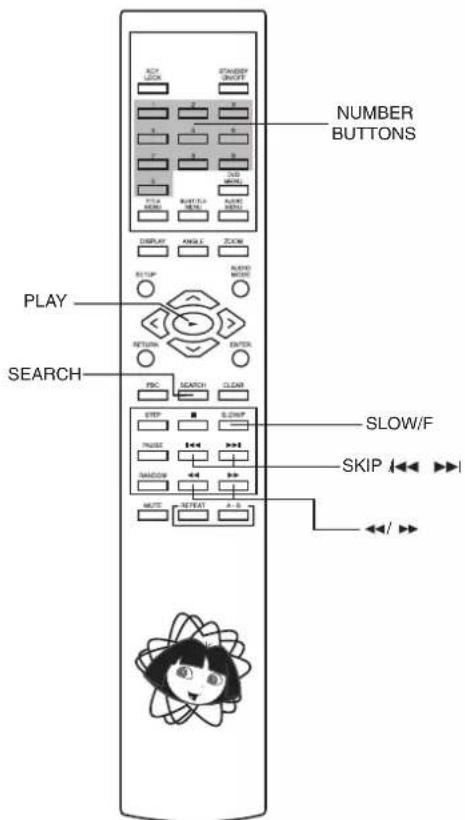
Press the SLOW/F button during play. Each time you press the button, the speed changes from: 1/2, 1/4, 1/8, 1/16.
To return to normal play
- Press PLAY ▶ button.
Search: rapid advance-rapid reverse
Press the SEARCH ◀ or ▶ button(s). Each time you press the button, the speed change from: x2, x4, x8, x16.
BACKWARD x2 ← = Fast Reverse 1
BACKWARD x4 ← = Fast Reverse 2
BACKWARD x8 ← = Fast Reverse 3
BACKWARD x16 ← = Fast Reverse 4
FORWARD x2 ▶ = Fast Forward 1
FORWARD x4 ▶ = Fast Forward 2
FORWARD x8 ▶ = Fast Forward 3
FORWARD x16 ▶ = Fast Forward 4
To return to normal play
- Press the PLAY ▶ button.
Selecting Scenes by Chapter Number
Example: Starting play from Chapter 03.
- Press the SEARCH button during play.
TT 01/03 CH /06

- Press the Number button(s) to select the preferred chapter.
Example: Press '0', '3'.
TT 01/03 CH 03/06
- Play now commences from Chapter 03.
Note: Depending on the disc used, it may not be possible to perform these operations during DVD menu play.
For your reference
"∅ INPUT INVALID" appears on the TV monitor if the number selected does not exist on the disc.
Selecting a Start Point using the Title Time Code
Example: Viewing after 1 hour 3 minutes have elapsed from the title start.
- Press the SEARCH button twice during play.
TT 01/03 T ::
- Press the Number button(s) to specify the starting position.
Example: To specify "1 hour 3 min.00sec.", press '1', '0', '0', '3', '0', and '0'.
TT 01/03 T 1:03:00
- Play now commences from the specified position.
Notes:
- This operation works only with discs for which the elapsed playing time appears during playback.
- For some discs, play may not start from the specified position even when the steps above have been performed correctly.
- Depending on the disc used, it may not be possible to perform these operations during DVD menu play.
Selecting a Start Point using the Chapter Time Code
Example: Viewing after 1 hour 3 minutes have elasped from the chapter start.
- Press the SEARCH button thirdly during play.
CH 01/06 T ::
- Press the Number button(s) to select the preferred chapter.
Example: To specify 1 hour 3 min 00 sec, press '1', '0', '3', '0', '0'.
CH 01/06 T 1:03:00
- Play now commences from Title 2.
Note: Depending on the disc used, it may not be possible to perform these operations during DVD menu play.
For your reference
"∅ INPUT INVALID" appears on the TV screen if the number selected does not exist on the disc.
Repeat Playback (CD)
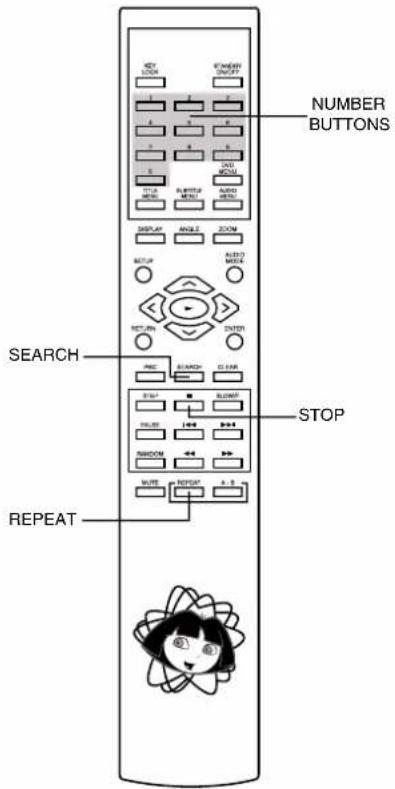
- Press the REPEAT button once and "Track" indicator will appear on the TV screen. The selected track will be repeated indefinitely unless the STOP ■ button is pressed.
- Press the REPEAT button twice and "☐ ALL" indicator will appear on the TV screen. The entire disc will be repeated indefinitely unless the STOP ■ button is pressed.
- Press the REPEAT button again to resume normal playback.
Repeat Playback (DVD)
- Press the REPEAT button during play as follow:

flowchart
graph TD
    A["Chapter"] --> B["REPEAT x1 = Repeat Chapter"]
    B --> C["Title"]
    C --> D["REPEAT x2 = Repeat Title"]
    D --> E["Off"]
    E --> F["REPEAT x3 = Repeat Off"]
Note: Repeat play may not work correctly with some DVDs.
Repeat sections between two specific points (Repeat A - B)
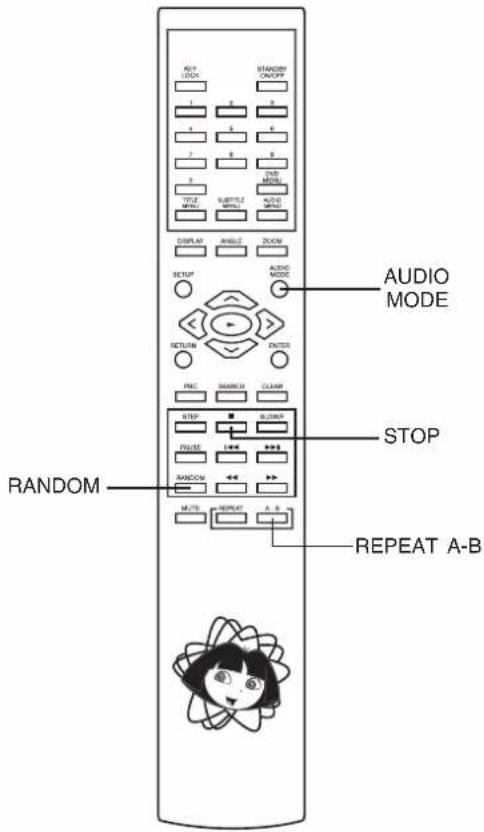
- Press the REPEAT A - B button during play at the point where repeat play is to commence (A).

- Press the REPEAT A - B button again at the point where repeat play is to be concluded (B).

Repeat play of the selection between points A and B starts automatically. The section from point A to point B will play repeatedly.
To return to normal play
- Press the REPEAT A - B button again.
Note: Some subtitles recorded around point A or B may fail to appear.
Random Play
- Press the RANDOM button after loading the disc.
RANDOM
- Press the STOP ■ button to turn Random Play OFF.
OFF
- To cancel Random mode, press RANDOM button.
Changing the Audio Output Signal Audio CD's
- Press the AUDIO MODE button repeatedly to choose between MONO LEFT, MONO RIGHT, MIX MONO, and STEREO.
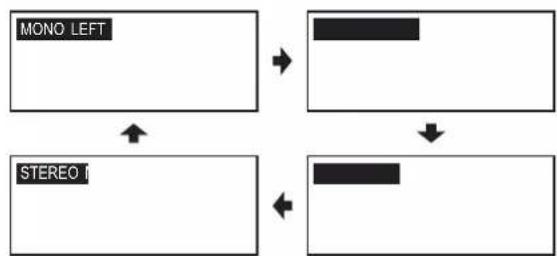
flowchart
graph TD
    A["MONO LEFT"] --> B[" "]
    C["STEREO I"] --> D[" "]
- MONO LEFT and MONO RIGHT modes will combine the original stereo signal into one mono signal (use this mode when playing on a mono TV).
- MIX MONO mode allows you to mix the left or right channel into 1 mono signal.
• These functions work only for discs recorded with these features.
CD-R/RW Playback
Important Information
The DVD player in this system can play normal audio CDs, recordable CDs (CD-Rs), re-writable CD's (CD-RWs). However, because of the non-compatibility of certain ripping/burning software used to record CDs, and the quality of the blank discs used for recording, 100% playability of CD-RW cannot be guaranteed. This is not an indication of any problem with your system.
- When a normal audio CD, a CD-R, or a CD-RW disc is loaded in the player the "CD" indicator will light.
Picture CD Operation
- After loading a picture CD disc into the disc tray, the picture CD menu will appear on the TV screen.
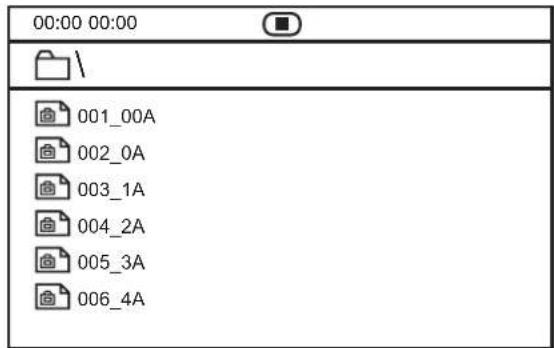
- Press the ( , ) Navigation buttons to select your desired folder.
- Press the ENTER button to confirm your selection and start the playback of picture CD disc.

Convenient Functions
Changing Audio Soundtrack Language
It is possible to change the audio soundtrack language from English to a different language, if available. (This operation works only with discs on which multiple audio soundtrack languages are recorded.)
-
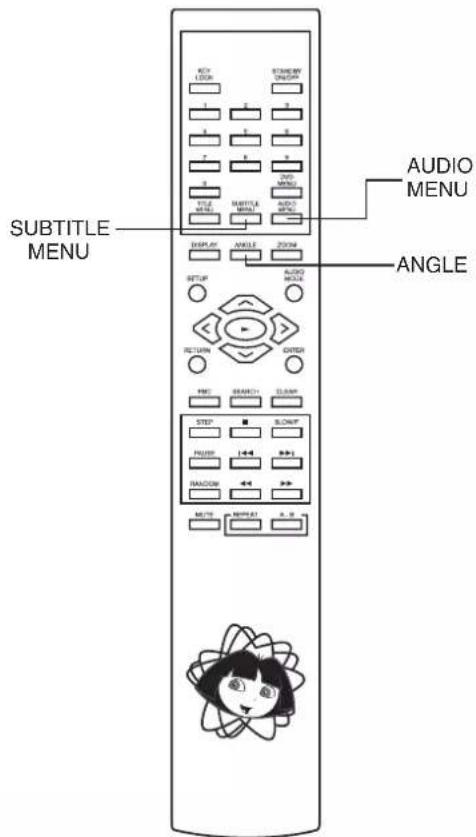
Press the AUDIO MENU button during play.
-
Press the AUDIO MENU button repeatedly to select the preferred language.
For your reference
- The choice of languages is limited to those that are available on the disc being played. All discs do not have all languages available.
- When the power is turned on or the disc is removed, the language heard is the one selected initially. If this language is not recorded on the disc, only the language available on the disc will be heard.
• The unit is factory preset to ENGLISH.
Viewing from another angle
Some DVD discs may contain scenes which have been shot simultaneously from a number of different angles. For these discs, the same scene can be viewed from each of these different angles using the ANGLE button. (The recorded angles differ depending on the disc used.)
- Press the ANGLE button during play.
- Press the ANGLE button to select the preferred angle.

natural_image
Two identical black-and-white illustrations of a skier performing a jump, showing motion before and after (no text or symbols)Note: This function will only work on discs where different angles have been recorded.
Clearing & Displaying of Subtitles
If a disc has subtitles recorded on it, they can either be displayed or cleared on the TV screen. (This operation works only with discs on which the subtitle language is recorded.)
- Press the SUBTITLE MENU button during play.
Changing Subtitle Language
It is possible to change the subtitle language from English to a different language, if available. (This operation works only with discs on which multiple subtitle languages are recorded.)
- Press the SUBTITLE MENU button during play.
- Press the SUBTITLE MENU button repeatedly to select the preferred language.
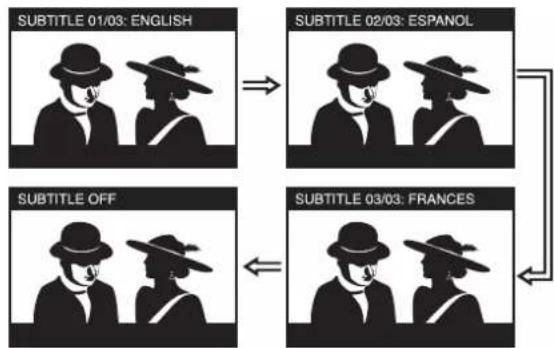
flowchart
graph TD
    A["SUBTITLE 01/03: ENGLISH"] --> B["SUBTITLE 02/03: ESPANOL"]
    B --> C["SUBTITLE OFF"]
    C --> D["SUBTITLE 03/03: FRANCES"]
    D --> E["→"]
Notes:
• In some cases, the subtitle language is not changed immediately to the selected one.
- When the power is turned off or the disc is removed, subtitles appear in the language selected at the initial settings. If this language is not recorded on the disc, they will appear in the disc's priority language.
Selection of Titles
Some DVDs may have more than 1 movie (Title) on them. If the disc has a title menu recorded on it, the TITLE MENU button can be used to select the desired title. (The details of operation differ depending on the disc used.)
- Press the TITLE MENU button during play. A list of titles on the disc is now displayed.
- Press the (<, >, ∧, ∨) Navigation buttons to select the preferred title.
- Press the ENTER button. The selected title now starts playing.
Using a DVD Menu
Some DVD discs have unique menu structures called DVD menus. For example, DVDs programmed with complex contents provide guide menus and those recorded with various languages provide menus for audio and subtitle language. Although the DVD menu's contents and operation differ from disc to disc, the following explains the basic operation when this feature is used.
- Press the DVD MENU button during play. The DVD menu available on the disc is now displayed.
- Press the (<, >, ∧, ∨) Navigation buttons to select the preferred menu.
- Press the ENTER button. The selected item is now executed.
When the menu continues onto another screen
Repeat step 2 and 3.

Audio CD Playback
Preparation
- Switch on the TV set power and select "Video" as the TV input.
- Switch on the stereo system's power if the player has been connected to a stereo system.
Basic Play
- Press down on the disc compartment lid (OPEN/CLOSE) to open the disc compartment.
- Place a disc into the disc compartment. Hold the disc without touching either of its surfaces and position it with the printed title side facing up. Align it with the guides and place it in its proper position.
- Press the PLAY ▶ button.
Note: Make sure the TV type is set to NTSC (factory default).
When the unit is not in use
When the unit is not in use, remove the disc and press the STANDBY button to turn off the power. The STANDBY indicator will illuminate.
Notes:
- The disc continues to rotate while the menu is displayed even after the player has finished playing a particular item. When no further selections are to be played, be sure to press the STOP ■ button to clear the menu display.
- If the disc is placed in upside down, the On Screen Display will indicate "NO DISC".
For your reference
- When " ∅" appears while a button is being operated, it means that the corresponding operation is prohibited by the player.
For your convenience
When play is stopped, the unit records the point where STOP ■ was pressed. Press PLAY ▶ again, and play will resume from this point. When the tray is opened, the RESUME function will be cleared. The RESUME function works only with discs for which the elapsed playing time appears during playback.
Still Picture (PAUSE/STILL)
- Press the PAUSE button during play.
Audio CD
• The player will be placed in the pause mode.
To return to normal play
- Press PLAY ▶ button.
Settings and Adjustments
Once the initial setup has been completed, the player can always be operated under the same conditions. The settings will be retained in the memory, until the settings are changed.
TV Display
- Press the SETUP button to enter the Setup Menu.
- Use the (<,>) Navigation buttons to select General.
- Use the ( , ) Navigation buttons to move the cursor to the TV Display item.
- Use the ( > ) Navigation button followed by the ( ^ , ∨ ) Navigation buttons to select between Normal/PS (Pan & Scan), Normal/LB (Letterbox), and Wide formats.
Normal/PS (Pan & Scan):
Video material formatted in the PAN & SCAN style is played in that style (the left and right edges are cut off).
Normal/LB (Letterbox):
Video material not formatted in the Letterbox style is played in the Pan & Scan style.
Wide:
Select this for a wide screen TV set.
- Press the ENTER button.
- Using the (<, >, ∧, ∨) Navigation buttons and press ENTER to exit and save setting.
| General | Audio | Dolby | Preference |
| -- General Setup Page -- | |||
| TV Display | PS | Normal/PS | |
| TV Type | NTSC | Normal/LB | |
| Angle Mark | ON | Wide | |
| OSD Lang | ENG | ||
| Captions | ON | ||
| Screen Saver | ON | ||
| Set TV Display Mode | |||
TV Type
- Press the SETUP button to enter the Setup Menu.
- Use the (<,>) Navigation buttons to select General.
-
Use the ( , ) Navigation buttons to move the cursor to the TV Type item.
-
Use the ( > ) Navigation button followed by the ( ^ , ∨ ) Navigation buttons to select between NTSC, and PAL modes.
- Press the ENTER button.
- Using the (<, >, ∧, ∨) Navigation buttons and press ENTER to exit and save setting.
| General | Audio | Dolby | Preference |
| -- General Setup Page -- | |||
| TV Display | PS | ||
| TV Type | NTSC | NTSC | |
| Angle Mark | ON | PAL | |
| OSD Lang | ENG | ||
| Captions | ON | ||
| Screen Saver | ON | ||
| Set TV Standard | |||
Angle Mark
- Press the SETUP button to enter the Setup Menu.
- Use the (<,>) Navigation buttons to select General.
- Use the ( , ) Navigation buttons to move the cursor to the Angle Mark item.
- Use the (>) Navigation button followed by the (^, √) Navigation buttons to select between On and Off modes. This only works when there is an angle mark on the disc.
Note: Select "On" the screen shows the angle mark when playing a DVD.
Select "Off" the angle mark is not shown.
- Press the ENTER button.
- Using the (<, >, ∧, ∨) Navigation buttons and press ENTER to exit and save setting.
| General | Audio | Dolby | Preference |
| -- General Setup Page -- | |||
| TV Display | PS | ||
| TV Type | NTSC | ||
| Angle Mark | ON | On | |
| OSD Lang | ENG | Off | |
| Captions | ON | ||
| Screen Saver | ON | ||
| Set Angle Mark | |||
On Screen Display Language
- Press the SETUP button to enter the Setup Menu.
- Use the (<,>) Navigation buttons to select General.
- Use the ( , ) Navigation buttons to move the cursor to the OSD Lang item.
- Use the (>) Navigation button followed by the ( , ) Navigation buttons to select between English, German, Spanish and French on screen display languages.
- Press the ENTER button.
- Using the (<, >, ∧, ∨) Navigation buttons and press ENTER to exit and save setting.
| General | Audio | Preference Dolby | |
| -- General Setup Page -- | |||
| TV Display | PS | ||
| TV Type | NTSC | ||
| Angle Mark | ON | ||
| OSD Lang | ENG | English | |
| Captions | ON | Spanish | |
| Screen Saver | ON | German | |
| French | |||
| Set OSD Language | |||
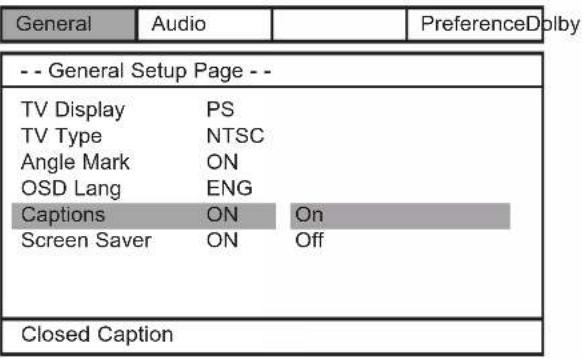
Captions
- Press the SETUP button to enter the Setup Menu.
- Use the (<,>) Navigation buttons to select General.
- Use the ( , ) Navigation buttons to move the cursor to the Captions item.
- Use the ( > ) Navigation button followed by the ( ^ , v ) Navigation buttons to select between On and Off modes.
- Select this option when some newer DVD movies include closed captioning for hearing impaired viewers.
Note: Select "On" to switch on the captioning feature that describes other sounds being heard together with the dialog.
Select "Off" the closed captions will not appear.
- Press the ENTER button.
- Using the (<, >, ∧, ∨) Navigation buttons and press ENTER to exit and save setting.
 |
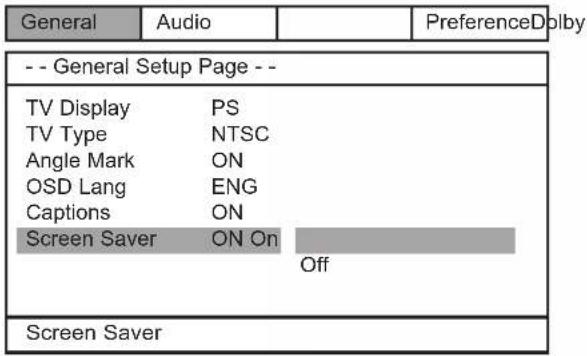
Screen Saver
- Press the SETUP button to enter the Setup Menu.
- Use the (<,>) Navigation buttons to select General.
- Use the ( , ) Navigation buttons to move the cursor to the Screen Saver item.
- Use the ( > ) Navigation button followed by the ( ^ , ∨ ) Navigation buttons to select between ON and OFF modes.
Note: If you turn the screen saver on, the screen saver image appears when you leave the system in pause or stop mode for more than 1 minute. The screen saver is useful to prevent your display from becoming damaged.
- Press the ENTER button.
- Using the (<, >, ∧, ∨) Navigation buttons and press ENTER to exit and save setting.
 |
- DVD Player with Remote Control
- OWNER'S MANUAL DTE329
- Welcome.....
- Warning
- Caution
- IMPORTANT SAFETY INSTRUCTIONS
- READ INSTRUCTIONS
- RETAIN INSTRUCTIONS
- HEED WARNINGS
- FOLLOW INSTRUCTIONS
- CLEANING
- ATTACHMENTS
- WATER AND MOISTURE
- ACCESSORIES
- VENTILATION
- POWER SOURCES
- GROUNDING OR POLARIZATION
- POWER-CORD PROTECTION
- LIGHTNING
- POWER LINES
- IMPORTANT SAFETY INSTRUCTIONS (CONTINUED)
- OVERLOADING
- OBJECT AND LIQUID ENTRY
- OUTDOOR ANTENNA GROUNDING
- SERVICING
- REPLACEMENT PARTS
- SAFETY CHECK
- WALL OR CEILING MOUNTING
- DAMAGE REQUIRING SERVICE
- HEAT
- NOTE TO CATV SYSTEM INSTALLER
- FCC NOTICE:
- FCC CAUTION:
- Table of Contents
- Warnings and Cautions
- Basic System Information
- Installations and Connections
- DVD Playback
- Convenient Functions
- Setting and Adjustments
- Other Functions
- Additional Information
- LOCATION OF CONTROLS AND INDICATORS
- LOCATION OF JACK AND TERMINALS
- REMOTE CONTROL
- Important Safeguards and Precautions
- Power Cord Protection
- Location and Handling
- Non-Use Periods
- No Fingers or Other Objects Inside
- Stacking
- Condensation
- On Adjusting Volume
- If There is Noise Interference on the TV While a Broadcast is Being Received
- Service
- Copyright
- Copy protection
- Recommended measures for Optimum Performance
- Do not attempt to clean the pickup lens yourself.
- Notes:
- Features of This System
- Important Information Regarding This Manual
- High Quality Digital Audio
- Compatible with a wide range of DVD Digital Audio Output Formats
- Locale Management Information:
- TYPES of DISCS That Can be Played on This System
- Note-1
- Note-2
- Note-3
- Discs that Cannot be Played
- Icons used on DVD discs
- Glossary of Disc Terms
- Notes on Discs
- Disc handling precautions
- Disc cleaning precautions
- Disc installing precautions
- Installation
- Unpacking
- Inserting Batteries into the Remote Control
- Protect Your Furniture
- TV and Optional Component Connections
- Required cords
- Connecting the AC Power Cord
- Preparations
- Basic Play
- When the menu continues onto another screen
- Stopping play and returning to the menu screen
- When the unit is not in use
- For your reference
- Stopping play
- For your convenience
- Still picture
- To return to normal play
- Frame advance
- Skipping Chapters or Tracks
- Skipping ahead
- Skipping back
- Slow-motion Play by Remote Control Only
- Search: rapid advance-rapid reverse
- Selecting Scenes by Chapter Number
- Selecting a Start Point using the Title Time Code
- Selecting a Start Point using the Chapter Time Code
- Repeat Playback (CD)
- Repeat Playback (DVD)
- Repeat sections between two specific points (Repeat A - B)
- Random Play
- Changing the Audio Output Signal Audio CD's
- CD-R/RW Playback
- Important Information
- Picture CD Operation
- Changing Audio Soundtrack Language
- Viewing from another angle
- Clearing & Displaying of Subtitles
- Changing Subtitle Language
- Selection of Titles
- Using a DVD Menu
- Audio CD Playback
- Preparation
- Still Picture (PAUSE/STILL)
- Audio CD
- Settings and Adjustments
- TV Display
- Normal/PS (Pan & Scan):
- Normal/LB (Letterbox):
- Wide:
- TV Type
- Angle Mark
- On Screen Display Language
- Captions
- Screen Saver
Brand : Emerson
Model : DTE329
Category : DVD player