MP205 - Mp3 player Emerson - Free user manual and instructions
Find the device manual for free MP205 Emerson in PDF.


| Product Type | Personal MP3/WMA Player with FM Radio and Voice Recorder |
| Music Formats | MPEG 1/2/2.5 Layer 3, WMA |
| Bit Rate Support | 8 Kbps – 320 Kbps |
| FM Tuner Range | 87.5 MHz – 108 MHz |
| Battery Type | 1 x AAA Alkaline (1.5V) |
| Battery Life | Approximately 10 hours |
| Internal Memory | 128 MB |
| Expandable Memory | SD/MMC card up to 512 MB |
| USB Version | USB 1.1 |
| Supported Operating Systems | Windows 98/ME/2000/XP, Mac OS 10 or higher, Linux 2.4 or higher |
| Equalizer Presets | Normal, Classic, Jazz, Pop, Rock |
| Voice Recording | Built-in microphone, up to 999 recordings |
| Display | Multifunction LCD with adjustable contrast and color (Yellow, Green, Orange, Rainbow) |
| Headphone Jack | 3.5 mm stereo |
| Operating Temperature | 40°F – 95°F (5°C – 35°C) |
| Warranty | 90 days limited warranty on parts and labor |
Frequently Asked Questions - MP205 Emerson
User questions about MP205 Emerson
0 question about this device. Answer the ones you know or ask your own.
Ask a new question about this device
Download the instructions for your Mp3 player in PDF format for free! Find your manual MP205 - Emerson and take your electronic device back in hand. On this page are published all the documents necessary for the use of your device. MP205 by Emerson.
USER MANUAL MP205 Emerson
Personal MP3/WMA™ Player with FM Radio and Voice Recorder

OWNER'S MANUAL MP205
Visit our web site at www.emersonradio.com
IMPORTANT NOTES
This device complies with Part 15 of the FCC Rules. Operation is subject to the following two conditions: (1) This device may not cause harmful interference, and (2) This device must accept any interference received, including interference that may cause undesired operation.
This equipment has been tested and found to comply with the limits for a Class B digital device, pursuant to Part 15 of the FCC Rules. These limits are designed to provide reasonable protection against harmful interference in a residential installation. This equipment generates, uses and can radiate radio frequency energy and, if not installed and used in accordance with the instructions, may cause harmful interference to radio communications. However, there is no guarantee that interference will not occur in a particular installation. If this equipment does cause harmful interference to radio or television reception, which can be determined by turning the equipment off and on, the user is encouraged to try to correct the interference by one or more of the following measures:
- Reorient or relocate the receiving antenna.
- Increase the separation between the equipment and receiver.
- Connect the equipment into an outlet on a circuit different from that to which the receiver is needed.
- Consult the dealer or an experienced radio/TV technician for help.
Warning: Changes or modifications to this unit not expressly approved by the party responsible for compliance could void the user's authority to operate the equipment.
Shielded cables must be used with this unit to ensure compliance with the Class B FCC limits.
COPYRIGHT/TRADEMARKS
Microsoft, Windows Media and the Windows logo are trademarks or registered trademarks of Microsoft Corporation in the United States and/or other countries. Mac and the Mac logo are trademarks of Apple Computer, Inc. registered in the United States and/or other countries. Pentium is a registered trademark of Intel in the United States and/or other countries. All other product names may be trademarks of the companies with which they are associated.
SYSTEM REQUIREMENTS
- Windows 98, 98SE, ME, 2000 and XP (*Driver is required for Windows 98SE and below) / Mac OS 10 or higher / Linux 2.4 or higher
- IBM PC / Mac ® / Linux-compatible machine with USB Port
- Pentium MMX 233MHz or higher
- 64 MB minimum RAM
• 10 MB free space minimum on hard drive

Emerson®
Thank you......
for purchasing this Emerson Personal MP3/WMA™ Player. This MP3/WMA™ player offers easy to use plug & play features and has enough memory so you can listen to hours of your favorite songs. Also, you can use the player as a storage device for your computer.
Please read the instruction manual completely and carefully to make sure you understand the proper operation of this product. This will enable you to get the maximum enjoyment out of all the features within this state-of-the-art MP3/WMA™ player.
Once again, thanks for purchasing this Emerson product.
The serial number of your player can be found on the inside of the battery compartment. We suggest that you record the serial number of your unit in the space below for future reference.
Model Number: MP205
Serial Number:
Care and Maintenance
Your MP3/WMA ™ player is a precision electronic device and should not be subject to rough handling or exposed to high temperatures or moisture.
Do not use chemical or liquid agent.
Wipe off unit with soft cloth.
Be sure to remove battery, while cleaning the product.
Weak battery should be removed or they can leak and damage the player.
Product Specification
File Support MPEG 1/2/2.5 Layer 3, WMA
Bit Rate 8Kbps-320Kbps
FM tuner 87.5Mhz-108Mhz
Battery 1.5Vx1 (AAA Alkaline)
Language English
USB USB1.1
Built-in Memory 128MB
Play Time Approx. 10 hours
Supported OS Win 98, ME, 2000, XP / Mac OS 10 or higher / Linux 2.4 or higher
Operating Range 40-95 deg F (5-35 deg C)
TM
PREPARATION FOR USE
POWER SOURCES
This player is designed to operate on one alkaline “AAA” battery (not included). Attempting to operate this unit on any other power source may cause damage to the unit and such damage is not covered by your warranty.
INSTALLING THE BATTERIES
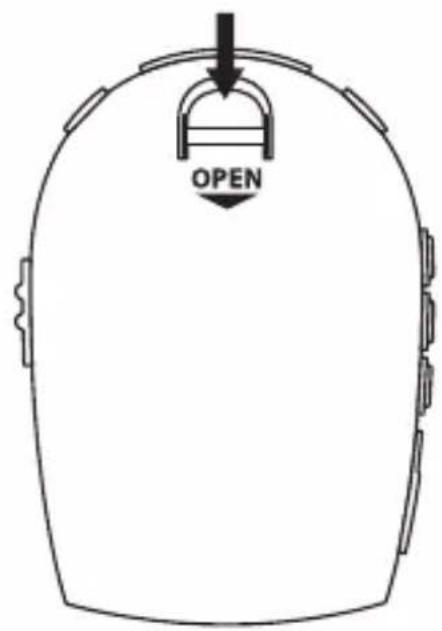
The battery compartment is located on the back of the cabinet.
1.) Pull out the battery compartment latch and remove the battery compartment cover.
2.) Insert one fresh "AAA" alkaline battery in the battery compartment.
Be sure to follow the polarity marking in the battery compartment. If the battery is inserted incorrectly the unit will not work.
3.) Align the bottom battery compartment latch and snap the top of the battery compartment into place.
WHEN TO CHANGE THE BATTERY
When the battery is getting weak, the indicator changes from “(full battery) to ” (replace battery) in the display, meaning the batteries are almost exhausted and should be changed as soon as possible. Do not leave weak or exhausted batteries in the player as they will eventually leak and cause corrosion inside the battery compartment.

LOCATION OF CONTROLS
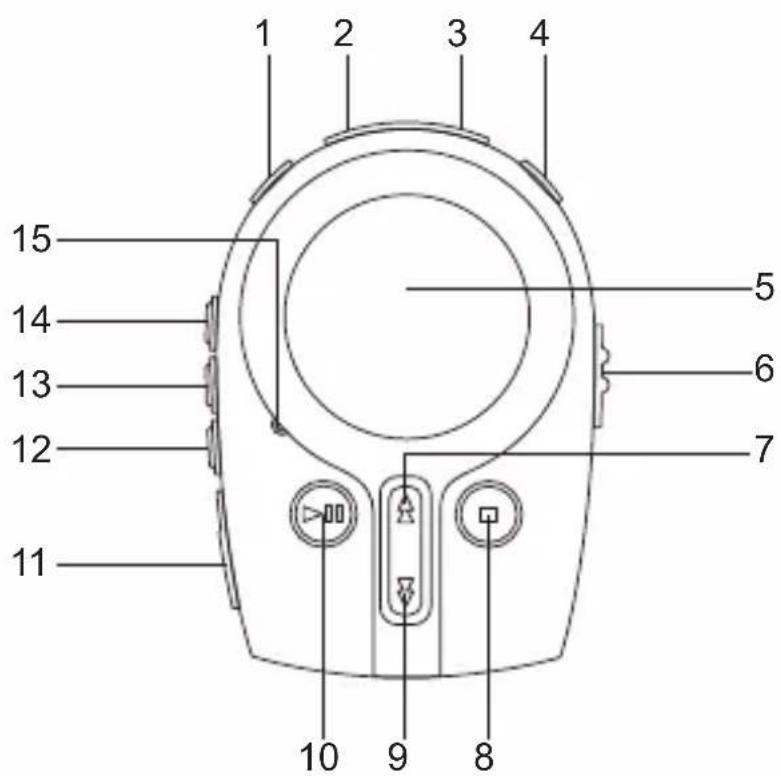
1.) Headphone Jack
2.) VOLUME- Button
3.) VOLUME+ Button
4.) RECORD (REC) Button
5.) LCD Display
6.) HOLD Switch
7.) SKIP/SEARCH FWD
8.) STOP Button
9.) SKIP/SEARCH REV
10.) PLAY/PAUSE ▷Button
11.) USB Cover
12.) EQ/RADIO PRESET Button
13.) REPEAT Button
14.) MODE "M" Button
15.) Microphone

MULTIFUNCTION LCD DISPLAY
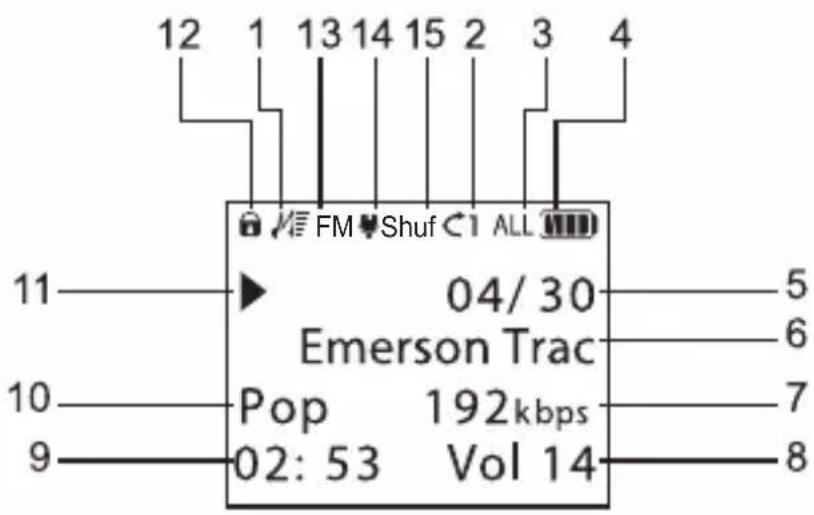
1.) Music Mode Indicator
2.) Repeat One Indicator
3.) Repeat All Indicator
4.) Battery Indicator
5.) Current/Total Song Indicator
6.) Song Information
7.) Bitrate Information
8.) Volume Indicator
9.) Elapsed Time Indicator
10.) Preset EQ [ Nor. (Normal)/Clas (Classic)/Jazz/Pop/Rock ] Indicator
11.) Play ▷Indicator
12.) HOLD Indicator
13.) FM Indicator
14.) Mic Indicator
15.) Shuffle Repeat Indicator
HOLD SWITCH
The HOLD switch locks all of the other controls buttons. If you are carrying the player in a backpack, handbag, gym bag, etc, set the HOLD switch to the 'On' position to prevent the player from accidentally turning on. Likewise, once you start listening to the player you can set the HOLD switch to the 'On' position to prevent accidentally pressing the POWER OFF □button or the REV ▼ or FWD ▲buttons while you are using the player. Remember that to use any of the other controls the HOLD switch must be set to the 'Off' position. The Hold icon 📞will show in the display when the HOLD switch is in the 'On' position.
![graph LR A["Device with circular ports"] --> B{HOLD ↑} B --> C["Device with two vertical bars"] C --> D{'On' HOLD ↓} D --> E["Device with two horizontal bars"] E --> F{'Off' Down} style A fill:#f9f,stroke:#333 style B fill:#ccf,stroke:#333 style C fill:#cfc,stroke:#333 style D fill:#fcc,stroke:#333…](/content/2026/06/1223186/images/98ed4ad3709e9edaef24f489ed384ccc863dafe28940153237dcf7a564c1e7fe.jpg)
INTERNAL AND EXTERNAL MEMORY
- Your player will have slightly less memory available than stated due to the necessary memory needed for it's firmware.
- In addition to the built-in memory, you can install a SD®/MMC card. Your player supports up to 512MB SD®/MMC cards.
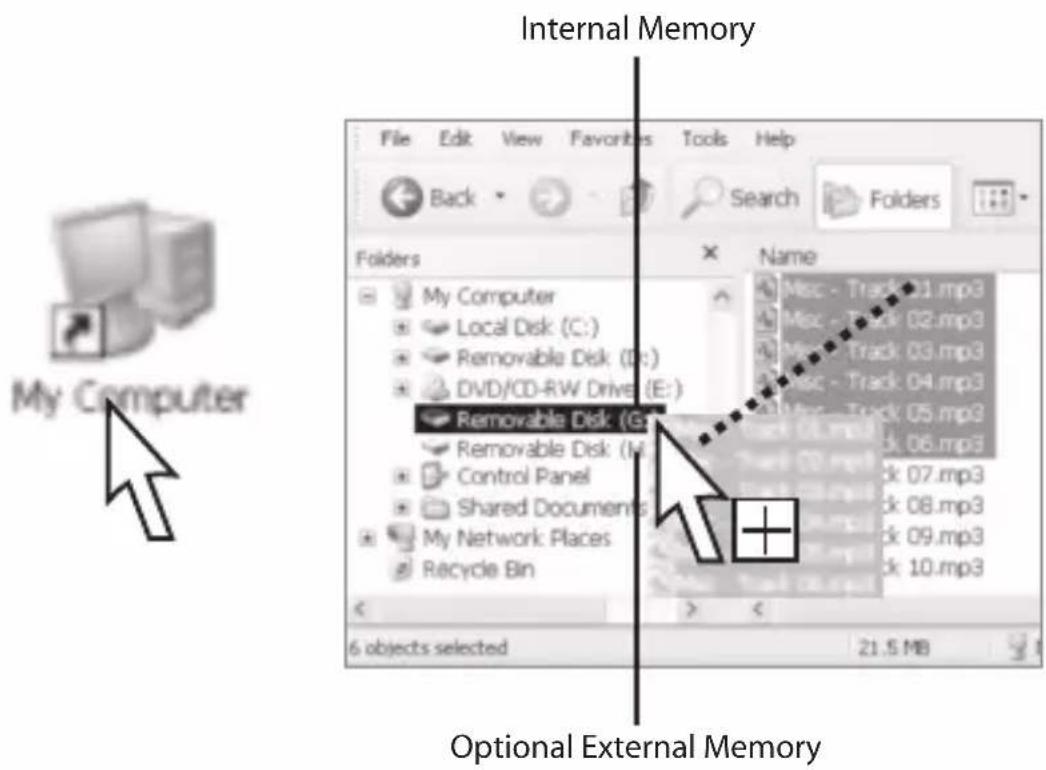
- NOTE: On your computer, both the internal and external memory will be shown as a “Removable Disk”. The first drive listed as “Removable Disk” represents the internal memory; the second “Removable Disk” represents the optional external memory. Refer to “Transferring Music and Data Files” for more information.

CONNECT THE PLAYER TO YOUR COMPUTER
1.) Plug the USB cord into the player. Plug the other end of the USB cord into an remove USB port on your computer.

TRANSFERRING MUSIC AND DATA FILES
1.) Confirm player is connected to computer.
2.) On your Desktop, double-click the "My Computer" icon.
3.) Drag and drop files onto the MP205 drive ("Removable Disk").
- NOTE: The player stores all types of formatted files. However, it will only play MP3 and WMA™ formatted files (WMA™ with DRM copy protection can not be played).
- NOTE: The first drive listed as “Removable Disk” represents the internal memory; the second “Removable Disk” represents the optional external memory.
- NOTE: If you are using Windows® 98SE or below, you must first download and install the driver from our website, www.emersonradio.com.
LIST OF BASIC OPERATIONS
Power on the unit: Press and hold the POWER ON/PLAY/PAUSE ▷ button for approximately 2 seconds.
To play track: Press the POWER ON/PLAY/PAUSE▶ button.
▶ indicator will appear in the LCD display.
To select a different track: Press the FWD ▲ or REV Buttons.
To search through a track: Press and hold the FWD or REV buttons.
To momentarily pause track: Press the POWER ON/PLAY/PAUSE ▷ button when track is playing. ■ indicator will appear in the LCD display.
To resume track: Press the POWER ON/PLAY/PAUSE ▷ button when track is paused.
To adjust volume: Press the “+” or “-” buttons.
To select EQ setting: Press the EQ button repeatedly to cycle through the five preset equalizer settings. The EQ only works while listening to audio tracks.
To stop track: Press the POWER OFF/STOP □ button when track is playing.
Power off the unit: Press and hold the POWER OFF/STOP button for approximately 2 seconds after tracks are stopped.
To lock the buttons from accidentally being pressed: Slide the HOLD switch to the 'On' position.
OPERATION
1.) Unplug player from the USB cord. Make sure you have at least one MP3/WMA™ file already stored on the player.
2.) Make sure the HOLD switch is in the 'Off' position.
3.) Connect the earbuds to the headphone jack.
4.) Press the MODE "M" button until the player's display shows Music mode.
5.) Press the PLAY/PAUSE ▷ button to begin playing an audio track.
![graph LR A["Start Device"] --> B["Press repeatedly to select Music mode"] B --> C["Press to begin play"] C --> D["Press to adj the volume"]](/content/2026/06/1223186/images/f4b8239c11a9a19df36b99b183938962f2f4992d792c42c8401be7de81f21c84.jpg)
REPEAT MODES
• Each time the REPEAT button is pressed, the play mode will change from: repeat one track ,repeat all tracks ,random repeat shand no repeat.
- The FWD and REV buttons will not select tracks in random during random play.

DELETE A MUSIC OR DATA FILE
1.) Confirm player is powered up and connected to computer.
2.) On your Desktop, double-click the "My Computer" icon.
3.) Select the appropriate "Removable Disk" to remove songs from the MP205.
- NOTE: The first drive listed as “Removable Disk” represents the internal memory; the second “Removable Disk” represents the optional external memory.
4.) Select the desired files to delete.
5.) Press the "Delete" key on your computer's keyboard.

DELETE A TRACK DIRECTLY FROM PLAYER
• Make sure your player is disconnected from your computer.
- Press the FWD and REV buttons to select a track.
1.) Press the REPEAT button and the EQ button together.
2.) Press the FWD /REV buttons to highlight "Yes" or "No".
3.) Press the MODE "M" button to confirm your choice.

LISTEN TO THE FM RADIO
1.) Press the MODE "M" button until the player's display shows FM radio information.
2.) Press the FWD or REV buttons to tune in a station.
- Press and hold the FWD or REV buttons for approximately 2 seconds to automatically search for the next station.
• To improve the radio reception, adjust the headphone cord.

CREATE A STATION PRESET
- You can store 20 preset radio stations.
1.) Tune to the station you would like to store in memory.
2.) Press and hold the REPEAT button. The next available preset location will flash in the display.
3.) Press the FWD or REV buttons to select a radio station memory location.
4.) Press the REPEAT button to program the station into memory.
- The radio station presets will be erased when the battery is drained or replaced.

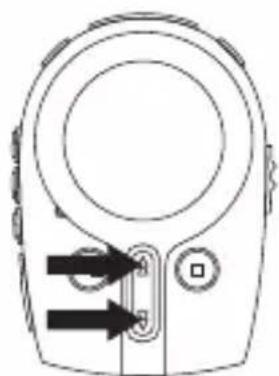
Press to select a preset location
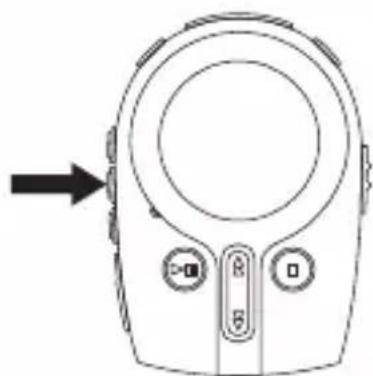
Press to set the preset into memo
LISTEN TO A STATION PRESET
1.) In radio mode ("Freq Mode"), press the EQ/RADIO PRESET button.
2.) Press the FWD or REV button to select a preset radio station.
3.) Press the EQ/RADIO PRESET button to return to radio mode.

Press to enter the Radio Preset mode
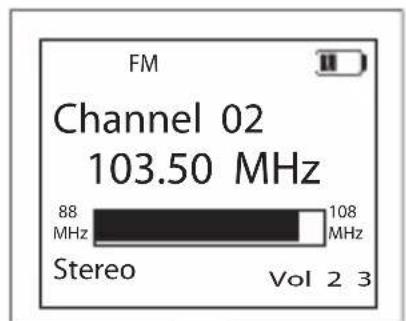

Press to select a preset location

Press to return to Radio mode
VOICE RECORDING
1.) Press the MODE "M" button to toggle to the Voice Record mode. indicator appears on display.
2.) Press the RECORD button and speak into the built-in mic. indicator appears in the LCD display. Speak approximately 1 foot away from the mic for best results.
- Press the RECORD button again to pause recording. indicator appears in the LCD display. Press the RECORD button once more to resume recording.
3.) Press the POWER OFF/STOP button to stop recording.
- You can store up to 999 voice recordings, depending on the amount of available internal memory. You cannot record to the external memory.
- While in voice record mode, press the FWD and REV buttons to select a recording.
- Press the POWER ON/PLAY/PAUSE button to play the selected voice recording.
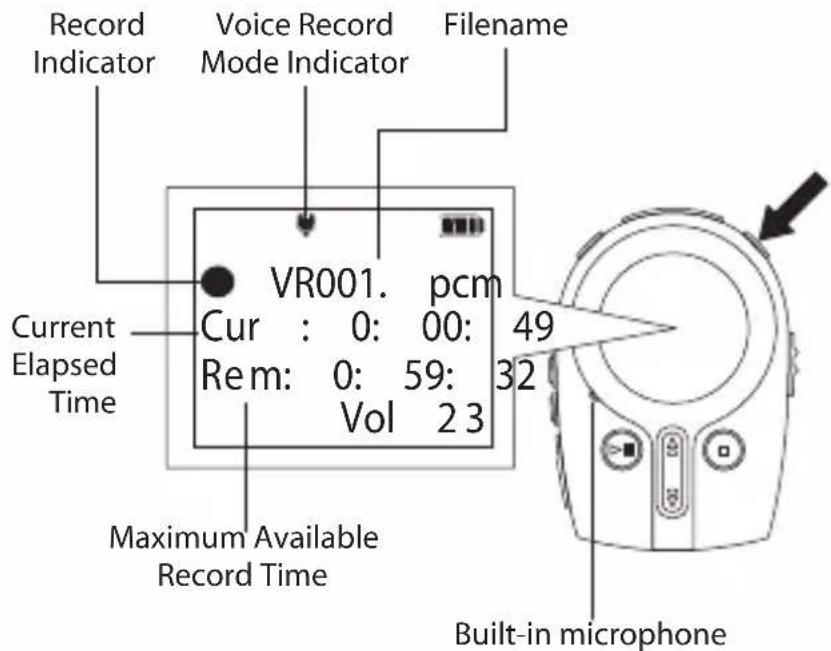
Press once to record Press once more to pause recording Press again to continue recording
SETTINGS MODE
- Follow the diagram below to: change display contrast, change display color, change backlight settings, change auto power off settings, show player info, format internal and external memory, and restore defaults.
![graph LR A["Press and hold to enter the Settings mode"] --> B["Press to highlight desired setting"] B --> C["Press to display the list of options"] C --> D["Press to select desired setting"] D --> E["Press to make your selection"]](/content/2026/06/1223186/images/87dcf58f03caac8f473c80a8af7a3820fcafad5b6b439057ab663b5d99b93466.jpg)
CHANGE THE DISPLAY CONTRAST
1.) While the player is stopped, press and hold the MODE "M" button for 2 seconds to enter the Settings mode.
2.) Press the FWD or REV button to highlight "Contrast".
3.) Press the MODE "M" button to select "Contrast" and display the list of settings.
4.) Press the FWD or REV button to select a setting of "1-5".
5.) Press the MODE "M" button to confirm your selection.
6.) Press and hold the MODE "M" button for 2 seconds to exit the Settings mode.
CHANGE THE DISPLAY COLOR
You can select a different color for the Music mode, FM, Voice Record mode and Settings mode.
1.) While the player is stopped, press and hold the MODE "M" button for 2 seconds to enter the Settings mode.
2.) Press the FWD or REV button to highlight "LCD Color".
3.) Press the MODE "M" button to select "LCD Color" and display the list of modes.
4.) Select mode ( Music, FM, Record, Set up).
5.) Then press mode to confirm.
6.) Press the FWD or REV button to select between: "Yellow", "Green", "Orange", or "Rainbow".
- “Rainbow” automatically changes colors every 2 seconds.
7.) Press the MODE "M" button to confirm your selection.
8.) Press and hold the MODE "M" button for 2 seconds to exit the Settings mode.
CHANGE THE BACKLIGHT SETTING
You can choose to have the backlight automatically turn off after a period of time, or to remain off.
1.) While the player is stopped, press and hold the MODE "M" button for 2 seconds to enter the Setting mode.
2.) Press the FWD or REV button to highlight "Backlight".
3.) Press the MODE "M" button to select "Backlight" and display the list of settings.
4.) Press the FWD or REV button to select: "Off", "After 5 secs", "After 10 secs", or "After 30 secs".
5.) Press the MODE "M" button to confirm your selection.
6.) Press and hold the MODE "M" button for 2 seconds to exit the Settings mode.
CHANGE THE AUTO POWER OFF FEATURE
You can choose to have the player automatically turn of after a period of time.
1.) While the player is stopped, press and hold the MODE "M" button for 2 seconds to enter the Setting mode.
2.) Press the FWD or REV button to highlight "Auto Power Off".
3.) Press the MODE "M" button to select "Auto Power Off" and display the list of settings.
4.) Press the FWD or REV button to select between: "Off" (no auto power off), "After 10 secs", or "After 30 secs".
5.) Press the MODE button to confirm your selection.
- If the player is stopped and no buttons are pressed for the selected period of time, the player will automatically turn off.
6.) Press and hold the MODE "M" button for 2 seconds to exit the Settings mode.
SHOW PLAYER INFORMATION
You can show the total and free internal and external memory.
1.) While the player is stopped, press and hold the MODE "M" button for 2 seconds to enter the Setting mode.
2.) Press the FWD or REV button to highlight "Player Info".
3.) Press the MODE "M" button to select "Player Info" and display the player info.
- Pressing any button will return to Settings mode.
4.) Press and hold the MODE "M" button for 2 seconds to exit the Settings mode.
FORMAT THE MEMORY
You can reformat the internal memory, or an external media card. This will erase all files stored in memory.
1.) While the player is stopped, press and hold the MODE "M" button for 2 seconds to enter the Setting mode.
2.) Press the FWD or REV button to highlight "Format".
3.) Press the MODE "M" button to select "Format" and display the list of settings.
4.) Press the FWD or REV button to select: "Internal", or "External".
5.) Press the MODE "M" button to make your selection.
- Press the FWD or REV buttons to highlight "Yes" or "No".
- Press the MODE "M" button to confirm your choice.
RESTORE THE DEFAULT SETTINGS
You can restore the default options for the Settings menu.
1.) While the player is stopped, press and hold the MODE "M" button for 2 seconds to enter the Setting mode.
2.) Press the FWD or REV button to highlight "Default Set.".
3.) Press the MODE "M" button to select "Restore Defaults".
4.) Press the FWD or REV buttons to highlight "Yes" or "No".
5.) Press the MODE "M" button to confirm your choice.
6.) Press the MODE "M" button to make restore the default options for the Settings menu.
7.) Press and hold the MODE "M" button for 2 seconds to exit the Settings mode.
POWER OFF
1.) While the player is stopped, press and hold the POWER OFF/STOP □ button for approximately 2 seconds.
- The player will remember the last track you played when powering up again.
Press and hold
to power off

TROUBLESHOOTING
Player is not recognized on my Windows® 98SE computer: Install the MP205 driver from www.emersonradio.com. Connect the player to your computer and follow your operating system's instructions to finish installing the driver.
If player is still not recognized, locate the Universal Serial Bus (USB) devices in your operating system's device manager. If your MP205 displays a problem, follow your operating instruction's directions for updating the device driver and load the driver from the included software CD.
After transferring files to the player, music did not play or data was not present: Make sure music is in the MP3/WMA™ format. Follow your operating system's instructions for safely disconnecting USB devices.
Buttons do not work/player does not power up: Make sure the HOLD switch is in the 'Off' position. Make sure the battery is in the correct position. Replace the battery with a new one if necessary.
No sound is heard through the headphones: Check the headphone connection and adjust the volume level.
NOTE:
In the event that the unit does not respond to any entry, you may have to reset the unit. To reset the simply remove the battery from the compartment and install. The unit will reset automatically and will work properly. Your music files and data will remain unchanged and the unit will keep all the data stored in the me
The unit will only play from the SD card if the SD in FAT16 format. However, when connected to the PC, the unit will access the card regardless of the format the SD card just like any other SD card reader.
For more information, visit www.emersonradio.com
LIMITED WARRANTY
Emerson Radio Corp. warrants manufacturing defects in original material, including original parts and workmanship, under normal use and conditions, for a period of ninety (90) days from the date of original purchase in the U.S. With your dated proof of purchase, we will provide repair service at no charge for labor and parts at an authorized Depot Repair Facility, or replace the product in our discretion.
For repair or replacement, pack your unit in a padded box, enclose your check or money order payable to Emerson Radio Corp. in the amount of \$9.00 (not required by California residents) to cover shipping and handling costs, and enclose a copy of your proof of purchase. Send your unit to:
Emerson Radio Corp.
1901 Diplomat Drive.
Farmers Branch, TX 75234.
This warranty does not cover damage from negligence, misuse, abuse, accident, failure to follow operating instructions, commercial use, rental, repairs by an unauthorized facility, or products purchased, used, serviced or damaged outside of the United States.
THIS WARRANTY GIVES YOU SPECIFIC LEGAL RIGHTS, AND YOU MAY ALSO HAVE OTHER RIGHTS WHICH VARY FROM STATE TO STATE.
AU898M

Emerson®
FOR CUSTOMER SERVICE, PLEASE WRITE TO:
Emerson Radio Corp.
Consumer Affairs Dept.
1901 Diplomat Drive,
Farmers Branch, TX 75234.
FOR ADDITIONAL SET-UP OR OPERATING ASSISTANCE
PLEASE CALL: 1-800-898-9020 or visit www.emersonradio.com
Part Number: 16-2964
408-02
Printed in China
- PERSONAL MP3/WMA™ PLAYER WITH FM RADIO AND VOICE RECORDER
- IMPORTANT NOTES
- COPYRIGHT/TRADEMARKS
- SYSTEM REQUIREMENTS
- EMERSON®
- THANK YOU
- CARE AND MAINTENANCE
- PRODUCT SPECIFICATION
- PREPARATION FOR USE
- POWER SOURCES
- INSTALLING THE BATTERIES
- WHEN TO CHANGE THE BATTERY
- LOCATION OF CONTROLS
- MULTIFUNCTION LCD DISPLAY
- HOLD SWITCH
- INTERNAL AND EXTERNAL MEMORY
- CONNECT THE PLAYER TO YOUR COMPUTER
- TRANSFERRING MUSIC AND DATA FILES
- LIST OF BASIC OPERATIONS
- OPERATION
- REPEAT MODES
- DELETE A MUSIC OR DATA FILE
- DELETE A TRACK DIRECTLY FROM PLAYER
- LISTEN TO THE FM RADIO
- CREATE A STATION PRESET
- LISTEN TO A STATION PRESET
- VOICE RECORDING
- SETTINGS MODE
- CHANGE THE DISPLAY CONTRAST
- CHANGE THE DISPLAY COLOR
- CHANGE THE BACKLIGHT SETTING
- CHANGE THE AUTO POWER OFF FEATURE
- SHOW PLAYER INFORMATION
- FORMAT THE MEMORY
- RESTORE THE DEFAULT SETTINGS
- POWER OFF
- TROUBLESHOOTING
- NOTE
- LIMITED WARRANTY
Brand : Emerson
Model : MP205
Category : Mp3 player