
MTX2800 - Tracking CTL - Free user manual and instructions
Find the device manual for free MTX2800 CTL in PDF.


| Product Type | Monitor |
| Brand | CTL |
| Model | MTX2800 |
| Display Size | 28 inches (71.12 cm) |
| Panel Type | TFT with LED backlight |
| Native Resolution | 3840 x 2160 (UHD) |
| Aspect Ratio | 16:9 |
| Pixel Pitch | 0.16 mm x 0.16 mm |
| Display Colors | 1.07 billion |
| Maximum Refresh Rate | 60 Hz |
| Inputs | VGA, DVI-D, HDMI-1/MHL, HDMI-2, DisplayPort-1, DisplayPort-2 |
| USB Ports | 1 upstream (USB 3.0), 2 downstream (USB 3.0) |
| Audio | 3W x 2 speakers, audio input, earphone output |
| Ergonomics | Tilt: -5° to 25° |
| Power Consumption | Off mode: <0.5 W |
| Power Input | AC 100-240 V |
| Active Display Area (W x H) | 620.93 mm x 341.28 mm |
| Operating Temperature | 0°C to 40°C |
| Compliance | CE, Energy Star, FCC, UL/cUL |
| Weight | Approx. 8.5 kg (typical) |
| VESA Mounting | Compatible (kit sold separately, UL-listed required) |
Frequently Asked Questions - MTX2800 CTL
User questions about MTX2800 CTL
0 question about this device. Answer the ones you know or ask your own.
Ask a new question about this device
Download the instructions for your Tracking in PDF format for free! Find your manual MTX2800 - CTL and take your electronic device back in hand. On this page are published all the documents necessary for the use of your device. MTX2800 by CTL.
USER MANUAL MTX2800 CTL
natural_image
Black-and-white photo of a computer monitor displaying multiple hot air balloons floating against a cloudy sky (no text or symbols visible)Operation Instructions
Thank you for purchasing this monitor, a high-resolution multi-scan color monitor. Please read this guide thoroughly before installation.
FCC RADIO FREQUENCY INTERFERENCE STATEMENT WARNING: (FOR FCC CERTIFIED MODELS)
This monitor has been tested and found compliant with the limits for a Class B digital device, pursuant to part 15 of the FCC Rules. These limits are designed to provide proper protection against harmful interference to a residential installation. This monitor generates, uses, and can radiate radio frequency energy. Harmful interference to radio communication may be led as a result if it's not properly installed and used. However, there is no guarantee that interference will not occur in a particular installation. If this monitor does cause serious interference to radio or television reception, resetting the monitor may determine it. Moreover, users are encouraged to correct interference by doing one or more of the following:
● Reorient or relocate the receiving antenna.
- Move the monitor and the receiver further away from each other.
- Connect the monitor into an outlet on a circuit different from that to which the receiver is connected.
- Consult your local dealer or an qualified technician.
FCC Warning:
To assure a continued FCC compliance, a user must use a grounded power supply cord and the provided shielded video interface cable with bonded ferrite cores. Also, any unauthorized changes or modifications to this monitor would void the user's authority to operate this device.
Note: If necessary, shielded interface cables and AC power cord must be used to meet the emission level limits.
Content
Safety Precautions....1
First Setup 2
Quick Installation .... 3
Front View of the Product 4
Rear View of the Product....5
Using On Screen Display (OSD) Functions 6
Supporting Timing Modes....14
Technical Information 15
Care and Maintenance....16
Troubleshooting 16
Safety Precautions
This monitor is manufactured and tested on a ground principle that a user's safety comes first. However, improper use or installation may result danger to the monitor as well as to the user. Carefully go over the following WARNINGS before installation and keep this guide handy.
WARNINGS:
This monitor should be operated only at the correct power sources indicated on the label on the rear end of the monitor. If you're unsure of the power supply in your residence, consult your local dealer or power company.
Do not try to repair the monitor yourself as it contains no user-serviceable parts. The monitor should only be repaired by a qualified technician.
Do not remove the monitor cabinet. There is high-voltage parts inside that may cause electric shock to human bodies, even when the power cord is disconnected.
◆ Stop using the monitor if the cabinet is damaged. Have it checked by a service technician.
◆ Put your monitor only in a clean, dry environment. Unplug the monitor immediately if gets wet and consult your service technician.
◆ Always unplug the monitor before cleaning it. Clean the cabinet with a clean, dry cloth. Apply non-ammonia based cleaner onto the cloth, not directly onto the glass screen.
◆ Keep the monitor away from magnetic objects, motors, TV sets, and transformer.
◆ Do not place heavy objects on the cable or power cord.
◆ For PLUGGABLE EQUIPMENT, the Socket-outlet shall be installed near the equipment and shall be easily accessible.
For displays with glossy bezels the user should consider the placement of the displays as the bezel may cause disturbing reflections from surrounding light and bright surfaces.
Due to safety concerns, if the VESA mounting kit is purchased separately, please make sure the mounting kit is UL-Listed, and replaceable only by service personnel.
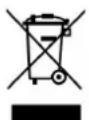
According to WEEE regulation, this monitor can't be handled as normal trash in Europe when it is out of usage. Please refer to the recycle information from our website to handle it.
First Setup
Congratulations for purchasing this monitor of high performance!
This monitor comes with the following accessories :
- AC Power Cord • Audio Cable
• VGA cable (15 pin)
• DisplayPort cable (20 pin)
- User's guide
Quick Installation
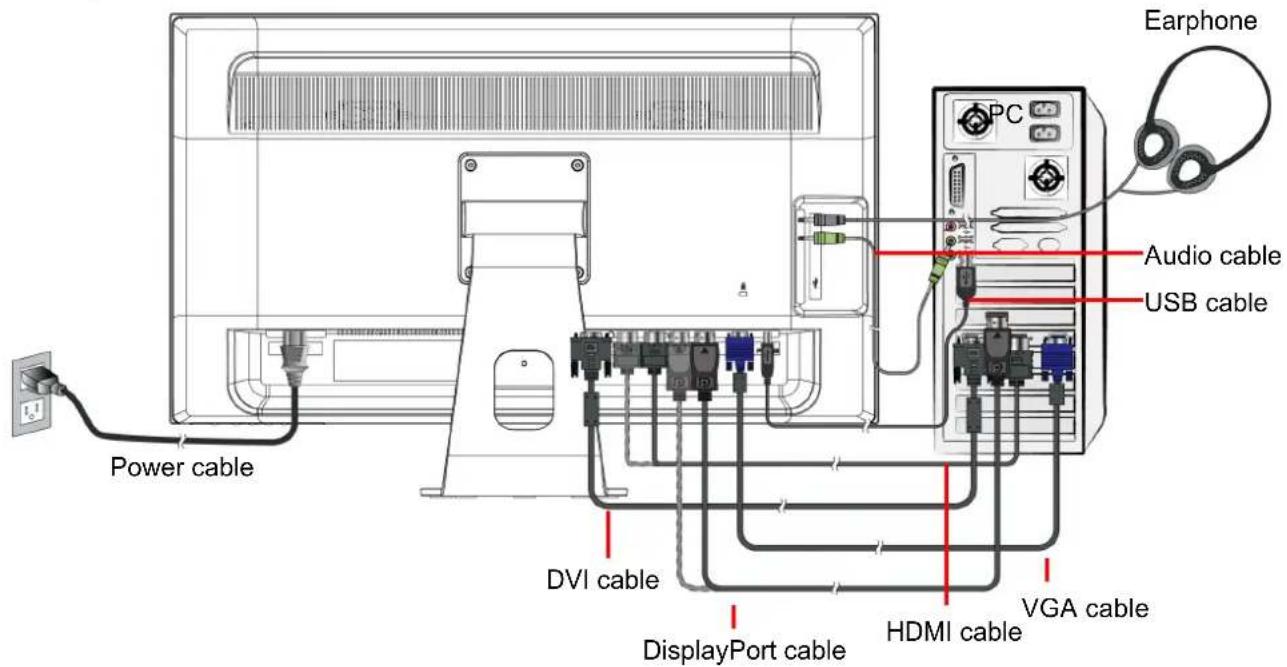
1. Connect Video cable (VGA cable)
Make sure both monitor and computer are powered OFF. Connect the video cable (VGA cable) to the computer, then to the monitor.
or connect DisplayPort cable
Connect the DisplayPort cable from DisplayPort output of computer to the DisplayPort input of the monitor.
or connect DVI cable \*Optional
Connect the DVI cable from DVI output of computer to the DVI input of the monitor.
or connect HDMI cable \*Optional
Connect the HDMI cable from HDMI output of computer to the HDMI input of the monitor.
2. Connect Power cord
Connect the power cord to a properly grounded AC outlet, then to the monitor.
3. Connect Audio cable
Connect the Audio cable from Audio output of computer to the Audio input of the monitor.
4. Connect Earphone (Not supplied)
Connect the earphone to the earphone output terminal of the monitor. (Earphone sold separately).
5. Connect USB cable (Not supplied)
Connect the USB cable from the computer to the monitor.
6. Power-ON computer and monitor
Power-ON the computer, then Power-ON the monitor.
7. Windows users: Setting the Timing Mode (Resolution and Refresh Rate)
Example: 1920 x 1080 @ 60 Hz
Resolution Right-click on the Windows desktop > Properties > Settings > "Desktop Area". Set the resolution.
Refresh Rate (vertical frequency) See your graphic card's user guide for instructions.
Example:
Front View of the Product
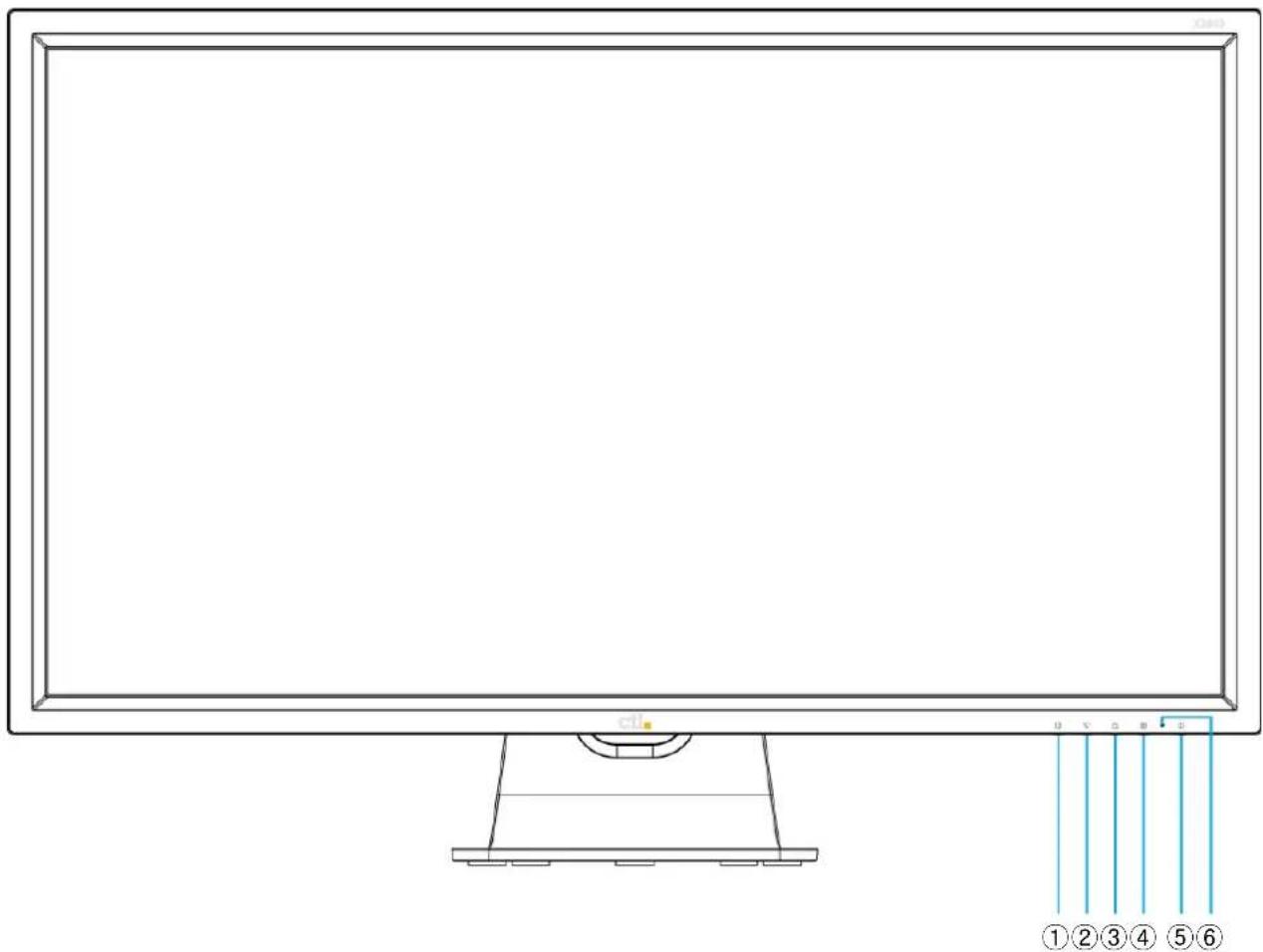
| 1 | OSD Menu On/Off |
| 2 | Scroll Down/ Decrease |
| 3 | Scroll Up/ Increase |
| 4 | Confirm Select |
| 5 | Power ON/OFF |
| 6 | LED Indicator |
Rear View of the Product

| 1 | Power input (AC input) |
| 2 | DVI input (DVI 24 pin) |
| 3 | HDMI-2 input (HDMI 19 pin) |
| 4 | HDMI-1/MHL input (HDMI 19 pin) |
| 5 | DisplayPort-2 input (DisplayPort 20 pin) |
| 6 | DisplayPort-1 input (DisplayPort 20 pin) |
| 7 | VGA input (D-Sub 15 pin) |
| 8 | Up-stream USB port (to PC) |
| 9 | USB port x 2 (support USB 3.0 plug play device) |
| 10 | Audio input |
| 11 | Earphone output |
Using On Screen Display (OSD) Functions
| 1 | Display main menu |
| Exit from OSD menu | |
| 2 | Selects between VGA, DVI, HDMI1-MHL, HDMI2, DisplayPort1 or DisplayPort2 mode |
| Press 3 seconds activates Auto Image Adjust | |
| ▼ | Select the desired item when in OSD menu |
| When not in OSD menu, directly enters Audio menuWhen holding for 5 seconds directly enters Color Preset Modes | |
| ▲ | Select the desired item when in OSD menu |
| When not in OSD menu, directly enters PIP/PBP menuWhen holding for 5 seconds directly swaps PIP/2PBP images only | |
| ▼ + ▲ | Recall both of Contrast and Brightness (when in OSD menu) |
| 1 + ▼ | Power Lock, press 3 seconds to lock (when not in OSD menu) |
| 1 + ▲ | OSD Lock, press 3 seconds to lock (when not in OSD menu) |
Short Cuts Function from the button(s)
Input: When Input Select is pressed, change Input signal to VGA, DVI, HDMI1-MHL, HDMI2, DisplayPort1 or DisplayPort2.
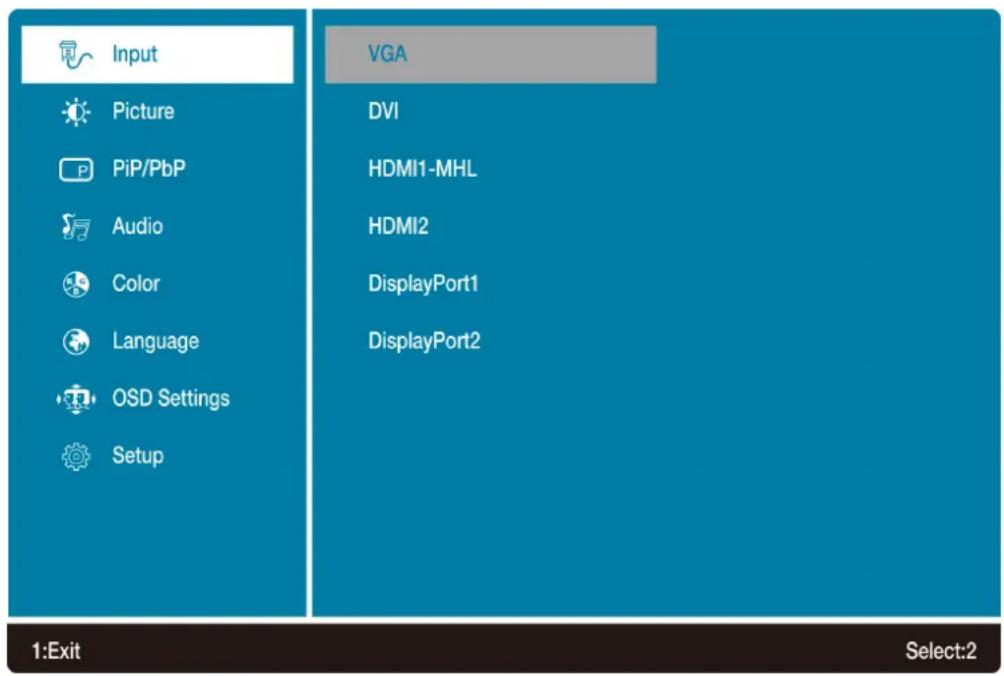
Picture: To manually adjust the Picture Format, Contrast, Brightness, Sharpness, Over Drive and ECO Mode of screen image.

• Picture Format: To select the video mode from 16:9, 4:3 or 1:1.
- Contrast: To adjust the foreground white level of screen image.
▲: increase contrast, ▼: decrease contrast.
- Brightness: To adjust the luminance of the video.
▲: increase brightness, ▼: decrease brightness.
- Sharpness: To adjust the clarity of a non-UHD Resolution (3840x1620) signal with ▲ or ▼ button.
• Over Drive: Allows the user to change the Over Drive strength to improve the quality of motion pictures.
Press ▲ or ▼ key to adjust the Over Drive strength in three levels.
- ECO Mode: Allows the user to change the energy-saving settings. Contrast and Brightness adjustment will be disabled when ECO is active.
Press ▲ or ▼ key to adjust the ECO Mode in three levels.
PiP/PbP: PiP/PbP button allows you to watch two screens from different sources at the same time. (PiP is picture in picture; PbP is picture by picture)

- PiP/PbP Mode: Toggle to enable/disable PiP/PbP function.
- Main Input: Identifies main source (greyed out)
- Sub Win1 Input: To select input source for sub-screen.
- Sub Win2 Input: To select input source for sub-screen.
- Sub Win3 Input: To select input source for sub-screen.
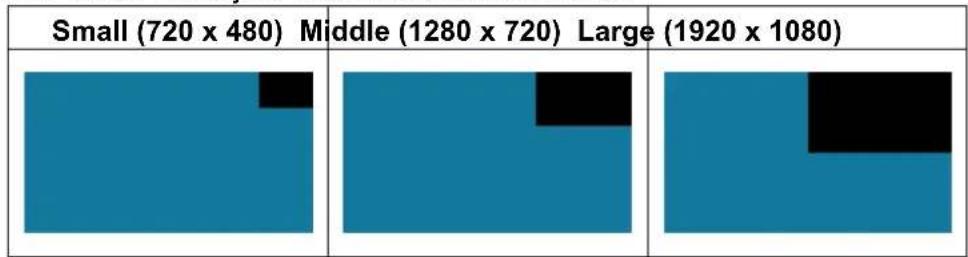
- PiP Size: To adjust sub-screen window size.
heatmap
| | Small (720 x 480) | Middle (1280 x 720) | Large (1920 x 1080) | |---|---|---|---| | 1 | 0 | 0 | 0 | | 2 | 0 | 0 | 0 | | 3 | 0 | 0 | 0 |- PiP Position: To adjust sub-screen window position.

heatmap
| Category | Top-Right | Top-Left | Bottom-Right | Bottom-Left | | ------------ | --------- | -------- | ------------ | ----------- | | Top-Right | 0 | 0 | 0 | 0 | | Top-Left | 0 | 1 | 0 | 0 | | Bottom-Right | 0 | 0 | 1 | 0 | | Bottom-Left | 0 | 0 | 0 | 1 |- Swap: Switch between main screen and sub-screen (only for PiP and 2PbP)
In PbP Mode
2PbP.
Splits the screen left and right equally. In order to achieve full screen on each side, recommended resolution is 1920 x 2160; however, this is a custom resolution. Check your video card to see if custom resolution is supported. If not supported, black bars on top and bottom will result.

3PbP.
Splits the screen. Left-hand side shows only one input. Right-hand side shows two inputs.

pie
| Category | Value | |---|---| | 1 | 1 | | 2 | 2 | | 3 | 3 |4PbP.
Splits the screen into four equal quadrants.

Audio Adjust: To adjust the audio functions.
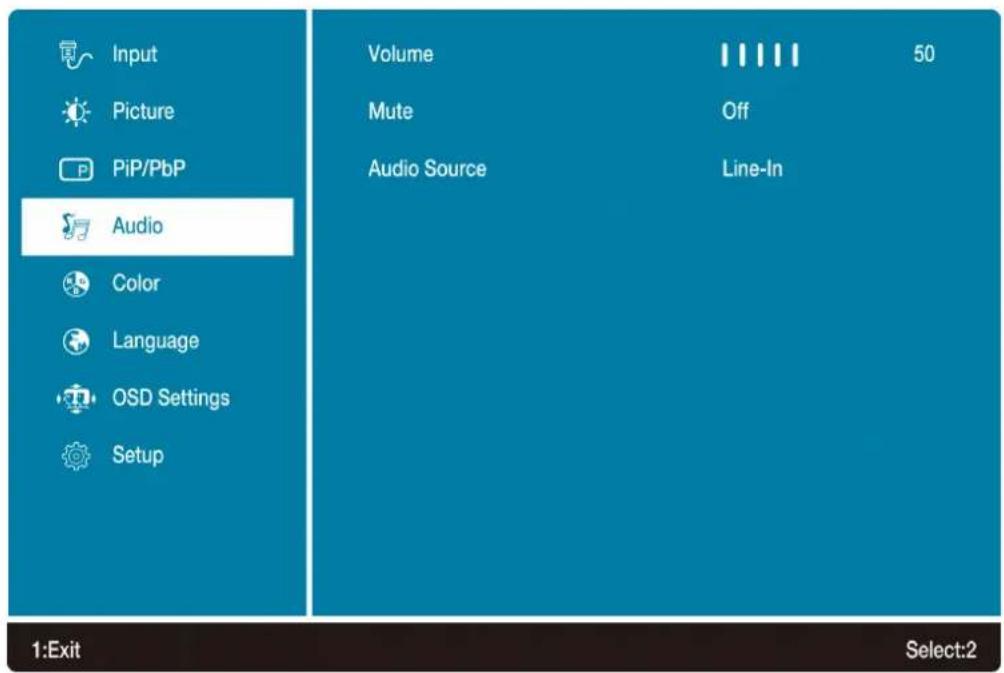
• Volume: To adjust the volume of speaker output.
- Mute: To turn the Mute ON/OFF.
- Audio Source: When in HDMI1-MHL or HDMI2 input, select where the audio source comes from Line-in, HDMI1-MHL or HDMI2.
When in DisplayPort1 or DisplayPort2 input, select where the audio source comes from Line-in, DisplayPort1 or DisplayPort2.
Color: To select the color for improving brightness and color saturation between Warm, Normal, Cool, User Define, Preset Mode, and Blue Light Reducer.

- Warm: Adds green to screen image for a darker color.
- Normal: Adds red to screen image for warmer white and richer red.
- Cool: Adds blue to screen image for cooler white.
- User Define: Individual adjustments for red (R), green (G), blue (B).
- Preset Mode: Provides an optimum display environment depending on the content displayed. It contains 5 user-selectable presets. (Picture Mode adjustment will be disabled when Preset is active.)
-Standard is for general windows environment and monitor default setting.
-Game optimized for PC game environment.
-Cinema optimized for movie and video environment.
-Scenery optimized for displaying outdoor scenery images.
-Text optimized for text editing and viewing in a word processing environment. - Blue Light Reducer: Decrease the blue light emitted from the display to reduce the risk of blue light exposure to your eyes. (Picture Mode adjustment will be disabled when Blue Light Reducer is active.)
Press ▲ or ▼ key to adjust the Blue Light Reducer strength in three levels.
Language: Allow user to choose from available languages.
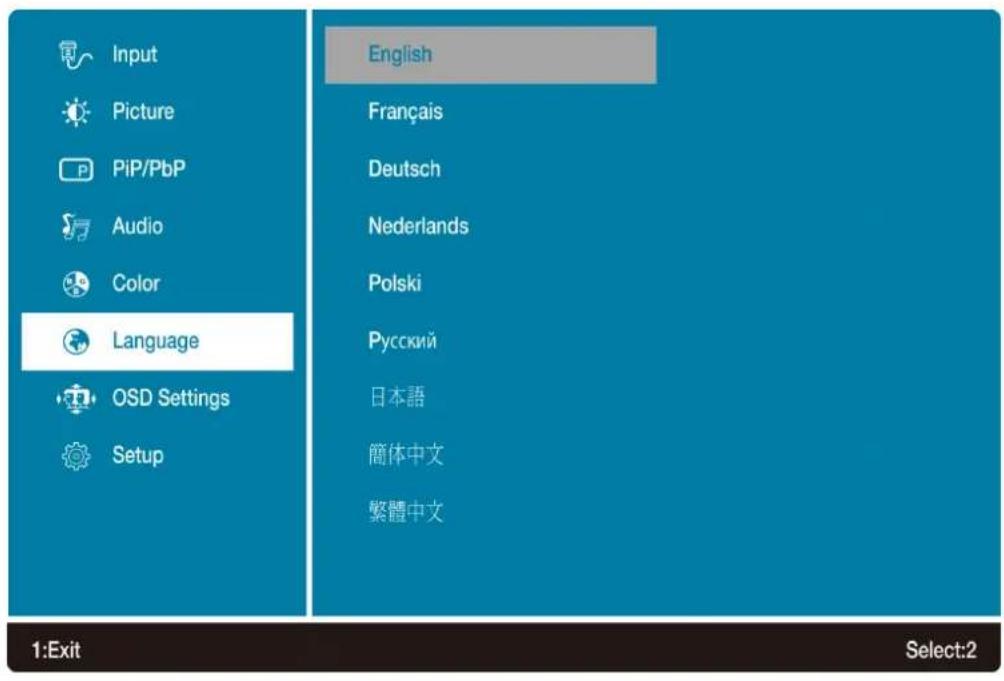
OSD Setting: To manually adjust the Horizontal, Vertical OSD position, Transparency and OSD Time Out.
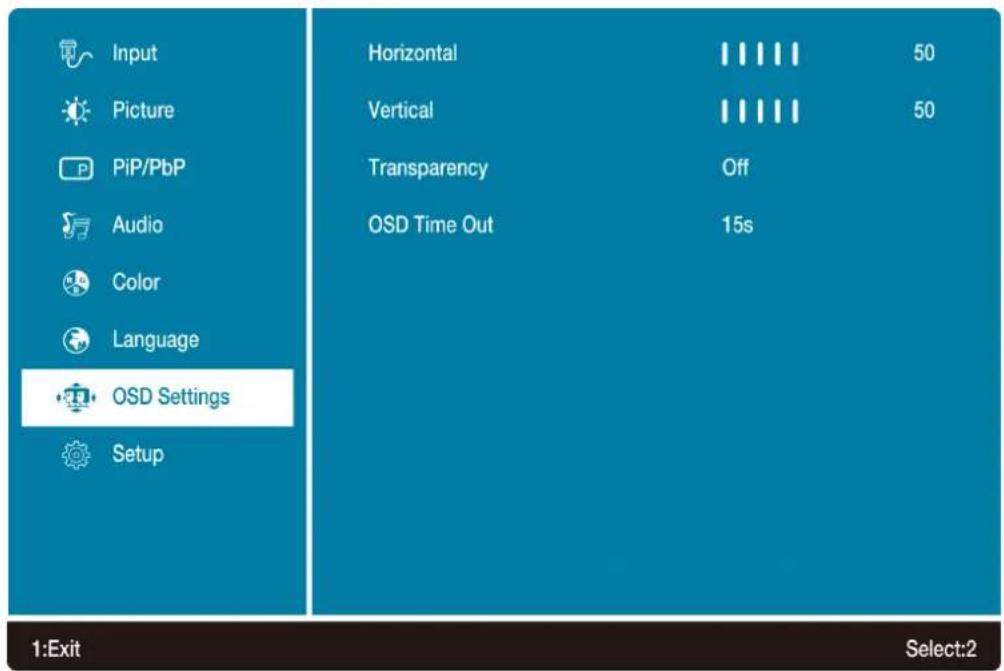
• Horizontal: To horizontally adjust the OSD position.
• Vertical: To vertically adjust the OSD position.
• Transparency: To change the transparency of OSD window.
- OSD Time Out: To automatically turn off On Screen Display (OSD) after a preset period of time.
Setup Menu: To set up Auto, H./ V. Position, Phase, Clock, DisplayPort, Reset and Information.
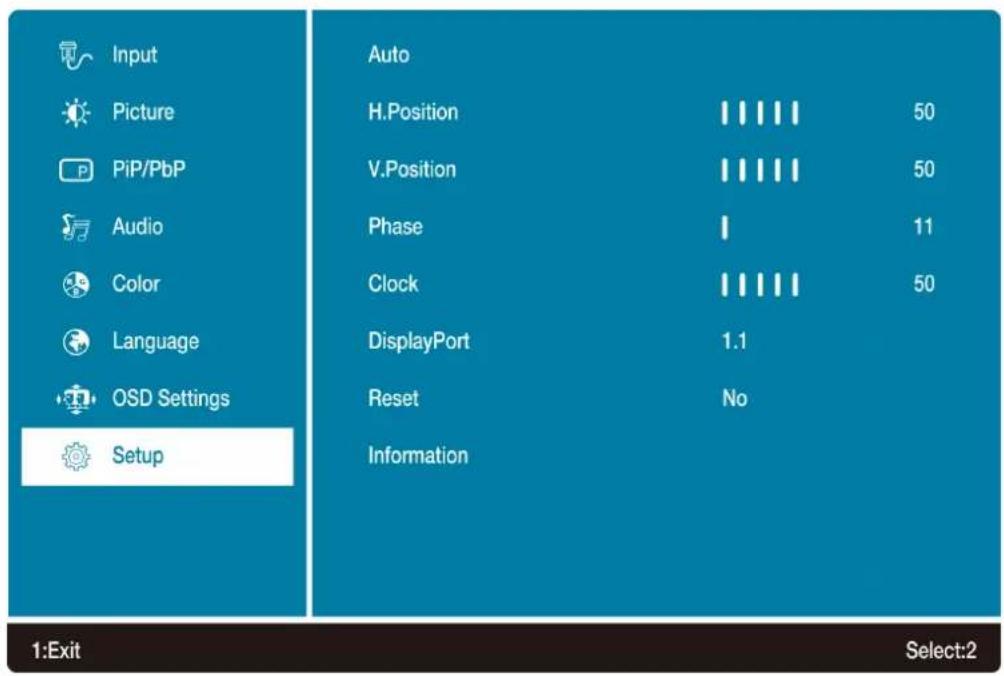
- Auto: To auto adjust Horizontal Position, Vertical Position, Phase (Fine Tune) and Clock (H. Size) of the screen.
• H. Position: To adjust the horizontal position of the screen.
• V. Position: To adjust the vertical position of the screen. - Phase: To adjust delay time of phase in order to reduce the noise of picture.
- Clock: To adjust clock frequency in order to get optimized horizontal size.
- DisplayPort: To adjust the DisplayPort version.
- Reset: To recall factory settings for Video & Audio controls.
• Information: To display the information, regarding the current input signal coming from the graphic card in your computer.
Supporting Timing Modes
| STANDARD RESOLUTION | |
| VGA 720 x 400 @ 70Hz | |
| VGA 640 x 480 @ 60Hz | |
| MAC 640 x 480 @ 67Hz | |
| VESA 640 x 480 @ 72Hz | |
| VESA 640 x 480 @ 75Hz | |
| VESA 800 x 600 @ 56Hz | |
| VESA 800 x 600 @ 60Hz | |
| VESA 800 x 600 @ 72Hz | |
| VESA 800 x 600 @ 75Hz | |
| MAC 832 x 624 @ 75Hz | |
| VESA 1024 x 768 @ 60Hz | |
| VESA 1024 x 768 @ 70Hz | |
| VESA 1024 x 768 @ 75Hz | |
| MAC 1152 x 870 @ 75Hz | |
| VESA 1280 x 720 @ 60Hz | |
| CVT 1280 x 800 @ 60Hz | |
| VESA 1280 x 1024 @ 60Hz | |
| VESA 1280 x 1024 @ 75Hz | |
| VESA 1440 x 900 @ 60Hz | |
| VESA 1440 x 900 @ 75Hz | |
| VESA 1600 x 900 @ 60RB | |
| VESA 1680 x 1050 @ 60Hz | |
| VESA 1920 x 1080 @ 60Hz | |
| VESA 1920 x 1200 @ 60Hz | |
| VESA 2048 x 1152 @ 60Hz | |
| VESA only DVI (dual link)/ HDMI/ DP | 1920 x 1440 @ 60Hz |
| VESA only DVI (dual link)/ HDMI/ DP | 2560 x 1440 @ 60Hz |
| CVT only DVI (dual link)/ HDMI/ DP | 2560 x 1600 @ 60RB |
| CVT only DVI (dual link)/ HDMI/ DP | 2880 x 1620 @ 60RB |
| CVT only DVI (dual link)/ HDMI/ DP | 3840 x 2160 @ 24Hz |
| CVT only DVI (dual link)/ HDMI/ DP | 3840 x 2160 @ 25Hz |
| CVT only DVI (dual link)/ HDMI/ DP | 3840 x 2160 @ 30Hz |
| CVT (only DP) | 3840 x 2160 @ 60Hz |
Note:
HDMI supports 480i, 480p, 576i, 576p, 720p, 1080i, 1080p, and 2160p.
For 2PbP and 3PbP, set your computer to a non-VESA standard timing of 1920 x 2160.
Warning: Do not set the graphic card in your computer to exceed these maximum refresh rates. Doing so may result in permanent damage to your Monitor.
Technical Information
Technical Specification
| LCD Panel 71.12 cm (28") TFT (with LED back light) | |
| Power Management Energy Star VESA DPMS compatible Off Mode, < 0.5 W | |
| Displayable Resolution UHD 3840 x 2160 max. Vertical Frequency 60Hz max. | |
| Compatibility PC VGA Support up to 2048 x 1152 @ 60Hz HDMI/ DVI-D Support up to 3840 X 2160 @ 30Hz DP support up to 3840 x 2160 @ 60Hz (non-interlaced) | |
| Mac® | VGA Support up to 2048 x 1152 DVI-D / HDMI Support up to 3840 X 2160 @ 30Hz DP Support up to 3840 x 2160 @ 60Hz (non-interlaced) Note: For Mac® OSX 10.8.3, DVI-D only supports up to 1920 x 1080 |
| Pixel Dimension 0.16 x 0.16 mm | |
| LCD Display Color 1.07 billion | |
| Tilt -5°~25° | |
| Active Display Area 620.93 mm x 341.28 mm | |
| Temperature Operating: 0°C ~ + 40°C Storage: -20°C ~ + 60°C | |
| Compliance CE, Energy Star, FCC, UL/cUL | |
| Power Input Voltage AC100-240 V | |
| Speaker 3W x 2 | |
Care and Maintenance
Care
- Avoid exposing your monitor directly to sunlight or other heat source. Place your monitor away from the sun to reduce glare.
● Put your monitor in a well ventilated area. - Do not place any heavy things on top of your monitor.
● Make certain your monitor is installed in a clean and moisture-free area. - Keep your monitor away from magnets, motors, transformers, speakers, and TV sets.
Note
- Move the monitor out of the package and take off the plastic bag and Polystyrene Foam.
- Pull the base from Parallel versus Panel to Vertical.
- Adjust the Panel within -5 degree leaning forward and 25 degree leaning backward.
Safety Tips
- If smoke, abnormal noise or odor came out from your monitor, caution you should remove the power cord immediately and call your service center.
- Never remove the rear cover of your monitor cabinet. The display unit inside contains high-voltage parts and may cause electric shock to human bodies.
- Never try to repair your monitor yourself. Always call your service center or a qualified technician to fix it.
Troubleshooting
No power
- Make sure AC power cord is securely connected to the power adapter and the power supply is firmly connected to the monitor.
- Plug another electrical device into the power outlet to verify that the outlet is supplying proper voltage.
● Make sure all signal cables are installed.
Power on but no screen image
- Make sure the video cable supplied with the monitor is tightly secured to the video output port on back of the computer. If not, tightly secure it.
- Adjust brightness.
Wrong or abnormal colors
- If any colors (red, green, blue) are missing, check the video cable to make sure it is securely connected. Loose or broken pins in the cable connector could cause an improper connection.
- Connect the monitor to another computer.

WWW.CTL.NET
A U.S. company. Beaverton, Oregon, USA

- Operation Instructions
- FCC RADIO FREQUENCY INTERFERENCE STATEMENT WARNING: (FOR FCC CERTIFIED MODELS)
- FCC Warning:
- Content
- Safety Precautions
- WARNINGS:
- First Setup
- Quick Installation
- Connect Video cable (VGA cable)
- or connect DisplayPort cable
- or connect DVI cable \*Optional
- or connect HDMI cable \*Optional
- Connect Power cord
- Connect Audio cable
- Connect Earphone (Not supplied)
- Connect USB cable (Not supplied)
- Power-ON computer and monitor
- Windows users: Setting the Timing Mode (Resolution and Refresh Rate)
- Front View of the Product
- Rear View of the Product
- Using On Screen Display (OSD) Functions
- Short Cuts Function from the button(s)
- In PbP Mode
- 2PbP.
- 3PbP.
- 4PbP.
- Note:
- Technical Information
- Care and Maintenance
- Care
- Note
- Safety Tips
- Troubleshooting
- No power
- Power on but no screen image
- Wrong or abnormal colors
Brand : CTL
Model : MTX2800
Category : Tracking