
CHT-350V - DVD Player / VCR SAMSUNG - Free user manual and instructions
Find the device manual for free CHT-350V SAMSUNG in PDF.


| Product Type | DVD Player / VCR Combo |
| Model | CHT-350V |
| Brand | Samsung |
| Power Supply | AC 220-240V, 50Hz |
| Operating Temperature | +5°C to +35°C |
| Humidity | Below 75% |
| VCR Tape Format | VHS (playback/record), S-VHS (playback only) |
| Color Systems | PAL, MESECAM, NTSC3.58, NTSC4.43 |
| Disc Compatibility | DVD, VCD, Audio CD, MP3 CD |
| Audio Output | Hi-Fi stereo, Dolby Digital, DTS |
| Speaker System | 5.1 channel (Front, Center, Surround, Subwoofer) |
| Front Speaker Power | 50W × 2 (6Ω) |
| Center Speaker Power | 50W (6Ω) |
| Surround Speaker Power | 50W × 2 (6Ω) |
| Subwoofer Power | 100W (3Ω) |
| Speaker Frequency Response | 55Hz - 23kHz (Front/Center/Surround), 30Hz - 400Hz (Subwoofer) |
| Tuner | FM/AM with presets (20 FM, 10 AM) |
| Connections | RCA Audio/Video, S-Video, Component (Y/Pb/Pr), Coaxial RF, FM/AM antenna |
| Copying Feature | DVD to VCR (copy-protected discs not supported) |
| Timer Recording | Up to 6 programs, up to 9 hours in LP mode |
| Safety Features | Auto power off, parental control, thermal cooling fan |
| Accessories Included | Remote control, RCA cable, coaxial cable, batteries, AM/FM antennas |
Frequently Asked Questions - CHT-350V SAMSUNG
User questions about CHT-350V SAMSUNG
0 question about this device. Answer the ones you know or ask your own.
Ask a new question about this device
Download the instructions for your DVD Player / VCR in PDF format for free! Find your manual CHT-350V - SAMSUNG and take your electronic device back in hand. On this page are published all the documents necessary for the use of your device. CHT-350V by SAMSUNG.
USER MANUAL CHT-350V SAMSUNG
Contents
Foreword
Safety Instructions.... 5 Disc Type and Characteristics.... 6
DVD-VCR Overviews
Front View of the DVD-VCR....7 Rear view of the DVD-VCR....7 Infrared Remote Control....8 Display Indicators 9 Accessories
Connecting Your DVD-VCR
Deciding How to Connect DVD-VCR.... 10 Connecting DVD-VCR to the TV using the Coaxial Cable 11 - Connecting DVD-VCR to the TV using the RCA Cable.... 11 - Connecting Other Equipment to Your DVD-VCR. 12 - Connecting Other Equipment to Your DVD TV, 12 - Plug & Auto Set Up 13 Tuning Your Television for the DVD-VCR 14 Deck Control Keys 15 Copying from DVD to VCR.... 16 Inserting Batteries in the Remote Control.... 17 - Setting the Date and Time.... 17 - Getting the Base and Time....17 - Menu Language....18
Setting Up Your DVD-VCR
Presetting the Stations Automatically.... 19 Presetting the Stations Manually 20 - Clearing a Preset Station.... 21 Changing the Preset Station Table.... 22 Selecting the RF OUT Sound Mode (B/G-D/K) 23 Setting the DVD-VCR Output Channel 23 Selecting the Colour Mode 24 NICAM 24 Intelligent Picture Control 25 - Auto Power Off 26 - Selecting the Cassette Type 27 Getting the Cassette Type 27 Auto Descent Play 27 Auto Repeat Play.... 27 Displaying/Hiding On-Screen Information 28
Recording Television Broadcasts
Selecting the Recording Speed 28 Protecting a Recorded Cassette.... 29 Recording a Programme Immediately.... 29 Recording a Programme with Automatic Stop.... 30 Recording a Programme with Automatic Stop.... 30 Using the Timer Programming Feature.... 31 - Checking a Preset Recording 32 Cancelling a Preset Programme.... 32
Contents (cont.)
Playing Back
Playing a Cassette.... 33 Adjusting Picture Alignment Automatically 33 Adjusting Picture Alignment Manually 33 Selecting the Audio Output Mode 34 Playing a cassette in Slow Motion 34 Playing a Cassette Frame by Frame 35 Playing a Sequence at Variable Speeds 35 Picture Search. Fast Forward:Rewind 36 Searching for a Specific Sequence 36 Using the Tape Counter 37 Connecting an RCA Audio/Video Input Cable 38 Using the Assemble Edit Function.... 39 - Recording from Another VCR or Camcorder.... 39 Audio Dubbing a Pre-recorded Cassette 40 Using the TV Buttons on the Remote Control 41 SQPB (Super VHS Quasi Playback) 42
DVD Functions
- Choosing a Connection 43 ■ Using the Setup Menu 44 Using the Disc Menu Language 45 Setting in the Audio Language Features 45
- Setting Up the Audio Language Features .... 40
- Using the Subtitle Language .... 45 ■ Using the Subtotal Language .... 46 ■ Setting Up the Parental Control .... 47 ■ Setting Up the Audio Options 48 ■ Setting Up the Display Options.... 49 ■ S-Video Connections (for DVD) 50 ■ Special Playback Features 51 ■ Using the Display Function (DVD/CD/CD) 52 Report Play ■ Repeat Play .... 53 ■ Program Play (CD) 54 ■ Random Play (CD) 54 ■ SCREEN FIT Play 55 ■ Selecting the Audio Language (Using the Audio button).... 56 ■ Selecting the Subtitle Language (Using the Subtitle button) 56 ■ Changing the Camera Angle 57 ■ Using the Bookmark Function (DVD/VCD).... 56
- Resolution & Market Score.... 57 ■ Recalling a marked scene.... 50 ■ Clearing a Mark.... 50 ■ Using the Zoom /DVD/VCD) 59 ■ MP3 Play 6D ■ MP3 Play (CD-R MP3 disc requirements) 61


Contents (cont.)
◆Appendix A - Advanced Connections
■ Connecting the FM and AM antennas 62 ■ Connecting the Sneakers 63 ■ Connecting the Speakers 63 ■ LINE3 AUDIO Setting 64 ■ Speaker Volume Control 64 ■ Speaker setup 65 ■ Dolby Pro Logic II decoder 67 ■ SOUND mode's effect function 68 ■ Listening to radio broadcasts.... 69 ■ Presenting stations 69
◆Solving Problems
■ Technical Specifications 70 ■ Problems and Solutions (VCR)....72 - Troubleshooting Guide (DVD)....79 ■ Notesholding Guide (DVD) 73
This product incorporates copyright protection technology that is protected by
method claims of certain U.S. patents and other intellectual property rights
owned by Macrovision Corporation and other rights owners. Use of this copyright protection technology must be authorized by Macrovision
Copyright protection technology must be authorized by Macrovision Corporation by Macrovision Corporation, and is intended for home and other
limited viewing uses only unless otherwise authorized by Macrovision
Corporation. Reverse engineering or disassembly is prohibited.
Symbols


: Step number


Note: Important. Hold down, press, push.
Safety Instructions
The following illustrations represent precautions.

The lightning bolt is a warning sign alerting you to dangerous voltage inside the product.
DO NOT OPEN THE DVD-VCR. Refer to service personnel.
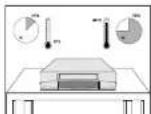
Do NOT expose the DVD-VCR
to extreme temperature conditions (below 55°C and above
conditions (below 5°C and above 40°C) or to extreme humidity
conditions less than 10% and
more than 75%).
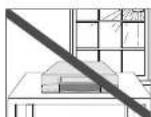
Do NOT expose the DVD-VCR
to direct sunlight

Do NOT expose the DVD-VCR
to any liquids.
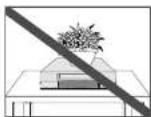
Do NOT place any objects on
the DVD-VCH or remote control.
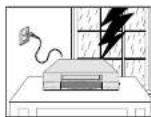
During a storm and/or light-
ning, unplug the DVD-VCH from the main socket and
non aeral
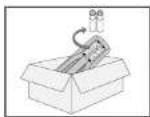
if the remote control is not
used for a long period at time,
It in a cool, cry place.
THIS DEVICE IS NOT FOR USE IN INDUSTRIAL ENVIRONMENTS


Disc Type and Characteristics
This DVD player is capable of playing the following types of discs with the corresponding logos :
| Disc Types (Logos) | Recording Types | Disc Size | Max. Playing Time | Characteristics |
| DVD | Audio+Video | 12 Cm | Single-sided 240 min.Double-sided 480 min. | • DVD contains excellent sound and video due to Dolby Digital and MPEG-2 system.• Various screen and audio functions can be easily selected through the ocreen menu. |
| 8 Cm | Single-sided 80 min.Double-sided 160 min. | |||
| VIDEO-CD | Audio+Video | 12 Cm | 74 min. | • Video with CD sound, VHS quality & MPEG-1 compression technology. |
| 8 Cm | 20 min. | |||
| AUDIO-CD | Audio | 12 Cm | 74 min. | • An LP is recorded as an analog signal with more distortion. CD is recorded as a Digital Signal with better audio quality, less distortion and less deterioration of audio quality over time. |
| 8 Cm | 20 min. |
* DO NOT play CD-ROM, CD-I and DVD-ROM in this player!
(CDGs play audio only, not graphics.)
Disc Markings


• Playback
Region
Number
• PAL colour
system in U.K.
France, Germany


• Colby
Digital disc

- Stereo
disc

Digital
Audio

• DTS disc
2.1.3.20
Playback Region Number
Both the DVD player and the discs are coded by region. These regional codes must match in order for the disc to play. If the codes do not match, the disc will not play. The Region Number for this player is described on the rear panel of the player.

Front View of the DVD-VCR

Rear View of the DVD-VCR


Infrared Remote Control
1 STANDBY/ON 2 OPEN/CLOSE, EJECT 3 SPEAKER SELECT
4 TEST
5 MODE, REPEAT
6 ANGLE
7 TV VOLUME
8 TV SELECT
9 DVD, VCR,
SELECT
10 REWIND, SKIP BACK
11 STOP
12 DISPLAY
13 SETUP
14 UP
15 LEFT
16 ENTER
17 RECORD
18 MARK. 19 AUDIO
19 AUDIO 20 TITLE GREEN
20 TITLE, SPEED 21 TV STANDBY
21 TO STANDBY/ON 22 MUTE
22 MUTE 22 0 0
23 0-9 24 SOUND MODE
25 SOUND EFFECT
26 STEP
27 ZOOMATB
28 PROGTRK ▲/▼
29 AMP VOLUME
30 TV INPUT
31 FAST-FORWARD. SKIP
NEXT
32 PLAY/PAUSE
33 CLEAR
34 DISC MENU
35 RIGH
36 DOWN
37 RETURN, A.DUB
38 SUBTITLE, TIMER
39 SCREEN FIT, SVHS
40 TV/VCR
41 JOG'SHUTTLE
Display Indicators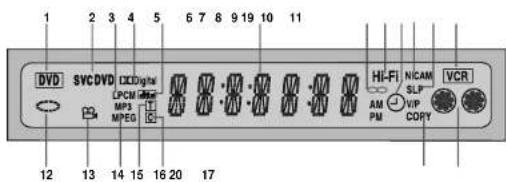
1 The DVD Deck is selected
2 A DVD, CD, VCD or SVCD is loaded
- A disc with LPCM (Linear Pulse Code Modulation)
audio is loaded
4 A DVD with a Dolby Digital is loaded
5 A DVD with a DTS soundtrack is loaded
6 The time, counter position, time remaining or
current deck status is displayed
7 The current TV show or video is broadcast in Stereo
8 The Hi-Fi track of a VHS tape is playing
9 A Timer Recording is programmed or in progress
It binking there is an error
10 Tape Spear
11 The VCR Deck is selected
12 The status of the DVD deck is graphically displayed
13 The DVD has multiple angles.
14 NP3
14.12.3
15 A MPEC Audio Disc is loaded.
16 The number to the right of the 'T' symbol is the
current lilla number
17 The number to the right of the 'C' symbol is the
current chapter number
18 VHS tape is inserted and the VCR Deck is active
19 NICAM Instalator
19 MICAM INDICATION
20 COPY MODE INDICATOR
Accessories
You have just purchased a SAMSUNG Video Cassette Recorder (DVD-VCR).
Together with your DVD-VCR, you will find the following accessories in the box.
| REMOTE CONTROL | AUDIO & VIDEO CABLE | OWNER'S INSTRUCTIONS | COAXIAL CABLE |
| BATTENICS | AM ANTIOMA CABLE | EV ANTIOMA CABLE | |


Deciding How to Connect DVD-VCR
You must take into account various factors when connecting audio or video systems:
◆Types of connectors available on your systems
◆Systems connected permanently to the DVD-VCR (satellite receiver for example) or temporarily (camcorder for example)
Your DVD-VCR is equipped with the following connectors.
Connector Location Type Direction Recommended Use
| LINE | Rear AudioVideo RCA In/Out ♦Television | ◆Other VCR | |||
| COMPONENT output | Rear RCA Out ♦COMPONENT out (DVD only) | ||||
| S-VIDEO output | Rear S-JACK Out ♦S-Video out (DVD only) | ||||
| OUT TO TV | Rear 75 Ω coastal Out ♦ Television | ||||
| IN FROM ANT. | Rear 75 Ω coastal In ♦ Aerial | ||||
Whenever you connect an audio or video system to your DVD VCR, ensure that all elements are switched off.
Refer to the documentation supplied with your equipment for detailed connection instructions and associated safety precautions.

Connecting DVD-VCR to the TV using the Coaxial Cable
To receive television programmes a signal must be received from one of the following sources:
◆An outdoor aerial ◆An indoor aerial ◆A cable television network ◆A satellite receiver
Make sure that both the television and the DVD-VCR are switched off before connecting the cables.
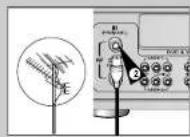
1 Remove the serial or network input cable from the television. 2 Connect this cable to the 75Ω coaxial socket marked — on the rear of your DVD-VCR. 3 Plug the coaxial cable supplied into the socket on your DVD-VCR. 4 Plug the other end of the coaxial cable into the connector previously used for the aerial on the television. 5 To obtain better quality pictures and sound on your television, you can also connect your DVD-VCR to the television via the RCA cable (see section below) if your television is equipped with this type of connection.
Connecting DVD-VCR to the TV using the RCA Cable
You can connect your DVD-VCR to the television using the RCA cable if the appropriate input is available on the television. You thus:
◆ Obtain better quality sound and pictures
◆ Simplify the setting up procedure of your DVD-VCR
Regardless of the type of connection chosen, you must always connect the coaxial cable supplied. Otherwise, no picture will be visible on the screen when the DVD-VCR is switched off. ◆ Make sure that both the television and the DVD-VCR are switched off before connecting the cables.
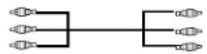
1. Connect the coaxial cable as indicated in the above section. 2. Connect one end of the RCA Audio/Video cable to the Video output and Audio L, R output sockets on the rear of the DVD-VCR. 3. Plug the other end into the appropriate connector on the television.


Connecting Other Equipment to Your DVD-VCR
You can connect other audio and/or video equipment to your DVD-VCR in different ways. The following illustrations give a few examples of the connection possibilities.
The RCA input/output connectors on the rear of the DVD-VCR are used for equipment, such as camcorders, VCRs or sound systems.
REAR OF THE DVD-VCR

Plug & Auto Set up
Your DVD-VCR will automatically set itself up when it is plugged into the mains for the first time. TV stations will be stored in memory. The process takes a few minutes. Your DVD-VCR will then be ready for use.
1. Connect the coaxial cable as indicated on page 11. (Connecting Your DVD-VCR to the TV Using the Coaxial Cable) 2. Plug the DVD-VCR into the mains. Result: The LANGUAGE SET menu is displayed.
3. Select the required language by pressing the ▲ or ▼ buttons. 4. Press ENTER to store the language selected. Result: A message appears.
5. Press ENTER to start the auto scanning. ◆ The number of stations automatically stored by the DVD-VCR depends on the number of stations that it has found.
6 Check the data and time. (see page 17)
7 On completion, press RETURN to exit the menu.
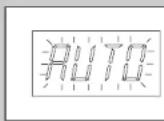
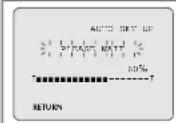
Auto preset can be performed by pressing ■(STOP) on the VCR continuously for 5 seconds or more with no tape inserted.



Tuning Your Television for the DVD-VCR
You must tune your television for the DVD-VCR only if you are not using a RCA cable
To view pictures from your DVD-VCR when a RCA cable is used, the television must be set to the audio/video mode (AV).
1 Switch on the television.
2 Switch on the DVD-VCR by pressing STANDBY/ON on the front of the DVD-VCR or STANDBY/ON on the remote control.
3 Select a programme position on the television to be reserved for use with your DVD-VCR.
4 Insert the video cassette in the DVD-VCR. Check that the DVD-VCR starts reading the cassette: if not, press ▶|| button.
5 Start a scan on your television or set the television to UHF channel 36.
6 Fine tune the television until the pictures and sound are obtained clearly.
7 If you cannot find the pictures and sound, or there is interference from nearby channels, it may be necessary to change the setting of the DVD-VCR output channel (see Setting the DVD-VCR Output Channel on page 23 and Problems and Solutions on page 72).
8 When the picture and sound are perfectly clear, store this channel at the desired programme position on the television. Result: That programme is now reserved for use with your DVD-VCR.
Deck Control Keys
The DVD-VCR uses one set of controls to operate both decks. The following keys are helpful in successfully controlling each deck.
1 STANDBY/ON Button
Press the STANDBY/ON button on the remote control or front panel to turn on the DVD-VCR.
2 DVD Button Press the DVD button on the remote control when you want to control the DVD deck.
- The DVD indicator will light on the Front Panel Display to show that the DVD deck is selected.
3 VCR Button
Press the VCR button on remote control when you want to control the VCR deck.
- The VCR indicator will light on the Front Panel Display to show that VHS deck is selected.
4 INPUT Button
Press the INPUT button repeatedly to cycle through all of your input sources, including the Tuner (PRM), Line 1, Line 2, and Line 3 (rear AV input).




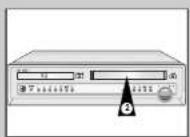
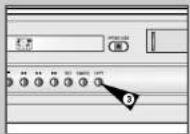
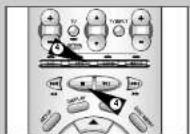
Copying from DVD to VCR
The DVD-VCR allows you to copy the contents of a DVD to a VHS tape with a press of the COPY button.

If the DVD you are attempting to copy is copy protected, you will not be able to copy the disc. It is not permitted to copy Macrovision® encoded DVDs.
1 Insert Disc
Insert a disc you wish to copy in the DVD deck and close the
2 Insert VHS Tape
Insert a blank VHS videotape into the VCR deck.
3 Copy the DVD to VHS Tape
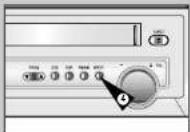
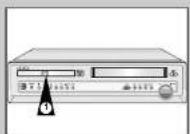
Press the COPY button on the DVD-VCR front panel. • The DVD will go into Play mode and the VCR will go into Record mode.
- If the DVD disc menu appears, you may need to press the PLAY button manually to begin copying.
4 Stop the Copy Process
When the DVD is finished playing, press the VCR button on the remote control and then press the STOP button to end the copy. - You must stop the Copy process manually when the DVD movie ends or the DVD may replay and record over and over again.

The copy is only active for PAL disc system.
Inserting Batteries in the Remote Control
You must insert or replace the batteries in the remote control when you:
◆ Purchase the DVD-VCR
◆ Find that the remote control is no longer working correctly
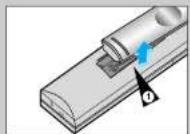
1 Push the tab in the direction of the arrow to release the battery compartment cover on the rear of the remote control.
2 Insert two AA, R6 or equivalent batteries, taking care to respect the polarities.
- on the battery with - on the remote control - - on the battery with - on the remote control
3 Replace the cover by aligning it with the case of the remote control and pushing it back into place.

Do not mix different battery types (for example, manganese and alkaline).

Setting the Date and Time
Your DVD-VCR contains a 24-hour clock and calendar used to: ◆ Automatically stop programme recording
◆ Preset your DVD-VCR to record a programme automatically
You must set the date and time when:
◆ You purchase the DVD-VCR

- Do not forget to reset the time when you change clocks from winter to summer time and vice versa.
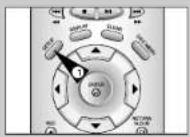
1 Press SETUP on the remote control. Result: The MAIN MENU is displayed.
2 Press the corresponding ▲, ▼, ◀, or ▶ buttons to select the CLOCK SET option.
3 Press the ENTER button to select this option. Result: The CLOCK SET menu is displayed.
4 Press ◀ or ▶ to select the hour, minutes, day, month, and year. Result: The selected option flashes.
5 Press the ▲ or ▼ buttons to increase or decrease the value. Result: The day of the week is displayed automatically. ➢ You can hold the ▲ or ▼ buttons down to scroll more quickly through the values.
6 On completion, press RETURN twice to exit the menu.


Menu Language


1 Open "MAIN MENU"
With the DVD in stop mode, press the SETUP button.
2 Set "Language"
Using the ▲, ▼ and ◀, ▶ buttons, move the selection arrow to Language set then press ENTER button.
3 Set menu Language
Move the selection bar to your desired Language, then press ENTER button.

Presetting the Stations Automatically
VCR

You do not need to preset the stations if you have already
set them automatically (see Plug & Auto Set Up on
page 131.
Your DVD-VCR contains a built-in tuner used to receive television broadcasts.
You must preset the stations received through the tuner. This can be done:
◆Plug & Auto Set up (see page 13)
◆Automatically
◆Manually (see page 20)
You can store up to 80 stations.
1 Press the SETUP button on the remote control.
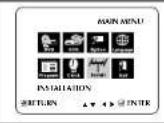
Result: The MAIN MENU is displayed.
2 Press the corresponding ▲.▼ or ◀.► buttons to select the
INSTALLATION option
3 Press the ENTER button to select this option.
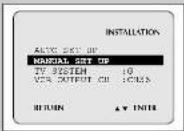
Result: The INSTALLATION menu is displayed
4 Press the corresponding ▲ or ▼ buttons, until the AUTO SET UP option is selected.
And then press the ENTER button to select this option.
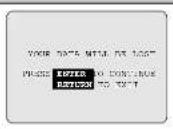
Result: A message appears, indicating that any channels
already preset on your DVD-VCB will be deleted.
5 Press ENTER to start the auto scanning.
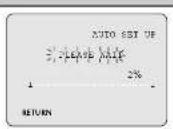
Result: • The PLEASE WAIT indication flashes on the
television screen.
The first frequency band is scanned and the first
station found is displayed and stored.
The DVD-VCR then searches for the second station
and so on.
When the automatic scanning procedure has
finished, the DVD-VCR switches automatically to
programme
The number of stations automatically stored by the DVD-
VCR depends on the number of stations that it has found.
6 If you wish to cancel the auto scanning before the end, press the
RETURN button three times to exit the menu.

Once the auto-scanning procedure has finished, some
stations may have been stored more than once: select
the stations with the best reception and delete the
ones no longer required (see page 21).



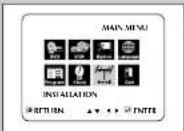


VCR
Presetting the Stations Manually

You do not need to preset the stations manually if you
have already set them automatically.
1 Press the SETUP button on the remote control. Result: The MAIN MENU is displayed.
2 Press the corresponding ▲,▼ or ◀,► buttons to select the INSTALLATION option.
3 Press the ENTER button to select this option. Result: The INSTALLATION menu is displayed.
4 Press the corresponding ▲ or ▼ buttons, until the MANUAL SET UP option is selected.
5 Press the ENTER button to select a MANUAL SET UP option. Result: The TV STATION TABLE menu is displayed.
6 Press the ▲ or ▼ buttons to select a programme number as required.
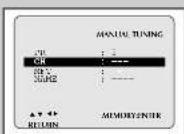
7 Press the ▶ button to preset the station. Result: The MANUAL TUNING menu is displayed.
8 Press the ◀ or ▶ buttons to start scanning. Result: The frequency band is scanned and the first station found is displayed.
9 Press the ▲ or ▼ buttons until the NAME is selected. The station name is set automatically from the broadcast signal.
10 To change the programme's name, press the ▶ button. Result: The first letter of the name flashes.
11 To...
Select a character: Press the ▲ or ▼ button until the required character is displayed in the name.
(letters, numbers, or - character).
Move to the next or previous character by pressing the ▶ or ◀ buttons respectively.
12 If you... Then...
Wish to store the station displayed: Press the ▲ or ▼ buttons until xRT is selected.
Press the ◀ or ▶ buttons to adjust the picture, if necessary.
Press ENTER to store the station.
Do not wish to store the station displayed: Press the ▲ or ▼ buttons until CH is selected.
Press the ◀ or ▶ buttons to do on scanning the frequency band and display the next station.
Go back to the beginning of Step 12.
CH is selected
- Press the ◀ or ► buttons to do on
scanning the frequency band and displaying
the next station
- Go back to the beginning of Step 12
13 Repeat this procedure from Step 6 onwards, until all the required stations have been stored.
14 On completion, press the RETURN button three times to exit the menu.

You do not need to preset the stations manually if you have already set them automatically.
Clearing a Preset Station
VCR
If you have stored a TV station:
◆That you do not require
◆At the wrong programme position
you can cancel it.
1 Press the SETUP button on the remote control.
2 Press the corresponding ▲,▼ or ◀,► buttons to select the INSTALLATION option.
3 Press the ENTER button to select this option.
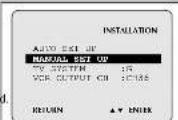
Result The INSTALLATION menu is displayed.
4 Press the corresponding ▲ or ▼ buttons, until the MANUAL SET UP option is selected
5 Press the ENTER button to select this option.
Result: The TV STATION TABLE menu is displayed.
6 Press the corresponding ▲ or ▼ buttons until the required preset TV station is selected. (PR)
7 Press the CLEAR button.
6 Repeat the same procedure from Step 6 onwards until all the required stations have been cleared.
9 On completion, press the RETURN button three times to exit the menu.

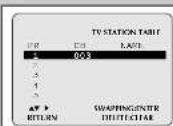


You can rearrange the Station Table and give different programme numbers to the stations listed according to your own preferences.
1 Press the SETUP button on the remote control. 2 Press the corresponding ▲, ▼ or ◀, ▶ buttons to select the INSTALLATION option. 3 Press the ENTER button to select this option. Result: The INSTALLATION menu is displayed. 4 Press the corresponding ▲ or ▼ buttons until the MANUAL SET UP option is selected. 5 Press the ENTER button to select this option. Result: The TV STATION TABLE menu is displayed. 6 Press the corresponding ▲ or ▼ buttons until the required preset TV programme is selected. Result: The selected station is displayed at the same time on the television screen. 7 To change the programme number assigned to a station, press the ENTER button on the remote control (For example; To move a TV station in programme 1 to programme 3). 8 Press the ▲ or ▼ buttons to select the required position and then press ENTER again to swap the position. 9 On completion, press the RETURN button three times to exit the menu.
Selecting the RF OUT Sound Mode (B/G-D/K)
VCR
You can choose the sound mode (B/G or D/K) according to the TV set connected to your VCR.
1 Press SETUP on the remote control. Result: The MAIN MENU is displayed. 2 Press the corresponding ▲,▼ or ◀,► buttons to select the INSTALLATION option. 3 Press the ENTER button to select this option. Result: The INSTALLATION menu is displayed. 4 Press the ▲ or ▼ buttons until the TV SYSTEM option is selected. 5 Press the ◀ or ▶ button to select G or K. 6 On completion, press RETURN to exit the menu.

Setting the DVD-VCR Output Channel
VCR
Your DVD-VCR output channel may need to be changed if the pictures suffer from interference or if your TV cannot find the pictures. Also, you can change the DVD-VCR output channel to adjust the frequency in which information is displayed on the screen.
1 Press SETUP on the remote control. Result: The MAIN MENU is displayed. 2 Press the corresponding ▲▼ or ◀▶ buttons to select the INSTALLATION option.
3 Press the ENTER button to select this option. Result: The INSTALLATION menu is displayed.
4 Press the ▲ or ▼ buttons until the VCR OUTPUT CH option is selected.
5 Select the required output channel (CH21-CH69) by pressing the ◀ or ▶ buttons.
6 On completion, press RETURN twice to exit the menu. Then tune your television again (see page 14).
![MAIN MENU INSTALLATION RETURN INSTALLATION AUTO SET UP MANUAL SET UP TV SYSTEM USB OUTPUT 58 :0636 RETURN 4.4x7 [101] [102] [103]](/content/2026/06/1219550/images/880392f3922611f9acec25eaa71b94ea9d7defd78821fa50fa694f02b94a2a6a.jpg)

VCR
Selecting the Colour Mode


Before recording or playing back a cassette, you can select the required system standard.
Otherwise, the system automatically selects the reception standard when you select AUTO.
When playing back a cassette, the standard is automatically selected by the DVD-VCR.
When you playback an NTSC recorded tape on this DVD-VCR, make a setting on the colour system according to your TV. If your TV is a PAL system only TV, set NTPB. If your TV is Multi System TV (NTSC 4.43 compatible), set NT4.43 and you can record NT4.43.
1 Press SETUP on the remote control. Result: The MAIN MENU is displayed.
2 Press the corresponding ▲▼ or ◀, ► buttons to select the USER SET option.
3 Press the ENTER button to select this option.
Result: The USER SET menu is displayed.
4 Press the corresponding ▲ or ▼ buttons until the COLOUR SYSTEM option is selected.
5 Press the ▶ button to select AUTO → PAL → MESECAM → B/W. AUTO: When playing back a cassette, the system standard is automatically selected by the DVD-VCR. B/W: Black and White
6 On completion, press RETURN twice to exit the menu.
VCR
NICAM
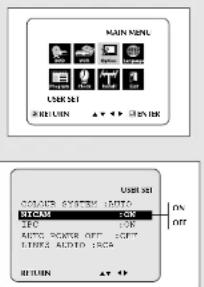
NICAM programmes are divided into 3 types: NICAM Stereo,
NICAM Mono and Bilingual (transmission in another language). NICAM programmes are always accompanied by a standard mono sound broadcast and you can select the desired sound. Please refer to page 34.
1 Press SETUP on the remote control.
Result: The MAIN MENU is displayed.
2 Press the corresponding ▲, ▼ or ◀, ▶ buttons to select the USER SET option.
3 Press the ENTER button to select this option. Result: The USER SET menu is displayed.
4 Press the corresponding ▲ or ▼ buttons, until the NICAM option is selected.
Mono mode OFF is displayed.
OFF: Only set at this position to record the standard mono sound during a NICAM broadcast if the stereo sound is distorted due to inferior reception conditions.
NICAM mode ON is displayed. ON: Normally set at this position.
6 On completion, press RETURN twice to exit the menu.
Intelligent Picture Control
The Intelligent Picture Control feature allows you to adjust the sharpness of the image automatically, according to your own preferences.
1 During playback, press the SETUP button on the remote control. Result: The MAIN MENU is displayed.
2 Press the corresponding ▲, ▼, ◀, or ▶ buttons to select the USER SET option.
3 Press the ENTER button to select this option. Result: The USER SET menu is displayed.
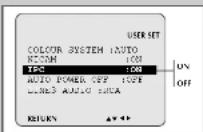
4 Press the corresponding ▲ or ▼ buttons until the IPC option is selected.
5 Press the button to select the IPC (Intelligent Picture Control).
When Intelligent Picture Control mode is on, the sharpness of the image is adjusted automatically.
6 To adjust the sharpness manually, press the ▼ button to turn the IPC mode OFF.
7 Press the ◀ or ▶ buttons until the picture is displayed according to your preferences.
If you do not press a button within ten seconds, the PICTURE menu disappears automatically.
B On completion, press the RETURN button again.
VCR



The Auto Power Off feature automatically turns off your DVD-VCR if no signal is received and you do not press any button for the selected time.
1 Press SETUP on the remote control. Result: The MAIN MENU is displayed.
2 Press the corresponding USER SET option. Use the ▲, ▼, ◀, or ▶ buttons to select the
3 Press the ENTER button to select this option. Result: The USER SET menu is displayed.
4 Press the corresponding ▲ or ▼ buttons until the AUTO POWER OFF option is selected.
5 Press the ▶ button until you select the time for the Auto Power Off interval.

6 On completion, press RETURN twice to exit the menu.
Selecting the Cassette Type
VCR
If you wish to use the tape counter to display the time remaining on a cassette, you must indicate the type of cassette inserted.
1 Press SETUP on the remote control. Result: The MAIN MENU is displayed.
2 Press the corresponding ▲, ▼, ◀, or ▶ buttons to select the VCR FUNCTION SETUP option.
3 Press the ENTER button to select this option.
4 Press the corresponding ▲ or ▼ buttons until the TAPE SELECT option is selected.
5 Press the ◀ or ▶ buttons as many times as required until the correct cassette length is displayed.
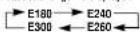
6 Press RETURN twice to exit the menu.
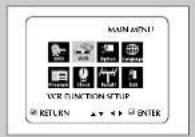

Auto Repeat Play
VCR
You can set repeat play to repeat the tape continuously from beginning to end.
1 Press SETUP on the remote control. Result: The MAIN MENU is displayed.
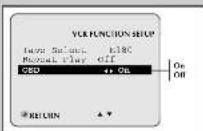
2 Press the corresponding ▲,▼ or ◀,► buttons to select the VCR FUNCTION SETUP option.
3 Press the ENTER button to select this option. Result: The VCR FUNCTION SETUP menu is displayed.
4 Press the corresponding ▲ or ▼ buttons, until the REPEAT PLAY option is selected.
Repeat play on is displayed.
Do not wish to repeat play off is displayed.
6 On completion, press RETURN twice to exit the menu.


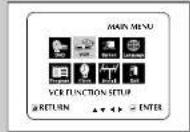
VCR
Selecting the Recording Speed

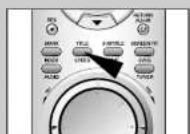

You can record a cassette at two different speeds:
◆SP (Standard Play)
◆LP (Long Play)
In Long Play modes:
◆Each cassette lasts twice as long
◆The recording is of a slightly lower quality
To record a cassette... Press the SPEED button on the remote control, until...
In standard play mode SP is displayed.
In long play mode
LP is displayed.
Protecting a Recorded Cassette
VCR
Video cassettes have a safety tab to prevent accidental erasure. When this tab has been removed, you cannot record on the tape.
Video cassettes have a safety tab to prevent accidental erasure. When this tab has been removed, you cannot record on the tape.
1 If you wish to protect a cassette, break off the tab using a small screwdriver.
2 To re-record over a protected cassette (safety tab broken), cover the hole with adhesive tape.

VCR
Before recording a programme, you must have preset the corresponding station (unless you are recording via an external video source). If you have not done so, refer to pages 19 and 20.
Before recording a programme, you must have preset the corresponding station (unless you are recording via an external video source). If you have not done so, refer to pages 19 and 20.
1 Switch on the television.
2 To monitor the programme being recorded, select the television channel reserved for use with your DVD-VCR (or the AV input if used).
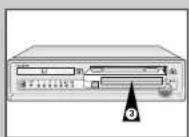
3 Insert the cassette on which the programme is to be recorded, with the window visible and the safety tab intact or the opening covered with adhesive tape. Result: The DVD-VCR is switched on automatically.
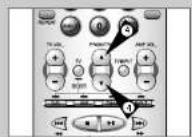
4 Select
- The station to be recorded using the PROG/TRK (▲ or ▼) buttons
• The LINE source using the INPUT button for a satellite tuner or external video source
Result: The station number is displayed and the programme can be seen on the television.
5 Select the recording speed by pressing the SPEED button as many times as required (see page 2B).
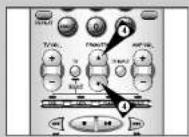
6 Hold REC
Result: The record indicator appears on the television and DVD-VCR display. An index is recorded on the tape (see page 36).
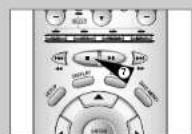
7 To stop recording, press
■ once.

If your DVD-VCR ejects the cassette when you start recording, check to make sure that the cassette's safety tab is intact or that the opening (created by a broken safety tab) is covered with adhesive tape.
◆ If you reach the end of the tape while recording, the cassette rewinds automatically.


Recording a Programme with Automatic Stop
This function enables you to record up to nine hours (LP) of programmes.
Your DVD-VCR stops automatically after the requested length of time.
1 Switch on the television.
2 To monitor the programme being recorded, select the television channel reserved for use with your DVD-VCR (or the AV input if used).
3 Insert the cassette on which the programme is to be recorded, with the window visible and the safety tab intact or the opening covered with adhesive tape. Result: The DVD-VCR is switched on automatically.
4 Select
The station to be recorded using the PROG/TRK (▲ or ▼) buttons of
●The LINE source using the INPUT button for a satellite tuner or external video source
Result: The channel number is displayed and the programme can be seen on the television.
5 Select the recording speed by pressing the SPEED button as many times as required (see page 28).
6 Hold the REC button (●) down for a while to start recording Result: The record indicator appears on the television screen and DVD-VCR display. An index is recorded on the tape (see page 36).
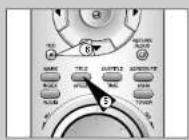
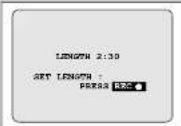
7 Press the REC button ( ● ) several times to increase the recording time in:
- 30-minute intervals up to four hours - 1-hour intervals up to nine hours (LP) Result: The length is displayed on the television displays. The selected programme is recorded for the length of time requested. At the end of that time, the DVD-VCR stops recording automatically.
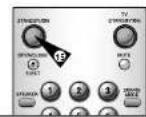
8 If you wish to cancel the recording before the end, press STANDBYON.
If the end of the tape is reached while recording! ◆The recording stops
Using the Timer Programming Feature
The Timer Programming feature allows you to preset the DVD-VCR to record a programme up to one month before that programme is to be broadcast. Up to six programmes can be preset.
Before presetting a recording, check that the date and time are correct.
1 Insert the cassette and press TIMER on the remote control. Result: The timer programme is displayed.
2 Press ▶ to select the input source.
3 Select the required station by pressing the ▲▼ buttons.
4 Press ▶ to select the recording day.
5 Select the required day by pressing the ▲ or ▼ buttons.
6 Press ▶ to select the recording start time.
7 Select the required hour value by pressing the ▲ or ▼ buttons.
8 Press ▶ to select the minutes.
9 Select the required minute value by pressing the ▲ or ▼ buttons.
10 Press ▶ to select the recording stop time.
11 Select the required recording stop time by pressing the ▲ or ▼ buttons, following the same procedure as when selecting the recording start time.
12 Press ▶ to select the recording speed.
13 Press the ▲ or ▼ buttons to select the SP (Standard Play), LP (Long Play), or AUTO (Auto Tape Speed Select) recording speed.
14 When you have finished, press the RETURN button.
15 Press the STANDBY/ON button to activate the timer. Result: Before starting recording, the DVD-VCR compares the timer duration with the remaining time on the cassette.
Auto Tape Speed Select. The DVD-VCR's "Auto Tape Speed Select" function compares the duration of the timer recording to the actual recording time remaining on the tape loaded. If there is insufficient tape to complete a timer recording in AUTO mode, the DVD-VCR automatically switches to LP mode to record the whole programme.


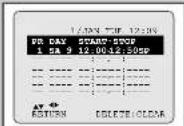
VCR
Checking a Preset Recording
You can check your preset recordings:
◆When you have finished presetting the DVD-VCR
◆If you have forgotten which programmes will be recorded
1 Press TIMER on the remote control.
Result: The timer programme is displayed.
2 Press the ▲ or ▼ buttons to select the required programme.
3 Press the ◀ or ▶ buttons to select and change any values as required. For more details, refer to the previous page.
4 On completion, press RETURN twice.
VCR
Cancelling a Preset Programme
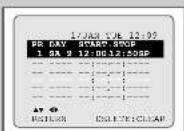


You can cancel any programmes that are:
◆Incorrect
◆No longer required
1 Press TIMER on the remote control.
Result: The timer programme is displayed.
2 Select the programme to be cancelled by pressing the ▲ or ▼
3 Press the CLEAR button to cancel the selected programme.
Result: At the recording information is deleted and the broad-
cast will not be recorded.
4 On completion, press RETURN twice.
Playing a Cassette
This function allows you to play back any pre-recorded cassette.
1 Switch on both the television and your DVD-VCR.
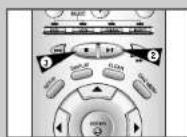
2 Insert the video cassette to be played. If the safety tape on the cassette is intact, press ▶II
Otherwise, the cassette is played automatically.
When a cassette is loaded, the tape position is optimized automatically to reduce disturbance (Digital Auto Tracking). When playing a cassette, if the end of the tape is reached, the cassette is rewound automatically.
NTSC tapes can be played back but cannot be recorded with this DVD-VCR.
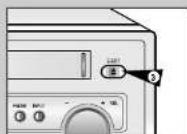
3 To... Then press.
Stop the playback
■(STOP).
Eject the cassette (EJECT).
VCR
VCR
Adjusting Picture Alignment Automatically
The Picture Alignment feature enables you to optimize the tape position automatically to obtain the best possible picture.
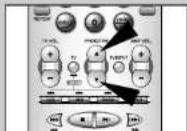
When noise bars or streaks appear during playback, adjust picture alignment by pressing the ATR button.
Result: ◆The tracking bar appears.
◆The picture is automatically adjusted.
◆The tracking bar disappears when digital auto tracking has been completed.
Adjusting Picture Alignment Manually
The Picture Adjustment feature allows you to adjust the alignment manually to obtain the best possible picture.
When noise bars or streaks appear during playback, adjust alignment manually by pressing the PROG/TRK (▲ or ▼) buttons until the picture is clear and stable.
Result ◆ The tracking bar appears.
◆The image is adjusted
◆The tracking bar disappears when you release the button.

VCR

VCR
Selecting the Audio Output Mode

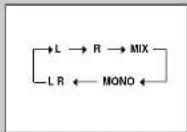
You can select the mode in which the sound is reproduced on the loudspeakers and AV outputs. The following options are available.
Option Description
L Used to listen to the sound on the left Hi-Fi channel
R Used to listen to the sound on the right Hi-Fi channel.
MIX Used to listen to the mixed sound of the Hi-Fi and normal channels.
MONO: Used to listen to the sound on the normal mono channel.
L R: Used to listen to Hi-Fi stereo sound on the left and right channels.
When playing back tapes recorded in Hi-Fi, the
sound switches to Hi-Fi after five seconds of Mono.
To select the sound mode, simply press the AUDIO button on the remote control until the required option is displayed.
VCR
Playing a Cassette in Slow Motion
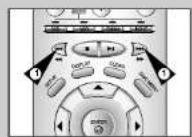


You can play a cassette in slow motion.

No sound is heard when playing back a cassette in slow motion.
1 Press:
- ▶ II to start playing the cassette. Press ▶ II one more time to make STILL mode. Press + to start SLOW mode. Press ◀ or ▶ button as many times as required to decrease or increase the speed respectively. To return to the normal speed, press the ▶II button twice. 2 When playing back in slow motion, picture interference may occur. Press the PROGTRK ▲ or ▼ buttons to minimize this effect.

When you have been using the Slow Motion function for more than about five minutes, the DVD VCR will automatically play to protect the:
♦ Cassette
◆ Video heads
Playing a Sequence Frame by Frame
You can:
◆Stop the cassette at a given frame (image)
◆Advance one frame at a time

No sound is heard when playing back frame by frame.
1 Press
- ▶II to start playing the cassette
- ▶ to still the tape at a given frame
◆Turn the JOG Dial to advance frame by frame
2 To return to normal playback, press

When you have been using the Frame-by-Frame function for more than about five minutes, the DVD-VCR will automatically play to protect the cassette and video heads.

Vertical stability: When playing back frame by frame, interference may be seen on the screen. Press the PROG/TRK buttons to minimize this effect.
Playing a Sequence at Variable Speeds
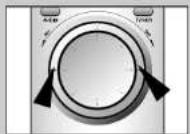
You can vary the playback speed using the Shuttle function (up to nine times the normal speed).
Example: You wish to analyze a sportsperson's technique, movement by movement.
The Shuttle function is available on the Remote control
No sound is heard when playing a sequence at variable speeds.
Press
◆ ▶ll during playback
◆ Turn the SHUTTLE dial to the left to play the cassette backwards.
◆ Turn the SHUTTLE dial to the right to play the cassette forwards.
VCR


VCR
Picture Search, Fast Forward/Rewind
Picture Search enables you to Fast Forward or Rewind and look for a particular part of a tape.
1 Press PLAY, the VCR will enter normal play mode. While in play, press and release the ▶ (or ◀) button. The VCR will search at 5 times the normal playback speed. 2 To return to normal playback mode, press the ▶|| button.
3 If you press and HOLD down the ▶ (or ◀) button, the VCR will search at 9 times the normal speed. Releasing the ▶ button will return the VCR to search at 5 times the normal speed. To return to normal playback mode, press the ▶ II button.
4 Whilst in Picture Search mode, if you press the ▶ button again, the VCR will enter normal Fast Forward mode.
5 Likewise, whilst in Picture Search mode, if you press the ◀ button again, the VCR will enter normal Rewind mode.
6 If, when Rewinding (or Fast Forwarding), you press the ▶ (or ◀) button, the VCR will enter the Picture Search mode.
VCR
Searching for a Specific Sequence

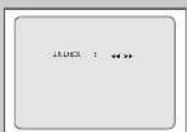


Each time you record a cassette on this VCR, an "index" is automatically marked on the tape when recording starts. The Search function allows you to fast-forward or rewind to a specific index and start playback from that point. Depending on the direction selected, the indexes are numbered as follows:
| 1 | ||||
| etc. | Prev Seq. | Seq. being played | Next Seq. | etc. |
| 2 | 1 | 1 | 2 | |
This VCR uses a standard indexing system (VISSI). As a result, it will recognize any indexes marked by other VCRs using the same system and vice versa.
INTRO SCAN
1 To search for a specific index, press INDEX.
2 Press the ← or ➞ buttons depending on the direction where your desired programme is located.
3 When an Index mark is found the VCR will playback the tape for 5 seconds, after which it will continue searching for the next Index mark.
4 If you want to watch the tape from a particular index, simply press ▶II Index Skip Search: This feature will enable you to fast forward/rewind to a specific point on a tape: E.g. if you have recorded 3 different programmes on a tape and you have rewound the tape to the beginning, by using this feature you can go directly to the start of programme 2 simply by pressing the INDEX button.
1 Press the INDEX to start the Index search. 2 Press the ← or ➤ buttons twice more. This will take you directly to the start of the desired programme. 3 These index searches can be made forwards: (press ➤) or backwards: (press ←). 4 To cancel an Index search simply press the ▶|| or ■ button.
Using the Tape Counter
The tape counter:
◆Indicates the elapsed time in the play and record modes (hours, minutes and seconds) ◆Is reset when a cassette is inserted in the DVD-VCR ◆Allows you to find the beginning of a sequence easily
If the remaining time is to be calculated correctly, you must indicate the type of cassette being used.
1 Insert a cassette in your DVD-VCR
2 To set the tape counter to zero at the beginning of a sequence: ◆Press DISPLAY twice to display the counter ◆Press CLEAR when you want to set the tape counter to zero
3 When you are ready.
◆ Start playback of recording.
◆Fless life ■ Bolton. ◆To last forward or rewind In the sequence at which the counter was set to zero, press or
Some DVD-VCR information, such as the country, can be displayed on the television screen (unless you have deactivated the O5D mode; refer to page 2B).
Press DISPLAY:
◆Once to display the current function, programme number, recording speed, date, time and counter ◆ Twice to display the counter only ◆ Three times to display the time remaining, on the cassette ◆Four times to clear the display

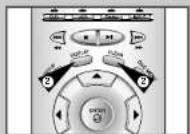

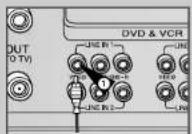
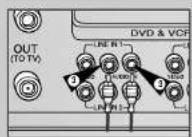

VCR
Connecting an RCA Audio/Video Input Cable
You can connect other audio/video equipment to your DVD-VCR using audio/video cables if the appropriate outputs are available on the equipment chosen.
Examples: ◆You wish to copy a video cassette with the help of a second VCR (see page 39). ◆You wish to play back and/or copy pictures taken with a camcorder (see page 39).

Make sure that both the television and the DVD VCR are switched off before connecting the cables.
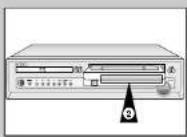
1 Connect one end of the RCA audiovideo cable into the VIDEO socket on the Front of the DVD-VCR. 2 Plug the other end of the audio/video cable into the appropriate output connector on the other system (VCR or camcorer). 3 Connect one end of the RCA audio cable into the AUDIO sockets on the Front of the DVD-VCR. ➢Take care to respect the colour coding of the left and right channels. 4 Plug the other end of the audio cable into the appropriate output connectors on the other system (VCR, camcorder or HI-FI sound system).
Using the Assemble Edit Function
This function allows you to start a new recording at a specific position on the cassette while maintaining a very smooth scene change.
1 Insert the cassette to be edited in your DVD-VCR. 2 Press the ▶ll button to start playback. 3 When you reach the position from which you wish to start the new recording, press the ▶llbullon. 4 Turn the JOG Dial again as often as necessary to advance frame by frame, until the exact recording position is located. 5 While the DVD-VCR is in still mode, hold the REC button ( ● ) down for a while to activate the Assemble Edit function. Result: Record symbol flashes in the display. 6 Select the source from which you wish to record by pressing: ◆The PROG/TRK (▲ or ▼) buttons for television channels ◆The INPUT button for the LINE input sources 7 Press the ▶II button to start recording. 8 When you have finished recording, press
VCR


Recording from Another VCR or Camcorder
You can copy a cassette to your DVD-VCR from another video source, such as another VCR or a camcorder.

It is an infringement of copyright laws to copy prerecorded cassettes or to re-record them in any form without the permission of the owners of the corresponding copyright.
1 Connect the DVD-VCR, from which the cassette is to be copied, to the appropriate RCA audio and video input connectors on the rear of your DVD-VCR, as indicated on page 12. 2 Insert a blank cassette in your DVD-VCR. 3 Insert the pre-recorded cassette in the other video source (VCR or camcorder). 4 Press the INPUT button to select the appropriate input on your DVD-VCR (LINE IN for the RCA input). 5 Start playing back the cassette to be copied. 6 Hold REC (●) down for a while to start recording on your DVD-VCR. 7 When you have finished recording, press DVD-VCR. ■ on both VCR and
If you wish to view the cassette being copied
◆Your DVD-VCR must be connected as usual to the television (see page 11 for further details)
VCR



VCR
Audio Dubbing a Pre-recorded Cassette
With the Audio Dubbing function, you erase the previously recorded sound and replace it with a new soundtrack from:
◆A CD. DVD
◆A microphone connected to a sound system
◆A cassette player
Restriction:
Audio dubbing is applicable only to the longitudinal audio track (normal audio).
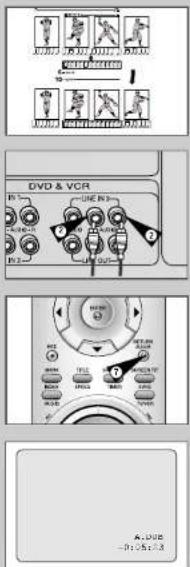
1 Connect an RCA audio cable to the appropriate output on your sound system (cassette player for example).
2 Connect the other end of the RCA audio cable to the audio input connectors [L, R] on the Rear of your DVD-VCR.
3 Insert the pre-recorded cassette on which the audio track is to be replaced, and press the ▶II to start playback.
4 Search for the Audio Dubbing (ending) point using the ▶, and set the counter to 0:00:00 by pressing CLEAR.
5 Search back slightly beyond the Audio Dub start point using the button.
6 Press the ▶ II button.
Press the ▶|| button one more time to make STILL mode.
7 Press A.DUB
Result: Your DVD-VCR is now in the Audio dubbing Still
mode
8 On the sound system, locate the point on the cassette at which you wish to start playback.
Example: The track that you wish to record on the cassette.
9 When you are ready:
- Start playback on the sound system
-Press the REC on the remote control
Result: The soundtrack is replaced on the pre-recorded cassette.
10 The audio dubbing will finish when the counter reaches 0:00:00.

The new sound will be recorded on the normal sound
track of the tape, and the original sound will remain on
the hi-fi sound track.
To hear the new sound and original sound mixed
together, press the Audio button on the remote control
Using the TV Buttons on the Remote Control
Your DVD-VCR remote control will work with Samsung televisions and compatible brands.
To determine whether your television is compatible, follow the instructions below.
1 Switch your television on.
2 Point the remote control towards the television.
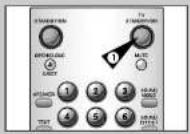
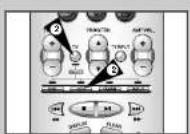
3 Hold down the TV button and enter the two-figure code corresponding to the brand of your television, by pressing the appropriate numeric buttons.
Brand Codes Brand Codes
SAMSUNG 01 to 06 PHILIPS 02, 20, 22
AKAI 09.23 SABA 13,14,22 to 24
GRUNDIG 09.17.21 SONY 15.16
LOEWE 02 THOMSON 13,14,24
PANASONIC 08.23 to 27 TOSHIBA 07.16 to 19.21

If your television is compatible with the remote control, it
will switch off. It is now programmed to operate with the
remote control.

Several codes are indicated for your television brand. Try
each one in turn until you find one that works.

When you change the battery in the remote control, you
must reprogramme the code, following the same procedure.
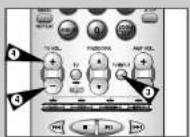
You can then control the television using the following buttons.
Button
Function
TV STANDBY/ON ① Used to switch the television on and off.
TV or VCR ② Used to switch between the TV or VCR modes.
TV INPUT (3)
Used to select an external source.
TV VOL + α' - ④
Used to adjust the volume of the television.
PROGTRK (5)
Used to select the required programme.
[▲ (a▼)]
MUTE ⑤
Used to mute the volume of the television.

The various functions will not necessarily work on all
televisions. If you encounter problems, operate the television directly.
VCR


VCR
SQPB (Super VHS Quasi Playback)


This function is for playback of Super VHS format tapes only, not for recording.
1 Insert the SVHS format tape that you want to see. 2 Press PLAY ( ▶ II) to start playing the cassette. 3 Press SVHS button to start SQPB.

If the SQPB is on during normal playback, the video output is distorted.
Choosing a Connection
DVD
The following show examples of connections commonly used to connect the DVD-VCR with a TV and other components. It is only available for DVD. The VCR out can not watch by this connection.
Connection to a Television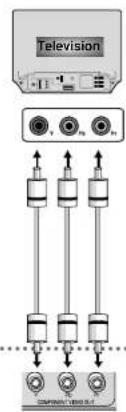
Component Jack
![graph TD A["Television"] --> B["Sensor"] B --> C["Device"] C --> D["Output Display"]](/content/2026/06/1219550/images/18257aca13dc13da2cc9eddcef92e867c131673875bffcc5c9cf5479056811c9.jpg)
Super Jack


DVD
Using the Setup Menu
The Setup menu lets you customize your DVD-VCR by allowing you to select various language preferences, set up a parental level, even adjust the player to the type of television screen you have.
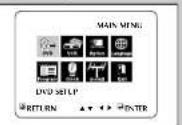
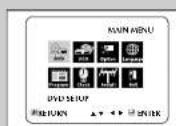
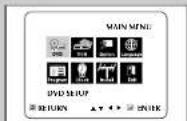
1 With the unit in Stop mode, press the SETUP button on the remote. Result: The MAIN MENU is displayed.
2 Press the corresponding option. Use the ▲, ▼ or ◀, ▶ buttons to select the DVD
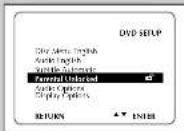
3 Press the ENTER button to select this option. Result: The DVD SETUP menu is displayed.
- Disc Menu : Setup of the Menu Language Use the Menu preference menu to select the language you want a DVD's disc menu to be displayed in.
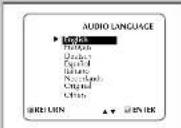
• Audio : Setup of the Audio Language Use the Audio preference menu to select the soundtrack language.
- Subtitle : Setup of the Subtitle Language Use the Subtitle preference menu to select the language the disc's subtitles are to be displayed in.
• Parental : Setup of the Parental Level Allows users to set the level necessary to prevent children from viewing unsuitable movies such as those with violence, adult subject matter, etc.
• Audio Options : Setup of the Audio Options
- Display Options: Setup of the Display Options use to select which type of screen you want to watch and several display options.
4 Use the ▲ or ▼ buttons on the remote to access the different features.
5 Press the ENTER button to access the sub features. • To make the setup screen disappear after setting up, press the SETUP button again.
Depending on the disc, some Setup Menu selections may not work.
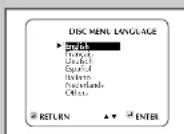
Using the Disc Menu Language
This function changes the text language only on the disc menu screens.
1 With the unit in Stop mode, press the SETUP button on the remote. Result: The MAIN MENU is displayed.
2 Press the corresponding option. Use the ▲▼ or ◀, ► buttons to select the DVD
3 Press the ENTER button to select this option. Result: The DVD SETUP menu is displayed.
4 Use the ▲ or ▼ buttons to select Disc Menu.
5 Press the ENTER button.
6 Use the ▲ or ▼ buttons to select 'English'. - Select "Others" if the language you want is not listed.
7 Press the ENTER button. - English is selected and the screen returns to SETUP MENU.
How to make the SETUP MENU disappear or return to menu screen during setup: Press RETURN button.
DVD
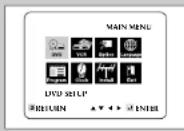
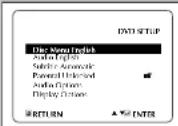



1 With the unit in Stop mode, press the SETUP button on the remote. Result: The MAIN MENU is displayed.
2 Use the ▲▼ or ◀, ► buttons to select the DVD option.
3 Press the ENTER button to select this option. Result: The SETUP MENU menu is displayed.
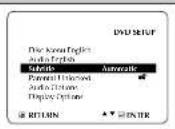
4 Use the ▲ or ▼ buttons to select Subtitle.
5 Press the ENTER button.
6 Use the ▲ or ▼ buttons to select 'English'.
Select "Automatic" if you want the subtitle language to be the same as the language selected as the audio preference.
- Select "Others" if the language you want is not listed. Some discs may not contain the language you select as your initial language; in that case the disc will use its original language setting.
7 Press the ENTER button.
- English is selected and the screen returns to SETUP MENU.

- If the selected language is not recorded on the disc, the original pre-recorded language is selected.
- How to make the SETUP MENU disappear or return to menu screen during set up; Press RETURN button.
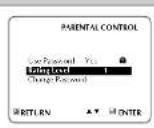
The Parental Control function works in conjunction with DVDs that have been assigned a rating - which helps you control the types of DVDs that your family watches. There are up to 8 rating levels on a disc.
1 With the unit in Stop mode, press the SETUP button on the remote. Result: The MAIN MENU is displayed.
2 Press the corresponding option. ▲▼ or ◀▶ buttons to select the DVD
3 Press the ENTER button to select this option. Result: The DVD SETUP menu is displayed.
4 Use ▲ or ▼ to select Parental. Press ENTER. The Parental Control screen appears.
5 Use ▶ or ▶ to select Yes if you want to use a password. Press ENTER. The Enter Password screen appears.
6 Enter your password. The Re-enter Password screen appears to confirm the password. Enter your password again. The Parental Control screen appears.
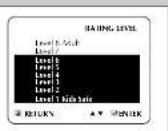
7 About the Rating Level :
- The Rating Level will work only when Use Password is set to Yes. To unlock the player, use ▶ or ▶ to select No. Use ▲ or ▼ to select Rating level. Press ENTER.
- Use ▲ or ▼ to select the level(e.g. Level 6) and press ENTER. Discs that contain Level 7 will now not play.
- To cancel the rating level, use ◀ or ▶ to select No in Use Password.
B About the Change Password:
- Use ▲ or ▼ to select Change Password. The Change Password screen appears.
- Enter your new password. Re-enter the new password again.

How to make the SETUP MENU disappear or return to menu screen during set up: Press RETURN button.
- If you have forgotten your password, see Forget Password in the Troubleshooting Guide.






DVD
Setting Up the Audio Options
1 With the unit in Stop mode, press the SETUP button on the remote. Result: The MAIN MENU is displayed.
2 Press the corresponding option. ▲, ▼ or ◀, ▶ buttons to select the DVD
3 Press the ENTER button to select this option. Result: The DVD SETUP menu is displayed.
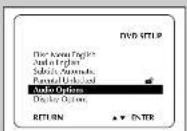
4 Use the ▲ or ▼ buttons to select Audio Options. Then press the ENTER button.
5 Use the ▲ or ▼ buttons to select the desired item. Then press the ◀ or ▶ buttons.
• Dynamic Compression
On: To select dynamic compression.
- Off: To select the standard range.
• Center SPK Time Delay (See Page 65)
- Surround SPK Time Delay (See Page 50) - Delay: Pro Logic II (See Page 57)
- Baby Computer (see Page 61)

- How to make the SETUP MENU disappear or return to menu screen during set up: Press RETURN button.
Setting Up the Display Options
DVD
1 With the unit in Stop mode, press the SETUP button on the remote. Result: The MAIN MENU is displayed.
2 Press the corresponding option. ▲▼ or ◀,► buttons to select the DVD
3 Press the ENTER button to select this option. Result: The DVD SETUP menu is displayed.
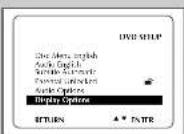
4 Use the ▲ or ▼ buttons to select Display Options. Then press the ENTER button.
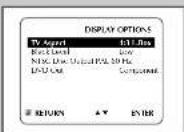
5 Use the ▲ or ▼ buttons to select the desired item. Then press the ◀ or ▶ buttons or then press the ENTER button. Use the ▲ or ▼ buttons to select the desired item. Then press the ENTER button.
• TV Aspect
Depending on the type of television you have, you may want to adjust the screen setting (aspect ratio).
4:3 Letter Box : Select when you want to see the total 16:9 ratio screen DVD supplies, even though you have a TV with a 4:3 ratio screen. Black bars will appear at the top and bottom of the screen.
4:3 Pan-Scan : Select this for conventional size TVs when you want to see the central portion of the 16:9 screen. (Extreme left and right side of movie picture will be cut off.)
16:9 Wide: You can view the full 16:9 picture on your widescreen TV.
- Black Level
Adjusts the brightness of the screen.
- NTSC Disc Output
Depending on a disc, you can play a NTSC DVD disc by NTSC Disc Output mode.
• DVD Out
Component: Sends COMPONENT signal (Y. Po. Pr) to the component video out JACK.
S-Video: Sends S-VIDEO signal to the S-VIDEO OUT JACK Video: Sends Composite signal to the Line out JACK
• How to make the SETUP MENU disappear or return to menu screen during set up: Press the RETURN button.
To S-Video Input on Your TV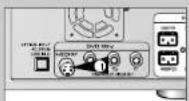
S-Video Connections (for DVD)
The S-Video is only for the DVD player. The tuner and VCR will still be viewed through the RF or line inputs.
You must follow the "DVD Out" instructions on page 49 to activate your alternative (S-Video) video selection.
If your television is equipped with S-Video input, you can enjoy superior video quality when watching DVDs with your DVD-VCR.
1 Connect S-Video Out to TV
Connect an S-Video cable from the S-Video Out on the back panel of the DVD-VCR to the S-Video Input on your television.

Special Playback Features
DVD
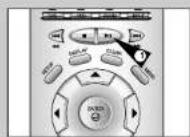
During DVD/CD playback you can select from the following special playback options. To resume normal playback, press the ▶ll (Play/Still) button.
1 Still
Press the ▶ II (Play/Still) button on the remote control during playback. • The picture will still and the audio will mute. • To resume playback, press the ▶ III [Play/Still] button. • If the player is left in Still mode for 5 minutes, it will stop automatically.
2 Frame Advance (Step)
While in Still mode, turn the JOG dial on the remote control to advance one frame at a time. • Audio is muted during Frame Advance mode. - Press ▶PlayStill to resume normal playback. NOTE: Frame Advance operates only in the forward direction.
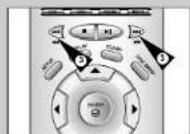
3 Skip Forward/Back
While a CD or DVD disc is in Play mode, press the Skip
Forward/Back (▶▶1: ◀◀) buttons on the remote control or front panel to jump forward and backward through disc chapters/tracks.
- Skip Forward will jump to the next chapter/track.
- Skip Back will jump to the beginning of the current chapter/track.
- Press Skip Back again to jump to the beginning of the previous chapter/track.
Search Forward/Back
While a disc is in Play mode, press and hold the Forward/Back (▶/◀◀) buttons on the remote control or front panel to visually search forward/backward at 2X - 4X - 8X - 16X - 32X - 128X speed. Press ▶ II (Play/Still) button to resume normal speed.
During CD playback, the ▶/◀◀ buttons on the remote control don't
operate, but the shuttle allows you to select playback speed (2X, 4X, and 8X).
4 Slow Motion
During playback, press the ▶ III (Play/Still) button to still the image. Then use the Search Forward (▶) to play in slow motion at variable speeds.
• Each press increases the slow motion speed playback to 1/8, 1/4, or 1/2 normal speed. • Audio is muted during slow motion playback. - Front Panel Slow Motion Buttons - Press and hold the Forward button on the front panel to activate slow motion playback. Press the ▶ II (Play/Still) button to resume normal playback. - Slow motion operates only in the forward direction.
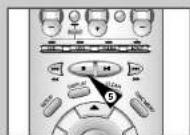
5 Stop/Resume
- Press the Stop button once to stop playback. To resume the DVD/CD from the point where the disc stopped, press the ▶ II (Play/Still) button.
- Press the ■ (Stop) button twice to completely stop playback. The next time you press ▶ Play/Still, the disc will start over from the beginning.

DVD
Using the Display Function (DVD/VCD/CD)
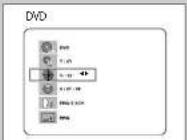
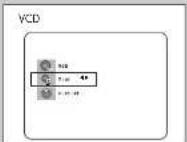
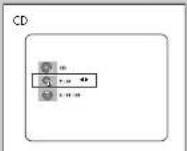
When Playing a DVD
1 During play, press the DISPLAY button on the remote.
- Current title, chapter number, elapsed time, audio, and subtitle will be displayed.
- Use the NUMBER buttons to enter a different title, then press the ENTER button.
- Use the ◀, ▶ or NUMBER buttons to enter a chapter number, then press the ENTER button.
• To enter the time from which you want to start, use the ▲ or ▼ buttons to select, then use the NUMBER buttons to enter the time. Then press the ENTER button.
- To make the screen disappear, press the DISPLAY button again.
When Playing a CD/VCD
1 During play, press the DISPLAY button on the remote.
- Current track NUMBER and elapsed time will be displayed.
- Use the ▲ or ▼ buttons to select a track. Use the ◀ or ▶ buttons or NUMBER buttons to enter a different track number, then press the ENTER button.
• To enter the time from which you want to start, use the ▲ or ▼ buttons to select, then use the NUMBER buttons to enter the time. Press the ENTER button.
- To make the screen disappear, press the DISPLAY button again.
What is a Chapter?
Each Title on a DVD is usually divided into chapters (similar to tracks on an audio CD).
What is a Title?
A DVD may contain several different titles. For example, if a disc contains four different movies, each might be considered a title.

Repeat Play
DVD
Repeat the current track, chapter, title, a chosen section (A-B), or all of the disc.
1 Press the REPEAT button on the remote. The Repeat screen appears. 2 Select Chapter, Title, or A-B using the ◀ or ▶ buttons.
Repeat A-B
- Press the REPEAT button. Select A-B on screen with the ◀ or ▶ buttons on the remote.
- Press ENTER at the point where you want the repeat play to start (A). B is automatically highlighted.
- Press ENTER at the point where you want the repeat play to stop (B).
3 Press ENTER.
4 To return to normal play, press REPEAT again, then press the
◀ or ▶ buttons to select Off and press ENTER.
• DVD repeats play by chapter or title; VCD repeats play by disc or track. - Depending on the disc, the Repeat function may not work. - If the title or track is completed before marking the end (B), the end of title or track becomes B automatically. - When in VCD 2.0 mode (MENU ON mode), this function does not work.
DVD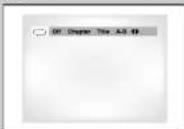
VCD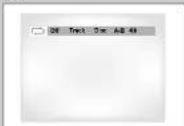


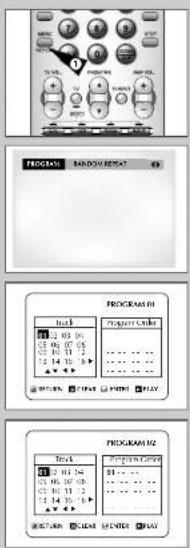

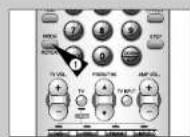
1 Press the MODE button. 2 Use the < or > buttons to select PROGRAM. Press the ENTER button. 3 Use the ◀ or ▶ buttons to select the first chapter (or track) to add to the program. Press the ENTER button. The selection numbers appear in the Program Order box. 4 Press the PLAY: STILL button. The disc will be played in programmed order. - While in playback mode, press the CLEAR button on the remote control to cancel Programmed Play.
1 Press the MODE button.
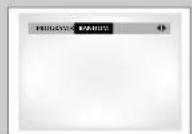
2 Use the ◀ or ▶ buttons to select RANDOM. Press the ENTER button. The disc will be played in random order.
- Press the CLEAR button on the remote control to cancel Random Play.
• Depending on the disc, the Program and Random Play functions may not work.
- When in VCD 2.0 mode (MENU ON mode), these functions do not work. • To resume normal play, press the CLEAR button.
1 During play, press the SCREEN FIT button on the remote control.
Allows you to eliminate the black bars at the top and bottom of the screen when a movie is playing in Widescreen format (16:9). Screen Fit will not work when Zoom mode is active (you cannot remove the black bars on the screen). However, Zoom mode will work when Screen Fit is active.
• Various aspect ratios are available only on multiple screen format discs.
• This function does not work when a DVD has been recorded with a multi-camera angle format. - On some DVDs, the black bars cannot be eliminated due to their aspect ratio.


DVD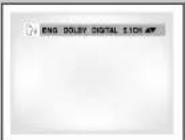
DVD
Selecting the Subtitle Language (Using the Subtitle button)
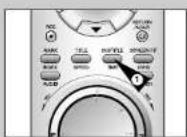


You can select a desired subtitle quickly and easily with the subtitle button.
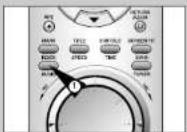
1 Press the SUBTITLE button.
2 Use the ▲ or ▼ buttons to select the desired subtitle language.
3 Use the ◀ or ▶ buttons to determine whether or not the subtitle will be displayed.
- Initially, the subtitling will not appear on screen.
- The subtle languages are represented by abbreviations.
This function depends on what languages are encoded on the disc and may not work with all DVDs.
• A DVD disc can contain up to 32 subtitle languages.
- How to have the same subtitle language come up whenever you play a DVD; Refer to "Setting Up the Language Features" on page 46.
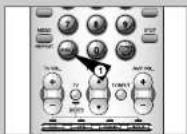
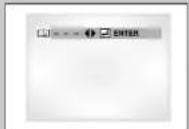
Changing the Camera Angle
When a DVD contains multiple angles of a particular scene, you can select the Angle function.
Press the ANGLE button to see if an ANGLE ( 🔍 ) mark is present at the upper right hand corner of the screen.
1 When an ANGLE mark is shown, press the ANGLE button, then an ANGLE select icon will appear at the upper left hand corner of the screen.
2 Use the ▲ or ▼ buttons to select the desired screen angle.
3 To turn off the display, press the ANGLE button again.
DVD


DVD
Using the Bookmark Function (DVD/VCD)
The Bookmark function lets you select parts of a DVD or VCD (MENU OFF mode) so that you can quickly find the section at a later time.
1 During play, press the MARK button on the remote. The Bookmark icons will be displayed. 2 Use the ◀ or ▶ buttons to move to the desired bookmark icon. 3 When you reach the scene you want to mark, press the ENTER button. The icon will change to a number (1, 2, or 3). 4 Press the MARK button to turn off the display.
DVD
Recalling a Marked Scene

1. During play, press the MARK button on the remote. 2. Use the ◀ or ▶ buttons to select a marked scene. 3. Press the PLAY/STILL button to skip to the marked scene.
DVD
Clearing a Mark
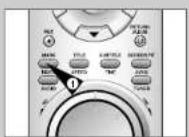
1. During play, press the MARK button on the remote.
2. Use the ◀ or ▶ buttons to select the bookmark number you want to delete. 3. Press the CLEAR button to delete a bookmark number. Press the MARK button to turn off display.
• Up to three scenes may be marked at a time.
- When in VCD 2.0 mode (MENU ON mode), this function does not work.
- Depending on the disc, the Bookmark function may not work.

Using the Zoom (DVD/VCD)
1. During play or still mode, press the ZOOM button on the remote. A square will be displayed on screen. 2. Use the ▲, ▼, ◀, or ▶ buttons to select the part of the screen you want to zoom in on. 3. Press the ENTER button. - During DVD play: press ENTER to zoom in 2X/4X/2X/Normal in order. - During VCD play, press ENTER to zoom in 2X/normal in order.
DVD


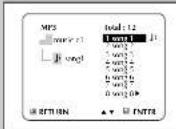
DVD
MP3 Play
When an MP3 Disc is inserted into the DVD-VCR, the first song file of the first folder plays.
1 Press STOP to stop playback of the first song file, then press RETURN to display the music folder menu on the right side of the screen. Up to 8 music folders can be displayed at a time. If you have more than 8 folders on a disc, press the ◀ or ▶ buttons to bring them up on the screen.
2 Use the ▲ or ▼ buttons to select the desired music folder, then press ENTER. Use the ▲ or ▼ buttons again to select a song file. Press ENTER to begin playback of the song file.
MP3 Play (CD-R MP3 disc requirements)
DVD
When playing CD-R MP3 discs, please follow the recommendations below:
- Your MP3 files should be ISO 9660 or JOLIET format.
ISO 9660 format and Joliet MP3 files are compatible with Microsoft's DOS and Windows, and with Apple's Mac. These two formats are the most widely used.
- When naming your MP3 files, do not exceed 8 characters, and place ".mp3" as the file extension.
General name format: Title.mp3. When composing your title, make sure that you use 8 characters or less, have no spaces in the name, and avoid the use of special characters including :1,./:-,-.
- Use a decompression transfer rate of at least 128 Kbps when recording MP3 files.
Sound quality with MP3 files basically depends on the rate of compression/decompression you choose. Getting audio CD quality sound requires an analog/digital sampling rate (conversion to MP3 format) of at least 128 Kbps and up to 160 Kbps. However, choosing higher rates, like 132 Kbps or more, only rarely give better sound quality. Conversely, files with sampling rates below 128 Kbps will not be played properly.
- Do not try recording copyright protected MP3 files.
Certain "Secured" files are encrypted and code protected to prevent illegal copying. These files are of the following types: Windows MediaTM (registered trade mark of Microsoft Inc) and SDMITM (registered trade mark of The SDMI Foundation). You cannot copy such files.
- Your DVD player only accepts one level of file directory. Consequently you must choose:
- either to save all your MP3 recording files at the root of the disc;
- and/or create folders in the directory for each artist or music type (e.g., classical, rock, jazz, etc.)
- Important: The above recommendations cannot be taken as a guarantee that the DVD player will play MP3 recordings, or as an assurance of sound quality. You should note that certain technologies and methods for MP3 file recording on CD-Rs prevent optimal playback of these files on your DVD player (degraded sound quality and in some cases, inability of the player to read the files).

Connecting the FM and AM antennas
1. FM antenna connections
- Connect the FM antenna to the FM 75Ω COAXIAL terminal.
- Unwind the antenna wire and then fasten it to a wall in an area where reception is best.
- If reception is poor, connect the outdoor antenna. Remove the existing FM antenna before connecting the 75Ω coaxial cable.
2. AM antenna connections
- Connect the AM loop antenna to the AM and terminals on the back of the unit.
- Rotate the loop antenna until you have the best reception.

Cooling fan
The cooling fan in the rear center of the unit ensures reliable operation and protects it from overheating. It will operate automatically as needed to circulate cool air when the temperature rises past a set threshold. For safety, please take note of the following points: • Make sure that the unit is well-ventilated. Poor ventilation may cause damage by overheating. • Make sure that the cooling fan or ventilation holes are not obstructed. (If the ventilation holes are blocked by newspaper, clothes, etc., heat builds up inside the unit, resulting in a risk of fire.) • When the power is supplied to the main unit, the cooling fan will be activated.

Connecting the Speakers
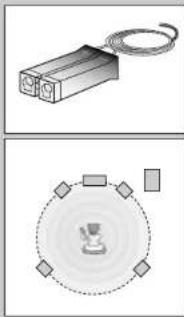
Connect the front, center, and surround speakers and the subwoofer to the speaker terminals on the back of the main unit.
1 Connect the speakers to the speaker output terminals on the back of the main unit, matching the colors.
Caution
Do not set the speakers (except center speaker) near the TV or monitor because the speakers (except center speaker) are not magnetically shielded.
![graph TD A["Front Speaker (R)"] --> B["SURROUND Speaker (L)"] B --> C["Center Speaker"] C --> D["SPEAKERS"] D --> E["Subwoofer (for LFE)"] E --> F["Front Speaker (L)"] F --> G["SURROUND Speaker (L)"] G --> H["Center Speaker"] H --> I["SURROUND Speaker (R)"]](/content/2026/06/1219550/images/21366a747e21c434ee1b0106c0b39ffa35ea1da5f70b2495faeb82137d54e24c.jpg)


LINE 3 AUDIO Setting
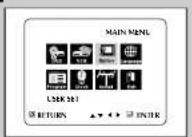
1 Open "MAIN MENU"
With the DVD in stop mode, press the SETUP button.
2 Select "Options"
Using the up/down and left/right buttons, move the selection cursor to "USER SET", then press ENTER to select.
3 Select "LINE3 AUDIO"
Move the selection arrow to "LINE3 AUDIO", then press right to select from the following options: - RCA - Analog Audio input - OPTICAL - Digital Audio input

Optical (Digital Audio Input) is available for PCM and Dolby Digital only.
Speaker Volume Control
1 AMP Volume Control
- Connect the speaker to the speaker jack on the rear.
• The volume can be adjusted from level 20.
- When you turn the power ON, if the last volume level was over 20, the volume will be set to 20, and if it was under 20, the volume will be set to that level.
2 H/PHONE Volume Control
- You can adjust the volume by connecting the HPHONE to the HPHONE JACK on the front panel. - The volume can be adjusted from level 31, and the AMP SPEAKER will be mired. - The LINE OUT AUDIO will be output continuously while the HPHONE is connected.

Speaker setup
1 Open "SETUP MENU"
With the DVD in stop mode, press the SETUP button.
2 Select "DVD"
Using the up/down and left/right buttons, move the selection cursor to "DVD Setup", then press ENTER to select.
3 Select "Audio Options"
Move the selection bar to "Audio Options", then press ENTER to options.
Setting the delay time
You can customize the sound to best fit the specific acoustics of the room by adding a delay to the sound from the center and surround speakers.
The delay time is initially set to 0 ms.
◆You can enjoy the best sound during 5.1 channel surround playback if the distance between you and each speaker is the same. You can adjust the delay time for the center and surround speakers according to the placement of the speakers in the room.
◆For the center speaker
If the distance of Dc is equal to or longer than the distance of Df, set the delay time to 0 ms.
Otherwise, change the value according to the table. (A)=Df-Dc
◆For the surround speakers
If the distance of Df is equal to the distance of Ds, set the delay time to 0 ms. Otherwise, change the value according to the table shown on the right. (B)=Df-Ds
Ideal speaker placement
1 Center speaker
Place the speaker directly over or under the TV. But ideally, the center speaker should be positioned with the top surface flush with the front speakers...
2 Front speakers
Place the front speakers so that their tweeters (high-range) are aligned at about the same height as ear level and at a horizontal angle of 45 degrees with respect to the prime listening position.
3 Surround speakers
Place these speakers behind your listening position, facing slightly inwards, about 2 to 3 feet (60 to 90 cm) above ear level. If there isn't enough space behind the listening position (i.e., close to the wall), place the surround speakers at either side with their front surfaces facing each other.
4 Subwoofer
The position or orientation of the subwoofer is not as critical. Place it anywhere you want.
Ideal speaker placement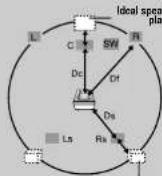
(A) Distance (feet/inch) Value (ms)
| 0.00 0.001.12 13.382.23 26.773.34 40.154.46 53.545.58 66.93 |
(B) Distance (feet/inch) Value (ms)
| 0.00 0.003.35 40.156.69 80.3110.03 120.4713.38 160.6216.73 200.79 |


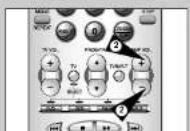
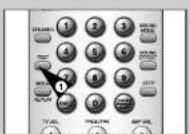

To adjust the speaker balance
1 Press the SPEAKER button.
- Each time you press the button, the speaker is selected in the order of FL→C→FR→SR→SL→SW→VOL. You will see this on the unit's display.
2 Use the + and - buttons to adjust the volume on the desired speaker.
- The volume can be adjusted within the range of -12 to 0 to +12.
To test the speakers
1 Press the TEST button.
- Each time you press the button, the test tone will be heard in the order of FL (Front speaker L) → C (Center speaker) → FR (Front speaker R) → SR (Surround speaker R) → SL (Surround speaker L) → SW (Subwoofer).
2 To stop the test tone, press the TEST button again.

You can adjust the speaker balance for the selected channel using the Volume Control buttons during the test tone operation.
Dolby Pro Logic II decoder - Speaker setup
Dolby Pro Logic II is a new format for playing multichannel audio signals that offers improvement over conventional Dolby Pro Logic. It can be used to decode not only sources recorded in Dolby Surround, but also regular stereo sources into five channels (front left/right, center and surround left/right). In addition, various parameters can be set according to the type of source and contents, so you can adjust the sound field with greater precision.
Select the source you want to use. (CD, Video, FM/AM, Input (LINE1, LINE2, LINE3, TV CH))
1 Press the SOUND MODE button.
- Press the SOUND MODE button repeatedly to select Dolby Pro Logic II.
2 Press the SOUND EFFECT button.
- Each time you press the button, the sound effect changes as follows.
![graph TD A["PL II"] --> B["MIRI"] B --> C["MOVIE"] C --> D["MUSIC"] D --> B](/content/2026/06/1219550/images/0730c5327ab156a1ae2edd143f65e544eb4160cc8802fe8950bb429eec6abf70.jpg)
3 Select the desired mode ("MUSIC", "MATRIX", or "MOVIE").
• Matrix: Use when playing sources recorded in monaural. • Movie: Use this when viewing movies. • Music: Use this mainly for music listening.
♦ Dolby Pro Logic: It may not be selected depending on the disc used. (DTS DVD, Dolby Digital 5.1, VCD, MP3)
- When playing a DVD recorded in 2-channel Dolby Digital, it will automatically be output in Dolby Pro Logic II. ◆ Dolby Pro Logic II operates only when CD, VIDEO, FM/AM, or INPUT (LINE1, LINE2, LINE3 or TV Broadcast) is selected. Mode, Sound Effect cannot be selected while the DVD signal is being input.

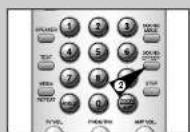

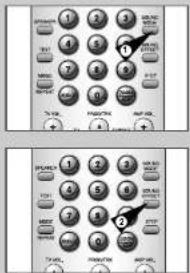
SOUND mode/effect function
This feature simulates the sound of different acoustic spaces.
1 Press the SOUND MODE button.
• Each time you press the button, the sound mode changes as follows.
• The SOUND mode adds an acoustic surround effect during playback of stereo analog or linear PCM digital signals.
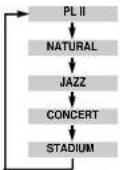
2 Press the SOUND EFFECT button.
• Each time you press the button, the selection alternates between EFFECT 1 and EFFECT 2.
• The higher the number, the greater the effect.
- If you press the button while in STEREO mode, the selection alternates between STEREO and 4 STEREO.
- When in 4 STEREO mode, you will hear equal output from the front and rear speakers.
Dolby Pro Logic II: 5.1ch
◆ The Sound mode and effects do not work with Dolby Digital, DTS, VCD, MP3, PCM disc, and Optical Input (OPTICAL) sources. ◆ Dolby Digital, DTS, Optical Input (Dolby Digital): 5.1 Channel speaker output ◆ VCD, MP3, LPCM, Optical Input (PCM): Outputs to the front left, right, and subwoofer speakers only. During DTS or MPEG playback, audio is output only to the speakers. Audio is not output using other connections.

Listening to radio broadcasts
You can automatically or manually tune in to FM and AM stations to listen to radio broadcasts.
1 Press the FM/AM button.
• Each time you press the button, the band alternates between FM and AM.
2 Tune in to a station.
• Automatic tuning: Hold down 🖼️ / ➕ to begin the • Manual tuning: Press ◀ to tune in to a lower frequency, or press ◀ to tune in to a higher frequency.
The FM/AM function cannot be selected while operating the DVD player or VCR.
Presetting stations
Example: Storing an FM station of 89.1 MHz into the preset number 02 of the FM1 band
1 Press the FM/AM button to select the FM band. • Each time you press the button, the band alternates between FM and AM. 2 Select a channel to choose the memory address to which you want to store the station. \$ Use the ◀◀ and ➞ buttons to tune in to 89.1 FM. 4 Press the ■ button or the ENTER button on the remote control. • 89.1 FM is stored in FM1. 5. Select a channel to select a preset station number. 6. Press STOP button or ENTER button again to store FM station 89.1 to FM 1. 7. To store other stations Repeat steps 1 to 6 above. • You can use the CHANNEL button to store up to 20 FM stations and 10 AM stations. • will be indicated when tuned to an FM station. • To store other channels, repeat the steps 2 to 4 above.
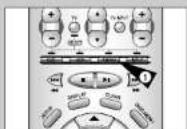

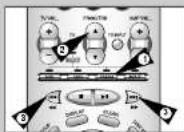


Technical Specifications
| General | Rated voltage | AC 220 - 241V, 50Hz | |
| Operating ambient temperature | +5°C - +35°C | ||
| Installation conditions | Operation position : Horizontal;Relative humidity : Below: 75% | ||
| Input | Video input (Rear) | RCA jack : 1.0Vp-p (unbalanced) 75Ω | |
| Audio input (Rear) | RCA jack : -8dBm, 47Kohm unbalanced | ||
| RF out | UHF 21-69 (Intral CH36) | ||
| Output | Audio (DVD, VCR) | RCA jack | |
| Video (DVD, VCR) | RCA jack | ||
| Video (DVD only) | S-Video outCOMPONENT out : RCA jack | ||
| VCR | Tape format | VHS type video tape,S-VHS type video tape (Playback only) | |
| Color system | PAL, MESECAM, NTSC3.5B, NTSC4.4B, NTSC on PAL TV | ||
| Tuning system | BIG, D/K | ||
| Video S/N | Above 43dB (standard recording) | ||
| Resolution | Above 240 lines (standard recording) | ||
| Audio S/N | Above 68dB (Hi-Fi), 39dB (Mono) | ||
| Audio frequency characteristics | 20Hz - 20KHz (Hi-Fi) | ||
| DVD | Disc | DVD, CD (12cm), CD (8cm), VIDEO-CD (12cm) | |
| Audio S/N | 95dB | ||
| Audio dynamic range 100dB | |||
| RECEIVER | SENSITIVITY | FM | AM |
| 15 dB | 64 dB | ||
| S/N RATIO | 60 dB | 35 dB | |
| THD | 0.5 % | 2 % | |
| AMP SUBW | FRONT SPEAKER 50W X 2 (6Ω) | ||
| CENTER SPEAKER 50 W (6Ω) | |||
| SURROUND SPEAKER 50 W X 2 (6Ω) | |||
| FOOFER SPEAKER 100 W (3Ω) | |||
| FREQ. RESPONSE 20 Hz - 20kHz | |||
| S/N RATIO 75 dB | |||
| CHANNEL SEPERATION 50 dB | |||
| SPEAKER | SPEAKER SYSTEM | 5.1 CHANNEL SPEAKER SYSTEM | |
| FRONT/CENTER/SURROUND | SUBWOOFER SPEAKER | ||
| IMPEDANCE | 6Ω X 5 | 3Ω | |
| FREQ. RESPONSE 55Hz - 23kHz 30Hz ~ 400Hz | |||
| C.S.L 87dB/W/M | 86dB/W/M | ||
| RATING INPUT | 50W | 100W | |
| SIZE | FRONT SURROUND | 110(W)x129(D)x100(H) | |
| CENTER | 150(W)x129(D)x100(H) | ||
| WEIGHT | FRONT SURROUND | 0.73kg x 4 = 2.88kg | |
| CENTER | 1.1kg | ||
GB
70
71
Before contacting the Samsung after-sales service, perform the following simple checks.
| Problem Explanation/Solution | |
| No power | ◆ Check that the power plug is connected to a wall bullet.◆ Have you pressed the STANDBY/ON button? |
| You cannot insert a video cassette | ◆ A video cassette can only be inserted with the window side up and the safety tab facing you. |
| The television programme was not recorded | ◆ Check the DVD-VCR aerial connections.◆ Is the DVD-VCR tuner properly set?◆ Check if the safety tab is intact on the cassette. |
| Timer recording was unsuccessful | ◆ Was the STANDBY/ON button pressed to activate the timer?◆ Re-check the recording startstop time settings.◆ If there was a power failure or interruption during timer recording, the recording will have been cancelled. |
| No playback picture or the picture is distorted | ◆ Check to see if you are using a prerecorded tape. |
| You cannot see normal broadcasts | ◆ Check the TUNER/EXTERNAL setting. It should be on TUNER.◆ Check the TV/VCR aerial connections. |
| Noise bars or streaks on playback | ◆ Press the PROG/TRK (▲ or ▼) buttons to minimize this effect. |
| When the ▶■ button is pressed ◆A still picture may have "noise bars", depending on the during playback, the still picture has severe "noise bars" streaks during SLCW motion to minimize this effect. | |
| Video Head Cleaning ◆If poor pictures appear on a variety of cassettes, the video heads may need cleaning. This is not a common problem and unless it appears, the heads should not be cleaned. When cleaning the video heads, read all instructions provided with the head clearing cassette. Incorrect head cleaning can permanently damage the video heads. | |
| If when tuning in your TV to the DVD-VCR TV does not find the Screen symbol) on the rear of the DVD-VCR, the pattern when found suffers from interference, it may be due to the DVD-VCR output channel clashing with the normal TV transmissions in your area. To prevent this you will need to change the DVD-VCR output channel in the following way | 1. Remove the serial input plug from the socket marked (serial of the DVD-VCR.2. Carry out the instructions "Tuning Your Television for the DVD-VCR" (see page 14).3. Carry out the instructions "Setting the DVD-VCR output Channel" (see page 23), move the channel number several channels down from the original setting. (example: from 38 to 40).4. Replace the aerial plug into the socket marked (serial symbol) on the rear of the DVD-VCR.5. Re-tune your TV to the DVD-VCR again by following instructions "Tuning Your Television for the DVD-VCR" (page 14).6. If the problem still exists repeat steps 1 to 5 moving several more channels away from the original setting. |
If you are unable to solve the problem after reading the above instructions, note: ◆ The model and serial number on the rear of your DVD-VCR ◆ The warranty information ◆ A clear description of the problem Then contact your nearest SAMSUNG after-sales service.

Troubleshooting Guide (DVD) Problems and Solutions (VCR)
Before requesting service (troubleshooting)
| Problem | Action | Page |
| Disc does not play. | Ensure that the disc is installed with the label side facing up.Check the region number of the DVD.This player cannot play CD-ROMs, DVD-ROMs, etc. Insert a DVD, it VIDEC-CD or a CD. | P6 |
| The icon appears on screen. | The features or action cannot be completed at this time because:1. The DVD's software restricts it.2. The DVD's software doesn't support the feature (e.g., angles).3. The feature is not available at the moment.4. You've requested a title or chapter number or search time that is out of range. | |
| Playback mode differs from the Setup Menu selection. | Some of the functions selected in the DVD SETUP may not work properly if the disc is not encoded with the corresponding function. | P44-49 |
| The screen ratio cannot be changed. | The Screen Ratio is fixed on your DVDs. | P49 |
| Forgot password | Press power on from a cold start with no disc in the unit. Press the ▶ and ← buttons simultaneously on the front panel for five seconds. Switch off and on the DVD-VCR by pressing STANDBY/ON button. The Parental Mode is now unlocked as indicated on the display. You can now set your rating level and change your password to a new number. | |
| If you experience other problems. | Go to the contents and find the section of the instruction book that contains the explanations regarding the current problem, and follow the procedure once again.If the problem still cannot be solved, please contact your nearest authorized service center. |

THIS APPLIANCE IS DISTRIBUTED BY

www.samsung.com
AK68-00096Q 2003.02.21


- CONTENTS
- FOREWORD
- DVD-VCR OVERVIEWS
- CONNECTING YOUR DVD-VCR
- SETTING UP YOUR DVD-VCR
- RECORDING TELEVISION BROADCASTS
- CONTENTS (CONT.)
- PLAYING BACK
- DVD FUNCTIONS
- SYMBOLS
- SAFETY INSTRUCTIONS
- DISC TYPE AND CHARACTERISTICS
- DISC MARKINGS
- PLAYBACK REGION NUMBER
- FRONT VIEW OF THE DVD-VCR
- REAR VIEW OF THE DVD-VCR
- ACCESSORIES
- DECIDING HOW TO CONNECT DVD-VCR
- CONNECTING DVD-VCR TO THE TV USING THE COAXIAL CABLE
- CONNECTING OTHER EQUIPMENT TO YOUR DVD-VCR
- PLUG & AUTO SET UP
- TUNING YOUR TELEVISION FOR THE DVD-VCR
- DECK CONTROL KEYS
- COPYING FROM DVD TO VCR
- INSERT DISC
- INSERT VHS TAPE
- COPY THE DVD TO VHS TAPE
- STOP THE COPY PROCESS
- INSERTING BATTERIES IN THE REMOTE CONTROL
- SETTING THE DATE AND TIME
- YOU MUST SET THE DATE AND TIME WHEN
- MENU LANGUAGE
- PRESETTING THE STATIONS AUTOMATICALLY
- VCR
- PRESETTING THE STATIONS MANUALLY
- CLEARING A PRESET STATION
- SELECTING THE RF OUT SOUND MODE (B/G-D/K)
- SETTING THE DVD-VCR OUTPUT CHANNEL
- SELECTING THE COLOUR MODE
- NICAM
- INTELLIGENT PICTURE CONTROL
- SELECTING THE CASSETTE TYPE
- AUTO REPEAT PLAY
- SELECTING THE RECORDING SPEED
- VIDEO CASSETTES HAVE A SAFETY TAB TO PREVENT ACCIDENTAL ERASURE. WHEN THIS TAB HAS BEEN REMOVED, YOU CANNOT RECORD ON THE TAPE
- BEFORE RECORDING A PROGRAMME, YOU MUST HAVE PRESET THE CORRESPONDING STATION (UNLESS YOU ARE RECORDING VIA AN EXTERNAL VIDEO SOURCE). IF YOU HAVE NOT DONE SO, REFER TO PAGES 19 AND
- RECORDING A PROGRAMME WITH AUTOMATIC STOP
- USING THE TIMER PROGRAMMING FEATURE
- CHECKING A PRESET RECORDING
- CANCELLING A PRESET PROGRAMME
- PLAYING A CASSETTE
- ADJUSTING PICTURE ALIGNMENT AUTOMATICALLY
- ADJUSTING PICTURE ALIGNMENT MANUALLY
- SELECTING THE AUDIO OUTPUT MODE
- OPTION DESCRIPTION
- PLAYING A CASSETTE IN SLOW MOTION
- PRESS
- PLAYING A SEQUENCE FRAME BY FRAME
- YOU CAN
- TO RETURN TO NORMAL PLAYBACK, PRESS
- PLAYING A SEQUENCE AT VARIABLE SPEEDS
- PICTURE SEARCH, FAST FORWARD/REWIND
- SEARCHING FOR A SPECIFIC SEQUENCE
- INTRO SCAN
- USING THE TAPE COUNTER
- THE TAPE COUNTER
- WHEN YOU ARE READY
- PRESS DISPLAY
- CONNECTING AN RCA AUDIO/VIDEO INPUT CABLE
- USING THE ASSEMBLE EDIT FUNCTION
- RECORDING FROM ANOTHER VCR OR CAMCORDER
- AUDIO DUBBING A PRE-RECORDED CASSETTE
- RESTRICTION
- PRESS A.DUB
- USING THE TV BUTTONS ON THE REMOTE CONTROL
- BRAND CODES BRAND CODES
- BUTTON
- FUNCTION
- SQPB (SUPER VHS QUASI PLAYBACK)
- CHOOSING A CONNECTION
- DVD
- USING THE SETUP MENU
- USING THE DISC MENU LANGUAGE
- SETTING UP THE AUDIO OPTIONS
- SETTING UP THE DISPLAY OPTIONS
- TV ASPECT
- BLACK LEVEL
- S-VIDEO CONNECTIONS (FOR DVD)
- CONNECT S-VIDEO OUT TO TV
- SPECIAL PLAYBACK FEATURES
- STILL
- FRAME ADVANCE (STEP)
- SKIP FORWARD/BACK
- SEARCH FORWARD/BACK
- SLOW MOTION
- STOP/RESUME
- USING THE DISPLAY FUNCTION (DVD/VCD/CD)
- WHEN PLAYING A DVD
- WHEN PLAYING A CD/VCD
- REPEAT PLAY
- SELECTING THE SUBTITLE LANGUAGE (USING THE SUBTITLE BUTTON)
- CHANGING THE CAMERA ANGLE
- USING THE BOOKMARK FUNCTION (DVD/VCD)
- RECALLING A MARKED SCENE
- CLEARING A MARK
- USING THE ZOOM (DVD/VCD)
- MP3 PLAY (CD-R MP3 DISC REQUIREMENTS)
- CONNECTING THE FM AND AM ANTENNAS
- FM ANTENNA CONNECTIONS
- AM ANTENNA CONNECTIONS
- COOLING FAN
- CONNECTING THE SPEAKERS
- CAUTION
- LINE 3 AUDIO SETTING
- OPEN "MAIN MENU
- SELECT "OPTIONS
- SELECT "LINE3 AUDIO
- SPEAKER VOLUME CONTROL
- AMP VOLUME CONTROL
- H/PHONE VOLUME CONTROL
- SPEAKER SETUP
- OPEN "SETUP MENU
- SELECT "DVD
- SELECT "AUDIO OPTIONS
- SETTING THE DELAY TIME
- IDEAL SPEAKER PLACEMENT
- CENTER SPEAKER
- FRONT SPEAKERS
- SURROUND SPEAKERS
- SUBWOOFER
- TO ADJUST THE SPEAKER BALANCE
- TO TEST THE SPEAKERS
- DOLBY PRO LOGIC II DECODER - SPEAKER SETUP
- SOUND MODE/EFFECT FUNCTION
- LISTENING TO RADIO BROADCASTS
- PRESETTING STATIONS
- TECHNICAL SPECIFICATIONS
- TROUBLESHOOTING GUIDE (DVD) PROBLEMS AND SOLUTIONS (VCR)
Brand : SAMSUNG
Model : CHT-350V
Category : DVD Player / VCR