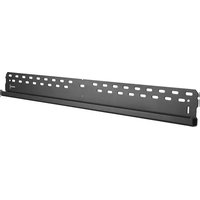
TH-VWP-100 - Wall mount Atdec - Free user manual and instructions
Find the device manual for free TH-VWP-100 Atdec in PDF.


| Product Type | Wall Mount |
| Brand | Atdec |
| Model | TH-VWP-100 |
| Maximum Load | 165 kg (363 lbs) per panel |
| Wall Plate Width | 1000 mm (estimated) |
| Mounting Pattern | Universal (VESA compatible) |
| Leveling Adjustment | Yes, via top screw on bracket |
| Wall Adjustment | Yes, leveling bolt for uneven walls |
| Security | Provisions for security cables/locks |
| Screen Orientation | Landscape or Portrait |
| Mounting Method | Hook-on brackets |
| Material | Steel |
| Color | Black |
| Included Hardware | M8 bolts (16/30/50/65 mm), spacers, coach screws, nylon anchors, washers |
| Tools Required | Power drill, 8 mm drill bit, 10 mm masonry bit, 13 mm socket wrench, Phillips screwdriver, spirit level, tape measure |
| Installation Method | Attach brackets to screen, mount wall plates, hang screens, level, cable |
| Multi-Screen Support | Yes, for video walls |
Frequently Asked Questions - TH-VWP-100 Atdec
User questions about TH-VWP-100 Atdec
0 question about this device. Answer the ones you know or ask your own.
Ask a new question about this device
Download the instructions for your Wall mount in PDF format for free! Find your manual TH-VWP-100 - Atdec and take your electronic device back in hand. On this page are published all the documents necessary for the use of your device. TH-VWP-100 by Atdec.
USER MANUAL TH-VWP-100 Atdec
- Power Drill
- 8mm (0.31") Drill Bit
• 10mm (0.39") Masonry Drill Bit - 13mm (0.51") Socket Wrench Shifter
• Phillips Head Screwdriver - Spirit Level
- Tape Measure

M8 × 16/30/50/65
(x4)

Spacer (x8)
Wall Plate 1.6m
(TH-VWP-160)
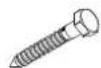
Coach Screw (x3)

Nylon
Anchor (x3)

8mm Washer (x3)
IMPORTANT INFORMATION:
! IMPORTANT - Install Video Wall as per installation instruction.
! This product supports a maximum load of 165kg (363lbs.) per panel or screen.
! The manufacturer accepts no responsibility for incorrect installation.
Step 1. Check Components
Check you have received all parts against the component checklist and hardware on the previous page.
Step 2. Mounting Brackets

natural_image
Technical line drawing of a rectangular frame with two vertical supports and mounting brackets (no text or symbols)Option A
If the distance between the top of the display & mounting bracket is 80mm and under, mount directly onto the screen.

IMPORTANT
For the Brackets to function correctly they must be mounted as close to the top of the screen as possible.
When mounting multiple screens the brackets must be mounted in exactly the same position each time to ensure alignment.

natural_image
Technical line drawing of a mechanical assembly with two vertical components and mounting brackets (no text or symbols)Option B
If the distance between the top of the display & mounting bracket is between 80 and 165mm, mount using spacers included.
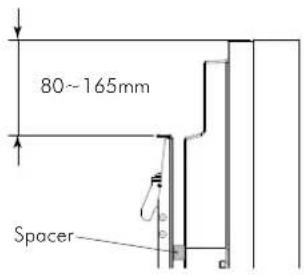
NOTE: The top of the bracket must not be higher than the top of the screen.
Step 3. Mounting first Wall Plate
3.1. 3.2.

natural_image
Two rectangular objects with X-shaped arrows pointing downward, no text or symbols presentDetermine the desired height of your screen from the floor.
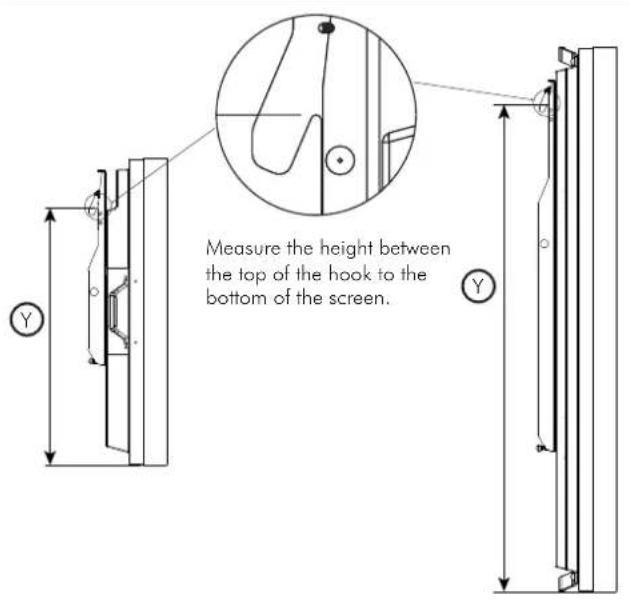
3.3.

3.4.
Please use a Spirit Level during installation to ensure that the Wall Plate is LEVEL

natural_image
Pure electrical circuit lines without any symbols2 coach screws are provided for the TH-VWP-050, TH-VWP-080, TH-VWP-100 and 3 coach screws are provided for the TH-VWP-160. Ensure all screws are used with exception of where timber studs are spaced too far apart.
Masonry Timber Stud
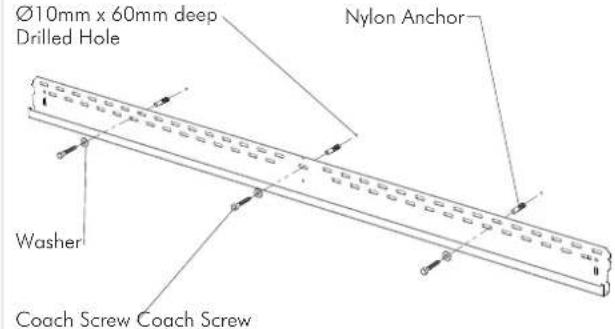
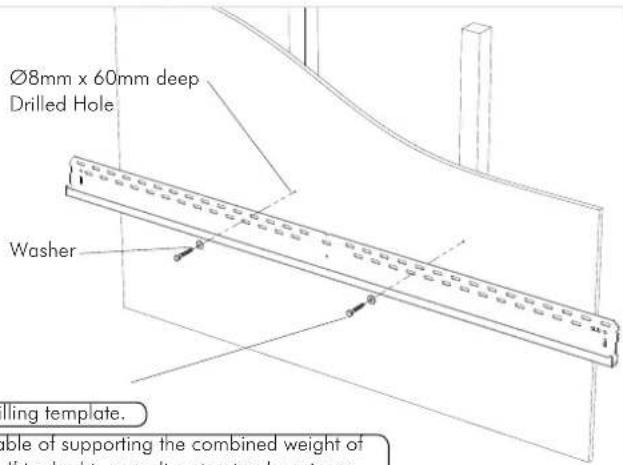
TIP: Use Mount as a drilling template.
IMPORTANT! Any structural elements must be capable of supporting the combined weight of all the equipment and devices being mounted. If in doubt, consult a structural engineer.
Step 4. Mount remaining Wall Plates
4.1.
Repeat Step 3.4 with the following to install the remaining Wall Plates
Please use a Spirit Level during installation to ensure that the Wall Plates are LEVEL

4.2.

Step 5. Mounting screens
5.1.
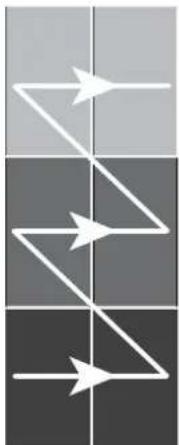
Install the screens row by row, starting at the bottom. Ensure each row of screens are level before moving on to the next row.
Installation may start from left or right.

natural_image
Abstract diagram with three white arrows pointing in different directions on a dark grid background (no text or symbols)Screen shown in Landscape orientation
flowchart
graph TD
    A["Step 1"] --> B["Step 2"]
    B --> C["Step 3"]
Screen shown in Portrait orientation
Please use a Spirit Level during installation to ensure that the Screens are LEVEL

natural_image
Pure diagram of a rectangular object with a triangular top and base, no text or symbols present5.2.

natural_image
Technical diagram showing a mechanical assembly with a hatched vertical section and an arrow indicating motion (no text or symbols present)Angle the screen as shown and position so the hook is above the bracket
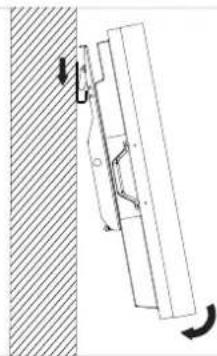
Drop the hook onto the bracket to engage and gently lower the screen

natural_image
Technical diagram showing a mechanical assembly with a vertical rod and mounting bracket, adjacent to a hatched wall (no text or symbols)5.3. - Screen Levelling 5.3. - Wall Levelling

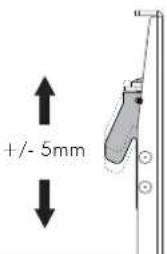
Level the screen by adjusting the screw at the top of each mounting bracket. Use a spirit level to ensure screen is level.

natural_image
Two rectangular shapes with shading and a curved arrow indicating rotation (no text or symbols)
To adjust for uneven walls, screw the leveling bolt in or out to match each display position.
Step 6. Cabling
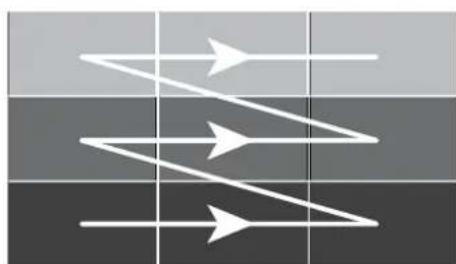
6.1. - Cabling sequence
natural_image
Abstract diagram with three white arrows pointing in different directions on a dark grid background (no text or symbols)Screen shown in Landscape orientation
Tilt up each row, starting at the top, leaving each screen out until all cabling is finished.
You may start from the left or right.

flowchart
graph TD
    A["Step 1"] --> B["Step 2"]
    B --> C["Step 3"]
Screen shown in Portrait orientation
6.2. To gain access for cabling:

Step 7. Security (optional)
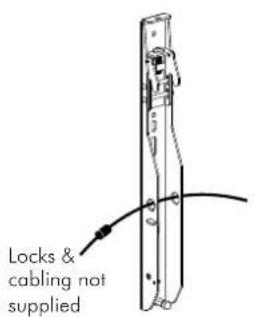
The holes shown in the bracket and wall plate can accommodate security cabling and locks.

Step 8. Screen Removal
To remove screen X for repair or replacement, tilt up the numbered screens in sequence, then pull out and lift off screen X.


| 1 | ||
| 2 | ||
| X |
Installation complete!
Brand : Atdec
Model : TH-VWP-100
Category : Wall mount