
VF-AT-NK - Laptop Support Accessory Atdec - Free user manual and instructions
Find the device manual for free VF-AT-NK Atdec in PDF.


| Product Type | Notebook Tray and Arm Assembly (Laptop Mount Accessory) |
| Brand | Atdec |
| Model | VF-AT-NK |
| Compatible Notebook Size | Up to 18 inches |
| Maximum Weight Capacity | 8 kg (17.6 lbs) |
| Height Adjustment Range | Approximately 356 mm to 560 mm (14 to 22 inches) from pole |
| Tilt Adjustment Range | 5° forward to 15° backward tilt |
| Viewing Angle Recommendation | 10° to 20° downward |
| Viewing Distance Recommendation | 500 mm to 750 mm (20 to 29.5 inches) |
| Mounting System | Designed for Visidec Focus Pole system |
| Material | Metal and plastic components |
| Includes | Notebook Tray & Arm Assembly, Hand Grip, Primary & Secondary Arm Cable Covers, Hook & Loop Fasteners (4 sets), 5mm Allen Key |
| Cable Management | Integrated cable covers, clips, and stops |
| Ergonomic Guidelines | Provided for optimal display positioning |
| Required Accessories | External keyboard and mouse (not included) |
| Installation | Must be installed according to provided instructions |
| Safety | Do not exceed weight limit; ensure secure attachment |
| Maintenance | Clean with a soft dry cloth; avoid liquids |
| Spare Parts & Repairability | Contact Atdec for replacement parts; not user-serviceable |
| Warranty | Refer to product documentation |
Frequently Asked Questions - VF-AT-NK Atdec
User questions about VF-AT-NK Atdec
0 question about this device. Answer the ones you know or ask your own.
Ask a new question about this device
Download the instructions for your Laptop Support Accessory in PDF format for free! Find your manual VF-AT-NK - Atdec and take your electronic device back in hand. On this page are published all the documents necessary for the use of your device. VF-AT-NK by Atdec.
USER MANUAL VF-AT-NK Atdec
natural_image
Line drawing of a document with vertical lines and a cylindrical object attached (no text or symbols)Notebook Tray and Arm Assembly
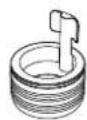
Hand Grip

Primary Arm Cable Cover

Secondary Arm Cable Cover

Hook & Loop
Fasteners (x4 sets)
IMPORTANT INFORMATION:
! IMPORTANT - Install Visidec Focus Notebook Mount as per installation instruction.
! This product is designed to be used in conjunction with an external keyboard and mouse.
! To b used with existing Visidec Focus Mount.
! Visidec Focus Notebook Mount supports Notebooks up to 18", weighing up to 8kg (17.6lbs).
! The manufacturer accepts no responsibility for incorrect installation.
Step 1. Check Components
Check what you have received against the component checklist and hardware above.
Step 2. Remove existing Arm & Monitor from Visidec Pole (ensure monitor cables are unplugged)

2.1 Remove Pole Top Cap and 5mm Allen Key from the Visidec Pole.
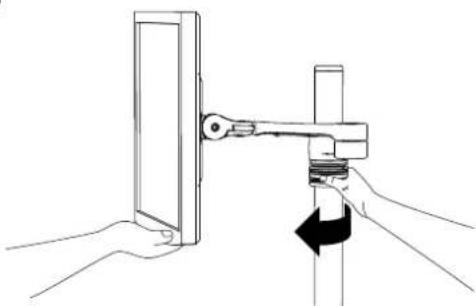
natural_image
Line drawing of hands using a tool to lift a wall-mounted component (no text or symbols)2.2 Whilst supporting the weight of the Monitor, unlock the Hand Grip.

natural_image
Diagram showing hands using a tool to lift a wall-mounted component, with arrows indicating direction (no text or symbols)2.3 Lift the Monitor and Focus Arm, removing both from the Visidec Pole.
Step 3. Remove existing Arm & Monitor from Visidec Pole (ensure monitor cables are unplugged)
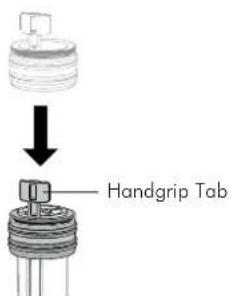
3.1 Slide the Handgrip onto the top of the Visidec Pole so the Handgrip Tab protrudes.

3.2 Slip the Notebook Tray & Arm Assembly over the Handgrip Tab and then onto the Pole.

natural_image
Mechanical assembly diagram showing a rotating component with internal blades and a downward arrow indicating motion (no text or symbols)3.3 Slide the Arm Assembly and Handgrip down the pole before locking the Handgrip at the desired height.
Step 4. Re-install the existing Arm and Monitor

natural_image
Simple line drawing of a mechanical component with a downward arrow indicating force or direction (no text or symbols)4.1 Slide the existing Arm and Monitor onto the Visidec Pole.
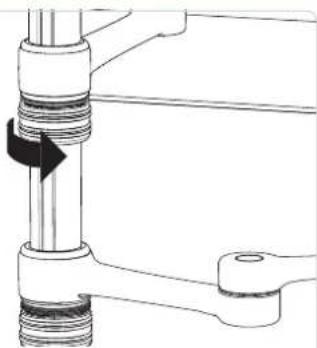
4.2 Lock the Monitor Arm Handgrip in the desired position.
natural_image
Mechanical assembly diagram showing a piston-cranked joint with a directional arrow indicating motion (no text or labels)
natural_image
Technical line drawing of a mechanical lever assembly with a handle and bracket (no text or symbols)4.2 Lock the Monitor Arm Handgrip in the desired position.

Step 5. Install Notebook

natural_image
Technical diagram showing three parallel metal components with arrows indicating direction (no text or symbols)5.1 Adjust the Support Tabs to suit the width of the Notebook Computer ensuring that cable ports are not obstructed.
5.2 To increase stability, use the self adhesive Hook-and-Loop Fasteners supplied.
- Peel off the backing paper to the fasteners.
- Attach fasteners to both the Notebook Tray and Computer.
- Ensure that each set of fasteners are correctly aligned i.e. Hook to Loop.

natural_image
Technical line drawing of a mechanical assembly with two components, no visible text or symbolsStep 6. Cable Management
6.1 After plugging in your cables, install the Cable Covers.

6.2 Cable Clips and Cable Stops can be installed to further manage cables. Please See Over.
Note: After connecting the Notebook Cables, route them through the Cable Management Clip on the back of the Notebook Tray.

Step 7. Adjusting the Display Bracket

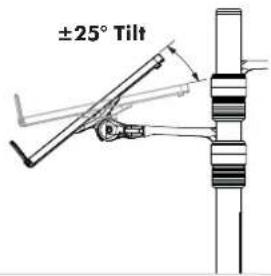
Adjust the tilt angle of the Notebook Tray as desired, locking it in position using the 5mm Allen Key.
The height can be adjusted by unlocking the Handgrips (see Step 7). For the optimal position of your display, refer to the Ergonomic Guidelines below.
Ergonomic Guidelines
Many experts believe that the extended use of any computer screen has the potential to cause serious injury to your eyes, neck and back. This can be largely avoided by correctly positioning your display.
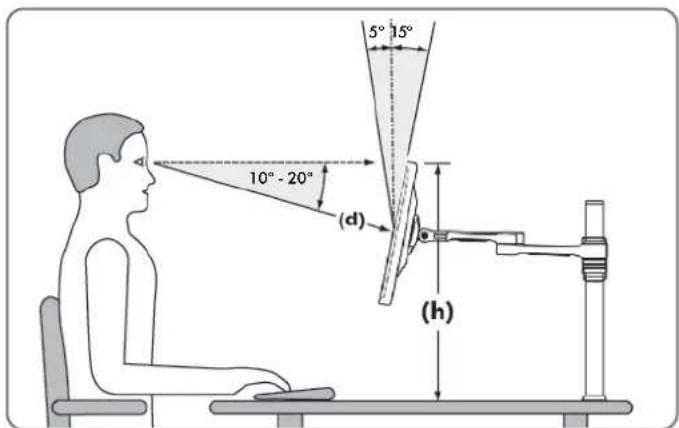
Viewing angle: Ergonomists recommend that the optimal position of your display should be slightly below eye level. When looking at the display's centre the user should have a downward visual angle of approximately 10^-20^ .
Height: As a guide, the height (h) of your display should approximately be as follows:
- Tall Male (Max): 560mm (22")
- Short Male (Min): 368mm (14.5")
- Tall Female (Max): 520mm (20.5")
- Short Female (Min) 356mm (14")
Distance: For visual comfort, a viewing distance (d) between 500mm (20") to 750mm (29.5") is recommended.
Tilt Angle: Angular adjustments to reduce reflection on your monitor should range between 5° forward tilt to 15° backward tilt.
- IMPORTANT INFORMATION:
- Step 1. Check Components
- Step 2. Remove existing Arm & Monitor from Visidec Pole (ensure monitor cables are unplugged)
- Step 3. Remove existing Arm & Monitor from Visidec Pole (ensure monitor cables are unplugged)
- Step 4. Re-install the existing Arm and Monitor
- Step 5. Install Notebook
- Step 6. Cable Management
- Ergonomic Guidelines
Brand : Atdec
Model : VF-AT-NK
Category : Laptop Support Accessory