
SV565UTPGB - AV Distribution StarTech.com - Free user manual and instructions
Find the device manual for free SV565UTPGB StarTech.com in PDF.


| Product Type | PS/2 & USB KVM Console Extender |
| Brand | StarTech.com |
| Model | SV565UTPGB |
| Category | AV Distribution |
| Maximum Resolution | 1024 x 768 (at maximum UTP cable length) |
| Maximum Range | 500 feet (150 meters) |
| Network Cabling Type | Straight-through Unshielded Twisted Pair (UTP) Cat. 5+ |
| Connectors (Host and Remote Unit) | 2 x HD-15 female (1 x KVM, 1 x console VGA), 1 x RJ-45, 2 x PS/2 keyboard/mouse (for console), 1 x Power (optional) |
| Power Adapter | 9V DC, 600mA, center positive (per Unit) |
| Supported Interfaces | PS/2 and USB |
| Console Support | PS/2 and VGA connectors |
| Modes | Auto, Local, Remote |
| Hotkey Sequences | Ctrl+Ctrl+T (toggle), Ctrl+Ctrl+Esc (cancel), Ctrl+Ctrl+Alt+E (compatibility mode), Ctrl+Ctrl+1 (local), Ctrl+Ctrl+2 (remote), Ctrl+Ctrl+F3 (inactivity interval), Ctrl+Ctrl+F4 (typematic rate), Ctrl+Ctrl+F12 (mouse reset) |
| LED Indicators | Mode indicators for Computer A and B |
| Beep Codes | Indicate settings for compatibility mode, inactivity interval, typematic rate, video quality |
| Video Quality Adjustment | Remote image quality adjustment based on UTP cable length (Ctrl+Ctrl+F11) |
| Compatibility Mode | Enables operation with KVM switches using [Ctrl] hotkey |
| Package Contents | 1 x Host Unit, 1 x Remote Unit, 1 x Instruction Manual, 2 x Power adapter, 1 x Set of rubber mounting feet |
| Required Cables (not included) | Integrated KVM cable (PS/2 or USB) and UTP cable |
| Warranty | 1 year |
Frequently Asked Questions - SV565UTPGB StarTech.com
User questions about SV565UTPGB StarTech.com
0 question about this device. Answer the ones you know or ask your own.
Ask a new question about this device
Download the instructions for your AV Distribution in PDF format for free! Find your manual SV565UTPGB - StarTech.com and take your electronic device back in hand. On this page are published all the documents necessary for the use of your device. SV565UTPGB by StarTech.com.
USER MANUAL SV565UTPGB StarTech.com
PS/2 & USB KVM Console Extender
UTP KVM Signal Extender for Distances up to 500 feet (150 m)
SV565UTP
Instruction Manual

natural_image
Two black electronic device units labeled 'HOST Unit' and 'StarTech.com', each with a control switch and port labels (no readable text beyond branding)Actual product may vary from photo
StarTech.com
The Professionals' Source for Hard-to-Find Computer Parts
FCC Compliance Statement
This equipment has been tested and found to comply with the limits for a Class B digital device, pursuant to part 15 of the FCC Rules. These limits are designed to provide reasonable protection against harmful interference in a residential installation. This equipment generates, uses and can radiate radio frequency energy and, if not installed and used in accordance with the instructions, may cause harmful interference to radio communications. However, there is no guarantee that interference will not occur in a particular installation. If this equipment does cause harmful interference to radio or television reception, which can be determined by turning the equipment off and on, the user is encouraged to try to correct the interference by one or more of the following measures:
- Reorient or relocate the receiving antenna.
- Increase the separation between the equipment and receiver.
- Connect the equipment into an outlet on a circuit different from that to which the receiver is connected.
- Consult the dealer or an experienced radio/TV technician for help.
Use of Trademarks, Registered Trademarks, and other Protected Names and Symbols
This manual may make reference to trademarks, registered trademarks, and other protected names and/or symbols of third-party companies not related in any way to StarTech.com. Where they occur these references are for illustrative purposes only and do not represent an endorsement of a product or service by StarTech.com, or an endorsement of the product(s) to which this manual applies by the third-party company in question. Regardless of any direct acknowledgement elsewhere in the body of this document, StarTech.com hereby acknowledges that all trademarks, registered trademarks, service marks, and other protected names and/or symbols contained in this manual and related documents are the property of their respective holders.
Instruction Manual
Table of Contents
Introduction....1
Before You Begin ....1
System Requirements ....1
Contents 2
Connecting Your KVM Extender 2
Preparing Your Site 2
Installing the Host Unit 2
Installing the Remote Unit ....3
Using Your KVM Extender 4
Using the Host Unit 4
Using the Remote Unit ....5
Specifications 7
Accessory Products from StarTech.com ....8
Technical Support 9
Warranty Information ....9
Instruction Manual
Introduction
Thank you for purchasing a StarTech.com KVM extender. This product allows a computer to control a host system from a remote location at a distance of up to 500 feet (150 meters). For ease of installation, this product uses standard Category 5, 5E, or 6 network cabling that fits easily into almost any existing network infrastructure. For added versatility, the KVM extender supports either PS/2 or USB computer interfaces. Console support is provided using standard PS/2 and VGA connectors.
Features
- Control a USB or PS/2-based computer at a distance of up to 500 feet (150 meters)
- Continue to use the computers at the host or remote locations when a remote KVM session isn't active using the dedicated PS/2 console interface
- Uses standard UTP network cabling for easy installation
Before You Begin
System Requirements
• 1 integrated KVM cable eater for the host and remote computers (not provided)
StarTech.com part number: SVECONx (PS/2)
SVECONUSx (USB)
- Unshielded Category 5 twisted pair (UTP) straight-through network cable terminated at each end with RJ-45 connectors (if using surface cabling)
OR
- Unshielded Category 5 twisted pair (UTP) straight-through network cable terminated at each end in a wall-mounted outlet, with a standard Category 5 patch cable, at both locations (if using premises cabling)
NOTE: The total length of cable between the Host and Remote Units cannot exceed 500 feet (150 meters), including patch cables (if used). Category 5e and 6 cabling is compatible with this product and may improve performance.
NOTE: Long cable lengths between the Host and Remote Units may adversely affect image quality at high resolutions and refresh rates. If you need to run your remote displays at high resolutions and frequencies, use as little cabling between locations as possible and avoid practices such as "coiling" unused cable in a ceiling.
This product will also control a KVM switch, allowing you to manage more than one computer remotely. In this configuration, you can connect the KVM extender's Host Unit to the "console" ports on the KVM. You must use the provided power adapters if using this configuration. You should set the Host Unit to Compatibility Mode before connecting it to a KVM that uses the [Ctrl] key as its hotkey sequence; see page 4 for details.
Instruction Manual
Contents
This package should contain:
1 x Host Unit
1 x Remote Unit
1 x Instruction Manual
2 x Power adapter
1 x Set of rubber mounting feet
Connecting Your KVM Extender
This product is composed of two different units: the Host Unit and the Remote Unit. The Host Unit takes input controls from a computer (using a PS/2 or USB integrated KVM cable) and allows access to them via the Remote Unit over Category 5 UTP cable. The remote computer also connects to the Remote Unit using an integrated KVM cable (again, either PS/2 or USB) and allows the user at the remote site to control that computer or the host computer using keyboard hotkey commands.
A PS/2 mouse and keyboard and a VGA monitor are connected to the Remote Unit (the console). You can also connect console peripherals to the Host Unit if you need direct as well as remote access to that computer.
Preparing Your Site
Before you can install the product, you need to prepare your site.
1: Determine where the host computer will be located and set up the computer.
2: Determine where the console devices (mouse, keyboard, monitor) will be located and place them appropriately.
3a: If you are using surface cabling, ensure you have enough Category 5 unshielded twisted pair (UTP) network cabling to connect the Host Unit to the Remote Unit's location, and that each end is terminated with a RJ-45 connector.
OR
3b: If you are using premises cabling, ensure that the Category 5 unshielded twisted pair (UTP) network cabling between the Host Unit and the Remote Unit has been properly terminated in a wall outlet in each location and there is a patch cable long enough to connect the Remote Unit and the Host Unit to their respective outlets.
Installing the Host Unit
Instruction Manual
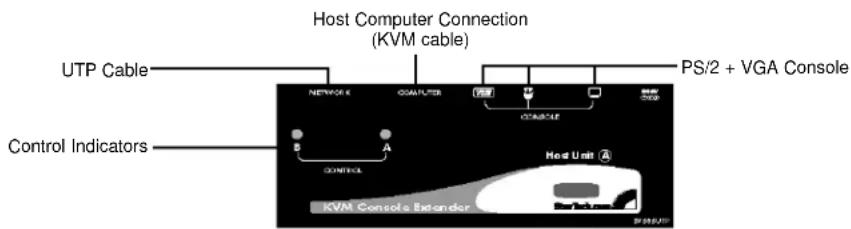
1: Place the Host Unit near the computer.
2: Switch off the computer and disconnect any existing VGA and input connections.
3: Using a StarTech.com integrated KVM cable (see page 8 for part numbers), connect the end of the cable that has two (USB) or three (PS/2) connectors to the VGA Out connector and the USB or mouse and keyboard PS/2 connectors on the computer as appropriate. (The PS/2 version of the cable is color-coded.) Connect the opposite end of the cable with a single connector to the gray-coded connector marked COMPUTER on the Host Unit of the KVM extender.
4: If you wish to have console access to the host computer, connect a PS/2 mouse, keyboard, and VGA monitor to the indicators marked as CONSOLE on the Host Unit.
5: Connect the UTP cable connection for Remote Unit to the NETWORK RJ-45 connector on the Host Unit. Connect the opposite end to a terminated wall outlet (if you are using premises cabling).
Installing the Remote Unit

1: Place the Remote Unit near the computer.
2: Switch off the computer and disconnect any existing VGA and input connections.
3: Using a StarTech.com integrated KVM cable (see page 8 for part numbers), connect the end of the cable that has two (USB) or three (PS/2) connectors to the VGA Out connector and the USB or mouse and keyboard PS/2 connectors on the computer as appropriate. (The PS/2 version of the cable is color-coded.) Connect the opposite end of the cable with a single connector to the gray-coded connector marked COMPUTER on the Remote Unit of the KVM extender.
4: Connect a PS/2 mouse, keyboard, and VGA monitor to the indicators marked as CONSOLE on the Remote Unit.
5: Connect the UTP cable connection for Remote Unit to the NETWORK RJ-45 connector on the Remote Unit. Connect the opposite end to a terminated wall outlet (if using premises cabling).
CAUTION: The UTP network cables that connect the Host and Remote Units carry electrical current and should not be plugged in to other devices, as they may cause damage. We strongly recommend marking the cables you are using with this product at both locations for easy identification.
Instruction Manual
Using Your KVM Extender
This section details how to use your KVM extender at both the host and remote locations.
Using the Host Unit
The Host Unit performs two functions: it allows a user at the remote location (Computer B) to assume control of Computer A, and it also permits the user seated at Computer A to use the system. It has three modes that control which user may access the system at a given time: Auto (the KVM extender looks for keyboard or mouse activity from both A and B and automatically accepts input from the active console), Local (only the user seated at Computer A can access the system), and Remote (only the user at Computer B can access the system).
You can use either keyboard shortcuts (if there is a keyboard and mouse attached) or the mode switch on the top of the Host Unit to control which user has access to Computer A. Having a keyboard and mouse attached to the console ports on the Host Unit is recommended since it offers access to a number of extended features.
LED Indicators
| Mode “A” Indicator “B” Indicator | ||
| Auto(Auto senses activity) | Flashing Flashing | |
| Local(User at Computer A has exclusive control) | On (solid) Off | |
| Remote(User at Computer B has exclusive control) | Off On (solid) | |
Keyboard Shortcut Command Sequences
| Standard Command With Compatibility Mode Enabled Description | ||
| [Ctrl] - [Ctrl] - [T] [Ctrl] - | [Ctrl] - [T] | Toggles control of Computer A between Auto, Local, and Remote modes |
| [Ctrl] - [Ctrl] - [Esc] [Ctrl] | - [Ctrl] - [Esc] Cancels the hotkey sequence | |
| [Ctrl] - [Ctrl] - [Alt]+[E] [Ctrl] | - [Ctrl] - [Alt]+[E] | Enables (2 beeps) or disables (1 beep) Compatibility Mode so that the KVM extender will work with a KVM switch that also uses a [Ctrl] hotkey sequence |
| [Ctrl] - [Ctrl] - [1] [Ctrl] | [Ctrl] - [E] - [1] | Local Mode: Allows the user at Computer A exclusive access to the system; remote access from Computer B (Remote Unit) is disabled |
| [Ctrl] - [Ctrl] - [2] [Ctrl] | [Ctrl] - [E] - [2] | Remote Mode: Allows the remote user at Computer B exclusive access to Computer A; access to the computer from the Host Unit is disabled |
| [Ctrl] - [Ctrl] - [F3] [Ctrl] | - [Ctrl] - [E] - [F3] | Sets the interval of inactivity in seconds that the Host Unit will wait before returning to Auto Mode after a Unit has assumed control |
| [Ctrl] - [Ctrl] - [F4] [Ctrl] | - [Ctrl] - [E] - [F4] | Adjusts the typematic rate for improved keyboard responsiveness |
| [Ctrl] - [Ctrl] - [F12] [Ctrl] | - [Ctrl] - [E] - [F12] Resets PS/2 mouse synchronization | |
Instruction Manual
Beep Codes
Some of the keyboard command sequences you issue to the Host Unit have multiple possible settings. The Unit will beep to indicate what setting you have selected for the command you issued. (A short beep followed by a long beep indicates an invalid command.)
[Ctrl] - [Ctrl] - [Alt]+[E] (Compatibility Mode)
1 beep: disabled
2 beeps: enabled
[Ctrl] - [Ctrl] - [F3] (Inactivity Interval for Auto Mode)
1 beep: 5 seconds
2 beeps: 15 seconds
3 beeps: 30 seconds
4 beeps: 60 seconds
[Ctrl] - [Ctrl] - [F4] (Typematic Rate)
1 beep: 6 characters/sec.
2 beeps: 12 characters/sec.
3 beeps: 20 characters/sec.
4 beeps: 30 characters/sec.
Note: Commands described in the [Key] - [Key] format are keys that must be pressed in order on the keyboard. Commands described in the [Key]+[Key] format must be pressed simultaneously.
Note: If the Num Lock, Caps Lock, and Scroll Lock lights are flashing in unison on the keyboard, the other Unit has control of Computer A. You will not be able to use the computer or issue commands until the other unit has finished using the computer.
Note: If the Extender is operating in Compatibility Mode ([Ctrl] - [Ctrl] - [E] hotkey sequence), you must enter [Ctrl] - [Ctrl] - [E] - [E] to access port E on the attached KVM switch.
Using the Remote Unit
Like the Host Unit, the Remote Unit performs two functions: it allows a user at the remote location (Computer B) to assume control of Computer A if the Host Unit is set to Auto or Remote mode, and it also permits the user seated at Computer B to use that system as though the KVM extender was transparent.
You can use either keyboard shortcuts or the mode switch on the top of the Host Unit to alternate control between A and B.
LED Indicators
| Mode “A” Indicator “B” Indicator | ||
| Remote Access (Computer A) On (solid) Off | ||
| Local Access (Computer B) Off On (solid) | ||
Instruction Manual
Keyboard Shortcut Command Sequences
| Standard Command With Compatibility Mode Enabled Description | ||
| [Ctrl] - [Ctrl] - [T] [Ctrl] - | [Ctrl] - [T] | Toggles console control between Computer A and Computer B |
| [Ctrl] - [Ctrl] - [Esc] [Ctrl] | - [Ctrl] - [Esc] Cancels the hotkey sequence | |
| [Ctrl] - [Ctrl] - [Alt]+[E] [Ctrl] | - [Ctrl] - [Alt]+[E] | Enables (2 beeps) or disables (1 beep) Compatibility Mode so that the KVM extender will work with a KVM switch that also uses a [Ctrl] hotkey sequence |
| [Ctrl] - [Ctrl] - [1] [Ctrl] | [Ctrl] - [E] - [1] Switches control to Computer B | |
| [Ctrl] - [Ctrl] - [2] [Ctrl] | [Ctrl] - [E] - [2] | Switches control to Computer A (input allowed only if the Host Unit is in Remote or Auto mode) |
| [Ctrl] - [Ctrl] - [F2] [Ctrl] | - [Ctrl] - [E] - [F2] | Toggles console control between Computer A and Computer B |
| [Ctrl] - [Ctrl] - [F4] [Ctrl] | - [Ctrl] - [E] - [F4] | Adjusts the typematic rate for improved keyboard responsiveness |
| [Ctrl] - [Ctrl] - [F11] [Ctrl] | - [Ctrl] - [E] - [F11] | Adjusts remote video quality based on the length of UTP cabling between the two computers (available only when switched to Computer A) |
| [Ctrl] - [Ctrl] - [F12] | [Ctrl] - [Ctrl] - [E] - [F12] | Resets PS/2 mouse synchronization |
Beep Codes
Some of the keyboard command sequences you issue to the Remote Unit have multiple possible settings. The Unit will beep to indicate what setting you have selected for the command you issued. (A short beep followed by a long beep indicates an invalid command.)
[Ctrl] - [Ctrl] - [Alt]+[E] (Compatibility Mode)
1 beep: disabled
2 beeps: enabled
[Ctrl] - [Ctrl] - [F11] (Remote Image Quality Adjustment)
1 beep: 0 \~ 130 feet (0 \~ 40 meters) of UTP cable length
2 beeps: 130 \~ 260 feet (40 \~ 80 meters) of UTP cable length
3 beeps: 260 \~ 390 feet (80 \~ 120 meters) of UTP cable length
4 beeps: 390 \~ 500 feet (120 \~ 150 meters) of UTP cable length
[Ctrl] - [Ctrl] - [F4] (Typematic Rate)
1 beep: 6 characters/sec.
2 beeps: 12 characters/sec.
3 beeps: 20 characters/sec.
4 beeps: 30 characters/sec.
Note: Commands described in the [Key] - [Key] format are keys that must be pressed in order on the keyboard. Commands described in the [Key]+[Key] format must be pressed simultaneously.
Instruction Manual
Note: If the Num Lock, Caps Lock, and Scroll Lock lights are flashing in unison on the keyboard, the other Unit has control of Computer A. You will not be able to use A until the other Unit releases access to that computer.
Note: If the Extender is operating in Compatibility Mode ([Ctrl] - [Ctrl] - [E] hotkey sequence), you must enter [Ctrl] - [Ctrl] - [E] - [E] to access port E on the attached KVM switch.
Specifications
| Maximum Resolution 1024 x 768 (at maximum UTP cable length)Actual maximum resolution varies by network cable length | |
| Maximum Range 500 feet (150 meters) | |
| Network Cabling Type Straight-through Unshielded Twisted Pair (UTP) Cat. 5+ | |
| Connectors Each, Host and Remote Unit2 x HD-15 female (1 x KVM, 1 x console VGA)1 x RJ-452 x PS/2 keyboard/mouse (for console)1 x Power (optional) | |
| Power Adapter 9V DC, 600mA, center positive (per Unit)(Optional; only required when connected using a conventional KVM switch) |
RJ-45 Connector Pinout
| Pin | Wire Color | Pair | Function |
| 1 | White/Orange | 2 | T |
| 2 | Orange | 2 | R |
| 3 | White/Green | 3 | T |
| 4 | Blue | 1 | R |
| 5 | White/Blue | 1 | T |
| 6 | Green | 3 | R |
| 7 | White/Brown | 4 | T |
| 8 | Brown | 4 | R |

Instruction Manual
Accessory Products from StarTech.com
Contact your local StarTech.com dealer or visit www.startech.com for cables or other accessories that will help you get the best performance out of your new product.
SVECON2
2 ft Ultra-Thin PS/2 3-in-1 KVM Cable
SVECON4
4 ft Ultra-Thin PS/2 3-in-1 KVM Cable
SVECON6
6 ft Ultra-Thin PS/2 3-in-1 KVM Cable
SVECON10
10 ft Ultra-Thin PS/2 3-in-1 KVM Cable
SVECON15
15 ft Ultra-Thin Ps/2 3-in-1 KVM Cable
SVECON25
25 ft Ultra-Thin PS/2 3-in-1 KVM Cable
SVECON35
35 ft Ultra-Thin PS/2 3-in-1 KVM Cable
SVECON50
50 ft Ultra-Thin PS/2 3-in-1 KVM Cable
SVECONUS6
6 ft Ultra-Thin USB 3-in-1 KVM Cable
SVECONUS10
10 ft Ultra-Thin USB 3-in-1 KVM Cable
SVECONUS15
15 ft Ultra-Thin USB 3-in-1 KVM Cable
RJ45PATCH35
35 ft Blue Snagless Category 5e (350 MHz) UTP Patch Cable
RJ45PATCH50
50 ft Blue Snagless Category 5e (350 MHz) UTP Patch Cable
RJ45PATCH75
75 ft Blue Snagless Category 5e (350 MHz) UTP Patch Cable
RJ45PATCH100
100 ft Blue Snagless Category 5e (350 MHz) UTP Patch Cable
(Other colors and lengths available.)
Instruction Manual
Technical Support
StarTech.com's lifetime technical support is an integral part of our commitment to provide industry-leading solutions. If you ever need help with your product, visit www.startech.com/support and access our comprehensive selection of online tools, documentation, and downloads.
Warranty Information
This product is backed by a one-year warranty. In addition, StarTech.com warrants its products against defects in materials and workmanship for the periods noted, following the initial date of purchase. During this period, the products may be returned for repair, or replacement with equivalent products at our discretion. The warranty covers parts and labor costs only. StarTech.com does not warrant its products from defects or damages arising from misuse, abuse, alteration, or normal wear and tear.
Limitation of Liability
In no event shall the liability of StarTech.com Ltd. and StarTech.com USA LLP (or their officers, directors, employees or agents) for any damages (whether direct or indirect, special, punitive, incidental, consequential, or otherwise), loss of profits, loss of business, or any pecuniary loss, arising out of or related to the use of the product exceed the actual price paid for the product.
Some states do not allow the exclusion or limitation of incidental or consequential damages. If such laws apply, the limitations or exclusions contained in this statement may not apply to you.
About StarTech.com
StarTech.com is “The Professionals’ Source for Hard-to-Find Computer Parts”. Since 1985, we have been providing IT professionals with the quality products they need to complete their solutions. We offer an unmatched selection of computer parts, cables, server management solutions and A/V products and serve a worldwide market through our locations in the United States, Canada, the United Kingdom and Taiwan.
Visit www.startech.com for complete information about all our products and to access exclusive interactive tools such as the Parts Finder and the KVM Reference Guide. StarTech.com makes it easy to complete almost any IT solution. Find out for yourself why our products lead the industry in performance, support, and value.
- PS/2 & USB KVM Console Extender
- FCC Compliance Statement
- Use of Trademarks, Registered Trademarks, and other Protected Names and Symbols
- Instruction Manual
- Table of Contents
- Introduction
- Features
- Before You Begin
- System Requirements
- Contents
- Connecting Your KVM Extender
- Preparing Your Site
- Using Your KVM Extender
- Using the Host Unit
- Beep Codes
- [Ctrl] - [Ctrl] - [Alt]+[E] (Compatibility Mode)
- [Ctrl] - [Ctrl] - [F3] (Inactivity Interval for Auto Mode)
- [Ctrl] - [Ctrl] - [F4] (Typematic Rate)
- Using the Remote Unit
- [Ctrl] - [Ctrl] - [F11] (Remote Image Quality Adjustment)
- Accessory Products from StarTech.com
- SVECON2
- SVECON4
- SVECON6
- SVECON10
- SVECON15
- SVECON25
- SVECON35
- SVECON50
- SVECONUS6
- SVECONUS10
- SVECONUS15
- RJ45PATCH35
- RJ45PATCH50
- RJ45PATCH75
- RJ45PATCH100
- Technical Support
- Warranty Information
- Limitation of Liability
- About StarTech.com
Brand : StarTech.com
Model : SV565UTPGB
Category : AV Distribution