
QuikBalance - Scale Impact - Free user manual and instructions
Find the device manual for free QuikBalance Impact in PDF.


| Product Type | Collapsible 18% Gray Panel |
| Brand | Impact |
| Model | QuikBalance |
| Available Sizes | 12 in (30 cm), 22 in (56 cm), 30 in (76 cm) diameter |
| Weight (12 in) | 4 oz (113 g) |
| Weight (22 in) | 8 oz (226 g) |
| Weight (30 in) | 16 oz (452 g) |
| Color Sides | Neutral white on one side, 18% gray on the other |
| Primary Use | Set custom white balance and achieve perfect exposure metering |
| Secondary Use | Bounce card to fill shadows |
| Material | Flexible, collapsible fabric |
| Storage | Folds into included storage sleeve |
| Cleaning | Wipe with a soft, dry cloth |
| Warranty | One-year limited warranty |
| Compatibility | All digital cameras supporting custom white balance |
| Post-Processing | Works with editing software like Adobe Photoshop |
| Folding Method | Twist into figure-eight and collapse |
Frequently Asked Questions - QuikBalance Impact
User questions about QuikBalance Impact
0 question about this device. Answer the ones you know or ask your own.
Ask a new question about this device
Download the instructions for your Scale in PDF format for free! Find your manual QuikBalance - Impact and take your electronic device back in hand. On this page are published all the documents necessary for the use of your device. QuikBalance by Impact.
USER MANUAL QuikBalance Impact
natural_image
Simple diagram of a square object with a central crosshair and a pointed tip, set against a yellow background (no text or symbols)QuikBalance
Collapsible 18% Gray Panel
INSTRUCTIONS
Introduction
Thank you for choosing the Impact QuikBalance Collapsible 18% Gray Panel. This versatile, portable, easy-to-use photographic tool makes it possible to achieve perfect exposure and color balance in your photos and videos every time.
This flexible panel unfolds to become a disc that's a neutral white on one side, and 18% gray on the other. The white side can be used to set precise and accurate white balance for your digital camera at a photo shoot, or as a post-production tool to ensure correct color rendition using editing software like Adobe Photoshop ^® . It can also function as a handy bounce card to fill shadows. The gray side is 18% gray—the photographic standard for determining correct exposures. It also can be used for setting white balance. The QuikBalance 18% Gray Panel is available in 12", 22", and 30" diameters.
Warnings
- Please read and follow these instructions, and keep this manual in a safe place.
- Keep this unit away from water and any flammable gases or liquids.
- Avoid exposing this product to sunlight for extended periods—fading may affect performance
- Handle the unit with care.
- Clean the unit with a soft, dry cloth.
• Use only parts provided by the manufacturer.
• Make sure the item is intact and that there are no missing parts.
• All photos are for illustrative purposes only.
Contents Include
• Impact QuikBalance 18% Gray Panel
- Storage sleeve
- User instruction manual
• One-Year Limited Warranty

natural_image
Simple line drawing of an apple with a stem and crosshair symbol inside (no text or labels)Specifications Dimensions Weight
OBP-G-12 12" diameter (30 cm) 4 oz. (113 g)
QBP-G-22 22" diameter (156 cm) 8 oz. (226 g)
QBP-G-30 30° diameter (75 cm) 16 oz. (452 g)
White Balance and Color
Human beings can see millions of colors accurately even in changing lighting conditions. The perceived color of an object changes according to the color of the light striking it. Our brains automatically compensate when the color of the light changes, so that a red ball will look red to us in daylight, under fluorescent lights, or lit by a table lamp. But a digital camera will record the ball as different colors under different kinds of lighting – that is, unless the white balance is set to match the specific lighting condition.
The color of light is measured on the Kelvin scale, with a temperature of degrees Kelvin (K) used to describe changes in the color of light. As Kelvin temperature increases, the color of light becomes "cooler," which is seen as moving to the blue end of the scale. Inversely, as Kelvin temperature decreases, the color of the light becomes "warmer," which is seen as moving towards the red end of the scale. Tungsten light is on the warmer end of the Kelvin scale (approximately 3200°K), while daylight falls on the cooler end (approximately 5500°K). In order for the camera to accurately record colors, it must have its white balance set to the same color temperature as the light that is falling on the object being photographed.
Your digital camera has a number of white balance presets, which can be found in the White Balance (WB) menu of your camera. In many cases, choosing one of these presets will give you a relatively good result. For the most precise result, however, you should use a digital white panel to set a custom white balance for your photo session.

By using the neutral white panel, you can set the camera to a precise white balance, resulting in a more accurate recording of all the colors. This is particularly important when there is mixed light from different sources. For instance, there might be a mixture of daylight and tungsten with a bit of fluorescent thrown in.
A neutral white panel should be used even when lighting conditions are completely controlled, such as in a studio, to achieve perfect results. You will get the same color results throughout the shoot, which also makes it easier to automate when editing in post-production to fix all similar images at one time.
Using the QuikBalance Gray Panel
Perfect white balance
Each side of the panel is formulated to be spectrally neutral. This means that all light that is reflected from either side is a true and accurate representation of the qualities of the light; nothing is added, distorted, or subtracted. Using your camera or post-production editing software, you can use the light reflected from the gray side or the white side as a precise reference to determine the exact lighting conditions. The camera or post-production editing software can then correct and balance all the colors in the entire photograph.
Note: You MUST create a new white balance reference each time the lighting conditions change or the camera settings change.
In-Camera Custom White Balance
For In-Camera Custom White Balance, some cameras will require you to take a picture of the neutral white panel under the exact lighting conditions of your photo shoot. That image will serve as your reference. You should fill as much of the viewfinder as possible with the white panel.
Note: When taking the shot for the white balance reference, make sure all the settings (shutter speed, aperture, ISO, etc.) are the same as the final shot.
Use the menus on your camera to set the WB to Custom. Refer to your camera's manual for the specific steps to perform this task, since it varies between manufacturers and models.


Using the QuikBalance Gray Panel
Post-Processing WB (RAW)
You will need to shoot an image with the neutral white panel somewhere in the photo for each lighting situation you encounter. The neutral white panel does not need to take up most of the viewfinder as for in-camera white balance, since you will merely be sampling this small area as a reference. To do this, simply take a picture of the panel and surroundings in the same lighting environment as your photo. After you've taken this reference photo containing the neutral white panel, remove it from the subject area. You'll want to take a separate image for each different lighting condition you plan on shooting.
Upon finishing your photo shoot, you will use the reference photos of the neutral white panel to set the white balance for each respective series of photos. To use the neutral white panel in your post-production workflow, select a point on the neutral white panel image in your post-processing software to be the source reference point for the white balance setting. Next, select the images taken under that lighting condition and instruct the software to apply that same setting to the rest of the images in the series.
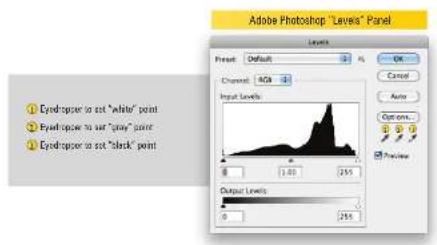
The neutral white panel can be used to set the absolute white point, such as that found in Adobe Photoshop Levels controls. You can also use the gray panel to set the gray point in Levels.
You can use editing software such as Adobe Photoshop together with your reference image to color correct the image using the Levels function.
Using the QuikBalance Gray Panel
Metering using the QuikBalance Gray Panel for perfect exposure
Your camera's light meter can't see in color. It only sees reflected light in shades of gray. Of the entire range of reflected light that your camera meter sees, 18% gray is the middle, hence the term "middle gray". All built-in camera light meters work in this way.
To meter off of your 18% gray panel, simply position the panel in the light that is falling on your subject so that the panel is angled slightly toward the primary light source. It is necessary to fill your frame with the gray panel, unless your camera is set in Spot Metering Mode and is reading only the gray panel in a scene. Metering from the 18% Gray Panel will work in any exposure mode.
Folding the QuikBalance Gray Panel for storage
Collapsing the QuikBalance Gray Panel to fit into its storage sleeve can be tricky, but a little practice will help you get it right. Follow the instructions carefully.
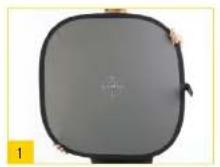
Grasp the QuikBalance Gray Panel as shown. Please place thumbs on opposite sides of the disc.

Twist the panel into a figure-eight shape.

Continue twisting while pushing the two sides towards each other.

Push the two sides so that one passes in front of the other, and they align so they can be stacked together. The reflector will now fit into the storage sleeve.
One-Year Limited Warranty
This IMPACT product is warranted to the original purchaser to be free from defects in materials and workmanship under normal consumer use for a period of one (1) year from the original purchase date or thirty (30) days after replacement, whichever occurs later. The warranty provider's responsibility with respect to this limited warranty shall be limited solely to repair or replacement, at the provider's discretion, of any product that fails during normal use of this product in its intended manner and in its intended environment Inoperability of the product or part(s) shall be determined by the warranty provider. If the product has been discontinued, the warranty provider reserves the right to replace it with a model of equivalent quality and function.
This warranty does not cover damage or defect caused by misuse, neglect, accident, alteration, abuse, improper installation or maintenance. EXCEPT AS PROVIDED HEREIN, THE WARRANTY PROVIDER MAKES NEITHER ANY EXPRESS WARRANTIES NOR ANY IMPLIED WARRANTIES, INCLUDING BUT NOT LIMITED TO ANY IMPLIED WARRANTY OF MERCHANTABILITY OR FITNESS FOR A PARTICULAR PURPOSE. This warranty provides you with specific legal rights, and you may also have additional rights that vary from state to state.
To obtain warranty coverage, contact the Impact Customer Service Department to obtain a return merchandise authorization ("RMA") number, and return the defective product to Impact along with the RMA number and proof of purchase. Shipment of the defective product is at the purchaser's own risk and expense.
For more information or to arrange service, visit www.impactstudiolighting.com or call Customer Service at 212-594-2353.

IMPACT™
A Gradus Group Brand
Product warranty provided by the Gradus Group.
www.gradusgroup.com IMPACT is a registered trademark of the Gradus Group
© 2014 Gradus Group LLC. All Rights Reserved.
Brand : Impact
Model : QuikBalance
Category : Scale