
S2-CDASE - Unspecified Sonifex - Free user manual and instructions
Find the device manual for free S2-CDASE Sonifex in PDF.


| Product Type | Digital Dual Stereo Input Channel with EQ for S2 Radio Broadcast Mixer |
| Brand | Sonifex |
| Model | S2-CDSE |
| Audio Inputs | Two digital stereo inputs, AES/EBU (XLR) or S/PDIF (RCA) selectable via internal jumpers |
| Sample Rate | 24-bit, up to 96kHz |
| Equalization | Shelving EQ: HF 7dB cut/boost at 6.5kHz, LF 7dB cut/boost at 100Hz; bypass button |
| Trim Control | ±12dB fine gain adjustment |
| Balance Control | ±6dB stereo balance adjustment |
| Routing | Selectable to PGM and/or AUD buses with illuminated buttons |
| Monitoring | Pre-Fade Listen (CUE/PFL) with momentary/latched mode; auto-cancel when fader opens (jumper selectable) |
| On/Off Control | ON button with fader; triggers remote start/stop and routing; LED indicators for off, armed, live |
| Remote Connector | 9-pin D-type plug for remote start/stop, fader start, and mic cue light (NPN opto-isolator outputs) |
| Connectors | XLR for AES/EBU, RCA phono for S/PDIF, 9-pin D-type for remote |
| Power Supply | Powered from S2-PSU via mixer bus: +16V, -16V, +VD (digital rail), and +48V (if needed) |
| Fader | ALPS 100mm long throw fader (optional Penny & Giles conductive plastic fader available) |
| Compatibility | Fits any S2 mixer chassis (5, 10, 15, 20, 25, 30 channel widths); modular pop-up design |
| Weight | Approx. 0.5 kg (1.1 lbs) per module (estimated) |
| Dimensions (Module) | Approx. 1.5 inches (38 mm) width, 10 inches (254 mm) depth, 5 inches (127 mm) height (fits standard S2 slot) |
| Safety | CE marked; no user-serviceable parts; disconnect mains before servicing; use correct fuse rating |
| Maintenance | Clean fascia with soft dry brush; use water or ethyl alcohol on trim and scribble pads; avoid liquids on electronics |
| Spare Parts | Contact Sonifex or authorized distributor for faders, PCB components, and connectors |
| Warranty | 12 months from date of despatch (extended warranty options may apply) |
Frequently Asked Questions - S2-CDASE Sonifex
User questions about S2-CDASE Sonifex
0 question about this device. Answer the ones you know or ask your own.
Ask a new question about this device
Download the instructions for your Unspecified in PDF format for free! Find your manual S2-CDASE - Sonifex and take your electronic device back in hand. On this page are published all the documents necessary for the use of your device. S2-CDASE by Sonifex.
USER MANUAL S2-CDASE Sonifex
natural_image
Product display of BONIFEX audio equipment with multiple channels and control panels (no visible text or symbols)
S2 Digital I/O Analogue Radio Broadcast Mixer User Handbook

natural_image
Abstract digital banner with purple and blue gradient background, featuring a stylized 'S' logo at the bottom right (no readable text or symbols)
For the latest Sonifex handbook information please visit the Sonifex website at www.sonifex.co.uk
Revision 2.21 February 2020
©Sonifex Ltd, 2000-2020
All Rights Reserved
Sonifex Ltd, 61, Station Road, Irthlingborough,
Northants, NN9 5QE, England.
Tel: +44 (0)1933 650 700
Fax: +44 (0)1933 650 726
Email : sales@sonifex.co.uk or technical.support@sonifex.co.uk
Web: http://www.sonifex.co.uk
Information in this document is subject to change without notice and does not represent a commitment on the part of Sonifex Ltd. Sonifex Ltd shall not be liable for any loss or damage whatsoever arising from the use of information or any error contained in this manual.
No part of this manual may be reproduced or transmitted in any form or by any means, electronic or mechanical, including photocopying, recording, or information storage and retrieval systems, for any purpose other than the purchaser's personal use, without the express written permission of Sonifex Ltd.

Warranty & Safety Information i
Warranty and Liability
Returning the Warranty Card iii
Unpacking the S2 iii
Safety of Mains Operated Equipment iv
Fuse Rating iv
Power Cable and Connection iv
WEEE & RoHS Directives - Sonifex Statement v
Reporting Faults vi
1 Introduction
Innovative Design 1 Summary Audio Quality and Unmovational Reliability 2
Superb Public Quality and Onquestionable Reliability 3 Features
2 Installation Notes 4
| Atmosphere | 4 |
| Electromagnetic Radiation 4 | |
| Dimensions and Cut-Out Sizes 4 | |
| Channel Configuration | 5 |
| Connectors and Cabiling 5 | |
| System Block Diagrams | 9 |
| Applications | 11 |
| Removing & Replacing Channels | 13 |
| Connecting A Split Desk | 14 |
3 Power Supply 16
| S2-PSU Power Supply (Old Version) | 16 |
| Front Panel | 16 |
| Rear Panel | 17 |
| Safety of Mains Operated Equipment | 17 |
| Ordering the Correct Mains Lead | 18 |
| Power Cable and Connection 18 | |
| Fuse Rating | 18 |
| S2-PSU Power Supply (New Version) | 19 |
| Front Panel Indicators | 21 |
| Rear Panel | 22 |
4 Input Channels
| S2-CML Mic/Line Input Channel 25 | |
| S2-CMM Mic/Mic Input Channel | 25 |
| S2-CS Dual Stereo Line Input Channel | 25 |
| S2-CSE Dual Stereo Line Input with EQ Channel | 26 |
| S2-CSG Stereo Line with Gram Input Channel | 26 |
| S2-CDS Digital Dual Stereo Input Channel | 26 |
| S2-CDSE Digital Dual Stereo Input with EQ Channel | 26 |
| S2-C655 6 Way Stereo Line Source Select Channel | 26 |
| S2-CT Telco Input Channel | 26 |
| S2-CSMM Stereo Mix-Minus Channel | 27 |
| S2-PG S2 Penny & Giles Conductive Plastic Fader | 27 |

CONTENTS

6 S2-CMM Mic/Mic Channel With EQ 36
Panel Controls 36
Rear Panel 37
Channel Options, Jumper Settings and Presets 38
7 S2-CSE/S2-CS Dual Stereo Line Channel With & Without EQ 43
Panel Controls 43
Bear Panel 44
Channel Options, Jumper Settings and Presets 45
8 S2-CSGE/S2-CSG Stereo Line And Gram Channel With & Without EQ 52
Panel Controls 52
Rear Panel 53
Channel Options, Jumper Settings and Presets 54
9 S2 -CDSE/S2 -CDS Digital Dual Stereo Line Channel With & Without EQ 61
Panel Controls 61
Rear Panel 62
Channel Options, Jumper Settings and Presets 63
10 S2-C6SS 6 Way Stereo Line Source Select Channel With EQ 70
Panel Controls 70
Channel Options, Jumper Settings and Presets 72
11 S2-CT Telco Channel With EQ 76
Panel Controls 76
Rear Panel 77
Channel Options, Jumper Settings and Presets 78
12 S2 CSMM Stereo Mix Minus Channel With EQ 83
Panel Controls 83
Bear Panel 84
Channel Options, Jumper Settings and Presets 85
13 Output Channels 92
52-ODP Digital PGM Output Channel & 52-ODPF Digital PGM Output Channel
With Master Fader 92
S2-ODA Digital AUD Output Channel & S2-ODAF Digital AUD Output Channel
With Master Fader 92
S2-OMC Control Room Monitor Channel 92
\$2 OMS Studio Monitor Channel 93
14 S2-ODPF/S2-ODP Digital Output PGM Channel With & Without
Master Fader (Version 1) 94
Panel Controls 94
Rear Panel 95
Channel Options, Jumper Settings and Presets 96
15 S2-ODPF/S2-ODP Digital Output PGM Channel With & Without
Master Fader (Version 2) 101
Panel Controls 101
Rear Panel 102

16 S2-ODAF/S2-ODA Digital Output AUD Channel With & Without Master Fader (Version 1) 108
Panel Controls 108
Bear Panel 109
Channel Options, Jumper Settings and Presets 110
17 S2-ODAF/S2-ODA Digital Output AUD Channel With & Without
Master Fader (Version 2) 115
Panel Controls 115
Bear Panel 115
Channel Options, Jumper Settings and Presets 117
18 S2-OMC Control Room Monitor Channel 122
Panel Controls 122
Rear Panel 123
Channel Options and Jumper Settings 124
19 S2-OMS Studio Monitor Channel 128
Panel Controls 128
Rear Panel 129
Channel Options and Jumper Settings 130
20 Meterbridge Modules 134
Meterbridge Module Type
Meterbridge Distribution Board 135
S2-MB1-5 Meterbridge Blanking Plates 136
52-ML Meterbridge Loudspeaker Monitor Panel 136
52-MVU Meterbridge VU Meter Panel, S2-MPPM PPM Meter Panel
& S2-ML53 LED Meter Panel 137
21 Technical Specifications 152
S2 Mixer Weights and Boxed Dimensions 154
Glossary 155
CONTENTS

FIGURES
Figures
| Fig 1-1: S2-15 Chassis Complete with Channels. | Fig 12-1: S2 Stereo Mix-Minus Board Layout. | 86 |
| Fig 1-2: S2-7SS Script Space. 2 | Fig 14-1: S2 Digital PGM Output Board Layout. | 97 |
| Fig 2-1: Mixer Profile. 4 | ||
| Fig 2-2: Mixer Cut-Out Details. 5 | Fig 14-2: S2 Digital PGM Output With Fader Board Layout. | 98 |
| Fig 3-1: XLR Connectors. 6 | ||
| Fig 2-4: RCA Phone Connector. 6 | Fig 15-1: S2 Digital PGM Output Board Layout. | 105 |
| Fig 2-5: BNC Connector. 6 | ||
| Fig 2-6: 1/4" Jack Connectors. 7 | Fig 15-2: S2 Digital PGM Output With Fader Board Layout. | 105 |
| Fig 2-7: 9 Pin & 15 Pin D-Type Connectors. | Fig 16-1: S2 Digital AUD Output Board Layout. | 111 |
| Fig 2-8: 25 Pin D-Type Connectors. 8 | Fig 16-2: S2 Digital AUD Output With Fader Board Layout. | 112 |
| Fig 2-9: 9 Pin D-Type Power Connectors. 8 | ||
| Fig 2-10: System Block Diagram (Sheet 1): 9 | Fig 17-1: S2 Digital AUD Output Board Layout. | 118 |
| Fig 2-11: System Block Diagram (Sheet 2): 10 | Fig 17-2: S2 Digital AUD Output With Fader Board Layout. | 118 |
| Fig 2-12: Using the Sonifex IRB-LCS to control an On Air Light. 11 | Fig 18-1: Control Room Monitor Board Layout. | 124 |
| Fig 2-13: Mixer Bus Cable Slots. 14 | Fig 19-1: Studio Monitor Board Layout. | 130 |
| Fig 2-14: Mixer Bus Cable Screen Connection. | ||
| Fig 2-15: Cable & Channel Connection. 15 | 1/Fig 20-1: Meterbridge Distribution Board Layout. | 135 |
| Fig 2-16: Meterbridge interconnection. 15 | Fig 20-2: Blanking Plate. | 136 |
| Fig 3-1: S2-PSU Front Panel. 16 | Fig 20-3: Loudspeaker Monitor Panel. | 136 |
| Fig 3-2: S2-PSU Rear Panel. 16 | Fig 20-4: PPM & True PPM Meter Panel. | 137 |
| Fig 3-3: New S2 PSU Front Panel. 19 | Fig 20-5: VU Meter Panel. | 137 |
| Fig 3-4: New S2-PSU Rear Panel. 20 | Fig 20-6: VU & PPM LED Meter Panel. | 138 |
| Fig 3-5: S2-PSUS Front Panel. 21 | Fig 20-7: Phase Motor Panel. | 139 |
| Fig 3-6: S2-PSUS Rear Panel. 22 | Fig 20-8: Meterbridge 6 Way Talkback Panel. | 140 |
| Fig 3-7: New S2-PSU Diagram. 24 | Fig 20-9: Meterbridge Station Master Talkback Panel. | 141 |
| Fig 5-1: S2 Mio/Line Input Board Layout. 32 | Fig 20-10a: S2-MSS Panel. | 143 |
| Fig 6-1: S2 Mic/Mic Input Board Layout. 40 | Fig 20-10b: S2-MSSS Diagram. | 144 |
| Fig 7-1: S2 Dual Stereo Input With & Without EQ Board Layout. 46 | Fig 20-11a: S2-MSB1 S2 Meterbridge Switch Panel With 1 Button. | 145 |
| Fig 8-1: S2 Stereo Line & Gram With & Without EQ Board Layout. 55 | Fig 20-11b: S2-MSB1 Diagram. | 145 |
| Fig 9-1: S2 Digital Dual Stereo Input Board Layout. 64 | Fig 20-12a: S2-MSB3 S2 Meterbridge Switch Panel With 3 Buttons. | 145 |
| Fig 10-1: S2 6 W/Source Selector Board Layout. 73 | Fig 20-12b: S2-MSB3 Diagram. | 145 |

WARRANTY & SAFETY INFORMATION
Warranty & Safety Information
Warranty and Liability
Important: the purchaser is advised to read this clause
(a) The Company agrees to repair or (at its discretion) replace Goods which are found to be defective (fair wear and tear excepted) and which are returned to the Company within 12 months of the date of despatch provided that each of the following are satisfied:
(ii) notification of any defect is given to the Company immediately upon its becoming apparent to the Purchaser;
(II) the Goods have only been operated under normal operating conditions and have only been subject to normal use (and in particular the Goods must have been correctly connected and must not have been subject to high voltage or to ionising radiation and must not have been used contrary to the Company's technical recommendations);
(III) the Goods are returned to the Company's premises at the Purchaser's expense;
(iv) any Goods or parts of Goods replaced shall become the property of the Company;
(v) no work whatsoever (other than normal and proper maintenance) has been carried out to the Goods or any part of the Goods without the Company's prior written consent;
(vi) the defect has not arisen from a design made, furnished or specified by the Purchaser;
(vii) the Goods have been assembled or incorporated into other goods only in accordance with any instructions issued by the Company;
(viii) the defect has not arisen from a design modified by the Purchaser;
(ix) the defect has not arisen from an item manufactured by a person other than the Company. In respect of any Item manufactured by a person other than the Company, the Purchaser shall only be entitled to the benefit of any warranty or guarantee provided by such manufacturer to the Company.



(b) In respect of computer software supplied by the Company the Company does not warrant that the use of the software will be uninterrupted or error free.
(c) The Company accepts liability:
(i) for death or personal injury to the extent that it results from the negligence of the Company, its employees (whilst in the course of their employment) or its agents (in the course of the agency);
(ii) for any breach by the Company of any statutory undertaking as to title, quiet possession and freedom from encumbrance.
(d) Subject to conditions (a) and (c) from the time of despatch of the Goods from the Company's premises the Purchaser shall be responsible for any defect in the Goods or loss, damage, nuisance or interference whatsoever consequential economic or otherwise or wastage of material resulting from or caused by or to the Goods. In particular the Company shall not be liable for any loss of profits or other economic losses. The Company accordingly excludes all liability for the same.
(e) At the request and expense of the Purchaser the Company will test the Goods to ascertain performance levels and provide a report of the results of that test. The report will be accurate at the time of the test, to the best of the belief and knowledge of the Company, and the Company accepts no liability in respect of its accuracy beyond that set out in Condition (a).
(i) Subject to Condition (a): no representation, condition, warranty or other term, express or implied (by statute or otherwise) is given by the Company that the Goods are of any particular quality or standard or will enable the Purchaser to attain any particular performance or result, or will be suitable for any particular purpose or use under specific conditions or will provide any particular capacity, notwithstanding that the requirement for such performance, result or capacity or that such particular purpose or conditions may have been known (or ought to have been known) to the Company, its employees or agents.
(g) (i) To the extent that the Company is held legally liable to the Purchaser for any single breach of contract, tort, representation or other act or default, the Company's liability for the same shall not exceed the Price of the Goods.
(ii) The restriction of liability in Condition (g)(i) shall not apply to any liability accepted by the Seller in Condition (c).
(h) Where the Goods are sold under a consumer transaction (as defined by the Consumer Transactions (Restrictions on Statements) Order 1976) the statutory rights of the Purchaser are not affected by those conditions of Sale.

Returning the Warranty Card
In order to register the date of purchase so that we can keep you informed of any design improvements or modifications, it is important to complete the warranty registration document that is enclosed and return it to Sonifex Ltd in the UK, or register online at www.sonifex.co.uk/register
For your own records you should write down the serial number of both the power supply and the mixer chassis (2 for a split desk).
| 1st Mixer Serial Number | |
| 2nd Mixer Serial Number (split desk only) | |
| Power Supply Serial Number |
Unpacking the S2
Each product is shipped in protective packaging and should be inspected for damage. before use. Where an item is found to have transit damage, notify your supplier immediately with all the relevant details of the shipment. Packing materials should be kept for inspection and also for if the product needs to be returned.

WARRANTY & SAFETY INFORMATION


Safety of Mains Operated Equipment
CE This equipment has been designed to meet the safety regulations currently advised in the country of purchase and it conforms to the safety regulations specified by use of the CE Mark.
The power supply is rated to 95 - 265VAC at 47 - 63Hz with a fuse of 2A.
Warning: There are no user serviceably parts inside the machine. If you should ever need to look inside the unit, always disconnect the mains supply before removing the equipment covers.
Fuse Rating
The product is supplied with a single fuse in the live conducting path of the power-in feed at the power supply. For reasons of safety it is important that the correct rating and type of fuse is used. Incorrectly rated fuses could present a possible fire hazard, under equipment fault conditions.
Power Cable and Connection
An IEC power connector is supplied with the product, which has a moulded plug attached this is a legal requirement. If no moulded plug has been supplied with your product, please contact your supplier, because an IEC connector is always supplied from the Sonifex factory.
If for any reason, you need to use the product with a different power cable, you should use the following wiring guidelines
Wire Colour Connection
Green, or green and yellow. Earth (E)
Blue, or Black Neutral (N)
Brown, or Red Live (L)

WEEE & RoHS Directives - Sonifex Statement

The Waste Electrical and Electronic Equipment (WEEE) Directive was agreed on 13 February 2003, along with the related Directive 2002/95/EC on Restrictions of the use of certain Hazardous Substances in electrical and electronic equipment (RoHS).
The Waste Electrical and Electronic Equipment Directive (WEEE) aims to minimise the impacts of electrical and electronic equipment on the environment during their life times and when they become waste. It applies to a huge spectrum of products. It encourages and sets criteria for the collection, treatment, recycling and recovery of waste electrical and electronic equipment. All products manufactured by Sonifex Ltd have the WEEE directive label placed on the case. It gives a contact for individuals who are unsure about the correct procedure when the product has reached its "end of use".
Sonifex Ltd will be happy to give you information about local organisations that can reprocess the products, or alternatively all products that have reached "end of use" can be returned to Sonifex and will be reprocessed correctly free of charge.
Sonifex Ltd has phased out the use of certain hazardous substances identified in the European Union's Restriction of Hazardous Substances (RoHS) directive. The RoHS directive limits the use of certain hazardous substances currently used in EEE manufacture, including lead, mercury, cadmium, hexavalent chromium, and halide-containing compounds PBB (polybrominated biphenyl) and PBDE (polybrominated diphenyl ether). Elimination of these substances will result in more environmentally friendly recycling of electronic equipment. For the products which Sonifex manufacture, the main area where products were affected was in the use of lead for manufacturing and assembling electronics circuit boards.
Sonifex Ltd practices lead-free (LF) manufacturing processes. LF solder is used on the surface-mount PCB manufacturing processes and for hand soldering. The printed circuit boards (PCBs) used are either gold plated, or immersion tin plated, both of which use no lead. Historically the PCBs were hot air solder levelled (HASL) PCBs which used tin/lead based solder.
The manufacturing processes include the assembly of purchased components from various sources. Product is offered as RoHS compliant, or LF, only after sufficient evidence is received from the component manufacturers that their components are RoHS compliant. Sonifex Ltd relies solely on the distributor, or manufacturer, of the components for identification of RoHS compliance. Thus whilst every effort is made to ensure compliance, Sonifex Ltd makes no warranty, or certification, or declaration of compliance concerning said components.
Sonifex Ltd defines "Lead Free" as pertaining to any product, which has been manufactured by Sonifex Ltd using components which have been declared by the manufacturers as
WARRANTY & SAFETY INFORMATION


Reporting Faults
Although this Sonifex product is manufactured to the highest standards, it is possible that minor faults may appear in the equipment over its normal lifetime. If you find any problems with the product, please contact your Sonifex distributor, or contact Sonifex directly at the following address, or fax with a copy of this completed sheet:
| To : From: | |
| Sonifex Ltd. Name | |
| 61, Station Road, Position | |
| Irthlingborough, Company | |
| Northants. Address | |
| NN9 SQE, UK | |
| Tel : +44 (0)1933 650 700 Tel | |
| Fax : 144 (0)1933 650 726 Fax | |
| Email : technical.support@sonifex.co.uk Email |
For the Serial No. of your machine, see the back panel of the unit.
Serial No.
Please describe the error in as much detail as possible (for example what you were doing when the problem occurred, what actually happened, etc)
| Description of Error |
Also, if you have any suggestions for additions or upgrades to the unit, we would like to hear what they are:
Additions that I Would Like to See

1 Introduction
S2 is a new breed of radio broadcast mixer. Using the latest technology components, S2 offers digital audio quality with analogue reliability in a modular format. S2 has both digital and analogue input channels, together with simultaneous analogue and digital outputs.
Following on from the Sovereign range of audio mixers, 52 combines all the features needed of a radio broadcast mixer in a stylish, flush mounting chassis: a wide range of input and output channels, PFL/Cue, fader-start operation of equipment, automatic monitor muting on mic live, light switching remote outputs, optional EQ on input modules, gram amp input options and 2 main audio buses, allowing you to broadcast on the PGM bus while recording on the AUD bus, with bus output selection on each module.
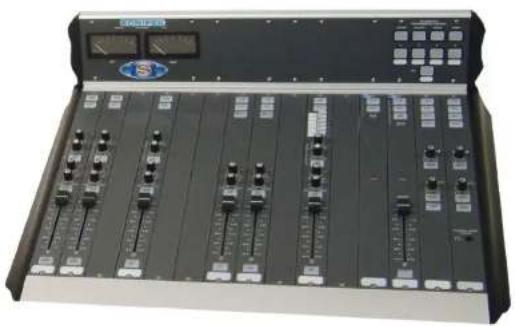
natural_image
Front view of a black audio editing studio audio workstation with multiple control knobs and a digital display (no visible text or labels)Fig 1-1: S2-15 Chassis Complete with Channels.

INTRODUCTION
Innovative Design
- The S2 chassis is available in 5 channel width sections, allowing 5, 10, 15, 20, 25 and 30 channel width mixers. This means S2 can be used for small newsrooms or large on-air situations. The following table shows the model number along with the total channel width.
1 INTRODUCTION

INTRODUCTION
- The Script Space (S2-7SS) occupies an area of 7 channel widths, and is designed to hold documents/scripts for the mixer operator when desk space is at a premium. It is most commonly placed in the centre of the mixer, although it can be positioned anywhere within the mixer chassis. It has a hole in the rear of the front section to allow a keyboard/mouse cable to pass through and a 10 channel Script Space (S2-10SS), is also available.

natural_image
Simple line drawing of a 3D rectangular frame with a small circular hole on top (no text or symbols)Fig 1-2: S2-75S Script Space.
- Blank channels (S2-CB) can be used to fill spaces in the chassis not occupied by active channels.
- Modular "pop-up" input and output channels means that the mixer can be maintained simply and quickly. Input channels can be individually removed and repaired whilst still on-air.
• The angle of the meterbridge can be varied and set for best viewing position. - Any channel can be in any position so that customizing the mixer for your own purposes is easy.
• Large backlit buttons allow you to see the status of the mixer at all times. - The fitted rear panel hides all cable connections but can be simply removed for maintenance.
• The modular design of the desk gives you the flexibility to expand it at a later date.
INTRODUCTION 1
Superb Audio Quality and Unquestionable Reliability
- The S2 uses the latest Crystal semiconductor technology to allow input and output of digital audio signals up to 24 bit, 96kHz sample rate.
- The analogue signal paths use low noise circuitry to provide superb audio performance well capable of satisfying radio listeners worldwide.
- The high reliability and build quality of 52 minimizes the chance of failure, avoiding lost air time. Each channel is individually checked twice before being assembled into the finished chassis and the whole unit is tested before shipping.
- ALPS long throw 100mm faders give a smooth, repeatable response and the Neutrik XLR connectors used are an industry standard.
- The use of VCAs controlled by the faders ensures tight stereo tracking and eliminates mechanical and electronic noise.
- S2 has a separate 1U power supply providing regulated, ripple-free power to the mixer.
- High quality stainless steel is used for the chassis and screws to prevent corrosion in high humidity environments.
Features
- Fully modular build with six different frame sizes available.
- Optional script space.
• Digital and analogue Inputs.
• Digital and analogue PGM and AUD outputs as standard. - Mono analogue output.
• True cleanfeed output on each telco input. - Stereo cleanfeed channel available.
• VCA faders.
• VU and PPM metering. - Optional master faders on outputs for production use.
• Dual digital timers with real time clock. - Separate control room and studio monitor channels.

INTRODUCTION
2
INSTALLATION NOTES


INSTALLATION NOTES
2 Installation Notes
Atmosphere
The S2 mixer should be installed in an area which is not subject to excessive heat or cold. Also, you should avoid installing it in atmospheric conditions which are dusty, smoky, or dirty, or where there is moisture or vibration.
Do not use any liquids to clean the fascia of the mixer: a soft dry brush is ideal. Use a clean cloth moistened with water or ethyl alcohol to clean the trim and scribble pads. Other solvents may cause damage to paint or plastic parts.
Electromagnetic Radiation
Avoid using the S2 mixer close to strong sources of electromagnetic radiation such as, video monitors or high power electric cabling. This may cause degradation of the audio quality due to induced voltages in connecting leads and chassis. The S2 power supply should also be sited at least 1 metre from the mixer.
In all cases the S2 mixer and power supply should be installed and serviced by qualified personnel.
Dimensions and Cut-Out Sizes
The S2 mixer consists of a stainless steel chassis with plastic side and top mouldings and aluminium front trim. The dimensions for the mixer below include the mouldings and trim. The cut-out size is for reference only and should be checked with your mixer.
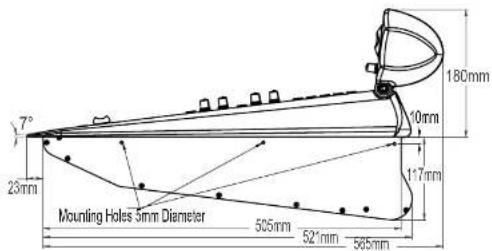
Fig 2-1: Mixer Profile.

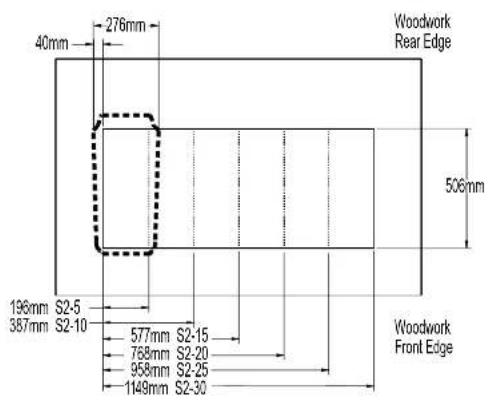

INSTALLATION NOTES
Fig 2-2: Mixer Cut-Out Details
Channel Configuration
Each of the channels can be re-configured by jumpers, which are displayed in the "Channel Options and Jumper Settings" section of each chapter. You should ensure that you are thoroughly familiar with the settings available for each channel before attempting installation of the mixer. This is because some options may involve moving jumpers on several channels to change the configuration of the mixer.
Connectors and Cabling
Many of the problems associated with installing and maintaining a mixing console are due to the use of poor cables or faulty connections. It is recommended that, wherever possible, pre-wired cables are purchased from recommended manufacturers. If you need bespoke cables making, please ensure that a qualified engineer carries out the work.
2
INSTALLATION NOTES

The main types of connectors used with the S2 mixers are the following:
XLR 3 Pin Connectors
The following diagram shows the pin details for the 3 pin XLR sockets and plugs:

INSTALLATION NOTES
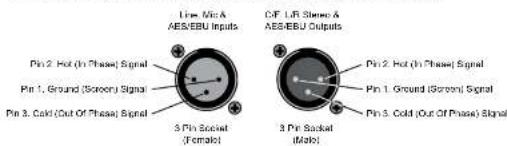
Fig 2-3: XLR Connectors.
RCA Phano Connector
This connector is used on the Stereo Gram Channel and the S/PDIF inputs on the digital Input/output channels.
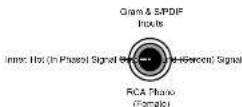
Fig 2-4: RCA Piano Connector.
BNC Connector
This connector is used for the Word clock inputs on the PGM and AUD output channels.

Fig 2-5: BNC Connector.

6.35mm 'A' Gauge Stereo Jack Plugs
'A' Gauge Stereo Jack Plugs can be connected as follows:

Fig 2-6: 1/4" Jack Connectors
D Type Connectors
Several different D type connectors are used on the 52. A 9 pin plug is used for the remotes on input channels and external inputs on monitor channels. A 15 pin socket is used for the analogue outputs and mute relays on the output channels. A 25 pin socket is used for the audio inputs, and a 25 pin plug for the remotes, on the 6 way stereo select channel. A 9 pin plug & socket is used for the power connections from the PSU to the mixer.
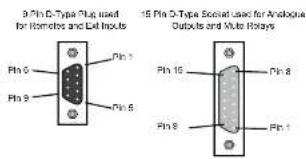
Fig 2-7:9 Pin & 15 Pin D-Type Connectors.
INSTALLATION NOTES
2
INSTALLATION NOTES


INSTALLATION NOTES
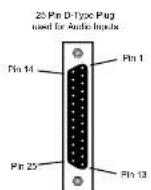

Fig 2-8:25 Pin D-Type Connectors.
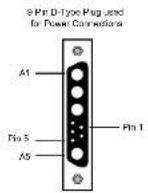
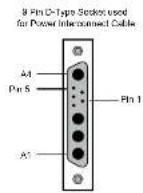
Fig 2 9:9 Pin D Type Power Connectors.

System Block Diagrams
Input Channels Diagram - CMM & CML

flowchart
graph TD
    A["MC"] --> B["INV"]
    C["MC2"] --> D["INV"]
    E["INSERT"] --> F["SET"]
    G["SEND"] --> H["RESET"]
    I["MC OUT LIGHT"] --> J["LINE BEVERLES"]
    K["COM/HEV TB"] --> L["T0 ENGLE"]
    M["CPJ"] --> N["PUM"]
    O["AND"] --> P["IO"]
    Q["ON"] --> R["OUT"]
    S["TRV"] --> T["VCA"]
    U["VA"] --> V["OUT"]
    W["OUT"] --> X["OUT"]
    Y["OUT"] --> Z["OUT"]
    AA["OUT"] --> AB["OUT"]
    AC["OUT"] --> AD["OUT"]
    AE["OUT"] --> AF["OUT"]
    AG["OUT"] --> AH["OUT"]
    AI["OUT"] --> AJ["OUT"]
    AK["OUT"] --> AL["OUT"]
    AM["OUT"] --> AN["OUT"]
    AO["OUT"] --> AP["OUT"]
    AQ["OUT"] --> AR["OUT"]
    AS["TO LEFT OUTPUT"] --> AT["IN"]
    AU["TO RIGHT OUTPUT"] --> AV["IN"]
    AW["TO CURRENT OUTPUT"] --> AX["IN"]
Input Channel Diagram - CT Telco

flowchart
graph TD
    A["INPUT"] --> B["AND"]
    B --> C["OR"]
    C --> D["ORF"]
    D --> E["ORF"]
    E --> F["OUTPUT"]
    F --> G["SET/RESET"]
    G --> H["OUTPUT"]
    H --> I["SET/RESET"]
    I --> J["OUTPUT"]
    J --> K["SET/RESET"]
    K --> L["OUTPUT"]
    L --> M["SET/RESET"]
    M --> N["OUTPUT"]
    N --> O["SET/RESET"]
    O --> P["OUTPUT"]
    P --> Q["SET/RESET"]
    Q --> R["OUTPUT"]
    R --> S["SET/RESET"]
    S --> T["OUTPUT"]
    T --> U["SET/RESET"]
    U --> V["OUTPUT"]
    V --> W["SET/RESET"]
    W --> X["OUTPUT"]
    X --> Y["SET/RESET"]
    Y --> Z["OUTPUT"]

INSTALLATION NOTES
Input Channels Diagram - CSG,CSGE,CS,CSE,CDS,CDSE, and CSMM C6SS
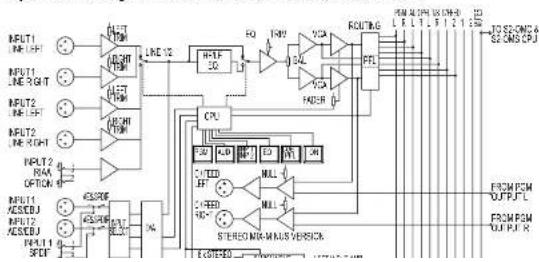
flowchart
graph TD
    A["INPUT1 LINE_LFF"] --> B["LME 12"]
    C["INPUT1 LINE_SIGHT"] --> B
    D["INPUT2 LINE_LFF"] --> B
    E["INPUT2 LINE_RIGHT"] --> B
    F["INPUT2 RXM OPTION 4"] --> G["CPU"]
    H["INPUT1 XEDU"] --> I["STEREO MAX-MAINS VERSION"]
    J["INPUT2 XEDU"] --> I
    K["INPUT1 SPD"] --> I
    L["OUTPUT"] --> M["ROUTAG"]
    N["FIN"] --> O["FAIR"]
    P["GPIO"] --> Q["PLL"]
    R["GPIO"] --> S["PLL"]
    T["GPIO"] --> U["PLL"]
    V["GPIO"] --> W["PLL"]
    X["GPIO"] --> Y["PLL"]
    Z["GPIO"] --> AA["PLL"]
    AB["GPIO"] --> AC["PLL"]
    AD["GPIO"] --> AE["PLL"]
    AF["GPIO"] --> AG["PLL"]
    AH["GPIO"] --> AI["PLL"]
    AJ["GPIO"] --> AK["PLL"]
    AL["GPIO"] --> AM["PLL"]
    AN["GPIO"] --> AO["PLL"]
    AP["GPIO"] --> AQ["PLL"]
    AR["GPIO"] --> AS["PLL"]
    AT["OUTPUT"] --> AU["FROM PCM OUTPUT FL"]
    AV["OUTPUT"] --> AW["FROM PCM OUTPUT R"]
INSTALLATION NOTES


INSTALLATION NOTES
Output Channels Diagram - ODP,ODPF,ODA, and ODAF

flowchart
graph TD
    A["TOW LEFT"] --> B["AND"]
    C["TOW RIGHT"] --> D["OR"]
    E["TOW BUS"] --> F["AND"]
    G["TOW BUS"] --> H["AND"]
    I["TOW BUS"] --> J["AND"]
    K["TOW BUS"] --> L["AND"]
    M["TOW BUS"] --> N["AND"]
    O["TOW BUS"] --> P["AND"]
    Q["TOW BUS"] --> R["AND"]
    S["TOW BUS"] --> T["AND"]
    U["TOW BUS"] --> V["AND"]
    W["TOW BUS"] --> X["AND"]
    Y["TOW BUS"] --> Z["AND"]
    AA["TOW BUS"] --> AB["AND"]
    AC["TOW BUS"] --> AD["AND"]
    AE["TOW BUS"] --> AF["AND"]
    AG["TOW BUS"] --> AH["AND"]
    AI["TOW BUS"] --> AJ["AND"]
    AK["TOW BUS"] --> AL["AND"]
    AM["TOW BUS"] --> AN["AND"]
    AO["TOW BUS"] --> AP["AND"]
    AQ["TOW BUS"] --> AR["AND"]
    AS["TOW BUS"] --> AT["AND"]
    AU["TOW BUS"] --> AV["AND"]
    AW["TOW BUS"] --> AX["AND"]
    AY["TOW LEFT"] --> AZ["AND"]
    BA["TOW RIGHT"] --> BB["OR"]
    BC["TOW BUS"] --> BD["AND"]
    BE["TOW BUS"] --> BF["AND"]
    BG["TOW BUS"] --> BH["AND"]
    BI["TOW BUS"] --> BJ["AND"]
    BK["TOW BUS"] --> BL["AND"]
    BM["TOW BUS"] --> BN["AND"]
    BO["TOW BUS"] --> BP["AND"]
    BQ["TOW BUS"] --> BR["AND"]
    BS["TOW BUS"] --> BT["AND"]
    BU["TOW BUS"] --> BV["AND"]
    BW["TOW BUS"] --> BX["AND"]
    BY["TOW BUS"] --> BZ["AND"]
    CA["TOW BUS"] --> CB["AND"]
    CC["TOW BUS"] --> CD["AND"]
    CE["TOW BUS"] --> CF["AND"]
    DG["TOW BUS"] --> DH["AND"]
    DI["TOW BUS"] --> DJ["AND"]
    DK["TOW BUS"] --> DL["AND"]
Output Channels Diagram - OMS and OMC
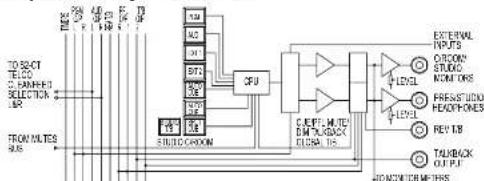
flowchart
graph TD
    A["输入信号"] --> B["STUDIO GROWN"]
    B --> C["CPU"]
    C --> D["CANVDC/METERS"]
    D --> E["External Inputs"]
    style A fill:#f9f,stroke:#333
    style B fill:#ccf,stroke:#333
    style C fill:#cfc,stroke:#333
    style D fill:#fcc,stroke:#333
    style E fill:#ffc,stroke:#333
Meterbridge Diagram - MPPM/T, PPM, MVU, VU, ML53, MPH, MTBS, MTB6, MT, and ML
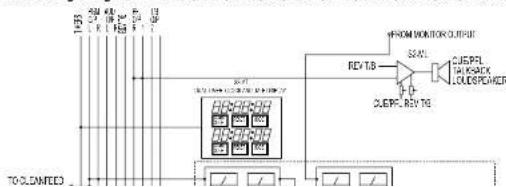

Applications
This section of the handbook provides examples of how to configure the different types of modules for typical applications:
Controlling an On-Air Light Using the Output Modules
The On-Air light, also known as Mic Live, is used to indicate to everyone inside or outside of the Control Room and/or Studio that microphones are live and on-air.
Two sets of latching relay contacts, activated by a control room mute, are available on the 15 way D type socket on the rear panel of the PGM and AUD modules for the Control Room On Air light and Studio On-Air light respectively. See the Remote Connector pin-outs of the relevant modules for details.
Shown below is an example of connecting one of the latching relay contacts on the PGM or AUD modules to a Sonifex RB-LC3. The remote connection on the RB-LC3 is active low.
PGM or AUD Output Module

flowchart
graph TD
    A["Dr-Type Outputs & Remote Connectors"] --> B["Pin 7"]
    A --> C["Pin 14"]
    B --> D["RB-LC3"]
    C --> D
    D --> E["Main Output:1"]
    D --> F["Remote External Control Inputs"]
    F --> G["Pin 2"]
    F --> H["Pin 16"]
    G --> I["Lamp"]
Fig 2-12: Using the Sonilex RB-LC3 to control an On-Air Light.
Controlling a Mic Cue Light using the Input Modules
The mic cue light is used to indicate to a guest, etc., situated in a talks studio, that they should speak. The cue light is usually green, and there is usually one per microphone. This should not be confused with a mic live light, which is red and there is one per studio or control room, also known as "On Air light" (see above).
Opto-isolated outputs for a mic cue light are provided on the remote connectors of the Mic/Mic and Mic/Line modules. See the Remote Connector pin-outs of the relevant modules for details.
NOTE: It is vital that mains voltages are NOT connected to any of the connectors.
INSTALLATION NOTES
2
INSTALLATION NOTES


INSTALLATION NOTES
Enabling Talkback On Mic Modules
Talkback is used for off-air communication between studios, or between the Presenter, the Studio guests and callers on the telephone line. The presenter's microphone module can be configured to be the talkback source to the studio guests and telephone callers by connecting pin 9 to pin 7 on the presenters Mic/Mic or Mic/Line modules remote connector. This talkback audio also appears on the talkback output connector on the control room monitor module as a continuous feed. It can be used for routing talkback to other destinations.
Cough Switch and Talkback On Mic Modules
A cough switch is used to momentarily mute the output of a live microphone channel when you wish to clear your throat. Closing pin 8 to pin 7 on a Mic/Mic or Mic/Line modules remote connector performs the cough function when the module is live, i.e. when the mic input is selected, the channel is routed, the channel is ON and the fader is up. This function can be used for the presenters mic but is more usually only provided for the studio microphones.
The cough switch performs the function of talkback to the presenter when the module is not live. In this case, when a studio guest presses his cough switch the microphone module is put in to PFL, which routes the pre fade mic signal to the control room monitoring where it can be heard by the presenter via his headphones or monitor loudspeakers. The presenter can talk back to the studio by using the Studio T/B button situated on the studio monitor module. For the presenter to hear the talkback from the studio automatically, either or both the control room monitor loudspeakers and the headphones should be set to Auto Cue/PFL. While the Cough switch is enabled, if PGM and/or AUD are enabled then they will flash quickly to indicate that Cough is enabled.
Using Voice Processors On Mic Channels
The Insert point on Mic input channels is useful for hooking up an outboard effects unit to be used with the microphone, for example, a voice processor. The insert send signal is always available as a line level balanced output. The insert return signal is enabled by placing jumper J10 on the channel, over pins 1 & 2. The insert return function is disabled in Line mode except when jumper JS. Mic on Line Input, is set.
Remote Start and Stop
When an input module is being used in line mode (e.g a Mic/Line on input 2 or a Dual Stereo module) it is usually necessary to control external equipment by means of the remote start and stop functions. See the relevant modules for pin out details.
If your equipment has a remote facility for "Fader Start" then this normally requires a latching contact to start, opening the contact will cause the equipment to stop. In this case it is only necessary to use the start remote, but you will need to make the contact latching
INSTALLATION NOTES 2
If your equipment has remote facilities for "Play", "Stop", "Re-Cue", it will be necessary to use both start and stop remotes. In this case you will need a momentary start. It should be noted that pins 2 & 5 on the input modules remote connector is common to start and stop and should be connected to the common pins on your equipments remote connector. Pins 1 & 4 on the remote should be connected to the "Play" pins on your equipment, and pins 3 & 6 should be connected to the "Stop" pins. Sometimes it may be useful to connect the mixer stop remote to the "Re-Cue" pin.
Adding Telco Channels
When adding a Telco channel to the mixer there are certain requirements that need to be met for the correct operation of the cleanfeed buses. Depending on whether you have 1, 2 or no telco channels filled, you may have to alter the cleanfeed bus termination on the digital PGM and AUD Output channels. If the console is supplied without Telco channels then both cleanfeed mix buses will need to be terminated. With one Telco channel, only the unused cleanfeed bus will require termination. With two Telco channels no termination is required. Please refer to that section of the handbook for further info.
The jumpers J11 and J12 on the Telco channel determine which of the two true cleanfeed buses the channel uses. There can only be a maximum of two telco channels in each mixer and they must not share a cleanfeed bus. If you have only one telco channel, the jumpers are fitted over pins 1 & 2 of J11, using cleanfeed bus 1. If a second telco channel is present in the mixer, then this second channel will have the jumpers fitted over pins 2 & 3 of J12, using cleanfeed bus 2 only.
Removing & Replacing Channels
When installing the mixer it may be necessary to change certain characteristics of a channel to suit your specific needs, e.g. jumper settings, Internal gain pots, etc. To do this the channel must be removed from the chassis to gain access to the jumpers and pots. Particular care must be taken when performing this procedure.
To remove a channel, first disconnect any attached cables from the rear of the channel, and remove the two screws from the front panel of the channel. The channel should now be lifted slightly from the chassis with the aid of springs situated at the two fixing points, with enough room to grab both ends of the channel, so that you can carefully lift it from the chassis. Be careful not to lay the channel across the mixer, as the underside of the channel PCB may cause scratching.
Once the necessary changes have been made, ensure that the main bus cable is still firmly attached and carefully position the channel directly above the space where it was removed from, holding it at a tilt, so that the fader end of the mixer will make contact with the chassis first. Slowly lower it down into the mixer, making sure that the main bus cable is

INSTALLATION NOTES
2
INSTALLATION NOTES


INSTALLATION NOTES
Connecting A Split Desk
There are three cables used when connecting an S2 mixer split desk configuration. A 16 way IDC cable which connects the two meterbridge distribution boards, A 60 way jacketed IDC cable which connects the two main mixer bus cables and an earth braid cable which connects the two chassis'. When shipped, these three cables will already be attached to one of the mixers and will require attaching to the other mixer. The procedure to do this is described below.
Connecting The Mixer Bus Interconnect Cable
On the under side of the mixer chassis are two slots at each end. These are where the mixer bus interconnect cable feeds through (Fig 2-13). The first thing to do is to remove the channel from the end of the mixer where the cable is going to be connected. If the interconnect cable is to be connected to the left handside mixer then this will be the right most channel of the mixer. If the interconnect cable is to be connected to the right handside mixer then this will be the left most channel.

natural_image
Exterior view of a modern office building (no signage)
natural_image
Close-up of a control panel with scroll and dial indicators (no visible text or symbols)Fig 2-13: Mixer Bus Cable Slots.
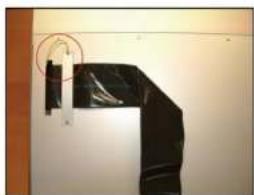
natural_image
Close-up of a black plastic sheet mounted on a white wall, with a red circle highlighting a section (no text or symbols visible)Once the channel has been removed, pull the cable through the slot making sure that the cable has not twisted coming from the first mixer. Pull it through so that about 2 inches (5 cm) of the cable jacketing is inside the chassis. Connect the screening wire to one of the clamping plate screws and screw in the plate to the underside of the chassis to secure the cable, and stop it from moving (Fig 2-14).

Then loop the cable back over itself and connect the 60 way IDC plug to the main mixer bus (Fig 2-15). Now reconnect the channel that was removed, to the free 60 way IDC socket, using the procedure described on page 13 for removing and replacing channels.
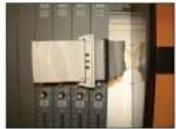

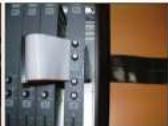
Fig 2-15: Cable & Channel Connection.
Connecting The Meterbridge Interconnect Cable
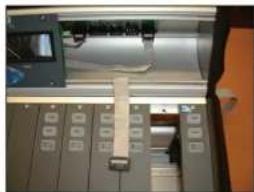
To connect this cable some of the panels on the meterbridge will require removing to locate the meterbridge distribution board. Once located, find the IDC header labelled on the distribution PCB as "From Output Module". At the back of the mixer chassis there is a slot just above where the output modules sit. Feed the Meterbridge Interconnect cable through the slot and plug it into the header. Once this has been done, replace the meterbridge panels that were removed earlier to locate the distribution board.
natural_image
Close-up of a mechanical device with control panel and buttons (no visible text or symbols)
natural_image
Close-up of a green electronic circuit board with a coiled cable wrapped around it (no visible text or symbols)Fig 2-16: Meterbridge Interconnection.
Connecting The Earth Braid
As with the other cables, this will already be connected to one of the split desks. Simply connect the other end of the cable to the other desk, by unscrewing the outer M4 nut and removing the shakeproof washer. Then place the solder tag of the earth braid cable on the bolt and then replacing the shakeproof and M4 nut.

INSTALLATION NOTES
3
POWER SUPPLY


POWER SUPPLY
3 Power Supply
S2-PSU Power Supply (Old Version)
Each S2 is shipped with a separate power supply in protective packaging and should be inspected for damage before use. Where an item is found to have transit damage, notify the carrier immediately with all the relevant details of the shipment. Packing materials should be kept for inspection.
natural_image
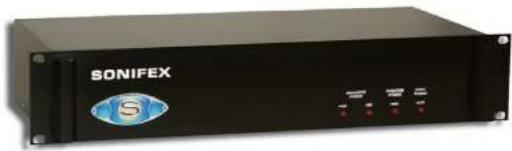
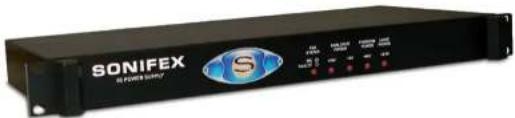
Front view of a black electronic device labeled 'SONIFEX' with indicator lights and ports (no readable text beyond branding)Fig 3 1: S2 PSU Front Panel.
Front Panel
The S2-PSU is a 2U high rack-mount unit, which can supply power to the entire range of S2 mixers. A lead with a special 9 pin D-Type socket (see Fig 2-9) on each end is used to connect the power supply to the mixer.
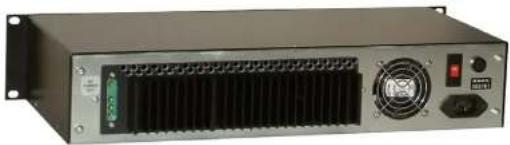
The power supply should be installed where there is adequate ventilation for heat to circulate from the rear of the unit. The mixer has a heat sink attached to the rear panel, which radiates some heat.
Four LED's on the front of the unit indicate whether the power to the four voltage rails is being supplied correctly. If one of the LED's fails, then there is a problem with the power supply unit.
natural_image
Front view of a black industrial power supply unit with ventilation grilles and control panel (no visible text or labels)
Rear Panel
It is important to connect the mains supply in accordance with the information given. Ensure that the rear panel mains voltage statement on the separate power supply indicates that your equipment is suitable for your mains supply voltage and that the mains supply fuse is correctly rated. The fuse as supplied is correct for the voltage setting.
The power cable supplied carries an EARTH conductor, which is connected internally to the equipment chassis ground. This connection through a properly wired power Connector is essential for safe operation. Disconnection of this earth connection may render the Equipment unsafe, with a consequential possible electrical shock hazard from exposed metallic parts.
Safety of Mains Operated Equipment
CE This equipment has been designed to meet the safety regulations currently advised in the country of purchase and it conforms to the safety regulations specified by use of the CE Mark.
This equipment will operate in a horizontal position.
WARNING: The power must be switched off at the supply or the power lead must be disconnected before attempting to remove the panels or cover. Removal of the panels and cover can expose dangerous voltages. The cover is connected to the chassis ground of the equipment by means of fixing screws. It is essential to maintain this earth-ground connection to maintain a safe operating environment.
In addition, to provide an Electromagnetic Shield, contact between the cover and the chassis must be maintained when in use.
The power supply is switchable between 230V & 115V.
Warning: There are no user serviceably parts inside the machine. If you should ever need to look inside the unit, always disconnect the mains supply before removing the equipment covers.
The rear panel of the equipment carries the Serial Number of the machine. The operating voltage of the S2 power supply is selectable at the fuse carrier on the power inlet port of the S2-PSU unit. Ensure that the machine operating voltage is correct for your mains power supply.

POWER SUPPLY
POWER SUPPLY

Ordering the Correct Mains Lead
When ordering an S2 from Sonifex, it is helpful if you can specify your required operating voltage and mains lead. After the product code add:
UK, for 230V, UK 3 pin to IEC lead

EC, for 230V, European Schuko 2 pin to IEC lead

US, for 115V, 3 pin to IEC lead

AU for 230V, Australasian 3 pin to IEC lead

Power Cable and Connection
An IEC power connector is supplied with the S2, which has a moulded plug, attached – this is a legal requirement. If no moulded plug has been supplied with your S2, please contact your supplier, because an IEC connector is always supplied from the Sonifex factory.
The safety specification of your S2 power supply complies with local requirements and must be earthed through the mains connector.
If for any reason, you need to use the 52 with a different power cable, you should use the following wiring guidelines.
NOTE: The colours of the wires in the mains lead may not correspond with the coloured markings identifying the terminals of your plug.
| Wire Colour Connection | |
| Green and Yellow wire: | must be connected to the terminal marked with E the colour green or green – yellow. |
| Blue wire: | must be connected to the terminal marked N or coloured black. |
| Brown wire: | must be connected to the terminal marked L or coloured red. |
Fuse Rating
The S2 is supplied with a single fuse in the live conducting path of the power infeed at the power supply. For reasons of safety it is important that the correct rating and type of fuse is used. Incorrectly rated fuses could present a possible fire hazard, under equipment fault conditions.


Voltage Setting Fuse Rating
115V 3.15A (Anti-surge - 20 x 5mm)
230V 3.15A (Anti-surge - 20 x 5mm)
Power Connector
This 9 pin D type plug (see Fig 2-9) is used to supply power to the Mixer, and has the following connections;
Pin A1: +16V.
Pin A2: -16V.
Pin A3:0V.
Pin A4: +VD.
Pin 1: +16V sense.
Pin 2: -16V Sense.
Pin 3:0V Sense.
Pin 4: +VD Sense.
Pin 5: 148V.
+VD: Digital power rail.
V Sense: Voltage level sensing signals.
Dimensions (S2-PSU)
(Raw): 48cm (W) x 24.3cm (D) x 8.8cm (H)
19" (W) × 10" (D) × 3.5" (H)
(Boxed): 51cm (W) x 41.5cm (D) x 17cm (H)
Nett: 6kg (13.2lbs) Gross: 7.8kg (17lbs)
S2-PSU Power Supply (New Version)

POWER SUPPLY
3
POWER SUPPLY

POWER SUPPLY
Increased power efficiency, so that less power is drawn and therefore less heat generated.
An improved over-current and over-voltage protection system to give increased reliability and stability.
A dynamically controlled quiet cooling fan which is only switched on when required by the load conditions and temperature (greater than 50°C).
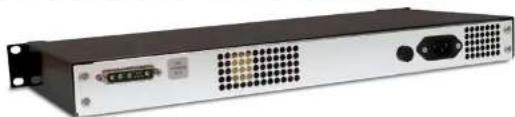
A new 1U chassis so it takes up less space in a 19" rack.
A fan failure indicator LED on the front panel so that in the unlikely event that the cooling system should fail, a visible warning is given with the LED flashing red.
natural_image
Front view of a black network equipment unit with ventilation grilles and ports (no visible text or labels)Fig 3-4: New S2-PSU Rear Panel
Important Notes:
Please note that ALL connections to the mixer should be made before powering up the S2-PSU, otherwise this could trigger the over-current protection. If the over-current protection kicks in, then the unit needs to be powered down for approximately a minute to reset the over-current protection.
This 1U sized S2-PSU is incompatible with S2-PSUS power supply switchers with a serial number of 16948 or earlier. The S2-PSUS has been redesigned (from April 2011) to work with both 1U and 2U S2-PSU power supplies, but this is only for S2-PSUS switchers with a serial number higher than 16948. Contact Sonifex if you need to replace a 2U S2-PSU and are using an S2-PSUS power supply switcher - either a new version of the S2-PSUS will be required or a 2U S2-PSU power supply will need to be specifically requested.
The fan is started and run briefly every few minutes to check that it is in operation and to ensure that it doesn't freeze through lack of use over time.
Dimensions (S2-PSU)
(Raw): 48.3cm (W) x 23cm (D) x 4.4cm (H)
19° (W) × 9° (D) × 1.7" (H)
(Boxed): 51cm (W) x 41.5cm (D) x 17cm (H)
20° (W) × 16.3° (D) × 6.7° (H)
Molaka (27) 1911 Mo##: 7 Ploa Cenccu 4 Ploa

S2-PSUS Dual Power Supply Switcher
The S2-PSUS is a passive power switcher which takes the power feeds from 2 x S2-PSU units and switches between them in the event of failure. Two trailing leads 0.5 m in length connect to 2 x S2-PSU units. With LED failure indicators and GPI alarms the S2-PSUS is the perfect dual redundant power supply module.
Functionality
As an intelligent unit, the S2-PSUS detects changes in the DC levels supplied to the S2. A failure in any one of the → VD, +VF , -VF or +48V power rails, defined by calibrated limits, results in switching to the secondary power unit. If the glitch was temporary and the primary power unit recovers, the S2-PSUS will switch back. Once it has switched back, the unit has to remain stable for one minute for the power supply to be deemed stable again.
A failure count is incremented every time the unit returns and fails within the minute period. Once three failures have occurred the rail is no longer used and the unit will only use the secondary power supply. If the secondary power supply fails, the unit will enter 'Joint Mode' and attempt to complete the power rail set from the primary power supply. Again, if the secondary power supply recovers, it is given a minute to stabilize. Three or more failures on the same rail will result in a permanent failure to that rail. If the same rail fails in both supplies, the unit will cut all power to the mixer except in the case of the phantom power +48V rail.

POWER SUPPLY
Front Panel Indicators

Fig 3-5: S2-PSUS Front Panel.
Two indicator LEDs on the front of the unit are used to display which power supply is currently supplying the mixer. There are also eight LEDs that display the status for each of the rails.
The LED will stay illuminated when the rail is stable. If the LED flashes quickly (1/4 second), then the level is too high on that rail or if the LED flashes slowly (1/2 second), then the level is too low on that particular rail. If the unit is in 'Joint Mode', then both active LEDs will be
3
POWER SUPPLY

POWER SUPPLY
Resetting the S2-PSU States
The S2-PSUS detects when a power supply has been removed or unplugged. If this occurs, the S2-PSUS assumes the power supply has been serviced and all failure statistics are refreshed. If a rail has failed permanently, removing or unplugging the supply will allow the rail to be fully tested again, once reinstated. Removing both power supplies will reset the S2-PSUS, indicated by the alternating front led sequence.
Usage Advice
The unit has been designed to give the user as little down time as possible. If an S2-PSU rail reaches an unrecoverable state, please remove and service it. If an extreme fault occurs (total loss of power) on the +VD rail, the switch over can cause a reset of digital modules which will result in a small audio glitch.
Rear Panel

natural_image
Exterior view of a black network equipment unit with attached cable and connector (no visible text or symbols)There are alarm outputs on the rear of the unit, created using opto-isolator switches. These alarm outputs mimic those on the front panel and there is also an alarm relay which operates as a warning for total unit failure. This will come on if the both power supplies have failed.
Power Input Connectors
Two trailing leads 0.5m in length are used to connect 2 x S2-PSU units to the power switcher.
Power Output Connector
This 9 pin D type connector (see Fig 2-9) is used to route power to the Mixer from either the master or slave power supply. It has the same connections as the output from the PSU (see above).
Alarm & Status Connector
This 25 pin D type socket provides alarm and status output for the power switcher and has the following connections:
Pin 1:0V

Pin 5: Opto isolated +VE slave alarm NPN emitter.
Pin 6: Opto isolated -VE master alarm NPN collector.
Pin 7: Opto isolated -VE master alarm NPN emitter.
Pin 8: Opto isolated -VE slave alarm NPN collector.
Pin 9: Opto isolated -VE slave alarm NPN emitter.
Pin 10: Opto isolated IVD master alarm NPN collector.
Pin 11: Opto isolated +VD master alarm NPN emitter.
Pin 12: Opto isolated +VD slave alarm NPN collector.
Pin 13: Opto Isolated +VD slave alarm NPN emitter.
Pin 14: Opto isolated 148 master alarm NPN collector.
Pin 15: Opto Isolated +48 master alarm NPN emitter.
Pin 16: Opto isolated +48 slave alarm NPN collector.
Pin 17: Opto Isolated +48 slave alarm NPN emitter.
Pin 18: Opto isolated master active NPN collector.
Pin 19: Opto Isolated master active NPN emitter.
Pin 20: Opto isolated slave active NPN collector.
Pin 21: Opto Isolated slave active NPN emitter.
Pin 22: Master alarm relay contact 1 (makes to pin 23).
Pin 23: Master alarm relay contact 2 (makes to pin 22).
Pin 24:0V.
Pin 25:0V.

POWER SUPPLY
Dimensions (S2-PSUS)
(Raw): 48cm (W) x 23cm (D) x 4.4cm (H)
19irc (W) × 9irc (D) × 1.7irc (H)
(Boxed): 55cm (W) x 39.3cm (D) x 8.5cm (H)
21.6" (W) × 15.5" (D) × 3.4" (H)
Weight (S2-PSUS)
Nett: 1.58kg (3.5lbs) Gross: 2kg (4.4lbs)
Important Notes:
Note 1: S2-PSU units manufactured before June 2006 will need to be modified for use with the S2-PSUS. Contact Sonifex with the serial number of your unit if you wish to add-on the S2-PSUS power supply switcher.
Note 2: The S2-PSUS has been redesigned (from April 2011) to work with both the new 1U S2-PSU and older 2U S2-PSU power supplies. S2-PSUS units with a serial number greater than 16948 are able to work with either S2 power supply, but serial numbers lower than this, only operate with the 2U S2-PSU.
Dipara Motar
POWER SUPPLY

POWER SUPPLY
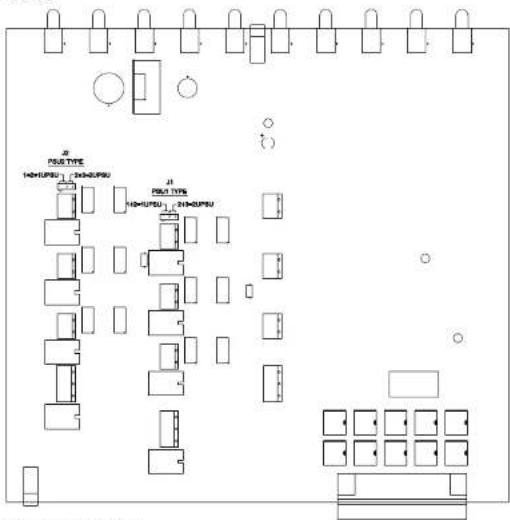
The factory default is set to the new 1U S2-PSU. Should you be configuring the S2-PSUS to work with a 2U S2-PSU, you have to modify the appropriate jumper/jumpers as shown overleaf.
flowchart
graph TD
    A["Room 1"] --> B["Room 2"]
    B --> C["Room 3"]
    C --> D["Room 4"]
    D --> E["Room 5"]
    E --> F["Room 6"]
    F --> G["Room 7"]
    G --> H["Room 8"]
    H --> I["Room 9"]
    I --> J["Room 10"]
    J --> K["Room 11"]
    K --> L["Room 12"]
    L --> M["Room 13"]
    M --> N["Room 14"]
    N --> O["Room 15"]
    O --> P["Room 16"]
    P --> Q["Room 17"]
    Q --> R["Room 18"]
    R --> S["Room 19"]
    S --> T["Room 20"]
    T --> U["Room 21"]
    U --> V["Room 22"]
    V --> W["Room 23"]
    W --> X["Room 24"]
    X --> Y["Room 25"]
    Y --> Z["Room 26"]
    Z --> AA["Room 27"]
    AA --> AB["Room 28"]
    AB --> AC["Room 29"]
    AC --> AD["Room 30"]
    AD --> AE["Room 31"]
    AE --> AF["Room 32"]
    AF --> AG["Room 33"]
    AG --> AH["Room 34"]
    AH --> AI["Room 35"]
    AI --> AJ["Room 36"]
    AJ --> AK["Room 37"]
    AK --> AL["Room 38"]
    AL --> AM["Room 39"]
    AM --> AN["Room 40"]
    AN --> AO["Room 41"]
    AO --> AP["Room 42"]
    AP --> AQ["Room 43"]
    AQ --> AR["Room 44"]
    AR --> AS["Room 45"]
    AS --> AT["Room 46"]
    AT --> AU["Room 47"]
    AU --> AV["Room 48"]
    AV --> AW["Room 49"]
    AW --> AX["Room 50"]
Fig 3.7: New S2 PSU Diagram.

4 Input Channels
There are eleven different input channels available for installation in the mixer as well as a blank channel and script space.
The modules carry some common features, such as the ability to select the output as PRG and/or AUD and each button on a module can be programmed in different modes, depending on your requirements. The channels are each covered in the following chapters, but a summary follows:
S2-CML Mic/Line Input Channel
The Mic/Line Input channel is a mono input with a button switch to select either Mic or Mono Line. If the Mic input is used for the presenter's mic it can also become the talkback mic. The talkback function will be retained when the channel input is switched to Line. Equalisation is fitted as standard on this channel and is enabled by the EQ button, providing 7dB cut and boost at HF (6.5kHz) and LF (100kHz). The Mic input has a jumper selectable high pass filter to remove low frequency intrusions. A Pan control is available to facilitate stereo imaging. A balanced line level insert send and return is available for the Mic input but is disabled in Line mode.
Channel coarse gain is set by internal presets for mic and line – fine gain is trimmed by the front panel Trim control providing ± 12dB of gain. The channel has a Pre Fade Listen (CUE/PFL) facility that can be automatically disabled when the fader is opened. There are logic remote input controls for Mic Cough muting and Reverse Talkback, and output controls for Mic cue lights and Line remote start/stop by fader or ON button. The remote outputs on the 9 way D type plug are fed from NPN opto-isolators. The Mic Input provides a jumper selectable output to facilitate either Control Room or Studio Muting and Timer functions. In addition the Line input can be configured with all the features of the Mic input when used as a Mic input with an external mic amp.
S2-CMM Mic/Mic Input Channel
The Mic/Mic Input channel has all the features of the Mic/Line Input channel except that the Line Input is replaced by a second Mic Input.
S2-CS Dual Stereo Line Input Channel
The Dual Stereo Input channel has two balanced stereo inputs with a button switch to select between them. Each input is on XLR connectors with internal coarse gain adjustment. Fine gain is trimmed by the front panel Trim control providing ± 12dB of gain. A Balance control is available for small adjustments of the stereo image. The channel has a Pre Fade Listen (CUE/PFL) facility that can be automatically disabled when the fader is opened.

INPUT CHANNELS
INPUT CHANNELS


S2-CSE Dual Stereo Line Input with EQ Channel
This channel is the Dual Stereo Input channel as above but fitted with equalisation, providing 7dB cut and boost at HF (6.5kHz) and LF (100Hz).
S2-CSG Stereo Line with Gram Input Channel
This channel is the Dual Stereo Input channel fitted with a RIAA input amplifier on the second input. Input connections for this are unbalanced on phono sockets. This channel is also available with equalisation, type number S2-CSGE.
S2-CDS Digital Dual Stereo Input Channel
The Digital Dual Stereo Input channel has two 24-bit 96kHz digital inputs with a button switch to select between them. Either input can be configured to be balanced AES/EBU on standard XLR, or S/PDIF on phono sockets, selected by internal jumpers. The digital signals are converted to analogue and from this point the channel functions are the same as the Dual Stereo Line Input channel.
S2-CDSE Digital Dual Stereo Input with EQ Channel
This channel is the Digital Dual Stereo Input channel as above but fitted with equalisation, providing 7dB cut and boost at HF (6.5kHz) and LF (100Hz).
S2-C6SS 6 Way Stereo Line Source Select Channel
The 6 Way Stereo Line Source Select channel has 6 balanced stereo inputs on a 25 way D type connector selectable by a 6 way mechanical Interlocking switch bank. The switch bank also controls 6 sets of remote outputs allowing each source to have a set of start/stop remotes. The channel is fitted with EQ as standard and other functions similar to the dual stereo input channel.
S2-CT Telco Input Channel
The Telco Input channel controls the connection to the telephone balance unit (hybrid). It has only one mono input with EQ fitted as standard. Equalisation is enabled by the EQ button, providing 7dB cut and boost at HF (6.5kHz) and LF (100Hz). A Pan control is available to facilitate stereo imaging. A balanced line level output is provided for the cleanfeed back to the hybrid.
Channel coarse gain is set by an internal preset and fine gain is trimmed by the front panel Trim control providing ± 12dB of gain. The channel has a Pre Fade Listen (CUE/PFL) facility that automatically routes talkback to the caller when selected. PFL can be automatically disabled when the fader is opened. There is a logic remote output to place the hybrid "on hold" by using the LINE HOLD button. The remote output on the 9 way D type plug is fed from an NPN opto-Isolator.

S2-CSMM Stereo Mix-Minus Channel
The Stereo Mix-Minus channel has one balanced stereo input and a balanced stereo mix-minus output, on XLR connectors. The channel is intended for use where a remote stereo source, such as another studio connected via ISDN, requires a stereo cleanfeed return. The cleanfeed is generated by the mix-minus method from either the PGM or AUD outputs, depending on the routing selection.
The outputs on this channel can also be configured by jumpers as a mono sum of mix-minus on the left channel and continuous talkback on the right channel (for use with some ISDN codec applications and telephone balance units).
Equalisation is fitted as standard on this channel and is enabled by the EQ button, providing 7dB cut and boost at HF (6.5kHz) and LF (100Hz). Coarse input gain is adjusted internally. Fine gain is trimmed by the front panel Trim control providing ± 12dB of gain. A Balance control is available for small adjustments of the stereo image. The channel has a Pre Fade Listen (CUE/PFL) facility that can be automatically disabled when the fader is opened.
There is a logic remote output function controlled by fader or ON button. The remote function can be configured to be either momentary (500mS) or latched. The remote outputs on the 9 way D type plug are fed from NPN opto-isolators.
S2-PG S2 Penny & Giles Conductive Plastic Fader
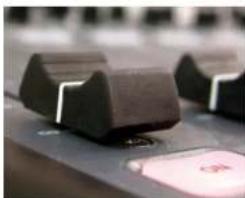
The Input and output channels of an S2 mixer can optionally be fitted with high quality Penny & Giles faders.
natural_image
Close-up of a black industrial control switch with a pink button (no visible text or symbols)
INPUT CHANNELS
S2-CML MIC/LINE CHANNEL WITH EQ


5 S2-CML Mic/Line Channel With EQ
Panel Controls
PGM and AUD Selection
Selecting the PGM, AUD buttons routes the channel audio output to the PGM and/or AUD mix buses. The buttons are illuminated in green to indicate the routing status. Changing the status of the PGM button is inhibited when the channel is "live".
MIC/LINE Selection
Selecting the MIC/LINE button changes the channel input connection between Mic and Line. The button is illuminated in red to indicate when Line is selected. The operation of the button is inhibited when the channel is "live".
Equalisation Controls
The HF and LF controls are used to adjust the equalisation of the signal. The HF control boosts and cuts the signal by ±7dB at 6.5kHz. The LF control boosts and cuts the signal by ±7dB at 100Hz. The EQ button places the equalisation in and out of the signal path. The button is illuminated in yellow when the EQ is active.
TRIM Control
The Trim control provides an additional ±12dB of gain to fine tune the input signal level.
BAL/PAN Control
The Bal control is used to pan the mono input signal in the stereo image. Full anti-clockwise pans the signal to the left and increases the signal by 3dB (right channel reduces by 70dB); full clockwise pans the signal to the right and increases the signal by 3dB (left channel reduces by 70dB).
CUE/PFL Selection
Selecting the CUE/PFL button routes the pre-fader input signal to the monitoring system where the signal can be heard via headphones and/or loudspeakers. The level may be checked on meters and adjusted via the TRIM control and panned via the BAL/PAN control. The button is illuminated in green when CUE/PFL is active. There is a jumper option to cancel the CUE/PFL selection when the fader is raised. This button works with both a momentary and latched operation. If held down,
the selection is cancelled when released, otherwise the button is alternate action.

S2-CML MIC/LINE CHANNEL WITH EQ 5
ON Selection
The ON button works in conjunction with the fader and is used to control channel remotes, routing, timers, etc. The button shows various states. When unlit the channel is off. Flashing red indicates that the channel has been selected to ON but remains unropped i.e. neither PGM or AUD is selected. Steady red indicates that the channel is ON and "armed", ready for the fader to be raised. Raising the fader changes the illumination to green indicating that the channel is live. Alternatively, with the button until the fader may be raised and the channel can be operated simply by selecting ON. The illumination in this case toggles between unit, channel OFF and green, channel ON. Remotes, etc, are triggered when the fader is up and the channel ON button shows green.
Scribble Pad
A scribble pad is provided at the bottom for user labelling of the channel function e.g. "Pres.Mic"

Rear Panel
Mic Input Connector
This XLR 3 pin socket is used for the microphone input and has the following connections;
Pin 1: Screen.
Pin 2: Phase.
Pin 3: Non-phase.
Line Input Connector
This XLR 3 pin socket is used for the electronically balanced line input and has the following connections;
Pin 1: Screen.
Pin 2: Phase.
Pin 3: Non-phase.
Remotes Connector
This 9 pin D type plug provides inputs and outputs for the following channel functions:
- Mic cue light
- Line remote start
- Line remote stop
• Cough/reverse talkback switch

S2-CML MIC/LINE CHANNEL WITH EQ


The connector pin-out is as follows;
Pin 1: Opto isolated mic cue light NPN collector.
Pin 2: Common NPN emitter for above.
Pin 3: No connection
Pin 4: Opto isolated Line start NPN collector.
Pin 5: Common NPN emitter for Line start and stop.
Pin 6: Opto isolated Line stop NPN collector.
Pin 7:0V logic.
Pin 8: Cough/reverse talkback switch (make to 0V to activate).
Pin 9: Talkback mic enable (make to 0V to enable the mic input as the T/B mic).
Insert Send Connector
This XLR 3 pin plug is a balanced line level pre-EQ output intended to be fed to an effects processor for the microphone input, and has the following connections;
Pin 1: Screen.
Pin 2: Phase.
Pin 3: Non-phase.
Insert Return Connector
This XLR 3 pin socket is intended for the input signal from the equipment fed by the Insert Send. The connections are the same as the Insert Send connector. The Insert function is disabled in Line mode except when the "Mic on Input 2" Jumper is set. See Channel Option
Channel Options, Jumper Settings and Presets
The Mic/Line channel with EO can be configured in a number of different ways depending on the jumper options set on the board. The on-board processor's software is configured by jumpers J1 to J5 and channel identifying links. The Mic/Line channel is identified by having links LK14 and LK15 fitted. Other, customer specific, options can be programmed into the software by special order. Special logic options will be identified by having links LX23 and LK24 fitted.
The standard options available are:
• Using a phantom powered microphone.
- Enable full LF response on microphone input.
- Enable the Insert Point
- Select momentary or latched start.
- Select monitor mute for studio or control room.

Summary of Jumper Settings for the Mic/Line Channel With EQ
| Jumper Set over Pins Effect | ||
| J1 | 1 & 2None | Latching contact for Mic cue light.Momentary contact for Mic cue light. |
| J2 | 1 & 2None | Latching contact for Line remote start.Momentary contact for Line remote start. |
| J3 | 1 & 2None | Continuous momentary start from ON button,see following description.Normal start function. |
| J4 | 1 & 2None | Fader up signal cancels previously selected Cue/PFL.Normal Cue/PFL function. |
| J5 | 1 & 2None | Microphone on Line input.Normal Line input. |
| J6 | 1 & 22 & 3 | Phantom power to Microphone.Normal operation. |
| J7 | 1 & 2None | Full LF response on Microphone input.LF roll off. |
| J8 Not Fitted | ||
| J9 Not Fitted | ||
| J10 | 1 & 2None | Insert point enabled (Insert in).Insert out only. |
| J11 Not Fitted | ||
| J12 Not Fitted | ||
| J13 | 1 & 22 & 3None | Control room monitor mute from Microphone input.Studio monitor mute from Microphone input.No mute function. |
| J14 | 1 & 22 & 3None | Auto start Timer 1.Auto start Timer 2.No timer function. |
| J15 | 1 & 22 & 3None | Control room monitor mute from Line input.Studio monitor mute from Line input.No mute function. |
| J16 | 1&22&3None | MIC1 is selected as Talkback input.ReservedNo Talkback input |

S2-CML MIC/LINE CHANNEL WITH EQ
S2-CML MIC/LINE CHANNEL WITH EQ


Fig 5-1: S2 Mlc/Line Input Board Layout
Remote for Mic Cue Light
The remote output for the Microphone input (Input 1) can be used to operate a Mic Cue light when the channel is ON and the fader is up. This should not be confused with a Mic Live light. The Mic Cue light is used for indicating to presenter or guest that they should talk into the microphone. Jumper J1 is placed over pins 1 & 2. This is the default setting and produces a latched remote output.
Remote for Line
The remote output for the Line input (Input 2) can be used for starting a machine such as a CD or MD player. The default setting produces a momentary remote output. If a latched output is required then a jumper should be placed over pins 1 & 2 of J2. The remote stop output for the Line input is always momentary.
Continuous Momentary Start
The continuous momentary start function is rarely used on the Mic/Line channel and therefore J3 should be left in the default setting.
CUE/PFL Cancel
The CUE/PFL function is normally an alternate action. Press the button to select and press again to de-select. However it may be desirable to have the fader up signal cancel a Cue/PFL selection. Placing a Jumper over J4 pins 1 & 2 will enable a previously selected Cue/PFL function to be cancelled when the fader is up and the channel is ON. The default setting is none (not fitted).
Mic Signalling on Line Input
In certain circumstances it may be desirable that a line input is treated as mic input by the
S2-CML MIC/LINE CHANNEL WITH EQ 5
Placing jumper J5 over pins 1 & 2 will enable the muting functions on the line input. The default setting is none (not fitted).
Phantom Power
If you will be using a phantom powered microphone, jumper J6 must be placed over pins 1 & 2. If a normal microphone is used the jumper should be left over pins 2 & 3. With phantom power selected a voltage of +48V is applied to pins 2 & 3 of the XLR connector. The voltage is applied through 6kB resistors limiting the current to 14mA. The default setting is with the jumper over pins 2 & 3.
Microphone LF Response
The default setting of J7 is with the jumper over pins 1 & 2 which gives a full LF response to the microphone. However, if your studio is acoustically poor and suffers from a lot of low frequency rumbles the LF response of the microphone can be rolled off at 125Hz, 6dB per octave, to reduce these acoustic problems. This is achieved by removing jumper J7. Jumpers JB and J9 are not fitted to the Mic/Line channel.
Enabling the Insert Point
The Insert point is useful for hooking up an outboard effects unit to be used with the microphone, for example, a voice processor. The insert send signal is always available as a line level balanced output. The insert return signal is enabled by placing jumper J10 over pins 1 & 2. The insert return function is disabled in Line mode except when Jumper JS, Mic on Line Input, is set. The default setting of J10 is none (not fitted).
Jumpers J11 and J12 are not fitted to the Mic/line channel.
Mic Live Muting
The microphone input can be set to mute the control room or studio monitors. The default setting of J13 over pins 1 & 2 will enable a live microphone to mute the control room monitors. If it is required to mute the studio monitors the jumper should be shifted to pins 2 & 3. If no muting is required, the jumper should be removed. When a line level mic is used on Input 2, J15 sets the muting function. A jumper over pins 1 & 2 will mute the control room monitors and over pins 2 & 3 will mute the studio monitors. Line input (input 2) muting is only enabled when jumper JS. Mic on Line Input, is set. The default setting of J15 is none (not fitted).
Timer Auto Start
The dual timer in the meterbridge can be set to start automatically from a fader open/ channel On signal. Jumper J14 determines which timer is set to auto-start. A jumper over pins 1 & 2 will start Timer 1, shifting the jumper to pins 2 & 3 will start Timer 2. The default setting of J14 is none (not fitted). Please note that the Timer Auto Start is only available on the Line Input.

S2-CML MIC/LINE CHANNEL WITH EQ
S2-CML MIC/LINE CHANNEL WITH EQ


Presets
Two presets are available for adjustment of the input gain for the mic and line levels.
The mic preset, P1, provides 59dB of gain adjustment, allowing an input range of -7dB to -66dB. The preset should be adjusted to give 0dB output for the chosen microphone in use. The level is preset for -50dB input when shipped.
The line preset, P3, provides 16dB of gain adjustment, allowing an input range of +6dB to -10dB referenced to 0dB output. The preset should be adjusted to give 0dB output for the chosen source, and will cater for professional equipment with nominal output levels up to +4dB and non-professional equipment with nominal output levels down to -10dBV. The level is preset for 0dB input when shipped.
Presets P5 & P6 are for altering the audio waveform symmetry (i.e. distortion). They are factory set on final test and should not be adjusted further.
A third preset, P9, sets the VCA fader gain to 0dB when the fader is fully open. This is preset on final test and should not require further adjustment, unless it has been found necessary to replace the fader or other VCA components.
Button Mode Settings
To make the S2 modules as flexible as possible, every button on each channel can be set to a number of different modes. These will aid in the use of the mixer and allow for extra functionality. To make use of these modes, you must enter a setup mode which is exactly the same for every module. It is only necessary to perform this procedure once.
To enter the setup mode, hold down the PGM and AUD buttons together for 5 seconds. After which all the buttons will start a recurring flashing sequence, at this point it is ok to release the PGM and AUD buttons. This sequence indicates the mode which each button is currently set to. One flash equals mode one, two flashes equals mode two etc. To change the mode for a particular button simply press it once and watch the number of flashes increase. Once the maximum mode number has been reached it will simply wrap around to mode one and continue as before. To exit this setup procedure press and hold both the PGM and AUD buttons as before for 2 seconds and the module will start operating as normal.
Each button and their corresponding modes are listed below.
PGM
Mode 1: Normal. The program bus can be selected as normal.
Mode 2: Always on. The program bus is permanently selected.
Mode 3: Always off. The program bus is permanently deselected.
AUD
S2-CML MIC/LINE CHANNEL WITH EQ 5
MIC/LINE
Mode 1: Normal. Can be selected as normal.
Mode 2: Always Line. Line is permanently selected.
Mode 3: Always MIC. MIC is permanently selected.
EQ
Mode 1: Normal. Equalization can be enabled or disabled as normal.
Mode 2: Always enabled. Equalization controls are permanently enabled.
Mode 3: Always disabled. Equalization controls are permanently disabled.
Cue/PFL
Mode 1: Normal. Cue/PFL is selected as normal, with both a momentary or latched operation.
Mode 2: Latched. Cue/PFL is selected as normal, but will only work with a latched operation.
Mode 3: Momentary. Cue/PFL is selected as normal, but will only work with a momentary operation.
ON
Mode 1: Normal.
Mode 2: Always on. The channel cannot be turned off.
Mode 3: Always on and no LED indication. The channel cannot be turned off and the On button LEDs are never active.

S2-CMM MIC/MIC CHANNEL WITH EQ

6 S2-CMM Mic/Mic Channel With EQ
Panel Controls
PGM and AUD Selection
Selecting the PGM, AUD buttons routes the channel audio output to the PGM and/or AUD mix buses. The buttons are illuminated in green to indicate the routing status. Changing the status of the PGM button is inhibited when the channel is "live".
MIC 1/MIC 2 Selection
Selecting the MIC 1/MIC 2 button changes the channel input connection between MIC 1 and MIC 2. The button is illuminated in red to indicate when MIC 2 is selected. The operation of the button is inhibited when the channel is "live".
Equalisation Controls
The HF and LF controls are used to adjust the equalisation of the signal. The HF control boosts and cuts the signal by ±7dB at 6.5kHz. The LF control boosts and cuts the signal by ±7dB at 100Hz. The EQ button places the equalisation in and out of the signal path. The button is illuminated in yellow when the EQ is active.
TRIM Control
The TRIM control provides an additional ±12dB of gain to fine tune the input signal level.
BAL/PAN Control
The BAL/PAN control is used to pan the mono input signal in the stereo image. Full anti-clockwise pans the signal to the left and increases the signal by 3dB (right channel reduces by 70dB); full clockwise pans the signal to the right and increases the signal by 3dB (left channel reduces by 70dB).
CUE/PFL Selection
Selecting the CUE/PFL button routes the pre-fader input signal to the monitoring system where the signal can be heard via headphones and/or loudspeakers. The level may be checked on meters and adjusted via the Trim control and panned via the Bal control. The button is illuminated in green when CUE/PFL is active. There is a jumper option to cancel the CUE/PFL selection when the fader is raised. This button works with both a momentary and latched operation. If held down, the selection is cancelled when released, otherwise the button is alternate action.


ON Selection
The ON button works in conjunction with the fader and is used to control channel remotes, routing, timers, etc. The button shows various states. When unlit the channel is off. Flashing red indicates that the channel has been selected to ON but remains unrouted i.e. neither PGM or AUD is selected. Steady red indicates that the channel is ON and "armed", ready for the fader to be raised. Raising the fader changes the illumination to green indicating that the channel is live. Alternatively, with the button until the fader may be raised and the channel can be operated simply by selecting ON. The illumination in this case toggles between unit, channel OFF and green, channel ON. Remotes, etc., are triggered when the fader is up and the channel ON button shows green.
Scribble Pad
A scribble pad is provided at the bottom for user labelling of the channel function e.g. "Pres. Mic"

Rear Panel
Mic 1 Input Connector
This XLR 3 pin socket is used for the first microphone input, and has the following connections:
Pin 1: Screen.
Pin 2: Phase.
Pin 3: Non-phase.
Mic 2 Input Connector
This XLR 3 pin socket is used for the second microphone input, and has the following connections:
Pin 1: Screen.
Pin 2: Phase.
Pin 3: Non-phase.
Remotes Connector
This 9 pin D type plug provides inputs and outputs for the following channel functions;
- Mic I cue light
- Mic 2 cue light
• Cough/reverse talkback switch - Talkback mic enable

S2-CMM MIC/MIC CHANNEL WITH EQ


The connector pin-out is as follows;
Pin 1: Opto isolated mic 1 cue light NPN collector.
Pin 2: Common NPN emitter for above.
Pin 3: No connection
Pin 4: Opto isolated mic 2 cue light NPN collector.
Pin 5: Common NPN emitter for above.
Pin 6: No connection.
Pin 7:0V logic.
Pin 8: Cough/reverse talkback switch (make to 0V to activate).
Pin 9: Talkback mic enable (make to 0V to enable the mic input as the T/B mic).
Insert Send Connector
This XLR 3 pin plug is a balanced line level pre-EQ output intended to be fed to an effects processor for the microphone input, and has the following connections;
Pin 1: Screen.
Pin 2: Phase.
Pin 3: Non-phase.
Insert Return Connector
This XLR 3 pin socket is intended for the input signal from the equipment fed by the Insert Send. The connections are the same as the Insert Send connector.
Channel Options, Jumper Settings and Presets
The Mic/Mic channel can be configured in a number of different ways depending on the jumper options set on the board. The on-board processor's software is configured by jumpers J1 to J4 and channel identifying links. The Mic/Mic channel is identified by having links LK16 and LK17 fitted. Other, customer specific, options can be programmed into the software by special order. Special logic options will be identified by having links LK23 and LK24 fitted.
The standard options available are;
• Using a phantom powered microphone.
- Enable full LF response on microphone Inputs.
- Enable the Insert Point.
- Select momentary or Cue Light.
- Select monitor mute for studio or control room.
- Enable or disable Cue/PFL cancel from fader.

Summary of Jumper Settings for the Mic/Mic Channel With EQ
| Jumper Set over Pins Effect | ||
| J1 | 1 & 2None | Latching contact for Mic 1 cue light.Momentary contact for Mic 1 cue light. |
| J2 | 1 & 2None | Latching contact for Mic 2 cue light.Momentary contact for Mic 2 cue light. |
| J3 | 1 & 2None | Continuous momentary start from ON button,see following description.Normal start function. |
| J4 | 1 & 2None | Fader up signal cancels previously selected Cue/PFL.Normal Cue/PFL function. |
| J5 Not Fitted | ||
| J6 | 1 & 22 & 3 | Phantom power to Microphone 1.Normal operation. |
| J7 | 1 & 2None | Full LF response on Microphone 1 input.LF roll off. |
| J8 | 1 & 22 & 3 | Phantom power to Microphone 2.Normal operation. |
| J9 | 1 & 2None | Full LF response on Microphone 2 input.LF roll off. |
| J10 | 1 & 2None | Insert point enabled (Insert In).Insert out only. |
| J11 Not Fitted | ||
| J12 Not Fitted | ||
| J13 | 1 & 22 & 3None | Control room monitor mute from Microphone 1 input.Studio monitor mute from Microphone 1 input.No mute function. |
| J14 Not Fitted | ||
| J15 | 1 & 22 & 3None | Control room monitor mute from Microphone 2 input.Studio monitor mute from Microphone 2 input.No mute function. |
| J16 | 1&22&3None | MIC1 is selected as Talkback inputMIC2 is selected as Talkback inputNo Talkback input |
S2-CMM MIC/MIC CHANNEL WITH EQ
Note: Options in bold are set as default when shipped.


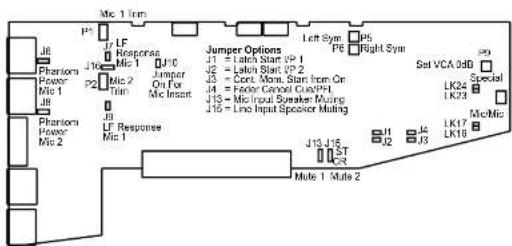
Fig 6-1: S2 Mic/Mic Input Board Layout.
Remote for Mic 1 Cue Light
The remote output for the Microphone 1 input can be used to operate a Mic Cue light when the channel is ON and the fader is up. This should not be confused with a Mic Live light. The Mic Cue light is used for indicating to presenter or guest that they should talk into the microphone. Jumper J1 is placed over pins 1 & 2. This is the default setting and produces a latched remote output.
Remote for Mic 2 Cue Light
The remote output for the Microphone 2 input can be used to operate a Mic Cue light when the channel is ON and the fader is up. This should not be confused with a Mic Live light. The Mic Cue light is used for indicating to presenter or guest that they should talk into the microphone. Jumper J2 is placed over pins 1 & 2. This is the default setting and produces a latched remote output.
CUE/PFL Cancel
The CUE/PFL function is normally an alternate action. Press the button to select and press again to de-select. However it may be desirable to have the fader up signal cancel a CUE/PFL selection. Placing a jumper over J4 pins 1 & 2 will enable a previously selected CUE/PFL function to be cancelled when the fader is up and the channel is ON. The default setting is none (not fitted).
Phantom Power Mic 1
If you will be using a phantom powered microphone, jumper J6 must be placed over pins 1 & 2. If a normal microphone is used the jumper should be left over pins 2 & 3. With phantom power selected the voltage of +48V is applied to pins 2 & 3 of the XLR connector. The voltage is applied through 5kR resistors limiting the current to 16mA. The default wire is with the
S2-CMM MIC/MIC CHANNEL WITH EQ 6
frequency rumbles the LF response of the microphone can be rolled off, at 125kHz, 6dB per octave, to reduce these acoustic problems. This is achieved by removing jumper J7.
Phantom Power Mic 2
If you will be using a phantom powered microphone, jumper J8 must be placed over pins 1 & 2. If a normal microphone is used the jumper should be left over pins 2 & 3. With phantom power selected a voltage of 148V is applied to pins 2 & 3 of the XLR connector. The voltage is applied through 6kB resistors limiting the current to 14mA. The default setting is with the jumper over pins 2 & 3.
Mic 2 LF Response
The default setting of J9 is with the jumper over pins 1 & 2 which gives a full LF response to the microphone. However, if your studio is acoustically poor and suffers from a lot of low frequency rumbles the LF response of the microphone can be rolled off, at 125kHz, 6dB per octave, to reduce these acoustic problems. This is achieved by removing jumper J9.
Enabling the Insert Point
The Insert point is useful for hooking up an outboard effects unit to be used with the microphone. The insert send signal is always available as a line level balanced output. The insert return signal is enabled by placing jumper J10 over pins 1 & 2. The default setting of J10 is none (not fitted).
Jumpers J11 and J12 are not fitted to the Mic/Mic channel.
Mic Live Muting
The microphone inputs can be set to mute the control room or studio monitors. The default setting of J13 over pins 1 & 2 will enable a live microphone on Mic 1 input to mute the control room monitors. If it is required to mute the studio monitors the jumper should be shifted to pins 2 & 3. If no muting is required, the jumper should be removed. Similarly, J15 sets the muting function for the microphone on Mic 2 input. A jumper over pins 1 & 2 will mute the control room monitors and over pins 2 & 3 will mute the studio monitors. The default setting of J15 is none (not fitted).
Talkback Mic Selection
When the channel is enabled as a talkback MIC, the talkback input can be selected from either MIC1 or MIC2 using J16. This is independent of the active MIC input. To enable the microphone input to be added to the talkback bus, connect pins 7 (DV logic) and 9 (Talkback mic enable) on the remote connector. This is useful if, for example, you want to use the mic channel to talk to a caller connected to the cleanfeed output of the telco channel.
Presets
Two presets are available for adjustment of the input gain for mic 1 and mic 2 levels. Mic 1 preset 01 and mic 2 preset 02 provide 50dB of gain adjustment, allowing an input

S2-CMM MIC/MIC CHANNEL WITH EQ
S2-CMM MIC/MIC CHANNEL WITH EQ


A third preset, P9, sets the VCA fader gain to 0dB when the fader is fully open. This is preset on final test and should not require further adjustment, unless it has been found necessary to replace the fader or other VCA components.
Button Mode Settings
To make the S2 modules as flexible as possible, every button on each channel can be set to a number of different modes. These will aid in the use of the mixer and allow for extra functionality. To make use of these modes, you must enter a setup mode which is exactly the same for every module. It is only necessary to perform this procedure once.
To enter the setup mode, hold down the PGM and AUD buttons together for 5 seconds. After which all the buttons will start a recurring flashing sequence, at this point it is ok to release the PGM and AUD buttons. This sequence indicates the mode which each button is currently set to. One flash equals mode one, two flashes equals mode two etc. To change the mode for a particular button simply press it once and watch the number of flashes increase. Once the maximum mode number has been reached it will simply wrap around to mode one and continue as before. To exit this setup procedure press and hold both the PGM and AUD buttons as before for 2 seconds and the module will start operating as normal.
Each button and their corresponding modes are listed below.
PGM
Mode 1: Normal. The program bus can be selected as normal.
Mode 2: Always on. The program bus is permanently selected.
Mode 3: Always off. The program bus is permanently deselected.
AUD
Mode 1: Normal. The audition bus can be selected as normal.
Mode 2: Always on. The audition bus is permanently selected.
Mode 3: Always off. The audition bus is permanently deselected.
MIC1/MIC2
Mode 1: Normal. Can be selected as normal.
Mode 2: Always MIC2. MIC2 is permanently selected.
Mode 3: Always MIC1. MIC1 is permanently selected.
EQ
Mode 1: Normal. Equalization can be enabled or disabled as normal.
Mode 2: Always enabled. Equalization controls are permanently enabled.

7 S2-CSE/S2-CS Dual Stereo Line Channel With & Without EQ
Panel Controls
PGM and AUD Selection
Selecting the PGM, AUD buttons routes the channel audio output to the PGM and/or AUD mix buses. The buttons are illuminated in green to indicate the routing status. Changing the status of the PGM button is inhibited when the channel is "live".
INP 1/INP 2 Selection
Selecting the INP 1/INP 2 button changes the channel input connection between Input 1 and Input 2. The button is illuminated in red to indicate when input 2 is selected. The operation of the button is inhibited when the channel is "live".
Equalisation Controls (S2-CSE only)
The HF and LF controls are used to adjust the equalisation of the signal. The HF control boosts and cuts the signal by ±7dB at 6.5kHz. The LF control boosts and cuts the signal by ±7dB at 100Hz. The EQ button places the equalisation in and out of the signal path. The button is illuminated in yellow when the EQ is active.
TRIM control
The TRIM control provides an additional ±12dB of gain to fine tune the input signal level.
BAL/PAN Control
The BAL/PAN control can be set to function as either a Balance or Pan control, depending on the setting of J12 & J13. As a balance control, full anti-clockwise shifts the signal to the left and increases the signal by 6dB (right channel reduces by 6dB); full clockwise shifts the signal to the right and increases the signal by 6dB (left channel reduces by 6dB). As a pan control, full anti-clockwise pans the signal to the left and increases the signal by 6dB (right channel reduces by 70dB; full clockwise pans the signal to the right and increases the signal by 6dB (left channel



S2-CSE/S2-CS DUAL STEREO LINE CHANNEL WITH & WITHOUT EQ
7
S2-CSE/S2-CS DUAL STEREO LINE CHANNEL WITH & WITHOUT EQ


be checked on meters and adjusted via the Trim control and balanced via the Bal control. The button is illuminated in green when CUE/PFL is active. There is a jumper option to cancel the CUE/PFL selection when the fader is raised. This button works with both a momentary and latched operation. If held down, the selection is cancelled when released, otherwise the button is alternate action.
Fader
The 100mm VCA fader provides unity gain when fully open. The channel input signal is routed to the outputs whenever the fader is open, the ON button is selected and either or both of the routing buttons are selected.
ON Selection
The ON button works in conjunction with the fader and is used to control channel remotes, routing, timers, etc. The button shows various states. When unlit the channel is off. Flashing red indicates that the channel has been selected to ON but remains unrouted i.e. neither PGM or AUD is selected. Steady red indicates that the channel is ON and "armed", ready for the fader to be raised. Raising the fader changes the illumination to green indicating that the channel is live. Alternatively, with the button until the fader may be raised and the channel can be operated simply by selecting ON. The illumination in this case toggles between unlit, channel OFF and green, channel ON. Remotes, etc., are triggered when the fader is up and the channel ON button shows green.
Scribble Pad
A scribble pad is provided at the bottom for user labelling of the channel function e.g. "MD1"
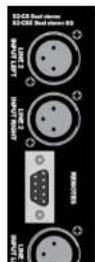
Rear Panel
Line 2 Left Input Connector
This XLR 3 pin socket is used for the left analogue channel of input 2, and has the following connections;
Pin 1: Screen.
Pin 2: Phase.
Pin 3: Non-phase.
Line 2 Right Input Connector
This XLR 3 pin socket is used for the right analogue channel of input 2, and has the following connections:
Pin 1: Screen.
Pin 2: Phase.
Pin 3: Non-phase.

- Line 2 remote start
• Line 2 remote stop
The connector pin-out is as follows:
Pin 1: Opto Isolated Line 1 start NPN collector.
Pin 2: Common NPN emitter for Line 1 start and stop.
Pin 3: Opto Isolated Line 1 stop NPN collector.
Pin 4: Opto isolated Line 2 start NPN collector.
Pin 5: Common NPN emitter for Line 2 start and stop.
Pin 6: Opto isolated Line 2 stop NPN collector.
Pin 7:0V logic.
Pin 8: General purpose I/O 1.
Pin 9: General purpose I/O 2.
Line 1 Left Input Connector
This XLR 3 pin socket is used for the left analogue channel of input 1, and has the following connections.
Pin 1: Screen.
Pin 2: Phase.
Pin 3: Non-phase.
Line 1 Right Input Connector
This XLR 3 pin socket is used for the right analogue channel of input 1, and has the following connections;
Pin 1: Screen.
Pin 2: Phase.
Pin 3: Non-phase.
Channel Options, Jumper Settings and Presets
The dual stereo channel with and without EQ can be configured in a number of different ways depending on the jumper options set on the board. The on-board processors software is configured by jumpers J1 to J5 and channel identifying links. The dual stereo channel without EQ is identified by having links LK4 and LK11 fitted. The dual stereo channel with EQ is identified by having links LK5 and LK11 fitted. Other, customer specific, options can be programmed into the software by special order. Special logic options will be identified by having links LK9 and LK10 fitted.
The standard options available are;
- Select momentary or latched start for Input 1.

S2-CSE/S2-CS DUAL STEREO LINE CHANNEL WITH & WITHOUT EQ
7
S2-CSE/S2-CS DUAL STEREO LINE CHANNEL WITH & WITHOUT EQ

Summary of Jumper Settings for the Dual Stereo Channel With & Without EQ

S2-CSE/S2-CS DUAL STEREO LINE CHANNEL WITH & WITHOUT EQ
| Jumper Set over Pins Effect | ||
| J1 | 1 & 2None | Latching contact for Line 1 remote start.Momentary contact for Line 1 remote start. |
| J2 | 1 & 2None | Latching contact for Line 2 remote start.Momentary contact for Line 2 remote start. |
| J3 | 1 & 2None | Continuous momentary start from ON button, see following description.Normal start function. |
| J4 | 1 & 2None | Fader up signal cancels previously selected CUE/PFL.Normal CUE/PFL function. |
| J5 Not Fitted | ||
| J6 | 1 & 22 & 3None | Auto start Timer 1.Auto start Timer 2.No timer function. |
| J7 Not Fitted | ||
| J8 Not Fitted | ||
| J9 Not Fitted | ||
| J10 Not Fitted | ||
| J11 Not Fitted | ||
| J12 | 1&2None | Bal/Pan control is a Pan controlBal/Pan control is a Balance control |
| J13 | 1&2None | Bal/Pan control is a Pan controlBal/Pan control is a Balance control |
Note: Options in bold are set as default when shipped.
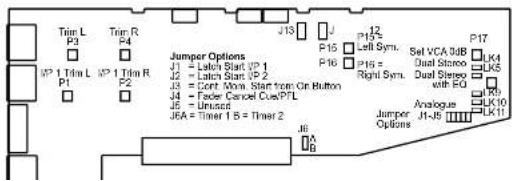

Remote for Line 1 Input
The remote output for the Line 1 input can be used for a start and stop function wired to other studio equipment such as CD or MD players. The default setting for J1 is none (not fitted), which produces a momentary remote contact. If your equipment requires a latching contact for remote start then a jumper should be placed over pins 1 & 2 of J1. The remote stop for Input 1 is always momentary.
Remote for Line 2 Input
The remote output for the Line 2 input can be used for a start and stop function wired to other studio equipment such as CD or MD players. The default setting for J2 is none (not fitted), which produces a momentary remote contact. If your equipment requires a latching contact for remote start then a jumper should be placed over pins 1 & 2 of J2. The remote stop for Input 2 is always momentary.
Continuous Momentary Start
The continuous momentary start function can be used for equipment that only ever requires a remote start but not a stop. Placing a jumper over J3 pins 1 & 2 enables the function. When enabled the operation of the ON button is changed to a continuous start button. With the fader down, the button shows red. With the fader up, the button shows green and each press of the ON button will trigger a momentary start from the remote contacts. The default setting for J3 is none (not fitted). It is not possible to configure a latching remote start output when the continuous momentary start option has been selected.
CUE/PFL Cancel
The CUE/PFL function is normally an alternate action. Press the button to select and press again to be select. However it may be desirable to have the fader up signal cancel a CUE/PFL selection. Placing a jumper over J4 pins 1 & 2 will enable a previously selected CUE/PFL function to be cancelled when the fader is up and the channel is ON. The default setting is none (not fitted).
Jumper JS is not fitted to this channel.
Timer Auto Start
The dual timer in the meterbridge can be set to start automatically from a fader open/channel On signal. Jumper J6 determines which timer is set to auto-start. A jumper over pins 1 & 2 will start Timer 1, shifting the jumper to pins 2 & 3 will start Timer 2. The default setting of J6 is none (not fitted).
Jumpers J7 to J10 are not fitted to this channel.
Presets
Four separate sea stillsilo for settlement of the land east left and right for the two lines

S2-CSE/S2-CS DUAL STEREO LINE CHANNEL WITH & WITHOUT EQ
7
S2-CSE/S2-CS DUAL STEREO LINE CHANNEL WITH & WITHOUT EQ


-10dB referenced to 0dB output. The presets should be adjusted to give 0dB output for the chosen source, and will cater for professional equipment with nominal output levels up to +4dB and non-professional equipment with nominal output levels down to -10dBV. The levels are preset for 0dB input when shipped.
Presets P15 & P16 are for altering the audio waveform symmetry (i.e. distortion). They are factory set on final test and should not be adjusted further.
A seventh preset, P17, sets the VCA fader gain to 0dB when the fader is fully open. This is preset on final test and should not require further adjustment, unless it has been found necessary to replace the fader or other VCA components.
General Purpose I/O
Two I/O pins are available on the remotes connector that can be configured for general purpose use. They are completely configurable and can be set as inputs or outputs, latching or momentary and active high or active low.
The setup procedure for configuring the pins is described in the following steps. Since the settings are stored in non-volatile RAM, this only needs to be done once.
- To initiate setup, press and hold down the PGM button while pressing the AUD button five times. Once completed, all the buttons will turn off and after a short while will display the current setting for GPIO 1's function (pin 8 on the remote connector).
- Using the PGM button, cycle through the following options (shown in the table below) until the desired setting is selected. For example to set GPIO 1 to a latching, active high input, press the PGM button until only the CUE/PFL button is illuminated ON. This setting is then applied by pressing the ON button. The PGM button will flash quickly for about a second to indicate that the setting is stored.
General Purpose I/O Function Options
| GPIO Function | ON Button | Cue/PFL Button | AUD Button | ||
| Input/Output | Latching/Momentary | Active Low/Active High | |||
| I L AL OFF OFF OFF | |||||
| I M AL ON OFF OFF | |||||
| I L AH OFF ON OFF | |||||
| I | M | AH | ON | ON | OFF |
| O | L AL OFF OFF | ON | |||
| O | M AL ON OFF | ON | |||
| O | L AH OFF ON | ON | |||
| O | M | AH | ON | ON | ON |

General Purpose I/O Action Options
The functions available are dependent on whether the remote is set as an input or an output. The two tables below describe the different functions available.
Input Functions
| GPIO Action | Description ON | Button | Cue/PFL Button | AUD Button |
| None - OFF OFF OFF | ||||
| Channel ON | The remote pin replicates the ON button in the module. Activating this control will turn the channel on or off. | ON OFF OFF | ||
| Red ON Indicator | The remote pin activates the Red LED In the ON Button. The ON button mode must be set to mode 5 or 6 when using this action. | OFF ON OFF | ||
| Green ON Indicator | The remote pin activates the Green LED in the ON Button. The ON button mode must be set to mode 5 or 6 when using this action. | ON ON OFF | ||
| Fader On | The remote pin controls the fader open function. When active, the fader is fully open. | OFF OFF ON | ||
Output Functions
| GPIO Action | Description ON | Button | Cue/PFL Button | AUD Button |
| None - OFF OFF OFF | ||||
| Channel ON | The remote pin goes active when the channel is LIVE. | ON OFF OFF | ||
- As before, press the ON button to apply the setting, noticing that the PGM button flashes.
- The module will now display the current setting of GPIO 2's function. This is changed in exactly the same way as GPIO 1, selecting from the options in the above table.
- Once the ON button is pressed, this setting is stored and the action can be selected.
• After the next ON button press, the module will exit the setup procedure and the module can now be used as normal.
Button Mode Settings

S2-CSE/S2-CS DUAL STEREO LINE CHANNEL WITH & WITHOUT EQ
7
S2-CSE/S2-CS DUAL STEREO LINE CHANNEL WITH & WITHOUT EQ


To enter the setup mode, hold down the PGM and AUD buttons together for 5 seconds. After which all the buttons will start a recurring flashing sequence, at this point it is ok to release the PGM and AUD buttons. This sequence indicates the mode which each button is currently set to. One flash equals mode one, two flashes equals mode two etc. To change the mode for a particular button simply press it once and watch the number of flashes increase. Once the maximum mode number has been reached it will simply wrap around to mode one and continue as before. To exit this setup procedure press and hold both the PGM and AUD buttons as before for 2 seconds and the module will start operating as normal.
Each button and their corresponding modes are listed below.
PGM
Mode 1: Normal. The program bus can be selected as normal.
Mode 2: Always on. The program bus is permanently selected.
Mode 3: Always off. The program bus is permanently deselected.
AUD
Mode 1: Normal. The audition bus can be selected as normal.
Mode 2: Always on. The audition bus is permanently selected.
Mode 3: Always off. The audition bus is permanently deselected.
INP1/INP2
Mode 1: Normal. Can be selected as normal.
Mode 2: Always INP2. INP2 is permanently selected.
Mode 3: Always INP1. INP1 is permanently selected.
EQ (S2-CSE only)
Mode 1: Normal. Equalization can be enabled or disabled as normal.
Mode 2: Always enabled. Equalization controls are permanently enabled.
Mode 3: Always disabled. Equalization controls are permanently disabled.
Cue/PFL
Mode 1: Normal. Cue/PFL is selected as normal, with both a momentary or latched operation.
Mode 2: Latched. Cue/PFL is selected as normal, but will only work with a latched operation.
S2-CSE/S2-CS DUAL STEREO LINE CHANNEL WITH & WITHOUT EQ 7
Mode 3: Momentary. Cue/PFL is selected as normal, but will only work with a momentary operation.
Mode 4: Normal with remotes. Cue/PFL is selected as normal, with both a momentary or latched operation and will also activate the remotes if the channel is not live.
Mode 5: Latched with remotes. Cue/PFL is selected as normal, but with only a latched operation and will also activate the remotes if the channel is not live.
Mode 6: Momentary with remotes. Cue/PFL is selected as normal, but with only a momentary operation and will also activate the remotes if the channel is not live.
ON
Mode 1: Normal.
Mode 2: Operates as normal, but the remote start function is only activated by the ON button, and generates a START whenever the button is pressed while the fader is up.
Mode 3: Always on and no LED indication. The channel cannot be turned off and the On button LEDs are never active.
Mode 4: Always on. The channel cannot be turned off.
Mode 5: Always on. The LEDs in the ON button are controlled via GPIO.
Mode 6: Always on. The LEDs in the ON button are controlled via GPIO and the remote START/STOP functions are generated by the ON button only, but are dependent on the GPIO state. This mode allows the module to interact with the VCS playout system.
| Red LED Green LED State | |
| OFF OFF Not ready. Pressing the ON button will do nothing | |
| ON OFF Ready Pressing the ON button will generate a START. | |
| OFF ON Playing Pressing the ON button will generate a STOP. | |
| ON ON Not used. | |
Mode 7: Always on. The remote start function is activated whenever the ON button is pressed, regardless of the fader position.
Mode 8: Always on. The remote start function is activated whenever the ON button is pressed and the fader is up or when PFL is active while the fader is down.

S2-CSE/S2-CS DUAL STEREO LINE CHANNEL WITH & WITHOUT EQ
S2-CSGE/S2-CSG STEREO LINE AND GRAM CHANNEL WITH & WITHOUT EQ


8 S2-CSGE/S2-CSG Stereo Line And Gram Channel With & Without EQ
Panel Controls
PGM and AUD Selection
Selecting the PGM, AUD buttons routes the channel audio output to the PGM and/or AUD mix buses. The buttons are illuminated in green to indicate the routing status. Changing the status of the PGM button is inhibited when the channel is "live".
LINE/GRAM Selection
Selecting the Line/Gram button changes the channel input connection between Stereo Line on XLR and RIAA on phone. The button is illuminated in red to indicate when Gram (RIAA) is selected. The operation of the button is inhibited when the channel is "live".
Equalisation Controls (S2-CSGE only)
The HF and LF controls are used to adjust the equalisation of the signal. The HF control boosts and cuts the signal by ±7dB at 6.5kHz. The LF control boosts and cuts the signal by ±7dB at 100Hz. The EQ button places the equalisation in and out of the signal path. The button is illuminated in yellow when the EQ is active.
TRIM Control
The TRIM pot provides an additional ±1.2dB of gain to fine tune the input level.
BAL/PAN Control
The BAL/PAN control can be set to function as either a Balance or Pan control, depending on the setting of J12 & J13. As a balance control, full anti-clockwise shifts the signal to the left and increases the signal by 6dB (right channel reduces by 6dB); full clockwise shifts the signal to the right and increases the signal by 6dB (left channel reduces by 6dB). As a pan control, full anti-clockwise pans the signal to the left and increases the signal by 6dB (right channel reduces by 70dB); full clockwise pans the signal to the right and increases the signal by 6dB (left channel



be checked on meters and adjusted via the Trim control and balanced via the Bal control. The button is illuminated in green when CUE/PFL is active. There is a jumper option to cancel the CUE/PFL selection when the fader is raised. This button works with both a momentary and latched operation. If held down, the selection is cancelled when released, otherwise the button is alternate action.
Fader
The 100mm VCA fader provides unity gain when fully open. The channel input signal is routed to the outputs whenever the fader is open, the ON button is selected and either or both of the routing buttons are selected.
ON Selection
The ON button works in conjunction with the fader and is used to control channel remotes, routing, timers, etc. The button shows various states. When unlit the channel is off. Flashing red indicates that the channel has been selected to ON but remains unrouted i.e. neither PGM or AUD is selected. Steady red indicates that the channel is ON and "armed", ready for the fader to be raised. Raising the fader changes the illumination to green indicating that the channel is live. Alternatively, with the button unit the fader may be raised and the channel can be operated simply by selecting ON. The illumination in this case toggles between unit, channel OFF and green, channel ON. Remotes, etc., are triggered when the fader is up and the channel ON button shows green.
Scribble Pad
A scribble pad is provided at the bottom for user labelling of the channel function e.g. "Gram 1"
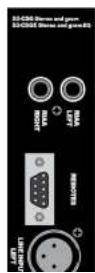
Rear Panel
GRAM Input (RIAA) Left and Right Connector
These phono connectors are used for the gram RIAA (tumtable) left and right inputs. These inputs have on-board RIAA equalisation suitable for magnetic pick up cartridges.
Inner: Phase. Outer: Screen
Remotes Connector
This 9 pin D type plug provides inputs and outputs for the following channel functions;
• Line 1 remote start
• Line 1 remote stop

S2-CSGE/S2-CSG STEREO LINE AND GRAM CHANNEL WITH & WITHOUT EQ
S2-CSGE/SZ-CSG STEREO LINE AND GRAM CHANNEL WITH & WITHOUT EQ


The connector pin-out is as follows;
Pin 1: Opto isolated Line 1 start NPN collector.
Pin 2: Common NPN emitter for Line 1 start and stop.
Pin 3: Opto isolated Line 1 stop NPN collector.
Pin 4: Opto isolated Gram input start NPN collector.
Pin 5: Common NPN emitter for Gram input start and stop.
Pin 6: Opto isolated Gram input stop NPN collector.
Pin 7:0V logic.
Pin 8: General purpose I/O 1.
Pin 9: General purpose I/O 2.
Line 1 Left Input Connector
This XLR 3 pin socket is used for the left channel of input 1, and has the following connections;
Pin 1: Screen.
Pin 2: Phase.
Pin 3: Non-phase.
Line 1 Right Input Connector
This XLR 3 pin socket is used for the right channel of input 1, and has the following connections;
Pin 1: Screen.
Pin 2: Phase.
Pin 3: Non-phase.
Channel Options, Jumper Settings and Presets
The Stereo Line and Gram channel with and without EQ can be configured in a number of different ways depending on the jumper options set on the board. The on-board processor's software is configured by jumpers J1 to JS and channel identifying links. The Stereo Line and Gram channel without EQ is identified by having links LK6 and LK11 fitted. The Stereo Line and Gram channel with EQ is identified by having links LK7 and LK11 fitted. Other, customer specific, options can be programmed into the software by special order. Special logic options will be identified by having links LK9 and LK10 fitted.
The standard options available are:
- Select momentary or latched start for Input 1.
- Select momentary or latched start for Input 2.
- Enable continuous momentary start from ON button.

S2-CSGE/S2-CSG STEREO LINE AND GRAM CHANNEL WITH & WITHOUT EQ

Summary of Jumper Settings for the Dual Stereo Gram Channel With & Without EQ
| Jumper Set over Pins Effect | ||
| J1 | 1 & 2None | Latching contact for Line 1 remote startMomentary contact for Line 1 remote start. |
| J2 | 1 & 2None | Latching contact for Gram input remote startMomentary contact for Gram input remote start. |
| J3 | 1 & 2None | Continuous momentary start from ON button,see following description.Normal start function. |
| J4 | 1 & 2None | Fader up signal cancels previously selected Cue/PFL.Normal Cue/PFL function. |
| J5 Not Fitted | ||
| J6 | 1 & 22 & 3None | Auto start Timer 1.Auto start Timer 2.No timer function. |
| J7 Not Fitted | ||
| J8 Not Fitted | ||
| J9 Not Fitted | ||
| J10 Not Fitted | ||
| J11 Not Fitted | ||
| J12 | 1&2None | Bal/Pan control is a Pan controlBal/Pan control is a Balance control |
| J13 | 1&2None | Bal/Pan control is a Pan controlBal/Pan control is a Balance control |

Note: Options in bold are set as default when shipped.
S2-CSGE/S2-CSG STEREO LINE AND GRAM CHANNEL WITH & WITHOUT EQ
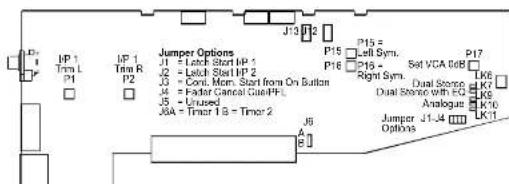
S2-CSGE/SZ-CSG STEREO LINE AND GRAM CHANNEL WITH & WITHOUT EQ

Remote for Line 1 Input
The remote output for the Line 1 input can be used for a start and stop function wired to other studio equipment such as CD or MD players. The default setting for J1 is none (not fitted), which produces a momentary remote contact. If your equipment requires a latching contact for remote start then a jumper should be placed over pins 1 & 2 of J1. The remote stop for Input 1 is always momentary.
Remote for Gram Input
The remote output for the Gram input can be used for a start and stop function for turntables. The default setting for J2 is none (not fitted), which produces a momentary remote contact. If your equipment requires a latching contact for remote start then a jumper should be placed over pins 1 & 2 of J2. The remote stop for the Gram input is always momentary.
Continuous Momentary Start
The continuous momentary start function can be used for equipment that only ever requires a remote start but not a stop. Placing a jumper over J3 pins 1 & 2 enables the function. When enabled the operation of the ON button is changed to a continuous start button. With the fader down, the button shows red. With the fader up, the button shows green and each press of the ON button will trigger a momentary start from the remote contacts. The default setting for J3 is none (not fitted). It is not possible to configure a latching remote start output when the continuous momentary start option has been selected.
CUE/PFL Cancel
The CUE/PFL function is normally an alternate action. Press the button to select and press again to be select. However it may be desirable to have the fader up signal cancel a CUE/PFL selection. Placing a jumper over J4 pins 1 & 2 will enable a previously selected CUE/PFL function to be cancelled when the fader is up and the channel is ON. The default setting is none (not fitted).
Jumper JS is not fitted to this channel.
Timer Auto Start
The dual timer in the meterbridge can be set to start automatically from a fader open/channel On signal. Jumper J6 determines which timer is set to auto-start. A jumper over pins 1 & 2 will start Timer 1, shifting the jumper to pins 2 & 3 will start Timer 2. The default setting of J6 is none (not fitted).
Jumpers J7 to J10 are not fitted to this channel.
Presets
Two concrete use suitable for adjustment of line input 1, as in left snail stake, flange. D1

The RIAA Gram input level (Input 2) is fixed.
Presets P15 & P16 are for altering the audio waveform symmetry (i.e. distortion). They are factory set on final test and should not be adjusted further.
A fifth preset, P17, sets the VCA fader gain to GdB when the fader is fully open. This is preset on final test and should not require further adjustment, unless it has been found necessary to replace the fader or other VCA components.
General Purpose I/O
Two I/O pins are available on the remotes connector that can be configured for general purpose use. They are completely configurable and can be set as inputs or outputs, latching or momentary and active high or active low.
The setup procedure for configuring the pins is described in the following steps. Since the settings are stored in non-volatile RAM, this only needs to be done once.
- To initiate setup, press and hold down the PGM button while pressing the AUD button five times. Once completed, all the buttons will turn off and after a short while will display the current setting for GPIO 1's function (pin 8 on the remote connector).
- Using the PGM button, cycle through the following options (shown in the table below) until the desired setting is selected. For example to set GPIO 1 to a latching, active high input, press the PGM button until only the CUE/PFL button is illuminated ON. This setting is then applied by pressing the ON button. The PGM button will flash quickly for about a second to indicate that the setting is stored.
General Purpose I/O Function Options
| GPIO Function | ON Button | Cue/PFL Button | AUD Button | ||
| Input/Output | Latching/Momentary | Active Low/Active High | |||
| I L AL OFF | OFF OFF | ||||
| I M AL ON | OFF OFF | ||||
| I L AH OFF | ON | OFF | |||
| I | M | AH | ON | ON | OFF |
| O | L AL OFF | OFF | ON | ||
| O | M AL ON | OFF | ON | ||
| O | L AH OFF | ON | ON | ||
| O | M | AH | ON | ON | ON |
- Now select GPIO 1's action using the PGM button as before.

S2-CSGE/S2-CSG STEREO LINE AND GRAM CHANNEL WITH & WITHOUT EQ
S2-CSGE/S2-CSG STEREO LINE AND GRAM CHANNEL WITH & WITHOUT EQ

General Purpose I/O Action Options
The functions available are dependent on whether the remote is set as an input or an output. The two tables below describe the different functions available.
Input Functions
| GPIO Action | Description ON | Button | Cue/PFL Button | AUD Button |
| None - OFF | OFF OFF | |||
| Channel ON | The remote pin replicates the ON button in the module. Activating this control will turn the channel on or off. | ON OFF OFF | ||
| Red ON Indicator | The remote pin activates the Red LED in the ON Button. The ON button mode must be set to mode 5 or 6 when using this action. | OFF ON OFF | ||
| Green ON Indicator | The remote pin activates the Green LED in the ON Button. The ON button mode must be set to mode 5 or 6 when using this action. | ON ON OFF | ||
| Fader On | The remote pin controls the fader open function. When active, the fader is fully open. | OFF OFF ON |
Output Functions
| GPIO Action | Description ON | Button | Cue/PFL Button | AUD Button |
| None - OFF OFF OFF | ||||
| Channel ON | The remote pin goes active when the channel is LIVE. | ON OFF OFF | ||
- As before, press the ON button to apply the setting, noticing that the PGM button flashes.
- The module will now display the current setting of GPIO 2's function. This is changed in exactly the same way as GPIO 1, selecting from the options in the above table.
- Once the ON button is pressed, this setting is stored and the action can be selected.
- After the next ON button press, the module will exit the setup procedure and the module can now be used as normal.
Button Mode Settings

S2-CSGE/S2-CSG STEREO LINE AND GRAM CHANNEL WITH & WITHOUT EQ 8
functionality. To make use of these modes, you must enter a setup mode which is exactly the same for every module. It is only necessary to perform this procedure once.
To enter the setup mode, hold down the PGM and AUD buttons together for 5 seconds. After which all the buttons will start a recurring flashing sequence, at this point it is ok to release the PGM and AUD buttons. This sequence indicates the mode which each button is currently set to. One flash equals mode one, two flashes equals mode two etc. To change the mode for a particular button simply press it once and watch the number of flashes increase. Once the maximum mode number has been reached it will simply wrap around to mode one and continue as before. To exit this setup procedure press and hold both the PGM and AUD buttons as before for 2 seconds and the module will start operating as normal.
Each button and their corresponding modes are listed below.
PGM
Mode 1: Normal. The program bus can be selected as normal.
Mode 2: Always on. The program bus is permanently selected.
Mode 3: Always off. The program bus is permanently deselected.
AUD
Mode 1: Normal. The audition bus can be selected as normal.
Mode 2: Always on. The audition bus is permanently selected.
Mode 3: Always off. The audition bus is permanently deselected.
INP1/INP2
Mode 1: Normal. Can be selected as normal.
Mode 2: Always INP2. INP2 is permanently selected.
Mode 3: Always INP1, INP1 is permanently selected.
EQ (S2-CSGE only)
Mode 1: Normal. Equalization can be enabled or disabled as normal.
Mode 2: Always enabled. Equalization controls are permanently enabled.
Mode 3: Always disabled. Equalization controls are permanently disabled.
Cue/PFL
Mode 1: Normal. Cue/PFL is selected as normal, with both a momentary or latched operation.

S2-CSGE/S2-CSG STEREO LINE AND GRAM CHANNEL WITH & WITHOUT EQ
8
S2-CSGE/SZ-CSG STEREO LINE AND GRAM CHANNEL WITH & WITHOUT EQ

Mode 4: Normal with remotes. Cue/PFL is selected as normal, with both a momentary or latched operation and will also activate the remotes if the channel is not live.
Mode 5: Latched with remotes. Cue/PFL is selected as normal, but with only a latched operation and will also activate the remotes if the channel is not live.
Mode 6: Momentary with remotes. Cue/PFL is selected as normal, but with only a momentary operation and will also activate the remotes if the channel is not live.
ON
Mode 1: Normal.
Mode 2: Operates as normal, but the remote start function is only activated by the ON button, and generates a START whenever the button is pressed while the fader is up.
Mode 3: Always on and no LED indication. The channel cannot be turned off and the ON button LEDs are never active.
Mode 4: Always on. The channel cannot be turned off.
Mode 5: Always on. The LEDs in the ON button are controlled via GPIO.
Mode 6: Always on. The LEDs in the ON button are controlled via GPIO and the remote START/STOP functions are generated by the ON button only, but are dependent on the GPIO state. This mode allows the module to interact with the VCS playout system.
Red LED Green LED State
| OFF OFF Not ready. Pressing the ON button will do nothing | |
| ON OFF Ready Pressing the ON button will generate a START. | |
| OFF ON Playing. Pressing the ON button will generate a STOP. | |
| ON ON Not used. | |
Mode 7: Always on. The remote start function is activated whenever the ON button is pressed, regardless of the fader position.
Mode 8: Always on. The remote start function is activated whenever the ON button is pressed and the fader is up or when PFL is active while the fader is down.

9 S2 -CDSE/S2-CDS Digital Dual Stereo Line Channel With & Without EQ
Panel Controls
PGM and AUD Selection
Selecting the PGM, AUD buttons routes the channel analogue audio output to the PGM and/or AUD mix buses. The buttons illuminate green to indicate the routing status. Changing the status of the PGM button is inhibited for a "live" channel.
INP 1/INP 2 Selection
Selecting the INP 1/INP 2 button changes the channel Input connection between Input 1 and Input 2. The digital inputs can be configured by internal jumpers to be either AES/EBU or S/PDIF. The button is illuminated in red to indicate when Input 2 is selected. The operation of the button is inhibited for a "live" channel.
Equalisation Controls (S2-CDSE only)
The HF and LF controls are used to adjust the equalisation of the signal. The HF control boosts and cuts the signal by ±7dB at 6.5kHz. The LF control boosts and cuts the signal by ±7dB at 100Hz. The EQ button places the equalisation in and out of the signal path. The button is illuminated in yellow when the EQ is active.
TRIM Control
The TRIM pot provides an additional ±1.2 dB of gain to fine tune the input level.
BAL/PAN Control
The BAL/PAN control can be set to function as either a Balance or Pan control, depending on the setting of J12 & J13. As a balance control, full anti-clockwise shifts the signal to the left and increases the signal by 6dB (right channel reduces by 6dB); full clockwise shifts the signal to the right and increases the signal by 6dB (left channel reduces by 6dB). As a pan control, full anti-clockwise pans the signal to the left and increases the signal by 6dB (right channel reduces by 70dB); full clockwise pans the signal


52-CDSE/S2-CDS DIGITAL DUAL STEREO
LINE CHANNEL WITH & WITHOUT EQ
9
S2-CDSE/S2-CDS DIGITAL DUAL STEREO LINE CHANNEL WITH & WITHOUT EQ


heard via headphones and/or loudspeakers. The level may be checked on meters and adjusted via the Trim control and balanced via the Bal control. The button is illuminated in green when CUE/PFL is active. There is a jumper option to cancel the CUE/PFL selection when the fader is raised. This button works with both a momentary and latched operation. If held down, the selection is cancelled when released, otherwise the button is alternate action.
Fader
The 100mm VCA fader provides unity gain when fully open. The channel input signal is routed to the outputs whenever the fader is open, the ON button is selected and either or both of the routing buttons are selected.
ON Selection
The ON button works in conjunction with the fader and is used to control channel remotes, routing, timers, etc. The button shows various states. When until the channel is off. Flashing green indicates that there is no valid digital input. Flashing red indicates that the channel has been selected to ON but remains unrouted i.e. neither PGM or AUD is selected. Flashing red and green indicates that both of the above states are valid. Steady red indicates that the channel is ON and "armed", ready for the fader to be raised. Raising the fader changes the illumination to green indicating that the channel is live. Alternatively, with the button until the fader may be raised and the channel can be operated simply by selecting ON.
The illumination in this case toggles between unit, channel OFF and green, channel ON. Remotes, etc, are triggered when the fader is up and the channel ON button shows green.

Scribble Pad
A scribble pad is provided at the bottom for user labelling of the channel function e.g. "CD 1"
Rear Panel
S/PDIF Input Connector
Two phono connectors are used for S/PDIF Inputs 1 and 2. There are on board jumpers to configure this input in place of the AES/EBU inputs.
Inner: Signal.
Outer Screen
Remotes Connector
This 9 pin D type plug provides inputs and outputs for the following channel functions;
- Line 1 remote start

The connector pin-outs are as follows;
Pin 1: Opto isolated Line 1 start NPN collector.
Pin 2: Common NPN emitter for Line 1 start and stop.
Pin 3: Opto isolated Line 1 stop NPN collector.
Pin 4: Opto isolated Line 2 start NPN collector.
Pin 5: Common NPN emitter for Line 2 start and stop.
Pin 6: Opto isolated Line 2 stop NPN collector
Pin 7:0V logic.
Pin 8: General purpose I/O 1.
Pin 9: General purpose I/O 2.
Input 1 AES/EBU Connector
This XLR 3 pin socket is used for AES/EBU Input 1, and has the following connections;
Pin 1: Screen.
Pin 2: Phase.
Pin 3: Non-phase.
Input 2 AES/EBU Connector
This XLR 3 pin socket is used for AES/EBU Input 2, and has the following connections:
Pin 1: Screen.
Pin 2: Phase.
Pin 3: Non-phase.
Channel Options, Jumper Settings and Presets
The digital dual stereo channel with and without EQ can be configured in a number of different ways depending on the jumper options set on the board. The on-board processor's software is configured by jumpers J1 to J5 and channel identifying links. The digital dual stereo channel without EQ is identified by having links LK4 and LK12 fitted. The digital dual stereo channel with EQ is identified by having links LK5 and LK12 fitted. Other, customer specific, options can be programmed into the software by special order. Special logic options will be identified by having links LK9 and LK10 fitted.
The standard options available are;
- Select momentary or latched start for Input 1 remote output.
- Select momentary or latched start for Input 2 remote output.
- Enable continuous momentary start from ON button.
- Enable or disable Cue/PFL cancel from fader.

S2-CDSE/S2-CDS DIGITAL DUAL STEREO LINE CHANNEL WITH & WITHOUT EQ
S2-CDSE/S2-CDS DIGITAL DUAL STEREO LINE CHANNEL WITH & WITHOUT EQ

Summary of Jumper Settings for the Digital Dual Stereo Channel With & Without EQ
S2-CDSE/S2-CDS DIGITAL DUAL STEREO LINE CHANNEL WITH & WITHOUT EQ
| Jumper Set over Pins Effect | ||
| J1 | 1 & 2None | Latching contact for Line 1 remote start.Momentary contact for Line 1 remote start. |
| J2 | 1 & 2None | Latching contact for Line 2 remote start.Momentary contact for Line 2 remote start. |
| J3 | 1 & 2None | Continuous momentary start from ON button,see following description.Normal start function. |
| J4 | 1 & 2None | Fader up signal cancels previously selected CUE/PFL.Normal CUE/PFL function. |
| J5 | 1 & 2None | De-emphasis at 50/15μs, enabled.De-emphasis disabled. |
| J6 | 1 & 22 & 3None | Auto start Timer 1.Auto start Timer 2.No timer function. |
| J7 | 1 & 22 & 3 | Input 1 selected from AES/EBU.Input 1 selected from S/PDIF. |
| J8 | 1 & 22 & 3 | Input 2 selected from AES/EBU.Input 2 selected from S/PDIF. |
| J9 Not Fitted | ||
| J10 Not Fitted | ||
| J11 | 1 & 2None | PFL is disabled when no digital input is detectedNormal PFL function |
| J12 | 1&2None | Bal/Pan control is a Pan controlBal/Pan control is a Balance control |
| J13 | 1&2None | Bal/Pan control is a Pan controlBal/Pan control is a Balance control |
Note: Options in bold are set as default when shipped.


Remote for Digital Input 1
The remote output for Input 1 can be used for a start and stop function wired to other studio equipment such as CD or MD players. The default setting for J1 is none (not fitted), which produces a momentary remote contact. If your equipment requires a latching contact for remote start then a jumper should be placed over pins 1 & 2 of J1. The remote stop for Input 1 is always momentary.
Remote for Digital Input 2
The remote output for Input 2 can be used for a start and stop function wired to other studio equipment such as CD or MD players. The default setting for J2 is none (not fitted), which produces a momentary remote contact. If your equipment requires a latching contact for remote start then a jumper should be placed over pins 1 & 2 of J2. The remote stop for Input 2 is always momentary.
Continuous Momentary Start
The continuous momentary start function can be used for equipment that only ever requires a remote start but not a stop. Placing a jumper over J3 pins 1 & 2 enables the function. When enabled the operation of the ON button is changed to a continuous start button. With the fader down, the button shows red. With the fader up, the button shows green and each press of the ON button will trigger a momentary start from the remote contacts. The default setting for J3 is none (not fitted). It is not possible to configure a latching remote start output when the continuous momentary start option has been selected.
CUE/PFL Cancel
The CUE/PFL function is normally an alternate action. Press the button to select and press again to be select. However it may be desirable to have the fader up signal cancel a CUE/PFL selection. Placing a jumper over J4 pins 1 & 2 will enable a previously selected CUE/PFL function to be cancelled when the fader is up and the channel is ON. The default setting is none (not fitted).
De-emphasis
Placing a jumper over pins 1 & 2 of J3 will decode 50/15 µ s emphasis when indicated by certain channel status bits in the incoming digital audio data.
Disabling PFL When no Input is Detected
When J11 is fitted, if a digital input is not detected on the selected input, then PFL is disabled/muted.
Timer Auto Start
The dual timer in the meterbridge can be set to start automatically from a fader open/channel On signal. Jumper J6 determines which timer is set to auto-start. A jumper over pins

S2-CDSE/S2-CDS DIGITAL DUAL STEREO LINE CHANNEL WITH & WITHOUT EQ
S2-CDSE/S2-CDS DIGITAL DUAL STEREO LINE CHANNEL WITH & WITHOUT EQ

AES/EBU, S/PDIF Select for Input 1
Input 1 can be either balanced AES/EBU or unbalanced S/PDIF. The default setting for J7, pins 1 & 2, is AES/EBU input via XLRs. Shifting the jumper to pins 2 & 3 enables the S/PDIF input on phonos.
AES/EBU, S/PDIF Select for Input 2
Input 2 can be either balanced AES/EBU or unbalanced S/PDIF. The default setting for J8, pins 1 & 2, is AES/EBU input via XLRs. Shifting the jumper to pins 2 & 3 enables the S/PDIF input on phonos.
Presets
Two presets are available for adjustment of the input level trim, left and right, for the digital inputs. Presets, P1 (left), P2 (right) provide 15dB of gain adjustment, to compensate for level differences in the digital input circuitry. These are preset on final test and should not require further adjustment.
Presets P15 & P16 are for altering the audio waveform symmetry (i.e. distortion). They are factory set on final test and should not be adjusted further.
A fifth preset, P17, sets the VCA fader gain to CdB when the fader is fully open. This is preset on final test and should not require further adjustment, unless it has been found necessary to replace the fader or other VCA components.
General Purpose I/O
Two I/O pins are available on the remotes connector that can be configured for general purpose use. They are completely configurable and can be set as inputs or outputs, latching or momentary and active high or active low.
The setup procedure for configuring the pins is described in the following steps. Since the settings are stored in non-volatile RAM, this only needs to be done once.
- To initiate setup, press and hold down the PGM button while pressing the AUD button five times. Once completed, all the buttons will turn off and after a short while will display the current setting for GPIO 1's function (pin 8 on the remote connector).
- Using the PGM button, cycle through the following options (shown in the table below) until the desired setting is selected. For example to set GPIO 1 to a latching, active high input, press the PGM button until only the CUE/PFL button is illuminated ON. This setting is then applied by pressing the ON button. The PGM button will flash quickly for about a second to indicate that the setting is stored.

General Purpose I/O Function Options
| GPIO Function | ON Button | Cue/PFL Button | AUD Button | ||
| Input/Output | Latching/Momentary | Active Low/Active High | |||
| I L AL OFF | OFF OFF | ||||
| I M AL ON | OFF OFF | ||||
| I L AH OFF | ON OFF | ||||
| I M AH ON | ON OFF | ||||
| O | L AL OFF | OFF ON | |||
| O | M AL ON | OFF ON | |||
| O | L AH OFF | ON | ON | ||
| O | M AH ON | ON | ON | ||
Now select GPIO 1's action using the PGM button as before.
General Purpose I/O Action Options
The functions available are dependent on whether the remote is set as an input or an output. The two tables below describe the different functions available.
Input Functions
| GPIO Action | Description | ON Button | Cue/PFL Button | AUD Button |
| None | OFF | OFF | OFF | |
| Channel ON | The remote pin replicates the ON button in the module. Activating this control will turn the channel on or off. | ON | OFF | OFF |
| Red ON Indicator | The remote pin activates the Red LED In the ON Button. The ON button mode must be set to mode 5 or 6 when using this action. | OFF | ON | OFF |
| Green ON Indicator | The remote pin activates the Green LED in the ON Button. The ON button mode must be set to mode 5 or 6 when using this action. | ON | ON | OFF |
| Fader On | The remote pin controls the fader open function. When active, the fader is fully open. | OFF | OFF | ON |

S2-CDSE/S2-CDS DIGITAL DUAL STEREO LINE CHANNEL WITH & WITHOUT EQ
Output Functions
| GPIOAction | Description | ONButton | Cue/PFLButton | AUDButton |
S2-CDSE/S2-CDS DIGITAL DUAL STEREO LINE CHANNEL WITH & WITHOUT EQ

- As before, press the ON button to apply the setting, noticing that the PGM button flashes.
- The module will now display the current setting of GPIO 2's function. This is changed in exactly the same way as GPIO 1, selecting from the options in the above table.
- Once the ON button is pressed, this setting is stored and the action can be selected.
- After the next ON button press, the module will exit the setup procedure and the module can now be used as normal.
Button Mode Settings
To make the S2 modules as flexible as possible, every button on each channel can be set to a number of different modes. These will aid in the use of the mixer and allow for extra functionality. To make use of these modes, you must enter a setup mode which is exactly the same for every module. It is only necessary to perform this procedure once.
To enter the setup mode, hold down the PGM and AUD buttons together for 5 seconds. After which all the buttons will start a recurring flashing sequence, at this point it is ok to release the PGM and AUD buttons. This sequence indicates the mode which each button is currently set to. One flash equals mode one, two flashes equals mode two etc. To change the mode for a particular button simply press it once and watch the number of flashes increase. Once the maximum mode number has been reached it will simply wrap around to mode one and continue as before. To exit this setup procedure press and hold both the PGM and AUD buttons as before for 2 seconds and the module will start operating as normal.
Each button and their corresponding modes are listed below.
PGM
Mode 1: Normal. The program bus can be selected as normal.
Mode 2: Always on. The program bus is permanently selected.
Mode 3: Always off. The program bus is permanently deselected.
AUD
Mode 1: Normal. The audition bus can be selected as normal.
Mode 2: Always on. The audition bus is permanently selected.
Mode 3: Always off. The audition bus is permanently deselected.
INP1/INP2
Mode 1: Normal. Can be selected as normal.

EQ (S2-CDSE only)
Mode 1: Normal. Equalization can be enabled or disabled as normal.
Mode 2: Always enabled. Equalization controls are permanently enabled.
Mode 3: Always disabled. Equalization controls are permanently disabled.
Cue/PFL
Mode 1: Normal. Cue/PFL is selected as normal, with both a momentary or latched operation.
Mode 2: Latched. Cue/PFL is selected as normal, but will only work with a latched operation.
Mode 3: Momentary. Cue/PFL is selected as normal, but will only work with a momentary operation.
Mode 4: Normal with remotes. Cue/PFL is selected as normal, with both a momentary or latched operation and will also activate the remotes if the channel is not live.
Mode 5: Latched with remotes. Cue/PFL is selected as normal, but with only a latched operation and will also activate the remotes if the channel is not live.
Mode 6: Momentary with remotes. Cue/PFL is selected as normal, but with only a momentary operation and will also activate the remotes if the channel is not live.
ON
Mode 1: Normal.
Mode 2: Operates as normal, but the remote start function is only activated by the ON button, and generates a START whenever the button is pressed while the fader is up.
Mode 3: Always on and no LED indication. The channel cannot be turned off and the On button LEDs are never active.
Mode 4: Always on. The channel cannot be turned off.
Mode 5: Always on. The LEDs in the ON button are controlled via GPIO.
Mode 6: Always on. The LEDs in the ON button are controlled via GPIO and the remote START/STOP functions are generated by the ON button only, but are dependent on the GPIO state. This mode allows the module to interact with the VCS playout system.
| Red LED Green LED State | |
| OFF OFF Not ready. Pressing the ON button will do nothing | |
| ON OFF Ready Pressing the ON button will generate a START. | |
| OFF ON Playing Pressing the ON button will generate a STOP. | |
| ON ON Not used. | |
S2-CDSE/S2-CDS DIGITAL DUAL STEREO LINE CHANNEL WITH & WITHOUT EQ
S2-C6SS 6 WAY STEREO LINE SOURCE SELECT CHANNEL WITH EQ

10 S2-C6SS 6 Way Stereo Line Source Select Channel With EQ
Panel Controls
PGM and AUD Selection
Selecting the PGM, AUD buttons routes the channel audio output to the PGM and/or AUD mix buses. The buttons are illuminated in green to indicate the routing status. Changing the status of the PGM button is inhibited when the channel is "live".
Input Selection
The interlocking switch bank selects one of six stereo inputs. The LED in the buttons indicates the currently selected input. The switches select the individual balanced stereo inputs as well as the remote outputs.
Equalisation Controls
The HF and LF controls are used to adjust the equalisation of the signal. The HF control boosts and cuts the signal by ±7dB at 6.5kHz. The LF control boosts and cuts the signal by ±7dB at 100Hz. The EQ button places the equalisation in and out of the signal path. The button is illuminated in yellow when the EQ is active.
TRIM Control
The Trim control provides an additional ± 12dB of gain to fine tune the input signal level.
BAL/PAN Control
The BAL/PAN control is used to balance the stereo image. Full anti-clockwise shifts the signal to the left and increases the signal by 6dB (right channel reduces by 6dB); full clockwise shifts the signal to the right and increases the signal by 6dB (left channel reduces by 6dB).
CUE/PFL Selection
Selecting the CUE/PFL button routes the pre-fader input signal to the monitoring system where the signal can be heard via headphones and/or loudspeakers. The level may be checked on meters and adjusted via the Trim control and balanced via the Bal control. The button is illuminated in green when CUE/PFL is active. There is a jumper option to cancel the CUE/PFL selection when the fader is raised. This button works with both a momentary and latched operation. If he held down, the selection is cancelled when released, otherwise the button is alternate action.


ON Selection
The ON button works in conjunction with the fader and is used to control channel remotes, routing, timers, etc. The button shows various states. When unlit the channel is off. Flashing red indicates that the channel has been selected to ON but remains unropped i.e. neither PGM or AUD is selected. Steady red indicates that the channel is ON and "armed", ready for the fader to be raised. Raising the fader changes the illumination to green indicating that the channel is live. Alternatively, with the button until the fader may be raised and the channel can be operated simply by selecting ON. The illumination in this case toggles between unit, channel OFF and green, channel ON. Remotes, etc, are triggered when the fader is up and the channel ON button shows green.
Scribble Pad
A scribble pad is provided at the bottom for user labelling of the channel function e.g. "OS 1".
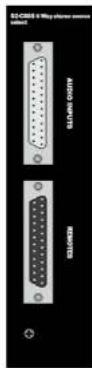
Rear Panel
Stereo Audio Source Input Connector
This 25 pin D type socket is used for all of the Stereo Source inputs, and has the following connections:
Pin 1: Screen, chassis.
Pin 2: OS 1 Left phase.
Pin 3: OS 1 Right phase.
Pin 4: OS 2 Left phase.
Pin 5: OS 2 Right phase.
Pin 6: OS 3 Left phase.
Pin 7: OS 3 Right phase.
Pin 8: OS 4 Left phase.
Pin 9: OS 4 Right phase.
Pin 10: OS 5 Left phase.
Pin 11: OS 5 Right phase.
Pin 12: OS 6 Left phase.
Pin 13:05 & Right phase.
Pin 14: OS 1 Left non-phase.
Pin 15:05 1 Right non-phase.
Pin 16: OS 2 Left non-phase.
Pin 17: OS 2 Right non-phase.
Pin 18: OS 3 Left non-phase.
Pin 19: OS 3 Right non-phase.
Pin 20: OS 4 Left non-phase.
Pin 21: OS 4 Right non-phase.
S2-C6SS 6 WAY STEREO LINE SOURCE SELECT CHANNEL WITH EQ


Source Remotes Connector
This 25 pin D type plug provides remote start/stop outputs for all the sources, and has the following connections;
Pin 1: Screen, chassis.
Pin 2:05 1 Start.
Pin 3: OS 1 Start Common.
Pin 4:05 2 Start.
Pin 5: OS 2 Start Common.
Pin 6: OS 3 Start
Pin 7: OS 3 Start Common.
Pin 8: OS 4 Start.
Pin 9: OS 4 Start Common.
Pin 10: OS 5 Start.
Pin 11: OS 5 Start Common.
Pin 12: OS 6 Start.
Pin 13: OS 6 Start Common.
Pin 14: OS 1 Stop.
Pin 15: OS 1 Stop Common.
Pin 16: OS 2 Stop.
Pin 17: OS 2 Stop Common.
Pin 18: OS 3 Stop.
Pin 19: OS 3 Stop Common.
Pin 20: OS 4 Stop.
Pin 21: OS 4 Stop Common.
Pin 22: OS 5 Stop.
Pin 23: OS 5 Stop Common.
Pin 24: OS 6 Stop.
Pin 25: OS 6 Stop Common.
Channel Options, Jumper Settings and Presets
The 6 way stereo line source select with EQ channel can be configured in a number of different ways depending on the jumper options set on the board. The on board processors software is configured by jumpers J1 to J3. Other, customer specific, options can be programmed into the software by special order. Special logic options will be identified by having links LK4 and LK5 fitted.
The standard options available are:
- Enable or disable Cue/PFL cancel from fader.
F-11. 2017.1.14

Summary of Jumper Settings for the 6 Way Stereo Source Channel With EQ
| Jumper Set over Pins Effect | ||
| J1 | 1 & 2None | Fader up signal cancels previously selected Cue/PFL.Normal Cue/PFL function. |
| J2 | 1 & 2None | Continuous momentary start from ON button, see following description.Normal start function. |
| J3 | 1 & 2None | Latching contact for all remote starts.Momentary contact for all remote starts. |
| J4 | 1 & 22 & 3None | Auto start Timer 1.Auto start Timer 2.No timer function. |
Note: Options in bold are set as default when shipped.
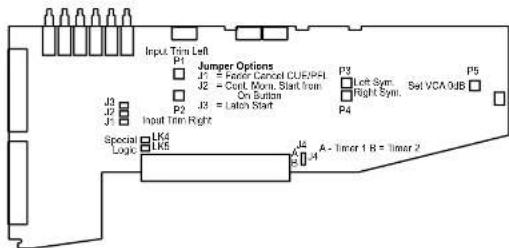
Fig 10-1:526 Way Source Selector Board Layout
Cue/PFL Cancel
The Cue/PFL function is normally an alternate action. Press the button to select and press again to de-select. However it may be desirable to have the fader up signal cancel a Cue/PFL selection. Placing a jumper over J1 pins 1 & 2 will enable a previously selected Cue/PFL function to be cancelled when the fader is up and the channel is ON. The default setting for J1 is none (not fitted).
Continuous Momentary Start
The continuous momentary start function can be used for equipment that only ever
S2-C6SS 6 WAY STEREO LINE SOURCE SELECT CHANNEL WITH EQ


Source Remotes
The remote outputs for the six sources can be used for a start and stop function wired to other studio equipment such as CDs or MDs. The default setting for J3 is none (not fitted), which produces a momentary remote contact. If your equipment requires a latching contact for remote start then a jumper should be placed over pins 1 & 2 of J3. The remote stops are always momentary. It is not possible to configure a latching remote start output when the continuous momentary start option has been selected.
Timer Auto Start
The dual timer in the meterbridge can be set to start automatically from a fader open/ channel On signal. Jumper J4 determines which timer is set to auto-start. A jumper over pins 1 & 2 will start Timer 1, shifting the jumper to pins 2 & 3 will start Timer 2. The default setting of J4 is none (not fitted).
Presets
Two presets are available for adjustment of the input gain, left and right, for all six line inputs. Presets, P1 (left), P2 (right) provide 16dB of gain adjustment, allowing an input range of 14dB to -10dB referenced to 0dB output. The presets should be adjusted to give 0dB output for the chosen source, and will cater for professional equipment with nominal output levels up to 14dB and non-professional equipment with nominal output levels down to -10dBY. The levels are preset for 0dB input when shipped.
A third preset, PS, sets the VCA fader gain to 0dB when the fader is fully open. This is preset on final test and should not require further adjustment, unless it has been found necessary to replace the fader or other VCA components.
Presets P3 & P4 are for altering the audio waveform symmetry (i.e. distortion). They are factory set on final test and should not be adjusted further.
Button Mode Settings
To make the S2 modules as flexible as possible, every button on each channel can be set to a number of different modes. These will aid in the use of the mixer and allow for extra functionality. To make use of these modes, you must enter a setup mode which is exactly the same for every module. It is only necessary to perform this procedure once.
To enter the setup mode, hold down the PGM and AUD buttons together for 5 seconds. After which all the buttons will start a recurring flashing sequence, at this point it is ok to release the PGM and AUD buttons. This sequence indicates the mode which each button is currently set to. One flash equals mode one, two flashes equals mode two etc. To change the mode for a particular button simply press it once and watch the number of flashes increase. Once the maximum mode number has been reached it will simply wrap around to mode one and continue as before. To exit this setup procedure press and hold both the PGM and

Each button and their corresponding modes are listed below.
PGM
Mode 1: Normal. The program bus can be selected as normal.
Mode 2: Always on. The program bus is permanently selected
Mode 3: Always off. The program bus is permanently deselected.
AUD
Mode 1: Normal. The audition bus can be selected as normal.
Mode 2: Always on. The audition bus is permanently selected.
Mode 3: Always off. The audition bus is permanently deselected.
Source Select
Mode 1 : Normal. The source can be selected and deselected as normal.
Mode 2: Interlocking. The source can only be deselected by the selection of another source.
Mode 3: Always off. The source is permanently deselected.
EQ
Mode 1: Normal. Equalization can be enabled or disabled as normal.
Mode 2: Always enabled. Equalization controls are permanently enabled.
Mode 3: Always disabled. Equalization controls are permanently disabled.
Cue/PFL
Mode 1: Normal. Cue/PFL is selected as normal, with both a momentary or latched operation.
Mode 2: Latched. Cue/PFL is selected as normal, but will only work with a latched operation.
Mode 3: Momentary. Cue/PFL is selected as normal, but will only work with a momentary operation.
Mode 4: Normal with remotes. Cue/PFL is selected as normal, with both a momentary or latched operation and will also activate the remotes if the channel is not live.
Mode 5: Latched with remotes. Cue/PFL is selected as normal, but with only a latched operation and will also activate the remotes if the channel is not live.
Mode 6: Momentary with remotes. Cue/PFL is selected as normal, but with only a momentary operation and will also activate the remotes if the channel is not live.
ON
Mode 1: Normal.
-
-
-
-
-
-
-
-
-
-
-
-
-
-
-
-
-
-
-
-
-
-
-
-
-
-
-
-
-
-
-
-
-
-
-
-
-
-
-
-
-
-
-
-
-
-
-
-
-
-
-
-
-
-
-
-
-
-
- 60.
-
-
-
-
-
-
-
-
-
-
-
-
-
-
-
-
-
-
-
-
-
-
-
-
-
-
-
-
-
-
-
-
-
-
-
-
-
-
-
-
-
-
-
-
-
-
-
-
-
-
-
-
-
-
-
-
-

S2-CT TELCO CHANNEL WITH EQ


11 S2-CT Telco Channel With EQ
Panel Controls
PGM and AUD Selection
Selecting the PGM, AUD buttons routes the channel audio output to the PGM and/or AUD mix buses. The buttons are illuminated in green to indicate the routing status. Changing the status of the PGM button is inhibited when the channel is "live". Selecting the PGM button also routes the channel to one of the two true cleanfeed buses. When selecting the AUD button only, a cleanfeed is generated via the channel mix-minus system. When both PGM and AUD are selected the channel operates in the true cleanfeed mode, sending the PGM signal to the cleanfeed bus.
Equalisation Controls
The HF and LF controls are used to adjust the equalisation of the signal. The HF control boosts and cuts the signal by ±7dB at 6.5kHz. The LF control boosts and cuts the signal by ±7dB at 100Hz. The EQ button places the equalisation in and out of the signal path. The button is illuminated in yellow when the EQ is active.
TRIM control
The TRIM control provides an additional ± 12dB of gain to fine tune the input signal level.
BAL/PAN Control
The BAL/PAN control is used to pan the mono input signal in the stereo image. Full anti-clockwise pans the signal to the left and increases the signal by 3dB (right channel reduces by 70dB); full clockwise pans the signal to the right and increases the signal by 3dB (left channel reduces by 70dB).
CUE/PFL & T/B Selection
Selecting the CUE/PFL & T/B button routes the pre-fader input signal to the monitoring system where the signal can be heard via headphones and/or loudspeakers. The level may be checked on meters and adjusted via the TRIM control and panned via the BAL/PAN control. In addition, talkback is routed back to the caller via the cleanfeed system. This enables the presenter/technical operator to communicate with the caller prior to putting the caller live to air. The button is illuminated in green when CUE/PFL is active. There is a jumper option to cancel the CUE/PFL selection when the fader is raised. This button works with both a momentary and latched operation. If held down, the selection is cancelled when released, otherwise the button is


button is selected and either or both of the routing buttons are selected.
LINE HOLD Selection
The LINE HOLD button works in conjunction with the fader and is used to control channel remotes and routing. The button shows various states. When unlit the channel is off. Flashing red indicates that the channel has been selected to LINE HOLD but remains unroouted i.e. neither PGM or AUD is selected. Steady red indicates that the channel is holding the telephone line and "armed", ready for the fader to be raised. Raising the fader changes the illumination to green indicating that the channel is live. Alternatively, with the button until the fader may be raised and the channel can be operated simply by selecting LINE HOLD button (Note though that this will cause dial tone and the dialling of the call to be heard on-air). The illumination in this case toggles between unit (channel off) and green (channel on). Remotes are triggered when the LINE HOLD button is on.
Scribble Pad
A scribble pad is provided at the bottom for user labelling of the channel function.
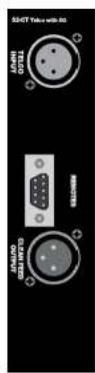
Rear Panel
Telco Line Input Connector
This XLR 3 pin socket is used for the electronically balanced telco line input, and has the following connections:
Pin 1: Screen.
Pin 2: Phase
Pin 3: Non-phase.
Remotes Connector
This 9 pin D type plug provides inputs and outputs for the following channel functions;
- TBU hold
The connector pin-out is as follows;
Pin 1: Onto isolated TBU hold NPN collector.
Pin 2: Common NPN emitter for above.
Pin 3: No connection.
Pin 4: No connection.
Pin 5: No connection.
Pin 6: No connection.
Pin 7:0V logic
Pin 8: General purpose input.

11 S2-CT TELCO CHANNEL WITH EQ

Pin 1: Screen.
Pin 2: Phase.
Pin 3: Non-phase.
Channel Options, Jumper Settings and Presets
The telco channel with EQ can be configured in a number of different ways depending on the jumper options set on the board. The on-board processor's software is configured by jumpers J1, J4 and channel identifying links. The telco channel is identified by having links LK21 and LK22 fitted. Other, customer specific, options can be programmed into the software by special order. Special logic options will be identified by having links LK23 and LK24 fitted.
The standard options available are;
- Select momentary or latched Hybrid hold.
- Enable or disable Cue/PFL cancel from fader.
- Cleanfeed selection - jumpers J11 & J12 must be set the same for a telco module
- Select timer option.
- Mute Cleanfeed on Talkback enable.
Summary of Jumper Settings for the Telco Channel With EQ
| Jumper Set over Pins Effect | ||
| J1 | 1 & 2None | Latching contact for telephone hybrid holdMomentary contact for telephone hybrid hold. |
| J2 | 1&2None | Mute C/F on Talkback enable.Talkback mixed onto C/F output on Talkback enable. |
| J3 | 1&2None | Continuous momentary start from Line Hold button.Normal start function. |
| J4 | 1 & 2None | Fader up signal cancels previously selected CUE/PFLNormal Cue/PFL function. |
| J5 Not Fitted | ||
| J6 Not Fitted | ||
| J7 Not Fitted | ||
| J8 Not Fitted | ||
| J9 Not Fitted | ||
| J10 Not Fitted | ||
| J11 | 1 & 22 & 3 | Set-up for cleanfeed bus 1.Set-up for cleanfeed bus 2. |
| J12 | 1 & 22 & 3 | Set-up for cleanfeed bus 1.Set-up for cleanfeed bus 2. |


Fig 11-1:52 Telco Input Board Layout.
Remote for Hybrid Hold
The remote output of the Telco channel can be used to hold the line on a telephone hybrid when the channel is ON and the fader is up. The hybrid is also put on hold when the Cue/PFL & T/B button is selected. Jumper J1 is placed over pins 1 & 2. This is the default setting and produces a latched remote output. If your hybrid requires a momentary contact then remove J1.
CUE/PFL & T/B Cancel
The CUE/PFL & T/B function is normally an alternate action. Press the button to select and press again to de-select. However it may be desirable to have the fader up signal cancel a CUE/PFL & T/B selection. Placing a jumper over J4 pins 1 & 2 will enable a previously selected CUE/PFL & T/B function to be cancelled when the fader is up and the channel is ON. The default setting is none (not fitted).
Jumpers J5 to J10 inclusive are not fitted to the Telco channel.
Cleanfeed Bus Output Select
The jumpers J11 and J12 determine which of the two true cleanfeed buses the channel uses. There can only be a maximum of two telco channels in each mixer and they must not share a cleanfeed bus.
If you have only one telco channel, the jumpers are fitted over pins 1 & 2 of J11 and J12, using cleanfeed 1. J2 on the S2-ODP should also be fitted to terminate cleanfeed 2.
If a second telco channel is present in the mixer, then this second channel should have the jumpers fitted over pins 2 & 3 of J11 and J12, using cleanfeed 2 only. In this case J2 on the

S2-CT TELCO CHANNEL WITH EQ
11 S2-CT TELCO CHANNEL WITH EQ
Jumper J2 is not set on the telco channel, so that the talkback is mixed to the cleanfeed output. Then to operate, press the PFL button on the telco module so that the mic input, which is connected to the talkback bus, is routed to the cleanfeed bus sent to the caller.
Presets
The line input preset, P3, provides 16dB of gain adjustment, allowing an input range of +6dB to -10dB referenced to 0dB output. The preset should be adjusted to give 0dB output for the chosen telephone hybrid, and will cater for professional equipment with nominal output levels up to +4dB and non-professional equipment with nominal output levels down to -10dBV. The level is preset for 0dB input when shipped.
The cleanfeed output level preset, P4, provides 10dB of gain adjustment, allowing an output level from -6dB to +4dB and should be adjusted to suit the level expected by the hybrid in use. The level is preset for 0dB output when shipped.
Presets P5 & P6 are for altering the audio waveform symmetry (i.e. distortion). They are factory set on final test and should not be adjusted further.
Two presets are used to set up the cleanfeed mix-minus null when the channel is routed to AUD only. With the channel routed to AUD only and a signal of 1 kHz applied to the input and adjusted to register OdB on the console output, P7 (left) and P8 (right) are adjusted for minimum signal at the cleanfeed output connector.
A further preset, P9, sets the VCA fader gain to 0dB when the fader is fully open. This is preset on final test and should not require further adjustment, unless it has been found necessary to replace the fader or other VCA components.
Terminating The Cleanfeed Buses
Depending on whether you have 1, 2 or no telco channels fitted, you may have to alter the cleanfeed bus termination on the digital PGM and AUD Output channels. Please refer to that section of the handbook for further info.
General Purpose Inputs
One input pin is available on the remotes connector that can be configured for general purpose use. It is completely configurable and can be set as latching or momentary and active high or active low.
The setup procedure for configuring the pin is described in the following steps. Since the settings are stored in non-volatile RAM, this only needs to be done once.
- To initiate setup, press and hold down the PGM button while pressing the AUD button five times. Once completed, all the buttons will turn off and after a short while will display the current setting for the inputs function (pin 8 on the remote connector).

General Purpose Input Function Options
| GPIO Function | ON Button | Cue/PFL Button | AUD Button | ||
| Input/Output | Latching/Momentary | Active Low/Active High | |||
| IL AL OFF | OFF OFF | ||||
| IM AL ON | OFF OFF | ||||
| IL AH OFF | ON OFF | ||||
| IM AH ON | ON OFF | ||||
Now select the action using the PGM button as before.
General Purpose Input Action Options
The functions available are described below.
| GPIO Action | Description | ON Button | Cue/PFL Button | AUD Button |
| None | OFF | OFF | OFF | |
| Talkback Enable | The remote pin controls Talkback enable to the C/F outputs. | ON | OFF | OFF |
| Fader ON | The remote pin controls the fader open function. When active, the fader is fully open. | OFF | ON OFF | |
| TBU Indicator | The remote pin controls the indicators within the Line Hold button. When this control is active, the Line Hold button will be green. When it is not active it will be red. The Line Hold button mode must be set to Mode 2 when this is used. | ON | ON OFF |
• Press the ON button to apply the setting.
• The module will exit the setup procedure and the module can now be used as normal.
Button Mode Settings
To make the 52 modules as flexible as possible, every button on each channel can be set to a number of different modes. These will aid in the use of the mixer and allow for extra functionality. To make use of these modes, you must enter a setup mode which is exactly the same for every module. It is only necessary to perform this procedure once.
To enter the setup mode, hold down the PGM and AUD buttons together for 5 seconds.
After which all the buttons will start a recurring flashing sequence, at this point it is ok to
11 S2-CT TELCO CHANNEL WITH EQ
AUD buttons as before for 2 seconds and the module will start operating as normal.
Each button and their corresponding modes are listed below.
PGM
Mode 1: Normal. The program bus can be selected as normal.
Mode 2: Always on. The program bus is permanently selected.
Mode 3: Always off. The program bus is permanently deselected.
AUD
Mode 1: Normal. The audition bus can be selected as normal.
Mode 2: Always on. The audition bus is permanently selected.
Mode 3: Always off. The audition bus is permanently deselected.
EQ
Mode 1: Normal. Equalization can be enabled or disabled as normal.
Mode 2: Always enabled. Equalization controls are permanently enabled.
Mode 3: Always disabled. Equalization controls are permanently disabled.
Cue/PFL&T/B
Mode 1: Normal. Cue/PFL is selected as normal, with both a momentary or latched operation.
Mode 2: Latched. Cue/PFL is selected as normal, but will only work with a latched operation.
Mode 3: Momentary. Cue/PFL is selected as normal, but will only work with a momentary operation.
ON
Mode 1: Normal.
Mode2: The LEDs in the ON button are controlled via the general purpose input, if configured to do so. If the remote input is not active, then the ON button will be Red. If the remote input is active then the ON button will be green. This is designed to show a visual indication of the state of a TBU connected to the channel.

12 S2 CSMM Stereo Mix Minus Channel With EQ
Panel Controls
PGM and AUD Selection
Selecting the PGM, AUD buttons routes the channel audio output to the PGM and/or AUD mix buses. The buttons are illuminated in green to indicate the routing status. Changing the status of the PGM button is inhibited when the channel is "live". Selecting the PGM button also routes the PGM main output via the mix minus system to the cleanfeed output. Similarly, selecting the AUD button routes the AUD main output to the mix minus system. When both PGM and AUD are selected the mix minus is derived from the PGM output.
Equalisation Controls
The HF and LF controls are used to adjust the equalisation of the signal. The HF control boosts and cuts the signal by ±7dB at 6.5kHz. The LF control boosts and cuts the signal by ±7dB at 100Hz. The EQ button places the equalisation in and out of the signal path. The button is illuminated in yellow when the EQ is active.
TRIM Control
The TRIM control provides an additional ± 12dB of gain to fine tune the input signal level.
BAL/PAN Control
The BAL/PAN control can be set to function as either a Balance or Pan control, depending on the setting of J12 & J13. As a balance control, full anti-clockwise shifts the signal to the left and increases the signal by 6dB (right channel reduces by 6dB); full clockwise shifts the signal to the right and increases the signal by 6dB (left channel reduces by 6dB). As a pan control, full anti-clockwise pans the signal to the left and increases the signal by 6dB (right channel reduces by 70dB); full clockwise pans the signal to the right and increases the signal by 6dB (left channel reduces by 70dB).
CUE/PFL & T/B Selection
Selecting the CUE/PFL & T/B button routes the pre-fader input signal to the monitoring system where the signal can be heard via headphones and/or loudspeakers. The level may be checked on meters and adjusted via the TRIM control and balanced via the BAL/PAN control. In addition, talkback is routed to the cleanfeed output. This enables the presenter/technical operator to communicate with the remote source prior to going live to air. The button


S2-CSMM STEREO MIX MINUS CHANNEL WITH EQ
12
S2-CSMM STEREO MIX MINUS CHANNEL WITH EQ


The outputs on the this channel can also be configured by jumper settings as a mono sum of mix-minus on the left channel and continuous talkback on the right channel (for use with some ISDN codec applications and telephone balance units).
Fader
The 100mm VCA fader provides unity gain when fully open. The channel input signal is routed to the outputs whenever the fader is open, the ON button is selected and either or both of the routing buttons are selected.
ON Selection
The ON button works in conjunction with the fader and is used to control channel remotes, routing, timers, etc. The button shows various states. When until the channel is off. Flashing red indicates that the channel has been selected to ON but remains unrouted i.e. neither PGM or AUD is selected. Steady red indicates that the channel is ON and "armed", ready for the fader to be raised. Raising the fader changes the illumination to green indicating that the channel is live. Alternatively, with the button until the fader may be raised and the channel can be operated simply by selecting ON. The illumination in this case toggles between until, channel OFF and green, channel ON. Remotes, etc., are triggered when the fader is up and the channel ON button shows green.
Scribble Pad
A scribble pad is provided at the bottom for user labelling of the channel function e.g. 'OB1'.
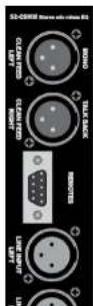
Rear Panel
Left Cleanfeed Output Connector
This XLR 3 pin plug is used for the left channel cleanfeed output, and has the following connections:
Pin 1: Screen.
Pin 2: Phase.
Pin 3: Non-phase.
Right Cleanfeed Output Connector
This XLR 3 pin plug is used for the right channel cleanfeed output, and has the following connections:
Pin 1: Screen.
Pin 2: Phase.
Pin 3: Non-phase.
Remotes Connector
This 9 pin D type plug provides inputs and outputs for the following

The connector pin-out is as follows;
Pin 1: Opto isolated Line input start NPN collector.
Pin 2: Common NPN emitter for Line 1 start and stop.
Pin 3: Opto isolated Line input stop NPN collector.
Pin 4: No connection.
Pin 5: No connection.
Pin 6: No connection.
Pin 7:0V logic.
Pin 8: General purpose I/O 1.
Pin 9: General purpose I/O 2.
Line Left Input Connector
This XLR 3 pin socket is used for the left channel input, and has the following connections;
Pin 1: Screen.
Pin 2: Phase.
Pin 3: Non-phase.
Line Right Input Connector
This XLR 3 pin socket is used for the right channel input, and has the following connections:
Pin 1: Screen.
Pin 2: Phase
Pin 3: Non-phase.
Channel Options, Jumper Settings and Presets
The stereo mix-minus channel with EQ can be configured in a number of different ways depending on the jumper options set on the board. The on-board processor's software is configured by jumpers J1 to J5 and channel identifying links. The stereo mix-minus channel is identified by having links LK8 and LK11 fitted. Other, customer specific, options can be programmed into the software by special order. Special logic options will be identified by having links LK9 and LK10 fitted.
The standard options available are:
- Select momentary or latched start for the input.
- Enable continuous momentary start from ON button.
- Enable or disable Cue/PFL cancel from fader.
- Select timer option.
• Cleanfeed output selection.

12
S2-CSMM STEREO MIX MINUS CHANNEL WITH EQ

Summary of Jumper Settings for the Stereo Mix-Minus Channel With EQ

| Jumper Set over Pins Effect | ||
| J1 | 1 & 2None | Latching contact for Line input remote start.Momentary contact for Line input remote start. |
| J2 Not Fitted | ||
| J3 | 1 & 2None | Continuous momentary start from ON button,see following description.Normal start function. |
| J4 | 1 & 2None | Fader up signal cancels previously selected Cue/PFL.Normal Cue/PFL function. |
| J5 | 1 & 2None | Mute C/F on Talkback enable.Talkback mixed onto C/F output on Talkback enable. |
| J6 | 1 & 27 & 3None | Auto start Timer 1.Auto start Timer 2.No timer function. |
| J7 Not Fitted | ||
| J8 Not Fitted | ||
| J9 | 1 & 22 & 3 | Cleanfeed left to C/F output left.Cleanfeed mono to C/F output left. |
| J10 | 1 & 22 & 3 | Cleanfeed right to C/F output right.Continuous talkback (T/B 1) to C/F output right. |
| J11 Not Fitted | ||
| J12 | 1&2None | Bal/Pan control is a Pan controlBal/Pan control is a Balance control |
| J13 | 1&2None | Bal/Pan control is a Pan controlBal/Pan control is a Balance control |
Note: Options in bold are set as default when shipped.


Remote for Line Input
The remote output for the Line input can be used for a start and stop function wired to other studio equipment such as CD or MD players. The default setting for J1 is none (not fitted), which produces a momentary remote contact. If your equipment requires a latching contact for remote start then a jumper should be placed over pins 1 & 2 of J1. The remote stop is always momentary.
Continuous Momentary Start
The continuous momentary start function can be used for equipment that only ever requires a remote start but not a stop. Placing a jumper over J3 pins 1 & 2 enables the function. When enabled the operation of the ON button is changed to a continuous start button. With the fader down, the button shows red. With the fader up, the button shows green and each press of the ON button will trigger a momentary start from the remote contacts. The default setting for J3 is none (not fitted). It is not possible to configure a latching remote start output when the continuous momentary start option has been selected.
CUE/PFL Cancel
The CUE/PFL function is normally an alternate action. Press the button to select and press again to de-select. However it may be desirable to have the fader up signal cancel a CUE/PFL selection. Placing a jumper over J4 pins 1 & 2 will enable a previously selected CUE/PFL function to be cancelled when the fader is up and the channel is ON. The default setting is none (not fitted).
Jumper J5 is not fitted to this channel.
Timer Auto Start
The dual timer in the meterbridge can be set to start automatically from a fader open/channel On signal. Jumper J6 determines which timer is set to auto-start. A jumper over pins 1 & 2 will start Timer 1, shifting the jumper to pins 2 & 3 will start Timer 2. The default setting of J6 is none (not fitted).
Jumpers J7 and J8 are not fitted to this channel.
Cleanfeed Output Selection
The default setting for jumpers J9 and J10 is over pins 1 & 2 which gives stereo cleanfeed outputs. There may be a situation where only mono cleanfeed is required with a continuous feed of talkback from the studio. Placing jumper J9 over pins 2 & 3 places mono cleanfeed on the left cleanfeed output and placing jumper J10 over pins 2 & 3 places the continuous talkback feed on the right cleanfeed output.
Presets
Two separate sets suitable for adjustment of the line between axis left and right. Separate 11

12 S2-CSMM STEREO MIX MINUS CHANNEL WITH EQ

Eight presets are used to adjust the cleanfeed null for the left and right channels. Cleanfeed is derived from the PGM or AUD output buses and are set up as follows. With the channel routed to PGM only and a signal of 1kHz applied to the input and adjusted to register 0dB on the console output, P5 (left) and P6 (right) are adjusted for minimum signal at the cleanfeed output connectors. The input signal frequency is then changed to 100Hz and P7 (left) and P8 (right) are adjusted for a level of -45dB at the cleanfeed output connectors. Change the routing to AUD only and repeat the set up using presets P9, P10 at 1kHz and P11, P12 at 100Hz. This will be set up during final test and should not require further adjustment, unless the channel position changes within the frame when minor adjustment may be required to maintain best performance.
Two presets are available for adjustment of the Cleanfeed gain, left and right. The presets P13 (left), P14 (right) should be adjusted to give 0dB output for the chosen source.
Presets P15 & P16 are for altering the audio waveform symmetry (i.e. distortion). They are factory set on final test and should not be adjusted further.
A further preset, P17, sets the VCA fader gain to 0dB when the fader is fully open. This is preset on final test and should not require further adjustment, unless it has been found necessary to replace the fader or other VCA components.
General Purpose I/O
Two I/O pins are available on the remotes connector that can be configured for general purpose use. They are completely configurable and can be set as inputs or outputs, latching or momentary and active high or active low,
The setup procedure for configuring the pins is described in the following steps. Since the settings are stored in non-volatile RAM, this only needs to be done once.
- To initiate setup, press and hold down the PGM button while pressing the AUD button five times. Once completed, all the buttons will turn off and after a short while will display the current setting for GPIO 1's function (pin 8 on the remote connector).
- Using the PGM button, cycle through the following options (shown in the table below) until the desired setting is selected. For example to set GPIO 1 to a latching, active high input, press the PGM button until only the CUE/PFL button is illuminated ON. This setting is then applied by pressing the ON button. The PGM button will flash quickly for about a second to indicate that the setting is stored.

General Purpose I/O Function Options
| GPIO Function | ON Button | Cue/PFL Button | AUD Button | ||
| Input/Output | Latching/Momentary | Active Low/Active High | |||
| I L AL OFF | OFF OFF | ||||
| I M AL ON | OFF OFF | ||||
| I L AH OFF | ON OFF | ||||
| I M AH | ON | ON OFF | |||
| O | L AL OFF | OFF ON | |||
| O | M AL ON | OFF ON | |||
| O | L AH OFF | ON | ON | ||
| O | M | AH | ON | ON | ON |
Now select GPIO 1's action using the PGM button as before.
General Purpose I/O Action Options
The functions available are dependent on whether the remote is set as an input or an
output. The two tables below describe the different functions available.
Input Functions
| GPIO Action | Description | ON Button | Cue/PFL Button | AUD Button |
| None | OFF | OFF | OFF | |
| Channel ON | The remote pin replicates the ON button in the module. Activating this control will turn the channel on or off. | ON OFF | OFF | |
| Talkback Enable | The remote pin controls Talkback enable to the C/F outputs. | OFF | ON | OFF |
| TBU Indicator | The remote pin controls the indicators within the ON button. When this control is active, the ON button will be green. When it is not active it will be red. The ON button mode must be set to Mode 3 when this action is used. | ON ON | OFF | |
| Fader On | The remote pin controls the fader open function. When active, the fader is fully open. | OFF | OFF | ON |
Output Functions
| GPIO Action | Description | ON Button | Cue/PFL Button | AUD Button |

12 S2-CSMM STEREO MIX MINUS CHANNEL WITH EQ

- As before, press the ON button to apply the setting, noticing that the PGM button flashes.
- The module will now display the current setting of GPIO 2's function. This is changed in exactly the same way as GPIO 1, selecting from the options in the above table.
- Once the ON button is pressed, this setting is stored and the action can be selected.
• After the next ON button press, the module will exit the setup procedure and the module can now be used as normal.
Button Mode Settings
To make the S2 modules as flexible as possible, every button on each channel can be set to a number of different modes. These will aid in the use of the mixer and allow for extra functionality. To make use of these modes, you must enter a setup mode which is exactly the same for every module. It is only necessary to perform this procedure once.
To enter the setup mode, hold down the PGM and AUD buttons together for 5 seconds. After which all the buttons will start a recurring flashing sequence, at this point it is ok to release the PGM and AUD buttons. This sequence indicates the mode which each button is currently set to. One flash equals mode one, two flashes equals mode two etc. To change the mode for a particular button simply press it once and watch the number of flashes increase. Once the maximum mode number has been reached it will simply wrap around to mode one and continue as before. To exit this setup procedure press and hold both the PGM and AUD buttons as before for 2 seconds and the module will start operating as normal.
Each button and their corresponding modes are listed below.
PGM
Mode 1: Normal. The program bus can be selected as normal.
Mode 2: Always on. The program bus is permanently selected.
Mode 3: Always off. The program bus is permanently deselected.
AUD
Mode 1: Normal. The audition bus can be selected as normal.
Mode 2: Always on. The audition bus is permanently selected.
Mode 3: Always off. The audition bus is permanently deselected.
EQ
Mode 1: Normal. Equalization can be enabled or disabled as normal.
Mode 2: Always enabled. Equalization controls are permanently enabled.

Cue/PFL
Mode 1: Normal. Cue/PFL is selected as normal, with both a momentary or latched operation.
Mode 2: Latched. Cue/PFL is selected as normal, but will only work with a latched operation.
Mode 3: Momentary. Cue/PFL is selected as normal, but will only work with a momentary operation.
Mode 4: Normal with remotes. Cue/PFL is selected as normal, with both a momentary or latched operation and will also activate the remotes if the channel is not live.
Mode 5: Latched with remotes. Cue/PFL is selected as normal, but with only a latched operation and will also activate the remotes if the channel is not live.
Mode 6: Momentary with remotes. Cue/PFL is selected as normal, but with only a momentary operation and will also activate the remotes if the channel is not live.
ON
Mode 1: Normal.
Mode 2: Operates as normal except the start function is activated from first fader up and on combination. Thereafter, subsequent lowering and raising of the fader does not activate a start or stop. Stop is only generated when channel is turned off.
Mode 3: The LEDs in the ON button are driven by the GPIO set to TBU indicator mode.

OUTPUT CHANNELS

13 Output Channels
There are six different output channels, available for installation in the mixer as well as a blank channel and script space. The channels are each covered in the following chapters, but a summary follows:
S2-ODP Digital PGM Output Channel &
S2-ODPF Digital PGM Output Channel With Master Fader
This channel is common to every mixer and provides a digital and analogue stereo output from the PGM mix bus and a mono analogue output. The digital output is available as a balanced AES/EBU signal via standard XLRs or as S/PDIF on phone sockets. The sample rate can be set automatically or by internal jumpers from 32 kHz to 96 kHz. The output sample size can be set to 16, 18 or 24 bits on Version 1 modules, but is always 24 bits on Version 2 modules. The balanced analogue PGM output and mono output is available on a 15 way D type connector.
Button switches at the top of the channel select the mono output source. The S2-ODPF version has output faders for production use.
S2-ODA Digital AUD Output Channel &
S2-ODAF Digital AUD Output Channel With Master Fader
This channel is common to every mixer and provides a digital and analogue output from the AUD mix bus. The digital output is available as a balanced AES/FBU signal via standard XLRs or as S/PDIF on phono sockets. The sample rate can be set automatically or by internal jumpers from 32 kHz to 96 kHz. The output sample size can be set to 16, 18 or 24 bits on Version 1 modules, but is always 24 bits on Version 2 modules. The balanced analogue AUD outputs are available on a 15 way D type connector.
Button switches at the top of the channel select the monitoring source to the meterbridge. The S2-ODAF version has output faders for production use.
S2-OMC Control Room Monitor Channel
The Control Room Monitor channel is used for the monitoring of various sources on the control room loudspeakers and (presenters) headphones. A suitable power amplifier connected to the channel monitor output must be used to drive the loudspeakers. A front panel control is used to vary the monitor level. Headphones can be driven directly from the channel headphone connector on the front or rear panel via the level control.
A 4 way electronically interlocking switch bank selects the source routed to the speakers and headphones from either of two external Inputs, the PGM, or AUD output. "Auto PFL" buttons adjacent to each level control allow the monitoring of PFL when an input channel has been selected to CIEPBL. In addition, Split PFL can be selected to the headphones

to allow every contribution point in the control room and studio to communicate with each other via their microphone and headphones.
An illuminated Mute LED shows when a live microphone channel in the control room has muted the control room speakers.
S2-OMS Studio Monitor Channel
The Studio Monitor channel is used for the monitoring of various sources on the studio loudspeakers and headphones. A suitable power amplifier connected to the channel monitor output must be used to drive the loudspeakers. A front panel control is used to vary the monitor level. Headphones can be driven directly from the channel headphone connector on the rear panel via the level control.
A 4 way electronically interlocking switch bank selects the source routed to the speakers and headphones from either of two external Inputs, the PGM, or AUD output. *Auto PFL* buttons adjacent to each level control allow the monitoring of PFL when an input channel has been selected to CUE/PFL.
A separate Studio T/B button is provided to allow the presenter/engineer to talk to the studio at other times and internal jumpers allow this talkback to replace or dim the selected source. A Global Talkback system can be configured to allow every contribution point in the control room and studio to communicate with each other via their microphone and headphones.
An illuminated Mute LED shows when a live microphone channel in the studio has muted the studio speakers.

OUTPUT CHANNELS
14 S2-ODPF/S2-ODP DIGITAL OUTPUT PGM CHANNEL WITH & WITHOUT MASTER FADER (VERSION 1)

2-ODPF/S2-ODP DIGITAL OUTPUT PGM CHANNEL WITH & WITHOUT MASTER FADER (VERSION 1)


14 S2-ODPF/S2-ODP Digital Output PGM Channel With & Without Master Fader (Version 1)
A change was made to the hardware and firmware of the S2-ODPF/S2-ODP modules around January 2008. Modules prior to this date are likely to be Version 1, modules after this date are likely to be Version 2. Externally, the only way to check the Version number of this module which has been fitted into your S2, is to look at the layout of the connectors on the rear panel. If the POWER and OUTPUTS AND REMOTES connector is at the bottom of the panel (see page 99), then you have a Version 2 module. If these connectors are nearer the middle of the panel (see page 92), then it is Version 1.
Panel Controls
Mono Output Selection
The Mono compatible output can be used to feed a mono transmitter or any station output monitoring system that requires a mono signal such as a background music system. The Mono output can be derived from either the PGM or AUD outputs by selecting the appropriate button.
Lock Indicator
The illuminated lock indicator shows that the digital output is locked to the onboard master clock, incoming Word clock or AES/EBU, S/PDIF compatible sync signal. If sync is lost then the indicator will flash. The channel automatically searches for a sync signal on the Word Clock, or the selected digital input, and automatically locks to a valid sync clock. To disable locking to the AES/EBU or S/PDIF Input, simply remove jumpers J10 and J11.
Fader (S2-ODPF only)
The 100mm VCA fader provides unity gain when fully open.

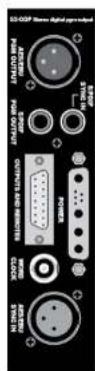
Rear Panel
AES/EBU PGM Output Connector
This XLR 3 pin plug is used for the AES/EBU Output, and has the following connections:
Pin 1: Screen.
Pin 2: Phase.
Pin 3: Non-phase.
S/PDIF PGM Output Connector
This phono connector is used for S/PDIF output. There are on board jumpers to set up this input in place of the AES/EBU output.
Inner: Signal.
Outer: Screen.
S/PDIF Sync Input Connector
This phono connector is used for the S/PDIF sync input. There is an on board jumper to set up this input in place of the AES/EBU sync input.
Inner Signal.
Outer Screen.
Outputs & Remotes Connector
This 15 pin D type socket provides outputs for the following channel functions:
- PGM analogue outputs
- Mono analogue output
• Control Room muting relays. The mute relay is a double pole relay, 2A at 30VDC max
The connector pin-out is as follows;
Pin 1: Chassis ground.
Pin 2: PGM left output phase.
Pin 3: PGM right output phase.
Pin 4: No connection.
Pin 5: No connection.
Pin 6: Mono output phase.
Pin 7: Control Room mute relay contact 1A (makes to pin 14).
Pin 8: Control Room mute relay contact 2A (makes to pin 15).
Pin 9: PGM left output non-phase.

14 S2-ODPF/S2-ODP DIGITAL OUTPUT PGM CHANNEL WITH & WITHOUT MASTER FADER (VERSION 1)

Word Clock Input Connector
This 75 ohm BNC socket is used for the word clock input, and has the following connections:
Inner Signal.
Outer: Screen.
AES/EBU Sync Input Connector
This XLR 3 pin socket is used for AES/EBU Sync Input, and has the following connections;
Pin 1: Screen.
Pin 2: Phase
Pin 3: Non-phase.
Channel Options, Jumper Settings and Presets
The PGM digital stereo output channel can be configured in a number of different ways depending on the jumper options set on the board. The on board processors software is configured by jumpers J3 to J9 and channel identifying links. The PGM digital output channel is identified by having links LK42 and LK45 fitted. The PGM digital output channel with fader is identified by having links LK42, LK45 and LK46 fitted.
The standard options available are;
• Cleanfeed mix bus termination.
- Select mode and sample rate.
- Select output sample size.
- Select channel status bits.
- Select AES/EBU or S/PDIF output.
- Select AES/EBU or S/PDIF sync input.

Summary of Jumper Settings for the PGM Digital Output Channel
| Jumper | Set over Pins | Effect |
| J1 | 1 & 2None | Cleanfeed 1 terminated.Cleanfeed 1 active. |
| J2 | 1 & 2None | Cleanfeed 2 terminated.Cleanfeed 2 active. |
| J3-J6 See table (page 96) Synchronisation Mode & Sample Rate Selection. | ||
| J7-J8 See table (page 96) Output Bit Depth Selection. | ||
| J9 See table (page 96) Channel Status Bits Selection. | ||
| J10 | 1 & 22 & 3 | AES/EBU sync input selected.S/PDIF sync input selected. |
| J11 1 & 2 AES/EBU sync Input selected. | ||
| 2 & 3 S/PDIF sync input selected. | ||
| J12 1 & 2 S/PDIF output selected. | ||
| 2 & 3 AES/EBU output selected. | ||

Note: Options in bold are set as default when shipped.
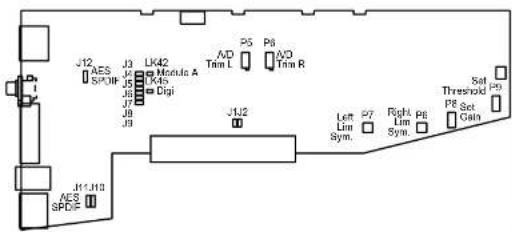
Fig 14-1:52 Digital PGM Output Board Layout.
S2-ODPF/S2-ODP DIGITAL OUTPUT PGM CHANNE WITH & WITHOUT MASTER FADER (VERSION 1)
14 S2-ODPF/S2-ODP DIGITAL OUTPUT PGM CHANNEL WITH & WITHOUT MASTER FADER (VERSION 1)
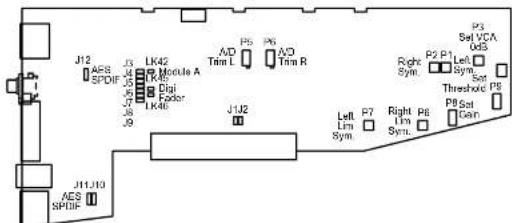
Fig 14 2: S2 Digital PGM Output With Fader Board Layout.
Cleanfeed Terminations
If the console is supplied without Telco channels then J1 and J2 will be fitted to terminate the cleanfeed mix buses. With one Telco channel only J2 is fitted and with two Telco channels no jumpers are fitted. There is no default setting.
Synchronisation Mode and Sample Rate
The following jumpers, J3 to J9, are used for setting the Sync Mode and Sample Rate of the digital output.
In Master mode, the digital output sample rate is simply set by, and locked to, the internal on-board clock generator. No sync signal is used or required.
In Auto mode the sample rate follows the sync input. When the sync signal is not present the sample rate will be set by, and locked to, the internal on-board clock generator at a frequency determined by the jumpers.
In Auto Lock mode, the sample rate follows the sync input. If the sync signal is removed then the sample rate will be set by, and locked to, the internal on-board clock generator at the closest frequency available to the previous sync input. When there has been no sync input detected the output will lock to the on-board clock generator at 32kHz.
In Slave mode, the sample rate follows the sync input. When the sync signal is not present the digital output is muted.

| Synchronisation Mode / Sample Rate (kHz) | J3 J4 J5 J6 | ||||
| MASTER | 32 Not Fitted Not Fitted Not Fitted Not Fitted | ||||
| 44.1 Fitted Not Fitted Not Fitted Not Fitted | |||||
| 48 Not Fitted Not Fitted Not Fitted Not Fitted | |||||
| 96 Fitted Not Fitted Fitted Not Fitted | |||||
| AUTO | 32 Not Fitted Fitted | Fitted Not Fitted | |||
| 44.1 Fitted | Fitted | Fitted Not Fitted | |||
| 48 Not Fitted Not Fitted Not Fitted Fitted | |||||
| 96 Fitted | Fitted | Not Fitted Fitted | |||
| Auto Lock | Not Fitted Not Fitted Fitted | Fitted | |||
| Slave Mode | Fitted Not Fitted Fitted | Fitted | |||
| Reserved | Not Fitted | Fitted | Fitted | Fitted | |
| Reserved | Fitted | Fitted | Fitted | Fitted | |
| Output Bit Depth | J7 J8 | |
| 16 bits | Not Fitted Not Fitted | |
| 20 bits | Fitted Not Fitted | |
| 24 bits | Not Fitted Fitted | |
| Reserved | Fitted | Fitted |
| Channel Status Bits | J9 |
| Consumer | Not Fitted |
| Professional | Fitted |
Sync Select
The pair of jumpers, J10 and J11, select the sync source between AES, pins 1 & 2, and S/PDIF, pins 2 & 3. The default is AES/EBU. Both jumpers need to be altered for this to work correctly.
Digital Output Mode
Jumper J12 selects the digital output mode between AES/EBU, pins 1 & 2, and S/PDIF, pins 2 & 3. The default is AES/EBU.
Presets
Presets P1 & P2 are for altering the audio waveform symmetry (i.e. distortion) through the VCA stage. They are factory set on final test and should not be adjusted further.
Preset P3 sets the VCA fader gain to 0dB when the fader is fully open. This is preset on final test and should not require further adjustment, unless it has been found necessary to

14
S2-ODPF/S2-ODP DIGITAL OUTPUT PGM CHANNEL WITH & WITHOUT MASTER FADER (VERSION 1)

Preset P8 sets the gain through the limiter that feeds the analogue to digital converters. Preset P9 sets the threshold. Presets P6 & P7 are for altering the audio waveform symmetry (i.e. distortion) through the limiting stage. They are all factory set on final test and should not be adjusted further.
ADC Calibration
For optimum performance, the module should be calibrated when it has been powered up for approximately 10-15 minutes. The circuitry and chipsets contained in the module will warm up during this time and the performance will deteriorate unless calibrated (the noise floor and dynamic range will be 1-2dB down on their best). The calibration cycle calibrates the gain and the zero reference of the A/D converter.
To calibrate, hold down the PGM button and press the AUD button 5 times. The lock LED on the front panel will flash quickly for 2 – 3 seconds and will return to it's previous state. The calibration procedure is now complete.
Button Mode Settings
To make the 52 modules as flexible as possible, every button on each channel can be set to a number of different modes. These will aid in the use of the mixer and allow for extra functionality. To make use of these modes, you must enter a setup mode which is exactly the same for every module. It is only necessary to perform this procedure once.
To enter the setup mode, hold down the PGM and AUD buttons together for 5 seconds. After which all the buttons will start a recurring flashing sequence, at this point it is ok to release the PGM and AUD buttons. This sequence indicates the mode which each button is currently set to. One flash equals mode one, two flashes equals mode two etc. To change the mode for a particular button simply press it once and watch the number of flashes increase. Once the maximum mode number has been reached it will simply wrap around to mode one and continue as before. To exit this setup procedure press and hold both the PGM and AUD buttons as before for 2 seconds and the module will start operating as normal.
Each button and their corresponding modes are listed below.
PGM
Mode 1: Normal. The PGM bus can be selected as the mono output source as normal.
Mode 2: Always on. The program bus is permanently selected as the mono output source.
Mode 3: Always off. The program bus can never be selected as the mono output source.
AUD
Mode 1: Normal. The AUD bus can be selected as the mono output source as normal.
Mode 2: Always on. The audition bus is permanently selected as the mono output source.

15 S2-ODPF/S2-ODP Digital Output PGM Channel With & Without Master Fader (Version 2)
A change was made to the hardware and firmware of the S2-ODPF/S2-ODP modules around January 2008. Modules prior to this date are likely to be Version 1, modules after this date are likely to be Version 2. Externally, the only way to check the Version number of this module which has been fitted into your S2, is to look at the layout of the connectors on the rear panel. If the POWER and OUTPUTS AND REMOTES connector is at the bottom of the panel (see page 99), then you have a Version 2 module. If these connectors are nearer the middle of the panel (see page 92), then it is Version 1.
Panel Controls
Mono Output Selection
The Mono compatible output can be used to feed a mono transmitter or any station output monitoring system that requires a mono signal such as a background music system. The Mono output can be derived from either the PGM or AUD outputs by selecting the appropriate button.
Lock Indicator
The Illuminated lock indicator shows that the digital output is locked to the onboard master clock, incoming Word clock or AES/EBU, S/PDIF compatible sync signal. If sync is lost then the indicator will flash. The channel automatically searches for a sync signal on the Word Clock, or the selected digital input, and automatically locks to a valid sync clock. To disable locking to the AES/EBU or S/PDIF Input, simply remove jumpers J10 and J11.
Fader (S2-ODPF only)
The 100mm VCA fader provides unity gain when fully open.
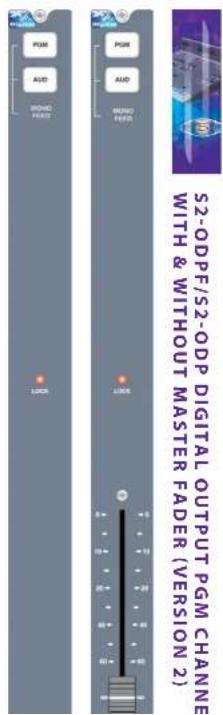
S2-ODPF/S2-ODP DIGITAL OUTPUT PGM CHANNEL WITH & WITHOUT MASTER FADER (VERSION2)



Rear Panel
AES/EBU PGM Output Connector
This XLR 3 pin plug is used for the AES/EBU Output, and has the following connections:
Pin 1: Screen.
Pln 2: Phase.
Pin 3: Non-phase.
S/PDIF PGM Output Connector
This phono connector is used for S/PDIF output. There are on board jumpers to set up this input in place of the AES/EBU output.
Inner: Signal.
Outer: Screen
S/PDIF Sync Input Connector
This phono connector is used for the S/PDIF sync input. There is an on board jumper to set up this input in place of the AES/EBU sync input.
Inner: Signal.
Outer: Screen.
Outputs & Remotes Connector
This 15 pin D type socket provides outputs for the following channel functions:
• PGM analogue outputs
• Mono analogue output
+ Control Room muting relays. The mute relay is a double pole relay, 2A at 30VDC max
The connector pin-out is as follows;
Pin 1: Chassis ground.
Pin 2: PGM left output phase.
Pin 3: PGM right output phase.
Pin 4: No connection.
Pin 5: No connection.
Pin 6: Mono output phase.
Pin 7: Control Room mute relay contact 1A (makes to pin 14).
Pin 8: Control Room mute relay contact 2A (makes to pin 15).
Pin 9: PGM left output non-phase.

Word Clock Input Connector
This 75 ohm BNC socket is used for the word clock input, and has the following connections:
Inner Signal.
Outer: Screen.
AES/EBU Sync Input Connector
This XLR 3 pin socket is used for AES/EBU Sync Input, and has the following connections;
Pin 1: Screen.
Pin 2: Phase.
Pin 3: Non-phase.
Channel Options, Jumper Settings and Presets
The PGM digital stereo output channel can be configured in a number of different ways depending on the jumper options set on the board. The on board processors software is configured by jumpers J3 to J9 and channel identifying links. The PGM digital output channel is identified by having links LK42 and LK45 fitted. The PGM digital output channel with Fader is identified by having links LK42, LK45 and LK46 fitted.
The standard options available are;
• Cleanfeed mix bus termination.
- Select mode and sample rate.
- Select channel status bits.
- Select AES/EBU or S/PDIF output.
- Select AES/EBU or S/PDIF sync input.

S2-ODPF/S2-ODP DIGITAL OUTPUT PGM CHANNE WITH & WITHOUT MASTER FADER (VERSION 2)
15
S2-ODPF/S2-ODP DIGITAL OUTPUT PGM CHANNEL WITH & WITHOUT MASTER FADER (VERSION2)

Summary of Jumper Settings for the PGM Digital Output Channel
| Jumper Set over Pins Effect | ||
| J1 | 1 & 2None | Cleanfeed 1 terminated.Cleanfeed 1 active. |
| J2 | 1 & 2None | Cleanfeed 2 terminated.Cleanfeed 2 active. |
| J3-J6 | See table (page 103) Synchronisation Mode & Sample Rate Selection. | |
| J7-J8 Reserved. | ||
| J9 See table (page 103) Channel Status Bits Selection. | ||
| J10 | 1 & 22 & 3 | AES/EBU sync input selected.S/PDIF sync input selected. |
| J11 1 & 2 AES/EBU sync input selected. | ||
| 2 & 3 S/PDIF sync input selected. | ||
| J12 1 & 2 S/PDIF output selected. | ||
| 2 & 3 AES/EBU output selected. | ||
| J13 | 1&2None | Reserved.Reserved. |
Note: Options in bold are set as default when shipped.


Fig 15-1:52 Digital PGM Output Board Layout.
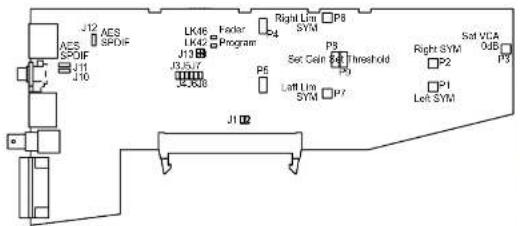
Fig 15-2: S2 Digital PGM Output With Fader Board Layout.
Cleanfeed Terminations
If the console is supplied without Telco channels then J1 and J2 will be fitted to terminate the cleanfeed mix buses. With one Telco channel only J2 is fitted and with two Telco channels no jumpers are fitted. There is no default setting.
Synchronisation Mode and Sample Rate
The following jumpers, J3 to J6 and J9 on V2, are used for setting the Sync Mode and Sample Rate of the digital output.
In Master mode, the digital output sample rate is simply set by, and locked to, the internal onboard clock generator. No sync signal is used or required.

S2-ODPF/S2-ODP DIGITAL OUTPUT PGM CHANNE WITH & WITHOUT MASTER FADER (VERSION 2)
15
S2-ODPF/S2-ODP DIGITAL OUTPUT PGM CHANNEL WITH & WITHOUT MASTER FADER (VERSION2)

In Auto Lock mode, the sample rate follows the sync input. If the sync signal is removed then the sample rate will be set by, and locked to, the internal on-board clock generator at the closest frequency available to the previous sync input. When there has been no sync input detected the output will lock to the on-board clock generator at 32kHz.
In Slave mode, the sample rate follows the sync input. When the sync signal is not present the digital output is muted.
| Synchronisation Mode / Sample Rate (kHz) | J3 J4 J5 J6 | |||
| MASTER | 32 Not Fitted Not Fitted Not Fitted Not Fitted | |||
| 44.1 Fitted Not Fitted Not Fitted Not Fitted | ||||
| 48 Not Fitted Fitted Not Fitted Not Fitted | ||||
| 96 Fitted Not Fitted Fitted Not Fitted | ||||
| AUTO | 32 Not Fitted Fitted Fitted Not Fitted | |||
| 44.1 Fitted Fitted Fitted Not Fitted | ||||
| 48 Not Fitted Not Fitted Not Fitted Fitted | ||||
| 96 Fitted Fitted Not Fitted Fitted | ||||
| Auto Lock Not Fitted Not Fitted Fitted Fitted | ||||
| Slave Mode Fitted Not Fitted Fitted Fitted | ||||
| Channel Status Bits J9 | |
| Consumer | Not Fitted |
| Professional | Fitted |
Sync Select
The pair of jumpers, J10 and J11, select the sync source between AES, pins 1 & 2, and S/PDIF, pins 2 & 3. The default is AES/EBU. Both jumpers need to be altered for this to work correctly.
Digital Output Mode
Jumper J12 selects the digital output mode between AES/EBU, pins 1 & 2, and S/PDIF, pins 2 & 3. The default is AES/EBU.
Presets
Presets P1 & P2 are for altering the audio waveform symmetry (i.e. distortion) through the
S2-ODPF/S2-ODP DIGITAL OUTPUT PGM CHANNEL WITH & WITHOUT MASTER FADER (VERSION 2) 15
Presets, P5 (left) and P4 (right), set the peak digits through the conditioning circuits to the analogue to digital converter. This is preset on final test and should not require further adjustment.
Preset P8 sets the gain through the limiter that feeds the analogue to digital converters. Preset P9 sets the threshold. Presets P6 & P7 are for altering the audio waveform symmetry (i.e. distortion) through the limiting stage. They are all factory set on final test and should not be adjusted further.
Button Mode Settings
To make the S2 modules as flexible as possible, every button on each channel can be set to a number of different modes. These will aid in the use of the mixer and allow for extra functionality. To make use of these modes, you must enter a setup mode which is exactly the same for every module. It is only necessary to perform this procedure once.
To enter the setup mode, hold down the PGM and AUD buttons together for 5 seconds. After which all the buttons will start a recurring flashing sequence, at this point it is ok to release the PGM and AUD buttons. This sequence indicates the mode which each button is currently set to. One flash equals mode one, two flashes equals mode two etc. To change the mode for a particular button simply press it once and watch the number of flashes increase. Once the maximum mode number has been reached it will simply wrap around to mode one and continue as before. To exit this setup procedure press and hold both the PGM and AUD buttons as before for 2 seconds and the module will start operating as normal.
Each button and their corresponding modes are listed below.
PGM
Mode 1: Normal. The PGM bus can be selected as the mono output source as normal.
Mode 2: Always on. The program bus is permanently selected as the mono output source.
Mode 3: Always off. The program bus can never be selected as the mono output source.
AUD
Mode 1: Normal. The AUD bus can be selected as the mono output source as normal.
Mode 2: Always on. The audition bus is permanently selected as the mono output source.
Mode 3: Always off. The audition bus can never be selected as the mono output source.
Note: If both buttons are set to mode 2 (Always on) then the mono output will be a mix of both PGM and AUD buses.

S2-ODPF/S2-ODP DIGITAL OUTPUT PGM CHANNE WITH & WITHOUT MASTER FADER (VERSION 2)
S2-ODAF/S2-ODA DIGITAL OUTPUT AUD CHANNEL WITH & WITHOUT MASTER FADER (VERSION 1)


2-ODAF/S2-ODA DIGITAL OUTPUT AUD CHANNEL WITH & WITHOUT MASTER FADER (VERSION 1)


16 S2-ODAF/S2-ODA Digital Output AUD Channel With & Without Master Fader (Version 1)
A change was made to the hardware and firmware of the S2-ODAF/S2-ODA modules around January 2008. Modules prior to this date are likely to be Version 1, modules after this date are likely to be Version 2. Externally, the only way to check the Version number of this module which has been fitted into your S2, is to look at the layout of the connectors on the rear panel. If the OUTPUTS AND REMOTES connector is at the bottom of the panel (see page 113), then you have a Version 2 module. If these connectors are nearer the middle of the panel (see page 106), then it is Version 1.
Panel Controls
Meter Display Selection
When the meters in the meterbridge are plugged up to the "Monitor Meter" position they will display the selected signal from the electronically interlocking PGM, AUD, or CR MON buttons. The CR MON signal source is the presenter's headphone on the control room monitor channel, pre talkback and level control. This signal could be PGM, AUD, EXT 1, EXT 2, or PFL, as selected by the presenter.
Lock Indicator
The illuminated lock indicator shows that the digital output is locked to the onboard master clock, incoming Word clock or AES/EBU, S/PDIF compatible sync signal. If sync is lost then the indicator will flash. The channel automatically searches for a sync signal on the Word Clock, or the selected digital input, and automatically locks to a valid sync clock. To disable locking to the AES/EBU or S/PDIF input, simply remove jumpers J10 and J11.
Fader (S2-ODAF only)
The 100mm VCA fader provides unity gain when fully open.

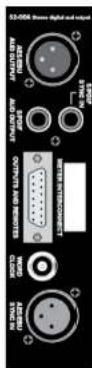
Rear Panel
AES/EBU AUD Output Connector
This XLR 3 pin socket is used for the AES/EBU Output, and has the following connections;
Pin 1: Screen.
Pin 2: Phase.
Pin 3: Non-phase.
S/PDIF AUD Output Connector
This phono connector is used for the S/PDIF Output. There are on board
jumpers to set up this output in place of the AES/EBU output.
Inner: Signal.
Outer Screen
S/PDIF Sync Input Connector
This phono connector is used for the S/PDIF sync input. There is an on board jumper to set up this input in place of the AES/EBU sync input.
Inner: Signal.
Outer: Screen.
Output & Remotes Connector
This 15 pin D type socket provides outputs for the following channel functions:
• AUD analogue outputs
- Studio muting relays. The mute relay is a double pole relay, 2A at 30VDC max
The connector pin-out is as follows;
Pin 1: Chassis ground.
Pin 2: AUD left output phase.
Pin 3: AUD right output phase.
Pin 4: No connection.
Pin 5: No connection.
Pin 6: No connection.
Pin 7: Studio mute relay contact 1A (makes to pin 14).
Pin 8: Studio mute relay contact 2A (makes to pin 15).
Pin 9: AUD left output non-phase.
Pin 10: AUD right output non-phase.
Pin 11: No connection

S2-ODAF/S2-ODA DIGITAL OUTPUT AUD CHANNEL WITH & WITHOUT MASTER FADER (VERSION 1)

Meterbridge Interconnect
An internal ribbon cable to the meterbridge is fitted to the AUD output channel and appears via the rear panel.
Word Clock Input Connector
This 75 ohm BNC socket is used for the word clock input, and has the following connections:
Inner: Signal.
Outer Screen.
AES/EBU Sync Input Connector
This XLR 3 pin socket is used for AES/EBU Sync Input, and has the following connections;
Pin 1: Screen.
Pin 2: Phase
Pin 3: Non-phase.
Channel Options, Jumper Settings and Presets
The AUD digital stereo output channel can be configured in a number of different ways depending on the jumper options set on the board. The on-board processor's software is configured by jumpers J3 to J9 and channel identifying links. The AUD digital output channel is identified by having links LK43 and LK45 fitted. The AUD digital output with fader is identified by having links LK43, LK45 and LK46 fitted.
The standard options available are:
- Select mode and sample rate.
- Select output sample size.
- Select channel status bits.
- Select AES/EBU or S/PDIF output
- Select AES/EBU or S/PDIF sync input.

Summary of Jumper Settings for the AUD Digital Output Channel
| Jumper | Set over Pins | Effect |
| J1 Not Fitted | ||
| J2 Not Fitted | ||
| J3-J6 See table (page 109) Synchronisation Mode & Sample Rate Selection. | ||
| J7 J8 See table (page 110) Output Bit Depth Selection. | ||
| J9 See table (page 111) Channel Status Bits Selection. | ||
| J10 | 1 & 22 & 3 | AES/EBU sync input selected.S/PDIF sync Input selected. |
| J11 1 & 2 | AES/EBU sync input selected. | |
| 2 & 3 S/PDF | sync input selected. | |
| J12 1 & 2 | S/PDIF output selected. | |
| 2 & 3 AES/EBU output selected. | ||
Note: Options in bold are set as default when shipped.

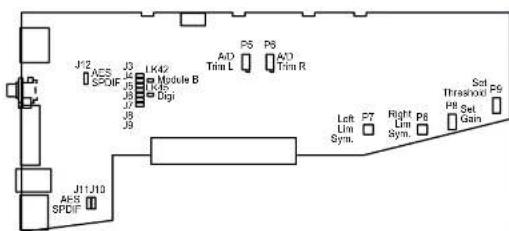
Fig 16 1:52 Digital AUD Output Board Layout.
S2-ODAF/S2-ODA DIGITAL OUTPUT AUD CHANNE WITH & WITHOUT MASTER FADER (VERSION 1)
16
S2-ODAF/S2-ODA DIGITAL OUTPUT AUD CHANNEL WITH & WITHOUT MASTER FADER (VERSION 1)


Fig 16-2:52 Digital AUD Output With Faster Board Layout.
Synchronisation Mode and Sample Rate
The following jumpers, J3 to J9, are used for setting the Sync Mode and Sample Rate of the digital output.
In Master mode, the digital output sample rate is simply set by, and locked to, the internal on-board clock generator. No sync signal is used or required.
In Auto mode the sample rate follows the sync input. When the sync signal is not present the sample rate will be set by, and locked to, the internal on-board clock generator at a frequency determined by the jumpers.
In Auto Lock mode, the sample rate follows the sync input. If the sync signal is removed then the sample rate will be set by, and locked to, the internal on-board clock generator at the closest frequency available to the previous sync input. When there has been no sync input detected the output will lock to the on-board clock generator at 32kHz.
In Slave mode, the sample rate follows the sync input. When the sync signal is not present the digital output is muted.
| Synchronisation Mode / Sample Rate (kHz) | J3 J4 J5 J6 | ||||
| MASTER | 32 Not Fitted Not Fitted Not Fitted Not Fitted | ||||
| 44.1 Fitted Not Fitted Not Fitted Not Fitted | |||||
| 48 Not Fitted Fitted Not Fitted Not Fitted | |||||
| 96 Fitted Not Fitted Fitted Not Fitted | |||||
| AUTO | 32 Not Fitted Fitted Fitted Not Fitted | ||||
| 44.1 Fitted Fitted Fitted Not Fitted | |||||
| 48 Not Fitted Not Fitted Not Fitted Not Fitted | |||||

| Output Bit Depth J7 J8 | ||
| 16 bits Not Fitted Not Fitted | ||
| 20 bits Fitted Not Fitted | ||
| 24 bits Not Fitted Fitted | ||
| Reserved | Fitted | Fitted |
| Channel Status Bits | J9 |
| Consumer | Not Fitted |
| Professional | Fitted |

Sync Select
The pair of jumpers, J10 and J11, select the sync source between AES, pins 1 & 2, and S/PDIF, pins 2 & 3. The default is AES/EBU. Both jumpers need to be altered for this to work correctly.
Digital Output Mode
Jumper J12 selects the digital output mode between AES/EBU, pins 1 & 2, and S/PDIF, pins 2 & 3. The default is AES/EBU.
Presets
Presets P1 & P2 are for altering the audio waveform symmetry (i.e. distortion) through the VCA stage. They are factory set on final test and should not be adjusted further.
Preset P3 sets the VCA fader gain to 0dB when the fader is fully open. This is preset on final test and should not require further adjustment, unless it has been found necessary to replace the fader or other VCA components.
Presets, P5 (left) and P4 (right), set the peak digits through the conditioning circuits to the analogue to digital converter. This is preset on final test and should not require further adjustment.
Preset P8 sets the gain through the limiter that feeds the analogue to digital converters. Preset P9 sets the threshold. Presets P6 & P7 are for altering the audio waveform symmetry (i.e. distortion) through the limiting stage. They are all factory set on final test and should not be adjusted further.
Gain can be altered using P4 and P5 on board versions S2-OP-04 and above, as P8 is no longer fitted on these boards.
ADC Calibration
For optimum performance, the module should be calibrated when it has been powered up for approximately 10-15 minutes. The circuitry and chipsets contained in the module will
S2-ODAF/S2-ODA DIGITAL OUTPUT AUD CHANNEL WITH & WITHOUT MASTER FADER (VERSION 1)

To calibrate, hold down the PGM button and press the AUD button 5 times. The lock LED on the front panel will flash quickly for 2 – 3 seconds and will return to it's previous state. The calibration procedure is now complete.
Button Mode Settings
To make the S2 modules as flexible as possible, every button on each channel can be set to a number of different modes. These will aid in the use of the mixer and allow for extra functionality. To make use of these modes, you must enter a setup mode which is exactly the same for every module. It is only necessary to perform this procedure once.
To enter the setup mode, hold down the PGM and AUD buttons together for 5 seconds. After which all the buttons will start a recurring flashing sequence, at this point it is ok to release the PGM and AUD buttons. This sequence indicates the mode which each button is currently set to. One flash equals mode one, two flashes equals mode two etc. To change the mode for a particular button simply press it once and watch the number of flashes increase. Once the maximum mode number has been reached it will simply wrap around to mode one and continue as before. To exit this setup procedure press and hold both the PGM and AUD buttons as before for 2 seconds and the module will start operating as normal.
Each button and their corresponding modes are listed below.
PGM
Mode 1: Normal. PGM can be selected as the meter feeder as normal.
Mode 2: Always on. PGM is permanently selected as the meter feed.
Mode 3: Always off. PGM can never be selected as the meter feed.
AUD
Mode 1: Normal. AUD can be selected as the meter feeder as normal.
Mode 2: Always on. AUD is permanently selected as the meter feed.
Mode 3: Always off. AUD can never be selected as the meter feed.
CR MON
Mode 1: Normal. The Control Room Monitor channel be selected as the meter feed as normal.
Mode 2: Always on. The Control Room Monitor channel is permanently selected as the meter feed.
Mode 3: Always off. The Control Room Monitor channel can never be selected as the meter feed.

17 S2-ODAF/S2-ODA Digital Output AUD Channel With & Without Master Fader (Version 2)
A change was made to the hardware and firmware of the S2-ODAF/S2-ODA modules around January 2008. Modules prior to this date are likely to be Version 1, modules after this date are likely to be Version 2. Externally, the only way to check the Version number of this module which has been fitted into your S2, is to look at the layout of the connectors on the rear panel. If the OUTPUTS AND REMOTES connector is at the bottom of the panel (see page 113), then you have a Version 2 module. If these connectors are nearer the middle of the panel (see page 106), then it is Version 1.
Panel Controls
Meter Display Selection
When the meters in the meterbridge are plugged up to the "Monitor Meter" position they will display the selected signal from the electronically interlocking PGM, AUD, or CR MON buttons. The CR MON signal source is the presenter's headphone on the control room monitor channel, pre talkback and level control. This signal could be PGM, AUD, EXT 1, EXT 2, or PFL, as selected by the presenter.
Lock indicator
The illuminated lock indicator shows that the digital output is locked to the onboard master clock, incoming Word clock or AES/EBU, S/PDIF compatible sync signal. If sync is lost then the Indicator will flash. The channel automatically searches for a sync signal on the Word Clock, or the selected digital Input, and automatically locks to a valid sync clock. To disable locking to the AES/EBU or S/PDIF input, simply remove jumpers J10 and J11.
Fader (S2-ODAF only)
The 100mm VCA fader provides unity gain when fully open.
Rear Panel
AES/EBU AUD Output Connector
This XI R 3 nin socket is used for the AFS/FBLI Output and



S2-ODAF/S2-ODA DIGITAL OUTPUT AUD CHANNE WITH & WITHOUT MASTER FADER (VERSION 2)
17 S2-ODAF/S2-ODA DIGITAL OUTPUT AUD CHANNEL WITH & WITHOUT MASTER FADER (VERSION 2)

S/PDIF AUD Output Connector
This phono connector is used for the S/PDIF Output. There are on board jumpers to set up this output in place of the AES/EBU output. Inner: Signal.
Outer Screen
S/PDIF Sync Input Connector
This phono connector is used for the S/PDIF sync Input. There is an on board jumper to set up this input in place of the AES/EBU sync input.
Inner Signal.
Outer: Screen
Output & Remotes Connector
This 15 pin D type socket provides outputs for the following channel functions:
• AUD analogue outputs
- Studio muting relays. The mute relay is a double pole relay, 2A at 30VDC max
The connector pin-out is as follows;
Pin 1: Chassis ground.
Pin 2: AUD left output phase.
Pin 3: AUD right output phase.
Pin 4: No connection.
Pin 5: No connection.
Pin 6: No connection.
Pin 7: Studio mute relay contact 1A (makes to pin 14).
Pin 8: Studio mute relay contact 2A (makes to pin 15).
Pin 9: AUD left output non-phase.
Pin 10: AUD right output non-phase.
Pin 11: No connection.
Pin 12: No connection.
Pin 13: No connection.
Pin 14: Studio mute relay contact 1B.
Pin 15: Studio mute relay contact 2B.
Meterbridge Interconnect
An internal ribbon cable to the meterbridge is fitted to the AUD output channel and appears via the rear panel.
Word Clock Input Connector
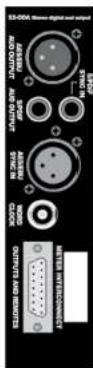

Pin 1: Screen.
Pin 2: Phase.
Pin 3: Non-phase.
Channel Options, Jumper Settings and Presets
The AUD digital stereo output channel can be configured in a number of different ways depending on the jumper options set on the board. The on-board processor's software is configured by jumpers J3 to J9 and channel Identifying links. The AUD digital output channel is identified by having links LK43 and LK45 fitted. The AUD digital output with fader is identified by having links LK43, LK45 and LK46 fitted.
The standard options available are:
- Select mode and sample rate.
- Select channel status bits.
- Select AES/EBU or S/PDIF output.
- Select AES/EBU or S/PDIF sync Input.
Summary of Jumper Settings for the AUD Digital Output Channel
| Jumper | Set over Pins | Effect |
| J1 Not Fitted | ||
| J2 Not Fitted | ||
| J3-J6 See table (page 116) Synchronisation Mode & Sample Rate Selection. | ||
| J7-J8 Reserved. | ||
| J9 See table (page 116) Channel Status Bits Selection. | ||
| J10 | 1 & 22 & 3 | AES/FBU sync input selected.S/PDIF sync input selected. |
| J11 1 & 2 | AES/FBU sync input selected. | |
| 2 & 3 S/PDIF sync input selected. | ||
| J12 1 & 2 | S/PDIF output selected. | |
| 2 & 3 AES/FBU output selected. | ||
| J13 | 1&2None | Reserved.Reserved. |

S2-ODAF/S2-ODA DIGITAL OUTPUT AUD CHANNE WITH & WITHOUT MASTER FADER (VERSION 2)
17
S2-ODAF/S2-ODA DIGITAL OUTPUT AUD CHANNEL WITH & WITHOUT MASTER FADER (VERSION 2)


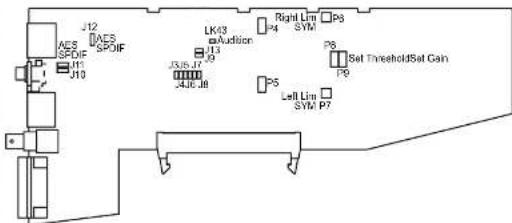
Fig 17-1:52 Digital AUD Output Board Layout.

Fig 17 2: S2 Digital AUD Output With Fader Board Layout.
Synchronisation Mode and Sample Rate
The following jumpers, J3 to J6 and J9 on V2, are used for setting the Sync Mode and Sample Rate of the digital output.
In Master mode, the digital output sample rate is simply set by, and locked to, the internal on-board clock generator. No sync signal is used or required.
In Auto mode the sample rate follows the sync input. When the sync signal is not present the sample rate will be set by, and locked to, the internal on-board clock generator at a frequency determined by the jumpers.
-
-
-
-
-
-
-
-
-
-
-
-
-
-
-
-
-
-
-
-
-
-
-
-
-
-
-
-
-
-
-
-
-
-
-
-
-
-
-
-
-
-
-
-
-
-
-
-
-
-
-
-
-
-
-
-
-
-
-
-
-
-
-
-
-
-
-
-
-
-
-
-
-
-
-
-
-
-
-
-
-
-
-
-
-
-
-
-
-
-
-
-
-
-
-
-
-
-
- 100.
-
-
-
-
-
-
-
-
-
-
-
-
-
-
-
-
-
-
-
-
-
-
-
-
-
-
-
-
-
-
-
-
-
-
-
-
-
-
-
-
-
-
-
-
-
-
-
-
-
-
-
-
-
-
-
-
-
-
-
-
-
-
-
-
-
-
-
-
-
-
-
-
-
-
-
-
-
-
-
-
-
-
-
-
-
-
-
-
-
-
-
-
-
-
-
-
-

In Slave mode, the sample rate follows the sync input. When the sync signal is not present the digital output is muted.
| Synchronisation Mode / Sample Rate (kHz) | J3 J4 J5 J6 | ||||
| MASTER | 32 Not Fitted Not Fitted Not Fitted Not Fitted | ||||
| 44.1 Fitted Not Fitted Not Fitted Not Fitted | |||||
| 48 Not Fitted Fitted Not Fitted Not Fitted | |||||
| 96 Fitted Not Fitted Fitted Not Fitted | |||||
| AUTO | 32 Not Fitted Fitted | Fitted Not Fitted | |||
| 44.1 Fitted Fitted | Fitted Not Fitted | ||||
| 48 Not Fitted Not Fitted Not Fitted Fitted | |||||
| 96 | Fitted | Fitted Not Fitted Fitted | |||
| Auto Lock | Not Fitted Not Fitted Fitted | Fitted | |||
| Slave Mode | Fitted Not Fitted Fitted | Fitted | |||
| Channel Status Bits | J9 |
| Consumer | Not Fitted |
| Professional | Fitted |
Sync Select
The pair of jumpers, J10 and J11, select the sync source between AES, pins 1 & 2, and S/PDIF, pins 2 & 3. The default is AES/EBU. Both jumpers need to be altered for this to work correctly.
Digital Output Mode
Jumper J12 selects the digital output mode between AES/EBU, pins 1 & 2, and S/PDIF, pins 2 & 3. The default is AES/EBU.
Presets
Presets P1 & P2 are for altering the audio waveform symmetry (i.e. distortion) through the VCA stage. They are factory set on final test and should not be adjusted further.
Preset P3 sets the VCA fader gain to 0dB when the fader is fully open. This is preset on final test and should not require further adjustment, unless it has been found necessary to replace the fader or other VCA components.
S2-ODAF/S2-ODA DIGITAL OUTPUT AUD CHANNE WITH & WITHOUT MASTER FADER (VERSION 2)
17 S2-ODAF/S2-ODA DIGITAL OUTPUT AUD CHANNEL WITH & WITHOUT MASTER FADER (VERSION 2)


Presets, P5 (left) and P4 (right), set the peak digits through the conditioning circuits to the analogue to digital converter. This is preset on final test and should not require further adjustment.
Preset P8 sets the gain through the limiter that feeds the analogue to digital converters. Preset P9 sets the threshold. Presets P6 & P7 are for altering the audio waveform symmetry (i.e. distortion) through the limiting stage. They are all factory set on final test and should not be adjusted further.
Gain can be altered using P4 and P5 on board versions S2-OP-04 and above, as P8 is no longer fitted on these boards.
Button Mode Settings
To make the 52 modules as flexible as possible, every button on each channel can be set to a number of different modes. These will aid in the use of the mixer and allow for extra functionality. To make use of these modes, you must enter a setup mode which is exactly the same for every module. It is only necessary to perform this procedure once.
To enter the setup mode, hold down the PGM and AUD buttons together for 5 seconds. After which all the buttons will start a recurring flashing sequence, at this point it is ok to release the PGM and AUD buttons. This sequence indicates the mode which each button is currently set to. One flash equals mode one, two flashes equals mode two etc. To change the mode for a particular button simply press it once and watch the number of flashes increase. Once the maximum mode number has been reached it will simply wrap around to mode one and continue as before. To exit this setup procedure press and hold both the PGM and AUD buttons as before for 2 seconds and the module will start operating as normal.
Each button and their corresponding modes are listed below.
PGM
Mode 1: Normal. PGM can be selected as the meter feeder as normal.
Mode 2: Always on. PGM is permanently selected as the meter feed.
Mode 3: Always off. PGM can never be selected as the meter feed.
AUD
Mode 1: Normal. AUD can be selected as the meter feeder as normal.
Mode 2: Always on. AUD is permanently selected as the meter feed.

Mode 3: Always off. AUD can never be selected as the meter feed.
CR MON
Mode 1: Normal. The Control Room Monitor channel be selected as the meter feed as normal.
Mode 2: Always on. The Control Room Monitor channel is permanently selected as the meter feed.
Mode 3: Always off. The Control Room Monitor channel can never be selected as the meter feed.
Note: If more than one button is set to mode 2 (Always on) then the meter feed will be a mix of these sources. This may not be desirable in most applications.

S2-ODAF/S2-ODA DIGITAL OUTPUT AUD CHANNE WITH & WITHOUT MASTER FADER (VERSION 2)
S2-OMC CONTROL ROOM MONITOR CHANNEL

18 S2-OMC Control Room Monitor Channel
Panel Controls
PGM, AUD, EXT 1 & EXT 2 Selection
The electronically interlocking PGM, AUD, EXT 1 & EXT 2 buttons select the monitor source for the control room headphones and loudspeaker monitors. The buttons illuminate to show the selected source, PGM and AUD in green, EXT 1 and EXT 2 in red. The External Inputs are used for monitoring an off air signal or another studio output.
Monitor level
The control room monitor loudspeaker level can be variable between 0 (cut off) and 10 (maximum). The output will need to be fed to a suitable power amplifier to drive the loudspeakers.
Monitor Auto Cue/PFL
When the yellow illuminated AUTO CUE/PFL button is selected, any input channels selected to CUE/PFL are automatically routed to the control room monitor loudspeakers.
Mute
The red mute LED will illuminate whenever a mic channel, which has been designated to Control Room mute, goes live. This will mute the control room monitors to prevent feedback. Two pairs of contacts on the remote connector of the PGM output channel will close whenever the mute function is active. These can be used to remotely illuminate "Mic Live" lights.
Phones
The control room headphone level can be varied between 0 (cut off) and 10 (maximum). Internal amplifiers provide enough drive for headphone Impedances of 35 ohms and above.
Phones Auto Cue/PFL
When the yellow illuminated AUTO CUE/PFL button is selected, any input channels selected to CUE/PFL are automatically routed to the control room headphones.
Phones Split Cue/PFL
The control room headphones have the additional facility of SPLIT CUE/PFL. When this button is selected, the monitor source will be heard in mono in the left headphone, and CUE/PFL will be heard in mono in the right headphone. The button is illuminated yellow when selected.


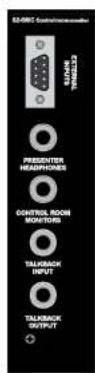
Rear Panel
External Inputs Connector
This 9 pin D type plug is used for the stereo balanced analogue external input signals.
The connector pin-out is as follows;
Pin 1: Chassis ground.
Pin 2: Ext 1 left phase.
Pin 3: Ext 1 right phase.
Pin 4: Ext 2 left phase.
Pin 5: Ext 2 right phase.
Pin 6: Ext 1 left non-phase.
Pin 7: Ext 1 right non-phase.
Pin 8: Ext 2 left non-phase.
Pin 9: Ext 2 right non-phase.
Presenter Headphones Connector
This standard 6.35mm jack socket is used for the control room
headphones. It is wired in parallel with the headphone connector on the
front panel and has the following connections;
Tip: Left channel
Ring: Right channel.
Sleeve: Screen.
Control Room Monitors Connector
This standard 6.35mm jack socket is the output for the control room
monitor loudspeakers, and has the following connections;
Tip: Left channel.
Ring: Right channel.
Sleeve: Screen.
A suitable amplifier should be used to send this signal to the
loudspeakers, or connect active loudspeakers directly to this output.
Talkback Input Connector
This standard 6.35mm jack socket is used for the Reverse Talkback Input, and has the following connections;
Tip: Talkback audio.
Ring: Talkback control.
Sleeve: Screen.
18
S2-OMC CONTROL ROOM MONITOR CHANNEL

Channel Options and Jumper Settings
The control room monitor channel can be configured in a number of different ways depending on the jumper options set on the board. The on-board processor's software is configured by jumpers J1 to J4 and channel identifying links. The control room monitor is identified by having link LK10 fitted.
The standard options available are:
- Enable/disable global talkback.
- Enable/disable talkback to loudspeakers.
- Enable/disable talkback dimming on loudspeakers.
- Enable/disable talkback dimming on headphones.
Summary of Jumper Settings for the Control Room Monitor Channel
| Jumper Set over Pins Effect | ||
| J1 | 1 & 2None | Global talkback enabled.Global talkback disabled. |
| J2 | 1 & 2None | Control Room Loudspeaker talkback enabled.Control Room Loudspeaker talkback disabled. |
| J3 | 1 & 2None | Control Room Loudspeaker talkback dimming enabled.Control Room Loudspeaker talkback dimming disabled. |
| J4 | 1 & 2None | Control Room Headphones talkback dimming enabled.Control Room Headphones talkback dimming disabled. |
Note: Options in bold are set as default when shipped.
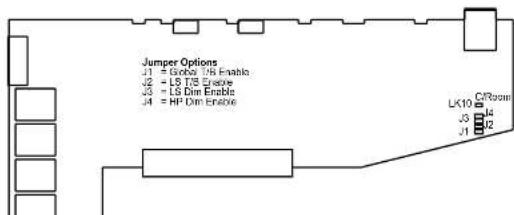
flowchart
graph TD
    A["Jumper Options"] --> B["JK10"]
    A --> C["JK3"]
    A --> D["JK1"]
    A --> E["JK2"]
    A --> F["JK3"]
    A --> G["JK4"]
    H["Control Circuit"] --> I["JK10"]
    H --> J["JK3"]
    H --> K["JK1"]

Global Talkback Enable
Jumper J1 placed over pins 1 & 2 enables global talkback. This is a system whereby all programme presenters, guests, etc, can talk to each other from their individual microphones via the monitoring system. When enabled, the system becomes active when the control room and studio mutes are inactive i.e. no Mic channels with mic live muting are active. The monitored source on each person's headphones will dim by -12dB and they will be able to talk and hear each other at a normal level. When a microphone channel fader is raised, triggering a mute, the system will drop back into normal monitoring. The default setting for J1 is disabled (not fitted).
Control Room Loudspeaker Talkback Enable
Jumper J2 placed over pins 1 & 2 enables talkback to the control room monitor loudspeakers. This will allow a talkback audio and control signal on the talkback input jack to replace the monitored source on the loudspeaker monitors. If the monitors are already muted then talkback will be muted too. Talkback will also appear on the control room headphones as a replacement to the monitored source. The default setting for J2 is enabled.
Control Room Loudspeaker Talkback Dim Enable
Jumper J3 placed across pins 1 & 2 enables talkback dimming of the control room monitor loudspeakers. With J2 and J3 enabled, incoming talkback will dim the monitored source by -12dB and talkback will be heard at normal level. The default setting for J3 is enabled.
Control Room Headphone Talkback Dim Enable
Jumper J4 placed across pins 1 & 2 enables talkback dimming of the control room monitor headphones. With J4 enabled, incoming talkback will dim the headphone source by -12dB and talkback will be heard at normal level. The default setting for J4 is disabled (not fitted).
Presets
There are no presets to adjust on the control room monitor channel.
Button Mode Settings
To make the 52 modules as flexible as possible, every button on each channel can be set to a number of different modes. These will aid in the use of the mixer and allow for extra functionality. To make use of these modes, you must enter a setup mode which is exactly the same for every module. It is only necessary to perform this procedure once.
To enter the setup mode, hold down the PGM and AUD buttons together for 5 seconds. After which all the buttons will start a recurring flashing sequence, at this point it is ok to release the PGM and AUD buttons. This sequence indicates the mode which each button is currently set to. One flash equals mode one, two flashes equals mode two etc. To change the mode for a particular button simply press it once and watch the number of flashes increase. Once the maximum mode number has been reached it will simply wrap around to mode

S2-OMC CONTROL ROOM MONITOR CHANNEL


Each button and their corresponding modes are listed below.
PGM
Mode 1: Normal. The program bus can be selected as normal.
Mode 2: Always on. The program bus is permanently selected.
Mode 3: Always off. The program bus is permanently deselected.
Mode 4: Mix. The program bus can be selected as normal but also allows this button to be mixed with other buttons set to mix mode.
AUD
Mode 1: Normal. The audition bus can be selected as normal.
Mode 2: Always on. The audition bus is permanently selected.
Mode 3: Always off. The audition bus is permanently deselected.
Mode 4: Mix. The audition bus can be selected as normal but also allows this button to be mixed with other buttons set to mix mode.
EXT1
Mode 1: Normal. External input 1 can be selected as normal.
Mode 2: Always on. External Input 1 is permanently selected.
Mode 3: Always off. External input 1 is permanently deselected.
Mode 4: Mix. External input 1 can be selected as normal but also allows this button to be mixed with other buttons set to mix mode.
EXT2
Mode 1: Normal. External input 2 can be selected as normal.
Mode 2: Always on. External input 2 is permanently selected.
Mode 3: Always off. External input 2 is permanently deselected.
Mode 4: Mix. External input 2 can be selected as normal but also allows this button to be mixed with other buttons set to mix mode.
Monitor Auto Cue/PFL
Mode 1: Normal. Monitor Auto Cue/PFL can be selected as normal.
Mode 2: Always on. Monitor Auto Cue/PFL is permanently selected.
Mode 3: Always off. Monitor Auto Cue/PFL is permanently deselected.

Headphone Auto Cue/PFL
Mode 1: Normal. Headphone Auto Cue/PFL can be selected as normal.
Mode 2: Always on. Headphone Auto Cue/PFL is permanently selected.
Mode 3: Always off. Headphone Auto Cue/PFL is permanently deselected.
Split Cue/PFL
Mode 1: Normal. Split Cue/PFL can be selected as normal.
Mode 2 : Always on. Split Cue/PFL is permanently selected.
Mode 3: Always off. Split Cue/PFL is permanently deselected.
Note: Split Cue/PFL is dependent on Headphone Auto Cue/PFL being selected.

S2-OMC CONTROL ROOM MONITOR CHANNEL
S2-OMS STUDIO MONITOR CHANNEL


19 S2-OMS Studio Monitor Channel
Panel Controls
PGM, AUD, EXT 1 & EXT 2 Selection
The electronically interlocking PGM, AUD, EXT 1 & EXT 2 buttons select the monitor source for the studio headphones and loudspeaker monitors. The buttons illuminate to show the selected source, PGM and AUD in green, EXT 1 and EXT 2 in red. The External Inputs are used for monitoring an off air signal or another studio output.
Monitor Level
The studio monitor loudspeaker level can be variable between 0 (cut off) and 10 (maximum). The output will need to be fed to a suitable power amplifier to drive the loudspeakers.
Monitor Auto CUE/PFL
When the green illuminated Auto CUE/PFL button is selected, any input channels selected to CUE/PFL are automatically routed to the studio monitor loudspeakers.
Mute
The red mute LED will illuminate whenever a mic channel, which has been designated to studio mute, goes live. This will mute the studio monitors to prevent feedback. Two pairs of contacts on the remote connector of the AUD output channel will close whenever the mute function is active. These can be used to remotely illuminate "Mic Live" lights.
Phones
The studio headphone level can be variable between 0 (cut off) and 10 (maximum). Internal amplifiers provide enough drive for headphone impedances of 35 ohms and above.
Phones Auto CUE/PFL
When the yellow illuminated AUTO CUE/PFL button is selected, any input channels selected to CUE/PFL are automatically routed to the studio headphones.
Studio T/B (Talkback)
When pressed, the STUDIO T/B button will route talkback from the control room talkback microphone channel to the studio loudspeakers and/or the studio headphones, depending on jumper settings. The talkback signal will replace or mix with the monitored source depending on jumper settings.



Rear Panel
External Inputs Connector
This 9 pin D type plug is used for the stereo balanced external input signals.
The connector pin-out is as follows;
Pin 1: Chassis ground.
Pin 2: Ext 1 left phase.
Pin 3: Ext 1 right phase.
Pin 4: Ext 2 left phase.
Pin 5: Ext 2 right phase.
Pin 6: Ext 1 left non-phase.
Pin 7: Ext 1 right non-phase
Pin 8: Ext 2 left non-phase.
Pin 9: Ext 2 right non-phase
Studio Headphones Connector
This standard 6.35mm jack socket is the output for the studio
headphones, and has the following connections;
Tip: Left channel.
Ring: Right channel.
Sleeve: Screen.
Studio Monitor Connector
This standard 6.35mm jack socket is the output for the studio monitor
loudspeakers, and has the following connections;
Tip: Left channel.
Ring: Right channel.
Sleeve: Screen.
A suitable amplifier should be used to send this signal to the
loudspeakers, or connect active loudspeakers directly to this output.

S2-OMS STUDIO MONITOR CHANNEL

Channel Options and Jumper Settings
The studio monitor channel can be configured in a number of different ways depending on the jumper options set on the board. The on-board processor's software is configured by jumpers J1 to J4 and channel identifying links. The control room monitor is identified by having link LK11 fitted.
The standard options available are:
- Enable/disable global talkback
- Enable/disable talkback to loudspeakers.
- Enable/disable talkback dimming on loudspeakers.
- Enable/disable talkback dimming on headphones.
Summary of Jumper Settings for the Studio Monitor Channel
| Jumper Set over Pins Effect | ||
| J1 | 1 & 2None | Global talkback enabled.Global talkback disabled. |
| J2 | 1 & 2None | Studio Loudspeaker talkback enabled.Studio Loudspeaker talkback disabled. |
| J3 | 1 & 2None | Studio Loudspeaker talkback dimming enabled.Studio Loudspeaker talkback dimming disabled. |
| J4 | 1 & 2None | Studio Headphones talkback dimming enabled.Studio Headphones talkback dimming disabled. |
Note: Options in bold are set as default when shipped.
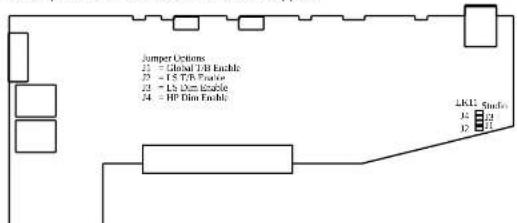
S2-OMS STUDIO MONITOR CHANNEL 19
Global Talkback Enable
Jumper J1 placed over pins 1 & 2 enables global talkback. This is a system whereby all programme presenters, guests etc. can talk to each other from their individual microphones via the monitoring system. When enabled, the system becomes active when the control room and studio mutes are inactive i.e. noMIC channels with mic live muting are active. The monitored source on each person's headphones will dim by -12dB and they will be able to talk and hear each other at a normal level. When a microphone channel fader is raised, triggering a mute, the system will drop back into normal monitoring. The default setting for J1 is disabled (not fitted).
Studio Loudspeaker Talkback Enable
Jumper J2 placed over pins 1 & 2 enables talkback to the studio monitor loudspeakers. This will allow talkback, activated by pressing the Studio T/B button, to replace the monitored source on the loudspeaker monitors. If the monitors are already muted then talkback will be muted too. Talkback will also appear on the studio headphones as a replacement to the monitored source. The default setting for J2 is enabled.
Studio Loudspeaker Talkback Dim Enable
Jumper J3 placed across pins 1 & 2 enables talkback dimming of the studio monitor loudspeakers. With J2 and J3 enabled, incoming talkback will dim the monitored source by -12dB and talkback will be heard at normal level. The default setting for J3 is enabled.
Studio Headphones Talkback Dim Enable
Jumper J4 placed across pins 1 & 2 enables talkback dimming of the studio monitor headphones. With J4 enabled, incoming talkback will dim the headphone source by -12dB and talkback will be heard at normal level. The default setting for J4 is disabled (not fitted).
Presets
There are no presets to tamper with on the studio monitor channel.
Button Mode Settings
To make the 52 modules as flexible as possible, every button on each channel can be set to a number of different modes. These will aid in the use of the mixer and allow for extra functionality. To make use of these modes, you must enter a setup mode which is exactly the same for every module. It is only necessary to perform this procedure once.
To enter the setup mode, hold down the PGM and AUD buttons together for 5 seconds. After which all the buttons will start a recurring flashing sequence, at this point it is ok to release the PGM and AUD buttons. This sequence indicates the mode which each button is currently set to. One flash equals mode one, two flashes equals mode two etc. To change the mode for a particular button simply press it once and watch the number of flashes increase. Once the maximum mode number has been reached it will simply wrap around to mode

S2-OMS STUDIO MONITOR CHANNEL
S2-OMS STUDIO MONITOR CHANNEL
one and continue as before. To exit this setup procedure press and hold both the PGM and AUD buttons as before for 2 seconds and the module will start operating as normal.
Each button and their corresponding modes are listed below.
PGM
Mode 1: Normal. The program bus can be selected as normal.
Mode 2: Always on. The program bus is permanently selected.
Mode 3: Always off. The program bus is permanently deselected.
Mode 4: Mix. The program bus can be selected as normal but also allows this button to be mixed with other buttons set to mix mode.
AUD
Mode 1: Normal. The audition bus can be selected as normal.
Mode 2: Always on. The audition bus is permanently selected.
Mode 3: Always off. The audition bus is permanently deselected.
Mode 4: Mix. The audition bus can be selected as normal but also allows this button to be mixed with other buttons set to mix mode.
EXT1
Mode 1: Normal. External Input 1 can be selected as normal.
Mode 2: Always on. External input 1 is permanently selected.
Mode 3: Always off. External input 1 is permanently deselected.
Mode 4: Mix. External input 1 can be selected as normal but also allows this button to be mixed with other buttons set to mix mode.
EXT2
Mode 1: Normal. External input 2 can be selected as normal.
Mode 2: Always on. External Input 2 is permanently selected.
Mode 3: Always off. External Input 2 is permanently deselected.
Mode 4: Mix. External input 2 can be selected as normal but also allows this button to be mixed with other buttons set to mix mode.

Monitor Auto Cue/PFL
Mode 1: Normal. Monitor Auto Cue/PFL can be selected as normal.
Mode 2: Always on. Monitor Auto Cue/PFL is permanently selected.
Mode 3: Always off. Monitor Auto Cue/PFL is permanently deselected.
Headphone Auto Cue/PFL
Mode 1: Normal. Headphone Auto Cue/PFL can be selected as normal.
Mode 2: Always on. Headphone Auto Cue/PFL is permanently selected.
Mode 3: Always off. Headphone Auto Cue/PFL is permanently deselected.

S2-OMS STUDIO MONITOR CHANNEL
METERBRIDGE MODULES


20 Meterbridge Modules
The meterbridge area can house different styles of metering, dual timer, PFL/Talkback speaker, switcher and talkback modules. S2's meterbridge modules are freely assignable so that you can position them exactly where you want them.
Meterbridge Module Types
Three styles of dual meter panels, for displaying signal levels, are available for mounting in the meterbridge: Dual VU panel S2-MVU, dual PPM panel S2-MPPM, and dual true PPM panel S2-MPPT*. The S2-ML53 is an LED meter for displaying both VU and PPM scales. Illuminated LEDs on each meter panel indicate the monitoring source.
A meterbridge panel, S2-MPH can be linked to a dual meter panel and used to display phase information on the selected source.
A meterbridge loudspeaker panel, S2-ML, can be used to monitor PFL and Reverse Talkback via separate level controls. The speaker will mute in a "mic live" situation.
A comprehensive dual timer display, S2-MT, is available for timing events triggered from mlc or line input modules. The timer can also display the real time and date synchronised to a standard time broadcast.
Two talkback panels are available. The S2-MTB6 can be used for communicating with up to 6 other mixers or dedicated talkback systems, and the S2-MTBS is used for interfacing with a Sonifex Station Master.
One, or two source select panels, S2-M6SS, can be used to expand the number of input sources monitored using the EXT 1 and EXT2 buttons (6 for each), as well as a general input source selector for other applications.
A 1 button switch panel, S2-MSB1, and 3 button switch panel, S2-MSB3, are 1 channel wide meterbridge panels, with 1 and 3 buttons respectively which can be used for bespoke control of the S2, or for your own purposes, e.g. for equipment control.
* Please note that the S2-MPPT has been discontinued.
S METERBRIDGE MODULES 20
| S2-MPPM Meterbridge PPM panel. |
| S2-MPPT Meterbridge true PPM meter panel. (This product has been discontinued) |
| S2-MVU Meterbridge VU meter panel. |
| S2-ML53 Meterbridge LED Meter panel. |
| S2-MPH Meterbridge Phase Meter panel. |
| S2-MT Meterbridge dual timer panel. |
| S2-ML Meterbridge loudspeaker monitor and talkback panel. |
| S2-MTB6 Meterbridge 6 way talkback panel. |
| S2-MTBS Meterbridge Station Master talkback panel. |
| S2-M6SS S2 Meterbridge 6 way source select panel. |
| S2-MSB1 Meterbridge 1 button switch panel. |
| S2-MSB3 Meterbridge 3 button switch panel. |
| S2 MB1 5 Meterbridge blanking plate channel width 1-5. |
Meterbridge Distribution Board
The Meterbridge Distribution Board is situated in the rear section of the meterbridge metalwork and is the interface between the channel area of the desk and the meterbridge modules. Six connectors on the board provide power and various signals to the meterbridge modules and it is therefore possible, where space permits, to install 1 x S2-ML, 1 x S2-MT, and up to three of your chosen style of meter panels. Meters can be configured to display PFL, PGM, or Monitor, which is the signal selected by the buttons on the PGM output module. The sixth connector provides power only for customer option meterbridge units. The meterbridge distribution board has active circuitry allowing a basic mixer set up with one set of meters displaying the PGM output, or PGM output interrupted by PFL. Jumpers J1 and J2 select between: PGM output, jumpers over pins 1 & 2, or PGM interrupted by PFL, jumpers over pins 2 & 3. Meters should be plugged up to the "Output Meter" connector, PL6. The red "PFL" led will illuminate when PFL is being displayed.
When the S2 is used for a split frame installation, a meterbridge distribution board is fitted to each meterbridge section.

METERBRIDGE MODULES
J1, J2 In Position A Output Meter Reads Stereo PGM J1, J2 In Position B Output Meter Reads Stereo PGM Interrupted By PFL J3 On Enables PFL LED On Output Meter Board
J2 J1 J3 B □□
20 METERBRIDGE MODULES

METERBRIDGE MODULES
S2-MB1-5 Meterbridge Blanking Plates

natural_image
Solid gray square with four corner dots, no text or symbols present.Fig 20-2: Blanking Plate.
Meterbridge blanking plates are available in channel widths from 1 to 5 Inclusive and are used to fill areas in the meterbridge not occupied by active modules.
S2-ML Meterbridge Loudspeaker Monitor Panel
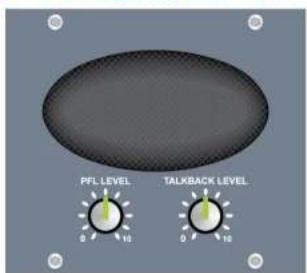
Fig 20-3: Loudspeaker Monitor Panel.

S2-MVU Meterbridge VU Meter Panel, S2-MPPM PPM Meter Panel, S2-MPPT True PPM Meter Panel & S2-ML53 LED Meter Panel*
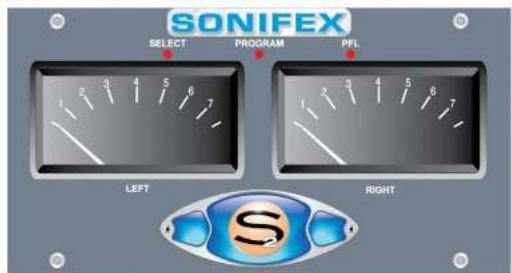
Fig 20-4: PPM & True PPM Meter Panel.

METERBRIDGE MODULES

Fig 20-5: VU Meter Panel.
* Please note that the S2-MPPT has been discontinued.
20 METERBRIDGE MODULES
METERBRIDGE MODULES
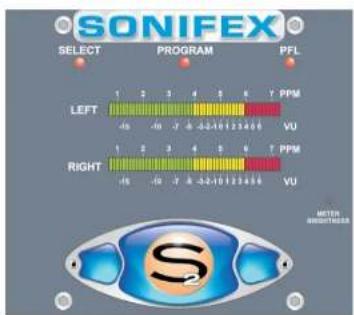
Fig 20-6: VU & PPM LED Meter Panel.
The dual meter panels are used for monitoring console signal levels.
The S2-MPPM panel has two fast-reading moving-coil meters with PPM-style scale.
The S2-MPPT® panel has two moving-coil PPM movements, conforming to true PPM
ballistics.
The S2-ML53 panel has an LED meter display with both PPM and VU scales.
The PPMs have a 1-7 scale and will be configured such that a 1 kHz signal, at 0dBu at the
PGM output, will indicate a meter reading of 4. Each mark on the PPM scale indicates a 4dB change in signal level.
The S2-MVU two moving coil VU meters will be configured such that a 1kHz signal, at +4dBu
at the PGM output, will indicate a meter reading of OVU.
The LED meter panel displays both VU and PPM readings simultaneously.
The meters can be configured internally to be fed from one of three signal sources,
2 Please note that the S2-MPPT has been discontinued.

| Program | PGM output which can optionally be interrupted by PFL. Plug into the OUTPUT METER connector on the meterbridge distribution board, and set jumpers J1-I3. |
| Select | The output of the meter switch on the AUD output module which can show PGM, AUD,or CR MON, which is the selected monitor source on the control room monitor module, (EXT 1,EXT 2,PGM, or AUD) interrupted by PFL. Plug into the MONITOR METER connector on the meterbridge distribution board. |
| PFL | The output of the PFL bus. Plug into the PFL METER connector on the meterbridge distribution board. |
It is therefore possible, depending on the frame size, to house up to three meter panels, thereby providing a comprehensive metering system. Illuminated LEDs indicate the relevant source shown on the meters.
The S2-ML53 has an adjustable pot accessible from the front panel which alters the meter brightness, this can be altered using a jewellers screwdriver.
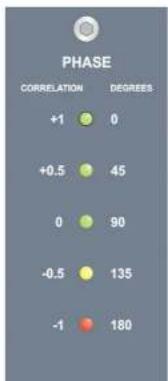
scatter
| PHASE | CORRELATION | DEGREES | |-------|-------------|---------| | +1 | 0 | 0 | | +0.5 | 45 | 0 | | 0 | 90 | 0 | | -0.5 | 135 | 0 | | -1 | 180 | 0 |The S2-MPH is a phase meter which operates on the selected source to the meters. 5 LED indicators show the phase angle in 45 degree steps from 0 (in-phase) to 180 (out of phase). A separate phase meter can be linked to each meter in the meterbridge by use of the supplied In-line cable.
METERBRIDGE MODULES


METERBRIDGE MODULES
S2-MTB6 Meterbridge 6 Way Talkback Panel
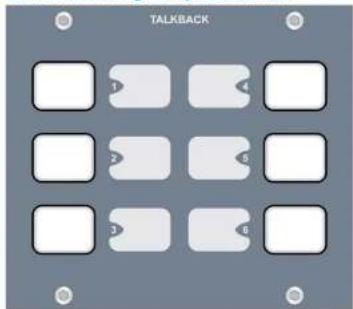
Fig 20-5: Meterbridge 6 Way Talkback Panel.
The S2 MTB6 Meterbridge Talkback Panel is used for communicating with up to 6 other locations. While a button is pressed, the switch is illuminated and the talkback is active. The buttons work with both a momentary and latched operation. If held down, the selection is cancelled when released, otherwise the button is alternate action.
Rear Panel
External Talkback Connector
This 15 pin D type plug is used for connecting to other talkback panels in other mixers, or dedicated talkback systems.
The connector pin-out is as follows;
Pin 1: Talkback 1 out phase.
Pin 2: Talkback 2 out phase.
Pin 3: Talkback 3 out phase.
Pin 4: Talkback 4 out phase.
Pin 5: Talkback 5 out phase.
Pin 6: Talkback 6 out phase.
Pin 7: Talkback in phase.
Pin 8: Ground.
Pin 9: Talkback 1 out non-phase.

Mixer Talkback Connector
This 9 pin D type plug is used for connecting the Talkback module to the Control Room Monitor channel. The connection cable is supplied with the Talkback module, which plugs into the S2-MTB6 via the mixer meterbridge housing, and down into the two talkback jack sockets on the rear of the Control Room channel.
The connector pin-out is as follows;
Pin 1: Talkback in phase (to mixer).
Pin 2: Talkback control.
Pin 3: No connection.
Pin 4: Talkback out phase (from mixer).
Pin 5: Ground.
Pin 6: Talkback in non-phase (to mixer).
Pin 7: No connection.
Pin 8: Talkback out non-phase (from mixer).
Pin 9: No connection.
S2-MTBS Meterbridge Station Master Talkback Panel

Fig 20-9: Meterbridge Station Master Talkback Panel.
The S2-MTBS panel is used for interfacing with a Sonflex Station Master. See the Station Master manual for functionality and connection information.

METERBRIDGE MODULES
METERBRIDGE MODULES


The connector pin-out is as follows;
Pin 1: +15V
Pin 2: Offer switch.
Pin 3: Accept switch.
Pin 4: Delay switch.
Pin 5: Dump switch.
Pin 6: Talkback 1 switch.
Pin 7: Talkback 2 switch.
Pin 8: Talkback 3 switch.
Pin 9: Talkback 4 switch.
Pin 10: Talkback all switch.
Pin 11: Ground.
Pin 12: Talkback out.
Pin 13: Talkback control out.
Pin 14: Ground.
Pin 15: Offer indicator.
Pin 16: Accept indicator.
Pin 17: Delay indicator.
Pin 18: Dump indicator.
Pin 19: Talkback 1 indicator.
Pin 20: Talkback 2 indicator.
Pin 21: Talkback 3 indicator.
Pin 22: Talkback 4 indicator.
Pin 23: Talkback in.
Pin 24: Ground.
Pin 25: Ground.
Mixer Talkback Connector
This 9 pin D type plug is used for connecting the Talkback module to the Control Room
Monitor channel. The connection cable is supplied with the Talkback module, which plugs
into the S2-MTBS via the mixer meterbridge housing, and down into the two talkback jack
sockets on the rear of the Control Room channel.
The connector pin-out is as follows;
Pin 1: Talkback in phase (to mixer).
Pin 2: Talkback control.
Pin 3: No connection.
Pin 4: Talkback out phase (from mixer).
Pin 5: Ground.


Fig 20-10a: S2-M6SS Panel

METERBRIDGE MODULES
S2-M6SS Meterbridge 6 Way Source Select Panel
The meterbridge source selector panel produces a stereo analogue audio output from 6 selectable stereo analogue sources, which can be connected to a stereo input channel within the mixer or the EXT 1 and EXT 2 monitor inputs to provide up to 12 external monitor inputs. There are 6 illuminated panel push buttons, which select and indicate the current channel selection. The 6 stereo sources are connected on the rear of the panel via a 25 way D-Type female (socket) connector, which uses exactly the same pin configuration as the stereo audio source input connector on the S2-C6SS channel. The single stereo output is provided on a 9 way D-type male (plug) and the pin configurations are shown below.
Audio Input Connector - 25 pin D-type female (socket)
Pin 1: Ground.
Pin 2: Input 1 left phase.
Pin 3: Input 1 right phase.
Pin 4: Input 2 left phase.
Pin 5: Input 2 right phase
Pin 6: Input 3 left phase.
Pin 7: Input 3 right phase.
Pin 8: Input 4 left phase.
Pin 9: Input 4 right phase.
Pin 10: Input 5 left phase.
20 METERBRIDGE MODULES

Pin 17: Input 2 right non-phase.
Pin 18: Input 3 left non-phase.
Pin 19: Input 3 right non-phase.
Pin 20: Input 4 left non-phase.
Pin 21: Input 4 right non-phase.
Pin 22: Input 5 left non-phase.
Pin 23: Input 5 right non-phase.
Pin 24: Input 6 left non-phase.
Pin 25: Input 6 right non-phase.
Audio Output Connector (To Mixer) - 9 pin D-type male (plug)
Pin 1:
Pin 2: Out left phase.
Pin 3: Out right phase.
Pin 4: No connection.
Pin 5: No connection.
Pin 6: Out left non-phase.
Pin 7: Out right non-phase.
Pin 8: No connection.
Pin 9: No connection.
Power Connectors
Pin
Pin 2: Ground.
Pin 3: +15V
Pin 4: -15V.
There are two power connectors on the board, a 'power input' and a 'power through'
connector. The power input connector should be connected to the meterbridge distribution
board power connector, or the 'power through' connector on another meterbridge panel.
The 'power through' connector can be used to daisy chain power down the meterbridge
housing, for example, to an S2-MT panel.
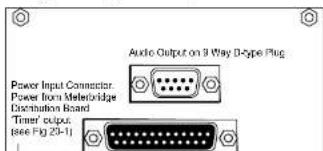
S METERBRIDGE MODULES 20
S2-MSB1 Meterbridge Switch Panel With 1 Button
This is a meterbridge panel, 1 channel wide, with 1 button which can be used for bespoke control of the S2, or for your own purposes, e.g. equipment control. Contact Sonifex with your particular mixer control requirements.
To make the switch illuminate either green, red or orange, set the jumper(s) next to the button to either GRN, RED or GRN & RED (for orange).
S2-MSB3 Meterbridge Switch Panel With 3 Buttons
This is a meterbridge panel, 1 channel wide, with 3 push button switches which can be used for bespoke control of the S2 or ancillary devices.
To make the switches illuminate either green, red or orange, set the jumper(s) next to the button to either GRN, RED or GRN & RED (for orange).
The connector used for both the S2-MSB1 and S2-MSB3 is a 9 pin D-type female and the pin-out details are as follows:
S2-MSB1 S2-MSB3
Female Switch Panel Switch Panel D-Type Connection Connection
Pin 1 N/C Switch 1*
Pin 2 Switch 2 Switch 2*
Pin 3 N/C Switch 3°
Pin 4 N/C Switch 1 LED**
Pin 5 Switch 2 LED xx Switch 2 LED xx
Pin 6 N/C Switch 3 LED**
Pin 7 0V 0V
Pin 8 0V 0V
Pin 9 +12V LED +12V LED
Power Input Power Input

Fig 20-11a: S2-MSB1
52 Meterbridge Switch
Fig 20-11b:52-MSB1
Diagram.
Panel With 1 Button.

Fig 20-12a: S2-M583
Fig 20-12b:52-MSB3

METERBRIDGE MODULES

METERBRIDGE MODULES
S2-MT Meterbridge Timer Panel
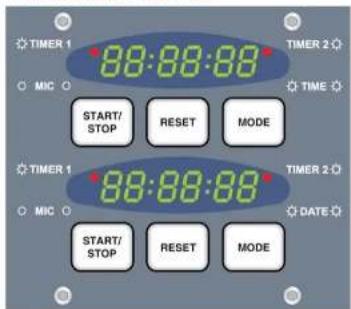
Fig 20-13: Meterbridge Timer Panel.
Overview
Each of the dual timers can be used for timing events triggered by Timer 1, Timer 2, or the Mic fader open signal. In addition the upper timer is used for displaying the time of day and the lower timer for displaying the date. The illumination pattern of the red LEDs indicates the timer display mode.
The date and time can be synchronised to a very accurate internal clock or optionally from an external source, MSF, DCF, SMPTE, or RS232 time code string.
Panel Controls
START / STOP
When the display is in Timer 1, Timer 2 or MIC timer (manual) mode, this button causes the timer to start, if currently stopped, or stop, if currently running. This button has other functions when the display is in other modes, which are described below.
RESET
When the display is in Timer 1, Timer 2 or MIC timer (manual) mode, this button causes the timer to be reset, but only if that timer is not currently running.
MODE
Changes the current display mode from TIMER 1, to TIMER 2, to MIC, to TIME (or DATE) back

Quick Time View
Hold down the lower timer "START/STOP" button while in Date mode.
The Time will be displayed until the button is released.
Rear Panel
RS232 Connector
This 9 pin D type plug is used for connecting to another RS232 enabled device
(eg PC's Com port).
The connector pin-out is as follows;
Pin 1: CD.
Pin 2: Receive Data (From PC).
Pin 3: Transmit Data [To PC].
Pin 4: DTR
Pin 5: Ground.
Pin 6: DSR.
Pin 7: BTS
Pin 8: CTS.
Pin 9: No internal connection.
NOTE: Only Pins 2 & 3 are currently used.
MSF/DCF Antenna & SMPTE/EBU Connector
This 9 pin D type socket is used for receiving a time code signal from an MSF/DCF antenna
or other compatible sources.
The connector pin-out is as follows;
Pin 1: Signal+
Pin 2: Signal-.
Pin 3: Ground
Pin 4: +VD.
Pin S: No internal connection.
Pin 6: Ground.
Pin 7: Ground.
Pin 8: 5V.
Pin 9:5V.
IVD: Digital power rail. \~8.5V
Configuring The Timer
The timers are configured according to the following comprehensive instructions,

METERBRIDGE MODULES
20 METERBRIDGE MODULES

- Use the Start/Stop & Reset buttons to increment/decrement the year.
- Then press the Mode button to select the Month, then the Day, Hour, Minutes, Seconds.
- When the seconds have been set, the next press of the Mode button stores the time, and exit the time setting mode.
Setting The Mode
- Hold down the lower timer Mode button for 5 seconds.
• To Increment Option numbers press the same mode button. - To increment/decrement sub option number use the Start/Stop & Reset buttons.
- Continue to the last option (14), the next mode press will store the settings.
| Option Number | Sub Option Number | Description |
| 0 - Time Code Synchronisation Source | ||
| 0 None | ||
| 1 MSF Radio Time Code | ||
| 2 DCF Radio Time Code | ||
| 3 SMPTE/8BU Time Code (see option 15) | ||
| 4 RS232 Time Code String | ||
Time Code Synchronisation Source
There are numerous types of Radio Time Code that could be added to this list, but at present only those listed are supported. Other time code options can be implemented depending on availability of test sources and/or customer demand. The Time Codes commonly supported are selectable via option 0.
Indication of Lock to Source
Hold down the upper timer "RESET" button while in TIME mode, a status indication will be displayed. This code is identical to that of the time code output string:
0 = not locked, 1 = signal/not locked, 2 = locked
Also note that source number 0 (Internal RTC) implies "not locked".

RS232 Port
The RS232 communications port is fully configurable, with separate options for data bits, stop bits, and baud rate, which can all be set independently of each other.
| Option Number | Sub Option Number | Description |
| 1 - RS232 | Data Bits | |
| 0 7 data bits | ||
| 1 8 data bits | ||
| 2 - RS232 | Stop Bits | |
| 0 1 stop bit | ||
| 1 2 stop bits | ||
| 3 - RS232 | Parity | |
| 0 None | ||
| 1 Even parity | ||
| 2 Odd parity | ||
| 4 - RS232 | Baud Rate | |
| 0 9600 baud | ||
| 1 19200 baud | ||
| 2 38400 baud | ||
| 3 57600 baud | ||
| 4 115200 baud | ||
| 5 - RS232 | Output | |
| 0 Disable | ||
| 1 Enable |

METERBRIDGE MODULES
RS232 Output Format
A time code string can be output from the timer module for use in synchronising other devices to the module.
"dd/mm/yy,hh:mm:ss,A,B,C,D,hh:mm:ss.tt,hh:mm:ss.tt,hh:mm:ss.tt\n"
DATE,TIME,[3 MODE CH],TIMER_1,TIMER_2,MIC_TIMER.
A = Date string format. (See option no. 6)
B = Time code synchronisation source (see option no. 0)
C = Indication of lock to source 0 = not locked, 1 = signal/not locked, 2 = locked.
Also note that source number 0 (internal RTC) implies "not locked".
D = Indication of presence of timecode signal 0 = No signal, 1 = Signal present.
In = New Line.
r = Carriage return.
20 METERBRIDGE MODULES

| Option Number | Sub Option Number | Description |
| 6 - Date Display Format | ||
| 0 dd/mm/yy | ||
| 1 dd/yy/mm | ||
| 2 mm/dd/yy | ||
| 3 mm/yy/dd | ||
| 4 yy/dd/mmm | ||
| 5 yy/mm/dd | ||
Timers and Timer Events
METERBRIDGE MODULES
The timers and their event handling can be configured using the options below. If the timer is not currently being displayed the module can automatically switch to this timer when an event occurs. If the timer is currently running the event can trigger the timer to reset or continue counting. On an event the display will freeze for a determined number of seconds.
| Option Number | Sub Option Number | Description |
| 7 - Timer 1 | ||
| 0 On event | do not display (unless already displayed) | |
| 1 On event | show to display 1 | |
| 2 On event | show to display 2 | |
| 8 - Timer 1 | Event Option | |
| 0 On event | restart timer | |
| 1 On event | split timer | |
| 9 - Timer 2 | ||
| 0 On event | do not display (unless already displayed) | |
| 1 On event | show to display 1 | |
| 2 On event | show to display 2 | |
| 10 - Timer 2 | Event Option | |
| 0 On event | restart timer | |
| 1 On event | split timer | |
| 11 - Mic Timer | ||
| 0 On event | do not display (unless already displayed) | |
| 1 On event | show to display 1 | |
| 2 On event | show to display 2 | |

| Option Number | Sub Option Number | Description |
| 13 - Freeze Time | ||
| 0 On second event freeze display for 1 second | ||
| 1 On second event freeze display for 2 seconds | ||
| 2 On second event freeze display for 3 seconds | ||
| 3 On second event freeze display for 4 seconds | ||
| 4 On second event freeze display for 5 seconds | ||
| 14 - Time Setting | ||
| 0 Disallow while locked to time code source | ||
| 1 Allow while locked to time code source | ||
| 15 - SMPTE/EBU Timecode settings | ||
| 0 Ignore date | ||
| 1 Date Format 1 | ||
| 2 Date Format 2 | ||
| 3 Date Format 3 | ||

METERBRIDGE MODULES
SMPTE/EBU Timecode Settings
Setting sub option 0 in option 15 will allow the unit to ignore any date information within the timecode stream. The date will be displayed as “—.—.—”.
The remaining sub options allow the unit to handle various date formats within the timecode. The formats are defined as follows:
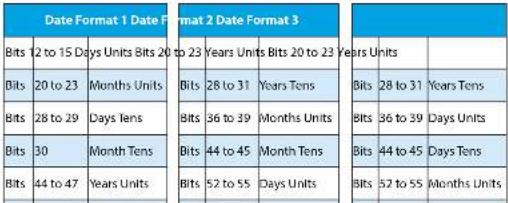 |
TECHNICAL SPECIFICATIONS


21 Technical Specifications
Input/Output Impedances
Mic Input: >1k5Ω electronically balanced.
Mono Line Input: > 20kΩ electronically balanced.
Stereo Line Input: > 20kΩ electronically balanced.
PGM & AUD Output: < 75Ω electronically balanced.
Mono Output: < 75Ω electronically balanced.
Monitor Outputs: < 75Ω unbalanced.
AES Input/Output: 110Ω
S/PDIF Input/Output: 75Ω
BNC Wordclock input: 50Ω
Input/Output Gain Range
| Mic Input: | Preset pot +13dB to +60dB ref 50dBu, TRIM pot ± 12dB |
| Mono Line Input: | Preset pot -6dB to +10dB ref 0dBu, TRIM pot ± 12dB |
| Stereo Line Input: | Preset pot -6dB to +10dB ref 0dBu, TRIM pot ± 12dB |
| Telco Input: | Preset pot -6dB to +10dB ref 0dBu, TRIM pot ± 12dB |
| Telco Output: Preset pot -6dB to +4dB ref 0dBu | |
| Mix Minus Input: | Preset pot -6dB to +10dB ref 0dBu, TRIM pot ± 12dB |
Mix Minus Output: Preset pot -3dB to +3dB ref 0dBu
| Digital Input: | 0dBFS = +12dBu on input; TRIM pot ± 12dB allowing 0dBu to +24dBu |
Digital Output: 0dBFS = +18dBu
Frequency Response
| Mic Input: | 40Hz to 20kHz -1dB, +0dB (3dB at 130Hz with HPF In). |
| Line Inputs: | 20Hz to 20kHz -0.5dB, +0dB. |
S TECHNICAL SPECIFICATIONS 21
| Stereo Inputs (fader down, one channel routed): | -89dB |
| Stereo Inputs (unity gain, no routing): | -89dB |
| Stereo Inputs (unity gain, one channel routed): | -86dB |
| Stereo Inputs (unity gain, two channels routed): | -83dB |
Distortion
| Total Harmonic Distortion: | 0.015% at 1 kHz, 0dB. |
| 0.025% at 10 kHz, 0dB. |
Crosstalk
| Inter-channel: < -90dBu. |
| Stereo: -90dBu at 1kHz |
Equalisation
| LF: Shelving at 100Hz. ± 7dB |
| HF: shelving at 6.5kHz. ± 7dB |
Range
| Pan Range off/ 3dB centre/off |
| Balance Range ± 6dB |
Common Mode Rejection Ratio
| Mlc Input: > 100dB at 70dB gain. |
Digital I/O
| Sync input Sample Rate Range: 30kHz - 100kHz |
| Output Sample Rates (Using Onboard Clock): 32kHz, 44.1kHz, 48kHz, & 96kHz |
| Output Sample Width: 16, 20, 24 bit (24 bit on V2 ODA/ODP) |
Output
| Headphone Output Load >45 ohms, recommended 400Ω | |
| Maximum Output (Analogue) | +26dBu balanced into 7k or greater |

TECHNICAL SPECIFICATIONS
TECHNICAL SPECIFICATIONS

Power
| Power Rating (S2-PSU): | Filtered IEC, switchable 115V, 230V, fused, 210W max. |
| Dimensions (S2-PSU): | |
| (Raw): | 48cm (W) x 24.3cm (D) x 8.8cm (H) |
| 19" (W) x 10" (D) x 3.5" (H) | |
| (Boxed): | 51cm (W) x 41.5cm (D) x 17cm (H) |
| 20" (W) x 16.3" (D) x 6.7" (H) | |
| Weight (S2-PSU): Nett: 6kg Gross: 7.8kg | |
| Nett: 13.2lbs Gross: 17lbs | |
| Dimensions (S2-PSUS): | |
| (Raw): | 48cm (W) x 23cm (D) x 4.4cm (H) |
| 19" (W) x 9" (D) x 1.7" (H) | |
| (Boxed): | 55cm (W) x 39.3cm (D) x 8.5cm (H) |
| 21.6" (W) x 15.5" (D) x 3.4" (H) | |
Weight (S2-PSUS): Nett: 1.58kg Gross: 2kg Nett: 3.5lbs Gross: 4.4lbs
S2 Mixer Weights and Boxed Dimensions
| Mixer Chassis Type | Width (cm) | Depth (cm) | Height (cm) | Gross Weight (kg) | Nett Weight (kg) |
| S2-30 137 70 45 | 36 34 | ||||
| S2-25 100 70 45 | 33 31 | ||||
| S2-20 100 70 45 | 30 28 | ||||
| S2-15 100 70 45 | 27 25.5 | ||||
| S2-10 80 70 45 | 24 22.5 | ||||
| S2-05 60 70 45 | 21 19.5 |
Note: Weights are approximate and based on a mixer chassis fully loaded with channels.

Glossary
Attenuation The reduction of a signal level. Attenuation is usually measured in dB.
AES Audio Engineering Society.
AES/EBU Professional digital audio standard covering frame format, connections and interfaces. Interface is usually on XLR sockets and plugs.
Balance The relative levels of the left and right channels of a stereo signal.
Cleanfeed A cleanfeed is the signal produced by the telco module, which is used as the output to be fed back to a caller on a telephone line. A true cleanfeed is the sum of all the other signals, which constitute the programme output, except for the caller's audio.
Clipping The onset of severe distortion in the signal path, usually caused by the peak signal voltage being limited by the circuit's headroom.
CMRR Common Mode Rejection Ratio. This is the ratio of the extent to which a differential amplifier will cancel noise, which is present on both inputs, compared to its ability to amplify the wanted signal.
Cross-talk This is the amount of an unwanted signal which appears, or is induced, on a different or unassimilated signal. The problem is usually most prevalent with adjacent channels.
CUE See PFL
dB (decibel) A ratio of two voltages or signal levels, expressed by the equation dB=20LOG(V1/V2)
Adding the suffix "u" denotes that the signal is relative to 0.775V RMS. Adding the suffix "v" denotes that the signal is relative to 1V RMS.
De-emphasis Pre-emphasis and de-emphasis are techniques used to improve the overall signal to noise ratio in communication channels. The frequency response of the channel is weighted with a 6 dB per octave slope prior to transmission (pre-emphasis), and then the inverse of this weighting is applied at the receiving end (de-emphasis) to restore a flat frequency response.
GLOSSARY

Gain The degree of amplification, or attenuation applied to a signal.
Hybrid A device that allows a telephone line to be connected to a broadcast desk in such a way that the caller may hear the programme output without the caller's voice being re-introduced onto the phone line. Essentially a two to four wire converter.
LED Light Emitting Diode.
Mix-minus Another method of producing a cleanfeed, except that the caller's voice is removed from the signal electronically. Due to phasing problems at the signal band edges, the mix-minus method often produces a lower grade signal to the true cleanfeed method.
PAN This controls the levels (usually of a mono signal) sent to the left and right outputs and is an abbreviation of "panorama".
PFL (CUE) Pre Fade Listen, also called CUE. A function that allows the operator to monitor the pre fader signal independently of the programme output.
Pre-emphasis see De-emphasis.
S/PDIF Sony/Phillips Digital Interface. Domestic digital audio interface standard using phono connectors or optically using fibre-optic connectors.
TBU See hybrid.
T/B Talkback (and reverse talkback, Rev T/B). This is the ability for two or more studios to communicate with each other off-air.
Telco TELEphone COmmunication. The telco module is used by the presenter to talk to telephone callers via a hybrid or TBU.
THD
Total Harmonic Distortion.

Index
C
Channel Configuration 5
Configuring The Timer 147
Connecting A Split Desk 14
Connectors and Cabling 5
Cough Switch and Talkback On Mic Modules 12
G
Glossary 155
1
Input Channels 25
Installation Notes 4
Introduction 1
M
Meterbridge Distribution Board 135
Meterbridge Modules 134
0
Output Channels 92
P
Power Supply 16
R
Removing & Replacing Channels 13
Reporting Faults vi
s
S2-C655 6 Way Stereo Line Source Select
Channel With EQ 70
S2-CD5E/S2-CDS Digital Dual Stereo
Line Channel With & Without EQ 61
S2-CML Mic/Line Channel With EQ 28
S2-CMM Mic/Mic Channel With EQ 30
S2-CSE/S2-CS Dual Stereo Line
Channel With & Without EO 4
S2-CSGE/S2-CSG Stereo Line And Gram
Channel With & Without EQ 5
52 CSMM Stereo Mix Minus Channel
With EQ 83
S2-ODAF/52-ODA Digital Output AUD
Channel With & Without Master Fader
(Version 2) 115
S2-ODPF/S2-ODP Digital Output PGM
Channel With & Without Master Fader
(Version 1): 94
S2-ODPF/S2-GDP Digital Output PGM
Channel With & Without Master Fader
(Version 2) 101
S2-DMC Control Room Monitor Channel 122
S2-OMS Studio Monitor Channel 128
Safety of Mains Operated Equipment iv, 17
T
Technical Specifications
152
w
Warranty and Liability
WEEE & RoHS Directives - Sonifex Statement v

INDEX


NOTES


NOTES
SONIFEX
www.sonifex.co.uk
t:+44 (0)1933 650 700
f:+44(0)1933650726
sales@sonifex.co.uk
natural_image
Product display of electronic equipment including a BONIFEX audio jack and control panel against a blue abstract background (no visible text or symbols)


- Warranty & Safety Information i
- Introduction
- Installation Notes 4
- Power Supply 16
- Input Channels
- S2-CMM Mic/Mic Channel With EQ 36
- S2-CSE/S2-CS Dual Stereo Line Channel With & Without EQ 43
- S2-CSGE/S2-CSG Stereo Line And Gram Channel With & Without EQ 52
- S2 -CDSE/S2 -CDS Digital Dual Stereo Line Channel With & Without EQ 61
- S2-C6SS 6 Way Stereo Line Source Select Channel With EQ 70
- S2-CT Telco Channel With EQ 76
- S2 CSMM Stereo Mix Minus Channel With EQ 83
- Output Channels 92
- S2-ODPF/S2-ODP Digital Output PGM Channel With & Without
- S2-ODPF/S2-ODP Digital Output PGM Channel With & Without
- WARRANTY & SAFETY INFORMATION
- Warranty and Liability
- Returning the Warranty Card
- Unpacking the S2
- Safety of Mains Operated Equipment
- Fuse Rating
- Power Cable and Connection
- Wire Colour Connection
- WEEE & RoHS Directives - Sonifex Statement
- Reporting Faults
- Innovative Design
- INTRODUCTION 1
- Superb Audio Quality and Unquestionable Reliability
- Features
- INSTALLATION NOTES
- Installation Notes
- Atmosphere
- Electromagnetic Radiation
- Dimensions and Cut-Out Sizes
- Channel Configuration
- Connectors and Cabling
- 2
- XLR 3 Pin Connectors
- RCA Phano Connector
- BNC Connector
- 6.35mm 'A' Gauge Stereo Jack Plugs
- D Type Connectors
- Applications
- Controlling an On-Air Light Using the Output Modules
- Controlling a Mic Cue Light using the Input Modules
- Enabling Talkback On Mic Modules
- Cough Switch and Talkback On Mic Modules
- Using Voice Processors On Mic Channels
- Remote Start and Stop
- INSTALLATION NOTES 2
- Adding Telco Channels
- Removing & Replacing Channels
- Connecting A Split Desk
- Connecting The Mixer Bus Interconnect Cable
- Connecting The Meterbridge Interconnect Cable
- Connecting The Earth Braid
- POWER SUPPLY
- Power Supply
- S2-PSU Power Supply (Old Version)
- Front Panel
- Rear Panel
- Ordering the Correct Mains Lead
- Voltage Setting Fuse Rating
- Power Connector
- 3
- Important Notes:
- Dimensions (S2-PSU)
- S2-PSUS Dual Power Supply Switcher
- Functionality
- Front Panel Indicators
- Resetting the S2-PSU States
- Usage Advice
- Power Input Connectors
- Power Output Connector
- Alarm & Status Connector
- Dimensions (S2-PSUS)
- Weight (S2-PSUS)
- S2-CML Mic/Line Input Channel
- S2-CMM Mic/Mic Input Channel
- S2-CS Dual Stereo Line Input Channel
- INPUT CHANNELS
- S2-CSE Dual Stereo Line Input with EQ Channel
- S2-CSG Stereo Line with Gram Input Channel
- S2-CDS Digital Dual Stereo Input Channel
- S2-CDSE Digital Dual Stereo Input with EQ Channel
- S2-C6SS 6 Way Stereo Line Source Select Channel
- S2-CT Telco Input Channel
- S2-CSMM Stereo Mix-Minus Channel
- S2-PG S2 Penny & Giles Conductive Plastic Fader
- S2-CML MIC/LINE CHANNEL WITH EQ
- S2-CML Mic/Line Channel With EQ
- Panel Controls
- PGM and AUD Selection
- MIC/LINE Selection
- Equalisation Controls
- TRIM Control
- BAL/PAN Control
- CUE/PFL Selection
- S2-CML MIC/LINE CHANNEL WITH EQ 5
- ON Selection
- Scribble Pad
- Mic Input Connector
- Line Input Connector
- Remotes Connector
- Insert Send Connector
- Insert Return Connector
- Channel Options, Jumper Settings and Presets
- Remote for Mic Cue Light
- Remote for Line
- Continuous Momentary Start
- CUE/PFL Cancel
- Mic Signalling on Line Input
- Phantom Power
- Microphone LF Response
- Enabling the Insert Point
- Mic Live Muting
- Timer Auto Start
- Presets
- Button Mode Settings
- PGM
- MIC/LINE
- EQ
- Cue/PFL
- ON
- S2-CMM MIC/MIC CHANNEL WITH EQ
- S2-CMM Mic/Mic Channel With EQ
- MIC 1/MIC 2 Selection
- Mic 1 Input Connector
- Mic 2 Input Connector
- Remote for Mic 1 Cue Light
- Remote for Mic 2 Cue Light
- Phantom Power Mic 1
- S2-CMM MIC/MIC CHANNEL WITH EQ 6
- Phantom Power Mic 2
- Mic 2 LF Response
- Talkback Mic Selection
- AUD
- MIC1/MIC2
- S2-CSE/S2-CS Dual Stereo Line Channel With & Without EQ
- INP 1/INP 2 Selection
- Equalisation Controls (S2-CSE only)
- 7
- S2-CSE/S2-CS DUAL STEREO LINE CHANNEL WITH & WITHOUT EQ
- Fader
- Line 2 Left Input Connector
- Line 2 Right Input Connector
- Line 1 Left Input Connector
- Line 1 Right Input Connector
- Remote for Line 1 Input
- Remote for Line 2 Input
- General Purpose I/O
- General Purpose I/O Action Options
- INP1/INP2
- EQ (S2-CSE only)
- S2-CSE/S2-CS DUAL STEREO LINE CHANNEL WITH & WITHOUT EQ 7
- S2-CSGE/S2-CSG STEREO LINE AND GRAM CHANNEL WITH & WITHOUT EQ
- S2-CSGE/S2-CSG Stereo Line And Gram Channel With & Without EQ
- LINE/GRAM Selection
- Equalisation Controls (S2-CSGE only)
- GRAM Input (RIAA) Left and Right Connector
- S2-CSGE/SZ-CSG STEREO LINE AND GRAM CHANNEL WITH & WITHOUT EQ
- Remote for Gram Input
- S2-CSGE/S2-CSG STEREO LINE AND GRAM CHANNEL WITH & WITHOUT EQ 8
- EQ (S2-CSGE only)
- S2 -CDSE/S2-CDS Digital Dual Stereo Line Channel With & Without EQ
- Equalisation Controls (S2-CDSE only)
- S2-CDSE/S2-CDS DIGITAL DUAL STEREO LINE CHANNEL WITH & WITHOUT EQ
- S/PDIF Input Connector
- Input 1 AES/EBU Connector
- Input 2 AES/EBU Connector
- Remote for Digital Input 1
- Remote for Digital Input 2
- De-emphasis
- Disabling PFL When no Input is Detected
- AES/EBU, S/PDIF Select for Input 1
- AES/EBU, S/PDIF Select for Input 2
- EQ (S2-CDSE only)
- S2-C6SS 6 WAY STEREO LINE SOURCE SELECT CHANNEL WITH EQ
- S2-C6SS 6 Way Stereo Line Source Select Channel With EQ
- Input Selection
- Stereo Audio Source Input Connector
- Source Remotes Connector
- Source Remotes
- Source Select
- S2-CT TELCO CHANNEL WITH EQ
- S2-CT Telco Channel With EQ
- CUE/PFL & T/B Selection
- LINE HOLD Selection
- Telco Line Input Connector
- Remote for Hybrid Hold
- CUE/PFL & T/B Cancel
- Cleanfeed Bus Output Select
- Terminating The Cleanfeed Buses
- General Purpose Inputs
- Cue/PFL&T/B
- S2 CSMM Stereo Mix Minus Channel With EQ
- 12
- S2-CSMM STEREO MIX MINUS CHANNEL WITH EQ
- Left Cleanfeed Output Connector
- Right Cleanfeed Output Connector
- Line Left Input Connector
- Line Right Input Connector
- Remote for Line Input
- Cleanfeed Output Selection
- S2-CSMM STEREO MIX MINUS CHANNEL WITH EQ
- OUTPUT CHANNELS
- Output Channels
- S2-ODP Digital PGM Output Channel &
- S2-ODA Digital AUD Output Channel &
- S2-OMC Control Room Monitor Channel
- S2-OMS Studio Monitor Channel
- S2-ODPF/S2-ODP DIGITAL OUTPUT PGM CHANNEL WITH & WITHOUT MASTER FADER (VERSION 1)
- Mono Output Selection
- Lock Indicator
- Fader (S2-ODPF only)
- AES/EBU PGM Output Connector
- S/PDIF PGM Output Connector
- S/PDIF Sync Input Connector
- Outputs & Remotes Connector
- Word Clock Input Connector
- AES/EBU Sync Input Connector
- Cleanfeed Terminations
- Synchronisation Mode and Sample Rate
- Sync Select
- Digital Output Mode
- 14
- S2-ODPF/S2-ODP DIGITAL OUTPUT PGM CHANNEL WITH & WITHOUT MASTER FADER (VERSION 1)
- ADC Calibration
- S2-ODPF/S2-ODP Digital Output PGM Channel With & Without Master Fader (Version 2)
- S2-ODPF/S2-ODP DIGITAL OUTPUT PGM CHANNEL WITH & WITHOUT MASTER FADER (VERSION2)
- 15
- S2-ODPF/S2-ODP DIGITAL OUTPUT PGM CHANNEL WITH & WITHOUT MASTER FADER (VERSION 2) 15
- S2-ODAF/S2-ODA DIGITAL OUTPUT AUD CHANNEL WITH & WITHOUT MASTER FADER (VERSION 1)
- S2-ODAF/S2-ODA Digital Output AUD Channel With & Without Master Fader (Version 1)
- Meter Display Selection
- Fader (S2-ODAF only)
- AES/EBU AUD Output Connector
- S/PDIF AUD Output Connector
- Output & Remotes Connector
- Meterbridge Interconnect
- CR MON
- S2-ODAF/S2-ODA Digital Output AUD Channel With & Without Master Fader (Version 2)
- S2-OMC Control Room Monitor Channel
- PGM, AUD, EXT 1 & EXT 2 Selection
- Monitor level
- Monitor Auto Cue/PFL
- Mute
- Phones
- Phones Auto Cue/PFL
- Phones Split Cue/PFL
- External Inputs Connector
- Presenter Headphones Connector
- Control Room Monitors Connector
- Talkback Input Connector
- 18
- Channel Options and Jumper Settings
- Global Talkback Enable
- Control Room Loudspeaker Talkback Enable
- Control Room Loudspeaker Talkback Dim Enable
- Control Room Headphone Talkback Dim Enable
- EXT1
- EXT2
- S2-OMS Studio Monitor Channel
- Studio T/B (Talkback)
- Studio Headphones Connector
- Studio Monitor Connector
- S2-OMS STUDIO MONITOR CHANNEL 19
- Studio Loudspeaker Talkback Enable
- Studio Loudspeaker Talkback Dim Enable
- Studio Headphones Talkback Dim Enable
- METERBRIDGE MODULES
- Meterbridge Modules
- Meterbridge Module Types
- S METERBRIDGE MODULES 20
- Meterbridge Distribution Board
- External Talkback Connector
- Mixer Talkback Connector
- S2-M6SS Meterbridge 6 Way Source Select Panel
- Audio Input Connector - 25 pin D-type female (socket)
- S2-MSB1 Meterbridge Switch Panel With 1 Button
- S2-MSB3 Meterbridge Switch Panel With 3 Buttons
- S2-MSB1 S2-MSB3
- Female Switch Panel Switch Panel D-Type Connection Connection
- Overview
- START / STOP
- RESET
- MODE
- Quick Time View
- RS232 Connector
- NOTE: Only Pins 2 & 3 are currently used.
- MSF/DCF Antenna & SMPTE/EBU Connector
- Configuring The Timer
- Setting The Mode
- Time Code Synchronisation Source
- Indication of Lock to Source
- RS232 Port
- RS232 Output Format
- SMPTE/EBU Timecode Settings
- TECHNICAL SPECIFICATIONS
- Technical Specifications
- Input/Output Impedances
- S TECHNICAL SPECIFICATIONS 21
- Glossary
- Index
- C
- G
- 1
- M
- 0
- P
- R
- s
- T
- w
- SONIFEX
Brand : Sonifex
Model : S2-CDASE
Category : Unspecified