Cruz Reader SE R100 - Tablet Velocity Micro - Free user manual and instructions
Find the device manual for free Cruz Reader SE R100 Velocity Micro in PDF.


| Product Type | Tablet |
| Brand | Velocity Micro |
| Model | Cruz Reader SE R100 |
| Display Type | Resistive touch screen |
| Battery Life | Approximately 10 hours |
| Charging Time | 20-30 minutes for full charge |
| Internal Storage (SD) | 2 GB (SE model) or 4 GB (R101 model) |
| External Storage (SD/SDHC) | Up to 32 GB |
| Embedded Internal Storage | 256 MB |
| Connectivity | Wi-Fi 802.11 b/g |
| Preloaded Apps | Alarm Clock, ASTRO, Borders eBooks, Browser, Calculator, Calendar, Facebook, Gallery, Music, Office Suite, Settings, Twidroyd, UserWallpapers |
| Supported Audio Formats | MP3, WAV, AAC, OGG |
| Supported Video Formats | MPEG4, H.263, H.264 |
| Supported Image Formats | JPEG, GIF, PNG, BMP |
| Power Input | DC adapter via DC-IN jack |
| Battery Type | Rechargeable lithium-ion (nominal charge out of box) |
| Supported OS | Android (customized) |
| Supported File Formats (Documents) | Microsoft Office (Word, Excel, PowerPoint), eReader files |
| Touch Calibration | Manual calibration available in Settings |
| Customer Support | Online support hub at cruzsupport.velocitymicro.com; phone 1-800-296-4312 |
Frequently Asked Questions - Cruz Reader SE R100 Velocity Micro
User questions about Cruz Reader SE R100 Velocity Micro
0 question about this device. Answer the ones you know or ask your own.
Ask a new question about this device
Download the instructions for your Tablet in PDF format for free! Find your manual Cruz Reader SE R100 - Velocity Micro and take your electronic device back in hand. On this page are published all the documents necessary for the use of your device. Cruz Reader SE R100 by Velocity Micro.
USER MANUAL Cruz Reader SE R100 Velocity Micro
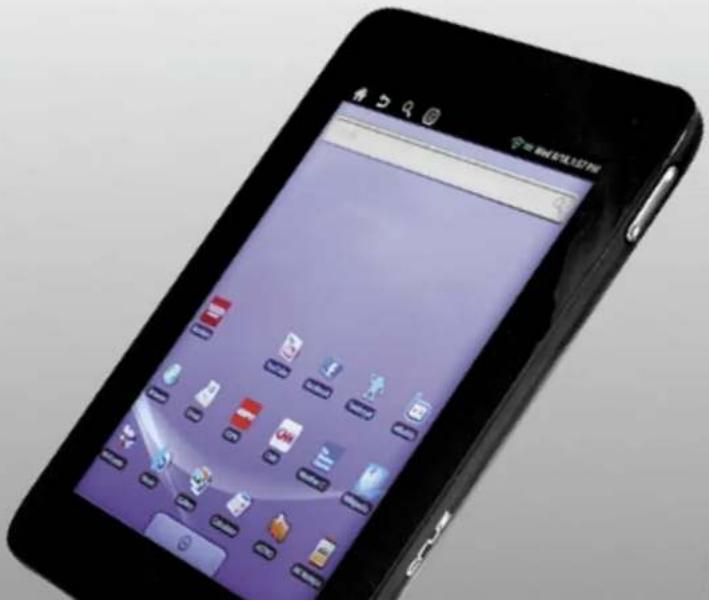
Getting Started with CRUZ™
natural_image
Smartphone displaying a mobile app interface with icons on screen (no readable text or symbols)Table of Contents
I. Get Acquainted.... 2
II. Resistive Screen 3
III. Get Started 4
IV. Your Home Screen.... 5-6
V. Connecting to Wi-Fi....7-8
VI. Email Setup 9
VII. Saving Battery 10
VII. Device Storage and ASTRO 11-12
VIII. Transferring Files 13-14
IX. File Formats 15
X. Preloaded Apps 16-17
XI. Buying Books 18-19
XII. Installing ePUBS 20
XIII. Loading/Playing Media 21-22
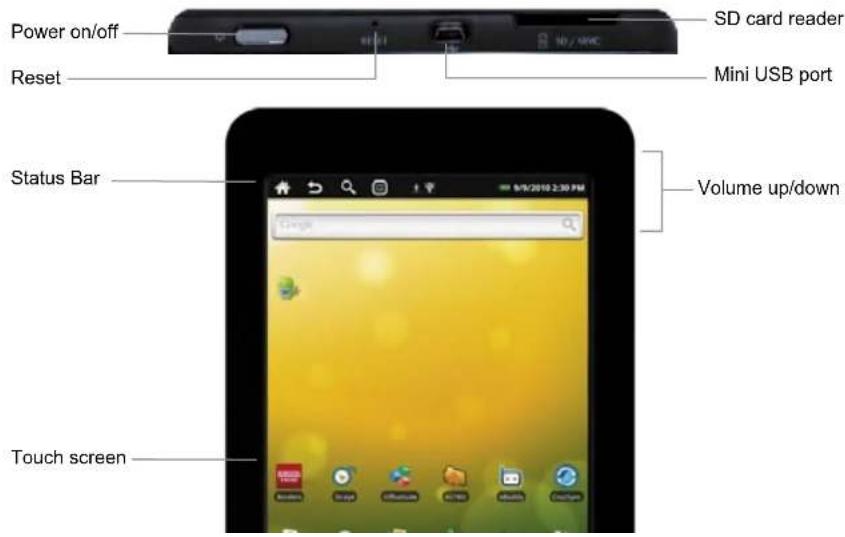
I. Get Acquainted
Figure 1: Device Exterior
II. Resistive Screen
What does it mean?
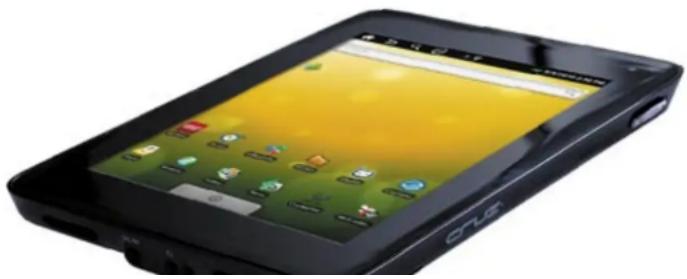
The Cruz Reader has a "resistive touch screen," meaning there are two electronic layers inside the screen separated by a narrow gap. When your fi nger presses on an area of the screen, these two layers are joined, sending the info to the Cruz processor and translating it as input.
What makes it work best?
Resistive screens work best when using a sharp, precise touch, like that of a fi ngernail or pen top and do require a little more pressure than the capacitive screens found on many smart phones. Because they do not detect the heat of your fi nger like capacitive screens, a tool like a stylus can also be used to easily and precisely navigate the Cruz Reader's touch screen.
natural_image
Black OLS tablet device with yellow screen and navigation icons (no visible text or symbols on screen)III. Get Started
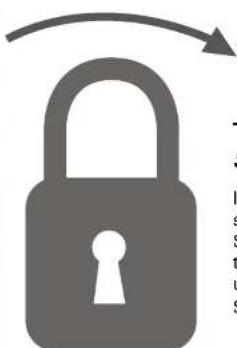
Before continuing, understand that the display has a screen timeout by default set to 15 seconds. If the unit is left inactive for that period of time, the screen will go dark as if turned off. However, it is simply in standby mode. Tap the power button and a screen will appear with an arc with green padlock buttons on either side.

natural_image
Gray padlock icon with curved arrow, no text or symbols presentThis is your Lock Screen.
It appears to secure the touch screen from accidental touches. Simply slide one of the locks toward the center of the screen to unlock the device and your Home Screen will reappear.
The Battery should have a nominal charge on it out of the box and should charge fairly rapidly. Connect the charger to the DC-IN jack on your Cruz for 20 to 30 minutes for a full charge lasting approximately 10 hours. The charging indicator LED to the right of the DC adapter plug will glow red when charging, green when complete, and off when not needed. Battery life will vary due to many conditions, especially when using Wi-Fi and maximum screen brightness.
IV. Your Home Screen
Think of this as your desktop. What goes on the home screen is up to you. You can fi ll the space with any combination of short-cuts, widgets, and folders you like. Some preinstalled shortcut icons will appear at the bottom, and a Google Search Widget appears at the top.

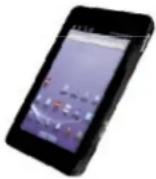
When you power up your Cruz for the first time, you'll see the main home-screen panel. This panel is typically centered; you can access additional panels on either side of the main one by swiping your finger left or right.
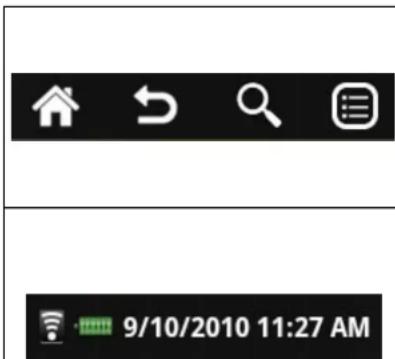
At the top of the Home Screen is your Status Bar. At the left, you have a set of four Control Icons. If you are ever in an application that uses full screen mode and therefore hides these icons, simply tap on the center of the screen to make the Status Bar reappear momentarily. From left to right, the icons are Home Back, Search and Menu
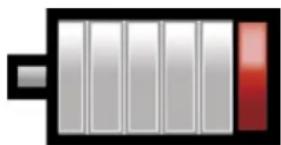
To the right on the Status Bar you will find the date and time. To the left of the date, you will see a Battery Life icon. This icon changes to a Battery Charging icon when the DC Adapter is connected and plugged into the wall socket, regardless if there is a full charge or not.
To the left of that will appear a Wi-Fi icon (☐), but only when connected. The icon will show your Wi-Fi signal strength as well.
IV. Your Home Screen (Cont'd)
Adding Widgets to Your Home Screen:
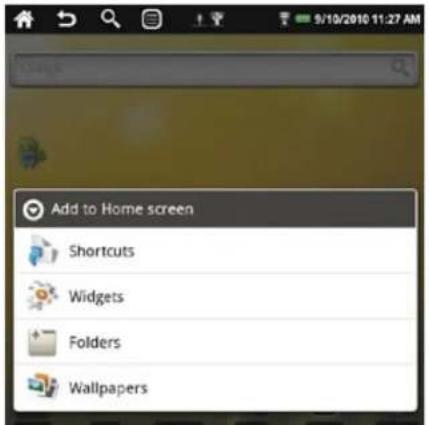
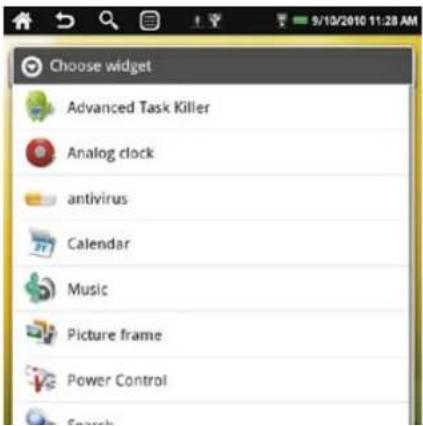
Widgets are a feature of an application that you may install, allowing you to place a function of that app onto your Home Screen. For instance, you may add an Analog clock to your Home Screen.
To add a widget, simply tap and hold (long press) your fi inger on any open space on your home screen, and select Widgets from the context menu that opens. From there, select any of the available widgets. (The image shown here includes third party apps not included on your Reader.
V. Connecting to Wi-Fi
For the sake of this guide, the assumption is that you are connecting to your Cruz to your own home Wi-Fi Access Point (AP) or a free unsecured Wi-Fi hotspot. From the Home Screen, select the shortcut icon that reads Wi-Fi Settings and ensure that both Wi-Fi and Network Notification are enabled with green check marks. After a moment, your Wi-Fi networks list should populate. If you need to rescan for available networks, tap Menu> then tap Scan.

V. Connecting to Wi-Fi (Cont'd)

Tap the network you wish to connect to and then click Connect.
For unprotected networks, this method should suffice. The Wi-Fi icon should now appear with full (or near full) strength next to the date and time.


9/9/2010 3:35 PM
Accessibility
If a password is required, tap the password text fi eld for the popup keyboard.
Many public Wi-Fi hotspots are freely accessible, though not all are. Some are secured, others are open. And still others appear to have no security, but require either access codes or some other form of access agreement acknowledgment via a browser. It is possible to connect to such a signal, appear to be connected, and still require validation.
Once the Cruz has successfully connected to any SSID, it is saved. The unit will try to auto-connect to the most recently successful connection. When that SSID is no longer available, it is listed in the Wi-Fi networks list as "Not in range, remembered" in the status line.
Troubleshooting
1) If you change the password of your wireless network, be sure to also change the remembered password.
VI. Email Setup
The pre-installed Email app is a simple but effective email client for both POP3 and IMAP email services. Confi guration is automatic for some email services. For those that are auto-confi gured, you only need to enter the email address and password, then click next. Otherwise, you will need to
Prior to beginning, you will need detailed email configuration information which is available from your service provider. You may have to locate the server settings information at your Email Provider's support website, or you may need to call their support line. Unfortunately Velocity Micro cannot provide assistance with this step. Below is the information you are looking for:
| Server Type | You must select POP3, IMAP, or Exchange according to your email service provider's instructions. Typically this is POP3, but many are now allowing for IMAP service. If you need to connect to an Exchange server, contact your business systems Network Administrator for assistance. |
| Username or Email Address: | This must be either your email alias (the part in front of the @ character), or your full email address. |
| Password The password is case sensitive | |
| Incoming mail server | This is the address at which your incoming mail is waiting for you. |
| Port | You must specify a port number for communication with your incoming mail server. |
| Outgoing mail server | This is the address which is waiting for your outgoing mail. |
| Port | You must specify a port number for communication with your outgoing mail server. |
| Security type | You must specify if/whether a security method is required for |
VII. Saving Battery Life
You may learn about your power consumption in Settings > About phone > Battery > Battery or use an app designed to analyze usage patterns.
natural_image
Battery icon with gradient fill and red vertical stripe (no text or symbols)
natural_image
Green battery icon with gradient fill and gray indicator light (no text or symbols)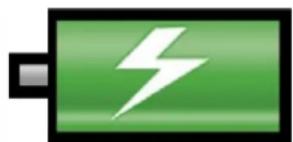
natural_image
Green battery icon with a white lightning bolt symbol (no text or numbers)Very Low Battery Full Battery Charging Battery
Tips on Extending the Life of Your Battery:
- Understand that streaming audio or video apps will use a lot of battery life
- Disable Wireless Network Positioning
You can turn it off from Settings > Location > Use wireless networks.
- Switch off Wi-Fi
If you're not close to a strong Wi-Fi signal for extended periods of time, disable Wi-Fi from a homescreen widget or from Settings > Wireless networks > Wi-Fi.
- Use a Quick Screen Timeout
You can alter this option from Settings > Screen & display > Screen timeout.
- Turn Down the Screen Brightness
VIII. Device Storage and ASTRO
The device has three areas for storage. There are two SD card slots, one internal micro SD and one external SD/SDHC. There is also an embedded internal storage. Below, you'll see all of the storage areas broken down and fully explained:
| Name Capacity | Appears in ASTRO as | Storage Uses | |
| Internal SD Storage | Either 2 GB or 4 GB * | /sdcard | The Android apps you install will write fi le folders and app content to this removable storage. You may copy content to this loca-tion, but be careful of what you delete as it may impact the function of your apps. |
| External SD Storage | Up to 32GB | /sdcard1 | This external slot is for standard and SD and SDHC fl ash memory cards (up to 32GB) and is useful for storage, or for transferring fi les to and from your Cruz and your computer. |
| Internal Device Storage (embedded) | 256 MB / | The Android operating system uses this inter-nal embedded storage. You may not adminis-ter these fi les. | |
* Cruz Reader SE models come standard with a 2 GB SD card, Cruz Reader R101 models include a 4 GB SD card
VIII. Device Storage and ASTRO(Cont'd)
You can also end running applications (End Task) using ASTRO. Follow these steps to place a shortcut on your Home Screen.
Open ASTRO > Preferences (Prefs icon on toolbar) > Home Screen Icons > check the box for Processes
Now tap Home and tap on your new shortcut to open the app. Stick to the Apps tab and leave the Services and Processes tabs alone to avoid system instability.
Common Actions Using ASTRO
1) Copy a File
- long click on the fi le name, select Edit / Copy.
- navigate to the new directory and click Edit / Paste.
2) Copy Multiple Files
- click the Multi button and select the fi les.
- click Edit / Copy. - navigate to the new directory and click Edit / Paste.
3) Move a File
- long click on the file name, select Edit / Move.
4) Move Multiple Files

IX. Transferring Files
I. Tether via USB to your PC
NOTE: While tethered, you cannot use your Cruz to access the internal or external SD cards).

natural_image
Diagram showing a desktop computer tower connected to an Apple tablet via USB symbol (no text or labels present)STEP 1: Turn on your Reader and connect your supplied mini USB cable to the Cruz device and to your PC (mini USB cable not included with the Cruz Reader SE model)
STEP 2: Slide the notification panel down and tap the alert that reads, "USB Connected - Select to copy files to/from your computer", then tap Mount.
STEP 3: This should only be required once. After doing this, the alert should change to "Turn off USB storage ...". This is normal when tethered.
IX. Transferring Files (Cont'd)
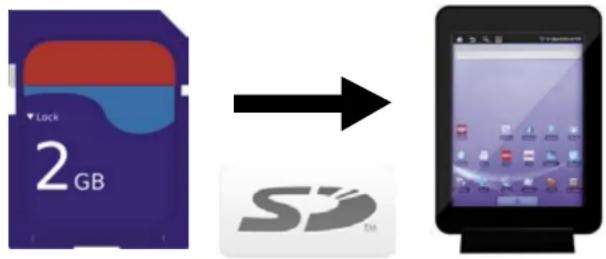
II. Transfer via external SD Card
flowchart
graph LR
    A["Lock 2 GB"] --> B["SD TM"]
    B --> C["Mobile Device Interface"]
STEP 1: Insert external SD card and open ASTRO.
STEP 2: Navigate with the up arrow to the root of the device and tap the sdcard1 directory icon to access your card.
STEP 3: Select the "Multi" button on the menu bar, then tap each file you want to move to your Cruz device. You know the fi le is selected when the fi le name is highlighted.
STEP 4: Select the "Copy" button on the menu bar, then tap the Up button on the menu bar to move up one level, then tap the sdcard directory icon to access your internal SD card and select the "Paste" button on the menu bar.
X. File Formats
The fi le formats that this device can handle are too numerable to list. The pre-installed apps should allow you to view many Microsoft Offi ce fi le formats, including Word, Excel, and PowerPoint, as well as many eReader fi le types, and music and video fi le types.
Most fi les should work, but not all fi les are encoded the same. For example, some MPEG4 fi les will work but others may not, depending on how they were encoded and compressed
Natively supported file types include, but are not limited to:
 Audio Audio | MP3, WAV, AAC, OGG |
 Video Video | MPEG4, H.263. H.264 |
 Images Images | JPEG, GIF, PNG, BMP |
 |
XI. Preloaded Apps
Each Cruz comes preloaded with many useful applications that can be found by tapping the app panel at the bottom of your home screen. We have compiled below a full list of these preloaded apps, complete with a short description of their purpose/function.
| Icon Name | Requires Wi-Fi | Purpose | |
 | Alarm Clock No | ||
 | ASTRO No | ||
 | Borders 8 eBooks Yes | Your primary eBook library portal. See section Section XI for details. | |
 | Browser Yes | ||
 | Calculator No | ||
 | Calendar No | ||
 | Browse, purchase, and install applications | ||
XI. Preloaded Apps
| Icon Name | Requires Wi-Fi | Purpose |
 | FaceBook Mobile | Yes Log into your FaceBook account and stay connected on the go! |
 | Gallery No | Access photo or video fi les for play or display right on the Cruz's full color screen. Use your Cruz as a digital picture frame or fully mobile media hub! |
 | Music No | Jam to your favorite tunes! Insert headphones or listen through the built-in speakers. This app can play music while other apps are running. |
 | Offi ce Suite No | Allows you to view Microsoft® Offi ce fi les, including Excel® Spreadsheets, Word® documents, and even PowerPoint® presentations. |
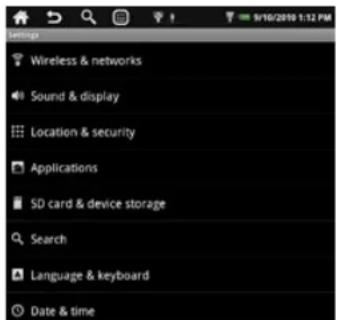
 | Settings No | Access device settings for Wi-Fi, sound and display, location and security, applications, storage, search, language and keyboard, and date and time. |
 | Twidroyd Yes | Tweet updates to all your followers with this useful Twitter application! |
 | UerWallpapers No | Offers multiple preinstalled wallpaper options that give your Cruz a stylish fl air! Upload your own images to make it truly personal! |
XII. Buying Books
Your Cruz offers the remarkable opportunity of carrying all your favorite books in the palm of your hand. Each Cruz comes pre-loaded with Borders eBook reader application. This application is a library portal allowing users to sign into their personal account, browse an immense selection of literature, and purchase/download books in an instant! There are over 100 free eBooks available for download.
In this section, you will be guided through your first eBook purchase!
BORDERS ^¢
| STEP 1 | Click on the Borders eBooks icon located on the Home Screen or on your App panel. The app requires Wi-Fi connection, so make sure you are connected. |  |
| STEP 2 | Once the application loads, create or sign into your Borders account. This is a free service. If you have forgotten your username or password, the Borders website (www.borders.com) is helpful in | 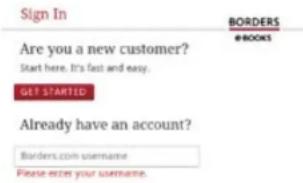 |
XII. Buying Books (cont'd)
| STEP 4 | When you find a book you want to download/purchase, click on the book cover. |  |
| STEP 5 | It will bring you to a product page with the book cover, the price, a “Buy Now” button, as well as a synopsis of the book lower on the page | 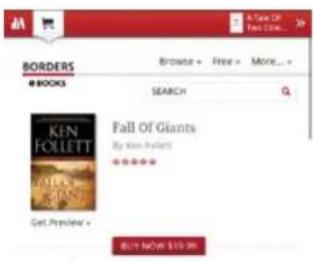 |
XIII. Installing ePUBs
Many eReader files are in the ePUB file format. The Cruz Reader does not natively support this file format, so an additional application available on the Cruz Market must first be downloaded.
Keep in mind that many ePUB files are also DRM-protected (Digital Rights Management), preventing illegal distribution of publications. In order to read DRM-protected ePUBs, you will need to download a specialized application that manages the DRM requirements.
For instructions on how to read a DRM-protected ePUB on your Cruz, visit www.cruzreader.com or call one of our support technicians at 1-800-296-4312

natural_image
Green geometric logo with interlocking shapes (no text or symbols)ePUB
Reading ePUB fi les that are NOT protected by DRM
| Step 1 | Install FBReader from the Cruz Market (Apps > Books & Reference > FBReader) onto your Cruz. |
| Step 2 | Transfer your ePUB files to your internal micro SD card at the following folder location: /sdcard/Books |
XIV. Loading/Playing Media
Not only does your Cruz Reader hold tons of eBooks, browse the web, and keep you connected with social networks, it also functions as a great portable media player too. Just load up your SD card with your music collection, favorite pictures, or digital videos and take all of your favorites on the road with you. Here's how to get started:
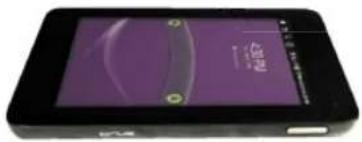
natural_image
Black rectangular electronic device with purple screen and green indicator lights (no visible text or symbols)Music
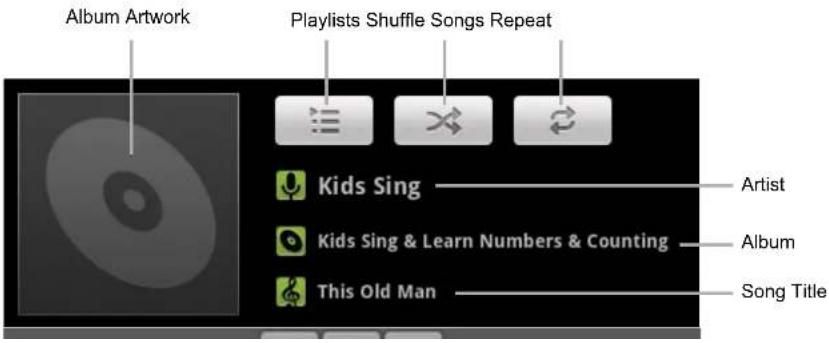
After loading your music onto your Cruz, simply tap the music icon (found by default on your home screen or by opening the App Panel). You'll be given the option of selecting by Artist, Song, Album, or custom Playlist. Tap to select. Your selection will begin to play through the Cruz's built in speakers or through external headphones if attached via the headphone port. The Cruz media player allows you to shuffle, skip, or pause your current selection and even displays the Album artwork when available.
XIV. Loading/Playing Media(Cont'd)
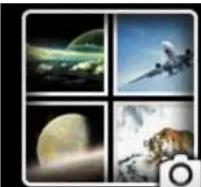
All pictures (14)
All videos (18)
video (18)

Pictures (14)

natural_image
Nighttime cityscape featuring the Sydney Opera House illuminated at night, with no visible text or symbols on the structures themselves.| Set images as your Home Screen background! | |
| Share via social network or email! | |
| Delete an image from your memory |
XV. Installing Apps
Android Applications are available via the Cruz Market or other third-party sources like the developer's website.
Many Android apps are designed for use with phone devices rather than just tablet devices, but many, many more are great for use on tablets! You can also install any number of eReader Android apps, allowing you to have multiple eReader file formats, all on one Cruz Reader.

natural_image
Shopping cart icon with 'MARKET' text below (no additional symbols or text)CruzMarket
Visit the CruzMarket for access to 100's of apps. Some of them are free

XV. Installing Apps (Cont'd)
The installation fi le for Android has a fi le extension of .APK. The steps below explain how to install these on your Cruz.
| Step 1 | Download your app to your PC. Files are often distributed in archive format (ie: .ZIP, .RAR). If so, their contents fi rst must be extracted so that the .APK fi le is all that remains. Note: If the fi le you download looks like “appname.apk” you can skip to Step 2. |
| Step 2 | Unmount the SD card prior to removal. Once unmounted, eject the SD card that accompanied your Cruz device, insert it into the SD slot on your PC, and copy the appname.apk fi le to it. |
| Step 3 | Open the Application Manager (Settings > Applications) and make sure the Unknown Sources option is checked so that you may install 3rd party apps. |
| Step 4 | Open your File Manager app and navigate to your /sdcard1 folder to locate your app. Tap to install using Application Manager. |
Restoring your Cruz to factory settings will wipe clean all applications, files, and settings from your Cruz' memory. Proceed only if you understand this.
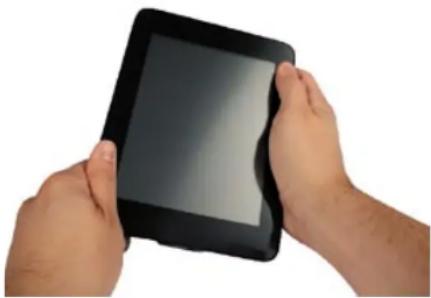
There are two steps to restoration of the Reader, the first is the install and second is the touch screen calibration.
Please read these instructions for the install portion of the process. After these steps, see Section XVI on Recalibration to complete the restoration process (pg 25).
natural_image
Close-up of hands holding a black tablet device (no visible text or symbols)| Step 1 | You will need to download the restoration file prior to continuing. Visit Velocity Micro's Support Hub at www.cruzreader.com or call 1-800-296-4312 for help. |
| Step 2 | Once you have downloaded the ZIP file, insert a standard SD card into your computer's media reader. Save the ZIP file to the root of the SD card, not in any folder.DO NOTextract the contents of the ZIP file, leave it as a ZIP archive. |
| Step 3 | Remove the SD card from the PC and insert it into the external SD slot of the Cruz Reader. (To be sure that you have sufficient power to complete the update, attach your DC charger and confirm the unit is charging.) |
| Hold the power button until the Power Off dialogue appears, then top |
XVII. Touch Calibration
IMPORTANT: It may take a number of attempts to complete calibration. DO NOT give up. If asked to start again, then keep going until you have success. Interrupting the process by powering off the unit can LOCK UP THE TOUCH SCREEN making it impossible to unlock again from the lock screen after restarting the unit. If this occurs, you will need to restore the unit to factory condition. See section XV for help with this process.
We do not recommend recalibrating unless you are having a significant issue. Each Cruz's calibration was already optimized prior to shipment.
If you believe you are having a signifi cant issue, begin by laying the Cruz fl at on its back and fi nding a writing implement to use as a stylus. A closed retractable ball-point pen works well. Be as precise as possible, and be careful not to accidentally touch any other part of the screen during the calibration process.
STEP 1: Select Home > Menu > Settings > Language & Keyboard > Touch Calibration
STEP 2: Follow the instructions in yellow. You will be told to touch at crosses (1), (2), (3), & (4).
If not successful, the "Can't get valid calibration ..." message will be displayed and you will have to begin again at cross (1).
STEP 3: If successful, the "Average DIFF = ..." will be displayed with instruction to touch cross (5).
XVIII. System Requirements
| Platform |  |  |
| Windows | Mac | |
| Operating System | Microsoft® Windows® 2000, Me, XP, Vista, 7 or higher (32-bit or64-bit) | MAC OS X v10.4, 10.5 or higher preferred |
| Processor | Intel Pentium II or AMD K6-2 300MHz or higher | PowerPC G3 300MHz or higher Including Intel-based Macs |
| RAM | 128 MB 256 MB | |
| Video | Super VGA (800 X 600) or higher resolution video adapter and monitor | Super VGA (800 X 600) or higher resolution video adapter and monitor |
XIX. Open Source License
Where such specific license terms entitle you to the source code of such component, that source code is available upon request via vmsupport@velocitymicro at cost from Velocity Micro or visiting our website in http://cruzsupport.velocitymicro.com/ at least three years from the purchase date of this product. If you would like to have a copy of the GPL or certain other open source code in this component on a CD, Velocity Micro will mail to you a CD with such code for \$5 plus the cost of shipping, upon request.
This product's software/firmware includes the following open source components:
GPL license:
- Xvid,
- libmad
- libfaad2
LGPL license:
XX Cruz Support
Cruz Support is available at http://cruzsupport.velocitymicro.com. There are a large number of informative knowledgebase articles to answer your questions. You can also download the latest manual for your product. Once registered at the site, you can register your product, submit tickets for support, and administer your tickets and personal profile.
How Do I Get Support?
Registering for support is easy and free.
- If you have not already done so, create a Support account for yourself at our website: http://cruzsupport.velocitymicro.com/ics/support/mylogin.asp.
Note: Those customers who have purchased a Cruz product directly from Velocity Micro may skip this step.
-
Then register your purchased Cruz products: http://cruzsupport.velocitymicro.com/ics/support/productRegister.asp
-
When complete, go to 'My Products' (http://cruzsupport.velocitymicro.com/ics/support/my-Products.asp) and submit a ticket for the product you are seeking support for.
-
If you need to return your Cruz product for repair, you must first contact our technical support for a RMA (Returned Merchandise Authorization). Note: Proof of Purchase (http://cruzsupport.velocitymicro.com/ics/support/KBAnswer.asp?questionID=835) is required for RMA services. You create a ticket to upload your Proof of
XXI Registration and Contact Info

Registration
In order to utilize the benefits Velocity Micro's award winning customer care, you must first register your Cruz soon after purchase. Not only does registering allow us to more accurately provide a premium level of technical support and customer care, it also gives you access to important updates and information throughout the duration of ownership. Registration takes just minutes via the Velocity Micro support hub. We are happy to help with this process should you need assistance.
To register your Cruz, please visit:
www.cruzreader.com
Contact Us
Address:
7510 Whitepine Road
Richmond, VA 23237
Phone:
800-296-4312
- Getting Started with CRUZ™
- Table of Contents
- Get Acquainted
- Resistive Screen
- What does it mean?
- What makes it work best?
- Get Started
- This is your Lock Screen.
- Your Home Screen
- Your Home Screen (Cont'd)
- Adding Widgets to Your Home Screen:
- Connecting to Wi-Fi
- Connecting to Wi-Fi (Cont'd)
- Accessibility
- Troubleshooting
- Email Setup
- Saving Battery Life
- Tips on Extending the Life of Your Battery:
- Device Storage and ASTRO
- Device Storage and ASTRO(Cont'd)
- Common Actions Using ASTRO
- Transferring Files
- Tether via USB to your PC
- Transferring Files (Cont'd)
- Transfer via external SD Card
- File Formats
- Preloaded Apps
- Buying Books
- BORDERS ¢
- Buying Books (cont'd)
- Installing ePUBs
- Loading/Playing Media
- Music
- Loading/Playing Media(Cont'd)
- Installing Apps
- Installing Apps (Cont'd)
- Touch Calibration
- System Requirements
- Open Source License
- This product's software/firmware includes the following open source components:
- XX Cruz Support
- How Do I Get Support?
- XXI Registration and Contact Info
- Registration
- Contact Us
Brand : Velocity Micro
Model : Cruz Reader SE R100
Category : Tablet