
RM-3270WS-3G2 - Blender Wohler - Free user manual and instructions
Find the device manual for free RM-3270WS-3G2 Wohler in PDF.


| Product Type | Rack-mounted dual 7-inch LCD video monitor |
| Model | RM-3270WS-3G2 |
| Brand | Wohler |
| Display Size | 7.0 inches diagonal per screen |
| Display Resolution | 1024 x 600 pixels |
| Aspect Ratio | 15:9 |
| Panel Type | IPS LCD with LED backlight |
| Viewing Angle | 150° horizontal, 170° vertical |
| Contrast Ratio | 800:1 |
| Brightness | 400 cd/m² |
| Video Inputs | 2 BNC (3G/HD/SD-SDI or CVBS) |
| Audio Monitoring | 16-channel bar graph meters, stereo speakers, headphone jack |
| Power Requirements | 100-240 VAC, 50/60 Hz, 35W |
| Dimensions (HxWxD) | 5.2 x 19 x 1.7 inches (132 x 484 x 43 mm) |
| Weight | 3.5 lbs (1.6 kg) |
| Rack Size | 3RU |
| Network Control | RJ45 Ethernet with built-in web server |
| Safety | Unplug during storms; refer service to qualified personnel |
| Maintenance | Clean with dry cloth; avoid liquids; no user-serviceable parts inside |
| Spare Parts | Contact Wohler customer support for authorized replacement parts |
Frequently Asked Questions - RM-3270WS-3G2 Wohler
User questions about RM-3270WS-3G2 Wohler
0 question about this device. Answer the ones you know or ask your own.
Ask a new question about this device
Download the instructions for your Blender in PDF format for free! Find your manual RM-3270WS-3G2 - Wohler and take your electronic device back in hand. On this page are published all the documents necessary for the use of your device. RM-3270WS-3G2 by Wohler.
USER MANUAL RM-3270WS-3G2 Wohler
© 2016 Wohler Technologies, Inc. All rights reserved.
This publication is protected by federal copyright law. No part of this publication may be copied or distributed, stored in a retrieval system, or translated into any human or computer language in any form or by any means electronic, mechanical, manual, magnetic, or otherwise, or disclosed to third parties without the express written permission of Wohler Technologies.
Reproduction
Licensed users and authorized distributors of Wohler Technologies, Inc. products may copy this document for use with Wohler Technologies., Inc. products provided that the copyright notice above is included in all reproductions.
Customer Support
Wohler Technologies, Inc. 31055 Huntwood Avenue
Hayward, CA 94544 www.wohler.com
Phone: 510-870-0810
FAX: 510-870-0811
US Toll Free: 1-888-596-4537 (1-888-5-WOHLER)
Web: www.wohler.com Sales: sales@wohler.com
Support: support@wohler.com
Disclaimers
Even though Wohler Technologies, Inc. has tested its equipment and software, and reviewed the documentation, Wohler Technologies, Inc. makes no warranty or representation, either express or implied, with respect to software, documentation, their quality, performance, merchantability, or fitness for a particular purpose.
In no event will Wohler Technologies, Inc. be liable for direct, indirect, special, incidental, or consequential damages resulting from any defect in the hardware, software, or its documentation, even if advised of the possibility of such damages.
Some states do not allow the exclusion or limitation for incidental or consequential damages, so the above exclusion or limitation may not apply to you.
TABLE OF CONTENTS
Contents
User Guide....1
TABLE OF CONTENTS....3
Contents 3
CHAPTEΩ 1: Installation ....5
Introduction 5
Overview....5
Features 5
Safety....5
Instructions 5
Safety Symbols....6
Mounting....6
Heat Dissipation....6
Sympathetic Vibration....7
Mechanical Bracing....7
Electrical Interference 7
Power 7
Compliance 7
FCC 7
ICES-003 8
CHAPTEΩ 2: Local Operation ......9
Front Panel 9
On-Screen Display Features....10
Ωear Panel....12
Close Caption Page....34
Config Page 34
Color Temperature Page....35
Function Key Page....36
IMD Page 37
System Page 38
CHAPTER 1: Installation
Introduction
Overview
The 3ΩU rack-mounted ΩM-3270WS-3G Series monitors set a new standard in LCD monitors for broadcast and professional video applications. It provides two 7", 1024 x 600 resolution, 15:9 format, anti-glare IPS LCD screens. All video formats are scaled to fit on screen in the highest quality using full, digital processing, precision scaling and gamma correction to produce the best images possible.
Features
The ΩM-3270WS-3G Series audio/video monitors are designed for confidence monitoring of composite analog and digital 3G/HD/SD-SDI digital signals. Input signals are automatically detected and displayed. Two to sixteen audio channels per screen may be selected for visual monitoring on bar graph style level meters. A headphone jack allows audible stereo monitoring of the left/right channels on all models. Both models have stereo speakers.
Parameters are selected and adjusted using an On Screen Display (OSD) MENU. An Ω J45 connector serves as the interface to the two tally lights on the front panel. Monitor settings can also be made with a web browser over Ethernet using the integral web server.
Safety
- Protect the power cord from being walked on or pinched, particularly at plug connection on the equipment and at the socket.
- Use only the attachments/accessories specified by the manufacturer.
- Unplug the equipment during lightning storms or when unused for long periods of time.
- Ωefer all servicing to qualified service personnel. Servicing will be required under all of the following conditions:
a. The equipment has been damaged in any way, such as when the power-supply cord or plug is damaged.
b. Liquid had been spilled or objects have fallen onto the equipment.
c. The equipment has been exposed to rain or moisture.
d. The equipment does not operate normally.
e. The equipment has been dropped.
Safety Symbols

The symbol to the left warns of electric shock hazard inside the unit. Disconnect the power cord before removing access panels when installing upgrades. Only qualified service personnel are to operate the equipment with covers removed, and are to exercise caution to avoid personal injury.
Mounting
The unit is designed for a standard 19" rack. Install it at ear/eye level for best high frequency response and visual observation of the display screens. Please adhere to the following clearances:
Table 1-1: Ω recommended Clearances
Important
To reduce noise, the monitor does not have any fans. As a result, the heat generated by the audio amplifiers, power supplies, and other components is vented by slots in the back of the unit. Therefore, as a safety precaution, you must allow proper ventilation on these surfaces.
Sympathetic Vibration
Sympathetic vibration from other equipment (cables, etc.) in the rack may be serious enough to interfere with the unit's sound quality. If you experience sympathetic vibrations, use thin card stock, felt, foam, or weather-stripping between the vibrating surfaces. Tie loose cables securely with cable ties.
Mechanical Bracing
The 3ΩU chassis is securely attached to the front panel. In addition, the chassis has mounting tabs through which you attach it to the rack rail. This feature will reduce or eliminate rear bracing requirements in many mobile/portable applications. The weight of internal components is distributed fairly evenly around the unit.
Electrical Interference
Be careful to avoid mismatched cable types and other similar causes of undesired reflections in digital signal systems. If severe enough, such reflections can result in corruption of the digital data stream. As with any audio equipment, maximum immunity from electrical interference requires the use of shielded cable; however, satisfactory results can sometimes be obtained without it. The internal circuitry ground is connected to the chassis.
Power
The unit comes with a standard internal power supply and connects an AC mains power source (60W, 100 to 240 VAC, ±10%, 50/60Hz) through the IEC connector provided on the rear panel of the unit.
their own expense.
ICES-003
This Class A digital apparatus complies with Canadian ICES-003.
CHAPTER 2: Local Operation
Single video input Ω M-3270WS-3G and dual video input Ω M-3270WS-3G2 models share a common hardware layout for front and rear panels as described in this chapter.
Front Panel
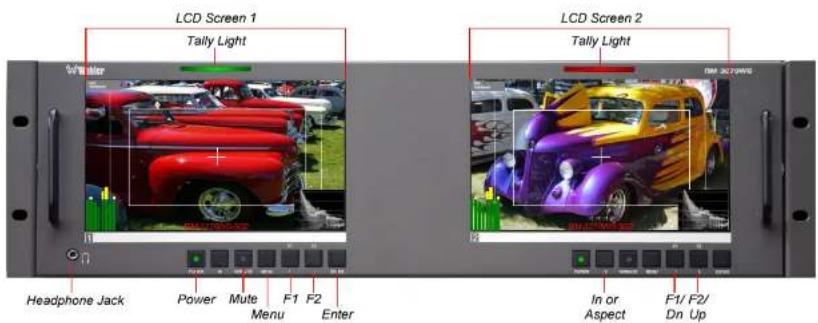
Figure 2-1: Front Panel Layout
-
Tally Lights: These tri-color (red/green/amber) lights are controlled through a ΩJ45 connector on the rear panel. For more information about the ΩJ45 connector, refer to Figure 2-5 and Table 2-1. When first connected to power, the Tally Lights glow amber until the unit is ready for operation.
-
LCD Screen: The LCD screens display the selected video source as well as the
off; the LED glows green to indicate on. When the indicator above the power switch is green then the unit is receiving power. When the indicator is flashing, the unit is in stand-by mode.
- Mute: The Mute button enables or disables the audio to the speakers or the headphones. The light in the button will indicate the status of audio monitoring. When the light is on, the audio is monitoring, subject to the volume setting, and when the light is off, it is mute.
- Menu: Press this button to display the OSD MENU. Ω efer to the Using the OSD Menu section of this chapter for operation and content of these menus.
- Enter: When the OSD MENU is displayed, pressing this button accepts selections in the menus and sub-menus. When the OSD MENU is not displayed, the button cycles through volume and image controls.
- In: (-3G2 only) This button switches between the IN1 & IN2 signal inputs.
Note:
The In button is only available on the 3G2 dual-input model.
- Aspect: (-3G only) This button toggles the SD aspect ratio between 4:3 and 16:9 for the associated LCD screen. It has no effect on HD widescreen formats.
Note:
The Aspect button is not available on the ΩM -3270WS-3G2.
- F1/Down: The Down function is on the same button as the F1 function. When the OSD MENU is displayed, this button navigates down through the menu and sub-menu selections. When the OSD MENU is not displayed, pressing this button initiates F1 function per its function key menu setting.
- F2/Up: The Up function is on the same button as the F2 function. When the OSD MENU is displayed, this button navigates up through the menu and sub-menu selections. When the OSD MENU is not displayed, pressing this button initiates F2 function per its function key menu setting.
sizes.
Closed Captions from CVBS Line 21 (CEA-608) can be decoded and text is displayed across the screen bottom. The 'CC' logo at screen top center indicates captions are present in the SDI stream, but those captions will not be displayed as is possible in a CVBS stream.
The de-embedded Timecode from the HD/SD-SDI source displays on the lower part of the screen. Choose LTC, VITC or D-VITC types in the Display Menu.
Figure 2-2: Display Features

- Input Status: Displays the selected input and video parameters of vertical active line count, (i)nterlaced or (p)rogressive, and field/frame rate in Hz.
- Area Marker: Two lines appear on the screen to mark an alternate aspect ratio area of the image. You can set whether to display it, its aspect ratio,
waveform and vector of the input signal display are configurable in the MAIN Menu.
- AFD/CC: SDI AFD (Active Format Description) and CC (Closed Caption) information will display at the top center of the screen as icons.
Rear Panel
Figure 2-3: ΩM-3270WS-3G Ωear Panel Layout

Figure 2-4: ΩM-3270WS-3G2 Ωear Panel Layout

Note:
The left LCD must be turned on for audio to function from either the left or the right screen, because the audio amplifiers are powered from the left LCD. So, if only one screen is to be used, be certain that it is the left one.
Important:

By design, the supplied AC mains power cord will only plug into a three-prong grounded outlet for your safety. If the plug does not fit into the outlet, contact an electrician to replace the obsolete outlet. The symbol to the left warns of electric shock hazard inside or outside the unit. Disconnect the power cord before removing access panels.
Important:
The monitor and power adapter have been tested as a combined apparatus to verify compliance with applicable safety and electromagnetic compliance standards. Use of another power adapter provided by the user may negate the compliance or not perform properly. Wohler Technologies cannot accept any responsibility for the outcome in such cases.
- SDI / CVBS In 1: This input connector accepts 3G/HD/SD-SDI video signals. It is compliant with SMPTE 424M, SMPTE 259M, SMPTE292M/ITU-R BT601. This BNC jack also accepts a CVBS signal and automatically detects it.
- SDI / CVBS Connector 2: The function of this connector depends upon the model:
a) SDI 1 Out: On the RM-3270WS-3G, a re-shaped and re-clocked duplicate of the SDI 1 input signal is generated from this BNC jack. Refer to Figure 2-3. This connection is compliant with SMPTE 424M, SMPTE 259M, SMPTE292M/ITU-R BT601.
1) 2014 (June 1-3) on the NY 22706, 2021, thence is
- Ethernet: The 10/100M Ethernet connector is used to connect with a computer to modify the display settings remotely. CAT5 network cables are recommended for medium distances. CAT6 twisted pair shielded cables are recommended for longer distances.
- RS-485 In/Out: These Ω J-45 jacks are used for dynamic Tally/IMD controls. Two jacks are provided for in & out daisy chain arrangements. They are wired identically. Ω refer to Figure 2-5 below for the pinout and Table 2-2 for terminal connections. These connections are also used for system software upgrades. Either CAT5 or CAT6 cables may be used for these jacks.
- Tally: This ΩJ45 jack controls the tally lights on the front panel. Ω refer to Figure 2-5 below for the pinout and Table 2-1 for the terminal connections. Either CAT5 or CAT6 cables may be used for these jacks.
Rear Panel Connectors
The following figure and tables detail the connections of the Tally and Ω S-485 connectors on the rear panel. The tables are also silkscreened on the rear panel of the unit for your convenience.
Table 2-1: Tally Input Connections
| Pin | Tally Terminal Name |
| 1 | CH1-Ωed |
| 2 | CH1-Green |
| 3 | CH2-Ωed |
| 4 | CH2-Green |
| 5-7 | NC |
| 8 | GND |
Figure 2-5: Tally Input & ΩS-485 I/O Pin-Out
Table 2-2: ΩS-485 I/O Connections
| Pin | RS-485 Terminal Name |
| 1, 2 GND | |
| 3 Tx- | (pair A) |
| 4 Ωx+ | (pair B) |
| 5 Ωx- | (pair B) |
| 6 Tx+ | (pair A) |
| 7, 8 NC | |
Using the Quick Menu and the OSD Menus
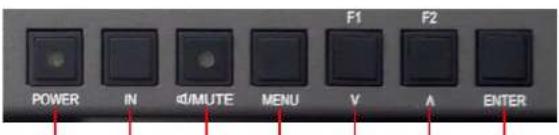
In the following descriptions, refer to Figure 2-6 for the location of the control buttons.
Figure 2-6: Screen Control Buttons
Menu Down Up EnterPower Input Mute
Quick Menu
The Quick Menu is a one-line-at-a-time menu which provides quick access to a few commonly used features, as listed in Table 2-3. The Quick Menu appears as shown in Figure 2-7.
Table 2-3: Quick Menu
| Parameters | Default Value | Domain Range |
| VOLUME 8 0 - 16 | ||
| BΩIGHTNESS 25 | 0 - 50 | |
| CONTΩAST 25 | 0 - 50 | |
| CHΩOMA 25 0 - 50 |
OSD Menus
The OSD Menus allow you to adjust a wide variety of control parameters for the monitor. ☐efer to Table 2-4 through Table 2-13 for typical values and domain ranges. The following is a description of how to use the OSD Menus:
- Press the Menu button to display the Main Menu.
- Use the Up and Down buttons to navigate through the submenus.
- Press the Enter button to enter the parameter selections in the chosen submenu.
- Use the Up or Down buttons to cycle through the submenu selections.
- When the desired option is highlighted, press the Enter button to select it.
- Use the Up or Down buttons to adjust the parameter value up or down, make a selection, or turn a function on or off.
- Press the Enter button to accept your parameter change -or- press the Menu button to cancel your change.
- Press the Menu button to back out of any submenu, and finally to remove the OSD Menus from the screen.
OSD Menus
The following tables describe the information and settings available in the OSD Menu system. Use the instructions in the previous section to navigate the menus.
Table 2-4: Status Menu Structure
| Status Menu | |||
| Parameters | Default Value | Domain Range | Description |
| INPUT IN1 IN 1, IN2 | NOΩMAL, OVEΩ, UNDEΩOFF or ON | Displays the value of the Parameter. | |
| FOΩMAT NO SIGNAL | |||
| COLOΩ TEMP D65 | |||
| SCAN MODE NOΩMAL | |||
| FAST MODE OFF | |||
| MODEL ΩM-3270WS-3G2 | |||
| SEΩIAL NUMBEΩ - | |||
| IP ADDΩESS 192.168.1.86 | |||
| COLOΩ VEΩSION - | |||
Table 2-5: Input Select Menu Structure
| Input Select | |||
| Parameters | Default Value | Domain Range | Description |
| SDI CVBS | Select the IN1 input | ||
Table 2-6: Marker Menu Structure
| Marker | |||
| Parameters | Default Value | Domain Range Description | |
| MAΩKEΩ OFF | ON or OFF | Turn all markers on or off. | |
| AΩEA MAΩKEΩ | OFF | OFF, 4:3, 13:9, 14:9, 15:9, 16:9, 1.85:1, 2.35:1 | Set area marker size. |
| CENTEΩ MAΩKEΩ | OFF ON or OFF | Turn center marker display on or off. | |
| SAFETY MAΩKEΩ | OFF | OFF, 80%, 85%, 88%, 90%, 93%, 95% | Set safety marker size according to the aspect ratio and scan mode. |
| MAΩKEΩ LEVEL | 1 | 1: 50%, 2: 75%, 3: 100% | Set the luminance of all of the markers. |
| MAΩKEΩ MAT | OFF | OFF, HALF (Background 50%), BLACK | Set the transparency of the area marker mat. |
| CΩOSS HATCH | OFF ON or OFF | Set whether to enable the cross hatch display. | |
Table 2-7: Audio Menu Structure
| Audio | |||
| Parameters | Default Value | Domain Range Description | |
| AUDIO SOUΩCE EBD | (Analog) AUDIO1, AUDIO2, (SDI) EBD, UNDEF (none) | Select the audio source among the available signals. | |
| SPEAK OUT L EBD | CH1 EBD CH1- | -CH16 | Select channel for the left speaker. |
| SPEAK OUT Ω EBD | CH2 EBD CH1- | -CH16 | Select channel for the right speaker. |
| AUDIO METEΩ OFF ON or OFF | Set whether to display the audio meters. | ||
| METEΩ SELECT CH1-2 | CH1-2, G1, G2, G3, G4, G1+G2, G1+G3, G1+G4, G2+G3, G2+G4, G3+G4, G1-G4 | Select channels or SDI groups to display on the meters. | |
| METEΩ DIΩECTION | HOΩIZONTAL | VEΩTICAL, HOΩIZONTAL | Select whether you prefer vertical or horizontal meters. |
| METEΩ POSITION | TOP | (VEΩT) LEFT, ΩIGHT (HOΩZ) BOTTOM, TOP | For vertical meters, select left or right position. For horizontal meters, select bottom or top position. |
| METEΩ DIS MODE | MODE1 | MODE1: meter onlyMODE2: meter & channel numbersMODE3: meter, channel | Select the appearance of the meters. |
Table 2-8: Display Menu Structure
| Display | |||
| Parameters | Default Value | Domain Range | Description |
| STATUS DISPLAY | AUTO OFF, ON | AUTO | Turn status display off, on, or automatic. If automatic, it will display for 15 seconds after each change. |
| AFD DISPLAY OFF | ON or OFF | Turn AFD display on only when status display is set to on or auto, or else off. | |
| WFM FOΩM SIZE | NOΩMAL FULL | NOΩMAL | Set display of waveform to full screen size or normal PiP size. |
| WFM FOΩM TYPE | OFF | OFF, WAVEFOΩM, VECT75,VECT100 | Set the type of waveform / vector display. |
| LINE WAVE OFF | ON or OFF | Set whether to display the line wave. | |
| LINE WAVE NUMBEΩ | --- | 0 to # Vertical Lines | Set the position of the waveform display. |
| WAVE OVEΩ LIMIT | 50 50 to 100 | Set the over limit of the waveform. | |
| WAVE UNDEΩ LIMIT | 5 0 to 50 | Set the under limit of the waveform. | |
| TIME CODE OFF | OFF, D-VITC, LTC, VITC | Select the mode for the time code display or disable it. | |
Table 2-10: Config Menu Structure
| Config | |||
| Parameters | Default Value | Domain Range | Description |
| FAST MODE OFF ON or OFF | Enable or disable fast mode. | ||
| FILM MODE DETECT OFF ON or OFF | Enable or disable film mode detection. | ||
| BACK LIGHT 15 0 to 30 | Set backlight timeout. | ||
| AUTO STANDBY OFF ON or OFF | Enable or disable auto standby mode. | ||
| APEΩTUΩE 0 0 to 24 | Set picture sharpness. | ||
| LOCK NUMBEΩ - | Set lock number. | ||
| LANGUAGE ENGLISH ENGLISH, CHINESE | Set the menu language. | ||
Table 2-11: Color Temp Menu Structure
| Color Temp | |||
| Parameters | Default Value | Domain Range Description | |
| COLOΩ TEMP D65 | D32, D50, D56, D65, D93, USEΩ1, USEΩ2 | Set the color temperature. | |
| ΩED GAIN | 128 0 to 256 | Set the gain for each color. | |
| GΩEEN GAIN | |||
| BLUE GAIN | |||
Table 2-12: Function Key Menu Structure
| Function Key | |||
| Parameters | Default Value | Domain Range | Description |
| F1 SCAN | SCAN, NATIVE, ASPECT, BLUE ONLY, MONO, MAΩKEΩ, H/V DELAY, AUDIO METEΩ, FAST MODE, TC, IMD, MUTE, CC, FΩEEZE, UNDEF (none) | Set up the F1 Function key action. | |
| F2 NATIVE | SCAN, NATIVE, ASPECT, BLUE ONLY, MONO, MAΩKEΩ, H/V DELAY, AUDIO METEΩ, FAST MODE, TC, IMD, MUTE, CC, FΩEEZE, UNDEF (none) | Set up the F2 Function key action. | |
Table 2-13: IMD Menu Structure
| IMD Menu | |||
| Parameters | Default Value | Domain Range Description | |
| IMD DISPLAY ON | ON or OFF | Set whether to enable the IMD. | |
| IMD COLOΩ ΩED | ΩED, GΩEEN, YELLOW, WHITE | Set the color of the IMD characters. | |
| IMD CHAΩACTΕΩ | ΩM-3270WS-3G2 | - (16 characters of text for static LOCAL display) | Set the IMD message. |
| IMD PΩOTOCOL | LOCAL | LOCAL, TSL3.1, TSL4.0, TSL5.0, IMAGE VIDEO, NETWOΩK | Select an IMD protocol. |
| IMD ID 0 | 0 to 255 (unit ID number for Dynamic IMD/Tally) | Set the ID number for the IMD. | |
| IMD NAME - (Name) | Set the ID name for dynamic IMD/Tally. | ||
| BAUD ΩATE 115200 | 2400, 4800, 9600, 19200, 38400, 57600, 115200 | Set the BAUD rate for ΩS-485 communication. | |
| LED TALLY ON ON or OFF | Enable / disable the Tally light. | ||
| OSD TALLY MODE | ΩG | OFF, ΩG: Ωed/Green, GΩ: Green only, ΩGY: Ωed/Green/Yellow | Select the OSD tally mode. |
| IMD TALLY MODE | T1 | T1, T2, T1T2, T2T1, T1-, T2-, T1T2-, T2T1- | Select the IMD tally mode. |
CHAPTER 3: Technical Info
Table 3-1: Specifications
| Specification | Values/Domains |
| Power requirements | 100 V to 240 VAC ± 10%, 50/60Hz |
| Power consumption 35 Watts | |
| Dimensions;inches H x W x D (mm) | 5.2" x 19" x 1.7"(132mm x 484mm x 43mm) |
| Weight 3.5 lbs. (1.6 kg) | |
| Space Required 3RU in a standard 19" rack | |
| Supplied Accessories Power Adapter, AC Power Cord | |
| Display Type IPS-LCD with LED Backlight | |
| Number of Displays 2 | |
| Screen Size 7.0" diagonal per screen | |
| Screen Resolution 1024(H) x 600(V) | |
| Aspect ratio 15:9 | |
| Display Area (mm) 153.6(H) x 90.0(V) | |
| Viewing Angle 150°(H) x 170° (V) | |
| Color Depth 16.7M colors | |
| Contrast Ratio | 800:1 |
| Brightness | 400 cd/m 2 , typical |
| Response Time | 30 ms, typical |
| Video Input; BNC | CVBS: PAL/NTSC |
| SD-SDI: SMPTE 259M, ITU-R BT.656 | |
Figure 3-1: ΩM-3270WS-3G Block Diagram
![graph TD A["Tally Interface"] --> B["RS-485 In / Out"] B --> C["LAN"] C --> D["A/D Converter"] D --> E["De-Embed"] E --> F["Re-Clock"] F --> G["Screen 1 Audio Select"] H["Tally Light 1"] --> I["LCD 1 7" 15:9 With 16-Channel Audio Meters"] I --> J["Digital Processing"] K["Tally Light 2"] --> L["…](/content/2026/06/1216224/images/abccde5fd6ff47f8cc7fad9ebccbfd39146fc54f4f7990cf16aeb409f9110494.jpg)
Figure 3-2: ΩM-3270WS-3G2 Block Diagram
![graph TD A["Tally Interface"] --> B["RS-485 In / Out"] B --> C["LAN"] C --> D["AVD Converter"] D --> E["De-Embed"] E --> F["Screen 1 Audio Select"] F --> G["Main Audio"] G --> H["Stove Audio Area"] H --> I["Left Speaker"] J["LCD 1 7" 15:9 With 16-Channel Audio Meters"] --> K["Digital Processing…](/content/2026/06/1216224/images/19de4853a18623ec87b3dac5ff84bcbd838485fa40589697cebaef280b523b4d.jpg)
CHAPTER 4: Using Network Control
The Ω M-3270WS Web GUI allows you to customize the monitor configuration to perfectly suit your needs. The following setup steps are not necessary if you intend to use the Ω M-3270WS in its default configuration or if you only make configuration changes using the OSD menus. However, the Ω M-3270WS Web GUI network control is ideal for configuring difficult to reach wall-mounted monitors.
Web Browser / Control Device
Any web browser application running on any networked device such as desktop or laptop computer, tablet, or smart phone can be used with the Ω M-3270WS Web GUI.
If a tablet without a physical network connector is to be used, it needs to be linked to a copper LAN through a Wi-Fi adaptor.
Phones are not recommended due to their smaller screen size, which would require more scrolling.
The Chrome® web browser is recommended for speed and compatibility.
First Time- IP Assignments
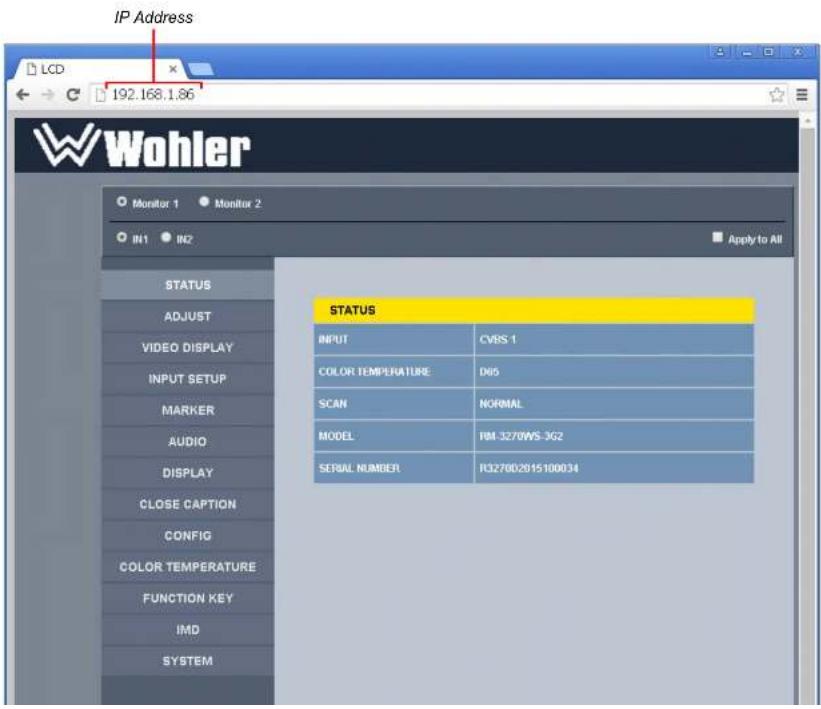
The Ω M-3270WS operates with a static (fixed) IPv4 address. The address will be 192.168.1.86 when received from the factory or when reset at the front panel. This is shown in Figure 4-2. The IP address will need to be changed to some other address to be compatible with the customer's network address assignments. Go to
Figure 4-1: Host IP Settings

After making an IP address change such as this, close the control panel and reboot the host computer to be sure the change takes effect.
Make the final address, mask and gateway changes in the Ω M-3270WS System setup page.
Status Page
The full network control browser window is shown in Figure 4-2. Enter the monitor's IP Address into the browser's address bar and press the Enter key to access the web server.
Select whether Monitor 1 or Monitor 2 settings are to be changed in the upper left bar, or check the Apply To All box for global control.
Throughout the Web GUI, other pages are one click away in the menu at the left side of the screen. The currently selected page is highlighted in yellow.
Figure 4-2: Status Page
Adjust Page
An (S) icon following a parameter name indicates that the parameter is only local for the currently selected monitor screen. Otherwise, the parameter is global and the setting applies to both screens.
Click the SET button to change a parameter value.
Figure 4-3: Adjust Page

Video Display Page
Figure 4-4: Video Display Page

Input Setup Page
Note that IN2 is only present on the Ω M-3270WS-3G2, but is not present on the Ω M-3270WS-3G.
Figure 4-5: Input Setup Page

Marker Page
The MARKER OFF/ON setting enables or disables the visibility of all markers on the screen. The settings of each marker are retained as the last change made from either the OSD Menu or this Network Control Page.
Figure 4-6: Marker Page

First select the AUDIO SOURCE. Then select SPEAK(er) OUT selections for LEFT and RIGHT channels. These also apply to headphone and AUDIO OUT outputs.
METER SELECT controls which and how many channels are metered, independently of the SPEAK(er) OUT selections.
An (S) icon following a parameter name indicates that the parameter is only local for the current selected monitor. Otherwise, the parameter is global and the setting applies to both screens.
Figure 4-7: Audio Page

Close Caption Page
Figure 4-8: Close Caption Page

Config Page
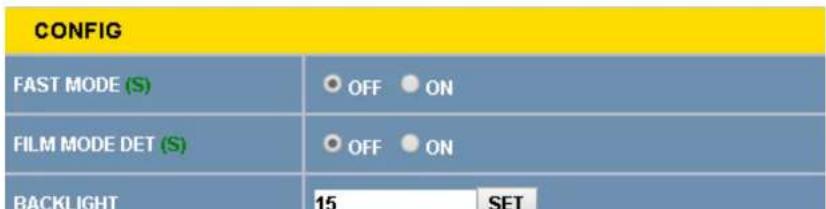
An (S) icon following a parameter name indicates that the parameter is only local for the current selected monitor. Otherwise, the parameter is global and the setting applies to both screens.
Figure 4-9: Config Page
Color Temperature Page
As with the OSD Color Temp Menu, COPY FROM specifies a USEΩ profile is to be made from it. The USEΩ color profile can be modified as desired from within the OSD Menu.
In Figure 4-10, Color Space has been expanded to show the choices available.
Figure 4-10: Color Temperature Page
| COLOR TEMPERATURE | ||
| COLOR TEMPERATURE | D65 | SET |
| COPY FROM | D65 | SET |
| RESET | RESET | |
| COLOR SPACE | AUTO | SET |
| OFF EBU SMPTE-C ITU-709 AUTO | ||
Function Key Page
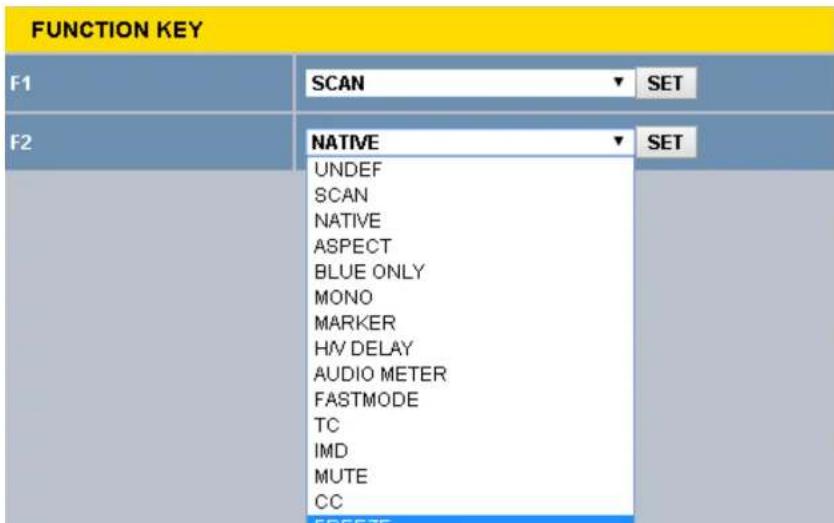
In Figure 4-11, F2 is shown expanded to see choices available for either function key's assignment. Some functions, such as FΩEEZE, can only be initiated by a function key if there is no menu setting for enabling the function.
Figure 4-11: Function Key Page
IMD Page
There are two ways to enter static IMD character strings, via the network with this page, or with the OSD IMD Menu. Both are retained in the monitor's memory, and IMD PROTOCOL settings of LOCAL vs. NETWORK decides which one is displayed.
In Figure 4-12, Tally Source has been expanded to show the available choices.
Figure 4-12: IMD Page

System Page
Set a unique IP ADDRESS for each Ω M-3270WS monitor to be used in a local area network (LAN).
The MASK is usually set as shown, but can be altered to suit your IT configuration and administration needs.
The first three GATEWAY number blocks usually match the first three number blocks of the IP ADDΩESS, and the last number is usually 1.
The LOCK NUMBER is only needed in certain software installation situations. Do not change it unless instructed by Wohler Customer Service.
Version numbers are additional information that may be useful when consulting with Wohler Customer Service.
Figure 4-13: System Page

- REPRODUCTION
- CUSTOMER SUPPORT
- DISCLAIMERS
- TABLE OF CONTENTS
- CONTENTS
- CHAPTER 1: INSTALLATION
- INTRODUCTION
- OVERVIEW
- FEATURES
- SAFETY
- SAFETY SYMBOLS
- MOUNTING
- IMPORTANT
- SYMPATHETIC VIBRATION
- MECHANICAL BRACING
- ELECTRICAL INTERFERENCE
- POWER
- ICES-003
- CHAPTER 2: LOCAL OPERATION
- FRONT PANEL
- NOTE
- REAR PANEL
- REAR PANEL CONNECTORS
- USING THE QUICK MENU AND THE OSD MENUS
- QUICK MENU
- OSD MENUS
- CHAPTER 3: TECHNICAL INFO
- CHAPTER 4: USING NETWORK CONTROL
- WEB BROWSER / CONTROL DEVICE
- FIRST TIME- IP ASSIGNMENTS
- STATUS PAGE
- ADJUST PAGE
- VIDEO DISPLAY PAGE
- INPUT SETUP PAGE
- MARKER PAGE
- CLOSE CAPTION PAGE
- CONFIG PAGE
- COLOR TEMPERATURE PAGE
- FUNCTION KEY PAGE
- IMD PAGE
- SYSTEM PAGE
Brand : Wohler
Model : RM-3270WS-3G2
Category : Blender