
BG-UHD-42M - Television BZBGear - Free user manual and instructions
Find the device manual for free BG-UHD-42M BZBGear in PDF.


| Product Type | 4x2 HDMI 2.0 Matrix Switcher |
| Brand | BZBGear |
| Model | BG-UHD-42M |
| HDMI Compliance | HDMI 2.0 |
| HDCP Compliance | HDCP 2.2 and HDCP 1.4 |
| Video Bandwidth | 18 Gbps |
| Max Video Resolution | 4K2K@60Hz YCbCr 4:4:4 |
| Color Space | RGB, YCbCr 4:4:4, 4:2:2, 4:2:0 |
| Color Depth | 8-bit, 10-bit, 12-bit (1080P, 4K30Hz, 4K60Hz 4:2:0) |
| HDMI Audio Formats | PCM 2.0/5.1/7.1, Dolby Digital/Plus/EX/True HD, DTS, DTS-EX, DTS-96/24, DTS High Res, DTS-HD Master Audio, DSD |
| Optical Audio Formats | PCM 2.0, Dolby Digital/Plus, DTS |
| L/R Audio Formats | PCM 2.0CH (mutes when ARC is on) |
| Inputs | 4 x HDMI (Type A female) |
| Outputs | 2 x HDMI (Type A female), 1 x Optical (TOSLINK), 1 x L/R Audio (3.5mm) |
| Control | Front panel buttons, IR remote, EDID switch |
| Power Supply | DC 12V/1A |
| Operating Temperature | 0°C to 40°C (32°F to 104°F) |
| Storage Temperature | -20°C to 60°C (-4°F to 140°F) |
| Relative Humidity | 20% to 90% RH (non-condensing) |
| Special Features | ARC (Audio Return Channel), EDID (AUTO/COPY/STD), 4K→1080P downscale, CEC, Dolby Vision, HDR10+ |
| Package Contents | 1x BG-UHD-42M, 1x IR Remote, 2x Mounting Ears, 1x User Manual |
| Safety Recommendation | Use surge protection device to protect against electrical spikes |
| Warranty | Register at BZBGear.com/warranty within 90 days for warranty |
Frequently Asked Questions - BG-UHD-42M BZBGear
User questions about BG-UHD-42M BZBGear
0 question about this device. Answer the ones you know or ask your own.
Ask a new question about this device
Download the instructions for your Television in PDF format for free! Find your manual BG-UHD-42M - BZBGear and take your electronic device back in hand. On this page are published all the documents necessary for the use of your device. BG-UHD-42M by BZBGear.
USER MANUAL BG-UHD-42M BZBGear
4x2 HDMI 2.0 Matrix Switcher with Audio Extract/Scale/ARC/EDID function
Thank you for purchasing this product
For optimum performance and safety, please read these instructions carefully before connecting, operating or adjusting this product. Please keep this manual for future reference.
Surge protection device recommended
This product contains sensitive electrical components that may be damaged by electrical spikes, surges, electric shock, lighting strikes, etc. Use of surge protection systems is highly recommended in order to protect and extend the life of your equipment.
Table of Contents
- Introduction......2
- Features .... 3
- Package Contents .... 3
- Specifications.... 4
1. Introduction
The BZ-UHD-42M HDMI Matrix Switcher can switch any of four HDMI sources to two HDMI displays. It supports resolution up to 4K2K@60Hz YCbCr 4:4:4 and HDCP 2.2. It can extract HDMI source device audio to optical and analog L/R output. It supports 4K→1080P downscale function if source is 4K but TV only supports up to 1080P. It also supports ARC and EDID (AUTO/COPY/STD) function. With its 18Gbps bandwidth and the additional features with latest HDMI standards. Flexible control via front panel buttons and IR remote.
2. Features
☆ HDMI 2.0, HDCP 2.2 / HDCP 1.4 and DVI 1.0 compliant
☆ Supports 4 HDMI inputs and 2 HDMI outputs
☆ Video resolution up to 4K2K@60Hz YCbCr 4:4:4
☆ Supports 18Gbps uncompressed bandwidth on all HDMI
☆ Supports Dolby Vision, HDR 10+, HLG and CEC function
☆ Supports extract HDMI input source device audio of OUT A or OUT B
③ 2× Mounting Ears
④ 1× IR Remote
⑤ 1× User Manual
- Specifications
| Technical | |
| HDMI Compliance | HDMI 2.0 |
| HDCP Compliance | HDCP 2.2 and HDCP 1.4 |
| Video Bandwidth | 18 Gbps |
| Video Resolution | Up to 4K2K@50/60Hz (YCbCr 4:4:4),4K2K@30Hz.All HDMI 3D TV format, etc. |
| Color Space | RGB, YCbCr4:4:4, YCbCr4:2:2, YCbCr 4:2:0 |
| Color Depth | 8-bit, 10-bit, 12-bit [1080P, 4K30Hz, 4K60Hz (YCbCr 4:2:0)]8-bit [4K60Hz (YCbCr4:4:4)] |
| HDMI Audio Formats | PCM2.0/5.1/7.1CH, Dolby Digital/Plus/EX, Dolby True HD, DTS, DTS-EX, DTS-96/24, DTS High Res, DTS-HD Master Audio, DSD |
| Optical Audio Formats | PCM2.0, Dolby Digital / Plus, DTS |
| L/R Audio Formats | PCM2.0CH(Note: If ARC function is turned on, the audio port will mute.) |
| Operating Temperature | 0°C~40°C/32°F~104°F |
| Storage Temperature | -20°C~60°C/-4°F~140°F |
| Relative Humidity | 20~90% RH (non-condensing) |
5. Operation Controls and Functions
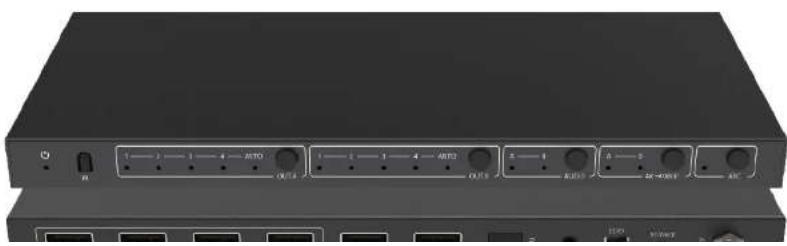
5.1 Front Panel

| Number | Name | Function description |
| 1 | Power LED | The blue LED will illuminate when the product is connected power supply. |
| 2 | IR | IR receiver window. It only receives IR remote signal from this product. |
| 3 | OUT A button and LED | Press the OUT A button to select an input source to OUT A output, the corresponding blue LED will illuminate. |
| AUTO LED | The blue AUTO LED will illuminate and the AUTO function will be turned on when you press the OUT Asignal from the last connected input source. | |
| 5 | AUDIO button | Press AUDIO button to select extract the input source audio from OUT A port or OUT B port to optical and analog L/R output, the corresponding blue LED will illuminate.If ARC function is turned on, press Audio button to select return the audio signal from OUT A or OUT B display device to optical output, the corresponding blue LED will illuminate. At this time, the analog L/R port is mute. |
| 6 | 4k→1080P button | Press the button to select OUT A or OUT B 4k→1080P downscale function, the corresponding blue LED will illuminate. For example, if source is 4K but TV only supports 1080P, at this time the input resolution with 4K will downscale to 1080P to TV output. |
| 7 | ARC button | Turn on / off ARC function. The ARC LED will illuminate when you turn on the ARC function. |
5.2 Rear Panel

| information again to Out A and Out B display device output.COPY: Copy Out A display device’s EDID information to source device of Out A and Out B. Then the source device of Out A and Out B will send the EDID information again to Out A and Out B display device output.STD: Out A and Out B display device output default 1080P. | ||
| 5 | SERVICE port | Firmware update port. |
| 6 | DC 12V | Plug in 12V/1A adapter to AC wall outlet for power supply. |
6. IR Remote
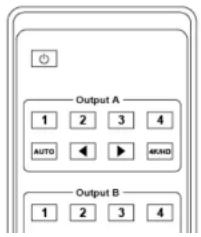
| will illuminate. | |
| ◀▶ | Select the last or next input source signal to OUT A port output, the corresponding blue LED on the front panel will illuminate. |
| AUTO | Detect input signal source. The Auto function is turned on, if an or a few HDMI IN ports are connected source device, Out A port will output the signal from the last connected input source. |
| 4K/HD | Select Out A 4k→1080P downscale function.For example, if source is 4K but TV only supports 1080P, at this time the input resolution with 4K will downscale to 1080P to TV output |
| Output B | |
| 1/2/3/4 | Select input source signal to Out B port output, theexample, if source is 4K but TV only supports 1080P, at this time the input resolution with 4K will downscale to 1080P to TV output |
| Audio function | |
| ARC | Turn on / off ARC function. |
| Audio A / B | If ARC function is turned on, press Audio A or B button to select return the audio signal from Out A or Out B display device to optical port (TOSLINK) output. At this time, the analog L/R port (Audio out) is mute.If ARC function is turned off, press Audio A or B button to select extract the input source audio from Out A port or Out B port to optical port (TOSLINK) and analog L/R port (Audio out) output. |
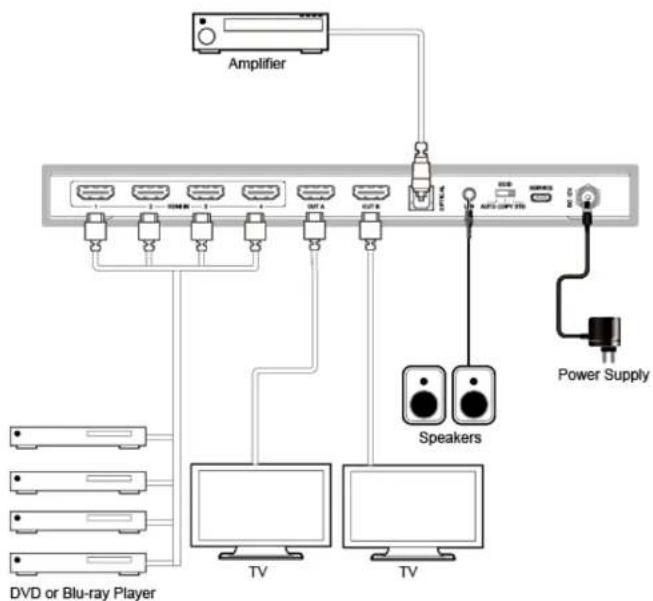
7. Application Example
9. Mission Statement
BZB Gear manifests from the competitive nature of the audiovisual industry to innovate while keeping the customer in mind. AV solutions can cost a pretty penny, and new technology only adds to it. We believe everyone deserves to see, hear, and feel the advancements made in today's AV world without having to break the bank. BZB Gear is the solution for small to medium-sized applications requiring the latest professional products in AV.
We live in a DIY era where resources are abundant on the internet. With that in mind, our team offers system design consultation and expert tech support seven days a week for the products in our BZB Gear catalog. You'll notice comparably lower prices with BZB Gear solutions, but the quality of the products is on par with the top brands in the industry. The unparalleled support from our team is our way of showing we care for every one of our customers. Whether you're an integrator,
Taking advantage of this program is simple, just follow the steps below:
- Register your product within 90 days of purchase by visiting
BZBGear.com/warranty.
- Complete the registration form. Provide all necessary proof of purchase details,
including serial number and a copy of your sales receipt.
For questions, please call 1.888.660.2962 or email support@bzbgear.com.
For complete warranty information, please visit BZBGear.com/warranty or scan the
QR code below.

Brand : BZBGear
Model : BG-UHD-42M
Category : Television