
HAVS - Loudspeaker BZBGear - Free user manual and instructions
Find the device manual for free HAVS BZBGear in PDF.


| Product Type | HD Video/Audio Encoder |
| Brand | BZBGear |
| Model | HAVS |
| Video Input | 1× HDMI Type A |
| Video Loop Out | 1× HDMI Type A |
| Analog Audio Input | 3.5mm line in |
| Network Interface | RJ-45 100/1000Mbps |
| Video Encoding | H.265 / H.264 |
| Max Resolution | 1080p @ 60 Hz |
| Video Bitrate | 16 Kbps - 12 Mbps |
| Audio Encoding | AAC, MP3, MP2, G.711 |
| Audio Bitrate | 24 Kbps - 320 Kbps |
| Network Protocols | HTTP, RTSP, RTMP, RTP, UDP, Multicast, Unicast, SRT |
| Dual Stream | Main and Sub stream |
| Configuration | Web-based management |
| Power Consumption | 5W |
| Operating Temperature | -10°C to 60°C |
| Storage Temperature | -20°C to 70°C |
| Warranty | 3 years (Pro AV), extended 2 years upon registration for cameras |
| Safety | Use specified voltage; avoid water; disconnect by plug; grounded operation |
| Maintenance | Keep dry; clean with soft cloth; avoid solvents |
Frequently Asked Questions - HAVS BZBGear
User questions about HAVS BZBGear
0 question about this device. Answer the ones you know or ask your own.
Ask a new question about this device
Download the instructions for your Loudspeaker in PDF format for free! Find your manual HAVS - BZBGear and take your electronic device back in hand. On this page are published all the documents necessary for the use of your device. HAVS by BZBGear.
USER MANUAL HAVS BZBGear
USING THE UNIT SAFELY
Before using this unit, please read below warning and precautions which provide important information concerning the proper operation of the unit. Besides, to assure that you have gained a good grasp of every feature of your new unit, read below manual. This manual should be saved and kept on hand for further convenient reference.

Warning and Cautions
※ To avoid falling or damage, please do not place this unit on an unstable cart,
stand, or table.
※ Operate unit only on the specified supply voltage.
※ Disconnect power cord by connector only. Do not pull on cable portion.
※Do not place or drop heavy or sharp-edged objects on power cord. A damaged cord can cause fire or electrical shock hazards. Regularly check power cord for excessive wear or damage to avoid possible fire / electrical hazards.
※ Ensure unit is always properly grounded to prevent electrical shock hazard.
※ Do not operate unit in hazardous or potentially explosive atmospheres. Doing so could result in fire, explosion, or other dangerous results.
※ Do not use this unit in or near water.
CONTENTS
- BRIEF INTRODUCTION 4
1.1. Overview....4
1.2. Main Features 4
1.3. Interfaces....4
-
SPECIFICATIONS 5
-
OPERATIONS GUIDE 5
3.1. Network Configuration and Login 5
3.2. Management Web Page 6
3.2.1. Language Settings 6
3.2.2. Device Status 6
3.2.3. Network Settings 7
3.2.4. Main Stream Settings....7
3.2.5. Sub Stream Settings....9
3.2.6. Audio and Extension....10
3.2.6.1. Audio Settings 10
3.2.6.2. OSD Overlay 11
3.2.6.3. Color Control 11
3.2.6.4. ONVIF Settings 12
1. BRIEF INTRODUCTION
1.1. Overview
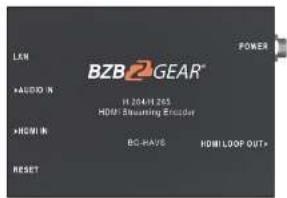
BG-HAVS is an HD audio and video encoder which can encode and compress HDMI video and audio source into IP stream, and then transmit it to streaming media server via network IP address to live broadcast on platforms like Facebook, YouTube, Ustream, Twitch, Wowza, etc.
1.2. Main Features
- 1×HDMI input, 1×HDMI loop out, 1×Analog audio input
● Supports H.265/ H.264 stream encode protocol, up to 1080p60hz - Dual-stream (main stream and sub stream)
• RTSP, RTP, RTMPS, RTMP, HTTP, UDP, SRT, unicast and multicast
● Video and audio streaming or single audio streaming -
Image and text overlay
-
SPECIFICATIONS
| CONNECTIONS | |
| Video | Input: HDMI Type A ×1; Loop Out: HDMI Type A ×1 |
| Analog Audio | 3.5mm line in ×1 |
| Network | RJ-45×1(100/1000Mbps self-adaptive Ethernet) |
| STANDARDS | |
| HDMI In Format Support | 1080p 60/59.94/50/30/29.97/25/24/23.98/23.976,1080i 50/59.94/60,720p 60/59.94/50/30/29.97/25/24/23.98,576i 50, 576p 50, 480p 59.94/60, 480i 59.94/60 |
| Video Coding | H.265/ H.264 |
| Video Bitrate | 16Kbps ~ 12MKbps |
| Audio Coding | ACC/ MP3/ MP2/ G711 |
| Audio Bitrate | 24Kbps ~ 320Kbps |
| Encoding Resolution | 1920×1080, 1680×1056, 1280×720, 1024×576, 960×540,850×480, 720×576, 720×540, 720×480, 720×404,720×400, 704×576, 640×480, 640×360 |
| Encoding Frame Rate | 5-60fps |
| SYSTEMS | |
| Network Protocols | HTTP, RTSP, RTMP, RTP, UDP, Multicast, Unicast, SRT |
| Configuration Management | Web configuration, Remote upgrade |
| OTHERS | |
| Consumption | 5W |
| Temperature | Working temp: -10°C~60°C, Storage temp: -20°C~70°C |
page for setting up. The default Username is admin, and password is admin.
3.2. Management Web Page
The encoding settings can be set on the encoder management web page.
3.2.1. Language Settings
There are languages of Chinese (中文), Japanese (日本語) and English for option on the top-right corner of the encoder management web page.

3.2.2. Device Status
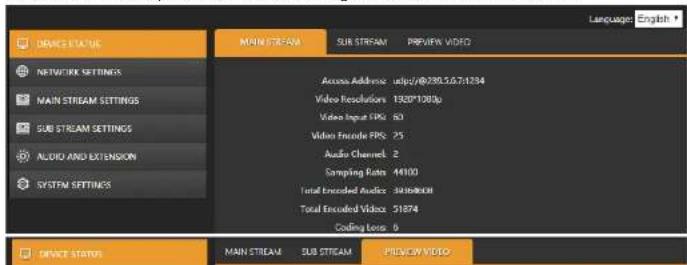
The status of MAIN STREAM and SUB STREAM can be checked on the webpage. And we also can have a preview on the streaming video from PREVIEW VIDEO.
3.2.3. Network Settings
The network can be set to dynamic IP (DHCP Enable) or static IP (DHCP Disable). The default IP information can be checked in Part 3.1.

3.2.4. Main Stream Settings
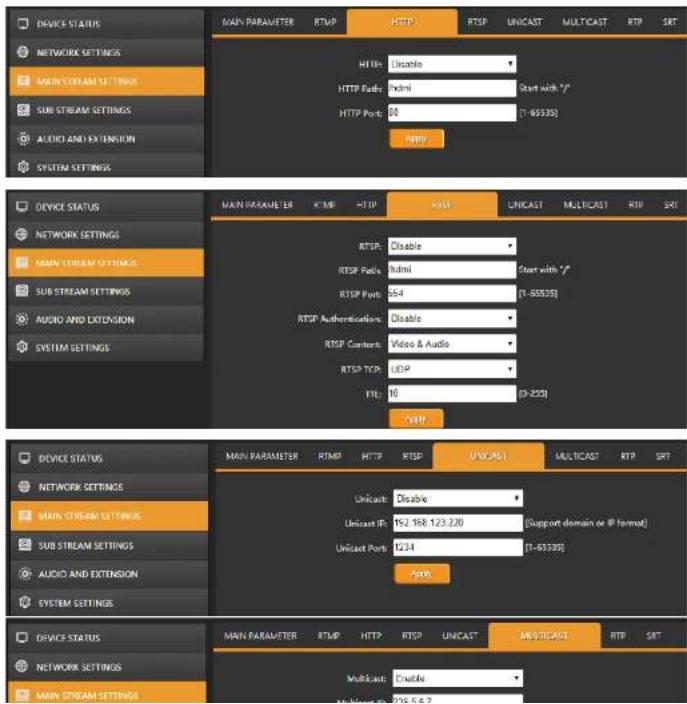
The main stream can be set to mirror image and upside-down image from MAIN PARAMETER tab. Configure main stream network protocol RTMP/ HTTP/ RTSP/ UNICAST /MULTICAST/ RTP/ SRT accordingly. Please note that only one of HTTP/ RTSP/ UNICAST /MULTICAST/ RTP can be enable at same time.

3.2.5. Sub Stream Settings
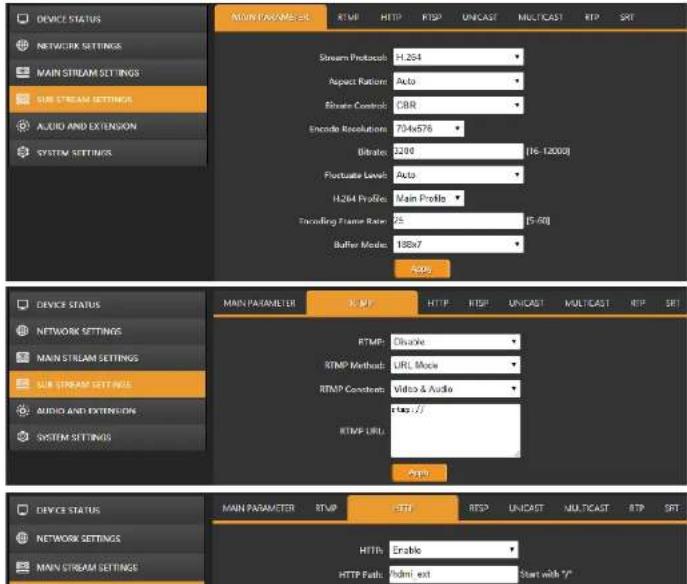
Configure sub stream network protocol RTMP/ HTTP/ RTSP/ UNICAST/ MULTICAST/ RTP/ SRT accordingly. Please note that only one of HTTP/ RTSP/ UNICAST/ MULTICAST/ RTP can be enable at same time.
![DEVICE STATUS NETWORK SETTINGS MAIN STREAM SETTINGS SUBSTREAM SETTINGS AUDIO AND EXTENSION SYSTEM SETTINGS MAIN PARAMETER RTMP HTTP RISP UNicast MULTICAST RIP SRT Multicast IP: Disable Multicast IP: 258.50.2 Multicast Ports: 1235 [1-400V/6] Audio DEVICE STATUS NETWORK SETTINGS MAIN STREAM SETTINGS SUBSTREAM SETTINGS AUDIO AND EXTENSION SYSTEM SETTINGS MAIN PARAMETER RTMP HTTP RISP UNicast MULTICAST RIP SRT RTP Server IP: Disable RTP Server IP: 192,168,1423 RIP Port: 8888 [1-400V/6] SRT DEVICE STATUS NETWORK SETTINGS MAIN STREAM SETTINGS SUBSTREAM SETTINGS AUDIO AND EXTENSION SYSTEM SETTINGS MAIN PARAMETER RTMP HTTP RISP UNicast MULTICAST RIP SRT SRT: Disable SRT Method: Listener Description: Disable License port: 9032 Latency: 0 [Unknown] Audio](/content/2026/06/1216083/images/3e9322c4936cbe9fc9bf833738be093cf1a6c9feeab34271d5c4190e81e6f7ba.jpg)
3.2.6. Audio and Extension
3.2.6.1. Audio Settings
The encoder support audio embedding from external analog input. Therefore, the audio can be from HDMI embedded audio or analog Line in audio. Besides, Audio Encode Mode can be ACC/MP3/MP2.

3.2.6.2. OSD Overlay
The encoder can insert logo and text to the Main Stream / Sub Stream video at same time. The logo file should be named logo.bmp and resolution below 1920×1080 as well as less than 1MB. Text content overlay support up to 255 characters. The size and color of the text can be set on the web page. And user also can set the position and transparency of the logo and text overlay.

3.2.6.4. ONVIF Settings
The settings of ONVIF as below:

3.2.6.5. System Settings
User can set the encoder reboot after 0-200 hours for some applications.
![OPERATING STATUS NETWORK SETTINGS MAIN STREAM SETTINGS SUB STREAM SETTINGS AUDIO AND EXTENSION SYSTEM SETTINGS SPEEP SETTINGS BACKLOGIES FIRMAINE VERSION UPDATE Release Time: 0 [0,200] hours OK CASH IMPORT](/content/2026/06/1216083/images/18b39f6950ef3c2827fe0fa01f9c4fb9f11bd53c9617ed7afb74f68b2e5e9bc0.jpg)
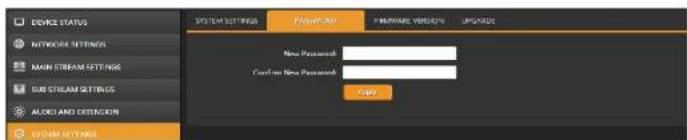
The default password is admin. User can set new password through below web page.
The firmware version information can be checked the web page as below.

4. TECH SUPPORT
Before contacting tech support, we may have answered your question already! Visit our BZBGEAR support page at bzbgear.com/support for valuable information on our products.
Here you will find our Knowledge Base (bzbgear.com/knowledge-base) consisting of tutorials, quick start guides, and step-by-step troubleshooting instructions. Also visit our YouTube channel BZB TV at youtube.com/c/BZBTVchannel for help setting up, connecting, and other how-to videos regarding our products.
If you still need answers, please call 1.888.499.9906, email support@bzbgear.com, or chat at bzbgear.com.
5. WARRANTY
BZBGEAR Pro AV products and Cameras come with a three-year warranty. An extended two-year warranty is available for our Cameras upon registration for a total of five years.
For an extended two-year warranty on our Cameras, follow these steps:
- Register your Camera within 90 days of purchase by visiting bzbgear.com/warranty.
- Complete the registration form. Provide all necessary proof of purchase details, including serial number and a copy of your sales receipt.
For complete warranty information, please visit bzbgear.com/warranty or scan the QR code below.

- USING THE UNIT SAFELY
- Warning and Cautions
- CONTENTS
- BRIEF INTRODUCTION
- Overview
- Main Features
- Management Web Page
- Language Settings
- Device Status
- Network Settings
- Main Stream Settings
- Sub Stream Settings
- Audio and Extension
- Audio Settings
- OSD Overlay
- ONVIF Settings
- System Settings
- TECH SUPPORT
- WARRANTY
Brand : BZBGear
Model : HAVS
Category : Loudspeaker