ST-PTZ550-27 - Security Camera Security Tronix - Free user manual and instructions
Find the device manual for free ST-PTZ550-27 Security Tronix in PDF.


| Product Type | High-Speed Intelligent Dome PTZ Color Camera |
| Brand | Security Tronix |
| Model | ST-PTZ550-27 |
| Image Sensor | Samsung SDM-270, 1/4" Sony CCD |
| Resolution | 550 TVL (Color), 680 TVL (B&W) |
| Lens | Auto Iris, F=3.5-94.5mm, 26x Optical Zoom, 12x Digital Zoom |
| Minimum Illumination | 0.1 Lux |
| Pan Range | 360° Continuous |
| Tilt Range | 0° - 90° Flip |
| Video Connection | BNC Coaxial |
| Communication | RS485 (+/-), Pelco-D/P Auto Recognize |
| Power Supply | 24VAC @ 3A, 35W (Included) |
| Privacy Zones | 8 Zones |
| Preset Positions | 128 |
| IP Rating | IP66 (Outdoor Use) |
| Operating Temperature | -40°F to 122°F (-40°C to 50°C) |
| Heater Operation | On at 42°F (5.6°C), Off at 57°F (13.9°C) |
| Dimensions | Not specified in manual, typically ~7.9" x 7.9" x 11.8" (approx.) |
| Weight | Not specified in manual, typically ~4.4 lbs (approx.) |
| Cleaning | Use dry cloth; mild detergent for stubborn dirt, avoid abrasives |
| Mounting | Bracket included, surface mount |
Frequently Asked Questions - ST-PTZ550-27 Security Tronix
User questions about ST-PTZ550-27 Security Tronix
0 question about this device. Answer the ones you know or ask your own.
Ask a new question about this device
Download the instructions for your Security Camera in PDF format for free! Find your manual ST-PTZ550-27 - Security Tronix and take your electronic device back in hand. On this page are published all the documents necessary for the use of your device. ST-PTZ550-27 by Security Tronix.
USER MANUAL ST-PTZ550-27 Security Tronix
THE IMAGE OF QUALITY
INSTALLATION MANUAL®
ST-PTZ550-27
High-Speed Intelligent Dome
PTZ Color Camera
PACKAGE CONTENTS
This package contains:
One ST-PTZ550-27 high-speed intelligent dome color camera.
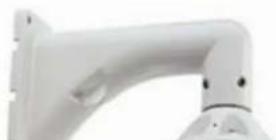
One mounting bracket.
One 24VAC 3A power supply.
One installation manual.
PRODUCT DESCRIPTION
The ST-PTZ550-27 is a professional grade intelligent dome color camera with pan, tilt and zoom (PTZ) capability of 550TVL (color) and 680TVL (black & white) of resolution. The camera's design allows the saving of all settings in non-volatile memory. Its 128 preset positions and 8 privacy zones provides versatility for cruise routes and auto tracking functions. The ST-PTZ550-27's mechanical design permits continuous horizontal 360^th rotation and 90^th vertical flip. Temperature management is built-in.
SPECIFICATIONS
ST-PTZ550-27
Specifications (Typical)
| 1. Image Sensor | Samsung SDM-270 with 1⁄4" SONY CCD |
| 2. Resolution | 550TVL Color; 680TVL B&W |
| 3. Lens | Auto Iris; F=3.5 to 94.5mm; 26X Optical Zoom, 12X Digital Zoom |
| 4. Illumination | 0.1 Lux |
| 5. Pan Range | 360° continuous |
| 6. Tilt Rotation Range | 0° - 90° flip |
| 7. Normal Size: 1Ω | 0.4% 880V |
| 25. Intelligent Power Off | Yes |
| 26. Home Position | Yes |
| 27. Camera Menu Operation | Yes |
| 28. IP66 for Outdoor Use | Yes |
| 29. Operating Humidity | <95% |
| 30. Haater Operation | 42°F on; 57°F off |
| 31. Operating Temperature | -40°F - 122°F |
| 32. Video Connection | BNC coaxial |
| 33. Power | 24VAC @3A, 35W |
| 34. Communication | RS485(+/-) |
INSTALLATION AND OPERATION

This symbol is intended to alert the user to the presence of important operating and maintenance (servicing) instructions.

This symbol is intended to alert the user to the presence of uninsulated "dangerous voltage" within the product's enclosure that may be of sufficient magnitude to constitute a risk of electrical shock.
CAUTION: To reduce the risk of electrical shock do not remove the cover or back of this unit. No user serviceable parts are inside.
CAUTION: To prevent electric shocks and risk of fire hazards, do not use other than specified power source.
- UNPACKING and HANDLING
f. The installation site and material must fully support the weight of the product.
g. Only use a dry cloth to clean the camera. If there is dirt that is difficult to remove wipe gently with a mild detergent. Never use strong or abrasive detergents.
h. The included 24VAC at 3A power supply must be used. Using a DC or other incorrect power supply will damage the camera.
i. Only qualified installers are allowed to install, test and disassemble the camera.
j. The camera is a low voltage product. If installed outdoors proper safety and lightning grounding are required.
k. Before installing be sure the grounding, wiring, input power, voltage, DIP switches, communication protocol and baud rate are correctly set prior to powering up and using.
- CAMERA SETUP

Address Set Up
System Setup DIP Switch SW1 ON = 1 OFF = 0
| Baud rate setting | ||||||||
| DIP Switch | 8 | 7 | 6 | 5 | 4 | 3 | 2 | 1 |
| Function | DIP Switch 3, 2 =00=240001=480010=9600 | |||||||
ON and OFF are indicated on the DIP Switches to show the DIP positions.
PELCO-D and PELCO-P can be automatically recognized.
J7 pin = if jumpers 2-3 is short circuited, terminal connects to 120Ω resistance. If jumpers 1-2 short, terminal is not connected to 120Ω resistance.
To select the baud rate set switches 3 and 2 on the System Setup DIP Switch as described above.
Camera Module Selection
The ST-PTZ550-27 uses the Samsung SDM-270 camera module although various other camera modules may be compatible with the unit. The DIP switch settings on the camera module's PCB board are factory set for the SDM-270 and are not to be adjusted by the installer or user.

natural_image
Close-up of a green printed circuit board with various electronic components and traces (no readable text or symbols)6. FUNCTIONS and OPERATION
Basic Operation
After powering up the ST-PTZ550-27's version number, communication protocol, baud rate and address will be shown on the monitor. At the same time, the system will check the pan and tilt status and display the results. The information will disappear once operations begin.
High Speed Dome
Ver: 2.20
PELCO D/P
BPS: 2400
ID: 001
Tile Ref OK
Pan Ref OK
SONY FCB-EX480CP
The table below is a quick guide to the camera's basic operations using a PTZ Controller:
| Function | Operation |
| Pan/Tilt | Move joystick to left, right, up, and down |
| Menu Confirmation | Press [OPEN] |
| Menu Cancellation | Press [CLOSE] |
| Zoom Out | Press [TELE] or rotate joystick clockwise for the desired image. |
| Zoom In | Press [WIDE] or rotate joystick counter clockwise for the desired image. |
| Focus Far | Press [FAR] until there is a clear image |
| Focus Near | Press [NEAR] until there is a clear image |
| Auto Focus | The dome is in the auto focus mode when the joystick is moved left, right, up, down or turned. For manual focus press any key. |
| Enter Programming Menu | Call preset 95 or user defined preset. Please refer to short-cut menu.programming menu. |
| Privacy Zone | Press [FAR] to increase horizontal zones. |
| Press [NEAR] to reduce horizontal zones. | |
| Press [TELE] to increase vertical zones. | |
| Press [WIDE] to reduce vertical zones. | |
Menu Operation
Call preset 95 to enter the menu setup. The main menu will be shown on the screen. Note the following symbols:

Indicates current working cursor

Indicates current activated cursor

Indicates there is a sub-menu after the current menu
The menu content is only changed under activated status. During menu operation the OPEN key is used for confirmation and the CLOSE key is used for cancellation. The UP key is to move the cursor up and the DOWN key is to move the cursor down.
Upon calling preset 95 the main menu screen may appear as

Camera Sub-Menu
The quality of the target image is dependent upon the camera parameters set under the camera menu. These parameters should be set to site-specific situations. The camera menu will allow the control of exposure, white balance, privacy zones, digital zoon, infrared light
| →Exp Mode | AUTO |
| Shutter speed | 6 |
| Iris | 15 |
| Gain | 1 |
| Bright | 15 |
| BackLight | OFF |
| BackLight Val | 0 |
| Slow Shutter | OFF |
| Exp Mode Auto | ||
| Shutter Speed 6 | (0 – 19) | |
| Iris | 15 | (0 – 17) |
| Gain | 1 | (0 – 15) |
| Bright | 15 | (0 – 18) |
| Backlight OFF | (ON/OFF) | |
| Backlight Val | 0 | |
| Slow Shutter | OFF | (ON/OFF) |
To change exposure mode under → "Exp Mode" press OPEN to enter the exposure mode menu. Once done the menu becomes ✕ "Exp Mode". Move the joystick up or down to change the exposure modes.
Confirmation of an exposure mode selection – Under ☑ "Exp Mode" press OPEN. The menu will then turn to → "Exp Mode".
Cancellation of an exposure mode selection – Under ☑ "Exp Mode" press CLOSE. The menu will then turn to → "Exp Mode".
| Exp Mode | Auto |
| Shutter speed | 6 |
| Iris | 15 |
| Gain | 1 |
| Bright | 15 |
| BackLight | OFF |
| BackLight Val | 0 |
| Slow Shutter | OFF |
Exit Exposure Mode → "Exp Mode" press CLOSE to exit the exposure mode and return to the main menu.
| Exp Mode | Auto |
| Shutter speed | 6 |
| Iris | 15 |
| Gain | 1 |
| Bright | 15 |
| BackLight | OFF |
| BackLight Val | 0 |
| Slow Shutter | OFF |
For other exposure mode operations under → "Exp Mode" move the joystick up or down. The → symbol will move to the relative menu to show the current menu can be operated. Upon pressing OPEN to activate a menu the symbol will appear before the selected menu. Then move the joystick up or down the change the menu setup. Press OPEN to confirm the changes or CLOSE to cancel. Once completed the → symbol will appear before the menu.
| WB mode | Auto |
| R Gain | 210 |
| B Gain | 175 |
| White Balance | Auto | |
| R Gain | 210 | (0 – 255) |
| B Gain | 175 | (0 – 255) |
For WB Mode Setup – Under → "WB mode" press OPEN to activate the WB mode menu after which the menu turns to ⚙ “WB mode”. Move the joystick up or down to change the setup. The order of parameters on the right will be Auto, Manual, Outdoor, Indoor, ATW and OPW.
For R Gain Setup – Under → "WB mode" move the joystick down to "R Gain" and press OPEN to enter the R Gain setup. Then move the joystick up or down to adjust the R Gain values from 0 to 255. Once the value has been selected press OPEN to confirm or CLOSE to cancel.
For B Gain Setup – Under → "WB mode" move the joystick down to "B Gain" and press OPEN to enter the B Gain setup. Then move the joystick up or down to adjust the B Gain values from 0 to 255. Once the value has been selected press OPEN to confirm or CLOSE to cancel.
Privacy
To protect certain areas (e.g., a password input area or a manager's work area) there may be a need to mask those areas from surveillance. Under "Exposure move the joystick down to the privacy menu. Press OPEN to enter the privacy sub-menu to set up the parameters. There are 4 privacy zones: Privacy1, Privacy2, Privacy3, Privacy4.
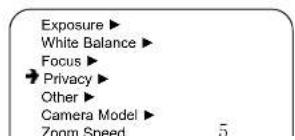

To cancel privacy zones – There are two options: (a) restart the camera or (b) decide which privacy zone(s) is to be cancelled. Then enter the relative privacy zone menu, press OPEN to enter the menu, the press CLOSE to cancel the relative privacy zone when the above menu appears.
Other
→ Digital Zoom
Auto ICR
ICR
Display
ON
OFF
OFF
OFF
Digital Zoom ON (ON/OFF)
Auto ICR OFF (Auto ICR ON/OFF)
ICR OFF (Manual ICR ON/OFF)
Display OFF (Camera Info ON/OFF)
To access an Other sub-menu move the joystick to the desired sub-menu. Once selected the current sub-menu press OPEN then move the joystick up or down to select the desired parameters. Press OPEN to confirm the selection or CLOSE to cancel.
Camera Mode
The Camera Mode is used to set various camera settings for the ambient environment. Given the ambient environment may be changing (e.g., day and night) the unit allows the user to create and recall specific settings to easily manage changing conditions. Under the Camera Mode menu press OPEN to enter the camera mode setup menu.
Camera Mode Save:
→ Normal
Day
Night
Camera Mode Exec:
Camera Mode Save
Save Camera Mode
Camera Mode Exec
Call saved Camera Mode
NORMAL - call preset 100
DAY - call preset 101
NIGHT - call preset 102.
NORMAL is the default mode.
Zoom Speed
Under the Exposure sub-menu move the cursor to "Zoom Speed" and press OPEN and change the parameters after the → symbol turns to ⚙. Then press OPEN to confirm or CLOSE to cancel after which the ⚙ symbol will return to →.
Focus Speed
Under the Exposure sub-menu move the cursor to "Focus Speed" and press OPEN and change the parameters after the → symbol turns to ⚠. Then press OPEN to confirm or CLOSE to cancel after which the ⚡ symbol will return to →.
Pan
The Pan Menu is found under the Main Menu. Through the Pan Menu users can open and close a home position, adjust auto pan speed, set the tour speed and dwell time and open and close auto flip.
| Home place | OFF |
| Leisure Time | 30 |
| AS speed | 20 |
| PS1 Speed | 100 |
| PS1 time | 5 |
| PS2 Speed | 100 |
| PS2 time | 5 |
| PS3 Speed | 100 |
Home Place OFF (ON/OFF, 1-32)
Leisure Time 30
AS Speed 20 Auto Pan Speed (0 - 80)
PS1 Speed 100 Tour 1 Speed (100 - 120)
PS1 Time 5 Tour 1 Leisure Time (5 – 120)
PS2 Speed 100 Tour 2 Speed (100 - 120)
PS2 Time 5 Tour 2 Leisure Time (5 - 120)
PS3 Speed 100 Tour 3 Speed (100 - 120)
500
The Shortcut Key Menu is found under the Main Menu. Shortcut keys allow the association of a certain function with a corresponding preset allowing for quick and convenient function selection.
| → Open Menu | 95 | Open Menu | Opens the menu |
| Auto Flip | 33 | Auto Flip | Auto Flip |
| Reference | 34 | Reference | Zero Point |
| Left Limit | 92 | Left Limit | Left Limit |
| Right Limit | 93 | Right Limit | Right Limit |
| Preset scan 1 | 96 | Preset scan 1 | Tour 1 |
| Preset scan 2 | 97 | Preset scan 2 | Tour 2 |
| Preset scan 3 | 98 | Preset scan 3 | Tour 3 |
| Auto scan | 99 | Auto Scan | Auto Scan |
The values in the above menu are defaults. When new values are specified as shortcut keys the default values are still effective. For example, if the user specifies 16 as the shortcut key to open menu, the menu still can be opened by calling preset 16 and 95.
Tour 1 includes preset 1 – 8; Tour 2 includes preset 9 – 16 and Tour 3 includes preset 17 – 24. If there are missing presets in one tour the system will re-scan from the first preset. If the first preset was not set the system will exit the tour.
Newly set values should not be the same with any of the above shortcut preset values.
To set shortcut keys move the cursor to the desired menu item and press OPEN. The → symbol turns to ⚙. The parameters can now be changed. Press OPEN to confirm or CLOSE to cancel. The ⚙symbol will return to →.
Self Act
After the camera performs its self-check the unit operates according to this menu. The starting time is determined by the set Leisure Time.
If the Leisure Time reached the previous set value after manual operation the unit will automatically run according to Self Act (except when Self Act is set to "Noting"). If the parameter in Self Act is "Home Place" the user must ensure that "Home Place" is on.
The value of Leisure Time can be set from 1 to 240.
Camera ▶
Pan ▶
Shortcut Key
Self act

Leisure Time
Alarm Set ▶
Degree
Nothing
030
ON
The Leisure Time Menu is found under the Main Menu. Move the cursor to "Leisure Time" and press OPEN. The symbol turns to .The parameters can now be changed. Press OPEN to confirm or CLOSE to cancel. The symbol will return to .
Alarm Set
Through Alarm Set the user can set the alarm mode and relay output. The Alarm Set Menu is found under the Main Menu. Move the cursor to "Alarm Set" and press OPEN to enter the sub-menu. Move the joystick up or down to enter additional menu pages.
Camera
Pan ▶
Shortcut Key
Self act
Leisure Time

Alarm Set ▶
Degree
ON
→ Alarm1 mode
Alarm2 mode
Alarm3 mode
Alarm4 mode
Alarm5 mode
Alarm6 mode
Alarm7 mode
Alarm1 set
Alarm2 cat
CLOSE
CLOSE
CLOSE
CLOSE
CLOSE
CLOSEF
CLOSE
AUX1
A11Y1
parameters can now be changed. Press OPEN to confirm or CLOSE to cancel. The ⚙ symbol will return to →.
Degree
The Degree Menu is found under the Main Menu and is used to display the pan degree on the monitor. Move the cursor to Degree and press OPEN. The → symbol turns to ⚙. The parameters can now be changed to OFF or ON. Press OPEN to confirm or CLOSE to cancel.
7. TROUBLESHOOTING
a. No picture after applying power – (i) check all plugs and cables are securely connected to the proper connectors; (ii) ensure your power supply is providing the correct voltage and current.
b. The picture has ripples – (i) check to see if the power supply is experiencing AC ripple, if so a filter may be required; (ii) determine if the monitor is faulty; (iii) determine if other peripheral equipment is causing ripple and if so make the necessary adjustments.
c. The picture background continuously changes color – a fluorescent lamp's magnetic field may cause color roll, therefore, reduce the number of fluorescent lamps or increase the distance between the camera and the lamps.
d. The picture appears smeared – (i) the power supply voltage level may be unstable, therefore, try another power supply; (ii) ensure the cables are correctly connected and/or the cables are of the correct impedance.
e. Other interference may require a SecurityTronix ground loop isolation filter.
f. Power is on, but the controller does not work – (i) check to make sure the DIP switches for address and communications baud rate are properly set, (ii) check to ensure the RS485 connections at the camera and the PTZ Controller have the same polarity, (iii) check the integrity and continuity of the unshielded twisted pair (UTP) control cable.
g. Additional troubleshooting assistance can be found on-line at www.securitytronix.com in addition to support from SecurityTronix sales engineers at 1-610-429-1511.
Brand : Security Tronix
Model : ST-PTZ550-27
Category : Security Camera