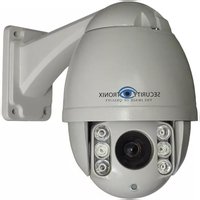
ST-PTZMINI-IR10X - Security Camera Security Tronix - Free user manual and instructions
Find the device manual for free ST-PTZMINI-IR10X Security Tronix in PDF.


| Product Type | High-Speed Intelligent Dome PTZ Color Camera |
| Brand | Security Tronix |
| Model | ST-PTZMINI-IR10X |
| Resolution | 650 TVL |
| Optical Zoom | 10X |
| Pan Range | 360° continuous |
| Tilt Range | 93° |
| Pan Speed | 0.02° – 200°/s |
| Tilt Speed | 0.02° – 120°/s |
| Preset Points | 220 |
| Programmable Tours | 4 groups, up to 16 points each |
| Patterns | 4, up to 512 commands each |
| IR Illumination | Intelligent PWM, variable power |
| IR Range | IR LEDs with adjustable output (1-9 grades) |
| Communication Protocol | Pelco-D / Pelco-P |
| Communication Interface | RS485 bus |
| Power Supply | 24VAC 2A (included) |
| Auto Flip | Horizontal 180°, Vertical 93° |
| Proportional Zoom Speed | Yes |
| Mounting | Wall or ceiling mount (bracket included) |
| Cleaning | Use nonabrasive dry cotton cloth; lens cleaner for optics |
| Safety | Read manual, use specified accessories, qualified service only |
| Spare Parts / Repairability | No user-serviceable parts; opening casing voids warranty |
| Weight | Not specified in manual |
Frequently Asked Questions - ST-PTZMINI-IR10X Security Tronix
User questions about ST-PTZMINI-IR10X Security Tronix
0 question about this device. Answer the ones you know or ask your own.
Ask a new question about this device
Download the instructions for your Security Camera in PDF format for free! Find your manual ST-PTZMINI-IR10X - Security Tronix and take your electronic device back in hand. On this page are published all the documents necessary for the use of your device. ST-PTZMINI-IR10X by Security Tronix.
USER MANUAL ST-PTZMINI-IR10X Security Tronix
THE IMAGE OF QUALITY
INSTALLATION MANUAL©
ST-PTZMINI-IR10X High-Speed Intelligent Dome Software-Addressable IR PTZ Color Camera
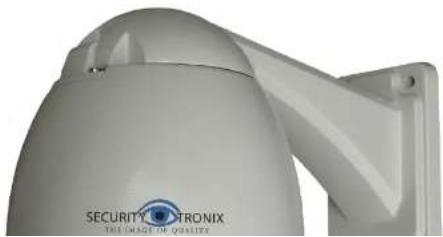
natural_image
Exterior view of a security camera module with 'SECURITY ETRONIX' branding (no other text or symbols visible)Copyright North American Cable Equipment, Inc.
PACKAGE CONTENTS
This package contains:
One ST-PTZMINI-IR10X high-speed intelligent dome color camera.
One mounting bracket.
One 24VAC 2A power supply.
One installation manual.
PRODUCT DESCRIPTION
The ST-PTZMINI-IR10X is a professional grade infrared intelligent dome color camera with pan, tilt and zoom (PTZ) capability and 650TVL resolution. The camera's non-volatile digital memory allows the saving of all settings in the event of power loss. Its 220 preset positions provide versatility for cruise routes and tour functions. The ST-PTZMINI-IR10X's mechanical design permits continuous horizontal 360^ rotation and 90^ vertical flip. Temperature management is built-in.
Functions and Features
- PWM function - Intelligent IR illumination & power consumption is variable, dependent on the zoom factor.
- 3D allocation – Pan, Tilt and Zoom are all performed simultaneously for faster preset recall.
• Supported Protocols - Pelco-D/P
• 4 patterns - Each pattern can record 512 different PTZ instructions or roughly 600 seconds of PTZ path - operation.
- Proportional control speed – When zoomed to full telephoto mode, a low pan speed of 0.02^/s provides smooth panning.
• 4 Tour groups. The dwell time and position of 16 preset points per tour can be edited independently.
• Built-in high precision real-time clock supports time management functions. - Park action - If the dome sits idle for a predetermined amount of time, it will automatically run a tour, pattern, L/R
IMPORTANT SAFEGUARDS
- Read these instructions before attempting installation or operation of dome device.
- Keep these instructions for future reference.
- Heed all warnings and adhere to electrical specifications. Follow all instructions.
- Clean only with nonabrasive dry cotton cloth, lint free and approved acrylic cleaners.
- Should the lens of the camera become dirty, use special lens cleaning cloth and solution to properly clean it.
- Do not block any ventilation openings. Install in accordance with manufacturer's instructions.
- Use only attachments or accessories specified by the manufacturer.
- Verify that the surface you are planning to use for attaching the dome can adequately support the weight of the device and mounting hardware.
-
Protect this device against lighting storms with proper power supplies.
-
Refer all servicing to qualified service personnel. Servicing is required when the device has been damaged in any way, when liquid traces are present, or the presence of loose objects is evident or if the device does not function properly, or has received sever impact or has been dropped accidentally.
-
Do not use this product under circumstances exceeding specified temperature and humidity ratings.
-
Avoid pointing the camera directly to the sun or other extremely bright objects for prolonged period of time avoiding the risk of permanent damages to the imaging sensor.
-
The attached instructions are for use by qualified personnel only. To reduce the risks of electric shock, do not perform any servicing other than contained in the operating instructions unless you are qualified to do so.
-
During usage, user should abide by all electrical safety standards and adhere to electrical specifications for the operation of the dome. The control cable for RS485 communications as well as the video signal cables should be isolated from high voltage equipment and high voltage cables.
-
Use supplied power supply transformer only.
Specifications
| Horizontal Rotation Speed | 0.02°-200°/s |
| Tilt Rotation Speed | 0.02°-120°/s |
| Horizontal Rotation Range | 360° |
| Tilt Rotation Range | 93° |
| Auto Flip | Horizontal 180°, Vertical 93° |
| Zoom-proportional Speed | Support |
| Auto control IR LED | PWM |
| IR Testing Time | 2-15s selectable |
| Ambient Light Reporting | 0-50 grades |
| IR Illumination On | 0-25 grades selectable |
| IR Output Power | 1-9 grades selectable |
| IR Standby Power | 1-9 grades selectable |
| IR Standby Time | 2-15s selectable |
| A-B Scan | User programmable |
| A-B Scan Speed | 1-9 speed setting available |
| 360° Scan Speed | 1-9 speed setting available |
| Dwell Preset | 5-60s interval |
| Preset Points | 220 |
| Go to Preset Speed | 200°/s |
| Programmable Tours | 4 groups |
| Points Per Tour | Max.16 points, dwell time user selectable |
| Pattern Scan | 4 |
| Pattern Scan Record | max. 512 commands (Roughly 10 minutes) |
| Park Time | 1-60 minutes |
| PWR on Action | Memory/Pattern/Tour/360° scan/A-B scan/Preset 1-8/None |
| Park Action | Pattern/Tour/360° scan/A-B scan/Preset 1-8/None |
| Communication Protocol | Pelco-D, Pelco-P |
| Communication | RS485 Bus |
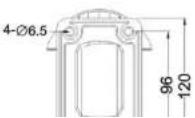
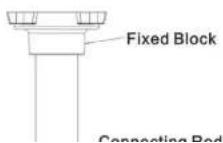
Product Dimensions (in millimeters)

Wall Mounted


Ceiling Mounted
Bracket Dimensions

Installation

Connections
Before connecting, please turn off the power of all connected devices. Use the included power supply to ensure the camera is being supplied sufficient current for proper operation.

Instructions
Power On Action
IR SPEED DOME
| PROTOCOL PE | LCO-D/P |
| COMM | 2400.N.8.1 |
| DOME ID 001 | |
| MODULE | |
| VERSION | V1.2 |
| PAN | INIT |
| TILT I | NIT |
POWER ON
When initializing the system, the display shown at left will appear roughly 5 seconds after powering the camera.
When restoring the original factory settings it will take roughly 1 minute for the camera to restore all settings and reboot.
This display indicates that the camera is initializing the pan and tilt motors.
IR SPEED DOME
| PROTOCOL PE | LCO-D/P |
| COMM | 2400.N.8.1 |
| DOME ID 001 | |
| MODULE | |
| VERSION | V1.2 |
| PAN | INIT |
| TILT I | NIT |
POWER ON
The initialization of pan and tilt motors is now complete. The camera is now initializing and detecting the module of camera.
Basic Function
Controlling the dome's position (PTZ)
The dome responds to standard PTZ controls UP, DOWN, LEFT, RIGHT and ZOOM to position the camera toward a subject to observe. The camera supports PROPORTIONAL ZOOM which will cause the pan and tilt functions to operate at lower speeds when the camera is zoomed to the maximum setting (10X optical zoom). Proportional zoom can be disabled in the OSD menu if desired.
Zoom
The camera provides 10X optical zoom magnification to aid in viewing objects which are further away from the camera. Use the controller's 'ZOOM TELE' or 'ZOOM +' or similar to increase the increase image magnification. Use the controller's 'ZOOM WIDE' or 'ZOOM -' or similar to decrease image magnification for a wider image area.
Focus
The camera supports both AUTO - FOCUS and MANUAL - FOCUS functions. The default is AUTO focus. Operating the controller's FOCUS NEAR and FOCUS FAR controls will temporarily override the AUTO FOCUS function. As soon as any PTZ command is received, the camera will revert back to AUTO-FOCUS.
Preset Point
This camera will respond to all standard Pelco preset commands. Please refer to your PTZ controller or DVR instruction manual for specific instructions regarding how to set, call and clear preset points.
NOTE: Some preset points are reserved for special functions, as noted below.
Special Function Presets
The follow presets are predefined for special functions. Use your controller's "Call Preset" procedure to perform these functions:
General OSD Operation
Call preset 95 to enter the OSD, call preset 94 to exit the OSD.
Up or Down: Move the cursor UP and DOWN within the OSD, change the value on the OSD.
Right: Enter the option, select the item or confirm.
Left: Return to main menu or cancel.
Zoom Display: This displays the current zoom of the camera.
Time Display: This displays the current Date and Time of the camera's internal clock.
Angle Display: This displays the current coordinates of the camera'
IR Display:
* means the IR display status is on. means the IR is on.
Remark: "-"means the cursor selecting some option. "×" means editing the content of some options.
NOTE:
The default communication settings for this camera are BAUD = 2400, ADDRESS = 1 and PROTOCOL = PELCO D.
CAUTION:
THERE ARE NO DIP SWITCHES IN THE CAMERA. DO NOT OPEN THE CAMERA CASING FOR ANY REASON. DOING SO WILL VOID THE WARRANTY. THE ONLY WAY TO SET THE ADDRESS AND BAUD RATE SETTINGS IS BY USING THE OSD MENU.

flowchart
graph TD
    A["OSD Menu"] --> B["<SYSTEM> PROTOCOL PELCO-D/P COMM 2400.N.8.1 DOME ID 001 MODULE VERSION <COMM SET> EXIT"]
    A --> C["<COMM SET> DEVICE ID CHECK ID TARGET ID 001 BAUD RATE 2400 SAVE EXIT"]
    A --> D["<PRESET> PRESET NO 001 CALL PRESET SET PRESET EXIT"]
    A --> E["<DADE> <PRESET> <SCAN> <GUARD TOUR> <PATTERN> <PRIVACY ZONE> * <OTHER> <ALARM> * EXIT"]
    A --> F["<OTHER> <PATTERN> PATTERN NO 1 CALL PATTERN <PATTERN> EXIT"]
    A --> G["<OTHER> <OTHER> PARK MODE NONE PARK TIME 05 POWER ON ACT MEMORY RATIO SPEED ON AUTO FLIP ON EXIT"]
    A --> H["<OTHER> <OTHER> <OTHER> PARRY ZONE> MASC NO Privacy zones are not supported on this model"]
    A --> I["<MAIN MENU> <SYSTEM> <DOME> <CAMERA> * IR > <DISPLAY> <TIME> <LANGUAGE> <RESET> EXIT"]
    A --> J["<MAIN MENU> Camera menu is not available on this model"]
    A --> K["<MAIN MENU> Camera menu is not available on this model"]
System
| - |
| PROTOCOL | PELCO-D/P |
| COMM 2400.N.8.1 | |
| DOME ID | 001 |
| MODULE | |
| VERSION | |
| < COMM SET> | |
| EXIT | |
| <COMM SET> |
When preset 95 is called from a PTZ controller the main menu will appear overlaid on the video output of the camera. The main menu lists several sub-menus which each deal with separate aspects of the camera's operation. Use the UP/DOWN controls of your PTZ controller to select a menu item and the RIGHT command to open a sub menu or activate a menu item for editing. Using the LEFT command will back up one menu, exit editing or cancel an operation.
NOTE: The CAMERA, PRIVACY ZONES and ALARM menu functions are not supported by this model.
PROTOCOL: This displays the current protocol of the dome.
COMM: 2400, N. 8. 1 indicates the communication information. 2400 is the baud rate, which can be changed via the OSD "COMM SET" menu. The choices are: 1200, 2400, 4800 and 9600.
DOME ID: This displays the dome's address. The range is 000-255. The address is changed via the OSD "COMM SET" menu.
MODULE: This displays the model of the CCD camera module.
VERSION: The software version may be periodically updated as newer versions become available.
DEVICE ID: This is an ID number which is unique to each individual
| Dome Functions | |
| <PRESET> | |
| PRESET NO | 001 |
| CALL PRESET | |
| SET PRESET | |
| EXIT | |
| <PRESET> | |
| PRESET NO | 001 |
| CALL PRESET | |
| PRESET 1: SAVE | |
| PRESET 2: BACK | |
| EXIT | |
| <SCAN> | |
| SCAN SPEED | 5 |
| EXIT | |
PRESET NO: Select a preset number to be called or edited.
CALL PRESET: This will send the 'call preset' command to the camera, for the preset number selected above.
SET PRESET: Selecting SET PRESET will display the screen shown at left. The camera can be aimed toward the desired position using the PTZ controller. Calling preset 1 on your PTZ controller will store the preset in the camera. Calling preset 2 will cancel the preset store operation.
NOTE: The reserved preset numbers on page 8 of this manual cannot be used for camera positioning. They are reserved for special functions.
NOTE 2: It is generally much easier to use the PTZ controller's "Write Preset" commands to save a preset position in the camera, rather than this method which uses the camera's OSD menu.
Dome Functions
SCAN SPEED: The scan speed can be set to values from 1 thru 9. The speed set on this page will affect Left-Right scans and 360° scans.
| <GUARD TOUR > | |||
| ID | POINT | TIME | SPEED |
| 01 | 01 | 05 | 64 |
| 02 | 02 | 05 | 64 |
| 03 | 03 | 05 | 64 |
| 04 | 04 | 05 | 64 |
| 05 | 05 | 05 | 64 |
| 06 | 06 | 05 | 64 |
| 07 | 07 | 05 | 64 |
| 08 | 08 | 05 | 64 |
| <NEXT PAGE> | |||
| <GUARD TOUR > | |||
| ID | POINT | TIME | SPEED |
| 09 | 09 | 05 | 64 |
| 10 | 10 | 05 | 64 |
| 11 | 11 | 05 | 64 |
| 12 | 12 | 05 | 64 |
| 13 | 13 | 05 | 64 |
| 14 | 14 | 05 | 64 |
| 15 | 15 | 05 | 64 |
| 16 | 16 | 05 | 64 |
| SAVE PATTERN | |||
When finished with the first 8 points, selecting
NOTE: The reserved preset numbers on page 8 of this manual cannot be used for camera positioning. They are reserved for special functions.
Dome Functions
The camera can store 4 patterns, each containing up to 512 individual PTZ commands (roughly 10 minutes).
PATTERN NO: First select the pattern (1 thru 4) to be set up or called.
CALL PATTERN: If a pattern has been previously recorded, selecting
| <OTHER> | |
| PARK MODE | NONE |
| PARK TIME | 05 |
| POWER ON ACT | MEMORY |
| RATIO SPEED | ON |
| AUTO FLIP | ON |
| EXIT | |
Dome Functions
PARK MODE: After an idle period of time has elapsed which is set in the next parameter (Park Time), the camera will perform the action which is selected here. The options are: NONE, Pattern 1, Tour 1, 360 Scan, A/B Scan or Presets 1 thru 8.
PARK TIME: This is the amount of time (in minutes) which the camera will wait after receiving the last manual PTZ command. After this time has elapsed, the camera will perform the function set in the PARK MODE parameter above.
NOTE: The alarms functions are not supported on this model of camera. Although the alarm menu can be accessed and settings can be made, they will have no effect on the camera, as there are no physical alarm inputs or outputs.
IR MODE: This sets how the IR LEDs are enabled. AUTO is the default setting. Auto allows the camera to operate the IR LEDs as lighting conditions need it, in conjunction with the ILLUMINATION ON and IR SWITCH ZOOM settings as described below.
OUTPUT POWER: This determines the maximum brightness of the LEDs when they are on. Power can be set from 1 thru 9.
TESTING TIME: This determines how long the ambient light level must remain below the ILLUMINATION ON threshold before the camera will switch to IR mode. Choose from 2 to 15 seconds.
| IR MODE | AUTO |
| OUTPUT POWER | 9 |
| TESTING TIME | 08s |
| STANDBY POWER | 8 |
| STANDBY TIME | 20s |
| ILLUMINATION ON | 05L |
| IR SWITCH ZOOM | 07 |
| AMBIENT LIGHT | 06 |
| EXIT | |
| DOME ID | ON |
| ZOOM | ON |
| P AND T | ON |
| ACT | ON |
| TIME | ON |
| IR | ON |
| EXIT | |
AMBIENT LIGHT: This is not a value which can be set; it is a built-in meter which analyzes and displays the ambient light level on a scale of 1 thru 50. When the camera is facing a brightly lit scene the values will be higher. Dimly lit scenes will produce lower values.
Display
The camera can display the status of various settings and operations overlaid on the camera's output image.
DOME ID: Set this to ON to display the dome's address ID, or OFF to prevent display of the dome ID.
ZOOM: The currently installed module cannot be set to "OFF".
P AND T: Set this to ON to display the dome's current PAN and TILT location, or OFF to prevent display of P/T info.
ACT: When set to ON, this will display info for various PTZ ACTIONS such as when a preset or tour is called, or when the camera reaches the Left and Right limits of an A/B scan etc.
TIME: Set this to ON to display the dome's internal clock time, or OFF to prevent display of the time.
IR: When set to ON, the illumination level of the IR LEDs will be displayed in the top-left corner of the screen.
| <SCHEDULE> | ||
| START | END | ACT |
| 00:00:00 | 00:00:00 | NONE |
| 00:00:00 | 00:00:00 | NONE |
| 00:00:00 | 00:00:00 | NONE |
| 00:00:00 | 00:00:00 | NONE |
| 00:00:00 | 00:00:00 | NONE |
| 00:00:00 | ||
| 00:00:00 | 00:00:00 | NONE |
| 00:00:00 | 00:00:00 | NONE |
| 00:00:00 | 00:00:00 | NONE |
NOTE: Ensure that no events overlap in time. If events do overlap, the one which is scheduled to begin first will take priority and run until its end time.
| LANGUAGE | ENGLISH |
| EXIT | |
Language
| CAM DATA | |
| SYS DATA | |
| FACTORY DEFAULT | |
| CALIBRATION | 15D |
| EXIT | |
Reset
CAM DATA: This setting is not applicable to this model of camera. The menu will allow the user to proceed as if camera module initialization is taking place, but the procedure will have no effect on the camera settings.
SYS DATA: Using this function will reset all system data and memory in the camera and return the camera to its factory default
TROUBLESHOOTING
a. No picture after applying power – (i) check all plugs and cables are connected to the proper connectors: (ii) ensure your power supply is providing the correct voltage and enough current.
b. The picture has ripples – (i) Check to see if the power supply is experiencing AC ripple. If so, a filter may be required. (ii) Determine if the monitor is faulty. (iii) Determine if other peripheral equipment is causing the ripple and if so make the necessary adjustments.
c. The picture background continuously changes color – A fluorescent lamp's magnetic field may cause color roll. If possible, increase the distance between the camera and any fluorescent lamps in the vicinity.
d. The picture appears smeared – (i) The power supply voltage level may be unstable. Try another power supply. (ii) Ensure the cables are correctly connected and of the right impedance.
e. Other interference may require the use of a SecurityTronix ground loop isolation filter.
f. Power is on but the controller does not work – (i) Check to make sure the DIP switches are all set correctly for address, baud rate and protocol. (ii) Check that the RS485 wires at the camera and controller have correct polarities. The camera colors are: Orange = A (+), Yellow = B (-). (iii) Check the integrity and continuity of the Unshielded Twisted Pair (UTP) cable.
Additional troubleshooting assistance can be found online at www.securitytronix.com or email us at support@securitytronix.com or call (610) 429-1511 on the east coast or (702) 308-4220 on the west coast.
Brand : Security Tronix
Model : ST-PTZMINI-IR10X
Category : Security Camera