
InfinityBoard 84″ - Tracker NEC - Free user manual and instructions
Find the device manual for free InfinityBoard 84″ NEC in PDF.


| Product Type | Interactive Touch Display |
| Brand | NEC |
| Model | InfinityBoard 84" |
| Screen Size | 84 inches |
| Display Resolution | UHD (3840 x 2160) @ 60Hz |
| Touch Technology | Passive pen touch |
| Included Components | LCD monitor, speaker system (SP-841SM), Huddly camera, OPS Slot-in PC (Intel Core i7, 8GB RAM, 128GB SSD, Windows 10 IoT), MultiPresenter Stick, power cord, DisplayPort cable, Mini DisplayPort to DisplayPort cable, wireless remote with AAA batteries, clamp, screws, 2x USB Type-B cables, 2x passive pens |
| Video Inputs | DisplayPort, Mini DisplayPort |
| Audio Output | Speaker terminals (red/black) for external speakers |
| USB Connectivity | USB Type-B for touch and hub |
| OPS Slot | For Slot-in PC module |
| Camera | Huddly camera with USB 3.0 Type-C connection |
| Speaker System | External speakers (SP-841SM) with brackets |
| Operating System | Windows 10 IoT (pre-installed on OPS PC) |
| Remote Control | Wireless remote with AAA batteries |
| Product Code | 40001135 |
| Display Technology | LCD |
| Touch Input | Two passive pens included |
| Cable Included | DisplayPort, Mini DisplayPort, USB Type-B, power cord |
Frequently Asked Questions - InfinityBoard 84″ NEC
User questions about InfinityBoard 84″ NEC
0 question about this device. Answer the ones you know or ask your own.
Ask a new question about this device
Download the instructions for your Tracker in PDF format for free! Find your manual InfinityBoard 84″ - NEC and take your electronic device back in hand. On this page are published all the documents necessary for the use of your device. InfinityBoard 84″ by NEC.
USER MANUAL InfinityBoard 84″ NEC
\Orchestrating a brighter world
NEC
Installation Guide
NEC InfinityBoard 65" & 84"
Table of Contents
Please be aware. This manual is a supplement to the monitor's manufacturer instruction. It can not be treated as a separate document. Please follow all warnings and precautions pointed in main manual provided with NEC MultiSync® X651UHD-2 and MultiSync® X841UHD-2 displays.
- Shipping Content Page 3-4
- Unpacking Unit Page 5
- Assembly of Speaker & Camera Page 6-7
- Assembly of OPS Slot-in PC Page 8
- Connecting Cables Page 9
- FAQs / Trouble Shooting Page 10-13
- Helpdesk & Service Info Page 14
Shipping Content | 65" InfinityBoard
65" InfinityBoard 40001135
- MultiSync X651UHD-2 IGB 60004357
- SP-651SM Speaker 100014527
- OPS-Sky-i7v-d8/128/W10IoT/Infinity B 100014665
- Huddy Camera 100014582
- MultiPresenter Stick 100014365
Packaging information 65" InfinityBoard
BOX 1: MultiSync X651UHD-2 IGB
BOX 2: SP-651SM Speaker
BOX 3: OPS-Sky-i7v-d8/128/W10IoT/Infinity B + Huddly Camera + MultiPresenter Stick
Each components of your NEC InfinityBoard should contain the following:
1. NEC MultiSync X651UHD-2 IGB
1x LCD touch monitor
1x Power cord
- 1x Video Signal Cable (DisplayPort cable)
- 1x Video Signal Cable (Mini DisplayPort to DisplayPort cable)
- 1x Wireless Remote Control and AAA Batteries
1x Clamp
- 1x Screw with washer (M4 x 10)
- 2x USB cables Type B
- 2x Passive pens
Shipping Content | 84" InfinityBoard
84" InfinityBoard 40001135
- MultiSync X841UHD-2 IGB 60004358
- SP-841SM Speaker 100014627
- OPS-Sky-i7v-d8/128/W10IoT/Infinity B 100014665
- Huddy Camera 100014582
- MultiPresenter Stick 100014365
Packaging information 84" InfinityBoard
BOX 1: MultiSync X641UHD-2 IGB
BOX 2: SP-841SM Speaker
BOX 3: OPS-Sky-i7v-d8/128/W10IoT/Infinity B + Huddly Camera + MultiPresenter Stick
Each components of your NEC InfinityBoard should contain the following:
- MultiSync X651UHD-2 IGB
1x LCD touch monitor
1x Power cord
- 1x Video Signal Cable (DisplayPort cable)
- 1x Video Signal Cable (Mini DisplayPort to DisplayPort cable)
- 1x Wireless Remote Control and AAA Batteries
1x Clamp
- 1x Screw with washer (M4 x 10)
- 2x USB cables Type B
- 2x Passive pens
Unpacking Unit
1) Unpack the display (X651UHD-2 IGB / X841UHD-2 IGB) from the carton box by removing the white clips on the box (as shown on picture 1)
NOTE: Due to weight the product for installation and handling 4 people are required. Do not start unless you have enough people available, working with less people may result in injuries and damaged product.
2) Lift the carton box upwards. Make sure to have one additional person who can secure the screen from tipping over.
NOTE: Remember to save your original box and packing material to transport or ship the monitor.

Assembly | 65" Speaker System & Camera
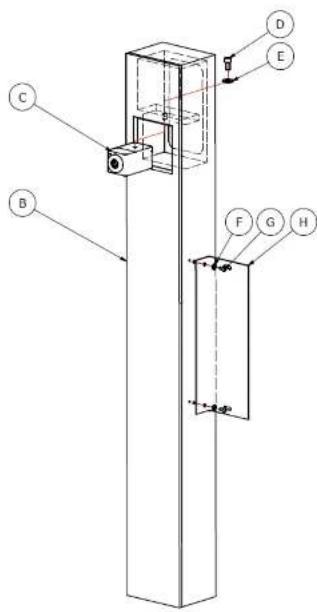
1) Mount the speaker brackets (H) onto the speakers (B) using 6x M4x12 screws (G) and 6x washers (F)
2) Mount the Huddy camera (C) into the opening of the left (seen from the front) speaker (B) using 1/4"x16 screw (D) and washer (E)
NOTE: Do not torque the screw too tightly. That way you will still be able to mechanically adjust the position of the Huddy camera after the installation.
3) Connect the 1m angled USB 3.0 Type C cable (as shown on picture 1) to the Huddy camera
4) Mount the back plates (J) onto the rear side of the speakers (B) using 12x 3.5x6 screws (I)
5) Carefully guide the USB cable of the Huddy camera through the long hole of the speaker back plate (J)
NOTE: If you loop the USB cable (as shown in picture 2) you will be able to manually adjust the position of the camera.
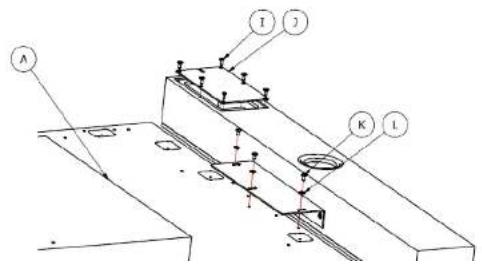
6) Mount the speakers (B) to the 65" InfinityBoard display (A) using 6x M4x12 screws (K) and 6x washers (L)

Assembly | 84" Speaker System & Camera
1) Mount the speaker brackets (H) onto the speakers (B) using 6x M4x16 screws (G) and 6x washers (F)
2) Mount the Huddy camera (C) into the opening of the left (seen from the front) speaker (B) using 1/4"x16 screw (D) and washer (E)
NOTE: Do not torque the screw too tightly. That way you will still be able to mechanically adjust the position of the Huddly camera after the installation.
3) Connect the 1m angled USB 3.0 Type C cable (as shown on picture 1) to the Huddy camera
4) Mount the back plates (J) onto the rear side of the speakers (B) using 12x 3.5x6 screws (I)
5) Carefully guide the USB cable of the Huddy camera through the long hole of the speaker back plate (J)
NOTE: If you loop the USB cable (as shown in picture 2) you will be able to manually adjust the position of the camera.
6) Mount the speakers (B) to the 84" InfinityBoard display (A) using 6x M4x18 screws (K) and 6x washers (L)

Assembly | OPS Slot-in PC
1) Remove the slot covering plate from the InfinityBoard display, by releasing the 2 Philips screws (as shown on picture 3)
2) Insert the Slot-in PC in the slot very carefully until you feel a latching of the connectors
NOTE: The fan of the of the Slot-in PC should always be facing away from the front of the display (as shown in picture 4).
3) Use the screws, which were taken out with the covering plate before, in order to secure the Slot-in PC

natural_image
Pure technical diagram of a mechanical component with no text, numbers, or symbols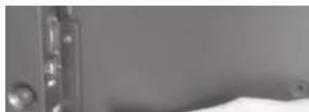
Connecting Cables
1) Enable the USB Hub: Connect the USB Type-B (marked with "USB") to one USB input of the OPS PC
NOTE: For use with external PC, connect the USB Type-B (marked with "USB") to the USB Input of the external PC.
2) Connect the Huddy camera: Connect the USB cable of the camera to one USB input of the OPS PC
NOTE: For use with external PC, NEC can provide certified USB extension cables to connect the Huddly camera.
3) Enable the touch functionality: Connect the USB Type-B (marked with "TOUCH") to one USB Input of the InfinityBoard USB hub
NOTE: For use with external PC, connect the USB Type-B (marked with "TOUCH") to the USB input of the external PC (as shown on picture 5).
4) Connect the speakers: Connect the audio cables to the terminals on the speakers and to the speaker terminals on the InfinityBoard displays (as shown on picture 6). Red terminal is plus (+) and black terminal is minus (-).
5) Push the button "Internal/External speaker switch" below the speaker terminals on the display to enable the external speakers (as shown on picture 7)
NOTE: Please power off the InfinityBoard when you use the Internal/External speaker switch.

FAQs | Trouble Shooting
1) What can I do in case I am experiencing a latency in the writing performance on my NEC InfinityBoard?
■ Make sure the OPS PC is running UHD resolution with 60Hz
- OSD MENU:
■ ADVANCED OPTION1 » OPTION SETTINGS
- SLOT2 CH SETTING » CH1
- SLOT2 CH SELECT » DPORT
2) What can I do in case I am hearing some cracking noise from the external speakers connected to my NEC InfinityBoard?
- OSD MENU:
■ ADVANCED OPTION1 » OPTION SETTINGS
- LONG CABLE COMP » AUDIO » DIGITAL
3) How can I ensure that the OPS Slot-in PC shuts down automatically when I switch off (stand-by mode) my NEC InfinityBoard display?
- OSD MENU:
ADVANCED OPTION1 » OPTION SETTINGS
- AUTO OFF » change to ON
4) How can I ensure that my NEC InfinityBoard display will switch off (stand-by mode) automatically when I shut down the OPS Slot-in PC?
- OSD MENU:
- DISPLAY PROTECTION » POWER SAVE
- AUTO STANDBY » ENABLE and set a time period
FAQs | Trouble Shooting
6) What can I do in case the cursor fails to follow the exact finger or pen position?
- The display can be re-calibrated in the following way:
NOTE: Calibration under Windows is an option which can only make the touch screen work more accurate but it is not required.
- Open start menu in Windows and select "Control Panel"
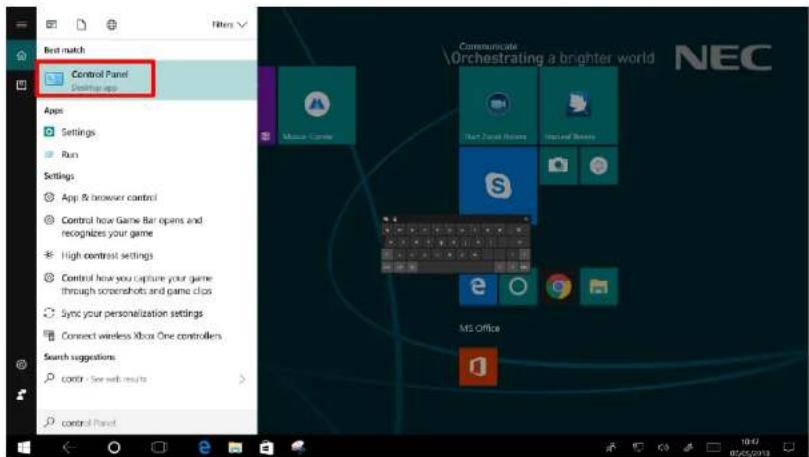
- Open "Tablet PC Settings"

FAQs | Trouble Shooting
- Press "Calibrate" button
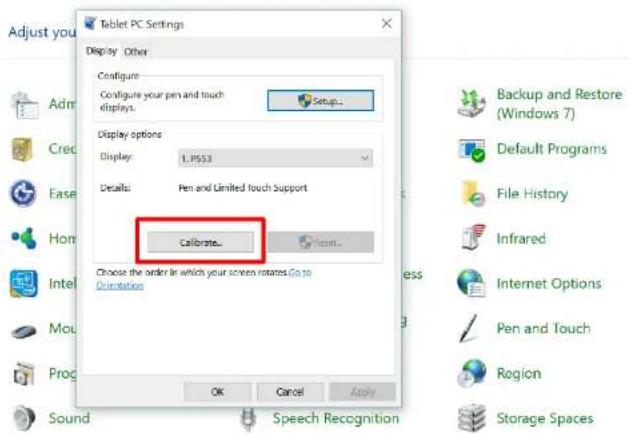
- Choose "Touch input"

FAQs | Trouble Shooting
- If "User Account Control" windows pops up, click yes
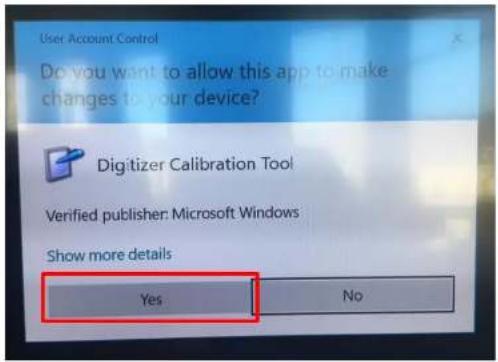
- When the calibration process begins, touch the middle of each cross that appears in bold on the screen (crosses shall appear several times in each corner of the screen)
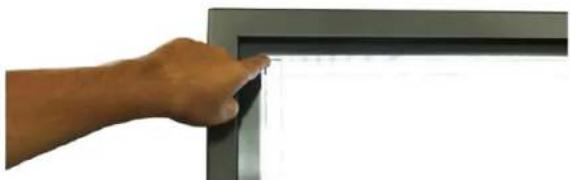
natural_image
Hand pressing a button on a dark surface, no visible text or symbolsHelpdesk & Service Info
InfinityBoard Helpdesk / Service Info
Phone:+49 (0)89 99699 622
Email: Infinity-Board-support@nec-displays.com
NEC Display Solutions Europe GmbH
Landshuter Allee 12-14
D - 80637 München
Phone: +49 (0)89 99 699-0
Fax: +49 (0) 89 99 699-500
infomail@nec-displays.com
www.nec-display-solutions.com
- Installation Guide
- Table of Contents
- Shipping Content | 65" InfinityBoard
- 65" InfinityBoard 40001135
- Packaging information 65" InfinityBoard
- Each components of your NEC InfinityBoard should contain the following:
- NEC MultiSync X651UHD-2 IGB
- Shipping Content | 84" InfinityBoard
- 84" InfinityBoard 40001135
- Packaging information 84" InfinityBoard
- Unpacking Unit
- Assembly | 65" Speaker System & Camera
- Assembly | 84" Speaker System & Camera
- Assembly | OPS Slot-in PC
- Connecting Cables
- FAQs | Trouble Shooting
- 6) What can I do in case the cursor fails to follow the exact finger or pen position?
- Helpdesk & Service Info
Brand : NEC
Model : InfinityBoard 84″
Category : Tracker