
DV11 - Video projector NEC - Free user manual and instructions
Find the device manual for free DV11 NEC in PDF.


| Product Type | XGA Digital Presenter (Document Camera) |
| Model | NEC DV11 (DV11G) |
| Image Sensor | 1/3 inch CCD, 850,000 pixels |
| Resolution | XGA (1024 x 768) progressive; also SVGA, VGA; interlaced NTSC/PAL |
| Zoom | 15x optical + 3x digital (45x total) |
| Focus | Auto / Manual |
| Brightness Adjustment | Auto / Manual |
| White Balance | Auto / Manual (Blue/Red adjustment) |
| Frame Rate | 15 fps |
| Shooting Range | Max 344 x 252 mm (B4), Min 16 x 12 mm |
| Focus Distance | 88 mm above stage surface (minimum) |
| Image Memory | 8 images (internal), can transfer to PC via USB |
| Trapezoidal Correction | Yes (for oblique shooting, camera arm 60-80 degrees) |
| Illumination | Main light and base light (adjustable) |
| Camera Head Rotation | Rotatable horizontally and vertically for surroundings |
| Output Modes | RGB (analog) or Video; RGB output for two monitors possible |
| Dimensions (Operational) | 420 x 489 x 650 mm (W x D x H) |
| Dimensions (Stored) | 420 x 680 x 190 mm |
| Weight | 5.2 kg (11.5 lb) |
| Power Supply | 100-120 / 200-240 V AC, 50/60 Hz |
| Power Consumption | 20 W (0.43 A at 100-120V, 0.27 A at 200-240V) |
| Accessories Included | Remote control (with 2 AA batteries), Power cord, RGB signal cable, User manual |
| Safety Certifications | Class B digital apparatus (Canada), Acoustic noise <70 dB(A) |
Frequently Asked Questions - DV11 NEC
- Power plug is securely connected and the power switch on the back is set to ON (I).
- The projector or display is properly connected and turned on.
- The source selection on the control panel is set to 'CAMERA'.
- The brightness setting is not too low.
- The dip switches on the back panel are configured correctly (dip 4 OFF for RGB, ON for video).
- If using a projector, ensure it is set to the correct input.
User questions about DV11 NEC
0 question about this device. Answer the ones you know or ask your own.
Ask a new question about this device
Download the instructions for your Video projector in PDF format for free! Find your manual DV11 - NEC and take your electronic device back in hand. On this page are published all the documents necessary for the use of your device. DV11 by NEC.
USER MANUAL DV11 NEC
XGA Digital Presenter
DV11G
User's Manual
English
Introduction
Thank you for purchasing NEC's XGA digital presenter DV11G ("this equipment" in the following).
Connected to a projector, display monitor or TV, this presenter captures images of documents, teaching materials or other data and shows them large and clear on the screen.
For safe and proper use of this equipment, please read this user's manual carefully. Also, be sure to keep this manual at hand. You can always consult it whenever a question or trouble arises.
DOC Compliance Notice
This Class B digital apparatus meets all requirements of the Canadian Interference-Causing Equipment Regulations.
Acoustic Noise Information Ordinance-3. GSGV:
The sound pressure level is less than 70 dB (A) according to ISO 3744 or ISO 7779.
RF Interference
WARNING

WARNING
Do not use with any power voltage other than the indicated voltage.
The equipment is designed to operate on a power supply of 100-120 or 200-240 V 50/60 Hz AC. Ensure that your power supply fits this requirement before attempting to use the equipment.
Handle power cord with care.
Handle the power cord carefully.
Damaged cord may cause fire or electric shocks.
- Use only the supplied power cord.
- Do not place any heavy object on the power cord.
- Do not lead the power cord under the equipment body.
- Do not cover the power cord with a carpet or like object.
- Do not damage or transform the power cord.
- Do not forcibly bend, twist or pull at the power cord.
- Do not heat the power cord.
When the power cord is damaged (exposed core, disconnection, etc.), contact your dealer for replacement.
Disconnect power plug in case of trouble.
When the equipment is developing smoke, smell or noise or when the equipment has been dropped accidentally or the cabinet damaged, turn off the power to the equipment first and then disconnect the power plug from the outlet. Fire or electric shocks may oc-
Do not use equipment in places as follows.
Do not use the equipment in places as follows. Otherwise fire or electric shocks may occur.
- On a shaky table or in an inclined or unstable position
- Near a heater or in exposure to vibration
• In exposure to moisture or dust
• In exposure to oil mist or steam
• Near a kitchen table or humidifier
Do not allow any foreign matter to enter equipment.
Do not attempt to insert or drop foreign objects, such as metal or inflammable objects into the equipment. Otherwise fire or electric shocks may occur. Take special care when this equipment is used in places where there are children.
Should any foreign matter have entered the equipment, turn off the power to the equipment first and then disconnect the power plug from the outlet. Also, contact your dealer immediately for instructions.
Never open the cabinet.
Do not remove or open the cabinet of the equipment. Also, never remodel the cabinet. Otherwise fire or electric shocks may occur.
Please contact your dealer for checks, adjustments or repairs of the equipment inside.
Do not cover the camera head.

CAUTION
Ground equipment properly.
Please ground the equipment properly for safety reasons. See page E-13 for details.
Do not touch power plug with a wet hand.
Do not connect or disconnect the power plug with a wet hand. Electric shocks may occur.
Do not store equipment by leaning it against wall or other object.
Do not store the equipment by leaning it against a wall or other object. It may topple and cause injury.
Be sure to disconnect power cord before carrying equipment.
When moving this equipment, be sure you have turned off the power switch, disconnect the power plug from the outlet and disconnected cables which are connected to another equipment.
Disconnect power plug when equipment is not used for a long time.
Be sure to disconnect the power plug from the outlet for safety when the equipment is not to be used for a long period of time.
Before maintenance, be sure to disconnect power plug.
Before carrying out maintenance, be sure to discon-
Do not carry this equipment by camera arm or camera head.
Do not carry this equipment by the camera arm or camera head. Otherwise the camera arm or camera head may get deformed and break the cord inside the camera arm, thus causing fire or electric shocks.
Handling of batteries
Handle the batteries with care. Otherwise fire, injuries or pollution may occur.
- Do not allow the batteries shorted, disassembled or thrown into fire.
• Always use batteries of the specified type. - Do not use a new and an old battery at the same time.
- Set the batteries with polarity (+ and -) oriented correctly as indicated.
Notes for Use
Do not locate this equipment in a place where it may be exposed to vibration or shocks.
Do not place this equipment subject to vibration from any drive system or on board a vehicle or ship. The vibration or shocks that work on the equipment may damage the internal parts, which will eventually lead to a failure. Be sure to use this equipment in places free from vibration or shocks.
Do not use this equipment near high-voltage lines or motor power sources.
Use of this equipment near a high-voltage line or motor power source may subject the equipment to interference.
Take adequate measures to prevent external light from reaching the stage surface.
Make sure that the stage surface is not exposed to strong light from the outside of the equipment.
Carry the equipment with care.
Please carry the equipment by holding the sides of the body. Also take care not to give strong shocks to the body.

Do not touch the camera lens directly with your hand. Also, do not use this equipment in a place containing much dust or cigarette smoke.
Fingerprints or smear on the camera lens will make normal image shooting impossible.
When the camera lens has become dirty, clean it with a commercially available camera lens cleaner. In doing so, take care not to damage the lens.
Stage surface
Clean images cannot be obtained if the stage surface is smeared, damaged or discolored. Take care to protect the stage surface from a splash of any volatile substance, damage or dirt.
Do not leave the equipment in places where the equipment may be exposed to direct sunshine or any heating equipment.
When the body becomes dirty, wipe the dirt off with a well-wrung cloth wetted with a neutral detergent or suchlike and then wipe with a dry cloth. Do not splash thinner, benzine, insecticide or other volatile substance on it. Otherwise the equipment may deform, discolor or develop trouble. Also never wash the equipment in water, which will lead to a failure.
Disposal
For the disposal of the equipment, please contact your dealer or your municipality for instructions.
Contents
Introduction ...... E-2
Safety Notes E-3
Notes for Use E-5
Contents E-6
Features E-7
On this Manual E-7
Checking of Accessories E-8
Names of Parts ...... E-8
Control Panel E-9
Back Panel E-10
Remote Control E-11
Preparations before Use ....E-12
Connecting the Cable and Setting the Output Mode.... E-12
Connecting the Power Cord E-13
Setting the Camera Arm E-14
How to Use....E-14
Turning Power On E-14
Shooting the Material (Data) E-14
Shooting the Surroundings.... E-15
Correcting Trapezoidal Distortion at Oblique Shooting E-16
Using Image Memory E-17
Transferring Image Memory Contents to PC......E-17
Turning Power Off E-18
Troubleshooting....E-19
Appendixes E-21
Features
High image quality and clear image display
Shooting at high image quality of XGA (1024×768) and displaying clear images
45-power zooming
The optical 15-power and digital 3-power zoom function allows you to enlarge details of the material.
Camera with illumination
The light provided on the camera head allows you to use the space freely.
Rotatable camera head and movable arm
Image shooting in all directions is possible without moving this equipment.
Trapezoidal correction function
Data shot from an oblique direction can be corrected such that it looks as if shot from right above.
Long-life cold-cathode lamp used
Image memory capable of storing eight images
Images can be stored in the body in advance.
You can perform a speedy presentation by switching from camera image to still image from image memory and back to camera image.
Paper holder function
The material can be held down by a commercially available magnet.
On This Manual
Checking of Accessories
Check the equipment body and the accessories as shown below. If you find any missing item, please contact your dealer and get it supplied.
Equipment body Remote control
(09N999215)
Two SUM-3 (AA) batteries (for remote control)

natural_image
Line drawing of a desk lamp with adjustable arm and cover (no text or symbols)
Guarantee policy


Power cord (07N080003)
RGB signal cable (mini D-sub 15-pin) (07N520001)
User's Manual (this manual)


Names of Parts
Control Panel
WHITE BALANCE
Adjusts the lone of while.
'AUTO'
Adjusts the tone of white automatically. Before pushing the button, project a white sheet of paper fully on the screen and adjust the brightness. The indicator lights up during the adjustment.
- Adjust WHITE BALANCE again when the ambient illumination has changed.
'BLUE'
Adds a slightly blue shade to white.
'RED'
Adds a slightly yellow shade to white.
(NOTE) With power to this equipment turned off, white balance will be reset to factory setting. See page E-15 for storage of adjusted value.

BRIGHTNESS
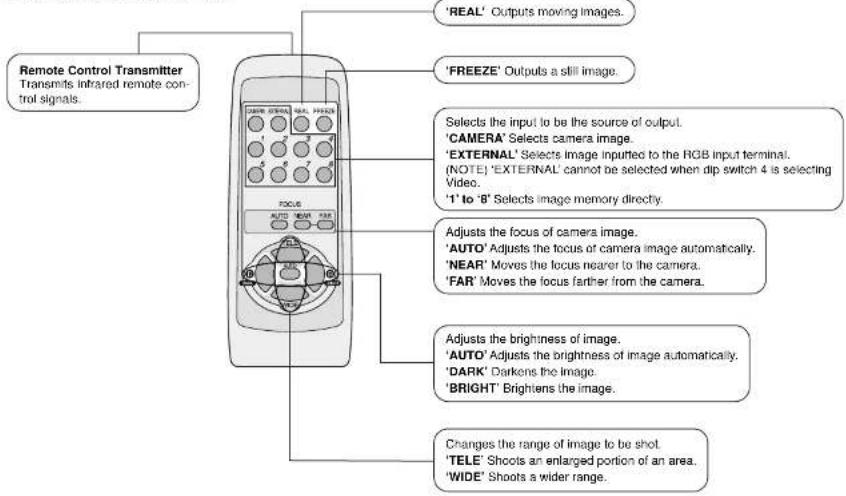
Adjusts the brightness of image.
'AUTO'
Adjusts the brightness of image automatically. The indicator lights up during the adjustment.
'DARK'
Darkens the image
'BRIGHT
Brightens the image.
SOURCE
Selects a source input for output.
The indicator for the currently selected input lights up.
'CAMERA'
Selects camera image.
'MEMORY'
Selects the image stored in image memory
(NOTE) Digital zoom is cancelled
'EXTERNAL'
Selects the image being inputted to the RGB input terminal.
(NOTE) EXTERNAL cannot be selected when video output is selected by dip switch 4. (See page E-10)
KEYSTONE
Corrects trapezoidal distortion when shot obliquely. Or cancels correction. (See page E-16)
'ON / OFF
Turns trapezoidal correction on or off. The indicator lights up with trapezoidal correction on.
Makes fine adjustment of trapezoidal correction.
'REAL / FREEZE' Selects between moving image mode and still image mode. The indicator for the moving image mode selected light up.

'POSI / NEGA'
Produces an output after negative conversion.
Press this button again and the output will return to positive. The indicator lights up when positive is on.
'COLOR BUR
'CAPTURE'
Writes image into image memory.
(NOTE) Turning power off will erase memory con-
ZOOM
Changes the range of image to be shot.
'WIDE'
Shoots a wider range.
'TELE'
Shoots an enlarged portion of an area.

Back Panel

Remote Control
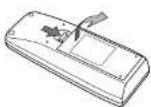
■ How to set batteries
①Remove the lid of the battery case on the back of the remote control.
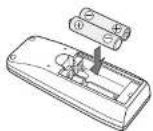
② Enter the batteries in correct + and - orientation as indicated on the case inside. ③ Place the lid back on.


Preparations before Use
Connecting the Cable and Setting the Output Mode
Connect the cable to the equipment that displays the image from this equipment. A selection can be made from the RGB output and the video output. However, it is necessary to set the output method with the dip switch on the back panel before turning on the power to this equipment.
■ For RGB output
Set the dip switch 4 to OFF.
Connect the RGB monitor output terminal 1 (RGB-OUT 1) to the RGB input terminal of a projector, display or other image equipment.

With dip switch 5 set to ON, the same signal can be outputted from two systems by connecting a projector or display to the RGB monitor output terminal 2 (RGB-OUT 2).
NOTE:
- In the case of RGB output only, the RGB output signals from a PC, for instance, may be outputted via this equipment. For such an application, connect the RGB input terminal to the RGB output terminal on a PC or suchlike.

■ For video signal output
Set the dip switch 4 to ON.
Connect the Video image output terminal to the Video image input terminal of a TV or other image equipment.

NOTE:
- With dip switch 4 set to ON, the source selection 'EXTERNAL' cannot be selected.
■ Connection of a simple monitor
A simple monitor may be connected to the Monitor output terminal for use with RGB output or video signal output.

Camera image is always being displayed, so that when replacing data, it is possible to see in advance whether the next data, larger in size, will be within the display range or not.
NOTE:
- The display image on a simple monitor may be slightly wider in the horizontal direction than that of a projector or a display.
- The display range may sometimes vary depending on the performance characteristics of a simple monitor or the type
Setting the Camera Arm
As illustrated, raise the camera arm gently in the indicated direction while holding the body down with your hand.
When the angle between the stage and the camera arm is 60 degrees, there is a click with which the camera arm gets fixed momentarily. Normally use the equipment in this 60-degree position. Though the camera arm may be raised to a position of 80 degrees, do not attempt to raise it any further.

CAUTION
Be sure to hold the body down with your hand when raising the camera arm. Otherwise, the body may lift up to cause injury.

60 degrees (normal position)
How to Use
Turning Power On
Set the power switch on the back panel to ON (I).

All the indicators on the control panel light up for about ten seconds.
Shooting the Material (Data)
①Place your material on the stage.
②Turn on the main light or turn on the base light, depending on the lighting in the room or the condition of the material to be shot.

Shooting the Surroundings
Turn the camera head toward the object you want to shoot.

NOTE:
- The camera head does not turn vertically in your direction (A). Forcible turning may cause trouble.
- For turning in the horizontal direction, do so by holding the part B of the camera head.
NOTE:
- When the material reflects light, turn off the main light. Also, try shooting obliquely by adjusting the camera arm angle.
Lighting Guidelines
| Main light * | Base light | |
| Printed matter | ON | OFF |
| Three-dimensional object | ON | OFF |
| OHP film and other see-through material | OFF | ON |
| Reflective material, such as glossy paper | OFF | OFF |
* When the room is full of light, better images may be obtained by turning off the main light.
- Adjust the brightness by using both the ON/OFF of the main light and the 'BRIGHTNESS' button.
Correcting Trapezoidal Distortion at Oblique Shooting
The trapezoidal correction function can be used to correct trapezoidal distortion that occurs when the camera arm is moved from the normal position (60°) to a higher position (80°) and material is shot from an oblique direction.
The wider base is adjusted to the narrower base to obtain an image with reduced distortion.
Use this function when showing a material of A4 vertical size within a screen or when avoiding the reflection of external light or light from the main light on the material to be shot.


60° (normal position)
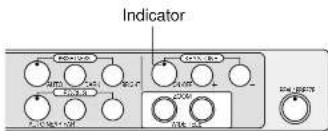
The indicator of the 'ON/OFF' button of KEYSTONE lights up when the trapezoidal correction function is working. To turn off the trapezoidal correction function, press the 'ON/OFF' button (indicator going out).
If the trapezoidal correction function has not corrected distortion completely, make fine adjustment with '+' / '-'button of KEYSTONE.
NOTE:
- The trapezoidal correction function does not work when the camera arm is lower than the normal position and material is shot from an oblique direction.
- Turn off the trapezoidal correction function when shooting a solid body from an oblique direction.
- If you adjust the input signal using an auto-adjusting function of a projector or display during the operation of the trapezoidal correction function, the image may not sometimes be displayed properly when the camera arm is returned to the normal position. In such a case, please carry out the automatic adjustment again.
During the use of trapezoidal correction function:
1.1.3
Using Image Memory
You can store images (up to 8 images) in advance and output them later.
■ Storing images
① Select the image memory to be used by operating 'UP' or 'DOWN'.
The No. of the image memory selected is displayed by the indicator.
② Press the 'CAPTURE' button.
The image is stored in the image memory.

NOTE:
- Image cannot be stored when EXTERNAL or MEMORY has been selected in source selection.
- Capturing during the use of digital zoom will result in the storage of image before the use of digital zoom.
■ Outputting images stored in image memory
① Press the 'MEMORY' button in source selection.
The contents of the image memory currently selected are outputted.
Select the image memory by pressing the 'UP' or 'DOWN' button.

NOTE:
- Image memories can be selected directly by pressing the buttons '1' to '8' on the remote control.
• The stored images will be deleted by turning power off.
Transferring Image Memory Contents to PC
By the use of a USB cable, the contents of image memory can be transferred to a PC in the form of a JPEG file.
■ How to transfer
This equipment will be recognized as the drive by "My Computer" on the PC and the contents of image memory are displayed as a JPEG file. Copy the JPEG file and transfer it to your PC.
NOTE:
- “U” will be displayed by the indicator for an applicable image memory No. during communication with a PC, such as when the contents of an image memory are being transferred to the PC.
During the display of "U," you cannot operate this equipment. Please wait. - The date and time captured is not stored as data for JPEG file.
- Images captured during the use of the trapezoidal correction function are displayed in the state before correction on a PC display.
Turning Power Off
Set the power switch on the back panel to OFF (○)

Troubleshooting
Before asking for repair, please make the following checks. If you cannot correct the trouble, contact your dealer.
| Symptom | Check for the cause | See page |
| Image is not projected. | Power plug is not properly connected to outlet.Power switch is not on.Projector or display is not properly connected.Brightness setting is not correct.'EXTERNAL' or 'MEMORY' is selected in source selection. Select 'CAMERA'.Mode setting of image is not correct. Set according to projector or display to be connected.Settings of dip switches on back panel are not correct. | E-13E-14E-12E-9E-9—E-10 |
| Image is not focused. | Material is too close to lens (It Is 88mm or higher from stage surface).ZOOM has been changed after focusing. Carry out focusing with ZOOM set.In 'AUTO' of focusing, some object may not allow easy focusing.Adjust by 'NEAR' or 'FAR' button of FOCUS.When projector is used, projector is not properly focused.Adjust focus as instructed in projector manual turn on REAL mode by pressing 'REAL/FREEZE' button, and select camera image by pressing 'CAMERA' button of source selection. | ——E-14E-9—E-9 |
| Zoom cannot be adjusted. | Zoom Is at down end or up end.Digital zoom is selected.Change magnification of digital zoom by pressing button step by step. | ——E-9 |
| Image is blurred or dust is shown. | Camera lens is dirty. Clean with commercially available camera lens cleaner. | — |
| Image is dark | Main light is not on.BRIGHTNESS is not properly adjusted. | E-9E-9 |
| Stripes appear in image of printed matter. | Interference between mesh points of printed matter and image of camera shooting elements may sometimes produce color stripes. In such a case, change image size a little by ZOOM. | E-9 |
| Color tone is not cor- | White balance is incorrectly adjusted. | E-9 |
| Screen blinks. | • Darken screen by adjusting brightness to 'DARK' side. | E-9 |
| Drive does not open when USB-connected. | • Disconnect USB cable once, turn on power to this equipment and connect USB cable again.(NOTE) Memory contents will be erased by turning off power to the equipment. | — |
| Image distorts into trap-ezoid. | • Indicator of 'ON/OFF' button of KEYSTONE is off.• Make fine adjustment with '+'/'-' button of KEYSTONE. | E-16E-16 |
Appendixes
Specifications
General specifications
Power requirement 100-120/200-240V AC, 50/60 Hz
Power consumption 20W
Input current 0.43 A (100-120V AC) / 0.27 A (200-240V AC)
Dimensions
W420mm × D489mm × H650mm (service)
W420mm × D680mm × H190mm (storage)
Net weight 5.2 kg
Optical specifications
Lens F1.6-2.6
Shooting range Max. 344mm × 252mm (equal to B4)
Min. 16mm × 12mm
Focus adjustment range 88mm (above stage surface)
Zoom
Motor-driven, × 15 (optical), × 3 (digital)
Focus Auto / Manual
Brightness Auto / Manual
Camera specifications
Output operation mode Progressive mode (analog RGB)
- 1024 × 768 (XGA)
- 800 × 600 (SVGA)
- 640 × 480 (VGA)
Interlace mode
• NTSC
• PAL
Camera element 1/3 inch CCD
Total number of pixels 850,000 pixels
Frame rate
15 fps
Synchronous system
Internal synchronization
White balance
Auto / Manual
Input selection
Possible (built-in camera / External input / Memory 8 images)
Dimensions

Unit: mm
- Introduction
- DOC Compliance Notice
- Acoustic Noise Information Ordinance-3. GSGV:
- RF Interference
- WARNING
- Do not use with any power voltage other than the indicated voltage.
- Handle power cord with care.
- Disconnect power plug in case of trouble.
- Do not use equipment in places as follows.
- Do not allow any foreign matter to enter equipment.
- Never open the cabinet.
- CAUTION
- Ground equipment properly.
- Do not touch power plug with a wet hand.
- Do not store equipment by leaning it against wall or other object.
- Be sure to disconnect power cord before carrying equipment.
- Disconnect power plug when equipment is not used for a long time.
- Before maintenance, be sure to disconnect power plug.
- Do not carry this equipment by camera arm or camera head.
- Handling of batteries
- Notes for Use
- Contents
- Features
- High image quality and clear image display
- 45-power zooming
- Camera with illumination
- Rotatable camera head and movable arm
- Trapezoidal correction function
- Long-life cold-cathode lamp used
- Image memory capable of storing eight images
- Paper holder function
- On This Manual
- Checking of Accessories
- Names of Parts
- Control Panel
- WHITE BALANCE
- 'AUTO'
- 'BLUE'
- 'RED'
- BRIGHTNESS
- 'DARK'
- 'BRIGHT
- SOURCE
- 'CAMERA'
- 'MEMORY'
- 'EXTERNAL'
- KEYSTONE
- 'ON / OFF
- 'POSI / NEGA'
- 'CAPTURE'
- ZOOM
- 'WIDE'
- 'TELE'
- ■ How to set batteries
- Preparations before Use
- Connecting the Cable and Setting the Output Mode
- ■ For RGB output
- NOTE:
- ■ For video signal output
- ■ Connection of a simple monitor
- Setting the Camera Arm
- How to Use
- Turning Power On
- Shooting the Material (Data)
- Shooting the Surroundings
- Correcting Trapezoidal Distortion at Oblique Shooting
- Using Image Memory
- ■ Storing images
- ■ Outputting images stored in image memory
- Transferring Image Memory Contents to PC
- ■ How to transfer
- Turning Power Off
- Troubleshooting
- Appendixes
- Specifications
- General specifications
- Optical specifications
- Camera specifications
- Dimensions
Brand : NEC
Model : DV11
Category : Video projector