
LI2342 - Tracking LENOVO - Free user manual and instructions
Find the device manual for free LI2342 LENOVO in PDF.


| Product Type | Wide Flat Panel Monitor |
| Model Number | LI2342wA |
| Screen Size | 23 inches (584.2 mm) diagonal |
| Native Resolution | 1920 x 1080 at 60 Hz |
| Pixel Pitch | 0.265 mm |
| Tilt Range | -5° to 22° |
| Input Connectors | D-Sub (VGA) and DVI-D |
| Power Supply | 19V DC, 1.58A (adapter included) |
| Power Consumption (Normal) | <25 W |
| Dimensions (W x H x D) | 546.0 x 393 x 179.9 mm |
| Weight | Not specified in manual |
| Safety Compliance | ENERGY STAR |
| Cable Lock Slot | Yes (Kensington lock compatible) |
| Detachable Base | Yes |
| OSD Languages | Multiple (English, etc.) |
| Driver Support | Windows 7, 8, 8.1, 10 |
| Included Accessories | Power cord & adapter, Analog interface cable, Setup poster |
| Cleaning Instructions | Use soft damp cloth with mild detergent; no solvents |
| Operating Temperature | 0° to 40°C (32° to 104°F) |
| Storage Temperature | -20° to 60°C (-4° to 140°F) |
| Horizontal Frequency | 30 kHz - 83 kHz |
| Vertical Frequency | 50 Hz - 75 Hz |
Frequently Asked Questions - LI2342 LENOVO
User questions about LI2342 LENOVO
0 question about this device. Answer the ones you know or ask your own.
Ask a new question about this device
Download the instructions for your Tracking in PDF format for free! Find your manual LI2342 - LENOVO and take your electronic device back in hand. On this page are published all the documents necessary for the use of your device. LI2342 by LENOVO.
USER MANUAL LI2342 LENOVO
LI2342 Wide Flat Panel Monitor User's Guide
natural_image
Abstract grayscale illustration of flowing lines and a computer monitor icon (no text or symbols)Product numbers
LI2342wA
65A5-HB1
Contents
Safety information.... iii
General Safety guidelines.... iii
Chapter 1. Getting started ..... 1-1
Shipping contents 1-1
Notice for use....1-1
Product overview 1-2 Adjusting the tilt 1-2
Adjusting the tilt 1-2 Monitor controls 1-2
Monitor controls....1-2
Cable lock slot. 1-3 Setting up your monitor. 1-4
Connecting and turning on your monitor 1-4
Chapter 2. Adjusting and using your monitor ..... 2-1
Comfort and accessibility....2-1
Arranging your work area 2-1
Positioning your monitor 2-1
Quick tips for healthy work habits 2-2
Adjusting your monitor image 2-3
Using the direct access controls. 2-3
Using the On-Screen Display (OSD) controls 2-4
Selecting a supported display mode 2-7
Understanding power management 2-8
Caring for your monitor 2-9
Detaching the monitor base and stand 2-9
Chapter 3. Reference information....3-1
Monitor specifications 3-1
Troubleshooting 3-3
Manual image setup 3-4
Manually installing the monitor driver 3-5
Installing the monitor driver in Windows 7....3-5
Installing the monitor driver in Windows 8/8.1 3-6
Installing the monitor driver in Windows 10 3-7
Safety information
General Safety guidelines
For tips to help you use your computer safely, go to:
http://www.lenovo.com/safety
Before installing this product, read the Safety Information.

DANGER
To avoid shock hazard:
- Do not remove the covers.
- Do not operate this product unless the stand is attached.
- Do not connect or disconnect this product during an electrical storm.
- The power cord plug must be connected to a properly wired and grounded power outlet.
- Any equipment to which this product will be attached must also be connected to properly wired and grounded power outlets.
- To isolate the monitor from the electrical supply, you must remove the plug from the power outlet. The power outlet should be easily accessible.
To take special precautions to avoid the introduction of hazards when operating, installing, servicing, transporting or storing equipment, the necessary instructions shall be made available.
Chapter 1. Getting started
This User's Guide contains detailed information on the your Flat Panel Monitor. For a quick overview, please see the Setup Poster that was shipped with your monitor.
Shipping contents
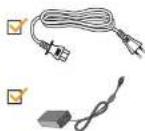
The product package should include the following items:
- Setup Poster
- Flat Panel Monitor
• Power Cord & Adapter
• Analog Interface Cable



Notice for use
To set up your monitor, please see the illustrations below.
Product overview
This section will provide information on adjusting monitor positions, setting user controls, and using the cable lock slot.
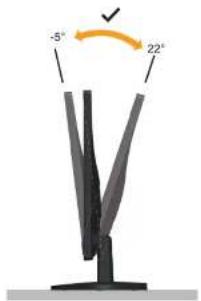
Adjusting the tilt
The illustration below shows the tile and swivel range of the monitor. For more information, see "Positioning your monitor" on page 2-1.
Monitor controls
Your monitor has controls on the front which are used to adjust the display.

For information on how to use these controls, please see "Adjusting your monitor image" on
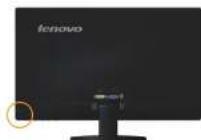
Cable lock slot
Your monitor is equipped with a cable lock slot located on the rear of your monitor (in the lower position).
H

Setting up your monitor
This section p provides information on how to set up your monitor.
Connecting and turning on your monitor
Note: Be sure to read the Safety information located on page iii before carrying out this procedure.
- Power off your computer and all attached devices, and unplug the computer power cord.

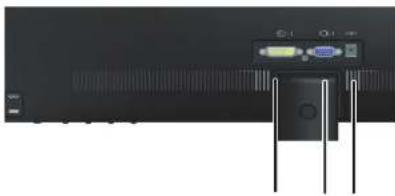
- Connect the cables according to below icon indication.
natural_image
Back view of a black electronic device with ports and connectors (no visible text or symbols)
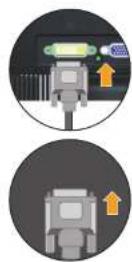
- Connect one end of the analog signal cable to the monitor D-Sub connector and the other end to the computer.
101·1

- Connect the digital cable to the DVI connector of the monitor and the other end on the back of the computer.

•2
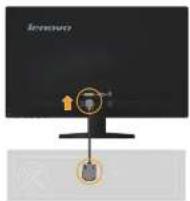
- Insert the Adapter into the monitor, then plug the monitor power cord and the computer cord into grounded electrical outlets.
Note: A certified power supply cord has to be used with this equipment. The relevant national installation and or equipment regulations shall be considered. A certified power supply cord not lighter than ordinary polyvinyl chloride flexible cord according to IEC 60227 (designation H05VV-F 3G 0.75mm2 or H05VVH2-F2 3G0.75mm2) shall be used. Alternative a flexible cord be of synthetic rubber according to IEC 60245 (designation H05RR-F 3G 0.75mm2) shall be used.


- Power on the monitor and the computer.
[Non-Text]
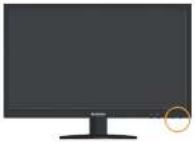
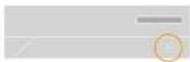
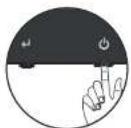

- When you install the monitor driver, download the driver that corresponds to your monitor model from the Lenovo website www.lenovo.com/support/li2342w Refer to the "Manually Install Monitor Driver" section to install the driver.
i
Chapter 2. Adjusting and using your monitor
This section will give you information on adjusting and using your monitor.
Comfort and accessibility
Good ergonomic practice is important to get the most from your personal computer and to avoid discomfort. Arrange your workplace and the equipment you use to suit your individual needs and the kind of work that you perform. In addition, use healthy work habits to maximize your performance and comfort while using your computer. For more detailed information on any of these topics, visit the Healthy Computing Web site at: http://www.lenovo.com/healthycomputing/.
Arranging your work area
Use a work surface of appropriate height and available working area to allow you to work in comfort.
Organize your work area to match the way you use materials and equipment. Keep your work area clean and clear for the materials that you typically use and place the items that you use most frequently, such as the computer mouse or telephone, within the easiest reach.
Equipment layout and setup play a large role in your working posture. The following topics describe how to optimize equipment setup to achieve and maintain good working posture.
Positioning your monitor
Position and adjust your computer monitor for comfortable viewing by considering the following items:
- Viewing distance: Optimal viewing distances for monitors range from approximately 510mm to 760mm (20 in to 30 in) and can vary depending on
- Use the monitor brightness, contrast controls, if equipped to optimize the image on your screen to meet your visual preferences.
- Keep your monitor screen clean so you can focus on the screen's contents.
Any concentrated and sustained visual activity can be tiring for your eyes. Be sure to periodically look away from your monitor screen and focus on a far object to allow your eye muscles to relax. If you have questions on eye fatigue or visual discomfort, consult a vision care specialist for advice.
Quick tips for healthy work habits
The following information is a summary of some important factors to consider to help you remain comfortable and productive while you use your computer.
- Good posture starts with equipment setup: The layout of your work area and the setup of your computer equipment have a large effect on your posture while using your computer. Be sure to optimize the position and orientation of your equipment by following the tips outlined in "Arranging your work area" on page 2-1 so you can maintain a comfortable and productive posture. Also, be sure to use the adjustment capabilities of your computer components and office furniture to best suit your preferences now and as your preferences change over time.
- Minor changes in posture can help avoid discomfort: The longer you sit and work with your computer, the more important it is to observe your working posture. Avoid assuming any one posture for an extended period of time. Periodically make minor modifications in your posture to help deter any discomforts that might arise. Make use of any adjustments that your office furniture or equipment provide to accommodate changes in posture.
- Short, periodic breaks help ensure healthy computing: Because computing is primarily a static activity, it is particularly important to take short breaks from your work. Periodically, stand up from your work area, stretch, walk for a drink of water, or otherwise take a short break from using your computer. A short break from work gives your body a welcome change in posture and helps to ensure you remain comfortable and productive while you do work.
Adjusting your monitor image
This section describes the control features to adjust your monitor image.
Using the direct access controls
The direct access controls can be used when the On Screen Display (OSD) is not displayed.
Table 2-1. Direct access controls
| Icon Control | Description | |
| 1-2 | Input Change Switches the video input source | |
| DDC-CI | Press and hold for 10 seconds to enable or disable the DDC-CI function | |
| Exit Exit from menu | ||
| Image Setup Activates automatic image adjustment | ||
| NOVO VISION Direct access to NOVO VISION adjustment | ||
| Menu Enter menu | ||
Using the On-Screen Display (OSD) controls
To adjust the settings, the user controls can be viewed through the OSD.

To use the controls:
- Press ← to open the main OSD menu.
- Use ← or → to move among the icons. Select an icon and press ← to access that function. If there is a sub-menu, you can move between options using ← or →, then press ← to select that function. Use ← to make adjustments. Press ← to save.
- Press ☐ to move backwards through the sub-menus and exit from the OSD.
- Press and hold for 10 seconds to lock the OSD. This will prevent accidental adjustments to the OSD. Press and hold for 10 seconds to unlock the OSD and allow adjustments to the OSD.
- Enables DDC/CI by default. Use OSD Exit Key, Press and hold ☐ for 10 seconds to disable / enable DDC/CI function. The words "DDC/CI disable" shows on the screen.
Table 2-2. OSD functions
| OSD Icon on Main Menu Submenu Description (Analog) (DVI) | Controls and Adjustments | Controls and Adjustments | |||
| Brightness/ Contrast | Brightness | Adjusts overall brightness Same as Analog | |||
| Contrast | Adjusts difference between light and dark areas | ○ | ● | ||
| Image Position | Horizontal Position DVI input | Moves the image left or right. DVI input | Controls Locked - not required for | ||
| Vertical Position | Moves the image up or down. | ||||
| Image Setup | Automatic | Optimizes image (size, position, phase and clock). | |||
| Manual | Manually optimizes the image. See 'Manual image setup' on page 3-4.• C l o c k• P h a s e• Save | ||||
| Image Properties | Color | Adjusts intensity of red, green, and blue.Preset mode• N e u t r al• sR G B• R ed d i sh• Bl u i s h | Same as Analog | ||
Table 2-2. OSD functions
| OSD Icon on Main Menu Submenu | Description (Analog) (DVI) | Controls and Adjustments | Controls and Adjustments | |
| Scaling | Selects type of scaled image.Original AR: same aspect ratio with input signal.Full Screen: expand image to full screen. | Same as Analog | ||
| NOVO VISION | Screen prioritization. | |||
| Options | Information | Shows resolution, refresh rate, and product details.Note: This screen does not allow any changes to the settings. | Same as Analog | |
| Language | Changes languages of menu.Note: The language chosen only affects the language of the OSD. It has no effect on any software running on the computer. | |||
| Position | Adjusts menu location. Same as AnalogDefaultDefault returns the menu position to the default settings.CustomHorizontal: Changes the horizontal position of the OSD.Vertical: Changes the vertical position of the OSD.SaveSave the custom position choices. | |||
| Reset | CancelRes e t | |||
Selecting a supported display mode
The display mode the monitor uses is controlled by the computer. Therefore, refer to your computer documentation for details on how to change display modes.
The image size, position and shape might change when the display mode changes. This is normal and the image can be readjusted using automatic image setup and the image controls.
Unlike CRT monitors, which require a high refresh rate to minimize flicker, LCD or Flat Panel technology is inherently flicker-free.
Note: If your system has previously been used with a CRT monitor and is currently configured to a display mode outside the range of this monitor, you may need to reattach the CRT monitor temporarily until you have re-configured the system; preferably to 1920 x 1080 at 60 Hz, which is the Native Resolution Display mode.
The display modes shown below have been optimized at the factory.
Table 2-3. Factory set display modes
| Address ability Refresh rate | |
| NTSC 60 Hz | |
| PAL 50 Hz | |
| 640 x 350 70 Hz | |
| 720 x 400 70 Hz | |
| 640 x 480 60 Hz, 72 Hz, 75 Hz | |
| 800 x 600 56 Hz, 60 Hz, 72 Hz, 75 Hz | |
| 832 x 624 75 Hz | |
| 1024 x 768 60 Hz, 70 Hz, 75 Hz | |
| 1152 x 864 75 Hz | |
| 1280 x 768 | 60 Hz |
| 1280 x 800 60 Hz | |
| 1280 x 1024 60 Hz, 70 Hz, 75 Hz |
Understanding power management
Power management is invoked when the computer recognizes that you have not used your mouse or keyboard for a user-definable period. There are several states as described in the table below.
For optimal performance, switch off your monitor at the end of each working day, or whenever you expect to leave it unused for long periods during the day.
Table 2-4. Power indicator
| State Power Indicator | Screen Operation Compliance | Restoring | |
| On Steady white Normal | |||
| Standby/Suspend Orange Blank Press a key or | move the mouseThere may be a slight delay before the image reappears.Note: Standby also occurs if there is no image output to the monitor. | ENERGY STAR | |
| Off Off Blank Press the power | buttonThere may be a slight delay before the image reappears. | ENERGY STAR | |
Caring for your monitor
Be sure to turn off the power before you perform any maintenance on the monitor.
Do not:
- Apply water or liquid directly to your monitor.
- Use solvents or abrasives.
- Use flammable cleaning materials to clean your monitor or any other electrical equipment.
- Touch the screen area of your monitor with sharp or abrasive items. This type of contact may cause permanent damage to your screen.
- Use any cleaner which contains an anti-static solution or similar additives. This may harm the coating of the screen area.
Do:
- Lightly dampen a soft cloth with water and use this to gently wipe the covers and the screen.
- Remove grease or finger marks with a damp cloth and a little mild detergent.
Detaching the monitor base and stand
step 1: Place the monitor on a soft and flat surface.
step 2: Remove the base and stand from the monitor.

flowchart
graph LR
    A["Object Detection"] --> B{Transformation}
    B --> C["Object Transformation"]
    C --> D["Final Output"]
Chapter 3. Reference information
This section contains monitor specifications, instructions to manually install the monitor driver, troubleshooting information, and service information.
Monitor specifications
Table 3-1. Monitor specifications for type-model 1.12342wA
| Dimensions Depth | 179.9 mm (7.08 in.) | |
| Height | 393 mm (15.47 in.) | |
| Width | 546.0 mm (21.50 in.) | |
| Stand Tilt | Range: -5°~22° | |
| Image | Viewable image size | 584.2 mm (23 in.) |
| Maximum height | 286.4 mm (11.28 in.) | |
| Maximum width | 509.1 mm (20.05 in.) | |
| Pixel pitch 0.265 mm (0.01 in.) | ||
| Power input Supply voltage | 19V | = |
| Max supply current | 1.58 A | |
| Manufacture | TPV Electronics (Fujian) Co., Ltd | |
| Type | ADPC1930 | |
| Power consumption | Normal operation | <25W |
Table 3-1. Monitor specifications for type-model LI2342wA
| Video input (DVI) Interface | DVI | |
| Input signal | VESA TMDS (Panel LinkTM) | |
| Horizontal addressability | 1920 pixels (max) | |
| Vertical addressability | 1080 lines (max) | |
| Clock frequency | 165 MHz | |
| Communications VESA DDC CI | ||
| Supported Display Modes Horizontal frequency 30 kHz - 83 kHz | ||
| Temperature | Operating | 0^ to 40^ C( 32^ to104^ F) |
| Storage | - 20^ to 60^ C( -4^ to140^ F) | |
| Shipping | - 20^ to 60^ C( -4^ to140^ F) | |
| Humidity Operating 10% to 80% non-condensing | ||
Troubleshooting
If you have a problem setting up or using your monitor, you might be able to solve it yourself. Before calling your dealer or Lenovo, try the suggested actions that are appropriate to your problem.
Table 3-2. Troubleshooting
| Problem Possible cause Suggested action Reference | |||
| The words "Out of Range" are shown on the screen, and the power indicator is flashing white. | The system is set to a display mode which old monitor, reconnect it is not supported by and adjust the display the monitor. mode to within the specified range for your new monitor.If using a Windows system, restart the system in safe mode, then select a supported display mode for your computer.If these options do not work, contact the Support Center. | "Selecting a supported display mode"on page 2-7 | |
| The image quality is unacceptable. | The video signal cable is not connected with the monitor or system completely. | Be sure the signal cable is firmly plugged into the system and monitor. | "Connecting and turning on your monitor"on page 1-4 |
| The color settings may be incorrect. | Select another color setting from the OSD menu. | "Adjusting your monitor image"on page 2-3 | |
| The automatic image setup function was not performed. | Perform automatic image setup. | "Adjusting your monitor image"on page 2-3 | |
| The power | • The monitor's | • Be sure the power | "Connecting and |
Table 3-2. Troubleshooting
| Problem Possible cause Suggested action Reference | |||
| The power indicator is orange, but there is no image. | The video signal cable is loose or disconnected from the system or monitor. | Be sure the video cable is connected with the system properly. | "Connecting and turning on your monitor"on page 1-4 |
| The monitor brightness and contrast are at the lowest setting. | Adjust the brightness and contrast setting on the OSD menu. | "Adjusting your monitor image"on page 2-3 | |
| One or more of the pixels appear discolored. | This is a characteristic of the LCD technology and is not an LCD defect. | If there are more than five pixels missing, contact the Support Center. | Appendix A. "Service and Support"on page A-1 |
| Fuzzy lines in text or a blurry image.Horizontal or vertical lines through the image. | Image setup has not been optimized.Your system Display Properties setting have not been optimized. | Adjust the resolution settings on your system to match the native resolution for this monitor: 1920 x 1080 at 60 Hz. | "Adjusting your monitor image"on page 2-3 |
| Perform automatic image setup. If automatic image setup does not help, perform manual image setup. | "Selecting a supported display mode"on page 2-7 | ||
| When working in the native resolution, you may find additional improvements by adjusting the Dots Per Inch (DPI) setting on your system. | See the Advanced section of your system's display properties. | ||
Manual image setup
Manually installing the monitor driver
Below are steps for manually installing the monitor driver in Microsoft Windows 7, Microsoft Windows 8/8.1, Microsoft Windows 10.
Installing the monitor driver in Windows 7
To use the Plug and Play feature in Microsoft Windows 7, do the following:
- Turn off the computer, all attached devices.
- Ensure that the monitor is connected correctly.
- Turn on the monitor and then the system unit. Allow your computer to start the Windows 7 operating system.
- From the Lenovo website www.lenovo.com/support/li2342w, find the corresponding monitor driver and download it to a PC to which this monitor is connected (such as a desktop).
-
Open the Display Properties window by clicking Start, Control Panel and Hardware and Sound icon. and then click the Display icon.
-
Click the Change the display settings tab.
-
Click the Advanced Settings icon.
-
Click the Monitor tab.
-
Click the Properties button.
-
Click the Driver tab.
-
Click Update Driver, then click Browse the computer to find the driver program.
-
Select Pick from the list of device driver program on the computer.
-
Click the Hard Disk button. By clicking the Browse button, browse and point to the following path:
X:\Monitor Drivers\Windows 7
(where X indicates "the folder in which the downloaded driver is located" (such as a desktop)).
Installing the monitor driver in Windows 8/8.1
To use the Plug and Play feature in Microsoft Windows 8/8.1, do the following:
-
Turn off the computer, all attached devices.
-
Ensure that the monitor is connected correctly.
-
Turn on the monitor and then the system unit. Allow your computer to start the Windows 8/8.1 operating system.
-
From the Lenovo website www.lenovo.com/support/li2342w, find the corresponding monitor driver and download it to a PC to which this monitor is connected (such as a desktop).
-
On the Desktop, move mouse to bottom-right corner of screen, choose Setting, double click Control Panel, then double click the icon of Hardware and Sound, and then click Display.
-
Click the Change the display settings tab.
-
Click the Advanced Settings icon.
-
Click the Monitor tab.
-
Click the Properties button.
-
Click the Driver tab.
-
Click Update Driver, then click Browse the computer to find the driver program.
-
Select Pick from the list of device driver program on the computer.
-
Click the Hard Disk button. By clicking the Browse button, browse and point to the following path:
X:\Monitor Drivers\Windows 8&8.1
(where X indicates "the folder in which the downloaded driver is located" (such as a desktop)).
-
Select the "lenli2342wa.inf" file and click the Open button. Click the OK button.
-
In the new window, select LEN LI2342wA and click Next.
-
After the installation is complete, delete all downloaded files and close all windows.
-
Restart the system. The system will automatically select the maximum refresh rate and corresponding Color Matching Profiles
Installing the monitor driver in Windows 10
To use the Plug and Play feature in Microsoft Windows 10, do the following:
- Turn off the computer, all attached devices.
- Ensure that the monitor is connected correctly.
- Turn on the monitor and then the system unit. Allow your computer to start the Windows 10 operating system.
- From the Lenovo website www.lenovo.com/support/li2342w, find the corresponding monitor driver and download it to a PC to which this monitor is connected (such as a desktop).
-
On the Desktop, move mouse to bottom-left corner of screen, right-click choose Control Panel, then double click the icon of Hardware and Sound, and then click Display.
-
Click the Change the display settings tab.
-
Click the Advanced Settings icon.
-
Click the Monitor tab.
-
Click the Properties button.
-
Click the Driver tab.
-
Click Update Driver, then click Browse the computer to find the driver program.
-
Select Pick from the list of device driver program on the computer.
-
Click the Hard Disk button. By clicking the Browse button, browse and point to the following path:
X:\Monitor Drivers\Windows 10
(where X indicates "the folder in which the downloaded driver is located" (such as a desktop)).
-
Select the "lenli2342wa.inf" file and click the Open button. Click the OK button.
-
In the new window, select LEN LI2342wA and click Next.
-
After the installation is complete, delete all downloaded files and close all windows.
-
Restart the system. The system will automatically select the maximum refresh rate and corresponding Color Matching Profiles.
Appendix A. Service and Support
The following information describes the technical support that is available for your product, during the warranty period or throughout the life of your product. Refer to the Lenovo Limited Warranty for a full explanation of Lenovo warranty terms.
Registering your option
Register to receive product service and support updates, as well as free and discounted computer accessories and content. Go to: http://www.lenovo.com/register
Online technical support
Online technical support is available during the lifetime of a product at: http://www.lenovo.com/support
Product replacement assistance or exchange of defective components also is available during the warranty period. In addition, if your option is installed in a Lenovo computer, you might be entitled to service at your location. A Lenovo technical support representative can help you determine the best alternative.
Telephone technical support
Installation and configuration support through the Customer Support Center will be available until 90 days after the option has been withdrawn from marketing. After that time, the support is cancelled, or made available for a fee, at Lenovo's discretion. Additional support is also available for a nominal fee.
Before contacting a Lenovo technical support representative, please have the following information available: option name and number, proof of purchase, computer manufacturer, model, serial number and manual, the exact wording of any error message, description of the problem, and the hardware and software
Country or Region Telephone Number
Belgium 80076524(French, Dutch)
Bolivia 800-100-764(Spanish)
Appendix B. Notices
Lenovo may not offer the products, services, or features discussed in this document in all countries. Consult your local Lenovo representative for information on the products and services currently available in your area. Any reference to a Lenovo product, program, or service is not intended to state or imply that only that Lenovo product, program, or service may be used. Any functionally equivalent product, program, or service that does not infringe any Lenovo intellectual property right may be used instead.
However, it is the user's responsibility to evaluate and verify the operation of any other product, program, or service.
Lenovo may have patents or pending patent applications covering subject matter described in this document. The furnishing of this document does not give you any license to these patents. You can send license inquiries, in writing, to:
Lenovo (United States), Inc.
1009 Think Place - Building One
Morrisville, NC 27560
U.S.A.
Attention: Lenovo Director of Licensing
LENOVO PROVIDES THIS PUBLICATION "AS IS" WITHOUT WARRANTY OF ANY KIND, EITHER EXPRESS OR IMPLIED, INCLUDING, BUT NOT LIMITED TO, THE IMPLIED WARRANTIES OF NON-INFRINGEMENT, MERCHANTABILITY OR FITNESS FOR A PARTICULAR PURPOSE. Some jurisdictions do not allow disclaimer of express or implied warranties in certain transactions, therefore, this statement may not apply to you.
This information could include technical inaccuracies or typographical errors. Changes are periodically made to the information herein; these changes will be incorporated in new editions of the publication. Lenovo may make improvements and/or changes in the product(s) and/or the program(s) described in this publication at any time without notice.
The products described in this document are not intended for use in implantation or other life support applications where malfunction may result in injury or death to persons. The information contained in this document does not affect or change Lenovo product specifications or warranties. Nothing in this document shall operate as an express or implied
Recycling information
Lenovo encourages owners of information technology (IT) equipment to responsibly recycle their equipment when it is no longer needed. Lenovo offers a variety of programs and services to assist equipment owners in recycling their IT products. For information on recycling, Lenovo products, go to:
http://www.lenovo.com/lenovo/environment/recycling
環境配慮に関して
Collecting and recycling a disused Lenovo computer or monitor
If you are a company employee and need to dispose of a Lenovo computer or monitor that is the property of the company, you must do so in accordance with the Law for Promotion of Effective Utilization of Resources. Computers and monitors are categorized as industrial waste and should be properly disposed of by an industrial waste disposal contractor certified by a local government. In accordance with the Law for Promotion of Effective Utilization of Resources, Lenovo Japan provides, through its PC Collecting and Recycling Services, for the collecting, reuse, and recycling of disused computers and monitors. For details, visit the Lenovo Web site at www.ibm.com/jp/pc/service/recycle/perecycle/. Pursuant to the Law for Promotion of Effective Utilization of Resources, the collecting and recycling of home-used computers and monitors by the manufacturer was begun on October 1, 2003. This service is provided free of charge for home-used computers sold after October 1, 2003. For details, visit the Lenovo Web site at www.ibm.com/jp/pc/service/recycle/personal/.


- Product numbers
- Contents
- Safety information
- General Safety guidelines
- DANGER
- Chapter 1. Getting started
- Shipping contents
- Notice for use
- Product overview
- Adjusting the tilt
- Monitor controls
- Cable lock slot
- Setting up your monitor
- Connecting and turning on your monitor
- Chapter 2. Adjusting and using your monitor
- Comfort and accessibility
- Arranging your work area
- Positioning your monitor
- Quick tips for healthy work habits
- Adjusting your monitor image
- Using the direct access controls
- Using the On-Screen Display (OSD) controls
- Selecting a supported display mode
- Understanding power management
- Caring for your monitor
- Detaching the monitor base and stand
- Chapter 3. Reference information
- Monitor specifications
- Troubleshooting
- Manually installing the monitor driver
- Installing the monitor driver in Windows 7
- Installing the monitor driver in Windows 8/8.1
- Installing the monitor driver in Windows 10
- X:\Monitor Drivers\Windows 10
- Appendix A. Service and Support
- Registering your option
- Online technical support
- Telephone technical support
- Appendix B. Notices
- Recycling information
- 環境配慮に関して
Brand : LENOVO
Model : LI2342
Category : Tracking