
UltraReverb - Effect pedal EVENTIDE - Free user manual and instructions
Find the device manual for free UltraReverb EVENTIDE in PDF.


| Product Type | Reverb Effect Plugin |
| Brand | Eventide |
| Model | UltraReverb |
| Reverb Algorithms | Multiple types (Hall, Plate, Room, etc.) |
| Decay Time | 0.1 ms to 20 s (example: 4.1 s) |
| Room Size | 0% to 100% (example: 54%) |
| Glide Rate | 0.1 s to 20 s (example: 5.0 s) |
| Modulation Depth | 0% to 100% |
| Modulation Rate | 0.0 to 100.0 Hz (example: 0.0) |
| Lo-Fi Bit Reducer | 0% to 100% |
| Pre-delay | 0 ms to 500 ms (example: 18 ms) |
| Diffusion | 0% to 100% (example: 83%) |
| Early Reflections Level | -infinity to 0 dB (example: -31 dB) |
| Reverb Tail Level | -infinity to 0 dB (example: 0 dB) |
| EQ Sections | Pre-EQ and Post-EQ (each 3-band parametric with shelving) |
| EQ Parameters | Frequency, Gain, Bandwidth (Q) |
| Delay Lines | Two independent delays with feedback, tempo sync |
| Compressor | Pre or Post, with Threshold, Ratio, Knee, Key, Attack, Release |
| Snapshots | 32 (16 Global + 16 Current) with Load/Save/Rename/Revert |
| Preset Management | Load/Save/Compare, Mix Lock |
| Automation | Full DAW automation support for all parameters |
| Plugin Formats | AAX, VST2, VST3, AU (64-bit) |
| Platform | macOS and Windows |
Frequently Asked Questions - UltraReverb EVENTIDE
User questions about UltraReverb EVENTIDE
0 question about this device. Answer the ones you know or ask your own.
Ask a new question about this device
Download the instructions for your Effect pedal in PDF format for free! Find your manual UltraReverb - EVENTIDE and take your electronic device back in hand. On this page are published all the documents necessary for the use of your device. UltraReverb by EVENTIDE.
USER MANUAL UltraReverb EVENTIDE
1.1 About This Product
2 UltraReverb 3
2.1 Signal Flow Diagram
2.2 Reverb Controls
Reverb Type
Decay Time
Room Size
Glide Rate
Mod Depth
Mod Rate
Lo-fi
Pre-delay
Pre-delay On/Off
Diffusion .
Diffusion On/Off
Early Ref Level
Early Ref On/Off
Tail Level
Tail On/Off
2.3 EQ Controls
Graph Shows
EQ Positions
High
Mid
Low
Frequency
Gain
Attack
Release
Knee
Key
2.7 Snapshots
Loading
Saving 16
Renaming
Revert
Global vs. Current
Proper Snapshot Hygiene . . . . . . . . . . . . . . . . . . . . . .
Restoring Global Defaults
2.8 Preset Bar
Load/Save
Compare
Mix Lock
Info
3 Conclusion 19
1.1 About This Product
- Unique Snapshots allow you to quickly store, recall, and automate up to 3
• Graphical EQ interface for intuitive tone shaping - Complete automation support
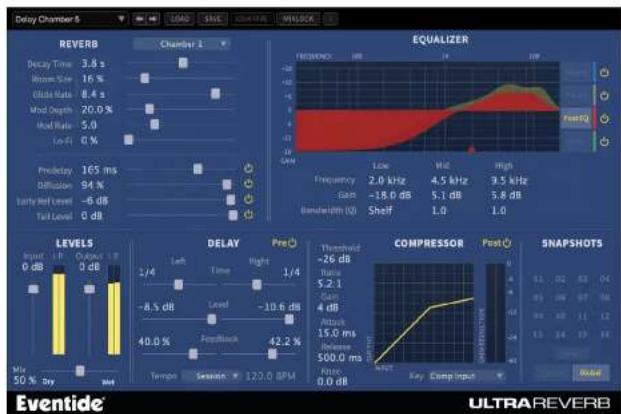
The UltraReverb user interface is a compact yet intuitive environment that uses content conventions throughout. It should take you no time at all to effortlessly reach through each part of the plug-in. UltraReverb is comprised of the following disc components, which collectively or individually provide you a robust and precise shaping and frequency-manipulation environment.
- Reverb Controls
- EQ Controls
- Lo-Fi
- Levels
- Delay Section
- Compressor Section
- Snapshots
2.1 Signal Flow Diagram
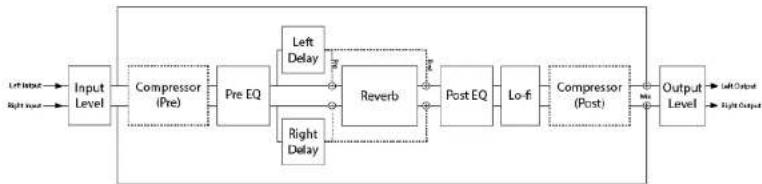
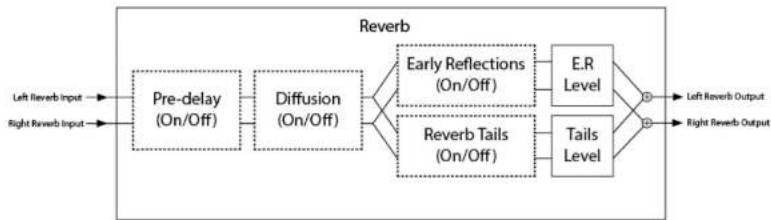
Below are block diagrams depicting the signal flow of UltraReverb. Figure 3.2 shows the overall plug-in structure whereas Figure 3.3 shows the inner workings of the block. Dotted lines signify that the presence of the block is dependent on a p being On/Off or Pre/Post.
flowchart
graph LR
    A["Input Level"] --> B["Compressor (Pre)"]
    B --> C["Pre EQ"]
    C --> D["Reverb"]
    D --> E["Post EQ"]
    E --> F["Lo-fi"]
    F --> G["Compressor (Post)"]
    G --> H["Output Level"]
    I["Left Input"] --> A
    J["Right Input"] --> A
    K["Left Delay"] --> C
    L["Right Delay"] --> D
    M["Left Output"] --> G
    N["Right Output"] --> H
Figure 2.1: Full Block Diagram
flowchart
graph LR
    A["Left Reverb Input"] --> B["Pre-delay (On/Off)"]
    C["Right Reverb Input"] --> D["Diffusion (On/Off)"]
    B --> E["Early Reflections (On/Off)"]
    D --> E
    E --> F["E.R Level"]
    E --> G["Tails Level"]
    F --> H["Output"]
    G --> I["Output"]
    style A fill:#f9f,stroke:#333
    style C fill:#f9f,stroke:#333
    style B fill:#ccf,stroke:#333
    style D fill:#ccf,stroke:#333
    style E fill:#cfc,stroke:#333
    style F fill:#fcc,stroke:#333
    style G fill:#fcc,stroke:#333
    style H fill:#ffc,stroke:#333
    style I fill:#ffc,stroke:#333
2.2 Reverb Controls
Derived from such flagship effects processors as the Orville™ and Eclipse, UltraRe produces the highest quality reverb effects available from Eventide. An extensive of useful parameters is offered to give you the freedom to create the sound quickly. Each of these parameters is detailed below.
bar
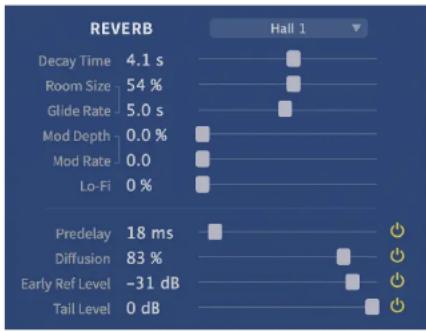
| Parameter | Value | | --------------- | ------- | | Decay Time | 4.1 s | | Room Size | 54 % | | Glide Rate | 5.0 s | | Mod Depth | 0.0 % | | Mod Rate | 0.0 | | Lo-Fi | 0 % | | Predelay | 18 ms | | Diffusion | 83 % | | Early Ref Level | -31 dB | | Tail Level | 0 dB |Figure 2.3: UltraReverb Controls Section
REVERB TYPE This pull down menu allows you to select among the various types of reverb algorithms. Each Type has a unique flavor of Diffusion, Early Reflections, and Reverb Tail. These internal settings are automatically applied upon loading a Type.
GLIDE RATE This is the time it takes the Room Size to glide to its new setting. When used with Room Size, a pitch gliding effect can created, and even automated as part of the music.
MOD DEPTH This parameter controls the amount, or level, of reverb modulation that is present in the reverb. The modulation is applied to the Reverb Tails module in the signal flow diagram (see Fig 3.3).
MOD RATE When used in conjunction with Mod Depth, Mod Rate sets the speed of reverb modulation. Reverb modulation effectively adds a slight detuning to the sound, causing it to sound different every time a sound is passed through.
Lo-FI The Bit Reducer is provided as a special effect, offering that sought-after "vintage digital" sound. The higher the value, the grungier it gets. As Figure 3.2 illustrates, Lo-fi occurs after t Post EQ but before the Post Compressor.
PRE-DELAY Pre-delay provides additional delay before the Diffusion, Early Reflections, and Reverb Tail. When Pre-delay is set to 0ms, may still notice an audible delay before the onset of reverb. This is because both Diffusion and Reverb Tails have a slight but delay. Consider turning both Pre-delay and Diffusion Off if you desire instantaneous Reverb.
PRE-DELAY ON/OFF Turning Pre-delay Off is not exactly the same as turning Pre-
DIFFUSION ON/OFF Turning Diffusion off is not the same as setting Diffusion to Setting Diffusion to 0 will result in more discrete reflections, whereas turning Diffusion off will bypass the diffusor altogether. This is an important tool for crafting custom reverb environments. Since Diffusion adds an increasing amount of delay as Size increases, consider turning Diffusion off if you desire an instantaneous reverb despite a large Reverb Size.
EARLY REF LEVEL This sets the overall level of the Early Reflections path of the reverb algorithm (see Figure 3.3).
EARLY REF ON/OFF Turning Early Reflections off is equivalent to setting Early Ref Level to -infinity.
TAIL LEVEL This sets the level of the Reverb Tails path of the reverb algorithm (see Figure 3.3).
TAIL ON/OFF Turning Tail off is equivalent to setting Tail Level to -infinity.
2.3 EQ Controls
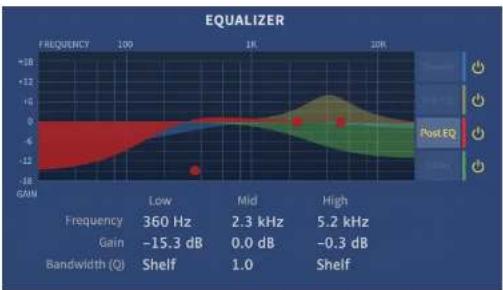
UltraReverb comes complete with two independent and fully parametric equalizers, ferred to as Pre-EQ and Post-EQ. There are also shelving filters available for the tail as well as the dual delay lines. All four of these filters have their controls
line
| Frequency | Gain (dB) | Bandwidth (Q) | | --------- | --------- | ------------- | | Low | -15.3 | Shelf | | Mid | 0.0 | Shelf | | High | 2.3 | Shelf |Figure 2.4: UltraReverb EQ Section
GRAPH SHOWS Use these four buttons to select one of the four EQ sections for editing. On/off buttons are located on the right of each section, allowing you to completely bypass any of the different EQ sections.
EQ POSITIONS Pre EQ is located after the pre compressor but before the delay and reverb.
Delay EQ is located in the delay lines.
Reverb EQ is located in the Reverb Tail.
Post EQ is located after the delay and reverb but before L and post compressor.
(See Figure 3.3)
Hicu This row of parameters affects the high band filter section
BANDWIDTH (Q) These parameters determine the range of frequencies that are affected by each band, effectively setting the shape of the f. The bandwidth is equal to the frequency setting divided by Therefore, higher values create a more "notched" filter while lower values affect a broader range of frequencies. To set t Pre- and Post-EQ's Low and High bands to a shelving functi set the parameter to its minimum value.
2.4 Levels Section
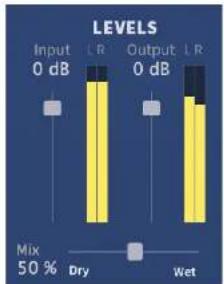
This section offers the necessary wet/dry balance controls as well as the ability up to 24 dB of gain through the product.
bar
LEVELS | Level | Input (dB) | Output (dB) | Mix (%) | |---|---|---|---| | Dry | 0 | 0 | 50 | | Wet | 0 | 0 | 50 |Figure 2.5: UltraReverb Levels Section
INPUT This parameter allows you to adjust the signal level into this plug-in. The mark in the meter display indicates -12dBfs of nal while the clip indicators will come on at -0.2dBfs. Up to dB of gain is provided to recover low-level signals.
OUTPUT This parameter sets the final output level of the plug-in. The mark in the meter display indicates -12dBfs of signal while t clip indicators will come on at -0.2dBfs. Up to 12 dB of g
2.5 Delay Section
As mentioned previously, this plug-in offers two independent delay lines with filter Use them as straight delays or add filtering for use as echo effects. Delays ca pre-reverb, post-reverb, or completely bypassed using the on/off switch in the top corner of the delay section. The 6 parameters are defined below in groups of and right) to reduce redundancy.
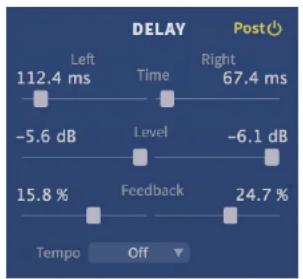
Figure 2.6: UltraReverb Delay Section
DELAY PRE/POST/OFF Pre or Post determines whether the delayed signal is added the signal path before or after the reverb algorithm. It is n in series with the reverb, only added in parallel before or (See Figure 3.2). Turning delay off is equivalent to setting D Level to -infinity.
LEFT/RIGHT FEEDBACK These parameters set the amount of audio that is fed back each delay. Also known as regeneration, feedback controls the number of repeats that heard when a signal is fed into it. parameter offers a range of -100% to 100%. Zero percent results in no feedback (only one repeat), while higher numbers produce increasing amount of feedback. Negative numbers produce a feedback signal that is 180 degrees out of phase
TEMPO This drop-down menu allows you to sync the delays to a tempo.
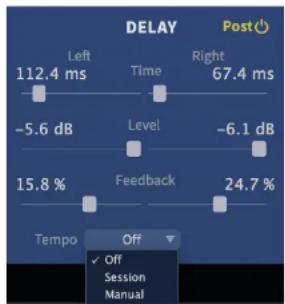
Setting Tempo to Off disables tempo sync and delay time is controlled in milliseconds. Setting Tempo to Sync sets the delay tempo equal to the plug-in host's tempo. Setting Tempo Manual allows you to manually set the tempo for the delays changing the BPM value to the right of the drop-down men
2.6 Compressor Section
A fully parametric and movable compressor is offered via the Compressor section pression can be routed pre-reverb, post-reverb, or completely bypassed using the switch in the top right corner of the Compressor section.

line
| Input | Output | Gain Reduction | |-------|--------|----------------| | INPUT | -50 | -50 | | Key | -24 | -24 | | Comp Input | -12 | -12 |Figure 2.7: UltraReverb Compressor Section
COMPRESSOR
PRE/POST/OFF
Pre or Post determines the compressor's position in the signal path. Pre places the compressor immediately after Input Level. Post places the compressor immediately before Output Level (See Figure 3.2). Off bypasses the compressor.
THRESHOLD Threshold sets the level at which gain reduction begins to take place. Signals that pass above the Threshold value will begin to have their gain reduced by the amount set via the Ratic
KNEE The Knee determines a region above the Threshold where the gain reduction transitions from 1:1 to the Ratio setting. As t input signal crosses the Threshold and moves through this w dow, it's gain reduction is increased up to the Ratio value.
KEY The Key allows you to select the audio signal that controls the amount of compression. Selecting Comp Input uses the input to the compressor as the key. Plug-In Input uses the dry in the plug-in as the key. Sidechain Input uses an external sou as the key.
2.7 Snapshots
UltraReverb incorporates our unique Snapshots feature that allows you to quickly easily load, save and even automate up to 32 of your favorite Reverb "scenes." very much like presets, but you can load them directly from the plug-in panel. means that you get the live performance functionality offered from our high-end ware processors directly in your DAW.

Figure 2.8: UltraReverb Snapshots Section
LOADING To load a Snapshot, simply click on any of the numbered buttons at any time. The entire Reverb plug-in panel will change reflect the settings stored in the chosen Snapshot. The name
SAVING To write or overwrite one of the Snapshots, simply command-click on any of the numbered Snapshot buttons and it will stantly be stored. Note that Current Snapshots are associated with a specific preset, so while command-click will write your settings to a specific Snapshot location, you must additionally save the preset in the preset menu to permanently store yo changes. This extra step is not required for Global Snapshots since they aren't tied to any specific presets. Command-Click will add that Snapshot to your UltraReverb/Presets/Snapshots/ directory and it will instantaneously be available from any UltraReverb preset. There's no undo, so be very sure before y overwrite a Global Snapshot.
RENAMING Click once on the name in the entry box, and it will be selected for editing. Type up to 16 characters, hit return and the Sr shot has a new name. In the case of Current Snapshots, re ber to save your preset as well.
REVERT Revert gives you the freedom to return to the effect settings you were working on before you loaded one or more Snapshots. It's very much like compare, except that you can load a ga Snapshots, and still get back the same parameter values that you had been editing prior to loading Snapshots. You'll notice that as soon as you click on a Snapshot button, the Revert button glows to indicate that you can press it. Click on some othe Snapshots. It's still lit. If you click on Revert, it goes out and
GLOBAL VS. CURRENT There are two kinds of Snapshots, Global and Current. Both are grouped in banks of 16. Global Snapshots are accessible from any preset in any instance of the UltraReverb plugin in any DAW session on your harddrive. Use these to key your 16 favorite reverb effects readily available. The Global Snapshots are stored in a directory at the same location as your Preset directory. (
PROPER SNAPSHOT Snapshots can be very powerful in use, but knowing how they work will help ensure that your UltraReverb Snapshots load and sound right every time. So, if you want to load a Snapshot cific to that preset, load it from the Current bank. If you want to build yourself your favorite 16 and use them everywhere, use the Global Snapshots. If you want to copy a cool Current Snap-shot into the Global bank, simply load it from the Current first, then command-click on the desired Snapshot button from the Global tab.
RESTORING GLOBAL If you need to restore the factory Global Snapshots at any time,
2.8 Preset Bar
2 - Medium Hall
▼
←→
LOA
5
3
MPa
1
KLOCK
Located at the top of the UltraReverb Plug-In, the Preset Bar lets you load and presets, along with several other features.
When UltraReverb is installed, a library of settings is placed into the
In many DAWs there is an additional generic preset bar that saves DAW-specific to a separate location. We recommend saving your presets using the Eventide p bar to ensure that your presets will be accessible from any DAW. You can als sub-folders inside the preset folders, if you wish.
LOAD/SAVE
Use these buttons to load and save your presets in .tide format.
COMPARE Click to toggle between two different settings for the plug-in. This is useful for making A/B comparisons.
Mix Lock Starting in version 2.0.5 UltraReverb includes a Mix Lock button for flexible preset browsing. When Mix Lock is illuminated the current Mix value will remain unchanged as new presets loaded. This is especially useful on an effect return track when the mix should always be set to 100.
Conclusion
PART 3
We hope you enjoy the UltraReverb plug-in and put it to good use in all of Please be sure to check over Eventide's other Native Plug-In offerings for more and interesting effects.
Brand : EVENTIDE
Model : UltraReverb
Category : Effect pedal