
HDM-C6MWIP-SET - Audio / Video Avenview - Free user manual and instructions
Find the device manual for free HDM-C6MWIP-SET Avenview in PDF.


| Type de produit | HDMI over IP Encoder/Decoder Set (HDM-C6MWIP-SET) |
| Marque et modèle | Avenview HDM-C6MWIP-SET |
| Parties incluses | 1 x Sender (Encoder) HDM-C6MWIP-S, 1 x Receiver (Decoder) HDM-C6MWIP-R |
| Dimensions du produit | Sender : 9.3 × 1.0 × 3.7 pouces (236 × 25 × 94 mm) Receiver : 10.5 × 1.0 × 4.4 pouces (267 × 25 × 112 mm) |
| Poids | Sender : 1 lb (0.45 kg) Receiver : 1.3 lb (0.59 kg) |
| Alimentation | 12 V DC 1 A (via adaptateur secteur inclus) ou PoE (Power over Ethernet, classe 0) |
| Consommation électrique | 6 W max. par unité |
| Entrée vidéo (Sender) | 1 × HDMI (compatible DVI, VGA, YPbPr, CVBS via adaptateur) résolutions jusqu’à 1920×1200@60Hz |
| Sortie vidéo (Receiver) | 1 × HDMI (résolutions jusqu’à 1920×1200@60Hz) |
| Compression vidéo | H.264/MPEG-4 AVC (Baseline, Main, High Profile), débit configurable jusqu’à 30 Mbps |
| Audio | Entrée audio stéréo sur Sender, sortie audio stéréo sur Receiver (connecteurs Phoenix 3.5 mm 3 broches) |
| Latence | 60–90 ms en mode faible latence, 250–300 ms en mode haute qualité |
| Distance de transmission (point à point) | Jusqu’à 330 ft (100 m) avec câble CAT6 |
| Contrôle | PC Configurateur (Windows), interface Web, iPad App, RS-232, Telnet, API tierce |
| Fonctions réseau | AutoIP, IGMP v2.0, UDP, TCP/IP, Telnet, Zero-configuration networking (Zeroconf) |
| Fonctions spéciales | Matrice IP, mur d’images, passage de relais, changement sans coupure, CEC, auto-scaler, prévisualisation en direct |
| Connectivité | 1 × port RJ45 (CAT5/6) par unité, 1 × RS-232, 1 × prise CC, vis de mise à la terre |
| Température de fonctionnement | 0 à 40 °C (32 à 104 °F) |
| Température de stockage | -20 à 60 °C (-4 à 140 °F) |
| Humidité relative | 20 à 90 % (sans condensation) |
| Garantie | 3 ans pièces et main-d’œuvre |
| Entretien et nettoyage | Débrancher avant nettoyage ; utiliser un chiffon sec ; ne pas utiliser de nettoyants liquides ou aérosols |
| Sécurité | Lire le manuel avant utilisation ; ne pas démonter le boîtier ; éviter les liquides ; utiliser uniquement l’adaptateur fourni ; composants sensibles aux décharges électrostatiques |
| Pièces détachées et réparabilité | Réparation par personnel qualifié uniquement ; les modifications non autorisées annulent la garantie |
Frequently Asked Questions - HDM-C6MWIP-SET Avenview
User questions about HDM-C6MWIP-SET Avenview
0 question about this device. Answer the ones you know or ask your own.
Ask a new question about this device
Download the instructions for your Audio / Video in PDF format for free! Find your manual HDM-C6MWIP-SET - Avenview and take your electronic device back in hand. On this page are published all the documents necessary for the use of your device. HDM-C6MWIP-SET by Avenview.
USER MANUAL HDM-C6MWIP-SET Avenview
Product Application & Market Sectors

Corporate House

/orship

Military Residenti


Education Industri


Medical Aviation

TABLE OF CONTENTS
I. GETTING STARTED .... I
I.I IMPORTANT SAFEGUARDS....I
1.2 SAFETYINSTRUCTIONS
1.3 REGULATORY NOTICES FEDERAL COMMUNICATIONS COMMISSION (FCC)....2
2. INTRODUCTION....3
2.1 PACKAGE CONTENTS....4
2.2 BEFORE INSTALLATION....4
2.3 APPLICATION DIAGRAM....5
2.4 PANEL DESCRIPTION....6
2.4.1 FRONT PANEL (SENDER/ENCODER, HDM-C6MWIP-S) 6
2.4.2 REAR PANEL (SENDER/ENCODER, HDM-C6MWIP-S) 6
2.4.3 FRONT PANEL (RECEIVER/DECODER, HDM-C6MWIP-R) 7
2.4.4 FRONT PANEL (RECEIVER/DECODER, HDM-C6MWIP-R) 7
- INSTALLATION (HDM-C6MWIP-SET)....8
3.1 APPLICATION....8
3.1.1 IP MATRIX SWITCH GUIDE ....8
3.2 SINGLE SWITCH NETWORKING GUIDE....9
3.3 NETWORKING GUIDE....10
4. PC CONFIGURATOR ...... I I
5. SPECIFICATIONS ....15
6. TROUBLESHOOTING ....17
I.1 IMPORTANT SAFE GUARDS
Please read all of these instructions carefully before you use the device. Save this manual for future reference.
What the warranty does not cover
- Any product, on which the serial number has been defaced, modified or removed.
• Damage, deterioration or malfunction resulting from: - Accident, misuse, neglect, fire, water, lightning, or other acts of nature, unauthorized product modification, or failure to follow instructions supplied with the product.
• Repair or attempted repair by anyone not authorized by us.
• Any damage of the product due to shipment. - Removal or installation of the product.
- External causes to the product, such as electric power fluctuation or failure.
- use of supplies or parts not meeting our specifications.
• Normal wear and tear.
• Any other causes which does not relate to a product defect. - Removal, installation, and set-up service charges.
1.2 SAFETY INSTRUCTIONS
The Avenview HDM-C6MWIP-SET, HDMI H.264 IP Matrix Decoder/Encoder has been tested for conformance to safety regulations and requirements, and has been certified for international use. However, like all electronic equipments, the HDM-C6MWIP-SET should be used with care. Read the following safety instructions to protect yourself from possible injury and to minimize the risk of damage to the unit.
Do not dismantle the housing or modify the module.
Dismantling the housing or modifying the module may result in electrical shock or burn.
⚠️ Refer all servicing to qualified service personnel.
Do not attempt to service this product yourself as opening or removing housing may expose you to dangerous voltage or other hazards
⚠ keep the module away from liquids.
Spillage into the housing may result in fire, electrical shock, or equipment damage. If an object or liquid falls or spills on to the housing, unplug the module immediately.
Have the module checked by a qualified service engineer before using it again.
Do not use liquid or aerosol cleaners to clean this unit. Always unplug the power to the device before cleaning.
1.3
REGULATORY NOTICES FEDERAL COMMUNICATIONS COMMISSION (FCC)
This equipment has been tested and found to comply with part 15 of the FCC rules. These limits are designed to provide reasonable protection against harmful interference in a residential installation.
Any changes or modifications made to this equipment may void the user's authority to operate this equipment.
Warning symbols Description

ONIY USE THE PROVIDED POWER CABLE OR POWER ADAPTER SUPPLIED. DO NOT TAMPER WITH THE ELECTRICAL PARTS. THIS MAY RESULT IN EI ECTRICAL SHOCK OR BURN.

DO NOT TAMPER WITH THE UNIT. DOING SO WILL VOID THE WARRANTY AND CONTINUED USE OF THE PRODUCT


BEWARE
this unit
contains
static
sensitive devices
THE VIDEO BOARDS ARE VERY SENSITIVE TO STATIC. PLEASE ENSURE IF RACK MOUNTED OR INSTALLED ON A SURFACE, IT SHOULD BE IN A GROUNDED ENVIROMENT.

natural_image
Blue circular icon with a white silhouette of a person holding an open book (no text or symbols)WARNING
Read & understand user guide before using this device.
Failure to follow the proper installation instructions could result in damage to the product and preventing expected results.
2.
INTRODUCTION
The Avenview HDM-C6MWIP-SET, HDMI H.264 IP Videowall/Matrix Decoder/Encoder delivers end-to-end streaming media over IP networks. The HDM-C6MWIP-SET is composed of two units a Decoder and an Encoder. The Decoder H.264/MPEG-4 AVC video compression format, it receives the encoded IP signal through LAN port and decodes video/audio signal out through HDMI interface, it also supports stereo de-embedding and streaming resolutions up to 1920 x 1200@60Hz.
FEATURES:
- Flexible PC,WEB GUI iPad control;
- CEC Function on the RX;
- Supports live IP video stream decoding 480p@60Hz to 1920 x 1200@60;
- Supports POE;
- Allows video previewing via iPad App and Windows 7 software 352x288@5Hz;
- Supports multiple interfaces HDMI, DVI signals over IP networks;
- Supports audio embedding and de-embedding;
- Built in-auto scaler;
- Supports H.264 features baseline profile, main profile and high profile;
- Supports H.264, TCP/IP, Telnet, UDP and IGMP;
- Support Telnet, WEB GUI control and 3rd Party control systems API commands;
- Supports Auto IP, Zero-configuration networking (zeroconf)
- Seamless switching, no black screen, no frame lock.
- Configurable encoding bit rate up to 30 Mbps
- Auto input format detection
- HDCP compliant
Other features include:
Point to Point - (Direct Connection with CAT5/6) - 330ft
Point to Multi - point with CAT5/6 requires a POE Network Switch which supports port based, IGMP v2.0 or above protocol. For large application, we would recommend Cisco SG family and the Cisco Catalyst.
Videowall and Matrix Function – with CAT 5/6 cable without any signal loss add multiple Sources to multiple encoders which links via LAN by cascading any POE Gigabit Ethernet switches up to 3 levels, to the decoder connected to the HD Monitors at different locations on the Network. Transporting full HD 1080p video and internally H.264 video compression adapts to available network bandwidth if needed while retaining vivid picture with PCM audio.
- NOTE: The QUALITY and TRANSMISSION of the video signals depends on the characteristics and quality of the UTP cables and Network Infrastructure. We recommend any Network Switches with I GB POE IGMP v2.0 support. Tested and configured on the below models

natural_image
Stacked network switches on a device (no visible text or labels)

natural_image
Stacked network equipment units with multiple Ethernet ports (no visible text or labels)2.1
PACKAGE CONTENTS
Before you start the installation of the HDMI Extender, please check the package contents.
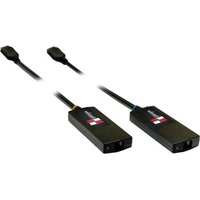
| 1 | HDM-C6MWIP-SET(HDM-C6MWIP-S)(HDM-C6MWIP-R) | X1X1 |  | 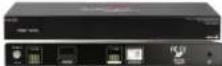 |
| 2 | Power Adapter (+12V DC 1A)+International Adapters | X2 | 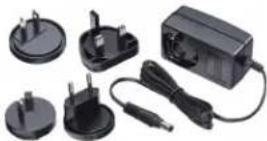 | |
| 3 | Right and Left Ear Rack Sets | X2 | 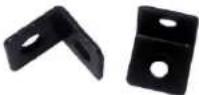 | |
| 5 | Phoenix connector (Male, 3.5 mm, 3 pins)x2 Senderx2 Receiver | X4 |  | |
| 6 | User Guide | X1 |  | |
2.2
BEFORE INSTALLATION
- Put the product in a level and stable location. If the product falls, it may cause damage or malfunction to components within the casing.
- Do not place the product in temperatures under 0^ or over 50^ . High humidity may also cause the unit to malfunction.
- Use the DC power adapter with correct specifications supplied with the unit. If the improper power supply is used, this may result in malfunction of the unit and may cause fire.
- Do not twist or pull by force the ends of the UTP cable. It will cause malfunction.
HDM-C6MWIP-SET
CABLE INDEX
Input / Output
CAT-5e / CAT-6
AUDIO
■

Application Diagram 2
MULTI SOURCE TO MULTI DISPLAY
1000p60 = 100m (328 feet) CAT6 WUXCA = 100m (328 feet) CAT6
WUXGA - Room (528 feet) CAT6
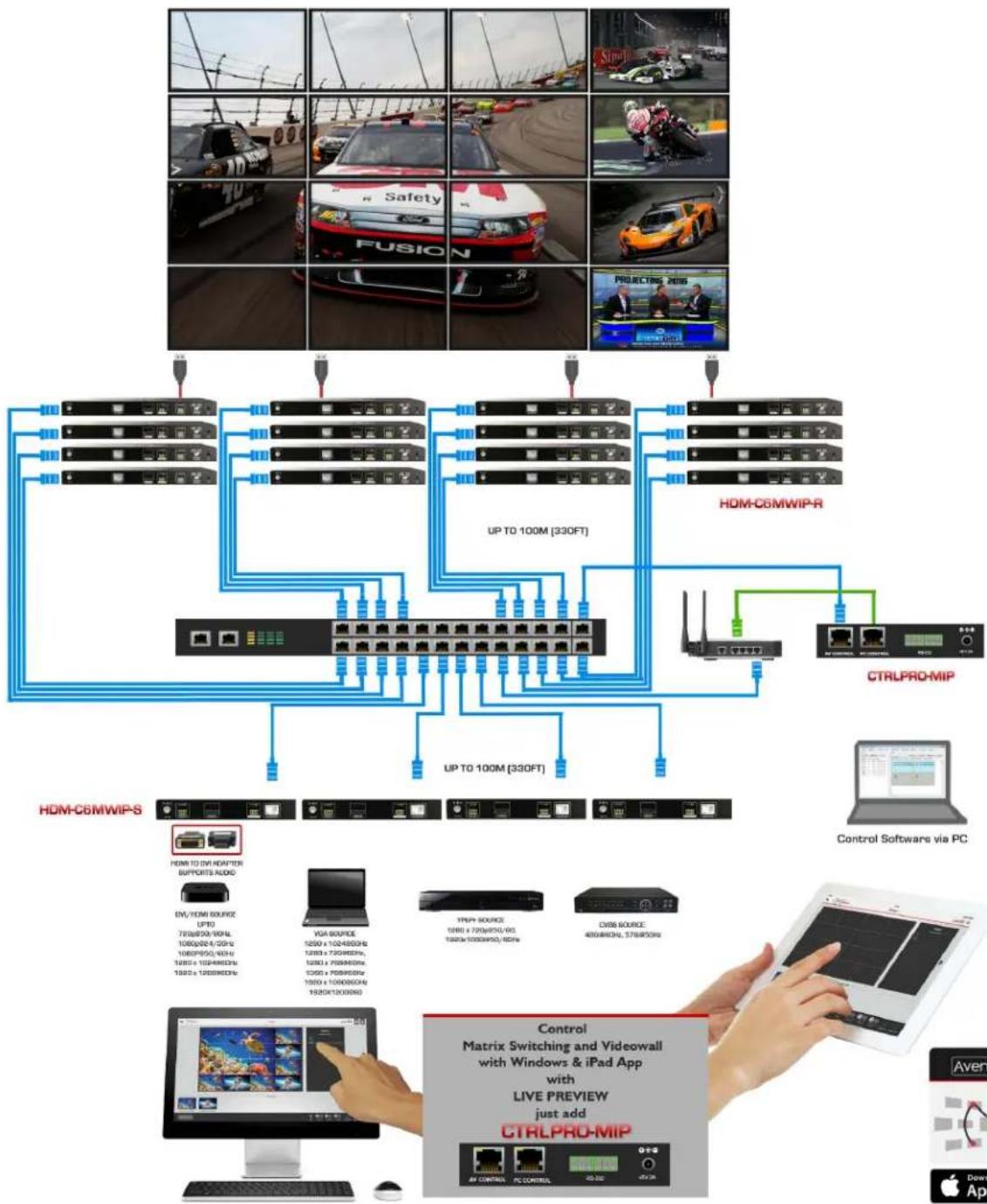
flowchart
graph TD
    A["User"] --> B["Network Port 1"]
    C["User"] --> D["Network Port 2"]
    E["User"] --> F["Network Port 3"]
    G["User"] --> H["Control Software via PC"]
    I["User"] --> J["Control Matrix Switching and Videowall with Windows & iPad App with LIVE PREVIEW just add CTRLPRO-MIP"]
    K["User"] --> L["UP TO 100M [330FT"]]
    M["User"] --> N["HDM-C6MWIP-R"]
    O["User"] --> P["HDM-C6MWIP-S"]
    Q["User"] --> R["Control Software via PC"]
    S["User"] --> T["Control Matrix Switching and Videowall with Windows & iPad App with LIVE PREVIEW just add CTRLPRO-MIP"]

2.4.1 FRONT PANEL (Sender/Encoder, HDM-C6MWIP-S)

- Power LED: Indicates if the unit is powered OFF or ON by a RED LED
- Status LED: Steady Blue Light ON indicates unit is communicating properly. LED blinking waiting on Source
2.4.2 REAR PANEL (Sender/Encoder, HDM-C6MWIP-S)

| 3. Power Jack: DC 12V IA | 4. RS 232: RS-232 Data pass-through port for receiving /sending commands to RS 232 devices. |
| 5. HDMI IN: Connect to HDMI/DVI Source. | 6. Stereo Audio OUT: Connects to an audio output device such as an amplifier for audio de-embedding. |
| 7. CAT5/6: Used for transporting video/audio streams to Decoder RX units connected. | 8. Ground Screw: Ground connection prevent device from voltage damage. |
2.4.3 FRONT PANEL (Receiver/Decoder, HDM-C6MWIP-R)

- Power LED: Indicates if the unit is powered OFF or ON by a RED LED.
- Status LED: Steady Blue Light ON indicates unit is communicating properly. LED blinking waiting on Encoder.
2.4.4 FRONT PANEL (Receiver/Decoder, HDM-C6MWIP-R)

| 3. Power: 12V IA DC Power Jack. | 4. Used for accepting video/audio streams from the Encoder TX units connected. |
| 5. HDMI OUT: Connect to HDMI Display. | 6. Stereo Audio OUT: Connects to an audio output device such as an amplifier for audio de-embedding. |
| 7. RS 232 : RS-232 Data pass-through port for receiving /sending commands to RS 232 devices. | 8. Ground Screw: Ground connection prevent device from voltage damage. |
3. INSTALLATION (HDM-C6MWIP-SET) POINT to POINT
To setup Avenview HDM-C6MWIP-SET please follow these steps for connecting to a device:
I. Turn off all devices including monitors / TV.
2. Connect an HDMI source (such as a Blu-Ray Disc player or PC) to the Encoder HDM-C6MWIP-S.
3. Connect CAT5/6 from Encoder to Decoder at the CAT5/6 port.
4. Connect an HDMI out from HDM-C6MWIP-R decoder to a Display/Monitor.
5. Connect Audio out to Speakers or Amplifier.
6. Ensure all cable connections are secure and not loose.
7. Plug in 12V DC power (supplied) and connect the HDM-C6MWIP-S and HDM-C6MWIP-R to power jack respectively.
8. Power on HDMI Source.
9. Power on the HDMI display.
NOTE: For network setup please see the Network switch configuration guide and Network Connection guide to achieve best results.
3.1 APPLICATION
3.1.1 IP Matrix Switch Guide
| TX and RX Guide | Networking Switch Guide | ||
| Distribution Status | Total Quantity | Network Topology | Recommended Switches |
| Centralized | Less than or equal to 20 TX/RX | Single Switch Networking | Cisco SG 300 24-port 1000 Mbps Ethernet Switch HUAWEI 24-port 1000 Mbps Ethernet Switch |
| Less than or equal to 40 TX/RX | Cisco SG300 /500 48-port 1000 Mbps Ethernet Switch HUAWEI 48-port 1000 Mbps Ethernet Switch | ||
| More than 40 TX/RX Cascading | Switch Networking | Cisco switch SG Series or Catalyst:Core switches uses 1000 Mbps Ethernet switches. Extended switches use 1000 Mbps Ethernet switches | |
| Distributed | No requirement | ||
24-Port Single Switch Networking
N + M (No more than 20)

flowchart
graph TD
    A["Network Port 1"] -->|HDM-C6MXIP-S TRANSMITTER = N| B["Router"]
    C["Network Port 2"] -->|HDM-C6MXIP-R RECEIVER = M| B
    D["Network Port 3"] -->|CTRLPRO-MIP IP CONTROL BOX| E["IP Control Box"]
    F["Windows PC"] -->|TCP| G["WiFi / IPAD"]
    H["RF"] -->|USB| I["RF"]
    J["IO"] --> K["IO"]
    L["110110"] --> M["Cloud"]
Deployed by the field requirement
The illustration above is an example of how the user can connect using a 24 port network switch. The following brands are recommended and was tested resulting in stable working conditions.
I. Cisco brand
24-port 100Mbps Ethernet switch: WS-C2960-24TC-L
24-port 1000Mbps Ethernet switch: SG300-28
24-port 1000Mbps PoE Ethernet switch: SG300-28P, WS-C2960S-24PS-L, WS-C2960X-24PSQ-L
- HUAWEI Brand
24-port 100Mbps Ethernet switch: S2700-26TP-EI-AC
24-port 1000Mbps PoE Ethernet switch: S5700-28P-PWR-LI-AC
3.3 NETWORKING GUIDE
Avenview M-Series HDMI over IP units can be networked together with a recommended Layer 2 Gigabit Smart Switches. As mentioned previously in section 3 the importance of calculation for the capacity of the switch meets the requirements of the number of encoders/decoders you have on your network. These units can perform well over a standard network infrastructure, however the quality of this infrastructure is critical. We have tested many brands of switches all of which perform well in small system configurations of around 10 Encoders and Decoders. However, for larger installations, Avenview highly recommends using CISCO SG300/500 or CATALYST series switches.
3.3.1 Simple Setup Guide for Network switch
M-series should be connected to a Layer 2 managed switch which supports Multicast & IGMP snooping.
Do not connect any units to the switch until all the network switch configuration has been. For recommended switches and PDF configuration guides please see the 'downloads' section of any M-series device at avenview.com.
3.3.2 POE Requirements
It is not necessary to change the IP addresses of the encoders and decoders units – factory default AutoIP is used to configure correct IP addresses to simply work out of the box.
DHCP addresses are not recommended, while Static addresses are for supervised setups and network strict environments.
Failure to note the IP settings of any unit changed may result in a complicated reset procedure.
Most M-Series installations use the POE (Power Over Ethernet) function to power the encoder & decoders units.
HDM-C6MXIP & HDM-C6MWIP devices are Class 0 rated POE devices, they can require up to 15.4W of power each, but tested their actual power draw is between 5-7W. In order to calculate the number of devices that is recommended on a network switch please divide the total POE power capacity of the switch by 15.4.
Please see the example:
CISCO SG300-52P with a POE power output of 375W: 375 / 15.4 = 24.35. From the answer 24 devices can be powered by this switch. In order to have all ports powered by POE on a network switch, please see the example:
SG300-52MP which provides 740W. 740 / 15.4 = 48. From the answer 48 devices can be powered by this switch.
3.3.3 Data Bandwidth
Each HDM-C6MXIP-S encoder will produce up to 50Mb/s of data > therefore 10 x encoders will require 10 x 50Mb/s = 0.5 Gbps.
4. PC CONFIGURATOR
You can connect multiple HDM-C6MWIP-S and the HDM-C6MWIP-R H.264 decoder to build a modular IP matrix. With the PC configurator, you can configure and manage this function. For more information, see the user guide of PC configurator.
Minimum System Requirements PC Software
Operating System: Microsoft® Windows® XP, Windows® Vista, Windows® 7 or Windows® 8
CPU: 1.5 GHz
Memory: I GB of RAM
HDD: 32 GB of available hard disk space
Network: 10/100 NIC
4. I Setting a Static IP on Your Computer
Before using the Avenview PC Configurator, please ensure you download the most recent version from the product HDM-C6MWIP-S Sender and HDM-C6MWIP-R Receiver website link /downloads PC control software.
All devices must be are in the same network segment. To verify and properly control the devices, please set a static IP on your computer. See the instructions below if not sure on how to proceed:
The Sender and Receiver units are pre-configured with AutoIP. Upon connecting the units to a stand alone network switch (without router attached), the units will be on IP address range at 169.254.1.1 and subnet mask 255.255.0.0.
Set your computer's IP address as 169.254.X.X and subnet mask as 255.255.0.0.
A Windows 7 PC/Laptop is used as an example to configure a static IP address.
-
Click Start.
-
Choose Control Panel > Network and Internet > Network and Sharing Center > Change Adapter Settings, right click Local Area Connection, and then choose Properties.
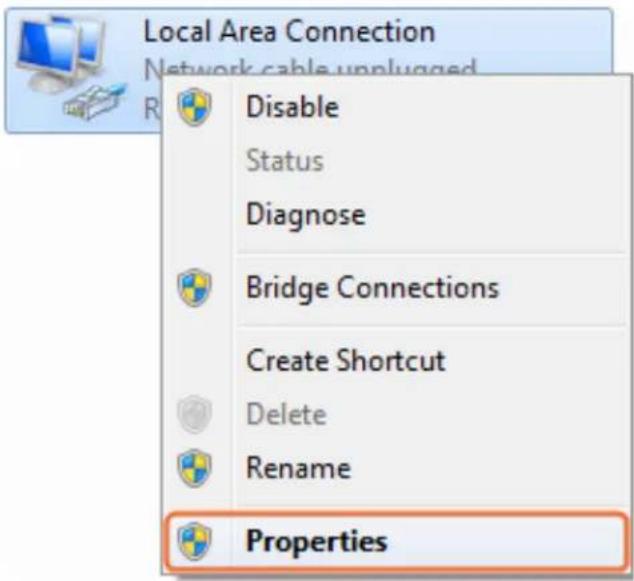
- Double-click Internet Protocol Version 4 (TCP/IPv4).
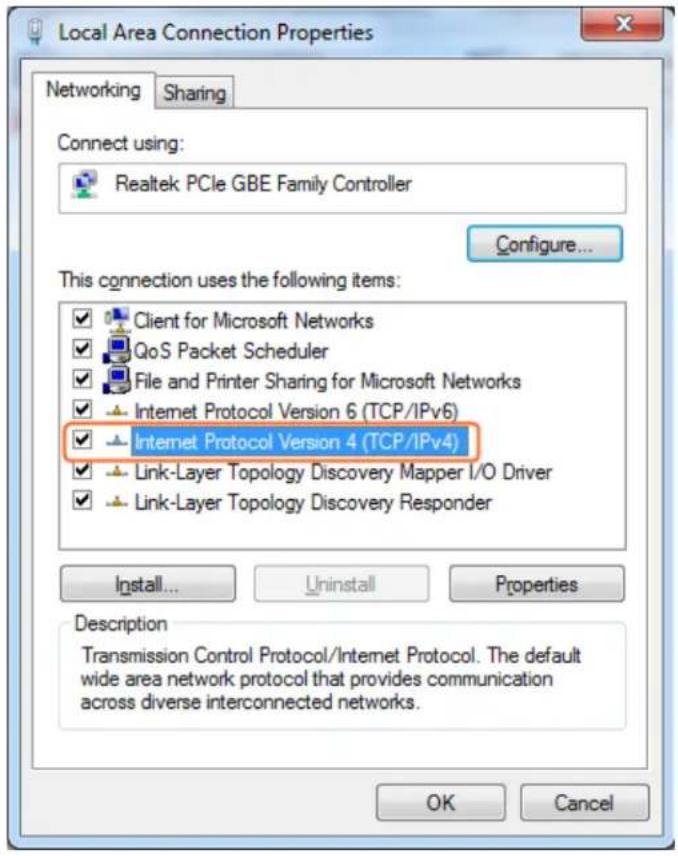
- Select Use the following IP address. After configuring the settings in the following example, click OK.
IP address: 169.254.2.5
Subnet mask: 255.255.0.0
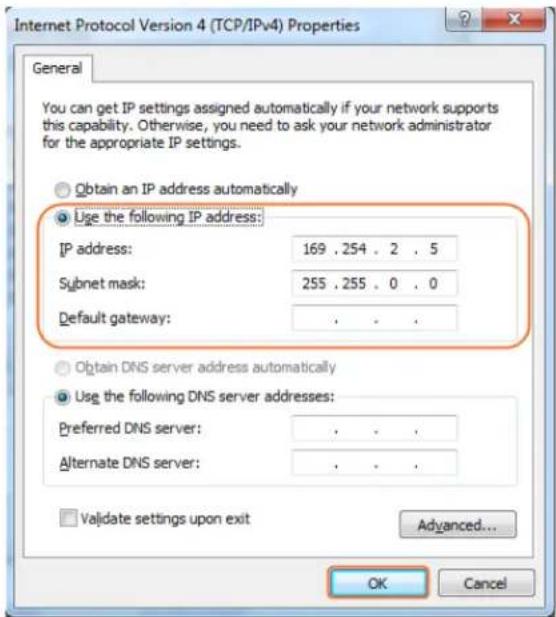
- Click OK.
Configuring Your Operating System
Firewall
Your operating system firewall may block some features of PC Configurator and prevent it from communicating with Sender and Receiver. A computer running Windows 7 is used as an example to configure your operating system firewall through either of the following two approaches.
Method I
You can configure the firewall in the Windows Firewall panel on your computer, for example select both Home/Work (Private) and Public for PC Configurator & Matrix.

Method 2
You can also configure the firewall in the Windows Security Alert window. When starting MaintainTool, the Windows Security Alert may display. If so, use the administrator privileges to select a network you allow this software to communicate on, for example select both private and public networks, and then click Allow access.

| Item | Description | |
| Units | HDM-C6MWIP-S HDM-C6MWIP-R | |
| Unit Description HDMI Transmitter/Encoder HDMI Receiver/Decoder | ||
| Input Video Port | I x HDMI IN | I x CAT5/6 |
| Input Video Type | HDMI, DVI 1.0 | H.264/MPEG-4 AVC |
| Input Resolution | HDMI:640 x480@60Hz,480i@60Hz 480p@60Hz,576i@50Hz,576P@50Hz,800 x600@60Hz,1024 x768@60Hz,720p@50Hz,720p@60Hz,1280 x 800@60Hz,1280 x1024@60Hz,1360 x 768@60Hz,1366 x 768@60Hz,1400 x 1050@60Hz,1440 x900@60Hz,1680 x1050@60Hz,1080i@50Hz,1080i @60Hz,1080p@24Hz,1080p@25Hz,1080p@30Hz,1080p@50Hz,1080p@60Hz,1920 x 1200@60HzDVI:640 x480@60Hz,480i@60Hz, 480p@60Hz,576i@50Hz,576P@50Hz,800 x 600@60Hz,1024 x768@60Hz,720p@50Hz,720p@60Hz,1280 x 800@60Hz,1280 x1024@60Hz,1360 x 768@60Hz,1366 x 768@60Hz,1400x 1050@60Hz,1440 x 900@60Hz,1680 x 1050@60Hz,1080i@50Hz,1080i @60Hz,1080p@24Hz, 1080p@25Hz,1080p@30Hz,1080p@50Hz, 1080p@60Hz,1920 x 1200@60HzVGA:640 x 480@60Hz,800 x 600@60Hz1024 x 768@60Hz,1280 x1024@60Hz1280 x720@60Hz,1280 x 768@60Hz,1280 x 800@60Hz,1360 x 768@60Hz,1366 x 768@60Hz,1440 x 900@60Hz1400 x 1050@60Hz1680 x1050@60Hz,1920 x1080@60Hz,1920 x 1200@60HzYPbPr:720 x 480i@60Hz,720 x 480p@60Hz,720 x 576i@50Hz,720 x 576P@50Hz,1280 x720p@50Hz,1280x720p@60Hz1920 x1080i@50Hz,1920 x 1080i@60HzCVBS:480i@60Hz,576i@50Hz | 480p@60Hz~1920x1200@60Hz |
| Input Video Signal | 0.5~1.2 V p-p | NA |
| Encoding Data Rate | Up to 30 Mbps, configurable | NA |
| Output Video Ports | I x CAT5/6 | I x HDMI |
| Output Video Type | H.264/MPEG-4 AVC | HDMI 1.3 |
| Output Video Resolutions | Large IP stream:480p@60Hz~1920 x 1200@60HzSmall IP stream: 352x288@5Hz | HDMI :480p@60Hz,576p@50Hz,800 x600@60Hz,1024 x768@60Hz,720p@50Hz, 720p@60Hz, 1280 x800@60Hz,1280x1024@60Hz,1366 x768@60Hz,1440x900@60Hz,1600 x1200@60Hz,1680 x 1050@60Hz,1080p@24Hz,1080p@25Hz,1080p@30Hz,1080p@50Hz, 1080p@60Hz,1920 x 1200@60Hz |
| Video Impedence | 100 Ω | 100 Ω |
| Input DDC Signal | 5 V p-p (TTL) | NA |
| End-to-End Time Latency | About 60ms-90ms (Low latency mode)About 250ms-300ms (High quality mode) | About 60ms-90ms (Low latency mode)About 250ms-300ms (High quality mode) |
| Input Audio Format | Stereo | Audio embedded in streaming media input |
| Output Audio Ports I x Phoenix connector | I x Phoenix connector | |
| Output Audio Format Stereo | Stereo | |
| Control Method | Rear panel CAT5/6 port,PC configurator and RS-232 | PC configurator and RS-232 |
| Power Supply | 12 V I A DC | 12 V I A DC |
| Power Consumption | 6W (Max.) | 6W (Max.) |
| Shipping Dimensions (L X H X D) | 12.2" x 3.0" x 7.1" | 12.2" x 3.0" x 7.1" |
| Product Dimensions (L X H X D) | 9.3" x 1.0" x 3.7" | 10.5" x 1.0" x 4.4" |
| Weight | I lbs | 1.3 lbs |
| ESD Protection | Human body model:-±8kV (air-gap discharge)-±4kV (contact discharge) | Human body model:-±8kV (air-gap discharge)-±4kV (contact discharge) |
Environmental
| OPERATING TEMPERATURE | 32° ~ 104°F (0° to 40°C) | 32° ~ 104°F (0° to 40°C) |
| STORAGE TEMPERATURE | -4° ~ 140°F (-20° ~ 60°C) | -4° ~ 140°F (-20° ~ 60°C) |
| RELATIVE HUMIDITY | 20~90% RH (no condensation) | 20~90% RH (no condensation) |
6. TROUBLESHOOTING
| Problem Possible Solution | |
| PC Configurator cannot find devices | 1. Check the Windows Firewall.Taking Windows 7 as an example: Click Start menu, go to Control Panel > System and Security > Windows Firewall > Allowed Programs, select Home/Work (Private) and Public for PC configurator.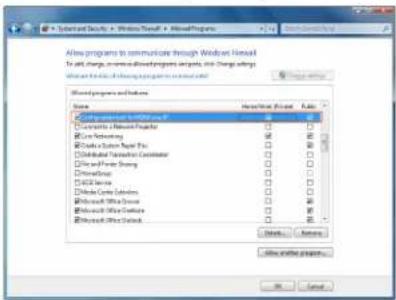  PC Configurator (HDMI over IP) Maintain Tool2. Check the IP address and subnet mask of your computer.The computer, Sender, Receiver and switch should be in the same network segment. Therefore, set your computer's IP address as 169.254.X.X and subnet mask as 255.255.0.0.For more information, see the description in the networking guide.3. Check the switch configuration, and that IGMP snooping and all the other functions are enabled. PC Configurator (HDMI over IP) Maintain Tool2. Check the IP address and subnet mask of your computer.The computer, Sender, Receiver and switch should be in the same network segment. Therefore, set your computer's IP address as 169.254.X.X and subnet mask as 255.255.0.0.For more information, see the description in the networking guide.3. Check the switch configuration, and that IGMP snooping and all the other functions are enabled. |
| Display Showing No Picture | 1. Check all devices are powered on.2. Check all cables are securely seated and connected properly.3. Check the LED STATUS indicators on the Receivers to see if Senders and Receivers are linked correctly.Blue Steady=OK Blue Blinking=standbyTo link the devices use the PC configurator on your PC/Laptop, drag the TX to the RX and click apply.4. Check that source device is powered on and the HDMI cable is connected.Check the displays are powered on and the correct input selection.Check the HDMI cable is plugged into the correct port.5. Example switch to HDMI I if a display's HDMI I port is connected to Receiver via an HDMI cable.6. Ensure the displays/monitor support HDCP.7. Check native EDID timings from the manufactures guide to match the Receiver output resolution. If so, replace the displays with other models.8. Check that Sender supports the resolutions of the input signals. For more information about the resolutions, see "Specifications" of "Introduction" section.9. Check the switch configuration, and that IGMP snooping and all the other functions are enabled. |
| No audio | 1. Check all the devices are powered on.2. .Check all cables are securely seated and connected properly.3. Check the LED STATUS indicators on the Receivers to see if Senders and Receivers are linked correctly. Blue Steady=OK Blue Blinking=standby To link the devices use the PC configurator on your PC/Laptop, drag the TX to the RX and click apply.4. Check the A/V device is playing a video with sound.5. Check the A/V devices audio output with an RCA jack to a speaker or amplifier, also use a headphones if the equipment has a 3.5mm audio out.6. Check the A/V devices are not set to mute or 0 for volume.7. Check Receiver is not set to mute, open PC configurator and right click on the Receiver and on the drop down select mute . For more information, see the user guide of PC configurator. |
| No Live preview on Windows7 or iPad App | 1. Please ensure your HDM-C6MWIP-S, CTRLPRO-MIP and your wireless router is on the same network segment.2. For Windows 7/iPad app, please ensure the below units are at the following versions:HDM-C6MXIP-S V2.8.3HDM-C6MXIP-R V2.8.2CTRLPRO-MIP V1.5/5.1.0 (v5.1.1)Software Versions:WINDOWS-M V2.5.10CTRLPRO-M PC V7.0.0  |
-
All HDMI over CATx transmission distances are measured using Belden CAT6A (625MHz), 4-Pair, UTP-Unshielded, Riser-CMR, Premise Horizontal Cable, 23 AWG Solid Bare Copper Conductors, Polyolefin Insulation, Patented Double-H spline, Ripcord, PVC Jacket using Quantum 980 signal HDMI Video Generator Module with Video Pattern Testing and shielded ends.
-
The transmission length is largely affected by the type of category cables, also the type of HDMI sources, and the type of HDMI display. The testing result shows solid UTP cables (usually in the form of 300m or 1000ft bulk cable) can transmit a lot longer signals than stranded UTP cables (usually in the form of patch cords). Shielded STP connectors are better suit than unshielded UTP connectors. A solid UTP CAT6A cable shows longer transmission length than solid UTP CAT5E/6E cable.
-
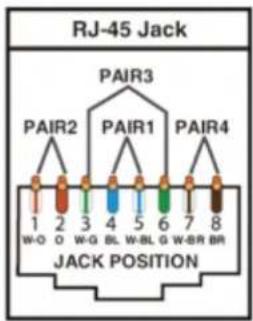
EIA/TIA-568-B termination (T568B) for category cables is recommended.
-
To reduce the interference among the unshielded twisted pairs of wires in category cable, you can use shielded STP cables with shielded connector to improve EMI problems, which occurs in poor wiring environments with unplanned cable runs situated away from EMI interference.
-
Because the quality of the category cables has the major effects in how long transmission distance will be made and how good is the received signal on the display, the actual transmission length is subject to high quality category cables. For resolution greater than 1080i or 1280x1024, a solid CAT6E 250MHz cable is the only viable choice.
| Data Link TIA/EIA-568-B | ||
| PIN | Color | Function |
| 1 | TX0- | |
| 2 | TX0+ | |
| 3 | TX1- | |
| 4 | TX2- | |
| 5 | TX2+ | |
| 6 | TX1+ | |
| 7 | TXC- | |
| 8 | TXC+ | |
PERFORMANCE GUIDE FOR HDMI OVER CATEGORY CABLE TRANSMISSION
| PERFORMANCE RATING TYPE OF CATEGORY CABLE | ||||
| WIRING | LDING CAT5 CAT5E | CAT6 | ||
| SOLID | u NSHIEI DED (u Tp) | *** | **** | **** |
| SHIEI DED (STp) *** | **** **** | |||
| STRANDED | u NSHIEI DED (u Tp) | * | ** | ** |
| SHIEI DED (STp) | * | * ** | ||
| TERMINATION | PLEASE USE EIA/TIA-568-B TERMINATION (T568B) AT ANY TIME | |||
AviewWarranty Certificate
AVENVIEW CORP. ("Avenview") warrants Avenview-branded product(s) contained in the original packaging against defects in materials and workmanship when used normally in accordance with Avenview's enclosed manual guidelines for a period of THREE (3) YEARS from the date of original retail purchase - Warranty Period. Avenview's published guidelines include but are not limited to information contained in technical specifications, user manuals and service communications.
LABOR: During the Warranty Period of THREE (3) YEARS, Avenview will repair or replace the product(s) at no cost using new or used parts equivalent to novel performance and reliability if the product(s) is determined to have abide by Avenview's published guidelines. Cost of Labor applicable to product(s) after Warranty Period. For labor costs, please contact support@avenview.com.
PARTS: During the Warranty Period of THREE (3) YEARS, Avenview will supply new or rebuilt replacements in exchange for defective parts of the product(s) at no cost if the product(s) is determined to have abide by Avenview's published guidelines. Cost of Parts applicable to product(s) after Warranty Period. For part(s) costs, please contact support@avenview.com.
To obtain Warranty: (a) proof of purchase in the form of a bill of sale or received invoice reflecting that the registered product(s) is within warranty period must be presented to obtain warranty service; (b) product(s) must be registered at time of purchase. Failure to do so will result in applicable parts and labor charges. Returning product(s) must be shipped in Avenview's original packaging or in packaging pertaining equal degree of protection to Avenview's. Both Avenview and purchaser are responsible for freight charges and brokerages when shipping the product(s) to the receiver.
NOT COVERED BY THIS WARRANTY
This warranty does not apply to any non-Avenview branded product(s); non-registered Avenview product(s). This warranty does not apply: (a) to cosmetic damage, including but not limited to scratches, dents and broken cords; (b) to damage caused by use with another product; (c) to damage caused by accident, abuse, misuse, liquid contact, fire, earthquake or other external cause; (d) to damage caused by operating the Avenview product(s) outside Avenview's manuals or guidelines; (e) to damage caused by service performed by anyone who is not a representative of Avenview or an Avenview authorized personnel; (f) to defects caused by normal wear and tear or otherwise due to the normal aging of the Avenview product(s), or (g) if any serial number has been removed or defaced from the Avenview product(s).
AVENVIEW IS NOT LIABLE FOR DIRECT, SPECIAL, INCIDENTAL OR CONSEQUENTIAL DAMAGES RESULTING FROM ANY BREACH OF WARRANTY OR CONDITION, OR UNDER ANY OTHER LEGAL THEORY, INCLUDING BUT NOT LIMITED TO LOSS OF USE; LOSS OF REVENUE; LOSS OF ACTUAL OR ANTICIPATED PROFITS (INCLUDING LOSS OF PROFITS ON CONTRACTS); LOSS OF THE USE OF MONEY; LOSS OF ANTICIPATED SAVINGS; LOSS OF BUSINESS; LOSS OF OPPORTUNITY; LOSS OF GOODWILL; LOSS OF REPUTATION; LOSS OF, DAMAGE TO, COMPROMISE OR CORRUPTION OF DATA; OR ANY INDIRECT OR CONSEQUENTIAL LOSS OR DAMAGE REPAIR OR REPLACEMENT AS PROVIDED UNDER THIS WARRANTY IS THE EXCLUSIVE REMEDY OF THE CONSUMER.
Some states do not allow the inclusion or limitation of incidental or consequential damages, or allow limitations on duration implements of the Warranty Period; therefore the above limitations or exclusions may not be applicable to you. This warranty gives you specific legal rights, and you may have other rights which vary from state to state.

1100 Military Rd., Kenmore, NY 14217 1.866.508.0269

Avenview
AV Connectivity, Distribution And Beyond...
TECHNICAL SUPPORT
CONTACT US

Phone: 1 (866) 508 0269

Email: support@avenview.com

natural_image
Illustration of a globe with headphones and a headset, symbolizing global communication (no text or symbols present)Avenview Canada
151 Esna Park Drive, Unit 11-12
Markham, ON L3R 3BI
While every precaution has been taken in the preparation of this document, Avenview Inc. assumes no liability with respect to the operation or use of Avenview hardware, software or other products and documentation described herein, for any act or omission of Avenview concerning such products or this documentation, for any interruption of service, loss or interruption of business, loss of anticipatory profits, or for punitive, incidental or consequential damages in connection with the furnishing, performance, or use of the Avenview hardware, software, or other products and documentation provided herein.
Avenview Inc. reserves the right to make changes without further notice to a product or system described herein to improve reliability, function or design. With respect to Avenview products which this document relates, Avenview disclaims all express or implied warranties regarding such products, including but not limited to, the implied warranties of merchantability, fitness for a particular purpose, and non-infringement.


- Product Application & Market Sectors
- TABLE OF CONTENTS
- I.1 IMPORTANT SAFE GUARDS
- What the warranty does not cover
- SAFETY INSTRUCTIONS
- 1.3
- REGULATORY NOTICES FEDERAL COMMUNICATIONS COMMISSION (FCC)
- Warning symbols Description
- WARNING
- 2.
- INTRODUCTION
- FEATURES:
- Other features include:
- 2.1
- PACKAGE CONTENTS
- 2.2
- BEFORE INSTALLATION
- FRONT PANEL (Sender/Encoder, HDM-C6MWIP-S)
- REAR PANEL (Sender/Encoder, HDM-C6MWIP-S)
- FRONT PANEL (Receiver/Decoder, HDM-C6MWIP-R)
- FRONT PANEL (Receiver/Decoder, HDM-C6MWIP-R)
- INSTALLATION (HDM-C6MWIP-SET) POINT to POINT
- APPLICATION
- IP Matrix Switch Guide
- 24-Port Single Switch Networking
- NETWORKING GUIDE
- Simple Setup Guide for Network switch
- POE Requirements
- Data Bandwidth
- PC CONFIGURATOR
- I Setting a Static IP on Your Computer
- Configuring Your Operating System
- Firewall
- Method I
- Method 2
- TROUBLESHOOTING
- PERFORMANCE GUIDE FOR HDMI OVER CATEGORY CABLE TRANSMISSION
- AviewWarranty Certificate
- NOT COVERED BY THIS WARRANTY
- Avenview
- TECHNICAL SUPPORT
- CONTACT US
- Avenview Canada
Brand : Avenview
Model : HDM-C6MWIP-SET
Category : Audio / Video