
BG-AMPC40 - Charger BZBGear - Free user manual and instructions
Find the device manual for free BG-AMPC40 BZBGear in PDF.


| Product Type | 40W Power Amplifier (Class-D) |
| Model | BG-AMPC40 |
| Brand | BZBGear |
| Output Power | 40 Watts (mono) |
| Output Voltage | 70V or 100V (switchable) |
| Audio Inputs | 2 stereo (1x3.5mm, 1xRCA L/R), 1 digital optical (TOSLINK), 1 balanced MIC (3-pole captive screw) |
| MIC Input Modes | 48V phantom (condenser), MIC (dynamic), LINE (wireless/line) |
| Controls | Front panel buttons, IR remote (sold separately), RS232, PC software |
| Ducking Function | Yes, auto reduces line volume when MIC active |
| ID Code | 16 codes (0-F hex) for multi-unit control |
| Frequency Response | 120Hz ~ 20KHz |
| Signal-to-Noise Ratio | 80dB (max) |
| Total Harmonic Distortion | 1% @1KHz |
| Power Supply | DC 24V 2.71A adapter (included) |
| Standby Power | 5W |
| Dimensions (W x H x D) | 130 x 44 x 144 mm (1U) |
| Weight | 860 g |
| Cooling | Convection (no fan) |
| Operating Temperature | -10°C ~ +40°C |
| Humidity | 10% ~ 90% |
| Compliance | FCC Class B |
| Warranty | 3 years (5 years for cameras upon registration) |
Frequently Asked Questions - BG-AMPC40 BZBGear
User questions about BG-AMPC40 BZBGear
0 question about this device. Answer the ones you know or ask your own.
Ask a new question about this device
Download the instructions for your Charger in PDF format for free! Find your manual BG-AMPC40 - BZBGear and take your electronic device back in hand. On this page are published all the documents necessary for the use of your device. BG-AMPC40 by BZBGear.
USER MANUAL BG-AMPC40 BZBGear
Read this user manual carefully before using the product. Pictures shown in this manual are for reference only. Different models and specifications are subject to real product.
This manual is only for operation instruction, please contact the local distributor for maintenance assistance. In the constant effort to improve the product, we reserve the right to make functions or parameters changes without notice or obligation. Please refer to the dealers for the latest details.
FCC Statement
This equipment generates, uses and can radiate radio frequency energy and, if not installed and used in accordance with the instructions, may cause harmful interference to radio communications. It has been tested and found to comply with the limits for a Class B digital device, pursuant to part 15 of the FCC Rules. These limits are designed to provide reasonable protection against harmful interference in a commercial installation.
Operation of this equipment in a residential area is likely to cause interference, in which case the user at their own expense will be required to take whatever measures may be necessary to correct the interference.
Any changes or modifications not expressly approved by the manufacture would void the user's authority to operate the equipment.



SAFETY PRECAUTIONS
To ensure the best from the product, please read all instructions carefully before using the device. Save this manual for future reference.
- Unpack the equipment carefully and save the original box and packing material for possible future shipment.
- Follow basic safety precautions to reduce the risk of fire, electrical shock and injury to persons.
- Do not dismantle the housing or modify the module. It may result in electrical shock or burn.
- Using supplies or parts not meeting the specifications of product may cause damage, deterioration or malfunction.
• Refer all servicing to qualified service personnel. - To prevent fire or shock hazard, do not expose the unit to rain, moisture or install this product near water.
- Do not put any heavy items on the extension cable in case of extrusion.
- Do not remove the housing of the device as opening or removing housing may expose you to dangerous voltage or other hazards.
- Install the device in a place with fine ventilation to avoid damage caused by overheating.
- Keep the module away from liquids.
- Spillage into the housing may result in fire, electrical shock, or equipment damage. If an object or liquid falls or spills on to the housing, unplug the module immediately.
- Do not twist or pull by force ends of the optical cable. It can cause malfunction.
- Do not use liquid or aerosol cleaners to clean this unit. Always unplug the power to the device before cleaning.
- Unplug the power cord when left unused for a long period of time.
- Information on disposal for scrapped devices: do not burn or mix with general household waste, and please treat them as normal electrical wastes.
Table of Contents
1. Product Introduction...... 1
1.1 Features.... 1
1.2 Package Contents ...... 2
2. Panel Description.... 2
2.1 Front Panel 2
2.2 Rear Panel.... 3
3. System Connection....4
3.1 Usage Precautions ...... 4
3.2 System Diagram 4
3.3 Audio Connection....4
3.3.1 Audio Output....4
3.3.2 Audio Inputs....5
3.4 System Applications....6
4. System Operation 7
4.1 Operation of Front Panel 7
4.1.1 Audio switching....7
4.1.2 Volume/EQ controlling 7
4.2 Operation of IR Remote 8
4.3 Operation of Control Software 9
4.3.1 Connection with Computer 9
4.3.2 RS232 Control Software....9
4.3.3 Running Environment.... 10
4.3.4 Function Settings.... 10
4.3.5 RS232 Communication Commands 11
5. Specifications.... 13
- Panel Drawing.... 14
- Troubleshooting and Maintenance.... 15
- Tech Support.... 15
- Warranty 16
- Mission Statement ...... 16
1. Product Introduction
The BG-AMPC40 is a 40 Watt power amplifier (Class-D) with output alternatively at 70V or 100V. It has 2 stereo inputs (1x3.5mm jack for line in, 2xRCA for L&R), 1 digital input, and 1 balanced MIC. It is integrated with powerful functions including ducking function, EQ control, MIC mixer, etc. MIC input supports 3 levels with condenser MIC, dynamic MIC, and line audio input.
As for power amplifier, we have typical voltages at 70V and 100V for different countries. The amplifier is designed to integrate with both voltages to meet different requirements.
1.1 Features
- Mono audio output at 40Watt.
- Switchable between 70V and 100V.
- Ducking function.
• 16 ID codes for controlling multiple amplifiers. - 3-level MIC input, supports condenser microphone, dynamic microphone, and wireless microphone.
- MIC port can support balance/unbalance signal as well as external noise suppression.
- Two stereo audio inputs and one digital audio input. Selectable by button, IR remote, and RS232.
• Volume/Bass/Treble controlled by buttons, IR remote, and RS232. - Fast switching speed for good performance.
- Convection cooler; fan is not needed.
• LED indicator for power and working status. - Antistatic case design to provide protection for long-term and stable performance.
1.2 Package Contents
• 1x BG-AMPC40 40 Watt Power Amplifier
• 2x Mounting ears with 4 Screws
- 4x Plastic Cushions
• 2x Pluggable Terminal Blocks
- 1x RS232 Cable
• 1x Power Adapter (DC 24V 2.71A)
- 1x User manual
Note: Please contact your distributor immediately if any damage or defect in the components is found.
2. Panel Description
2.1 Front Panel
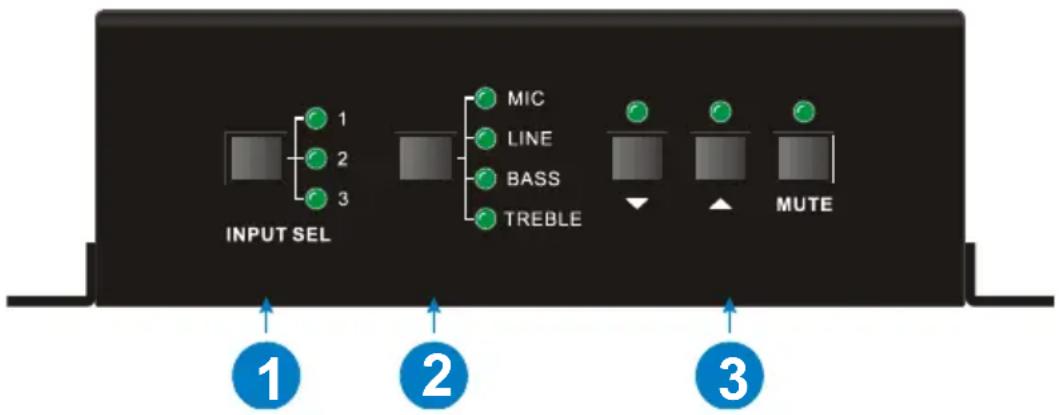
| No. | Name | Function |
| 1 | Audio Input Selection | To select the input audio source, after choosing the audio source, the corresponding LED indicator will be on. No.1 is for dual mono audio input (2 RCA connectors for L&R), No.2 is for stereo audio input (3.5mm mini jack), and No.3 is for digital fiber audio input. |
| 2 | Audio Control | Adjust the volume of the MIC, Line, or the level of Bass and Treble with this button |
| 3 | Volume Adjustment | To turn up/down or mute the corresponding audio. : Turn down the volume : Turn up the volumeMUTE: Mute the output |
2.2 Rear Panel
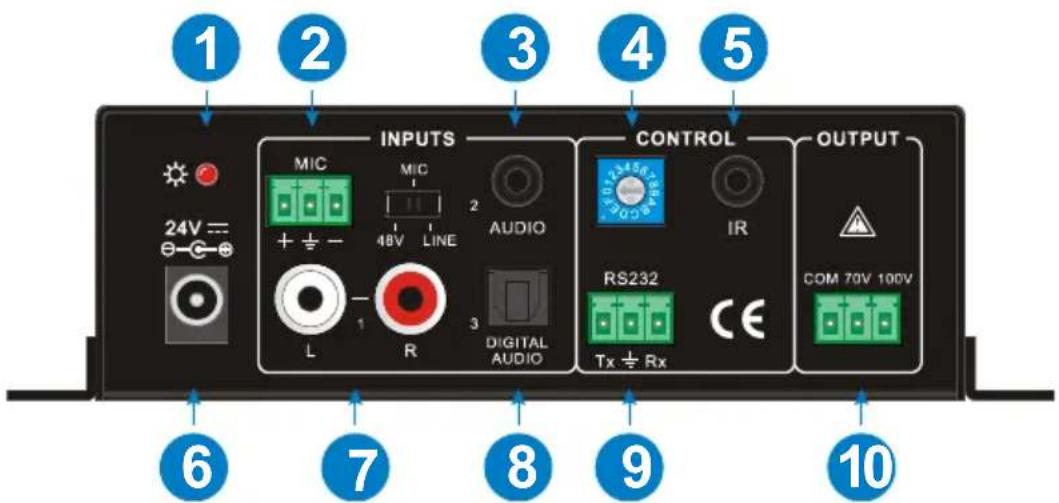
| No. | Name | Function |
| 1 | Power Indicator | Turns red when power on. |
| 2 | Microphone input port | 3-pole captive screw connector for microphone input, the dial switch on the right side is to select the micro input including 48V (for condenser microphone), MIC (for dynamic microphone), and LINE (for line audio). |
| 3 | Audio Inputs | 3.5mm mini jack for stereo audio input. It can be connected with audio source devices (e.g., DVD player). |
| 4 | ID Code | 16 codes range from 0 to F (hexadecimal). Works together with the PC control software. |
| 5 | IR | To connect with the IR receiver. Works together with the IR remote. |
| 6 | Power Port | To connect with the power adapter(DC24V). |
| 7 | L+R RCA | Dual-mono audio input, which can be connected with audio source device such as a PC. |
| 8 | Digital Audio Input | Fiber connector for digital audio input (PCM format only). It can be connected with a device with fiber port, such as Blu-ray player. |
| 9 | RS232 | 3-pole captive screw connector for serial control. It can be connected with PC (use a 3-pole captive to 9 pin female D connector and serial control software) to control the amplifier. |
| 10 | Audio Output | To connect with audio output devices such as speakers (to select 70V or 100V depends on the input voltage of the speakers). COM is for grounding (GND). |
3. System Connection
3.1 Usage Precautions
- Make sure all components and accessories are included before installation.
- System should be installed in a clean environment with proper temperature and humidity.
- All of the power switches, plugs, sockets, and power cords should be insulated and safe.
- All devices should be connected before powering on.
3.2 System Diagram

flowchart
graph TD
    A["Device"] -->|IR Receiver| B["Speaker (100V/10W)"]
    A -->|IR Remote| C["Speaker (100V/10W)"]
    A -->|MIC| D["Blu-ray"]
    A -->|PC| E["PC"]
    A -->|DVD| F["DVD"]
    B --> G["RS232 control signal"]
    C --> H["RS232 control signal"]
    D --> I["RS232 control signal"]
    E --> J["RS232 control signal"]
    F --> K["RS232 control signal"]
Figure 3 System Diagram
3.3 Audio Connection
3.3.1 Audio Output
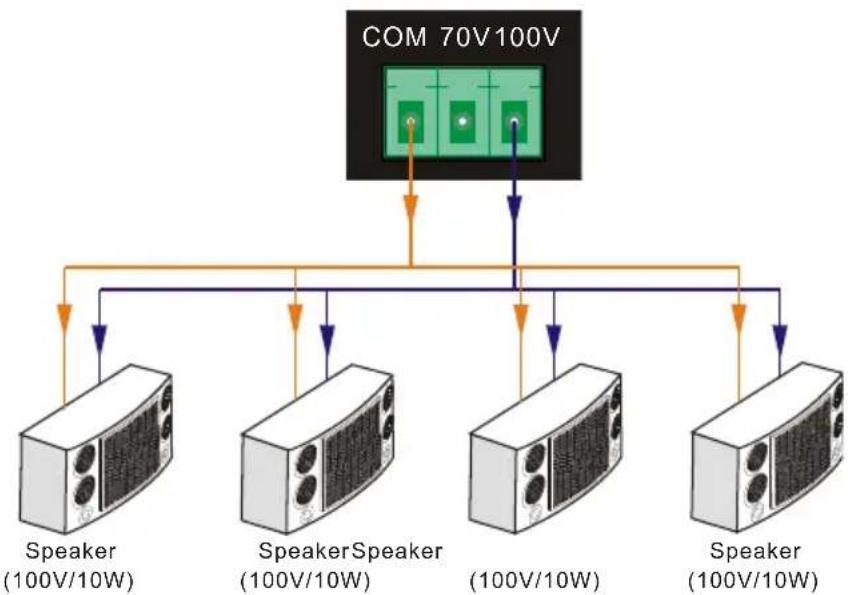
The amplifier supports mono audio output, and the output voltage is 70V or alternative 100V. With its dual-purpose design, it can be applied in different areas. The end COM is for grounding. The amplifier outputs a mono audio signal with a rated power at 40 Watts and can be connected with several speakers in parallel wiring. Total power must
not be more than 40Watt.
The following figure shows how to connect with the speakers. Here we take the 100V/10W speakers for each as example.
flowchart
graph TD
    A["COM 70V/100V"] --> B["Speaker (100V/10W)"]
    A --> C["SpeakerSpeaker (100V/10W)"]
    A --> D["Speaker (100V/10W)"]
    A --> E["Speaker (100V/10W)"]
Figure 4 Audio Output Connection
3.3.2 Audio Inputs
The amplifier provides 2 stereo audio inputs: one microphone input and one digital fiber audio input. The following figure shows the audio input ports.
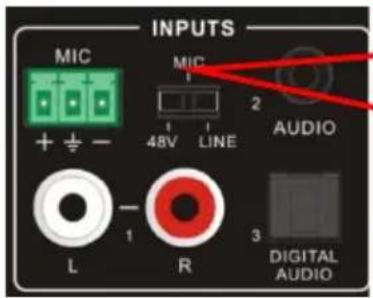
Switch to select the MIC input mode, includes MIC (dynamic microphone), 48V (condenser microphone), and LINE (normal audio or wireless microphone).
Figure 5 Audio Input Ports
48V phantom power input
When the switch turns to “48V” (it has high input impedance and high sensitivity in this mode), the MIC input will provide a 48V phantom power. This is usually used for powering condenser microphones. Connection is: “+” connects to positive, “-” connects to negative, and “≡” to ground.
Note: In this mode, only condenser microphones can be connected.
MIC input
When the switch turns to “MIC” (it has wide frequency response in this mode), the microphone input is used for connecting dynamic microphones. There are two different connections:
a) Unbalanced connection:
“+” and “ 12 ” connect to ground and “-” connects to signal. “-” and “ 12 ” connect to ground and “+” connects to signal.
b) Balanced connection: “+” connects to positive, “-” connects to negative, and “≡” connects to ground.
LINE input
When the switch turns to "LINE" (it has wide frequency response in this mode), the microphone input is used for connecting normal audio or wireless microphone outputs. There are two different connections:
a) Unbalanced connection:
“+” and “ ± ” connect to ground and “-” connects to signal. “-” and “ ± ” connect to ground and “+” connects to signal.
b) Balanced connection: “+” connects to positive, “-” connects to negative, and “≡” connects to ground.
Digital Audio Input
The amplifier features a TOSLINK input to connect with digital audio source device. With this connection the audio signal can be transmitted more reliably and can be transmitted over a long distance without distortion.
Note: This digital audio input can support/decode PCM format signal only.
3.4 System Applications
The amplifier can be applied in different settings such as classrooms, small meeting rooms, lecture halls, bars, and hotels.
4. System Operation
4.1 Operation of Front Panel
The buttons provide control for volume/EQ and switching. The LED indicators show status. The following content explains audio switching and EQ control in detail.
4.1.1 Audio switching
There are three switchable audio inputs: one 2xRCA input, one 3.5mm jack input, and one digital fiber audio input.

Figure 6 Audio Source Selection Button
4.1.2 Volume/EQ controlling
The line volume and MIC volume can be controlled by the buttons.
The MIC Volume/LINE volume/LINE bass/LINE treble will be selected by the buttons and controlled up/down/mute by the function buttons. Please check the picture below:
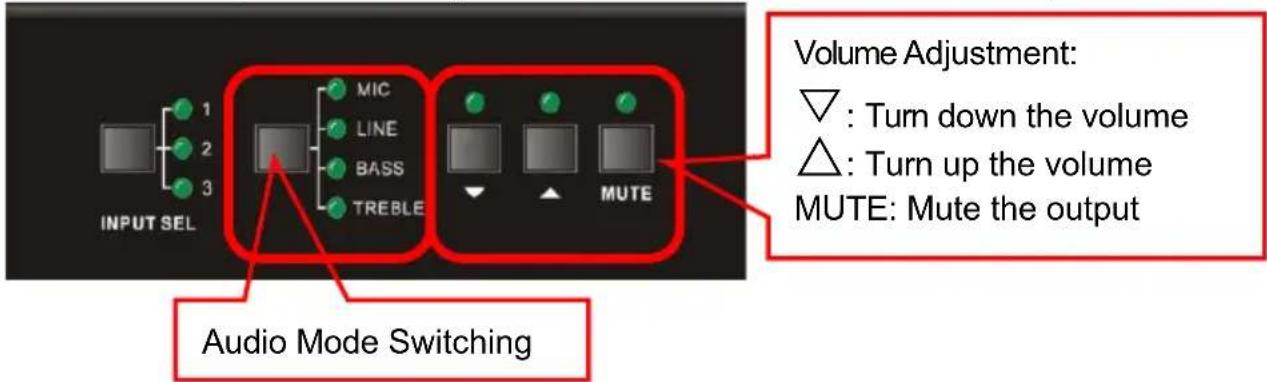
Figure 7 Audio Mode and Volume Adjustment buttons
For example, to turn up the line volume, select "LINE" and then press the button "▲".
4.2 Operation of IR Remote
The amplifier can be connected to an IR Receiver and controlled via IR remote.
Notice: The IR Receiver and IR remote are sold separately.
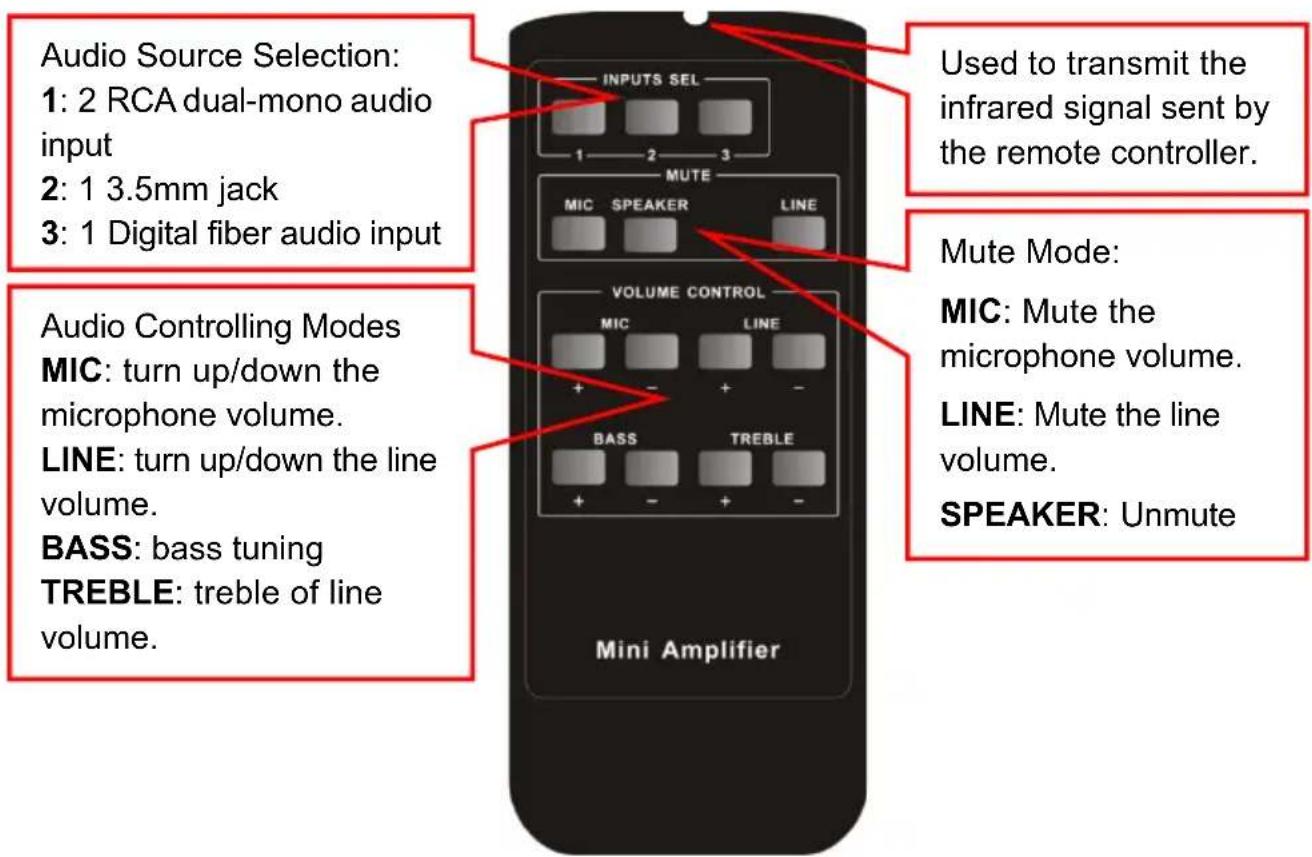
Figure 8 IR Remote

Figure 9 IR Receiver
4.3 Operation of Control Software
4.3.1 Connection with Computer
RS232 control can be utilized via a computer attached with a USB to serial adapter. To control the amplifier, users should use a 3-pole male captive screw to 9-pin HD female connector.
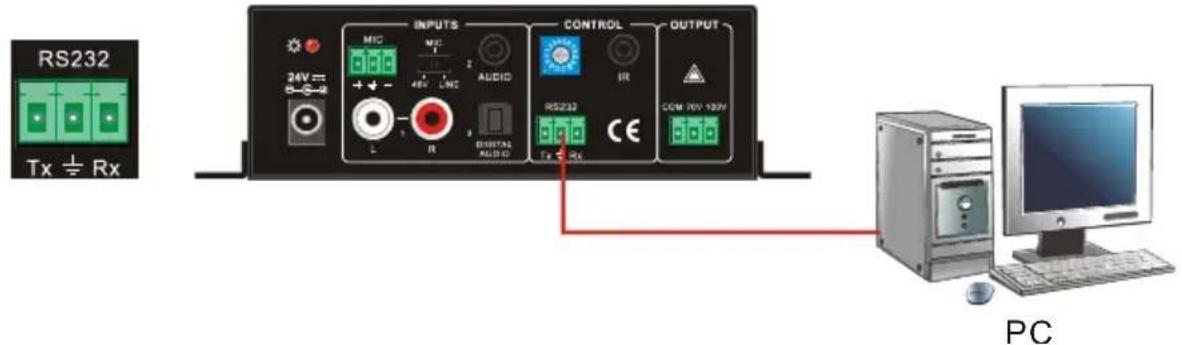
Figure 10 Connection of RS232 Port
4.3.2 RS232 Control Software
- Installation
Connect the input source devices and the output device according to the system diagram.
➢ Copy the RS232 control software to one computer and then connect the RS232 port of this computer and the amplifier.
Double-click the EXE program to execute the software.
Here we use the software CommWatch.exe for example. The icon is shown below:

CommWatch.exe
Figure 11 Control Software
- Uninstallation Delete all the control software files in corresponding file path.
4.3.3 Running Environment
While the control software is installed, we can activate the software through the RS232 port and set the parameters, making it able to send RS232 commands to control the amplifier.
4.3.4 Function Settings
With the control software, we can easily switch the input channel, mute the output, check the working status, adjust the volume, etc. Please refer to the details in RS232 Communication Commands.
The interface of the control software is shown below:
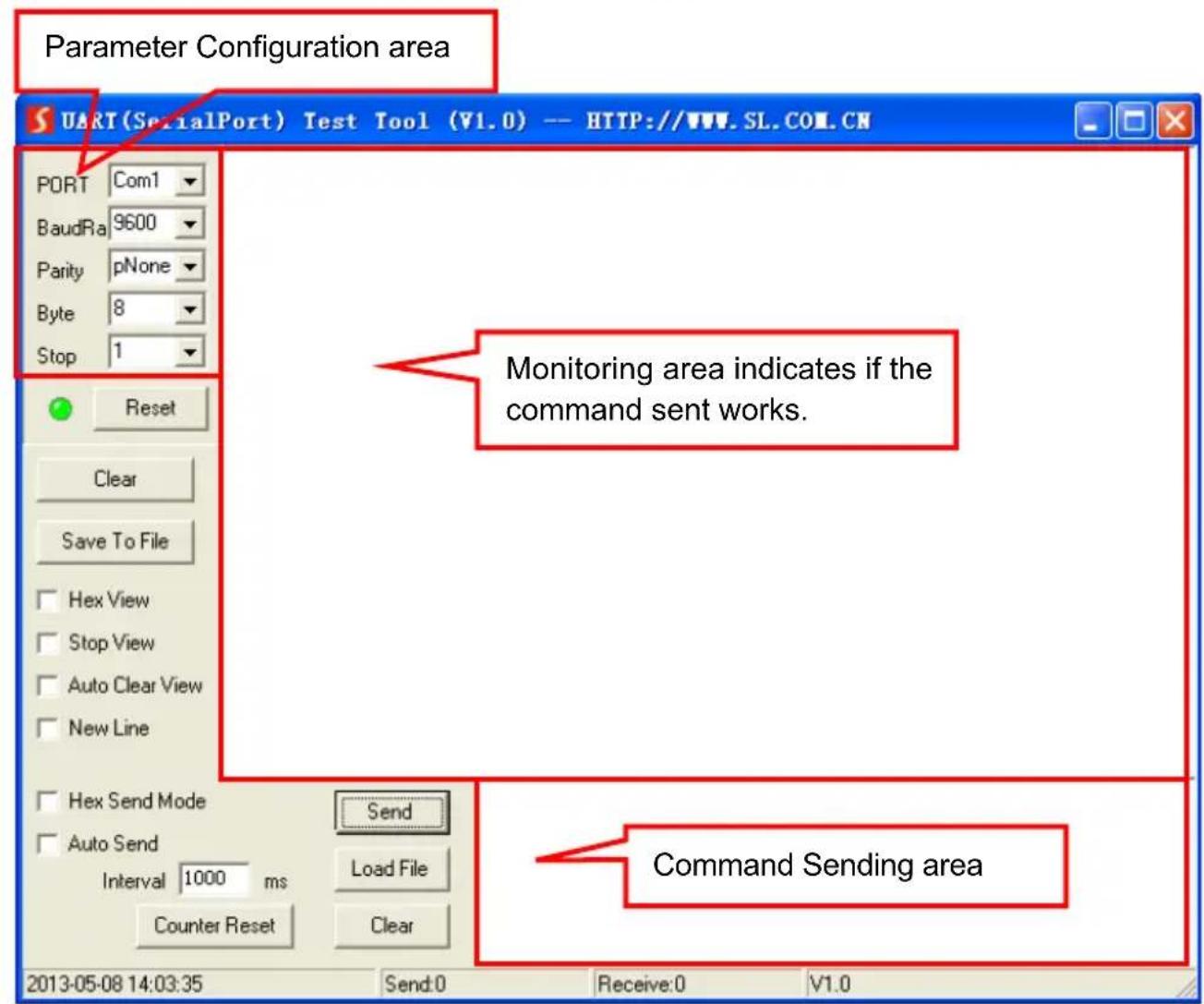
Figure 12 Main Interface of Control Software
4.3.5 RS232 Communication Commands
Communication Protocol: RS232 Communication Protocol
Baud rate: 9600
Data bit: 8
Stop bit: 1
Parity bit: none
| Command | Function Description | Feedback Code |
| 1A1. | Switching the audio to input 1 | A: 1 -> 1 |
| 2A1. | Switching the audio to input 2 | A: 2 -> 1 |
| 3A1. | Switching the audio to input 3 | A: 3 -> 1 |
| 0A0. | Mute Audio of MIC and Line out | Mute |
| 1A0. | Mute audio of MIC | Mute MIC |
| 2A0. | Mute audio of line out | Mute LIN |
| 3A0. | Enable noise gate. | Gate On |
| 4A0. | Disable noise gate. | Gate Off |
| 0A1. | Unmute Audio | Unmute Audio |
| 600% | Checking the working status | A: 1 -> 1Volume of MIC : 50Volume of LINE : 50Bass of LINE : 4Treble of LINE : 4Ducking Off |
| 601% | MIC volume up | Volume of MIC: 51 |
| 602% | MIC volume down | Volume of MIC: 51 |
| 603% | Line volume up | Volume of LINE: 51 |
| 604% | Line volume down | Volume of LINE: 51 |
| 605% | Bass level up | Bass of LINE: 4 |
| 606% | Bass level down | Bass of LINE: 4 |
| 607% | Treble level up | Treble of LINE: 4 |
| 608% | Treble level down | Treble of LINE: 4 |
| 609% | Initialization, back to the default setting | Init OK |
| 610% | Enable/disable the ducking function. | Ducking off/Ducking on |
| 4[x][x]% | Preset the volume level of ducking function.[xx] arranges from [00] to [60]. 61 degrees in total. | Ducking of LINE: 50 |
| 5[x][x]% | Preset MIC volume, [xx] arranges from [00] to [60]. 61 degrees in total. | Volume of MIC: 50 |
| 7[x][x]% | Preset line volume, [xx] arranges from [00] to [60]. 61 degrees in total. | Volume of LINE: 50 |
| 8[x][x]% | Preset the bass level, [xx] arranges from [00] to [08]. 9 degrees in total. | Bass of LINE: 4 |
| 9[x][x]% | Preset the treble level, [xx] arranges from [00] to [08]. 9 degrees in total. | Treble of LINE: 4 |
Notice:
- The letter inside bracket [ ] is the variable code, which is changeable.
- The bracket [ ] is not included to the RS232 commands.
- Any dot “.” after the letters is part of the commands.
- Ducking function:
When input with MIC, the volume of the line audio will be automatically turned down to the preset volume level. If there is no input MIC audio signal after 5 seconds, the volume will be automatically turned up to the original level. If you need to disable/enable the ducking function, just send the command "610%" again.
• ID coding:
The ID codes of the amplifier ranges from 0 to F (hexadecimal). When sending RS232 commands, please take notice of the address of the ID code.
If the address of the ID code is 0, any RS232 command is available.
If the address is in 1\~F, it has one unique ID code (if the ID code is not the same with the address, no RS232 command will work).
While the ID code is in 1\~F, please add "ID/" before sending the command.
For example, if the ID code is 5, the RS232 command needed is "604%". The correct command is in this format: 5/604%.
There is no need to add "ID/" before the command when the ID code is 0.
Examples:
- Switching the input 2 to the line out, the command is: 2A1.
- Turning up the volume of line audio, the command is: 603%
- Preset the MIC volume to "21" degree, the command is: 521%
- Checking the working status of the amplifier, the command is: 600%
- If the ID code is 0, sending command 601% is able to turn up the MIC volume.
-
If the ID code is 2, sending command 601% will not work and the MIC volume remains unchanged. The right command is 2/601%.
-
Specifications
| Audio Input | |
| Input | (2) Stereo Audio(1) MIC(1) Digital Fiber Audio |
| Input Connector | (2) RCA(1) 3.5mm Jack(1) 3-pole 3.81mm Captive Screw Connector(1) SPF Fiber Connector |
| Input Impedance | >10KΩ |
| Audio Output | |
| Output | (1) Mono Amplifier |
| Output Connector | (1) 3-pole 3.81mm Captive Screw Connector |
| Output Type | Constant voltage 70V or 100V. |
| Audio General | |
| Frequency Response | 120Hz ~ 20KHz |
| CMRR | >70dB@20Hz~20KHz |
| SNR | 80dB (Max) |
| Bandwidth | 120Hz ~ 20KHz |
| Rated Power Output | 40Watt |
| THD + Noise | 1%@1KHz, 0.3%@20KHz at nominal level |
| Voltage Gain | 26dB |
| Control Function | |
| RS232 Control | (1) 3-pole 3.81mm Captive Screw Connector |
| Front Panel Control | Buttons |
| ID Code Control | 16 ID Codes for control. |
| Optional | IR Remote & TCP/IP controlled by programmable interface |
| General | |
| Temperature | -10 ~ +40°C |
| Humidity | 10% ~ 90% |
| Power Supply | DC 24V 2.71A Power Adapter |
| Standby Power Consumption | 5W |
| Case Dimension | W130 x H44 x D144mm (1U high) |
| Product Weight | 860g |
6. Panel Drawing
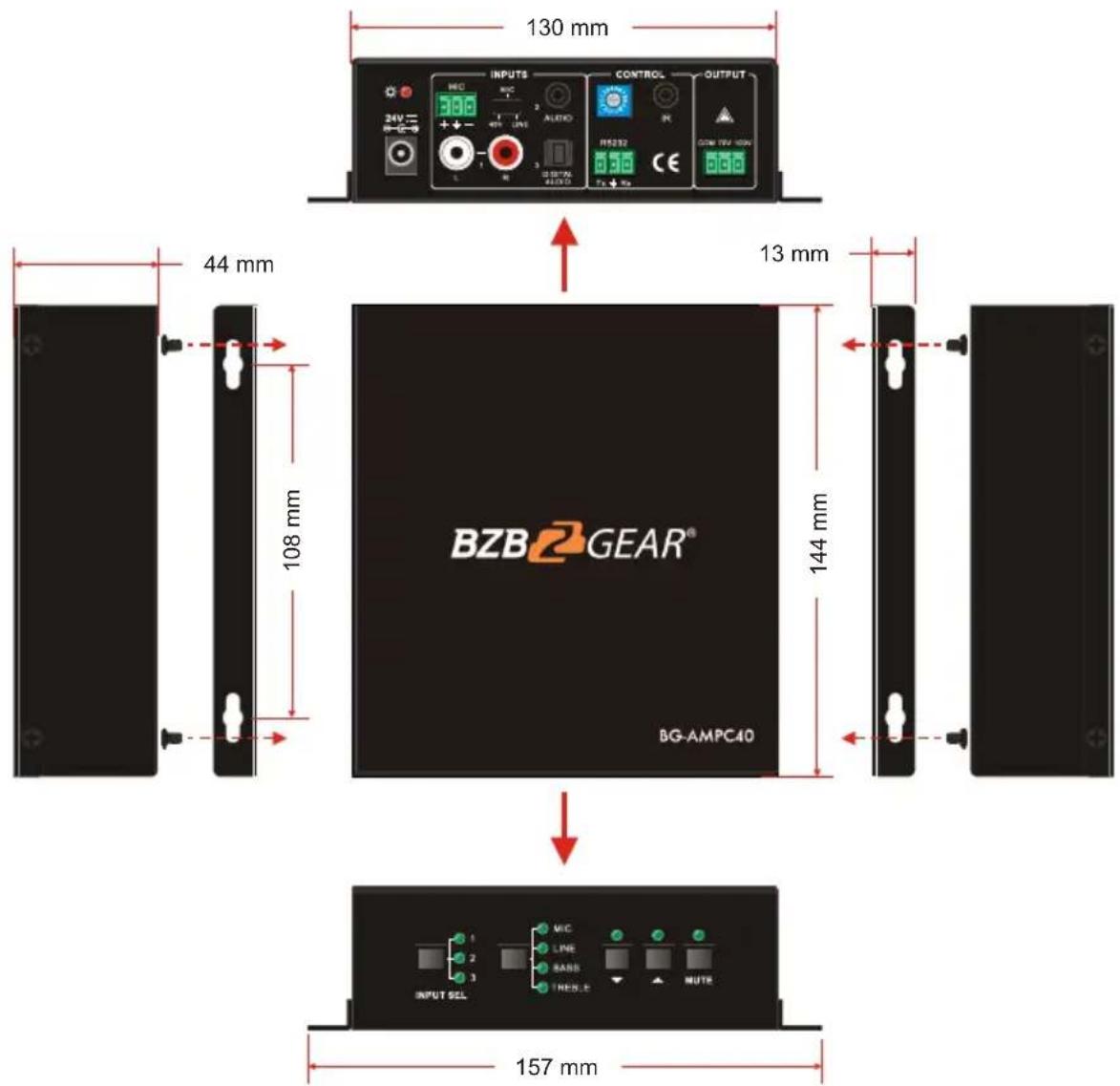
Figure 13 Panel Drawing
- Troubleshooting and Maintenance
| Problems | Potential Causes | Solutions |
| No output audio | No signal at input/ output end | Check input/ output signal with an oscilloscope or a multimeter. |
| Failed cable connection | Change for another cable. | |
| Broken unit | Send it to the dealer for repairing. | |
| POWER indicator doesn’t work or no respond to any operation | Failed power connection | Make sure the power cord connection is good |
| Static becomes stronger when connecting the video connectors | Bad grounding | Check the grounding and make sure it is connected well. |
| Output audio interference | ||
| Cannot control the device with front panel buttons, RS232 port, or IR remote | Broken unit | Send it to the dealer for repairing. |
8. Tech Support
Before contacting tech support, we may have answered your question already! Visit our BZBGEAR support page at bzbgear.com/support for valuable information on our products.
Here you will find our Knowledge Base (bzbgear.com/knowledge-base) consisting of tutorials, quick start guides, and step-by-step troubleshooting instructions. Also visit our YouTube channel BZB TV at youtube.com/c/BZBTVchannel for help setting up, connecting, and other how-to videos regarding our products.
If you still need answers, please call 1.888.499.9906, email support@bzbgear.com, or chat at bzbgear.com.
9. Warranty
BZBGEAR Pro AV products and Cameras come with a three-year warranty. An extended two-year warranty is available for our Cameras upon registration for a total of five years.
For an extended two-year warranty on our Cameras, follow these steps:
- Register your Camera within 90 days of purchase by visiting bzbgear.com/warranty.
- Complete the registration form. Provide all necessary proof of purchase details, including serial number and a copy of your sales receipt.
For complete warranty information, please visit bzbgear.com/warranty or scan the QR code below.

10. Mission Statement
BZBGEAR manifests from the competitive nature of the audiovisual and live streaming industry to innovate while keeping the customer in mind. AV solutions can cost a pretty penny, and new technology only adds to it. We believe everyone deserves to see, hear, and feel the advancements made in today's AV world without having to break the bank. BZBGEAR is your answer for applications requiring the latest pro AV and live streaming solutions.
You'll notice comparably lower prices with BZBGEAR while the performance and quality are on par with the top brands in the industry. Our team offers system design consultation and expert tech support seven days a week for all BZBGEAR products. Our unparalleled support is our way of showing we care for every one of our customers. Whether you're an integrator, home theater enthusiast, or a do-it-yourselfer, BZBGEAR offers solutions allowing you to focus on your project and not your budget.


- FCC Statement
- SAFETY PRECAUTIONS
- Table of Contents
- Product Introduction...... 1
- Panel Description.... 2
- System Connection....4
- System Operation 7
- Specifications.... 13
- Product Introduction
- Features
- Package Contents
- Panel Description
- Front Panel
- Rear Panel
- System Connection
- Usage Precautions
- System Diagram
- Audio Connection
- Audio Output
- Audio Inputs
- 48V phantom power input
- MIC input
- LINE input
- Digital Audio Input
- System Applications
- System Operation
- Operation of Front Panel
- Audio switching
- Volume/EQ controlling
- Operation of IR Remote
- Operation of Control Software
- Connection with Computer
- RS232 Control Software
- - Installation
- Running Environment
- Function Settings
- RS232 Communication Commands
- Notice:
- - Ducking function:
- • ID coding:
- Examples:
- Panel Drawing
- Tech Support
- Warranty
- Mission Statement
Brand : BZBGear
Model : BG-AMPC40
Category : Charger