
VPC-X1220GX - Camera SANYO - Free user manual and instructions
Find the device manual for free VPC-X1220GX SANYO in PDF.


| Product Type | Digital Camera |
| Model | VPC-X1220GX |
| Effective Pixels | Approx. 12.1 megapixels |
| Image Sensor | 1/2.3-inch CCD, 12.5 megapixels total |
| Optical Zoom | 3.0x (f=6.3-18.9 mm, 35mm equivalent: 35-105 mm) |
| Digital Zoom | 1x-4x (shooting), up to 62.5x (playback) |
| Monitor | 2.7-inch TFT color LCD, approx. 230,000 pixels |
| Storage Media | Internal memory: approx. 50 MB; SD/SDHC memory card |
| Recording Formats | Still: JPEG; Video: QuickTime Movie (Photo-JPEG); Audio: WAVE |
| Dimensions (W x H x D) | 92.8 x 55.2 x 17.0 mm (3.65 x 2.17 x 0.67 in) |
| Weight (camera only) | Approx. 97 g (3.42 oz) |
| Weight (with battery and card) | Approx. 114 g (4.02 oz) |
| Power Supply | Lithium-ion battery pack DB-L80 (3.7 V, 700 mAh) |
| Battery Charger | VAR-L80, input AC 100-240 V, output DC 4.2 V, 550 mA |
| Flash Range (Wide/Tele) | Approx. 0.6-3.3 m (Wide), 0.6-1.7 m (Tele) |
| Shutter Speed | 1/2-1/1500 sec (still), 1/30-1/2500 sec (video) |
| ISO Sensitivity | Auto (ISO 64-400), ISO 64/100/200/400/800/1600/3200/6400 |
| Scene Functions | Auto, Sports, Portrait, Landscape, Night View Portrait, Smile Detection, Fireworks, Lamp, Still Image with Audio, Best Shot, Face Chaser, Monochrome, Sepia, Contrast, Vivid |
| Special Features | Face Chaser, Smile Detection, Best Shot, Voice Memo |
| Maintenance | Clean lens with soft dry cloth; avoid extreme temperatures and humidity |
| Safety Precautions | Do not expose to rain or moisture; use only specified battery and charger; follow battery handling instructions |
| Included Accessories | Handstrap, battery pack, battery charger, USB cable, AV cable, CD-ROM, safety manual, quick guide, instruction manual |
Frequently Asked Questions - VPC-X1220GX SANYO
User questions about VPC-X1220GX SANYO
0 question about this device. Answer the ones you know or ask your own.
Ask a new question about this device
Download the instructions for your Camera in PDF format for free! Find your manual VPC-X1220GX - SANYO and take your electronic device back in hand. On this page are published all the documents necessary for the use of your device. VPC-X1220GX by SANYO.
USER MANUAL VPC-X1220GX SANYO
INSTRUCTION MANUAL BASICS
Digital Camera
VPC-X1220EX VPC-X1250 VPC-X1220GX VPC-X1220PX

natural_image
Illustration of a silver digital camera with lens and screen (no text or symbols)
Important note
This manual explains how to safely operate the VPC-X1220EX, VPC-X1250, VPC-X1220GX and VPC-X1220PX.
Any information regarding only one of these products will be labeled as such.
Please read these instructions carefully before using the camera. Make sure to read and understand the separate booklet "SAFETY MANUAL". Keep this manual in a safe place for later reference.
Warning
TO PREVENT THE RISK OF FIRE OR ELECTRIC SHOCK, DO NOT EXPOSE THIS APPLIANCE TO RAIN OR MOISTURE
■FOR AMERICAN USERS
The following advisory is included in accordance with the laws of the State of California (USA):
WARNING:
This product contains chemicals, including lead, known to the State of California to cause cancer, birth defects or other reproductive harm. Wash hands after handling.
- This equipment has been tested and found to comply with the limits for a Class B digital device, pursuant to Part 15 of the FCC Rules. These limits are designed to provide reasonable protection against harmful interference in a residential installation. This equipment generates, uses and can radiate radio frequency energy and, if not installed and used in accordance with the instructions, may cause harmful interference to radio communications. However, there is no guarantee that interference will not occur in a particular installation. If this equipment does cause harmful interference to radio or television reception, which can be determined by turning the equipment off and on, the user is encouraged to try to correct the interference by one or more of the following measures:
- Reorient or relocate the receiving antenna.
- Increase the separation between the equipment and receiver.
- Connect the equipment into an outlet on a circuit different from that to which the receiver is connected.
- Consult the dealer or an experienced radio/TV technician for help.
- Changes or modifications not expressly approved by the party responsible for compliance could void the user's authority to operate the equipment.
Declaration of Conformity
Model number: VPC-X1250
Trade Name: SANYO
Responsible party: SANYO North America Corporation
Address: 21605 Plummer Street, Chatsworth, California 91311
Telephone No.: (818) 998-7322
This device complies with Part 15 of the FCC Rules. Operation is subject to the following two conditions:
(1) this device may not cause harmful interference, and
(2) this device must accept any interference received, including interference that may cause undesired operation.
i English
FOR USERS IN THE USA
About the battery charger
IMPORTANT SAFETY INSTRUCTIONS – SAVE THESE INSTRUCTIONS DANGER – TO REDUCE THE RISK OF FIRE OR ELECTRIC SHOCK, CAREFULLY FOLLOW THESE INSTRUCTIONS
- For connection to a supply not in the U.S.A., use an attachment plug adapter of the proper configuration for the power outlet.
• Power Supply Cord:
Use UL Listed detachable power supply cord - No. 18 AWG, two conductors, rated 10 A, VW-1, 105 °C, 125/250 V, minimum 1.8 m, maximum 3 m long. Provided with a molded-on, non-polarized attachment plug with a 15 A, 250 V (NEMA 2-15P) configuration or a 15 A, 125 V (NEMA 1-15P) configuration and a molded-on connector which mates with the Power Inlet.
Cord Type
| Basic Cord Type Other Suitable Types | |
| TS TST | |
| SP-2 SPE-2, SPT-2 | |
| SP-3 SPE-3, SPT-3 | |
| SV SVE, SVO, SVOO, SVT, SVTO, SVTOO | |
| SJ SJE, SJO, SJOO, SJT, SJTO, SJTOO | |
| S SE, SO, SOO, ST, STO, STOO | |
- This device complies with Part 15 of the FCC Rules. Operation is subject to the following two conditions: (1) this device may not cause harmful interference, and (2) this device must accept any interference received, including interference that may cause undesired operation.
- This Class B digital apparatus complies with Canadian ICES-003.
■FOR EU USERS
The symbol mark and recycling systems described below apply to EU countries and do not apply to countries in other areas of the world.
Your SANYO product is designed and manufactured with high quality materials and components which can be recycled and/or reused.
The symbol mark means that electrical and electronic equipment, batteries and accumulators, at their end-of-life, should be disposed of separately from your household waste.
Note:
If a chemical symbol is printed beneath the symbol mark, this chemical symbol means that the battery or accumulator contains a heavy metal at a certain concentration. This will be indicated as follows: Hg: mercury, Cd: cadmium, Pb: lead
In the European Union there are separate collection systems for used electrical and electronic equipment, batteries and accumulators.
Please, dispose of them correctly at your local community waste collection/recycling centre.
Please, help us to conserve the environment we live in!

natural_image
Symbol of a trash bin crossed out by two diagonal lines (no text or numbers present)SANYO Sales & Marketing Europe GmbH
Stahlgruberring 4, D-81829 München, Germany
SANYO Electric Co., Ltd.
1-1, Sanyo-cho, Daito City, Osaka 574-8534, Japan
■FOR RUSSIAN USERS

АЯ46
This product is certified by an official certification company which is authorized by the Russian Federation.
HOW TO READ THIS MANUAL
This instruction manual for your camera is organized into the following sections.
SETUP
Before taking pictures with your camera, you will need to familiarize yourself with a few of its functions and complete some setup steps.
■BASIC OPERATION
An explanation of the fundamental operation for capturing images and viewing images.
■APPENDICES
The camera specifications are found here.
■Symbols used in this manual
HINT Points giving some extended instructions or special points to pay attention to.
CAUTION Points that require special attention.
(page xx) Refer to the page indicated for detailed information.
You may find the answers to questions or problems concerning camera operation in the ADVANCED INSTRUCTION MANUAL.
For information concerning how to use the accompanying CD-ROM (SANYO Software Pack), please see the file "SANYO Software Pack INSTRUCTION MANUAL."
■How to view the “INSTRUCTION MANUAL: ADVANCED” and “SANYO Software Pack INSTRUCTION MANUAL” files
①Insert the CD-ROM (SANYO Software Pack) that was included with your camera in your computer's CD-ROM drive.
②Install the Adobe Reader 9 on your computer.
③On the installation screen, click on "Instruction Manuals (PDF)".
④Click on the desired instruction manual.
SHOOT, PLAY BACK AND SAVE
Install the battery pack
1 Use the supplied charger to charge the battery pack.
• The CHARGE indicator is lit during charging.
- The CHARGE indicator will turn off when the battery pack is fully charged.
- Charging takes approximately 120 min.
![Battery pack charger Battery pack [△] mark CHARGE indicator To power outlet](/content/2026/06/1214061/images/1d070178b60bd0ce169fdd3c208e56357a76c209d434a06f8340e4876967d5ae.jpg)
2 Open the battery/card compartment cover, and insert the battery pack.
- The battery/card compartment cover is located on the bottom of the camera.
- Press the ON/OFF button to turn the camera on.
![[△] mark ON/OFF button](/content/2026/06/1214061/images/c70cd7c999bd53b20ce6531c8d41e68c3b9c0a09cdd62f662ed4b542080d1a19.jpg)
English vi
SHOOT, PLAY BACK AND SAVE
Before capturing those important shots, be sure to first take a test shot to confirm that your camera is set up and ready to go
- Sanyo declines any claim for compensation for recorded contents etc. in case of photographing or recording failure due to a chance camera or card flaw.
Shooting
1 Press the [▶] button.
• The recording mode menu appears.
Single-shot
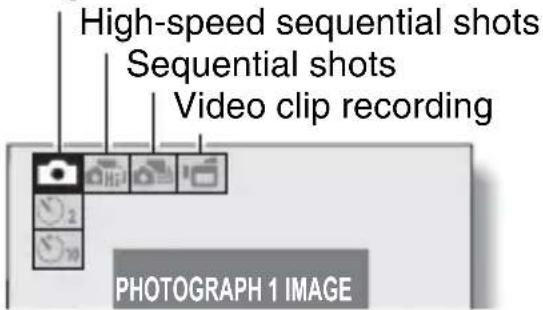
2 Press the [◀] or [▶] button to select the recording mode.
3 Press the SET button.
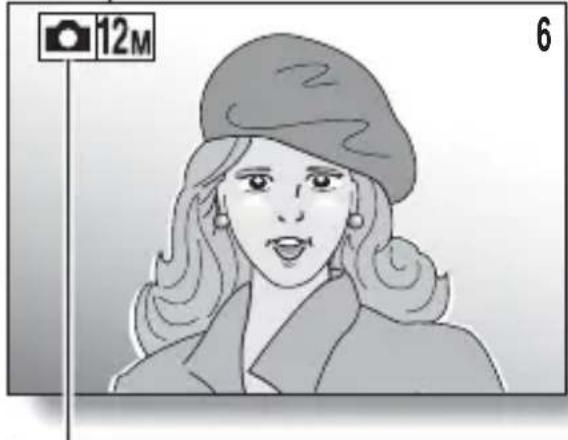
• The recording mode is indicated by an icon in the upper left area of the monitor.
4 Press the shutter button. Single-shot mode:
A still image is captured. High-speed sequential shots mode/sequential shots mode:
Shooting begins. Release the shutter button to discontinue shooting.
Video clip recording mode:
Recording begins. To stop recording, press the shutter button again.
![Shutter button [◀] / [▶] buttons](/content/2026/06/1214061/images/1daebfb7d1779c3f6a9ff7642ad99d48574109feb3dcd4e6ba9c368f02b9e070.jpg)
natural_image
Illustration of a woman wearing a beret and coat, with a camera icon labeled '12M' and number '6' (no text or symbols on the figure itself): Single-shot mode
: High-speed sequential shots mode
: Sequential shots mode
: Video clip recording mode
Playback
■Still image playback
1 Press the playback button [▶].
• The display switches to the Playback Screen.
• To view other images, press the [◀] or [▶] button.
- If the playback button [▶] is pressed, the display returns to the Shooting Screen.
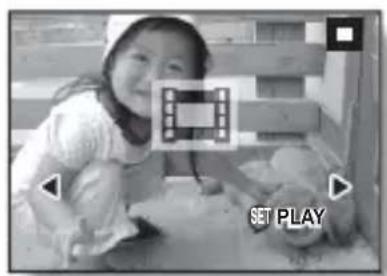
■Video clip playback
1 Press the playback button [▶].
• The display switches to the Playback Screen.
- Press the [◀] or [▶] button to display the video clip you wish to play back.
2 Press the SET button.
- Playback of the selected video clip begins.
- If the playback button [▶] is pressed again, the display changes to the Shooting Screen.
![ON/OFF button Playback button [▶] [◀] / [▶] buttons](/content/2026/06/1214061/images/e998fe0091895a274a2594ecd3815aff526a7506738d6ea24de57437685d4880.jpg)
When you are finished taking pictures...
Press the ON/OFF button to turn the camera off.
SHOOT, PLAY BACK AND SAVE
Copying files to a computer (Windows XP)
1 Install the software.
①Insert the CD-ROM (SANYO Software Pack) that was included with your camera in your computer's CD-ROM drive.
• The installation screen appears.
②Click on [ArcSoft MediaImpression 2] in the installation screen.
- Follow the messages on your computer screen to install the software.
2 Use the supplied USB interface cable to connect your camera to the computer.
- Connect the camera's USB/AV terminal to the computer's USB connector.
- The USB Connection Screen appears on the camera's monitor.

3 Select "COMPUTER", and press the SET button.
- The screen to select the connection mode appears.
4 Select "CARD READER", and press the SET button.
- The camera is connected in the card reader mode.
- If the Windows automatic playback screen appears on the computer monitor, close it.
5 Double-click on the desktop [MedialImpression 2] icon to launch MedialImpression 2.
• The MediaImpression 2 home page appears.
![[Import] Pictures Videos Music All Media Import Easy Fix Make Slideshow Make Movie Color Effects Welcome to ArcSoft MediaImpression. You can conveniently manage your media content and create projects here. Click a button on the left to get started.](/content/2026/06/1214061/images/0d99a07970e7b76b5a1784df63045065d8d0a2767e138df37e5473906ca66194.jpg)
SHOOT, PLAY BACK AND SAVE
6 Click on [Import].
- The files in the camera are shown on the import screen.
![Files in the camera ArcSoft MediaImpression Import Click the button to export media files from a mobile device or storage device Service & Support Export By default, of the media files on the device will be imported to your computer. If you only want to export none of these, select the files now next before importing. Set Media Files: SAC-T3 (P:) Destination Folders: [User]Public(Pictures) SubFolder Names: None Today's Date Custom Name Export Options: Exclude files that have already been imported Play down more automatics Attach a tag Search Export Cancel [Destination Folder] field and [Subfolder Name] field [Import]](/content/2026/06/1214061/images/988323dcf2d9a03c70d42bf7adcca61b2258a661f13b4f191042b26cecbcc8b6.jpg)
HINT
You can specify which folder to copy the files to.
- When you click on the folder icon in the [Destination Folder] field, the screen to specify the copy destination appears.
- We suggest that you click on [OToday's Date] in the [Subfolder Name] field to select it. When [OToday's Date] is selected, a subfolder named with the current date is automatically created in the folder specified in the [Destination Folder] field, and the files are copied to it.

7 Click on [Import].
- The files in the camera are copied to the computer.
8 When copying is completed, click on [Done].
- You are returned to the MedialImpression 2 home page.
9 Click on the close button to exit MedialImpression 2 and end the program.
HINT
More about MedialImpression 2
- On the MediaImpression 2 home page, click on [Service & Support] for more information.
SHOOT, PLAY BACK AND SAVE
Dismounting the camera
CAUTION
- To disconnect your camera, be sure to follow the procedure below. Failure to follow this procedure may cause faulty operation of your computer or loss of card data.
1 Left-click on the icon for safely removing hardware.
- A list appears showing the devices connected to the computer's USB connectors.
- Close the window.
2 Left-click on the camera drive (E:).
- The camera can now be disconnected.
* The drive name (E:) may be different on your computer.
CAUTION
Insert and pull out the cable carefully
- When connecting the cables, make sure that the cable plugs are correctly oriented and that they match the shapes of the terminal sockets on the devices. Push the plugs in straight when connecting them. If undue force is used to connect a cable, it may permanently damage the connector pins in the terminal socket.
- Do not use excessive force when connecting and disconnecting cables.
- Please connect the dedicated USB interface cable to your computer's USB connector. Do not connect it to the USB port on your monitor or keyboard, or to the USB hub. Be especially careful when installing the driver software. In some instances, it may not be possible to correctly install the driver software.
To access the data in the camera's internal memory...
- Remove the card from the camera.
CONTENTS
CONTENTS 1
CHECKING THE INCLUDED ACCESSORIES 3
Attaching the handstrap .... 4
Media cards that can be used with this camera 4
What "card" means in this manual 4
Installing/removing the DC adaptor (Model VAR-A3: sold separately) 5
SETUP
PARTS NAMES 6
CHARGING THE BATTERY PACK 8
Charging the battery pack 9
INSTALL THE BATTERY PACK AND CARD 12
Installation 12
To format a card 14
Warning concerning battery pack temperature 15
TURNING THE CAMERA ON AND OFF 16
Turning on the camera 16
Turning off the camera 16
About the auto power off function 17
DATE AND TIME SETTING 18
■ BASIC OPERATION
BEFORE TAKING PICTURES 21
Switching between the recording mode and playback mode ...... 21
How to switch the recording mode 22
Switching the display mode 23
Adjust the monitor brightness 24
Hints for taking pictures 25
CAPTURING AND PLAYING BACK STILL IMAGES 26
Shooting single shots 26
Shooting sequential shots 28
Viewing still images 30
9-image/20-image display playback 31
Folder playback 32
Magnifying (zooming in) the image 33
Zoom jump playback 34
Deleting files 35
1 English
Recording a video clip 37
Playing back the video clip 38
USING THE SCENE FUNCTION ....41
Capture a still image with a voice memo 43
How to use the best shot feature ....44
How to use the face chaser feature 45
How to shoot using Smile Detection 46
OTHER RECORDING FUNCTIONS 48
Using the zoom 48
Flash setting 50
Self-timer 52
Focus range 54
ACCESSING THE MENUS ....57
How to display the menus ....57
How to operate the menus 58
■ APPENDICES
SPECIFICATIONS ....59
Camera 59
Camera connectors 62
Battery life 62
Possible Number of Images/Video Recording Time/Audio Recording Time 63
Supplied battery pack charger 64
Supplied Li-ion battery pack 64
Others 65
Before capturing those important shots, be sure to first take a test shot to confirm that your camera is set up and ready to go ....66
CHECKING THE INCLUDED ACCESSORIES
- Handstrap: 1 • SANYO Software Pack

natural_image
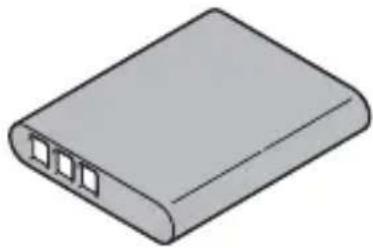
Simple line drawing of a knuckle (no text or symbols)• Lithium-ion battery pack (battery pack): 1
natural_image
Illustration of a gray rectangular electronic device with three ports, no text or symbols present.• Dedicated USB interface cable: 1

natural_image
Illustration of a USB cable with connector port (no text or symbols)• SAFETY MANUAL (safety precautions booklet) Please read this booklet carefully before using the digital camera.

(CD-ROM): 1

natural_image
Circular diagram with radial segments and central circle, no text or symbols present• Lithium-ion battery pack charger and power cord

natural_image
Illustration of a rectangular electronic device with a coiled cable and three ports, no text or symbols present.• Dedicated AV interface cable: 1
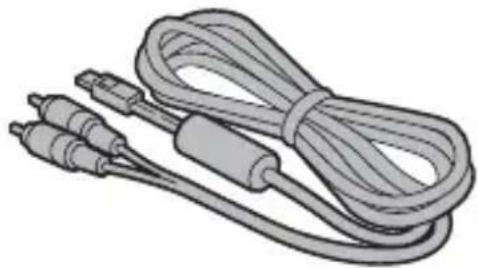
natural_image
Illustration of a coiled cable with two connectors and a central connector (no text or symbols)- QUICK GUIDE

natural_image
Two isometric views of a rectangular electronic device with internal components (no text or symbols visible)• INSTRUCTION MANUAL BASICS
(VPC-X1220EX,
VPC-X1220GX,
VPC-X1220PX only)
3 English
Attaching the handstrap
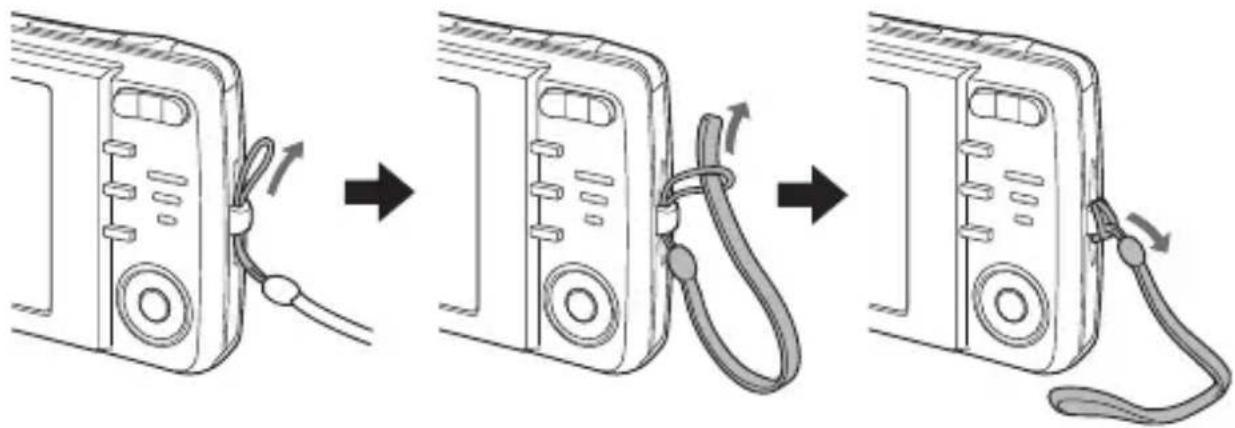
flowchart
graph LR
    A["Device with cable"] --> B["Switching cable"]
    B --> C["Switching cable with cable"]
    C --> D["Switching cable with cable"]
    D --> E["Switching cable with cable"]
Media cards that can be used with this camera
The types of card that can be inserted into and used with this camera are:
- SD Memory Card
- SDHC Memory Card
What "card" means in this manual
- In this manual, SD Memory Cards and SDHC Memory Cards that can be used in this digital camera are referred to as “card”.
CHECKING THE INCLUDED ACCESSORIES
Installing/removing the DC adaptor (Model VAR-A3: sold separately)
Install in the camera's battery slot, and connect the AC adaptor. Use in conjunction with the AC adaptor.
Attaching the DC adaptor
①Open the camera's battery/card compartment cover.

natural_image
Diagram of a device's internal structure with an arrow indicating rotation (no text or symbols present)②Insert the DC adaptor into the battery slot.
- Make sure that the DC adaptor is correctly oriented when inserting, and insert it firmly all the way.

natural_image
Diagram showing two mechanical assembly steps: one with a cable and switch, the other with a clamping tool (no text or symbols present)③Close the battery/card compartment cover.

natural_image
Line drawing of a mechanical component with a cable inserted into a housing (no text or symbols)④Connect the AC adaptor.
Removing the DC adaptor
①Turn off the camera.
②Remove the AC adaptor.
③Open the camera's battery/card compartment cover, and remove the DC adaptor.
5 English
PARTS NAMES
Front

Bottom

PARTS NAMES
Rear
![Strap holder Zoom switch Monitor Playback button [▶] SCENE SCENE button MENU MENU button [▲] button [▶] button SET button [▼] button [◀] button](/content/2026/06/1214061/images/8180db47e43223cdb631b12f1de169bbe946b47d2e81faf50ea007e2d0810a93.jpg)
7 English
CHARGING THE BATTERY PACK
Please charge the supplied battery pack before using it.
1 Connect the supplied power cord to the socket on the battery pack charger.
- Insert the connector straight and securely.

2 Insert the battery pack in the battery charger.
- Insert it in the direction indicated by the [] mark on the battery pack.
![Battery pack charger Battery pack [△] mark CHARGE indicator To power outlet](/content/2026/06/1214061/images/e312a39abfa3b6ad5915e41f03dbeefd71d955bf05475096b886e725c5269f9c.jpg)
3 Plug the power plug into a power outlet (AC 100 V to 240 V).
- Charging begins.
• The CHARGE indicator is lit during charging.
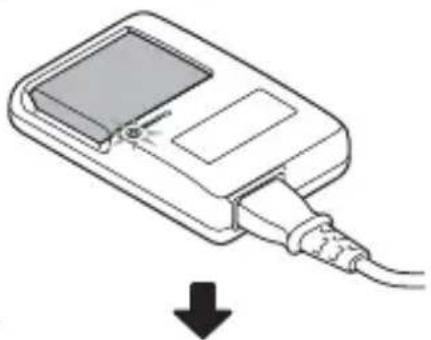
natural_image
Illustration of a handheld electronic device with a cable and plug, showing a downward arrow (no text or symbols)4 When the CHARGE indicator turns off, unplug the power cord from the power outlet, and remove the battery pack from the charger.

natural_image
Line drawing of a handheld electronic device with a cable and a screen, no text or symbols presentHINT
- Charging takes approximately 120 min.
CHARGING THE BATTERY PACK
Charging the battery pack
Be sure to fully charge the supplied or separately sold battery pack before using it in your camera. For charging the battery pack, use the supplied charger.
Charge the battery pack if it is being used for the first time, and recharge it whenever the remaining charge is low.
Does the battery pack feel hot?
- During charging, the charger and battery pack will be warm. This is normal and does not indicate a malfunction.
If there is interference to your TV or radio during charging...
- Move the battery pack and charger further away from the TV or radio.
Ambient temperature during charging
- It is recommended that the ambient temperature during charging be between about 10^ and 35^ (50 °F and 95 °F). Due to the characteristics of the battery pack, at temperatures below 0^ (32 °F), it may not be possible to sufficiently charge it. - When the battery pack temperature is high, the safety function may be activated and halt charging.
Charge a battery pack in the following cases
- A battery pack which has not been used for a long time
- Newly purchased battery pack
FOR AMERICAN USERS:
- Use a UL Listed, 1.8 to 3 m (6 to 10 ft.), Type SPT-2 or NiSPT-2, AWG No.18 power supply cord, rated for 125 V 7 A, with a non-polarized NEMA 1-15P plug rated for 125 V 15 A.
About the CHARGE indicator
The CHARGE indicator shows the status of the battery pack and the charger. Please refer to the following table if the indicator flashes abnormally.
| CHARGE indicator | |
| Not lit Not connected properlyTo recharge the battery pack, the power cord of the charger must be connected to a power outlet, and the plug at the other end inserted in the charger's power socket (page 8).The battery pack is not installed, or it is not installed correctly (page 8).Charging finished | |
| Lit Charging | |
| Flashing Problem with the battery pack or battery pack chargerImmediately remove the battery pack from the charger.Do not use an abnormal battery pack. (The usable life of the battery pack has probably expired.) |
CAUTION
Do not charge the battery pack immediately after the camera has been in continuous use for a long time
- The battery pack becomes hot when the camera is used continuously for a long time. If you attempt to charge the battery pack in this state, the safety function may be activated and it may not be possible to charge the battery pack. Wait until the battery pack has cooled down before attempting to charge it.
Does the battery pack appear swollen?
- The lithium-ion battery used in this camera may expand slightly when stored in a hot environment or repeatedly used, but this is not a safety hazard.
CHARGING THE BATTERY PACK
HINT
About the internal backup battery
- This camera's internal battery serves to maintain the date and time settings, as well as the shooting settings. The backup battery will be fully charged when the battery pack is kept in the camera continuously for about 2 days. In the fully charged state, the backup battery will maintain the camera settings for about 7 days.
When not using the camera for a long time, remove the battery pack
- A small amount of power is still used even if the digital camera is turned off, and it is therefore recommended that the battery pack be removed from the camera if it is not going to be used for a long time. Note that when the battery pack is removed for a long period, the time and date settings may be cleared. Before using your camera again, be sure to confirm that the camera settings are correct.
To prolong the life of the battery pack
- Although the battery pack is an expendable item, you can maximize the life of the battery by heeding the following suggestions.
- Do not leave the battery under the hot summer sun or exposed to other high-temperature environments.
- Do not continually recharge the battery when it is already fully charged. After fully charging it once, for example, use it for a while to partially discharge it before charging it again.
- When the battery is not to be used for a long time, if possible store the partially charged (not fully charged) battery in a cool environment.
INSTALL THE BATTERY PACK AND CARD
Installation
- Make sure that the battery pack and card orientation are correct.
- The card can be used after it has been formatted with the camera.
1

natural_image
Diagram of a device's internal structure with directional arrows indicating movement (no text or symbols)Open battery/card compartment cover on the bottom of the camera.
2
![[△] mark](/content/2026/06/1214061/images/a1e06345a9bc6336ca7ff3a79f49a935c4551f7081cf86980fdcdb1c11e5fb6c.jpg)
Insert the battery pack.
3

natural_image
Diagram of a device's internal structure showing a clip inserted into a folder (no text or symbols visible)Insert the card all the way until it clicks.
4

natural_image
Diagram of a device's internal component with an arrow indicating rotation (no text or symbols present)Close the battery/card compartment cover.
To remove...


INSTALL THE BATTERY PACK AND CARD
CAUTION
Do not remove the battery pack outer covering or label
- Do not use the battery with the outer covering or label removed, as doing so may result in malfunction.
Be careful when removing the card
- Do not attempt to forcibly remove the card.
- Never remove the card when the camera is connected to a computer or printer, or when the self-timer indicator is flashing quickly. In doing so, you risk losing the data stored in the card.
Keep your finger on the card until it is completely inserted or released
- If you remove your finger too soon, the card may spring out and become lost or hit someone in the eye.
HINT
Shooting without a card installed
- When a card is installed, images are recorded to and played back from the card. When no card is installed, images are recorded to and played back from the camera's internal memory. When the camera is turned on with no card installed, the internal memory icon is shown on the monitor to let you know that the images you capture will be saved to the camera's internal memory.
To format a card
1 Install the card in the camera. Turn on the camera (pages 12 and 16).
2 Display the menu (page 57).
3 Display the Option Menu (page 58).
4 Select "FORMAT" and press the SET button.
• The Format Screen appears. Follow the instructions on the screen to format the card.

natural_image
Line drawing of a digital camera module with labeled ports and screen (no text or symbols)MENU button

INSTALL THE BATTERY PACK AND CARD
Warning concerning battery pack temperature
- If the battery pack in the camera becomes too hot, a blinking temperature warning icon ⚡️ will appear on the monitor. If the blinking icon does appear, the camera should be turned off as soon as possible and the battery pack allowed to cool before the camera is turned on again.
- Note that the camera will turn off automatically if it continues to be used with the battery pack temperature elevated.
TURNING THE CAMERA ON AND OFF
Turning on the camera
In the recording mode
1 Press the ON/OFF button.
• The camera turns on.
• The camera turns on in the recording mode that was active before it was last turned off.
In the playback mode
1 Press the playback button [▶] for at least one second.
• The Playback Screen appears on the monitor (pages 30 and 38).
![ON/OFF button Playback button [▶] Monitor](/content/2026/06/1214061/images/6f3a23e7157f1802b74c44a52eaa7e6209fbde44722a25625afd40b9e08e393e.jpg)
Turning off the camera
1 Press the ON/OFF button.
• The camera turns off.
- When the playback button [▶] or ON/OFF button is pressed, the camera turns off.
TURNING THE CAMERA ON AND OFF
About the auto power off function
In order to preserve battery pack power when, for example, the camera has accidentally been left on, the camera is furnished with an “auto power off” function by which the camera automatically turns off after a certain period of inactivity (about 1 minute during shooting or about 3 minutes during playback [factory default settings]).
- If the auto power save function has operated to turn the camera off, press the ON/OFF button to turn it back on.
- You can change the setting for the time elapsed before the camera automatically turns off.
- When the camera is connected to a computer or printer using the dedicated USB interface cable, the auto power save function is disabled, and the camera turns off after about 12 hours.
HINT
If the Ⓤ? icon appears...
- When a picture is taken, the date and time it was captured is recorded with it. When the date and time cannot be recorded with the image because the date and time have not yet been set (page 18), the Ⓤ? icon appears. To have the date and time recorded with images, please make this setting before capturing images.
DATE AND TIME SETTING
The camera will record the date and time an image or audio recording is taken so that you can display them during playback. Therefore, before capturing images, make sure the correct date and time are set.
* To correct the date and time setting, please see under HINT on page 20.
Example: To set the clock to 7:30 p.m. on December 24, 2010
1 Turn on the camera (page 16), and press the SET button.
• The Clock Set Screen appears.
- Follow the procedures below to enable or disable the date display during playback, to set the display format for the date, and to set the date and time.
• To display the Recording or Playback Screen, press the MENU button 2 times.

2 Set the date.
①Select "DATE".
②Press the SET button.
• The Set Date Screen appears.
③Set the date to "2010/12/24".
- The date is set in the following order: Set the year Set the month Set the day.
- Press the [◀] or [▶] button to select year, month or day. Press the [▲] or [▼] button to increase or decrease the number.
④Press the SET button.

DATE AND TIME SETTING
3 Set the clock.
①Select "TIME".
②Press the SET button.
• The Set Time Screen appears.
③Set the time to "19:30".
• The time is set in the following order: Set the hour → Set the minute.
• A 24-hour clock is used for the time display.
④Press the SET button.

4 Set the order in which the date is displayed during playback.
①Select "DISP".
②Press the SET button.
• The Set Date Format Screen appears.
③ Press the [▲] or [▼] button.
- Press the [▲] button to change the displayed date order as follows:
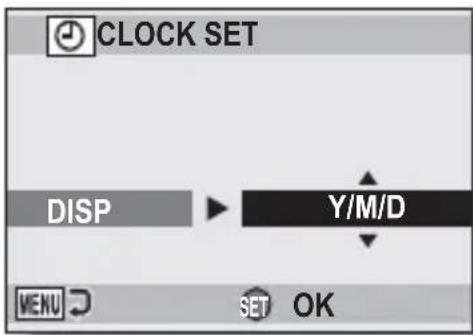

flowchart
graph LR
    A["→ Y/M/D → M/D/Y → D/M/Y"] --> B[" "]
Press the [▼] button to change it in the reverse order. ④Press the SET button.
5 Press the MENU button.
- The date and time setting is completed.
- To display the Recording or Playback Screen, press the MENU button.
HINT
About the settings backup
- Under normal conditions, while the battery pack is being replaced, an internal battery will maintain the date and time settings. However, there is a small chance the settings may be lost (the backup will last for about 7 days). It is recommended to check that the date and time settings are still correct after replacing the battery pack and before shooting or recording of any type (follow step 1).
To correct the date and time settings
①Turn on the camera, and press the MENU button.
② Select the [→] tab, and press the SET button.
③Select "CLOCK SET" and press the SET button.
- The screen to set the date and time appears.
- The current date and time settings are shown.
④Select the line you wish to change, and make the correction.
BEFORE TAKING PICTURES
Switching between the recording mode and playback mode
Switch between shooting and playing.
1 Press the ON/OFF button to turn the camera on.
2 Press the playback button [▶].
• Each time the playback button is pressed, the camera switches between the recording mode and the playback mode.


HINT
To turn the camera on in the playback mode
- Press the playback button [▶] for at least 1 second, and the camera will turn on in the playback mode.
21 English
How to switch the recording mode
Your camera can capture single still photos (single-shot mode), record video clips (video clip recording mode), and also capture a series of still photos (sequential shots mode).
1 Press the ON/OFF button to turn the camera on.
2 Press the [▶] button.
• The screen to set the recording mode and the self-timer appears.
3 Press the [▶] button to select the recording mode.
4 Press the SET button.
- The selected recording mode is set.
- An icon in the upper left area of the monitor indicates the active recording mode setting.
![ON/OFF button [▶] button SET button](/content/2026/06/1214061/images/c68743676f4f98ba00ed980907ab18db7b9141565b6819057556497f777e0bb1.jpg)

: Single-shot mode
: High-speed sequential shots mode
: Sequential shots mode
: Video clip recording mode
BEFORE TAKING PICTURES
Switching the display mode
In the recording mode, you can select the either the “settings display mode” which allows you to confirm the shooting settings on the monitor while you shoot, or the “normal display mode” in which the setting indications are turned off, providing a full view of the subject.
1 Press the ON/OFF button to turn the camera on.
2 Press the SET button.
• Each time the SET button is pressed, the camera switches between the settings display mode and the normal display mode.

23 English
Adjust the monitor brightness
The brightness of the monitor is adjustable. Adjust the brightness to the optimum readability in the ambient light.
1 Press the ON/OFF button to turn the camera on.
2 Press the MENU button for at least 1 second.
• The monitor brightness menu appears.
3 Press the [◀] and [▶] buttons to adjust the brightness.
4 Press the MENU button.
• The monitor brightness is set, and the monitor brightness menu is canceled.
![ON/OFF button MENU button [◀] and [▶] buttons Monitor](/content/2026/06/1214061/images/16dfe2e3201f1c355dbbfffbbaa8253f0f8374f8658d06c6fa22e4b10b67cdf4.jpg)
HINT
- You can also adjust the monitor brightness by selecting "BRIGHTNESS" from the Option Menu.
BEFORE TAKING PICTURES
Hints for taking pictures
Muting the camera sounds
- The operation sounds that are generated, for example, when the shutter button, MENU button or SET button is pressed, can be muted.
Where is the image data saved?
- All the image and sound data is recorded in the camera's internal memory or on the card installed in the camera.
- When a card is installed in the camera, the data is recorded on the card. If no card is installed, the data is recorded in the camera's internal memory.
Taking pictures in backlight conditions...
- When taking pictures with the light coming from behind the subject, due to the characteristics of the CCD, light lines or ghost patterns (flare effect) may appear in the captured image. In this situation, it is recommended that you avoid taking pictures with the subject lit from behind.
Switching the guidance display ON/OFF
- Press the [◀] button. Each time the [◀] button is pressed, the guidance display switches between ON and OFF.
![12M 149 149 Half-press shutter button to focus [◀] 12M](/content/2026/06/1214061/images/8026cddd13def5510c2b48e66f6ca8cd5a5b826ff0ea9f1f1a84550e1307aaa1.jpg)
HINT
- Images captured in the still image shooting mode can be rotated when they are played back.
- When the optical zoom is used or when the autofocus is operating, the image may appear to waver, but this is not a malfunction.
CAPTURING AND PLAYING BACK STILL IMAGES
There are two modes for capturing still images. In the single-shot mode, one image is captured each time the shutter button is pressed. In the sequential shots mode, when you press the shutter button, several successive images are captured. For more information about taking sequential shots, please see page 28.
Shooting single shots
1 Set the camera to the single-shot mode (page 22).
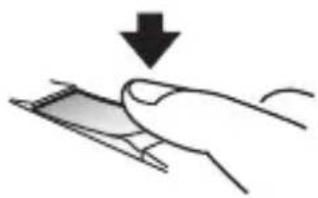
2 Rest your finger on the shutter button.
- Engage the autofocus by pressing the shutter button halfway (focus lock).
natural_image
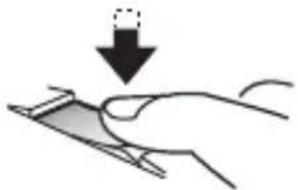
Hand holding a small object with a downward arrow indicating compression or disassembly (no text or symbols)3 Gently press the shutter button.
- Press the shutter button gently, taking care not to move the camera.
• The image that was captured appears on the monitor as long as the shutter button is kept pressed (post view).
natural_image
Illustration of a hand pressing down on a surface with a downward arrow (no text or symbols)
CAPTURING AND PLAYING BACK STILL IMAGES
4 Release your finger from the shutter button.
- The captured image is recorded.
HINT
About the target mark
- A target mark [] on the monitor shows the area the camera is focusing on.
- The camera automatically determines the correct focus by measuring from 9 different focus points within the shooting area. If the target mark is at a position that is different from the point you wish to focus on, you can refocus, for example, by changing the shooting angle.
- The large target mark appears when the camera focuses on a wide area in the center of the screen.
About the focus indicator
- A green focus indicator appears when the subject is successfully focused, or a red focus indicator when the camera was not able to focus the subject.
The shutter speed and aperture are displayed
- The shutter speed and aperture settings are also displayed on the monitor. You can use them as a reference when shooting.

Motion alert icon

If the motion alert icon appears...
- During still image shooting, if the shutter speed is slow and the possibility that the image may be blurred due to camera shake becomes high, the motion alert icon may appear on the monitor. In this case, use a tripod to stabilize the camera when shooting, or set the flash operation mode to automatic (page 50).
- When shooting with the fireworks 📄 scene function, the motion alert icon always appears, but this is normal.
Shooting sequential shots
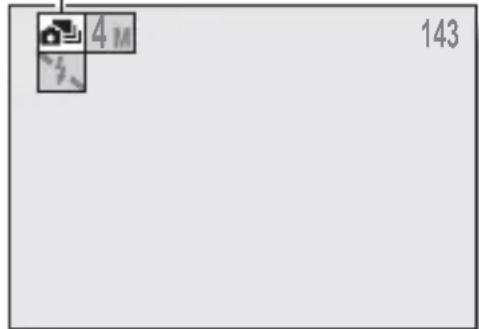
When the shutter button is pressed, still images are captured in succession.
1 Set the camera to the sequential shots mode or the high-speed sequential shots mode (page 22).

2 Press the shutter button to start shooting.
- Shooting sequential shots begins.
■ Estimated maximum number of sequential shots
| Resolution | Max. no. of shots |
| 12M Approx. 3 shots | |
| 9M | Approx. 4 shots |
| 6M Approx. 7 shots | |
| 4M Approx. 11 shots | |
| 2M Approx. 22 shots | |
| 0.3M Approx. 121 shots | |
| Resolution | Max. no. of shots |
| 4M Approx. 25 shots | |
- The quantities indicate the number of shots when the compression rate is set to .
- The maximum number of sequential shots will differ depending on the subject.
- Note that if the shutter button is released during shooting, shooting stops immediately.
CAPTURING AND PLAYING BACK STILL IMAGES
HINT
About the focus when shooting sequential shots
- When sequential shots are captured, the autofocus operates when the focus lock is activated, fixing the focus.
Can the self-timer and/or flash be used?
- The self-timer and flash do not operate when shooting sequential shots.
- The following scene functions cannot be set.

Viewing still images
The steps for viewing both single shots and sequential shots are the same.
1
Press the playback button

- If the playback button [▶] was pressed to turn the camera on, however, press the playback button [▶] for at least 1 second.
• The image most recently captured appears on the monitor.
Playback button [▶]

natural_image
Line drawing of a portable electronic device with ports and buttons (no text or symbols)2
View other images.
- Press the [◀] or [▶] button to display the previous or next image.
To display the previous image:
Press [◀].
To display the next image:
Press [▶].
• To return to the Shooting Screen, press the playback button [▶].
- When the playback button [▶] or ON/OFF button is pressed, the camera turns off.

When you are finished viewing images...
- Press the ON/OFF button to turn the camera off.
HINT
For still images with voice memo (pages 42 and 43)...
- When the shutter button is pressed, the voice memo is played back.
CAPTURING AND PLAYING BACK STILL IMAGES
9-image/20-image display playback
1 Press the playback button [▶].
2 Press [W] ([☐]) on the zoom switch.
• The 9-image display appears.
3 Select the image to play back.
- Press the arrow buttons to move the orange frame to the desired image, and press the SET button. Instead of pressing the SET button, you can press [T] ([○]) on the zoom switch to show the image full screen.
- If [W] ([☐]) on the zoom switch is pressed while the 9-image display is shown, the display changes to the 20-image display.
![Zoom switch [W]/[T] SET button Arrow buttons Video clip Still image Orange frame 100 0001 0002 0003 0004 0005 0006 0007 0008 0009 Image numberA Folder number](/content/2026/06/1214061/images/56c689cd7b7b08a3aea5dc01d840d88b8b82f471c6a4696a4966da8737b411ab.jpg)
31 English
Folder playback
A convenient way to search through multiple folders, or to search for an image that was recorded using Screen Capture.
1 Access the 9-image display screen (page 31).
2 Press [W] ([☐]) on the zoom switch 2 times.
- The screen to select the playback folder appears.
- If [T] ([○]) on the zoom switch is pressed, the camera changes to the 20-image display (page 31).

3 Select the desired folder, and press the SET button.
- The first image in the selected folder is displayed.
- At this time, if you press [W] ([☐]) on the zoom switch, the images in the selected folder are shown in the 9-image display.
CAPTURING AND PLAYING BACK STILL IMAGES
Magnifying (zooming in) the image
1 Display the image that you want to magnify.
2 Press [T] ([○]) on the zoom switch.
• Magnification is enabled.
- The image is magnified, and the central portion of image is displayed.
- Press the arrow buttons to view different parts of the magnified image.
To magnify:
Magnification increases with each press of [T] ([○]) on the zoom switch.
To go back:
Magnification decreases with each press of [W] ([☐]) on the zoom switch.
- Press the SET button to return to the normal (100%) view.

HINT
The magnified portion of the image can be saved as a separate image
- Press the shutter button. The magnified portion is saved as a new still image.
Zoom jump playback
You can magnify a portion of a still image to check the accuracy of the focus.
1 Display a still image to view using zoom jump playback.
2 Press the SET button.
• The image is magnified.
- If the magnified view appears to be in focus, then the overall image will be in focus.
3 Press the arrow buttons to move to the part you wish to magnify, and press [T] ([○]) on the zoom switch.
• The displayed area is further magnified.
To magnify further:
Magnification increases with each press of [T] ([○]) on the zoom switch.
To go back:
Magnification decreases with each press of [W] ([☐]) on the zoom switch.
- Press the SET button again to return to the normal size (100%) screen.
![Zoom switch [W]/[T] SET button Arrow buttons](/content/2026/06/1214061/images/1195779953e561adf01b969d0a93cc2bef1876cbce9ab8f64a84414f3e1acfdd.jpg)

1250%
Press shutter to save
SET 100%
Move

CAPTURING AND PLAYING BACK STILL IMAGES
Deleting files
You can delete files if you no longer need them. You can delete the files one at a time, or all at once.
1 To delete files from the card, perform the delete procedure with the card installed in the camera. To delete files from the camera's internal memory, remove the card before performing the delete procedure.
2 Set the camera to the playback mode, and press the [▲] button.
• The Delete Screen appears.
DELETE SINGLE:
Deletes one file at a time.
DELETE ALL:
Deletes all the files.

3 Delete the files.
① Use the [◀] and [▶] buttons to display the file you wish to delete.
② Press the [▲] or [▼] button to select "DELETE SINGLE".
- There is no confirmation screen when deleting single files. Before pressing the SET button in step ③, please make sure that the displayed image is one you wish to delete.
③Press the SET button.
- The currently displayed file is deleted.
- To delete other files, repeat steps ① to ③.
① Use the [◀] and [▶] buttons to view the images and check if it is OK to delete all the files.
② Press the [▲] or [▼] button to select "DELETE ALL".
③Press the SET button.
- The Delete Confirmation Screen appears. To delete the files, select "YES", and press the SET button. When the file delete is completed, "No image" is shown.
CAUTION
About protected images
- Files that are protected from accidental delete cannot be deleted. To delete protected files, set the protect setting for the file to off, and then follow the file delete procedure.
Recording a video clip
1 Set the camera to the video clip recording mode (page 22).
2 Press the shutter button.
• Video clip recording begins. During recording, the length of the video clip and the remaining recording time available are shown on the monitor.
- It is not necessary to continue pressing the shutter button while recording.
3 End the recording.
- Press the shutter button again to stop recording and save the video clip.

Playing back the video clip
4 Press the playback button [▶].
- If the playback button [▶] was pressed to turn the camera on, however, press the playback button [▶] for at least 1 second.
• The video clip just recorded appears on the monitor.
5 Press the SET button.
• Video clip playback begins.
• To stop playback, press the [▼] button.
![Playback button [▶] [▼] button SET button SET PLAY](/content/2026/06/1214061/images/c1064d4176ac4633fe90de8102ff2c5f5fcac0a5591c1991c57b44a7ad80d526.jpg)
Outline of playback operation
| To do this... Do this | ||
| Stop playback During | playback, press the [▼] button. | |
| Pause | During playback, press the SET button.During accelerated or slow playback, press the [▲] button. | |
| To extract a still image | While playback is paused, press the shutter button. | |
| To play back one image at a time (single-frame step) | Forward | While playback is paused, press the [►] button. |
| Reverse | While playback is paused, press the [◄] button. | |
| Slow playback | Forward | While playback is paused, press and hold the [►] button. |
| Reverse | While playback is paused, press and hold the [◄] button. | |
| To accelerate playback | Forward | During forward playback, press the [►] button.The playback speed changes each time the [►] button is pressed, as follows:Normal playback → 2x → 5x → 10x → 15xPress the [◄] button to resume normal playback speed. |
| Reverse | During forward playback, press the [◄] button.The playback speed changes each time the [◄] button is pressed, as follows:15x ← 10x ← 5xPress the [►] button to resume normal playback speed. | |
| Return to normal playback speed | Press the SET button. | |
| Adjusting the volume | Louder: During playback, press [T] on the zoom switch.Softer: During playback, press [W] on the zoom switch. | |
When you are finished viewing video clips...
- Press the ON/OFF button to turn the camera off.
CAUTION
How to save one frame from a video clip as a still image
①Play back the video clip. Pause the playback at the point you wish to "snap" a photo.
②Press the shutter button.
- The currently displayed frame is saved as a still image.
The data for a video clip is very large
- Therefore, be aware that if the video clip is uploaded to a computer to be played back, the computer may not be able to play back the video fast enough, making it appear jerky. (The video will always be displayed properly on the camera monitor.)
If video clip recording stops even when there is card memory remaining...
- Depending on the card you are using, recording may stop even if there is remaining memory in the card.
- For video clip recording, it is recommended that a high-speed memory card be used.
If no audio is heard...
- The audio is not played back when the video clip is played back in the frame-by-frame, slow playback, fast playback or reverse playback mode.
During video clip playback, the sound of a motor is audible...
- During recording, the sound of the optical zoom movement or autofocus movement was recorded. This is not a malfunction.
Does video clip playback stop when you adjust the volume?
- If you adjust the volume during video clip playback, the playback may temporarily pause. This is not a malfunction.
USING THE SCENE FUNCTION
You can select from a variety of preset settings (aperture, shutter speed, etc.) for specific shooting conditions.
1 Set the camera to the recording mode (page 21), and press the SCENE button.
- The screen to select a scene function appears.
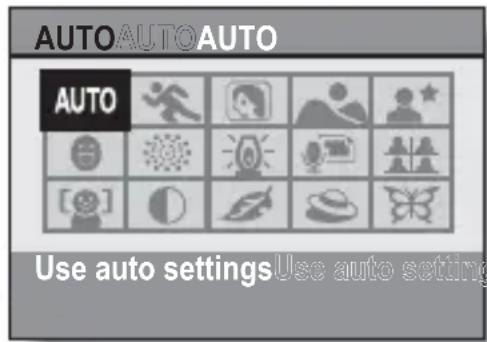
2 Use the arrow buttons to select the desired setting.
| Scene function Features | Recording mode setting | ||||
| AUTOAuto | The camera makes the optimum settings. | ○ | ○ | ○ | ○ |
| Sports | Capture a split-second image of a fast-moving subject. | ○ | ○ | ○ | ○ |
| Portrait | Enhance the three-dimensional feel of the subject by blurring the background. (With face chaser function) | ○* | ○* | ○* | ○* |
| Landscape | For beautiful shots of distant scenery. | ○ | × | × | ○ |
| Night view portrait | Photograph the subject while keeping the background night scenery. | ○ | × | × | ○ |
| Smile detection | Capture a photo at the instant the subject smiles. | ○ | × | × | × |
| Fireworks | For capturing fireworks at night. | ○ | × | × | ○ |
41 English
| Scene function Features | Recording mode setting | ||||
| Lamp | Photograph in low-light conditions. | ○ | × | × | ○ |
| Still image with audio | Shoot a still image and add a voice memo. | ○ | × | × | × |
| Best shot | Four successive still images are captured as the exposure changes. | ○ | × | × | × |
| Face chaser | The subject's face is kept in focus and the exposure adjusted as the image is captured. | ○ | ○* | ○* | ○* |
| Monochrome | Create black-and-white photos. | ○ | ○ | ○ | ○ |
| Sepia | Create sepia-tone photos. ○ | ○ | ○ | ○ | |
| Contrast | Accentuates the light and dark areas in the image. | ○ | ○ | ○ | ○ |
| Vivid | Accentuates the colors in the image. | ○ | ○ | ○ | ○ |
○: Available ×: Not available
*: Disabled during recording
3 Press the SET button.
- This completes the scene select setting.
- The display returns to the Shooting Screen.
- The scene function setting is shown on the monitor.

Scene function setting
(AUTO is not displayed)
USING THE SCENE FUNCTION
Capture a still image with a voice memo
With the still-image-plus-audio 📄 scene function, you can add an audio track (about 10 seconds maximum) to a captured still image. This audio track is called a “voice memo”.
1 On the screen to select a scene function (page 41), select 📄, and press the SET button.
2 Press the shutter button to take the picture, then speak into the microphone.
- During recording, be careful not to obstruct the microphone with your fingers, for example.
- Audio recording begins. During recording, the length of the audio track and the remaining recording time available are shown on the monitor.
- The maximum recording time for a voice memo is about 10 seconds.
- To end the recording before 10 seconds has elapsed, press the shutter button.

How to use the best shot feature
1 Set the camera to the single-shot mode; on the screen to select a scene function (page 41), select ☐; and press the SET button.
2 Press the shutter button.
- While the settings change, four still images are shot in sequence.
• After the images are captured, the four still images are displayed on the monitor.
- With all four images showing on the monitor, press the MENU button.
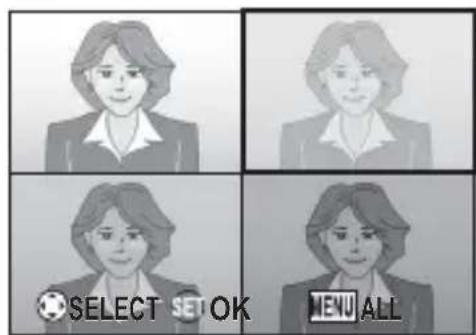
3 Use the arrow buttons to move the orange frame to the image you wish to save.
- For a full-size view of the selected image, press the SET button.
- With the full-size view active, you can use the [◀] and [▶] buttons to view the previous or next image.
• To return to the screen in step 2, press the MENU button.
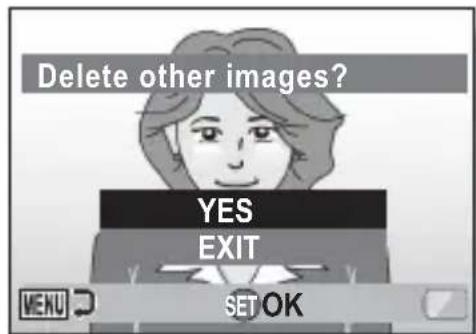
4 With the full-size view of the image you wish to save, select "YES", and press the SET button.
• The image currently displayed is saved, and the other images are deleted.
USING THE SCENE FUNCTION
How to use the face chaser feature
To attain the best possible face shots, the camera automatically focuses on the face and adjusts the exposure.
1 On the screen to select a scene function (page 41), select [icon], and press the SET button.
2 Aim the camera lens at the subject.
- The camera searches for the subject's face. When it detects the face, a green frame appears.
- Do not touch the shutter button while the camera is searching. The camera cannot search when the autofocus is activated.
Green frame

natural_image
Illustration of a person's face with camera and magnifying glass overlays (no text or symbols)3 The focus locks on the subject (page 26).
• The camera focuses on the subject and the exposure is adjusted.
- When the face is in focus, the green frame changes to orange.
4 Press the shutter button.
• The image is captured.
CAUTION
• The digital zoom is disabled.
- The face chaser function does not work when zooming in or out.
- The face chaser function may not work when the subject's face in the monitor is relatively small or appears dark.
For images captured using the face chaser feature
- On the Playback Screen, when zooming in, the face that was defined by the double frame during capture becomes the zoom center.
45 English
How to shoot using Smile Detection
Capture a photo at the instant the subject smiles.
Normal shooting
1 On the screen to set the scene function (page 41), select ☑, and press the SET button.
2 Aim the camera lens at the subject.
- The camera searches for the subject's face. When it detects the face, a green frame appears. The image is automatically captured when the subject smiles.
Selecting the shooting area of the desired subject
From the multiple faces, select the area that frames the targeted face, and capture the image when the selected subject smiles.
1 On the screen to set the scene function (page 41), select ☑, and press the SET button.
2 Aim the camera lens at the subject.
3 Press the SET button.
- An orange frame appears, and the screen for you to select the area that encompasses the target subject's face appears.
USING THE SCENE FUNCTION
4 Use the arrow buttons to move the orange frame to the area that encompasses the target subject's face.
5 Press the SET button.
- The orange frame changes to yellow, and the Smile Detection area is fixed.
- The camera adjusts the focus and exposure for the framed face.
- When the face is in focus, the green frame changes to a double frame.
- The image is automatically captured when the subject in the selected area smiles.
HINT
The camera can't detect the smiling face?
- The camera cannot detect the subject's smile when zooming in or out.
- Smile Detection may not work accurately when the face in the monitor appears small or dim.
For best results with Smile Detection
- Smile Detection works best when the subject is directly facing the camera and showing his/her teeth when smiling.
Can't use the self-timer?
- The self-timer cannot be used with Smile Detection.
To cancel Smile Detection...
- Select a different scene function.
OTHER RECORDING FUNCTIONS
Using the zoom
Your camera has two zoom functions: optical zoom and digital zoom.
1 Set the camera to the recording mode (page 21), and point the camera lens at the subject.
2 Press the zoom switch to compose the desired image.
[T]: Zoom in on the subject.
[W]: Zoom out.
- When the zoom switch is pressed, the zoom bar appears on the monitor.
- When the optical zoom factor is at maximum, zooming stops temporarily. When [T] on the zoom switch is pressed again, the mode changes to the digital zoom mode and zooming continues.
3 Take the picture.
![Zoom switch [W]/[T] Monitor When both optical and digital zoom are enabled Zoom bar Pointer Optical zoom Digital zoom (yellow) When optical zoom only is enabled](/content/2026/06/1214061/images/72a9bda9f1f5c6afd3e88bb1760a50274fbaa047a5e8b969543829000033f69d.jpg)
OTHER RECORDING FUNCTIONS
HINT
Can't access the digital zoom?
- The digital zoom cannot be used when the face chaser [icon], smile detection [icon] or portrait mode [icon] scene function is active, or the focus mode is set to AF seeker [AF].
Can't access the optical zoom?
- When the focus range is set to pan PF or during video clip recording, the optical zoom cannot be used.
Flash setting
The flash is used not only for taking pictures where there is insufficient light, but also when the subject is in shade or in backlight conditions. Your camera's flash has four modes of operation (auto mode, forced flash mode, flash off mode and red-eye reduction mode). Select the flash mode that is appropriate for the surrounding conditions. The flash can be enabled only when taking single-shot still images.
1
Set the camera to the single-shot mode (page 22), and press the [▲] ( ♣ ) button.
• The flash menu appears.
A: The camera will detect the subject brightness and use the flash only when required. In a backlight situation, if only the center of the image is very dark, the flash will operate to compensate (auto).
The flash will operate with every image captured regardless of the conditions. Use this setting under backlight conditions, when the subject is in shade, under fluorescent lighting conditions, etc. (forced flash).
: The flash will not operate even in dark situations. Use this setting when capturing an image in a location where flash photography is prohibited, or when shooting a night landscape scene (flash off).
The digital camera will detect the subject brightness and use the flash only when required. At this time the flash will operate in a manner that reduces the red reflection (“red-eye”) in the subject’s eyes (red-eye reduction).
![[▲] ( ⚡ ) button FLASH AUTO Flash menu](/content/2026/06/1214061/images/7aa6c425215200770ebc34b2c52e865d37a1b0f56b3ea1c65d289138d443e56f.jpg)
OTHER RECORDING FUNCTIONS
2 Press the [▲] or [▼] button to select the desired flash mode, and press the SET button.
3 Press the shutter button.
- The picture is snapped and the flash operates according to the selected mode.
HINT
When auto is selected...
- The ⚠A icon indicating the flash setting is not shown on the Shooting Screen.
When auto or red-eye reduction is selected...
- When the shutter button is pressed, if the camera determines that the flash is necessary, a ⏻A or ⏻icon appearing on the monitor indicates that the flash will operate.
Self-timer
Self-timer photography is available in the single-shot mode.
1 Set the camera to the single-shot mode (page 22), and press the [▶] () button.
• The self-timer menu appears.
_2 : The image is captured about 2 seconds after the shutter button is pressed.
10: The image is captured about 10 seconds after the shutter button is pressed.
2 Use the [▲] and [▼] buttons to select the desired self-timer setting, and press the SET button.
• The self-timer is set, and you are returned to the Shooting Screen.
![[▶] () button PHOTOGRAPH 1 IMAGE Self-timer menu](/content/2026/06/1214061/images/310209fcd01522367f23132d189eeed85497cd112dd055a7cb490c92fb04ec10.jpg)
OTHER RECORDING FUNCTIONS
HINT
- The countdown time until shutter release is shown graphically on the monitor.

pie
| Segment Color | Value | |---|---| | Dark Black | 1/102 | | Light Grey | 12M | | Dark Grey | 1/102 | F5.2To pause or cancel the self-timer function...
- If the shutter button is pressed again before the shutter is released, the self-timer countdown temporarily stops. Press the shutter button one more time to restart the self-timer.
- To cancel self-timer photography, set the self-timer setting to off
- After the self-timer picture is snapped, the self-timer is automatically reset to off.
When 10 is selected...
- When the shutter button is pressed, the self-timer indicator flashes for approximately 10 seconds, after which shooting begins.
- About 3 seconds before shooting, the self-timer indicator flashes faster.
Self-timer indicator

natural_image
Line drawing of a digital camera with lens and screen (no text or symbols)1
Set the camera to the recording mode (page 21), and press the [▼] (♥) button.
• The focus range menu appears.
PF: The focus operates within the ranges shown below (pan).
- At maximum aperture setting: 2.5 m (8.20 ft.) to ∞
- At minimum aperture setting: 2 m (6.56 ft.) to ∞
- Wide end:
At maximum aperture setting: 80 cm (31.50 in.) to ∞ At minimum aperture setting: 52 cm (20.47 in.) to ∞ - Tele end:
At maximum aperture setting: 3.3 m (10.83 ft.) to At minimum aperture setting: 2.2 m (7.22 ft.) to

The camera automatically focuses on the subject within a range of 10 cm (3.94 in.) (Wide end) or 60 cm (23.62 in.) (Tele end) to infinity (auto).

You can focus on a subject within the following ranges (macro): Wide end: 5 cm (1.97 in.) to 80 cm (31.50 in.) Tele end: 60 cm (23.62 in.) to 80 cm (31.50 in.)
MF: The focus can be manually set to any distance from 5 cm (1.97 in.) to 8 m (26.25 ft.), as well as to infinity (manual).
[▼] ( flower ) button

natural_image
Line drawing of a digital camera module with no visible text or symbols

Focus range menu
OTHER RECORDING FUNCTIONS
2 Press the [▲] or [▼] button to select the desired focus range, and press the SET button.
- The specified focus range is set, and the camera returns to the Shooting Screen.
HINT
- In the single-shot mode and sequential shots mode, when the focus range is set to macro 🖱️, the zoom is automatically set to one step from the wide end. When the focus range is set to pan PF, the zoom is automatically set to the Wide end.
How to use the manual focus
1 Select manual MF from the focus range menu, and press the SET button.
- The focus distance adjustment bar appears.
2 Press the [◀] or [▶] button to adjust the focus distance, and press the SET button.
- The focus distance is set, and you are returned to the Shooting Screen.

HINT
About the focus range
- The focus distance indication shows the distance between the lens surface and the subject.
- In some cases there may be a slight variance between the distance (numerical figure) you set in the manual focus mode and the actual distance. Use the monitor to confirm the focus and compose the photo.
About zoom movement when using the manual focus
- If the focus distance is set to 50 cm (19.69 in.) or less, the zoom changes to the largest setting that is suitable for that focus distance.
- When the focus distance is set to 50 cm (19.69 in.) or less, the zoom will function only within the range at which the image is focused.
ACCESSING THE MENUS
Detailed camera settings are accessed from the menus.
How to display the menus
1 Turn on the camera, and set it to the recording or playback mode.
- Set the camera to the recording mode to display the Recording Menu, or the playback mode to display the Playback Menu.
2 Press the MENU button.
- The menu for the mode specified in step 1 appears.
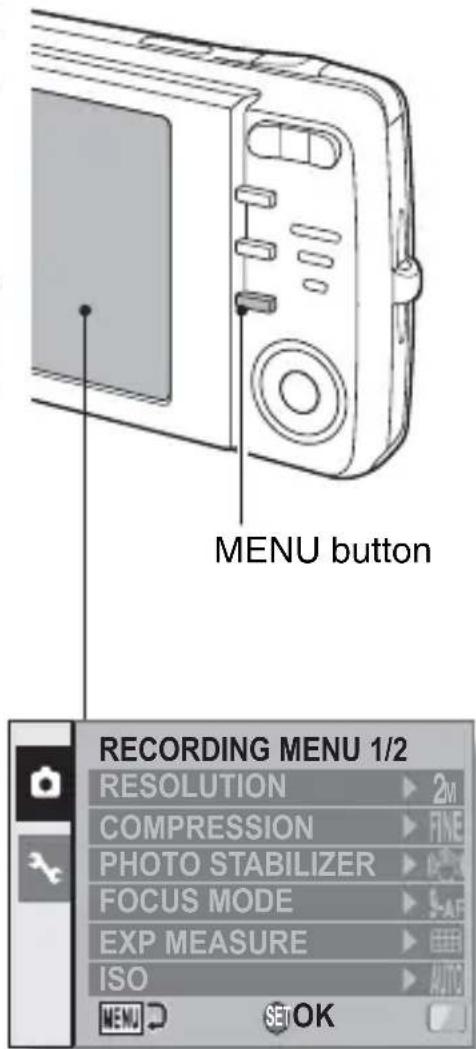
Exit the menu
Press the MENU button to exit the menu.
How to operate the menus
Use the arrow buttons to select the item you wish to change, press the SET button, and the corresponding screen will appear.
1 Display the menu (page 57).
2 Select the or ▶ tab.
Display the Recording Menu:
Select the tab.
Display the Playback Menu:
Select the ▶ tab.
Display the Option Menu:
Select the 📄 tab.
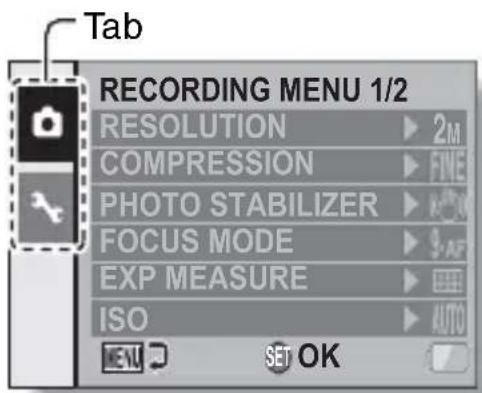
3 Press the [▶] button.
4 Press the [▲] or [▼] button to select an item to set.

5 Press the SET button.
• The Setting Screen appears.
- Press the [▲] or [▼] button to select the desired setting, and then press the SET button to complete the setting.
• To cancel the menu, press the MENU button.
![RESOLUTION ✓ 12M 4000 x 3000 9M 4000 x 2256[16:9] 6M 2816 x 2112 4M 2288 x 1712 2M 1600 x 1200 0.3M 640 x 480 MENU SET OK](/content/2026/06/1214061/images/8b341747d4775eb334bbf24355000ae47495cc25325e73a2272336e1b42f29cf.jpg)
SPECIFICATIONS
Camera
| Image file format | Still images: JPEG format (DCF, DPOF, Exif 2.2 compliant)Note: Designed mainly by the Japan Electronics and Information Technology Industries Association (JEITA), DCF (Design rule for Camera File system) is standard for digital still camera image files to provide interoperability between digital photography devices for the images stored on removable memory cards. However, it is not guaranteed that all devices will support the DCF standard.Video clips:QuickTime Movie (Photo-JPEG)Audio recordings:WAVE format (monaural) |
| Data storage media Internal memory: Approx. 50 MBExternal memory: SD Memory Card(equivalent to a 32 GB SDHC Memory Card) | |
| Camera effective number of pixels | Approx. 12.1 million pixels |
| Image sensor 1/2.3-inch (1.1 cm) CCDVirtual number of pixels: Approx. 12.5 million pixels, interlace scan, primary color filter | |
| Recording resolutionimage shooting>12M: 4000 × 3000 pixels9M: 4000 × 2256 pixels (16:9 aspect ratio)6M: 2816 × 2112 pixels4M: 2288 × 1712 pixels2M: 1600 × 1200 pixels0.3M: 640 × 480 pixels | image shooting>12M: 4000 × 3000 pixels9M: 4000 × 2256 pixels (16:9 aspect ratio)6M: 2816 × 2112 pixels4M: 2288 × 1712 pixels2M: 1600 × 1200 pixels0.3M: 640 × 4 80 pixels |
| image shooting>TV: 640 × 480 pixels, 30 frames/secondWEB: 320 × 240 pixels, 15 frames/second | |
| White balance Full-auto TTL; manual setting available | |
| Lens 3.0× optical | zoom lens | f=6.3 mm to 18.9 mm(35 mm film cameraconversion: 35 mm to105 mm)Autofocus, 5 groups,6 elements (4 with aspheric surfaces) |
| Aperture Open F=3.1 (Wide) to 5.9 (Tele) | ||
| Exposure control type Programmable AEExposure correction available from theRecording Menu (0±1.8EV in 0.3EV steps) | ||
| Light-measuring modes Multi-section measuring, center-weightedmeasuring, spot measuring | ||
| Range | Normal photography: 10 cm (3.94 in.) to∞(Wide), 60 cm (23.62 in.) to∞ (Tele)Macro photography: 5 cm (1.97 in.) to 80 cm(31.50 in.) (Wide), 60 cm (23.62 in.) to 80 cm(31.50 in.) (Tele) | |
| Digital zoom For shooting: 1× to 4×For playback: 1× to 62.5× (varies with resolution) | ||
| Shutter speed Single-shot mode: 1/2 to 1/1,500 sec.(Maximum approx. 2 seconds when thescene function is set to fireworks etc.)(During flash: 1/30 to 1/1,500 sec.)Sequential shots mode:1/2 to 1/1,500 sec.Video clip recording mode:1/30 to 1/2,500 sec. | ||
| Sensitivity (standardoutput sensitivity) | Single-shot mode/sequential shots mode(standard output sensitivity):Auto (ISO 64 to 400)/ISO 64, ISO 100,ISO 200, ISO 400, ISO 800, ISO 1600,ISO 3200, and ISO 6400 (switchable fromRecording Menu)Video clip recording mode:Auto (ISO 384 to 2400)* Sensitivity measured in compliance withthe ISO standard (ISO 12232:2006). | |
SPECIFICATIONS
| Monitor 2.7-inch (6.9 cm) | TFT color LCDApprox. 230,000 pixels(Frame coverage: Approx. 100%)Brightness adjustment: 5-step | |
| Flash working range GN = | 5.2Approx. 60 cm (23.62 in.) to 3.3 m (10.83 ft.)(Wide)Approx. 60 cm (23.62 in.) to 1.7 m (5.58 ft.)(Tele) | |
| Flash modes Auto-flash, forced flash, flash off, red-eye reduction | ||
| Focus TTL-type AF (9-point range finder/spot focus/AF seeker), manual focus (14 steps) | ||
| Self-timer Approx. 2-second delay, 10-second delay | ||
| Ambient environment | Temperature | 0 to 40 °C (32 to 104 °F) (operation),-20 to 60 °C (-4 to 140 °F) (storage) |
| Humidity 30 | to 90% (operating, no condensation)10 to 90% (storage, no condensation) | |
| Power supply Lithium-ion battery pack (DB-L80) × 1 | ||
| Dimensions (at narrowest part, not including grip or lens protrusion) | 92.8 (W) × 55.2 (H) × 17.0 (D) mm3.65" (W) × 2.17" (H) × 0.67" (D) | |
| Weight Approx. 97 g (3.42 oz.) (camera only [without battery pack and card])Approx. 114 g (4.02 oz.) (including battery pack and card) | ||
Camera connectors
| USB/AV(communication/audio and video output) terminal | Dedicated regrouped jack | |
| Audio output | 180 mVrms (-12 dBs), 2.2 kΩ or less, monaural | |
| Video output | 1.0 Vp-p, 75 Ω unbalanced, sync negative, composite video, NTSC color TV system/PAL TV system (switchable from the Option Menu) | |
| USB USB | 2.0 Full SpeedPC camera: USB video class | |
Battery life
| Maximum recording time 170 | images:CIPA standard (when a Toshiba 128 MB SD Memory Card is used) |
| Maximum playback time 310 | minutes:LCD monitor on, continuous playback |
- Until battery pack runs out when using a fully charged battery pack at a 25 °C (77 °F) ambient temperature.
- The operation time may vary depending on the conditions of the battery pack and the conditions of use. Especially when used at temperatures below 10 °C (50 °F), the battery pack operation time is drastically reduced.
Possible Number of Images/Video Recording Time/Audio Recording Time
| Recording mode setting | Resolution setting | Compression rate setting | Internal memory | SD Memory Card | |
| 2 G B 8 G B | |||||
| Single-shot mode/ Sequential shots mode |  |  |  | 502 images 1,960 |  |
| NORM | 19 images | 754 images 2,950 | images | ||
| [2T83] |  | 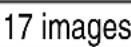 | 665 images 2,600 |  | |
| NORM | 25 images | 997 images 3,900 | images | ||
 | FINE |  | 1,010 images 3,970 |  | |
| NORM | 38 images | 1,500 images 5,900 | images | ||
  [IMAGE] [IMAGE] | [ABTT] | 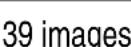 | 1,500 images 5,90 |  | |
 | 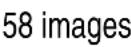 | 2,200 images 8,65 |  | ||
 |  |  | 3,090 images 12,1 |  | |
 |  | 4,410 images 17,3 | [DD68] | ||
| [6ST5] | FINE | 399 images | 15,400 images 60, | 500 images | |
| NORM | 532 images | 20,600 images 80, | 700 images | ||
| Video clip recording mode |  |  |  | 18 min. 10 sec. |  |
 |  | 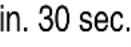 | 1 hr. 36 min. 6 hr. |  | |
| Audio file mode | [2DZ5] |  | 26 m  | 17 hr. 10 min. 67 |  |
- Up to 9 hours of continuous audio recording is possible.
- When recording a video clip using an 8 GB card, recording terminates when the size of the file currently being recorded reaches approx. 4 GB.
- The values were determined using an SD Memory Card by Sandisk.
- Even with cards of the same capacity, the amount of data that can actually be stored may differ depending on the card brand, etc.
- The continuous shooting time for each video clip will differ depending, for example, on the card capacity, environmental conditions (temperature and shooting conditions, etc.).
Supplied battery pack charger
| Part No. VAR-L80 | ||
| Power source | AC 100 to 240 V, 50 to 60 Hz, 5 W | |
| Rated output DC 4.2 V, 550 mA | ||
| Compatible batteries Supplied | or separately sold Lithium-ion battery pack (DB-L80) | |
| Ambient environment | Temperature | 0 to 40 °C (32 to 104 °F) (recharge), -20 to 60 °C (-4 to 140 °F) (storage) |
| Humidity 20 to | 80% (no condensation) | |
| Dimensions | 84 (W) × 22.5(H) × 50.5 (D) mm3.31" (W) × 0.89" (H) × 2.00" (D) | |
| Weight (without power cord) Approx. 49 g (1.73 oz.) | ||
| Power cord rated value | VPC-X1250 AC 125 V, 7 A | |
| VPC-X1220EX | AC 250 V, 2.5 A | |
- The VPC-X1220GX and VPC-X1220PX models are supplied with a power cord that is appropriate for the region of destination.
- When using the supplied battery pack charger abroad, the power cord may need to be replaced in accordance with local requirements. Please contact your local dealer for details.
Supplied Li-ion battery pack
| Model number DB-L80 | ||
| Voltage 3.7 V | ||
| Capacity | 700 mAh | |
| Ambient environment | Temperature | 0 to 40 °C (32 to 104 °F) (during use)-10 to 30 °C (14 to 86 °F) (storage) |
| Humidity 10 to | 90% (no condensation) | |
| Dimensions | 39.2 (W) × 5.9 (H) × 31.4 (D) mm1.54 (W) × 0.23 (H) × 1.24 (D) in. | |
| Weight | Approx. 15 g (0.5 oz.) | |
SPECIFICATIONS
Others
Mac OS and QuickTime are trademarks of Apple Inc., registered in the U.S. and other countries.
Microsoft and Windows are registered trademarks of Microsoft Corporation in the USA and other countries.
Intel and Pentium are registered trademarks of Intel Corporation (USA). In this manual, the Microsoft ^® Windows ^® 2000 operating system, Microsoft ^® Windows ^® XP operating system, Microsoft ^® Windows ^® Vista operating system, and Microsoft ^® Windows ^® 7 operating system are collectively referred to as “Windows”.
SDHC logo is a trademark.

All other company and product names are registered trademarks or trademarks of their respective owners.
CAUTION
- It is forbidden to copy this manual, whole or in part, without prior written permission.
- All images and illustrations given in this manual are for explanation purposes and may differ slightly from that of the actual product. Also, actual specifications are subject to change without prior notice and therefore may differ from the contents of this manual.
Before capturing those important shots, be sure to first take a test shot to confirm that your camera is set up and ready to go
- Sanyo Electric shall not be held responsible for any problems resulting from the use of this camera.
- Sanyo Electric declines all responsibility for damages due to improper use of the camera, failure to adhere to the instructions given in this manual, or repairs or changes done by those other than a technician authorized by the manufacturer.
- Sanyo Electric shall not be held responsible for any damage caused by optional devices or consumable items used with the camera other than those supplied with the camera or those specified by Sanyo Electric.
- Sanyo Electric shall not be held responsible for any losses or loss of revenue resulting from the loss of data caused by the malfunction, or the repairing of a malfunction, of the camera.
- The images captured with this camera will differ in quality from pictures taken with a standard film camera.

SANYO Electric Co., Ltd.
- INSTRUCTION MANUAL BASICS
- VPC-X1220EX VPC-X1250 VPC-X1220GX VPC-X1220PX
- Important note
- Warning
- ■FOR AMERICAN USERS
- WARNING:
- Declaration of Conformity
- i English
- FOR USERS IN THE USA
- IMPORTANT SAFETY INSTRUCTIONS – SAVE THESE INSTRUCTIONS DANGER – TO REDUCE THE RISK OF FIRE OR ELECTRIC SHOCK, CAREFULLY FOLLOW THESE INSTRUCTIONS
- • Power Supply Cord:
- ■FOR EU USERS
- Note:
- SANYO Sales & Marketing Europe GmbH
- SANYO Electric Co., Ltd.
- ■FOR RUSSIAN USERS
- HOW TO READ THIS MANUAL
- SETUP
- ■BASIC OPERATION
- ■APPENDICES
- ■Symbols used in this manual
- ■How to view the “INSTRUCTION MANUAL: ADVANCED” and “SANYO Software Pack INSTRUCTION MANUAL” files
- SHOOT, PLAY BACK AND SAVE
- Install the battery pack
- Use the supplied charger to charge the battery pack.
- Open the battery/card compartment cover, and insert the battery pack.
- Before capturing those important shots, be sure to first take a test shot to confirm that your camera is set up and ready to go
- Shooting
- Press the [▶] button.
- Press the [◀] or [▶] button to select the recording mode.
- Press the SET button.
- Press the shutter button. Single-shot mode:
- Playback
- ■Still image playback
- Press the playback button [▶].
- ■Video clip playback
- Press the SET button.
- When you are finished taking pictures...
- Copying files to a computer (Windows XP)
- Install the software.
- Use the supplied USB interface cable to connect your camera to the computer.
- Select "COMPUTER", and press the SET button.
- Select "CARD READER", and press the SET button.
- Double-click on the desktop [MedialImpression 2] icon to launch MedialImpression 2.
- Click on [Import].
- HINT
- You can specify which folder to copy the files to.
- Click on [Import].
- When copying is completed, click on [Done].
- Click on the close button to exit MedialImpression 2 and end the program.
- More about MedialImpression 2
- Dismounting the camera
- CAUTION
- Left-click on the icon for safely removing hardware.
- Left-click on the camera drive (E:).
- Insert and pull out the cable carefully
- CONTENTS
- ■ BASIC OPERATION
- English
- ■ APPENDICES
- CHECKING THE INCLUDED ACCESSORIES
- English
- Attaching the handstrap
- Media cards that can be used with this camera
- What "card" means in this manual
- Installing/removing the DC adaptor (Model VAR-A3: sold separately)
- Attaching the DC adaptor
- Removing the DC adaptor
- English
- PARTS NAMES
- English
- CHARGING THE BATTERY PACK
- Connect the supplied power cord to the socket on the battery pack charger.
- Insert the battery pack in the battery charger.
- Plug the power plug into a power outlet (AC 100 V to 240 V).
- When the CHARGE indicator turns off, unplug the power cord from the power outlet, and remove the battery pack from the charger.
- Does the battery pack feel hot?
- If there is interference to your TV or radio during charging...
- Ambient temperature during charging
- Charge a battery pack in the following cases
- FOR AMERICAN USERS:
- About the CHARGE indicator
- Do not charge the battery pack immediately after the camera has been in continuous use for a long time
- Does the battery pack appear swollen?
- About the internal backup battery
- When not using the camera for a long time, remove the battery pack
- To prolong the life of the battery pack
- INSTALL THE BATTERY PACK AND CARD
- Installation
- Do not remove the battery pack outer covering or label
- Be careful when removing the card
- Keep your finger on the card until it is completely inserted or released
- Shooting without a card installed
- To format a card
- Warning concerning battery pack temperature
- TURNING THE CAMERA ON AND OFF
- Turning on the camera
- In the recording mode
- Press the ON/OFF button.
- In the playback mode
- Press the playback button [▶] for at least one second.
- Turning off the camera
- About the auto power off function
- DATE AND TIME SETTING
- Turn on the camera (page 16), and press the SET button.
- Set the date.
- Set the clock.
- Set the order in which the date is displayed during playback.
- Press the MENU button.
- About the settings backup
- To correct the date and time settings
- BEFORE TAKING PICTURES
- Switching between the recording mode and playback mode
- To turn the camera on in the playback mode
- English
- How to switch the recording mode
- Press the ON/OFF button to turn the camera on.
- Press the [▶] button.
- Press the [▶] button to select the recording mode.
- Press the SET button.
- Switching the display mode
- English
- Adjust the monitor brightness
- Hints for taking pictures
- Muting the camera sounds
- Where is the image data saved?
- Taking pictures in backlight conditions...
- Switching the guidance display ON/OFF
- CAPTURING AND PLAYING BACK STILL IMAGES
- Shooting single shots
- Release your finger from the shutter button.
- About the target mark
- About the focus indicator
- The shutter speed and aperture are displayed
- If the motion alert icon appears...
- Shooting sequential shots
- About the focus when shooting sequential shots
- Can the self-timer and/or flash be used?
- Viewing still images
- 1
- Press the playback button
- 2
- View other images.
- When you are finished viewing images...
- 9-image/20-image display playback
- Press [W] ([☐]) on the zoom switch.
- Select the image to play back.
- English
- Folder playback
- Access the 9-image display screen (page 31).
- Press [W] ([☐]) on the zoom switch 2 times.
- Select the desired folder, and press the SET button.
- Magnifying (zooming in) the image
- Display the image that you want to magnify.
- Press [T] ([○]) on the zoom switch.
- To magnify:
- To go back:
- Zoom jump playback
- Display a still image to view using zoom jump playback.
- Press the arrow buttons to move to the part you wish to magnify, and press [T] ([○]) on the zoom switch.
- To magnify further:
- Deleting files
- About protected images
- Recording a video clip
- Playing back the video clip
- Press the playback button [▶].
- Press the SET button.
- When you are finished viewing video clips...
- How to save one frame from a video clip as a still image
- The data for a video clip is very large
- If video clip recording stops even when there is card memory remaining...
- If no audio is heard...
- During video clip playback, the sound of a motor is audible...
- Does video clip playback stop when you adjust the volume?
- USING THE SCENE FUNCTION
- Set the camera to the recording mode (page 21), and press the SCENE button.
- Use the arrow buttons to select the desired setting.
- English
- Capture a still image with a voice memo
- How to use the best shot feature
- How to use the face chaser feature
- For images captured using the face chaser feature
- English
- How to shoot using Smile Detection
- Normal shooting
- Selecting the shooting area of the desired subject
- Use the arrow buttons to move the orange frame to the area that encompasses the target subject's face.
- The camera can't detect the smiling face?
- For best results with Smile Detection
- Can't use the self-timer?
- To cancel Smile Detection...
- OTHER RECORDING FUNCTIONS
- Using the zoom
- Flash setting
- Self-timer
- Set the camera to the single-shot mode (page 22), and press the [▶] () button.
- Use the [▲] and [▼] buttons to select the desired self-timer setting, and press the SET button.
- To pause or cancel the self-timer function...
- When 10 is selected...
- Press the [▲] or [▼] button to select the desired focus range, and press the SET button.
- How to use the manual focus
- Select manual MF from the focus range menu, and press the SET button.
- Press the [◀] or [▶] button to adjust the focus distance, and press the SET button.
- About the focus range
- About zoom movement when using the manual focus
- ACCESSING THE MENUS
- How to display the menus
- Turn on the camera, and set it to the recording or playback mode.
- Press the MENU button.
- Exit the menu
- How to operate the menus
- Display the menu (page 57).
- Select the or ▶ tab.
- Press the [▶] button.
- Press the [▲] or [▼] button to select an item to set.
- SPECIFICATIONS
- Camera connectors
- Battery life
- Possible Number of Images/Video Recording Time/Audio Recording Time
- Supplied battery pack charger
- Supplied Li-ion battery pack
- Others
Brand : SANYO
Model : VPC-X1220GX
Category : Camera