
ST02S - Tracking BENQ - Free user manual and instructions
Find the device manual for free ST02S BENQ in PDF.


| Product Type | LCD Monitor (ST Series) |
| Model | ST02S (includes ST4302/ST5502/ST6502/ST7502/ST8602) |
| Screen Size | 43" to 86" depending on sub-model |
| Resolution | 3840 x 2160 (UHD) @ 60 Hz |
| Panel Technology | D-LED backlight, 10-bit color |
| Brightness (typical) | 450 cd/m² |
| Contrast Ratio (typical) | 5000:1 (43") / 4500:1 (55") / 1200:1 (65"/75"/86") |
| Response Time | 8 ms |
| Operating System | Android 8.0 (closed, no Google Play) |
| CPU/Memory/Storage | 3 GB RAM / 16 GB storage |
| Video Inputs | VGA x1, HDMI 2.0 x2, DP 1.2 x1 |
| Audio Input/Output | PC Audio In (3.5mm), Line Out (3.5mm), SPDIF Out |
| Other Ports | RS232, LAN, USB 2.0 x2, USB 3.0 x1 (for OPS), HDMI Out (FHD) |
| Internal Speakers | 12W x 2 |
| Power Supply | 100-240V AC, 50/60 Hz; typical consumption 200-550W depending on size |
| Standby Power | <0.5W |
| VESA Mount | 400x200 (43"-75") or 600x400 (86") |
| Dimensions (W x H x D) - ST6502 | 1450.6 x 828.1 x 78.5 mm |
| Weight (without packing) - ST6502 | 22.9 kg |
| Operating Temperature | 0°C to 40°C |
| Operating Humidity | 20% to 90% RH (non-condensing) |
| Key Features | Android interface, multimedia playback, X-Sign content player, InstaShare screen mirroring, Blizz video conferencing, OSD menu, remote control |
| Maintenance | Clean with dry cloth; do not use water or liquids |
| Safety | Must be grounded; do not remove covers; refer servicing to qualified personnel |
| Repairability | VESA standard mount; wall mount by professional; no user-serviceable parts inside |
Frequently Asked Questions - ST02S BENQ
User questions about ST02S BENQ
0 question about this device. Answer the ones you know or ask your own.
Ask a new question about this device
Download the instructions for your Tracking in PDF format for free! Find your manual ST02S - BENQ and take your electronic device back in hand. On this page are published all the documents necessary for the use of your device. ST02S by BENQ.
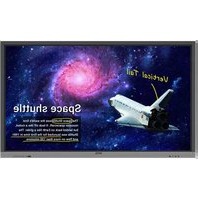
USER MANUAL ST02S BENQ
ST4302/ST5502/ST6502
ST7502/ST8602
LCD Monitor
User Manual

natural_image
Abstract grayscale pattern with concentric dotted lines and a central diamond shape (no text or symbols)Disclaimer
BenQ Corporation makes no representations or warranties, either expressed or implied, with respect to the contents of this document. BenQ Corporation reserves the right to revise this publication and to make changes from time to time in the contents thereof without obligation to notify any person of such revision or changes.
Copyright
Copyright 2020 BenQ Corporation. All rights reserved. No part of this publication may be reproduced, transmitted, transcribed, stored in a retrieval system or translated into any language or computer language, in any form or by any means, electronic, mechanical, magnetic, optical, chemical, manual or otherwise, without the prior written permission of BenQ Corporation.
Product support
This document aims to provide the most updated and accurate information to customers, and thus all contents may be modified from time to time without prior notice. Please visit the website for the latest version of this document and other product information. Available files vary by model.
I. Make sure your computer is connected to the Internet.
2. Visit the local website from www.BenQ.com. The website layout and content may vary by region/country.
- User manual and related document: www.BenQ.com > BenQ DISPLAY > SUPPORT > Downloads > model name > User Manual
- (EU only) Dismantled information: Available on the user manual download page. This document is provided based on Regulation (EU) 2019/2021 to repair or recycle your product. Always contact the local customer service for servicing within the warranty period. If you wish to repair an out-of-warranty product, you are recommended to go to a qualified service personnel and obtain repair parts from BenQ to ensure compatibility. Do not disassemble the product unless you are aware of the consequences. If you cannot find the dismantled information on your product, contact the local customer service for assistance.
Table of Contents
Product support.... 3
Safety warnings and precautions.... 6
Important safety instructions.... 7
Notes on the LCD panel of this display 7
Safety notice for remote control 8
Battery safety notice 8
BenQ ecoFACTS 9
Package contents 10
Setting up the display.... 11
Mounting the display .... 11
Installing the display on a wall.... 11
Parts of the display and their functions.... 13
Rear panel.... 13
Input/output terminals.... 14
Remote control.... 15
Using the remote control 16
Connection 17
Connecting audio/video signals.... 17
Connecting power.... 18
Basic operations.... 19
Turning the display on or off.... 19
Switching input signals.... 19
Operations in the OSD menu.... 20
Initial setup 21
Setting 21
Downloading software.... 22
Setting up the Internet connection.... 22
Updating software.... 23
Menu operations.... 24
Android Input 24
Other Input 34
Android system interface 36
Main interface 36
Multimedia files.... 37
APPS.... 43
Menu 43
X-Sign 44
About All Apps.... 44
Blizz 45
WPS Office 46
BenQ Suggests 48
InstaShare 49
Product information.... 51
Specifications 51
Dimensions 54
Supported input signal resolution.... 59
Troubleshooting 60
Safety warnings and precautions

CAUTION
RISK OF ELECTRIC SHOCK DO NOT OPEN

CAUTION: TO REDUCE THE RISK OF ELECTRIC SHOCK, DO NOT REMOVE COVER (OR BACK). NO USER-SERVICEABLE PARTS INSIDE, REFER SERVICING TO QUALIFIED SERVICE PERSONNEL.
The lightning flash with arrowhead symbol, within an equilateral triangle, is intended to alert the user to the presence of uninsulated “dangerous voltage” within the product's enclosure that may be of sufficient magnitude to constitute a risk of electric shock to persons.

The exclamation point within an equilateral triangle is intended to alert the user to the presence of important operating and maintenance (servicing) instructions in the literature accompanying the appliance.
THIS EQUIPMENT MUST BE GROUNDED
To ensure safe operation, the three-pin plug must be inserted only into a standard three-pin power outlet which is effectively grounded through normal household wiring. Extension cords used with the equipment must have three cores and be correctly wired to provide connection to the ground. Wrongly wired extension cords are a major cause of fatalities.
The fact that the equipment operates satisfactorily does not imply that the power outlet is grounded or that the installation is completely safe. For your safety, if you are in any doubt about the effective grounding of the power outlet, please consult a qualified electrician.
- The mains plug of the power supply cord shall remain readily operable. The AC receptacle (mains socket outlet) shall be installed near the equipment and shall be easily accessible. To completely disconnect this equipment from the AC mains, disconnect the power cord plug from the AC receptacle.
- Do not place this display on an uneven, sloping or unstable surface (such as a trolley) where it may fall and cause damage to itself or others.
- Do not place this display near water, like a spa or pool, or in a position which will allow the splashing or spraying of water onto the display, like in front of an open window where rain water may enter.
- Do not install this display in a confined space without proper ventilation and air circulation, such as in a closed cabinet. Allow proper space around the display for dissipating heat inside. Do not block any openings and vents on the display. Overheating may result in hazards and electric shock.
- Installation of this display should only be performed by a qualified technician. Failure to install this display properly may cause injuries and damages to the personnels and the display itself. Check the installation regularly and maintain the display periodically to ensure the best working condition.
- Use only the accessories approved or recommended by the manufacturer to mount this display. Using wrong or unsuitable accessories may cause the display to fall and result in serious personal injuries. Make sure that the surface and fixing points are strong enough to sustain the weight of the display.
- To reduce the risk of electric shock, do not remove covers. No user serviceable parts inside. Refer servicing to qualified service personnel.
• To prevent personal injuries, mounting the display or installing desktop stands is required before use.
Important safety instructions
I. Read these instructions.
-
Keep these instructions.
-
Heed all warnings.
-
Follow all instructions.
-
Do not use this apparatus near water.
-
Clean only with dry cloth.
-
Do not block any ventilation openings. Install in accordance with the manufacturer's instructions.
-
Do not install near any heat sources such as radiators, heat registers, stoves, or other apparatus (including amplifiers) that produce heat.
-
Do not defeat the safety purpose of the polarized or grounding-type plug. A polarized plug has two blades with one wider than the other. A grounding-type plug has two blades and a third grounding prong. The wide blade or the third prong are provided for your safety. If the provided plug does not fit into your outlet, consult an electrician for replacement of the obsolete outlet.
-
Protect the power cord from being walked on or pinched particularly at plugs, convenience receptacles, and the point where they exit from the apparatus.
II. Only use attachments/accessories specified by the manufacturer.
-
Use only with the cart, stand, tripod, bracket, or table specified by the manufacturer, or sold with the apparatus. When a cart is used, use caution when moving the cart/apparatus combination to avoid injury from tip-over.
-
Unplug this apparatus during lightning storms or when unused for long periods of time.
-
Refer all servicing to qualified service personnel. Servicing is required when the apparatus has been damaged in any way, such as power-supply cord or plug is damaged, liquid has been spilled or objects have fallen into the apparatus, the apparatus has been exposed to rain or moisture, does not operate normally, or has been dropped.

Notes on the LCD panel of this display
- The Liquid Crystal Display (LCD) panel of this display has a very thin protective layer of glass which is liable to marking or scratching, and cracking if struck or pressured. The liquid crystal substrate is also liable to damage under excessive force or extreme temperatures. Please handle with care.
- The response time and brightness of the LCD panel may vary with the ambient temperature.
- Avoid placing the display in direct sun or where direct sun or spot lighting will shine onto the LCD panel, as the heat may damage the panel and the external casing of the display, and the bright light will make viewing the display more difficult than necessary.
- The LCD panel consists of individual pixels to display images and is manufactured according to the design specifications. While 99.9% of these pixels work normally, 0.01% of the pixels may remain constantly lit (in red, blue or green) or unlit. This is a technical limitation of the LCD technology and is not a defect.
- LCD screens, like plasma (PDP) and conventional CRT (Cathode Ray Tube) screens, are also susceptible to 'screen burn-in' or 'image retention' which can be found on the screen as visible fixed lines and shades. To avoid such damage to the screen, avoid displaying still images (like On-Screen Display menus, fixed/inactive text or icons) for more than 30 minutes. Change the aspect ratio from time to time. Fill the entire screen with the image and eliminate the black bars whenever possible. Avoid displaying images in 4:3 aspect ratio over a long period of time, otherwise there may be visible burn marks on the screen as two vertical lines.
Note: Under certain circumstances, condensation may occur on the inner side of the cover glass, it's a natural phenomenon and will not affect the operation of the display. This condensation will usually disappear after around 2 hours of normal operation.
- ST series does not offer image retention function, for more information, please refer to installation guide.
- For ST series, when the power goes out unexpectedly, please make sure the time zone is correctly synced via the Internet, otherwise manual adjustment is needed.
Safety notice for remote control
- Do not put the remote control in the direct heat, humidity, and avoid fire.
- Do not drop the remote control.
- Do not expose the remote control to water or moisture. Failure to do so could result in malfunction.
- Confirm there is no object between the remote control and the remote sensor of the product.
- When the remote control will not be used for an extended period, remove the batteries.
Battery safety notice
The use of the wrong type of batteries may cause chemical leaks or explosion. Please note the following:
- Always ensure that the batteries are inserted with the positive and negative terminals in the correct direction as shown in the battery compartment.
- Different types of batteries have different characteristics. Do not mix different types.
- Do not mix old and new batteries. Mixing old and new batteries will shorten battery life or cause chemical leaks from the old batteries.
- When batteries fail to function, replace them immediately.
- Chemicals which leak from batteries may cause skin irritation. If any chemical matter seeps out of the batteries, wipe it up immediately using a dry cloth, and replace the batteries as soon as possible.
- Due to varying storage conditions, the battery life for the batteries included with your product may be shortened. Replace them within 3 months or as soon as you can after initial use.
- There may be local restrictions on the disposal or recycling of batteries. Consult your local regulations or waste disposal provider.
BenQ ecoFACTS
BenQ has been dedicated to the design and development of greener product as part of its aspiration to realize the ideal of the “Bringing Enjoyment 'N Quality to Life” corporate vision with the ultimate goal to achieve a low-carbon society. Besides meeting international regulatory requirement and standards pertaining to environmental management, BenQ has spared no efforts in pushing our initiatives further to incorporate life cycle design in the aspects of material selection, manufacturing, packaging, transportation, using and disposal of the products. BenQ ecoFACTS label lists key eco-friendly design highlights of each product, hoping to ensure that consumers make informed green choices at purchase. Check out BenQ's CSR Website at http://csr.BenQ.com/ for more details on BenQ's environmental commitments and achievements.
\~ AC voltage
Package contents
Open the sales package and check the contents. If any item is missing or damaged, please contact your dealer immediately.

natural_image
Empty rectangular frame with black border (no text or symbols)LCD display
natural_image
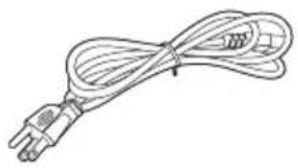
Line drawing of a coiled cable or wire with a plug at the end (no text or symbols)Power cord (By region)
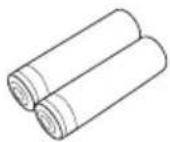
AAA battery x 2 Remote control
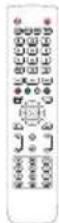
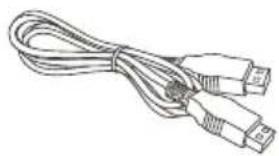
natural_image
Coiled network of three Ethernet ports (no text or symbols visible)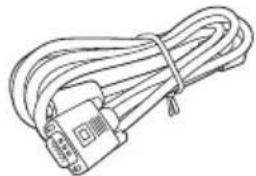
natural_image
Line drawing of a cable with multiple connectors (no text or symbols)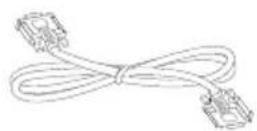
HDMI cable x | VGA cable x | RS232 cable x | Quick start guide

- The type of power cord supplied may differ from that illustrated depending on your region of purchase.
- Before discarding the package, check that you haven't left any accessories inside the box.
- Dispose of packaging materials wisely. You can recycle the cardboard carton. Consider storing the package (if possible) for future transport of the display.
- Do not leave plastic bags within reach of young children or babies.
Setting up the display
Mounting the display
You can install the display on a vertical surface with a suitable wall mounting bracket or on a horizontal surface with the optional desktop stands. Please pay attention to the following notes during installation:
- This display should be installed by at least two adult persons. Attempting to install this display by only one person may result in danger and injuries.
- Refer the installation to qualified technicians. Improper installation may cause the display to fall or malfunction.
Installing the display on a wall
VESA Standard:
ST4302: 400 × 200 (4 - M6 × 12L)
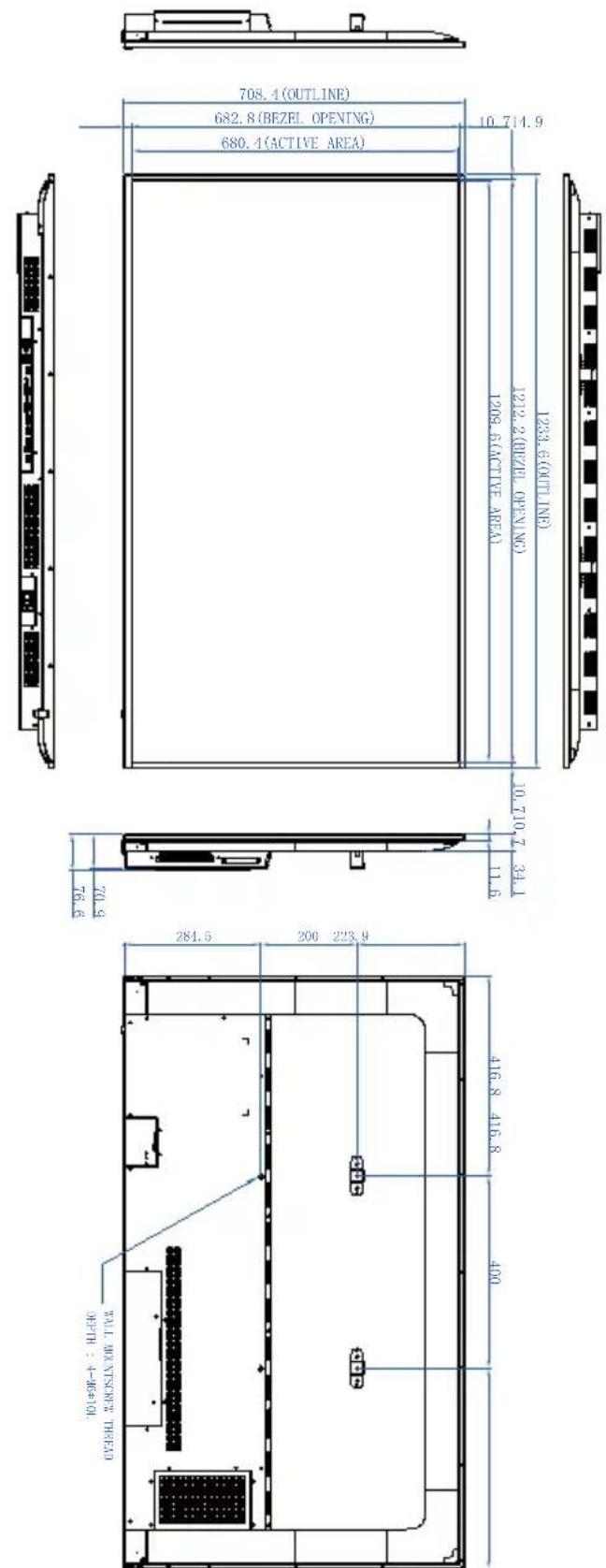
ST5502: 400 × 200 (4 - M6 × 10L)
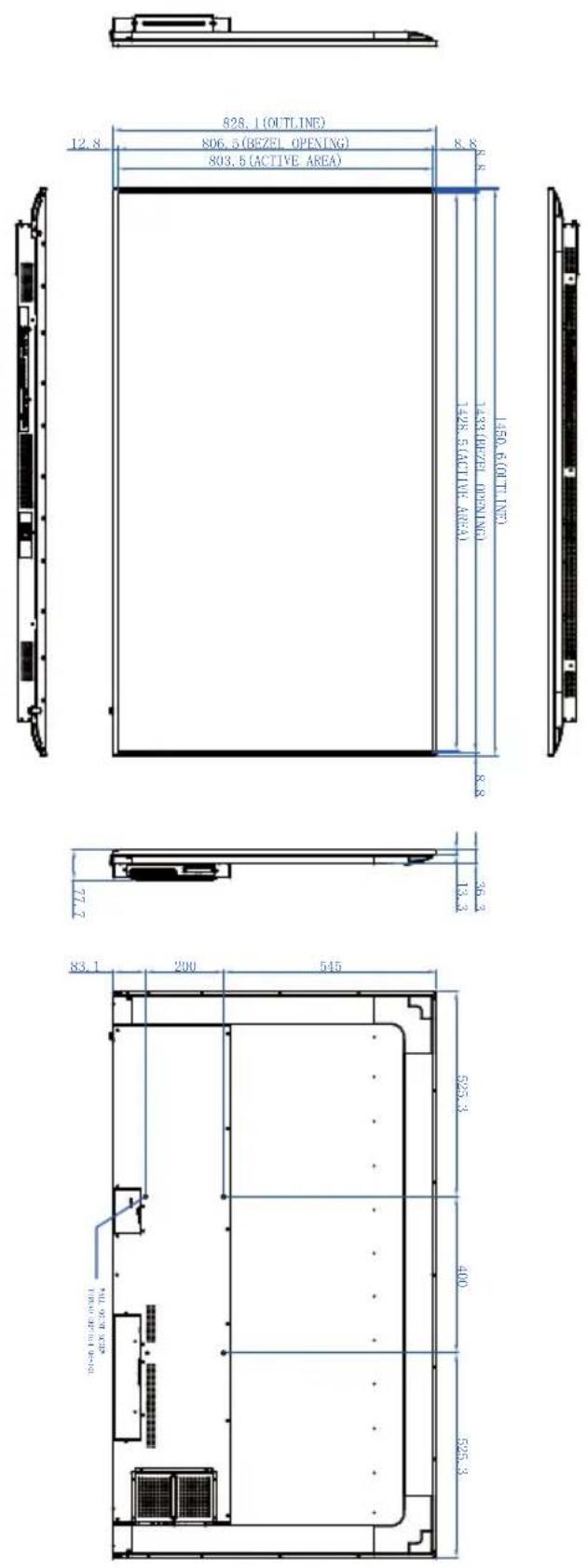
ST6502: 400 × 200 (4 - M6 × 10L)
ST7502: 400 × 200 (4 - M8 × 10L)
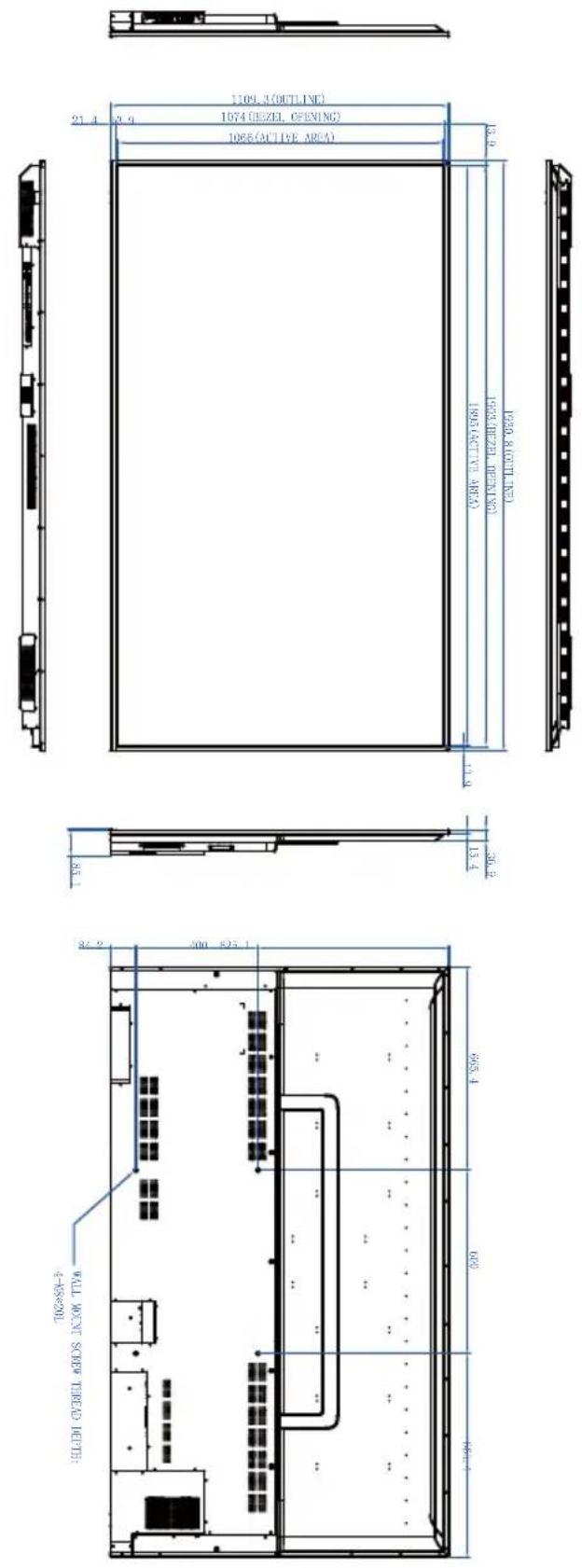
ST8602: 600 × 400 (4 - M8 × 20L)
I. Place a clean, dry and lint-free cloth on a flat, horizontal and object-free surface. Make sure that the size of the cloth is larger than the display.
2. Gently lay the display on the cloth with the LCD screen facing down.
3. Remove the desktop stands from the display if installed.
4. Identify the wall mounting screw holes on the back of the display as shown in the illustration.
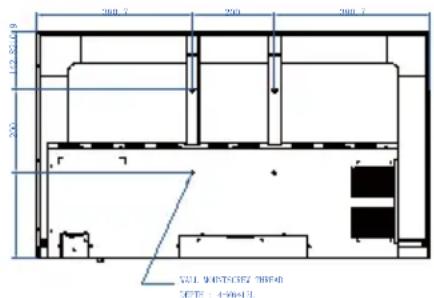
ST4302

ST5502
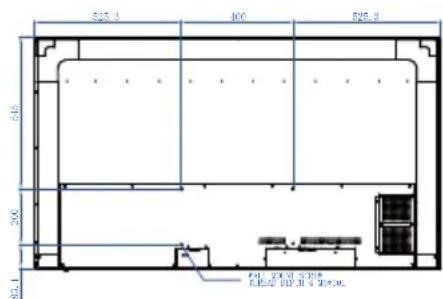
ST6502
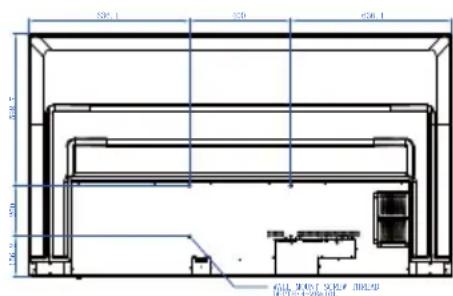
ST7502
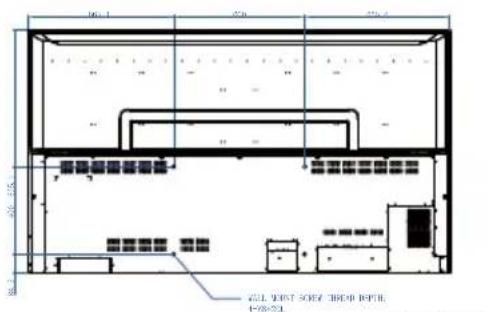
ST8602
- Install the wall mounting bracket on the display and attach the display to the wall according to the mounting bracket's instructions. The length of the screw should exceed the thickness of the wall mounting bracket, please refer to below chart for each model. Make sure that all screws are tightened and secured properly. (Recommended torque: 16 (+2/-2) kgf/cm). The mounting means should be strong enough to bear the weight of the display.
LCD display
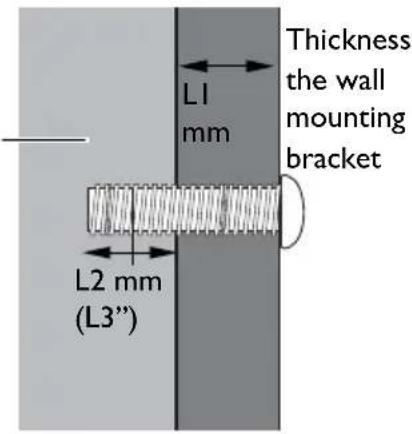

- To maintain proper ventilation, keep at least 10 mm of clear space from the back cover of the display to the wall.
- Please consult a professional technician for wall mount installations. The manufacturer accepts no liability for installations not performed by a professional technician.

Parts of the display and their functions
Rear panel

No. Name Description
| 1 | ◄ / ► | Scroll through settings and options in the OSD menu. |
| 2 | ▲ / ▼ | Scroll through settings and options in the OSD menu up and down. |
| 3 | INPUT | Select/confirm options in On-Screen Display (OSD) menu.Select input sources. |
| 4 | MENU | Open/close/back in the OSD menu. |
| 5 | Turn the display on or off. | |
| 6 | OPS | Open pluggable specification (Intel OPS standard) |
Input/output terminals

No. Name Description
| 1 | HDMI OUT Connects to display devices with an HDMI input. | |
| 2 | SPDIF | Connects the SPDIF cable from external devices to the display for audio in. |
| 3 | HDMI 1 (ARC) | Receives 4K2K 60Hz supported signals from an external device.ARC (Audio Return Channel) allows you to transfer audio from the display back down the HDMI cable to a soundbar or a home theater receiver. You can listen to your display's audio through other audio systems instead of the display's speakers. |
| 4 | HDMI 2 Receives 4K2K 60Hz supported signals from an external device. | |
| 5 | DisplayPort Connects a video source to a display device. | |
| 6 | RS232 Serial interface, used for mutual transfer of data between devices. | |
| 7 | VGA | Receives analog RGB signals from an external device (such as a computer). |
| 8 | PC LINE IN Receives Audio input for VGA source (3.5mm stereo phone). | |
| 9 | USB 3.0 | Accesses multimedia files on USB drives directly. Support USB3.0 while using OPS. |
| 10 | USB 1/USB 2 (2.0) | Accesses multimedia files on USB drives directly. |
| 11 | AUDIO OUT | Connects to an external audio device (such as a speaker, stereo system, or headphone) to output the audio that is supplied by the video source. |
| 12 | LAN 10/100 Mbps, connecting RJ45 terminals. | |
Remote control
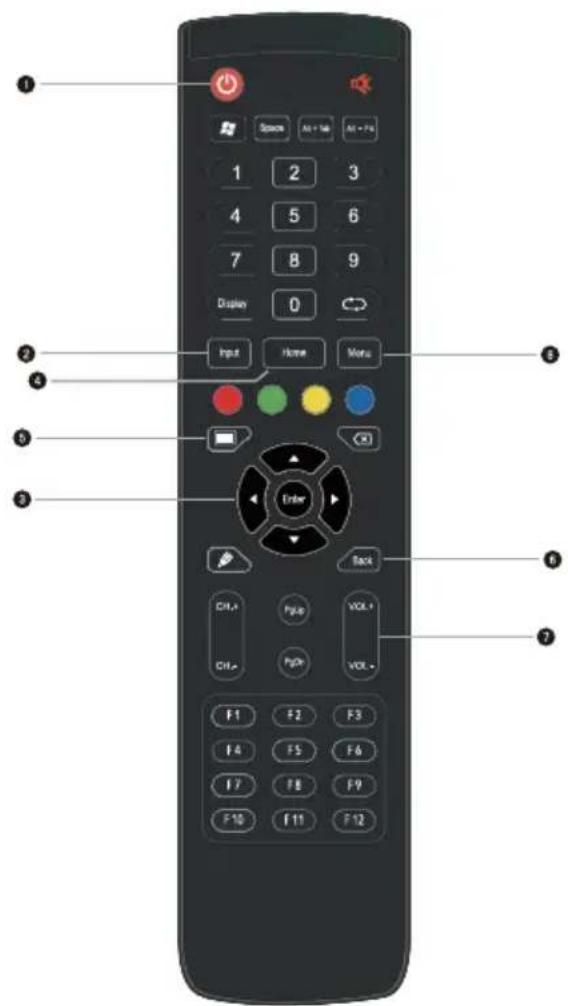
7 VOL+/VOL-
Turns up or down the volume.
8 MENU
Opens or closes the OSD menu.
1 Power button
Turn the display on or off.
2 INPUT
Selects an input source.
3 ▲/▼/◄/►/ENTER
Scrolls through settings and options in the OSD menu when the OSD menu is on.
4 HOME
Android system main screen button.
5 X-Sign
Opens the X-Sign app in Android.
6 BACK
Return key.
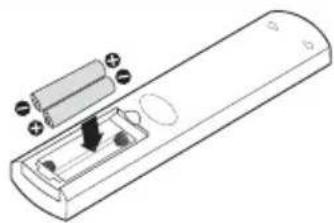
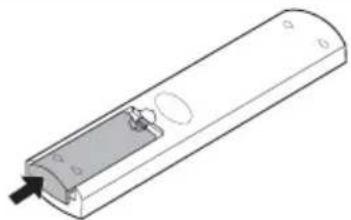
Using the remote control Installing remote control batteries
natural_image
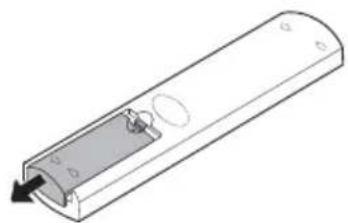
Isometric line drawing of a rectangular electronic device with a central internal component and an arrow pointing to it (no text or symbols)- Open the remote control battery compartment cover.
natural_image
Diagram of a remote control with battery and indicator lights (no text or symbols)- Insert the batteries ensuring that the positive and negative marked battery terminals match the (+) and (-) marks in the battery compartment.

Batteries must be purchased separately as they are not included in the display package.
natural_image
Technical line drawing of a remote control casing with a black arrow pointing to the end (no text or symbols)- Refit the battery compartment cover.
Remote control usage tips
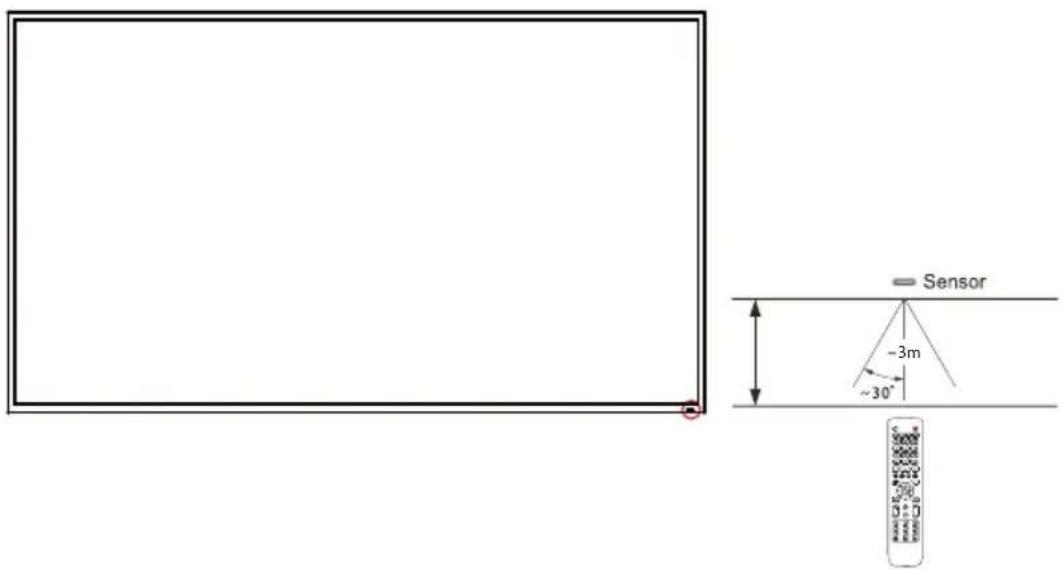
- Point and aim the top front of the remote control directly at the display's remote control sensor window when you press the buttons.
- Do not let the remote control become wet or place it in humid environments (like bathrooms).
- If the display's remote control sensor window is exposed to direct sunlight or strong light, the remote control may not operate properly. In this situation, change the light source, readjust the angle of the display or operate the remote control from a location closer to the display's remote control sensor window.
Connection
Connecting audio/video signals
Pay attention to the following notes when you connect cables:
- Please turn off all devices.
- Familiarize yourself with the audio/video ports on the display and the devices you want to use. Be aware that incorrect connections may adversely affect picture quality.
- Do not remove cables from the ports by pulling the cable itself. Always grasp and pull the connectors at the end of the cable.
- Ensure that all cables are fully inserted and firmly seated.
Connecting the digital inputs
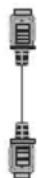
I. Connect the VGA jack on the display to the VGA output jack on a computer using a D-Sub (15-pin) cable.
2. Connect the computer's audio output jack to the PC AUDIO IN jack on the display using a suitable audio cable.
3. Connect the HDMI output jack of a computer or A/V device (such as a VCR or DVD player) to the HDMI input jack on the display using an HDMI cable.
4. To view a video image from this input, press the INPUT button and choose HDMI.

natural_image
Row of electronic component icons including connectors, ports, and memory units (no text or labels visible)HDMI
cable
D-Sub (15-pin)
cable

Audio cable
Computer
Connecting the multimedia inputs
To view multimedia files on the USB flash drive, plug the USB flash drive in the USB port.
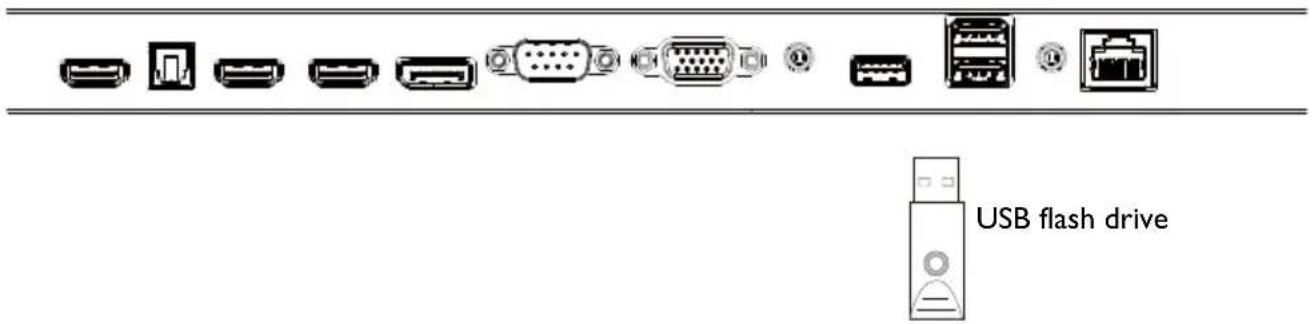

USB 2.0 standard spec is 0.5A and USB 3.0 standard spec is 0.9A.
Connecting power
Plug one end of the power cord into the Power jack on the display and the other end into an appropriate power outlet (if the outlet is switched, turn on the switch).

natural_image
Line drawing of a device panel with a plug and cable, no text or symbols present
• The supplied power cord is suitable for use with 100-240V AC power only.
- The power cord and outlet illustrated may differ from the ones used in your region.
- Only use an appropriate power cord for your region. Never use a power cord which appears damaged or frayed, or change the plug type on the power cord.
- Be aware of the power loading when you use extension cords or multiple outlet power boards.
- There are no user serviceable parts in this display. Never unscrew or remove any covers. There are dangerous voltages inside the display. Turn off the power and unplug the power cord if you intend to move the display.
Basic operations
Turning the display on or off
I. Be sure to follow the instruction of Connecting power on page 18.
2. Before turning on the display, make sure the Power switch is set to ON. The system will enter standby mode.


The display's standby mode still consumes power. To completely cut off power supply, set the Power switch to OFF (O) and then disconnect the power cord from the power outlet.


- Only by switching on the master switch will either power button work. To turn on or off the display, press the power button on the display's control panel or on the remote control.
- Turning off the power still consumes power. The users have to un-plug the plug to completely cut off the power supply.
Switching input signals
Press the INPUT button and those signal selection buttons on the remote control or the INPUT button on the control panel to select an input signal.
Operations in the OSD menu
| Using the control panel buttons Using the remote control | ||
1. Press MENU to open the OSD menu.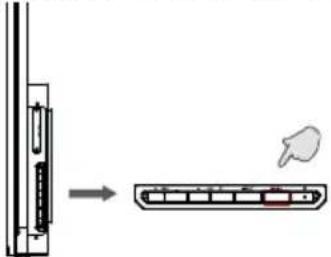 | 1. Press MENU to open the OSD menu.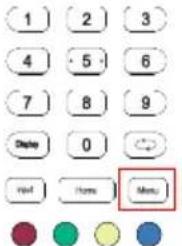 | |
2. In the OSD menu, press ▲ or ▼ to select an item.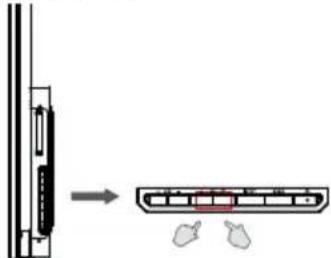 | 2. Press ▲ or ▼ to select an item.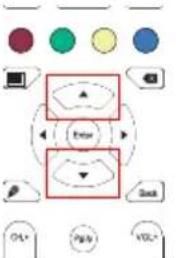 | |
3. Press INPUT to confirm selections. | 3. Press INPUT to confirm selections.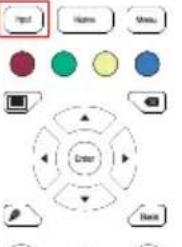 | |
4. Press ◀ or ▶ to adjust settings and press ▲ or ▼ to select a feature. Press INPUT to save changes.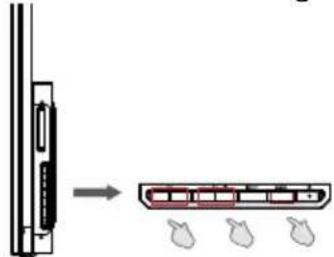 | 4. Press ▲ and ▼ to select a feature and press ◀ or ▶ to adjust settings. Press ENTER to confirm changes. | |
5. Press MENU to close the OSD menu.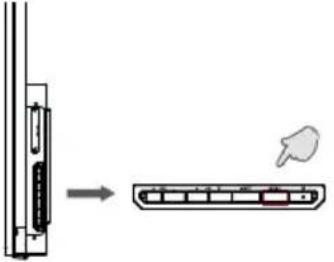 | 5. Press BACK to close the OSD menu. | |
Initial setup
After you have connected the display to the power, you are ready to power on the display. The first time you power on the display, you will be guided through a series of setup screens. Follow the on-screen instructions or the steps below to start up your display and complete the initial setup.
I. Turn on the display. Wait for the display to boot up with the BenQ screen. This may take a moment.
2. Select Next on the screen to begin. Follow the on-screen instructions to set up the language, date and time, and network. Or your can skip some of these steps and complete the setup later.
Setting
- Press MENU on the remote control or MENU button on the panel to enter the OSD menu. You can also select Setting on the home screen to go to the OSD menu.
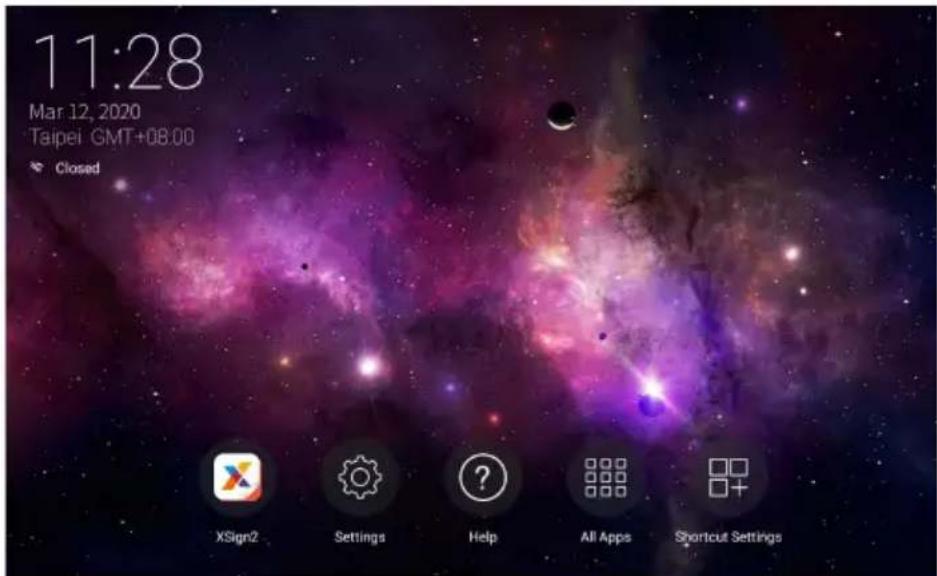
- Under Input Source, you can select a desired input source. Refer to Input source settings on page 24 for more information.


InstaShare is not preloaded. You need to download the app via BenQ Suggests. Refer to InstaShare on page 49 for more information.
Downloading software
BenQ may periodically release software updates that may add functions or applications associated with your display. To check if there is a software update available for your device or to obtain the software license key, please visit http://DSdownload.BenQ.com. Then enter the serial number (can be found on the sticker attached on the back of the display) and click OK to access the Software download page.
Setting up the Internet connection
Your display must be connected to a network to conduct OTA updates or surf the Internet.

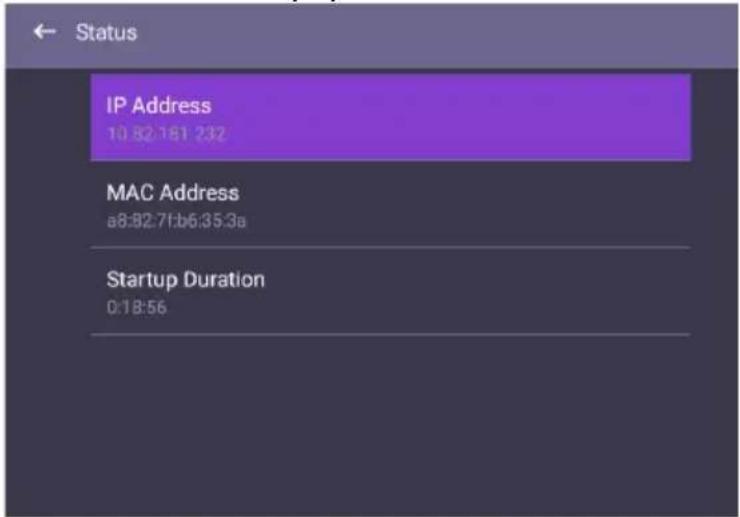
To find the MAC address in Android OS, please go to Setting > System > About > Status.
Network setting
On the home screen, go to Setting > System > About > Status. If there is no IP address shown, please connect the display to the ethernet cable.
Wireless connection
You must use a wireless adapter in order to connect the display to the Internet wirelessly. Please contact your local dealer for more information on configuring the wireless connection.
I. Press MENU on the remote control, or go to Network > WI-Fi.

- Set the switcher to On. A list of available networks will show on the screen.
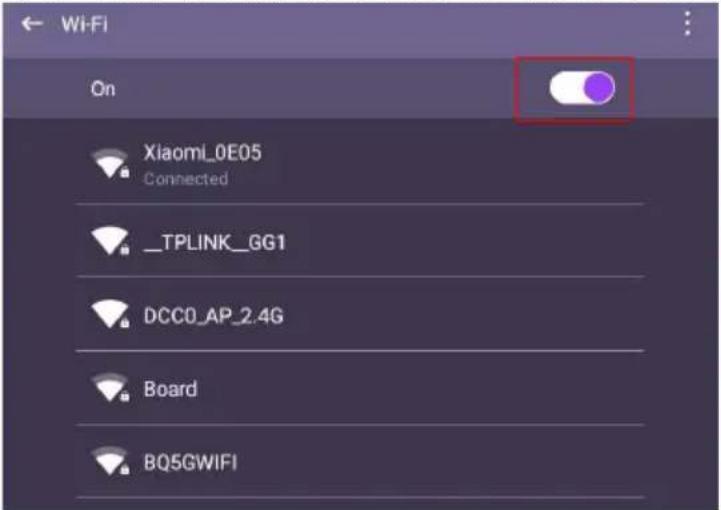
- Press ▲/▼/◄/► on the remote control to select the network's name and connect to the network. The password is needed if it is your first time to use the network. Key in the password and press Connect. The device is now connected to the WLAN.
Updating software
Whenever a new version of software is available, the system will automatically detect the update and will prompt you to download it every time you turn on the display.
To manually update the software:
Go to System > About > System Upgrade.
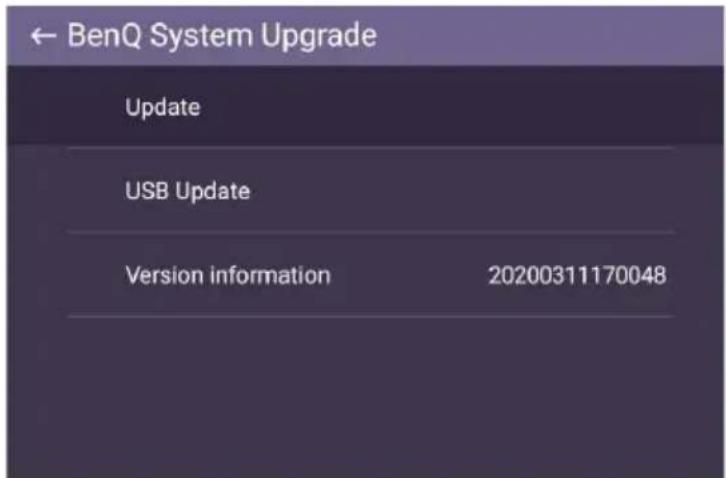
I. Update: The device will search for the update file while connecting to the Internet.
- USB Update:
- Copy the upgrade file to the root of a FAT32 format USB drive. Make sure the file name is "update_signed.zip".
- Insert the USB to the display, and the system will prompt a message for update confirm. If the message does not show up, select USB Update to start update detection.
- Select Start Update to initiate upgrade process.

- Software update process may take some time to complete.
- During the update process, do not turn off the device or disconnect the Internet connection. Any interruptions during the software update process may permanently damage your display.
Menu operations
Android Input
Input source settings
Press MENU on the remote control or MENU button on the panel to enter the OSD menu.

- Press ▲/▼/◄/► on the remote control and press OK to select a desired input source.
- Press on the remote control to exit the menu.
General settings
Go to General to access to the Audio and Picture settings.

- Use the light bar to adjust the backlight.
- Use the volume bar to adjust the volume for the display.
- Go to Audio settings to enter Audio menu.
- Go to Picture settings to enter Picture menu.
Audio Settings
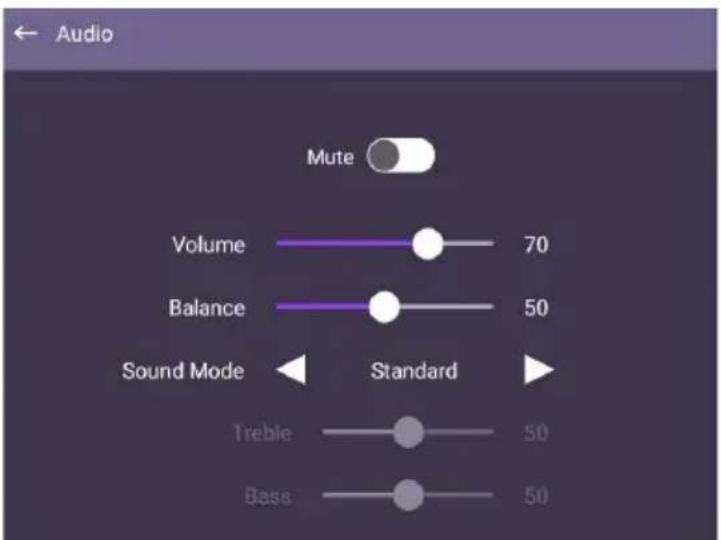
- Press ▲/▼/◄/► on the remote control and press OK to adjust the settings.
- Press on the remote control to exit the menu.
| Menu Description | |
| Volume | Press ◀ / ▶ on the remote control to adjust the volume. |
| Balance | Press ◀ / ▶ on the remote control to adjust the balance. |
| Sound mode | Select a preset sound environment. Options are Standard, Class, Meeting, Movie, or Custom. |
| Treble | Press ◀ / ▶ on the remote control to adjust the treble. |
| Bass | Press ◀ / ▶ on the remote control to adjust the bass. |
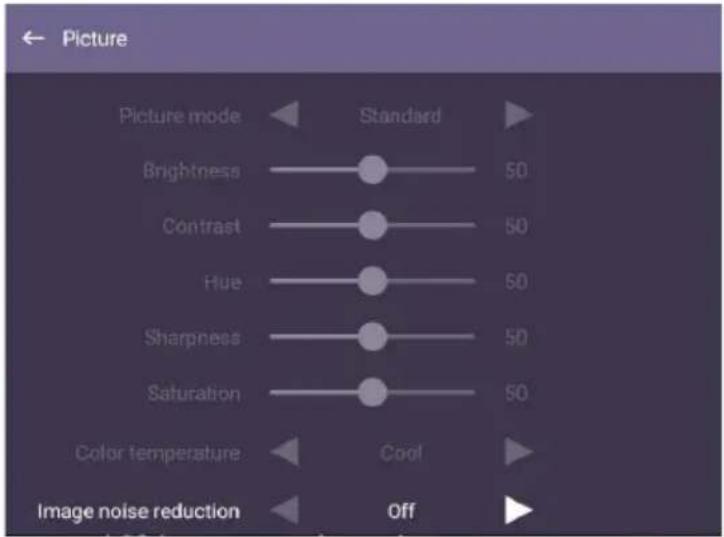
Picture Settings
Picture Settings under Android are not available. Only Image noise reduction can be set. To access Picture Settings, leave the Android system and connect to other input sources like VGA, DP, or HDMI. Refer to Picture settings on page 35 for more information.
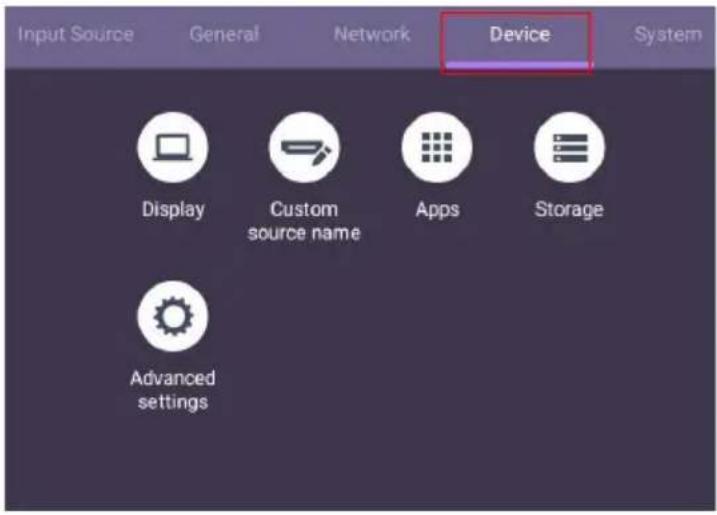
Device settings
Go to Device to enter the Device menu.
Display
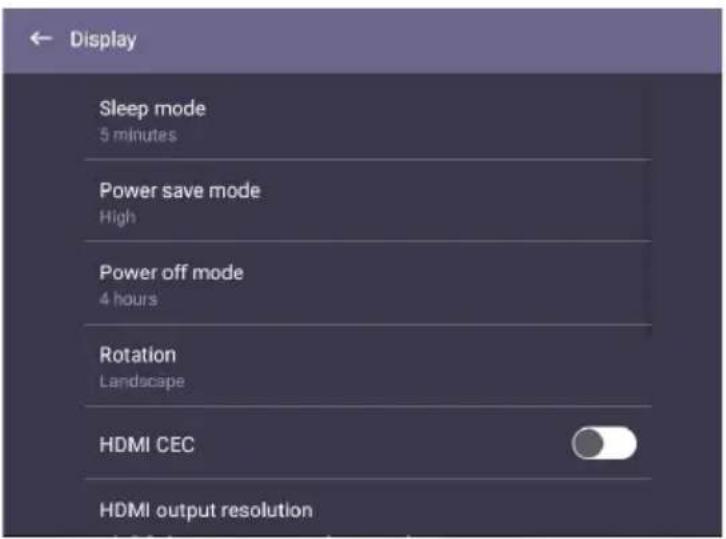
Go to Device > Display.

| Menu Description | |
| Sleep mode This | feature only works on Android input. Select a time period (1, 5, 10, 20, 30, 40, 50 minutes or 1, 2, 3, 4 hours) for the display to turn off the panel back light. Set to Off to turn off the function. |
| Power save mode This | feature only works on VGA/HDMI input. High: Power off the display five minutes later. Low: Turn off the panel back light five minutes later. Off: Turn off the function. |
| Power off mode This | feature only works on Android input. Select a time period (1, 5, 10, 20, 30, 40, 50 minutes or 1, 2, 3, 4 hours) to turn off the display. Set to Off to turn off the function. |
| Rotation Switch the landscape and portrait mode. | |
| HDMI CEC Allow devices connected to your display through HDMI ports to communicate back and forth with your display. | |
| HDMI output resolution Only support FHD out. | |
| Change logo • Copy the boot logo file (JPG format, *.jpg, with resolution supports the display) to USB drive under “benq” folder. Rename the image to “bootlogo.jpg”. Click Change logo to load the changed logo. | |
| Restore logo Click Restore logo to restore the original logo. | |
| Change animation • Copy animation zip file (<2MB) to USB drive under “benq” folder. Rename the file to “bootanimation.zip”. Click Change animation to load the changed animation. | |
| Restore animation Click Restore animation to restore the original animation. | |
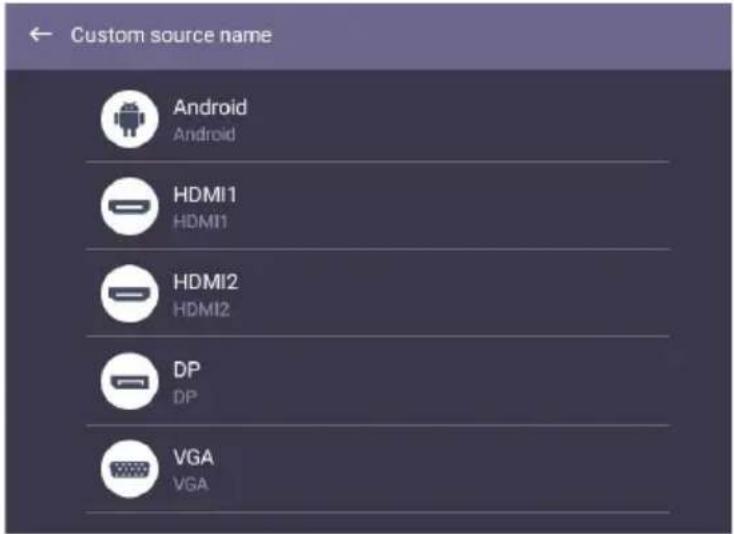
Custom source name
You can change Custom source name. Enter a value within six characters long.
Advanced settings
Go to Device > Advanced settings.
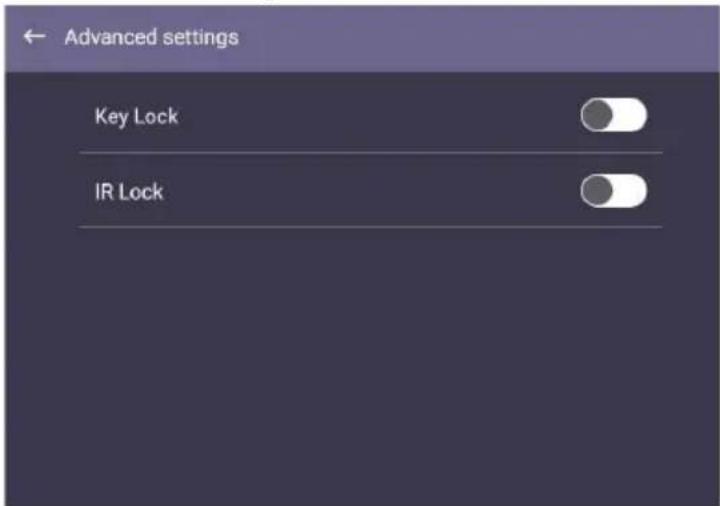
- Press ▲/▼/◄/► on the remote control and press OK to confirm.
- Press on the remote control to exit the menu.
| Menu Description | |
| Key lock | Press ◀ / ▶ and OK on the remote control to enable or disable Key lock. |
| IR lock | Press ◀ / ▶ and OK on the remote control to enable or disable IR lock. |

- The Key lock and IR lock functions can be enabled at the same time.
- For image retention, please see Notes on the LCD panel of this display on page 7 for more information.
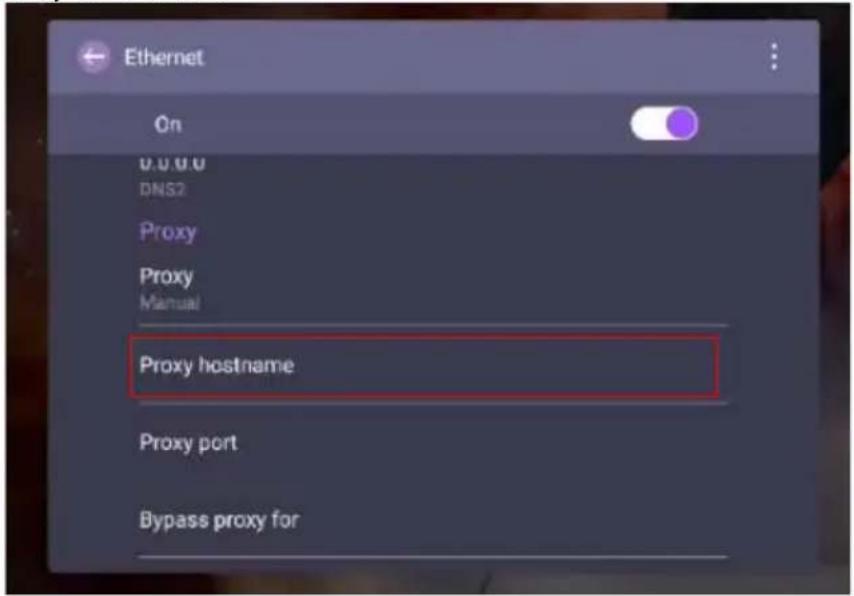
Proxy setting
- Go to Network > Ethernet / Wi-Fi to find the corresponding proxy setting.

- Following is the example of Ethernet proxy setting.
- Press Proxy to go to the proxy setting. You can choose None, Manual, and Proxy Auto-Config.
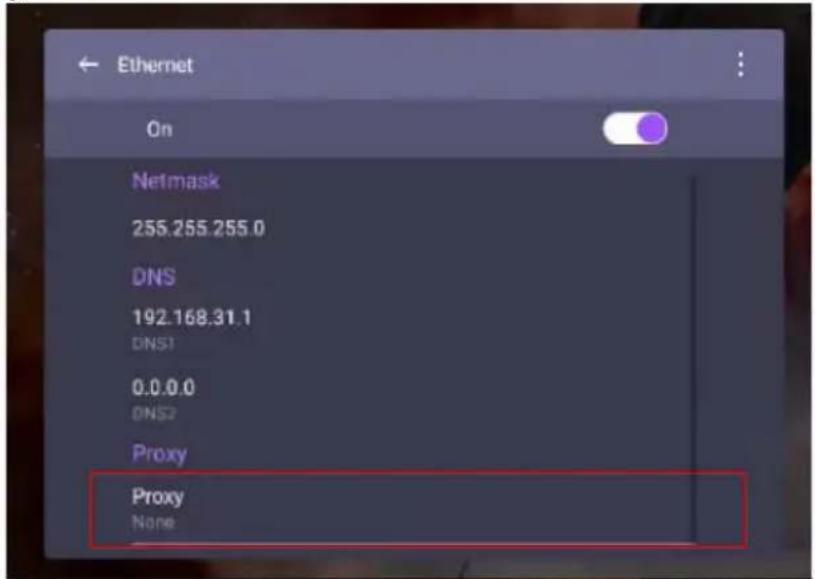

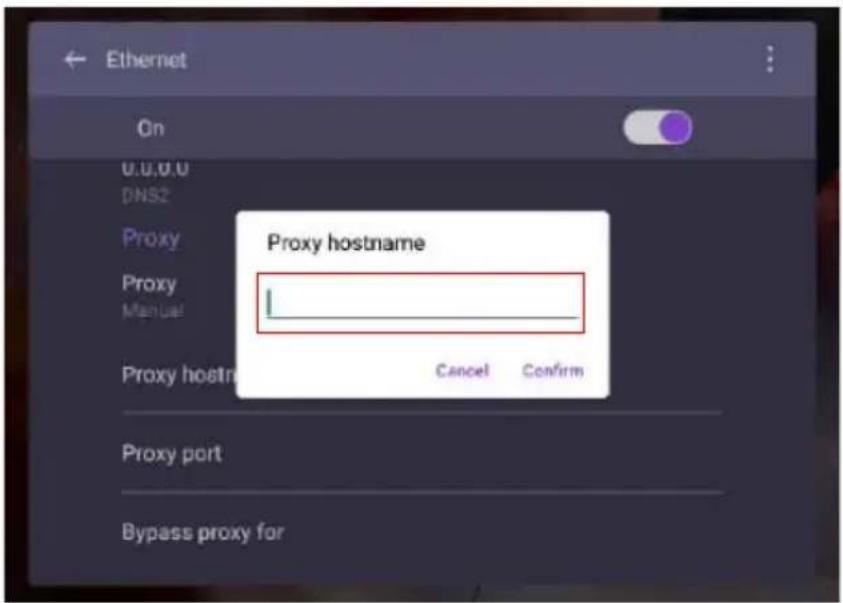
- Enter the proxy host name.
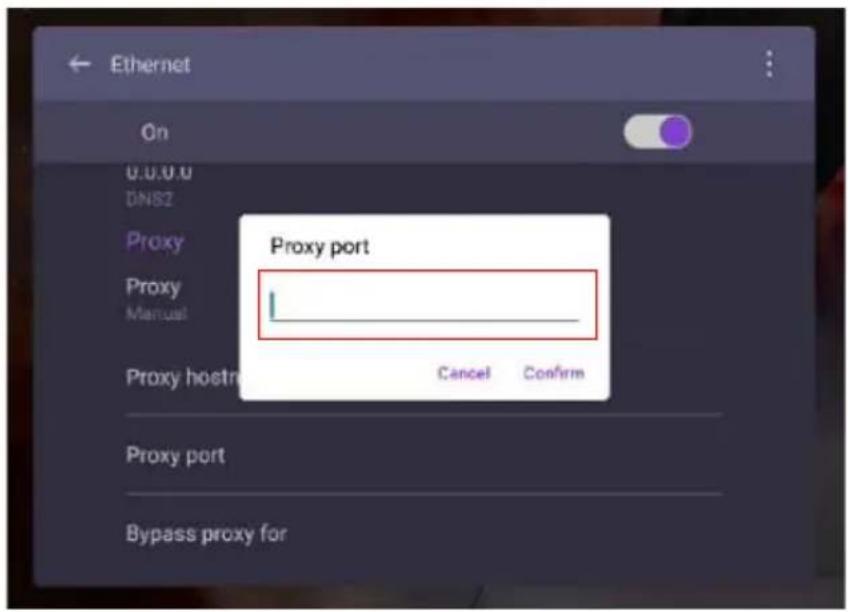
- Enter the using channel.

System settings
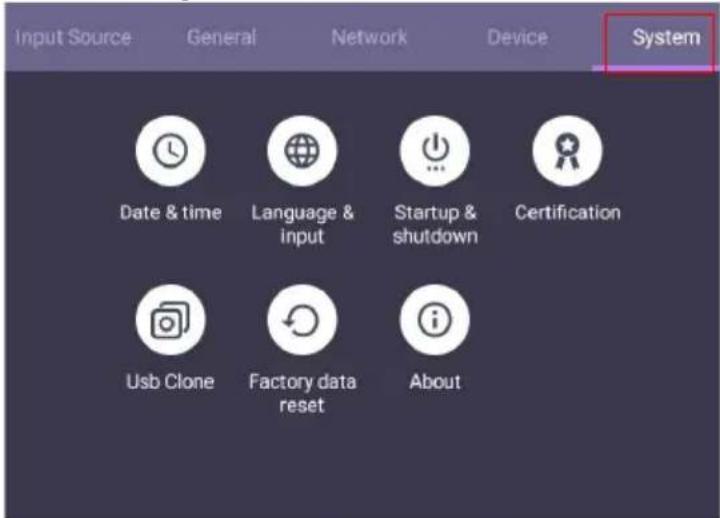
Go to System to enter the System menu.
- Press ▲/▼/◄/► on the remote control and press OK to confirm.
- Press on the remote control to exit the menu.
| Options Description | |
| Date & time Select to set date, time, and their formats in Android. | |
| Language & input | Select to set Language, Keyboard & Input methods in Android. |
| Startup & Shutdown | Select to set Startup channel, Wake on LAN, and Power off reminder. Refer to Startup & Shutdown on page 33 for more information. |
| USB clone Click to export/import the setting. | |
| Factory data reset | Select Factory data reset to erase all data from the display. |
| About Select to view system information in Android. | |

The amount of available storage space for the user varies according to the amount of pre-installed apps and images occupying the total storage space.
Startup & Shutdown
- Go to System > Startup & Shutdown.

- For Startup channel, you can choose Last shutdown channel, Android or other sources listed below.
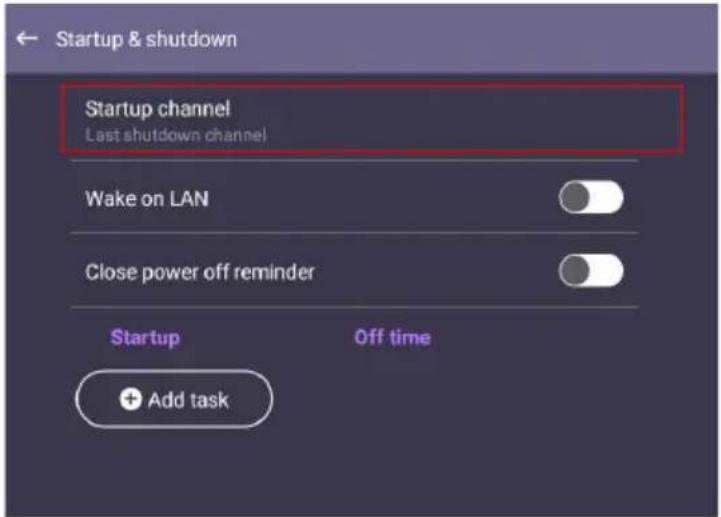
- For Close power off reminder, you can adjust startup and shutdown time. Schedules can be made by choosing the days of the week.
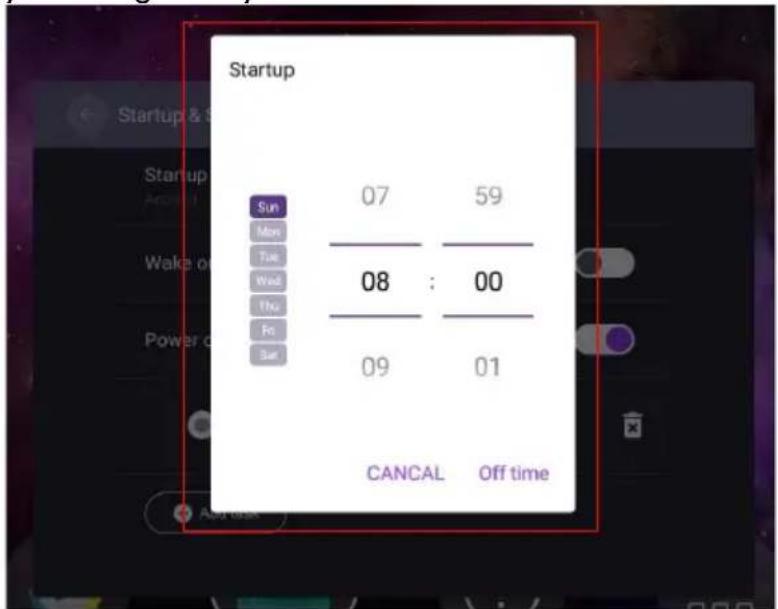
Other Input
Display settings
Leave the Android system and connect to other input sources like VGA, DP, or HDMI. Then go to Display.

- Press ▲/▼/◄/► on the remote control and press OK to confirm.
- Press the remote control to exit the menu.
| Menu Description | |
| Zoom mode | Press ◀ / ▶ on the remote control. Options are PTP, 16:9, 4:3.You can also selectAutoto adjust the image. |
- The display automatically enters energy saving mode when no one is detected within the sensor's range.
- The display automatically turns off when no one is detected within the sensor's range for a long period of time.
Adjust settings (VGA-only)
Use the H. Position, V. Position, Clock, and Phase functions to manually adjust the image.
| Menu Description | |
| H. Position | Press ◀ / ▶ on the remote control to move the screen to the left or right. |
| V. Position | Press OK on the remote control to lock or unlock the remote control IR sensor on the front panel of the display. |
| Clock | Clock adjusts how wide the input pixels are. Press ◀ / ▶ on the remote control to make adjustments. |
| Phase | Phase is in relation to frequency. Press ◀ / ▶ on the remote control to make adjustments. |
Picture settings
Leave the Android system and connect to other input sources like VGA, DP, or HDMI. Then go to Picture.

- Press ▲/▼/◄/► on the remote control and press OK to confirm.
- Press → the remote control to exit the menu.
| Menu Description | |
| Picture mode | Press ◀ / ▶ on the remote control. Options are Standard, Bright, Vivid, Soft, Custom. Refer to Device settings on page 26 for more information about variables. |
| Brightness | Press ◀ / ▶ on the remote control to adjust the brightness. |
| Contrast | Press ◀ / ▶ on the remote control to adjust the contrast. |
| Hue | Press ◀ / ▶ on the remote control to adjust the hue. |
| Sharpness | Press ◀ / ▶ on the remote control to adjust the sharpness. |
| Saturation | Press ◀ / ▶ on the remote control to adjust the saturation. |
| Color temperature | Press ◀ / ▶ on the remote control or click a preset color temperature for the image. Options are Normal, Cool, Warm. |
| Image noise reduction | Press ◀ / ▶ on the remote control. Options are On, Off. |
Menu Description
Android system interface

Note that this is a closed Android OS. Download and use of unauthorized apps on this system are not available.
Main interface
The display launches the Android main interface by default.
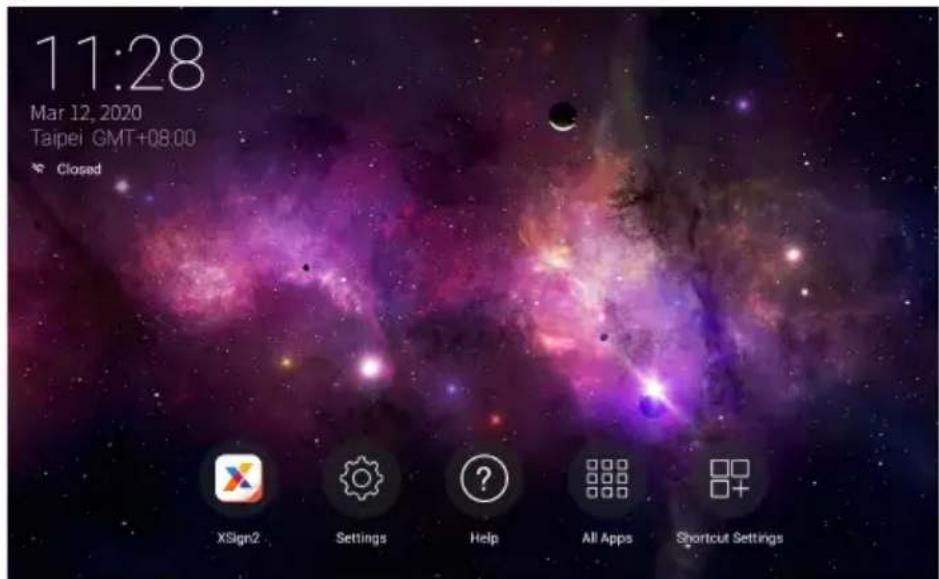
To navigate the Android main interface, pressMENU on the remote control to enter the OSD menu to select an input.
Multimedia files
Multimedia files such as images, audio files, and videos can be played directly from EZfinder app.
Picture
Select a file you want to show on the display and perform any of the functions shown on the screen.

| Icon Function | |
 | Play the previous image. |
 | Play/pause the current playback. |
 | Play the next image. |
 | Magnify the current image. |
 | Shrink the current image. |
 | Rotate the current image counter-clockwise. |
 | Rotate the current image clockwise. |
 | See the information about the file name, creation time, file size, and the file format. |
 | Without function. |
 | Playing settings.• Animation effect is without function.• You can select playing interval time. |
Supported image format (maximum resolution)
| File | Image Supported range |
| .bmp BMP Max Resolution: 8000 × 8000 | |
| .gif GIF Max Resolution: 8000 × 8000 | |
| .jpeg/.jpg JPEG/JPG Max Resolution: 8000 × 8000 | |
| .png PNG Max Resolution: 8000 × 8000 | |
Audio
Select an audio file you want to play and perform any of the functions shown on the screen.

| Icon Function | |
 | Repeatedly play audio files in the playlist. |
 | Play the previous audio file. |
 | Play/pause the current audio file. |
| [XCBA] | Play the next audio file. |
| [TKBA] | Check the audio information. |
Supported audio format (Codec)
| File | Format | Audio Codec | Supported range |
| .aac AAC AAC Sample Rate: 8K~96KHz | |||
| Bit Rate: 24K~576Kbps | |||
| .ape Monkey's Audio Monkey's | Audio Sample Rate: | Max 48KHz | |
| Bit Rate: max 1411Kbps | |||
| .flac FLAC FLAC Sample Rate: Max 192KHz | |||
| Bit Rate: max 1411Kbps | |||
| .m4a ALAC ALAC | Sample Rate: | 8K~96KHz | |
| Bit Rate: 24K~576Kbps | |||
| .mp3 MPEG Audio Layer3 | MPEG I/2 layer3 Sample Rate: | 8K~48KHz | |
| Bit Rate: 32K~320Kbps | |||
| .ogg Vorbis | Vorbis | Sample Rate: 8K~48KHz | |
| Bit Rate: max 256Kbps | |||
| .wav WAV | LPCM | Sample Rate: 8K~192KHz | |
| Bit Rate: max 320Kbps | |||
Video
Select a video file you want to play on the display and perform any of the functions shown on the screen.

| Icon Function | |
| Adjust the video volume. | |
| Play the previous video file. | |
| Play/pause the current video file. | |
| Play the next audio file. | |
Supported video format (Codec) Up to 4K resolution
| File Codec | |||
| Extensions Video Audio Maximum transmit ratio | |||
| .3g2 H.263 | AAC, AMR_NB | 1920*1088 30 Fps, 160Mbps | 5Mbps |
| .3gp H.264 | 3840*2160 30 Fps, 160Mbps | ||
| H.263 1920*1088 30 Fps, 5Mbps | |||
| MPEG-4 1920*1088 30 Fps, 50Mbps | |||
| File | Codec | ||
| Extensions | Video | Audio | Maximum transmit ratio |
| .avi H.263 MPEG1/2 | Layer3, AAC, LPCM*2160 30 Fps, 160Mbps | 1920*1088 30 Fps, 5Mbps | |
| H.264 3840 | Mbps | ||
| Mpge-1 1920*1088 30 Fps, 80Mbps | Mbps | ||
| MPEG-2 1920*1088 30 Fps, 80Mbps | Mbps | ||
| MPEG-4 1920*1088 30 Fps, 50Mbps | Mbps | ||
| MJPEG 1920*1080 30 Fps, 150Mbps | Mbps | ||
| .flv H.263 MPEG1/2 | Layer3, AAC*1088 30 Fps, 40Mbps | 1920*1088 30 Fps, 5Mbps | |
| VP6 1920 | Mbps | ||
| H.264 3840*2160 30 Fps, 160Mbps | Mbps | ||
| .f4v H.264 AAC 3840*2160 30 Fps, 160Mbps | |||
| .mkv H.264 AAC, MPEG1/2 | Layer3*2160 60 Fps, 160Mbps | 3840*2160 30 Fps, 160Mbps | |
| H.265 3840 | Mbps | ||
| Vc-1 | 1920*1088 30 Fps, 45Mbps | ||
| .mov | H.264 | AAC, PCM 3840*2160 30 Fps, 160Mbps | |
| H.265 3840*2160 60 Fps, 160Mbps | Mbps | ||
| MPEG-4 1920*1088 30 Fps, 50Mbps | Mbps | ||
| MJPEG 1920*1080 30 Fps, 150Mbps | Mbps | ||
| .mp4 | H.264 AAC 3840*2160 30 Fps, 160Mbps | 160Mbps | |
| H.265 3840*2160 60 Fps, 160Mbps | Mbps | ||
| MPEG-4 1920*1088 30 Fps, 50Mbps | Mbps | ||
| .VOB | MPEG-2 | MPEG1/2 | 1920*1088 30 Fps, 80Mbps |
| .mpg/.MPEG | H.264 MPEG1/2Layer3, AAC*2160 30 Fps, 160Mbps | 3840*2160 30 Fps, 160Mbps | |
| MPEG-1 1920*1088 30 Fps, 80Mbps | Mbps | ||
| MPEG-2 1920*1088 30 Fps, 80Mbps | Mbps | ||
| File Codec | |||
| Extensions Video Audio Maximum transmit ratio | |||
| .ts H.264 A | ACAAC, | MPEG1/20*2160 60 Fps, 160Mbps | 3840*2160 30 Fps, 160Mbps |
| H.265 384 | Mbps | ||
| MPEG-2 1920*1088 30 Fps, 80Mbps | Mbps | ||
| MPEG-4 1920*1088 30 Fps, 50Mbps | Mbps | ||
| VC-I(AP) 1920*1088 30 Fps, 45Mbps | Mbps | ||
APPS

Using the remote control: Press the ▲/▼/◄/► button to select your desired application and press the OK button to launch the application.
Menu
| Icon Description | |
X-Sign  | Edit contents with X-Sign Designer. Refer to X-Sign on page 44 for more information. |
Setting  | Configure the network and device settings. Refer to Menu operations on page 24 for more information. |
Helps ( ) ) | Access a QR code page. Scan the QR code to download the user manual. |
All Apps  | Access the apps. Refer to About All Apps on page 44 for more information. |
Shortcut  ) ) | Access a list of apps. Select the apps to create a shortcut on the menu page. |
X-Sign
Select X to launch X-Sign. X-Sign is a content player app. Users can edit contents with X-Sign Designer by their PCs or laptops.

After editing the contents, users can import the file to the display through USB flash drive. The contents will then be played automatically.

X-Sign Designer can be downloaded from BenQ website. Please refer to the postcard in the accessory pack for the instructions.
About All Apps
Select to launch All Apps. Select the application that you want to access.
| Application Name Description | |
QuickSupport  | A remote control application. You can receive technical remote support for your mobile devices with the app. |
EZFinder  | Check files and play photo/audio/video directly. |
Blizz  | Allow a video conference meeting with any other Blizz users. Refer to Blizz on page 45 for more information. |
| Firefox, Browser | Access the web pages. |
| WPS Office (XCC4) | Read and edit the files in Office formats, including, *.doc, *.txt, *.xls, and *.ppt. Refer to WPS Office on page 46 for more information. |
BenQ Suggests  | Show the Android apps suggested by BenQ. Refer to BenQ Suggests on page 48 for more information. |
| DMS Client (8257) | Device management solution, which allows remote configuration and monitoring. |
InstaShare  | Share files stored on the display's internal memory and connected storage devices. InstaShare is not preloaded. You need to download the app via BenQ Suggests. Refer to InstaShare on page 49 for more information. |
Blizz
Blizz is a video-conferencing app that is installed in the display by default. It allows you to conveniently conduct video conference meetings with any other Blizz users.
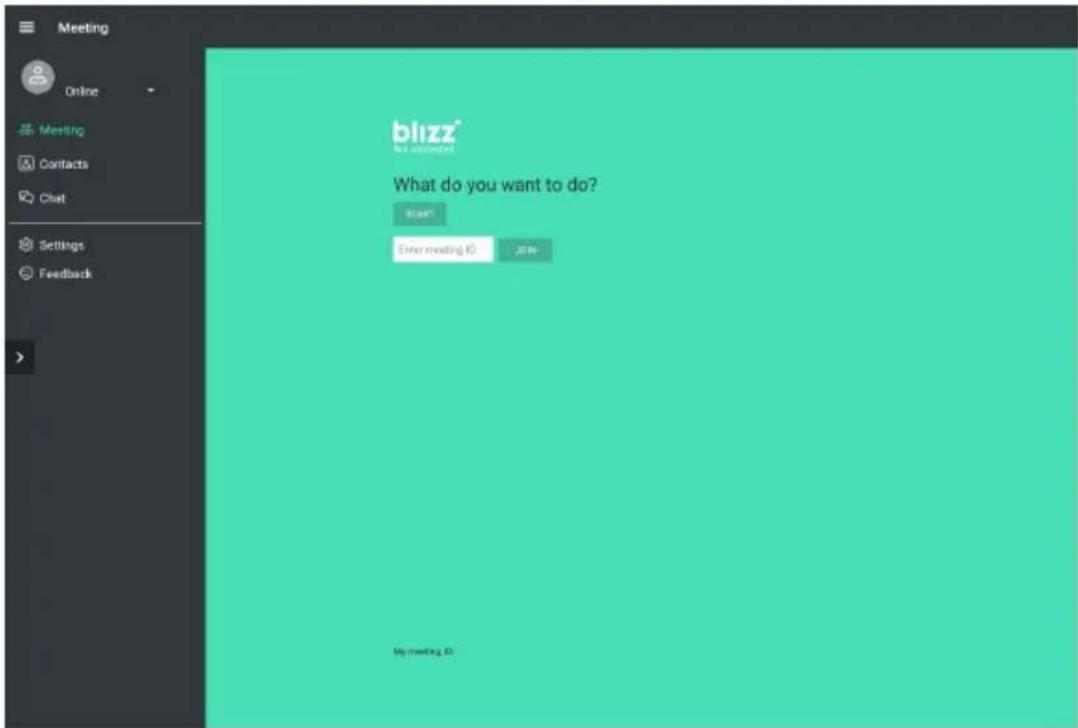
I. On the home screen, select All Apps >Blizz ( )
-
Select Sign In if you want to create a new meeting, select Join a Meeting if you want to join an already created meeting.
-
After signing in, create a meeting ID which will be the meeting ID other users will enter to join the meeting.
- If joining a meeting, enter the meeting ID provided by the creator of the meeting in the Join a Meeting page.
WPS Office
Select 📋 to launch WPS Office. With this application, you can open document files including PDFs as well as Microsoft Word, PowerPoint and Excel documents.
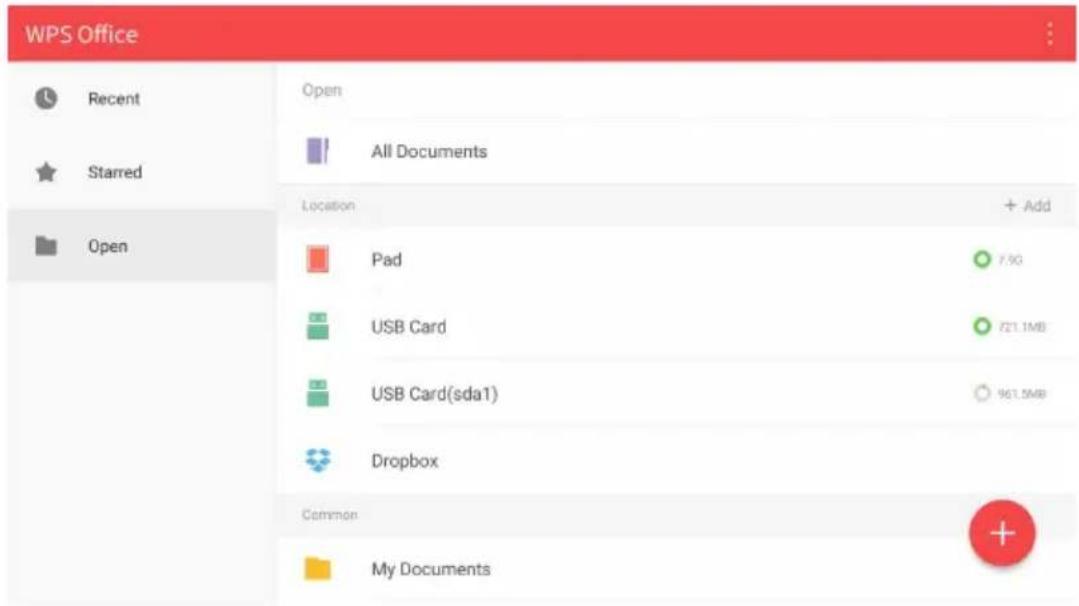
To edit a file with WPS Office:
Function Description
Open Select to browse and open a file.
Share Select to share your files through email or other sharing applications.
Manage Select to edit or manage the document.
- Select Open (☐) on the left panel to browse and open a file located in either the display's internal memory, an external storage device, or cloud storage.
- Select the function menu on the top panel to access the file format's various functions.

The description is for a PowerPoint file, the function menus for other file formats will vary.
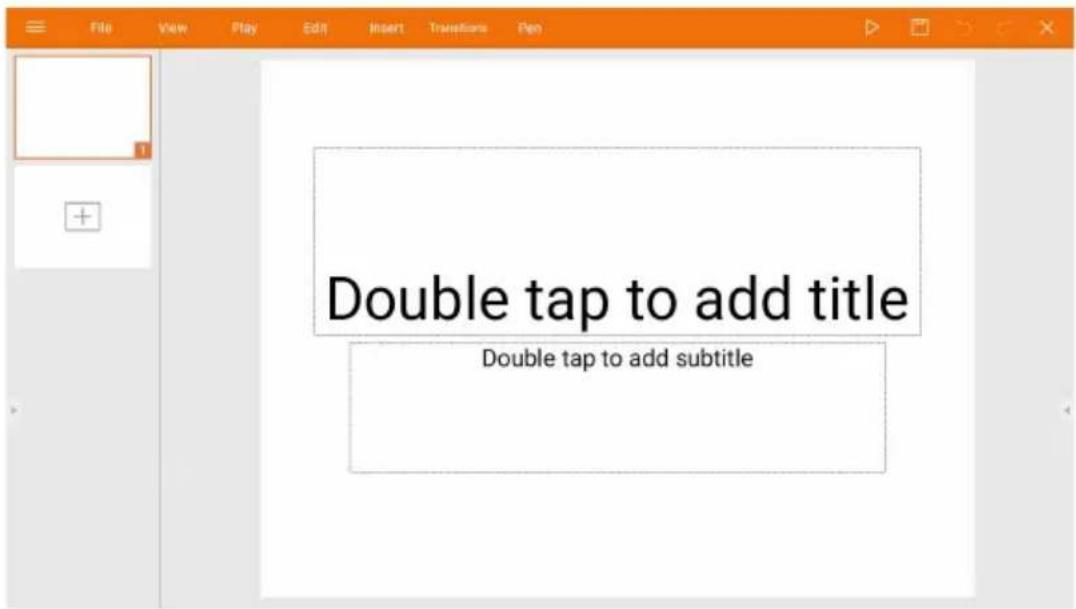
Function Description
File Select to open, save, share, print, and manage your presentations.
View Select to change or edit the presentation views.
Play Select to start or set up a slide show.
Edit Select to edit the content or format of the slides.
Insert Select to insert tables, pictures, charts, comments, video, or audio.
Transitions Select to apply or adjust the timing of a transition.
Pen Select to write, draw, paint or sketch to the slides.
Play ( ▷) Select to start a slide show.
Save As (☐) Select to save the presentation file on either the display's internal memory, an external storage device, or cloud storage.
Undo (♂) Select to undo an action.
Redo ( ↗) Select to redo the last action.
Close (✗) Select to close the presentation file.
Back ( ← ) Select to return to the previous page.
Next ( → ) Select to go to the next page.
Exit (←) Select to exit WPS Office.
Supported Office versions and file formats
Supported Office versions: 97 / 2000 / XP/ 2003 / 2007 / 2010
Supported Office software formats:
Office Software Supported File Formats
Word wps / wpt / doc / docx / dot / dotx / txt / log / irc / c / cpp / h / asm / s / java / asp / bat / bas / prg / cmd
Excel et / ett / xls / xlsx / xlt / xltx / csv / xlsm / xltm
PowerPoint ppt / pptx
BenQ Suggests
Select 📋 to launch BenQ Suggests. With this application, you can view apps suggested by BenQ for download.
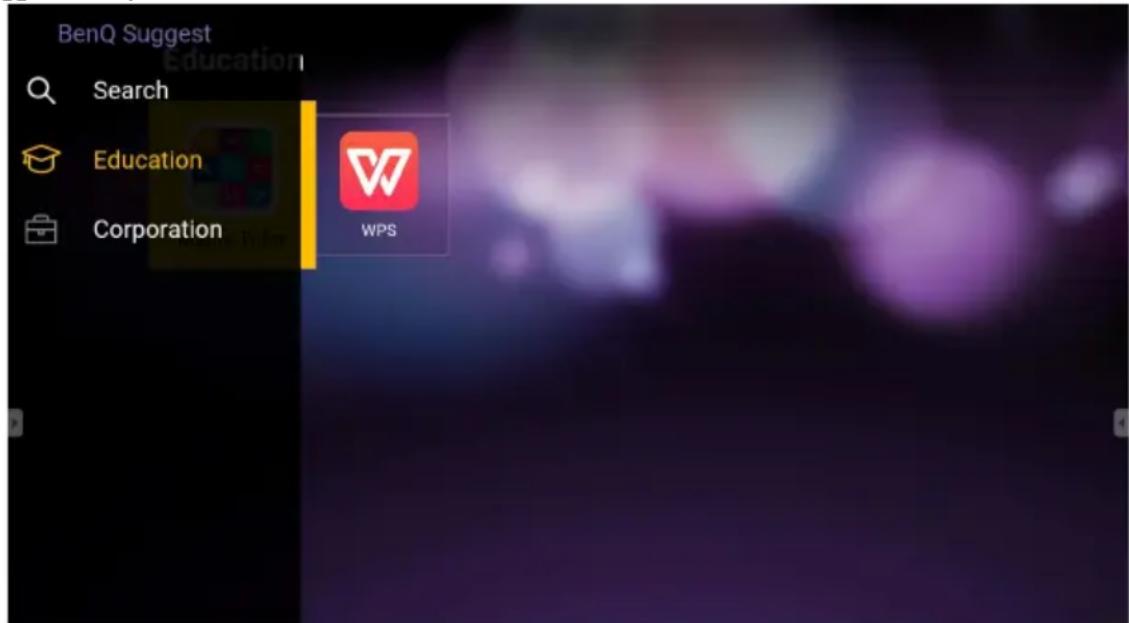
Select the category on the left panel to browse the suggested apps. Select an app from the selected category to view a basic description of the app.
| Function Description | |
| Search (Q) | Select to search for an app. |
| Education (☐) | Select to show the suggested apps in the Education category. |
| Corporation (☐) | Select to show the suggested apps in the Corporation category. |
| Exit (←) | Select to close BenQ Suggests. |
InstaShare
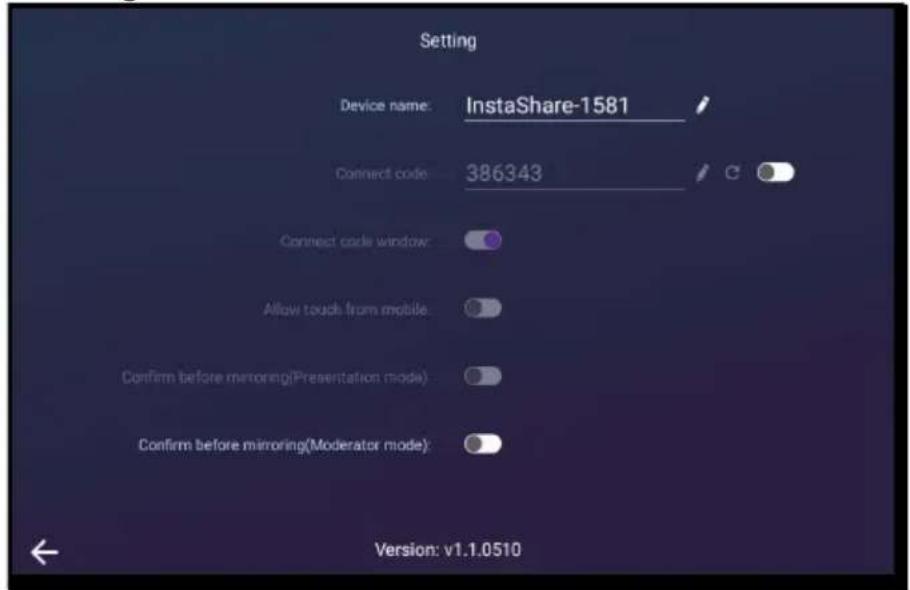
Select to launch InstaShare. With this application, you can mirror the display's screen on your smartphone or tablet for hands-on annotation and mirror the screen of your smartphone or tablet on the display.

Before launching the application, make sure your display is properly connected to Internet.
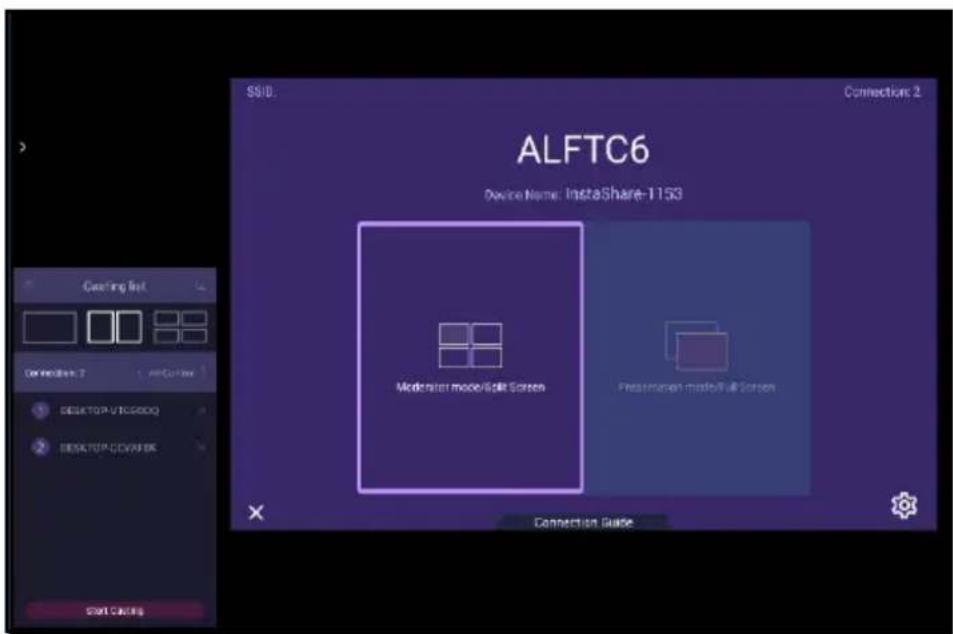
To use InstaShare:
I. Make sure your mobile device (such as smartphone or tablet) and the display are connected to the same network.
2. Select the connection guide and scan the QR code to download and install the InstaShare app on your mobile device.
3. Open the InstaShare app on your mobile device, and then click the InstaShare ID name that you want to connect to or enter the pairing code.
4. Enter the connect code shown on the upper right corner of the display or you can also find the connection code in Setting (💡) .
5. Once the mobile device has successfully connected to the display, a confirmation message will appear on the display. Select Allow on the display to confirm the connection.
6. Once connected you can:
- Mirror the display's screen on your mobile device by tapping Screen Mirroring on your mobile device.
- Mirror the device's screen on the display by tapping on your mobile device.
- Operate the display by using your mobile device as a remote control.

Once connected, any operations on the display or mobile device will also show up on your mobile device and display.
You can also select Setting (⚙️) in the lower right corner of the display to modify the settings for InstaShare, such as the InstaShare ID name, connect code, or mirroring confirmation message.
Product information
Specifications
| Item | Specifications | |
| ST4302/ST5502/ST6502/ST7502/ST8602 | ||
| LCD panel | Backlight D-LED | |
| Panel size | ST4302: 43", ST5502: 55"ST6502: 65", ST7502: 75", ST8602: 86" | |
| Pixel pitch (mm) | ST4302: 0.2451 x 0.2451ST5502: 0.315 x 0.315ST6502: 0.372 x 0.372ST7502: 0.4296 x 0.4296ST8602: 0.372 x 0.372 | |
| Frame Rate 60 Hz | ||
| Native resolution (pixels) UHD | 3840 x 2160 | |
| Active Area (mm) | ST4302: 941.2 x 529.4ST5502: 1209.6 x 680.4ST6502: 1428.5 x 803.5ST7502: 1649.7 x 927.9ST8602: 1895.0 x 1066.0 | |
| Brightness (cd/m2) (typical) | 450 nits | |
| Contrast (typical) | ST4302: 5000:1ST5502: 4500:1ST6502/7502/8602:1200:1 | |
| Response time (ms) (typical) 8 | ||
| Panel Bit (8 or 10) 10 bit | ||
| Aspect Ratio 16:9 | ||
| Input | Video VGA x1, HDMI x2 (2.0), DP x1 (1.2) | |
| Audio PC Audio input x1 (3.5mm) | ||
| USB (Type A) x2 (2.0), x1 (3.0) for OPS | ||
| Control RS232 x1 | ||
| OPS 18V/4A | ||
| Output | Audio SPDIF x1, Line out x1 (3.5mm) | |
| External speaker out (L/R) X | ||
| Video | HDMI (FHD) | |
| Audio | Audio W (Amp) | 12W x 2 |
| Internal speaker | O | |
| Power | Supply | 100 - 240 V AC, 50/60 HzST4302: 2AST5502/ST6502/ST7502: 3AST8602: 4.5A |
| Consumption Max. | ST4302: 200W, ST5502: 300WST6502/ST7502: 320W, ST8602: 550W | |
| Consumption Standby 0.5W | ||
| Environment | Operating Temperature | 0°C ~ 40°C |
| Operating Humidity | 20% ~ 90% RH Non-Condensing (without condensation) | |
| Storage Temperature | -10°C ~ 60°C | |
| Storage Humidity | 10% ~ 80% RH Non-Condensing (without condensation) | |
| Display Orientation | ST4302/ST5502: Landscape & PortraitST6502/ST7502/ST8602: Landscape | |
| Mechanical | Weight (without packing / with packing) (kg) | ST4302: 11.3/16.4ST5502: 18.4/25.7ST6502: 22.9/33.6ST7502: 29.3/41.7ST8602: 50.4/69.8 |
| Dimensions (W x H x D) (mm) | ST4302: 961.4 x 553.7 x 71.9ST5502: 1233.6 x 708.4 x 76.6ST6502: 1450.6 x 828.1 x 78.5ST7502: 1672.2 x 954.9 x 75.3ST8602: 1930.8 x 1109.3 x 82.4 | |
| Bezel Dimension - T/B/L/R (mm) | ST4302: 8.7/13.1/8.7/8.7ST5502: 12.7/16.9/12.7/12.7ST6502: 8.8/12.8/8.8/8.8ST7502: 9.0/13.3/9.0/9.0ST8602: 13.9/23.4/13.9/13.9 | |
| Feature | Image setting O | |
| Picture in Picture (PIP) O | ||
| Sharpness enhancement O | ||
| 10-bit color processing O | ||
| Source / volume control O | ||
| HDMI-HDCP 2.2 | ||
| Internal Temperature Sensor O | ||
| CEC Control O | ||
| FW Update USB/OTA | ||
| RTC Function O | ||
| Item ST4302/ST5502/ST6502/ST7502/ST8602 | ||
| System | System Memory | 3 GB |
| Storage 16 GB | ||
| OS Android 8.0 | ||

- OS: This Android 8.0 operating system is not standard Android, so access to Google Play™ is not available. APK cannot be installed in the default location. Without management permission, installing function won't work. There is no guarantee that the self-installed APK can function normally.
- Storage: Content storage may vary by the product supplied for your region. Pre-installed system and apps may take up some space.
Dimensions
ST4302

Unit: mm
ST5502
Unit: mm
ST6502
Unit: mm
ST7502

Unit: mm
ST8602
Unit: mm
Supported input signal resolution
| Problem Solution | |
| No picture | Check the following:Is the display turned on? Check the power indicator of the display.Is the signal source device turned on? Turn on the device and try again.Are there any loose cable connections? Make sure that all cables are connected firmly.Have you chosen an unsupported output resolution on the computer? Refer to Supported input signal resolution on page 59 to select a supported resolution and try again.Have you chosen an unsupported output resolution on the DVD or Blu-ray disc player? Refer to Supported input signal resolution on page 59 to select a supported resolution and try again. |
| No sound | Check the following:Have you turned on the mute function on the display or the input source device? Turn off the mute function or increase the audio volume level and try again.Are there any loose cable connections? Make sure that all cables are connected firmly. |
| The computer input image looks strange. | Have you chosen an unsupported output resolution on the computer? Refer to Supported input signal resolution on page 59 to select a supported resolution and try again.Use the Auto function to let the display automatically optimize the display of computer image. Refer to Picture settings on page 35 for more information.If the result of the Auto Tune function is not satisfactory, use the Phase, Horizontal Position, and Vertical Position functions to manually adjust the image. |
| The control panel buttons do not work. | Have you locked the control panel buttons? Unlock the buttons and try again. |
| The remote control does not work. | Have you locked the remote control function? Unlock the function and try again.Check for incorrect battery orientation.Check for dead batteries.Check your distance and angle from the display.Check whether remote control is properly being pointed at the display's remote control sensor window.Check for any obstacle between the remote control and the remote control sensor window.Check that the remote control sensor window is not under strong fluorescent lighting, or in direct sunlight.Check for any devices (computer or personal digital assistant, PDA) nearby that transmit infrared signals which may cause interference to signal transmission between the remote control and the display. Turn off the infrared function of these devices. |

- Disclaimer
- Copyright
- Product support
- Table of Contents
- Safety warnings and precautions
- THIS EQUIPMENT MUST BE GROUNDED
- Important safety instructions
- Notes on the LCD panel of this display
- Safety notice for remote control
- Battery safety notice
- BenQ ecoFACTS
- Package contents
- Setting up the display
- Mounting the display
- Installing the display on a wall
- Parts of the display and their functions
- Input/output terminals
- VOL+/VOL-
- MENU
- Power button
- INPUT
- ▲/▼/◄/►/ENTER
- HOME
- X-Sign
- BACK
- Using the remote control Installing remote control batteries
- Remote control usage tips
- Connection
- Connecting audio/video signals
- Connecting the digital inputs
- Connecting the multimedia inputs
- Connecting power
- Basic operations
- Turning the display on or off
- Switching input signals
- Operations in the OSD menu
- Initial setup
- Setting
- Downloading software
- Setting up the Internet connection
- Network setting
- Wireless connection
- Updating software
- Menu operations
- Android Input
- Input source settings
- General settings
- Audio Settings
- Picture Settings
- Device settings
- Custom source name
- Advanced settings
- Proxy setting
- System settings
- Startup & Shutdown
- Other Input
- Display settings
- Adjust settings (VGA-only)
- Menu Description
- Android system interface
- Main interface
- Multimedia files
- Picture
- Audio
- Video
- APPS
- Menu
- X-Sign
- About All Apps
- Blizz
- WPS Office
- Function Description
- Supported Office versions and file formats
- Office Software Supported File Formats
- BenQ Suggests
- InstaShare
- To use InstaShare:
- Product information
- Specifications
- Dimensions
- ST4302
Brand : BENQ
Model : ST02S
Category : Tracking