
VT-PTZ18W - Unknown Vitek - Free user manual and instructions
Find the device manual for free VT-PTZ18W Vitek in PDF.


| Product Type | Speed Dome Camera |
| Model | VT-PTZ18W |
| Image Sensor | 1/4" Interline Transfer CCD |
| Horizontal Resolution | 550 TV Lines |
| Minimum Illumination | 0.7 Lux (1/60 sec) / 0.07 Lux (F1.4 Slow Shutter) |
| Lens | 4.1~73.8mm @ F1.4 |
| Optical Zoom | 18x |
| Digital Zoom | 12x |
| Pan Range | 360° Continuous |
| Tilt Range | -5° to 90°/95° |
| Manual Speed | 0.1°~90°/sec |
| Preset Speed | 380°/sec (pan & tilt) |
| Number of Presets | 248 |
| Number of Tours | 8 |
| Number of Patterns | 4 (1 Full or 3 x 240 sec) |
| Number of Scans | 16 |
| Privacy Zones | 8 |
| Alarm Inputs/Outputs | 8 inputs / 2 relay outputs |
| Communication | RS-422/485, 8 bit, 1 stop bit, no parity, 2.4~230 kbps |
| Power Requirements | 18~30VAC, 24VAC/40VA or 24VDC/3A |
| Dimensions (Pendant) | 4.96" x 7.13" (126mm x 181mm) |
| Dimensions (Flush) | 4.96" x 3.15" (126mm x 80mm) |
| Weight | Approx. 1.5 kg (3.3 lbs) |
| Operating Temperature | Indoor/Outdoor (with heater option) |
| Clean | Use only dry cloth for exterior cleaning |
Frequently Asked Questions - VT-PTZ18W Vitek
User questions about VT-PTZ18W Vitek
0 question about this device. Answer the ones you know or ask your own.
Ask a new question about this device
Download the instructions for your Unknown in PDF format for free! Find your manual VT-PTZ18W - Vitek and take your electronic device back in hand. On this page are published all the documents necessary for the use of your device. VT-PTZ18W by Vitek.
USER MANUAL VT-PTZ18W Vitek
natural_image
Exterior view of a security camera with a digital display and control panel (no visible text or symbols)• True Night Shot (D/N) Function with Automatic Cut Filter (VT-PTZ26 & VT-PTZ36)
• Built-in 36x Optical Zoom / 12x Digital Zoom (VT-PTZ36), Built-in 26x Optical Zoom / 12x Digital Zoom (VT-PTZ26) or 18x Optical Zoom / 12x Digital Zoom (VT-PTZ18)
• Auto Protocol Detection
• 248 Presets programmed with view direction, zoom, BLC.
• 4 Patterns record and play back user preference of surveillance path up to 240° sec.
• 16 Scans, 1 Auto Pan: 8 speed steps from slow to medium panning with smooth Vector Scan.
• 8 Tours: Each tour consists up to 64 Preset, Pattern, Scan and other Tours.
• Tour can be expanded up to 500 different functions using nested Tours.
- Smooth Vector Scan mode and programmable Individual dwell time camera functions. (Speed, Dwell time BLC, Focus, IRIS of the preset)
- 8 Alarm inputs with 0\~8 priority / 2 Auxiliary outputs programmable NC & NO.
• 8 Privacy Zones: Video off or up to 8 masked blocks
- 64 steps of variable speed from 0.1^ / sec to 90^ / sec .
- Max manual speed 360°/sec with Turbo key pressed. Preset speed is 380°/sec.
- Minimum adjustable angle is 0.0375^ with Single Step move function.
- Programmable user preferences of speed (Slow, Medium, Fast)
DISCLAIMER
- While every effort has been made to ensure that the information contained in this guide is accurate and complete, no liability can be accepted for any errors or omissions.
- Vitek reserves the right to change the specifications of the hardware and software described herein at any time without prior notice.
- No part of this guide may be reproduced, transmitted, transcribed, stored in a retrieval system, or translated into any language in any form, by any means, without prior written permission of Vitek.
- Vitek makes no warranties for damages resulting from corrupted or lost data due to a mistaken operation or malfunction of the Speed Dome Cameras, peripheral devices, or unapproved/unsupported devices.
Vitek Industrial Video Products, Inc.
28492 Constellation Road
Valencia, CA 91355
Phone: (888) VITEK-70 / (818) 771-0300
Fax: (818) 771-0400
www.vitekcctv.com | Sales@vitekcctv.com
WARNING AND CAUTION
WARNING
TO REDUCE THE RISK OF FIRE OR ELECTRIC SHOCK, DO NOT EXPOSE THIS PRODUCT TO RAIN OR MOISTURE. DO NOT INSERT ANY METALLIC OBJECTS THROUGH THE VENTILATION GRILLS OR OPENINGS ON THE EQUIPMENT.
CAUTION

CAUTION
RISK OF ELECTRIC SHOCK DO NOT OPEN

CAUTION: TO REDUCE THE RISK OF ELECTRIC SHOCK, DO NOT REMOVE COVER(OR BACK). NO USER-SERVICEABLE PARTS INSIDE. REFER SERVICING TO QUALIFIED SERVICE PERSONNEL
The lightning flash with arrowhead symbol, within an equilateral triangle, is intended to alert the user to the presence of uninsulated “dangerous voltage” within the product’s enclosure that may be of sufficient magnitude to constitute a risk of electric shock to persons.

The exclamation point within an equilateral triangle is intended to alert the user to the presence of important operating and maintenance (servicing) instruction in the literature accompanying the product.
FCC COMPLIANCE STATEMENT
FCC INFORMATION: THIS EQUIPMENT HAS BEEN TESTED AND FOUND TO COMPLY WITH THE LIMITS FOR A CLASS A DIGITAL DEVICE, PURSUANT TO PART 15 OF THE FCC RULES. THESE LIMITS ARE DESIGNED TO PROVIDE REASONABLE PROTECTION AGAINST HARMFUL INTERFERENCE WHEN THE EQUIPMENT IS OPERATED IN A COMMERCIAL ENVIRONMENT. THIS EQUIPMENT GENERATES, USES, AND CAN RADIATE RADIO FREQUENCY ENERGY AND IF NOT INSTALLED AND USED IN ACCORDANCE WITH THE INSTRUCTION MANUAL, MAY CAUSE HARMFUL INTERFERENCE TO RADIO COMMUNICATIONS. OPERATION OF THIS EQUIPMENT IN A RESIDENTIAL AREA IS LIKELY TO CAUSE HARMFUL INTERFERENCE IN WHICH CASE THE USER WILL BE REQUIRED TO CORRECT THE INTERFERENCE AT HIS OWN EXPENSE.
CAUTION: CHANGES OR MODIFICATIONS NOT EXPRESSLY APPROVED BY THE PARTY RESPONSIBLE FOR COMPLIANCE COULD VOID THE USER'S AUTHORITY TO OPERATE THE EQUIPMENT.
THIS CLASS A DIGITAL EQUIPMENT COMPLIES WITH CANADIAN ICES-003.
CET APPAREIL NUMÉRIQUE DE LA CLASSE A EST CONFORME À LA NORME NMB-003 DU CANADA.
CE COMPLIANCE STATEMENT
WARNING
THIS IS A CLASS A PRODUCT. IN A DOMESTIC ENVIRONMENT THIS PRODUCT MAY CAUSE RADIO INTERFERENCE IN WHICH CASE THE USER MAY BE REQUIRED TO TAKE ADEQUATE MEASURES.
IMPORTANT SAFEGUARDS
- Read these instructions.
- Heed all warnings.
- Follow all instructions.
- Do not use this equipment near water.
- Clean only with dry cloth.
- Do not block any ventilation openings. Install in accordance with the manufacturer's instructions.
- Do not install near any heat sources such as radiators, heat registers, stoves, or other equipment (including amplifiers) that produce heat.
- Do not defeat the safety purpose of the polarized or grounding-type plug. A polarized plug has two blades with one wider than the other. A grounding type plug has two blades and a third grounding prong. The wide blade or the third prong is provided for your safety. If the provided plug does not fit into your outlet, consult an electrician for replacement of the obsolete outlet.
- Protect the power cord from being walked on or pinched, particularly at plugs, convenience receptacles, and the point where they exit from the equipment.
- Only use attachments/accessories specified by the manufacturer.
- Unplug this equipment during lightning storms or when unused for long periods of time.
- Refer all servicing to qualified service personnel. Servicing is required when the equipment has been damaged in any way, such as power-supply cord or plug is damaged, liquid has been spilled or objects have fallen into the equipment, the equipment has been exposed to rain or moisture, does not operate normally, or has been dropped.
- CAUTION - THESE SERVICING INSTRUCTIONS ARE FOR USE BY QUALIFIED SERVICE PERSONNEL ONLY. TO REDUCE THE RISK OF ELECTRIC SHOCK DO NOT PERFORM ANY SERVICING OTHER THAN THAT CONTAINED IN THE OPERATING INSTRUCTIONS UNLESS YOU ARE QUALIFIED TO DO SO.
- Use Certified/Listed Class 2 power supply transformer only.
TABLE OF CONTENTS
DISCLAIMER 1
WARNING AND CAUTION 2
FCC COMPLIANCE STATEMENT 3
CE COMPLIANCE STATEMENT 3
IMPORTANT SAFEGUARDS 4
CONTENT VERIFICATION 7
MENU TREE 8
INTRODUCTION 9
INSTALLATION AND CONFIGURATION 10
Typical system configuration 10
Basic configuration of speed dome camera system 11
Connecting the Speed Dome directly into the DVR 12
Connecting the Speed Dome into the Controller via j-box 12
Connecting both Speed Dome and DVR via J-BOX 13
Setting the Video System 14
Setting the Web Baudrate 15
Principle of Termination 15
Dome Camera Address (ID) 17
Setting Protocols 18
Connections 19
Mounting the Dome Camera 20
Power on and Boot-up Sequence 21
PROGRAM & OPERATION 22
Dome Camera Selection 22
1 FUNCTIONS 23
1.1 Home Function 24
1.2 Preset 25
1.3 Scan 29
1.4 Tour 30
1.5 Pattern 32
1.6 Run Function 32
2 ACTIONS SETUP 33
2.1 Alarm Action Setup 33
2.2 Alarm List 34
2.3 Clear Alarm List 35
2.4 Schedule Action Setup 35
2.5 List Action 38
3 SCREEN 39
3.1 Language Setup 39
3.2 Privacy Zone Setup 40
3.3 North Direction 40
TABLE OF CONTENTS
3.4 Zone Title 41
3.5 Camera Title 42
3.6 OSD Display 42
4 CAMERA SETUP 43
4.1 Focus Control 43
4.2 WB (white balance) 44
4.3 AE Control 45
4.4 Night Shot Menu 46
4.5 Camera Default 46
5 TIME & DATE SETUP 47
5.1 Edit Daylight Savings 47
5.2 Edit Holidays 48
5.3 List Holiday 49
6 DATA SETUP 50
6.1 Factory Default 50
6.2 Erase Programmed Data 51
6.3 Backup Data 51
6.4 Restore Data 52
6.5 Clear Data 52
7 SETUP 53
7.1 Preset Freeze 53
7.2 Speed 53
7.3 Response 53
7.4 Dome Angle 53
7.4.1 Flip 54
7.4.2 Panning Range 54
7.4.3 Tilt Over Angle 54
7.5 Calibration 55
7.6 Password Setup 56
7.7 System Information 57
TECHNICAL SPECIFICATIONS 58
Lens 59
Controller 59
Dimension 59
APPENDIX 60
Troubleshooting 60
CONTENT VERIFICATION
Before installing the controller, please make sure that the following items are included in the box:
- One Xpress Dome Camera
- One Instruction Manual
- Three Mounting Screws.
- Three Plastic Anchors.
- Two Eight-Pin Cable Assemblies.
If any of these materials are missing, please contact the vendor or Vitek customer help desk immediately.
MENU TREE
 | 1. FUNCTIONS | 1.1 HOME FUNCTION (MENU ⇒ Functions ⇒ Home) | |
| 1.2 PRESET (MENU ⇒ Functions ⇒ Preset Shortcut : PRST) | |||
| 1.3 PATTERN (MENU ⇒ Function ⇒ Pattern or Shortcut: PTRN) | |||
| 1.4 SCAN (MENU ⇒ Functions ⇒ Scan or Shortcut: SCAN) | |||
| 1.5 TOUR (MENU ⇒ Functions ⇒ Tour, Shortcut: TOUR) | |||
| 1.6 RUN FUNCTION (MENU ⇒ Functions ⇒ Run Function) | |||
 | 2. ACTIONS | 2.1 ALARM (MENU ⇒ Actions => Alarm) | |
| 2.2 ALARM LIST (MENU ⇒ Actions ⇒ Alarm List) | |||
| 2.3 CLEAR ALARM LIST (MENU ⇒ Actions ⇒ Clear Alarm List) | |||
| 2.4 SCHEDULE (MENU ⇒ Actions ⇒ Schedule) | |||
| 2.5 SCHEDULE LIST (MENU ⇒ Actions ⇒ Schedule List) | |||
 | 3. SCREEN | 3.1 LANGUAGE (MENU ⇒ Screen ⇒ Language) | |
| 3.2 PRIVACY ZONE (MENU ⇒ Screen ⇒ Privacy Zone) | |||
| 3.3 NORTH DIRECTION (MENU ⇒ Screen ⇒ North Direction) | |||
| 3.4 ZONE TITLE (MENU ⇒ Screen ⇒ Zone Title) | |||
| 3.5 CAMERA TITLE (MENU ⇒ Screen ⇒ Camera Title) | |||
| 3.6 OSD DISPLAY (MENU ⇒ Screen ⇒ OSD Display) | |||
 | 4. CAMERA | 4.1 FOCUS CONTROL (MENU ⇒ Camera ⇒ Focus Control) | |
| 4.2 WB (white balance) (MENU ⇒ Camera ⇒ WB Control) | |||
| 4.3 AE CONTROL (MENU ⇒ Camera ⇒ AE Control) | |||
| 4.4 NIGHT SHOT (MENU ⇒ Camera ⇒ Night Shot) | |||
| 4.5 CAMERA DEFAULT (MENU ⇒ Camera ⇒ Camera Default) | |||
 | 5. DATE/TIME SETUP | 5.1 EDIT DAYLIGHT SAVINGS (MENU ⇒ Date/Time Setup ⇒ Edit Daylight Savings) | |
| 5.2 EDIT HOLIDAYS (MENU ⇒ Date/Time Setup ⇒ Edit Holidays) | |||
| 5.3 LIST HOLIDAYS (MENU ⇒ Date/Time Setup ⇒ List Holidays) | |||
 | 6. DATA | 6.1 FACTORY DEFAULT (MENU ⇒ Data ⇒ Factory Default) | |
| 6.2 ERASE PROGRAMMED DATA (MENU ⇒ Data ⇒ Erase Programmed Data) | |||
| 6.3 BACKUP DATA (MENU ⇒ Data ⇒ Backup Data) | |||
| 6.4 RESTORE DATA (MENU ⇒ Data ⇒ Restore Data) | |||
| 6.5 CLEAR BACKUP DATA (MENU ⇒ Data ⇒ Clear Backup Data) | |||
 | 7. SETUP | 7.1 PRESET FREEZE (MENU ⇒ Setup ⇒ Preset Freeze) | |
| 7.2 SPEED (MENU ⇒ Setup ⇒ Speed) | |||
| 7.3 RESPONSE (MENU ⇒ Setup ⇒ Response) | |||
| 7.4 DOME ANGLE (MENU ⇒ Setup ⇒ Dome Angle) | 7.4.1 FLIP (MENU ⇒ Setup ⇒ Dome Angle ⇒ Flip) | ||
| 7.4.2 PANNING RANGE (MENU ⇒ Setup ⇒ Dome Angle ⇒ Pan Range) | |||
| 7.4.3 TILT OVER ANGLE (MENU ⇒ Setup ⇒ Dome Angle ⇒ Tilt Range) | |||
| 7.5 CALIBRATION (MENU ⇒ Setup ⇒ Calibration) | |||
| 7.6 PASSWORD SETUP (MENU ⇒ Setup ⇒ Password) | |||
| 7.7 SYSTEM INFORMATION (MENU ⇒ Setup ⇒ System Information) | |||
INTRODUCTION
Features
The Speed Dome Camera features a high resolution EX-View HAD CCD imager for enhanced lowlight sensitivity. User friendly, on-screen pull-down menus and short-cuts make it easy to setup and program functions.
System information aides trouble shooting by displaying the hardware and software version of the camera's firmware version, baud rate, and protocol.
• Built-in Optical Power Zoom Camera.
• 248 Presets programmed with view direction, zoom, and BLC.
- 8 Patterns record and play back user preference of surveillance path up to 480 sec.
- 16 Scans: 8 speed steps from 1 level to 8 level panning with smooth Diagonal Scan.
- 8 Tours: Each tour consists up to 63 (Preset, Pattern, and Scan).
Smooth Diagonal Scan mode and programmable Individual dwell time camera functions.
- 8 Alarm inputs with 1\~8 priority / 2 Auxiliary outputs programmable NC & NO.
- 8 Privacy Zones: Video off or up to 8 masked blocks.
• 24 Area Titles.
- 64 steps of variable speed from 0.1^ /sec to 420^ /sec.
Max manual speed 420^/sec with Turbo key pressed, Preset speed is 420^/sec .
- Programmable user preferences of speed (Slow, Medium, Fast, and AUTO).
- Addressable up to 999 camera IDs (Extendable up to 3999 in special mode).
• Built-in RS-485 receiver driver.
- On-site software upgrade and upload/download of programmed data into the KBD/Dome.
• Built-in power-line surge protection and lightning protection.
- Optional Tinted Bubble, Indoor & Outdoor pendant housing with heater & blower, Indoor Flush Mount, Parapet mount.
- Adaptive tilt limit control according to the zoom ratio provides more useful picture.
- Sensitive panning control provides faster panning movement even though maximum zoom ratio.
• Temperature sensing heater control.
• Automatic position compensation using the built in magnetic encoder.
- Built in preventing system for preventing undesired pan/tilt movement from the external shock.
- Reliable motion tracking function to follow intruder.
- Block mode alarm preset provides a useful scanning method.
- On screen popup menu provides an easy way to control the dome system using simple keyboard.
• Graphical on screen display.
INSTALLATION AND CONFIGURATION
Typical system configuration
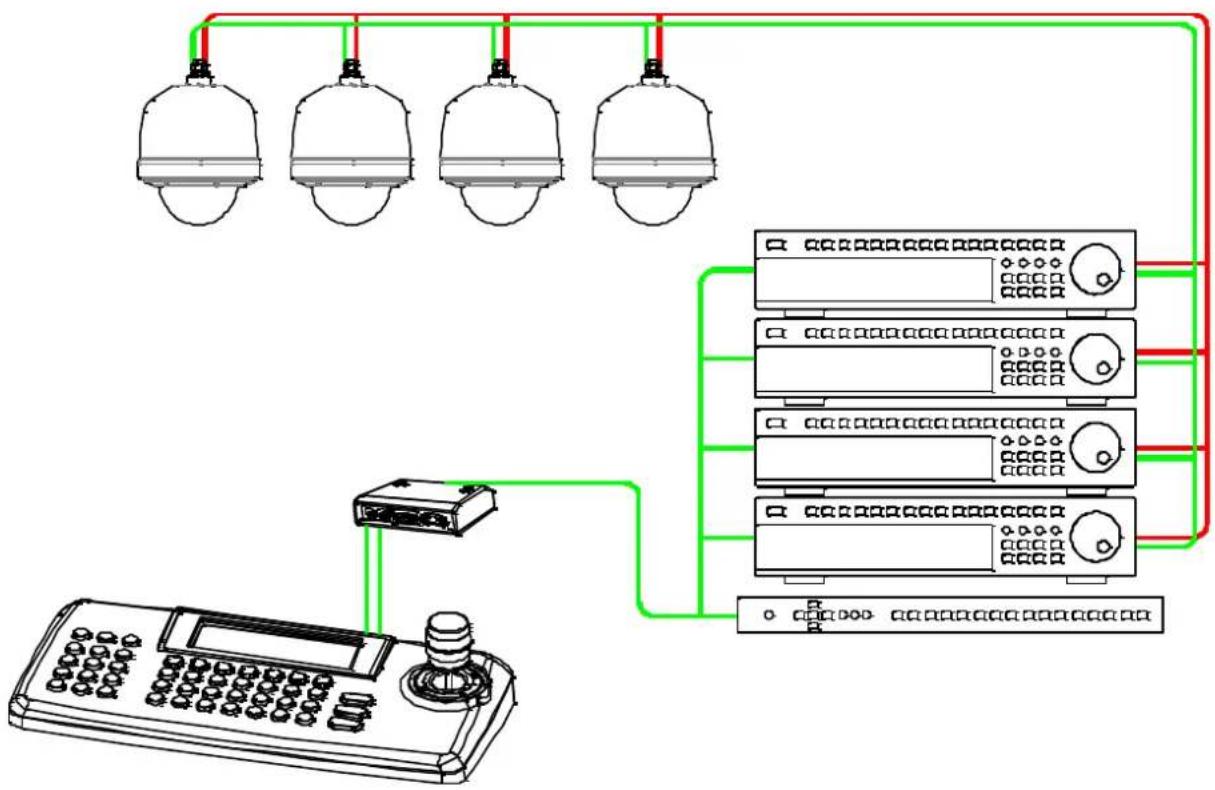
Additional Speed Dome joystick controllers and a variety of external switching devices such as multiplexers (MUXes) and Digital Video Recorders (DVRs) may be incorporated to accommodate the needs from a small to a large surveillance/security system.
Figure 1 illustrates sample installation.
flowchart
graph TD
    A["Light Lamp 1"] --> B["Central Device"]
    C["Light Lamp 2"] --> B
    D["Light Lamp 3"] --> B
    E["Light Lamp 4"] --> B
    F["Light Lamp 5"] --> B
    B --> G["Control Panel 1"]
    B --> H["Control Panel 2"]
    B --> I["Control Panel 3"]
    B --> J["Control Panel 4"]
    B --> K["Control Panel 5"]
Figure 1 - Typical System Configuration
INSTALLATION AND CONFIGURATION
Basic configuration of speed dome camera system

flowchart
graph TD
    A["J-BOX BACK"] -->|STP AWG #22| B["POWER AC 24V"]
    C["J-BOX FRONT"] -->|STP AWG #22| B
    D["KEYBOARD CONTROLLER"] -->|STP AWG #22| B
    E["BNC MONITOR"] -->|STP AWG #22| B
    F["DATA2"] --> G["DVR"]
    H["DATA1"] --> I["DVR"]
    J["DATA0"] --> K["DVR"]
    L["DATA1"] --> M["DVR"]
    N["DATA2"] --> O["DVR"]
    P["DATA1"] --> Q["DVR"]
    R["DATA0"] --> S["DVR"]
    T["DATA1"] --> U["DVR"]
    V["DATA2"] --> W["DVR"]
    X["DATA1"] --> Y["DVR"]
    Z["DATA0"] --> AA["DVR"]

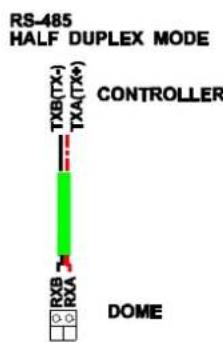
Figure 2 - Basic Installation Diagram
INSTALLATION AND CONFIGURATION
Connecting the Speed Dome directly into the DVR
- Locate the RS485 + & - conductor wire from the Speed Dome Camera.
- Connect the + & - into the Tx+ & Tx- ports of the DVR. Tx+ & Tx- ports can be found in the rear part of the DVR.

Figure 3 - Camera into DVR
Connecting the Speed Dome into the Controller via j-box

flowchart
graph TD
    A["Data1"] -->|IN Slave Out| B["DSVM"]
    C["Data2"] -->|In Slave Out| B
    B -->|DORM| D["RS-232C"]
    D -->|DORM| E["Control Panel"]
    F["REAR"] --> G["Display Interface"]
    style A fill:#f9f,stroke:#333
    style C fill:#f9f,stroke:#333
    style B fill:#ccf,stroke:#333
    style D fill:#ccf,stroke:#333
    style E fill:#ccf,stroke:#333
    style F fill:#fff,stroke:#333
Figure 4 - Camera into Controller
INSTALLATION AND CONFIGURATION
Connecting both Speed Dome and DVR via J-BOX

flowchart
graph TD
    A["Slave Device 1"] --> B["Data Bus"]
    C["Slave Device 2"] --> D["Data Bus"]
    E["Control Panel"] --> F["Data Bus"]
    G["Back Control System"] --> H["Data Bus"]
    I["Data Bus"] --> J["Data Bus"]
    K["Data Bus"] --> L["Data Bus"]
    M["Data Bus"] --> N["Data Bus"]
    O["Data Bus"] --> P["Data Bus"]
    Q["Data Bus"] --> R["Data Bus"]
    S["Data Bus"] --> T["Data Bus"]
    U["Data Bus"] --> V["Data Bus"]
    W["Data Bus"] --> X["Data Bus"]
    Y["Data Bus"] --> Z["Data Bus"]
    AA["Data Bus"] --> AB["Data Bus"]
    AC["Data Bus"] --> AD["Data Bus"]
    AE["Data Bus"] --> AF["Data Bus"]
    AG["Data Bus"] --> AH["Data Bus"]
    AI["Data Bus"] --> AJ["Data Bus"]
    AK["Data Bus"] --> AL["Data Bus"]
Figure 5 - Connecting Camera & DVR into Controller
INSTALLATION AND CONFIGURATION
The dome camera must be installed by qualified service personnel. Before installing the dome camera system, this instruction manual must be read thoroughly and understood fully. Dome cameras must be set up properly before starting the installation. This involves properly setting configuration switches. Figure 6 shows the location of these switches.
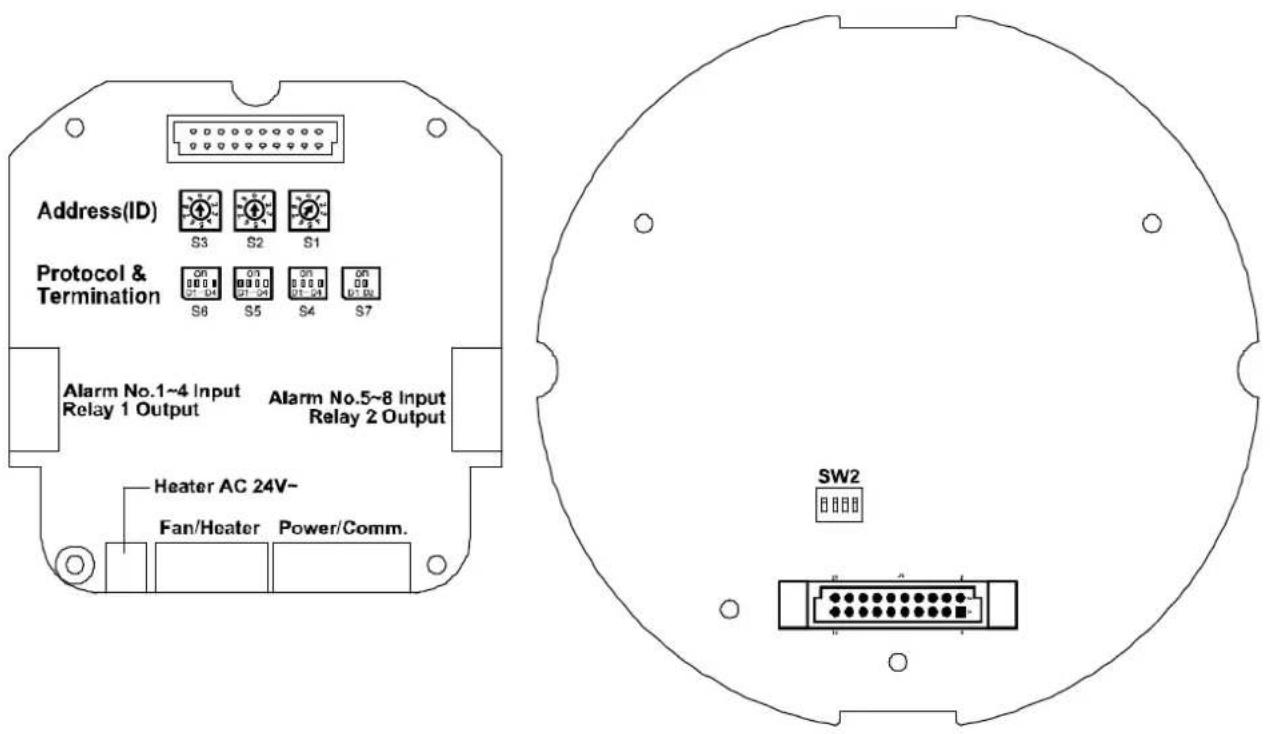
Figure 6 - Layout of Switches
Setting the Video System
Set the Video system and user able to select Analog and Web Dome when Web Dome is selected, user should check if purchased model supports.
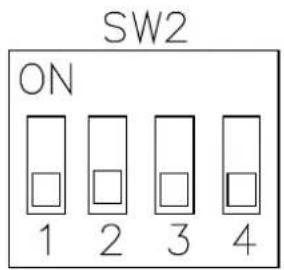
| SW2 | 1 | 2 | 3 | 4 |
| NTSC | OFF | X | X | X |
| PAL | ON | X | X | X |
| Analog Dome | X | OFF | X | X |
| Web Dome | X | ON | X | X |
Figure 7 - Setting the Video System
INSTALLATION AND CONFIGURATION
Setting the Web Baudrate
Set baudrate of communication between control board and IP board.

| SW2 | 1 | 2 | 3 | 4 |
| 4800 | X | X | OFF | OFF |
| 9600 | X | X | OFF | ON |
| 19200 | X | X | ON | OFF |
| 38400 | X | X | ON | ON |
Figure 8 - Setting the baudrate
Principle of Termination
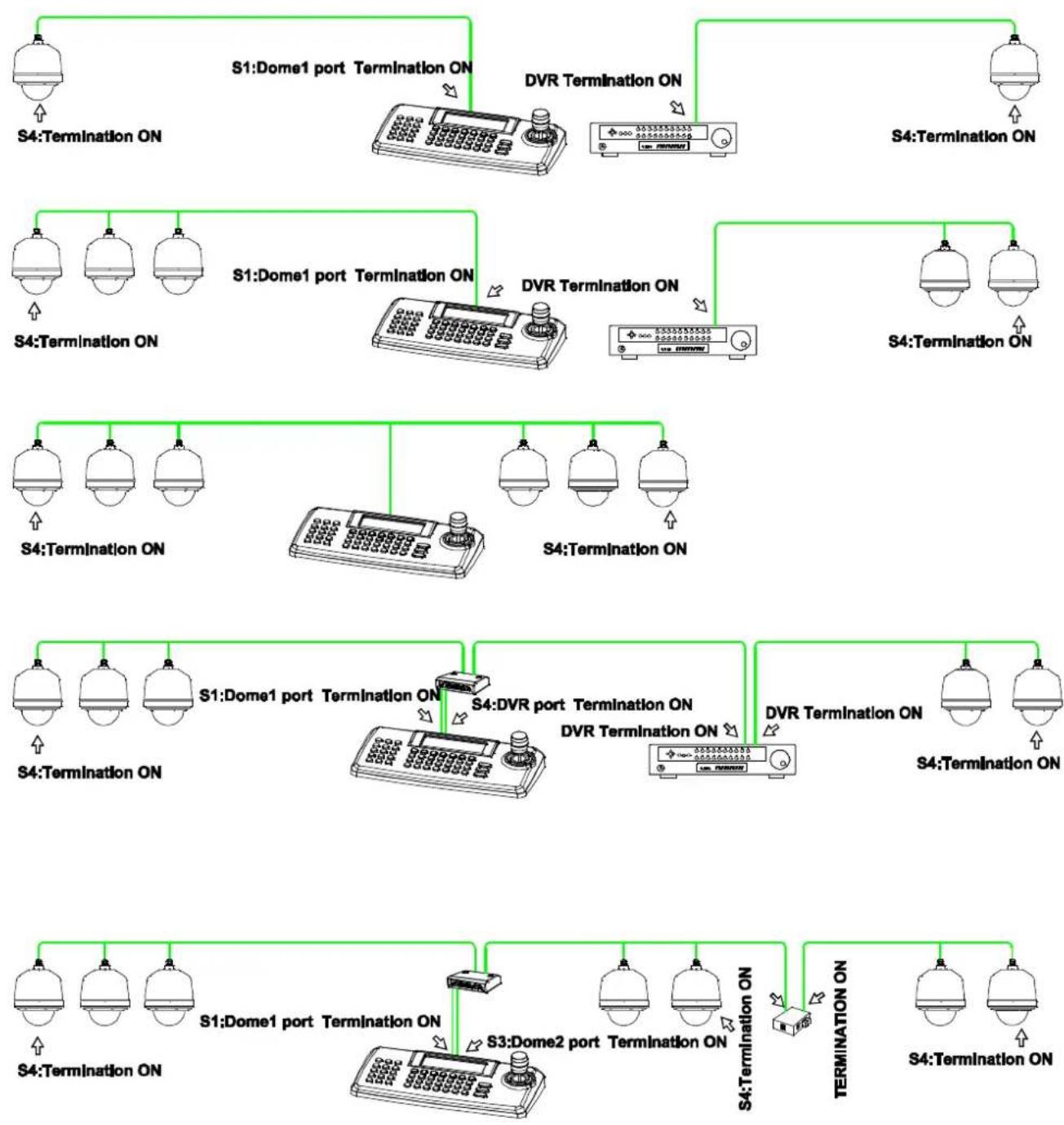
Every device that is connected at the end of the communication data line must be terminated by either the DIP switch setting or an appropriate device such as a termination jumper to prevent potential control signal errors.
See Figure 10 for termination switch settings and examples of devices requiring termination. Note: Total length of the cable for communication should not exceed 1.2Km or .74 mile.
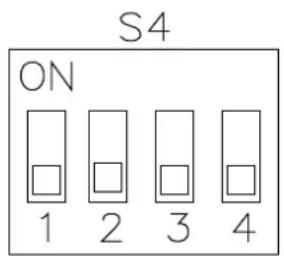
| S4 | 1 | 2 | 3 | 4 |
| Terminated | ON | X | X | X |
| Not terminated | OFF | X | X | X |
| Pull Up/Down ** | X | X | ON | ON |
| Normal ** | X | X | OFF | OFF |
Figure 9- Setting Dome Camera Termination
** Unless communication error, put the position 3, 4 of the S4 in OFF state. Position 3, 4 should be set as a pair. (Both 3, 4 to ON position or OFF position)
INSTALLATION AND CONFIGURATION
flowchart
graph TD
    subgraph S4 Termination ON
        S41["S4:Termination ON"] --> S42["S4:Termination ON"]
        S42 --> S43["S4:Termination ON"]
        S43 --> S44["S4:Termination ON"]
        S44 --> S45["S4:Termination ON"]
        S45 --> S46["S4:Termination ON"]
        S46 --> S47["S4:Termination ON"]
        S47 --> S48["S4:Termination ON"]
        S48 --> S49["S4:Termination ON"]
        S49 --> S50["S4:Termination ON"]
        S50 --> S51["S4:Termination ON"]
        S51 --> S52["S4:Termination ON"]
        S52 --> S53["S4:Termination ON"]
        S53 --> S54["S4:Termination ON"]
        S54 --> S55["S4:Termination ON"]
        S55 --> S56["S4:Termination ON"]
        S56 --> S57["S4:Termination ON"]
        S57 --> S58["S4:Termination ON"]
        S58 --> S59["S4:Termination ON"]
        S59 --> S60["S4:Termination ON"]
    end

    subgraph S1 Dome1 port Termination ON
        S11["S1:Dome1 port Termination ON"] --> S12["DVR Termination ON"]
        S12 --> S13["+"]
        S13 --> S14["+"]
        S14 --> S15["+"]
        S15 --> S16["+"]
        S16 --> S17["+"]
        S17 --> S18["+"]
        S18 --> S19["+"]
        S19 --> S20["+"]
        S20 --> S21["+"]
        S21 --> S22["+"]
        S22 --> S23["+"]
        S23 --> S24["+"]
        S24 --> S25["+"]
        S25 --> S26["+"]
        S26 --> S27["+"]
        S27 --> S28["+"]
        S28 --> S29["+"]
        S29 --> S30["+"]
        S30 --> S31["+"]
        S31 --> S32["+"]
        S32 --> S33["+"]
        S33 --> S34["+"]
        S34 --> S35["+"]
        S35 --> S36["+"]
        S36 --> S37["+"]
        S37 --> S38["+"]
        S38 --> S39["+"]
        S39 --> S40["+"]
        S40 --> S41["+"]
        S41 --> S42["+"]
        S42 --> S43["+"]
        S43 --> S44["+"]
        S44 --> S45["+"]
        S45 --> S46["+"]
        S46 --> S47["+"]
        S47 --> S48["+"]
        S48 --> S49["+"]
        S49 --> S50["+"]
        S50 --> S51["+"]
        S51 --> S52["+"]
        S52 --> S53["+"]
        S53 --> S54["+"]
        S54 --> TERMINATION ON
    end

    subgraph DVR Termination ON
        DVR1["S4:Termination ON"] --> DVR2["DVR Termination ON"]
        DVR2 --> DVR3["DVR Termination ON"]
        DVR3 --> DVR4["DVR Termination ON"]
        DVR4 --> DVR5["DVR Termination ON"]
        DVR5 --> DVR6["DVR Termination ON"]
        DVR6 --> DVR7["DVR Termination ON"]
    end

    subgraph Server Termination ON
        Server1["S4:Termination ON"] --> Server2["S4:Termination ON"]
        Server2 --> Server3["S4:Termination ON"]
        Server3 --> Server4["S4:Termination ON"]
        Server4 --> Server5["S4:Termination ON"]
    end

    subgraph Server Termination ON
        Server6["S4:Termination ON"] --> Server7["S4:Termination ON"]
    end
Figure 10 - Termination Diagram
INSTALLATION AND CONFIGURATION
Dome Camera Address (ID)
Each dome camera must have a unique address (ID). Identical IDs on the same line may damage the control circuit caused by an electrical short. When installing multiple dome cameras or a DVR, it is recommended that the dome camera ID's be identical to the camera port of the DVR.
Cam Port 1 = Dome ID1, Cam Port 2 = Dome ID 2 ... Cam Port 16 = Dome ID 16.
If more than 16 dome cameras are installed using two or more DVRs the following formula is useful to determine the Dome ID: ID = 16x (n-1) + m (where n= number of DVR, m=Camera Port)
Refer to Figures 11 for setting the dome camera address (ID) and protocol selection.
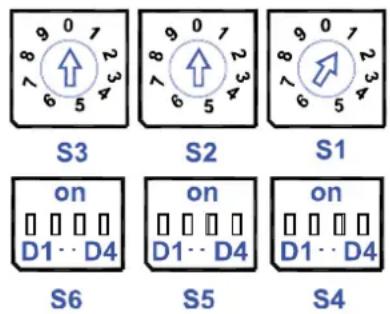
| Dome ID | S3 | S2 | S1 |
| 001 | 0 | 0 | 1 |
| . | . | . | . |
| 999 | 9 | 9 | 9 |
Figure 11 - Setting Dome Camera Address (ID) and Protocol
Setting installation environment

| S7 | 1 | 2 |
| Indoor | off | off |
| Outdoor | on | off |
| Deicing | on | on |
According to the installation environment, S7 needs to be set properly for heater operation.
Figure 12 - Setting installation environment
INSTALLATION AND CONFIGURATION
Setting Protocols
A Speed Dome camera is capable of negotiating with multiple protocols if the communication speed is matched (same baud rate i.e., 9600 bps). See Figure 13 for the appropriate protocol switch settings.
Note: Consult service personnel if a dome camera is installed with a device other than a recommended Speed Dome Controller.
| DIP S/W | FUNCTION | |
| S5 | D1 | Protocol |
| D2 | ||
| D3 | ||
| D4 | ||
| S6 | D1 | Extend ID |
| D2 | Baud rate | |
| D3 | ||
| D4 | ||
| S5 | Protocol | |||
| D1 | D2 | D3 | D4 | |
| Off | Off | Off | Off | AUTO(No Parity) |
| On | Off | Off | Off | AUTO(Even Parity) |
| Off | On | Off | Off | PP |
| On | On | Off | Off | EZ |
| Off | Off | On | Off | S2 |
| On | Off | On | Off | PD |
| Off | On | On | Off | VC |
| On | On | On | Off | SN |
| Off | Off | Off | On | DC |
| Off | On | Off | On | PS |
| On | Off | On | On | VL |
| Off | On | On | On | DI |
| On | On | On | On | Factory Reset |
| S6 | Baud rate | ||
| D2 | D3 | D4 | |
| Off | Off | Off | 2400 bps |
| Off | Off | On | 4800 bps |
| Off | On | Off | 9600 bps |
| Off | On | On | 19200 bps |
| On | Off | Off | 38400 bps |
Figure 13 - Protocol Selection Tables
INSTALLATION AND CONFIGURATION
Connections
How to Connect RS485
The dome camera has a built-in RS-485 receiver so that it can be controlled remotely by an external control device such as a joystick controller or a DVR.
RS-485: Connect the TXA (Tx+) and TXB (Tx-) of the RS485/422 control devices (KBD, DVR...) to RXA(RX+), RXB(RX-) of the dome camera.
RS-485 does not allow for a star connection layout. A splitter is required if a star connection layout is desired. RS-485 guarantees 1.2 Km of data line routing. A repeater is recommended to extend over 1.2 Km.
Connecting Video output
Figure 2 – Basic installation diagram
Connecting Alarms
• AL1 to 8 (Alarm In)
Magnetic, PIR or other external sensor devices can be used to signal the dome camera reacting to an event.
See Chapter — Program and Operation for configuring alarm input.
- GND (Ground)
NOTE : All the connectors marked GND are common.
Connect the ground of the Alarm input and/or alarm output to the GND connector.
- NO / NC (Normally Opened or Normally Closed Dry Contact Relay Output)
The dome camera can activate external devices such as buzzers or lights using dry contact relays. Connect the device to the NO (NC) (Alarm Out) and COM (Common) connectors. See Chapter — Program and Operation for configuring alarm output.
Connecting the Power
Connect AC 24V 40VA power to the dome camera.
Use certified / Listed Class 2 power supply transformer only.
INSTALLATION AND CONFIGURATION
Mounting the Dome Camera
Once all DIP switches are set properly and all external connections are made, the dome camera can be mounted.
The Speed Dome camera is designed to mount on a structural body supporting loads up to 5 Kg. See Figure 14
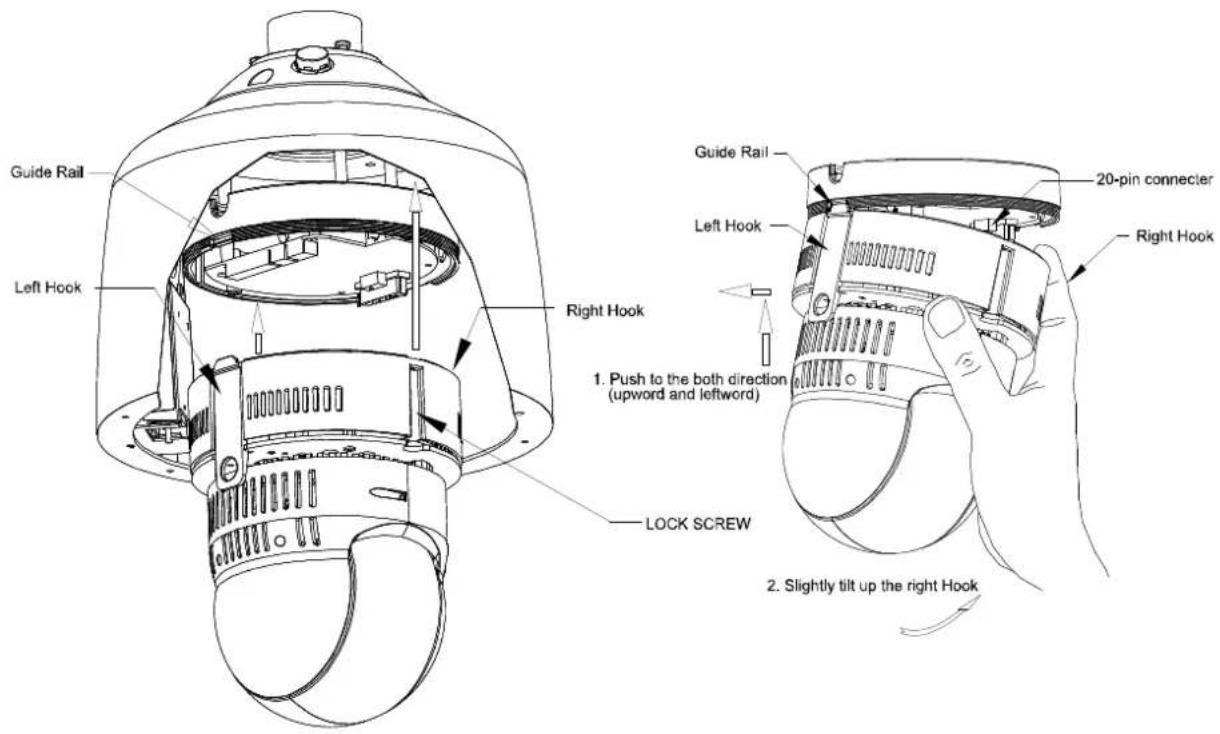
Figure 14 - Example of a ceiling mounted installation
Installation Hints
Grab the dome head with hand as the picture above.
- Align one of hook and guide rail than makes opposite hook fit.
- Then 20-pin connector will be fitted automatically.
- Secure the lock screw on the right hook immediately.
INSTALLATION AND CONFIGURATION
Power on and Boot-up Sequence
When the power is applied to the dome camera, it will start the boot-up sequence. When boot-up is done, the following information is displayed on the monitor screen.

XPRESS DOME
S/W Ver. :U1.1
Camera Type :1010P
ID :0001 9600 bps Auto
Wait dome setting..
Init tilt origin set ok
Init camera set ok
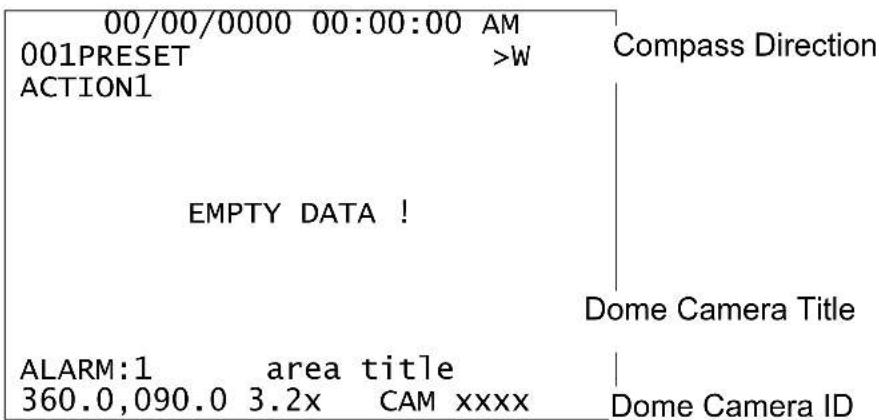
On Screen Display in normal control mode
PROGRAM & OPERATION
Dome Camera Selection
Prior to start programming or operating a dome camera, please make sure that both the camera and the joystick controller are communicating. In order for changes to take effect for a camera, particular camera's ID must be selected on the controller.
Example: Pressing 1, 6 and CAM key sequentially will select dome camera 16. The selected dome camera ID will be displayed on the monitor.
Principle of joystick usage in the programming (editing) mode
| Button or Joystick movement in menu | Function | |
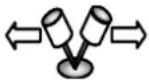 | Joystick left or right | Go into the sub-menu items. Execute the command(exit) Change value. Navigate through the menu items. |
 | Joystick up or down | Navigate through the menu items. |
 | Zoom handle twist | Change value.(Increase / Decrease) Finish editing title. |
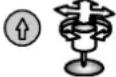 | SHFT + Joystick | PTZ control mode. |
| ESC | Escape from the menu without change. | |
| Home or Off button | Delete value or name of the field. | |
PROGRAM & OPERATION
1. FUNCTIONS (MENU =>Functions)
By pressing the MENU button on the keyboard controller, the following On-screen MAIN MENU will be shown on the monitor screen.
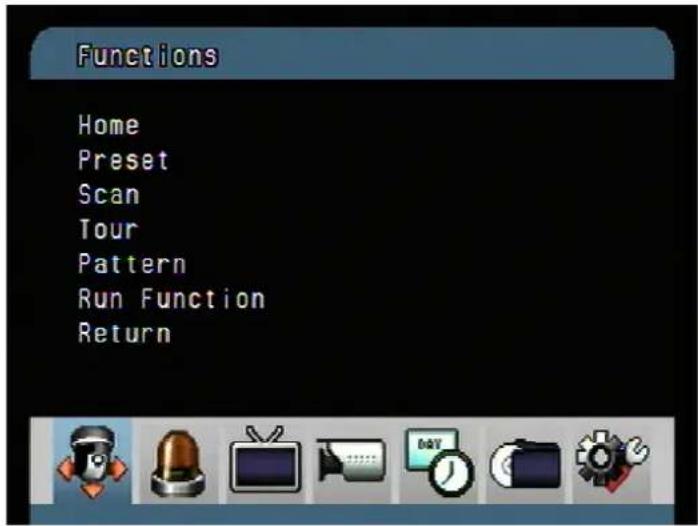
Select the Functions ICON and then twist the Joystick to CCW/CW to access Functions menu.

PROGRAM & OPERATION
1.1 HOME FUNCTION (MENU => Functions => Home)
After Home item has been selected, follow the directions below to set Home function.
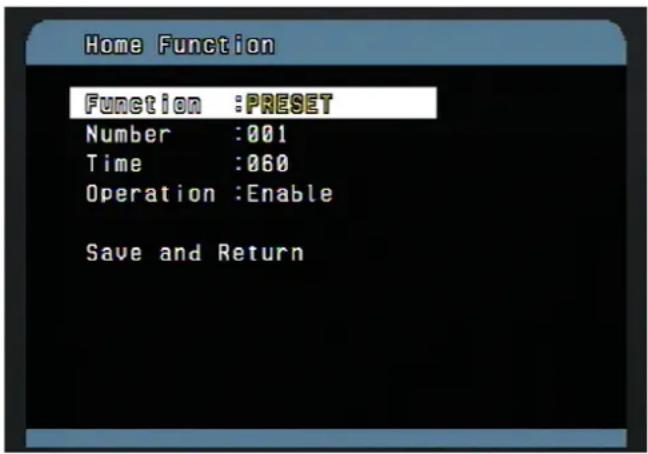
- Function : Tour/ Preset/ Pattern/ Scan
- Number : ---
• Time : 10\~240 Seconds
• Operation : Enable/ Disable
The Home function applies to the predefined functions such as Preset, Tour, Pattern, or Scan function after the keyboard controller has been idle for a programmed time. Follow the steps below to program the Home function:
- Select the camera number by pressing No. and CAM
- Press MENU to display the main menu on the monitor.
- Twist the Joystick to CCW/CW on "Functions".
- Enter Home Function menu by twisting the Joystick to CCW/CW.
- Moving the Joystick to the right/ left (or twist CCW/CW) to scroll Tour, Pattern, and Auto Scan and Preset functions.
- Select Function Number by pulling the Joystick down, and twist the Joystick to the CCW/CW (or turn right/left). The executable function number will be scrolled. If selected function is not programmed, it won't change. Go to setup function first.
- Pull the Joystick down and twist the Joystick to CCW/CW (or twist the joystick to right/left) to set waiting time.
- Highlight Operation option by pulling the Joystick down. Choose operation status Enable or Disable by moving the Joystick to the right or to the left (or twist CCW/CW).
PROGRAM & OPERATION
1.2 PRESET (MENU => Functions => Preset Shortcut : PRST)
Preset stores pan, tilt, zoom, focus and iris settings. Once programmed, pressing combination of 0 \~9 numbers and the Preset button on the controller should automatically call up the preset position. Presets may be assigned to alarm actions or as the "home" position for the dome camera.
There are 31 pages of preset programming menu. Each page can hold up to 8 presets. Locate the “Previous Next”, preset menu pages can be scrolled by moving the Joystick to the Left or Right on the “Previous Next”.
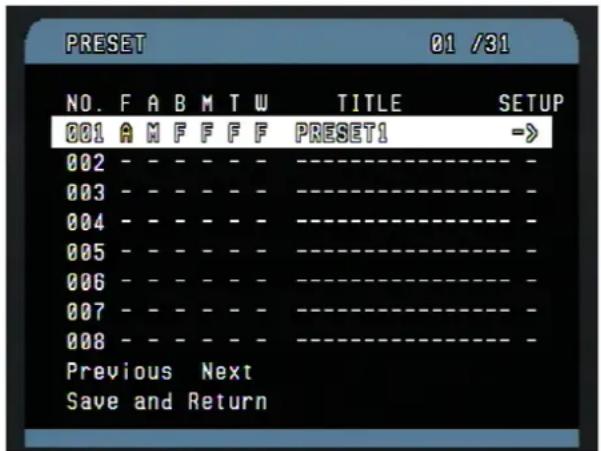
F : FOCUS
A : AE
B : BLC
M : MOTION
T : TRACKING
W : WDR(*)
- : not defined
* This function may not be available according to the model.
Follow the steps below to program the Preset positions.
- Select the camera number by pressing 0 \~9 and CAM.
- Simply press PRST button to enter preset menu. (MENU => Functions => Preset)
- Select the empty preset location to be programmed by moving the Joystick up/down. If selected location is not empty, pressing PRST button will display the predefined position.
- After selecting an empty position, press and hold SHFT/PGM then use the Joystick to control the direction of the camera and lens.(Or twist the zoom handle or press the zoom button to start PTZ control for view selection.)
- After aiming the camera (view direction and lens control) to a specific position, release SHFT/PGM button (or hit the focus button). The selected location No. field will be filled with "A A F F F F". Change each FOCUS/ AE/ BLC/ MOTION/ TRACKING/ WDR mode using zoom handle.
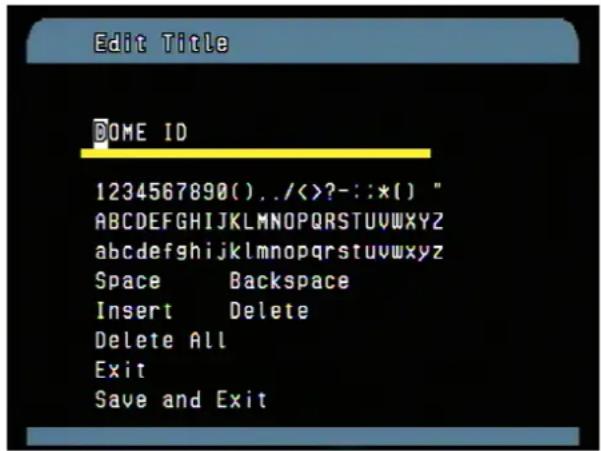
- Move to the title field to edit/enter the name. Rotate the handle CW and CCW or press Tele or Wide button to enter the character table as below
PROGRAM & OPERATION
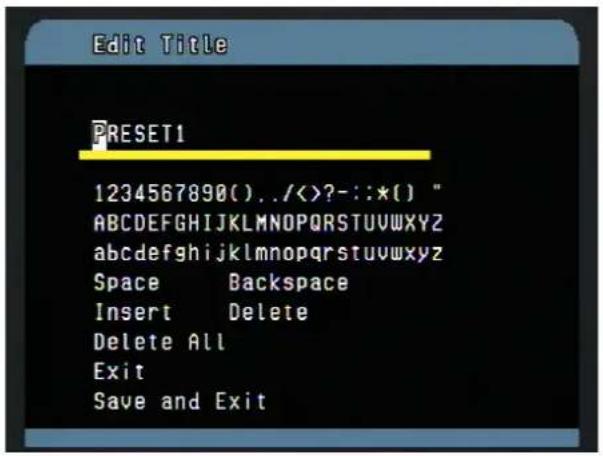
- Select the desired character digit on the title line using Joystick Left/Right.
- Move the cursor to the desired character on the character table using Joystick Up/Down/ Left /Right, then twist the Joystick to CCW/CW (or turn right/left) at the desired character to complete selection, then the cursor position on the title moves to the next position automatically.
- Twist the Joystick to CCW/CW (or turn right/left) at the "ALL DELETE" field to delete all characters.
- Move the Joystick to the right at the "Save and Exit" field to finish title edit menu.
- Locate the cursor on "Previous Next" item to select the previous/next page of presets, scroll through the page by moving the Joystick to the Left on "Previous Next".
- Repeat the steps 2 through 11 for each additional preset position.
- Select Save and Exit by moving the Joystick to the right. Press ESC to exit the Preset menu without saving.
NOTE : Press the Home or OFF button at programmed position to delete the preset.
To setup the AE control and motion setup, twist the Joystick to CCW/CW (or turn right/left) on the SETUP field.
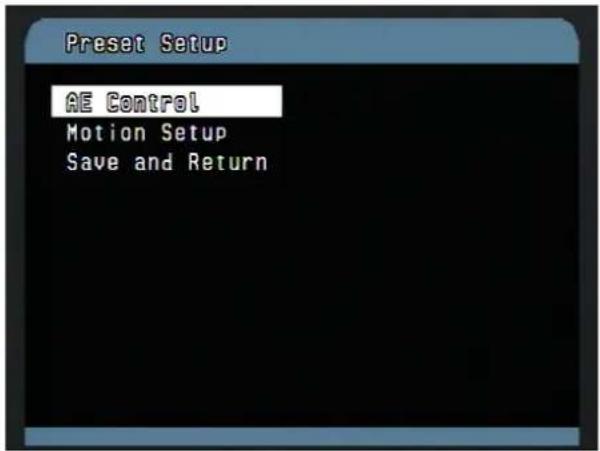
- AE Control : Refer to the camera setup menu.
To enter the motion setup, twist the Joystick to CCW/CW (or turn right/left) on the motion setup.
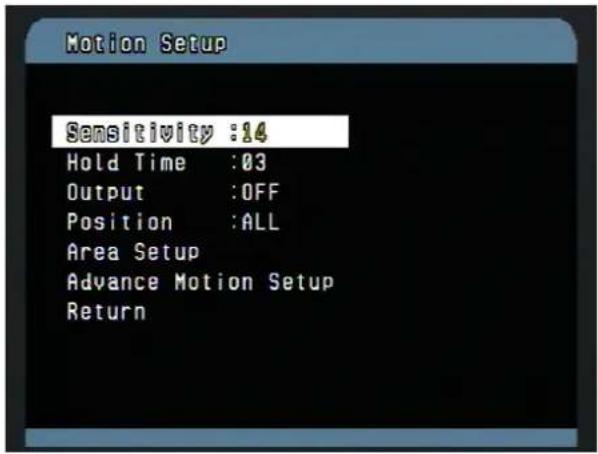
• Sensitivity : 1-16(most sensitive)
- Hold Time : 03-99SEC: The hold time starts to count after the motion detects.
• Output : OFF,R01,R02: relay output
- Position : motion detection area
ALL(full screen), AREA(area defined in the area setup)
*Motion Setup is only available from Preset 1 to Preset 16
• Area Setup: Area Screen
When the position is "AREA", you can set the motion detection area in the area setup.

- Move the pointer to the desired position using the joystick.
- Twist the Joystick to CCW/CW (or turn right/left) to be active or not.
Or
a. Select the pointer to the desired position using the joystick.
b. Press and hold Iris/Open then move the Joystick to make the range.
c. Stop the Joystick at the desired position.
d. Twist the Joystick to CCW/CW (or turn right/left) to be active or not.
-
Repeat step 1-2 until you want.
-
Press FOCUS to exit.
-
Repeat step 1-2 until you want.
- Press FOCUS to exit.
* active area color is yellow.
PROGRAM & OPERATION
To enter Advanced Motion Setup, twist the Joystick to CCW/CW (or turn right/left) on the motion setup.

- Mode: select tracking mode (PTZ must be set to Vitek protocol to use Tracking Mode)
ACTION1 : Once a motion is detected, the camera starts and continues tracking. Until 5 seconds after no motion is detected, the camera runs Lost Action.
ACTION2 : Once a motion is detected, the camera starts and follows the object for 5 seconds. Then the camera will automatically return to starting position.
- Tracking Time : 5\~256 seconds
- Zoom Limit : selects zoom mode
AUTO : zoom ratio is controlled automatically according to the object size.
FIXED: zoom ratio is fixed.
- Lost Action : Is run when the tracking object is lost.
RETURN : the camera returns to original start position
KEEP: the camera keeps tracking mode.
STOP : the camera stops tracking mode.
- Target Size : select the object size on the screen. Large/Medium/Small The object size is adjusted automatically during tracking.
- Pan Angle: Limit pan angle of tracking.
- Tilt Angle: Limit tilt angle of tracking.
SHORTCUT T PROGRAMMING PRESETS.
Select direction of the camera, zoom and focus to be programmed, then press No. (1\~248), and then press SHFT, PRST subsequently. The current view will be stored to the selected preset number if position is empty. If selected preset number is not empty, you will be prompted to overwrite.
Example : 1, 0 + PGM + PRST will memorize current view as preset No. 10. In this case, the other options will be saved as the default(A A F F F F).
PROGRAM & OPERATION
1.3 SCAN (MENU => Functions => Scan or Shortcut: SCAN)
The Scan function supports up to 16 programmed sections of angles at 8 program able speeds.
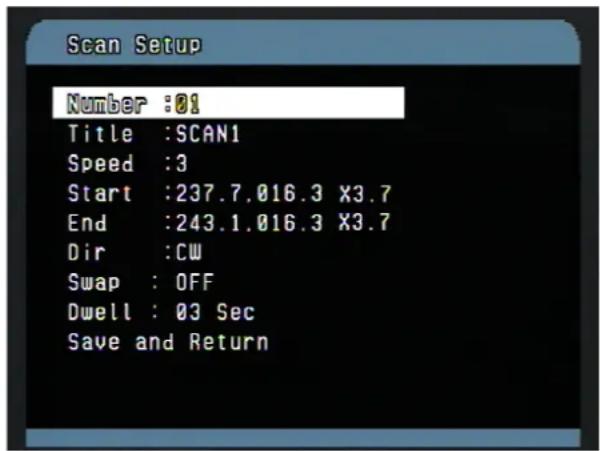
- SPEED (MODE) : 1/2 / 3/4/5/6/7/8/SLW / MID 1: SLOWER 8 FASTER
- SLW: smooth Diagonal Scan in slowest speed
- MID : smooth Diagonal Scan in medium speed
Diagonal Scan shows moving path from start point to end point including tilt and zoom** simultaneously.
**Some models do not change zoom ratio
Follow the steps below to program Scans.
- Press the Scan key to enter Auto Scan menu directly. (Or MENU => Functions => Scan).
- Select an Auto Scan number by moving the Joystick left or right.
- Twist the Joystick to edit the title in edit title menu.
- When finish entering the title, select "START ANGLE" with the Joystick. Hold down the SHFT/PGM key while selecting the start position using the Joystick. Current panning position will be displayed. Release SHFT/PGM key to complete the selection of the start position. (Or twist zoom handle or hit zoom button to start PTZ control for view selection and hit the Focus button to stop.)
- Moving the Joystick downward to select "Speed" and set the speed by twisting the Joystick clockwise or counterclockwise or move the Joystick left/right to select the auto scan speed.
PROGRAM & OPERATION
- Move the Joystick downward to select "END ANGLE." Hold down the SHFT/PGM key while moving the Joystick to select the end position. The end position angle should be larger than start position. Release the SHFT/PGM key to complete the selection of the end position. (Or twist zoom handle or hit zoom button to start PTZ control and hit the Focus button to stop.)
- Move the Joystick downward to select "Tilt & Zoom." Set the zoom and tilt angle by holding down the SHFT/PGM key.
- Move the Joystick downward to select direction of rotation. left/right to select direction of
- Move the Joystick downward to swap the start and end position. left/right to swap the start and end position
- Select Save and Exit by moving the Joystick to the right. Press ESC to exit the program without saving.
Pressing the HOME or OFF button to delete stored data, 000 will be displayed immediately.
1.4 TOUR (or MENU => Functions => Tour, Shortcut: TOUR)
There are 8 programmable Tours. Each Tour consists of up to 8 Preset positions, Patterns, Scans or other Tours. Using second-level Tours, it can be expanded up to 56 functions in a single Tour. However tours in the second level Tour will be ignored when called by the first level Tour. This can be best illustrated by the following example:
If Tour 01 : Preset 02, Preset 03, Tour 02, Tour 03
Tour 02 : Preset 05, Preset 06, Tour 04, Preset 05
Tour 03 : Preset 07, Pattern 01
Tour 04 : Preset 08. Preset 05, Pattern 01
Tour1 executes as follows:
Tour 02 executes as follows:
Follow the steps below to program the Tours:
- Press MENU => Functions => Tour (Short Cut: TOUR) to display the tour menu on the monitor. No. + SHFT+TOUR will open directly Tour No.
- Choose an empty location of function by moving the Joystick up or down.
- Stored Preset view can be recalled by pressing Prst button, the camera will move to the stored Preset view.
- To place predefined functions as a Tour, press the function buttons (such as Tour, Ptrn, or Scan, Prst).
Then select function No. by twisting the Zoom handle. (Programmed function No. will be scrolled). - To remove functions from the Tour, press the HOME or Off button, blank position mark (-- -) will be displayed. You can overwrite the programmed position.
- Repeat Step 2 through 4 for each desired position. Each title will be displayed on top of the line.
- Up to 8 Presets, Tours, Patterns Scans can be selected for a Tour. You can expand the Tour sequence by calling other programmed tours. Moving the Joystick handle to right or left while the cursor is on the top of the line (TOUR 01) to select another page of the Tour menu. (TOUR 01)
- You can enter a title for the selected Tour by twisting the Joystick while the cursor is on the top of the line (TOUR 01). Rotate the handle clockwise or counterclockwise to scroll through the alphanumeric characters. Move the handle to the right or left to select the next or previous digit.
- Select Save and Exit by moving the Joystick to the right. Press ESC to exit the program without saving.
NOTE: All functions should be programmed before being referred to in the tour menu.
Otherwise functions won't be selectable by item 4 in the procedure.
PROGRAM & OPERATION
1.5 PATTERN (MENU => Function => Pattern or Shortcut: PTRN)
The Pattern function memorizes and stores movement of the selected dome camera for up to 480 seconds. Pattern can be stored in 480 seconds of total recording space. Stored pattern is played back by pressing No.+ PTRN buttons subsequently.
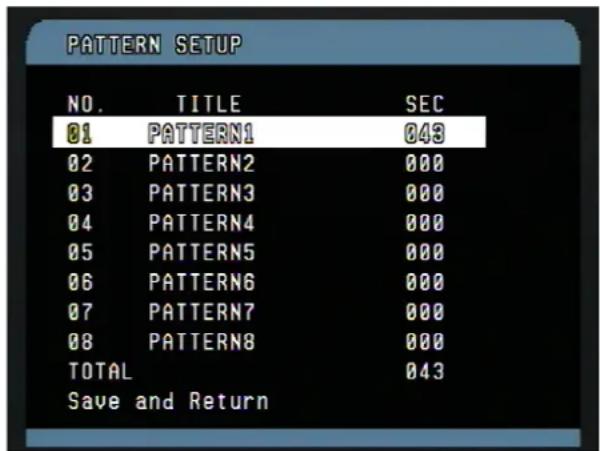
Follow the steps below to program the Pattern:
- Press MENU key to display the main menu on the monitor.
- Simply press the PTRN key. (or MENU => Function=>Pattern)
- Select the empty Pattern number to be programmed by moving the Joystick Up or Down. If SEC column is not 000, then the selected No. of pattern is already recorded.
- Press and hold down the SHFT/PGM key while controlling the camera direction and zoom with the Joystick. The pattern movement will automatically be recorded until releasing the SHFT/PGM key. This procedure can be repeated to reprogram the pattern.
(Or twist zoom handle or hit zoom button to start PTZ control for view selection and hit the Focus button to stop.) - Scroll down to the Save and Exit option and move the Joystick to the right to save and exit.
- Move to the title field to edit/enter the name. Rotate the handle CW and CCW or press Tele or Wide button to enter the Edit title menu.
- move the handle to right or left to select next or previous space.
- Pressing ESC will not save recorded data and will exit to the previous menu. Press the HOME or OFF button at any programmed position to delete the programmed pattern.
NOTE: If total recording time reaches 480 seconds, it will automatically stop.
1.6 RUN FUNCTION (MENU => Functions => Run function)
- Select the function and number and action to be exacted.
- Select Run by moving the joystick to right.
PROGRAM & OPERATION
2. ACTIONS SETUP (MENU => Actions Setup)
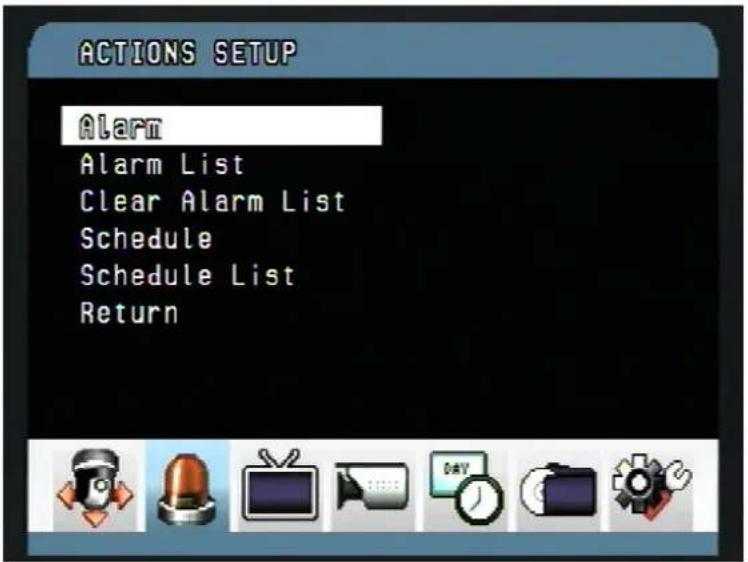
2.1 ALARM ACTION SETUP (MENU => Actions Setup => Alarm)
Highlight Alarm in the action setup and move the joystick to the right to access Alarm Setup setup.
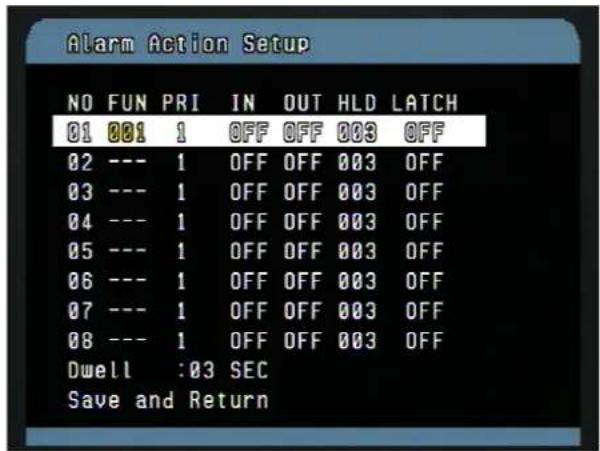
• NO : Alarm input number
- FUNC : Stored function number to be called by alarm.
• Priority 1\~8 calls Preset(xxx)
- Priority 0 supports dedicated functions like a Pattern(Pxx), Tour(Txx), Scan(Sxx).
- PRI: Lower No. has higher priority, Equal priority alarms will be serviced repeatedly.
• IN : NO/NC - normally open /Closed, OFF - ignore
- OUT : R01 - Relay out 1, R02 - Relay out 2 OFF - No output.
• HLD : Alarm will be held for programmed time (01 to 255 seconds)
- LATCH : ON - Shows all alarms including past alarm, OFF - Shows activated alarms only.
PROGRAM & OPERATION
There are 9 levels of priority. 0 : Highest priority supports repeated/dedicated functions like a Pattern(Pxx), Tour(Txx), Scan(Sxx). 1\~8: Same level of alarm calls presets one after the other.
Ex) Alarm 01 calls Pattern 01, after alarm 01 is released alarm 02, 03 will call preset 48 and preset 01
- Press Menu to display the main menu on the monitor. Select the Alarm option by moving the Joystick up/down and then move to the right to enter the detail menu.
- Select the alarm input number by moving the Joystick up or down and select the column to setup. Selected position will be highlighted.
- Select the Preset, Status of Input (NC/NO/OFF), and Output (R01\~R02/OFF) by moving the Joystick to the right or to the left.
- To increase or decrease the preset number or to change the status or output number, twist the Joystick clockwise or counterclockwise. In case of preset, programmed preset number will be scrolled.
- Locate the cursor on Save and exit and moving the Joystick to the Save and exit. Press ESC to exit the program without saving.
2.2 ALARM LIST (MENU => Actions Setup => Alarm List)
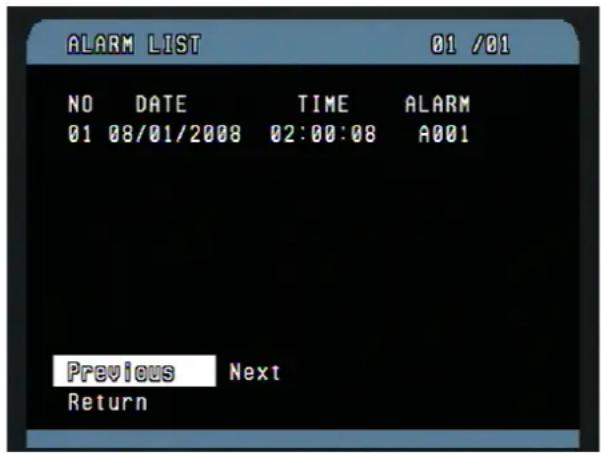
- DATE : displays according to the date format.
• TIME : displays in 24 Hour format only. - The alarm list displays the date and time, and alarm input number up to 80 alarms.
- Push the Joystick right or left at the "Previous Next" to see the next numbers.
• A001 :means the alarm occurs at the alarm input 1. - M001 :means the motion occurs at the preset 001.
* This list is not cleared by the factory default operation.
PROGRAM & OPERATION
2.3 CLEAR ALARM LIST (MENU => Actions Setup => Clear Alarm List)
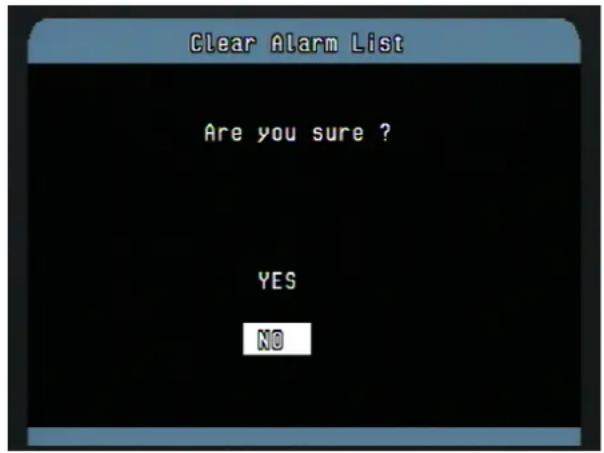
Select "YES" to clear the alarm list.
2.4 SCHEDULE ACTION SETUP (MENU => Actions Setup => Schedule Action Setup)
The schedule action setup allows you to program to act the function as below at a specific date and time.
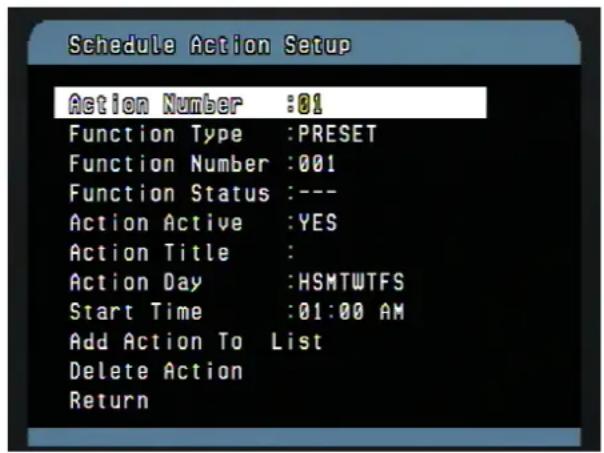
• Action Number : up to 99
- Function Type : Preset, Scan, Pattern, Tour, Auto Pan, D/N:COLOR, D/N:B/W, D/N:AUTO, Alarm Out, Alarm In
• Function Number : 001-248 for preset
- Function Status : ON, OFF: Alarm Out only
• Action Active : Yes, No
• Action Title : up to 12 characters, refer to the title of the preset
• Action Day : On: H(Holiday) S(Sunday) M(Monday) T(Tuesday) W(Wednesday) T(Thursday) F(Friday) S(Saturday),
- Start Time : HH:MM, AM/PM
PROGRAM & OPERATION
- Add Action To List: Add the current Schedule to the list
- Delete Action : Delete the current Schedule from the list
Follow the steps below to program the schedule action:
Create a new action:
- Select the desired action number by moving the Joystick left or right or twisting the ZOOM handle at the action number field.
- Select the desired function by moving the Joystick left or right or twisting the ZOOM handle at the function type field.
- Select the desired function number by moving the Joystick left or right or twisting the ZOOM handle at the function number field.
- Select the desired function status by moving the Joystick left or right or twisting the ZOOM handle at the function number field when function type is the alarm out.
- Select the desired action day by moving the Joystick left or right or press IRIS OPEN key. Refer to the action day.
- Select the desired start time by moving the Joystick left or right and twisting the ZOOM handle.
- Select "Add Action To List" and move the Joystick left or right or press IRIS OPEN key. Then the stored action number displays.
- To add other action number, repeat step 1 to 7.
Edit the stored action:
- Select the desired action number by moving the Joystick left or right or twisting the ZOOM handle at the action number field.
- Change each option as procedures above.
- Select "Add" and move the Joystick left or right or press IRIS OPEN key. Then the stored action number displays.
Delete the stored action:
- Select the desired action number by moving the Joystick left or right or twisting the ZOOM handle at the action number field.
- Select "Delete Action" and move the Joystick left or right or press IRIS OPEN key. Then the stored option value goes to the default.
NOTE: The scheduled action has no duration. You should set the second action to end a previous action.
For example, suppose you want to operate a camera with the B/W mode after 10 PM and with the auto mode of the day and night option from 6 AM every day. First, program a function type to set “D/N:B/W” at 10 PM every day. Second, program a function type to set “D/N:AUTO” at 6 AM every day in the other action number. When you program the first only,
PROGRAM & OPERATION
the camera always operates with the B/W mode. So don't forget to program the second action for the day any night and an alarm out options
NOTE: The function of the day and night (D/N:COLOR, D/N:B/W,D/N:AUTO) changes the camera menu setting and doesn't affect the preset. So recommend you to set other preset for a night.
ACTION DAY
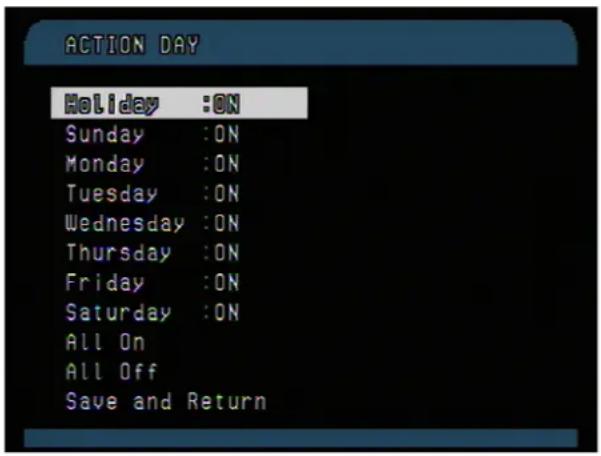
HOLIDAY:
- NO : The action will not occur on a day of the week for which it is set if that date is in the list of holidays.
- On: The action will occur on a day that date is in the list of holidays.
- Off: The action only occurs on a day of the week that it is set. Holidays have no effect on the action.
SUNDAY- SATURDAY
- On: The action will occur on a day of the week for which it is set.
- Off: The action will not occur on a day of the week.
- ALL ON : Set all days to "On" for your convenience.
-
ALL OFF : Set all days to "Off" for your convenience.
-
Select the desired day by moving the Joystick up or down or twisting the ZOOM handle at the action number field.
- Select the desired option by moving the Joystick left or right or twisting the ZOOM handle.
- Select "Save and Exit" and move the Joystick left or right or press IRIS OPEN key. Then the menu returns to the previous menu.
PROGRAM & OPERATION
2.5 LIST ACTION (MENU => Actions Setup => List Action)
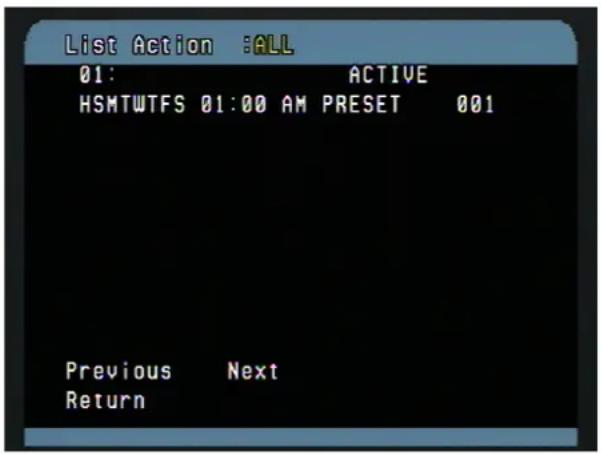
List action type:
ALL, Preset, Scan, Pattern, Tour, Auto Pan, Day/Night, Alarm Out, Alarm In
- Select the list action by moving the Joystick up or down.
- Twists the ZOOM handle to select function type at the list action field
- Push the Joystick right to sort the list according to the selected action type.
- Push the Joystick right or left at the "Previous Next" to see the next numbers.
PROGRAM & OPERATION
3. SCREEN (MENU => Screen)
By pressing the MENU button on the keyboard controller, the following On-screen MAIN MENU will be shown on the monitor screen.
Highlight Screen and then twist the Joystick to CCW/CW to enter Screen menu.
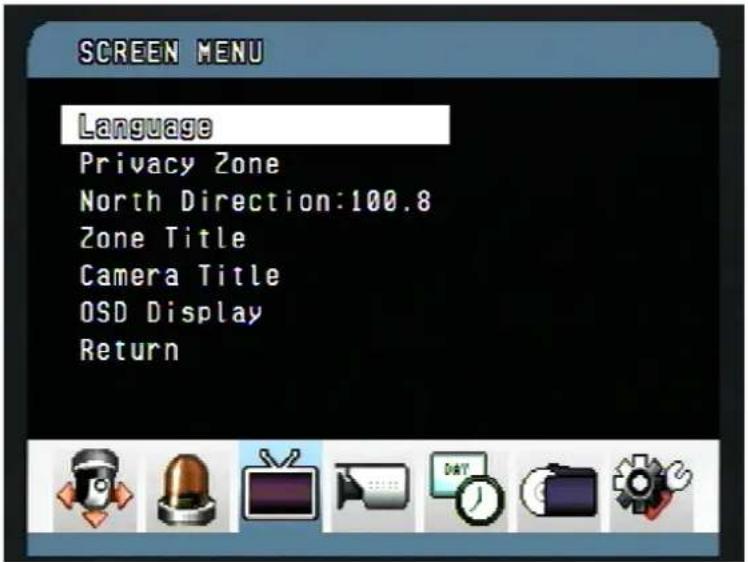
3.1 LANGUAGE SETUP (MENU => Screen => Language)
Moving the joystick handle to the right to select Language options.

Preferred language will be scrolled by moving the joystick to the right on Language ENGLISH.
PROGRAM & OPERATION
3.2 PRIVACY ZONE SETUP (MENU => Screen => Privacy Zone)
Highlight Privacy Zone and then move the joystick to the right to enter the menu.
This function disables the viewing of restricted areas for privacy reasons. It offers masking up to 8 unwanted views in a camera.
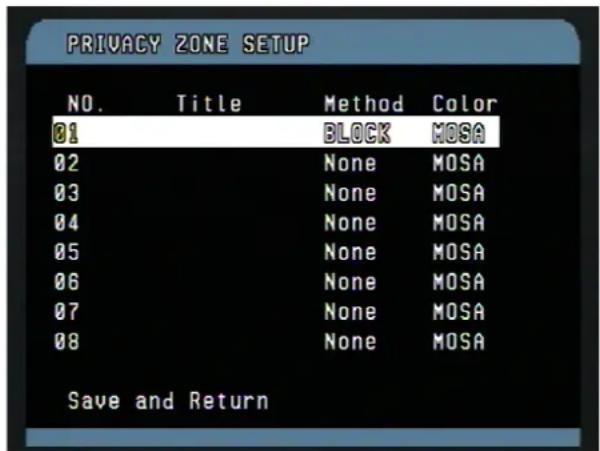
- Select the Privacy Zone option by moving Joystick Up or Down and move the joystick to right to enter the detail menu.
- Select the privacy zone number by moving the Joystick up or down.
- To enter the zone name, rotate the handle clockwise or counterclockwise. Select alphanumeric characters by rotating the handle. Move to the next character position by moving the Joystick to the right. To finish entering the title, move the Joystick down or press the ENTR key.
- To adjust the "marked" (privacy) area, press and hold down the SHFT/PGM key and then use the Joystick (direction and zoom) until getting desired view. Release the key, the right column will be set to ON. (Or twist the zoom handle or hit the zoom button to start PTZ control for view selection and hit the Focus button to exit from control mode.)
- Use the Home key to delete the marked zone, or move the Joystick to the right or left to turn the stored zone On or Off.
- Select the Save and Exit option by moving the Joystick up or down. Save and exit the program by moving the Joystick to the right. Press ESC to exit the program without saving.
Press the HOME or Off button to delete programmed privacy zone.
3.3 NORTH DIRECTION (MENU => Screen => North Direction)
Press and down the SHFT/PGM key and then use the Joystick (direction and zoom) until to get the desired direction. Release the key then current pan angle will be displayed on position item. (Or twist the zoom handle or hit the zoom button to start PTZ control for view selection and hit the Focus button to exit from control mode.)
PROGRAM & OPERATION
3.4 ZONE TITLE (MENU => Screen => Zone Title)
Enter a specific name in sectioned angle between Start and End.
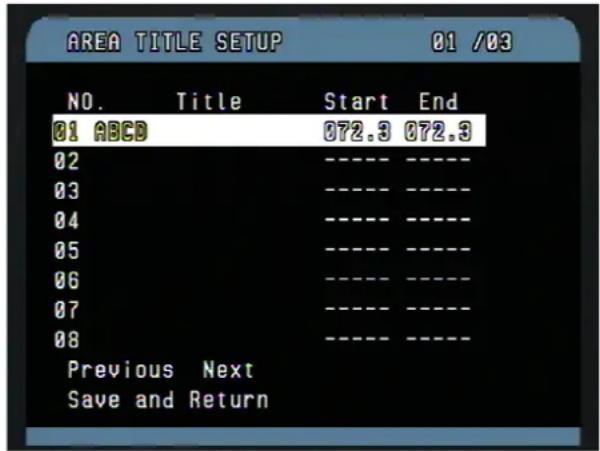
- Press MENU => Screen => Zone Title to display zone title menu on the monitor.
- Select the zone number by moving the Joystick up or down. Select Start, End or number column to be set by moving the handle to the right or left. The selected column will be highlighted.
- Twist the joystick handle on the No. column to enter zone title. Select alphanumeric characters by rotating the handle. Move to the next character by moving the Joystick to the right. To finish entering the title, move the Joystick down.
- To adjust panning limit, press the SHFT/PGM key and hold down. Then use the Joystick to go the desired direction. The end limit must be in an increasing direction. (Start < End). (Or twist the zoom handle or hit the zoom button to start PTZ control for view selection and hit the Focus button to exit from control mode.)
- PREV NEXT: go to previous page or next page of the menu
- Save and exit the program by moving the Joystick to the right. Press ESC to exit the program without saving.
NOTE: When the dome is positioned over 90 vertically, first move the dome 90 degree vertically. Otherwise, the dome moves to 90 degree vertically automatically when you set the position.
Press and down the SHFT/PGM key and then use the Joystick (direction and zoom) until to get the desired direction. Release the key then current pan angle will be displayed on position item. (Or twist the zoom handle or hit the zoom button to start PTZ control for view selection and hit the Focus button to exit from control mode.)
This function allows the users to set the title of camera as well as the usage of on screen display of the title.
Twist the joystick handle on the Camera Tilie. Refer to the preset title
3.6 OSD DISPLAY (MENU => Screen => OSD Display)

The following settings are available for each label except alarm.
- OFF : Label is not displayed when activated.
- ON : The label is continually displayed when activated.
- 2,5,10 SEC is displayed for the selected seconds after activation.
The alarm and date/time options have "On" and "Off" only.
• North Direction : ON / OFF
“ON” sets current direction as N(north) and the coordinate angle to 000. “OFF” hides the directional title. Every 90 degrees of clockwise rotation will change the title to E(East), S(South), W(West). If using the ON/OFF option frequently, it is recommended that you set “North” as a Preset. Recall the “North” Preset before enabling the directional title.
PROGRAM & OPERATION
4. CAMERA SETUP (MENU => Camera)
NOTE: The menu features will vary depending on the camera module.

- Back Light : Objects in front of bright backgrounds will be clearer with BLC ON.
NOTE: The Back Light operates in AUTO mode only. - Sharpness: The higher the value, the more edges in the picture will be enhanced, TYPE A:(0\~15), TYPE B:(0\~63,AUTO)
• Digital Zoom OFF : Zoom range is limited to the optical.
2x : Zoom is extendable up to 2x of digital range.
4x : Zoom is extendable up to 4x of digital range.
MAX: Zoom is extendable Max digital zoom range.
4.1 FOCUS CONTROL (MENU => Camera => Focus Control)

- Mode : AUTO / MANUAL
PROGRAM & OPERATION
• AF Sensitivity : NORMAL / LOW
NORMAL: Use this option when shooting fast motion.
LOW : Offers better focus stability. In low luminance conditions, Auto Focus stops operation even when brightness changes, enabling stable images of moving objects.
- Focus Limit : This distance is approximate value and the focus operate from the setting value.
CAUTION: Please avoid continuous, 24-hour use of the auto focus under heavy movement condition. This will shorten the lifespan of the lens.
4.2 WB (white balance) (MENU => Camera => WB Control)
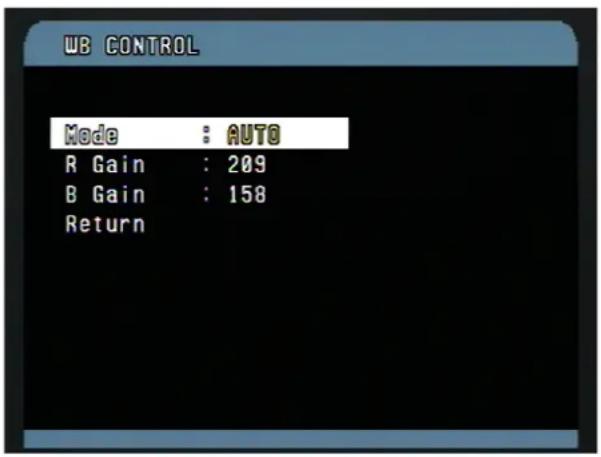
- Mode : AUTO / INDOOR / OUTDOOR / ONE PUSH / ATW / MANUAL
MANUAL : Control of R and B gain
AUTO : Computes the white balance value output using color information from the entire screen automatically. (3000° to 7500 °K)
INDOOR : 3200° K base mode.
OUTDOOR : 5800° K base mode
ONE PUSH : One push white balance mode is a fixed WB mode that may be automatically readjusted at the stop after moving.
ATW : Auto tracing white balance. (2000° to 10000° K)
- RGAIN : 0 \~ 255
- BGAIN : 0 \~ 255
Use the AUTO mode for normal use.
RGAIN / BGAIN modes are controllable only in MANUAL Mode
PROGRAM & OPERATION
4.3 AE CONTROL (MENU => Camera => AE Control)
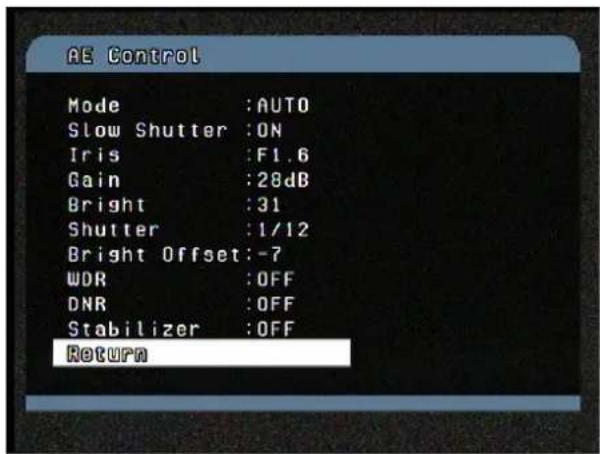
- Mode: AUTO / MANUAL / SHUTTER / IRIS / BRIGHT
AUTO : Auto Iris and Gain, Fixed Shutter speed (NTSC: 1/60 sec, PAL: 1/50 sec)
MANUAL : Variable Shutter, Iris and Gain.
SHUTTER : Variable Shutter speed, Auto Iris and Gain.
IRIS : Variable Iris, Auto Gain and Shutter speed.
BRIGHT : Variable Iris and Gain - Slow Shutter : ON/OFF(AUTO mode only)
- Iris : CLOSE / F28 / F22 / F19 / F16 / F14 / F11 / F9.6 / F8.0 / F6.8 / F5.6 / F4.8 / F4.0 /F3.4 /F2.8 / F2.4 / F2.0 / F1.6: 36X MODEL
- Gain : 0 / 2 / 4 / 6 ..... / 28 / -3 DB
• Bright : 0, 1,2, 3, 4 ..... 29, 30,31 - Shutter : 1/1 , 1/2 , 1/4(3), 1/8(6). .. 1/4000(3500), 1/6000, 1/10000
- Bright Offset : Adjust the brightness level (-7,...,0(default),...+7)(AUTO, SHUTTER, IRIS mode only)
• WDR(Wide Dynamic Range Mode): OFF/ON/AUTO
AUTO(*1020/1020P ONLY) - DNR(Digital Noise Reduction):OFF/1\~5 (*1020/1020P ONLY)
• Stabilizer: OFF/ON(*1020/1020P ONLY)
It helps to obtains a stable image in unstable condition caused by jarring movements.
NOTE: Values in ( ) are for PAL Camera.
PROGRAM & OPERATION
4.4 NIGHT SHOT MENU (MENU => Camera =>Night Shot)
The Night Shot option removes the IR Cut filter of the camera and makes the camera sensitive to near infrared.
If Night Shot mode of the selected camera is set to Manual, 10+ ON will enable the Night Shot mode, 10+ OFF will turn off the Night Shot mode.
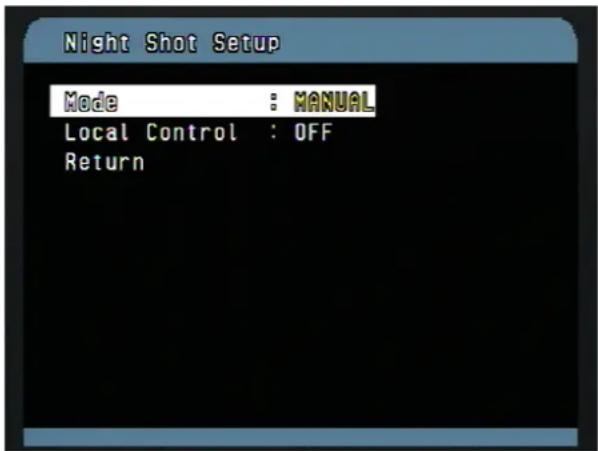
- Mode : MANUAL / AUTO
AUTO : Camera automatically goes into B&W mode at low light.
MANUAL : Manually controls the Night Shot mode in LOCAL CONTROL option.
- On/Off Night Shot mode remotely by pressing 10+ ON / 10+ OFF.
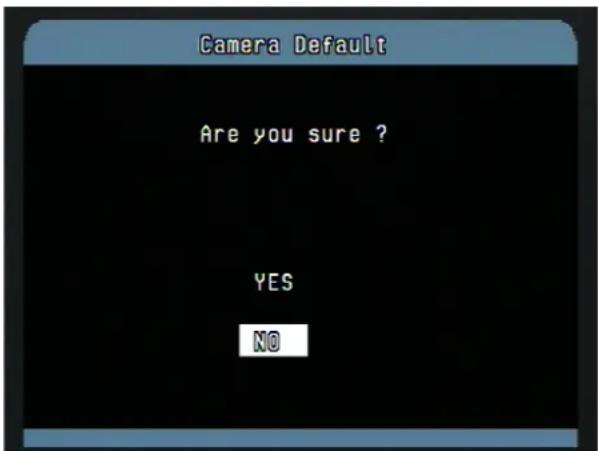
4.5 CAMERA DEFAULT (MENU => Camera => Camera Default)
Returns all changed camera values to factory default.
PROGRAM & OPERATION
5. TIME/DATE SETUP (MENU => Time & Date)

Note: When installing a dome for the first time, the clock doesn't operate. When you change the time and date, the clock starts to operate.
The date and time can be displayed on the monitor when the Date/Time option is set to ON in the display menu.
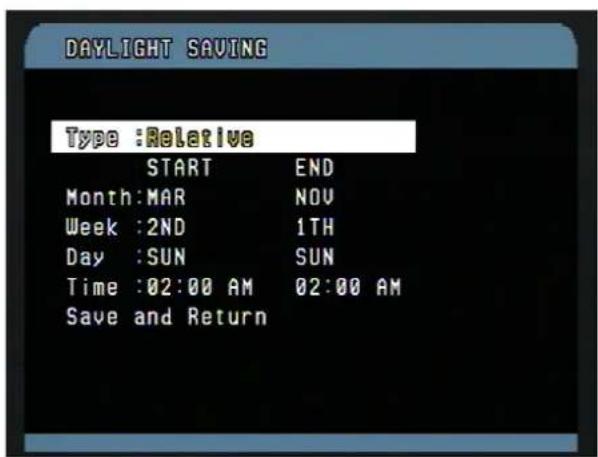
5.1 EDIT DAYLIGHT SAVINGS (MENU => Time & Date => Edit Daylight Savings)

PROGRAM & OPERATION
5.2 EDIT HOLIDAYS (MENU => Time & Date => Edit Holidays)
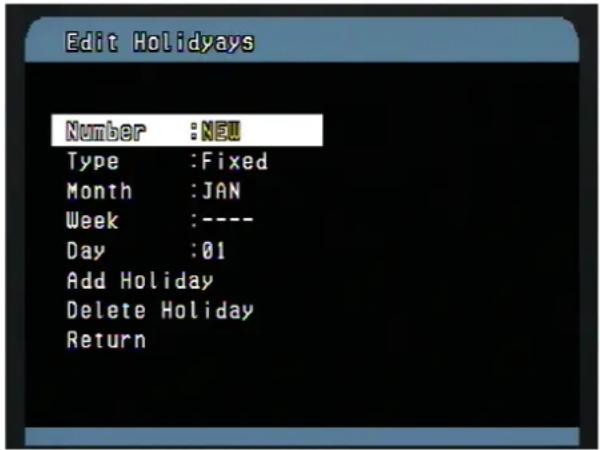
You can add holidays up to 50.
Use the following steps to create a holiday.
- Select the "NEW" by pushing the joystick to right at the number field.
- Select the type.
Fixed : The holiday occurs on the same date each year.
Relative : The holiday occurs on a different date each year, such as the fourth Thursday in November.
- Select the month, week (relative type only), and day.
- Select "Add Holiday" and push the Joystick to right.

- Select "YES" and push the Joystick to right.
- Repeat step 1 - 5 to create other holiday.
- Select the Exit and push the Joystick to the right.
Use the following steps to edit a holiday.
- Select the desired number by twisting the zoom handle at the number field.
- Follow step 2 - 5 above.
PROGRAM & OPERATION
Use the following steps to delete the holiday.

- Select the number to delete.
- Select "Delete Holiday" and push the Joystick to right.
- Select "YES" and push the Joystick to right then the next number display at the number field. If no added number, the "NEW" displays at the number field.
- Repeat step 1 - 3.
- Select the Exit and pus the Joystick to the right.
5.3 List Holidays (MENU => Time & Date => List Holidays)

• List Holiday : ALL, Each Month
- Select the list type by twisting the Joystick and push the Joystick right.
- Push the Joystick right or left at the "Previous Next" to see the next items.
PROGRAM & OPERATION
6. DATA SETUP (MENU => Data Setup)
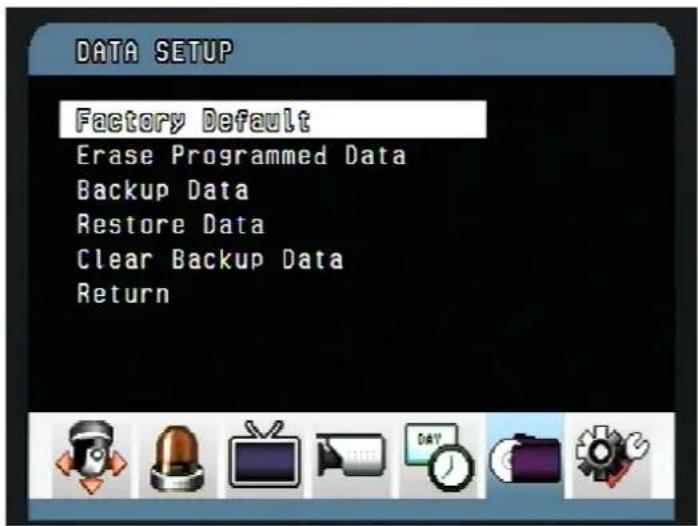
6.1 FACTORY DEFAULT (MENU => Data Setup => Factory Default)
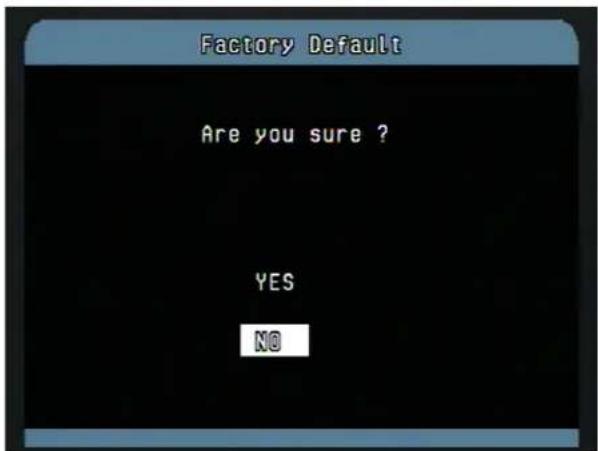
The factory default returns programmed data to initial state as ex-factory except the followings.
- Time and date
- Alarm list
PROGRAM & OPERATION
6.2 ERASE PROGRAMMED DATA (MENU => Data Setup => Erase Programmed Data)
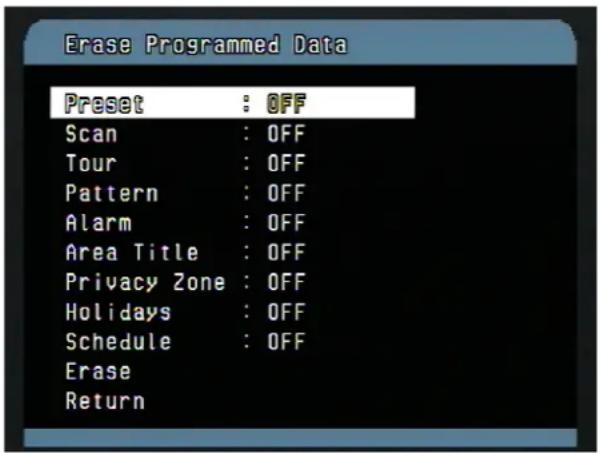
Erase programmed data in the EEPROM of the selected dome camera. Origin offset value is not affected.
- Set the option "ON" you want to erase
- Twist the Joystick to CCW/CW(or move the Joystick to the right or to the left) on the ERASE.
CAUTION : Unless you download the data into a safe place, all the data in the selected dome camera will be lost. (Refer to Download/ Upload data function in the Keyboard Configuration utility)
6.3 BACKUP DATA (MENU => Data Setup => Backup Data)

This function stores the setting values of the dome the backup memory
Note : when the connector board has no the memory, the message of "No backup memory" displays.
PROGRAM & OPERATION
6.4 RESTORE DATA (MENU => Data Setup => Restore Data)

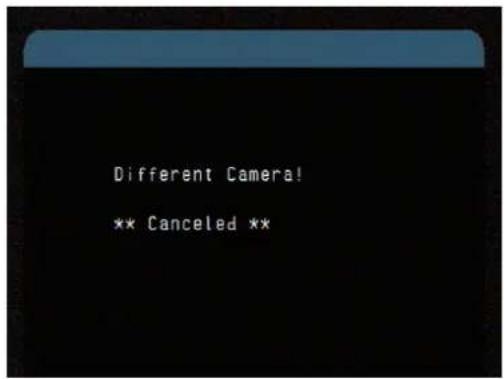
This function restores the setting values of the dome of the backup memory to the dome.
6.5 CLEAR DATA (MENU => Data Setup => Clear Data)

This function clears all data of the backup memory.
PROGRAM & OPERATION
7. SETUP (MENU => Setup)
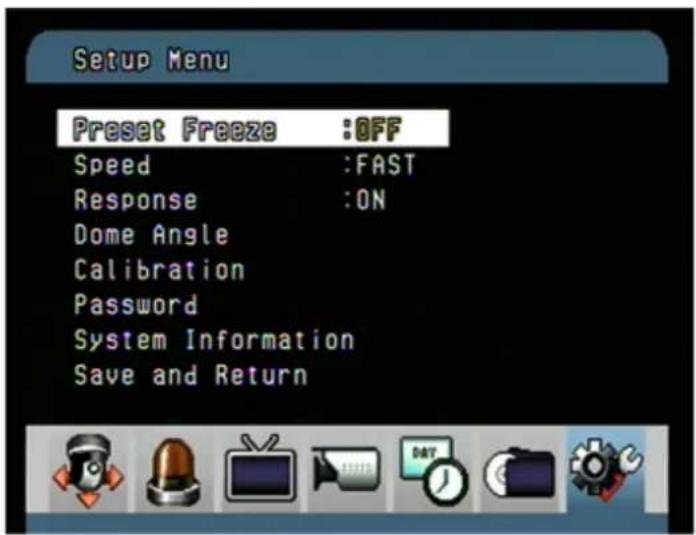
7.1 PRESET FREEZE (MENU => Setup => Preset Freeze)
• ON: the image is frozen during calling preset.
7.2 SPEED (MENU => Setup => Speed)
User can select preferable speed curves of manual control. (SLOW / MEDIUM / FAST)
7.3 RESPONSE (MENU => Setup => Response)
• ON : Dome send answer packet after receiving command packet
- OFF: Dome don't send answer packet after receiving command packet
7.4 DOME ANGLE (MENU => Setup => Dome Angle)

PROGRAM & OPERATION
7.4.1 FLIP (MENU => Setup => Dome Angle => Flip)
When the Speed Dome camera is mounted on a ceiling, it can track a moving target in a path directly below the camera:
ON : When the camera reaches the moving object directly above the floor, the dome camera tracks the object smoothly with a digitally corrected image.
OFF : The dome camera does not perform a flip.
7.4.2 PANNING RANGE (MENU => Setup => Dome Angle => Pan Range)

When the dome camera is installed near a wall or on a corner, panning range can be limited by user.
7.4.3 TILT OVER ANGLE (MENU => Setup => Tilt Range)
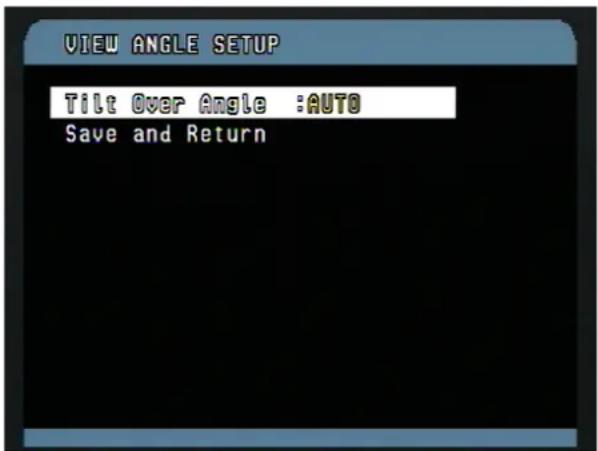
PROGRAM & OPERATION
This option is used to set the limit of the horizontal view angle so that the trim ring or ceiling does not obstruct the horizontal image when zooming out (wide angle).
ON: In some installations it is desirable for the dome camera to be able to see above the horizon. When this option is chosen, the dome will tilt up over the horizon (About - 5 degrees). When the lens is zoomed out, you can see the ceiling line. But when the lens is zoomed in, the viewing angle is narrower, and the ceiling line disappears.
Without Bubble: The tilt range of the camera is limited to see the horizon so the picture shows part of the ceiling line.
With Bubble: The tilt range of the camera is limited to see below the horizon (10 degrees).
AUTO: The tilt range of the camera is limited automatically according to the zoom ratio(-5 \~ 10 degrees) when you moves in vertically.
7.5 CALIBRATION (MENU => Setup => Calibration)

- Reset Origin : Calibrate the ORIGIN point.
- Offset Origin : Adjust the small amount of position error from re-installation.
- Offset : To enable the origin offset, set the "Offset" option to Enable.
- Auto Calibration : Enables the auto calibration function
PROGRAM & OPERATION
7.6 PASSWORD SETUP (MENU => Setup =>Password)
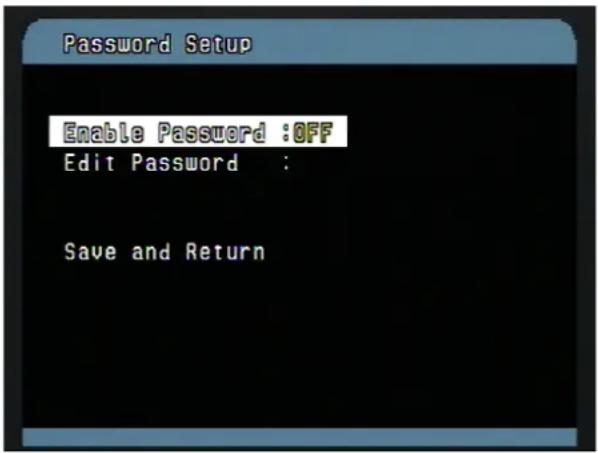
You can change the password with 4-digit character in this menu.
The default password is 9999.
Edit Password
- Select the edit password using the joystick.
- Select the desired number using the joystick up and down, then twist the joystick handle.
- To protect from recording this password number, select the other number using the joystick up and down by intention.
- To move the next digit, push the joystick to the right,
- Repeat step 2-4 up to four digits. At this time, the new digit of the confirmation displays.
- Repeat step 2-4 for four digits as the same as the numbers of the step 5.
- If two passwords match, the edit password completed. If two passwords don't match, the message of "Password is not changed" displays. At this time, try it again.
Note: When the password enable is on, the input password window displays to enter the menu as below.
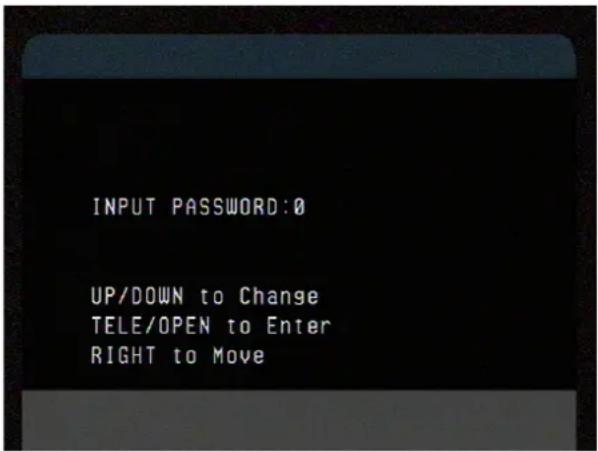
PROGRAM & OPERATION
7.7 SYSTEM INFORMATION (MENU => Setup => System Information)

This screen shows information of the dome camera for service or trouble shooting
SPECIFICATIONS
| VT-PTZ18W | VT-PTZ26 | VT-PTZ36W | |
| Image Sensor | 1/4" Interline Transfer CCD | 1/4" Interline Transfer CCD | 1/4" Interline Transfer CCD |
| Horizontal Resolution | 550 TV Lines | 480 TV Lines | 550 TV Lines |
| Minimum Illumination | 0.7 Lux (1/60 sec) / 0.07 Lux(F1.4 Slow Shutter) | 1.0 Lux 50IRE / 0.01 Lux(Night mode w/ ICR on) | 1.4 Lux (1/60 sec) / 0.01 Lux(F1.4 Slow Shutter) |
| Lens | 4.1~73.8mm @ F1.4 | 3.5~91mm @ F1.4 | 3.4~122.4mm @ F1.4 |
| View angle | 4.1mm-48° (H) / 73.8mm-2.8°(H) | 3.8mm-54.2°(H) 91mm-2.2°(H) | 3.4mm - 57.8°(H) / 122.4mm - 1.7°(H) |
| Optical Zoom | 18x | 26x | 36x |
| Digital Zoom | 12x | 12x | 12x |
| Shutter Speed | 1/4 ~ 1/10,000 | NTSC - 1 ~ 1/10,000 | NTSC - 1/4 ~ 1/10,00 |
| S/N ratio | 50dB | 50dB | 50dB |
| Sync System | Int/Ext, V-Phase Remote Control | Int/Ext, V-Phase Remote Control | Int/Ext, V-Phase Remote Control |
| Scanning System | 2:1 Interface | 2:1 Interface | 2:1 Interface |
| Focus | Auto/Manual | Auto with manual override | Auto/Manual |
| White Balance | AUTO, ATW, Indoor, Outdoor,One Push, Manual | Auto with manual override | AUTO, ATW, Indoor, Outdoor,One Push, Manual |
| Iris Control | Auto/Manual | Auto with manual override | Auto/Manual |
| WDR (Wide Dynamic) | ON/OFF | ON/OFF/AUTO | ON/OFF/AUTO |
| BLC ( Back Light Compensation) | ON/OFF | ON/OFF | ON/OFF |
| DNR (Digital Noise Reduction) | N/A | 1~5 / OFF | 1~5 / OFF |
| DIS (Digital Image Stabilizer) | N/A | ON / OFF | ON / OFF |
| Pan Angle | 360° Continuous | 360° Continuous | 360° Continuous |
| Manual Pan Speed/sec | 0.1~90°/sec | 0.1~90°/sec | 0.1~90°/sec |
| Autoscan | 380°/sec | 380°/sec | 380°/sec |
| Tilt Travel | -5° ~ 90°/95° | -5°~90°/95° | -5°~90°/95° |
| Manual Tilt Speed/sec | 0.1 ~ 90°/sec | 0.1~90°/sec | 0.1~90°/sec |
| Preset Tilt Speed/sec | 380°/sec | 380°/sec | 380°/sec |
| Proportional Pan & Tilt | Yes | Yes | Yes |
| Communication | RS - 422/485, 8 Bit, 1 Bit stopNo Parity, 2.4~230Kbps | RS-422/485, 8bit, 1bit stop No parity, 2.4~230Kbps | RS-422/485, 8bit, 1bit stop No Parity, 2.4~230Kbps |
| Preset | 248 Position | 248 Position | 248 Position |
| Zone Title | 24 Area Names | 24 Area Names | 24 Area Names |
| Privacy Zone | 8 Blocks in a Screen | 8 Blocks in a screen | 8 Blocks in a screen |
| Title Character | 16 Character | 16 Character | 16 Character |
| Tour | 8 Tour | 8 Tour | 8 Tour |
| Pattern | 4 (1 Full or 3, 240sec) | 4(1 Full or 3, 240sec) | 4 (1 Full or 3, 240sec) |
| Auto Pan | 16 Scan, 1 Auto Pan | 16 Scan, 1 Auto Pan | 16 Scan, 1 Auto Pan |
| Flip | Digital Quick Turn | Digital Quick Turn | Digital Quick Turn |
| Alarm (Input/Output) | 8/2 | 8/2 | 8/2 |
| Power Requirement | 18~30VAC/Surge Protection24VAC/40VA or 24VDC/3A | 18~30VAC/Surge Protection24VAC/40VA or 24DC/3A | 18~30VAC/Surge Protection24VAC/40VA or 24VDC/3A |
| Dimension (W x H) | Pendant Mount: 4.96" x 7.13" /Flush Mount: 4.96" x 3.15" | Pendant Mount: 4.96" x 7.13" /Flush Mount: 4.96" x 3.15" | Pendant Mount: 4.96" x 7.13" /Flush Mount: 4.96" x 3.15" |
Specifications are subject to change without notice.
TECHNICAL SPECIFICATIONS
Dimension

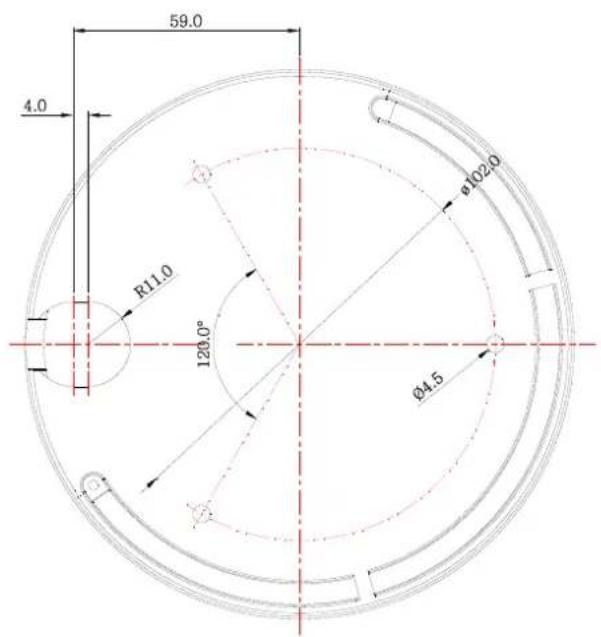
Figure 16-Dimension
APPENDIX
Troubleshooting
If problems occur, verify the installation of the camera with the instructions in this manual. Isolate the problem from the equipments in the system and refer to the equipment manual for further information.
| Problem | Solution |
| No video. | Verify that power is connected to all components in the system.Verify that the power switches are ON.Check that the BNC connectors are securely connected. |
| Poor video quality. | Check the voltage level of the dome camera.Check the power supply voltage (nominal 24VAC) |
| Dome cameras lose their positions. | Reset the cameras using the Dome configuration menus.Check if there is unusual sound.Check the voltage level of the dome camera. |
| Camera number does not match the multiplexer number. | Check the camera ID and connect the BNC cable into the proper input of the multiplexer. |

- DISCLAIMER
- WARNING AND CAUTION
- WARNING
- CAUTION
- FCC COMPLIANCE STATEMENT
- CE COMPLIANCE STATEMENT
- IMPORTANT SAFEGUARDS
- TABLE OF CONTENTS
- DISCLAIMER 1
- WARNING AND CAUTION 2
- FCC COMPLIANCE STATEMENT 3
- CE COMPLIANCE STATEMENT 3
- IMPORTANT SAFEGUARDS 4
- CONTENT VERIFICATION 7
- MENU TREE 8
- INTRODUCTION 9
- INSTALLATION AND CONFIGURATION 10
- PROGRAM & OPERATION 22
- FUNCTIONS 23
- ACTIONS SETUP 33
- SCREEN 39
- CAMERA SETUP 43
- TIME & DATE SETUP 47
- DATA SETUP 50
- SETUP 53
- Flip 54
- TECHNICAL SPECIFICATIONS 58
- APPENDIX 60
- CONTENT VERIFICATION
- INTRODUCTION
- Features
- INSTALLATION AND CONFIGURATION
- Typical system configuration
- Basic configuration of speed dome camera system
- Connecting the Speed Dome directly into the DVR
- Connecting the Speed Dome into the Controller via j-box
- Connecting both Speed Dome and DVR via J-BOX
- Setting the Video System
- Setting the Web Baudrate
- Principle of Termination
- Dome Camera Address (ID)
- Setting Protocols
- Connections
- How to Connect RS485
- Connecting Video output
- Connecting Alarms
- • AL1 to 8 (Alarm In)
- - GND (Ground)
- - NO / NC (Normally Opened or Normally Closed Dry Contact Relay Output)
- Connecting the Power
- Mounting the Dome Camera
- Installation Hints
- Power on and Boot-up Sequence
- XPRESS DOME
- On Screen Display in normal control mode
- PROGRAM & OPERATION
- Dome Camera Selection
- FUNCTIONS (MENU =>Functions)
- HOME FUNCTION (MENU => Functions => Home)
- PRESET (MENU => Functions => Preset Shortcut : PRST)
- Or
- SHORTCUT T PROGRAMMING PRESETS.
- SCAN (MENU => Functions => Scan or Shortcut: SCAN)
- Follow the steps below to program Scans.
- TOUR (or MENU => Functions => Tour, Shortcut: TOUR)
- Tour1 executes as follows:
- Tour 02 executes as follows:
- PATTERN (MENU => Function => Pattern or Shortcut: PTRN)
- RUN FUNCTION (MENU => Functions => Run function)
- ACTIONS SETUP (MENU => Actions Setup)
- ALARM ACTION SETUP (MENU => Actions Setup => Alarm)
- ALARM LIST (MENU => Actions Setup => Alarm List)
- CLEAR ALARM LIST (MENU => Actions Setup => Clear Alarm List)
- SCHEDULE ACTION SETUP (MENU => Actions Setup => Schedule Action Setup)
- Create a new action:
- Edit the stored action:
- Delete the stored action:
- ACTION DAY
- HOLIDAY:
- SUNDAY- SATURDAY
- LIST ACTION (MENU => Actions Setup => List Action)
- List action type:
- SCREEN (MENU => Screen)
- LANGUAGE SETUP (MENU => Screen => Language)
- PRIVACY ZONE SETUP (MENU => Screen => Privacy Zone)
- NORTH DIRECTION (MENU => Screen => North Direction)
- ZONE TITLE (MENU => Screen => Zone Title)
- OSD DISPLAY (MENU => Screen => OSD Display)
- CAMERA SETUP (MENU => Camera)
- FOCUS CONTROL (MENU => Camera => Focus Control)
- WB (white balance) (MENU => Camera => WB Control)
- AE CONTROL (MENU => Camera => AE Control)
- NIGHT SHOT MENU (MENU => Camera =>Night Shot)
- CAMERA DEFAULT (MENU => Camera => Camera Default)
- TIME/DATE SETUP (MENU => Time & Date)
- EDIT DAYLIGHT SAVINGS (MENU => Time & Date => Edit Daylight Savings)
- EDIT HOLIDAYS (MENU => Time & Date => Edit Holidays)
- List Holidays (MENU => Time & Date => List Holidays)
- • List Holiday : ALL, Each Month
- DATA SETUP (MENU => Data Setup)
- FACTORY DEFAULT (MENU => Data Setup => Factory Default)
- ERASE PROGRAMMED DATA (MENU => Data Setup => Erase Programmed Data)
- BACKUP DATA (MENU => Data Setup => Backup Data)
- RESTORE DATA (MENU => Data Setup => Restore Data)
- CLEAR DATA (MENU => Data Setup => Clear Data)
- SETUP (MENU => Setup)
- PRESET FREEZE (MENU => Setup => Preset Freeze)
- SPEED (MENU => Setup => Speed)
- RESPONSE (MENU => Setup => Response)
- DOME ANGLE (MENU => Setup => Dome Angle)
- FLIP (MENU => Setup => Dome Angle => Flip)
- PANNING RANGE (MENU => Setup => Dome Angle => Pan Range)
- TILT OVER ANGLE (MENU => Setup => Tilt Range)
- CALIBRATION (MENU => Setup => Calibration)
- PASSWORD SETUP (MENU => Setup =>Password)
- Edit Password
- SYSTEM INFORMATION (MENU => Setup => System Information)
- TECHNICAL SPECIFICATIONS
- Dimension
- APPENDIX
- Troubleshooting
Brand : Vitek
Model : VT-PTZ18W
Category : Unknown