
VT-NV1600P - Induction Cooker Vitek - Free user manual and instructions
Find the device manual for free VT-NV1600P Vitek in PDF.


| Product Type | Network Video Recorder (NVR) |
| Channels | 16 CH |
| Max Recording Rate | 480 fps @ 1080p |
| Max Bitrate (per camera) | 6 Mbps @ 720/1080p 30 fps |
| IP Camera Support | Vitek, Samsung, UDP, CNB, Comart, Trucn, Shany, SecuBest, OnViF |
| Video Output | 480 fps (D1, 720P, 1080P) |
| Display Modes | 1, 4, 9, 16 channels |
| Video Compression | H.264 Baseline/Main/High Profile, MPEG4 |
| Audio Recording | 1 per camera using audio streams from camera |
| Search Modes | Time, Calendar, Panorama, Event, VCA Metadata |
| WAN Port | 1 x Gigabit Ethernet |
| LAN Port | 1 x Gigabit Ethernet |
| P2P Port (PoE Hub) | 8 x 10/100 with PoE (120W total) |
| Number of HDDs | 6 SATA-II (max 4TB each) |
| RAID Mode | Dual Recording and/or RAID 5 |
| e-SATA | 1 port for storage extension |
| Copy Format | AVI, DVR format |
| Alarm In/Out | 8 inputs / 1 relay output |
| Power Supply | DC 12V/10A |
| PoE Power | 120W (DC 48V/2.5A or 50V/2.4A) |
| Dimensions (W x D x H) | 430 x 443 x 88 mm (16.93" x 17.44" x 3.46") |
| Operating Temperature | 32°F to 104°F (0°C to 40°C) |
| Control Interface | IR Remote Control, USB Mouse |
| Cleaning Instruction | Use a soft dry cloth; disconnect power before cleaning |
Frequently Asked Questions - VT-NV1600P Vitek
User questions about VT-NV1600P Vitek
0 question about this device. Answer the ones you know or ask your own.
Ask a new question about this device
Download the instructions for your Induction Cooker in PDF format for free! Find your manual VT-NV1600P - Vitek and take your electronic device back in hand. On this page are published all the documents necessary for the use of your device. VT-NV1600P by Vitek.
USER MANUAL VT-NV1600P Vitek

natural_image
Exterior view of a VITEK HDMI home audio recording device (no visible text or symbols on body)• 4, 8, 16, or 32 Channel Stand-alone Real-time IP Network Video Recorders
• Full HD (720/1080p) Real-time recording
• Panorama (Thumbnail) Search
• HDMI, VGA, and BNC Outputs
• H.264 & MPEG4 Dual Streaming Compression Method
- Plug and Play & Auto configuration for ONVIF compliant and many leading IP Camera models
- P2P (Peer to Peer) camera connection supported by internal Hub
• Health monitoring: Temperature, Fan speed, HDD S.M.A.R.T
- Alarm In/Out
• Per channel Image Adjustment
- Internal PoE Switch
• 1 Gigabit LAN Port / 1 Gigabit WAN Port
• Video Analytics with Search Feature (Camera dependant)
• Linear Digital zoom / Automatic sequencing / Freezing
• Quadplex (Live / Record / playback / network)
- Remote Viewing via CMS Software, Internet Explorer, and Mobile Phones (iOS/Android)
• Web-based remote configuration
• Supports up to 4TB Hard Drives
- eSATA for storage extension of up to 5 more HDD (does not apply to VT-NV400S)
• Bidirectional Audio Support
• Dual Recording and/or RAID 5 for data integrity
• RS485 Communication port
• Linear digital zoom for live and playback
- Embedded Web Server for Remote Setup & Viewing
- Up to 8 Simultaneous Network/Remote Connections
• 64 Camera Remote Viewing via CMS Software
• RS485 Communication port

TABLE OF CONTENTS
1. BEFORE INSTALLING ....3
1.1 UPDATING SYSTEM F/W 3
1.1.1 WITH THE USB THUMB DRIVE....3
1.1.2 UPDATING FROM THE WEB MENU 5
1.2 DESCRIPTION OF FRONT PANEL 8
1.3 DESCRIPTION OF REAR PANEL....8
- GETTING STARTED 10
2.1 CONNECT AND SWITCH ON 10
- TOOL BAR 12
3.1 LOG OFF 13
3.2 Main Menu POP-UP 13
3.3 VA MENU POP-UP (Camera dependent)....13
3.4 QUICK COPY MENU POP-UP 14
3.5 SEARCH MENU POP-UP 14
3.6 DISPLAY POP-UP 15
3.7 PTZ POP-UP 15
3.8 DIGITAL ZOOM 16
3.9 LOG LIST 18
- SEARCH & PLAYBACK......21
4.1 TIME / CALENDAR SEARCH....21
4.2 PANORAMA SEARCH 23
4.2.1 BASIC OPERATION....23
4.3 EVENT SEARCH....24
4.4 COPY 27
-
QUICK MENU 28
-
HOW TO CONFIGURE....31
6.1 CONFIGURING CAMERA....31
6.1.1 TITLE....31
6.1.2 ADJUST....32
6.1.3 PTZ 32
6.1.4 CAM PORT 33
6.1.5 VIRTUAL PORT 37
6.2 CONFIGURING DISPLAY 37
6.2.1 OSD 37
6.2.2 MONITOR....39
6.2.3 SEQUENCE 40
6.3 CONFIGURING DISK....41
6.3.1 SETUP 41
6.3.2 FORMAT 43
6.4 CONFIGURING SYSTEM....44
6.4.1 DATE/TIME 44
6.4.2 MANAGEMENT 45
6.4.3 SOUND 47
6.5 CONFIGURING EVENT / SENSOR....48
6.5.1 ALARM INPUT 48
6.5.2 ALARM OUTPUT SETUP 49
6.5.3 BUZZER OUTPUT SETUP 50
6.5.4 E-MAIL SETUP 51
6.6 CONFIGURING USER 52
6.6.1 USER REGISTER 52
6.6.2 USER AUTHORITY....53
6.6.3 LOG-OUT 55
6.7 CONFIGURING RECORD....56
6.7.1 SETUP 56
6.7.2 SUBSTREAM 57
6.7.3 SCHEDULE....58
6.7.4 OPTION....59
6.8 CONFIGURING NETWORK....61
6.8.1 IP SETUP 61
6.8.2 LOCAL PORT 62
6.8.3 DDNS 63
6.8.4 E-MAIL....63
7. REMOTE....65
7.1 WEB SERVER....65
7.1.1 CONNECT TO WEB SERVER....66
7.1.2 WEB CONFIGURATION PAGE 67
7.1.3 WEB VIEWER (Active-X) 68
7.2 Android Viewer / iOS Viewer....79
7.2.1 How to use....79
7.3 DDNS SERVER 83
7.3.1 HOW TO REGISTER 83
7.3.2 REGISTER 83
7.3.3 Input NVR information....84
7.4 OnCue Viewer....85
7.4.1 INSTALLATION 85
7.4.2 EXECUTION....86
7.4.3 LIVE VIDEO MONITORING 86
7.4.4 CONNECTION MANAGER 87
7.4.5 LIVE VIDEO WINDOW....89
7.4.6 PLAYER 93
1. BEFORE INSTALLING
- Installation should be carried out only by qualified personnel and in accordance with electrical regulations in force.
- The NVR must be placed on a stable surface or mounted in an approved cabinet. Adequate ventilation must be provided, taking particular care not to block any of the air vents on the NVR.
- Adequate protection against lightning strikes and power surges must be installed to prevent damage to the NVR.
- Any safety warnings on the NVR and in these instructions must be adhered to.
- If cleaning is necessary, shutdown the NVR and disconnect the power source first. Use a soft dry cloth only – never use an abrasive cleaner.
- Do not attempt to service or repair the DVR as opening or removing cover may expose dangerous voltages or other hazards. Refer all servicing to qualified service personnel
1.1 UPDATING SYSTEM F/W
1.1.1 WITH THE USB THUMB DRIVE
User can upgrade the system firmware if required. F/W upgrading could be required to increase the stability and the reliability or apply the new updated features. The following steps are a progress to upgrade the f/w.

flowchart
graph TD
    A["Verify the current F/W version"] --> B["Prepare new F/W in the USB thumb drive"]
    B --> C["Do the upgrading process"]
1.1.1.1 How to verify the F/W version
You may need to check the F/W version provided and the F/W version currently used in the system. From the MANAGEMENT section under the SYSTEM menu, you can see the current version of F/W.
| SYSTEM INFO. | |||
| F/W VERSION | 1.11E | HDD 6 (931 GB) | ST31000528AS /0960 |
| H/W VERSION | WH-N1 | ||
| UI VERSION | 1.2.D.M | ||
| VIDEO OUTPUT | NTSC | ||
| AVAILABLE CAPACITY | 0 MB / 953869 MB | ||
| AVAILABLE TIME | 0 DAY 0 HOUR/ 1 DAY 9 HOUR | ||
| IP ADDRESS (1/2) | 192.168.123.103 / 192.168.172.100 | ||
| MAC ADDRESS (1/2) | 00:0A.2F:00:3F:40 / 00:0A.2F:00:3F:41 | ||
| DDNS SERVER ADDR | oncueddns.com | ||
| DVR SERVICE PORT | 9000 | ||
| WEB SERVICE PORT | 80 | ||
| FAN STATUS | 2580 RPM | ||
| TEMPERATURE | 41 °C / 105.8 °F | ||
From the filename of the provided F/W file, you can see the version number.
Check the F/W version at http://vitekcctv.com/Downloads.asp.
NVR_FW_1.11H_UI_1.2.F_9016P.TGZ
The '1.11H UI 1.2.F in the file name means the F/W version.
Please avoid updating if the version number of the F/W file is lower than the current F/W version.
1.1.1.2 Preparing new F/W in a USB thumb driver
After downloading new Firmware copy ZIP file to an empty USB thumb drive
| Name | Date modified | Type | Size |
| NVR_FW_1.11H_UI_1.2.F_9016P | 2/11/2015 8:52 AM | WinZip File | 45,656 KB |
Do 'Safe Remove Hardware and Eject Media' from your Windows computer.
Note) F/W upgrade must be followed by manufacturer's direction.
1.1.1.3 Upgrading System from the System Menu
The following steps will guide you in upgrading the system with the new F/W.
Plug the prepared USB thumb drive in the USB port of DVR.
In the main menu open System then Management.

Click on "UPGRADE" to the right of F/W UPGRADE and the following screen will appear

Click OK and the firmware will start to load

![FIRMWARE UPGRADE Checking Product Code : OK Extracting /mnt/usb1/NVR_FW_1.11H_UI_1.2.F_9016P.TGZ UPGRADING STEP 1/5 [U-BOOT-0] UPGRADING STEP 2/5 [KERNEL-0] UPGRADING STEP 3/5 [ ROOT-0] UPGRADING STEP 4/5 [ ROOT-1] 73% RETRY CANCEL](/content/2026/06/1213755/images/30378af0c342ae0b862cc395d1d3d55162b54e24919f7caeb5294703ef022ec9.jpg)
![FIRMWARE UPGRADE UPGRADING STEP 3/5 [ ROOT-0] UPGRADING STEP 4/5 [ ROOT-1] UPGRADING STEP 5/5 [ ROOT-2] UPGRADING COMPLETED! UNIT MUST BE RESTARTED. RESTART ... 100% RETRY CANCEL](/content/2026/06/1213755/images/b119e1325e33c884e9d19b9025d729e3651451a51989c495a6f702f249c2e4d8.jpg)
The whole upgrading process can take several minutes.
DO NOT remove the USB thumb driver during upgrade.
DO NOT turn off power to system during upgrade.
When the firmware upgrade is finished, system will auto re-boot. Remove thumb drive at this time
Note) if the USB thumb drive exists during the reboot, the upgrading process will start again. If so, you must wait one more upgrading cycle to avoid damaging to the unit.
1.1.2 UPDATING FROM THE WEB MENU
The web menu service prepared in the NVR provides a way to update the system F/W remotely. The following steps explain how to do this.
To learn how to access the internal web menu service, refer the section 7.1, 'WEB SERVER' of this user's guide.
Log into the web server in the NVR
Enter the 'MANAGEMENT' page under the 'SYSTEM' menu page. Refer to the below picture.

Click the button 'UPGRADE' and the update page will open.
In the update page, click the 'BROWSE' button and open the folder where the file was saved.
Choose the F/W file which has the file extension 'tar.gz or tgz'.

Click the 'UPLOAD' button and let the system upload the F/W into the system.
When uploading is finished, the system is going to be ready to update.
Click the 'START' button triggers the updating processes.

While updating, the progress steps will appear as below.
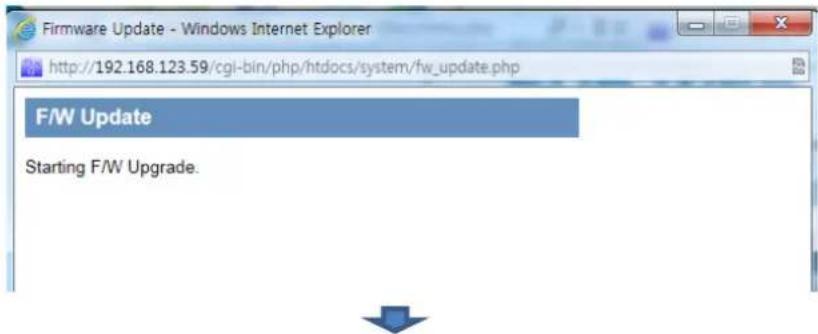
![Firmware Update - Windows Internet Explorer http://192.168.123.59/cgi-bin/php/htdocs/system/fw_check.php F/W Update F/W Uploading : UPGRADING STEP 1/3 [KERNEL-0] - 88(%) Uploading, Do not close this window.](/content/2026/06/1213755/images/a8fe93b7a347633c3a791784ad80eafa55cd94cb60adf81e536f12b64b0b23ec.jpg)
![Firmware Update - Windows Internet Explorer http://192.168.123.59/cgi-bin/php/htdocs/system/fw_check.php F/W Update F/W Uploading : UPGRADING STEP 3/3 [ROOT-1] - 100(%) Uploading, Do not close this window.](/content/2026/06/1213755/images/310096543258c1308725e826bbd81549d9561bdcf773f016d4843be080e84ba8.jpg)
System shows [COMPLETED] when finished and will reboot automatically.

When the whole update is completed, the NVR will restart.
Turning off the power in any process of f/w updating may cause damage to the system.
1.2 DESCRIPTION OF FRONT PANEL

[Front panel of NV-400S & 800S / 1600S]
1. CUSTOMER'S BRAND LOCATION
Front Panel
2. STATUS LED
Displays the information of the DVR (Stand -By), Record / HDD read/write and Network transmission.
3.IR RECEIVER
Infrared signal receiver for the IR remote control roller.
4.FRONT USB 2.0 PORT
USB 2.0 ports. Provides functions like 'Copy to USB storage', 'F/W Upgrade' and 'mouse' operation.

[Front panel of NV-800P & 1600P NVR]
1. IR RECEIVER
Infrared signal receiver for the IR remote controller.
2. STATUS LED
Displays the information of the DVR (Stand - By), Record and Network transmission.
3.FRONT USB 1/2 2.0 PORT
Left: USB 2.0 ports. Provides functions like 'Copy to USB storage', and Etc
Right: USB 2.0 ports. Provides functions like 'Copy to USB storage', 'F/W Upgrade' and Etc
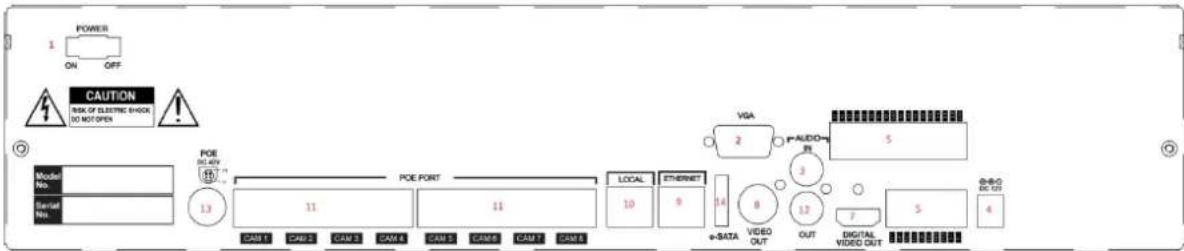
1.3 DESCRIPTION OF REAR PANEL

[Rear panel of 4/8/16S NVR]
flowchart
graph TD
    A["POWER ON OFF"] --> B["CAUTION"]
    B --> C["POE DEL-4V"]
    C --> D["POE POINT"]
    D --> E["LOCAL 10"]
    E --> F["E-THERNET 9"]
    F --> G["+DATA 14"]
    G --> H["VIDEO OUT 8"]
    H --> I["OUT 12"]
    I --> J["DIGITAL VIDEO OUT 7"]
    J --> K["5"]
    K --> L["6+O DC 27"]
    M["Model No."] --> N["Serial No. 13"]
    O["POE DEL-4V"] --> P["CASH 11"]
    Q["POE POINT"] --> R["CASH 11"]
    S["VGA 2"] --> T["P-AUDIO IN 5"]
    U["Q+O DC 27"] --> V["4"]
[Rear panel of 8 & 16 & 32P NVR]
1. Power Switch(Only the 4CH NVR)
Switch to turn the DVR ON & OFF.
2.VGA Output (Video Graphic Array)
15-pin D-sub connector for the analogue VGA output.
3. Audio Input
RCA connector for the audio signal input. (Line In)
4.Power In
12V DC Power socket.
5. Alarm(Sensor) Inputs, RS-485, and Relay
Output
- Alarm inputs x 4
- RS-485 Signals. (G: Ground, D+: RX/TX + signal, D-: RX/TX- signal)
- 4CH NVR: Relay output for the relay 1 (NO: Normal Open, NC: Normal Closed, CM: Common)
- 8&16CH NVR: Relay output for the relay 2 (NO: Normal Open, NC: Normal Closed, CM: Common)
6. Rear USB 2.0(Only the 4CH NVR)
USB 2.0 ports. Provides functions like 'Copy to USB storage', 'Mouse' Etc.
7. DIGITAL VIDEO OUT
Digital video output (HDMI) for the main monitor.
8. CVBS Monitor Output
Composite video output for spot monitor (BNC)
9.RJ-45 Network Port(1G Base-T)
WAN Network Port
10.RJ-45 Local Port( 1G Base-T)
LAN Network Port
11.RJ-45 Cam(PoE) Port (100M Base-T)
P2P IP Camera connection (4CH NVR: 4port / 8&16 NVR: 8port)
12.Audio Output
RCA connector for the audio signal output. (Line out)
13.POE Power In (48V)
DC Power socket for POE Power.
14.eSATA Connection Port(Option)
Connection for e-SATA storage to expand HDD
2. GETTING STARTED
Controlling and programming of the NVR is limited with IR remote, it is recommended to use a mouse for all functions.
2.1 CONNECT AND SWITCH ON
- Connect all IP Cameras to NVR.
Connect one or more monitors to NVR using Digital Video output (HDMI), VGA and CVBS.
Connect power to NVR. Press the power button on the back panel of NVR to begin operation.
The following screens will appear after NVR is turned on.

Depending on the Monitor you connect to the NVR, initial logo may not display because your monitor does not support low resolution, this is not a defect.
Default resolution is 1024 x 768
When loading the screen might flash on and off, this is to optimize screen resolution
After loading screen is displayed, recording starts according to pre-set condition. All operations of the NVR are ready as seen in screen below

After start-up diagnostics are completed, the operator must log-in to the system. You need to type the default user name as "ADMIN" and the default password as "1234" and press the enter button.
![LOG IN USER ADMIN PASSWORD 1 2 3 4 5 6 7 8 9 0 - = q w e r t y u i o p [ ] ¥ a s d f g h j k l ; ' Enter z x c v b n m . . / Space a OK EXIT](/content/2026/06/1213755/images/2979c0adce221d8c489b5e12491a9cafc359c3685db554e6563b2bb24077b303.jpg)
- Logging in with IR remote controller
Using direction buttons, move to user's selected menu, press "enter" on remote controller and move to user account selection mode.
Using Up/Down keys, select account, and press "Enter" on remote controller for selecting user's account
Using numeric keys, input pin code,
If required, using direction key and move to virtual keyboard and input pin code.
After inputting pin code, using direction keys, move to 'enter' or 'confirm' over virtual keyboard and press 'enter' (◀) to log-in

natural_image
Four-panel night scene collage showing traffic scenes, a vehicle exhibition booth, and a store interior (no visible text or symbols)[live mode of 4 channels]

natural_image
Grid of 20 surveillance cameras and retail scenes in various locations, including urban areas, shopping malls, and indoor settings (no readable text or symbols)[live mode of 16 channels]
3. TOOL BAR
To view the Tool-Bar move mouse pointer to the bottom of the screen and the following will appear. The Tool-Bar display will disappear after pre-defined time set in Display settings or exit with exit button



Network connection status
Back up storage connection status
Automatic screen sequencing
HDD installation
Default audio channel
Log on/off for NVR operation
Setup menu
VA Video Analytics (camera dependent)
Easy copy button
Search
Screen display selection
Pan/tilt


Digital zoom
System log
3.1 LOG OFF
There are two ways to logoff. One is manual logoff and the other one is automatic log off after configured time.
[Log-Off by using TOOL BAR]

Once Logoff selected as above, current account can be logged off.
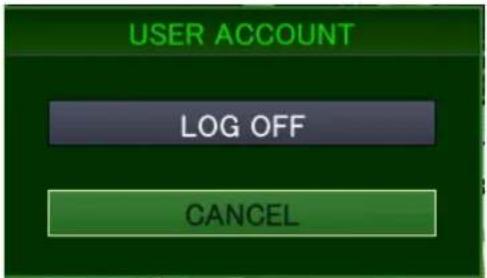
Once user logs out, you can view the login window.
You can set up the logout menu in Main menu for automatic logoff.
Once you logoff, you can not operate the NVR, you must log in again.
3.2 Main Menu POP-UP
Press main menu button, main menu will POP-UP.

3.3 VA MENU POP-UP (Camera dependent)
This menu is for using IP camera which supports Video Analytics.
NVR doesn't support VA configuration of IP camera. All VA configuration must be done on camera side

[VA MENU]

VCA EVENT RECORD: Configure record schedule once VA event is activated from IP camera.
➢ VCA ONLY: NVR records only VA event.
VCA OFF: NVR doesn't recognize VA event as real event.
VCA+MD: NVR recognize VA event and motion event both as real event.
SEND E-MAIL: NVR sends email once VA event recognized.
ATTACH SNAPSHOT: Activate VCA SNAPSHOT an image of the event will be attached to an email (SEND E-MAIL must be activated)
VCA POPUP DWELL: If VCA popup mode is "On", you can configure the duration time for full screen display.
VCA ICON DISPLAY: Activate VCA icon display menu as "ON", NVR displays VA icon on live screen.
VCA BOX DISPLAY: Activate VCA box display menu as "ON", NVR display VA box on live screen.
VCA ZONE DISPLAY: Activate VCA zone display menu as "ON", NVR display VCA zone on live screen.
BUZZER: Configure buzzer on /off for VA events triggered.
RELAY: Configure relay on/off for VA events triggered.
3.4 QUICK COPY MENU POP-UP
Clicking following icon, instant Backup menu will pop up. You can save the last 10 minutes from the current time.

3.5 SEARCH MENU POP-UP
To search a particular time of recorded footage, press the SEARCH button.
To protect unauthorized viewing of footage, only authorized users can playback footage.

3.6 DISPLAY POP-UP
Configure display mode by pressing display button of Tool bar.

You can select Quad / Single/ Auto sequence by selecting item in pop-up menu.

natural_image
Green background with a blue square, five gray grid squares, and a circular arrow symbol (no text or labels)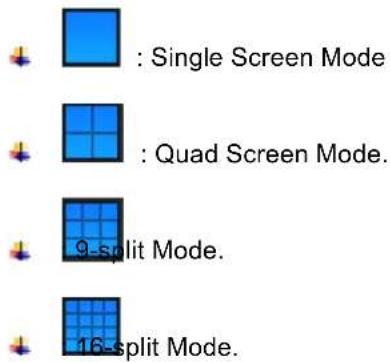

: Auto Sequence Mode.
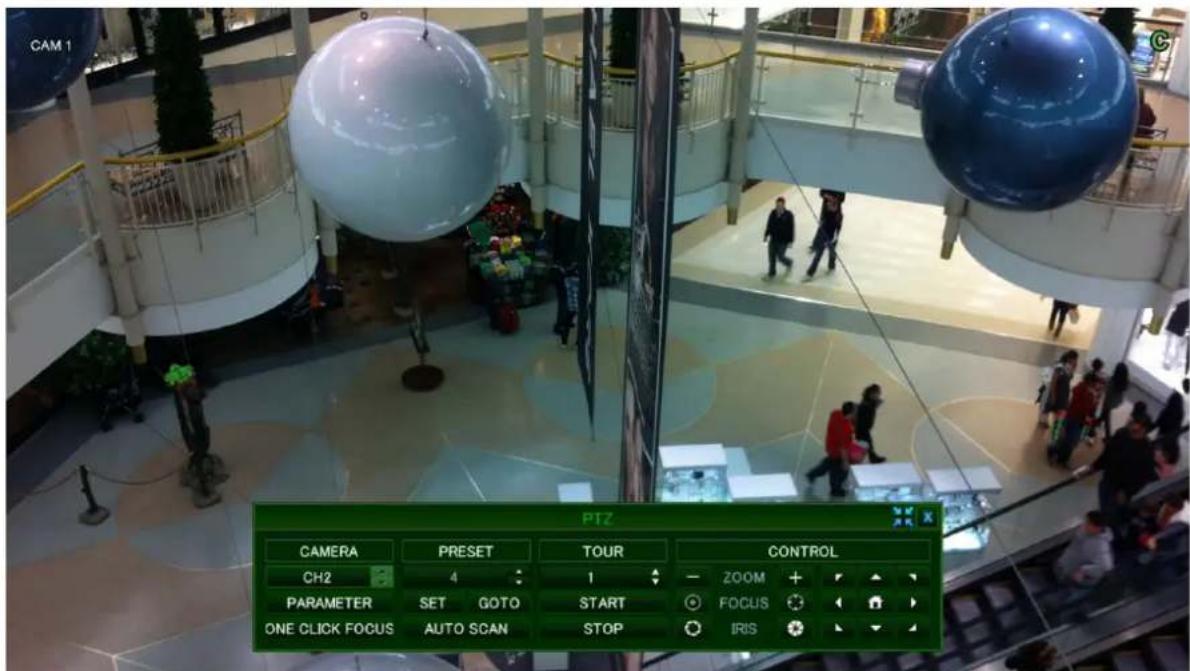
3.7 PTZ POP-UP
When the display mode is in quad, the PTZ control panel will open for the selected camera which is previously highlighted by mouse click. If there is no highlighted camera, the PTZ control panel is opened for controlling camera 1. In single display mode, the PTZ control panel is opened for the currently displayed camera.
- Support only after PTZ IP camera integration with NVR is completed.

[PTZ Controller Screen]

1: Select channel for PTZ control.
2: Display PTZ control parameters which are set under 'DETAIL' of PTZ menu settings
3: Number to configure Preset.
4: Save current screen as Preset.
5: Move to configured Preset Number.
6: Control the value of Zoom/ Focus/ Iris.
7: Move the PTZ camera Left/ Right/Tom/Bottom
8: Move to the Home position of PTZ camera.
9: Number to configure Tour
10: Start to configured Tour Number
11: Stop to configure Tour.
3.8 DIGITAL ZOOM
There are two ways to digitally zoom:
- Select the Zoom button on the Tool bar.
- Click and drag with the mouse
[Zoom by using the TOOL BAR]
Desired camera should be at Full screen mode, and then select the Zoom button.
NOTE: When selecting the Zoom button while on multi display mode, channel 1 is automatically displayed.

Once selected, screen will convert to a single screen, shown below digital zoom control window.
![Vitek VT-NV1600P - [Zoom by using the TOOL BAR] - 2](/content/2026/06/1213755/images/9377d9107795bdc86931ec559222a896438113783fc3c91c4727738b2e5f5e85.jpg)
natural_image
Interior view of a multi-level shopping mall with shoppers and illuminated retail stalls (no visible text or signage)![Vitek VT-NV1600P - [Zoom by using the TOOL BAR] - 3](/content/2026/06/1213755/images/e680447cba0b602602a2732edbeffefade736ef8a8ff17f46b6af25e7f802fe4.jpg)

![Vitek VT-NV1600P - [Zoom by using the TOOL BAR] - 5](/content/2026/06/1213755/images/f5477238ac5fda130811add5f78d98f7adebe3c4aa4501dd8cddb0cd302d19e5.jpg)

[Zoom by using Mouse]
![Vitek VT-NV1600P - [Zoom by using the TOOL BAR] - 7](/content/2026/06/1213755/images/f15817265bc65ae1c3e2e18e2b35b159f7ac54326ddfccefb257c9c45022ceb4.jpg)
natural_image
Interior view of a multi-level shopping mall with shoppers and illuminated storefronts, no visible text or signageAt full screen mode, you can select the area to zoom in/out by clicking left button of Mouse and drag, Clicking on the zoomed screen, the display returns to the original screen.
Digital Zoom supported in Live / Playback mode
Digital Zoom supported in Full screen mode only.
3.9 LOG LIST
View the log list by selecting log list button in Tool bar.
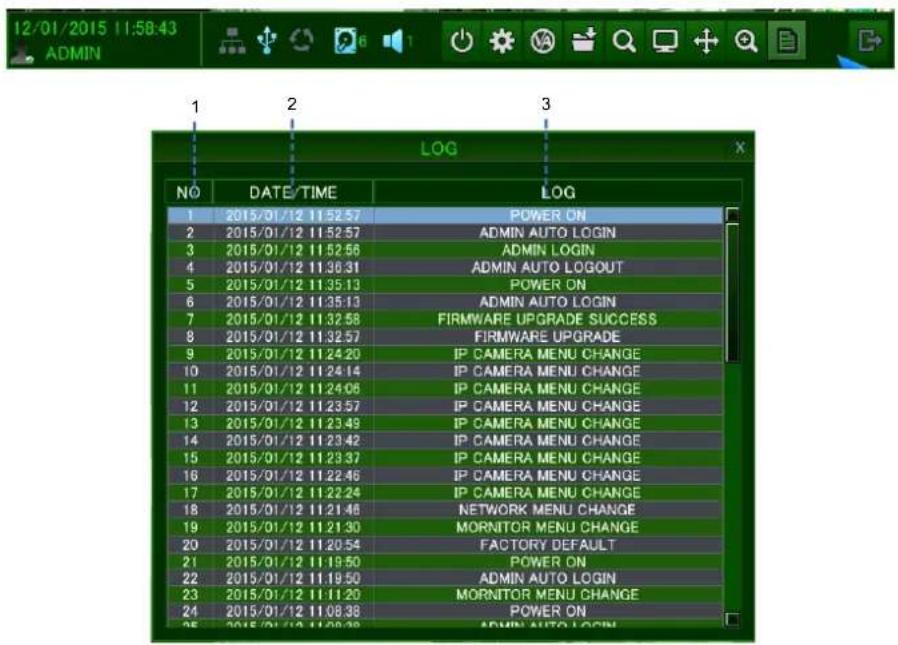
1 : Display number from currently triggered ( Max 10,000 list can be recorded)
2 : Date / Time
3: Log list
Items listed in log list.
Power ON/OFF
Backup Start
Disk Format
Factory Default
Camera Menu Change
PTZ Menu Change
OSD Menu Change
▶ Monitor Menu Change
Sequence Menu Change
Date/Time Menu Change
System Management Menu Change
Sound Menu Change
User Management Menu Change
Authority Menu Change
Logout Menu Change
Network Menu Change
➢ DDNS Menu Change
▶ Alarm In Menu Change
▶ Alarm Out Menu Change
Buzzer Out Menu Change
E-Mail Notification Menu Change
▶ Disk Management Menu Change
Record Configuration Change
Record Schedule Change
IP Camera Menu Change
▶ Firmware Upgrade Success
➢ Firmware Upgrade Fail
➢ Admin(User 1 \~ 10) Auto Login
Admin(User 1 \~ 10) Login
➢ Admin(User 1 \~ 10) Password Fail
➢ HDD 1(1 \~ 5) Error For Write
➢ HDD 1(1 \~ 5) Fail For Write
➢ HDD 1(1 \~ 5) Error For Read
➢ HDD 1(1 \~ 5) Fail For Read
▶ Network Connected
Time Adjust
▶ Network Disconnected
▶ DVR Watchdog Reset
Menu Data Backup Succeeded
Menu Data Load Succeeded
Menu Data Backup Failed
Menu Data Load Failed
➢ Camera Menu Changed by Remote
PTZ Menu Changed by Remote
➢ OSD Menu Changed by Remote
➢ Monitor Menu Changed by Remote
Sequence Menu Changed by Remote
Date & Time Menu Changed by Remote
System Management
User Management Menu Changed by Remote
➢ Authority Menu Changed by Remote
To Logout Menu Changed by Remote
▶ Network Menu Changed by Remote
DDNS Menu Changed by Remote
E-Mail Menu Changed by Remote
➢ Alarm input Menu Changed by Remote
➢ Alarm Output Menu Changed by Remote
➢ Buzzer Menu Changed by Remote
➢ Buzzer Menu Changed by Remote
E-Mail Event Menu Changed by Remote
Disk Menu Changed by Remote
Continuous Record Menu Changed by Remote
➢ Schedule Record Menu Changed by Remote
Record Misc Menu Changed by Remote
FAN Error
▶ Copy Success
▶ Copy Fail
▶ Backup Start
▶ Backup Stop
Power OFF
4. SEARCH & PLAYBACK
4.1 TIME / CALENDAR SEARCH
Search the recorded data by a calendar and timeline for quick access to recorded footage.
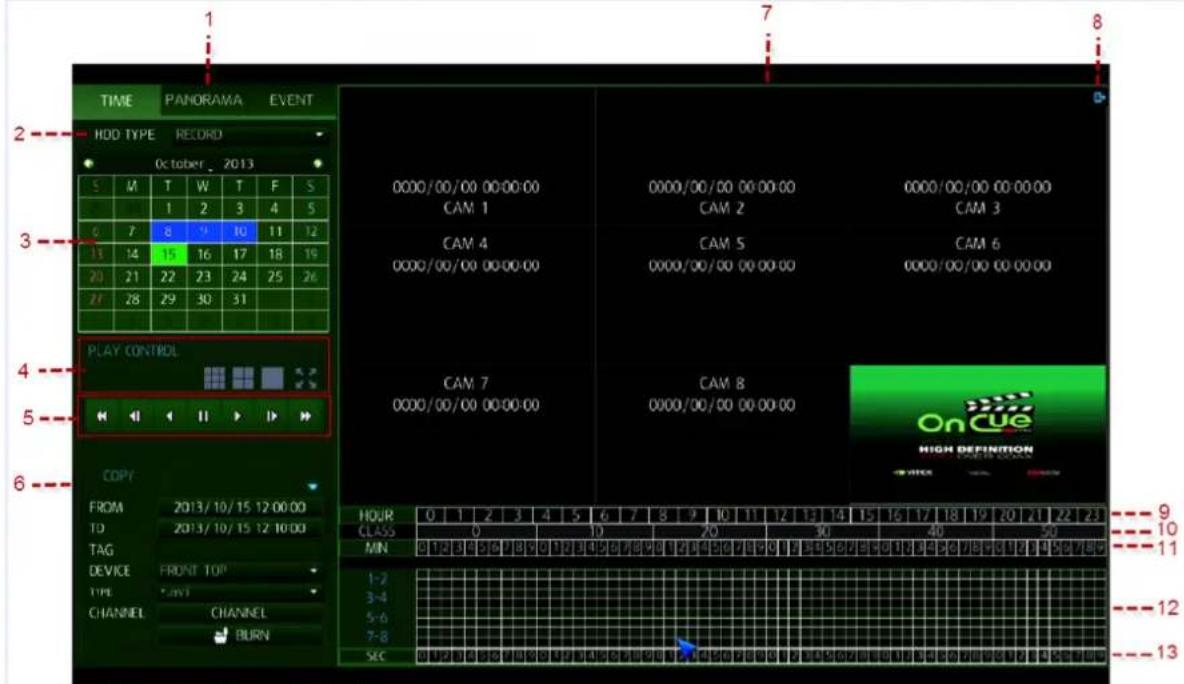
1: Select Search Mode:
TIME: The recorded data can be searched using the calendar.
PANORAMA: If you select a channel for panorama view, search mode will be changed to PANORAMA Mode
EVENT: The recorded data can be searched using the event list.
2 : SEARCH HDD : Select the HDD to search
RECORD: Search HDD which is selected as Record.
MIRRORING: Search HDD which is selected as Mirroring.
3: CALENDAR: Dates with recorded data will appear in BLUE.
If you select the date having recorded data, the Hour time bar will fill-in.
- Select Split screen


: 16-split screen playback mode


: Playback at full screen mode

In playback mode control playback speed and direction.
In single screen, digital zoom function can be used.
: Return to Search menu.


: Close playback screen and return to live screen

5: PLAY CONTROL: Playback speed and direction control.

6: COPY: Copy the data to external storage.
7: VIDEO WINDOW: Searched video will be displayed
8: Return to live menu from Search Menu
9: HOUR SELECT LINE: Select the data by hour. If certain time has recorded data, blue color will be displayed.
10: Minutes / seconds display information for the unit: Minutes / seconds for display to help in selection.
11: MINUTE SELECT LINE: Search the data by minute. If certain minute has recorded data, Green color will be displayed.
12: RECORD DATA STATUS: You can view recording status of each channel. Green color shows recorded data.
13: SECOND SELECT LINE: Select the data by second after starting playback by choosing the desired second.
4.2 PANORAMA SEARCH
By using Panorama Search, user can search, playback, copy by hour/minute/second in16ch view mode.
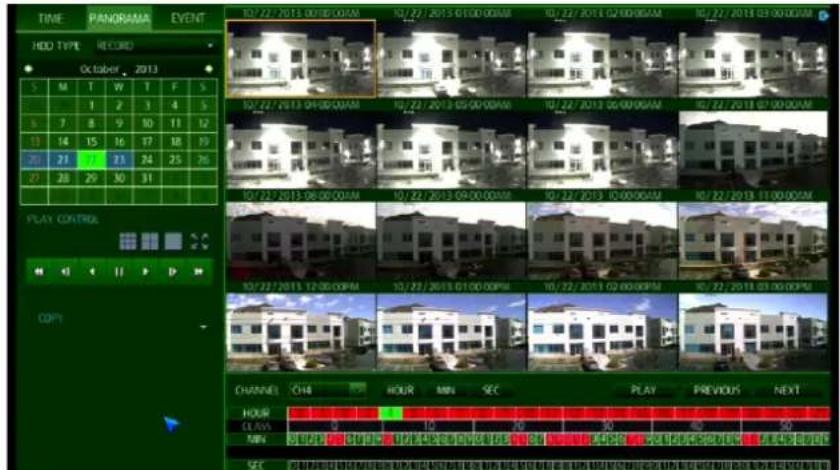
If you select the Panorama, search mode will be changed to PANORAMA Mode.
Select the date on calendar; panorama playback will be started from the first recorded data in selected date.
Select hour and display will be in minutes within that hour.
Select minutes and display will be in seconds within the minute.
PLAY
: Select PLAY to play video from selected time
HOUR
: If you select HOUR, hours will be displayed. (ex: if currently playback is
by minutes, will then move back to HOUR search)
MIN
MIN : If you select MIN, minutes will be displayed (ex: if currently playback is by hour, will then move back to minute search)
SEC
SEC : If you select SEC, seconds will be displayed (ex: if currently playback is by minutes, will then move to second search)
PREVIOUS
PREVIOUS : Shows previous panorama. (ex: if current playback is 17\~33 sec, then will move back to 1\~16sec)
NEXT
NEXT : Shows next panorama. (ex: if currently playback is 1\~15sec, then move to 17\~33sec)
CHANNEL CH1
: Selected channel for panorama view.
4.3 EVENT SEARCH

If you want to search an Event, you need to select date and event menu tab.
Event list shows 20 events per page, 25pages can be searched (max. 500 event)
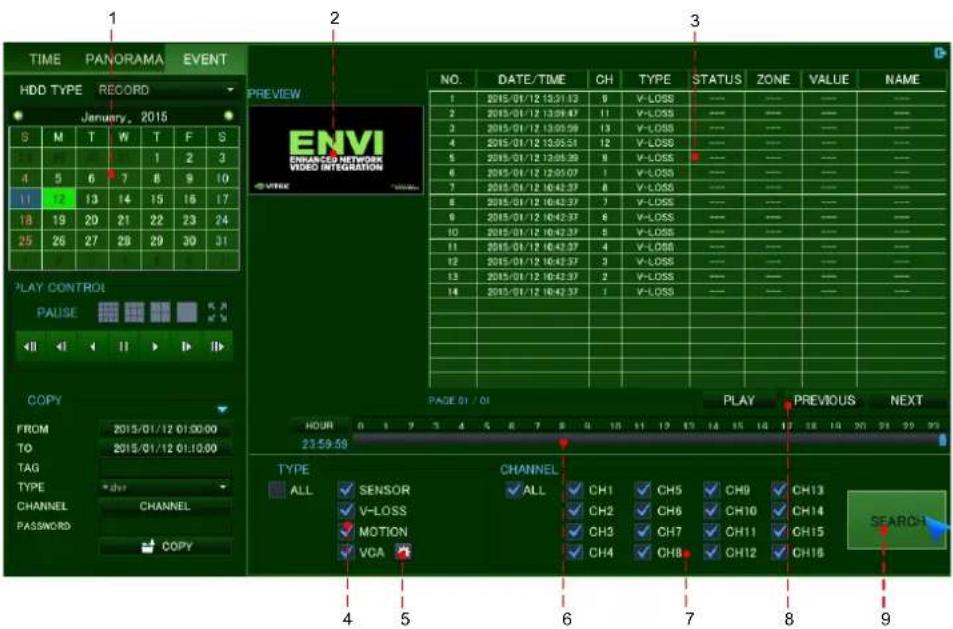
- Select date which you want to search.
2: Preview: Event selected in the list (#3) displays a preview of the video. - Search result: Event list displayed.
NO: Event number, most recent event display as No.1
➢ DATE/TIME: Event triggered time.
CHANNEL: Event channel
EVENT TYPE: Event type.
In event list, below list displayed only when VCA is selected.
VCA function supported only when ip camera have VCA function.
➢ Status (VA only): displays VA event's start or end.
➢ ZONE (VA only): displays which area (zone) VA event occurred.
Value (VA only): In VA event, displays event information requiring value.
Name(VA only): In IP camera, displays registered name of VA event
Event list displays 20 events per page, total 25pages(max 500 event)
4: Select Event Type to be displayed in Event list.
ALL: Displays all events.
SENSOR: Display Sensor Events.
VIDEO LOSS: Display Video loss Events.
➢ MOTION DETECTION: Display motion Events.
VCA: Display VCA Events (in case of using UDP camera).
VCA function only supported when you use VCA supported IP camera.
- Search condition of VCA event set up in detail.

1: TYPE: Select which Type of VA will be displayed in VA list.
2: STATUS: Select start/end time of VA events.
3: ZONE: Select the zone of VA events.
4: INEQUALITY: Select the range of the value of VA events.
5: VALUE: Select the value of VA events.
6: NAME: Input ID of VA events which is "Object classifier" possible.
6: Search for events by hours / minutes can be selected.

7: Select channel which will be displayed in Event list.
8: Switch Events List page. A total 500 events are shown on 25 pages.
4.4 COPY

FROM: Select the stat time to copy.
TO: Select the end time to copy.
TAG NAME: Name the video clip.
TYPE: Select .avi or .nvr for file type.
CHANNEL: Select the channel to copy.
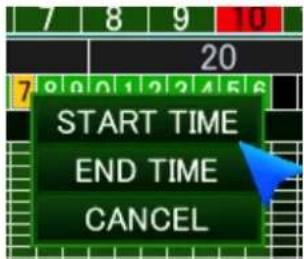
: You can select Start/ End Time at Calendar search on Time line to copy by right clicking the time and selecting start or end time.
PASSWORD: Input password for '.nvr' format.
Copy: After all info is entered into COPY area, select COPY and a status box will appear and show the progress of the offloading.
5. QUICK MENU
If you are using a USB mouse to control the NVR, pressing the right button of mouse will bring up the Quick Menu.
Here you can use display pause, PTZ control, zoom control, IP camera scan and ALARM RESET.
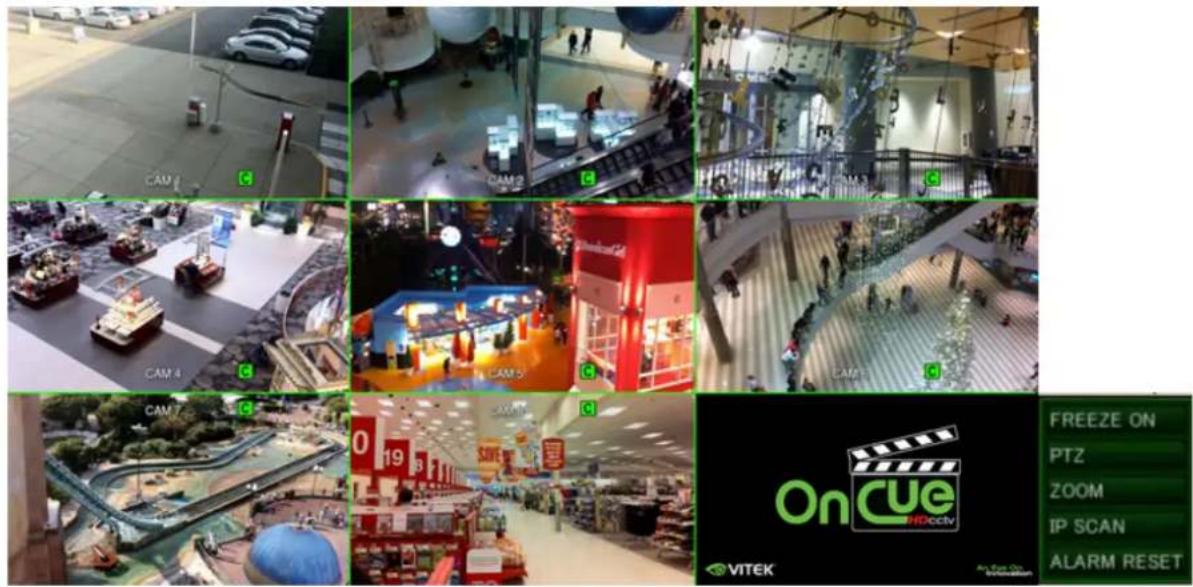
FREEZE ON: If you press Freeze button, the live display will stop.

FREEZE OFF: Release Freeze mode by pressing Freeze Off.
PTZ: Selecting PTZ will bring up PTZ control screen. PTZ can only be controlled by an authorized user. PTZ mode will be activated in the channel you selected.

ZOOM: This will execute digital zoom control screen. Zoom mode will be activated in the channel you selected.
IP SCAN: You can scan the IP cameras currently connected to NVR. The IP camera connected to NVR through peer to peer connection or local / Ethernet port both can be scanned.
IP camera connected by plug and play automatically connects to the NVR.

6. HOW TO CONFIGURE
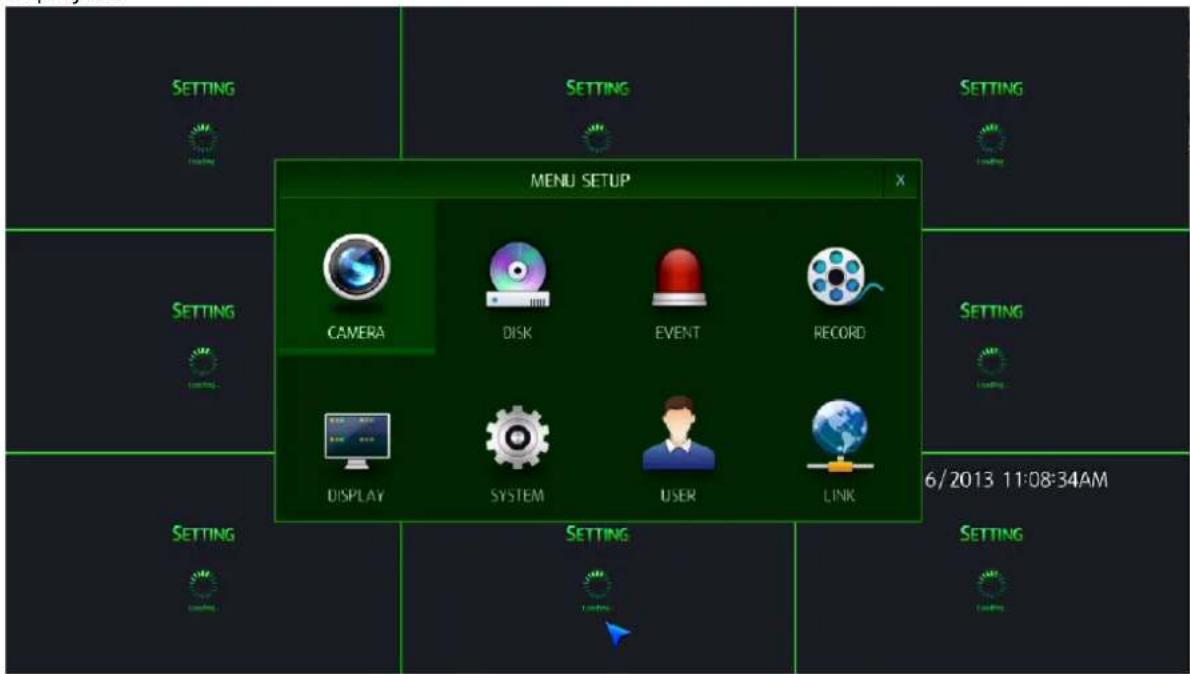
To view the setup menu in each section, press menu button on toolbar. Following screen will be displayed.
6.1 CONFIGURING CAMERA
To set-up the various camera options, highlight CAMERA and press ENTER.

natural_image
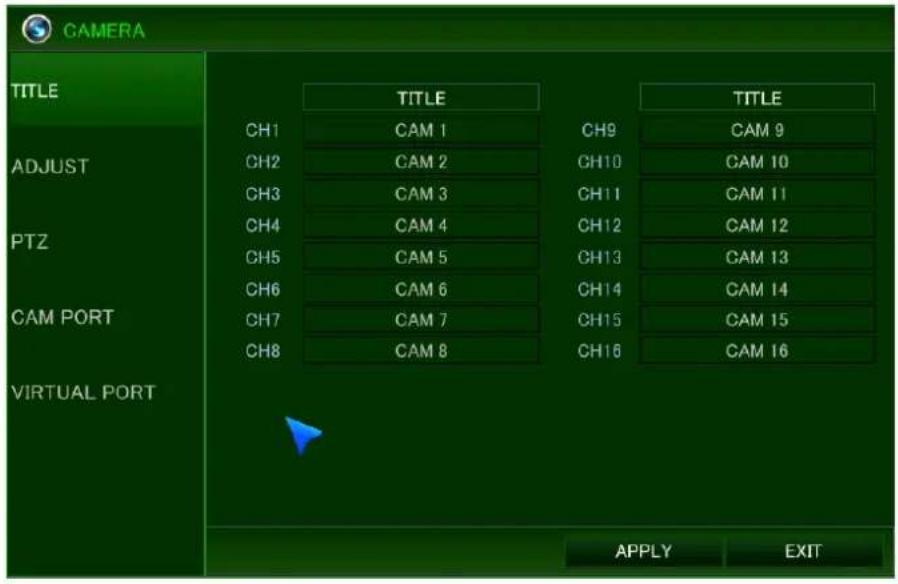
Green background with a white camera lens icon and the word 'CAMERA' below it (no additional text or symbols)6.1.1 TITLE
TITLE: Up to 18 characters can be set by using the virtual keyboard.
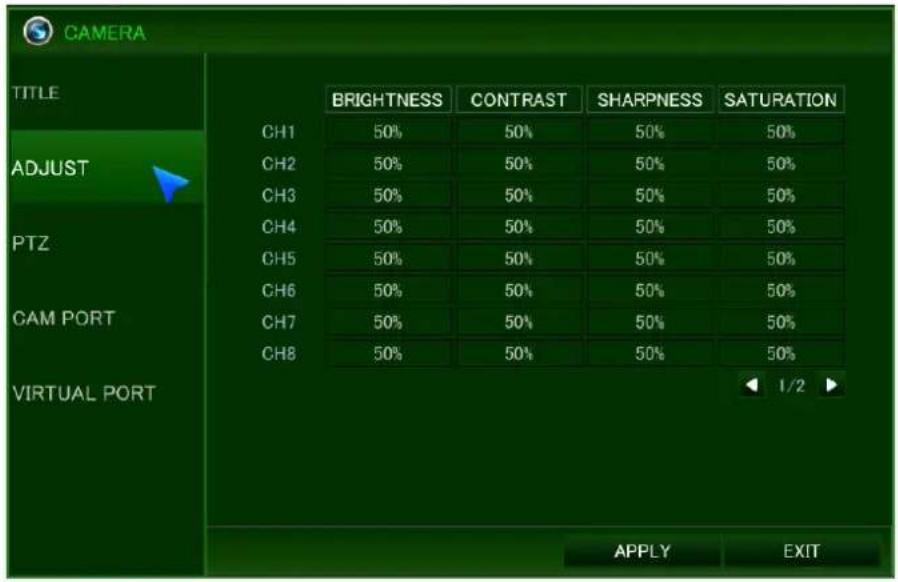
6.1.2 ADJUST
The ADJUST menu is for adjusting the BRIGHTNESS, CONTRAST, SHARPNESS and SATURATION per camera
6.1.3 PTZ
There are two ways to control a PTZ camera.
RS-485 port.
Network.
- If you use Network to control PTZ, there is no additional configuration in NVR
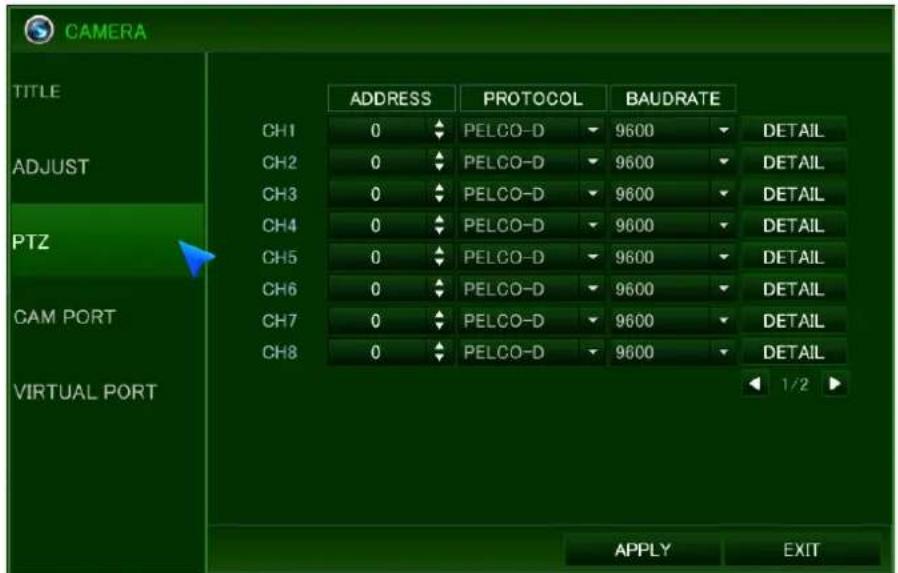
ADDRESS: The unique ID of the PTZ camera.
PROTOCOL: The protocol of the PTZ camera.
BAUD RATE: The baud rate of the PTZ camera.
PTZ properties can also be adjusted for each channel by selecting DETAIL. Auto Focus, Auto IRIS, P/T speed, zoom speed, focus speed, IRIS speed
Note: that some settings, such as AUTO FOCUS, may not be compatible with particular PTZ cameras. If this is the case, changing this value will have no effect on PTZ control.
6.1.4 CAM PORT
This menu is to set up IP cameras to the NVR. Before connecting IP cameras to NVR, it is recommended that you configure IP camera menu first.


TYPE: You can select AUTO, MANUAL or RTSP to make a connection between the NVR and the IP Camera.
AUTO: When you try to make a connection between IP Camera and NVR through peer to peer by using the built in HUB, user can use this menu.
√ If the IP camera is connected to NVR through Peer to Peer connection, The Default IP address will be allocated 192.168.172.101 \~ 104(4ch) / 192.168.172.101 \~ 108(8 & 16ch) automatically.
√ In case of using "Auto" connection with IP camera, NVR changes and saves default value of IP camera in ID, Password, RTSP Port, HTTP port, HTTP type)
√ If the USER ID and password of the IP camera is not the default value, the NVR cannot change the configuration of the IP camera in "Auto" connection mode.
√ If the configured value of USER ID and password of the IP camera is different than the default value, you need to
assign the right value by using the "Detail" menu.

If the message above does not appear, please check camera power and connection to the NVR
MANUAL: When making a connection between IP cameras and the NVR using cameras already installed, you can use this menu.
√ In case of "Manual" connection with IP camera, you can make a connection through the Ethernet (WAN) or Local (LAN) port.
√ ETHERNET: Select Ethernet for the camera connection through Ethernet (WAN) port.
√ LOCAL: Select Local for the camera connection through Local (LAN) port.
√ CANCEL: Cancel the manual connection.

The IP range of Local or Ethernet PORT for the connection between IP cameras and NVR should be same when both are on the same network.
Ex) if the IP of the ETHERNET PORT is 192.168.123.xxx, the IP address of the IP camera should be 192.168.123.xxx.
Ex) if the IP of the LOCAL PORT is 192.168.123.xxx, the IP address of the IP camera should be 192.168.123.xxx.
√ When making a connection between the NVR and IP cameras in manual mode, you must use 'Detail menu

to configuration IP cameras.
RTSP URL: Use RTSP URL to make a connection with IP camera which is not listed in supported IP cameras of NVR.
√ IP ADDRESS: Input IP address of IP camera.
√ RTSP PORT: Input the info of RTSP port of IP camera.
√ INPUT RTSP URL: Input the info of RTSP URL of IP camera.
√ APPLY: Save the configuration.
√ CANCEL: Cancel the configuration.
You can be connected to IP camera through RTSP, but you cannot configure the IP camera which is not supported in the IP camera protocol from NVR.
DETAIL (....): Selecting manual mode, you need to configure the information of IP cameras already installed on the local network.
IF IP camera connecting to NVR, is not configured with factory default for ip address, RTSP port/HTTP port/ HTTP format/ ID / Pin code, then you should modify it through the NVR.

IP ADDRESS (in case of using manual mode): Input IP address of IP camera.
√ Default(When using Ethernet port): 4ch 192.168.0.201 \~ 204 / 8 & 16ch 192.168.0.201 \~ 208
√ Default(When using local port): 4ch 192.168.172.101 \~ 104 / 8 & 16ch 192.168.172.101 \~ 108
➢ RTSP PORT (in case of using manual mode): Input RTSP port info.
√ Default: 554
If RTSP port value is not matched with IP camera, below message will appear on screen.

HTTP PORT: Input HTTP port
√ Default : 80
If HTTP port is different in the IP camera the following message will appear on the screen.

➢ HTTP TYPE: Select HTTP type of camera.
√ Default: HTTP
➢ USER ID: Input ID of IP camera.
√ Default : root
➢ PASSWORD: Input password of IP camera.
√ Default: root
You can change the configuration of IP cameras only when the ID/PASSWORD info already configured is correct.
➢ MODEL (in case of using manual mode): User can select the model which will be connected to NVR.
SCAN: User can scan IP cameras currently installed on the Local network.
NVR currently supports (VITEK/UDP/SAMSUNG/SHANY/TRUEN/CNB/COMART/EOC)
Note) a few models from the same IP camera manufacturer may not be compatible.

- Scan the info of IP cameras already installed on the local network which NVR is connected to.
➢ MODEL: Display the model of scanned IP camera.
MAC: Display MAC info of scanned IP camera.
IP: Display IP address of scanned IP camera.
CH: Channel information
➢ Assign To: Assign channel number of scanned IP camera.
6.1.5 VIRTUAL PORT
This menu is to set up IP cameras on channels 9\~16 of NVR. Before connection IP cameras to NVR, configure IP set up menu.

Virtual port menu is same as the cam port menu.
Virtual port menu does not support the "AUTO" mode.
6.2 CONFIGURING DISPLAY
To set-up the various display options, highlight DISPLAY and press ENTER.
natural_image
Computer monitor icon with grid layout on screen, labeled 'DISPLAY' below (no other text or symbols)6.2.1 OSD
To set-up the various display options, highlight DISPLAY and press ENTER. Configure camera title / border/ language here.
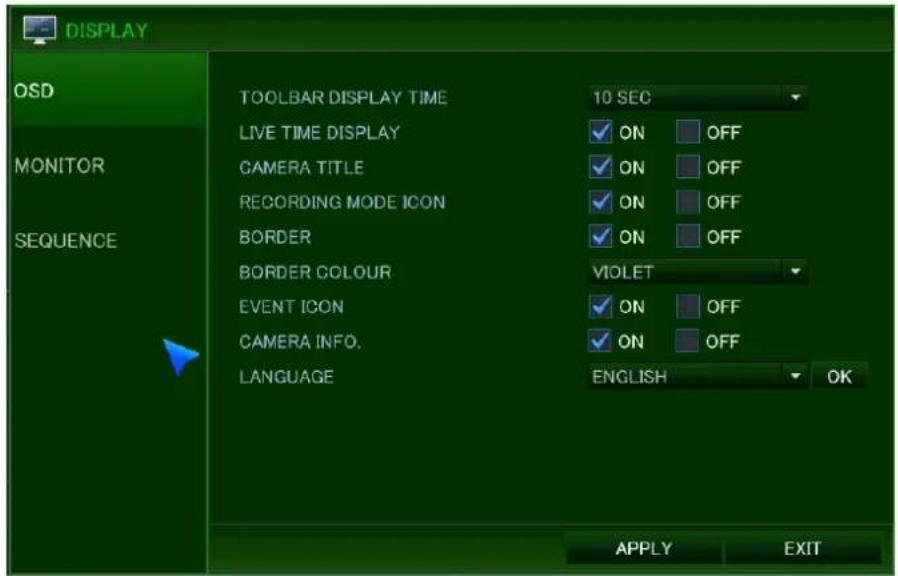
TOOLBAR DISPLAY TIME: Set the time for Toolbar to be displayed
LIVE TIME DISPLAY: Live time display On / Off
CAMERA TITLE: Determines whether the camera title is displayed.
RECORDING MODE ICON: Determines whether the recording status is shown at the top right of each channel display window.
BORDER: Determines whether there is a border around each channel in multi screen display mode.
BORDER COLOR: If the border is ON, you can choose the color.
EVENT ICON: Determines whether the event (Alarm, V-loss) icon is displayed.
CAMERA INFORMATION: currently connected camera's resolution display can be selected.
LANGUAGE: Select the language of display.
ENGLISH / KOREAN / GERMAN / POLISH / JAPANESE / FINNISH / CHINESE / RUSSIAN
6.2.2 MONITOR

ALARM POP-UP MODE: When set to ON, an alarm input will cause the associated channel to display full screen.
ALARM POP-UP DWELL: Determines how long the full screen popup is displayed after an alarm input.
MOTION POP-UP MODE: When set to ON, motion detection will cause the associated channel to display full screen.
MOTION POP-UP DWELL: Determines how long the full screen pop-up is displayed after motion detection.
! If motion continues, the popup screen is displayed constantly.
VIDEO OUTPUT RESOLUTION(MAIN VIDEO OUTPUT MODE) : Configure video output resolution of main monitor 1024x768 / 1280x1024 / 720p / 1080P
! OK: Press OK button to confirm configured video output.
- If monitor does not support HD resolution, then configure VGA resolution on NVR.
- If using a VGA monitor, connect monitor first then power up the NVR.
Factory default resolution is 1024x 768, so you should use monitor supporting at least 1024 x 768.
VGA HORIZONTAL OFFSET: You can change the horizontal position of VGA
VGA Vertical OFFSET: You can change the vertical position of VGA
6.2.3 SEQUENCE
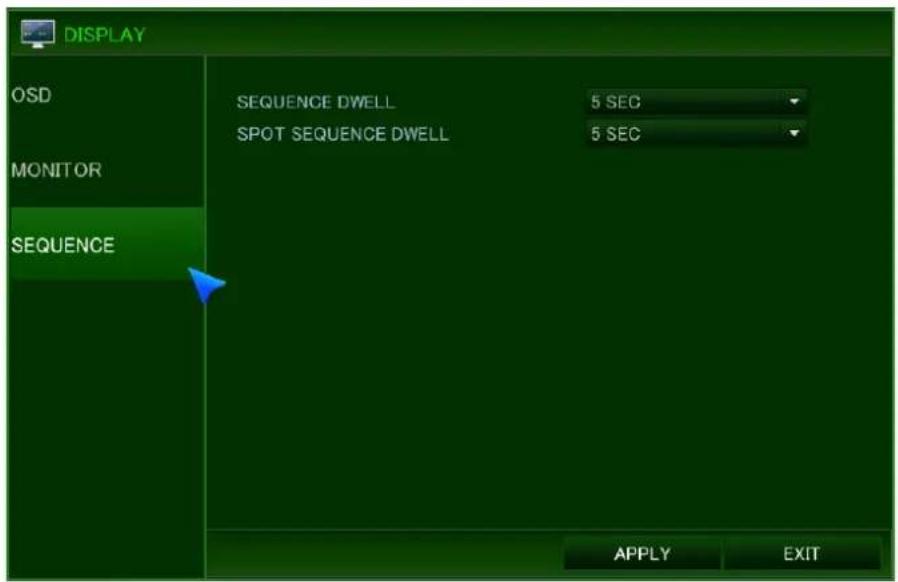
SEQUENCE DWELL: The time that each screen is displayed in a sequence operation.
4 SPOT SEQUENCE DWELL: Set sequence interval time for spot monitor (5/10/15/20/30/40/60 seconds)
6.3 CONFIGURING DISK

6.3.1 SETUP
You can configure DISK operation like Recording Time Limit / Overwrite / HDD Type / HDD Configuration.
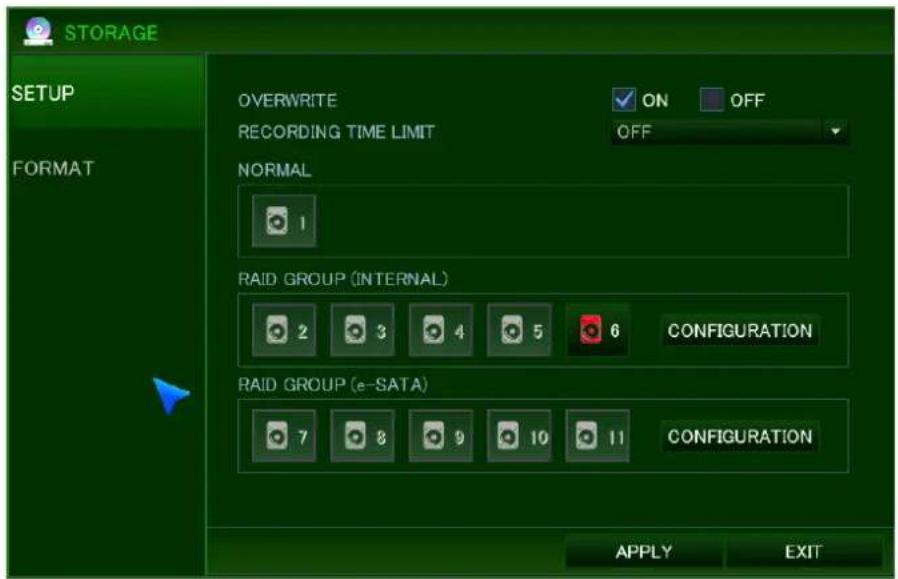
OVERWRITE: IF you select "ON", overwrite mode will be activated.
RECORDING TIME LIMIT: You can configure the data from current time to configured time (12hr - 2 month).
Recording HDD setup: HDD connected to NVR, can be configured as recording or mirroring drive, click Red marked HDD to configure operation mode.
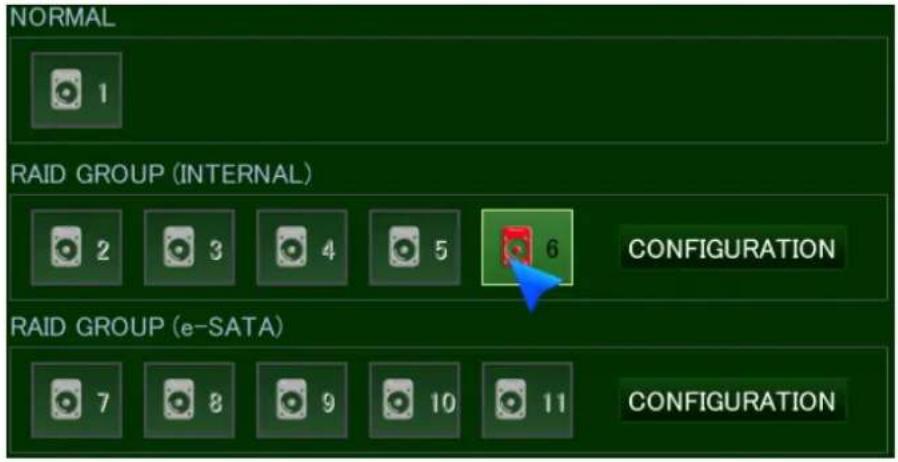
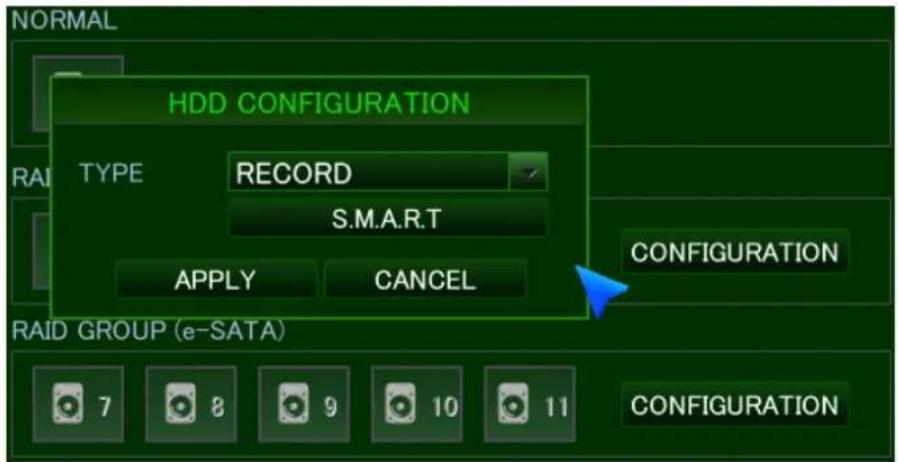
RECORD: You can select HDD as record HDD.
MIRRORING: You can select HDD as mirroring HDD.
S.M.A.R.T: View HDD health condition

GOOD: It shows current HDD condition is good.
BAD: It shows current HDD condition is bad.
- HDD's S.M.A.R.T information may not be supported, depending on HDD Mfg.
6.3.2 FORMAT

HDD TYPE: Select HDD type to format.
RECORD: will format all HDD's assigned to record.
MIRRORING: will format all HDD's assigned to mirror.
FORMAT: Start formatting selected HDD type
- Formatting HDD time on NVR will differ depending on size of HDD.
Device: Format device connected to USB.
Some USB devices may not work in the NVR
FORMAT: format USB Device.
6.4 CONFIGURING SYSTEM
natural_image
Green background with a metallic gear icon and the word 'SYSTEM' below it (no additional text or symbols)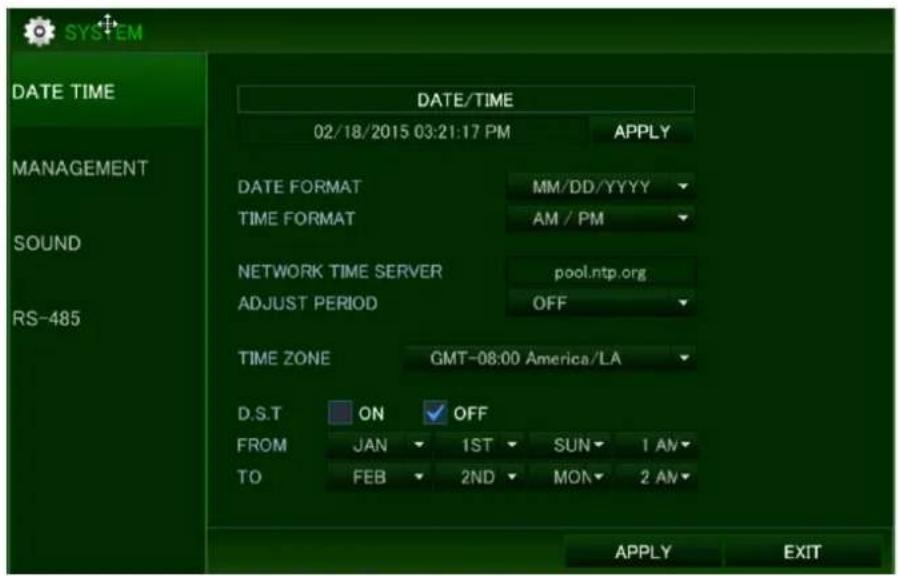
6.4.1 DATE/TIME
DATE&TIME: Allows the operator to set or modify the current date & time.
After changing data/ time, be sure to press ( ) to confirm
After setting Date & Time formatting HDD is recommended.
DATE FORMAT: Determines how the date is displayed.
YYYY/MM/DD(Default), MM/DD/YYYY, DD/MM/YYYY
TIME FORMAT: Determines how the time is displayed.
24 Hour(Default), AM/PM
NETWORK TIME SERVER SETUP: If the NVR is connected to the Internet, you can synchronize the time and date with sever.
Default Server: pool.ntp.org
ADJUST PERIOD (INTERVAL): Configuration synchronize interval with Network Time server.
Network time server synchronization starts after NVR configuration is set.
TIME ZONE SETUP: Should be set according to the region that the NVR is installed.
D.S.T: Set to ON, the NVR will automatically adjust the time by one hour on the relevant
date in spring and autumn
FROM: D.S.T Start time of DST
➢ End : D.S.T End Time of DST
6.4.2 MANAGEMENT

SYSTEM INFORMATION: Select INFO to display following window.
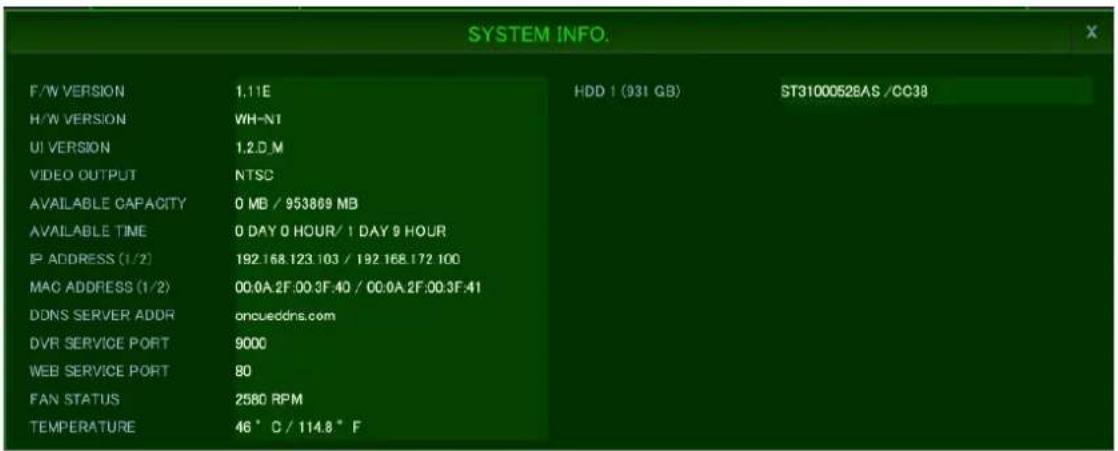
F/W VERSION: Shows the firmware version of the NVR.
H/W VERSION: Shows the hardware version of the NVR.
- UI VERSION : Shows the UI version of the NVR
➢ VIDEO SIGNAL TYPE: NTSC or PAL
➢ HDD NUMBER: Shows the hard drive capacity installed.
IP ADDRESS 1(Ethernet Port): Shows either the manual IP address entered in NETWORK setup or the IP address assigned by a DHCP server if enabled.
IP ADDRESS 2(Local Port): Shows either the manual IP address entered in NETWORK setup or the default IP address.
NVR display two IP addresses one for Ethernet and one for Local port.
Do not use same IP address range for Local Port and Ethernet Port.
MAC address 1(Ethernet port): shows Mac address configured by manufacturer.
Mac address 2 (local port): shows Mac address configured by manufacturer.
➢ DDNS SERVER ADDRESS: If DDNS is enabled, the host DDNS server is specified here.
NVR SERVICE PORT: Port number for NVR network operation
WEB SERVER PORT: Port number that the NVR uses to support remote connections.
➢ FAN STATUS: Display FAN Speed of installed fan (RPM).
Cooling fan's speed is monitored, if stopped or slowed, alarm will occur.
TEMPERATURE: Display internal temperature of NVR (☐/☐).
SYSTEM NAME: A system name of up to 15 characters can be defined. It is used so that notification emails can be identified.
F/W UPGRADE: Firmware updates may be released periodically to enhance system performance and add extra features. The operator can upgrade the firmware using a USB memory stick.
FACTORY DEFAULT: If settings have been changed which causes erratic behavior, the factory default settings can be loaded.
SYSTEM DATA: System settings can be saved to a USB memory stick. The settings can be reloaded in case of accidental factory reset or can be transferred to another NVR.
Caution) 4ch NVR: USB port is used in front panel.
8/16ch NVR: Left USB port in Front should be used.
VIDEO OUTPUT: Select NTSC or PAL.
- Changing the video signal will reboot NVR.
AUTO LOGIN (PASSWORD): Selects if a password is required 'ON / OFF'.
Note) Password must be selected to 'ON' if USER MANGEMENT options are required.
MAKE RESCUE DISK: Create Rescue Disk.
How to Create a RESCUE Disk
√ Plug a USB thumb drive in the USB port of NVR
√ Click the 'create'
▶ How to recover
√ Disconnect the HDD's of NVR
√ Plug the rescue disk USB thumb drive into the USB port of NVR
√ Turn on the NVR. NVR will load the system from rescue disk.
6.4.3 SOUND

LIVE AUDIO: Select "on", Audio output is available in live mode.
DEFAULT AUDIO CHANNEL: Specify which one of the AUDIO INPUTS is routed to the AUDIO OUTPUT when the NVR is in multi-screen mode.
KEYPRESS: This setting will turn the IR Remote confirmation beep on or off.
6.5 CONFIGURING EVENT / SENSOR

natural_image
Red and white warning light icon on green background with the word 'EVENT' below (no other text or symbols)6.5.1 ALARM INPUT
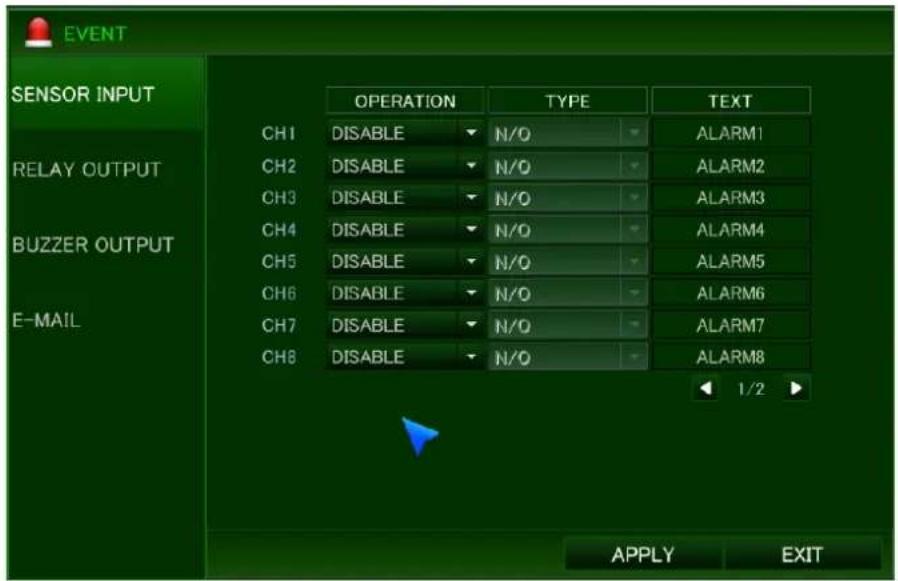
Configure Alarm input.
OPERATION: Configure activation when Sensor is triggered.
➢ DISABLE: When Sensor input is triggered, Event is not working.
➢ ENABLE: When Sensor input is triggered, Event is working.
TYPE: If the operation is enabled.
N/O: Activates when input is closed.
N/C: Activates when input is opened
TEXT: If event is triggered from Sensor input, text will be displayed. Double click on text to edit
6.5.2 ALARM OUTPUT SETUP
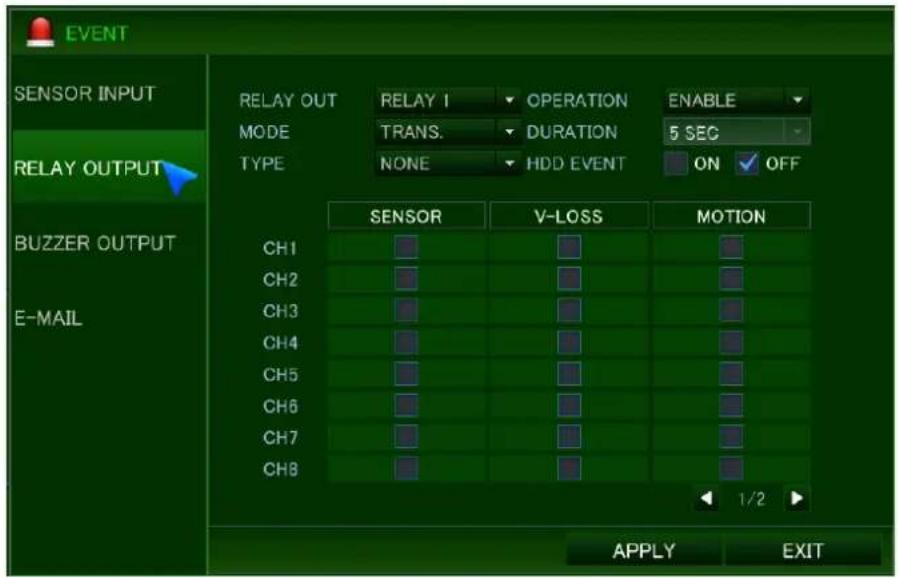
Configure activation of Relay output.
ALARM OUT : Select Relay for the operation to be configure
4ch NVR : 1 relay, 8/16ch NVR: 2 relays
OPERATION: Configure output status of Relay.
➢ DISABLE: Relay is not working
ENABLE: Relay is working once event is triggered.
MODE: Configure activation of Relay output.
TRANSPARENT: Keep Relay output until event trigger has stopped.
LATCHED: Keep relay output for duration time from the event last triggered.
DURATION: If the alarm output mode is configured as Latched. Configure duration time for relay output.
TYPE : Define the transition of the signal of Alarm output
N/O (Active Low): When event is triggered, the relay will go to 'Closed' state from 'Open'.
N/C(Active High): When event is triggered, the relay will go to 'Open' state from 'Closed'
HDD EVENT: Select "ON", when HDD related Event is triggered, relay output will be triggered.
SENSOR: When sensor input is triggered, relay output will be triggered.
VIDEO LOSS: When video loss occurs, relay output will be triggered.
MOTION: When motion is triggered, replay output will be triggered.
6.5.3 BUZZER OUTPUT SETUP

Configure Buzzer output when event is triggered.
OPERATION: Configure the output status of Buzzer.
➢ DISABLE: Buzzer is not working when event is triggered.
ENABLE: Buzzer is working when event triggered.
HDD EVENT: If HDD related event is triggered, Buzzer output will be started.
MODE: You can configure operation mode of Buzzer output.
TRANSPARENT: Keep buzzer output until event operation is stopped.
➢ LATCHED: Keep buzzer output for the duration time from event last triggered.
DURATION: You can configure duration time for buzzer output in latched mode.
SENSOR: When sensor is triggered, buzzer output will be started.
VIDEO LOSS: When video loss occurs, buzzer output will be started.
MOTION: When motion is triggered, buzzer output will be started.
6.5.4 E-MAIL SETUP

Configure E-mail notificatin when event is triggered.
NOTIFICATION: Select "ON", E-mail will be sent when event triggered.
SETUP CHANGE: Select "ON", E-mail will be sent when menu configuration is changed.
HDD EVENT: Select "ON", E-mail will be sent when HDD related event is triggered.
BOOT EVENT: Select "ON", E-mail will be sent when NVR boots-up.
ALARM: E-mail will be sent, when sensor is triggered.
VIDEO LOSS: Email will be sent, when video loss occurs.
MOTION: Email will be sent, when motion is triggered.
FREQUENCY: Configure E-Mail notification period.
6.6 CONFIGURING USER
To set-up the User Authority options, highlight USER and press ENTER
6.6.1 USER REGISTER
By default, the NVR is configured with a USER ID of ADMIN belonging to the ADMIN group and with a password of 1234.
Using this, max 8 user accounts can be registered and configured.

To modify user details, highlight the user with the blue cursor or press ENTER. The EDIT screen appears.

USER ID: Edit the user ID using the virtual keyboard. (Max 10 characters).
PASSWORD: Change the password using the virtual keyboard. (Max 8 characters)
Note: To delete the existing password, use "CLEAR" on the virtual keyboard.
E-MAIL: Enter the user's email address if email notifications are required.
E-MAIL SEND: Enable or disable email notification for the particular user.
Note) Maximum 8 users can be registered.
NOTE) any user can be deleted except the default ADMIN user.
6.6.2 USER AUTHORITY
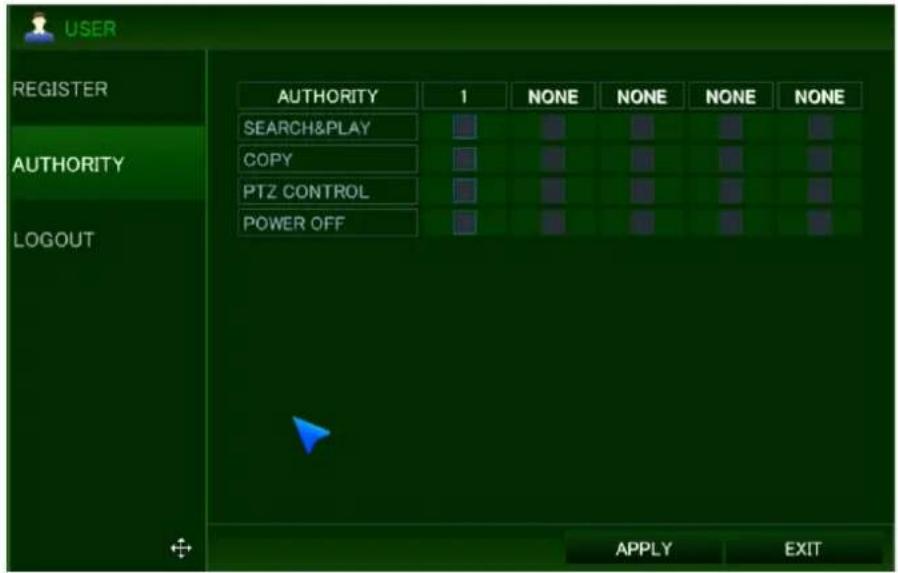
User authority.
Search & Play : Able to enter Search Menu/ Instant Playback
Copy : Able to enter backup menu
PTZ CONTROL: Able to control PTZ functions
Power OFF : Right to Power Off
6.6.3 LOG-OUT

AUTO LOGOUT: Select if auto log-out is ON or OFF.
DURATION: If auto log is set to ON, this determines the time. (in 1 - 10 Min)
6.7 CONFIGURING RECORD
To set-up the various recording options, highlight RECORD and press ENTER.

natural_image
Green background with a film reel icon and the word 'RECORD' below it (no additional text or symbols)6.7.1 SETUP
Recording configuration is set up here. Only direct connection (plug and play) between NVR and IP cameras can be set.

SIZE: Select what resolution of video will be recorded.
ALL: Set the resolution for all channels
Note) The resolution setting value is represented with the ratio of the connected IP camera's recording resolution.
FPS: Select recording frame rate as 0 / 1 / 2 / 4 / 5 / 8 / 10 / 15 / 30 at NTSC mode or 0 / 1 / 2 / 4 / 5 / 7 / 10 / 13 / 25 at PAL mode.
QUALITY : Select recording video quality from 5 levels; Low / Standard / High / Highest / Super
LOW : 2Mbps / Standard : 3Mbps / High : 4Mbps / Highest : 5Mbps / Super : 6Mbps
According to H.264 profile format, maximum bit rate is recommended.
High profile: 4Mbps/ Main profile: 4M bps, Baseline profile: 6M bps.
6.7.2 SUB STREAM

"Manual"/"RTSP" mode stream configuration needs to be setup in camera interface directly by PC.
SIZE: Select what resolution of video will be recorded as follows.
➢ Resolution : D1 / CIF
➢ ALL: Set the resolution for all channels.
Note) The resolution setting value is represented with the ratio of the connected IP camera's recording resolution.
FPS: Select recording frame rate 0 / 1 / 2 / 4 / 5 / 8 / 10 / 15 / 30 in NTSC mode or 0 / 1 / 2 / 4 / 5 / 7 / 10 / 13 / 25 in PAL modes.
QUALITY: Select recording video quality from 5 levels; Standard / Highest / Super
Standard : 256Kbps / Highest : 512Kbps / Super : 1024Kbps
6.7.3 SCHEDULE

Configure schedule recording mode either Day / Week.
Daily: set up one schedule and apply to every day.
Weekly: set up 7 schedules from Monday to Sunday, and use it for every week.
Select daily ,weekly in menu(record-> option)
DAILY: Configure the recording type by hour and by a channel. This mode is for all days having the same recording schedule regardless of the day of the week.
WEEKLY: In this mode, you can configure the recording type by hour, by channel and by the day of the week. This mode is suitable for the user who wants to configure a separate schedule according to the day of the week.
TYPE: Select recording mode out of total 8 modes. Refer to the below picture

No record.
Continuous record
➢ Motion record.
▶ Alarm record
➢ Continuous & Motion Record
Continuous & Alarm Record
➢ Motion & Alarm Record
Continuous & Motion & Alarm Record
6.7.4 OPTION
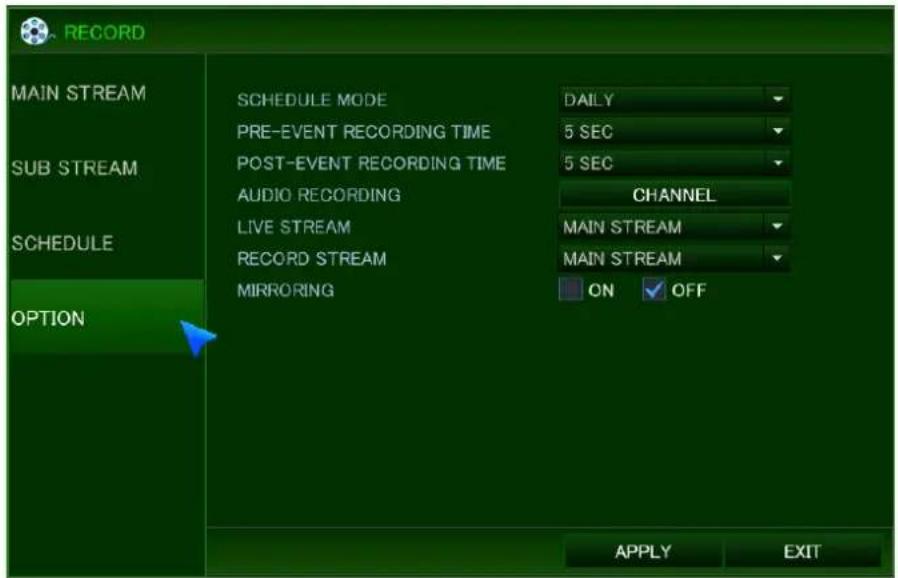
SCHEDULE MODE: Either DAILY (one schedule will apply to every day of the week) or WEEKLY (each day of the week has its own schedule).
PRE-EVENT RECORDING TIME: When the NVR is not in continuous recording mode, this setting determines the amount of footage that is always recorded before an event occurs (VA, motion detection, alarm input etc.)
POST-EVENT RECORDING TIME: When the NVR is not in continuous recording mode, this setting determines the amount of footage that is always recorded after an event occurs (VA, motion detection, alarm input etc.)
AUDIO RECORDING: If you select "ON", audio data will be recorded.
ON: audio transmitted to NVR record with video, will also display on live view.
OFF: audio transmitted to NVR off on live view.
LIVE STREAM: You can select either Main or Sub stream for live display.
RECORD STREAM: You can select either Main or Sub stream for recording.
Mirroring: You can enable mirroring recording mode or not.
ON: Select mirroring.
√ EVENT: Just event data will be recorded to mirroring HDD.
√ ALL: Same data will be recorded to mirroring HDD same as current recording data.
OFF: Mirroring record off
SELECT CHANNEL FOR MIRRORING: You can check which channel will be recorded to mirroring HDD.
All: all channel with mirroring record.
Channel 1\~16: selected channels will record with mirroring.

6.8 CONFIGURING NETWORK
To set-up the Network options, highlight NETWORK and press ENTER. Configure the network.

natural_image
Green background with a globe icon and the word 'NETWORK' below it (no additional text or symbols)6.8.1 IP SETUP

IP set up menu is used when you use PC software and mobile software which NVR support.
DHCP: When selected the NVR will obtain an Ethernet IP address automatically if connected to a DHCP server or router.
IP ADDRESS: If DHCP is not being used the IP address can be manually set.
GATEWAY: If DHCP is not being used the Gateway can be manually set.
SUBNET MASK: If DHCP is not being used the subnet mask can be set manually.
1ST DNS SERVER: If DHCP is not being used the 1st DNS server can be manually set.
2ND DNS SERVER: If DHCP is not being used the 2nd DNS server can be manually set.
NVR PORT: The port number that the NVR uses to support remote software.
WEB SERVER PORT: The port number that the NVR uses to support remote connection from Internet Explorer or other web browsers.
When connecting more than one NVR to the internet, make sure the NVR and the WEB port are different on each unit.
MAX TX SPEED: Specifies the maximum bandwidth that the NVR can use during a remote connection.
Note) Both NVR & WEB SERVER PORT will need a firewall rule created for remote Connection
Note) uPNP (Auto Port Forwarding) is always activated in background.
Note) Upnp function for automatic forwarding setup may not be compatible depending on router and hub, in this case user should configure port forwarding manually.
6.8.2 LOCAL PORT
Configure same range of IP address of camera port when using Peer to peer connection.
Used for IP setup of IP camera when connected to NVR directly (plug and play)
Used for when IP camera in LAN network is connect to NVR.
When connecting IP cameras manually, configure same range of IP address with IP camera.

IP ADDRESS: IP Address of Local port and P2P ports.
GATEWAY: For local port and P2P ports.
SUBNET MASK: Subnet of local port and P2P ports.
Subnet mask changes only available when connecting cameras manually.
6.8.3 DDNS

DDNS: When enabled the NVR can be accessed through a dynamic DNS server. Commonly used if a broadband connection does not have a static IP address.
DDNS SERVER: DDNS server Name.
AUTO DDNS: Set to on to use Auto DDNS.
6.8.4 E-MAIL
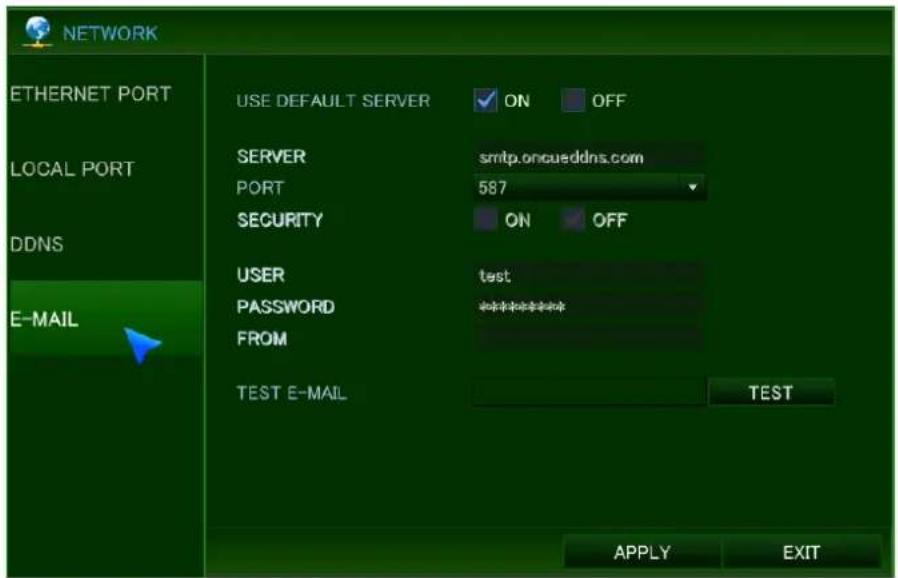
USE DEFAULT SERVER: Select On or OFF. If you make Default sever as ON, mail will be sent by OnCue mail server.
SERVER: The SMTP outbound email server that should be used to send email notifications.
PORT: The outbound email port number.
- SECURITY: Set to OFF if the SERVER does not require a username and password to connect.
USER: Enter a username to identify the NVR in email messages.
PASSWORD: If SECURITY is set to ON, enter the password here.
FROM: Input an email address or text.
TEST E-MAIL: Send a test e-mail with the specified server information to verify the delivery.
Test: it is to confirm that Pre-set email is right. Test email is transmitted using pre-set information.
To use email function, you have to configure 'user's menu' and 'event/sensor menu → email menu'.
7. REMOTE
7.1 WEB SERVER
This server consists of two services. One is for the remote configuration of NVR setup and the other is for the client viewer based on Active-X.
Using the remote configuration, you can configure all feature sets of NVR. And the live preview, search and PTZ control can be served by the 'Web Viewer'.
The table below shows the recommended PC specification for the proper operation.
[Minimum & Recommended Specification of PC]
| Minimum | Recommended | |
| Operating System | Windows XP | Windows 7 |
| CPU | Core2Duo @2.53GHz or Equivalent | Core i5 @3.3GHz or Higher |
| Memory | 1 GB | 2 GB |
| Video Card Memory | 512MB | 512MB |
| HDD Capacity | 50MB | 2GB |
| VGA Resolution | 1280x1024x16 | 1920x1080x32 |
| Direct-X | DirectX 7.0 | DirectX 9.0c |
| Network | Ethernet 10/100B-TX | |
7.1.1 CONNECT TO WEB SERVER
Enter the IP address of NVR into the ULR bar referring to the below picture.

http://192.168.123.54:80
LOCAL NETWORK ACCESS: To find the IP address of the DVR, go to the 'INFO' section under the SYSTEM/MANAGEMENT of the DVR's menu. If you are on the same network as the DVR, you can use the DVR's IP address to access it.
- REMOTE NETWORK ACCESS: NOTE) to access the DVR from a remote network, you need to use the WAN IP address of the network the DVR is connected to. (Sometimes this address is referred to as the LIVE, PUBLIC, or OUTSIDE IP). In order to view your DVR remotely you MUST port forward BOTH the DVR PORT and the WEB SERVER PORT. To find the DVR and Web Server ports, go to the NETWORK SETUP page.
If you need assistance with port forwarding, please visit our website and review our tutorial videos: http://vitekcctv.com/videotutorials.asp. If you need further assistance, please reference your router's manual or contact your Network Administrator/IT Professional. If your router supports the 'uPNP' feature, there is no need to manually configure 'Port Forwarding' because the DVR supports the 'Auto Port Forwarding' function using the 'uPNP' protocol.
[The initial screen of Web Server]

1: Enter the IP address of your NVR. If you don't use the default port number of HTTP, 80, you may add the port number following the IP address. Ex. http://192.168.123.63:80
2: Input the administrator's password in 'ADMIN PASSWORD'. Only administrator can log in to the NVR configuration. Clicking the 'LOGIN' button will guide you to the NVR configuration pages.
3: ActiveX based Web Viewer: Clicking the link will execute the 'Web Viewer' or initiate the installation of ActiveX plug-in.
In the web configuration page, you can set the NVR operations remotely.
Tested Web Browser List
◆ Microsoft Internet Explorer®
♦ Mozilla Firefox R
Google Chrome Browser®
♦ Opera Browser R
Apple Safari R
Features
Configuring the NVR setup remotely
After entering the ADMIN password and clicking 'LOGIN', you can navigate to the page where you can configure the setup menu of NVR.
ADMIN PASSWORD: •••• LOGIN
NOTE) Default Password for ADMIN: 1234
NOTE) Only ADMIN account can access the menu configuration pages.
NOTE) with no operation for more than 5 minutes the configuration page will be logged out automatically.
7.1.2.1 Initial Page of Web Configuration
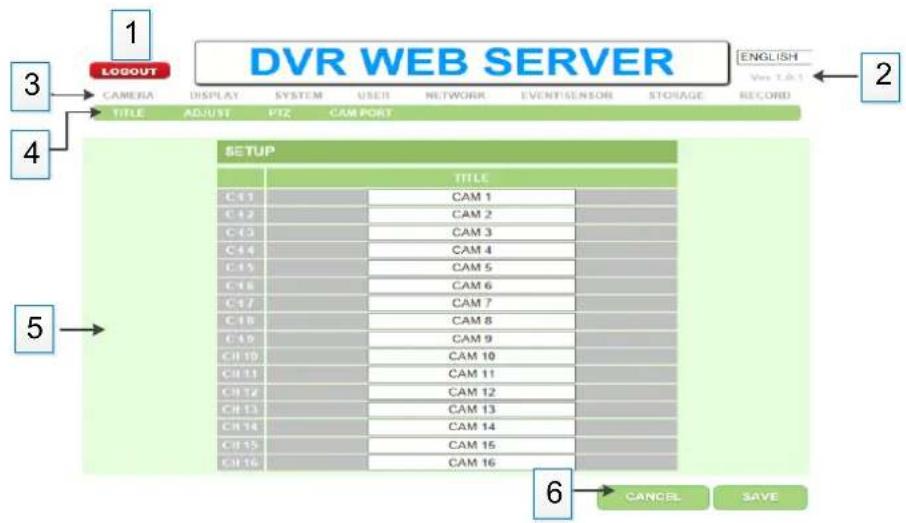
flowchart
graph TD
    A["1"] --> B["CAMERA"]
    B --> C["TITLE"]
    C --> D["ADJUST"]
    D --> E["PTZ"]
    E --> F["CAM PORT"]
    G["2"] --> H["ENGLISH Ver 1.0.1"]
    I["3"] --> J["LOGOUT"]
    K["4"] --> L["SETUP"]
    M["5"] --> N["6"]
    O["6"] --> P["CANCEL"]
    P --> Q["SAVE"]
1: log out from the configuration page
2: version number of this web configuration
3: Top menu of NVR
4: Sub menu of NVR
5: Setting or Information section
6: Canceling or applying the modification
APPLY: the modified setting is applied to NVR and saved
In order to apply or save, you should click the 'APPLY' button. Otherwise all changes will be lost.
For detail description of the NVR configuration, please refer the '5.HOW TO CONFIGURE' section of this manual. Clicking the following link will guide you to the proper section which explains each setup.
CAMERA
DISPLAY
SYSTEM
USER
NETWORK
EVENT/SENSOR
DISK
RECORD
Search, Playback & Copy functions are not supported from the web server. To user these, please use the 'Web Viewer' instead.
7.1.3 WEB VIEWER (Active-X)
Though the 'Web Viewer', you can see live video, search and playback of recordings in the NVR and copy recordings from the NVR.
Tested Web Browser
Microsoft Internet Explorer®
Mozilla Firefox®
Google Chrome Browser®
Features
This 'Web Viewer' is based on ActiveX
Monitoring live videos from the NVR.
Searching & Playback of recordings in the NVR
Copy recorded data in the NVR to a PC remotely
PTZ camera control remotely
7.1.3.1 Installation and Execution
[Microsoft IE]
Click the 'ActiveX WEB Viewer' to initiate the installation of the 'Web Viewer' (if not installed previously). If the 'Web Viewer' is installed already in your IE browser; clicking 'ActiveX WEB Viewer' will launch the WEB Viewer.
ActiveX WEB Viewer
NOTE) to install properly, your PC should be connected to the internet.
NOTE) 'Web Viewer' is certificated with the name 'NEOXENTEC SYSTEMS CO, .LTD', who designs the application.
NOTE) First execution of 'Web Viewer' will install the application.
NOTE) if new updated version of 'Web Viewer' is found, updating starts automatically before execution.
[Google Chrome]
In order to execute the ActiveX plug-in, you have to install the 'IE TAB' from Google web store referring the following steps.
Execute the Chrome browser
Go to https://chrome.google.com/webstore/category/home
Enter the word 'IE TAB' into the 'Search the store' box and press enter.

![Vitek VT-NV1600P - [Google Chrome] - 2](/content/2026/06/1213755/images/11b390901301f09f3ae5235182e37357f27f4b330350cc4b3f21d35cb1c5db47.jpg)
'Searching' shows the results such as below.

Click the 'ADD TO CHROME' and then you can see the IE symbol on the right side of URL Bar
![Vitek VT-NV1600P - [Google Chrome] - 4](/content/2026/06/1213755/images/2533acbeb4c2614e6cd0bd751e26eb16022ab52fe7e5fea1f120f7a9de19198c.jpg)
natural_image
Simple graphic with a red square containing a small icon, no text or symbols present.There are two ways to execute the 'Web Viewer' from the Chrome.
- Click the ICON (☐) on the right side of URL bar. It opens new URL bar to get the URL. Entering the required IP address of NVR will connect the web server.
- Just entering the IP address of NVR into the URL bar of Chrome and press enter
[Mozilla Firefox]
In order to execute the ActiveX plug-in, you have to install the 'IE TAB' from the add-on page of Firefox referring the following steps
Execute the Firefox browser
Go to https://addons.mozilla.org/en-US/firefox/addon/ie-tab. And then the following page will show the way to install the 'IE TAB'.
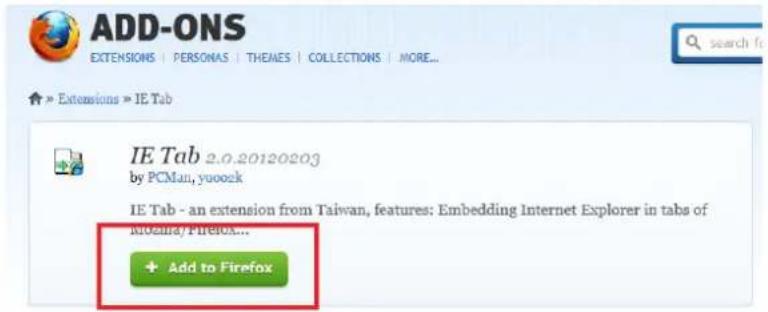
Click the 'Add to Firefox' will enable supporting Active-X plug-in.
Way to execute the 'Web Viewer' from the Firefox
Enter the IP of NVR into the URL bar of Firefox.
Right-click the link 'ActiveX WEB Viewer' will show the pop-up menu such as below.

Select the 'Open Link in IE TAB'. ActiveX
First execution will install the ActiveX plug-in. And the application will be executed if installed already.
7.1.3.2 Initial Screen of Web Viewer
Executing the 'Web Viewer' opens the application separated from the web browser and show the login window such as below picture.

7.1.3.3 Log In

User : ADMIN
: Enter the USER name registered in the NVR
Password :
: Enter the password for the selected user.
The user authority and allowed functions, live preview, search & playback, PTZ control and etc., are controlled by the setting USER AUTHORITY setting of NVR setup
- USER ID and password is case-sensitive.
7.1.3.4 Live Preview
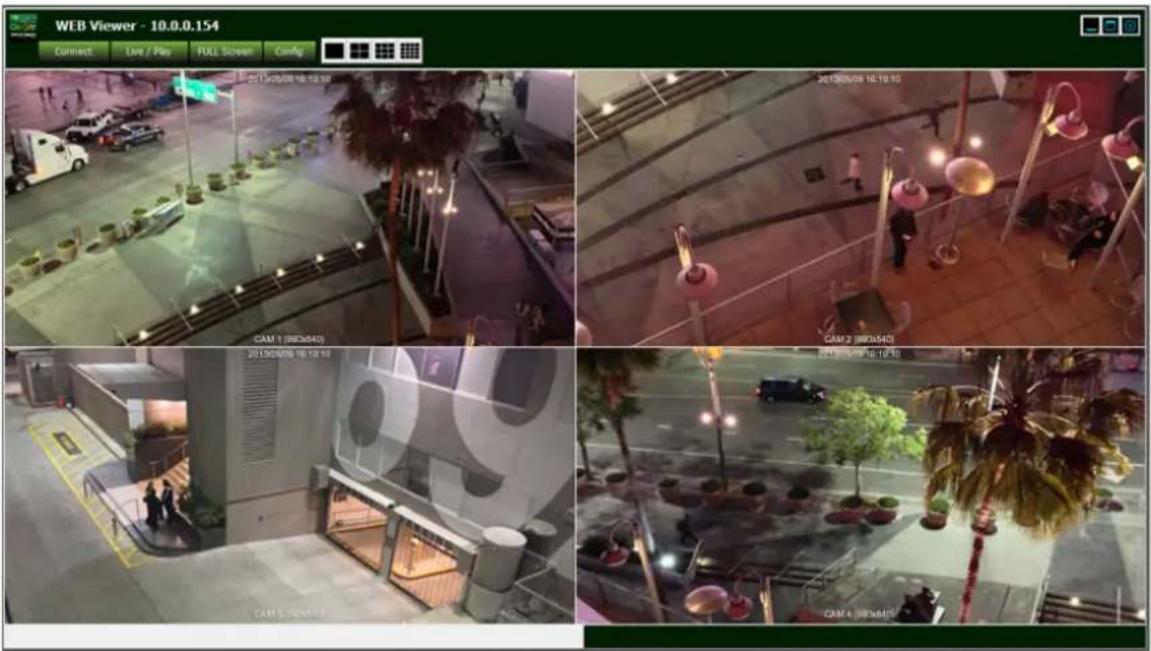
After login, the live preview screen will be shown such as below.
Features
↓ User log-in/out feature (RECONNECT)
Monitoring the live preview
Snapshot and save as JPEG
(Admin Only) Control the resolution and quality for transferred video stream directly

The yellow rectangle around video shows the currently selected camera
1: IP of NVR connected remotely
2: display split mode selection
Single camera view
: Quad split view
: 6 split view
: 9 split view
: 16 split view
3: WEB Viewer Minimize/Maximize/Close
: minimize the window
: Maximize the window

: Exit the 'Web Viewer'
4: Reconnect/Live & Play/Full Screen
CONNECT : Log out and Reconnect
LIVE/PLAY : Switching between the live preview and search & playback screen
FULL SCREEN : Full screen video view. Press 'ESC' to return
CONFIG : Configuration menu for Web Viewer.
5: Date & Time of Camera from the NVR
6: Channel Title and the resolution of the video
7.1.3.5 JPEG Snapshot/ PTZ control / Video Configuration /Live Audio
In the Web Viewer, you can save a snapshot as a JPEG file, control the PTZ camera and hear audio from the NVR. You can configure and transfer video directly from the viewer. Right-click on the video window shows the pop-up menu such as following picture.
SAVE TO JPEG FILE : Save a snapshot of the selected channel with the yellow border into the PC as a JPEG file.
PTZ Control : Opens the PTZ control panel.
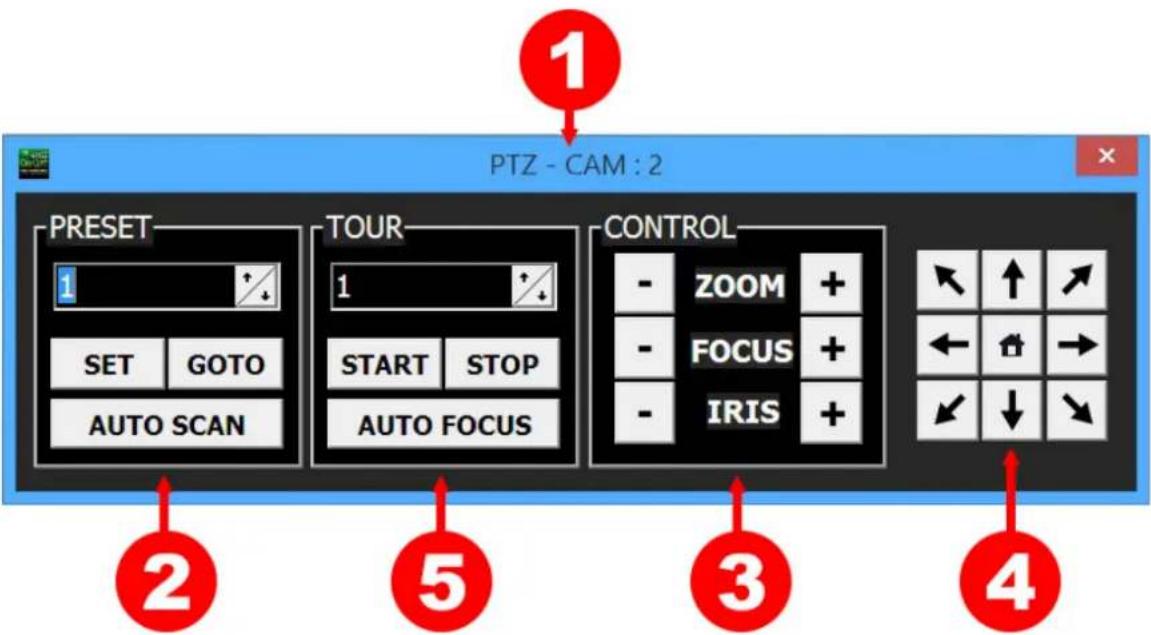
1: Camera Channel number which is currently selected.
2: PRESET OPERATION OF PTZ
3: ZOOM/FOCUS/IRIS CONTROL
4: DIRECTION CONTROL (PAN & TILT)
5: TOUR OPERATION OF PTZ
NETWORK STREAM CONFIG : Select stream for Live view (Main or Sub stream)
LIVE AUDIO SEND : This function is for two way audio. If you press the 'live audio send' audio will be sent from the PC to NVR.
7.1.3.6 Search & Playback
LIVE/PLAY
Entering to the search & playback window or Returning to the live preview
Features
User log-in/out feature (CONNECT)
Switching between the live preview and search & playback
Search & Playback
Copy the recordings in the NVR to the PC remotely
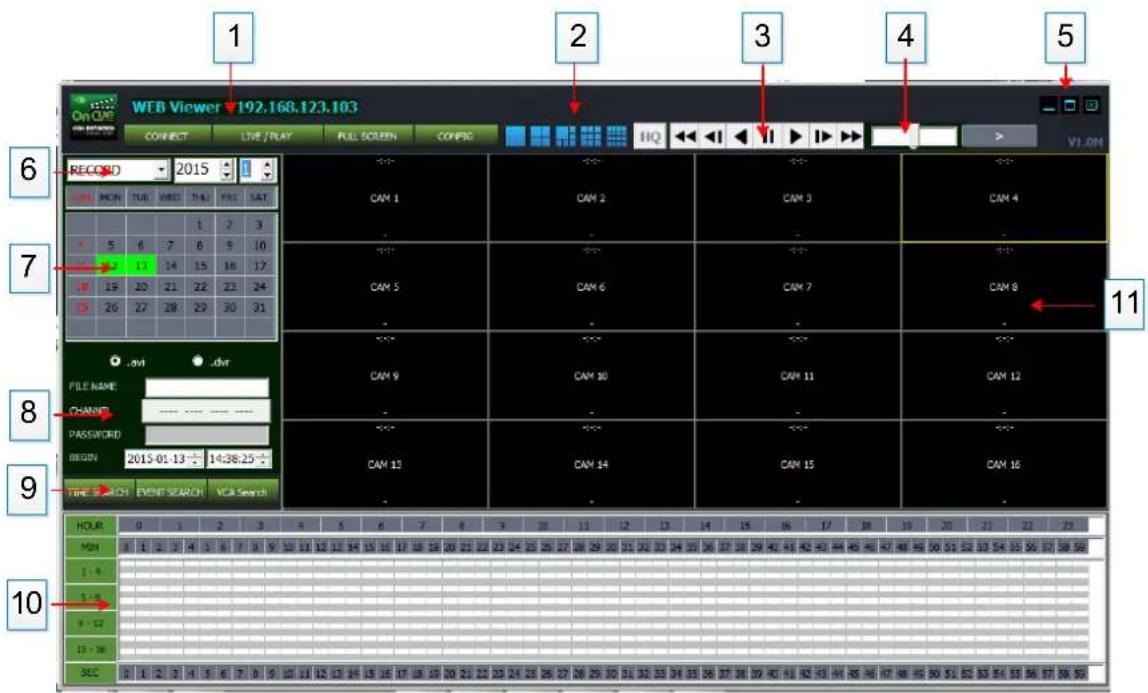
1: Show the IP address of NVR currently connected
2: Split mode selection.
Single camera view
Quad split view
6 split view
9 split view


split view
3: Playback speed control


Steps for fast playback : x2, x4, x8, x16,x30, x60, x120
Mouse wheel up: faster in forward direction
Mouse wheel down: reversely faster
➢ Center click: normal speed playback
Click on the right half of bar : fast forward
Click on the left half of bar: fast reverse
➢ 7 level speed control for each direction
5: View window control
: minimize the window
: Maximize the window
: Exit the 'Web Viewer'
6: Reconnect/Live&Play/Full Screen
CONNECT Log out and Reconnect
LIVE/PLAY : Switching between the live preview and the search & playback
FULL SCREEN : Full screen video view. Press 'ESC' to return to the window
CONFIG Configuration menu for Web Viewer.
7: Calendar Panel: show the selected date for searching. The green color indicates that the recording data exist. Click the date will trigger the search for the selected day. The search result is displayed on the time selection table (10).
8 : Copy the recorded video in the NVR to the PC
TAG name: Folder name where the copied AVI file to be saved.
Channel: Choose the channel required to be copied

From: The start time of the recorded data to be copied
To: The end time of the recorded data to be copied
➢ Copy Start: executing the copy operation
TAG name and Channel have to be defined in order to copy.
9: Choose search type between 'EVENT' and 'TIME'.
: select the search mode to 'Time Search'.
Yellow colored cell indicates the currently selected hour and minute.
Green colored cell means that there is the recorded data by continuous recording.
Red colored cell means that there is event recorded data.
Click or double-click on the cell in the minutes bar and playback will start from the selected time.


: Right click on the minute bar will show a pop-up
menu.
COPY Start Time : Clicking 'COPY START TIME' from the selected time cell and input it into the 'From' of COPY control panel.
COPY End Time : Clicking 'COPY END TIME' from the selected time cell and input it into the 'To' of COPY control panel.
Event Search : Taking the time for 'EVENT SEARCH start time'.
By clicking on the 'second' bar will start the playback video to the selected second. This is only available during playback.
● Each cells in the time selection table indicates whether the recording data exists or not for that time and channel.
EVENT SEARCH
: Select the search mode to 'EVENT Search'.

Event Type(Search Condition)
√ All: For all kinds of recording event
√ Sensor: sensor input event
√ Video Loss: lost video event
➢ Motion Detection : motion detection event
ALL: Searching on all channels
CH1/CH2/CH3/CH4... choose the channel to be searched
Search: execute the event search again
10: Time selection & recording indication table / Event search result window
| HOUR | 0 | 1 | 2 | 3 | 4 | 5 | 6 | 7 | 8 | 9 | 10 | 11 | 12 | 13 | 14 | 15 | 16 | 17 | 18 | 19 | 20 | 21 | 22 | 23 | |||||||||||||||||||||||||||||||||||||||||||||||||||||||||
| MON | 0 | 1 | 2 | 3 | 4 | 5 | 6 | 7 | 8 | 9 | 10 | 11 | 12 | 13 | 14 | 15 | 16 | 17 | 18 | 19 | 20 | 21 | 22 | 23 | 24 | 25 | 26 | 27 | 28 | 29 | 30 | 31 | 32 | 33 | 34 | 35 | 36 | 37 | 38 | 39 | 40 | 41 | 42 | 43 | 44 | 45 | 46 | 47 | 48 | 49 | 50 | 51 | 52 | 53 | 54 | 55 | 56 | 57 | 58 | 59 | |||||||||||||||||||||
| 1-4 | |||||||||||||||||||||||||||||||||||||||||||||||||||||||||||||||||||||||||||||||||
| 5-8 | |||||||||||||||||||||||||||||||||||||||||||||||||||||||||||||||||||||||||||||||||
| 9-12 | |||||||||||||||||||||||||||||||||||||||||||||||||||||||||||||||||||||||||||||||||
| 13-16 | |||||||||||||||||||||||||||||||||||||||||||||||||||||||||||||||||||||||||||||||||
| SOC | 0 | 1 | 2 | 3 | 4 | 5 | 6 | 7 | 8 | 9 | 10 | 11 | 12 | 13 | 14 | 15 | 16 | 17 | 18 | 19 | 20 | 21 | 22 | 23 | 24 | 25 | 26 | 27 | 28 | 29 | 30 | 31 | 32 | 33 | 34 | 35 | ≤ 3 ≤ 7 ; ≤ 3 ≤ 9 ; ≤ 4 ≤ 0 ; ≤ 4 ≤ 7 ; ≤ 4 ≤ 8 ; ≤ 4 ≤ 9 ; ≤ 5 ≤ 7 ; ≤ 7 ≤ 9 ; ≤ 9 ≤ 1 ≤ 3 ≤ 6 | ||||||||||||||||||||||||||||||||||||||||||||

11: display the playback video as a result of searching.
7.2 Android Viewer / iOS Viewer
On Cue Viewer is the name of smart phone viewer for Android
iOn Cue Viewer is the name of smart phone viewer for IOS.
You can access the NVR system through 3G/4G phone or Wi-Fi connection.
Main feature
Live View
Full-Screen
Multi Screen Display (4 channel split)
PTZ Control (Pan-Tilt, Zoom, Preset configure and Move)
Live Zoom & Web Menu connection of NVR will be supported through upgraded version.
7.2.1 How to use
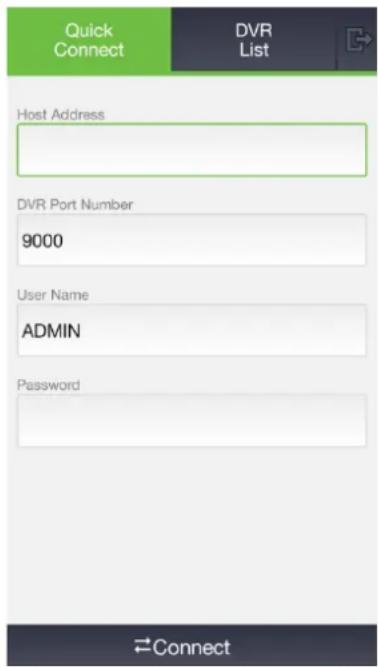
Start "On Cur Viewer/iOn Cur Viewer", you will see the above screen.
Quick Connect: If you don't want to save the NVR info to mobile phone, just for one time connection usage.
NVR List: If you want to save the NVR info to mobile phone and control the list of NVR.
7.2.1.1 Quick Connect

Press Quick Connect button, the above image will be displayed.
NVR Address : input IP Address of NVR
Port Number: input NVR port number that you configured in Network menu of NVR.
User ID: input ID that you configured in NVR. (default password of Admin is 1234)
Password : input password ( default password of Admin is 1234)
Connect: Connect to NVR to view the video by pressing Connect button.
Cancel: Close Quick Connect.
7.2.1.2 NVR LIST
Press NVR list button, following window will be displayed.

New: create new NVR to be added to List.
Edit: edit list currently stored.
Delete: delete currently selected NVR stored.
Close: close NVR list menu
Connect: connect to selected NVR.
Menu: You can connect to Web menu of NVR after selecting one of the NVR's from the List.
7.2.1.3 How to add NVR to the List
Press New button, following window will be displayed.

NVR Name: Name the newly added NVR to the List.
NVR IP/DDNS: Input IP address or DDNS info of NVR.
Port Number: Input NVR port number.
WEB Port: Input HTTP port info of NVR that you configured in NVR network menu.
Note) this menu is for connection with Web Menu of NVR. Which will be supported in upgraded version
User ID: Input ID that is configured in NVR menu.
Password: Input password that is configured in NVR menu.
Save: Store the info that you input pressing Save button.
Cancel : Close adding List
7.2.1.4 How to connect

Select one from the list that you what to view to make a connection. Then press Connect
7.3 DDNS SERVER
Domain Name Service through DDNS server.
7.3.1 HOW TO REGISTER
You need to input http://oncueddns.com at URL in Web Brower.

LOGIN ID: Input USER ID
PASSWORD: Input Password.
Logon: Press Log-in button to log-in
Register: Create user account.
7.3.2 REGISTER
Create user account by using register menu.

LOGIN ID: Create ID.
PASSWORD: Create Password.
CONFIRM PASSWORD: Input password again to confirm the password.
7.3.3 Input NVR information.
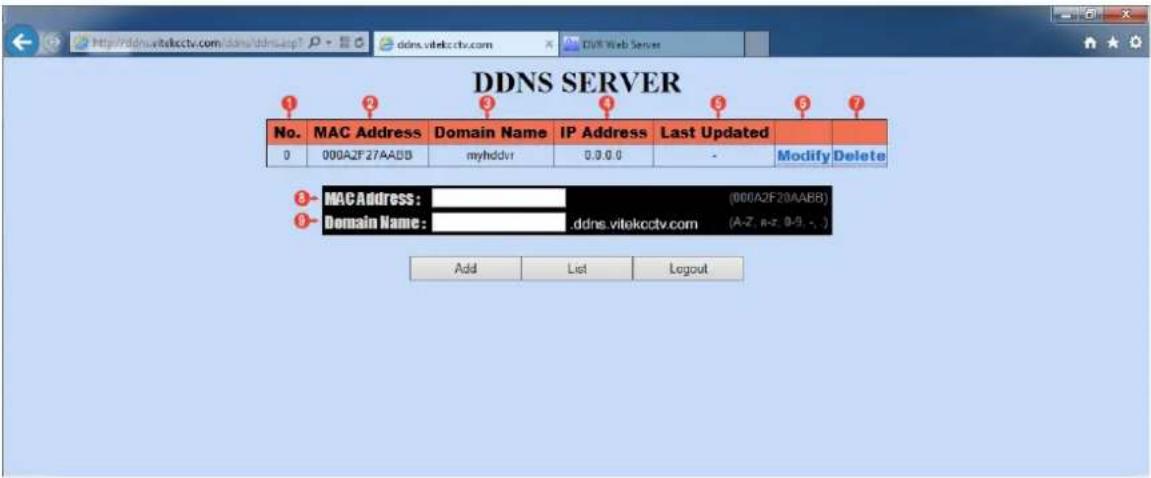
1 : List number of registered NVR
2: Mac address of registered NVR
3: Domain name of registered NVR.
4: IP address of registered NVR.
5: Last time NVR sent info to DDNS server.
6: Modify NVR info
7: Delete Domain name registered in DDNS server.
8: Input Mac Address of NVR that you want to register into DDNS server.
9: Input Domain name of NVR that you want to register into DDNS server.
The Domain name type is "user.ns.oncueddns.com".
ADD: Register NVR to the DDNS server pressing ADD button.
LIST: The NVR list registered will be displayed.
LOGOUT : User can log out
Note) it will take around 10 to 15 minutes to confirm the registration at the Server.
7.4 OnCue Viewer
OnCue Viewer is a 'Remote Client NVR Viewer' which can provide the functions such as 'Monitoring live video', 'Search & Playback for Recorded Video in NVR' and 'Download the Recorded Video in NVR (Remote COPY).
The following table shows the PC requirement for this application S/W.
[Minimum & Recommended Specification of PC]
| Minimum | Recommended | |
| Operating System | Windows XP | Windows 7 |
| CPU | Core2Duo @2.53GHz or Equivalent | Core i5 @3.3GHz or Higher |
| Memory | 1 GB | 2 GB |
| Video Card Memory | 512MB | 512MB |
| HDD Capacity | 50MB | 2GB |
| VGA Resolution | 1280x1024x16 | 1920x1080x32 |
| Direct-X | DirectX 7.0 | DirectX 9.0c |
| Network | Ethernet 10/100B-TX | |
7.4.1 INSTALLATION
Install the 'DVR Manager using the 'setup' program which is provided in the bundled CD. Executing the 'DVRManager_setup.exe' in the OnCue Viewer folder will guide you to install this.

: Setup program of DVR Manager
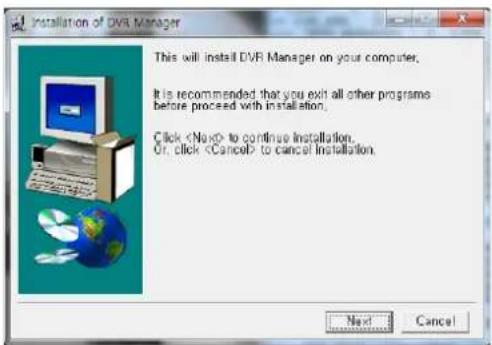
: Introduction of Setup
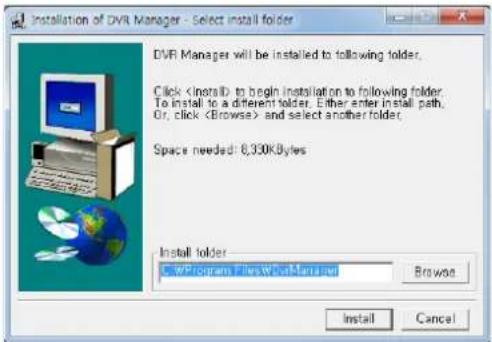
: Specify the folder location for installation.

: Complete Message Window
7.4.2 EXECUTION
The shortcut of 'OnCue Viewer' is created after the successful installation. Clicking this icon executes the OnCue Viewer.

OnCue Viewer
: Shortcut and icon of OnCue Viewer
7.4.3 LIVE VIDEO MONITORING
The initial window of OnCue Viewer is composed of the picture below.

1: CONNECTION MANAGER: for registering or deleting a NVR to/from the NVR List.
2: FULL SCREEN: Fill and fit only the video windows into the PC monitor.
3:CONFIG:

FOLDER SELECT: Choose or make a folder for the data which is copied from the NVR remotely.
LANGUAGE: Select Language
EVENT POPUP TIME: Selectable time for Event POP-UP
EVENT SOUND: If Event is Detected a voice will say "Event detected"
SAVE: Apply and save the current modification.
➢ CLOSE: exit the 'Config' pop-up.
4: FILE SEARCH: Execute the File Player for the backup playback.
5: SPLIT MODE SELECTION: choose the number of cameras which will be shown in the live preview window.
1 / 4 / 9 / 16 / 25 / 36 / 49 / 64
6: Minimize/Maximize/Close OnCue Viewer
: minimize the window
:Maximize the window
: Exit the 'OnCue Viewer
7: Live View Window: show the live video of the connected NVR.
8: NVR List Window: list the registered NVRs and indicate the connection status. When the NVR is linked, the cameras connected on that NVR are listed under the NVR.
9: NVR Information: Show information of NVR selected.
7.4.4 CONNECTION MANAGER
This provides the way to register the NVRs into the NVR list, remove the NVR from the NVR list and editing the NVR connection information.

DVR Name: The name which you give to the NVR which has the following connection information.
DVR Address : specify the IP address of the NVR
DVR Port: The port number programmed into the NVR.
4 USER : user ID to be used to login
PASSWORD: password for the selected user.
User name and password is case-sensitive.
NVR SCAN: scan the local network and show the detected NVRs.

MAC Address : Shows the MAC address' of NVR's found from scanning
IP Address: Shows the IP address' of NVR's found from scanning.
PORT: Shows the PORT number of the NVR's found from scanning.
NVR Name: Shows the name of the NVR's found from scanning. This is the name given in 'SYSTEM NAME' under the 'MANAGEMENT' page of 'SYSTEM' menu.
SCAN: execute scanning the LAN again.
ADD SELECTED: Register the selected NVR into the NVR list of CONNECTION MANAGER.
Add All: Register all the scanned NVR's into the NVR list of CONNECTION MANAGER.
➢ Close: Close the NVR SCAN window.
Add: Add new NVR into the NVR list.
Edit: Edit the connection information of the selected NVR.
Remove: Remove the selected NVR from the NVR list.
Close : Close the CONNECTION MANANGER
Monitoring live camera video
Swap the position of two cameras
Snapshot and save it into the PC as JPEG file.
PAN/TILT Control remotely
Configure the quality and resolution for live video.(ADMIN account only)
Live audio from NVR
Digital Zoom In
7.4.5.1 Monitoring live video stream
Live videos from multiple NVRs are displayed in the 'LIVE VIDEO WINDOW'. You can configure the number of camera to be shown by the 'Multi MODE SELECTION' button.
Double click image to bring that image up full screen, double click again to return to multi way screen
| 2019/5/17 02:35:33 CAM 1000-001 | CAM 1000-001 | NO VIDEO | NO VIDEO | CAM 5 | CAM 6 | CAM 7 | CAM 8 |
| CAM 9 | CAM 10 | CAM 11 | CAM 12 | CAM 13 | CAM 14 | CAM 15 | CAM 16 |
| CAM 17 | CAM 18 | CAM 19 | CAM 20 | CAM 21 | CAM 22 | CAM 23 | CAM 24 |
| CAM 25 | CAM 26 | CAM 27 | CAM 28 | CAM 29 | CAM 30 | CAM 31 | CAM 32 |
| CAM 33 | CAM 34 | CAM 35 | CAM 36 | CAM 37 | CAM 38 | CAM 39 | CAM 40 |
| CAM 4L | CAM 42 | CAM 43 | CAM 44 | CAM 45 | CAM 46 | CAM 47 | CAM 48 |
| CAM 49 | CAM 50 | CAM 51 | CAM 52 | CAM 53 | CAM 54 | CAM 55 | CAM 56 |
| CAM 57 | CAM 58 | CAM 59 | CAM 60 | CAM 61 | CAM 62 | CAM 63 | CAM 64 |
7.4.5.2 Swap Camera Position
Swap the display location of cameras by drag and drop.

The swapped camera position will go back to the original location in case that the OnCue Viewer restarts or the connection is re-established.
7.4.5.3 Digital Zoom on the Live View
When in full screen mode on selected channel right click and drag to create a box to zoom in Clicking anywhere in image will return to previous screen.

natural_image
Interior office scene with a black textured chair and a beverage can on a desk (no visible text or symbols)7.4.5.4 JPEG Snapshot/ PTZ control / Video Configuration /Live Audio
Right click on screen will open dropdown box for the following features.
| 2013/05/17 02:24:39 K CAM 1(540x360) | 2013/05/17 02:24:39 K CAM 2(960x540) | NO VIDEO | NO VIDEO | CAM 5 | CAM 6 | CAM 7 | CAM 8 |
| - | - | - | - | - | - | ||
| - | - | - | - | - | - | - | - |
| CAM 9 | CAM 10 | CAM 11 | CAM 12 | CAM 13 | CAM 14 | CAM 15 | CAM 16 |
| - | - | - | - | - | - | - | - |
| - | - | - | - | - | - | - | - |
| CAM 17 | CAM 18 | CAM 19 | CAM 20 | LIVE AUDIO LIVE AUDIO SEND | CAM 22 | CAM 23 | CAM 24 |
| - | - | - | - | - | - | - | - |
| - | - | - | - | - | - | - | - |
| CAM 25 | CAM 26 | CAM 27 | CAM 28 | CAM 29 | CAM 30 | CAM 31 | CAM 32 |
| - | - | - | - | - | - | - | - |
| - | - | - | - | - | - | - | - |
| CAM 33 | CAM 34 | CAM 35 | CAM 36 | CAM 37 | CAM 38 | CAM 39 | CAM 40 |
| - | - | - | - | - | - | - | - |
| - | - | - | - | - | - | - | - |
| CAM 41 | CAM 42 | CAM 43 | CAM 44 | CAM 45 | CAM 46 | CAM 47 | CAM 48 |
| - | - | - | - | - | - | - | - |
| - | - | - | - | - | - | - | - |
| CAM 49 | CAM 50 | CAM 51 | CAM 52 | CAM 53 | CAM 54 | CAM 55 | CAM 56 |
| - | - | - | - | ||||
SAVE TO JPEG FILE : Saves the current selected channel as a JPEG snapshot
PTZ Control : Open the PTZ control panel, which controls the PTZ camera of the selected channel.

1: Camera Channel number which is currently selected.
2: PRESET OPERATION OF PTZ
3: ZOOM/FOCUS/IRIS CONTROL
4: DIRECTION CONTROL (PAN & TILT)
5: TOUR OPERATION OF PTZ
NETWORK STREAM CONFIG
: Select stream for Live view (Main or Sub stream)
LIVE AUDIO : Hear audio from the selected camera.
4 LIVE AUDIO SEND : This function is 'two way audio function'. If you press the 'live audio send' send audio from the PC to NVR.
7.4.5.5 NVR List
The 'NVR List' shows the NVR's registered using the 'CONNECTION MANAGER'. In the NVR List panel, you can connect/disconnect the NVR, execute the Player for the remote searching and playback, and see the status information of NVR.


SYSTEM ID – REC: HDD1: [The name of NVR]: [HDD number], HDD number means the HDD index currently be accessed for recording.
4. Show the recording type or status.
Right clicking the NVR name in the NVR list pops up the menu to connect/disconnect NVR or execute the Player for search & playback such as below picture.

CONNECT: Connect the selected NVR
DISCONNECT: Dis-connect the OnCue Viewer from the NVR
RUN PLAYER: Execute the Player for remote search & playback.
➢ DVR WEB MENU: Connect to Web menu of NVR after selection one of NVR in the List.
7.4.5.6 NVR Information
This panel shows information of NVR which is currently highlighted from the NVR List.
| DVR INFORMATION |
| DVR NAME: SYSTEM ID |
| DVR ADDRESS: 192.168.123.103 |
| DVR PORT: 9000 |
| USER: ADMIN |
7.4.6 PLAYER
The Player supports the features such as followings.
Features of Player
Live video monitoring for the connected NVR
Remote search and playback for the connected NVR
Download the recorded data from the NVR(remote copy)
Control a PAN/TILT camera movement

natural_image
Blank white image with no visible content, text, or symbols
natural_image
Blank white image with no visible content, text, or symbols
natural_image
Blank white image with no visible content, text, or symbolsOnCue IP "S" NVR Series
Detailed Specifications VT-NV400S VT-NV800S VT-NV1600S
| Channels | 4 CH | 8 CH | 16 CH |
| Max Recording Rate | 120fps@1080p | 240fps@1080p | 480fps@1080p |
| Max Bitrate (Per Camera) | 5Mbps (720p) / 4Mbps (1080p) @ 30fps | 8Mbps (720/1080p) @ 30fps | 6Mbps (720/1080p) @ 30fps |
| IP Camera Support | Vitek / Samsung / UDP / CNB / Comart / Trucn / Shany / SecuBest / OnViF | ||
| Video Output | 120 fps @ 1080p | 120 fps @ 1080p | 120 fps @ 1080p |
| Display Mode (Channels) | 1 / 4 | 1 / 4 / 9 | 1 / 4 / 9 / 16 |
| CVBS (BNC) Outputs | MAIN w/o GUI | ||
| Video Compression | H.264 Baseline/Main/High Priofile, MPEG4 | ||
| Audio Recording | 1 Per Camera Using audio streams from camera | ||
| Audio (External) | Using audio streams from camera (G.711, ADPCM, PCM) | ||
| Local Audio Inputs | 1CH Line-in | ||
| Search Mode | Time / Calendar / Panorama / Event / VCA Metadata | ||
| Panorama Search | Support with 16 split view window | ||
| WAN Port | 1 x 10/100 | 1 x G-NET | 1 x G-NET |
| LAN Port | 1 x G-Net | 1 x G-Net | 1 x G-Net |
| P2P Port (PoE Hub) | 4 x 10/100 | ||
| PoE Power | 4, 72W | ||
| Live Streaming | 1st or 2nd stream selectable | ||
| Remote Viewing | RMS for Windows, Web Viewer(ActiveX), iOS Viewer, Android Viewer | ||
| No of HDDs | 2 (SATA-II) | 3 (SATA-II) | 3 (SATA-II) |
| Max HDD Size | 4TB | ||
| RAID Mode | Dual Recording | ||
| e-SATA | N/A | 1 | 1 |
| Media Type | USB Memory or USB HDD | ||
| Copy Format | AVI | ||
| Backup | DVR format (with the embedded file player) | ||
| Video Loss | Connection Lost Detection | ||
| Alarm In/Out | 4 In / 1 Out (Relay) | ||
| Motion Detection | Indicated from Camera | ||
| VCA/Meta data | Camera dependent | ||
| GUI Control | IR Remote Control / USB Mouse | ||
| Health Checking | HDD S.M.A.R.T/ Fan Speed / Watchdog / Record Integrity | ||
| Serial Com. | RS-485 for PTZ and Controller | ||
| Language | Multi-Language (English/Russian/German/Korean/Japanese/Chinese/Polish/Etc.) | ||
| System | DC 12V/3A | ||
| PoE Power | 72W(DC 48V/1.5A) | ||
| WxDxH (mm) | 14.57" x 10.04" x 2.36 (370 x 302 x 60mm) | ||
| Operation Temp. | 32° ~ 104°F (0° ~ 40°C) / 10~90% RH | ||
OnCue IP "P" NVR Series
Detailed Specifications VT-NV800P VT-NV1600P VT-NV3200P
| Channels | 8 CH | 16 CH | 32 CH |
| Max Recording Rate | 240fps@1080p | 480fps@1080p | 480fps@1080p / 960fps@720p |
| Max Bitrate (Per Camera) | 8Mbps (720/1080p) @ 30fps | 6Mbps (720/1080p) @ 30fps | 4Mbps (720p) / 4Mbps (1080p) @ 15fps |
| IP Camera Support | Vitek / Samsung / UDP / CNB / Comart / Truen / Shany / SecuBest / OnViF | ||
| Video Output | 240 fps (D1 / 720P / 1080P) | 480 fps (D1 / 720P / 1080P) | 960 fps (D1 / 720P) / 480 fps (1080P) |
| Display Mode (Channels) | 1 / 4 / 9 | 1 / 4 / 9 / 16 | 1 / 4 / 9 / 16 / 32 |
| CVBS (BNC) Outputs | SPDT/MAIN | ||
| Video Compression | H.264 Baseline/Main/High Priofile, MPEG4 | ||
| Audio Recording | 1 Per Camera Using audio streams from camera | ||
| Audio (External) | Using audio streams from camera (G.711, ADPCM, PCM) | ||
| Local Audio Inputs | 1CH Line-in | ||
| Search Mode | Time / Calendar / Panorama / Event / VCA Metadata | ||
| Panorama Search | Support with 16 split view window | ||
| WAN Port | 1 x G-NET | ||
| LAN Port | 1 x G-Net | ||
| P2P Port (PoE Hub) | 8 x 10/100 | ||
| PoE Power | 8, 120W | ||
| Live Streaming | 1st or 2nd stream selectable | ||
| Remote Viewing | RMS for Windows, Web Viewer(ActiveX), iOS Viewer, Android Viewer | ||
| No of HDDs | 6 (SATA-II) | ||
| Max HDD Size | 4TB | ||
| RAID Mode | Dual Recording and/or RAID 5 | ||
| e-SATA | 1 | ||
| Media Type | USB Memory or USB HDD | ||
| Copy Format | AVI | ||
| Backup | DVR format (with the embedded file player) | ||
| Video Loss | Connection Lost Detection | ||
| Alarm In/Out | 8 In / 1 Out (Relay) | ||
| Motion Detection | Indicated from Camera | ||
| VCA/Meta data | Camera dependent | ||
| GUI Control | IR Remote Control / USB Mouse | ||
| Health Checking | HDD S.M.A.R.T/ Fan Speed / Watchdog / Record Integrity | ||
| Serial Com. | RS-485 for PTZ and Controller | ||
| Language | Multi-Language (English/Russian/German/Korean/Japanese/Chinese/Polish/Etc.) | ||
| System | DC 12V/10A | ||
| PoE Power | 120W(DC 48V/2.5A or 50V/2.4A) | ||
| WxDxH (mm) | 16.93" x 17.44" x 3.46" (430 x 443 x 88mm) | ||
| Operation Temp. | 32°~104°F (0°~40°C) / 10~90% RH | ||
VITEK LIMITED PRODUCT WARRANTY
VITEK products carry a three (3) year limited warranty. Digital recording and storage products are also warranted for 3 years except for the hard drives which carry their own independent factory warranty from the hard drive manufacturer. VITEK warrants to the purchaser that products manufactured by VITEK are free of any rightful claim of infringement or the like, and when used in the manner intended, will be free of defects in materials and workmanship for a period of three (3) years, or as otherwise stated above, from the date of purchase by the end user. This warranty is non-transferable and extends only to the original buyer or end user customer of a Vitek Authorized Reseller.
This warranty shall not apply to repairs or replacements necessitated by any cause beyond the control of VITEK, including but not limited to, acts of nature, improper installation, excess moisture, misuse, lack of proper maintenance, accident, voltage fluctuations, or any unauthorized tampering, repairs or modifications. This warranty becomes VOID in the event of alteration, defacement, or removal of serial numbers.
Within the first 6 months of purchase, VITEK will replace or credit any defective product at the request of the customer (subject to availability) with a new product that equals or exceeds the performance of the original product purchased.
Within the first 6 months of purchase, at its sole discretion, VITEK may issue an advance replacement for a defective product; however, all related costs including, but not limited to shipping and/or delivery charges will be the responsibility of the customer. If upon return inspection a product is determined to be in good working order or shows evidence of misuse, the customer will be responsible for full payment of the original product purchased as well as the replacement product.
Beyond the first 6 month period for the remainder of the warranty, VITEK'S responsibility shall be limited to repairing the defective product, including all necessary parts and related labor costs. At its sole discretion, VITEK may choose to either exchange a defective product or issue a merchandise credit towards future product purchases. Any replacement parts furnished in connection with this warranty shall be warranted for a period not to exceed the remaining balance of the original equipment warranty.
A Return Authorization number or “RA” number must be obtained prior to the return of any item for repair, replacement, or credit. VITEK requires that this “RA” number be clearly printed on the outside of the shipping carton to avoid refusal of said shipment. The Return Authorization number expires after 30 days. Products returned after the 30 day period will be subject to refusal. Shipping charges, if any, must be prepaid. A copy of the bill of sale (or invoice of purchase), together with a complete written explanation of the problem must accompany all returns.
Vitek makes no warranty or guarantee whatsoever with respect to products sold or purchased through unauthorized sales channels. Warranty support is available only if product is purchased through a Vitek Authorized Reseller.
- TABLE OF CONTENTS
- BEFORE INSTALLING ....3
- CONFIGURING NETWORK....61
- REMOTE....65
- WEB SERVER....65
- Android Viewer / iOS Viewer....79
- DDNS SERVER 83
- OnCue Viewer....85
- BEFORE INSTALLING
- UPDATING SYSTEM F/W
- WITH THE USB THUMB DRIVE
- How to verify the F/W version
- Preparing new F/W in a USB thumb driver
- Upgrading System from the System Menu
- UPDATING FROM THE WEB MENU
- DESCRIPTION OF FRONT PANEL
- CUSTOMER'S BRAND LOCATION
- STATUS LED
- 3.IR RECEIVER
- 4.FRONT USB 2.0 PORT
- IR RECEIVER
- 3.FRONT USB 1/2 2.0 PORT
- DESCRIPTION OF REAR PANEL
- Power Switch(Only the 4CH NVR)
- 2.VGA Output (Video Graphic Array)
- Audio Input
- 4.Power In
- Alarm(Sensor) Inputs, RS-485, and Relay
- Output
- Rear USB 2.0(Only the 4CH NVR)
- DIGITAL VIDEO OUT
- CVBS Monitor Output
- 9.RJ-45 Network Port(1G Base-T)
- 10.RJ-45 Local Port( 1G Base-T)
- 11.RJ-45 Cam(PoE) Port (100M Base-T)
- 12.Audio Output
- 13.POE Power In (48V)
- 14.eSATA Connection Port(Option)
- GETTING STARTED
- CONNECT AND SWITCH ON
- - Logging in with IR remote controller
- TOOL BAR
- LOG OFF
- Main Menu POP-UP
- VA MENU POP-UP (Camera dependent)
- QUICK COPY MENU POP-UP
- SEARCH MENU POP-UP
- DISPLAY POP-UP
- PTZ POP-UP
- DIGITAL ZOOM
- [Zoom by using the TOOL BAR]
- LOG LIST
- SEARCH & PLAYBACK
- TIME / CALENDAR SEARCH
- PANORAMA SEARCH
- PLAY
- HOUR
- MIN
- SEC
- PREVIOUS
- NEXT
- CHANNEL CH1
- EVENT SEARCH
- COPY
- QUICK MENU
- HOW TO CONFIGURE
- CONFIGURING CAMERA
- TITLE
- ADJUST
- PTZ
- CAM PORT
- VIRTUAL PORT
- CONFIGURING DISPLAY
- OSD
- MONITOR
- SEQUENCE
- CONFIGURING DISK
- SETUP
- FORMAT
- CONFIGURING SYSTEM
- DATE/TIME
- MANAGEMENT
- SOUND
- CONFIGURING EVENT / SENSOR
- ALARM INPUT
- ALARM OUTPUT SETUP
- BUZZER OUTPUT SETUP
- E-MAIL SETUP
- CONFIGURING USER
- USER REGISTER
- USER AUTHORITY
- LOG-OUT
- CONFIGURING RECORD
- SETUP
- SUB STREAM
- SCHEDULE
- OPTION
- CONFIGURING NETWORK
- IP SETUP
- LOCAL PORT
- DDNS
- REMOTE
- WEB SERVER
- CONNECT TO WEB SERVER
- http://192.168.123.54:80
- Tested Web Browser List
- Features
- ADMIN PASSWORD: •••• LOGIN
- Initial Page of Web Configuration
- WEB VIEWER (Active-X)
- Tested Web Browser
- Installation and Execution
- [Microsoft IE]
- ActiveX WEB Viewer
- [Google Chrome]
- [Mozilla Firefox]
- Initial Screen of Web Viewer
- Log In
- Live Preview
- JPEG Snapshot/ PTZ control / Video Configuration /Live Audio
- Search & Playback
- LIVE/PLAY
- EVENT SEARCH
- Android Viewer / iOS Viewer
- Main feature
- How to use
- Quick Connect
- NVR LIST
- How to add NVR to the List
- How to connect
- DDNS SERVER
- HOW TO REGISTER
- REGISTER
- Input NVR information.
- OnCue Viewer
- INSTALLATION
- EXECUTION
- LIVE VIDEO MONITORING
- CONNECTION MANAGER
- Monitoring live video stream
- Swap Camera Position
- Digital Zoom on the Live View
- JPEG Snapshot/ PTZ control / Video Configuration /Live Audio
- NVR List
- NVR Information
- PLAYER
- Features of Player
- OnCue IP "S" NVR Series
- OnCue IP "P" NVR Series
- VITEK LIMITED PRODUCT WARRANTY
Brand : Vitek
Model : VT-NV1600P
Category : Induction Cooker