
Insight Diabetes Therapy System - Diabetes Therapy System Accu-Chek - Free user manual and instructions
Find the device manual for free Insight Diabetes Therapy System Accu-Chek in PDF.


| Product Type | Diabetes Therapy System (Insulin Pump & Blood Glucose Meter) |
| Brand | Accu-Chek |
| Model | Insight Diabetes Therapy System |
| Meter Power Source | Rechargeable lithium-ion battery via USB (power outlet or computer) |
| Meter Charging Time | Approximately 3.5 hours (from power outlet) |
| Meter Display | Touchscreen LCD |
| Connectivity | Bluetooth wireless technology, range ≤ 2 meters |
| Blood Glucose Test Strip | Accu-Chek Aviva test strips |
| Logbook Capacity | Up to 2,000 records |
| Bolus Types | Standard, Extended, Multiwave, Customized, Pen/Syringe, Manual on Pump |
| Basal Rate Features | Basic and Customized Temporary Basal Rates, Basal Profiles (up to 8 time blocks) |
| Bolus Advice | Yes, with customizable carbohydrate ratio, insulin sensitivity, health events |
| Reminders | Deliver Bolus, Missed Bolus, Alarm Clock, Infusion Set Change |
| Safety Features | Hypo/Hyper warning limits, Automatic Off timer, Key Lock, Flight Mode |
| Pump Remote Control | Yes, via meter (start/stop pump, bolus delivery, basal settings, modes, reminders) |
| Infusion Set | Compatible with Accu-Chek Insight infusion sets |
| Languages | Multiple (setup wizard) |
| Maintenance | Clean with damp cloth; do not immerse in water |
| Operating Temperature | Not specified |
| Storage Temperature | Not specified |
Frequently Asked Questions - Insight Diabetes Therapy System Accu-Chek
User questions about Insight Diabetes Therapy System Accu-Chek
0 question about this device. Answer the ones you know or ask your own.
Ask a new question about this device
Download the instructions for your Diabetes Therapy System in PDF format for free! Find your manual Insight Diabetes Therapy System - Accu-Chek and take your electronic device back in hand. On this page are published all the documents necessary for the use of your device. Insight Diabetes Therapy System by Accu-Chek.
USER MANUAL Insight Diabetes Therapy System Accu-Chek
1.1 Understanding Differences When Paired with the Pump 4
1.2 Home Screen 5
2 Startup 9
2.1 Charging the Battery 9
2.2 Setup Wizard 14
2.3 Completing the Setup Wizard 16
2.4 Important Information 22
3 Meter and Pump Communication 31
3.1 Pairing the Meter and Pump 31
3.2 Unpairing the Meter and Pump 38
4 Controlling the Pump with the Meter 41
4.1 Accessing the Pump Menu 42
4.2 Understanding the Pump Menu Screens on the Meter 43
4.3 Stopping the Pump 45
4.4 Starting the Pump 46
5 Testing Your Blood Glucose 47
5.1 Performing a Blood Glucose Test 47
5.2 Adding Information to a Blood Glucose Result 52
5.3 Delivering a Bolus Without Bolus Advice 55
6 Administering Boluses 69
6.1 Programming and Delivering a Standard Bolus 70
6.2 Programming and Delivering an Extended Bolus 72
6.3 Programming and Delivering a Multiwave Bolus 74
6.4 Creating and Delivering a Customised Bolus 76
6.5 Deleting a Customised Bolus 80
6.6 Cancelling a Bolus 82
6.7 Delivering a Bolus Using Bolus Advice 86
7 Temporary Basal Rates 93
7.1 Programming a Basic Temporary Basal Rate (TBR) 93
7.2 Programming or Editing a Customised TBR 95
7.3 Cancelling an Active TBR 98
7.4 Deleting a Customised TBR 100
7.5 Additional TBR Function Information 102
8 Basal Profiles 103
8.1 Programming a Basal Profile 103
8.2 Activating a Basal Profile 107
8.3 Clearing a Basal Profile 109
9 Using Modes 111
9.1 Changing the Signal Mode of the Pump 111
9.2 Turning On Flight Mode 113
9.3 Turning Off Flight Mode 114
10 Pump Settings 115
10.1 Pump Reminders 116
10.2 Therapy Settings 127
10.3 Device Settings 141
10.4 Setting the Pump Date and Time 150
11 My Data 153
11.1 Overview 153
11.2 The Logbook 154
11.3 The Trend Graph 170
11.4 The Standard Week 176
11.5 The Standard Day 182
11.6 Target Data 188
11.7 The bG Averages Table 193
12 Technical Information 199
12.1 Explanation of Symbols 200
12.2 List of Icons 201
13 Troubleshooting 205
14 Glossary 209
Index 223
1 Overview
With the Accu-Chek Aviva Insight diabetes manager (hereafter referred to as the meter), you can remotely control the Accu-Chek Insight insulin pump using Bluetooth® wireless technology.
If you experience any communication problems between the pump and meter, operate the pump manually.
With the meter, you can remotely control the following pump functions:
▶ Delivering boluses
Setting basal rates
▶ Starting and stopping the pump
▶ Changing pump modes
▶ Changing pump settings
▶ Setting pump reminders
With the meter, you cannot remotely control the following pump functions:
▶ Changing the cartridge
▶ Priming the infusion set
▶ Rewinding the piston rod
▶ Controlling settings within the Bluetooth wireless technology menu on the pump
▶ Changing the pump display settings
▶ Selecting user profiles
NOTE
When the meter and pump are connected, you can still program and deliver a bolus manually with the pump without using the meter's commands.
When the meter and pump are connected, the pump automatically transfers bolus information to the meter.
If bolus advice is set up, it is important that you enter carbohydrate information and/or health events into the meter for boluses you have delivered manually on the pump so that future bolus advice recommendations are appropriate.
The pump display must be off in order for the meter to connect to the pump.
If you unlock the keys on your pump while Bluetooth communication is active, the pump asks if you would like to disconnect the Bluetooth connection. Select "no" to keep the Bluetooth connection intact and continue operating your pump through the meter. Select "yes" to disconnect and operate the pump using the pump display.
- You can cancel any bolus that is being delivered by the pump either by manually using the pump or remotely through the Pump Menu on the meter.

NOTE
The meter and pump can communicate within a 2 metre range.
When the meter and pump are communicating, the meter displays maintenance screens that would otherwise display on the pump. When a pump maintenance screen displays on the meter, press OK to acknowledge and dismiss the message. You must still take any actions recommended by the maintenance message.

1.1 Understanding Differences When Paired with the Pump
If you have used the meter or pump on its own before pairing, you should be aware that the paired system behaves differently as follows:
▶ Bolus advice can be used to immediately deliver the recommended bolus.
- When the meter calculates bolus advice, the maximum bolus value is taken from pump settings.
▶ Boluses can be adjusted by much smaller amounts. For boluses of 10 units or more, the insulin increment is 0.1 U. For boluses of less than 10 units, the insulin increment is 0.05 U. This also applies to manually-entered bolus information in new logbook records.
▶ Because insulin increment and maximum bolus settings are taken from the pump, these settings are not available in the meter settings menu.
▶ Basal appears on the Pump Menu and not the Bolus Input or Detailed bG Result screen.
The Basal Injection reminder is no longer available.
▶ Basal no longer appears when manually entering logbook records.
1.2 Home Screen
Home screen refers to the screen that is displayed when the meter is powered on. Home screen can be either the Main Menu or Status screen. To change the Home screen default, see the Home Screen Default section in the Changing Meter Settings chapter of the Accu-Chek Aviva Insight Diabetes Manager User's Manual.
1.2.1 Main Menu Screen
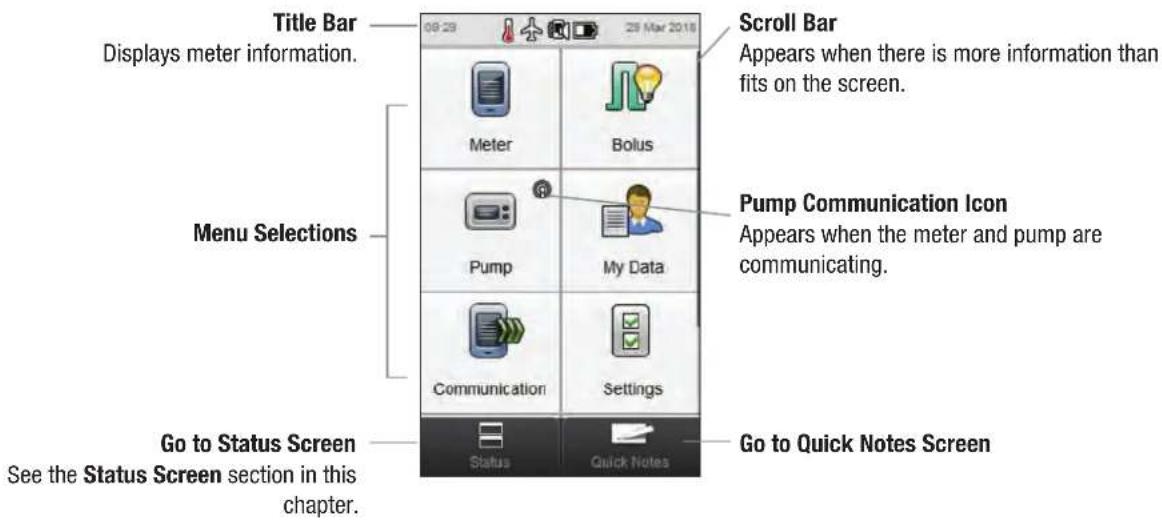
The Title Bar shows the time of day and date. For explanations of the icons that are displayed in the Title Bar, see the Understanding Your Diabetes Manager chapter of the Accu-Chek Aviva Insight Diabetes Manager User's Manual.
1.2.2 Status Screen
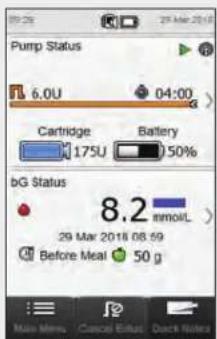
When the meter is paired with the pump, the Status screen displays the pump status, as well as information for the most recent valid blood glucose test.
For a detailed description of the bG Status portion of the Status screen, refer to the Understanding Your Diabetes Manager chapter of the Accu-Chek Aviva Insight Diabetes Manager User's Manual.
To view a fullscreen version of either the Pump Status or bG Status, touch that portion of the Status screen.

| 1 | Cartridge levelShows units of insulin remaining in the cartridge. |
| 2 | Bolus progress barVisually represents amount and duration of the active bolus (not visible if no bolus is being delivered). |
| 3 | Bolus type iconIndicates bolus type of the active bolus. |
| 4 | TBR progress barVisually represents amount and duration of the active temporary basal rate. |
| 5 | Basal iconIndicates an active basal profile or temporary basal rate (TBR) |
| 6 | Basal rateShows basal rate in units per hour (U/h). For temporary basal rates, also shows percentage value of the active basal profile time block. |
| 7 | Bolus insulin remainingShows units of bolus insulin remaining of the active bolus. |
| 8 | TBR time remainingShows the time remaining of the active temporary basal rate. |
| 9 | Pump statusIndicates whether the pump is running ▶ or is stopped ■. |
| 10 | Communication iconIndicates that the meter and pump are communicating. |
| 11 | Bolus time remainingShows amount of time remaining of an extended or multiwave bolus. |
| 12 | Pump battery levelShows remaining charge of pump battery. |
2 Startup
2.1 Charging the Battery
Charge the battery by plugging the USB cable into either a power outlet or a computer. Use the USB cable and USB power adapter supplied with the meter to avoid problems when charging the battery. The preferred charging method is to use a power outlet since this is faster and takes about 3.5 hours to charge a fully drained battery. Charging the meter from a computer takes much longer. Use a power outlet if the battery is extremely low on power or has not been charged for a while.
NOTE
- Allowing the battery to fully drain reduces the ability of the battery to hold its charge. It is recommended that you recharge the battery on a regular basis, for example once every day. Keeping the meter plugged in to charge does not harm the battery.
▶ A blood glucose test cannot be performed while the meter is plugged in.

Charging the Battery Using a Power Outlet
12
Clear Plastic Cover
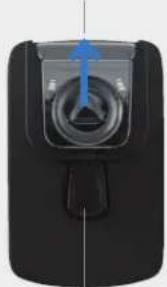
Release Button
If the power adapter is already assembled, proceed to Step 4. To assemble the power adapter, remove the clear plastic cover by pressing the centre of the release button. Slide the clear plastic cover off in the direction of the arrow.
Slide on the pronged plug where the clear plastic cover was located until it firmly clicks into place. Do not try to force the pronged plug. It only goes on one way.
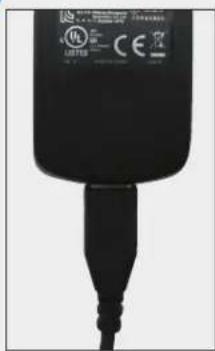
Plug the larger end of the USB cable into the power adapter.
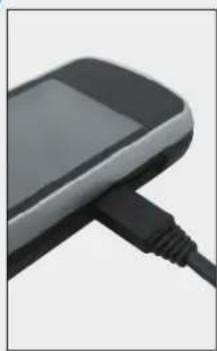
Plug the smaller end of the USB cable into the meter.
5
Plug the power adapter into a power outlet. If the battery is extremely low on power, the meter does not turn on for a number of minutes.
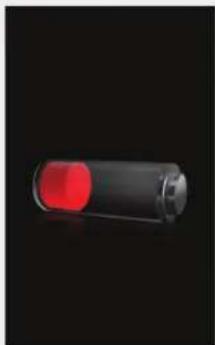
When the connection is successful, the meter displays the battery charging screen for 3 seconds.
The next screen (either the Main Menu or Status screen) displays the battery icon ➤ in charging mode.
6
When the battery icon is shown as fully charged 📄 you can unplug the meter.
Charging the Battery Using a Computer
12
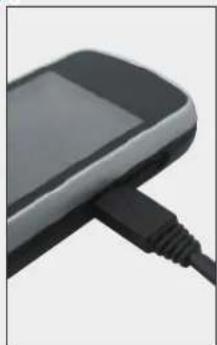
Plug the smaller end of the USB cable into the meter.

Plug the larger end of the USB cable into an available USB port on the PC. If the battery is extremely low on power, the meter does not turn on. Charge the battery using a power outlet.
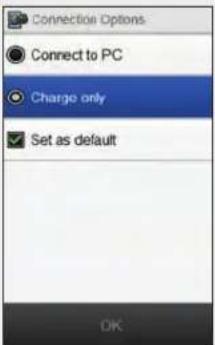
Choose Charge only. As an option, choose Set as default to keep this screen from appearing each time you connect the USB cable to a PC. Select OK.
NOTE
The Connection Options screen does not appear if Set as default was chosen previously.
To remove the default, go to the Main Menu and select Communication > Settings. Choose Prompt upon USB connect. Select Save.

NOTE
The PC must be turned on and not in sleep or standby mode to charge the battery.

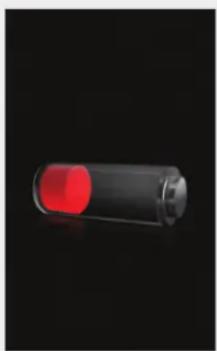
When the connection is successful, the meter displays the battery charging screen for 3 seconds.
The next screen (either the Main Menu or Status screen) displays the battery icon ➤ in charging mode.
NOTE
The computer is not charging the battery if the meter does not display the battery charging screen or the battery charging icon, or if the Information screen Recharge meter soon is displayed. Charge the battery using a power outlet.

4
When the battery icon is shown as fully charged → you can unplug the meter.
2.2 Setup Wizard
The first time you turn the meter on, the Setup Wizard is activated. You must complete the Setup Wizard before performing a blood glucose test for the first time.
The Setup Wizard assists you in selecting settings for:
Meter language
▶ Time and date
▶ Units (carbohydrate)
▶ Warning limits for hypo (low) and hyper (high) blood glucose levels
▶ Time blocks
▶ Bolus advice (optional)
▶ bG test reminders (optional)

WARNING
It is important to discuss your individual settings for warning limits, time blocks, bolus advice and bG test reminders with your healthcare professional.
NOTE
The Setup Wizard is activated every time you turn the meter on until you complete the process.
If you turn the meter off during the Setup Wizard, you must reconfirm all of the settings in order to complete the Setup Wizard.
To return to a previous screen in the Setup Wizard, select Back.
If you choose not to set up bolus advice and bG test reminders as part of the Setup Wizard, these features can be set up later. For information on how to set up these features after completion of the Setup Wizard, see Setting Up Bolus Advice under the Changing Bolus Advice Settings chapter of the Accu-Chek Aviva Insight Diabetes Manager User's Manual.
The default settings in the meter and the settings illustrated in this User's Manual are for example only.

2.3 Completing the Setup Wizard
Refer to the Important Information section of this User's Manual for detailed explanations of the various settings in the Setup Wizard.
1

Starting with the meter turned off, press the power button to turn on the meter.
2

The meter vibrates, beeps and displays this splash screen for a short period of time (this screen appears each time the meter is turned on).
34

Choose the desired language from the list. Select Next.
If you are using the Accu-Chek 360° configuration software: Plug the meter into the PC, choose PC setup, and then select Next to continue the setup using the software. You do not need to follow the rest of the steps in this section.
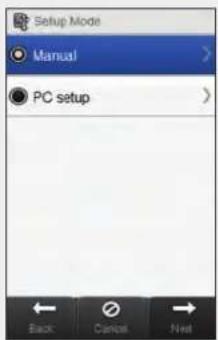
To proceed with setup on the meter, choose Manual. Select Next.
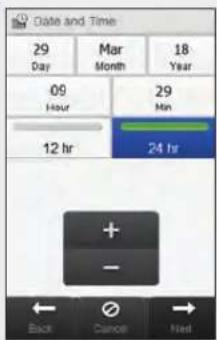
Select 12 hr or 24 hr to set the time format, if necessary.
6789

Set the date and time. Select Next.

Choose the appropriate carbohydrate unit. Select Next.

Set the Hyper (upper) and Hypo (lower) warning limits. Select Next.
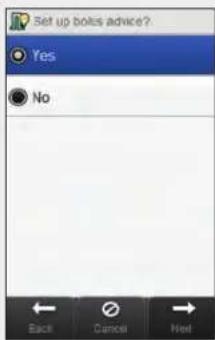
Choose Yes to receive bolus advice. Choose No to not receive bolus advice. Select Next.
10
五项之
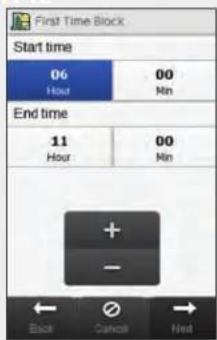
Set the start time and end time for the first time block. Select Next.

Set the target range. Select Next.
NOTE
If you choose not to receive bolus advice, the Setup Wizard skips Step 12.

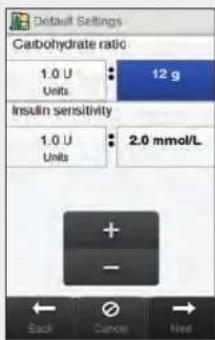
Set the Carbohydrate ratio and Insulin sensitivity. Select Next.
13

Select OK.
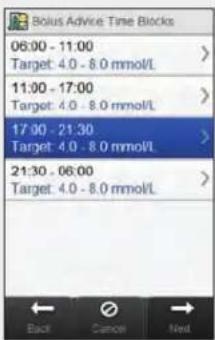
Select any additional time block to edit the End time, Upper value and Lower value. Select Next when you have finished editing the time blocks.
NOTE
If bolus advice is on, you can also set the carbohydrate ratio and insulin sensitivity for each time block.
To reset all edited time blocks to their default values, select Cancel and then Yes. This restarts the meter setup process.
If you chose not to receive bolus advice, Done appears instead of Next on the screen. Select Done to complete the Setup Wizard.

15

Set the percentage for any desired health events. Scroll to view additional options. Select Next.
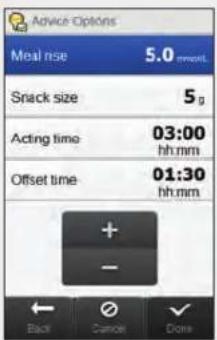
Set the Meal rise, Snack size, Acting time and Offset time. Select Done to complete the Setup Wizard.
NOTE
Consult your healthcare professional and read the Bolus Advice chapter of the Accu-Chek Aviva Insight Diabetes Manager User's Manual for help with any of the settings in the Setup Wizard.

2.4 Important Information
2.4.1 Carbohydrate Unit
You have a choice among different carbohydrate units in the meter that best fit your needs. The following carbohydrate units are available:
| Abbreviation Unit of Measurement Gram Equivalent | ||
| g Grams 1 gram | ||
| KE | Kohlenhydrateinheit (Carbohydrate Unit) | 10 grams |
| BE Bread Equivalent 12 grams | ||
| CC Carbohydrate Choice 15 grams | ||
NOTE
The gram equivalents for KE, BE and CC can be changed using the Accu-Chek 360° configuration software. The default gram equivalents are shown in the previous table.

2.4.2 Warning Limits
You can select hyper (high) and hypo (low) blood glucose warning limits that best fit your needs.
Whenever a blood glucose result is above the hyper warning limit or below the hypo warning limit, the meter displays a warning.
- Set the hyper warning limit greater than the target range of all time blocks.
▶ Set the hypo warning limit less than the target range of all time blocks.
2.4.3 Time Blocks
Setting time blocks to fit your own schedule helps you and your healthcare professional see how patterns in your blood glucose levels may be affected by your daily activities and lifestyle.
Time blocks combine to cover a 24-hour time period.
The meter comes with four default time blocks. You may set up to eight time blocks. You can change the time period for any of the default time blocks.
To complete the Setup Wizard, you must complete and save the default settings for the time blocks. Each time block must be at least 15 minutes long and can only be set in 15-minute increments. When you set the end time for a time block, the meter automatically sets this end time as the start time for the next time block.
You can set a different blood glucose target range for each time block. The target range for each time block must be within the hypo and hyper warning limits.
When the default time blocks are set up, the settings are applied to all of the other time blocks. If bolus advice is set up, you must also set the carbohydrate ratio and insulin sensitivity for the default time block. You can set a different carbohydrate ratio and insulin sensitivity for each time block.
Talk to your healthcare professional about setting up time blocks.
2.4.4 Bolus Advice
The bolus advice feature calculates a bolus for you that is customised to the time of day and your changing situations. This function is activated only if you set up bolus advice on your meter.
Bolus advice recommendations provided by the meter are intended solely as advice.
For more detailed information on bolus advice, see the Bolus Advice chapter of the Accu-Chek Aviva Insight Diabetes Manager User's Manual.
Carbohydrate Ratio
The carbohydrate ratio is the amount of insulin necessary to account for a certain amount of carbohydrates.
Talk to your healthcare professional to determine the appropriate carbohydrate ratio for you.
Insulin Sensitivity
The insulin sensitivity is the amount of insulin necessary to lower your blood glucose by a certain amount.
Talk to your healthcare professional to determine the appropriate insulin sensitivity settings for you.
Health Events
Health events can be selected to indicate how you are feeling or what you are doing that might affect your blood glucose level. You have the option of setting a percentage for each health event which adjusts the bolus advice recommendation.
Health events available on the meter are:
Exercise 1
Exercise 2
Stress
Illness
▶ Premenstrual
▶ Customized (1–3)
A positive percentage increases the bolus amount and a negative percentage (-) decreases the bolus amount. Talk to your healthcare professional to determine the appropriate percentage for each health event for you.
Advice Options
Meal rise, snack size, acting time and offset time are advice options. Below are detailed descriptions of each of these settings.
Meal Rise
During or after meals, an increase in blood glucose level is considered normal within a certain range, even though a bolus has been delivered.
Enter the maximum increase in your blood glucose level that is to be tolerated after a meal without an additional correction bolus.
Snack Size
The snack size defines a threshold of carbohydrates above which a meal rise is triggered.
Acting Time
The period of time from the start of bolus until your blood glucose level is expected to return to the target level.
You can adjust the length of the acting time to fit your individual needs within a specified time interval (1 ½ hours to 8 hours). If you are unsure of your insulin acting time, check with your healthcare professional.
The total acting time includes the offset time.
2
Offset Time
Offset time is the expected amount of time before the insulin begins to lower blood glucose levels in the body.
3 Meter and Pump Communication
3.1 Pairing the Meter and Pump
Before you can control the pump with the meter, the meter and pump must be paired. If you received the meter and pump as a kit, they come paired by default.
Once the meter and pump are paired, the pairing settings are stored in both devices so that you do not have to repeat the pairing. If communication between the meter and pump is stopped or interrupted for any reason, they will automatically resume communication whenever both devices are in communication range and the pump display is not active.
Main Menu > Communication > Set Up New Pairing > Devices
12
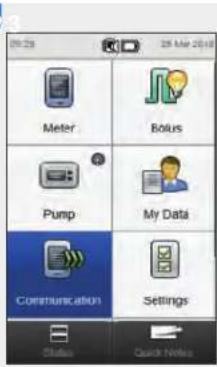
From the meter's Main Menu, select Communication.
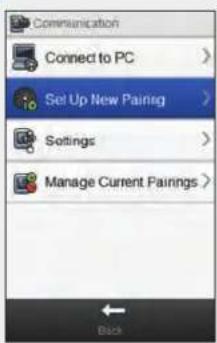
Select Set Up New Pairing. The meter displays the Prepare Device screen.
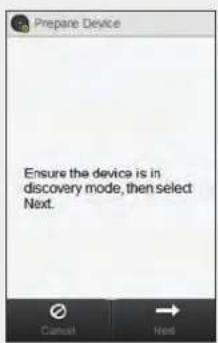
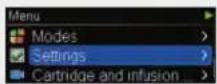
On the pump, select Settings.
456
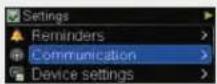
Select Communication.
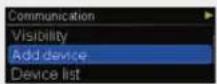
Select Add device.

The pump displays the Add device screen showing the serial number of the pump.
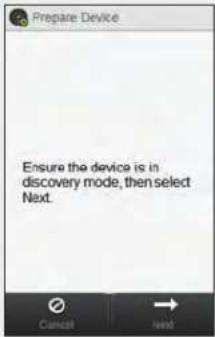
On the meter, select Next.

The meter displays the Searching screen while it searches for discoverable Bluetooth devices.
NOTE
The meter can only be paired with one pump at a time. If either device was previously paired to another device (for instance, if this is a replacement meter or pump), you must first remove the previous pairing. See the Unpairing the Meter and Pump section of this chapter for instructions on unpairing your devices.
When in Add device mode, the pump sends a signal that other devices can detect in order to pair with the pump.
For more detailed instructions on how to set the pump to Add device mode, refer to the Accu-Chek Insight Insulin Pump User's Manual.

7
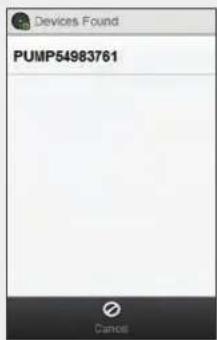
Select the serial number that matches the one displayed on the pump screen from the list.

The meter attempts to pair with the pump and displays the Pairing screen.
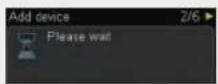
The pump displays the Add device screen.
8
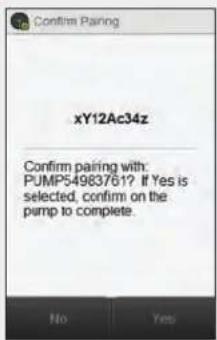
Verify that the PIN code on the meter matches the one displayed on the pump screen. Select Yes on the meter.

Confirm on the pump.
NOTE
If the PIN code and serial number do not match what is displayed on the device you intend to pair with the meter, select No.
If the meter is unable to pair with the device selected, the Device Not Paired screen appears. Select OK to return to the Communication menu.

9
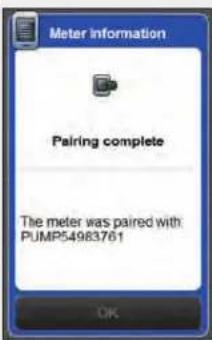
Select OK.
NOTE
Bluetooth wireless communication must be turned on and the meter be connected to the pump in order to perform pump functions using the meter.
- When your meter is paired with the pump, the default home screen of the meter is changed from the Main Menu to the Status screen. For information on the Status screen, refer to the Home Screen section of the Overview chapter of this User's Manual.
If communication is lost between the meter and pump and an error occurs on the pump, the error message is not displayed on the meter. If you turn the meter on and reconnect to the pump, the error message is displayed on the meter.

3.2 Unpairing the Meter and Pump
Main Menu > Communication > Manage Current Pairings
13
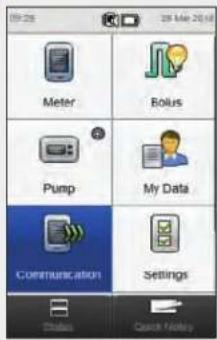
Communication.

Select Manage Current Pairings.
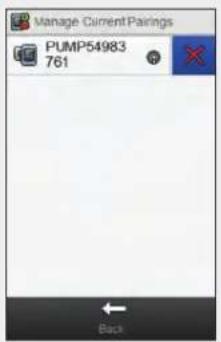
Select ✗ next to the name of the pump.

Select Yes.From the Main Menu, select
NOTE
This process deletes the pairing on the meter and ends communication between the meter and pump. For instructions on deleting the pairing information on the pump, refer to the Accu-Chek Insight Insulin Pump User's Manual.

4 Controlling the Pump with the Meter
4

WARNING
Check your blood glucose level and replace the missing insulin immediately if your insulin delivery is interrupted for any reason.
For example:
▶ You stop the pump.
There is a technical problem with the pump.
The cartridge and/or the infusion set is leaking.
There is an occlusion in the infusion set.
The cannula has slipped out of the infusion set.

WARNING
If communication between the pump and meter is interrupted or is no longer possible for any reason, the meter displays the M-68 Connection Lost maintenance message. In this event, use the pump as a standalone device.
4.1 Accessing the Pump Menu
When the meter is paired with the pump, a number of remote features are enabled on the meter which were not previously available. You can access these features from the Pump Menu.
Main Menu > Pump
1

From the Main Menu, select Pump.
4.2 Understanding the Pump Menu Screens on the Meter
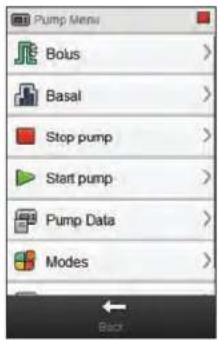
The Pump Menu contains the following options:
| Menu Option Description | |
| Bolus | Program and deliver boluses, as well as create and modify customised boluses |
| Basal | Program, create and modify temporary basal rates (TBR), as well as program and activate basal profiles |
| Stop pump Stop insulin delivery | |
| Start pump Start insulin delivery | |
| Pump Data | View reports on Event, Bolus and TBR data, as well as Daily Totals, Pump Timer and Software Version information |
| Modes | Adjust signal modes and turn Flight Mode on and off |
| Settings | Program Pump Reminders, and access Device, Therapy, and Time and Date settings |
| Icon Description | |
| Pump Stopped icon | Indicates pump has stopped.Pump Running and Pump Paused icons can also appear here |
| Pump Running icon | (Not shown) Indicates pump is running |
| Pump Paused icon | (Not shown) Indicates pump has been paused |
NOTE
If your pump has a warning or error while communicating with your meter, the warning or error message displays on the meter. Pressing OK on the meter message screen dismisses the warning/error on both devices. You must still perform any actions recommended by the message; pressing OK does not perform these actions automatically.

4.3 Stopping the Pump
Main Menu > Pump > Stop Pump
1

Stop pump. This stops insulin delivery from the pump.
2
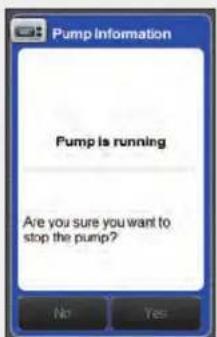
Select Yes.From the Pump Menu,
3

seleneter displays the Status screen, which shows that the pump has stopped.
4.4 Starting the Pump
Main Menu > Pump > Start Pump
1
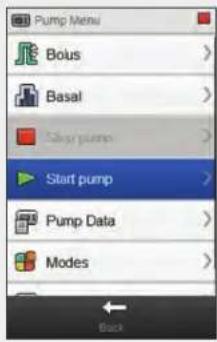
Start pump. This starts insulin delivery from the pump.
2

Select Yes.From the Pump Menu,
3

selenometer displays the Status screen, which shows that the pump has started.
5 Testing Your Blood Glucose
5.1 Performing a Blood Glucose Test
NOTE
- You need the meter, a test strip, a lancing device and a lancet.
- Set up the meter before you perform your first blood glucose test.
▶ A blood glucose test cannot be performed while the meter is plugged in.
▶ Blood glucose is sometimes shortened to bG, but it means the same thing.

1
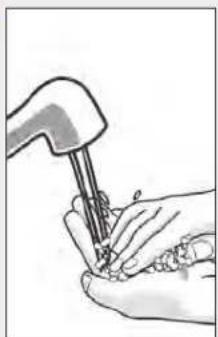
Wash and dry your hands. Prepare the lancing device.
2

Check the use by date on the test strip container. Do not use test strips past the use by date.
3

Insert the test strip into the meter in the direction of the arrows. The meter turns on.
NOTE
Do not touch the blood drop to the test strip until the Apply Drop screen is displayed.
▶ Be careful not to put any fluids into the test strip slot.
If a test strip error occurs, remove and discard the test strip. Repeat the test with a new test strip.
Do not apply a blood drop to the test strip before you insert it into the meter.
When a test strip is in the meter, the buttons and touchscreen selections are inactive, including the power button. The buttons become active when you remove the test strip or when the test is complete.
▶ Other ways to start a blood glucose test:
- From the Main Menu, select Meter > bG Test or select Bolus > bG Test. Insert a test strip into the meter.
- When a bG test reminder notification is displayed, insert a test strip into the meter.


An image of the test strip container is displayed for a few seconds. Continue to the next step.
45
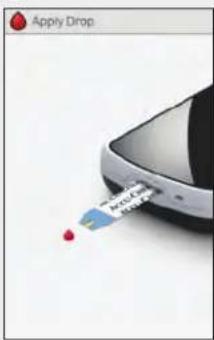
The Apply Drop screen appears. Perform a finger prick with the lancing device.
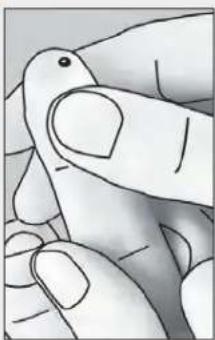
Gently squeeze your finger to assist the flow of blood. This helps you get a blood drop.
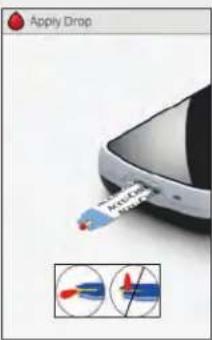
Touch the blood drop to the front edge of the yellow window of the test strip. Do not put blood on top of the test strip.
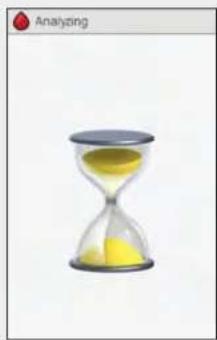
The Analyzing screen appears when there is enough blood in the test strip.

The result appears on the display.
NOTE
For information about blood glucose results, see the Understanding Blood Glucose Results and Unusual Blood Glucose Results sections in the Accu-Chek Aviva Insight Diabetes Manager User's Manual.
- The blood glucose result must be used within 10 minutes for bolus advice.


In approximately 3 seconds the Detailed bG Result screen appears. Remove and discard the used test strip. Perform one of the following:
▶ Complete the blood glucose test without adding information or delivering a bolus: Select Done.
If bolus advice is enabled: Go to the Delivering a Bolus Using Bolus Advice section in the Administering Boluses chapter in this User's Manual.
▶ If bolus advice is not enabled:
- Add information to be saved with the blood glucose result: Continue to the next section
Adding Information to a Blood Glucose Result. A bolus can be delivered after adding the information.
- Deliver a bolus without adding information: Select Bolus and go to the Delivering a Bolus Without Bolus Advice section in this chapter.
5.2 Adding Information to a Blood Glucose Result
Adding information to the entry fields provides you with a record of the circumstances surrounding your blood glucose result. This information is helpful later for determining patterns in your blood glucose levels. The steps in this section only apply if the bolus advice feature is not being used. If bolus advice is enabled, go to the Delivering a Bolus Using Bolus Advice section in the Administering Boluses chapter in this User's Manual.
1
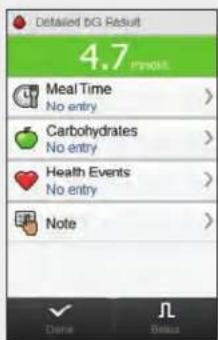
To add an entry, select it and refer to the instructions on the following page.
Screens for Adding Entries for Detailed bG Result
Meal Time Carbohydrates Health Events

Choose the meal time. Select Save.
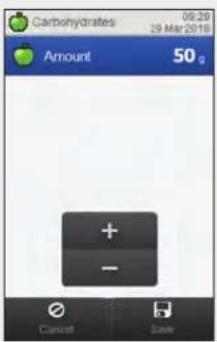
Set the number of carbohydrates consumed. Select Save.

Choose up to four health events. Select Save.
NOTE
If bolus advice is turned on, and multiple health events have been chosen, the Adjustment screen on the meter displays “---%”. You must enter a summarised health event percentage, even if this percentage is zero.

Note
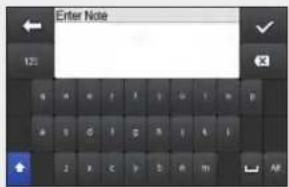
Type a note (up to 60 characters) to save with this record. Select √
2

Perform one of the following:
▶ Save the entries and proceed with bolus delivery: Select Bolus and continue.
▶ Save the entries and do not proceed with bolus delivery: Select Done.
5.3 Delivering a Bolus Without Bolus Advice

NOTE
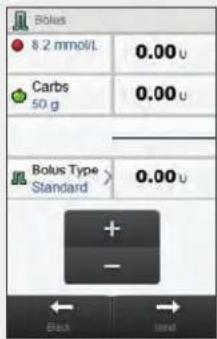
When the Bolus screen first appears, there are no bolus amounts. The bolus amounts are entered by you.

Bolus Type
When programming a bolus without using bolus advice, the default bolus type displayed on the meter varies depending on the state of communication with the pump.
| Condition Bolus Type | |
| The meter is communicating with the pump and the Standard Bolus is available from the pump. | The bolus type is initially set to Standard. You are able to change the bolus type. |
| The meter is communicating with the pump and the Standard Bolus is not available from the pump. | The bolus type is initially set to Manual on Pump. You are able to change the bolus type. |
| The meter is paired to a pump and not communicating with the pump. | The bolus type is initially set to Manual on Pump. You are able to change the bolus type. |
| The meter is paired to a pump and communicating with the pump, but the pump is paused or stopped. | The bolus type is initially set to Pen/Syringe. You are able to change the bolus type. |
| The meter is not paired with a pump. The bolus type button is not displayed. | The bolus type is set to Pen/Syringe and cannot be changed. |
5.3.1 Delivering a Standard Bolus Without Bolus Advice
1

If necessary, change to Standard bolus by selecting Bolus Type. Otherwise, proceed to Step 3.
2
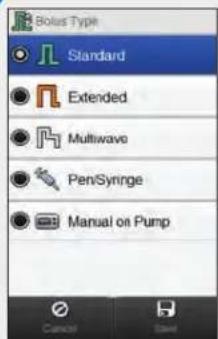
Choose Standard. Select Save.
3
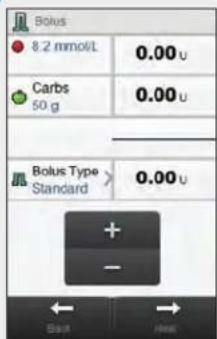
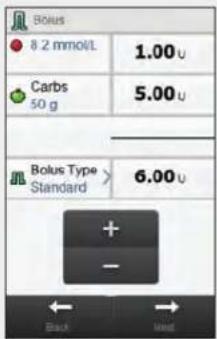
Enter the bolus amounts, as necessary. To input a bolus amount, select the entry field for Correction Bolus, Carbohydrate Bolus or Total Bolus and set the amount.
NOTE
If you set either the Correction Bolus or the Carbohydrate Bolus first: The ability to edit the Total Bolus is disabled; however, the Total Bolus updates accordingly.
If you set the Total Bolus first: The ability to edit the Correction Bolus and Carbohydrate Bolus is disabled; however, the Correction Bolus updates accordingly.
4
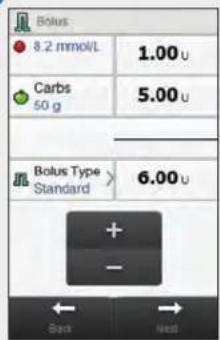
Select Next. Select Next.
5
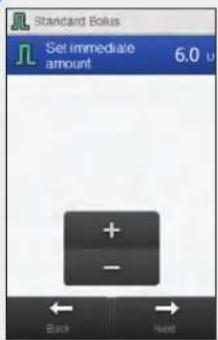

6

Select Back to adjust the bolus, or select OK to deliver the bolus.

The pump delivers the bolus and the meter displays the Status screen showing the current bolus information.
5.3.2 Delivering an Extended Bolus Without Bolus Advice
12

Select Bolus Type.

Choose Extended. Select Save.
NOTE
The Extended Bolus is available only if a Carbohydrate Bolus is entered.
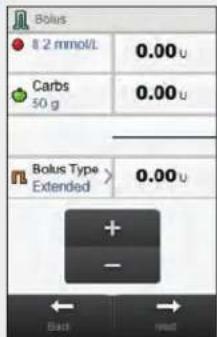
Enter the bolus amounts as necessary. To input the bolus amount, select the entry field for Correction Bolus, Carbohydrate Bolus or Total Bolus, and set the amount.

4

Select Next. Select Back to adjust Set delayed duration. Select Next.
5

6

setting, or select OK to deliver the bolus.
The pump delivers the bolus and the meter displays the Status screen showing the current bolus information.
5.3.3 Delivering a Multiwave Bolus Without Bolus Advice
12
Enter the bolus amounts, as necessary. To input a bolus amount, select the entry field for Correction Bolus, Carbohydrate Bolus or Total Bolus, and set the amount.
Select Bolus Type. Choose Multiwave. Select
NOTE
The Multiwave Bolus is only available if a Carbohydrate Bolus is entered.


Save.
NOTE
If you set either the Correction Bolus or the Carbohydrate Bolus first: The ability to edit the Total Bolus is disabled; however, the Total Bolus updates accordingly.
If you set the Total Bolus first: The ability to edit the Correction Bolus and Carbohydrate Bolus is disabled; however, the Correction Bolus updates accordingly.
If a Carbohydrate Bolus is entered and no amount has been entered for carbohydrates (Carbs displays No Entry in Step 2), you should consider entering an amount for carbohydrates. Select Back to enter an amount. An amount is not required, but the more complete the data the more accurate any future bolus advice recommendations are when using bolus advice.

4

Select Next.
5
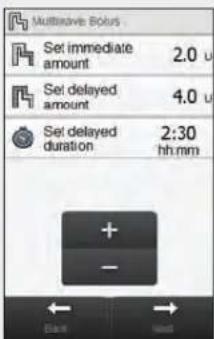
Set the immediate amount, delayed amount and delayed duration. Select Next.
6
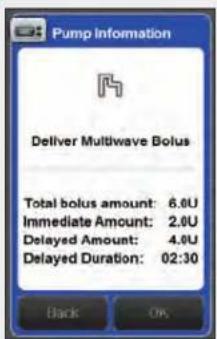
Select Back to adjust a setting, or select OK to deliver the bolus.

The pump delivers the bolus and the meter displays the Status screen showing the current bolus information.
5.3.4 Delivering a Pen/Syringe Bolus Without Bolus Advice
1
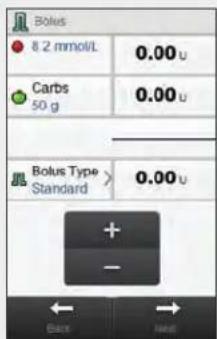
If necessary, change to Pen/Syringe bolus by selecting Bolus Type. Otherwise, proceed to Step 3.
2
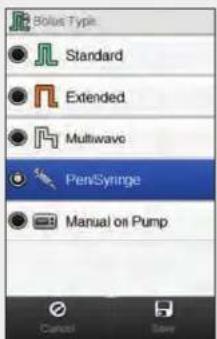
Choose Pen/Syringe. Select Save.
3
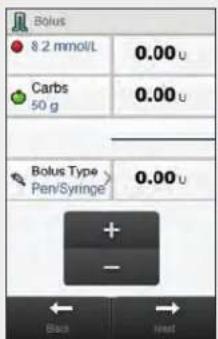
Enter the bolus amounts, as necessary. To input a bolus amount, select the entry field for Correction Bolus, Carbohydrate Bolus or Total Bolus, and set the amount.
NOTE
If you set either the Correction Bolus or the Carbohydrate Bolus first: The ability to edit the Total Bolus is disabled; however, the Total Bolus updates accordingly.
If you set the Total Bolus first: The ability to edit the Correction Bolus and Carbohydrate Bolus is disabled; however, the Correction Bolus updates accordingly.
4

Select Next.
5
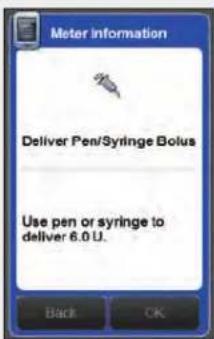
Select Back to adjust the bolus amount, or select OK. Deliver the bolus using your pen or syringe.
5.3.5 Delivering a Manual on Pump Bolus Without Bolus Advice
1
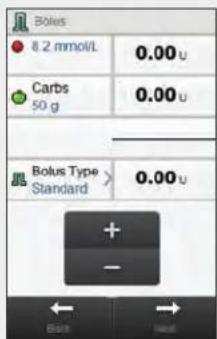
If necessary, change to Manual on Pump bolus by selecting Bolus Type. Otherwise, proceed to Step 3.
2
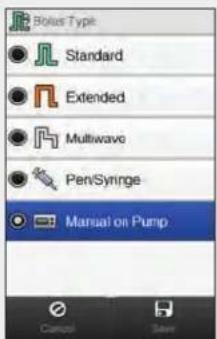
Choose Manual on Pump. Select Save.
3
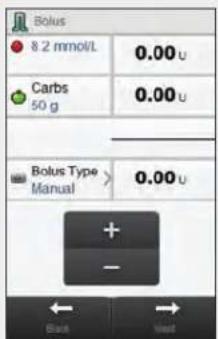
Enter the bolus amounts, as necessary. To input a bolus amount, select the entry field for Correction Bolus, Carbohydrate Bolus or Total Bolus, and set the amount.
NOTE
If you set either the Correction Bolus or the Carbohydrate Bolus first: The ability to edit the Total Bolus is disabled; however, the Total Bolus updates accordingly.
If you set the Total Bolus first: The ability to edit the Correction Bolus and Carbohydrate Bolus is disabled; however, the Correction Bolus updates accordingly.
4
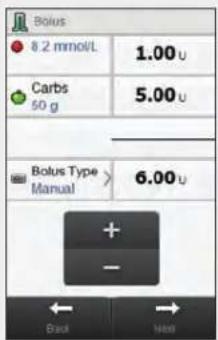
Select Next.
5

Select Back to adjust the bolus amount, or select OK to record the bolus. Program the pump to deliver the bolus.

6 Administering Boluses
NOTE
Refer to the Accu-Chek Insight Insulin Pump User's Manual for a detailed explanation of standard, extended and multiwave boluses.
- Lag time-related features only appear on the meter if you have enabled lag time on the pump.

6.1 Programming and Delivering a Standard Bolus
Main Menu > Pump > Bolus > Standard Bolus
1

From the Pump Menu, select Bolus.
2

Select Standard Bolus.
3

Set the immediate amount. Select Next.
4

Select OK. The pump delivers the bolus
NOTE
Selecting Back takes you back to the previous screen without delivering a bolus.

5

and the meter displays the Status screen showing the current bolus information.
6.2 Programming and Delivering an Extended Bolus
Main Menu > Pump > Bolus > Extended Bolus
1
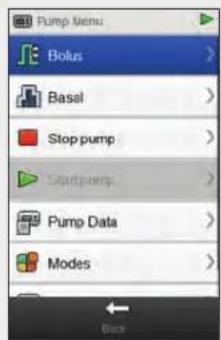
From the Pump Menu, select Bolus.
2

Select Extended Bolus.
34
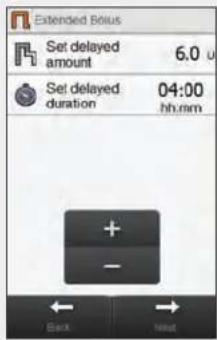
Set the delayed amount and delayed duration. Select Next.
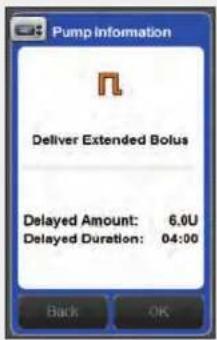
Select OK. The pump delivers the bolus
NOTE
Selecting Back takes you back to the previous screen without delivering a bolus.


and the meter displays the Status screen showing the current bolus information.
6.3 Programming and Delivering a Multiwave Bolus
Main Menu > Pump > Bolus > Multiwave Bolus
1
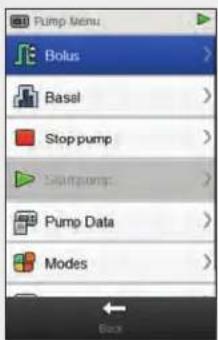
From the Pump Menu, select Bolus.
2
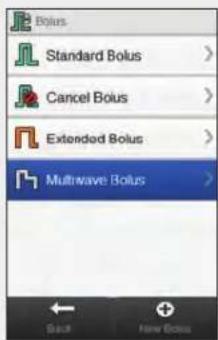
Select Multiwave Bolus.
34
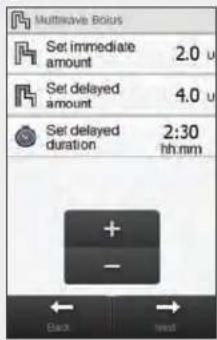
Set the immediate amount, delayed amount and delayed duration. Select Next.

Select OK. The pump delivers the bolus
NOTE
Selecting Back takes you back to the previous screen without delivering a bolus.

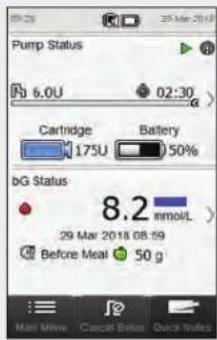
and the meter displays the Status screen showing the current bolus information.
6.4 Creating and Delivering a Customised Bolus
Main Menu > Pump > Bolus > Customized Bolus
NOTE
If you have enabled the lag time feature on the pump, you can adjust the lag time for each bolus type when creating a customised bolus.
- When set, lag time is only applied to the current bolus delivery and is not saved with the other settings of a customised bolus.
1
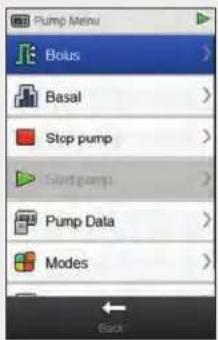
Bolus.
2
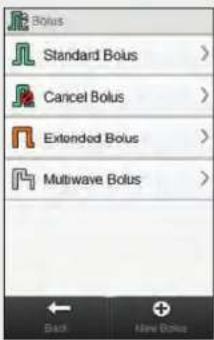
Select + New Bolus. From the Pump Menu, select
3
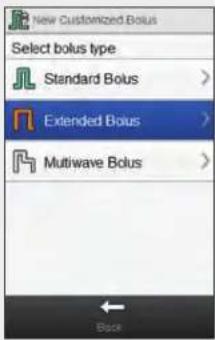
Select the bolus type for the customised bolus (Standard, Extended or Multiwave).
4

Change the settings for the selected bolus type.
Bolus Type Settings
| Customized Standard Bolus | Set immediate amount. |
| Customized Extended Bolus | Set delayed amount and Set delayed duration. |
| Customized Multiwave Bolus | Set immediate amount, Set delayed amount and Set delayed duration. |
56

Select Edit Name.
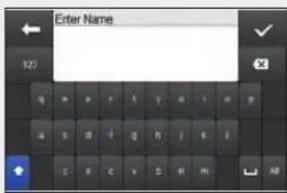
Type the name you wish to use for the customised bolus.
Select √
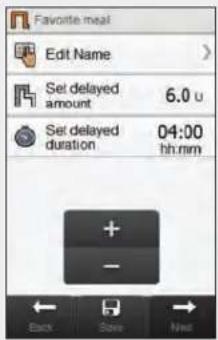
Select Next to deliver the bolus, or Save to save the bolus for future use without delivering immediately.
NOTE
▶ Selecting Back takes you back to the previous screen without delivering a bolus.
▶ Saved customised boluses appear in the list of available boluses in the Bolus menu and on the pump.

8
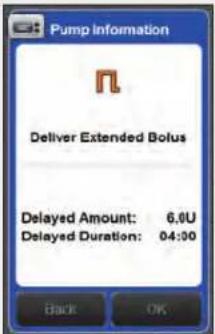
Select OK to deliver the bolus.
9
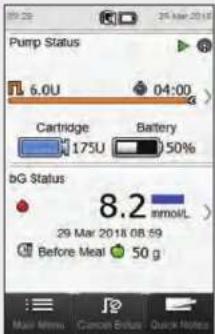
The pump delivers the bolus and the meter displays the Status screen showing the current bolus information.
6.5 Deleting a Customised Bolus
Main Menu > Pump > Bolus
1
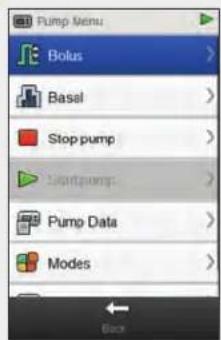
From the Pump Menu, select Bolus.
2
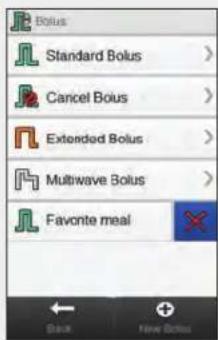
Select ✗ next to the customised bolus you wish to delete.
3
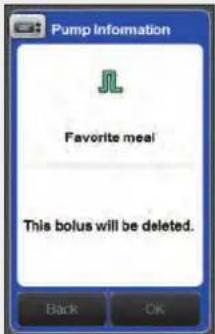
Select OK.
6.6 Cancelling a Bolus
6.6.1 Cancelling a Bolus from the Status Screen
Main Menu > Status
1
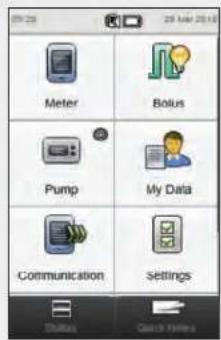
From the Main Menu, select Status.
2
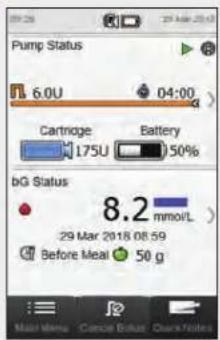
Select Cancel Bolus.
3
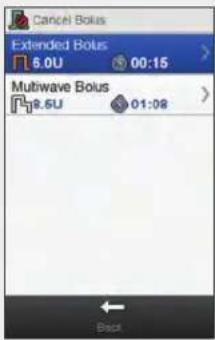
Select the bolus you wish to cancel.
NOTE
If only one bolus is being delivered, the meter skips Step 3. Proceed to Step 4.

4

Select OK. Bolus delivery is cancelled.
NOTE
Selecting Back returns you to the previous screen without cancelling the bolus.

6.6.2 Cancelling a Bolus from the Pump Menu
Main Menu > Pump > Bolus
1
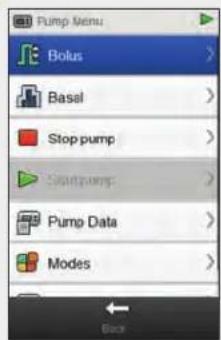
From the Pump Menu, select Bolus.
2
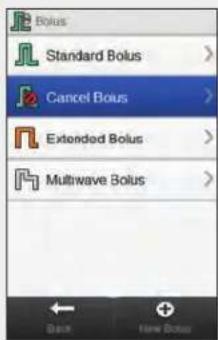
Select Cancel Bolus.
3

Select the bolus you wish to cancel.
NOTE
If only one bolus is being delivered, the meter skips Step 3. Proceed to Step 4.

4

Select OK. Bolus delivery is cancelled.
NOTE
Selecting Back returns you to the previous screen without cancelling the bolus.

6.7 Delivering a Bolus Using Bolus Advice
With the meter and pump paired and bolus advice turned on, you have the ability to program and deliver boluses with the pump directly from the Bolus Advice menu on the meter.
The following conditions must be met before delivering a bolus using bolus advice:
The meter must be paired with the pump.
▶ The pump must be in RUN mode.
▶ Bolus advice must be enabled on the meter.
NOTE
When the meter is paired with the pump, bolus advice is calculated based on the insulin sensitivity defined in the meter settings.
If you deliver a bolus directly on the pump without using the meter, the total bolus information is considered in future bolus advice. If this bolus is used for food intake, you can edit the bolus in your logbook to assign the portion of the bolus that was used for carbohydrate correction. This ensures that future bolus advice recommendations are calculated using the most complete information.
▶ Be patient when waiting for bolus advice results; the meter is processing numerous inputs.
The confirmation steps are important for you to review the accuracy of the information you entered for bolus advice.
For more information on bolus advice, refer to the Bolus Advice chapter of the Accu-Chek Aviva Insight Diabetes Manager User's Manual.

12

Insert a test strip and perform a blood glucose test.
NOTE
For information on performing a blood glucose test and entering bolus information with the Bolus Input menu, refer to the Delivering a Bolus Using Bolus Advice section of the Bolus Advice chapter of the Accu-Chek Aviva Insight Diabetes Manager User's Manual.

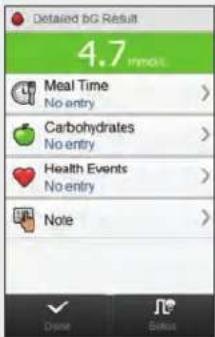
Enter your information as you normally do. Select Bolus.
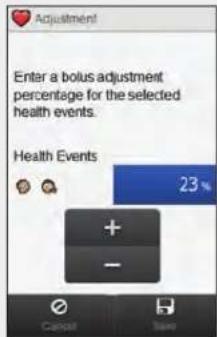
If multiple health events have been selected, this screen displays “--- %”; otherwise proceed to the next step. You must enter a summarised health event percentage, even if this percentage is zero. Select Save.
4

Make any desired adjustments to the correction bolus or carbohydrate portions of the bolus, or to the total bolus.
NOTE
If a Carbohydrate Bolus is entered and no amount has been entered for carbohydrates (Carbs displays No Entry in Step 2), you should consider entering an amount for carbohydrates. Select Back to enter an amount. An amount is not required, but the more complete the data the more accurate any future bolus advice recommendations are when using bolus advice.
If you adjust either the Correction Bolus or Carbohydrate Bolus first: The ability to edit the Total Bolus is disabled; however, the Total Bolus updates accordingly.
If you adjust the Total Bolus first: The ability to edit the Correction Bolus and Carbohydrate Bolus is disabled.
• If Total Bolus is increased: The Correction Bolus is increased accordingly.
- If Total Bolus is decreased: The Carbohydrate Bolus is decreased accordingly; once the Carbohydrate Bolus becomes 0, then the Correction Bolus is decreased accordingly.

5
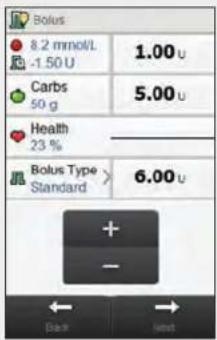
Select Bolus Type to change the selected bolus type, if necessary, and proceed to Step 6. Otherwise, skip to Step 7.
6
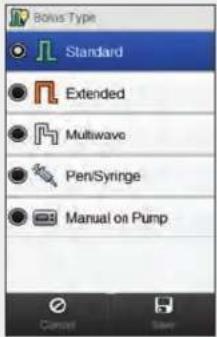
(Standard, Extended or Multiwave). Select Save.
NOTE
Pen/Syringe boluses do not require pairing with the pump and must be delivered manually. For more information on delivering Pen/Syringe boluses, refer to your pen/syringe User's Manual.
7

Select Next.Select the desired bolus type
8
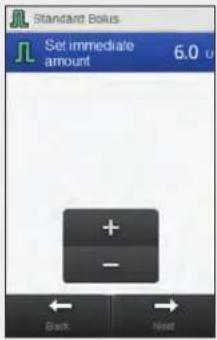
Select Next.
NOTE
When setting up a multiwave bolus, you can adjust the balance between the immediate amount and delayed amount, as long as the total amount of insulin delivered is equal to the units entered in previous steps. The immediate amount must also not fall below the recommended correction bolus from bolus advice.

9

Select OK to deliver the bolus.
NOTE
Selecting Back takes you back to the previous screen without delivering a bolus.

10

The pump delivers the bolus and the meter displays the Status screen showing the current bolus information.
NOTE
If you selected the bolus type of Manual On Pump and the meter displays Warning W-89 "A manual pump value has been set to zero," the selected bolus amount was not delivered within 15 minutes and the logbook record is changed to zero units of insulin delivered. Review recent logbook data for accuracy, and edit if necessary.
If you delivered the selected Manual On Pump bolus amount after more than 15 minutes have elapsed or if you delivered a different Manual On Pump bolus amount, the meter creates a new logbook record the next time the meter and pump communicate. The new record does not include the previous bolus advice information (e.g., health events or amount of carbohydrates). It is recommended that you edit the new record to include this information because it may impact future bolus advice recommendations.

7 Temporary Basal Rates
7
7.1 Programming a Basic Temporary Basal Rate (TBR)
Main Menu > Pump > Basal > Temporary Basal Rate > Basic TBR
1
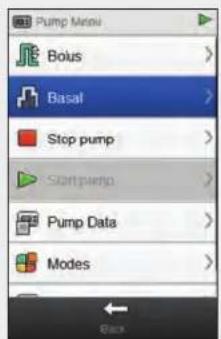
From the Pump Menu, select Basal.
2
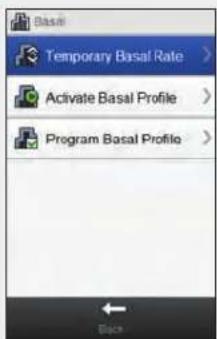
Select Temporary Basal Rate.
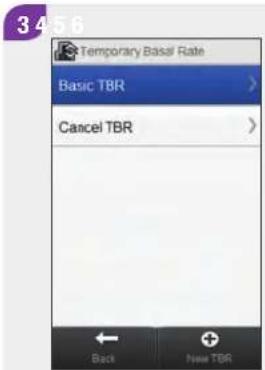
Select Basic TBR.

Set the percentage and duration of the basic TBR. Select Next.

Select OK. The meter displays the
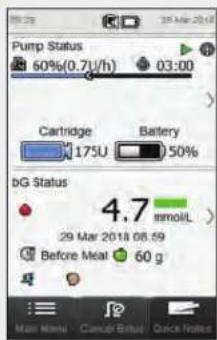
Status screen with the current TBR information.
7.2 Programming or Editing a Customised TBR
Main Menu > Pump > Basal > Temporary Basal Rate > Customized TBR
1
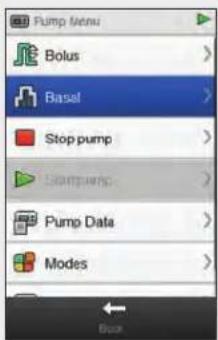
From the Pump Menu, select Basal.
2
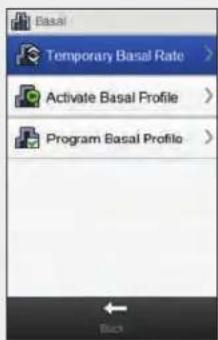
Select Temporary Basal Rate.
34
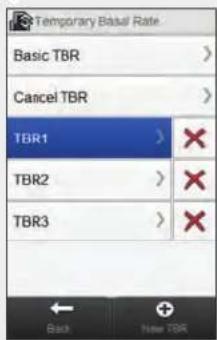

the existing customised TBR you wish to edit.
NOTE
Customised TBRs that you have previously programmed appear on this screen.
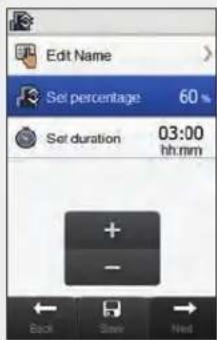
Set the percentage and duration of the customised TBR.
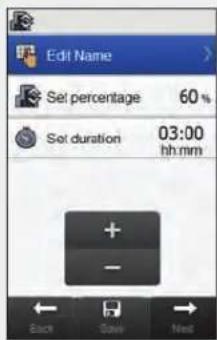
Select Edit Name.Select New TBR or select

6789

Type the name you wish to use for the customised TBR. Select √
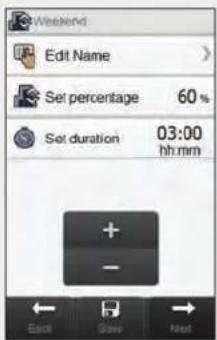
To save your settings for the customised TBR without starting it, select Save. Otherwise, select Next.
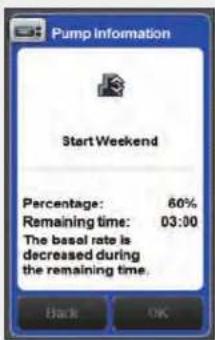
Select OK. The meter displays the

Status screen with the current TBR information.
7.3 Cancelling an Active TBR
Main Menu > Pump > Basal > Temporary Basal Rate
1
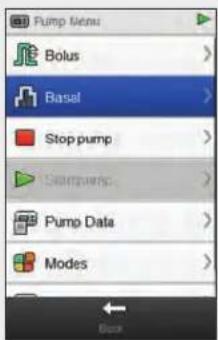
From the Pump Menu, select Basal.
2
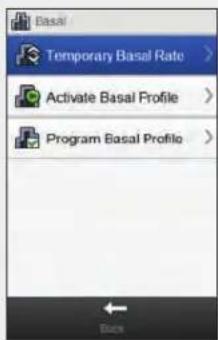
Select Temporary Basal Rate.
3
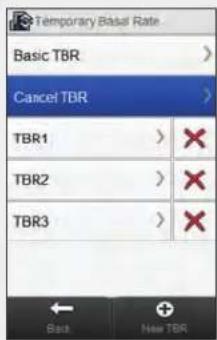
Select Cancel TBR.
4

Select OK. The active TBR is cancelled.
7.4 Deleting a Customised TBR
Main Menu > Pump > Basal > Temporary Basal Rate
1

From the Pump Menu, select Basal.
2
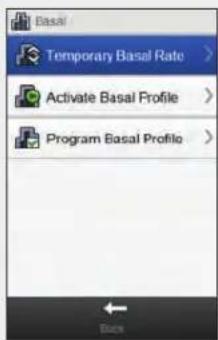
Select Temporary Basal Rate.
3
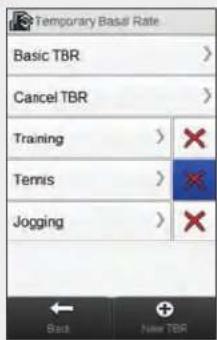
Select ✗ next to the name of the TBR you wish to delete.
4
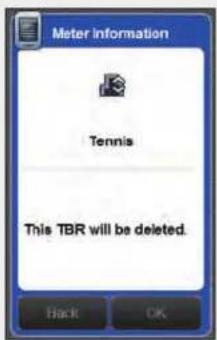
Select OK. The TBR is deleted.
7.5 Additional TBR Function Information
The pump notifies you when a TBR has completed. You can disable this notification if desired.
If a TBR is not currently active, the TBR percentage is set to 100 %.
When a TBR is active, it remains in effect even if the basal profile is changed.
A TBR can only be programmed when the pump is in RUN mode.
When a TBR is active, the pump beeps and vibrates every hour.
Placing the pump in STOP mode cancels TBR delivery as well as any boluses being delivered.
For more information about pump messages, warnings and errors, and programming a TBR, see the Accu-Chek Insight Insulin Pump User's Manual.
8 Basal Profiles
8.1 Programming a Basal Profile
Main Menu > Pump > Basal > Program Basal Profile
1
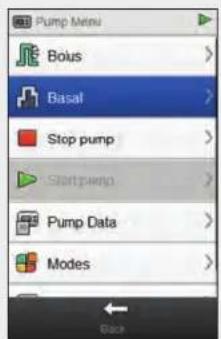
From the Pump Menu, select Basal.
2

Select Program Basal Profile.
34
单位
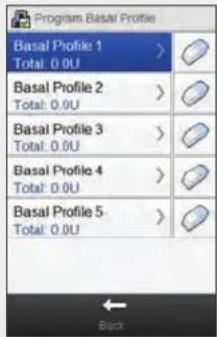
Select the basal profile you wish to program.
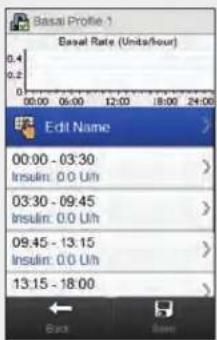
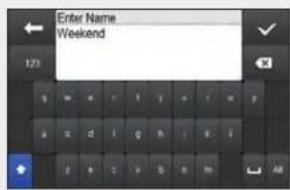
Select Edit Name. Type the name you wish to use for the basal profile. Select √

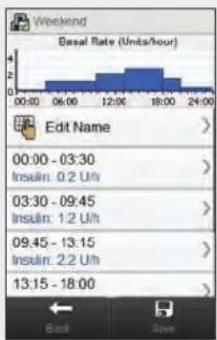
Select a time block you wish to edit.
7
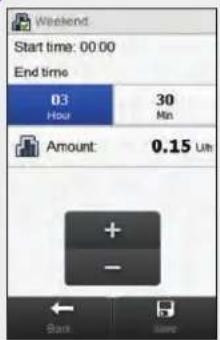
rate Amount. Select Save. Repeat this step for each time block you wish to edit.
NOTE
▶ You are only able to edit the end time of basal rate time blocks. The start time for each time block is the same as the end time for the previous time block.
▶ Basal rate time blocks are not identical to or shared with the time blocks for bolus advice.
To add a new time block, set the end time of the last time block to the desired start time for the new time block.
▶ To delete a time block, set the end time of the time block equal to the start time of the time block.

8
Select Save.Set the End time and basal
9

Select OK. The meter saves the changes to the basal profile.
NOTE
- Selecting OK to save changes does not activate the basal profile.
▶ Selecting Back at any time takes you back to the Basal Profile Time Blocks screen where you can continue to adjust the settings of the selected basal profile.
For more information on basal rates, refer to the Accu-Chek Insight Insulin Pump User's Manual.

8.2 Activating a Basal Profile
Main Menu > Pump > Basal > Activate Basal Profile
1
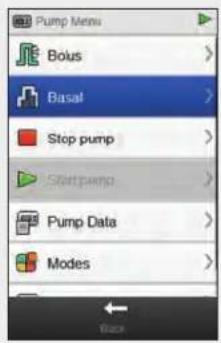
From the Pump Menu, select Basal.
2
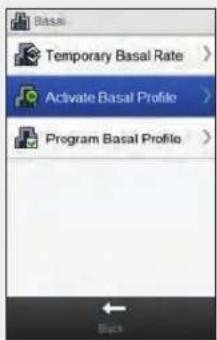
Select Activate Basal Profile.
34

Select the basal profile you wish to activate.
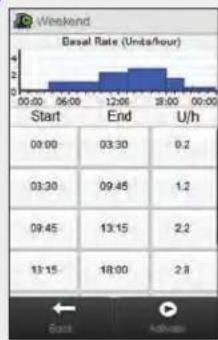
If necessary, scroll the screen to review all the time blocks of the basal profile. Select ▶ Activate.
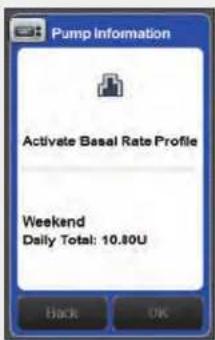
Select OK. The selected basal profile is active immediately.
NOTE
Selecting Back cancels the activation of the selected basal profile and takes you to the previous screen. The previously active basal profile remains active.

8.3 Clearing a Basal Profile
Main Menu > Pump > Basal > Program Basal Profile
1

From the Pump Menu, select Basal.
2

Select Program Basal Profile.
3

Select next to the basal profile you wish to clear.
4
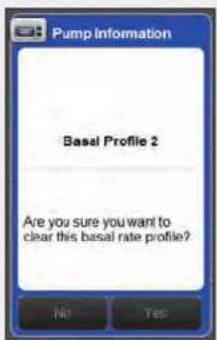
Select OK. The meter clears all saved settings for the selected basal profile and takes you back to the Program Basal Profile screen.
NOTE
Selecting Back at any time takes you back to the Program Basal Profile screen without clearing the selected basal profile.

9
Using Modes
9.1 Changing the Signal Mode of the Pump
Main Menu > Pump > Modes > Signal Mode
1
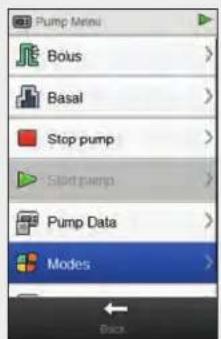
From the Pump Menu, select Modes.
2

Select Signal Mode.
3

Press the radio button on the left side of the screen to activate a mode.
Press a mode's name to change its settings.
NOTE
For more information on the different signal modes on the pump, refer to the Accu-Chek Insight Insulin Pump User's Manual.

9.2 Turning On Flight Mode
Main Menu > Flight Mode
12
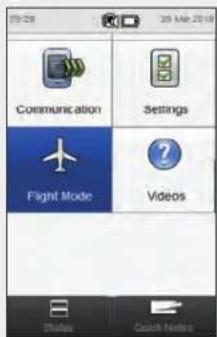
From the Main Menu, select Flight Mode.
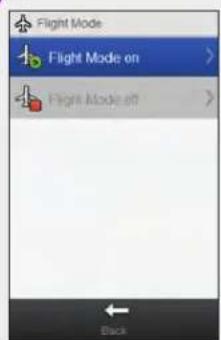
Select Flight Mode on. Select OK. Communication on both the meter and pump is disabled. Confirm that the symbol appears on the pump.

NOTE
You cannot turn flight mode back off on the pump by using the meter. Refer to the Accu-Chek Insight Insulin Pump User's Manual for instructions on turning off flight mode on the pump.

9.3 Turning Off Flight Mode
Main Menu > Flight Mode
12
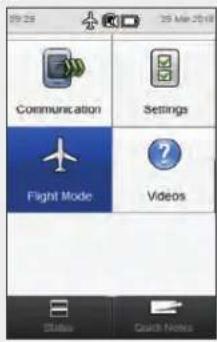
Flight Mode.

Select Flight Mode off. Select OK. From the Main Menu, select
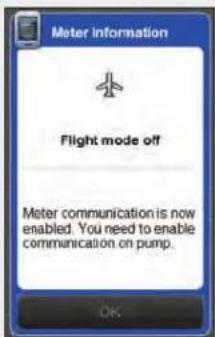
NOTE
Refer to the Accu-Chek Insight Insulin Pump User's Manual for
instructions on turning off flight mode on the pump.

10 Pump Settings
You can change many of the settings on the pump with the meter. They are the same settings that are viewed from the Settings menu on the pump. These settings are:
▶ Reminders
▶ Device Settings
▶ Therapy Settings
Date and Time
These settings are stored on the pump and remain in effect even if the meter and pump are disconnected or the meter is turned off.
For detailed explanations of pump reminders, device settings and therapy settings, refer to the Accu-Chek Insight Insulin Pump User's Manual.
10.1 Pump Reminders
You can set pump reminders using the meter. There are four types of pump reminders:
▶ Deliver Bolus
Missed Bolus
▶ Alarm Clock
▶ Infusion Set Change
The Deliver Bolus, Missed Bolus and Alarm Clock reminder types each contain up to five reminders. The Infusion Set Change reminder type contains only one reminder to change the infusion set of the pump at the set time.
NOTE
▶ Reminders are stored on the pump and occur on the pump even if the meter and pump are disconnected.
▶ Reminders do not automatically turn the meter on and display the reminder. The pump alerts you of a reminder. Turn on the meter or the pump to view the reminder and silence the alert.
- When a pump reminder displays on the meter, press Mute to silence the reminder for 60 seconds. Press Dismiss to dismiss the reminder permanently.

10.1.1 Setting Pump Reminders
Main Menu > Pump > Settings > Reminders
1
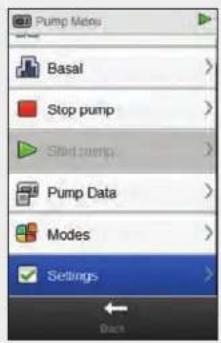
From the Pump Menu, scroll the screen and select Settings.
2
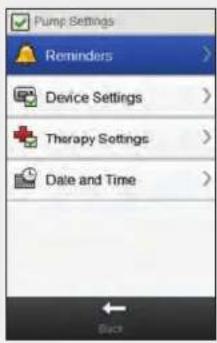
Select Reminders.
34
法定代表人:
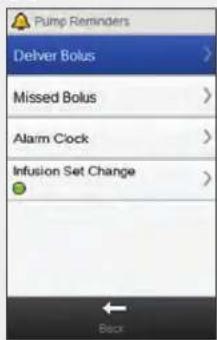
that you wish to set.
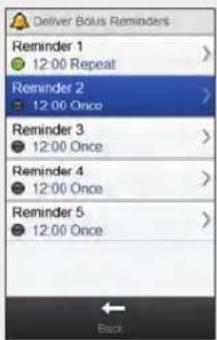
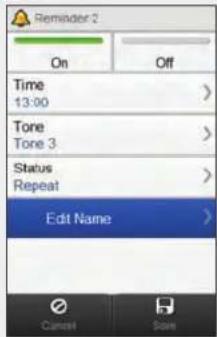
Select a reminder. Select On to turn the reminder on.
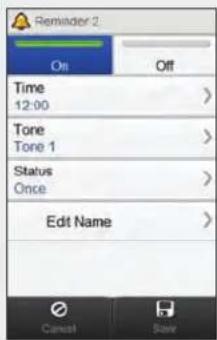


Select Time.Select the type of reminder
78

Set the time. Select Save.

Select Tone. Choose the tone to use for
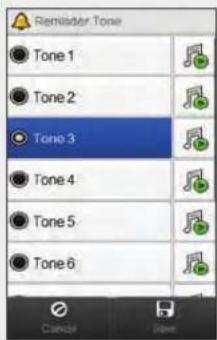
the reminder. Select Save.
NOTE
You can listen to a reminder tone by selecting 📌 next to it.

10
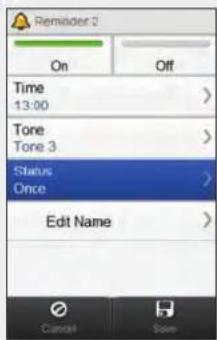
Select Status.

Choose the desired status. Select Save.
Option Description
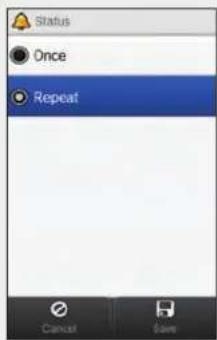
| Once The pump plays the reminder tone starting atthe chosen time until the reminder is muted,in which case the pump plays the remindertone again in 60 seconds, or dismissed, inwhich case the reminder tone does not playagain unless you turn on the reminder againfrom the Pump Reminders menu. | |
| Repeat | The pump plays the reminder tone starting atthe chosen time until the reminder is muted,in which case the pump plays the remindertone again in 60 seconds, or dismissed, inwhich case the pump repeats the reminderevery day at the chosen time until thereminder is turned off from the PumpReminders menu. |
12
长盛达实
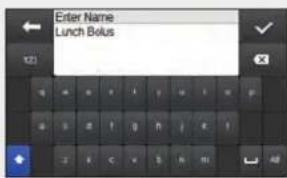
Type the name you wish to use for the reminder. Select √
[Non-Text]
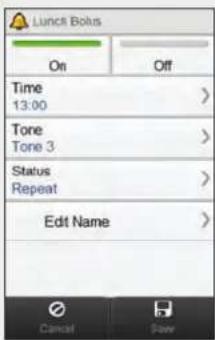
Select Save.Select Edit Name.
10.1.2 Setting the Infusion Set Change Reminder
Main Menu > Pump > Settings > Reminders > Infusion Set Change
1
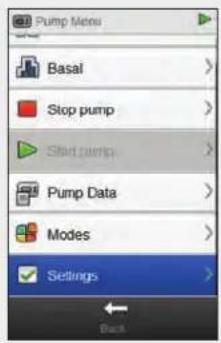
From the Pump Menu, select Settings.
2
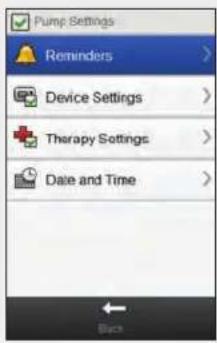
Select Reminders.
34
公司

Select Infusion Set Change.
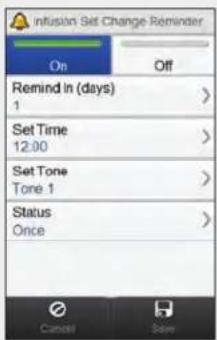
Select On to turn the Infusion Set Change reminder on.
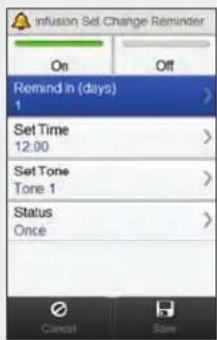
Select Remind In (days). Set the number of days when the reminder will occur. Select Save.
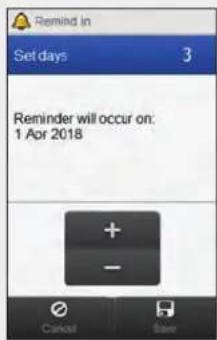
NOTE
The reminder can be set for 1 day, 2 days or 3 days.

78


Set the time of day when the reminder will occur. Select Save.
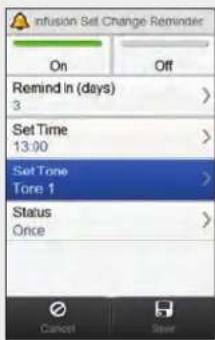
Select Set Tone.Select Set Time.
10
(五) 立名

Choose the tone to use for the reminder. Select Save.
NOTE
You can listen to a reminder tone by selecting next to it.
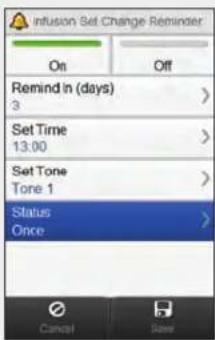
Select Status. Choose the desired status. Select Save.

13

Select Save.
10.2 Therapy Settings
You can change the pump therapy settings from the meter. These settings are:
▶ Automatic Off
▶ Bolus
▶ Infusion Set
▶ Cartridge Warning Level

WARNING
It is vital that you use the correct therapy settings. Otherwise, you might get a wrong amount of insulin with the risk of hypo- or hyperglycaemia. The therapy setting should be provided by your healthcare professionals and you should discuss with them before making any changes.
10.2.1 Setting the Automatic Off Timer
Main Menu > Pump > Settings > Therapy Settings > Automatic Off
Automatic Off is a safety feature that stops insulin delivery and triggers a Maintenance message if no pump keys are pressed and no commands are sent to the pump from the meter within a set amount of time. For more information about the Automatic Off feature, refer to the Accu-Chek Insight Insulin Pump User's Manual.
1
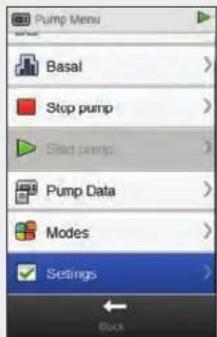
From the Pump Menu, select Settings.
2

Select Therapy Settings.
3
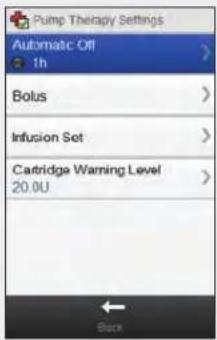
Select Automatic Off. Set the time. Select Rate turn the Automatic Off timer on.
4

5

10.2.2 Bolus Settings
You can change the bolus settings on the pump using the meter. These settings are:
▶ Quick Bolus Increment
▶ Delivery Speed
▶ Maximum Bolus Amount
Lag Setting
Refer to the Setting the Quick Bolus Increment, Setting the Delivery Speed, Setting the Maximum Bolus Amount and Changing the Lag Setting sections for instructions for changing the bolus settings.
Main Menu > Pump > Settings > Therapy Settings > Bolus
1
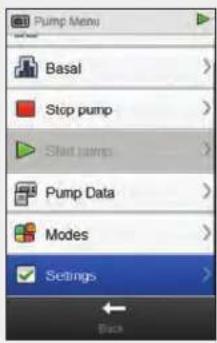
From the Pump Menu, select Settings.
2
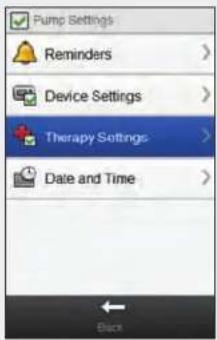
3
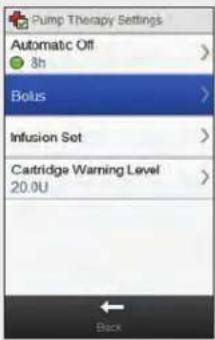
Select Therapy Settings. Select Bolus.
Setting the Quick Bolus Increment
Main Menu > Pump > Settings > Therapy Settings > Bolus > Quick Bolus Increment
NOTE
The Quick Bolus Increment setting changes how much insulin is added by each press of the pump keys to the total amount of a Quick Bolus.

1

From the Bolus Settings menu, select Quick Bolus Increment.

WARNING
Make sure that you know and use the correct bolus increment. Using the incorrect bolus increment will deliver the wrong insulin dose.
2

Choose the appropriate quick bolus increment. Select Save.
Setting the Delivery Speed
Main Menu > Pump > Settings > Therapy Settings > Bolus > Delivery Speed
1

From the Bolus Settings menu, select Delivery Speed.
2

Choose the appropriate delivery speed. Select Save.
Setting the Maximum Bolus Amount
Main Menu > Pump > Settings > Therapy Settings > Bolus > Max Bolus Amount
1

From the Bolus Settings menu, select Max Bolus Amount.
2
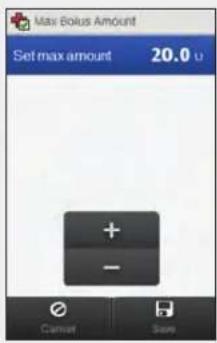
Set the maximum amount. Select Save.
Changing the Lag Setting
Main Menu > Pump > Settings > Therapy Settings > Bolus > Lag Setting
1
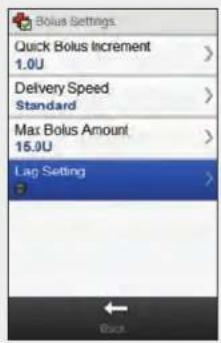
From the Bolus Settings menu, select Lag Setting.
2
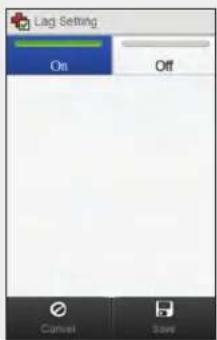
Select On or Off as appropriate. Select Save.
NOTE
With lag time turned on, you can set the lag time each time you program a new bolus.

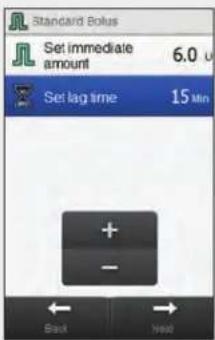
When programming the bolus amount (for Standard bolus) or the bolus amount and delayed duration (Extended or Multiwave bolus), Set lag time also appears.
Adjust the default lag time using Set lag time.
Select Next.
10.2.3 Changing the Infusion Set Settings
Main Menu > Pump > Settings > Therapy Settings > Infusion Set
1
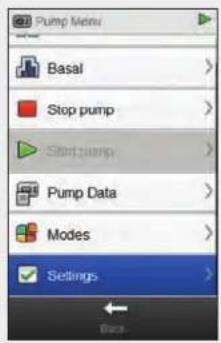
From the Pump Menu, select Settings.
2

Select Therapy Settings.
3
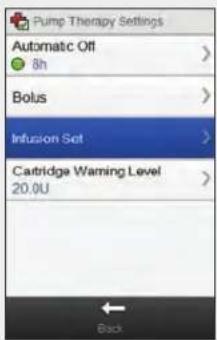
Select Infusion Set. Set the tubing fill amount and the cannula fill amount. Select Save.
4

10.2.4 Setting the Cartridge Warning Level
Main Menu > Pump > Settings > Therapy Settings > Cartridge Warning Level
1

From the Pump Menu, select Settings.
2
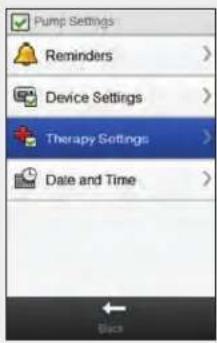
Select Therapy Settings.
3

Select Cartridge Warning Level.
4

Set the warning amount. Select Save.
10.3 Device Settings
You can change the pump device settings from the meter. These settings are:
▶ Mode Settings
▶ Key Lock
Language
10.3.1 Pump Signal Modes: Sound and Vibration
You can use the meter to choose whether you want the pump to sound, vibrate or do both at the same time as an event (for example, a reminder) occurs. You can adjust the sound volume.
Main Menu > Pump > Settings > Device Settings > Mode Settings
1
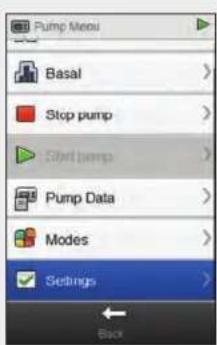
From the Pump Menu, select Settings.
23
办公

Select Device Settings.

Select Mode Settings. Choose a mode. Choose the desired mode


setting. Set the volume. Select Save.

Repeat Steps 4 and 5 to change the settings for additional modes as desired. Select Back when finished.
10.3.2 Pump Signal Modes: Signal Suspension
You can suspend the signals for Warnings for a specified period of time. However, since Error and Maintenance messages require your immediate attention, you cannot suspend these event signals. Also, the Reminders you programmed will not be suspended.
A signal suspension can be set to occur once, or it can be set to repeat at the same time every day.
NOTE
Any Warnings that occur during the signal suspension period appear when the meter turns on.

Main Menu > Pump > Settings > Device Settings > Mode Settings > Signal Suspension
1

From the Pump Menu, select Settings.
2

Select Device Settings.
34
法定代表人:

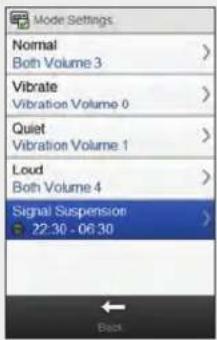
Select Signal Suspension.

Select On or Off. Set the Start time and End time. Scroll the screen and choose either Once or Repeat. Select Save.

Select Back. Select Mode Settings.
10.3.3 Setting the Key Lock Time
Main Menu > Pump > Settings > Device Settings > Key Lock
1
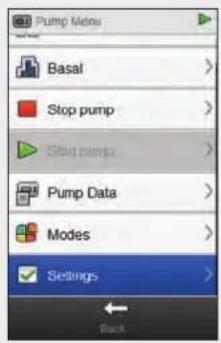
From the Pump Menu, select Settings.
2

Select Device Settings.
3

Select Key Lock. Set the key lock time. Select Save.
4
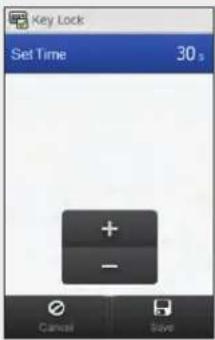
NOTE
The pump keys automatically lock if they are not used within the amount of time set using the key lock setting.
The key lock only affects the manual operation of the pump, even when the key lock time is set using the meter.

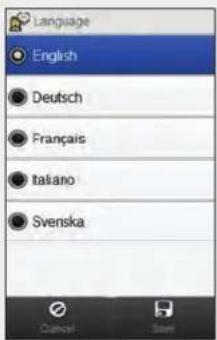
10.3.4 Setting the Pump Language
Main Menu > Pump > Settings > Device Settings > Language
1
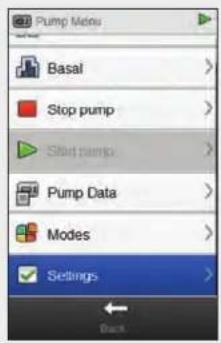
From the Pump Menu, select Settings.
2
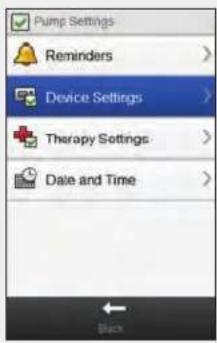
Select Device Settings.
3

Select Language. Choose the desired language. Select Save.
4
10.4 Setting the Pump Date and Time
You can set the pump date and time using the meter.
NOTE
It is very important to set the correct date and time. Otherwise you may not receive the correct amount of insulin at the correct time.
When the meter is paired with the pump, changing the date and time on the meter automatically changes the date and time on the pump.
After you change the date or time, the meter displays the notification that the date and time has been updated on both meter and pump. Select OK.
Main Menu > Pump > Settings > Date and Time


From the Pump Menu, select Settings.

23
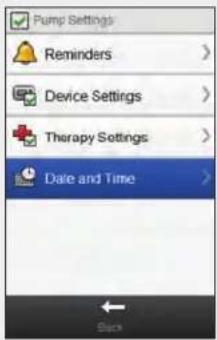
Select Date and Time. Select the desired time
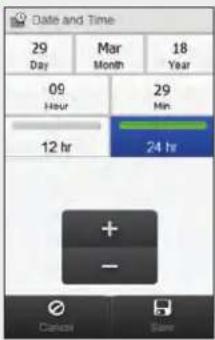
format (12 hr or 24 hr).
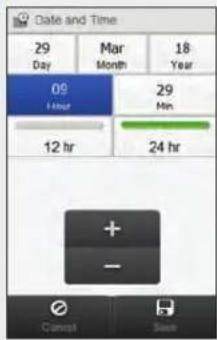
Set the date and time. Select Save.
11 My Data
11.1 Overview
Analysing your information stored in the meter is an effective way for you and your healthcare professional to determine how well you are controlling your diabetes. This analysis is a valuable tool for making improvements to your diabetes management. The reports the meter displays help you get the most from your Accu-Chek Aviva Insight diabetes manager.
The meter generates graphs and reports to help you analyse the information stored in the meter. Graphs can be a good way to view your blood glucose results. The meter can display a line graph to depict the trends of your blood glucose results with other information, such as your bolus history, a graph showing result ranges for a standard day or a standard week, and a pie chart with different colours to illustrate the number of test results within, above or below your blood glucose target range.
NOTE
- Reviewing reports consumes battery power. It is advisable to connect the meter to the charger while reviewing reports.
▶ Blood glucose is sometimes shortened to bG, but it means the same thing.

11.2 The Logbook
From the logbook records stored in the meter, you are able to view a specific blood glucose result with its attributes (e.g., meal time, carbohydrates, health event and bolus). In addition, for a specific logbook record, you are able to change or add to its attributes.
NOTE
The logbook on the meter replaces the physical blood glucose diary you may have kept in the past.
- Logbook data cannot be changed if that data was used to calculate bolus advice.

The meter automatically stores up to 2,000 logbook records with the time and date. You can review up to the last 250 logbook records on the meter or up to 2,000 logbook records using a computer with compatible software. Logbook records are stored from the newest to the oldest.
Each logbook record can contain:
▶ Date and time
▶ Blood glucose result
▶ Meal time (events)
▶ Carbohydrate intake
▶ Health event
▶ Bolus type
▶ Bolus amount
Note
▶ Quick Notes
NOTE
Do not change your therapy based on one individual record or test result in the logbook.
This chapter shows sample screens. The screens may look slightly different from the screens on the meter. If you have any questions about the meter screens, contact Roche.
j The information in the logbook is saved when you replace the meter battery. You should check the time and date after replacing the battery. For more information on changing the battery, see the Care and Maintenance chapter of the Accu-Chek Aviva Insight Diabetes Manager User's Manual.
It is very important to have the correct time and date set. Having the correct time and date setting helps ensure accurate interpretation of information by you and your healthcare professional.
Once 2,000 records are in the logbook, adding a new record causes the oldest logbook record to be deleted.
Control results are stored in the meter, but cannot be reviewed in the logbook. Control results can be reviewed using a computer with compatible software.
Before reviewing logbook records or control results on a PC, the stored logbook records must first be transferred to a PC running a compatible software application. For product availability, contact Roche.
j Control results are not used in any report or graph on the meter.

11.2.1 Understanding the Logbook

1 Meal time icon
2 Note icon
3 Health event icon
4 Time of record
5 Date of record
6 Quick Notes icon
7 Indicates bG column
8 Indicates bolus column
9 Indicates carbohydrate column
10 Blood glucose result
11 Bolus type icon
12 Carbohydrates icon
13 Carbohydrate amount
14 Carbohydrates advice accepted icon
15 Bolus advice not accepted icon
16 Carbohydrates advice not accepted icon
17 Bolus advice accepted icon
18 Bolus amount
19 bG value range icon
20 Pump paused icon
NOTE
The Logbook screen displays the records in the order in which they occurred with the most recent record shown on top.

Icon descriptions
| Icon Icon name Description | ||
 | bG Value Range Indicator Icon background colour indicates where the blood glucose result falls within the target range.The background colours of this icon represent:► Green: within target range► Yellow: below target range► Red: hypo► Blue: above target range or hyper | |
 | Meal time Icon is displayed when information exists for this record regarding meal time. | |
 | Carbohydrates Icon is displayed when information exists for this record regarding carbohydrates. | |
 | Carbohydrates advice accepted Icon is displayed when the carbohydrate amount from the bolus advice recommendation hypo warning screen was used. | |
 | Carbohydrates advice not accepted Icon is displayed when the carbohydrate amount from the bolus advice recommendation hypo warning screen was changed. | |
 | Health event Icon is displayed when information exists for this record regarding health events. | |
 | Standard bolus not confirmed Delivery has not been confirmed by the pump. | |
 | Standard bolus confirmed Delivery has been confirmed by the pump. | |
 | Extended bolus not confirmed Delivery has not been confirmed by the pump. | |
 | Extended bolus confirmed Delivery has been confirmed by the pump. | |
 | Multiwave bolus not confirmed Delivery has not been confirmed by the pump. | |
 | Multiwave bolus confirmed Delivery has been confirmed by the pump. | |
 | Bolus advice accepted Bolus advice from the meter was accepted. | |
 | Bolus advice not accepted Bolus advice from the meter was changed prior to delivery. | |
 | Manual on pump Delivery has not been confirmed by the pump. | |
| [TZ3S] | Bolus manually delivered using pen/syringe | Bolus delivered using pen/syringe.Bolus was not delivered by the pump. |
 | Pump paused Pump was paused during a bolus and then resumed to complete bolus delivery. | |
 | Quick Notes Icon is displayed when information exists for this record regarding Quick Notes. | |
 | Notes Icon is displayed when information exists for this record regarding a note. | |
11.2.2 Viewing and Adjusting Logbook Data
Main Menu > My Data > Logbook
NOTE
- Logbook data that has been used for bolus advice (with the exception of notes) cannot be adjusted.
▶ Blood glucose results cannot be adjusted.
Once you begin delivering a bolus using the pump, any changes you make to the logbook record in My Data on the meter do not modify the bolus that is being delivered by the pump.

1
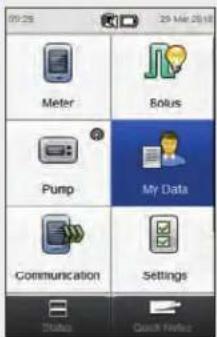
From the Main Menu, select My Data.
2
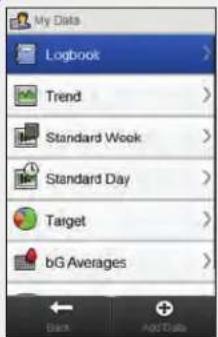
Select Logbook.
3
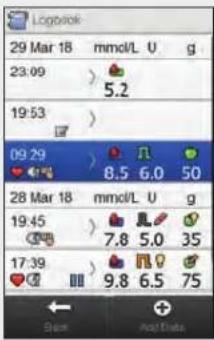
Select the desired logbook record. For a logbook record with Quick Notes only, go to Step 5.
NOTE
▶ Scroll down to view additional records if they are present.
- Logbook records which have been used for bolus advice contain either the Bolus advice accepted icon: or the Bolus advice not accepted icon: These records are locked and can be viewed but not adjusted.
- Locked logbook records do not display the Save button at the bottom of the individual data item screens. Only the Back button is displayed.

4
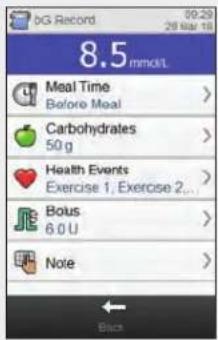
To view and adjust an entry, select it and refer to the instructions on the following pages. When you have finished, select Back to return to the My Data menu.
Screens for Viewing and Adjusting Entries in the Logbook
Meal Time Carbohydrates Health Events
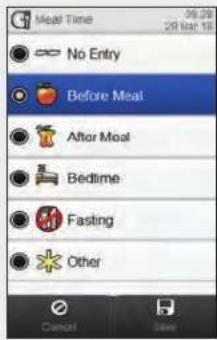
Choose applicable meal time. Select Save.

Set the amount of carbohydrates consumed. Select Save.

Choose up to four health events. Select Save.

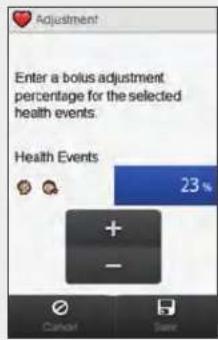
If bolus advice is turned on, and multiple health events have been selected, this screen displays “--- %”. You must enter a summarised health event percentage for the selected health events, even if this percentage is zero. Select Save.
Bolus

Set bolus amounts. Select Save.
NOTE
If a Carbohydrate Bolus is entered and no Carbohydrate Amount has been entered for carbohydrates (Carbohydrates displays No Entry on the bG Record screen in Step 4), you are prompted to enter an amount for carbohydrates. An amount is not required, but the more complete the data the more accurate any future bolus advice recommendations are when using bolus advice.

Note

Type a note to save with this record. Select √
5
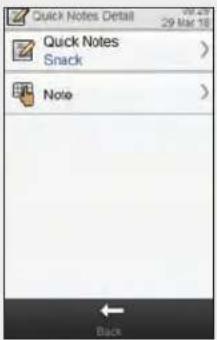
Select Quick Notes to make an update. Select Note to type a note using the keyboard. Select Back to return to Step 3.
11.2.3 Adding New Data to the Logbook
Main Menu > My Data > Add Data
12
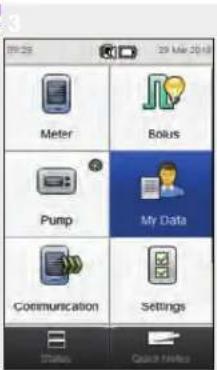
From the Main Menu, select My Data.

Select Add Data. Select any of the options on
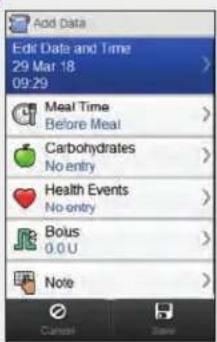
the Add Data screen and refer to the instructions on the following pages.
When you have finished, select Save to save your entry and return to the My Data menu.
Screens for Adding New Data
Date and Time Meal Time Carbohydrates
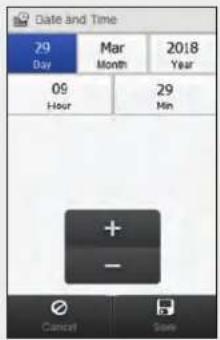
Set the date and time. Select Save.
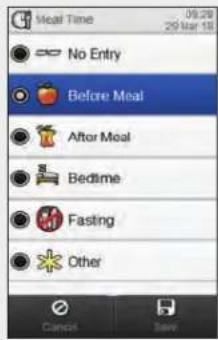
Choose an applicable meal time. Select Save.

Set the amount of carbohydrates consumed. Select Save.
Health Events Bolus

Choose up to four health events. Select Save.

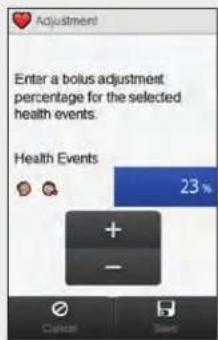
If bolus advice is turned on, and multiple health events have been selected, this screen displays “--- %”. You must enter a summarised health event percentage for the selected health events, even if this percentage is zero. Select Save.

Set bolus amounts. Select Save.
NOTE
If a Carbohydrate Bolus is entered and no amount has been entered for carbohydrates (Carbs displays No Entry in Step 3), you are prompted to enter an amount for carbohydrates. An amount is not required, but the more complete the data the more accurate any future bolus advice recommendations are when using bolus advice.

Note
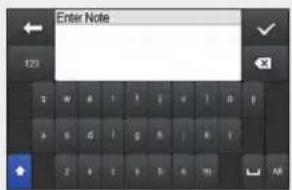
Type a note to save with this record. Select √
11.3 The Trend Graph
With the trend graph, the meter displays your blood glucose trends and other information using logbook data for the time scale and meal time you choose.
11.3.1 Understanding the Trend Graph

| 1 | Times of day or days of the month | |
| 2 | Blood glucose result | Displayed as Xs and connected with lines |
| 3 | Carbohydrate value | Brown bar: height shown is in relation to the carbohydrate amount |
| 4 | Basal unit of measurement | |
| 5 | Time scale | |
| 6 | Scroll left/right buttons | Moves forward or back in time by the time scale chosen. Example: For a 7-day time scale, selecting the scroll left icon shows the data from the 7 days before the dates currently shown. |
| 7 | Selected meal time | |
| 8 | Bolus unit of measurement | |
| 9 | Pump stopped icon Indicates pump was stopped | |
| 10 | Health Event | Indicates a Health Event exists for the record |
| 11 | Bolus | Pink bar: height shown is in relation to the bolus insulin amount |
| 12 | Basal value | Blue line: indicates the basal insulin amount |
| 13 | Green area | Indicates blood glucose target range |
| 14 | Hypo warning limit Red horizontal line | |
| 15 | Carbohydrate unit of measurement | |
| 16 | Blood glucose unit of measurement | |
| 17 | Arrow | (Not shown) Indicates blood glucose data extends beyond screen |
| 18 | Pump paused icon | (Not shown) Indicates when the pump was paused during insulin delivery |
NOTE
▶ If data is not available, the No Data Available screen is displayed.
▶ Trend graphs do not include corrupt results or control results
On the upper right side of the graph, the maximum bolus amount indicator is the pink tick mark with the largest value shown beside it (on this example screen: 15 U). The purpose of this indicator is to adjust the scale for the top portion of the graph based on the single biggest bolus insulin amount (callout 11) delivered for the time chosen (callout 5). The maximum bolus amount indicator values available on the meter are 1, 5, 15, 30 and 60 U. For example, if the single biggest bolus insulin amount is 8 U, then the meter scales the upper graph to be between 0 and 15 U.

NOTE
On the lower right side of the graph, the maximum carbohydrate amount indicator is the brown tick mark with the largest value shown beside it (on this example screen: 80 g). The purpose of this indicator is to adjust the scale for the bottom portion of the graph based on the single biggest carbohydrate amount (callout 3) for the time chosen (callout 5). The maximum carbohydrate amount indicator values available on the meter are 40, 80, 120, 160, 200 and 240 g, or the equivalent scale for BE, KE or CC. For example, if the single biggest carbohydrate amount is 76 g, then the meter scales the lower graph to be between 0 and 80 g.
On the upper left side of the graph, the maximum basal amount indicator is the blue tick mark with the largest value shown beside it (on this example screen: 10 U). The purpose of this indicator is to adjust the scale for the top portion of the graph based on the single biggest basal insulin amount (callout 12) delivered for the time chosen (callout 5). The maximum basal amount indicator values available on the meter are 1, 2, 5, 10, 20 and 40 U. For example, if the single biggest basal insulin amount is 9 U, then the meter scales the upper graph to be between 0 and 10 U.

11.3.2 Viewing the Trend Graph
Main Menu > My Data > Trend
12
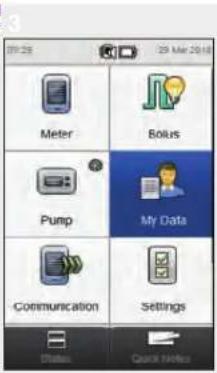
From the Main Menu, select My Data.

Select Trend. Select Configure to
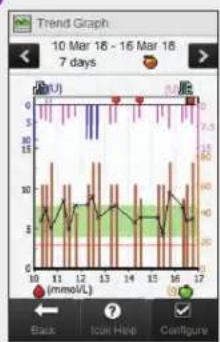

change how the trend graph displays your trend data.
NOTE
Select to view a list of trend icons and their explanations.

4

Select any of the options on the Configure Graph screen and refer to the instructions in the rest of this section. When you have finished, select Back to return to the trend graph displaying your data in the manner you selected.
Screens for Configuring the Trend Graph
Time Scale Data Options Meal Time

Select the time scale. Select Save.
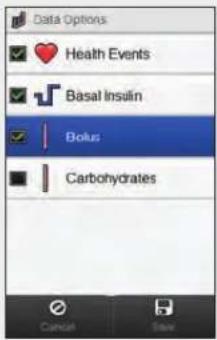
Select 1 or more data options. Select Save.
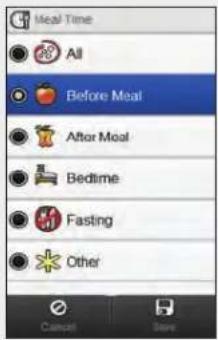
Select the meal time. Select Save.
11.4 The Standard Week
With the Standard Week graph, the meter displays your blood glucose averages, number of tests and standard deviations for each day of an average week, calculated using logbook data from the time scale and meal time you choose.
NOTE
The standard deviation measures how spread out the blood glucose results are from the blood glucose average. A high standard deviation means the blood glucose results vary greatly around the blood glucose average.

11.4.1 Understanding the Standard Week Graph and Table
Standard Week Graph
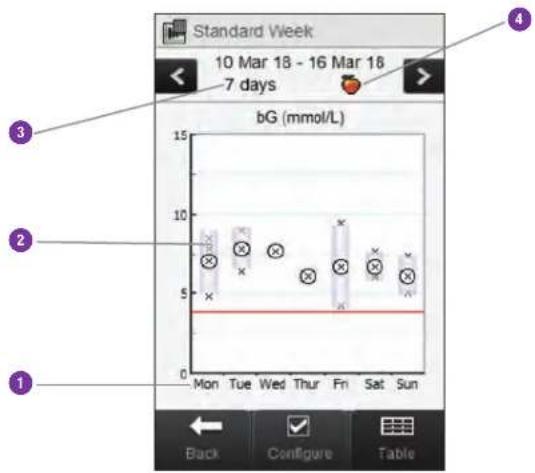
| 1 Days of week | |
| 2 Box for each day | The top of the box indicates the standard deviation above the average and the bottom of the box indicates the standard deviation below the average. The box is not displayed if there is not enough data to determine standard deviation.The top of the box is open if the standard deviation is off the top of the graph.Box and "X" are not displayed for a day if no data is found. |
| 3 Time scale | |
| 4 Meal time selection |
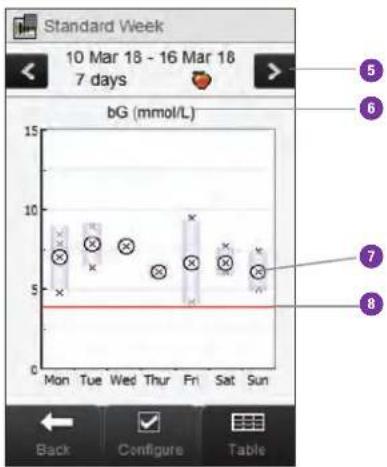
| 5 | Scroll left/right buttons | Moves forward or back in time by the time scale chosen. Example: For a 7-day time scale, selecting the scroll left icon shows the data from the 7 days before the dates currently shown. |
| 6 | Blood glucose unit of measurement | |
| 7 X | Indicates each blood glucose result. “X” in the centre of a circle indicates the average of all blood glucose results for the selected criteria. | |
| 8 | Hypo warning limit | Red horizontal line |
| 9 Arrow | (Not shown) Indicates that there is data off the top of the graph. |
Standard Week Table
Select Table to switch to the standard week table. The standard week table displays the same data as the standard week graph in table format. To return to the standard week graph from the standard week table, select Graph.

1 Highest blood glucose result for each day of the week
2 Blood glucose average for each day of the week
3 Lowest blood glucose result for each day of the week
4 Day of week
5 Time scale
6 Meal time selection
7 Standard deviation (SD) for each day of the week
8 Number of tests for each day of the week
11.4.2 Viewing Standard Week Data
Main Menu > My Data > Standard Week
1
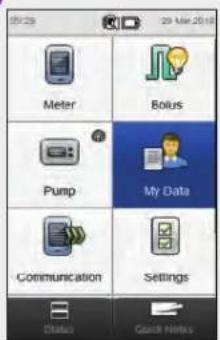
From the Main Menu, select My Data.
2
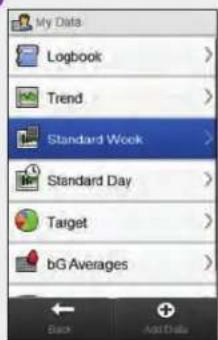
Select Standard Week.
NOTE
If there is no data available to display the standard week graph and table for the time scale or meal time chosen, the No Data Available screen is displayed.
The standard week graph and table do not include corrupt results, control results, HI values or LO values.

3
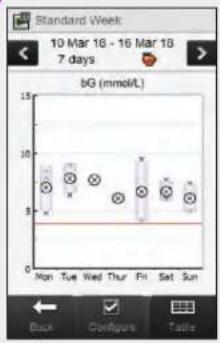
To change the time scale and meal time displayed for the standard week, select Configure.
4
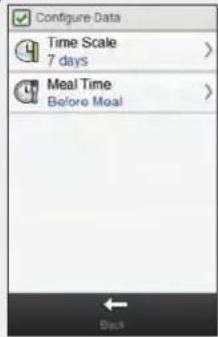
Select either of the options on the Configure Data screen and refer to the instructions in the rest of this section. Select Back when finished to return to the Standard Week graph or table.
Screens for Configuring Standard Week Data
Time Scale Meal Time

Select a time scale. Select Save.
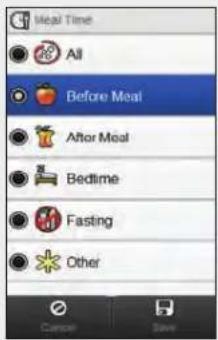
Select a meal time. Select Save.
11.5 The Standard Day
With the Standard Day graph, the meter displays your blood glucose averages, number of tests and standard deviations for each time block, calculated using logbook data from the time scale and meal time you choose.
NOTE
Refer to the Changing Meter Settings chapter of the Accu-Chek Aviva Insight Diabetes Manager User's Manual for instructions on setting up the time blocks.

NOTE
The standard deviation measures how spread out the blood glucose results are from the blood glucose average. A high standard deviation means the blood glucose results vary greatly around the blood glucose average.

11.5.1 Understanding the Standard Day Graph and Table
Standard Day Graph
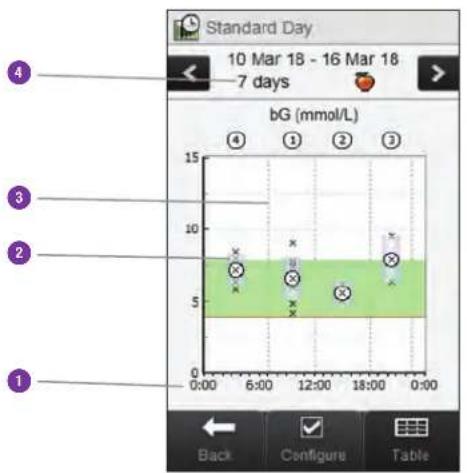
| 1 Time of day | |
| 2 | Box for each time block►The top of the box indicates 1 standard deviation above the average and the bottom of the box indicates 1 standard deviation below the average. The box is not displayed if there is not enough data to determine standard deviation.►The top of the box is open if the standard deviation is off the top of the graph.►Box and “X” are not displayed for a time block if no data is found. |
| 3 Time blocks Separated by the vertical dashed line | |
| 4 Time scale | |
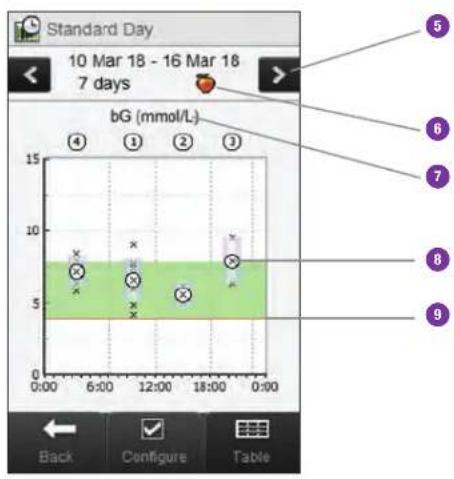
| 5 | Scroll left/right buttons | Moves forward or back in time by the time scale chosen. Example: For a 7-day time scale, selecting the scroll left icon shows the data from the 7 days before the dates currently shown. |
| 6 | Meal time selection | |
| 7 | Blood glucose unit of measurement | |
| 8 X | Indicates each blood glucose result."X" in the centre of a circle indicates the average of all blood glucose results for the selected criteria. | |
| 9 | Hypo warning limit | Red horizontal line |
| 10 Arrow | (Not shown) Indicates that there is data off the top of the graph. |
Standard Day Table
Select Table to switch to the standard day table. The standard day table displays the same data as the standard day graph in table format. To return to the standard day graph from the standard day table, select Graph.

1 Blood glucose average for each time block
2 Lowest blood glucose result for each time block
3 Time block
4 Time scale
5 Meal time selection
6 Highest blood glucose result for each time block
7 Standard deviation (SD) for each time block
8 Number of tests for each time block
11.5.2 Viewing Standard Day Data
Main Menu > My Data > Standard Day
12
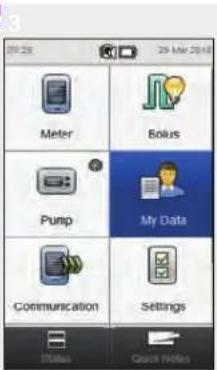
From the Main Menu, select My Data.

Select Standard Day. To change
NOTE
▶ If there is no data available to display the standard day graph and table for the time scale or meal time chosen, the No Data Available screen is displayed.
The standard day graph and table do not include corrupt results, control time scale and results, HR values or LO values.

meal time displayed, select Configure.

4

Select either of the options on the Configure Data screen and refer to the instructions in the rest of this section. Select Back when finished to save any changes and return to the standard day graph or table.
Screens for Configuring Standard Day Data
Time Scale Meal Time

Select a time scale. Select Save.
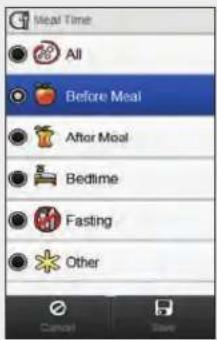
Select a meal time. Select Save.
11.6 Target Data
The meter displays a pie chart and table illustrating your blood glucose results as “Above”, “Within”, “Below” and “Hypo” for the time scale and meal time you choose.
11.6.1 Understanding the Target Chart and Target Table
Target Chart
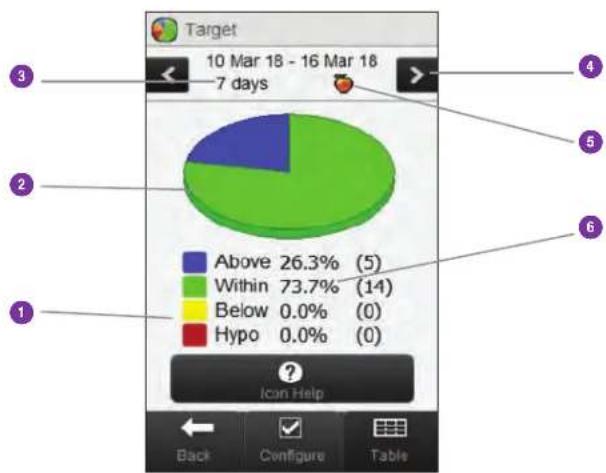
| 1 Legend Blood glucose result categories | ||
| 2 Target chart | Represents the percentages for the blood glucose result categories | |
| 3 Time scale | ||
| 4 | Scroll left/right buttons | Moves forward or back in time by the time scale chosen. Example: For a 7-day time scale, selecting the scroll left icon shows the data from the 7 days before the dates currently shown. |
| 5 Meal time selection | ||
| 6 | Percentage of occurrence | (Number shown in parentheses represents the number of occurrences) |
Target Table
Select Table to switch to the target table. The target table displays the same data as the target chart in table format.
To return to the target chart from the target table, select Chart.
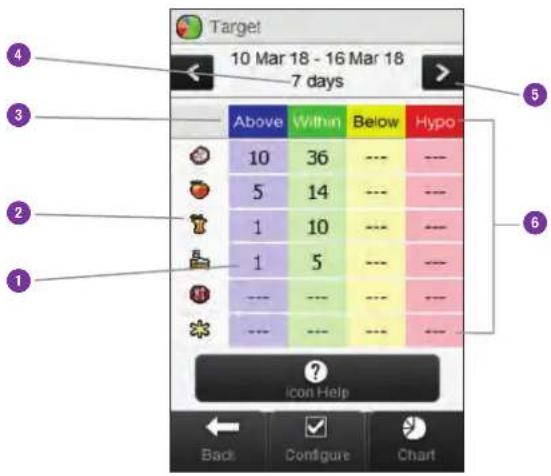
| 1 | Number of occurrences | |
| 2 | Meal time selection | |
| 3 | Legend Blood glucose result categories | |
| 4 | Time scale | |
| 5 | Scroll left/right buttons | Moves forward or back in time by the time scale chosen. Example: For a 7-day time scale, selecting the scroll left icon shows the data from the 7 days before the dates currently shown. |
| 6 | Target table |
11.6.2 Viewing Target Data
Main Menu > My Data > Target
1

From the Main Menu, select My Data.
2
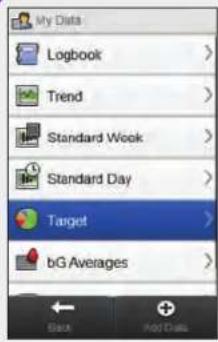
Select Target.
NOTE
If there is no data available to display the target chart and table for the time scale or meal time chosen, the No Data Available screen is displayed.
The target chart and table do not include corrupt results, control results, or HI and LO results.

3

To change the time scale and meal time displayed, select Configure.
4

Select either of the options on the Configure Data screen and refer to the instructions in the rest of this section. Select Back when finished to save any changes and return to the target chart or table.
Screens for Configuring Target Data
Time Scale Meal Time

Select a time scale. Select Save.
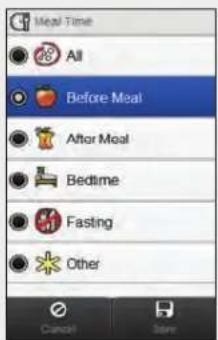
Select a meal time. Select Save.
11.7 The bG Averages Table
The bG Averages table displays your blood glucose averages and standard deviations for the time scale and meal time you choose.
NOTE
The standard deviation measures how spread out the blood glucose results are from the blood glucose average. A high standard deviation means the blood glucose results vary greatly around the blood glucose average.

11.7.1 Understanding the bG Averages Table
bG Averages Table

| 1 Other icon | Data for all test results marked as Other |
| 2 Fasting icon | Data for all test results marked as Fasting |
| 3 Bedtime icon | Data for all test results marked as Bedtime |
| 4 After meal icon | Data for all test results marked as After meal |
| 5 Before meal icon | Data for all test results marked as Before meal |
| 6 All icon | Combined data from all meal times |
| 7 Time scale |
| 8 | Scroll left/right buttons | Moves forward or back in time by the time scale chosen. Example: For a 7-day time scale, selecting the scroll left icon will show the data from the 7 days before the dates currently shown. |
| 9 | Blood glucose standard deviation | Calculated for the meal time |
| 10 | Number of tests | Used to calculate the averages and standard deviation of each meal time |
| 11 | Blood glucose average | Calculated for the meal time |
11.7.2 Viewing the bG Averages Table
Main Menu > My Data > bG Averages
1
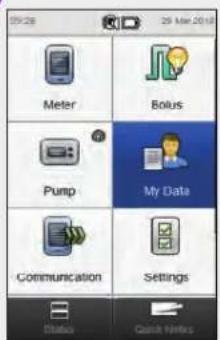
From the Main Menu, select My Data.
2

Select bG Averages. Select Time
NOTE
If there is no data available to display the bG averages table for the time scale or meal time chosen, the No Data Available screen is displayed.
▶ Calculations do not include corrupt results, control results, HI values or LO values.

3

the time scale of the bG Averages table.
NOTE
Select ① to view a list of meal time icons and their explanations.

4
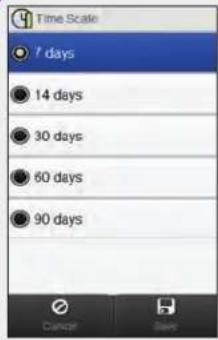
Choose a time scale. Select Save.
5

Select Back when finished to return to the My Data menu.
12 Technical Information
The RF channel utilised for communication is not an open channel. The meter can only communicate with the device it is paired with. Therefore, other Bluetooth wireless technology devices (cell phones, printers, etc.) cannot be paired with, communicate with, or access your personal information on the meter.
Declaration of Conformity
Roche hereby declares that the Accu-Chek Insight diabetes therapy system conforms with the basic requirements and other relevant regulations of the European Directive 2014/53/EU. The conformity declaration may be found at the following Internet address: http://declarations.accu-chek.com
Maximum Transmitted Power
Accu-Chek Aviva Insight meter: 30 mW
Compliance With IEC or ISO Standards
Additional equipment connected to medical electrical equipment must comply with the respective IEC or ISO standards (e.g., IEC 60950 or IEC 62368 for data processing equipment). Furthermore, all configurations must comply with the requirements for medical electrical systems (see Clause 16 of the latest valid version of IEC 60601-1). Anyone who connects additional equipment to medical electrical equipment configures a medical system and is therefore responsible for making sure that the system complies with the requirements for medical electrical systems. If in doubt, consult your local representative or the technical service department.
Standard/directive references:
IEC 60601-1:2012: 7.9.2.3, 7.9.2.5, 8.1.a, 8.2.1, 14.13, 16, 16.1, 16.2.d
▶ MDD 93/42/EEC: Annex I clause 13.6.c
12.1 Explanation of Symbols
These symbols may appear on the packaging, on the type plate, and in the User's Manual for the meter.
 | Consult instructions for use |
 | Caution, refer to safety-related notes in the instructions for use accompanying this product. |
 | Temperature limitation (store at) |
| [SK33] | Manufacturer |
 | Catalogue number |
 | In vitro diagnostic medical device |
 | Global Trade Item Number |
 | This product fulfils the requirements of the European Directive 98/79/EC on in vitro diagnostic medical devices. |
 | This product fulfils the requirements of the European Directive 1999/5/EC on radio and telecommunications terminal equipment (R&TTE). |
 | Custom lithium-ion rechargeable battery |
 | Batch code |
 | Serial number |
| [YXX4] | Use by |
 | Manufacturer date |
12.2 List of Icons
The following table contains the icons and icon names which may appear on the meter display when the meter is paired with a pump. All of the other icons can be found in the Technical Information chapter of the Accu-Chek Aviva Insight Diabetes Manager User's Manual.
| Icon Name Icon | |
| Activate |  |
| Alarm Data |  |
| Basal Profile (Activate) |  |
| Basal Profile (Program) |  |
| Battery (Pump) |  |
| Bolus Data |  |
| Cancel Bolus |  |
| Cartridge (Pump) |  |
| Daily Total |  |
| Delayed Duration |  |
| Extended Bolus |  |
| Extended Bolus Paused |  |
| Icon Name Icon | |
| Extended Bolus Unconfirmed |  |
| Lag Time |  |
| Multiwave Bolus |  |
| Multiwave Bolus Delayed Amount |  |
| Multiwave Bolus Immediate Amount |  |
| Multiwave Bolus Paused |  |
| Multiwave Bolus Unconfirmed |  |
| Pump or Manual on Pump Bolus |  |
| Pump Data |  |
| Pump Mode |  |
| Pump Paused |  |
| Pump Running or Start Pump |  |
| Icon Name Icon | |
| Pump Settings |  |
| Pump Stopped or Stop Pump |  |
| Pump Timer |  |
| Standard Bolus or Bolus |  |
| Standard Bolus Paused |  |
| Standard Bolus Unconfirmed |  |
| Temporary Basal Rate |  |
| Temporary Basal Rate Data |  |
| Therapy settings |  |
| Version |  |
| Video |  |
13 Troubleshooting
This chapter specifically addresses the issues that may occur with the pairing of the meter and pump. For general troubleshooting information, refer to the Troubleshooting chapter of the Accu-Chek Aviva Insight Diabetes Manager User's Manual. For troubleshooting pump messages that appear on the meter, refer to the Accu-Chek Insight Insulin Pump User's Manual.
NOTE
If you have a problem with the pairing of the meter and pump that is not addressed in this chapter, contact Roche.

| Problem Possible Cause Possible Solution | ||
| No devices found information message No Bluetooth-activated device is within range of the meter. | ▸ Ensure that the pump and meter are no further than 2 metres apart.▸ Select OK to return to the Set Up New Pairing menu. Place the pump in Add Device mode and try the pairing again. | |
| Paired pump information message The meter is already paired with a pump. | Select OK to return to the Communication menu and refer to the Unpairing the Meter and Pump section of the Meter and Pump Communication chapter of this User's Manual to remove the current pairing. | |
| Device not paired screen appears with the message The meter was not able to pair with [pump name]. | ▸ The pump battery has died.▸ The pump and meter are out of communication range.▸ There is an obstruction between the pump and meter. | ▸ Change the pump battery.▸ Ensure that the pump and meter are no further than 2 metres apart.▸ Ensure there are no obstructions between the pump and the meter. |
| Device not paired screen appears with the message [Pump name] is already paired to a meter. Unpair the pump from the meter first. | ► The pump is already paired with another meter. | ► Remove the current pairing from the pump. Refer to the Accu-Chek Insight Insulin Pump User's Manual for instructions on unpairing the meter and pump. |
| ► The pump and meter are already paired to each other. | ► No further action is needed. | |
| Maximum paired devices information message | The meter is paired with the maximum number of devices. | Select OK to return to the Communication menu, select Manage Current Pairings, and remove one of the currently paired devices. |
| Connection lost M-68 maintenance message | ► The pump battery has died. ► The pump and meter are out of communication range. ► A pump key has been pressed, temporarily disabling communication between the meter and pump. | ► Change the pump battery. ► Ensure that the meter and pump are no further than 2 metres apart. ► Wait for the pump display to timeout and the meter and pump to automatically resume communication. |
| Communication lost M-27 maintenance message | The meter and pump have timed out while waiting for pairing confirmation. | Repeat the steps from the Pairing the Meter and Pump section of this User's Manual and follow the on-screen instructions on both devices. |
| Pump not able to complete task M-83 maintenance message | Communication has been lost between the meter and pump. | When this message is displayed during an attempted bolus insulin delivery by the pump, perform the following:1. Press “OK” on the M-83 message to confirm it.2. Power down the meter.3. Check the pump to determine the amount of insulin that was actually delivered by the pump.4. Re-establish communication between the meter and pump by waiting for the pump display to timeout and then power up the meter. If the meter does not connect to the pump, the meter can be reset by holding the power button for 5 seconds.5. Make sure you do not program a duplicate bolus. But if the original bolus amount was not delivered by the pump, program the undelivered bolus amount. |
14 Glossary
| Term Definition | |
| Acting time | The period of time from the start of a bolus until your blood glucose level is expected to return to the target level. |
| Active insulin | A calculated value representing the effective amount of insulin currently in the body that is working to lower blood glucose. This amount does not include any insulin that is working to account for carbohydrate intake. It also does not include basal insulin. |
| Advice options | Factors that influence bolus advice recommendations including meal rise, snack size, acting time and offset time. |
| After high bG reminder | A reminder to retest your blood glucose. When enabled, this reminder occurs after a high blood glucose result. |
| After low bG reminder | A reminder to retest your blood glucose. When enabled, this reminder occurs after a low blood glucose result. |
| After meal reminder | A reminder to retest your blood glucose. When enabled, this reminder occurs after a meal. For this reminder to occur, you must enter the meal time of a blood glucose test as before meal. |
| Alarm Audible or vibrating (silent) notification indicating a reminder, warning, error or maintenance message. | |
| am Ante Meridiem (12-hour clock notation for “before noon”) | |
| Basal rate | The amount of insulin delivered per hour that is required to cover your basal, meal-independent insulin needs. |
| BE Bread Equivalent | |
| bG test reminders | Reminders to retest your blood glucose after a high blood glucose result, after a low blood glucose result or after a meal. |
| bG threshold | A bG test reminder setting; the upper limit is for your blood glucose for a high bG test reminder and the lower limit is for your blood glucose for a low bG test reminder. |
| Blood glucose (bG) | The level of glucose (sugar) in blood. |
| Bluetooth Wireless Technology | Wireless short-range communications technology which connects devices (such as meter and pump) in order to exchange information. |
| Bolus | The amount of insulin delivered (in addition to the basal rate) to cover the intake of food and to correct high blood glucose levels. The bolus amount is determined by your healthcare professional's guidelines, your blood glucose level, your food intake, your activity level and other factors. |
| Bolus advice | When enabled, bolus advice provides a suggestion of how much insulin should be delivered for a meal and/or to correct for a blood glucose level. |
| °C Degrees Celsius (or Centigrade) | |
| Carbohydrate (or Carb) ratio | The amount of insulin necessary to account for a certain amount of carbohydrates. |
| Carbohydrates (or Carbs) | Carbohydrates include sugars and starches. Carbohydrates can increase blood glucose levels slowly or rapidly.Carbohydrates are generally counted to calculate a bolus insulin amount. |
| CC Carbohydrate | Choice |
| Control result | Value displayed on meter as the result of a control test. When the control result is within the range shown on the label of the test strip container, the test strips and the meter are working properly. |
| Control test | A meter test using control solution which lets you know that the meter and test strips are working properly. |
| Corrupt result A historical result that cannot be displayed by the meter because of an error. | |
| Current time The time you set through the Settings menu and then in the Date and Time screen. | |
| Default The initial settings on the meter before you change or customise them. | |
| Delayed amount | The amount of insulin delivered over a period of time by an Extended Bolus or after the initial amount of a Multiwave Bolus. |
| Delayed duration | The amount of time over which an Extended Bolus or Multiwave Bolus is delivered. |
| Delivery speed | The speed at which the immediate amount of a Standard Bolus or Multiwave Bolus is delivered. |
| Discovery mode | When your meter or pump is “discoverable,” other Bluetooth devices can detect it, pair with it or connect to it. |
| Dismiss Ends a reminder. | |
| End time | The end time of a time block. |
| Extended bolus | A bolus delivered over a period of time. It can be helpful during long meals or when you have meals that are digested slowly. The Extended Bolus may also be appropriate for people who have gastroparesis (delayed digestion). |
| FCC Federal Communications Commission (United States) | |
| Flight mode This setting disables all wireless communication on the meter to comply with regulations on air travel. | |
| g Grams | |
| GHz Gigahertz | |
| Health event | Information about your current health status or activities (Exercise 1, Exercise 2, Stress, Illness, Premenstrual or Customized). Up to 4 health events can be selected and stored with a blood glucose result. Each status or activity (health event) accounts for a certain percentage according to your settings and is used to adjust bolus advice recommendations. |
| HI Appears on the meter's screen when the test result is above the meter's measuring range. | |
| Hyper Hyperglycaemia: A condition that occurs when the blood glucose level is too high. | |
| Hyper warning limit | A limit set in the meter. When your blood glucose result is above the hyper warning limit, a warning is displayed. The hyper warning limit should be provided by or discussed with your healthcare professional. |
| Hypo Hypoglycaemia: A condition that occurs when the blood glucose level is too low. | |
| Hypo warning limit | A limit set in the meter. When your blood glucose result is below the hypo warning limit, a warning is displayed. The hypo warning limit should be provided by or discussed with your healthcare professional. |
| IC Industry Canada | |
| Immediate amount | The amount of insulin delivered by a standard bolus or delivered at the beginning of a multiwave bolus. |
| Insulin increment | The amount in units (U) by which your insulin dose is adjusted when programming a bolus or when entering a manual logbook entry. |
| Insulin pump A device that can deliver a continuous supply of insulin into the body. | |
| Insulin sensitivity | The amount of insulin necessary to lower your blood glucose by a certain amount. |
| ISO International Organization for Standardization | |
| KE Kohlenhydrateinheit (carbohydrate unit) | |
| Key lock A function which disables the keys of a device in order to prevent its unintended use. | |
| Lag time The amount of time before a programmed bolus begins to be delivered. | |
| Lanyard A cord worn around the wrist or neck to carry an object. | |
| LCD Liquid Crystal Display | |
| LO Appears on the meter's screen when the test result is below the meter's measuring range. | |
| Manual on pump bolus | A bolus which is delivered by using the controls on the pump instead of the meter. |
| Max bolus | Max bolus serves as a safety measure against unintended large boluses. It is a setting on both the meter and pump that specifies a maximum bolus amount. For pen/syringe boluses, a bolus that is larger than the max bolus amount requires an additional confirmation. On the pump, no bolus larger than the max bolus amount can be delivered. |
| Meal rise | The increase in blood glucose levels during or after meals that is considered normal within a certain range, even though a bolus has been delivered. |
| Meal time | Information about the point in time of a blood glucose result (before meal, after meal, bedtime, fasting or other). It can be selected from a pop-up menu and is stored with a blood glucose result. |
| Meter Blood glucose meter | |
| mmol/L Millimoles per Litre | |
| Multiwave bolus | Combines an immediate bolus delivery followed by an Extended Bolus delivery. A multiwave bolus can be helpful when you have meals that include both rapidly and slowly absorbed carbohydrates. |
| Mute Temporarily | silences a pump reminder. The reminder will recur in 60 seconds unless you select Dismiss. |
| N/A Not Applicable | |
| Note Additional information | |
| Offset time The amount of time before the insulin begins to lower blood glucose levels. | |
| Paired Meter and | another device exclusively communicate and transfer information with each other when they are paired.Pump and meter exclusively communicate and transfer information with each other when they are paired. |
| Pen/syringe bolus | A bolus delivered using a pen or syringe. |
| PIN Personal Identification Number | |
| pm Post Meridiem (12-hour clock notation for “after noon”) | |
| Pump See Insulin pump. | |
| Quick bolus | A bolus delivery on the pump using the pump Quick Bolus keys. One key press equals one bolus increment (i.e., 0.1, 0.2, 0.5, 1.0 or 2.0 units of insulin). See the pump User's Manual for more information. |
| Quick Notes A logbook entry that can quickly be saved from the Main Menu or Status screen. | |
| Remind after | A bG test reminder setting. The amount of time after a high blood glucose result, after a low blood glucose result or after a meal you want the reminder to occur. |
| Reminder When enabled, reminders occur to remind you to test your blood glucose, to retest your blood glucose, or of an event or activity. | |
| RF Radio Frequency | |
| SD Standard Deviation | |
| Signal suspension | Suspends meter signals until the suspension period ends or the meter is turned on. |
| Snack size The snack size defines a threshold of carbohydrates above which a meal rise is triggered. | |
| Snooze Reschedules a meter reminder to reoccur in a preset amount of time (for example, in 5 minutes). | |
| Standard bolus A bolus that is immediately delivered. | |
| Standard deviation | As it is used in this User's Manual, standard deviation measures how widely spread the blood glucose results are (e.g., if the bG results are close to the bG average, then the standard deviation is small). |
| Start time The start time of a time block. | |
| Target range | The desired upper and lower limits of your blood glucose level considered acceptable when fasting or before a meal as set by your healthcare professional. |
| Test strip A plastic strip that, when inserted into a meter, reacts with a blood drop to deliver a blood glucose result. | |
| Time block One of up to eight time periods within one day. | |
| Time scale The user sets the duration of time to configure a My Data graph or table. | |
| Touchscreen A screen that can be touched to interact with the device. | |
| U Units (insulin units) | |
| USB Universal Serial Bus | |
| Warning Describes items and conditions that present hazards and may cause personal injury. | |
Term Definition
Warning limit See Hyper warning limit or Hypo warning limit.
Index
A
acting time
description 28
setting 21
automatic off timer 128
B
basal profile
activating 107
clearing 109
programming 103
basal rate
basic temporary basal rate 93
cancelling 98
customised temporary basal rate 95
deleting 100
battery 206
blood glucose
adding information 52
result 50, 52
testing 47
blood glucose result, detailed bG result 51
bolus
cancelling a bolus 82, 84
deleting a customised bolus 80
delivering 55
settings 130, 132, 133, 134, 135
type 56
bolus advice
options 28
overview 25
setting up 18
bolus delivery 69
custom 76
extended 60,72
manual on pump 67
multiwave 62, 74
pen/syringe 65
standard 57, 70
using bolus advice 86
C
carbohydrate
set amount 163, 167
unit description 22
unit setting 18
carbohydrate ratio
description 26
setting 19
carbohydrates accepted icon 158
carbohydrates not accepted icon 159
cartridge warning level 139
charging the battery 9
communication 31
communication lost 208
D
date and time 18, 115, 150
delivery speed 133
device not paired 206, 207
device settings 115, 141
F
flight mode 113, 114
H
health events
choose health event 53, 163, 168
setting percentages 21
home screen, description 5
hyper warning limit 18
hypo warning limit 18
|
icon list 156, 201
information message 206, 207
infusion set
change reminder 122
settings 137
insulin sensitivity
description 26
setting 19
K
key lock 146
L
lag time 135
language 17
logbook
adding new data 166
adjusting data 161
description 154
record description 154
M
main menu screen 6
maintenance message 207, 208
maximum bolus amount 134
meal rise
description 28
setting 21
meal time 53, 163, 167
my data 153
N
no devices found 206
0
offset time
description 29
setting 21
P
pairing 31
pump language 148
pump reminders 115, 116, 117
pump settings 115
Q
quick bolus increment 132
S
scroll bar 6
setup wizard 14, 16
signal mode 111, 141, 144
signal suspension 144
snack size
description 28
setting 21
splash screen 16
status screen 7
symbols 200
T
target range 19
test strip container 47
test strip slot 48
therapy settings 115, 127
time 18
time blocks 24
time format 17
trend graph 170
U
USB
cable 9, 12
PC port 12
use by date 47
W
warning limits
description 23
setting 18
Distributed in the United Kingdom by:
Roche Diabetes Care Limited
Charles Avenue, Burgess Hill
West Sussex, RH15 9RY, United Kingdom
Accu-Chek Pump Careline 1):
UK Freephone number: 0800 731 22 91
ROI Freephone number: 1 800 88 23 51
1) calls may be recorded for training purposes
Some mobile operators may charge for calls to these numbers.
burgesshill.insulinpumps@roche.com
www.accu-chek.co.uk
www.accu-chek.ie
© 2019 Roche Diabetes Care
ACCU-CHEK, ACCU-CHEK 360 ® , ACCU-CHEK AVIVA, ACCU-CHEK INSIGHT and ACCU-CHEK AVIVA INSIGHT are trademarks of Roche.

Continua CERTIFIED
CONTINUA, the CONTINUA logos and
CONTINUA CERTIFIED are trademarks, service marks, or certification marks of the Continua Health Alliance.
CONTINUA is a registered trademark in some, but not all countries in which this product is distributed.
The Bluetooth ® word mark and logos are registered trademarks owned by Bluetooth SIG, Inc. and any use of such marks by Roche is under license.
All other product names and trademarks are the property of their respective owners.

Roche Diabetes Care GmbH
Sandhofer Strasse 116
68305 Mannheim, Germany
www.accu-chek.com

0123

- 2 STARTUP 9
- 3 METER AND PUMP COMMUNICATION 31
- 4 CONTROLLING THE PUMP WITH THE METER 41
- 5 TESTING YOUR BLOOD GLUCOSE 47
- 6 ADMINISTERING BOLUSES 69
- 7 TEMPORARY BASAL RATES 93
- 8 BASAL PROFILES 103
- 9 USING MODES 111
- 10 PUMP SETTINGS 115
- 11 MY DATA 153
- 12 TECHNICAL INFORMATION 199
- 13 TROUBLESHOOTING 205
- 14 GLOSSARY 209
- INDEX 223
- 1 OVERVIEW
- NOTE
- 1.1 UNDERSTANDING DIFFERENCES WHEN PAIRED WITH THE PUMP
- 1.2 HOME SCREEN
- 1.2.1 MAIN MENU SCREEN
- 1.2.2 STATUS SCREEN
- 2 STARTUP
- 2.1 CHARGING THE BATTERY
- CHARGING THE BATTERY USING A POWER OUTLET
- 5
- 6
- CHARGING THE BATTERY USING A COMPUTER
- 4
- 2.2 SETUP WIZARD
- WARNING
- 2.3 COMPLETING THE SETUP WIZARD
- 34
- 6789
- 15
- 2.4 IMPORTANT INFORMATION
- 2.4.1 CARBOHYDRATE UNIT
- 2.4.2 WARNING LIMITS
- 2.4.3 TIME BLOCKS
- 2.4.4 BOLUS ADVICE
- CARBOHYDRATE RATIO
- INSULIN SENSITIVITY
- HEALTH EVENTS
- ADVICE OPTIONS
- MEAL RISE
- SNACK SIZE
- ACTING TIME
- OFFSET TIME
- 3 METER AND PUMP COMMUNICATION
- 3.1 PAIRING THE METER AND PUMP
- 456
- 3.2 UNPAIRING THE METER AND PUMP
- 4 CONTROLLING THE PUMP WITH THE METER
- 4.1 ACCESSING THE PUMP MENU
- 4.2 UNDERSTANDING THE PUMP MENU SCREENS ON THE METER
- 4.3 STOPPING THE PUMP
- 1
- 2
- 3
- 4.4 STARTING THE PUMP
- 5 TESTING YOUR BLOOD GLUCOSE
- 5.1 PERFORMING A BLOOD GLUCOSE TEST
- 5.2 ADDING INFORMATION TO A BLOOD GLUCOSE RESULT
- SCREENS FOR ADDING ENTRIES FOR DETAILED BG RESULT
- 5.3 DELIVERING A BOLUS WITHOUT BOLUS ADVICE
- BOLUS TYPE
- 5.3.1 DELIVERING A STANDARD BOLUS WITHOUT BOLUS ADVICE
- 5.3.2 DELIVERING AN EXTENDED BOLUS WITHOUT BOLUS ADVICE
- 5.3.3 DELIVERING A MULTIWAVE BOLUS WITHOUT BOLUS ADVICE
- 5.3.4 DELIVERING A PEN/SYRINGE BOLUS WITHOUT BOLUS ADVICE
- 5.3.5 DELIVERING A MANUAL ON PUMP BOLUS WITHOUT BOLUS ADVICE
- 6 ADMINISTERING BOLUSES
- 6.1 PROGRAMMING AND DELIVERING A STANDARD BOLUS
- 6.2 PROGRAMMING AND DELIVERING AN EXTENDED BOLUS
- 6.3 PROGRAMMING AND DELIVERING A MULTIWAVE BOLUS
- 6.4 CREATING AND DELIVERING A CUSTOMISED BOLUS
- 6.5 DELETING A CUSTOMISED BOLUS
- 6.6 CANCELLING A BOLUS
- 6.6.1 CANCELLING A BOLUS FROM THE STATUS SCREEN
- 6.6.2 CANCELLING A BOLUS FROM THE PUMP MENU
- 6.7 DELIVERING A BOLUS USING BOLUS ADVICE
- 12
- 7
- 7 TEMPORARY BASAL RATES
- 7.1 PROGRAMMING A BASIC TEMPORARY BASAL RATE (TBR)
- 7.2 PROGRAMMING OR EDITING A CUSTOMISED TBR
- 7.3 CANCELLING AN ACTIVE TBR
- 7.4 DELETING A CUSTOMISED TBR
- 7.5 ADDITIONAL TBR FUNCTION INFORMATION
- 8 BASAL PROFILES
- 8.1 PROGRAMMING A BASAL PROFILE
- 8
- 8.2 ACTIVATING A BASAL PROFILE
- 8.3 CLEARING A BASAL PROFILE
- 9
- USING MODES
- 9.1 CHANGING THE SIGNAL MODE OF THE PUMP
- 9.2 TURNING ON FLIGHT MODE
- 9.3 TURNING OFF FLIGHT MODE
- 10 PUMP SETTINGS
- 10.1 PUMP REMINDERS
- 10.1.1 SETTING PUMP REMINDERS
- 78
- 长盛达实
- [NON-TEXT]
- 10.1.2 SETTING THE INFUSION SET CHANGE REMINDER
- 10
- (五) 立名
- 10.2 THERAPY SETTINGS
- 10.2.1 SETTING THE AUTOMATIC OFF TIMER
- 10.2.2 BOLUS SETTINGS
- 10.2.3 CHANGING THE INFUSION SET SETTINGS
- 10.2.4 SETTING THE CARTRIDGE WARNING LEVEL
- 10.3 DEVICE SETTINGS
- 10.3.1 PUMP SIGNAL MODES: SOUND AND VIBRATION
- 10.3.2 PUMP SIGNAL MODES: SIGNAL SUSPENSION
- 10.3.3 SETTING THE KEY LOCK TIME
- 10.3.4 SETTING THE PUMP LANGUAGE
- 10.4 SETTING THE PUMP DATE AND TIME
- 23
- 11 MY DATA
- 11.1 OVERVIEW
- 11.2 THE LOGBOOK
- 11.2.2 VIEWING AND ADJUSTING LOGBOOK DATA
- SCREENS FOR VIEWING AND ADJUSTING ENTRIES IN THE LOGBOOK
- BOLUS
- 11.2.3 ADDING NEW DATA TO THE LOGBOOK
- SCREENS FOR ADDING NEW DATA
- 11.3 THE TREND GRAPH
- 11.3.2 VIEWING THE TREND GRAPH
- SCREENS FOR CONFIGURING THE TREND GRAPH
- TIME SCALE DATA OPTIONS MEAL TIME
- 11.4 THE STANDARD WEEK
- 11.4.1 UNDERSTANDING THE STANDARD WEEK GRAPH AND TABLE
- STANDARD WEEK TABLE
- 11.4.2 VIEWING STANDARD WEEK DATA
- SCREENS FOR CONFIGURING STANDARD WEEK DATA
- 11.5 THE STANDARD DAY
- 11.5.1 UNDERSTANDING THE STANDARD DAY GRAPH AND TABLE
- STANDARD DAY TABLE
- 11.5.2 VIEWING STANDARD DAY DATA
- SCREENS FOR CONFIGURING STANDARD DAY DATA
- 11.6 TARGET DATA
- 11.6.1 UNDERSTANDING THE TARGET CHART AND TARGET TABLE
- TARGET TABLE
- 11.6.2 VIEWING TARGET DATA
- SCREENS FOR CONFIGURING TARGET DATA
- 11.7 THE BG AVERAGES TABLE
- 11.7.1 UNDERSTANDING THE BG AVERAGES TABLE
- 11.7.2 VIEWING THE BG AVERAGES TABLE
- 12 TECHNICAL INFORMATION
- DECLARATION OF CONFORMITY
- MAXIMUM TRANSMITTED POWER
- COMPLIANCE WITH IEC OR ISO STANDARDS
- 12.1 EXPLANATION OF SYMBOLS
- 12.2 LIST OF ICONS
- 13 TROUBLESHOOTING
- 14 GLOSSARY
- TERM DEFINITION
- INDEX
- A
- B
- C
- D
- F
- H
- K
- L
- M
- N
- 0
- P
- Q
- S
- T
- U
- W
Brand : Accu-Chek
Model : Insight Diabetes Therapy System
Category : Diabetes Therapy System