
Aviva Combo Handset - Unspecified Accu-Chek - Free user manual and instructions
Find the device manual for free Aviva Combo Handset Accu-Chek in PDF.


| Product Type | Blood glucose monitoring system with integrated insulin pump remote control and bolus advice |
| Brand / Model | Accu-Chek Aviva Combo Handset / Accu-Chek Aviva Combo meter |
| Dimensions (approx.) | 95 mm x 55 mm x 20 mm |
| Weight (with batteries) | Approximately 150 g |
| Power Supply | 3 AAA alkaline batteries (1.5 V each) |
| Display | Full-color graphic LCD with backlight |
| Memory | Up to 1,000 blood glucose results with date, time, and optional tags |
| Test Strip | Accu-Chek Aviva test strips (code key pre-inserted, no coding needed) |
| Measurement Range | 0.6 – 33.3 mmol/L (10 – 600 mg/dL) |
| Alternate Site Testing | Fingertip only (for self‑testing) |
| Bolus Advice | Calculates recommended insulin dose based on blood glucose, carbs, health events, and active insulin |
| Bluetooth® Wireless Technology | Enables communication with Accu-Chek Spirit Combo insulin pump (range up to 2 metres) |
| Data Transfer | Infrared (IR) port for PC connection; Bluetooth for pump synchronisation |
| Reminders | bG test reminders (after high/low/meal), alarm clock, date reminders (dr. visit, lab test, infusion set change) |
| Time Blocks | 1 to 8 configurable time blocks per day with individual target ranges, carb ratio, and insulin sensitivity |
| Control Test | Uses Accu-Chek Aviva control solutions (Level 1 & 2) to verify meter and strip performance |
| Battery Life | Approximately 1,000 tests or 3 months typical use (power‑saving tips available) |
| Cleaning | Wipe exterior with a soft, damp cloth; do not immerse. Do not use solvents. |
| Operating Temperature | 8 °C to 42 °C (for meter); test strips: 8 °C to 42 °C |
| Humidity | 10 % to 90 % relative humidity (non‑condensing) for meter and strips |
| Safety Features | Key lock, hypo/hyper warning limits, error and warning messages, electromagnetic interference protection |
| Spare Parts / Consumables | Accu-Chek Aviva test strips, control solutions, AAA batteries, lancets (not included) |
| Warranty | 2 years (see manual for details) |
| Intended Use | Self‑testing of capillary whole blood glucose; for people with diabetes and healthcare professionals; not for diagnosis |
Frequently Asked Questions - Aviva Combo Handset Accu-Chek
User questions about Aviva Combo Handset Accu-Chek
0 question about this device. Answer the ones you know or ask your own.
Ask a new question about this device
Download the instructions for your Unspecified in PDF format for free! Find your manual Aviva Combo Handset - Accu-Chek and take your electronic device back in hand. On this page are published all the documents necessary for the use of your device. Aviva Combo Handset by Accu-Chek.
USER MANUAL Aviva Combo Handset Accu-Chek
EN
Contents
Introduction 5
Chapter 1: Understanding Your New System ....7
1.1 Safety Information....7
1.2 Summary of Features....7
1.3 The Accu-Chek Aviva Combo Meter at a Glance 9
1.4 Test Strips 12
1.5 Screen Content and Navigation....13
1.6 The Accu-Chek Spirit Combo Insulin Pump at a Glance 19
Chapter 2: Introduction to Bolus Advice....21
2.1 Overview 21
2.2 Before Using Bolus Advice 22
Chapter 3: Getting Started ....25
3.1 Setup Wizard 25
3.2 Setup Wizard: Important Information....39
Chapter 4: Testing Your Blood Glucose....45
4.1 Before You Start Testing....45
4.2 Performing a Fingertip Blood Glucose Test....46
4.3 Unusual Blood Glucose Results....52
4.4 Symptoms of Low or High Blood Glucose 53
Chapter 5: Control Testing....55
5.1 When to Perform a Control Test 55
5.2 About the Control Solutions 55
5.3 Performing a Control Test 56
5.4 Out-of-Range Control Results 60
Chapter 6: Administering a Bolus....61
6.1 Important Information....61
6.2 Choosing Your Bolus Type 62
6.3 Delivering a Bolus....63
Chapter 7: Programming the Pump Using the Meter....71
7.1 Controlling the Pump with the Meter 71
7.2 Programming a Bolus for the Pump....76
7.3 Programming a Temporary Basal Rate (TBR) 82
7.4 Selecting a Basal Rate Profile 85
7.5 Managing Pump Errors and Warnings....87
7.6 Setting a Pump Reminder....89
7.7 Turning the Pump Key Lock On and Off 91
7.8 Adjusting the Pump Sound Volume 93
7.9 Changing the Pump Signal Settings....94
Chapter 8: Managing Your Data....95
8.1 Overview 95
8.2 Viewing or Modifying Your Data 97
8.3 Adding a Diary Record....102
8.4 Reporting Your Data....104
8.5 Transferring Data to a Computer....116
Chapter 9: Changing Meter Settings....119
9.1 Overview....119
9.2 Setting Up Bolus Advice for the First Time 119
9.3 Time Blocks: Bolus Advice Is Set Up 126
9.4 Health Event Percentages....129
9.5 Advice Options: Meal Rise, Snack Size, Acting Time, Offset Time 130
9.6 Time Blocks: Bolus Advice Is Not Set Up....132
9.7 Warning Limits: Hypo, Hyper 135
9.8 Key Lock 137
9.9 Language 138
9.10 Carbs (Carbohydrates) Unit 139
9.11 Beeper, Vibrate, Key Sound 140
9.12 Time Format, Time, Date....142
9.13 Backlight Level....144
Chapter 10: Meter Reminders....145
10.1 Overview 145
10.2 bG Test Reminders: After High bG, After Low bG, After Meal 146
10.3 Alarm Clock Reminders: bG Test, Other....150
10.4 Date Reminders: Dr. Visit, Lab Test, Infusion Set Change....153
Chapter 11: Meter and Pump Communication....157
11.1 Overview 157
11.2 Turning Bluetooth Wireless Technology On or Off 158
11.3 Pairing the Meter and Pump 160
11.4 Cancelling the Pairing of the Meter and Pump Prompt....164
Chapter 12: Care and Maintenance .... 165
12.1 Overview 165
12.2 Testing the Display .... 165
12.3 Changing the Batteries 166
12.4 Power-Saving Tips....167
12.5 Cleaning the Meter 168
Chapter 13: Troubleshooting .... 169
13.1 Overview 169
13.2Warnings 171
13.3 Errors 184
Chapter 14: Product Information ....191
14.1 Specifications and Limitations....191
14.2 Technical Information....192
14.3 Information for Healthcare Professionals 193
14.4 Explanation of Symbols 194
14.5 Guarantee....195
14.6 Additional Supplies 195
14.7 Discarding the Meter 195
14.8 Meter Default Settings and Range Limits....196
Appendices 199
Appendix A: List of Icons....199
Appendix B: Bolus Advice Overview 201
Appendix C: Bolus Advice Calculations....209
Glossary 213
Index 221
Read this User's Manual carefully before you operate your Accu-Chek Aviva Combo meter. To use your meter correctly and dependably, you need to understand its operation, screen displays and all individual features. If you have any questions, contact one of our customer support and service centres. A listing is at the back of this manual.
Important Information About Your New Meter
The meter is designed for testing fresh whole blood samples (for example, blood from your fingertip). The meter is for outside the body (in vitro) use. It should not be used to diagnose diabetes.
This meter requires Accu-Chek Aviva test strips. Using other test strips will give inaccurate results.
If you have followed the steps in this manual but still have symptoms that do not seem to match your blood glucose results, or if you have questions, talk to your healthcare professional.
NOTE
- In this manual, “meter” always refers to the Accu-Chek Aviva Combo blood glucose meter and “pump” always refers to the Accu-Chek Spirit Combo insulin pump.
- This manual shows sample screens. The screens in this manual may look slightly different from the screens on the meter.
- On the meter screens, the activation chip is referred to as a code key. Code key and activation chip are interchangeable and mean the same thing.
The Accu-Chek Aviva Combo System
The Accu-Chek Aviva Combo blood glucose monitoring system is intended for the quantitative measurement of blood glucose. The Accu-Chek Aviva Combo system is intended for self-testing outside the body (in vitro diagnostic use) by people with diabetes and/or by healthcare professionals in a clinical setting as an aid to effective diabetes management. Testing sites include the traditional fingertip site.
The Accu-Chek Aviva Combo meter can also be used to interface with and remotely control compatible Accu-Chek insulin infusion pumps via Bluetooth® wireless technology (radio frequency communication).
The Accu-Chek Aviva Combo meter is also indicated for the management of diabetes by calculating an insulin dose or carbohydrate intake based on user-entered data.
Suitable for self-testing
The system includes:
- Accu-Chek Aviva Combo meter with pre-inserted activation chip and three AAA batteries
- Accu-Chek Aviva test strips*
• Accu-Chek Aviva control solutions*
*Some items may not be included in the kit. They are a separate purchase.
1.1 Safety Information

WARNING
- Choking hazard. Small parts. Keep away from children under the age of 3 years.
- Any object coming into contact with human blood is a potential source of infection (see: Clinical and Laboratory Standards Institute: Protection of Laboratory Workers from Occupationally Acquired Infections; Approved Guideline - Fourth Edition; CLSI document M29-A4, 2014).
- Strong electromagnetic fields may interfere with the proper operation of the meter. Do not use this meter close to sources of strong electromagnetic radiation.
- To avoid electrostatic discharge, do not use the meter in a very dry environment, especially one in which synthetic materials are present.
- When travelling on an aircraft, you must ensure that the Bluetooth function is turned off on the meter and on the pump prior to closure of the aircraft door. Refer to the Turning Bluetooth Wireless Technology On or Off section in the chapter Meter and Pump Communication.
1.2 Summary of Features
In addition to testing your blood glucose level, your new meter has the following features:
- The meter and pump are able to communicate with each other. The meter can control your pump, and pump information is automatically uploaded to the meter.
- You can enable bolus advice which provides recommendations on the amount of insulin for food intake and for correcting blood glucose levels that are not within your target range. Bolus advice takes into account the time of day and your changing situations.
- You can administer a bolus in different ways.
- Remotely on your pump via Bluetooth wireless technology
• Independently on your pump
• Using an insulin pen or syringe
1 Understanding Your New System
- Time blocks allow you to divide a day into different time periods.
- Setting time blocks to fit your own schedule helps you and your healthcare professional to see how patterns in your blood glucose are affected by your daily activities and lifestyle.
- Time blocks can be set up with or without the bolus advice feature activated.
- The meter has five default time blocks per day. You are able to set up from one to eight time blocks per day.
- The meter collects your data, such as blood glucose results and boluses, and stores up to 1,000 records in the diary.
- You can view, modify or add information to a record, such as meal time, amount of carbohydrates and health event.
- You can view your blood glucose test averages, trends, standard day, standard week and target data.
- You can view the data as a graph or in a table format for the last 7, 14, 30, 60 or 90 days.
-
You can transfer the data stored in the meter to a computer.
-
The meter informs you of the occurrences of reminders, warnings and errors with a message on the display and can also emit sounds and/or vibrations.
- You can set hypo (low) and hyper (high) blood glucose limits that best fit your needs. Whenever a blood glucose result is above or below this range, the meter displays a warning.
-
Reminders are available to help you remember a variety of tasks.
-
Blood glucose test reminders prompt you to retest your blood glucose after a high blood glucose result, after a low blood glucose result or after a meal.
- You can schedule up to eight different alarm clock reminders to notify you daily when to perform a blood glucose test, or for other events.
- Date reminders can be set for upcoming events, such as a Dr. visit, a lab test or a pump infusion set change.
- You can set certain meter functions to your personal preference.
- The meter has the option to emit a sound and/or vibrate for each button press.
- The backlight helps you read the information on the meter display under different lighting conditions.
- The key lock allows you to lock all of the buttons on the meter, except for the power button. It serves as a safety measure against unintentional activation of meter functions.
- The meter has a full-colour graphic display.
1.3 The Accu-Chek Aviva Combo Meter at a Glance

1. Display
Shows menus, test results, messages and data stored in the diary.
2. Left/Right Soft Keys
Select the option shown on the screen above a soft key.
3. Arrow Buttons
Move around a screen, or adjust the value for an entry field.
4. Backlight Button
Adjusts the backlight level. Or, when the Bluetooth screen is displayed, press and hold to turn the Bluetooth function on or off.
5. Test Strip Slot
Insert a test strip here.
6. Power Button
Turns the meter on or off.
7. Enter Button
Selects a menu option or an entry field value. Saves changes and exits the entry field.
1 Understanding Your New System
| Button Combinations Function | |
| Press and hold 🎨 and 🎨 simultaneously. | Unlocks the buttons whenever the Key Lock feature is turned on. |
| With the meter turned off, press and hold ✝ and then press and hold ⏻ | Begins the meter and pump pairing process. |
Back of the Meter

8. Infrared (IR) Window
Transfers data from the meter to a computer (PC) using an infrared cable and computer software.
9. Activation Chip Slot
Activation chip is pre-inserted here.
10. Battery Door
Remove to replace the batteries.

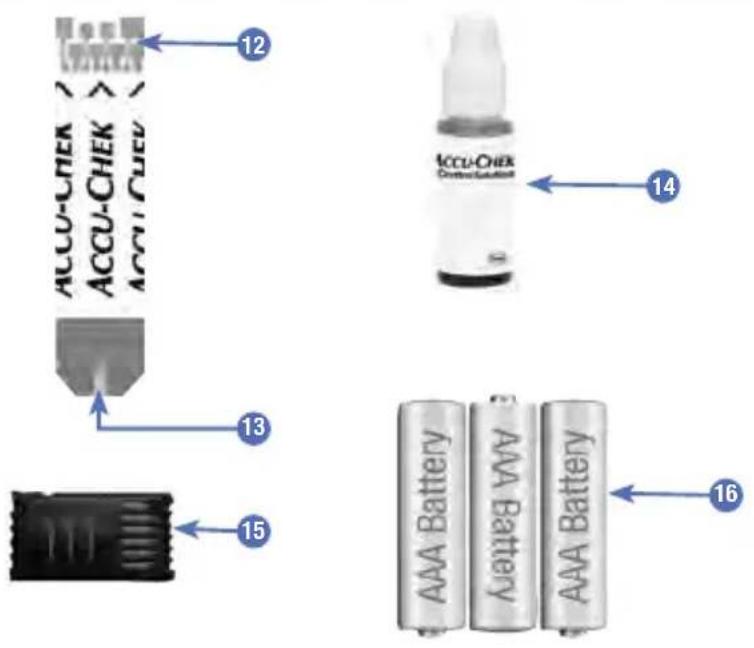
- Test Strip Container* (for example)
- Test Strip* – Metallic End Insert this end into the meter.
-
Test Strip* – Yellow Window Touch blood drop or control solution here.
-
Control Solution Bottle* (for example)
- Activation Chip See NOTE.
- Batteries (high-quality batteries are recommended)
*Some items may not be included in the kit. They are a separate purchase.
NOTE
Your meter is already coded and comes with a pre-inserted black activation chip that you never need to change, even if you use test strips from boxes that contain an activation chip that is a different colour or has different numbers.
1 Understanding Your New System
1.4 Test Strips
- Use only Accu-Chek Aviva test strips.
- Use the test strip immediately after removing it from the test strip container.
- Do not apply blood or control solution to the test strip before you insert it into the meter.
- Close the test strip container tightly immediately after removing a test strip to protect the test strips from humidity.
- Store the unused test strips in their original test strip container with the cap closed.
- Check the use by date on the test strip container. Do not use the test strips after that date.
- Store the test strip container and meter in a cool, dry place, such as a bedroom.
- Refer to the test strip package insert for test strip storage and system operating conditions.
WARNING
Do not store test strips in high heat and moisture areas (bathroom or kitchen)! Heat and moisture can damage test strips.
1.5 Screen Content and Navigation
This section provides an explanation of how to understand and navigate the screens on the meter.

Each time the meter is turned on, this splash screen (Accu-Chek logo screen) is displayed for a short period of time.
NOTE
- Press ① or insert a test strip to turn the meter on. If the meter displays the Time/Date screen, make the necessary changes and select Save.
- The meter turns off automatically in approximately two minutes if no buttons are pressed.
1
Understanding Your New System
Features on the Main Menu
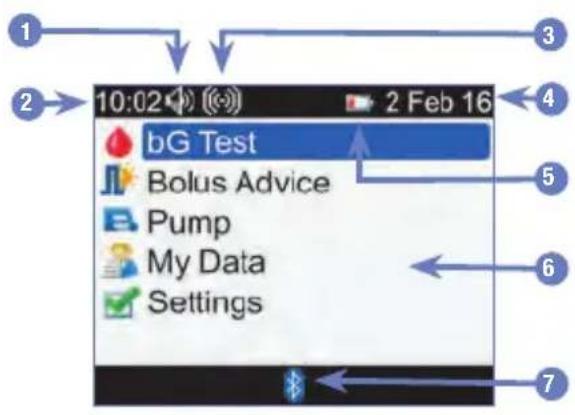
- Sound Icon
Displayed when the beeper is turned on.
-
Time
-
Vibrate Icon
Displayed when vibrate is turned on.
-
Date
-
Low Battery Icon
Displayed when the meter batteries are low in power.
- Menu Options
To make a selection, press ▲ or ▼ to highlight the menu item in blue and then press ◯
- Bluetooth Icon
Indicates the meter's communication state. Refer to the following table.
Bluetooth Icon Communication States
You may turn the Bluetooth function on or off at any time using the meter.
| Icon Communication State | |
| The Bluetooth function is on. The meter and pump are communicating. | |
| When the icon is not shown, the Bluetooth function is off . The meter and pump are not communicating. | |
 | When the icon is flashing, the Bluetooth function is on. However, the meter and pump are not communicating. |
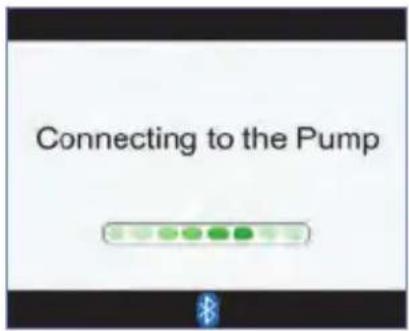
Connecting to the Pump screen
This screen is displayed for a few seconds when the Bluetooth function is on and the meter is connecting to the pump.
1
Understanding Your New System

Features on a screen
- Title Bar
Primary menu title is displayed here. - Highlighted Option
When a menu choice or item is selected, it is highlighted in blue. - Left Soft Key Option
Press 📋 to select the option shown on the screen above the left soft key. - Secondary Title Bar
When necessary, a secondary title bar displays additional information. - Scroll Bar
When there is more information available than fits on the screen, a vertical scroll bar is shown on the right side of the screen. - Right Soft Key Option
Press 📋 to select the option shown on the screen above the right soft key.
Information can be entered on some screens. Numerical entry fields appear as pop-up entry fields. When an option must be selected, it appears as a pop-up menu.
- To open a pop-up menu or entry field, select it and press ☐.
- Press ▲ or ▽ to select the appropriate pop-up menu option or until the desired numerical entry is displayed. Press and hold ▲ or ▽ to scroll faster.
- Press ☐ to confirm.

- Pop-Up Entry Field
- Pop-Up Menu
1
Understanding Your New System
General Navigation Steps
1
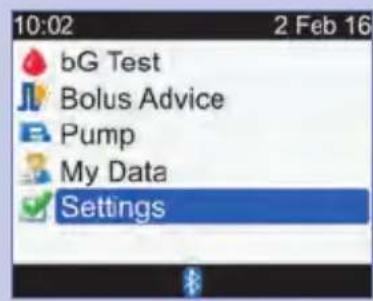




to select a menu option and press

NOTE
Specifi c to the Time Blocks menu selection: If the bolus advice feature has been activated, then the Time Blocks selection is found under the Bolus Advice menu option.
2

Press △ or ▽ or ◀ to ▶ select the desired entry fi eld and press
3

Press or to set the desired entry and press
Repeat Steps 2 and 3 as necessary for other entry fi elds.
4
Select Save by pressing to save changes and return to the previous screen.
To return to the previous screen without saving changes, select Cancel by pressing 🔔.
1.6 The Accu-Chek Spirit Combo Insulin Pump at a Glance
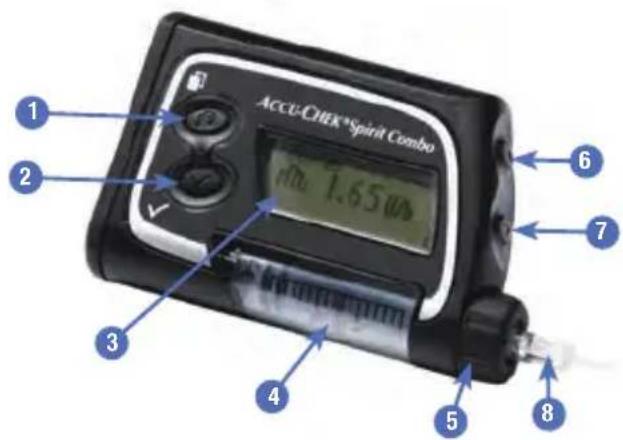
1. Menu Key
Cycles through menus, functions and information screens.
2. OK Key
Selects current settings displayed on screen, saves changes, exits a screen and allows the user to view the QUICK INFO screen.
3. Display
Shows menus, messages and data stored in the pump memory.
4. Cartridge
Holds insulin.
5. Adapter
Connects the cartridge to the infusion set.
6. Up Key
Moves forward in an information screen, increases a setting, turns the backlight on, programs a Quick Bolus, cancels a Quick Bolus and turns the STOP-Warning off.
7. Down Key
Moves backward in an information screen, decreases a setting, programs a Quick Bolus, cancels a Quick Bolus and turns the STOP-Warning off.
8. Infusion Set
Connects the pump to your body to deliver insulin.
For information on controlling the pump using the meter, refer to the chapter Programming the Pump Using the Meter. For more information about the pump, refer to the Accu-Chek Spirit Combo Insulin Pump User Guide.
1 Understanding Your New System
2.1 Overview
When enabled, bolus advice provides recommendations on the amount of insulin for food intake and for correcting blood glucose levels that are not within your target range. Bolus advice is intended exclusively for use by well-trained individuals who perform their own insulin therapy. It is recommended you discuss your bolus advice settings with your healthcare professional prior to setting up this feature.
Bolus advice calculates insulin doses for you based on many different pieces of information, such as:
- The values you entered in the setup of bolus advice
- Your current blood glucose result
- The amount of carbohydrates you estimated for a meal
- Your current health event status
- The blood glucose lowering due to prior correction doses
- The blood glucose influence of your most recent meal
Bolus advice is only available if you have set it up on your meter. For instructions on how to set up bolus advice, refer to the chapter Getting Started, or to the Setting Up Bolus Advice for the First Time section in the chapter Changing Meter Settings.
Important information regarding the use of bolus advice is presented in this chapter. Read it carefully and completely before you begin using bolus advice.
2
Introduction to Bolus Advice
2.2 Before Using Bolus Advice
Intended Users
As with any specialised feature, you need to understand certain information in order to use bolus advice. Working closely with your healthcare professional, you must be completely familiar with your diabetes therapy. You must also be able to judge your current situation accurately. Bolus advice calculates boluses for you. This can help you determine the amount of insulin you currently require. You provide the information on which the bolus advice calculations are based.
Bolus advice is not able to judge your current situation independently of your own estimation. It cannot correct possible input errors. This is particularly true for the carbohydrate amount entered. Entries that exceed possible limits are recognised as such and in this case you are prompted to check the entry and correct it, if necessary. However, as long as the entries fall within a possible range, the accuracy cannot be checked by your meter. No warning message is displayed if the data is possible (within the acceptable ranges) but incorrect. Therefore, it is important to carefully review all of your entries.
Safety Information Regarding Bolus Advice

WARNING
- Bolus advice should not be used if you are using an intermediate-acting insulin like Neutral Protamine Hagedorn (NPH) insulin or any other intermediate-acting insulin.
- Long-acting insulin should not be used as a meal bolus or as a correction bolus.
- Always compare your result with the way you actually feel and adjust the recommended bolus, if necessary. It is possible the values entered when setting up bolus advice do not match the way your body actually feels.
- It is important to make the correct selections for the carbohydrate ratio and insulin sensitivity. If you select the wrong ratio (the basis for all calculations), all future bolus advice recommendations will be wrong.
- Always carry out the actions entered into bolus advice in a timely fashion. Eat the carbohydrate amount you entered and administer the insulin dose.
- If a pump bolus delivery is stopped, the bolus amount stored in the meter is updated when the next pump synchronisation occurs. Ensure the bolus information in the diary is correct prior to starting a new bolus advice calculation. For information on how to view and edit diary data, refer to the Viewing or Modifying Your Data section in the chapter Managing Your Data.
- Accuracy of bolus advice is impacted if Bluetooth wireless technology is off or the batteries are low. For example, the bolus advice calculation will not include recent insulin boluses delivered by the pump.
The following information is not taken into account when bolus advice is used:
- Bolus insulin doses and meals taken before bolus advice is used for the first time cannot be reflected in the calculation. The same applies for bolus insulin doses and meals that were taken but not entered into your meter.
- If you delivered a bolus on your pump without using bolus advice, this information is entered in your diary. It is important that you enter carbohydrate information into the diary with this bolus in order to obtain accurate bolus advice recommendations. For information on how to enter information into the diary, refer to the Viewing or Modifying Your Data section and the Adding a Diary Record section in the chapter Managing Your Data.
2 Introduction to Bolus Advice
Summary
- It is recommended you set up bolus advice with your healthcare professional.
- Carefully check all of your entries.
- Make sure all recent meals and insulin doses are entered into the diary for accurate bolus advice recommendations.
- Always carry out the actions entered into bolus advice in a timely fashion.
3.1 Setup Wizard

WARNING
- It is important to discuss your individual settings for warning limits, time blocks, bolus advice and bG test reminders with your healthcare professional. It is recommended that you review the Setup Wizard: Important Information section in this chapter.
- Before setting up bolus advice, it is recommended that you review the chapter Introduction to Bolus Advice.
- This manual shows sample screens. The images of the default meter screens and screens displaying settings are for example only.
- Long-acting insulin should not be used as a meal bolus or as a correction bolus.
The first time you turn the meter on, the Setup Wizard is activated.
The Setup Wizard assists you in selecting the settings for:
- Meter language*
- Time and date*
- Units for carbohydrates (Carbs)*
- Warning limits for hypo (low) and hyper (high) blood glucose levels*
- Time blocks*
- Bolus advice (optional)
• bG test reminders (optional) - Pairing the meter and pump (optional)
*You must set up these items in order to complete a blood glucose test.
3
Getting Started
NOTE
- The Setup Wizard is activated every time you turn the meter on until you complete the process.
- If you turn the meter off during the Setup Wizard process, you must reconfirm all of the settings the next time you turn the meter on in order to complete the Setup Wizard.
- You must complete the Setup Wizard prior to performing a blood glucose test for the first time.
- If you choose not to set up bolus advice and bG test reminders as part of the Setup Wizard, these features can be set up later.
- To return to the previous screen in the Setup Wizard, select Back.
• A selected option is highlighted in blue. - Blood glucose and bG are interchangeable and mean the same thing.
Completing the Setup Wizard
123

Press ☐The meter beeps and displays the Accu-Chek screen for a few seconds.

To keep the default language, select Next.
To Change the Language:
Press ☐ to display the language options.
Select the desired language and press ○.
Select Next.

To keep the default time/date, select Next.
To Change the Time Format:
Select the Time Format entry fi eld and press.
Select 12 hr or 24 hr Time Format and press ☐.
To Change the Time:
Select the Time entry fi eld and press 🔒.
Set the Hour and press ☐.
Set the Minutes and press
If the Time Format is 12 hr, select am or pm and press
To Change the Date:
Select the Date entry fi eld and press ○.
Set the Day and press ○.
Set the Month and press Ⓗ.
Set the Year and press ○.
To Continue:
Select Next.
4

IMPORTANT: Once bolus advice is activated, the carbs unit that has been selected cannot be changed.
To keep the default Carbs (Carbohydrates) Unit, select Next.
To Change the Carbs Unit:
Press
Select Grams, BE, KE or CC and press 🔒.
Select Next.
5

To Change the Hyper (Upper) Blood Glucose Limit:
Select the Hyper entry fi eld and press ○.
Set the value and press ○.
To Change the Hypo (Lower) Blood Glucose Limit:
Select the Hypo entry fi eld and press 🔒.
Set the value and press ○.
To Continue:
Select Next.
3
Getting Started
678

If you select No, Bolus Advice can be set up later. Refer to the Setting Up Bolus Advice for the First Time section in the chapter Changing Meter Settings.
To set up Bolus Advice, select Yes.

The settings for the first time block that you edit are copied to all of the other time blocks. You can then modify the settings for any individual time block.
Select Next.
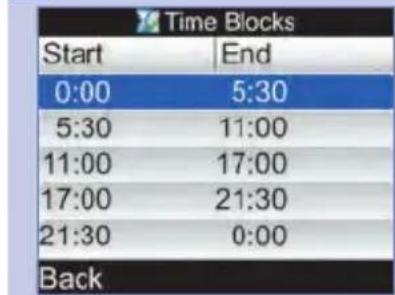
Select a time block to edit and press
If not setting up bolus advice, go to Step 9.
If setting up bolus advice, go to Step 10.

- Time Block Start Time
- Time Block End Time
- Target Range Lower Limit Value
- Target Range Upper Limit Value
- Carb Ratio—Amount of Insulin Units (Bolus Advice)
- Carb Ratio-Number of Carbohydrates (Bolus Advice)
- Scroll Bar
- Insulin Sensitivity—Amount of Insulin Units (Bolus Advice)
- Insulin Sensitivity-Change in Glucose Level (Bolus Advice)
3
Getting Started
9
To Change the End Time:
Select the End Time entry fi eld and press.
Set the time and press ☐.
To Change the Target Range:
Select the entry fi eld for the lower limit value and press
Set the value and press ○.
Select the entry fi eld for the upper limit value and press
Set the value and press ○.
To Continue:
Select Save and proceed to Step 11.
10
For this first time block, the values for Carb Ratio and Insulin Sensitivity must be entered.

WARNING
It is important to make the correct selections for the carbohydrate ratio and insulin sensitivity. If you select the wrong ratio (the basis for all calculations), all future bolus advice recommendations will be wrong and may result in severe hypoglycaemia or hyperglycaemia.
To Change the End Time:
Select the End Time entry fi eld and press.
Set the time and press □.
To Change the Target Range:
Select the entry fi eld for the lower limit value and press
Set the value and press ☐.
Select the entry fi eld for the upper limit value and press
Set the value and press ☐.
Carb Ratio:
Select the entry fi eld for the amount of insulin units and press □.
Set the value and press ○.
Select the entry fi eld for the number of carbohydrates and press □.
Set the value and press ○.
Insulin Sensitivity:
Select the entry fi eld for the amount of insulin units and press 🔒.
Set the value and press ☐.
Select the entry fi eld for the change in glucose level and press □.
Set the value and press ☐.
To Continue:
Select Save.
11

Select OK.
12

Add or remove time blocks, otherwise continue to the next step.
To Add a Time Block:
Select the last time block and press 🔒.
Select the End Time entry fi eld and press.
Set the End Time of the selected time block and press ☐. This will be the start time of the added time block.
Select Save.
Add another time block, or proceed to the next step.
To Remove a Time Block:
Select the time block you want to remove and press 🔒.
Select the End Time entry fi eld and press.
Set the End Time to match the Start Time of the time block and press 🔒.
Select Save.
Remove another time block, or proceed to the next step.
3
Getting Started
13
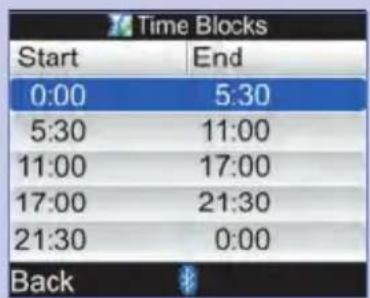
| Start | End |
| 0:00 | 5:30 |
| 5:30 | 11:00 |
| 11:00 | 17:00 |
| 17:00 | 21:30 |
| 21:30 | 0:00 |
| Back | Next |
Select an individual time block to modify its settings, including the End Time.
Repeat as needed for other time blocks.
When all of the time block settings have been completed, select Next.
If not setting up bolus advice, go to Step 17.
If setting up bolus advice, go to Step 14.
14
| Health Events | |
| Exercise 1 | -10% |
| Exercise 2 | -20% |
| Stress | 0% |
| Illness | 20% |
| Premenstrual | 0% |
| Back | Next |
To Enter Health Event Percentages:
Select a Health Event entry fi eld and press.
Set the percentage and press
Repeat to enter other Health Event percentages.
To Continue:
Select Next.
15
| Meal Rise | 6 mmol/L |
| Snack Size | 24 g |
| Acting Time | 4:00 |
| Offset Time | 1:00 |
| HH MM | |
| Back | Next |
You must enter a Snack Size amount in order to complete the Setup Wizard.
Meal Rise:
Select the Meal Rise entry fi eld and press ○.
Set the value and press ○.
Snack Size:
Select the Snack Size entry fi eld and press.
Set the value and press □.
Acting Time:
Select the Acting Time entry fi eld and press.
Set the time of duration and press □.
Off set Time:
Select the Off set Time entry fi eld and press.
Set the time of duration and press 🔔.
To Continue:
Select Next.
16
Select OK. To set up bG Test Reminders,
17

NOTE: For more information, refer to the bG Test Reminders: After High bG, After Low bG, After Meal section in the chapter Meter Reminders.
select Yes and continue to the next step.
If you do not want to set up bG Test Reminders at this time, select No and go to Step 21.
18
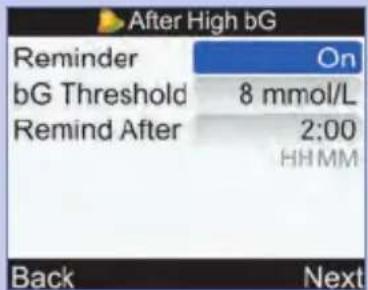
To Turn the After High bG Reminder On:
Select the Reminder entry fi eld and press 🔒.
Select On and press ○.
bG Threshold:
Select the bG Threshold entry fi eld and press.
Set the value and press ☐.
Remind After Time:
Select the Remind After entry fi eld and press.
Set the time and press ☐.
To Continue:
Select Next.
3
Getting Started
19

To Turn the After Low bG Reminder On:
Select the Reminder entry fi eld and press.
Select On and press ☐.
bG Threshold:
Select the bG Threshold entry fi eld and press □.
Set the value and press ○.
Remind After Time:
Select the Remind After entry fi eld and press.
Set the time and press ☐.
To Continue:
Select Next.
20

To Turn the After Meal Reminder On:
Select the Reminder entry fi eld and press ○.
Select On and press ○.
Snack Size:
Select the Snack Size entry fi eld and press.
Set the amount and press ○.
Remind After Time:
Select the Remind After entry fi eld and press.
Set the time and press ☐.
To Continue:
Select Next.

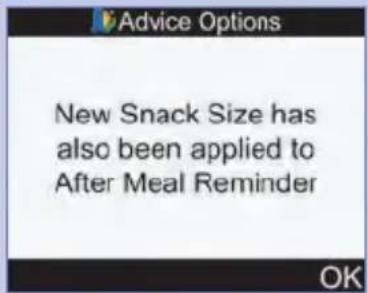
If Bolus Advice is set up and the Snack Size is changed, this screen appears.
Select OK.
21
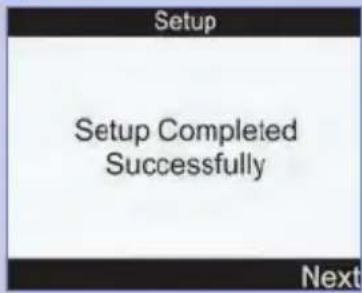
If the meter and pump are paired, the Setup Completed Successfully screen appears.
Select Next. You are ready to begin using your new meter.
Congratulations on completing the Setup Wizard!
or
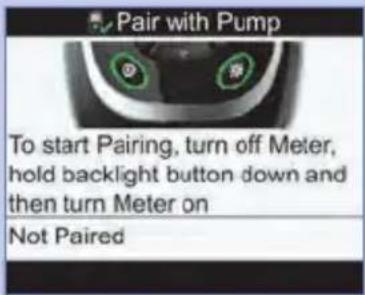
If the meter and pump are NOT paired, the Pair with Pump screen appears.
Turn the meter off.
To Cancel the Pairing Process:
Proceed to the next step.
To Pair the Meter and Pump:
Proceed to Step 24.
3
Getting Started
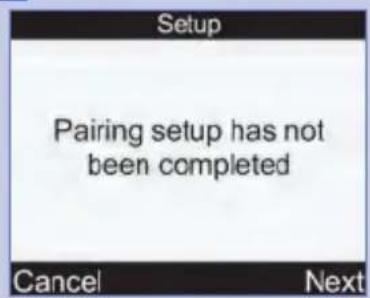
Turn the meter on. Select Cancel.
2322 24

Select Yes to cancel the pairing process and then proceed to Step 33.

On the pump, repeatedly press and release until the BLUETOOTH SETTINGS screen appears.
Press √.
25

On the pump, ensure that the Bluetooth function is turned on. If turned off, press to turn it on.
26
Ensure that the meter is turned off.
On the meter, press and hold ✝ and then press and hold ⏻
Pair with Pump
Ensure Pump is in pairing mode through Bluetooth menu on Pump Waiting...
METER12345678
On the meter, when this Pair with Pump screen is displayed, release the meter buttons.
27
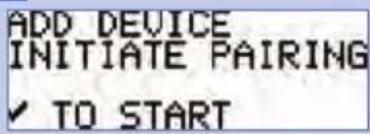
On the pump, repeatedly press and release until the ADD DEVICE INITIATE PAIRING screen appears.
Press √ to initiate the pairing process.
28
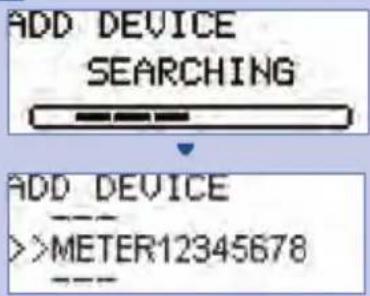
On the pump, select the meter to add and then press √.
or

If the NO DEVICE FOUND screen appears on the pump, see the pump User Guide for information on troubleshooting.
29

On the pump, the ADD DEVICE PAIRING screen appears followed by the ADD DEVICE ENTER PIN CODE screen.
Continue to the next step.
30
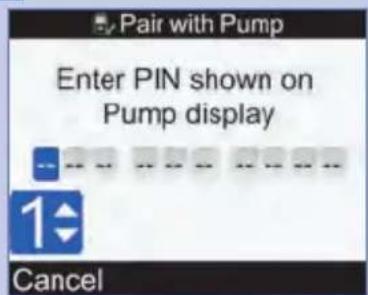
On the meter, enter the PIN code that is displayed on the pump.
Press □.
Set the first number and press ○. Repeat until all of the numbers have been entered.
3
Getting Started
31

On the meter, ensure the PIN code matches the numbers on the pump.
Select Confi rm.
32

and
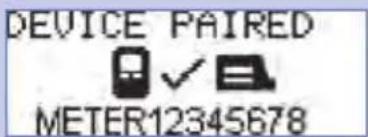
If the correct PIN was entered, this Pair with Pump screen is displayed on the meter and the DEVICE PAIRED screen is displayed on the pump.
On the pump, press √ to confi rm the pairing.
Turn the meter off. Once the meter has turned off, the pairing process is complete.
Turn the meter on.
33

Select Next. You are ready to begin using your new meter.
Congratulations on completing the Setup Wizard!
3.2 Setup Wizard: Important Information

WARNING
It is important to discuss your individual settings with your healthcare professional.
Carbs (Carbohydrates) Unit
You have a choice among different carbs units in the meter that best fit your needs. Once the carbs unit is set and bolus advice is activated, the carbs unit cannot be changed. The following carbs units are available on the meter:
| Abbreviation Unit of Measurement Gram Equivalent | |
| g Grams 1 gram | |
| KE Kohlenhydrateinheit 10 grams | |
| BE Bread Equivalent 12 grams | |
| CC Carbohydrate Choice 15 grams |
Warning Limits
You can select hypo (low) and hyper (high) blood glucose warning limits that best fit your needs. Whenever a blood glucose result is below the hypo warning limit or above the hyper warning limit, the meter displays a warning.
3
Getting Started
Time Blocks
Setting time blocks to fit your own schedule helps you and your healthcare professional see how patterns in your blood glucose may be affected by your daily activities and lifestyle.
Time blocks combine to cover a 24-hour time period (from midnight to midnight).
The meter comes with five default time blocks. You may set up from one to eight time blocks and define the time period for each time block.
You must complete and save the settings for at least one time block in the Setup Wizard. The settings for this first time block are initially copied to all time blocks. Each time block can then be adjusted as necessary.
For bolus advice, determine your carb ratio and insulin sensitivity for each time block.
Each time block can only be set in 30-minute increments.
When you set the end time for a time block, the meter automatically sets this end time as the start time for the next time block.
Your meter comes with the following default time blocks:
| Time Block Time of Day |
| 1 0:00–5:30 |
| 2 5:30–11:00 |
| 3 11:00–17:00 |
| 4 17:00–21:30 |
| 5 21:30–0:00 |
Talk to your healthcare professional about setting up time blocks to help you manage your diabetes. Here is a suggested pattern:
| Time Block Start Time End Time | |
| 1. Night time Midnight The time you normally wake up | |
| 2. Breakfast The time you normally wake up 1 1/2 hours before you normally eat lunch | |
| 3. Lunch 1 1/2 hours before you normally eat lunch 1 1/2 hours before you normally eat dinner | |
| 4. Dinner 1 1/2 hours before you normally eat dinner | 1 1/2 hours before you normally go to bed |
| 5. Bedtime 1 1/2 hours before you normally go to bed | Midnight |
Target Range
The target range is the desired upper and lower limits of your blood glucose level considered acceptable as set by your healthcare professional.
You can set a different target range for each time block.
The target range for each time block must be within the hypo and hyper warning limits.
The meter automatically calculates the target blood glucose level (i.e., target value) as the average between the desired upper and lower blood glucose limits.
bG Test Reminders
Blood glucose test reminders prompt you to retest your blood glucose after a high bG result, after a low bG result or after a meal.
The after meal bG test reminder is set up with a carb value for the snack size and occurs only after the snack size is exceeded.
Any of the bG test reminders can be turned on or off individually, as needed.
For more information, refer to the bG Test Reminders: After High bG, After Low bG, After Meal section in the chapter Meter Reminders.
3
Getting Started
Pairing
Pairing is when your meter and pump exclusively communicate and transfer information with each other.
When obtained as a kit, your meter and pump come paired utilising Bluetooth wireless technology.
The meter may be paired with only one pump at a time.
Other Bluetooth enabled devices (e.g., mobile phone, printer, etc.) cannot be paired with, communicate with or access your personal information on your meter or pump.
If you want to cancel pairing or need more information on pairing, refer to the chapter Meter and Pump Communication.
Bolus Advice
Bolus advice calculates a recommended bolus for you that is adapted to the time of day and your changing situations.
This function is activated only if you set up bolus advice on your meter.
Bolus advice provided by the meter is only advice. Do not change your therapy based on one blood glucose result. Contact your healthcare professional prior to changing your diabetes therapy.
For more information on bolus advice, refer to the chapter Introduction to Bolus Advice.
Carb Ratio
The carb ratio is the amount of insulin necessary to account for a certain number of carbohydrates.
Insulin Sensitivity
The insulin sensitivity is the amount of insulin necessary to lower your blood glucose by a certain amount.
Health Events
Health events can be selected to indicate how you are feeling or what you are doing that might affect your diabetes. Your meter allows you the option of setting a percentage for each health event, except for Fasting, if you set up bolus advice. Fasting does not scale bolus advice calculations and is not adjustable.
Health events available on the meter are:
- Fasting
- Exercise 1
- Stress
- Illness
- Exercise 2
- Premenstrual
A positive percentage increases the bolus amount and a negative percentage (−) decreases the bolus amount. You can select one health event for each bolus recommendation.
3
Getting Started
Active Insulin
Active insulin is the bolus insulin that has been given to lower your blood glucose, but has not yet been fully used. The meter automatically calculates the active insulin amount and it is displayed on the Bolus Advice screen.
Advice Options
Meal rise, snack size, acting time, and offset time are bolus advice options. See the following for detailed descriptions of each of these settings.
Meal Rise
Meal rise is the increase in blood glucose levels during or after meals that is considered normal within a certain range, even though a bolus has been delivered.
Enter the maximum increase in your blood glucose level that is to be tolerated without an additional correction bolus.
Snack Size
Snack size is the amount of carbohydrates that is not to be counted as a regular meal with the expected meal rise.
An increase in your blood glucose result is not tolerated since the meal rise factor is not triggered for bolus advice calculations.
Acting Time
Acting time is the period of time from the start of the meal rise or the delivery of a correction bolus until your blood glucose level is expected to return to the target level.
You can adjust the length of the acting time to fit your individual needs, within a specified time interval (1½ hours to 8 hours).
Offset Time
Offset time takes into account the expected delay for the blood glucose level to actually fall during the acting time of insulin in the body.
Testing Your Blood Glucose
4.1 Before You Start Testing
Before you perform your first blood glucose test, ensure the meter is set up correctly and that you have completed a control test. You need the meter, a test strip and a finger pricker with a lancet inserted. For important information regarding the use and storage of test strips, refer to the Test Strips section in the chapter Understanding Your New System. You can perform a blood glucose test from your fi ngertip.
- Do not change your treatment because of one blood glucose result.
- NEVER ignore symptoms of high or low blood glucose.
- After performing a blood glucose test, warning messages about your blood glucose result may be displayed. Take careful note of these messages. If your blood glucose result is too low, you are prompted to eat a certain amount of fast-acting carbohydrates to prevent the risk of hypoglycaemia. A bolus is not calculated in this situation if bolus advice has been set up. Treat your low blood glucose as recommended by your healthcare professional.
- If a test strip error occurs, remove and discard the used test strip and repeat the test with a new test strip.
- Be careful not to put any fluids into the test strip slot.
- When a test strip is in the meter, the buttons are inactive. The buttons become active when you remove the test strip or when the test is complete.
- Blood glucose and bG are interchangeable and mean the same thing.
- Other ways to start a blood glucose test:
- From the Main Menu, select bG Test and press . Insert a test strip into the meter.
- When a reminder notification or the key lock icon is displayed, insert a test strip into the meter.
- From the Main Menu, select Bolus Advice and press. If "bG Test" is displayed instead of an actual blood glucose value, then you can start a blood glucose test by selecting bG Test. If an actual blood glucose value is displayed, then you cannot start a blood glucose test using this process.
4
Testing Your Blood Glucose
4.2 Performing a Fingertip Blood Glucose Test
123
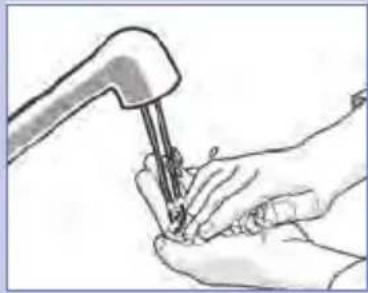
Wash your hands with warm soapy water and dry thoroughly.
Prepare the finger pricker for a fi ngertip test.

Check the use by date on the test strip container. Do not use test strips past the use by date.

Remove a test strip from the test strip container.
Close the cap tightly.
4

Insert the metallic end of the test strip into the meter. The meter turns on.
5

The Apply Sample screen is displayed. Perform a fi ngerstick with the aid of a fi nger pricker.
6

Gently squeeze your fi nger to assist the fl ow of blood. This helps you get a blood drop.
7
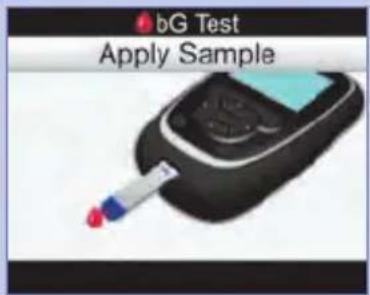

Touch the blood drop to the front edge of the yellow window of the test strip. Do not put blood on top of the test strip.
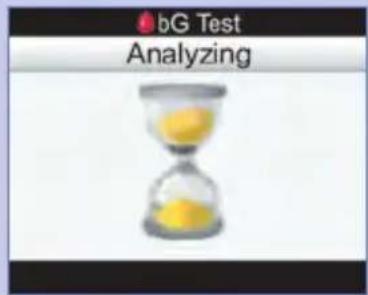
When the test strip has enough blood, the Analyzing screen appears.

The test result is displayed. A green status bar indicates the test result is within the target range for the current time block.
NOTE
- A blood glucose result does not appear if the dosed test strip is removed too soon.
- A warning is displayed after the bG Result screen if the blood glucose result is outside the hypo or hyper warning limits, or outside the measurement range of the meter.
- If your blood glucose result does not match how you feel, refer to the Unusual Blood Glucose Results section in this chapter.
- The meter cannot be turned off when the Apply Sample, Analyzing or bG Result screens are being displayed.
4
Testing Your Blood Glucose

A light blue status bar with "Hyper" indicates the test result is above the hyper warning limit.

A light blue status bar indicates the test result is above the target range for the current time block. The test result is not above the hyper warning limit.
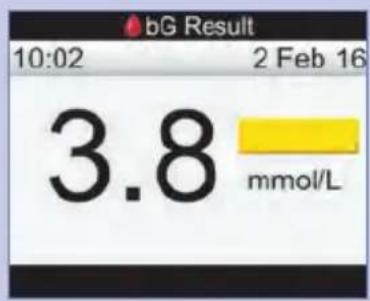
A yellow status bar indicates the test result is below the target range for the current time block. The test result is not below the hypo warning limit.

A red status bar with "Hypo" indicates the test result is below the hypo warning limit.
NOTE: The hypo warning limit can only be set within the range of 3–5 mmol/L.
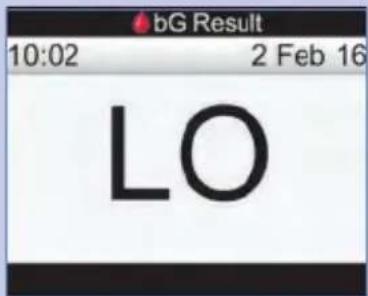
"LO" indicates the test result may be below the measuring range of the meter.
If you are experiencing any of the common symptoms of low blood glucose, contact your healthcare professional immediately. Treat low blood glucose as recommended by your healthcare professional.

“HI” indicates the test result may be above the measuring range of the meter.
If you are experiencing any of the common symptoms of high blood glucose, contact your healthcare professional immediately. Treat high blood glucose as recommended by your healthcare professional.
4
Testing Your Blood Glucose
8
Approximately 3 seconds later, the detailed bG Result screen appears.
Remove and discard the used test strip.

- Test Time
- Meal Time
- Carbohydrates
- Health Event
- Active Insulin
- Status Bar
- Blood Glucose Result
- Unit of Measurement
NOTE
• Active insulin is displayed only if bolus advice is activated.
- Calculation of the amount of the active insulin is completed automatically by the meter. If necessary, the meter rounds the active insulin amount.
- If the active insulin amount is calculated as zero, then the value is displayed as 0.
- If active insulin data is not found, then the active insulin value is displayed as “---U”.
9 10 11
Continue with one of the following:
Proceed to the next step to enter values for Meal Time, Carbs and Health Event.
Select Bolus to deliver a bolus. Refer to the chapter Administering a Bolus.
Select Menu to display the Main Menu screen.
To enter a value, select an entry fi eld and press.
For Meal Time, select either No Entry, Pre Meal, Post Meal, Bedtime or Other and press □.
For Carbs, input the number of carbohydrates and press
For Health Event, select either No Entry, Fasting, Exercise 1, Stress, Illness, Exercise 2 or Premenstrual, according to your healthcare professional's instructions. Press
Continue with one of the following:
Select Bolus to deliver a bolus. Refer to the chapter Administering a Bolus.
Select Menu to display the Main Menu screen.
NOTE
- Input information for meal time, carbs and health event to receive an accurate bolus recommendation for bolus advice. This information is stored with the blood glucose result as a record in the diary.
- The meter saves the bG Result as a diary record when Menu or Bolus is selected, or if the meter is powered off.
- Bolus advice is not available and therefore Bolus cannot be selected when:
- the bG result is less than the Hypo warning limit or when "LO" is displayed as the bG result.
– the test time for the bG result is older than 5 minutes.
– the Bolus Advice Timeout warning message is displayed.
4.3 Unusual Blood Glucose Results
If your blood glucose result does not match how you feel, check this list to help solve the problem.
| Troubleshooting Checks Actions | |
| Did you wash your hands? Wash your hands with warm soapy water and dry thoroughly. Repeat the blood glucose test with a new test strip. | |
| Have the test strips expired? Discard the test strips if they are past the use by date.Repeat the blood glucose test with an unexpired test strip. | |
| Was the cap on the test strip container always closed tightly? | Replace the test strips if you think the test strip container was uncapped for some time. Repeat the blood glucose test. |
| Was the test strip used immediately after it was removed from the test strip container? | Repeat the blood glucose test with a new test strip. |
| Were the test strips stored in a cool, dry place? | Repeat the blood glucose test with a properly stored test strip. |
| Did you follow the directions? Refer to the chapter Testing Your Blood Glucose, and repeat the blood glucose test. Contact the Accu-Chek Pump Careline on 0800 731 22 91 (UK) or 1 800 88 23 51 (Ireland) if you still have problems. | |
| Are the meter and test strips working properly? | Perform a control test. Refer to the chapter Control Testing for instructions. |
| Are you still unsure of the problem? Contact the Accu-Chek Pump Careline on 0800 731 22 91 (UK) or 1 800 88 23 51 (Ireland). | |
After performing a control test and repeating a blood glucose test, if your blood glucose results still do not match the way you feel, contact your healthcare professional immediately.
4.4 Symptoms of Low or High Blood Glucose
Being aware of the symptoms of low or high blood glucose can help you understand your test results and decide what to do if they seem unusual.
Low blood glucose (hypoglycaemia): Symptoms of hypoglycaemia may include, but are not limited to, anxiety, shakiness, sweating, headache, increased hunger, dizziness, pale skin colour, sudden change in mood or irritability, fatigue, difficulty concentrating, clumsiness, palpitations and/or confusion.
High blood glucose (hyperglycaemia): Symptoms of hyperglycaemia may include, but are not limited to, increased thirst, frequent urination, blurred vision, drowsiness and/or unexplained weight loss.

WARNING
If you are experiencing any of these symptoms, or other unusual symptoms, test your blood glucose from the fingertip. If your blood glucose result is displayed as LO or HI, contact your healthcare professional immediately.
4 Testing Your Blood Glucose
5.1 When to Perform a Control Test
Performing a control test lets you know the meter and test strips are working properly. You should perform a control test when:
- you open a new test strip box.
- you left the test strip container open.
- you think the test strips are damaged.
- you want to check the meter and test strips.
- the test strips were stored in extreme temperatures, humidity or both.
- you dropped the meter.
- your blood glucose result does not match how you feel.
- you want to check if you are performing the test correctly.
5.2 About the Control Solutions
- Use only Accu-Chek Aviva control solutions.
- Close the control solution bottle tightly after use.
- Write the date you open the control solution bottle on the bottle label. The control solution must be discarded 3 months from the date the control solution bottle was opened (discard date) or on the use by date on the bottle label, whichever comes first.
- Do not use control solution that is past the use by date or discard date.
- Refer to the control solution package insert for control solution storage conditions.
- The meter automatically recognises the difference between the control solution and blood.
- The control results are not displayed in the diary.
- The control solution can stain fabric. Remove stains by washing with soap and water.
5
Control Testing
5.3 Performing a Control Test
You need the meter, a test strip and control solution Level 1 or Level 2. For important information regarding the use and storage of test strips, refer to the Test Strips section in the chapter Understanding Your New System.
NOTE
- If a test strip error occurs, remove and discard the used test strip and repeat the test with a new test strip.
- Be careful not to put any fluids into the test strip slot.
- When a test strip is in the meter, the buttons are inactive. The buttons become active when you remove the test strip or when the test is complete.
- Blood glucose and bG are interchangeable and mean the same thing.
- Other ways to start a control test:
- From the Main Menu, select bG Test and press . Insert a test strip into the meter.
- When a reminder notification or the key lock icon is displayed, insert a test strip into the meter.
1

Check the use by date on the test strip container. Do not use test strips past the use by date.
2

Remove a test strip from the test strip container. Close the cap tightly.
3
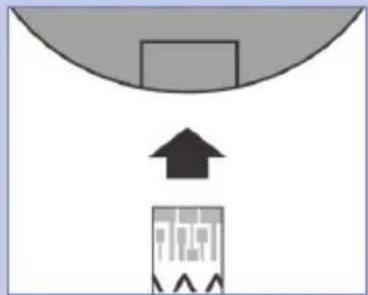
Insert the metallic end of the test strip into the meter. The meter turns on.
456

The Apply Sample screen is displayed. Place the meter on a fl at surface.

Select the control solution to test. You will enter the level later in the test.

Remove the bottle cap. Wipe the tip of the bottle with a tissue. Squeeze the bottle until a tiny drop forms at the tip.
5
Control Testing
7

Touch the drop to the front edge of the yellow window of the test strip. Do not put control solution on top of the test strip.

When the test strip has enough control solution, the Analyzing screen appears.
8
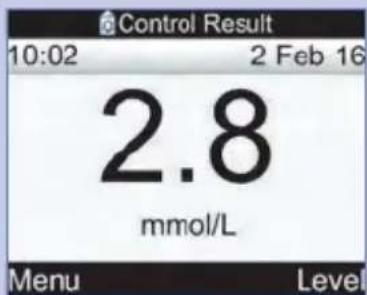
The control result is displayed.
Select Level.
NOTE: If you select Menu, or turn the meter off, or the meter automatically powers off, then No Entry is chosen for the control solution level.
9

Select the control solution level and press
NOTE: If you select Cancel, or turn the meter off, or the meter automatically powers off, then No Entry is chosen for the control solution level.
10

"Within range" indicates the control result is within the acceptable range.
Select Menu.
NOTE: The label on the test strip container shows the acceptable ranges for both the Level 1 and Level 2 control solutions.

"Out of range" indicates the control result is outside of the acceptable range.
Select Menu.

No control solution level was entered (No Entry) and the meter does not indicate "Within range" or "Out of range".
Select Menu.


These screens indicate that the control result may be above (HI) or below (LO) the measuring range of the meter.
Select Menu.
11

Wipe the tip of the bottle with a tissue. Cap the bottle tightly.
Remove and discard the used test strip.
5.4 Out-of-Range Control Results
The control ranges are printed on the test strip container label. If the control result is out of range, check this list to help solve the problem:
| Troubleshooting Checks Actions | |
| Have the test strips or control solutions expired? | Discard the test strips or control solution if either is past the use by date. If the control solution was opened more than 3 months ago, discard it. Repeat the control test with an unexpired test strip and an unexpired control solution. |
| Did you wipe the tip of the control solution bottle before use? | Wipe the tip of the bottle with a tissue. Repeat the control test with a new test strip and a fresh drop of control solution. |
| Were the caps on the test strip container and the control solution bottle always closed tightly? | Replace the test strips or control solution if you think either was uncapped for some time. Repeat the control test. |
| Was the test strip used immediately after it was removed from the test strip container? | Repeat the control test with a new test strip and a fresh drop of control solution. |
| Were the test strips and control solutions stored in a cool, dry place? | Repeat the control test with a properly stored test strip and control solution. |
| Did you follow the directions? Refer to the chapter Control Testing, and repeat the control test. | |
| Did you choose the correct control solution level, either 1 or 2, when you performed the control test? | If you chose the wrong control solution level, you can still compare the control result to the range printed on the test strip container. |
| Are you still unsure of the problem? Contact the Accu-Chek Pump Careline on 0800 731 22 91 (UK) or 1 800 88 23 51 (Ireland). | |
6.1 Important Information

WARNING
- The meter must be configured with your personal settings prior to administering a bolus. Incorrect meter settings may cause inappropriate insulin delivery. If you are not sure about your personal settings, talk to your healthcare professional.
- Discuss the timing, amount and type of bolus you need with your healthcare professional.
- If an intended bolus is unintentionally stopped, it is recommended you administer the remaining bolus manually on the pump or by programming the pump using the meter. You may also administer the bolus through bolus advice by entering the remaining bolus amount and then administering it. Check the meter diary or the pump diary to determine how much insulin has already been delivered. If the bolus was delivered and stopped via the meter, when the next pump synchronisation occurs the amount of insulin delivered is updated in the meter diary.
NOTE
You can cancel a bolus that is being delivered by the pump directly on the pump or on the meter through the pump RUN screen.
When the pump is synchronised with the meter, bolus information from the pump is imported into the meter. For any manual pump bolus record in the meter database with a time stamp that is older than 10 minutes and not confirmed by the pump, the meter deletes the bolus record by changing the bolus amount to “0.0” during the next meter and pump synchronisation. This eliminates the possibility of having a bolus diary record that was not delivered by the pump.
If you used the bolus advice feature and delivered a bolus manually on the pump, it is important you update the information in the diary to reflect the amount of carbohydrates eaten with the bolus to ensure accurate bolus advice recommendations. If a bolus is delivered using an insulin pen or syringe (not through bolus advice), it is important to enter this information in the meter diary to ensure accurate bolus advice recommendations.
For instructions on how to add and edit data in your diary, refer to the chapter Managing Your Data.
6.2 Choosing Your Bolus Type
There are several types of bolus delivery available.
Standard
The pump immediately delivers the entire bolus amount in one portion. This bolus type is the best choice for correcting glucose and when compensating for food intake with fast-acting carbohydrates.
Extended
The pump delivers the bolus amount over a period of time. This bolus type can be helpful during a prolonged meal, or when you have meals that are digested slowly. It may also be appropriate for people who have gastroparesis (delayed digestion).
b Multiwave
The pump immediately delivers some of the bolus amount followed by an Extended Bolus delivery. A Multiwave Bolus can be helpful when you have meals that include both rapidly and slowly absorbed carbohydrates.
B Manual Pump
You must manually program the pump to deliver the bolus. A bolus that can be used at any time, but is intended for when the meter and pump are not communicating. For instructions on how to program a bolus on the pump, see the pump User Guide.
Pen/Syringe
You must use an insulin pen or syringe to inject the bolus amount. A bolus that can be used at any time. It can be used as a alternative bolus delivery when the meter and pump are not communicating or insulin delivery has been interrupted on the pump.
6.3 Delivering a Bolus

WARNING
- If bolus advice is activated:
- Take note of all warning messages, especially those regarding high or low blood glucose results. Immediate action may be necessary.
- Bolus advice provided by the meter is solely advice. Contact your healthcare professional prior to changing your diabetes therapy.
- Always carry out the actions entered into bolus advice in a timely fashion. Eat the carbohydrate amount you entered and administer the insulin dose.
- Accuracy of bolus advice will be impacted if the Bluetooth function is off or the batteries are low. The bolus advice calculation will not include recent insulin boluses delivered by the pump.
- If a pump bolus delivery is stopped, the bolus amount stored in the meter is updated when the next pump synchronisation occurs. Ensure the bolus information in the diary is correct prior to starting a new bolus advice calculation. For instructions on how to view and edit data in your diary, refer to the Viewing or Modifying Your Data section in the chapter Managing Your Data.
NOTE
- Bolus advice is not available if:
- the bG result is less than the Hypo limit value or when "LO" is displayed.
– more than 5 minutes have elapsed from the time of your bG result until Deliver is selected on the Confirm Bolus screen. When this happens, the warning message “Bolus Advice Timeout” is displayed. Confirm the warning and retest to begin a new bolus advice session.
- For more information about bolus advice, refer to the chapter Introduction to Bolus Advice.
- Blood glucose and bG are interchangeable and mean the same thing.
6
Administering a Bolus
1

Perform a blood glucose test. Add information to the bG Result screen, if necessary, and select Bolus. Refer to the chapter Testing Your Blood Glucose.
or

From the Main Menu, select Bolus Advice and press
2
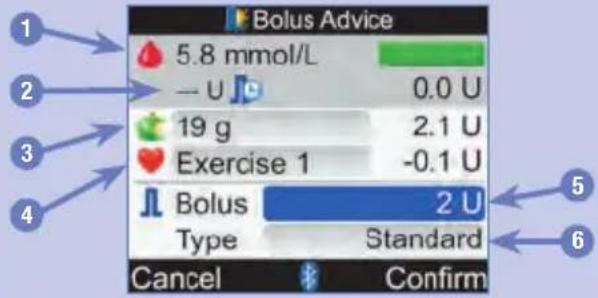
- bG Result
- Active Insulin
- Carbs Entry
- Health Event Entry
- Total Bolus Amount
- Bolus Type
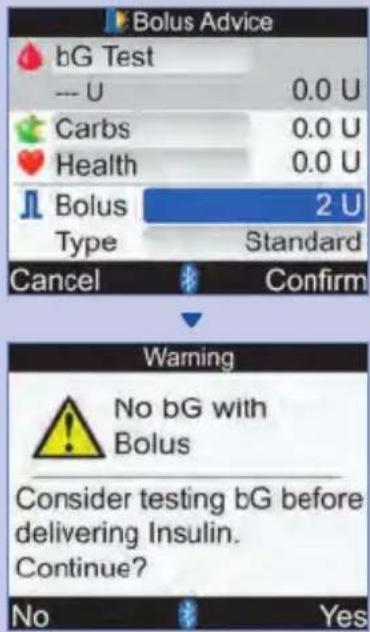
If you have not performed a blood glucose test recently, "bG Test" is displayed near the top of the meter screen instead of an actual bG result. If you select Confi rm, a Warning is displayed.
It is recommended that you perform a blood glucose test. Select "bG Test" and press. Refer to the chapter Testing Your Blood Glucose. After testing, when the detailed bG Result screen appears (reference Step 1), select Bolus.
6
Administering a Bolus
Carbs Entry:
Select the Carbs entry fi eld and press ○.
Set the amount of carbohydrates and press
Health Event Entry:
Select the Health entry fi eld and press 🔒.
Select a Health Event and press 🔒.
Total Bolus Amount:
Select the Bolus entry fi eld and press 🔒.
Set the bolus amount and press ○.
Bolus Type:
If you are keeping the bolus type that is shown on the screen, go to Step 4.
To change the bolus type, select the Type entry fi eld and press ☐. Go to Step 3.
3

Select a bolus type and press
4
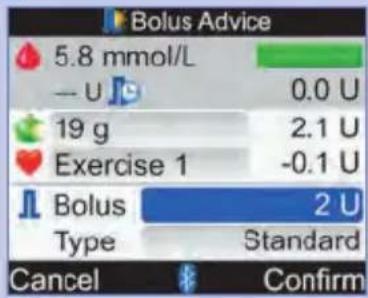
Make sure all entries are correct and then select Confirm.
To deliver a ...
Standard Bolus, go to Step 5.
Multiwave Bolus, go to Step 7.
Extended Bolus, go to Step 9.
Manual Pump Bolus, go to Step 10.
Pen/Syringe Bolus, go to Step 11.
5

Standard Bolus
To return to the Bolus Advice screen before the bolus delivery is started, select Back.
To begin delivery from your pump, select Deliver.
6

The meter displays the remaining bolus amount to be delivered.
To stop bolus delivery, select Stop Bolus.
To allow the bolus delivery to continue, select OK.

The meter displays this screen when the entire bolus amount has been delivered.
Select Menu.
7

Multiwave Bolus
To return to the Bolus Advice screen before the bolus delivery is started, select Back.
To change the immediate bolus amount, select the Immediate entry fi eld and press
Set the amount and press □.
To change the duration time for delivering the remaining bolus amount, select the Duration entry fi eld and press
Set the duration time and press ○.
To begin delivery from your pump, select Deliver.
6
Administering a Bolus
8

The meter displays the remaining bolus amount to be delivered.
To stop bolus delivery, select Stop Bolus.
To allow the bolus delivery to continue, select OK.

The meter displays this screen when the immediate bolus amount has been delivered.
Select Menu.

The meter displays this screen when the entire bolus amount has been delivered.
Select Menu.
9
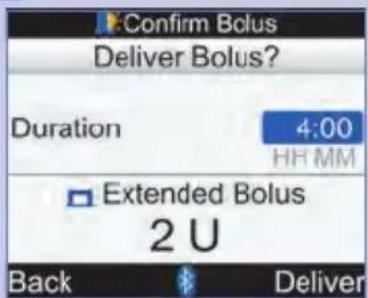
Extended Bolus
To return to the Bolus Advice screen before the bolus delivery is started, select Back.
To change the duration time, select the Duration entry fi eld and press.
Set the duration time and press 🔔.
To begin delivery from your pump, select Deliver.

The meter notifies you that the delivery is continuing.
Select Menu.
10
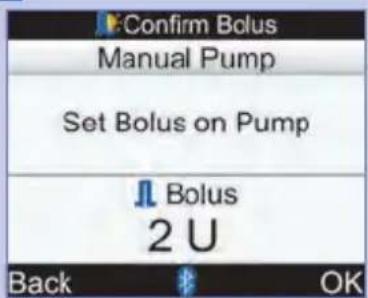
Manual Bolus
To return to the Bolus Advice screen, select Back.
The bolus amount is displayed on the meter screen.
Manually program the pump and deliver the bolus amount. Select OK.
WARNING
Start delivery of the exact bolus amount on the pump within 10 minutes or there will be an extra record entered into My Data. Extra records may influence future bolus advice.
11

Pen/Syringe Bolus
To return to the Bolus Advice screen, select Back.
The bolus amount is displayed on the meter screen.
Inject the bolus amount using an insulin pen or syringe. Select OK.
6
Administering a Bolus
7.1 Controlling the Pump with the Meter
The Accu-Chek Aviva Combo meter can be used to remotely control the Accu-Chek Spirit Combo insulin pump using Bluetooth wireless technology. The meter and pump must be paired and the devices may not be able to communicate if they are more than 2 metres apart.
If you do not press any pump key for more than 20 seconds, the pump screen goes blank. In this state the pump is ready to communicate with the meter.
When you turn the meter on while the pump screen is blank, the pump displays the Bluetooth icon and the devices start to communicate. The time and date settings are synchronised according to the pump time and date settings. Event history files, such as bolus history, are updated.
When the meter and pump are communicating and the pump keys are unlocked, pressing any key on the pump disables communication.
When the meter displays pump screens, the meter beeps and/or vibrates similarly to the pump.
If you experience any communication problems between the pump and meter, it is recommended that you go directly to the pump and operate the pump manually. For more information on troubleshooting the communication between the meter and pump, refer to the chapter Troubleshooting.
7
Programming the Pump Using the Meter
The System at a Glance
When the meter displays a pump screen, the meter buttons can operate the pump. The pump can always be operated independently.
![graph TD A["ACCU-CHEK® Spirit Combo"] --> B["The pump sends screens to the meter."] B --> C["The meter buttons operate the pump."] C --> D["Analog device with display and control buttons"]](/content/2026/06/1213328/images/b139ef733f00f214ab8f566366042b0ffaf8bf13389478d74b457bd273b1c949.jpg)
Meter Button Functions for the Pump Screens
| Meter Button Pump Key Function | ||
 |  | Move forward in an information screenIncrease a settingTurn off the STOP-Warning |
 |  | Move backward in an information screenDecrease a settingTurn off the STOP-Warning |
 |  | Cycle through menus, functions and information screens |
 |  | Select current settings displayed on screenSave changesExit a screenView the QUICK INFO and BOLUS DATA screens |
 |  and and | Exit menus, function screens and information screens without saving your changesReturn to the previous screen |
 | None Go to the Main Menu | |
7
Programming the Pump Using the Meter
To display the pump RUN screen on the meter, select Pump on the Main Menu.

Pump RUN Screen on the Meter
- Information From the Pump
- Corresponding Meter Buttons (Arrow Buttons)
- Go to the Meter Main Menu
- Bluetooth Icon
- Return to the Previous Screen
In remote control mode, the Bluetooth icon appears on the meter display (see 4 above) and on the pump display (shown below).

While the meter is displaying the pump RUN screen, use the corresponding meter buttons to scroll through the pump menus and submenus, the same as you would on the pump. For information on how to use the pump, refer to the pump User Guide.


While the meter is displaying the pump RUN screen, press ▶ to view the QUICK INFO screen. The QUICK INFO screen displays the pump status by showing how much insulin is left in the cartridge, what type of insulin is being used and the current signal settings (beep, vibration or both). Press ▶ again to view the BOLUS DATA screen. The BOLUS DATA screen displays the record of boluses delivered by the pump over the last 90 days. Press ▶ to view older bolus data. Press ▶ to return to the pump RUN screen.
Controlling Pump Functions
All pump functions can be controlled from the meter, except:
- Changing the insulin cartridge
- Priming the infusion set
- Rewinding the piston rod
• Transferring data from the pump to a computer - Accessing the Bluetooth menu
- Adjusting the display orientation and contrast
NOTE
- If you attempt to access a pump function that is not available through the meter, the meter displays the ONLY ACCESSIBLE ON PUMP screen.
- You can administer a bolus manually on the pump without using the meter. When the meter and the Bluetooth function are both turned on, the pump automatically transfers bolus information to the meter. If bolus advice is used, it is important you enter carbohydrate information into the meter for boluses delivered manually on the pump so that accurate bolus advice calculations are made.
- You can cancel a bolus that is being delivered by the pump directly on the pump or on the meter through the pump RUN screen.
7
Programming the Pump Using the Meter
7.2 Programming a Bolus for the Pump
Using the meter, you can program the pump for Standard, Extended and Multiwave boluses. For more about bolus types, refer to the Choosing Your Bolus Type section in the chapter Administering a Bolus.
Standard
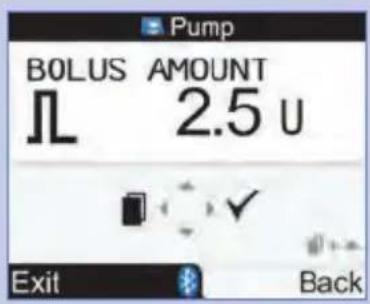
The pump immediately delivers the entire bolus amount in one portion.
During bolus delivery, the pump RUN screen on the meter displays a countdown of the remaining amount.
Extended

The pump delivers the bolus amount over a period of time.
The duration of bolus delivery can be programmed in 15-minute intervals for up to 12 hours.
During bolus delivery, the pump RUN screen on the meter displays a countdown of the remaining amount and time.
While an Extended Bolus is ongoing you can program a Standard Bolus. But you cannot program another Extended Bolus or a Multiwave Bolus unless you cancel the current bolus.
Multiwave

The pump immediately delivers some of the bolus amount followed by an Extended Bolus delivery.
The duration of bolus delivery can be programmed in 15-minute intervals for up to 12 hours.
During bolus delivery, the pump RUN screen on the meter displays a countdown of the remaining amount and time.
While a Multiwave Bolus is ongoing you can program a Standard Bolus. But you cannot program another Multiwave Bolus or Extended Bolus unless you cancel the current bolus.
1
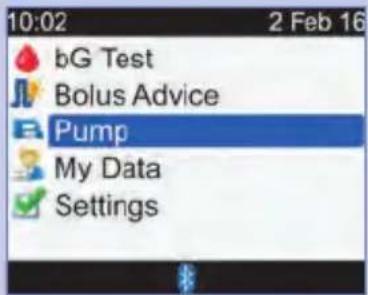
Make sure your pump is in RUN mode and the pump display is blank. From the Main Menu, select Pump and press 🔔
2

Repeatedly press and release until either the STANDARD BOLUS, EXTENDED BOLUS or MULTIWAVE BOLUS screen appears.
Standard Bolus:
Go to Step 3.
Extended Bolus:
Go to Step 5.
Multiwave Bolus:
Go to Step 8.
3

Press ▷ to select.
4

Press to increase or to decrease the bolus amount.
Continue to Step 12.
7
Programming the Pump Using the Meter
5

Press ▷ to select.
6
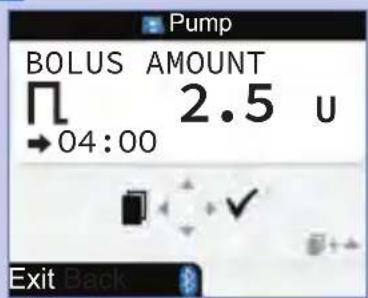
Press ▲ to increase or to decrease the bolus amount.
Press ◀ to display the BOLUS DURATION screen.
NOTE: Press ◀ to toggle between the BOLUS DURATION and the BOLUS AMOUNT screens.
7
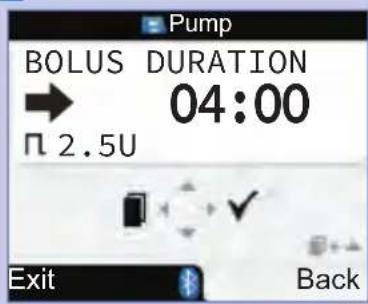
Press ▲ to increase or ▼ to decrease the duration time. The duration of bolus delivery can be programmed in 15-minute intervals for up to 12 hours.
Continue to Step 12.
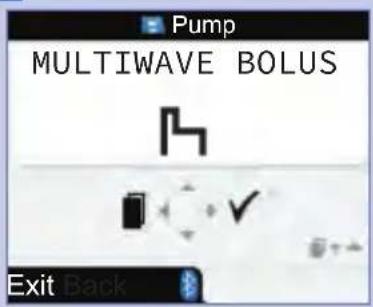
Press▶to select.
9108

Press △ to increase or ▽ to decrease the total bolus amount.
Press ◀ to display the IMMEDIATE BOLUS screen.
NOTE: Press ◀ to toggle between the IMMEDIATE BOLUS, BOLUS DURATION and total BOLUS AMOUNT screens.
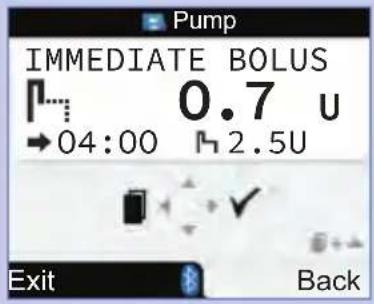
Press ▲ to increase or ▼ to decrease the immediate bolus amount.
Press ◀ to display the BOLUS DURATION screen.
11

Press to increase or to decrease the Extended Bolus duration time. The duration of bolus delivery can be programmed in 15-minute intervals for up to 12 hours.
7
Programming the Pump Using the Meter
12
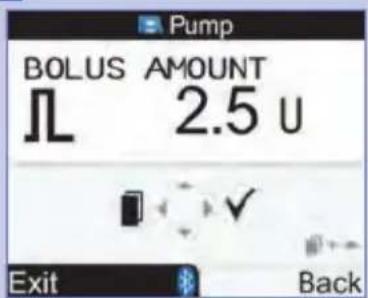
Make sure that all entries are correct. Press ▶ to confi rm.
If you do not confi rm within 20 seconds, the meter automatically returns to the pump RUN screen and a bolus is not delivered.
Extended Bolus: Upon confirmation, the meter beeps 3 times and vibrates once. The bolus delivery begins within the next 3 minutes.

Standard Bolus and
Multiwave Bolus: The bolus icon blinks for 5 seconds.
The purpose of this delay is to allow you to prevent the pump from starting the delivery of the bolus by pressing either ▲ or . ▼ If no action is taken, the meter beeps 3 times and vibrates once, and the pump begins the bolus delivery.
NOTE
- During bolus delivery, the pump RUN screen on the meter displays a countdown of the remaining bolus amount and if applicable, the remaining time.
- Standard Bolus screens are shown here as examples.
Cancelling a Bolus Using the Meter
| Situation Cancelling the Bolus Result | ||
| During programming Choose | one of the following:Press and return to either the STANDARD BOLUS, EXTENDED BOLUS or MULTIWAVE BOLUS screen.Do not press any meter button for 20 seconds. The meter returns to the pump RUN screen.Press to set the BOLUS AMOUNT to 0.0 and then press ▶ | A bolus is not delivered. |
| During the 5-second delay before bolus delivery starts (the bolus icon is blinking). This delay only occurs for the Standard Bolus and Multiwave Bolus. | Press and hold ▲ or ▽ until the meter beeps and displays the pump warning W8: BOLUS CANCELLED. Press twice to snooze and confi rm the warning. The meter returns to the pump RUN screen. | A bolus is not delivered. |
| During bolus delivery. Go to | the pump RUN screen. Press and hold ▲ or ▽ until the meter beeps and displays the pump warning W8: BOLUS CANCELLED. Press twice to snooze and confi rm the warning. The meter returns to the pump RUN screen. | The bolus delivery is interrupted. The partial bolus amount that was delivered before cancellation can be viewed in the diary. Refer to the Viewing or Modifying Your Data section in the chapter Managing Your Data. |
NOTE
Ensure the bolus cancellation was intended and program a new bolus, if necessary.
7
Programming the Pump Using the Meter
7.3 Programming a Temporary Basal Rate (TBR)
Using the meter, you can program the pump to temporarily increase or decrease your basal rate. In some cases your body needs more or less insulin than usual. Speak to your healthcare professional to learn when you should use a TBR. When you increase or decrease your basal rate, each hourly basal rate for the duration you program is increased or decreased.
NOTE
- If a TBR is not currently active, the percentage is set to 100 %. If a TBR is active, its duration and percentage appear on the pump RUN screen.
- When a TBR is active, it remains in effect even if the basal rate profile is changed.
- A TBR can only be programmed when the pump is in RUN mode.
- When a TBR is active, the pump beeps and vibrates every hour. The meter beeps and vibrates if the meter is in the pump mode and displaying a pump screen.
- At the completion of a TBR, the pump warning W7: TBR OVER appears. Press ▶ twice to snooze and confirm the warning.
- For more information, refer the the pump User Guide.
1
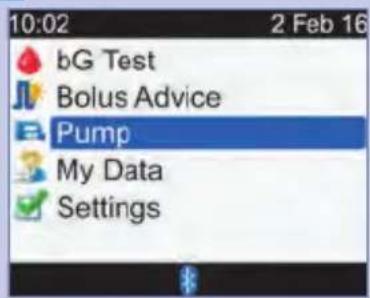
Make sure your pump is in RUN mode and the pump display is blank. From the Main Menu, select Pump and press
2
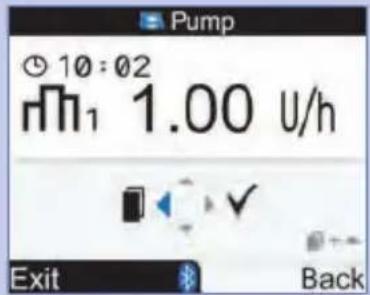
Repeatedly press and release until the TEMPORARY BASAL RATE (TBR) screen appears.
3

Press ▷ to select.
4
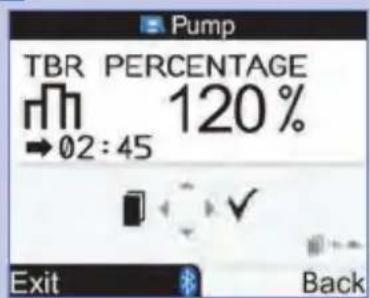
Press △ to increase or to decrease the TBR percentage.
When the desired percentage is displayed, press ◀.
5
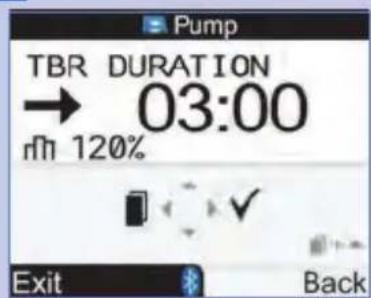
Press △ to increase or to decrease the TBR duration time.
NOTE: Press ◀ to toggle between the TBR DURATION and TBR PERCENTAGE screens.
Make sure that the entries are correct and then press to confirm.
6

The new TBR is immediately activated. The meter displays the pump RUN screen with the TBR.
7
Programming the Pump Using the Meter
Cancelling a Temporary Basal Rate Using the Meter
| Situation Cancelling the Temporary Basal Rate Result | |
| During programming Choose one of the following:PressDo not press any meter button for 20 seconds.The meter returns to the pump RUN screen.Set the TBR percentage to 100%. Press ▶ to exit the TBR PERCENTAGE screen. | The pump continues to deliver the normal basal rate. |
| The TBR is active Choose one of the following:Reset the TBR percentage to 100%.Perform Steps 1 through 4 in this section and set the TBR percentage to 100%.Press ▶ to confi rm.The meter displays the pump warningW6: TBR CANCELLED. Press ▶ twice to confi rm and dismiss the warning.Put the pump in Stop mode. The TBR delivery is cancelled as well as any Extended or Multiwave bolus that is currently running.Go to the pump RUN screen. Refer to Step 1 in this section.Repeatably press and release ▶ to display the STOP YOUR PUMP screen.Press ▶ to confi rm.The meter displays the pump warningW6: TBR CANCELLED. Press ▶ twice to confi rm and dismiss the warning.Put your pump back in RUN mode. | The TBR is cancelled and the pump returns to the normal basal rate. |
7.4 Selecting a Basal Rate Profi le
You can choose between fi ve different basal rate profi les to match your varying daily routines. Discuss your basal rate profi le needs with your healthcare professional. Refer to the pump User Guide for more information on how to program basal rate profi les on the pump.
1

Make sure your pump is in RUN mode and the pump display is blank. From the Main Menu, select Pump and press 📄
2
Repeatedly press and release until the BASAL RATE SELECTION screen appears.
3

Press ▷ to select.
7
Programming the Pump Using the Meter
4

Press or to select a basal rate profi le. The basal rate profi le number and its daily insulin total appear.
When the desired basal rate profi le appears, press▶ to select it.
The new basal rate profi le is active immediately.
NOTE
A running Temporary Basal Rate increase or decrease stays active even if you change the basal rate profi le.
7.5 Managing Pump Errors and Warnings
If the meter is off when a pump error or warning occurs and you turn the meter on, after communication to the pump is established, the pump error or warning appears on the meter screen.
When a pump warning or error occurs:
- Snooze the warning or error by pressing on the meter. This turns the beeps and vibrations off and the warning or error continues to be displayed.
- Once you understand the reason for the warning or error, confi rm by pressing ▶ again.
- Take appropriate action, as necessary.
- Make sure you switch your pump back to RUN mode.
7
Programming the Pump Using the Meter
Cartridge Low Warning W1

The content of the insulin cartridge has dropped to 20 units of insulin. Press twice to snooze and confirm the warning. Change the cartridge before it is empty.
Follow the instructions in the pump User Guide for changing the insulin cartridge.
Cartridge Empty Error E1 Bolus Cancelled Warning W8

The insulin cartridge is empty. You must change it immediately. Press twice to snooze and confirm the error. Follow the instructions in the pump User Guide for changing the insulin cartridge.

A bolus was cancelled. Press twice to snooze and confirm the warning.
Make sure that the cancellation was intended and then program a new bolus, if needed.
The bolus amount that was delivered before cancellation can be viewed in the diary. Refer to the Viewing or Modifying Your Data section in the chapter Managing Your Data.
For more information about pump errors, warnings and reminders, refer to the pump User Guide.
7.6 Setting a Pump Reminder
You can set a reminder on your pump to occur once or be repeated every day at a set time.
1
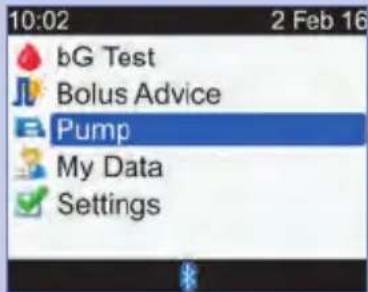
Make sure your pump is in RUN mode and the pump display is blank. From the Main Menu, select Pump and press 📄
2

Repeatedly press and release until the REMINDER SETTINGS screen appears.
3

Press ▷ to select.
When a pump reminder occurs:
- Press twice on the meter to snooze and confirm the reminder, and return to the RUN or STOP mode.
- Take appropriate action per the reminder, as necessary.
7
Programming the Pump Using the Meter
4

The current reminder status and alarm is displayed.

Press △ or ▽ to change the pump reminder setting to OFF, ONCE or EVERY DAY.
Press ◀ to display the HOUR screen.
5

Press or to set the hour.
Press ◀ to display the MINUTE screen.
6

Press or to set the minutes.
Press ▶ to save and exit.
7.7 Turning the Pump Key Lock On and Off
The pump Key Lock function prevents you from accidentally turning pump functions on, for example while you are sleeping or playing sports. Communication between the meter and pump is interrupted when any key is pressed on the pump while it is unlocked.
1
Make sure your pump is in RUN mode and the pump display is blank. From the Main Menu, select Pump and press 📄
2

Repeatedly press and release until the PUMP SETTINGS screen appears.
3

Press ▷ to select.
NOTE
- If you press any of the pump keys while the keys are locked and the pump screen is blank, the Key Lock symbol appears on the pump display. The Bluetooth communication is not interrupted.
- With the pump Key Lock ON, unlock the pump keys by pressing ⏻ and ▼ on the pump simultaneously for 3 seconds. Three beeps indicate that you are pressing the keys correctly. You can now operate the pump keys. Bluetooth communication is lost as soon as you press any pump key while the keys are unlocked. The pump keys lock automatically when you do not press any pump key for more than 10 seconds.
7
Programming the Pump Using the Meter
4

The current pump Key Lock Status (ON or OFF) is displayed.

Press △ or ▽ to turn the Key Lock ON or OFF.
Press ▶ to save and exit.
7.8 Adjusting the Pump Sound Volume
Your pump beeps when you press a pump key or when a pump warning or error occurs. You can set the sound volume for this beep. Following these steps does not change the volume of the meter beeps.
1
Make sure your pump is in RUN mode and the pump display is blank. From the Main Menu, select Pump and press
2

Repeatedly press and release until the PUMP SETTINGS screen appears.
3

Press ▶ to select.
Repeatedly press and release ◀ to display the pump SOUND VOLUME screen.
4

Press or to adjust the volume.
Press ▶ to save and exit.
7
Programming the Pump Using the Meter
7.9 Changing the Pump Signal Settings
The pump alerts you when a pump warning or error occurs. The pump signal setting can be set to beep only, vibrate only or beep and vibrate. Beep and vibrate cannot both be turned off at the same time.
1
Make sure your pump is in RUN mode and the pump display is blank. From the Main Menu, select Pump and press 📋
2
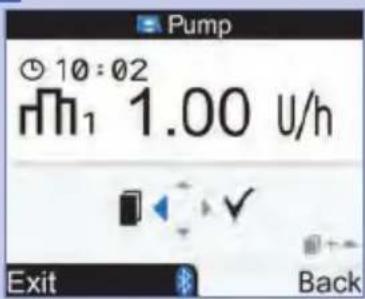
Repeatedly press and release until the PUMP SETTINGS screen appears.
3

Press ▷ to select.
Repeatedly press and release ◀ to display the pump SIGNAL SETTINGS screen.
4
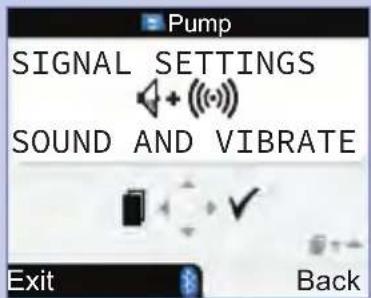
Press or to adjust the signal.
Press ▷ to save and exit.
8.1 Overview
From the diary, you are able to view a specific record with its attributes. In addition you are able to change or add attributes for a record, or add a new diary record.
Each diary record can contain:
- Date and time
- Blood glucose result
- Meal time event
- Carbs
- Health event
- Bolus type
- Bolus amount
Analysing your blood glucose results stored in the meter is an effective way for you and your healthcare professional to determine how well you are controlling your diabetes. This analysis is a valuable tool for making improvements to your diabetes management. The reports help you get the most from your meter. You can display filtered diary data in graphical or table format.
The meter generates reports, such as blood glucose averages with standard deviations for the time period you select (e.g., the past 7 days). Graphs can be a good way to view your blood glucose results. The meter can display a line graph to depict your blood glucose results trend, a graph or table showing the result ranges for a standard day or a standard week and a pie chart with different colours to illustrate the number of blood glucose results within, above or below your blood glucose target range.
Storing Data
The meter automatically stores up to 1,000 diary records with the time and date. You can review up to 250 diary records on the meter or up to 1,000 diary records using a computer. Contact the Accu-Chek Pump Careline on 0800 731 22 91 (UK) or 1 800 88 23 51 (Ireland) to acquire the computer software. Diary records are stored from the newest to the oldest. It is very important to have the correct time and date set to help ensure accurate interpretation of blood glucose results by you and your healthcare professional.
NOTE
- Do not change your therapy based on one individual record or blood glucose result in the diary.
- You must be the only user of the meter, because the diary data will be incorrect if the meter is shared.
- The information in the diary is saved when you replace the batteries. You need to check the time and date after you replace the batteries.
- Once 1,000 records are in the diary memory, adding a new record causes the oldest diary record to be deleted.
- The control results are stored in the memory, but cannot be reviewed on the meter. Control results can be reviewed using a computer with compatible software.
- Before reviewing diary records or control results with software, the stored diary records must first be downloaded to a compatible software application. For product availability, contact the Accu-Chek Pump Careline on 0800 731 22 91 (UK) or 1 800 88 23 51 (Ireland).
- This chapter shows sample screens. The screens may look slightly different from the screens on the meter. If you have any questions about the meter screens, contact the Accu-Chek Pump Careline on 0800 731 22 91 (UK) or 1 800 88 23 51 (Ireland).
- For descriptions of icons, refer to Appendix A: List of Icons.
- Blood glucose and bG are interchangeable and mean the same thing.
8.2 Viewing or Modifying Your Data
1

From the Main Menu, select My Data and press
2
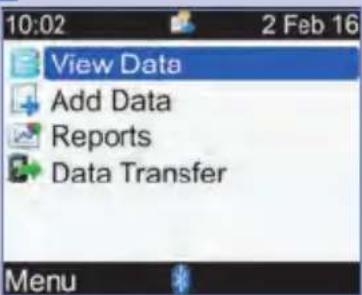
Select View Data and press
3
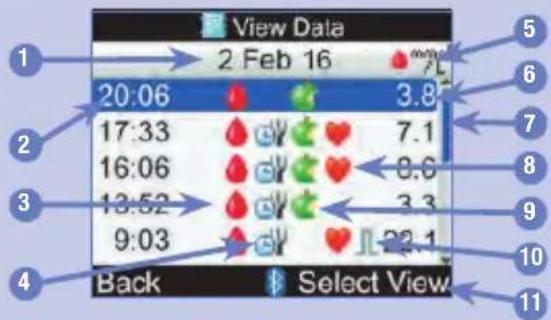
- Date of Record(s)
Multiple records are grouped under each date.
-
Time of Record
-
Blood Glucose Icon
Shown when there is a bG result for the record.
- Meal Time Icon
Shown when there is a meal time entry for the record.
- Unit of Measurement
Indicates that this column contains records of either bG values, bolus amounts or carbohydrate amounts. bG values are shown here.
-
Value of Record
-
Scroll Bar
When shown, press ▼ to scroll the screen to view additional records.
- ♥ Health Event Icon
Shown when there is a health event entry for the record.
- Carbs Icon
Shown when a carbohydrate amount has been entered for the record.
- Bolus Type Icon
Shown when there is a bolus entry for the record. See Bolus Type Icons table on the following page.
- Select View
Change between blood glucose, bolus and carbs views.
NOTE
- If data is not available, the No Data Available screen is displayed.
- The View Data screen displays the records in the order in which they occurred, with the most recent record shown on top.
- For the blood glucose result:
- “HI” is displayed if the bG result is above the measuring range.
- “LO” is displayed if the bG result is below the measuring range.
- The blood glucose result is blank if a blood glucose value does not exist.
- For a record that has bolus data, but a bolus type has not been assigned and the delivery has not been confirmed by the pump, the record displays the pen/syringe icon for the bolus type.
- For a record that has bolus data and the bolus type is manual pump, the record displays the Standard Bolus - not confirmed by the pump icon for the bolus type.
Bolus Type Icons
| Standard Bolus - confi rmed by the pump | |
| Standard Bolus - not confi rmed by the pump | |
| Extended Bolus - confi rmed by the pump | |
| Extended Bolus - not confi rmed by the pump | |
| Multiwave Bolus - confi rmed by the pump | |
| Multiwave Bolus - not confi rmed by the pump | |
| Manual Pump | |
| Pen/Syringe Bolus |
4
bG Value View Carbs View Bolus View

To choose another view, press and a pop-up menu appears. Select a view and press
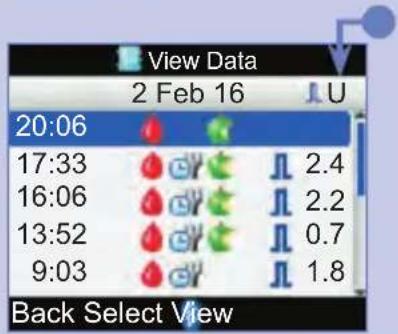
- Blood Glucose Result Column Indicates bG Value View.
- Bolus Amount Column Indicates Bolus View.
- Carbohydrate Amount Column Indicates Carbs View.


5

To view or modify the details of a record, select the record and press
6

Press ◀ to view the previous record or press ▶ to view the next (newer) record.
To modify a diary record, select Modify and continue to the next step.
7
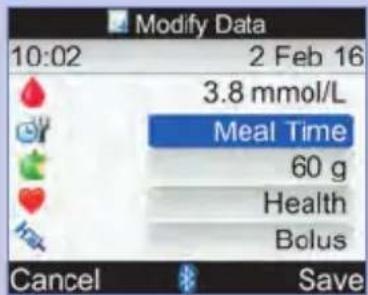
Select an entry fi eld to modify and press
Make the change in the entry fi eld and press.
Modify other fi elds, as needed.
To save the changes, select Save.
The following fi elds cannot be modifi ed with the specifi ed condition:
| Fields Cannot be modifi ed if the ... | |
| Meal Time record has no blood glucose value. | |
| Meal Time, Carbs, Health Event and Bolus | record has been used for bolus advice. |
| Bolus bolus type is confi rmed standard, extended or multiwave. | |
| Bolus blood glucose result was below the hypo warning limit. | |
8.3 Adding a Diary Record
You can add a diary record with entries for carbs, health event and bolus, but not for a bG result.
1

From the Main Menu, select My Data and press
2

Select Add Data and press
3

- Time Entry Field Cannot be set in the future
- Date Entry Field Cannot be set in the future
- Carbs Entry Field
- Health Event Entry Field
- Bolus Entry Field
- Save Appears once data has been entered to an entry fi eld
Press ▲ or ▼ to select a field and press ○. Press ▲ or ▼ to edit the entry and press ○ to confirm.
Make entries to other fi elds, as needed.
To save the new record, select Save.
8.4 Reporting Your Data
You can view many different statistics for your blood glucose results. The meter can display the data by the following meal time selections: Overall, Pre Meal, Post Meal, Bedtime or Other.
bG Averages
The report displays your bG result averages and standard deviations. You can choose a time range for the results for the last 7, 14, 30, 60 or 90 days.
Trend
The report displays your bG result trend. You can choose a time range for the results for the last 8, 24 or 48 hours, or 7 days. You can view the report as either a graph or a table.
Standard Day
The report displays your bG result averages, number of tests and standard deviations for each time block of the day. You can choose a time range for the results for the last 7, 14, 30, 60 or 90 days. You can view the report as either a graph or a table.
Standard Week
The report displays your bG result averages, number of tests and standard deviations for each day of the week. You can choose a time range for the results for the last 7, 14, 30, 60 or 90 days. You can view the report as either a graph or a table.
Target
The report displays the percentages of your bG results that are above, within or below your Target Range, or that are Hypo (below your Hypo Warning Limit). You can choose a time range for the results for the last 7, 14, 30, 60 or 90 days. You can view the report as either a pie chart or a table.
Follow these tips to get the most value from My Data reports:
If you delivered a bolus directly on the pump, go to My Data on the meter to receive the bolus information automatically. Do this before your next blood glucose test.
Replace the batteries when the Low Battery icon appears. This maintains the communication between meter and pump.
NOTE
- Data reports do not include corrupt results, control results or HI and LO results.
- If no results are available for the selected time range and meal time, the No Data Available screen is displayed.
- When a graph or table is being displayed, the meter saves the current settings (time range, meal time and graph or table view) for that report when you select Back or when the meter powers off.
- Blood glucose results without a meal time entered only occur in the Overall category.
- Standard deviation measures how much the blood glucose results are scattered around the blood glucose average. A low standard deviation means the blood glucose results are tightly clustered around the blood glucose average; a high standard deviation means the blood glucose results are widely scattered around the blood glucose average.
- For a standard deviation to be displayed, there must be 2 or more blood glucose results recorded.
8
Managing Your Data
Viewing a Report
1

From the Main Menu, select My Data and press
2

Select Reports and press ☐ Select a report and press .
3
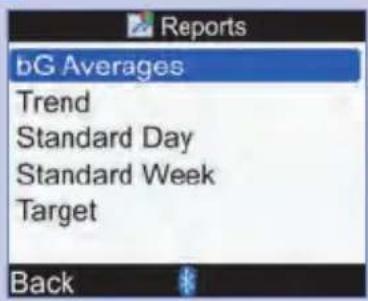

456
To change the time range, press ▲ to highlight the time range fi eld at the top of the screen. Press either ◀ or ▶ to select the desired time range.
To change the meal time, press either or to highlight the meal time fi eld which is below the time range fi eld at the top of the screen. Press either or to select the desired meal time.
NOTE: The option of changing the meal time does not apply to the bG Averages screen.
Select Back to return to the Reports screen.
NOTE
Screenshots of example reports are shown on the following pages.
bG Averages

- Time Range
- Meal Times
- Standard Deviation (SD)
- Number of Tests
- bG Average
Trend Graph

and
- Time Range
- Meal Time
- Blood Glucose Unit of Measurement
- Blood Glucose Icon
- Time of Day or Days of Month
- Bolus Icon
- Bolus Unit of Measurement
- Maximum Bolus Amount Indicator
- Maximum Carbs Amount Indicator
- Carbs Unit of Measurement
- Carbs Icon

- Bolus Value
Blue bar: height shown is in relation to the bolus insulin amount.
- Individual Blood Glucose Result
Points are connected with lines to display your trend. An arrow at the top of the graph (not shown) indicates that a data point extends beyond the screen.
- Carb Value
Dark orange bar: height shown is in relation to the carbs amount.
- Warning Limit Hypo Level
Red horizontal dashed line
- Table View
Press → to display the Trend Table.
- Time Change Icon
Only shown when the meter time has been changed for this data.
NOTE
- On the right side of the graph, the Maximum Bolus Amount Indicator is a horizontal line with the corresponding value shown above it. The purpose of this indicator is to scale the top portion of the graph for the Bolus Value blue bars. The Maximum Bolus Amount Indicator values available on the meter are 1, 5, 15, 30 and 60 U. The indicator displayed is based on the single largest bolus insulin amount delivered for the time range chosen. For example, if the largest bolus delivered during the chosen time range is 8 U, then the meter will scale the upper graph to be between 0 and 15 U.
- On the right side of the graph, the Maximum Carbs Amount Indicator is a horizontal line with the corresponding value shown below it. The purpose of this indicator is to scale the bottom portion of the graph for the Carb Value dark orange bars. The Maximum Carbs Amount Indicator values available on the meter are 30, 60, 120, 180 and 240 g, or the equivalent scale for BE, KE or CC. The indicator displayed is based on the single largest carbs amount for the time range chosen. For example, if the largest carbs amount for the chosen time range is 86 g, then the meter will scale the lower graph to be between 0 and 120 g.
- Trend graph data is cleared if bolus advice data is cleared.
- If 🔒 (time change icon) is shown at the bottom of the screen, the time and date of one or more data points may not match the time stamp in My Data because the meter clock has been changed. All times show the data relative to the current meter time.
For example: - You perform a bG test and the value is stored in the meter at 9:00.
- The meter time is changed ahead 1 hour.
- The bG data is shown at 10:00.
Trend Table

- Time Range
- Meal Time
- Date of Records The most recent record is displayed fi rst.
- Time of Record
- Blood Glucose Result
- Time Change Icon Only shown when the meter time has been changed for this data.
- Carbs Amount
- Bolus Amount
- Scroll Bar When shown, press ▼ to scroll the screen to view additional records.
- Graph View Press → to display the Trend Graph.
Standard Day Graph

- Time Range
- Meal Time
- Blood Glucose Unit of Measurement
- Blood Glucose Icon
- End Time of Each Time Block
Vertical dashed line
- Arrow
Indicates the blood glucose average is off the top of the graph ("X" is not displayed).
- Box for Each Time Block
- “X” in the centre of the box indicates the average of all of the bG results.
- The top of the box indicates 1 standard deviation above the average and the bottom of the box indicates 1 standard deviation below the average. The box is not displayed if there is not enough data to determine standard deviation.
- The top of box is open if the standard deviation is off the top of the graph.
-
The box and "X" are not displayed for a time block if no data is found.
-
Warning Limit Hypo Level
Red horizontal dashed line
-
Time of Day
-
Table View
Press → to display the Standard Day Table.
Standard Day Table

- Time Range
- Meal Time
- Time Block
- bG Average
- Standard Deviation (SD)
- Number of Tests
- Scroll Bar
When shown, press ▼ to scroll the screen to view additional records.
- Graph View
Press → to display the Standard Day Graph.
Standard Week Graph

- Time Range
- Meal Time
- Blood Glucose Unit of Measurement
- Blood Glucose Icon
- Day of Week
- Arrow
Indicates blood glucose average is off the top of the graph ("X" is not displayed).
- Box for Each Time Block
- "X" in centre of box indicates the average of all blood glucose results for the selected criteria.
- The top of the box indicates 1 standard deviation above the average and the bottom of the box indicates 1 standard deviation below the average. The box is not displayed if there is not enough data to determine standard deviation.
- The top of box is open if the standard deviation is off the top of the graph.
-
Box and "X" are not displayed for a time block if no data is found.
-
Warning Limit Hypo Level
Red horizontal dashed line
- Table View
Press → to display the Standard Week Table.
Standard Week Table

- Time Range
- Meal Time
- bG Average
- Day of Week
- Standard Deviation (SD)
- Number of Tests
- Scroll Bar
Press ▼ to scroll the screen to view additional records.
- Graph View
Press → to display the Standard Week Graph.
Target
Target Graph Target Table

- Time Range
- Meal Time
- Legend
Blood glucose result categories
- Pie Chart
Depicts the percentages for the blood glucose result categories.
- Percentages
Percentage for each blood glucose result category
- Table or Graph View
Press → to switch between the table and graph.
8.5 Transferring Data to a Computer
You can transfer your data from the meter to a computer to view or print your results.
1
Install the computer software according to the instructions.
Connect the infrared cable to the computer according to the instructions.
2
Run the software program and follow the instructions on how to transfer data. Ensure the software is ready to accept data from the meter.
3

From the Main Menu, select My Data and press
4
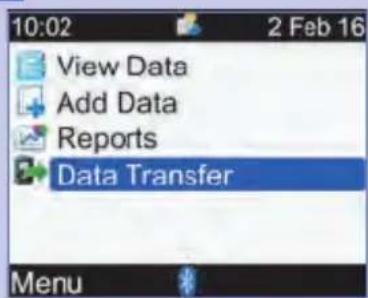
Select Data Transfer and press
5

Locate the infrared (IR) window on the top of the meter.
Locate the IR window on the computer's infrared cable.
Point the IR windows toward each other. They should be 3 to 10 cm apart.
6
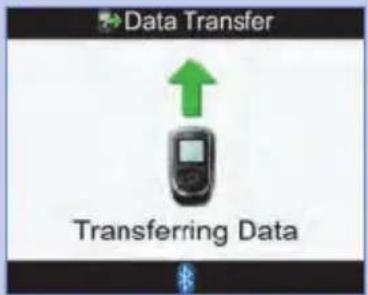
Follow the prompts on your computer software to start the data transfer.
7

Once the data transfer is complete, the Data Transfer Complete screen is displayed for 3 seconds and then the meter turns off.
NOTE
If the data did not transfer successfully, turn the meter off, turn the meter back on, and try again. If you still have problems, contact the Accu-Chek Pump Careline on 0800 731 22 91 (UK) or 1 800 88 23 51 (Ireland).
8
Managing Your Data
9.1 Overview
You have the flexibility to change the meter settings that you had initially selected during the Setup Wizard process. You can make adjustments to the meter settings in order to meet changing conditions. Consult with your healthcare professional to ensure the appropriate settings are selected.
Important Information
- When editing a setting, any unsaved changes are discarded if the meter turns off or if a test strip is inserted into the meter.
- It is important to ensure that the time and date are correctly set in order to create accurate diary records.
- If you change the pump time and date, the meter time and date will automatically synchronise to match the pump.
NOTE
Blood glucose and bG are interchangeable and mean the same thing.
9.2 Setting Up Bolus Advice for the First Time
If you did not set up bolus advice when you went through the Setup Wizard and have now decided to activate bolus advice, proceed with this section. Once you set up bolus advice, it cannot be turned off and the carbs unit cannot be changed.
Before continuing, it is recommended that you review the information in the chapter Introduction to Bolus Advice and in the Setup Wizard: Important Information section in the chapter Getting Started to determine how many time blocks you need and the start/end times for each time block. To help best manage your diabetes, talk to your healthcare professional about arranging your time blocks, including setting up the blood glucose target range, carb ratio and insulin sensitivity for each time block.
9
Changing Meter Settings
1

From the Main Menu, select Settings and press
2
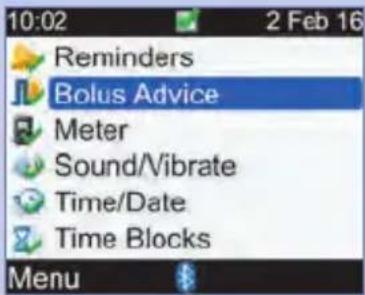
Select Bolus Advice and press
3
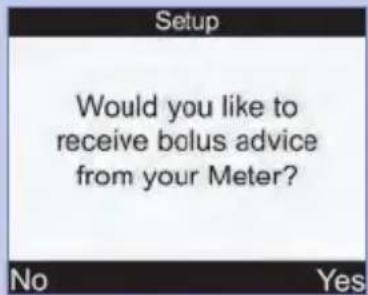
Select Yes to continue with bolus advice setup.
If you do not want to set up bolus advice, select No and return to the Settings screen.
4
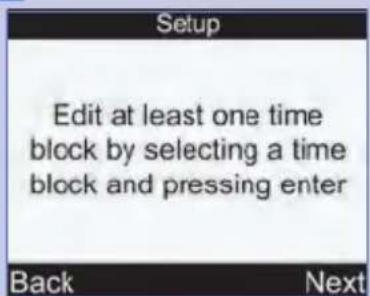
The settings for the first time block that you edit are copied to all of the other time blocks. You can then modify the settings for any individual time block.
Select Next.
5

Select a time block to edit and press

- Time Block Start Time
- Time Block End Time
- Target Range Lower Limit Value
- Target Range Upper Limit Value
- Carb Ratio—Amount of Insulin Units
- Carb Ratio-Number of Carbohydrates
- Scroll Bar
- Insulin Sensitivity—Amount of Insulin Units
- Insulin Sensitivity—Change in Glucose Level
9
Changing Meter Settings
6
For this first time block, the values for the carb ratio and insulin sensitivity must be entered.

WARNING
It is important to make the correct selections for the carbohydrate ratio and insulin sensitivity. If you select the wrong ratio (the basis for all calculations), all future bolus advice recommendations will be wrong and may result in severe hypoglycaemia or hyperglycaemia.
End Time:
Select the End Time entry fi eld and press □.
Set the time and press □.
Target Range:
Select the entry fi eld for the lower limit value and press
Set the value and press ☐.
Select the entry fi eld for the upper limit value and press
Set the value and press ☐.
Carb Ratio:
Select the entry fi eld for the amount of insulin units and press ⚙.
Set the value and press ☐.
Select the entry fi eld for the number of carbohydrates and press □.
Set the value and press ☐.
Insulin Sensitivity:
Select the entry fi eld for the amount of insulin units and press □.
Set the value and press ☐.
Select the entry fi eld for the change in glucose level and press □.
Set the value and press C.
To Continue:
Select Save.
7
Time Blocks
Settings copied to all Time Blocks. Adjust as necessary.
OK
The carb ratio and insulin sensitivity are copied to all time blocks. After this step, you can edit the settings for any individual time block, as needed.
Select OK.
8
| Start End | |
| 0:00 | 5:30 |
| 5:30 | 11:00 |
| 11:00 | 17:00 |
| 17:00 | 21:30 |
| 21:30 | 0:00 |
| Back | Next |
Add or remove time blocks, otherwise continue to the next step.
To Add a Time Block:
Select the last time block and press ○.
Select the End Time entry fi eld and press.
Set the End Time of the selected time block and press .This will be the start time of the added time block.
Select Save.
Add another time block, or proceed to the next step.
To Remove a Time Block:
Select the time block you want to remove and press
Select the End Time entry fi eld and press.
Set the End Time to match the Start Time of the time block and press □.
Select Save.
Remove another time block, or proceed to the next step.
9
Changing Meter Settings
9
| Time Blocks | |
| Start | End |
| 0:00 | 5:30 |
| 5:30 | 11:00 |
| 11:00 | 17:00 |
| 17:00 | 21:30 |
| 21:30 | 0:00 |
| Back | Next |
Select an individual time block to modify its settings, including End Time. Repeat as needed for other time blocks.
When all of the time block settings have been completed, select Next.
10
| Health Events | |
| Exercise 1 | -10% |
| Exercise 2 | -20% |
| Stress | 0% |
| Illness | 20% |
| Premenstrual | 0% |
| Back | Next |
To Enter Health Event Percentages:
Select a Health Event entry fi eld and press.
Set the percentage and press
Repeat to enter other Health Event percentages.
To Continue:
Select Next.
11
| Advice Options | |
| Meal Rise | 6 mmol/L |
| Snack Size | 24 g |
| Acting Time | 4:00 |
| Offset Time | 1:00 |
| HH MM | |
| Back | Next |
You must enter a Snack Size amount in order to complete the bolus advice setup.
Meal Rise:
Select the Meal Rise entry fi eld and press.
Set the value and press □.
Snack Size:
Select the Snack Size entry fi eld and press.
Set the value and press □.
Acting Time:
Select the Acting Time entry fi eld and press.
Set the time of duration and press □.
Off set Time:
Select the Off set Time entry fi eld and press.
Set the time of duration and press ⚙.
To Continue:
Select Next.
12

Select OK.
Bolus Advice is set up.
9
Changing Meter Settings
9.3 Time Blocks: Bolus Advice Is Set Up
If bolus advice has been set up, use this section for:
- Changing the values for the blood glucose target range, carb ratio and insulin sensitivity for any time block
- Adding or removing time blocks
- Changing the start and end times of time blocks
Before continuing, it is recommended that you review the Setup Wizard: Important Information section in the chapter Getting Started to determine how many time blocks you need and the start/end times for each time block. To help best manage your diabetes, talk to your healthcare professional about arranging your time blocks, including setting up the blood glucose target range, carb ratio and insulin sensitivity for each time block.
1

From the Main Menu, select Settings and press
2
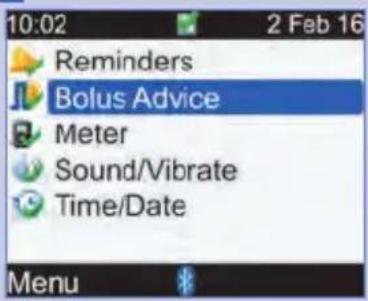
Select Bolus Advice and press
3

Select Time Blocks and press
4
| Time Blocks | |
| Start | End |
| 0:00 | 5:30 |
| 5:30 | 11:00 |
| 11:00 | 17:00 |
| 17:00 | 21:30 |
| 21:30 | 0:00 |
| Back | |
Add or remove time blocks, otherwise continue to the next step.
To Add a Time Block:
Select the last time block and press ○.
Select the End Time entry fi eld and press.
Set the End Time of the selected time block and press. This will be the start time of the added time block.
Select Save.
Add another time block, or proceed to the next step.
To Remove a Time Block:
Select the time block you want to remove and press
Select the End Time entry fi eld and press.
Set the End Time to match the Start Time of the time block and press 🔔.
Select Save.
Remove another time block, or proceed to the next step.
5
| Time Blocks | |
| Start | End |
| 0:00 | 5:30 |
| 5:30 | 11:00 |
| 11:00 | 17:00 |
| 17:00 | 21:30 |
| 21:30 | 0:00 |
| Back | |
Select a time block to edit and press
9
Changing Meter Settings
6

End Time:
Select the End Time entry fi eld and press
Set the time and press
Target Range:
Select the entry fi eld for the lower limit value and press
Set the value and press
Select the entry fi eld for the upper limit value and press
Set the value and press
Carb Ratio:
Select the entry fi eld for the amount of insulin units and press
Set the value and press
Select the entry fi eld for the number of carbohydrates and press 📄
Set the value and press
Insulin Sensitivity:
Select the entry fi eld for the amount of insulin units and press
Set the value and press
Select the entry fi eld for the change in glucose level and press
Set the value and press
Select Save.
7
| Start | End |
| 0:00 | 5:30 |
| 5:30 | 11:00 |
| 11:00 | 17:00 |
| 17:00 | 21:30 |
| 21:30 | 0:00 |
| Back |
To modify the settings for another time block, select the time block and press Return to Step 6.
To return to the Bolus Advice screen, select Back.
9.4 Health Event Percentages
1

From the Main Menu, select Settings and press
2
Select Bolus Advice and press
3
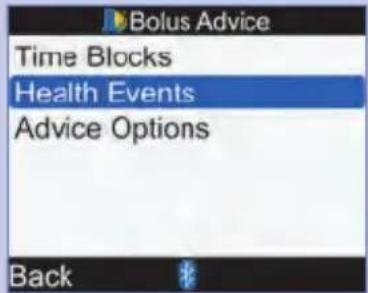
Select Health Events and press
4

Select a Health Event entry fi eld and press.
Set the percentage and press
Repeat to change other Health Event percentages.
Select Save.
9
Changing Meter Settings
9.5 Advice Options: Meal Rise, Snack Size, Acting Time, Off set Time
1

From the Main Menu, select Settings and press
2
Select Bolus Advice and press
3
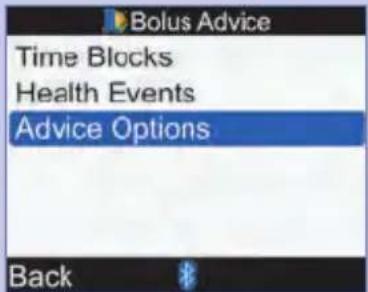
Select Advice Options and press
4
| Meal Rise | 6 mmol/L |
| Snack Size | 24 g |
| Acting Time | 4:00 |
| Offset Time | 1:00 |
| HH MM |
Meal Rise:
Select the Meal Rise entry fi eld and press.
Set the value and press ○.
Snack Size:
Select the Snack Size entry fi eld and press.
Set the value and press ○.
Acting Time:
Select the Acting Time entry fi eld and press.
Set the time of duration and press □.
Off set Time:
Select the Off set Time entry fi eld and press.
Set the time of duration and press ○.
Select Save.

If you changed the Snack Size, the meter displays this Advice Options screen. Select OK to return to the Bolus Advice screen.
If you did not change the Snack Size, the meter returns to the Bolus Advice screen.
9.6 Time Blocks: Bolus Advice Is Not Set Up
If bolus advice is not set up, use this section for:
- Changing the values for the blood glucose target range for any time block
- Adding or removing time blocks
- Changing the start and end times of time blocks
Before continuing, it is recommended that you review the Setup Wizard: Important Information section in the chapter Getting Started, to determine how many time blocks you need and the start/end times for each time block. To help best manage your diabetes, talk to your healthcare professional about arranging your time blocks, including setting up the blood glucose target range for each time block.
1

From the Main Menu, select Settings and press
2

Time Blocks does not appear on this screen if bolus advice has been set up. Refer to the Time Blocks: Bolus Advice Is Set Up section in this chapter.
Select Time Blocks and press 🔒.
3

Add or remove time blocks, otherwise continue to the next step.
To Add a Time Block:
Select the last time block and press 🔵.
Select the End Time entry fi eld and press.
Set the End Time of the selected time block and press ☐. This will be the start time of the added time block.
Select Save.
Add another time block, or proceed to the next step.
To Remove a Time Block:
Select the time block you want to remove and press ○.
Select the End Time entry fi eld and press.
Set the End Time to match the Start Time of the time block and press 🔔.
Select Save.
Remove another time block, or proceed to the next step.
4
| Time Blocks | |
| Start | End |
| 0:00 | 5:30 |
| 5:30 | 11:00 |
| 11:00 | 17:00 |
| 17:00 | 21:30 |
| 21:30 | 0:00 |
| Back | |
Select a time block to edit and press
9
Changing Meter Settings
5

End Time:
Select the End Time entry fi eld and press.
Set the End Time and press
Target Range:
Select the entry fi eld for the lower limit value and press □.
Set the value and press ○.
Select the entry fi eld for the upper limit value and press 🔒.
Set the value and press ○.
To Continue:
Select Save.
6
| Time Blocks | |
| Start | End |
| 0:00 | 5:30 |
| 5:30 | 11:00 |
| 11:00 | 17:00 |
| 17:00 | 21:30 |
| 21:30 | 0:00 |
| Back | |
To modify the settings for another time block, select the time block and press Return to Step 5.
To return to the Settings screen, select Back.
9.7 Warning Limits: Hypo, Hyper
You can set blood glucose warning limits for hypoglycaemia (Hypo) or hyperglycaemia (Hyper) conditions.

WARNING
This function is no substitute for hypoglycaemia or hyperglycaemia training by your healthcare professional.

If your blood glucose result is below the hypo warning limit, the meter displays the Below Hypo Warning Limit message.
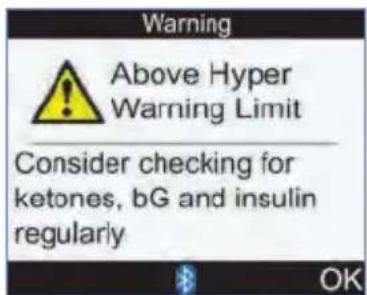
If your blood glucose result is above the hyper warning limit, the meter displays the Above Hyper Warning Limit message.
NOTE
The meter displays a recommended amount of fast carbohydrates. The "24g" shown in the screen above is for example only.
9
Changing Meter Settings
1

From the Main Menu, select Settings and press
2

Select Warning Limits and press
4

Hyper (Upper) Blood Glucose Limit:
Select the Hyper entry fi eld and press ○.
Set the value and press ○.
Hypo (Lower) Blood Glucose Limit:
Select the Hypo entry fi eld and press ○.
Set the value and press ○.
Select Save.
9.8 Key Lock
The key lock feature allows you to lock all of the buttons on the meter, except for the power and backlight buttons. This serves as a safety measure against unintentional activation of meter functions.
1
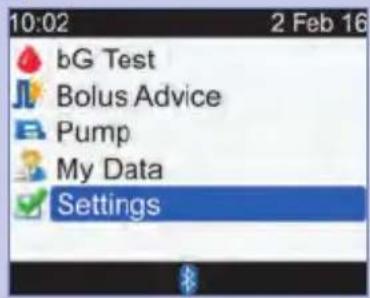
From the Main Menu, select Settings and press
2

Select Key Lock and press .
4

Press to display the Key Lock pop-up menu.
Select On or Off.
Select Save.

If the buttons are locked when you turn the meter on, the Key Lock screen is displayed.
To unlock the buttons, press and hold 📋 and 🏱 simultaneously until the Main Menu is displayed.
Also, the buttons are unlocked when one of the following occurs:
- A test strip is inserted into the meter.
- The meter is turned on and a pump error or a pump warning occurs.
The buttons remain unlocked for the current session. When the meter is turned off and then on again, the buttons are locked.
9
Changing Meter Settings
9.9 Language
1

From the Main Menu, select Settings and press
2
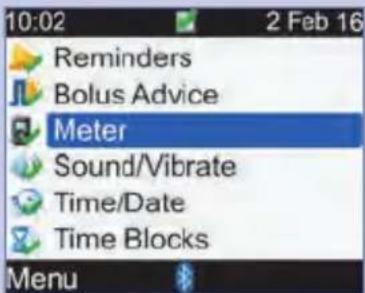
Select Language and press
4

Press to display the available languages.
Select the desired language and press 🔒.
Select Save.
9.10 Carbs (Carbohydrates) Unit
The following carbs units are available on the meter. Once bolus advice is activated, the carbs unit that has been selected cannot be changed.
| Abbreviation Carbs Unit Gram Equivalent | |
| g Grams 1 gram | |
| KE Kohlenhydrateinheit 10 grams | |
| BE Bread Equivalent 12 grams | |
| CC Carbohydrate Choice 15 grams |
1
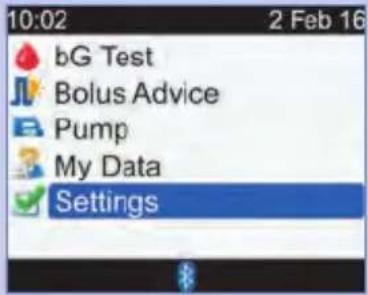
From the Main Menu, select Settings and press 🔑
2

Select Units and press
4

Press to display the list of units.
Select the unit and press ○.
Select Save.
9
Changing Meter Settings
9.11 Beeper, Vibrate, Key Sound
You can set up the meter for sound mode and/or vibrate mode. The beeper sound level can be set to low, medium or high. Sounds may occur for:
- Button presses
- Errors
- Warnings
- Reminders
NOTE
- Beeper and vibrate cannot both be turned off at the same time.
- When Key Sound is on, the meter beeps each time a button is pressed.
- Even when the beeper is turned off, the meter still beeps when an error message occurs.
- When the battery is low in power, the meter uses the medium beeper level (if the beeper level is set to high) and disables vibrate. In this condition, the main menu screen will continue to display the icons for vibrate and beeper, unless you have set them to Off. After the batteries are replaced with new ones, the meter returns to the beeper/vibrate settings you have set.
1

From the Main Menu, select Settings and press
2
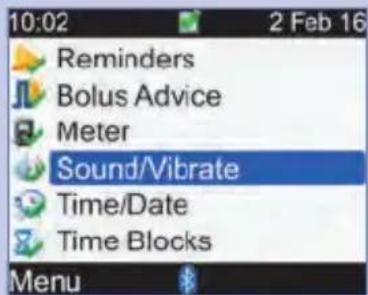
Select Sound/Vibrate and press
3

Beeper Sound Level:
Select the Beeper entry fi eld and press ○.
Select the Beeper sound level (Off, Low, Medium or High) and press ○.
Turn Vibrate On or Off :
Select the Vibrate entry fi eld and press ○.
Select the Vibrate mode (On or Off) and press.
Turn Key Sound On or Off :
Select the Key Sound entry fi eld and press.
Select the Key Sound mode (On or Off) and press.
Select Save.
9.12 Time Format, Time, Date
NOTE
- It is recommended you set the date and time on the pump. The date and time on the meter will automatically synchronise to match the pump.
- Changing the date and time will impact the Trend Graph and the Trend Table. Refer to the Reporting Your Data section in the chapter Managing Your Data.
- The 24-hour time format is displayed as "HH:MM" (example: 15:53) where "H" is hour and "M" is minute, and the 12-hour time format is displayed as "HH:MM A/P" (example: 3:53 pm) where "A/P" is either am or pm.
- The date format is displayed as "DD MMM YY" (example: 2 Feb 16) where "D" is day, "M" is month and "Y" is year.
1
From the Main Menu, select Settings and press
2
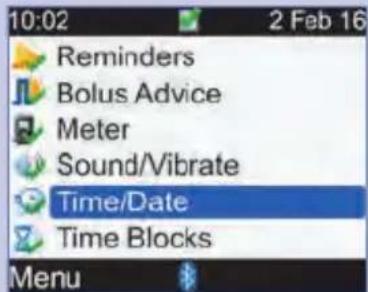
Select Time/Date and press
3

Time Format:
Select the Time Format entry fi eld and press.
Select 24 hr or 12 hr and press □.
Time:
Select the Time entry fi eld and press 🔒.
Set the Hour and press ☐.
Set the Minutes and press
If Time Format is 12-hour, select am or pm and press
Date:
Select the Date entry fi eld and press Ⓐ.
Set the Day and press Ⓐ.
Set the Month and press ○.
Set the Year and press C.
Select Save.
9.13 Backlight Level
The backlight on your meter helps you read the information on the meter display under different lighting conditions. You can adjust the backlight level by pressing the backlight button on the front of the meter. The backlight adjusts from low, to medium, to high and back to low again.
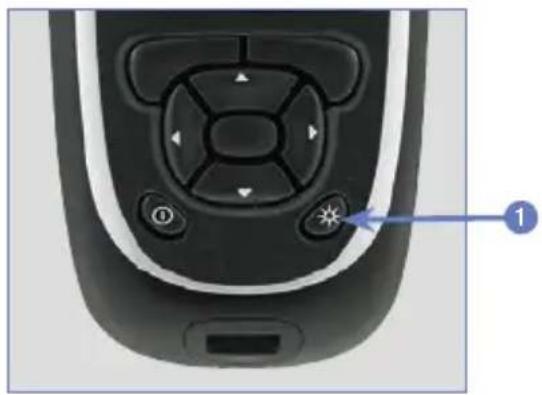
1. Backlight Button
Press to adjust the backlight level.
NOTE
- When the meter is turned on, the backlight is set to medium.
- When the backlight is set to high or medium and no button activity has occurred for approximately 15 seconds, the meter automatically changes to low backlight to conserve battery life. The meter restores the original backlight setting when you press a button, insert a test strip or when the meter displays the bG Results screen.
- When in the low battery condition and the backlight level is set to high, the meter uses the medium backlight level. After the batteries are replaced with new ones, the meter again allows the high backlight setting.
- The backlight button is disabled during a blood glucose test, a control test and when the meter is transferring data.
10.1 Overview
Reminders help you to remember a variety of tasks, for example when to test your blood glucose, when to change your pump infusion set and when you have an appointment with the doctor. The different types of reminders are:
• bG Test Reminders (After High bG, After Low bG and After Meal)
• Alarm Clock Reminders (bG Test and Other)
- Date Reminders (Dr. Visit, Lab Test and Infusion Set Change)
Reminder Screen Example

- Reminder Icon
- Reminder Title
- Reminder Message
- Snooze
Press 📋 to schedule the reminder to reoccur. Not all reminders have this function.
- Dismiss
Press 🔍 to confirm or dismiss the reminder.
NOTE
- The meter beeps when it displays any reminder if the beeper setting is on.
- The meter vibrates when it displays any of the following reminders if the vibrate setting is on: After Meal Retest, bG Test, High bG Retest, Low bG Retest and Other.
- Blood glucose and bG are interchangeable and mean the same thing.
10.2 bG Test Reminders: After High bG, After Low bG, After Meal
The meter can remind you to retest your blood glucose after either a high or low bG result, or after a meal.
After High bG reminder: When your blood glucose result is above the high blood glucose threshold setting, the meter schedules this reminder to occur after the time duration elapses.
After Low bG reminder: When your blood glucose result is less than the low blood glucose threshold setting, the meter schedules this reminder to occur after the time duration elapses.
After Meal reminder: When you save a record with a carbohydrate amount that is higher than the Snack Size setting, the meter schedules this reminder to occur after the time duration elapses.
After High bG reminder example:
- The meter has the high bG threshold level set to 13.3 mmol/L and the reminder time duration (Remind After) is set to 60 minutes.
- You have a blood glucose result that is higher than 13.3 mmol/L, perhaps 15.0 mmol/L.
- In 60 minutes, the meter reminds you to perform another blood glucose test.
After High bG Reminder After Low bG Reminder After Meal Reminder


- At the scheduled time, the meter automatically turns on and displays the reminder if a test strip has not been inserted.
- The meter retains the time duration when one of these reminders is scheduled regardless of meter time and date changes.
-
If the meter is already on when the reminder is scheduled and no blood glucose test was performed, the reminder is displayed when the meter powers down.
-
When the meter displays the reminder and you do not press any meter buttons within 30 seconds, the meter turns off and displays the reminder again in 2 minutes. After the fourth time that the meter displays the reminder, the meter dismisses the reminder.
- Snooze the reminder either by pressing or by inserting a test strip. The After High bG reminder snooze time is 15 minutes. The After Low bG reminder and After Meal reminder snooze times are 5 minutes.
- When you perform a blood glucose test, the meter dismisses any of these reminders that are pending within the next 30 minutes. If necessary, a new reminder is scheduled based upon the blood glucose result.
- Exposure to extreme cold conditions may disable bG test reminders until the meter is turned on.
Setting bG Test Reminders
1
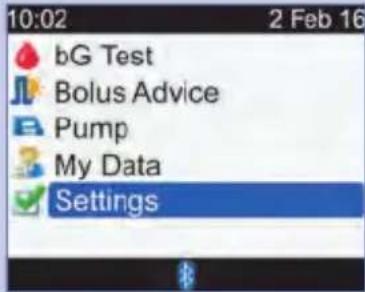
From the Main Menu, select Settings and press 🔑
2
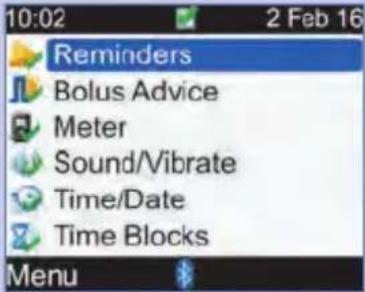
Select Reminders and press
3

Select bG Test Reminders and press
10
Meter Reminders
4

Make a selection and press
After High bG: Go to Step 5. After Low bG: Go to Step 6. After Meal: Go to Step 7.
NOTE: The Remind After time is displayed as "HH:MM" (e.g., 1:30) where "H" is hour and "M" is minute.
5

Turn Reminder On or Off :
Select the Reminder entry fi eld and press.
Select On or Off and press
bG Threshold:
Select the bG Threshold entry fi eld and press.
Set the value and press ○.
Remind After:
Select the Remind After entry fi eld and press.
Set the time and press ☐.
Select Save.
6
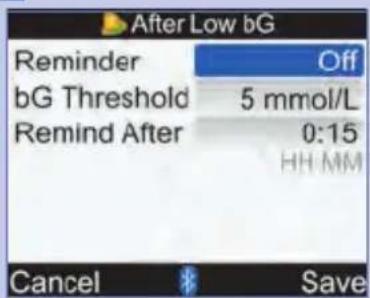
Turn Reminder On or Off :
Select the Reminder entry fi eld and press.
Select On or Off and press ○.
bG Threshold:
Select the bG Threshold entry fi eld and press.
Set the value and press ○.
Remind After:
Select the Remind After entry fi eld and press.
Set the time and press ☐.
Select Save.
7
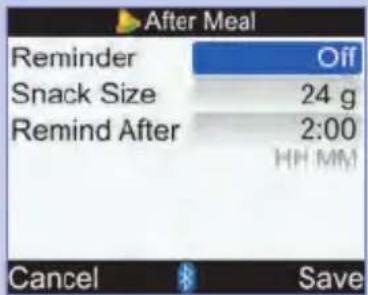
Turn Reminder On or Off :
Select the Reminder entry fi eld and press.
Select On or Off and press 🔒.
Snack Size:
Select the Snack Size entry fi eld and press.
Set the amount and press Ⓐ.
Remind After:
Select the Remind After entry fi eld and press.
Set the time and press □.
Select Save.
If you did not change the Snack Size, the meter returns to the bG Test Reminders screen.
After Meal
New Snack Size has also been applied to Bolus Advice Options

If you changed the Snack Size, the After Meal screen is displayed.
Select OK.
NOTE
When the After Meal screen is displayed for the first time, if bolus advice has not been set up, the default for Snack Size is no entry (“---”). If bolus advice has been set up, the default value is the value set for the Snack Size on the Advice Options screen.
10.3 Alarm Clock Reminders: bG Test, Other
bG Test alarm clock reminders are a helpful way to remind you to test your blood glucose. The Other alarm clock reminders can be used for any other daily appointments.
NOTE
- You can set up to eight alarm clock reminders per day.
- The time is set in 15-minute increments.
- Exposure to extreme cold conditions may disable alarm clock reminders until the meter is turned on.
bG Test
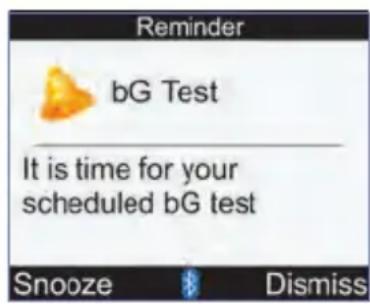
- Every day at the scheduled time, the meter turns on and displays this reminder if a test strip has not been inserted. However, if the meter is already on when the reminder is scheduled and no blood glucose test was performed, the reminder is displayed when the meter powers down.
- When the meter displays this reminder and you do not press any meter buttons, after 30 seconds the meter turns off and displays the reminder again in 2 minutes. After the fourth time, the meter displays the reminder and then the meter dismisses the reminder.
- Dismiss the reminder by pressing ↗.
- Snooze the reminder for 15 minutes either by pressing 📋 or by inserting a test strip.
- When you perform a blood glucose test, the meter dismisses any bG Test reminders that have been snoozed or that are pending within the next 30 minutes.
Other

- Every day at the scheduled time, the meter turns on and displays this reminder if a test strip has not been inserted.
- When the meter displays this reminder and you do not press any meter buttons, after 30 seconds the meter turns off and displays the reminder again in 2 minutes. After the fourth time, the meter displays the reminder and then the meter dismisses the reminder.
- If the meter is already on when the reminder is scheduled, the reminder is displayed when the meter powers down.
- Dismiss this reminder either by pressing → or by inserting a test strip.
- Snooze the reminder for 15 minutes by pressing 📋.
Default settings for alarm clock reminders:
| Default Time of Day |
| 07:00 |
| 09:00 |
| 11:00 |
| 12:00 |
| 14:00 |
| 16:00 |
| 19:00 |
| 22:00 |
10
Meter Reminders
1
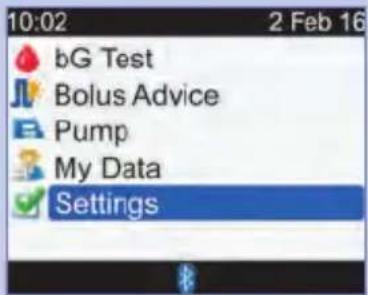
From the Main Menu, select Settings and press
2

Select Reminders and press
3

Select Alarm Clock and press
4
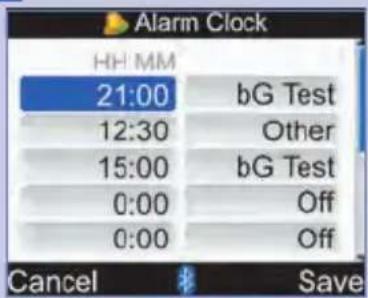
Turn On or Change a Reminder:
Select the time entry fi eld for a Reminder and press □.
Set the time of day for the Reminder to occur and press
Press ☐. Select the type of Reminder (i.e., bG Test or Other) and press ☐.
Repeat to set additional reminders.
Turn Off a Reminder
Select the type of Reminder entry fi eld (i.e., bG Test or Other) and press ○.
Select Off and press.
Repeat to turn off additional reminders.
Select Save.
10.4 Date Reminders: Dr. Visit, Lab Test, Infusion Set Change
Date reminders are a helpful way to remind you of an upcoming Dr. visit or lab test. In addition, you can set up an ongoing reminder for an infusion set change for the interval you choose (1 day, 2 days or 3 days).
Dr. Visit and Lab Test Reminders
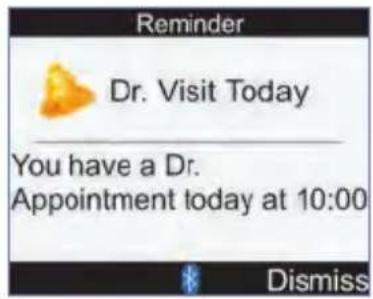

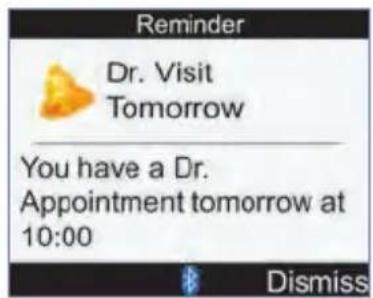

- Displayed when you turn the meter on and a test strip has not been inserted.
- Dismiss the reminder either by pressing 📋 or by inserting a test strip.
10
Meter Reminders
Infusion Set Change Reminder

- Displayed when you turn the meter on and a test strip has not been inserted.
- Dismiss the reminder by pressing
- Snooze the reminder either by pressing 📋 or by inserting a test strip. The reminder is displayed the next time the meter is turned on.
NOTE
- Setting the time for a Dr. visit or lab test reminder is optional. If you choose not to set a time, ensure the Time entry fi eld value is “--:--” (no entry).
• The time is set in 15-minute increments. - Date reminders do not automatically turn the meter on and display the reminder. Date reminders only occur on the appropriate date when you turn the meter on.
1

From the Main Menu, select Settings and press
2
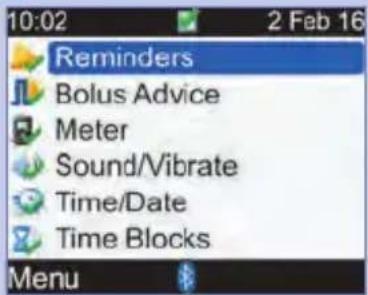
Select Reminders and press
3
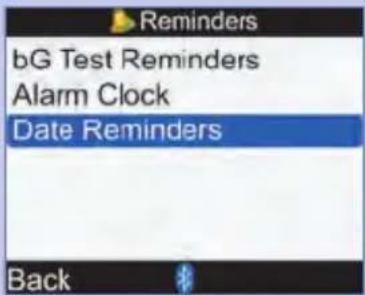
Select Date Reminders and press
4

Make a selection and press
Dr. Visit: Go to Step 5.
Lab Test: Go to Step 6.
Infusion Set Change:
Go to Step 7.
5

Turn Reminder On or Off :
Select the Reminder entry fi eld and press.
Select On or Off and press
Date:
Select the Date entry fi eld and press Ⓞ.
Set the Day and press ☐.
Set the Month and press C.
Set the Year and press ☐.
Time (Optional):
Select the Time entry fi eld and press ○.
Set the time of day and press Ⓗ.
Select Save.
10
Meter Reminders
6

Turn Reminder On or Off :
Select the Reminder entry fi eld and press.
Select On or Off and press
Date:
Select the Date entry fi eld and press □.
Set the Day and press ☐.
Set the Month and press 📄.
Set the Year and press.
Time (Optional):
Select the Time entry fi eld and press □.
Set the time of day and press ⚙.
Select Save.
7
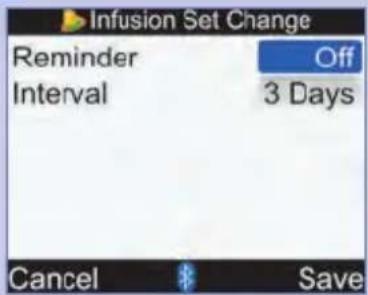
Turn Reminder On or Off :
Select the Reminder entry fi eld and press □.
Select On or Off and press
Interval:
Select the Interval entry fi eld and press □.
Select the Interval (1 day, 2 days or 3 days) and press □.
Select Save.
11.1 Overview
The meter and pump use Bluetooth wireless technology to communicate. Communication may not be possible if the devices are more than 2 metres apart. If you are experiencing communication problems between the meter and pump, it is recommended that you go directly to the pump and operate the pump manually. For troubleshooting communication between the meter and pump, refer to the chapter Troubleshooting.
NOTE
- If you experience communication problems, check both the meter and pump to ensure the Bluetooth function is turned on.
- If you change the pump time and date, the meter time and date will automatically synchronise to match the pump the next time communication is established.
- You cannot use the meter to disable the Bluetooth function on the pump. You must turn the Bluetooth function off directly on the pump.
- The meter automatically turns the Bluetooth function off if the battery level is low. If you see the battery low icon, you must replace the batteries in order to turn the Bluetooth function on. However, you can still perform a blood glucose test.
11
Meter and Pump Communication
11.2 Turning Bluetooth Wireless Technology On or Off
You may turn the Bluetooth function on or off at any time using the meter.

WARNING
When travelling on an aircraft, you must ensure that the Bluetooth function is turned off on the meter and on the pump prior to closure of the aircraft door. Electromagnetic emissions from the meter or pump could interfere with the electronics systems of the aircraft.
Bluetooth Icon Communication States
| Icon Communication State | |
 | The Bluetooth function is on. The meter and pump are communicating. |
| When the icon is not shown, the Bluetooth function is off . The meter and pump are not communicating. | |
 | When the icon is flashing, the Bluetooth function is on. However, the meter and pump are not communicating. |
1

Settings and press ○.
2

3

Select Meter and press . Select Bluetooth and press .From the Main Menu, select
4

To turn the Bluetooth function either On or Off, press and hold ✦ until the Bluetooth icon changes. Release ✦ and select Back.
11
Meter and Pump Communication
11.3 Pairing the Meter and Pump
When obtained as a kit, the meter and pump are paired. If the meter and pump are not paired, see the following instructions.
NOTE
- A blood glucose test cannot be performed during the pairing process.
- The meter and pump remain paired when the batteries are removed and replaced.
- Only one meter can be paired with one pump at a time.
- If the meter is paired with a pump, and you pair the meter with another pump, the meter is unpaired from the first pump.
- If the meter is paired with a pump and an unsuccessful attempt is made to pair the meter with another pump, the meter is no longer paired with the original pump.
1
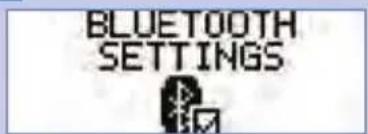
On the pump, repeatedly press and release until the BLUETOOTH SETTINGS screen appears.
Press √.
2
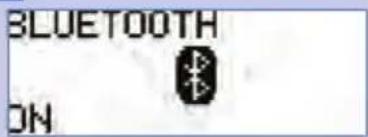
On the pump, ensure that the Bluetooth function is turned on.
If turned off, press to turn it on.
Press
3
PAIRED DEVICE NONE
On the pump, if the PAIRED DEVICE NONE screen appears, proceed to Step 6.
or
PAIRED DEVICE DM_574328192
On the pump, if the PAIRED DEVICE screen appears, press and proceed to the next step.
4
DELETE DEVICE DM_574328192
√ TO DELETE
On the pump, press to delete the device so the pump can be paired with another meter.
5
DELETE DEVICE DM_574328192
TO CONFIRM
On the pump, press to confirm deletion of the paired device.
6
PAIRED DEVICE NONE
On the pump, press
7
Ensure that the meter is turned off.
On the meter, press and hold ☆ and then press and hold ⏱
Pair with Pump
Ensure Pump is in pairing mode through Bluetooth menu on Pump Waiting...
METER12345678
On the meter, when this Pair with Pump screen is displayed, release the meter buttons.
11
Meter and Pump Communication
8

On the pump, press to initiate the pairing process.
9

On the pump, select the meter to add and then press √.
or

If the NO DEVICE FOUND screen appears, see the pump User Guide for information on troubleshooting.
10 11

On the pump, the ADD DEVICE PAIRING screen appears followed by the ADD DEVICE ENTER PIN CODE screen.
Continue to the next step.

On the meter, enter the PIN code that is displayed on the pump.
Press
Set the first number and press ☐. Repeat until all of the numbers have been entered.
12

On the meter, ensure the PIN code matches the numbers on the pump.
Select Confirm.
13
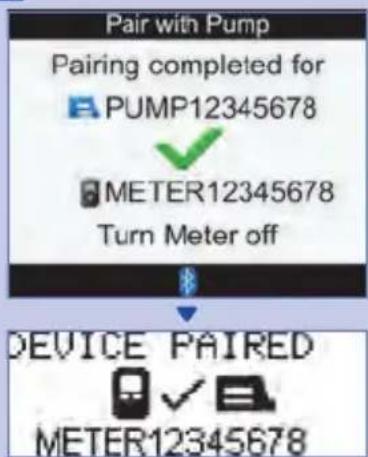
If the correct PIN was entered, this Pair with Pump screen appears on the meter and the DEVICE PAIRED screen appears on the pump.
On the pump, press √ to confi rm the pairing.
Turn the meter off. Once the meter has turned off, the pairing process is complete. Turn the meter on to begin using it.
11
Meter and Pump Communication
11.4 Cancelling the Pairing of the Meter and Pump Prompt
If the meter and pump are not paired, the meter prompts you to complete the pairing process each time you turn the meter on, unless you cancel the pairing process.
1

You turn the meter on and this screen is displayed.
Select Cancel to cancel this pairing setup prompt. Proceed to Step 2.
Or, to begin the pairing process, select Next. Go to the section Pairing the Meter and Pump in this chapter.
2
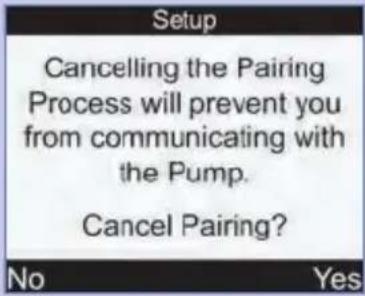
Select Yes to cancel the pairing process. Proceed to Step 3.
Or, select No and return to Step 1.
3
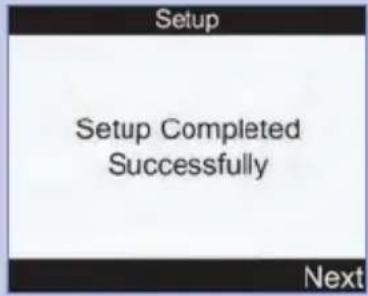
Select Next to go to the Main Menu.
12.1 Overview
The meter automatically tests its own systems every time you turn it on and lets you know if something is wrong. For information on troubleshooting the meter, refer to the chapter Troubleshooting.
If you drop the meter or think the results are not accurate, contact the Accu-Chek Pump Careline on 0800 731 22 91 (UK) or 1 800 88 23 51 (Ireland).
12.2 Testing the Display
To test the meter display, turn the meter off, and then press and hold ① . The display cycles through colours (red, blue, green and white). If any part of the display does not change colours, contact the Accu-Chek Pump Careline on 0800 731 22 91 (UK) or 1 800 88 23 51 (Ireland).
12.3 Changing the Batteries

WARNING
- Using batteries other than those supplied or recommended for use with the meter may significantly reduce the life of the batteries. Batteries other than those recommended may leak and corrode the battery contacts within the meter. Using batteries not supplied or recommended may void the warranty.
- Replace all batteries of a set at the same time. Newly purchased batteries should not be mixed with partially exhausted ones. Batteries of different electrochemical systems, grades or brands should not be mixed. Failure to observe these precautions may result in some batteries in a set being driven beyond their normal exhaustion point and thus increase the probability of leakage.
- Discard used batteries according to local environmental regulations.
- Once new batteries are inserted in the meter as directed, do not remove them until they need to be replaced. Removing and reinserting good batteries may cause issues with the internal operations of the meter.
1

Open and remove the battery door on the back of the meter by pushing the tab in the direction of the arrow and pulling the door up.
2

Remove the old batteries from the meter.
Insert three AAA batteries with the + and - ends matching the marks in the battery compartment.
3
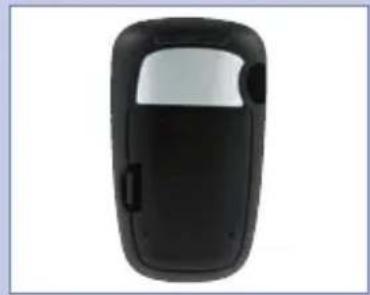
Put the battery door back in place and snap it closed.
NOTE
- Alkaline batteries of high quality are recommended for use with the meter.
- After you change the batteries, the meter prompts you to confirm the time and date settings.
- It is a good idea to have spare, packaged batteries available.
- All test results, diary information and settings are saved in the meter memory when the batteries are replaced. This data does not get erased during the battery change.
- The meter remains paired with the pump when you remove and replace the batteries.
- Rechargeable batteries may be used in the meter. However, rechargeable batteries may not maintain the same battery life as non-rechargeable batteries.
12.4 Power-Saving Tips
To conserve battery life:
- Use the low beeper setting.
- Only turn the vibrate feature on when it is needed.
- Turn the meter off when you are finished rather than utilising the auto power off feature.
12.5 Cleaning the Meter
Keep the meter free of dust. If you need to clean or disinfect it, follow these guidelines carefully to help you get the best performance possible.

WARNING
- Do not allow liquid to enter any openings in the meter.
- Do not spray a cleaning solution directly onto the meter.
- Do not immerse the meter in liquid.
1
Make sure the meter is turned off.
2
Gently wipe the meter surface with a soft cloth slightly dampened (wring out any excess liquid) with one of these cleaning solutions:
- 70 % isopropyl alcohol
- Mild dishwashing liquid mixed with water
- 10 % household bleach solution (1 part bleach plus 9 parts water) made the same day
13.1 Overview
For most problems, the meter displays a message with a short description of the symptom and, along with it, a proposed solution. This chapter goes into more detail by describing the symptom, the possible cause and the possible solution. If the possible solutions do not solve the problem, contact the Accu-Chek Pump Careline on 0800 731 22 91 (UK) or 1 800 88 23 51 (Ireland).

WARNING
- Never make treatment decisions based on a warning or error message. If you have any concerns, contact your healthcare professional.
- If you are experiencing communication problems between your meter and pump, it is recommended you operate the pump manually and not use the meter to remotely control the pump.
NOTE
- If you drop the meter or think it is not giving accurate results, make sure your test strips and control solution have not expired, and then perform a control test. For further assistance, contact the Accu-Chek Pump Careline on 0800 731 22 91 (UK) or 1 800 88 23 51 (Ireland).
- If you have a question or if you see any other message screen on the meter that is not included in this chapter, contact the Accu-Chek Pump Careline on 0800 731 22 91 (UK) or 1 800 88 23 51 (Ireland).
- Blood glucose and bG are interchangeable and mean the same thing.
13
Troubleshooting
| Display Shows Possible Cause(s) Possible Solution(s) | ||
| The display is blank or the meter will not turn on. | Batteries are dead. Install new batteries. Refer to the Changing the Batteries section in the chapter Care and Maintenance. | |
| Display is damaged. Contact the Accu-Chek Pump Careline on 0800 731 22 91 (UK) or 1 800 88 23 51 (Ireland). | ||
| Meter is defective. Contact the Accu-Chek Pump Careline on 0800 731 22 91 (UK) or 1 800 88 23 51 (Ireland). | ||
| Extreme temperature – the temperature is above or below the meter operating range. | Move the meter to an area within the proper temperature range indicated for test strip use in the test strip package insert. Do not artificially heat or cool the meter. | |
 Bluetooth icon fl ashing Bluetooth icon fl ashing | Communication ended due to a button press on the pump. | Check the pump and continue the operation of the pump manually.Ensure that the pump has the Bluetooth function turned on. |
| Meter and pump are outside of communication range. | Ensure that the meter and pump are within communication range of 2 metres. | |
13.2 Warnings
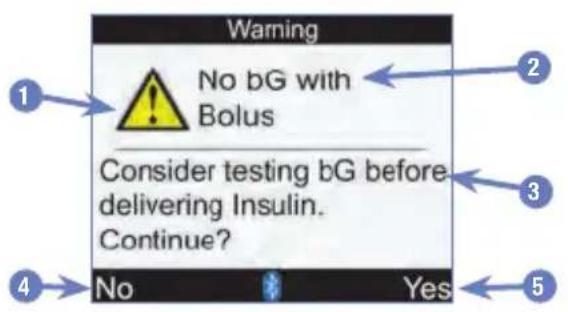
- Warning Icon
- Warning Title
- Warning Message
- No Only shown on a few warning screens.
- Yes or OK
NOTE
- The meter beeps when it displays a warning if the beeper setting is on.
• Blood glucose and bG are interchangeable and mean the same thing.
13
Troubleshooting
| Warning Title Warning Message Possible Cause/Solution | ||
| Above Hyper Warning Limit | Consider checking for ketones, bG and insulin regularly | Your bG result is above the hyper warning limit set in the meter.Treat your high blood glucose as recommended by your healthcare professional.Consider checking bG, ketones and insulin. |
| Beep/Vibrate Off Beep and Vibrate settings cannot both be turned off at same time | You must turn either the Beeper on or the Vibrate on, or turn both on. | |
| Below Hypo Warning Limit | Eat fast carbs of at least (number of carbs)* Retest bG*The meter displays a recommended amount of fast carbohydrates. | Your bG result is below the hypo warning limit set in the meter.Treat your low blood glucose as recommended by your healthcare professional.The meter displays a recommended amount of carbohydrates for you to eat and then retest your blood glucose. |
| Bolus Advice Bolus | Advice data deleted Bolus advice | data integrity cannot be confi rmed.Wait 8 hours for accurate bolus advice. Contact the Accu-Chek Pump Careline on 0800 731 22 91 (UK) or 1 800 88 23 51 (Ireland) for additional assistance.IMPORTANT:Insulin doses and meals taken before the Bolus Advice warning are no longer refl ected in the bolus advice calculation.The meter may not refl ect the pump bolus history; however, the bolus history is available on the pump.This warning may occur:When a Real Time Clock error occurs.When the meter reads the pump history and detects a pump event that is either corrupt or overwritten.When the meter reads the pump history and detects the pump's date and time has reset back to its default. |
| Bolus Advice Not Setup | Advice not provided unless setup through Bolus Advice in Settings | Press (OK) to continue using the meter without bolus advice. For instructions on how to set up bolus advice, refer to the Setting Up Bolus Advice for the First Time section in the chapter Changing Meter Settings. |
| Bolus Advice Timeout | Bolus Advice no longer possible for this bG result | Your most recent blood glucose test occurred more than 5 minutes ago and can no longer be used for bolus advice. Retest to begin a new bolus advice session. |
13
Troubleshooting
| Warning Title Warning Message Possible Cause/Solution | ||
| Bolus Delivery Unavailable | Communication lost. Retry or set to Manual Pump. | This warning occurs when the selected bolus type is either Standard, Multiwave or Extended and the meter cannot communicate with the pump.Retry, or change bolus type to Manual Pump or Pen/Syringe.Ensure that both the meter and pump have the Bluetooth function turned on.Ensure that the meter and pump are within communication range of 2 metres.If the low battery icon is displayed on the meter, the meter cannot communicate with the pump. Replace the batteries. |
| Bolus Delivery Unavailable | Pump currently in Stop mode Take the pump out of Stop mode. Refer to the pump User Guide. | |
| Bolus Delivery Unavailable | Pump unable to start Bolus. See Pump. | The pump is currently delivering a bolus. Allow the current bolus delivery to complete before delivering the next bolus. |
| Bolus Too High Bolus above allowed amount. Bolus set to maximum. | This warning may be caused by:A Standard, Multiwave or Extended bolus value that is greater than the maximum allowed by the pump.A Pen/Syringe or Manual Pump bolus value that is greater than the bolus insulin parameter as defined in the meter.After you select OK for this warning, the meter sets the bolus to the maximum allowed amount. Before selecting Confirm on the Bolus Advice screen to deliver this bolus amount, check the accuracy of all entries. If necessary, contact your healthcare professional. | |
| Bolus Too Low Bolus below allowed amount. Bolus set to minimum. | The pump cannot deliver a 0.1 Unit of insulin for a Multiwave bolus. The pump will adjust the bolus to 0.2 Units. | |
| Calculation Out of Range | No Bolus Advice available The meter has detected a high out of range condition. Press (OK) to confi rm the warning. The meter redisplays the Bolus Advice screen and sets the calculated bolus fi elds to blank for the bG result, Carbs and Health. Contact your healthcare professional, or the Accu-Chek Pump Careline on 0800 731 22 91 (UK) or 1 800 88 23 51 (Ireland). | |
| Carbohydrate Ratio | Carb Ratio seems unusual. Check entries. | Carbohydrate ratio is outside of the acceptable meter range. Check your entries and contact your healthcare professional to determine the appropriate settings. |
| Code Key Missing | Turn off Meter and insert valid Code KeyNOTE: Code key and activation chip are interchangeable and mean the same thing. | The activation chip is not inserted. Turn the meter off and insert the activation chip. If you need an activation chip, contact the Accu-Chek Pump Careline on 0800 731 22 91 (UK) or 1 800 88 23 51 (Ireland). |
| Communication Lost | See Pump This warning occurs while the meter is displaying the Deliver Bolus – Pump Delivering screen and there is a communication error with the pump. If you attempted to cancel a bolus by pressing (Stop Bolus), the pump did not receive the command and the bolus delivery is continuing. See the pump screen.Use the pump to monitor or cancel a bolus which is in the process of being delivered.Ensure that both the meter and pump have the Bluetooth function turned on.Ensure that the meter and pump are within communication range of 2 metres.If the low battery icon is displayed on the meter, the meter cannot communicate with the pump. Replace the batteries. | |
13
Troubleshooting
| Warning Title Warning Message Possible Cause/Solution | ||
| Communication Warning | Pump data not available, recent Bolus data may not be accurateOr:Pump data not available, Active Insulin may not be accurate | Communication of bolus data from the pump was not successful and therefore, pump data is not available. Recent bolus data or active insulin may not be accurate.Ensure that both the meter and pump have the Bluetooth function turned on.Ensure that the meter and pump are within communication range of 2 metres.If the low battery icon is displayed on the meter, the meter cannot communicate with the pump. Replace the batteries. |
| Connection Lost Ensure Pump is within range of Meter | Ensure that the meter and pump are within communication range of 2 metres.Ensure that both the meter and pump have the Bluetooth function turned on.If the low battery icon is displayed on the meter, the meter cannot communicate with the pump. Replace the batteries. | |
| Connection Lost Restart Meter, select “Settings”, “Meter”, “Pair with Pump” | The connection was lost between the meter and pump during the pairing process. Therefore, the attempt to pair the meter and pump was unsuccessful.Ensure that both the meter and pump have the Bluetooth function turned on.Ensure that the meter and pump are within communication range of 2 metres.If the low battery icon is displayed on the meter, the meter cannot communicate with the pump. Replace the batteries.Restart the pairing process. Refer to the Pairing the Meter and Pump section in the chapter Meter and Pump Communication. | |
| Corrupt Language Choose another language The selected language cannot be used.Contact the Accu-Chek Pump Careline on 0800 731 22 91 (UK) or 1 800 88 23 51 (Ireland) for assistance. | ||
| Diary Entry Used For Advice | Diary entry used for Advice, modifi cations not allowed | The data for this diary entry has been used for bolus advice and modifi cations are not allowed. Carefully confi rm all information involving bolus advice. |
| Diary Results Expired | New data cannot be saved with this record. | This diary record is more than 5 minutes old and can no longer be used for bolus advice.Press (OK) to confi rm the warning and decide whether to modify data, add new data or begin a new bolus advice session. |
| HI bG Warning Consider checking bG, ketones and insulin | Your blood glucose may be higher than the measuring range of the system.If you are experiencing any of the common symptoms of high blood glucose, contact your healthcare professional immediately. Refer to the Symptoms of Low or High Blood Glucose section in the chapter Testing Your Blood Glucose.Treat your high blood glucose as recommended by your healthcare professional.Consider checking bG, ketones and insulin. | |
13
Troubleshooting
| Warning Title Warning Message Possible Cause/Solution | ||
| Incorrect Pump Time/Date | Pump time/date incorrect. Set time/date on the Pump. | This warning occurs when the meter is synchronising time/date with the pump and the pump sends an invalid time/date, or sends a time/date that is older than the meter manufacturing time/date. The meter keeps its current time/date and disables Bluetooth communication.1. Set the correct time/date on the pump.Refer to the pump User Guide.2. Turn the Bluetooth communication on in order to synchronise the time/date between the pump and meter. |
| Infrequent Pump Communication | Two weeks since last communication with Pump | It is important to use Bluetooth communication between the meter and pump regularly if you utilise bolus advice.Ensure that both the meter and pump have the Bluetooth function turned on.Ensure that the meter and pump are within communication range of 2 metres.If the low battery icon is displayed on the meter, the meter cannot communicate with the pump. Replace the batteries. |
| Insulin Sensitivity Insulin Sensitivity seems unusual. Check entries. | Insulin sensitivity is outside of the acceptable meter range. Check your entries and contact your healthcare professional to determine the appropriate settings. | |
| Invalid Active Insulin | Unable to calculate the Active Insulin. Bolus Advice not available. | An error has occurred in calculating the Active Insulin. Press (OK) to confi rm the warning.For the Detailed bG Result screen, the meter sets the Active Insulin fi eld to blank.For the Bolus Advice screen, the meter sets the Active Insulin fi eld to blank and sets the calculated bolus fi elds to blank for bG result, Carbs, Health and the total bolus recommendation.Contact your healthcare professional, or contact the Accu-Chek Pump Careline on 0800 731 22 91 (UK) or 1 800 88 23 51 (Ireland). |
| Invalid Bolus Advice Times | Acting time must be greater than or equal to off set time | Reset the acting time value or revise the off set time. |
| Invalid Date Reenter valid date An attempt was made to enter a date that is not valid. Also, dates for Reminders cannot be set to occur in the past. Reenter a valid date. | ||
| Invalid Hyper Values | Hyper value must be greater than Time Block target ranges | Enter a Hyper warning limit value that is greater than the target range upper limit values in all of the time blocks. If necessary, contact your healthcare professional to determine the appropriate setting. |
| Invalid Hypo Values | Hypo value must be less than Time Block target ranges | Enter a Hypo warning limit value that is less than the target range lower limit values in all of the time blocks. If necessary, contact your healthcare professional to determine the appropriate setting. |
| Invalid PIN Reenter PIN shown on Pump display | The wrong PIN was entered. Select OK and reenter the PIN. | |
| Invalid Record Time/Date | Record time/date must be older than the current meter time/date | Add Data entries cannot be set to occur in the future. Reenter a valid time/date. |
13
Troubleshooting
| Warning Title Warning Message Possible Cause/Solution | ||
| Invalid Target Range | Range selected conflicts with Hyper and/or Hypo Warning Limit settings | Either the minimum target range value entered is less than the Warning Limits Hypo value, or the maximum target range value entered is greater than the Warning Limits Hyper value.Enter the target range limit values to be within the Hypo and Hyper warning limits. If necessary, contact your healthcare professional to determine the appropriate settings. |
| Invalid Target Range | Lower target range value above upper target range value | Enter a lower target range value that is less than the upper target range value. |
| LO bG Warning Retest bG. Contact your doctor. Your blood glucose may be lower than the measuring range of the system.Treat your low blood glucose as recommended by your healthcare professional.If you are experiencing any of the common symptoms of low blood glucose, contact your healthcare professional immediately. Refer to the Symptoms of Low or High Blood Glucose section in the chapter Testing Your Blood Glucose. | ||
| Meter and Pump Not Paired | Pair with Pump to use this feature | You cannot use the pump functions without pairing the meter and pump. Refer to the Pairing the Meter and Pump section in the chapter Meter and Pump Communication. |
| Meter Battery Low | Replace soon. No Pump connection. | Battery power is low. Replace the batteries. Refer to the Changing the Batteries section in the chapter Care and Maintenance.When this warning is displayed:The Bluetooth communication is disabled.If vibrate is set to On, it is disabled until the batteries are replaced.If the backlight level is set to High, the medium backlight level is used until the batteries are replaced.If the beeper level is set to High, the medium beeper level is used until the batteries are replaced. |
| No bG with Bolus Consider testing bG before delivering Insulin. Continue? | You have not tested your bG and are attempting to deliver a bolus. It is recommended that you test your bG before delivering insulin.To test your bG, pressto select No and the meter displays the Bolus Advice screen. Keep pressinguntil the text “bG Test” is selected and then press.Proceed with a bG test.To proceed with delivering insulin without testing your bG, pressto select Yes and the meter displays the Confi rm Bolus screen. Refer to the Delivering a Bolus section in the chapter Administering a Bolus. | |
| Pairing Failed Restart Meter, select“Settings”, “Meter”,“Pair with Pump” | The attempt to pair the meter and pump was unsuccessful.Restart the pairing process. Refer to the Pairing the Meter and Pump section in the chapter Meter and Pump Communication. | |
13
Troubleshooting
| Warning Title Warning Message Possible Cause/Solution | ||
| Pump Not Available | Ensure Bluetooth is on and Pump is within range of Meter | The meter and pump are not communicating.Ensure that both the meter and pump have the Bluetooth function turned on.Ensure that the meter and pump are within communication range of 2 metres.If the low battery icon is displayed on the meter, the meter cannot communicate with the pump. Replace the batteries. |
| Temperature Warning | Temperature almost out of range for a bG Test | Move the meter to an area within the proper temperature range indicated for test strip use in the test strip package insert. Do not artificially heat or cool the meter. |
| Test Strips Expiring | Change Code Key and Strips soonNOTE: Code key and activation chip are interchangeable and mean the same thing. | The test strips expire at the end of the current month.This message may appear when using a white activation chip in the meter. It means the test strips expire at the end of the current month. At the end of the month, discard the white activation chip and any remaining test strips. Insert a black activation chip. Make sure the time and date in the meter are correct. If you need a black activation chip, contact the Accu-Chek Pump Careline on 0800 731 22 91 (UK) or 1 800 88 23 51 (Ireland).Ensure that the time and date are correct and adjust, if necessary. Refer to the Time Format, Time, Date section in the chapter Changing Meter Settings. |
| Warning Title Warning Message Possible Cause/Solution | |
| Time Mismatch Meter time has been changed by more than 5 minutes to match the Pump | The time or date on the meter is more than 5 minutes different than the time or date on the pump. The meter time and date have been changed to match the pump.Ensure the time and date are correct. If not correct, change the time and date on the pump.Refer to the pump User Guide. |
13.3 Errors
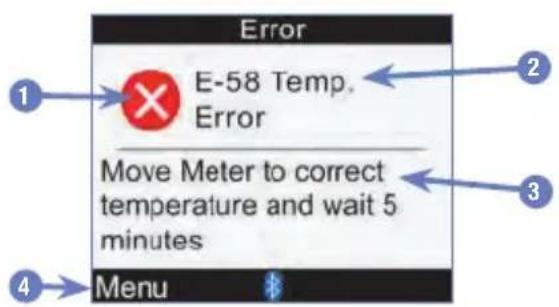
- Error Icon
- Error Title
- Error Message
- Menu or OK
Only shown on a few error screens.
NOTE
The meter beeps when it displays an error, even if the beeper setting is turned off.
| Error Title Error Message Error Cause/Solution | ||
| E-51 Bad Strip Error | Reinsert or replace with new Strip | This error may occur if the test strip is damaged, or if the test strip is not properly inserted into the meter.Remove the test strip and reinsert it, or replace it if damaged.Check the use by date on the test strip container. Do not use test strips past the use by date.If the message reappears, contact the Accu-Chek Pump Careline on 0800 731 22 91 (UK) or 1 800 88 23 51 (Ireland). |
| E-52 Code Key Error | Turn Meter off , reinsert or replace Code KeyNOTE: Code key and activation chip are interchangeable and mean the same thing. | Turn the meter off . Remove and reinsert the activation chip. Turn the meter on. If the error reoccurs, contact the Accu-Chek Pump Careline on 0800 731 22 91 (UK) or 1 800 88 23 51 (Ireland) to get a replacement activation chip.NOTE:When this error occurs during a bG test or a control test, press (Menu) to display the Main Menu screen.When this error occurs after the Splash Screen, press (OK) to continue. |
13
Troubleshooting
| Error Title Error Message Error Cause/Solution | ||
| E-53 Bad Test Error | Retest with new Strip A meter or test strip error has occurred. Discard the test strip and repeat the test. Or:Your blood glucose may be extremely high.If this matches how you feel, contact your healthcare professional immediately.If this does not match how you feel, repeat the test with a new test strip.After retesting, if this still does not match the way you feel, perform a control test with a new test strip.If the control result is not within the acceptable range, refer to the chapter Control Testing.If the control result is within the acceptable range, review the blood glucose testing procedure and repeat the test with a new test strip.If the E-53 error still appears, your blood glucose result may be extremely high and above the system's reading range. Contact your healthcare professional immediately. | |
| E-54 Not Enough Sample | Retest with new Strip Not enough blood or control solution was drawn into the test strip for measurement or it was applied after the test had started.Discard the test strip and repeat the test. | |
| E-55 Code KeyExpired | Turn Meter off, replace Code Key and StripsNOTE: Code key and activation chip are interchangeable and mean the same thing | This message may appear when using a white activation chip in the meter. It means the test strips expire at the end of the current month.At the end of the month, discard the white activation chip and any remaining test strips.Insert a black activation chip. Make sure the time and date in the meter are correct. If you need a black activation chip, contact the Accu-Chek Pump Careline on 0800 731 22 91 (UK) or 1 800 88 23 51 (Ireland).NOTE:When this error occurs during a bG test or a control test, press (Menu) to display the Main Menu screen.When this error occurs after the Splash Screen, press (OK) to continue. |
| E-56 SampleApplied Early | Retest with new Strip The blood or control solution was applied to the test strip before the Apply Sample screen appeared on the display.Discard the test strip and repeat the test with a new test strip. | |
| E-57 ElectronicError | Remove batteries, wait20 seconds, replace batteries | An electronic error has occurred, or in rare cases, a used test strip was removed and reinserted.Turn the meter off and remove the batteries.Wait at least 20 seconds prior to reinserting the batteries.Turn the meter on and perform a blood glucose or control test.If the problem persists, contact the Accu-Chek Pump Careline on 0800 731 22 91 (UK) or 1 800 88 23 51 (Ireland). |
13
Troubleshooting
| Error Title Error Message Error Cause/Solution | |
| E-58 Temp. Error Move Meter to correct temperature and wait 5 minutes | The temperature is above or below the meter operating range.1. Move the meter to an area within the proper temperature range indicated for test strip use on the test strip package insert.2. Wait 5 minutes or more. Do not artificially heat or cool the meter.3. Once the meter is within the proper temperature range, press either (OK) or (Menu) to continue. |
| E-59 Battery Empty | Replace batteries now Refer to the Changing the Batteries section in the chapter Care and Maintenance. |
| E-60 Time/Date Error | Correct time/date if necessary The time and date settings may be incorrect, or you have replaced the batteries.Turn the meter off and then turn the meter on.The meter is paired to a pump: The meter synchronises with the pump time and date.The meter is not paired to a pump: Ensure that the time and date are correct and adjust if necessary. Refer to the Time Format, Time, Date section in the chapter Changing Meter Settings. |
13
Troubleshooting
14.1 Specifications and Limitations
See the literature packaged with the test strips and control solutions for the latest information on product specifications and limitations for those items.
| Blood volumeSample typeMeasuring timeMeasuring rangeTest strip storage conditionsSystem operating conditions | Refer to the test strip package insert. |
| Meter storage conditions(with batteries inserted) | -20 °C to 50 °C |
| Memory capacity 1,000 diary records | |
| Automatic power off 2 minutes | |
| Power supply Three AAA batteries (high quality recommended: alkaline) | |
| Display LCD | |
| Dimensions 94 x 55 x 25 mm LWH | |
| Weight Approximately 103 g with batteries inserted | |
| Construction Hand-held | |
| Protection class III | |
| Meter type The Accu-Chek Aviva Combo meter is suitable for continuous operation. | |
| Control solution storage conditions | Refer to the control solution package insert. |
| Interface IR; LED/RED – Class 1 | |
14.2 Technical Information
Bluetooth Wireless Technology
The meter and the pump utilise Bluetooth wireless technology to communicate and transfer information. Bluetooth wireless technology is a form of radio frequency (RF) technology that operates in the unlicensed industrial, scientific and medical band at 2.4 to 2.485 GHz. The RF channel utilised for communication between the meter and the pump is not an open channel. The meter can only communicate with the pump it is paired with; therefore, other Bluetooth enabled devices (e.g., mobile phone, printer, etc.) cannot be paired with, communicate with or access your personal information on the meter or the pump.
Radio Frequency Communication
The device complies with the United States Federal Communications Commission (FCC) standards. The device complies with FCC Part 15 Rules. Operation of the device is subject to the following two conditions: (1) this device may not cause harmful interference, and (2) this device must accept any interference received, including interference that may cause undesired operation.
Compliance with these guidelines means that under normal, daily circumstances the device should not affect the operation of other devices. In addition, the device should operate normally in the presence of other devices. In the event there is interference from another device, it is recommended that you increase distance between meter and that device. You may also turn off the interfering device. In addition, you may turn off Bluetooth wireless technology on the meter and deliver insulin directly using the pump.
Changes or modifications to the device not expressly approved by Roche could void the user's authority to operate the device.
The device has been tested and found to comply with the limits for a Class B digital device. The device generates, uses and can radiate radio frequency energy.
Electromagnetic Compatibility
The meter meets the electromagnetic emission requirements as per EN 61326-2-6. Its electromagnetic emission is thus low. Interference on other electrically-driven equipment is not anticipated.
Performance Analysis
The performance data for the Accu-Chek Aviva Combo system (Accu-Chek Aviva Combo meter with Accu-Chek Aviva test strips) was obtained using capillary blood from diabetic patients (method comparison, accuracy), venous blood (repeatability) and control solution (reproducibility). The system is calibrated with venous blood containing various levels of glucose. The reference values are obtained using the hexokinase method. For method comparison, the results were compared with results obtained using the hexokinase method with deproteinization (automatic analyser). The hexokinase method is traceable to an NIST standard.
Test Principle
Refer to the test strip package insert.
Declaration of Conformity
Roche hereby declares that the Accu-Chek Aviva Combo blood glucose meter conforms with the basic requirements and other relevant regulations of the European Directives 1999/5/EC and 2014/53/EU. The transition period for the European Directive 1999/5/EC ends June 12th 2017, from which date only 2014/53/EU will be applicable. The currently valid conformity declaration may be found at the following website: http://declarations.accu-chek.com
Maximum Transmitted Power
Accu-Chek Aviva Combo meter: 20 mW
14.3 Information for Healthcare Professionals
NOTE
Healthcare Professionals: Follow the infection control procedures appropriate for your facility.
A drop of fresh, whole blood is required to perform a blood glucose test. Refer to the test strip package insert for additional healthcare professional information.
14.4 Explanation of Symbols
These symbols may appear on the packaging, on the type plate and in the instructions for the Accu-Chek Aviva Combo meter.
 | Consult instructions for use | |
 | Caution, refer to safety-related notes in the instructions for use accompanying this product. | |
| [5XSZ] | Temperature limitation (store at) | |
 | Manufacturer | |
 | Catalogue number | |
 | In vitro diagnostic medical device | |
| [4HZD] | Global Trade Item Number | |
 | Serial number | |
 | Blood glucose meter and test strips: These products fulfil the requirements of the European Directive 98/79/EC on in vitro diagnostic medical devices. | |
 | 1.5-volt AAA |
14.5 Guarantee
The statutory provisions on rights in consumer goods sales in the country of purchase shall apply.
14.6 Additional Supplies
Test Strips: Accu-Chek Aviva Test Strips
Control Solutions: Accu-Chek Aviva Control Solutions
14.7 Discarding the Meter

WARNING
- During blood glucose testing, the meter itself may come into contact with blood. Used meters therefore carry a risk of infection. Before discarding the meter, remove the batteries. Discard used meters according to the regulations applicable in your country. Contact the local council and authority for information about correct disposal.
- The meter falls outside the scope of the European Directive 2012/19/EU - Directive on waste electrical and electronic equipment (WEEE).
- Discard used batteries according to local environmental regulations.
14.8 Meter Default Settings and Range Limits
mmol/L
| Data Type Unit of Measurement | MIN MAX Increment Default Setting | ||||
| Acting Time hours:minutes 1:30 8:00 0:15 4:00 | |||||
| Active Insulin Units 0 | 99.9 0.1 N/A | ||||
| bG Threshold (High) | mmol/L 6.5 19.5 0.1 Hyper Warning Limit | ||||
| bG Threshold (Low) | mmol/L 3 5.5 | 0.1 Hypo Warning Limit | |||
| Carb Ratio (carbs) | grams | 1 | 240 | 1 | No entry (“--- g”) |
| BE | 0.1 | 20 | 0.1 | No entry (“--- BE”) | |
| KE | 0.1 | 24 | 0.1 | No entry (“--- KE”) | |
| CC | 0.1 | 16 | 0.1 | No entry (“--- CC”) | |
| Carb Ratio (insulin) | Units 0.1 50 | 0.1 1 | |||
| Carbohydrates | grams | 0 | 240 | 1 | No entry (“--- g”) |
| BE | 0 | 20 | 0.1 | No entry (“--- BE”) | |
| KE | 0 | 24 | 0.1 | No entry (“--- KE”) | |
| CC | 0 | 16 | 0.1 | No entry (“--- CC”) | |
| Exercise 1 (health event) | % | -50 | 50 | 1 | 0 |
| Exercise 2 (health event) | % | -50 | 50 | 1 | 0 |
| Extended Bolus (insulin) | Units 0 50 | 1 | 0.1 N/A | ||
| Hyper Warning Limit | mmol/L 10 | 19.5 0.1 16.5 | |||
| Hypo Warning Limit | mmol/L 3 5 | 0.1 4 | |||
| Illness (health event) | % -50 50 1 0 | ||||
| Insulin Sensitivity (bG) | mmol/L 0.1 55.4 0.1 No entry (“--- mmol/L”) | ||||
| Insulin Sensitivity (insulin) | Units 0.1 50 0.1 1 | ||||
| Meal Rise (bG) mmol/L 2.8 11.1 0.1 2.8 | |||||
| Multiwave Bolus (insulin) | Units 0.2 50 | 1 | 0.1 N/A | ||
| Offset Time hours:minutes | 0:45 | Acting | Time | 0:15 | 1:00 |
| Premenstrual (health event) | % -50 50 1 0 | ||||
| Snack Size (carbs) | grams | 0 | 24 | 1 | No entry (“--- g”) |
| BE | 0 | 2 | 0.1 | No entry (“--- BE”) | |
| KE | 0 | 2.4 | 0.1 | No entry (“--- KE”) | |
| CC | 0 | 1.6 | 0.1 | No entry (“--- CC”) | |
| Standard Bolus (insulin) | Units 0 50 | 1 | 0.1 N/A | ||
| Stress (health event) | % -50 50 1 0 | ||||
| Target Range Upper Value | mmol/L 5.5 15 0.1 8 | ||||
| Target Range Lower Value | mmol/L 3 | 8 | 0.1 4 | ||
1 The maximum allowed insulin amount that can be delivered may be less due to the maximum insulin amount limit on the Accu-Chek Spirit Combo insulin pump.
14
Product Information
Appendix A: List of Icons
| Icon Name Icon | |
| Active Insulin |  |
| Add Data |  |
| Analyzing |  |
| Beeper |  |
| Blood Glucose Averages |  |
| Blood Glucose Test |  |
| Bluetooth Wireless Technology Enabled |  |
| Bolus Advice |  |
| Bolus Advice (Settings) |  |
| Carbs |  |
| Control Test |  |
| Date |  |
| Download (Data Transfer) |  |
| Error |  |
| Extended Bolus Not Confirmed By The Pump |  |
| Icon Name Icon | |
| Extended Bolus Confirmed By The Pump |  |
| Health Event |  |
| Low Battery |  |
| Manual Bolus Not Confirmed By The Pump |  |
| Meal Time |  |
| Meter |  |
| Meter (Settings) |  |
| Multiwave Bolus Not Confirmed By The Pump |  |
| Multiwave Bolus Confirmed By The Pump |  |
| My Data |  |
| Pen/Syringe Bolus |  |
| Pump |  |
| Reminder |  |
| Reminder (Settings) |  |
| Reports |  |
Appendices
| Icon Name Icon | |
| Settings |  |
| Sound/Vibrate (Settings) |  |
| Standard Bolus Not Confirmed By The Pump |  |
| Standard Bolus Confirmed By The Pump |  |
| Time |  |
| Time Block (Settings) |  |
| Time Change |  |
| Time/Date (Settings) |  |
| Vibrate |  |
| View Data |  |
| Warning |  |
Appendix B: Bolus Advice Overview
Bolus advice is only available if you have set up bolus advice on the Accu-Chek Aviva Combo meter. For instructions on how to set up bolus advice, refer to the chapter Getting Started, or the Setting Up Bolus Advice for the First Time section in the chapter Changing Meter Settings. For more information, refer to the chapter Introduction to Bolus Advice.
Along with the basic blood glucose and carbohydrate values, there are several meter settings required to optimise the bolus advice feature so the recommendations match your insulin needs to the greatest possible extent. Bolus advice is not available without these settings. You must set up bolus advice correctly. It is important to discuss the bolus advice settings with your healthcare professional.
NOTE
- Bolus advice factors are items that influence the bolus calculations of the meter.
- Blood glucose and bG are interchangeable and mean the same thing.
Bolus Calculation
The bolus recommended by the bolus advice feature of the meter consists of two components: a recommendation for a meal bolus that covers your food intake, and a recommendation for a correction bolus to adjust your blood glucose level if it is not within the target range. The correction bolus can be positive if your current blood glucose level is above your target range or negative if it is below your target range.
Meal Bolus
A meal bolus is the amount of insulin that needs to be administered to cover the amount of carbohydrates you are planning to eat. It is calculated as:
Meal Bolus = Carbohydrate Intake x Carbohydrate Ratio
Where:
Carbohydrate Ratio = Insulin ÷ Carbohydrates
Appendices
Correction Bolus
If your current blood glucose level is above your upper target limit, a correction bolus is recommended.
Discuss your blood glucose limits with your healthcare professional.
bG Result

- Hyper Warning Limit
- Upper Target Limit
- Target Value
- Lower Target Limit
- Hypo Warning Limit
The calculation for the recommended correction bolus depends on your current blood glucose result, your insulin sensitivity for the current time block and whether you are planning to eat.
Example Bolus Advice Calculations
| Blood Glucose Level Without Food Intake (No Carbohydrates) Prior to a Meal | ||
| Above Upper Target Limit (bG - Target bG) x Insulin Sensitivity = correction bolus | (bG - Target bG) x Insulin Sensitivity + Meal Bolus* | |
| Between Upper and Lower Target Limit | No correction bolus is necessary. (bG - Target bG) x Insulin Sensitivity + Meal Bolus.* A correction bolus can be negative. | |
| Between Lower Target Limit and Hypo Warning | No bolus is recommended.The correction bolus is negative. | (bG - Target bG) x Insulin Sensitivity + Meal Bolus.* The correction bolus is negative. |
| Below Hypo Warning Hypo warning appears. It is recommended you eat fast-acting carbohydrates. Bolus advice is not available. | Hypo warning appears. It is recommended you eat fast-acting carbohydrates. Bolus advice is not available. | |
*Meal Bolus = Carbohydrate Intake x Carbohydrate Ratio
Other Boluses
Subsequent Meal Boluses
If you are planning to eat several meals or snacks in a short period of time, you should administer a meal bolus for each meal. The calculation is always the same as a meal bolus.
Correction Bolus After a Meal
After a meal, it is normal to allow for a rise of your blood glucose level even if you administered the correct meal bolus. The allowed blood glucose level rise is called meal rise. After a certain period of time (offset time) the meal rise decreases from its maximum until your blood glucose level has returned to the target level. The period of time from the start of the meal rise until your blood glucose level returns to the target level is defined as acting time. During this time, a correction bolus is only recommended if your blood glucose level exceeds the current meal rise level.
Appendices
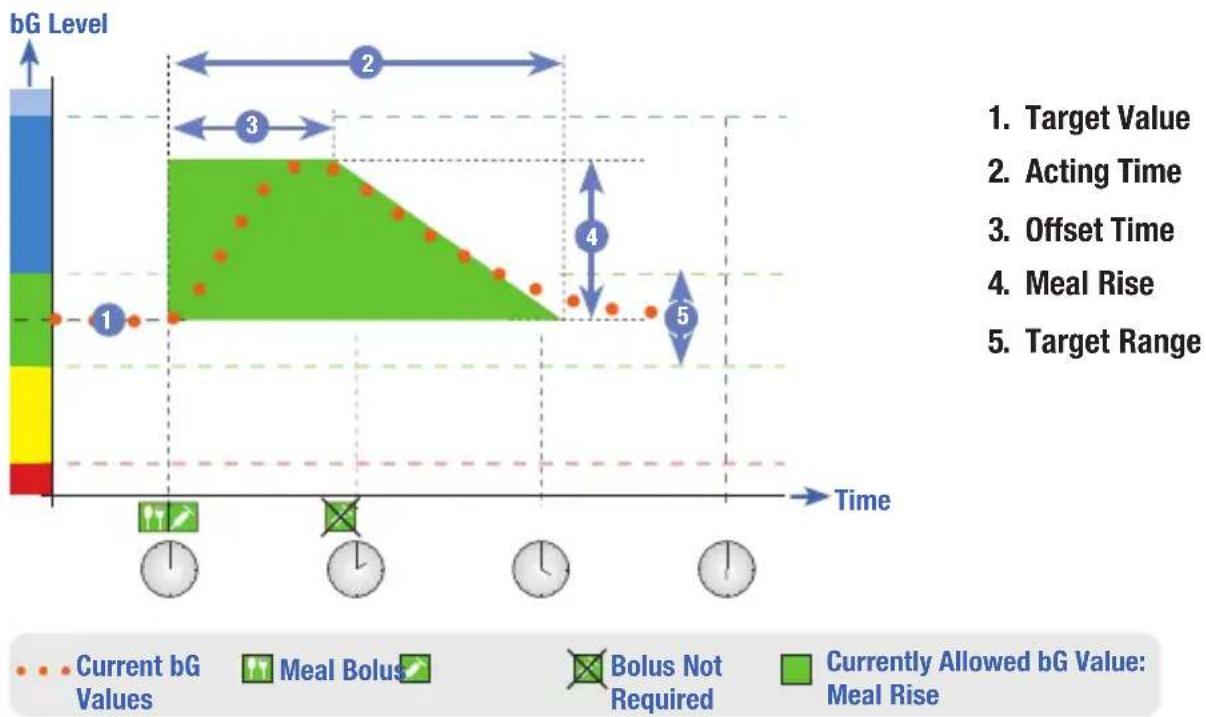
The dotted line shows how your blood glucose level might change after a meal bolus. Bolus advice tolerates an increase in your blood glucose level within the meal rise range (green) without calculating an extra correction bolus. When you enter a carbohydrate amount that is greater than the snack size, the meal rise setting is added to the blood glucose target value. The shape of the meal rise (the width of the green area) is determined by the offset time and the acting time.
Subsequent Correction Boluses
The difference between your current blood glucose level and your target blood glucose level is called Delta bG. A correction bolus administered according to the previous conditions covers this difference for a certain period of time. As the correction bolus starts to take effect, your current blood glucose level should fall and the covered Delta bG decreases after the offset time. At the end of the acting time, your blood glucose level should return to the target limit. You receive a recommendation for another correction bolus only if your current blood glucose result exceeds the current Delta bG level.

Subsequent Correction Boluses: If your blood glucose result is within Section 1 of the graph, a correction bolus is not recommended. If your blood glucose result is within Section 2 of the graph, a correction bolus is recommended.
Examples of Bolus Advice Recommendations
The following graphs provide differing examples of how bolus advice considers different factors when calculations are made.
The currently allowed blood glucose value considers the following factors:
• Target Range Mean Value
- Meal Rise
- Correction Bolus
Appendices
After a Correction Bolus
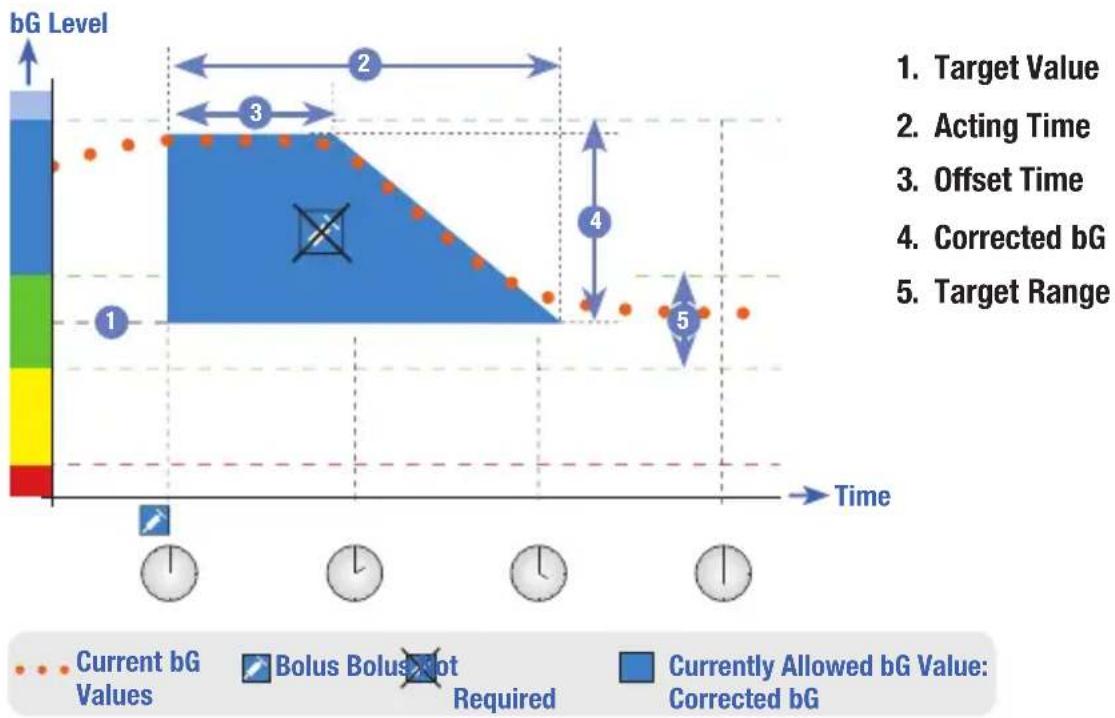
The above diagram shows an example of the effect of this rule. The first correction bolus at 12:00 remains active during the acting time (the width of the blue area). If the blood glucose value at 14:00 falls below the currently allowed blood glucose value (top of the blue area), another correction bolus is not calculated.
Appendices

When a blood glucose result is greater than the currently allowed blood glucose value, a bolus is calculated (light blue) that only considers the difference between the current blood glucose value (orange dots) and the currently allowed blood glucose value (the top of the blue area).
Appendices

Subsequent Meals
If you eat several meals in a row, the meal rise is restarted for each new meal bolus.
Appendix C: Bolus Advice Calculations
The Mathematical Basis for Bolus Calculations
The following is a list of the most important formulas and the calculation principles on which bolus advice is based. It is difficult to accurately calculate a bolus yourself using these formulas when the acting time and offset time of recent meals and correction boluses are considered.
Carbohydrate Suggestion
This calculation is made when the blood glucose result falls below the hypo warning limit. It is based on the other values defined for the current time block and the result is calculated as a carbohydrate intake recommendation.
Carbohydrates = (Target Range Mean Value - Current bG) x Insulin Sensitivity ÷ Carbohydrate Ratio
Where:
Insulin Sensitivity = Insulin ÷ ΔbG
Carbohydrate Ratio = Insulin ÷ Carbohydrates
NOTE
- A minimum amount of 12 g (or equivalent BE, KE or CC units) is always given. If the calculated value is below 12 g, then 12 g is used.
- The carbohydrate suggestion is displayed in the carbs unit of measurement you have selected (g, BE, KE or CC).
Meal Bolus
The following formula is used to calculate the bolus for meals:
Meal Bolus = Carbohydrate Intake x Carbohydrate Ratio
Where:
Carbohydrate Ratio = Insulin ÷ Carbohydrates
Currently Allowed Blood Glucose Value
The target range average value used in the calculation of the correction bolus, as shown below, changes with the definition for the time blocks.
Consequently, the currently allowed blood glucose value is calculated as follows:
Currently Allowed Blood Glucose Value = Target Range Mean Value + Meal Rise + Blood Glucose Range Covered by Correction Bolus
Where:
- Meal Rise is from the current active meal.
- Blood Glucose Range Covered by Correction Bolus is from the currently acting correction boluses.
When no meal rise or correction bolus acting time is currently in effect, a value of “0” is substituted for these parameters in the formula.
Correction Bolus
A correction bolus is only calculated if the current blood glucose value is above the hypo bG warning limit and outside the target range. If the current blood glucose value is above the target range, the currently allowed blood glucose value must also be exceeded. Only correction boluses greater than “0” trigger a corresponding acting time.
Correction Bolus = (Current bG - Currently Allowed bG) x Insulin Sensitivity
Where:
Insulin Sensitivity = Insulin ÷ ΔbG
The blood glucose correction portion depends on the following requirements:
- If current bG > currently allowed blood glucose value, then blood glucose correction portion = current bG – currently allowed blood glucose value.
- If current bG > hypo warning limit and current bG < target range lower limit, then bG correction portion = current bG – target range average value.
Correction Bolus with Carbohydrate Intake
Whenever carbohydrates have been entered, the related meal bolus is always offset against any (even negative) correction bolus.
When a meal is eaten, the correction bolus is also calculated for blood glucose results that fall within the target range if:
- The current blood glucose result falls below the target range average value, or
- The current blood glucose result is above the currently allowed blood glucose value.
Since your pump can only deliver insulin, mathematically negative overall boluses are displayed as "0".
Active Insulin
The active insulin field shows you if a prior bG correction bolus may possibly reduce your current bolus calculation.
Appendices
| Term Definition | |
| 7-day average A bG average that includes results generated today and the previous 6 days. | |
| Acting Time The period of time from the start of the meal rise or the delivery of a correction bolus until your blood glucose level is expected to return to the target level. | |
| Active Insulin Bolus insulin that has been given to lower your blood glucose but has not yet been fully used. | |
| Advice Options Factors that influence bolus advice calculations including meal rise, snack size, acting time and offset time. | |
| After High bG Test Reminder A reminder to retest your blood glucose. When enabled, this reminder occurs after a high blood glucose result. | |
| After Low bG Test Reminder A reminder to retest your blood glucose. When enabled, this reminder occurs after a low blood glucose result. | |
| After Meal Reminder A reminder to retest your blood glucose. When enabled, this reminder occurs after a meal. For this reminder to occur, you must enter carbohydrate data greater than the snack size amount. | |
| Alarm | Audible and/or vibrating notification indicating a reminder, warning or error. |
| BE Bread Equivalent (equal to 12 grams of carbohydrates) | |
| bG Blood Glucose | |
| bG Test Reminders Reminders to retest your blood glucose after a high blood glucose result, after a low blood glucose result or after a meal. | |
| bG Threshold A bG test reminder setting. This is the upper limit for your blood glucose result that is used to generate a high bG test reminder and the lower limit for your blood glucose result that is used to generate a low bG test reminder. | |
| Blood Glucose (bG) The level of sugar in the blood. | |
| Bluetooth Wireless Technology | Wireless short-range communications technology which connects devices (such as meter and pump) in order to exchange information. |
| Bolus | The delivery of insulin all at once rather than slowly throughout the day, usually used to compensate for meals or high blood glucose. |
Glossary
| Term Defi nition | |
| Bolus Advice When enabled, bolus advice provides recommendations on the amount of insulin for food intake and for correcting blood glucose levels that are not within your target range. | |
| Bolus Advice Options See Advice Options. | |
| Bolus Delivery Start Delay A 5-second delay (the bolus icon blinks for 5 seconds) before the meter communicates to the pump to begin delivery of the bolus amount. During this delay you are able to cancel the bolus delivery by pressing △ or ▽The meter beeps and returns to the Pump Run screen. | |
| °C Degrees Celsius (or Centigrade) | |
| Carb Ratio The amount of insulin necessary to account for a certain number of carbohydrates. | |
| Carbohydrates (or Carbs) Carbohydrate foods include sugars and starches. Carbohydrates can raise blood glucose levels slowly or rapidly. Carbohydrates are generally counted to calculate a bolus insulin dose. | |
| CC Carbohydrate Choice (equal to 15 grams of carbohydrates) | |
| Control Result Value displayed on meter as the result of a control test. When the Control Result is within the range shown on the label of the test strip container, then the test strips and the meter are working properly. | |
| Control Test A meter test using control solution which lets you know that the meter and test strips are working properly. | |
| Corrupt Result bG result that had an error. | |
| Current Date Refers to the date you set through the menu Settings and then in the Time/Date screen. | |
| Current Time Refers to the time you set through the menu Settings and then in the Time/Date screen. | |
| Day | Period of time starting at 00:00 and ending at 23:59. |
| Default | The initial settings on the meter before you change or customise them. |
| Delta (Δ) | The mathematical difference between two values. For example, subtract the initial value from the final value. |
| End Time | The end time of a time block. |
| Extended Bolus The pump delivers the bolus amount over a period of time. This bolus type can be helpful during a prolonged meal, or when you have meals that are digested slowly. It may also be appropriate for people who have gastroparesis (delayed digestion). | |
| FCC Federal Communications Commission (United States) | |
| g Grams | |
| GHz Gigahertz | |
| Health Events A selection (No Entry, Fasting, Exercise 1, Stress, Illness, Exercise 2 or Premenstrual) that allows information to be stored with a blood glucose result or in a diary record and percentages that could adjust bolus advice recommendations for your current health status or activities. | |
| HI The test result is above the meter's measuring range. | |
| Hyper Hyperglycaemia: an abnormally high level of glucose in the blood. | |
| Hyper Warning Limit When your blood glucose result is above the hyper warning limit set in the meter, a warning is displayed. | |
| Hypo Hypoglycaemia: an abnormally low level of glucose in the blood. | |
| Hypo Warning Limit When your blood glucose result is below the hypo warning limit set in the meter, a warning is displayed. | |
| Insulin Pump A device that delivers a continuous supply of insulin into the body. | |
| Insulin Sensitivity The amount of insulin necessary to lower your blood glucose by a certain amount. | |
| IR Infrared | |
| ISO International Organization for Standardization | |
| KE | Kohlenhydrateinheit (equal to 10 grams of carbohydrates) |
| Ketones | A by-product or waste product when your body burns stored fat for energy. Ketones are produced when there is not enough insulin to help your body use glucose for energy. Without enough insulin, glucose builds up in the blood. |
| Key Lock | A function that disables the buttons or keys in order to prevent their unintended use. |
| LCD | Liquid Crystal Display |
Glossary
| Term Definition | |
| LO The test result is below the meter's measuring range. | |
| Manual Pump Bolus You must manually program the pump to deliver the bolus. A bolus that can be used at any time, but is intended for when the meter and pump are not communicating. For instructions on how to program a bolus on the pump, see the pump User Guide. | |
| Meal Rise The increase in blood glucose levels during or after meals that is considered normal within a certain range, even though a bolus has been delivered. | |
| Meal Time A selection (Pre Meal, Post Meal, Bedtime or Other) that allows information to be stored with a blood glucose result or in a diary record. | |
| Meter A diabetes management device that enables you to measure your blood glucose level, manage your blood glucose data, get bolus advice and control your insulin pump. | |
| mmol/L Millimoles per Litre | |
| Multiwave Bolus The pump immediately delivers some of the bolus amount followed by an Extended Bolus delivery. A Multiwave Bolus can be helpful when you have meals that include both rapidly and slowly absorbed carbohydrates. | |
| N/A Not Applicable | |
| NIST National Institute of Standards and Technology (United States) | |
| Note A Note contains important information relating to the efficient and smooth operation of the meter. | |
| Offset Time Offset time takes into account the expected delay for the blood glucose level to actually fall during the acting time of insulin in the body. It describes the first time period within the acting time. | |
| Paired A pump and meter exclusively communicating and transferring information with each other. | |
| Pen/Syringe Bolus You must use an insulin pen or syringe to inject the bolus amount. A bolus that can be used at any time. It can be used as an alternative bolus delivery when the meter and pump are not communicating or insulin delivery has been interrupted on the pump. | |
| PIN Personal Identification Number | |
| Pump See Insulin Pump. | |
| Quick Bolus A bolus delivery on the pump using the pump UP and DOWN keys.One key press equals 1 bolus increment (i.e., 0.1, 0.2, 0.5, 1.0, 2.0).See the pump User Guide for more information. | |
| Remind After A bG test reminder setting. It is the amount of time after a high blood glucose result, after a low blood glucose result or after a meal, that you want the reminder to occur. | |
| Reminder When enabled, reminders occur to remind you to test your blood glucose, to retest your blood glucose or of an event or activity. | |
| RF Radio Frequency | |
| SD Standard Deviation | |
| Snack Size It is the amount of carbohydrates that is not to be counted as a regular meal with the expected meal rise. | |
| Snooze - Meter Reminder Schedules a reminder to reoccur in a preset time period, for example 15 minutes. Not all reminders have this function. | |
| Snooze - Pump Warning or Error | Turns off the beeps and vibrations when a pump Warning or Error occurs. |
| Soft Keys Two keys (buttons) on the meter below the display used to navigate through the user interface. Just above each soft key, the meter display shows the selection (e.g., Save, Cancel, Back, etc.). | |
| Standard Bolus The pump immediately delivers the entire bolus amount in one portion.This bolus type is the best choice for correcting glucose and when compensating for food intake with fast-acting carbohydrates. | |
| Standard Deviation Standard deviation measures how much the blood glucose results are scattered around the blood glucose average. A low standard deviation means the blood glucose results are tightly clustered around the blood glucose average; a high standard deviation means the blood glucose results are widely scattered around the blood glucose average. | |
| Start Time The beginning time of a time block. | |
Glossary
| Term Definition | |
| Target Range The desired upper and lower limits of your blood glucose level considered acceptable as set by your healthcare professional. | |
| Target Value | The meter automatically calculates the target blood glucose level (e.g., target value) as the average between the upper and lower blood glucose target limits. |
| Time Blocks Up to eight time periods within one day to facilitate your changing insulin needs throughout the day. | |
| Time Range A start and end time defining a time block. | |
| U Units (insulin units) | |
| User A person using the meter or pump. | |
| Warning A Warning indicates a hazardous situation that is a risk to your health, and if not avoided, could lead to life-threatening conditions. | |
| Warning Limits See Hypo Warning Limit or Hyper Warning Limit. | |
Glossary
Glossary
A
acting time 44
setting 32, 125, 131
activation chip 10, 11
active insulin 44, 50, 65
troubleshooting 179
advice options 44, 130
after high bG reminder 33, 41, 145, 146, 148
after low bG reminder 34, 41, 145, 146, 148
after meal reminder 34, 41, 145, 146, 149
alarm clock reminder 145
bG test 150
other 151
B
backlight level 9,144
basal rate profile, selecting 85
batteries 11
changing 166
low 14,181
battery door 10, 166
BE 27, 39, 139
beeper, setting 140
bG averages, report 104, 107, 112, 114
bG test reminders 33, 41, 145, 146, 150
bG threshold, setting 33, 34, 148
blood glucose test
adding data 51
performing 45, 46
result 47, 48, 49, 50
unusual results 52
blood glucose value, diary entry 98, 108, 110
Bluetooth wireless technology 6, 7, 42, 157, 170, 192
icon 14, 15, 74, 170
pump 36,160
troubleshooting 170, 178
turning on or off 9,158
bolus advice
calculations 209
intended users 22
meter screen features 65
overview 21, 43, 201
safety information 23
setting up 28,119
bolus amount 65, 80
diary record 100, 103, 108, 110
BOLUS DATA pump screen 74
bolus delivery 63, 76
bolus type 62, 65
selecting 66,77
buttons, meter 9, 10, 72, 73
lock 137
unlock 10, 137
C
carbohydrate (carbs) amount
diary record 98, 100, 103, 108, 110
entering the amount 51, 65, 66
carbohydrates units of measurement 27, 39, 139
carb ratio 29, 43, 121
setting 30, 122, 128
troubleshooting 175
CC 27, 39, 139
cleaning the meter 168
communication
meter and pump 71, 157
troubleshooting 170, 174, 175, 176, 182
control solution 11, 55, 57, 195
level 58
storage conditions 191
troubleshooting 186, 187
control test
performing 55, 56
results 58, 59
troubleshooting out-of-range results 60
correction bolus 202, 203, 204, 205, 206, 211
Index
D
data
storing in the diary 95
transferring to a computer 116
date, reminders 145, 153
date, setting 27, 142
diary
adding a record 102
modifying a record 97
report types 104
storing records 95
viewing a record 97
viewing reports 106
discarding the meter 195
display
meter 9
pump 19
troubleshooting 165, 170
Dr. visit reminder 153, 155
E
electromagnetic interference 158, 193
end time 29, 40, 41, 121
setting 30, 122, 128, 134
errors
meter 184
pump 87
extended bolus 62, 76
cancelling delivery 81
delivering 68,78
F
finger pricker 45, 46
flight mode 158
G
g (grams) 27, 39, 139
guarantee 195
H
health event 43
diary record 98, 103
selecting 50, 51, 65, 66
health event percentages, setting 32, 124, 129
HI 49,99
hyper warning limit 39, 48, 135
setting 27, 135
troubleshooting 172, 179
hypo warning limit 39, 49, 135
setting 27, 135
troubleshooting 172, 179
|
icons 99, 199
infrared (IR) window 10, 117
infusion set change reminder 153, 154, 156
insulin sensitivity 29, 43, 121
setting 30, 122, 128
troubleshooting 178
K
KE 27, 39, 139
key lock
meter 10,137
pump 91
key sound, setting 140
keys, pump 19, 72, 73
L
lab test reminder 153, 156
language, selecting 26, 138
L0 49,99
lower blood glucose warning limit, setting 27, 39, 136
M
maintenance, meter 165
manual pump bolus 62 delivering 69
meal bolus calculation 201
meal rise 44 setting 32, 125, 131
meal time diary record 98 selecting 50, 51, 106
meter 5,9 default settings and range limits 196 storage conditions 191
multiwave bolus 62,76 cancelling delivery 81 delivering 67,79
N
navigation 13, 18
0
offset time 44 setting 32, 125, 131
other reminder 151
P
pairing prompt, cancelling 164
pairing the meter and pump 35, 42, 160 deleting a paired device 161
pen/syringe bolus 62 delivering 69
PIN, entering into the meter 37, 162
power button 9
power-saving tips 167
pump 19 controlling using the meter 71, 75
pump RUN screen on the meter 74
Q
QUICK INFO pump screen 74
R
remind after time 146 setting 33, 34, 148, 149
reminders meter 145 pump 89
S
safety information 7 blood glucose testing 45, 53 bolus advice 23 bolus delivery 61, 63 setup wizard 25
screen features 14, 16, 17
scroll bar 16
signal settings, pump 94
snack size 44 setting 32, 34, 125, 131, 149
snooze 145
soft keys 9, 16
sound volume meter beeper 141 pump 93
specifications, meter 191
standard bolus 62,76 cancelling delivery 81 delivering 67,77
standard day report 104, 111, 112
standard deviation 105, 107, 111, 112, 113, 114
standard week report 104, 113, 114
start time 29, 40, 41, 121
summary of features 7
supplies 195
symbols 194
symptoms, hyperglycaemia/hypoglycaemia 53
Index
T
target percentages report 104, 115
target range 29, 41, 121
setting 30, 122, 128, 134
troubleshooting 180
temporary basal rate (TBR)
cancelling 84
program using the meter 82
test strip 11, 12, 45, 46, 55, 57, 195
container 11, 46, 57
insertion 9, 46, 57
storage conditions 191
troubleshooting 185, 186, 187
time blocks 28, 29, 31, 40, 41, 111, 112, 113, 132
bolus advice 121, 126
time change icon 108, 109, 110
time format, setting 26, 142
time, setting 27, 142
trend report 104, 108, 110
troubleshooting 169
U
upper blood glucose warning limit, setting 27, 39, 136
use by date 12, 46, 52, 55, 57, 60, 185
V
vibrate, setting 140
W
warnings
meter 171
pump 87
Distributed in the United Kingdom by:
Roche Diabetes Care Limited
Charles Avenue, Burgess Hill
West Sussex, RH15 9RY, United Kingdom
Accu-Chek Pump Careline 1):
UK Freephone number: 0800 731 22 91
ROI Freephone number: 1 800 88 23 51
1) calls may be recorded for training purposes
Some mobile operators may charge for calls to these numbers.
burgesshill.insulinpumps@roche.com
www.accu-chek.co.uk
www.accu-chek.ie

Roche Diabetes Care GmbH
Sandhofer Strasse 116
68305 Mannheim, Germany
www.accu-chek.com


ACCU-CHEK, ACCU-CHEK AVIVA, ACCU-CHEK AVIVA COMBO, ACCU-CHEK SPIRIT COMBO, and COMBO are trademarks of Roche.
The Bluetooth ® word mark and logos are registered trademarks owned by Bluetooth SIG, Inc. and any use of such marks by Roche is under license.
All other product names and trademarks are the property of their respective owners.
© 2017 Roche Diabetes Care
05322502001/H-1117

- En
- Contents
- Introduction 5
- Chapter 1: understanding your new system ....7
- Chapter 2: introduction to bolus Advice....21
- Chapter 3: getting started ....25
- Chapter 4: testing your blood Glucose....45
- Chapter 5: control Testing....55
- Chapter 6: administering a Bolus....61
- Chapter 7: programming the pump using the Meter....71
- Chapter 8: managing your Data....95
- Chapter 9: changing meter Settings....119
- Chapter 10: meter Reminders....145
- Chapter 11: meter and pump Communication....157
- Chapter 12: care and maintenance .... 165
- Chapter 13: troubleshooting .... 169
- Chapter 14: product information ....191
- Appendices 199
- Glossary 213
- Index 221
- Important information about your new meter
- Note
- The Accu-Chek aviva combo system
- 1.1 Safety information
- Warning
- 1.2 Summary of features
- 1 Understanding your new system
- 1.3 The Accu-Chek aviva combo meter at a glance
- Display
- Left/right soft keys
- Arrow buttons
- Backlight button
- Test strip slot
- Power button
- Enter button
- Back of the meter
- Infrared (ir) window
- Activation chip slot
- Battery door
- 1.4 Test strips
- 1.5 Screen content and navigation
- 1
- Understanding your new system
- Features on the main menu
- Bluetooth icon communication states
- Connecting to the pump screen
- Features on a screen
- General navigation steps
- 1.6 The Accu-Chek spirit combo insulin pump at a glance
- Menu key
- Ok key
- Display
- Cartridge
- Adapter
- Up key
- Down key
- Infusion set
- 2.1 Overview
- 2
- Introduction to bolus advice
- 2.2 Before using bolus advice
- Intended users
- Safety information regarding bolus advice
- The following information is not taken into account when bolus advice is used
- 2 Introduction to bolus advice
- Summary
- 3.1 Setup wizard
- 3
- Getting started
- Completing the setup wizard
- To change the language
- To change the time format
- To change the time
- To change the date
- To continue
- 4
- To change the carbs unit
- 5
- To change the hyper (upper) blood glucose limit
- To change the hypo (lower) blood glucose limit
- 678
- 9
- To change the end time
- To change the target range
- 10
- Carb ratio
- Insulin sensitivity
- 11
- 12
- To add a time block
- To remove a time block
- To enter health event percentages
- Meal rise
- Snack size
- Acting time
- Off set time
- 16
- 17
- 18
- To turn the after high bg reminder on
- Bg threshold
- Remind after time
- 19
- To turn the after low bg reminder on
- 20
- To turn the after meal reminder on
- 21
- Congratulations on completing the setup wizard
- Or
- To cancel the pairing process
- To pair the meter and pump
- 2322 24
- 25
- 26
- Pair with pump
- 27
- 28
- 29
- 30
- 31
- 32
- 33
- 3.2 Setup wizard: important information
- Carbs (carbohydrates) unit
- Warning limits
- Time blocks
- Target range
- Bg test reminders
- Pairing
- Bolus advice
- Carb ratio
- Insulin sensitivity
- Health events
- Active insulin
- Advice options
- Meal rise
- Snack size
- Acting time
- Offset time
- Testing your blood glucose
- 4.1 Before you start testing
- 4.2 Performing a fingertip blood glucose test
- 7
- 8
- 9 10 11
- Continue with one of the following
- 4.3 Unusual blood glucose results
- 4.4 Symptoms of low or high blood glucose
- 4 Testing your blood glucose
- 5.1 When to perform a control test
- 5.2 About the control solutions
- Control testing
- 5.3 Performing a control test
- 5.4 Out-of-range control results
- 6.1 Important information
- 6.2 Choosing your bolus type
- Standard
- Extended
- B multiwave
- B manual pump
- Pen/syringe
- 6.3 Delivering a bolus
- 6
- Administering a bolus
- Carbs entry
- Health event entry
- Total bolus amount
- Bolus type
- Standard bolus
- Multiwave bolus
- Extended bolus
- Manual bolus
- Pen/syringe bolus
- 7.1 Controlling the pump with the meter
- Programming the pump using the meter
- The system at a glance
- Controlling pump functions
- 7.2 Programming a bolus for the pump
- Standard bolus
- Extended bolus
- Multiwave bolus
- 9108
- Standard bolus and
- 7.3 Programming a temporary basal rate (tbr)
- 7.4 Selecting a basal rate profi le
- 7.5 Managing pump errors and warnings
- When a pump warning or error occurs
- Cartridge low warning W1
- Cartridge empty error E1 bolus cancelled warning W8
- 7.6 Setting a pump reminder
- When a pump reminder occurs
- 7.7 Turning the pump key lock on and off
- 7.8 Adjusting the pump sound volume
- 7.9 Changing the pump signal settings
- 8.1 Overview
- Storing data
- 8.2 Viewing or modifying your data
- The following fi elds cannot be modifi ed with the specifi ed condition
- 8.3 Adding a diary record
- 8.4 Reporting your data
- Bg averages
- Trend
- Standard day
- Standard week
- Target
- Follow these tips to get the most value from my data reports
- Managing your data
- Viewing a report
- 456
- Trend graph
- Trend table
- Standard day graph
- Standard day table
- Standard week graph
- Standard week table
- 8.5 Transferring data to a computer
- 9.1 Overview
- Important information
- 9.2 Setting up bolus advice for the first time
- Changing meter settings
- End time
- Target range
- Ok
- 9.3 Time blocks: bolus advice is set up
- Select save
- 9.4 Health event percentages
- 9.5 Advice options: meal rise, snack size, acting time, off set time
- 9.6 Time blocks: bolus advice is not set up
- 9.7 Warning limits: hypo, hyper
- Hyper (upper) blood glucose limit
- Hypo (lower) blood glucose limit
- 9.8 Key lock
- 9.9 Language
- 9.10 Carbs (carbohydrates) unit
- 9.11 Beeper, vibrate, key sound
- Beeper sound level
- Turn vibrate on or off
- Turn key sound on or off
- 9.12 Time format, time, date
- Time format
- Time
- Date
- 9.13 Backlight level
- Backlight button
- 10.1 Overview
- 10.2 bG test reminders: after high bg, after low bg, after meal
- After high bg reminder after low bg reminder after meal reminder
- Setting bg test reminders
- Meter reminders
- Turn reminder on or off
- Remind after
- After meal
- 10.3 Alarm clock reminders: bg test, other
- Bg test
- Other
- Default settings for alarm clock reminders
- Turn on or change a reminder
- Turn off a reminder
- 10.4 Date reminders: dr. visit, lab test, infusion set change
- Dr. visit and lab test reminders
- Infusion set change reminder
- Time (optional)
- Interval
- 11.1 Overview
- Meter and pump communication
- 11.2 Turning bluetooth wireless technology on or off
- 11.3 Pairing the meter and pump
- 10 11
- Press
- 11.4 Cancelling the pairing of the meter and pump prompt
- 12.1 Overview
- 12.2 Testing the display
- 12.3 Changing the batteries
- 12.4 Power-saving tips
- 12.5 Cleaning the meter
- 13.1 Overview
- 13
- Troubleshooting
- 13.2 Warnings
- 13.3 Errors
- 14.1 Specifications and limitations
- 14.2 Technical information
- Bluetooth wireless technology
- Radio frequency communication
- Electromagnetic compatibility
- Performance analysis
- Test principle
- Declaration of conformity
- Maximum transmitted power
- 14.3 Information for healthcare professionals
- 14.4 Explanation of symbols
- 14.5 Guarantee
- 14.6 Additional supplies
- 14.7 Discarding the meter
- 14.8 Meter default settings and range limits
- 14
- Product information
- Appendices
- Appendix b: bolus advice overview
- Bolus calculation
- Meal bolus
- Meal bolus = carbohydrate intake x carbohydrate ratio
- Correction bolus
- Other boluses
- Subsequent meal boluses
- Correction bolus after a meal
- Subsequent correction boluses
- Examples of bolus advice recommendations
- Subsequent meals
- Appendix c: bolus advice calculations
- The mathematical basis for bolus calculations
- Carbohydrate suggestion
- Carbohydrates = (target range mean value - current bg) x insulin sensitivity ÷ carbohydrate ratio
- Currently allowed blood glucose value
- Currently allowed blood glucose value = target range mean value + meal rise + blood glucose range covered by correction bolus
- Correction bolus = (current bg - currently allowed bg) x insulin sensitivity
- Correction bolus with carbohydrate intake
- Glossary
- A
- B
- C
- Index
- D
- E
- F
- G
- H
- K
- L
- M
- N
- 0
- P
- Q
- R
- S
- T
- U
- V
- W
- Distributed in the united kingdom by
Brand : Accu-Chek
Model : Aviva Combo Handset
Category : Unspecified