
593232 - Measurement TELEVES - Free user manual and instructions
Find the device manual for free 593232 TELEVES in PDF.


| Product Type | DVB Meter / Measurement Device |
| Brand | Televes |
| Model | 593232 (H30FLEX) |
| Display | 2.8" TFT, 400 x 240 pixels, full color |
| Dimensions (H x W x D) | 175 x 100 x 52 mm (6.9 x 3.9 x 2 in) |
| Weight | 510 g (1.12 lb) |
| Power Supply | AC adapter 100-240 V~, 50-60 Hz, output 12 VDC, 2 A; internal Li-ion smart battery 7.2 VDC, 2300 mAh |
| Battery Operating Time | Up to 4 hours |
| Frequency Range | 5 – 880 MHz and 950 – 2200 MHz |
| Spectrum Analyzer Span | 5, 10, 20, 50, 100, 200, 500 MHz and Full |
| Digital Modulations Supported | DVB-S/S2, DVB-T/T2, DVB-C; Analog |
| Key Measurements | Power, C/N, MER, BER (CBER, VBER, LDPCBER, BCHBER), Echoes, Constellation |
| LNB Powering | 13 V / 18 V DC, 22 kHz tone |
| SCR / dCSS Support | SCR (EN 50494) standard; dCSS (EN 50607) optional (Opt. 593234) |
| DiSEqC | Supported |
| MPEG Image Visualization | Yes |
| Datalogger | Yes, internal storage 400 MB |
| Communication Interface | USB 2.0 |
| Ruggedness | Survives 1 m (3 ft) drop to concrete on all sides |
| Operating Temperature | -5°C to 45°C (23°F to 104°F) |
| Cleaning Instructions | Disconnect unit; use mild detergent and water with soft damp cloth; dry thoroughly; avoid aromatic hydrocarbons, chlorinated solvents, and alcohol on display |
| Safety Precautions | Do not exceed 15 V on power connector; no user-serviceable parts except battery; refer servicing to qualified personnel |
| Warranty | 1 year (6 months for battery) to original purchaser |
| Country of Origin | Made in Europe |
Frequently Asked Questions - 593232 TELEVES
User questions about 593232 TELEVES
0 question about this device. Answer the ones you know or ask your own.
Ask a new question about this device
Download the instructions for your Measurement in PDF format for free! Find your manual 593232 - TELEVES and take your electronic device back in hand. On this page are published all the documents necessary for the use of your device. 593232 by TELEVES.
USER MANUAL 593232 TELEVES
Safety requirements 4
Symbols anda safety labels 4
Overview 5
Key Features 5
General specifications 6
Technical specifications 7
Description of equipment components 8
Connectors and controls 8
Keyboard 8
Power Supply 9
Product Operation 10
Channel info 10
Spectrum 10
MPEG 11
System scan 12
Satellite test 12
Learning plan 13
Constellation 14
Echoes 14
Setup 15
Driver installation 16
Web application 17
Measurements 17
Plans 17
SCR 18
Update 18
Firmware update 18
Maintenance 20
Technical support 20
Warranty 21
Safety requirements
Product inspection
- Inspect the equipment for shipping damage. Should any damage be discovered, immediately file a claim with the carrier.
Read and Follow All Instructions
- All the safety and operating instructions should be read prior to and followed while operating this product.
Cleaning
- Follow the cleaning instructions contained in the Maintenance section of this manual.
- Attachments
- Do not use attachments that are not approved by the product manufacturer.
Water and Moisture
- This product is weather resistant but is not submersible.
Power Sources
- This product should be operated only from the type of power source specified.
• Grounding or Polarization
- Do not bypass or defeat electrical polarization or grounding. Doing so will violate the warranty and may pose a risk of fire or electrocution.
Wire Protection
- Ensure all connected wiring is routed correctly to avoid damage including pinching, excessive bends, or compression.
Electrical Supply, Grounding, and Surge Protection
- Ensure that all local or national electrical codes are followed.
Power Lines
- Always use caution and avoid operating this or any connected equipment near uninsulated power lines or any other hazards.
Servicing
- There are no user serviceable parts except the battery. Do not attempt to service this product or remove covers other than the battery cover. Refer all servicing to qualified service personnel. Follow the instructions in this manual when replacing the battery.
Heat
- The product should be situated away from heat sources such as radiators, heat registers, stoves, or other products (including amplifiers) that produce heat.
• Maximun in the power connector
- Ensure that the voltage applied to the power connector does not exceed 15V. Higher voltages could damage the equipment
Symbols and safety labels

Recycle or dispose of used electrical and electronic devices properly.

Replace the batteries only with the same type.
Overview
Introducing the H30FLEX.
New from Televes, a go-to meter designed with the needs of a DVB installer in mind.
The H30FLEX is a light weight, rugged unit, packed with all the features needed to install and troubleshoot a television system using DVB-S/S2, DVB-T/T2 and DVB-C digital modulation as well as analog signals.
Available for the first time in such a portable and affordable package, its real time digital processing engine gives the installers a great precision measurements needed in today's fulfilment environment.

Key Features
• User friendly, handheld DVB meter.
- Complete portfolio of Analog/Digital measurements with easy-to-read pass/fail indicators.
- Quick and easy to use interface with features such as Channel measurements, System Scans, Constellation Diagram, Spectrum Analyzer, Echoes, Datalogger, and more.
• Rugged, light weight, fully automatic, fast, and accurate.
Easy updates.
• 1 GHz spectrum range with selectable span.
PASS/FAIL Indicators: Icons indicate if a measurement is good, bad, or in the warning zone for quick and easy status checks. Reduce installer entry errors and improve decision making.
• LNB powering, and SCR and DiSEqC parameters setup
• MPEG image visualization
General Specifications
| Display 2.8" TFT 400 x 240 full colour | |
| Weight 510g (12.12lb) | |
| Dimensions 175 x 100 x 52 mm / 6.9 x 3.9 x 2 in (H x W x D) | |
| AC Adaptor | Input: 100-240V~ 50-60HzOutput: 12VDC, 2A |
| Battery Lilon smart battery (7.2VDC, 2300mAh) | |
| Operating Time Up to 4 hours | |
| Operating Temperature 23°F to 104°F (-5°C to 45°C) | |
| Storage Temperature -4°F to 158°F (-20°C to 70°C) | |
| Humidity 5% to 95% non-condensing | |
| Ruggedness Survives 1 m (3 ft) drop to concrete on all sides | |
| Communication Interfaces | USB 2.0 to download Datalogs and software updates |
| Storage 400 MB (internal) for measurements | |
| Power up time < 10 seconds | |
Technical Specifications
| Frequency | |
| Range 5 - 880 MHz and | 950 - 2200 MHz |
| Resolution 125 kHz | |
| Tuning Frequency or channel | |
| Input | |
| Impedance 75Ω F-type connector | |
| Spectrum Analyzer | |
| Span 5, 10, 20, 50, 100, | 200, 500 and Full span |
| Scale 5 and 10 dB/div | |
| Auto and manual reference level | √ |
| Reverse Path Ingress Scan | |
| Range | Selectable 5 to 42MHz, 5 to 68MHz, and 5 to 85MHz |
| Mode Peak, Average, Min, and Real-time | |
| Digital Measurements DVB-T (ref.593301, 593302, 593304 and opc.593231) | |
| MPEG image | √ |
| Modulations CFDM (QPSK, 16QAM, 64QAM) | |
| Power 45-110dBuV (25- | 120dBuV opt.593235) |
| CBER 9.9E-2 - 1.0E-6 | |
| VBER 1.0E-3 - 1.0E-8 | |
| MER Up to 35dB | |
| C/N Auto | |
| Echoes | √ |
| Constellation | √ |
| Digital Measurements DVB-T2 (ref.593302, 593304 and opc.593232) | |
| MPEG image | √ |
| Modulations COFDM | QPSK, 16QAM, 64QAM and 256QAM) |
| Power 45-110dBuV (25- | 120dBuV opt.593235) |
| LDPCBER 9.9E-2 - 1.0E-6 | |
| BCHBER 1.0E-3 - 1.0E-8 | |
| Link Margin | Up to 30dB |
| MER Up to 35dB | |
| C/N Auto | |
| Echoes | √ |
| Constellation | √ |
| Digital Measurements DVB-C (ref.593303, 593304 and opc.593233) | |
| MPEG image | √ |
| Modulations 16QAM, | 32QAM, 64QAM, 128QAM and 256QAM |
| Power 45-110dBuV (25- | 120dBuV opt.593235) |
| CBER 1.2E-2 - 1.0E-8 | |
| MER Up to 38dB | |
| C/N Auto | |
| Constellation | √ |
| Digital Measurements (DVB-S) | |
| MPEG image | √ |
| Power 45-110dBuV (25- | 120dBuV opt.593235) |
| CBER 9.9E-2 - 1.0E-6 | |
| VBER 1.0E-4 - 1.0E-8 | |
| MER Up to 20dB | |
| C/N Auto | |
| Constellation | √ |
| Digital Measurements (DVB-S) | |
| MPEG image | √ |
| Modulations | QPSK, 8PSK |
| Power 45-110dBuV (25- | 120dBuV opt.593235) |
| Link Margin | Up to 10dB |
| MER | Up to 20dB |
| LDPCBER | 9.9E-2 - 1.0E-6 |
| BCHBER | 9.9E-2 - 1.0E-8 |
| Constellation | √ |
| Analog Measurements | |
| Level 25 - 125dBuV | |
| V/A | √ |
| C/N | √ |
| Features | |
| Terrestrial channel | CCIR, CCIR + LTE, OIRT, KBW, FCC, DAB, SIM |
| Satellite channel plans | 68E INTEL C, 68E INTEL, 42E TURK, 39E HELLAS, 33E EUTEL, 28E EUTEL, 28E ASTRA, 26E BADR, 25E EUTEL, 23E ASTRA, 21E EUTEL, 19E ASTRA, 16E EUTEL, 13E HOTB, 10E EUTEL C, 10 EUTEL, 9E EUTEL, 7E EUTEL, 4E ASTRA, 1W THOR5, 1W THOR6, 5W EUTELC, 5W EUTEL, 7W NILE, 30W HISPA, 48W AMZC, 48W AMAZ, SIM. |
| User channel plans | √ |
| Units dBuV, dBmV, dBm | |
| LNB powering | 13, 18Vdc |
| LNB tone 22KHz | |
| SCR (EN 50494) | dCSS (EN 50607) | √ | Opt.593234 |
| DiSEqC | √ |
Specifications are subject to change without notice.
Description of equipment components
Connectors and controls
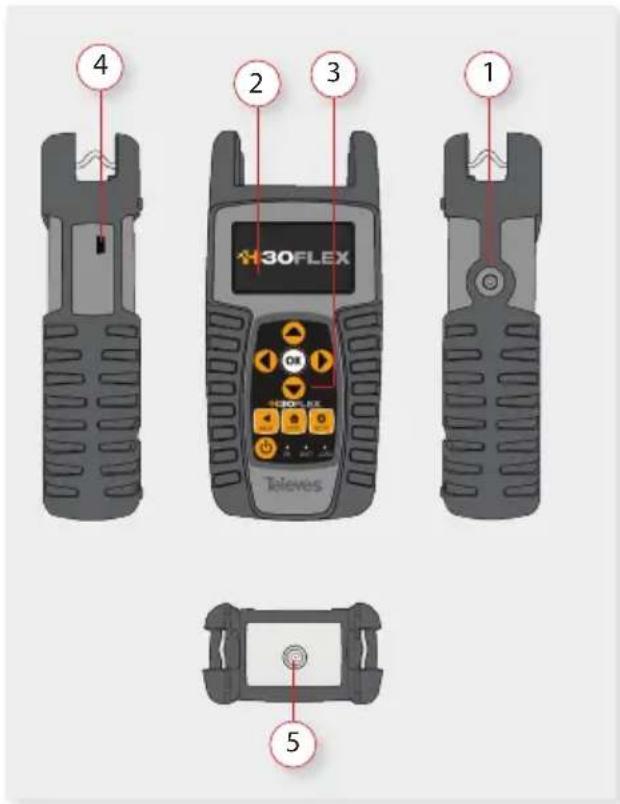
- External power connector (12VDC).
- LCD display.
- Keyboard and LED indicators
- USB connector
- RF F-connector (see options below).
F-connector options

Keyboard

- Device On/Off button: To turn the equipment off, press and hold for approximately 3 seconds.
- Back button: Return to the previous menu or close a parameter entry window.
- Home button: Return to the main menu.
- Navigation buttons: Used to scroll through options.
- OK OK Button: To confirm selection.
- Setup button: Parameter window for the current function.
- LED Load: Indicates if the equipment is powering an external load.
- LED Charging Battery: Indicates if the battery is charging.
- LED Power ON: Illuminated when the equipment is on.
Power supply
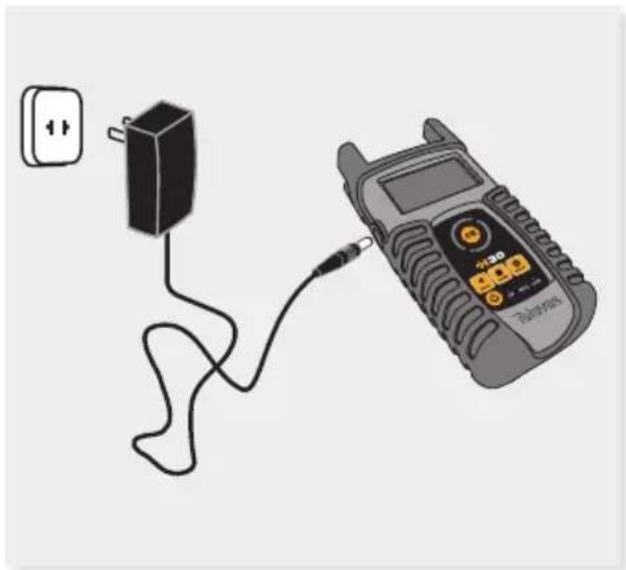
A DC adapter is provided to power and charge the meter. Plug the adapter into a properly grounded electrical supply and the power connector on the side of the unit.
natural_image
Illustration of a mobile phone connected to a power outlet (no text or symbols present)When external power is supplied, the battery management system automatically controls the charging process.
A battery icon indicates the charge status of the battery.
When the battery is fully charged, the battery icon is completely filled. As the battery discharges, the amount the icon is filled decreases in steps.
The icon shows 5 states representing the approximate battery charge:

- Battery charge less than 5%.

- Battery charge between 5% and 25%.

- Battery charge between 25% and 50%.

- Battery charge between 50% and 75%.

- Battery charge greater than 75%.
From a fully discharged state, a full charge takes approximately 8 hours and a 3 hour charge will provide approximately a 75% charge.
The charge management system will detect various conditions preventing charging, such as a battery that is over a safe temperature.
EN
Battery Recommendations
To maximize battery life:
- Avoid fully discharging the battery.
The battery should always be charged with the battery pack attached to the device and using the supplied DC adapter or applying a constant voltage within the specified range (12-15VDC).
For long term storage, keep the unit at room temperature, or about 25^ C. Start with a charged battery and re-charge the battery every 2 to 3 months.
Product operation

Channel Info
Analog and digital channels are very different in terms of signal content and power distribution and thus require the advanced SLM techniques provided in the Televes H30FLEX.
In analog mode, video and audio levels, V/A and Carrier to Noise (C/N) are measured.
In digital mode measurements depend on the modulation:
DVB-S: Power, C/N, MER, CBER, VBER
DVB-S2: Power, C/N, MER, LDPCBER, BCHBER
DVB-T (Ref. 593301, 593302, 593304 and Opt. 593231): Power, C/N, MER, CBER, VBER
DVB-T2 (Ref. 593302, 593304 and Opt. 593232): Power, C/N, Link Margin, LDPCBER, BCHBER
DVB-C (Ref. 593303, 593304 and Opt. 593233): Power, C/N, CBER, MER
1.1. Main window
Below is a capture of a Channel Info window with a brief explanation of its features.

1.2. Setup
Press 🤐 to change the Channel Info options.

- Tuning: Channel, Frequency
- A/D: Auto, Analog, Digital
- Band: Ter, Sat
- LNB
- Save datalog: Saves the current measurements. You can see the datalogs using the remote control application.
2. Spectrum
Real-time processing speeds ensure capture of any fast, intermittent plant impairments.
Due to the accuracy and level of detail provided by this spectrum analyzer, the H30FLEX is the ideal tool for identifying and locating noise, interference, ingress and other waveforms that may be affecting cable services quality.
2.1. Main window
Below is a capture of a Spectrum window with a brief explanation of its features:

- Band: Terr, Sat
- LNB
- Save datalog: Saves the current scan measurements. You can see the datalogs using the remote control application.
EN

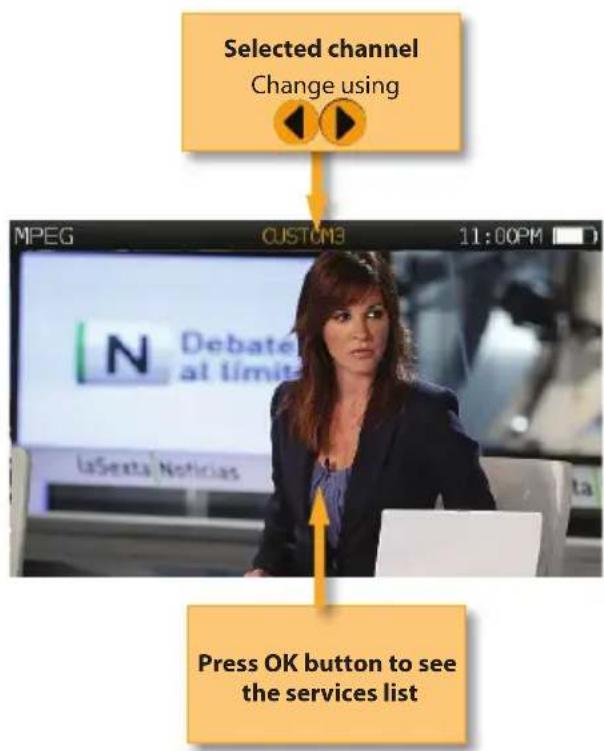
The H30FLEX's MPEG feature will show the image of the selected service.
In addition, you'll get the important parameters including the NIT (Network Information Table) of the channel. And for each individual service you'll get the SID and the VID (Video Id)/AID (Audio Id), and encode type all of which greatly help when trouble shooting your encoder configuration.
2.2. Setup
Press SETUP to change Spectrum options.
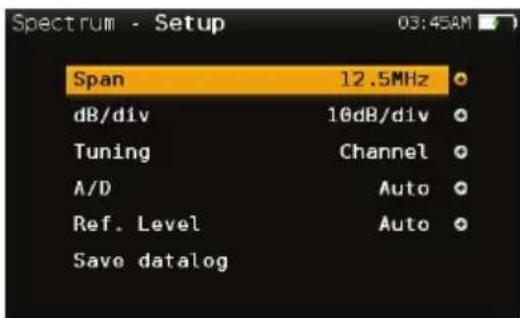
- Span: 5MHz, 10MHz 20MHz, 50MHz, 100MHz, 200MHz, 500MHz, Full.
Set the span of the spectrum. To easily change the span, use the OK Button to decrease the span and the Back Button to increase the span.
- Ref. Level: Select the reference level of the spectrum graph
- dB/div: 5 dB/div, 10 dB/div
- Tuning: Channel, Frequency
- A/D: Auto, Analog, Digital.
3.1. Main window
Below is a capture of a MPEG Info window with a brief explanation of its features:

4. System Scan
This function scans the selected channel plan and detects every existing analog and digital channel in real time to determine the overall frequency response of the system.
The scan measurement leverages the location based thresholds to clearly show whether or not signal levels comply with the cable system's specifications with their green, yellow and red bars. This gives an easy-to-understand real-time view of the system, including the BER and MER values of the selected channel.
4.1. Main window
Below is a capture of a System Scan window with a brief explanation of its features:

bar
| Channel | Value | | :--- | :--- | | Power | -3.0 dBmV | | C/N | 34.5 dB | | Reference | 20.0 dBmV | | Frequency | CH 69 (858.0000 MHz) | | Measurements of the selected channel with pass/fail indicators | (not labeled but implied by context)4.2. Setup
Press

to change the System Scan options.

- Digital tuning: If it is ON, allows to see MER and CBER measurements when a digital channel is selected and the user presses Ok button.
- Ref. Level: Select the reference level of the bar graph
- Span: Select the number of channels showed in the bar graph
- Band: Terr, Sat
- LNB
- Save datalog: Saves the current scan measurements. You can see the datalogs using the remote control application

5. Satellite Test
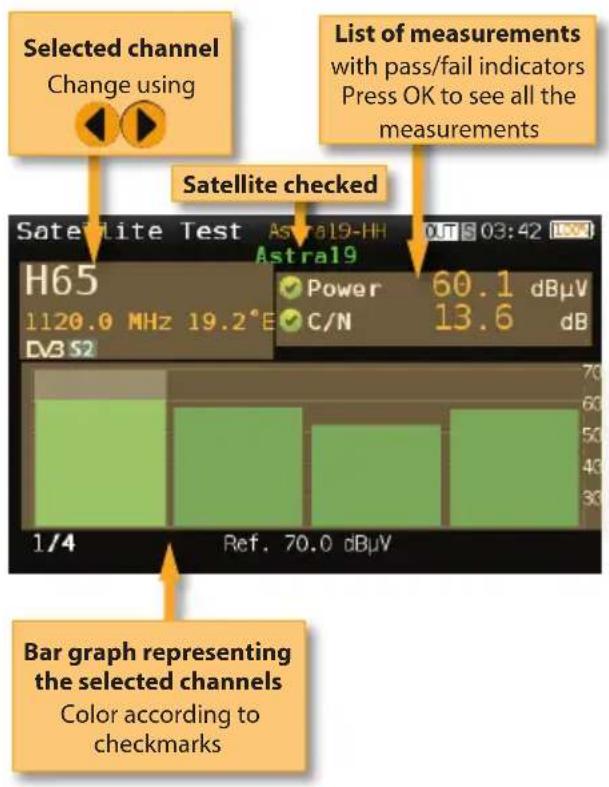
This feature checks that the input signal correspond to the selected channel. To do that, this feature makes automatically all the digital measurements in the channels selected by the user.
This feature extracts from theses channels all the information needed to identify the satellite.
5.1. Main window
5.2. Setup
Press 🤒 to change the Ssatellite Test options.

- Powering: Select the powering of the LNB if needed.
- DiSEqC: Select the SAT of the DiSEqC command.
- SCR: Select all the parameters needed to setup the SCR coomand.
- Ref. Level: Select the reference level of the bar graph.
- Channels: Select the number of channels as well as the channels from the channel plan.

6. Learning plan
Analyzes the input signal to the meter and automatically detects all channels.
This feature automatically identifies the channels as either analog or digital and performs measurements on each.
A bar graph is displayed with the height representing the power for digital channels and the level of the video carrier for the analog channels.
The measurements made for analog channels are video carrier level and V/A. For digital channels the measurements are power and C/N.
The analog channels will have an extra, smaller white bar indicating the level of the audio carrier.
6.1. Main window
Below is a capture of a Learning Plan window with a brief explanation of its features:

bar
| Measurement Type | Value | | :--- | :--- | | Selected channels Change using CCIR 6ND 04:51AM | 858.0000 MHz | | List of measurements with pass/fail indicators Power 57.0 dBμV C/N 34.2 dB | 57.0 dBμV | | Bar graph representing found channels Color according to checkmarks | 80.0 dBμV | | Indicates that the scan is finished. Press HOME to save the plan | - |
7. Constellation
Digital video often does not show signal impairment until it is too late due to the small margin between acceptable quality and failure.
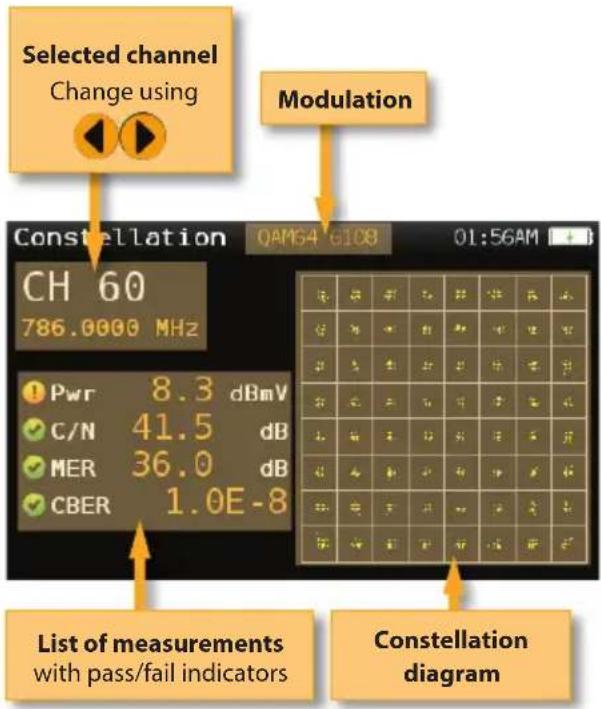
Constellation diagrams are an indispensable tool to help detect the presence of noise, phase jitter, interference, and gain compression, all of which impact overall signal quality and thus reduce Modulation Error Ratio (MER).
Ideally, each of the symbols in a constellation diagram should display a clean dot indicating a perfect signal.
The H30FLEX's real time constellation, allows the installer to assess the size and shape of the build up of dots indicative of problems which contribute to bit errors leading to service disruption
7.1. Main window
Below is a capture of a Constellation window with a brief explanation of its features:
Press SETUP to change Constellation options.

- Zoom: OFF21 ^nd , 3 ^rd , 4 ^th .
Select a quadrant of the constellation to be represented for more detailed view. Select Zoom OFF for the full constellation.
- Tuning: Channel, Frequency
- Band: Terr, Sat
- LNB
- Save datalog: Saves the current scan measurements. You can see the datalogs using the remote control application.
8. Echoes
It is important to check that no echoes can cause problems in the reception of DVB-T and DVB-T2 signals.
This feature you allows to visualize the echoes of the received signal, helping the installer to minimize as much as possible same for optimal signal reception.
8.1. Main window
Below is a capture of a Constellation window with a brief explanation of its features:
7.2. Setup

8.2. Setup
Press SETUP to change Echoes options.

- Powering: Off, 13V, 18V, 24V.
- Tuning: Channel, Frequency
- Band: us, Km
9. Setup
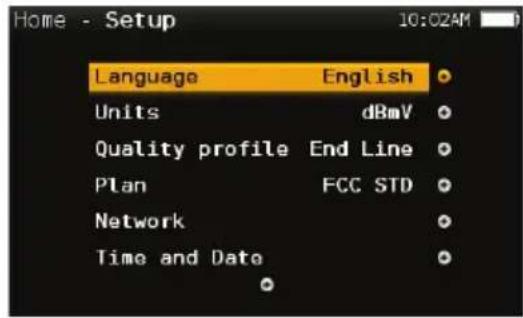
Change main configuration settings:
EN
- Band: Terr, Sat
- Ter. Network: Aerial, Cable
- Terr Plan: FCC STD, FCC RETURN, FCC IRC, FCC HRC, FCC OFFAIR, CCIR, and customers plans
- Sat Plan: F68E INTEL C, 68E INTEL, 42E TURK, 39E HELLAS, 33E EUTEL, 28E EUTEL, 28E ASTRA, 26E BADR, 25E EUTEL, 23E ASTRA, 21E EUTEL, 19E ASTRA, 16E EUTEL, 13E HOTB, 10E EUTEL C, 10 EUTEL, 9E EUTEL, 7E EUTEL, 4E ASTRA, 1W THOR5, 1W THOR6, 5W EUTELC, 5W EUTEL, 7W NILE, 30W HISPA, 48W AMZC, 48W AMAZ, SIM, and customers plans
- Sat. Freq.: IF, real Freq.
-Sat. LNB: Universal, C Band, Other.
If Other is selected, you must enter the frequency.
- Language: English, Español.
- Units: dBμV, dBmV, dBm
- Quality profiles: Trunk, Tap, End Line, Ground.
Different thresholds are available for different testing locations.
- Audio Carrier: 4.5 MHz, 5.5 MHz, 6.0 MHz, 6.5 MHz.
-Volume
- Time and Date:
Set current time (hour and minutes) and date (day of the month, month and year).
- Energy:
Auto suspension
Auto shutdown
- USB Storage: Connect your H30FLEX to your computer using the USB connector and turn USB Storage ON, so you can use your H30FLEX as a storage unit.
- Update firmware: See section Firmware update
- Reset configuration: Resets the H30FLEX to factory settings
- Licenses: Shows a list with all the licenses included in your H30FLEX
- About SW
- About HW
Driver Installation
- Connect your H30FLEX to your computer using the USB
2.- Depending on your Windows versión and configuration, it may happen that your computer installs automatically the corresponding driver.
3.- If it does not occur, you must follow the next steps:
3.1.- Open the Control panel

3.2.- Select Device Manager

3.3.- Select Other devices and right-click on it

3.4.- Select Update driver
3.5.- Select the option that allows you to find the driver in your computer.
3.6.- Select Network adapters from the list

3.7.- Select Microsoft Corporation from the list of manufacturers and Remote NDIS based Internet Sharing Device from the list of network adapters:

3.8.- Wait until the driver is installed
Web Application
Once you have installed the corresponding driver, open a web browser in your computer (Chrome recommended).
Type http://h30.flex in the address bar of your web browser and press Enter.
The you can see the home window of the H30FLEX web application:
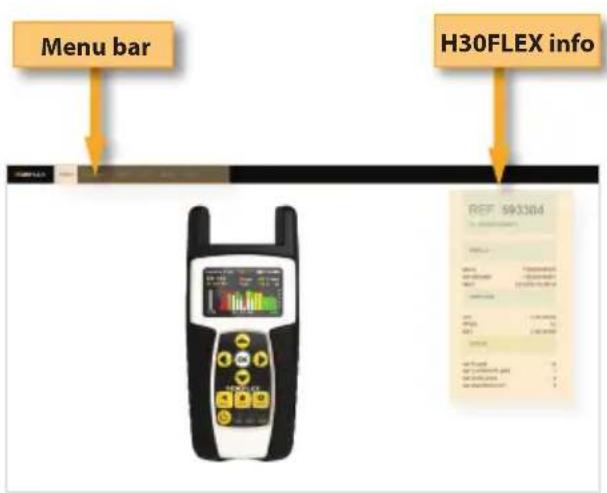
1. Measurements
In this window, you can see all the datalogs saved in your H30FLEX. They are grouped by date.

2. Plans
In this window, you can see all the channel plans of your H30FLEX.
They are grouped in three categories: Terrestrial, Satellite and Customer.
The Terrestrial and Satellite channel plan are the standard channel plans of the corresponding band.
These plans can not be deleted or edited. But you can make a copy of one of them to build a new customer channel plan from it.
The duplicated plans will appear in the Customer list automatically.

The Customer plans can be deleted and edited:

3. SCR
In this window, you can setup the multiswitches.
The H30FLEX includes a list of multiswitches by default, but you can more or edit any of the existing ones.

4. Update
In this section you can update the firmware of your H30FLEX.
The first thing that you must do is download the update file from the web of Televes and save it in your computer.
Then, click on the Browse button of this window and select the corresponding file.
Then click on the Update button:

Firmware update
There are two ways to update the firmware of your meter.
The first one is using the web application, explained in the paragraph 4. Update of the section Web Application
The second one is using the USB Storage feature of the Setup Menu (see section 9. Setup of the point Product Operation).
To update the firmware using this procedure, follow the next indications:
1.- The first thing that you must do is download the update file from the web of Televes and save it in your computer.
2.- Turn your H30FLEX on
3.- Press the Home button to go to the Main menu
4.- Select Setup
5.- Select USB Storage
7.- Connect your H30FLEX to your computer using the USB connector
8.- Then find the unit called H30FLEX in you computer and open the folder. You'll see a fold called updates
9.- Copy the two files corresponding to the update (updater and version) to the updates folder in the H30FLEX unit.
10.- Unmount the H30FLEX unit in your computer
11.- Select the USB Storage feature in the Setup menu of your H30FLEX to turn it off
12.- Select the Firmware update feature in the menu of your H30FLEX and press the OK button to confirm.
13.- Then a message will appear indicating that the H30FLEX is being updated. Wait unt the the H30FLEX resets automatically
EN
Maintenance
Always disconnect the unit before cleaning. Use only a mild solution of detergent and water applied with a soft damp cloth. Dry thoroughly before use.
Do not use aromatic hydrocarbons or chlorinated solvents. These products may damage the unit.
Do not use alcohol or alcohol based products on the front panel, especially the display. These products may damage the unit.
Technical support
For any questions, contact Technical Support at www.televes.com
Before contacting Technical Support for repair, read the manual to ensure proper use and attempt to RESET the unit to clear any problems.
Repair service
Do not return the unit without first contacting Televes Technical Support.
If the unit needs to be returned, Televes will arrange for free shipping. The unit will need to be appropriately packed for shipping.
In compliance with IATA Regulations, when using our shipping service follow these instructions:
Label the package.
The equipment should fit as snugly as possible in the box. It is recommended to use the original packing materials.
- Attach the precaution label to the package.
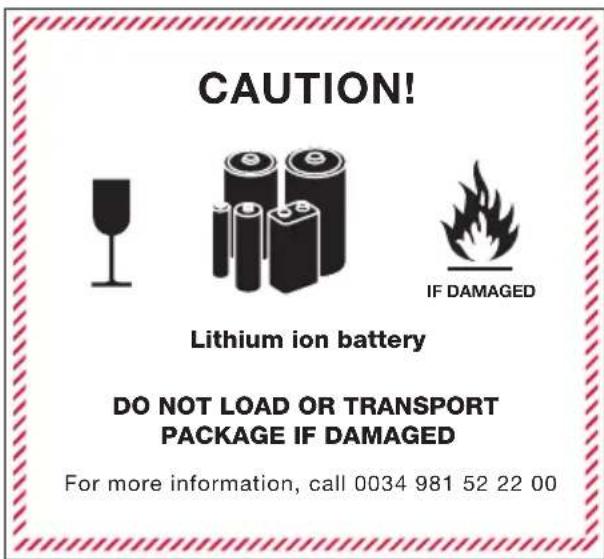
Failure to comply with these shipping requirements may result in the shipping agent rejecting the package.
Warranty
A) Televes warrants, only to the original Purchaser, all Products be free from any defect in materials or workmanship for a period of one (1) year, six (6) months for the battery, from the date of original purchase, unless otherwise specified.
(B) Televes shall, free of charge and in its sole discretion, either repair, replace with a new or factory reconditioned equivalent, or refund the purchase price of the Product(s), that has been determined by Televes to be defective in material or workmanship, subject to the limits of this warranty.
(C) This warranty excludes any inoperability resulting from:
(I) use or installation that is not in strict compliance with the written instructions and specifications;
(II) any modification or alteration performed by any third party not authorized in writing by Televes;
(III) service or repair performed by any third party not authorized in writing by Televes;
(IV) misuse, abuse, intentional harm, or lack of reasonable care;
(V) fire, ice, snow, rain, wind, water, volcano, excessive heat or cold, lightning, flood, power surge, earthquake, or any other acts of God;
(VI) war, crime, strike, riot, electro-magnetic pulse, or any other acts beyond the control of Televes;
(VII) shipping.
(D) All claims under the terms of this warranty must be made in writing, by the original Purchaser, within fourteen (14) days of the defect being known to the Purchaser. Such claims shall be accompanied by a description of any material facts related to the claimed defect and the invoice or other proof of original purchase date and price. If Televes so requests, the Purchaser shall, at Purchaser's expense, deliver the claimed Product(s) to Televes, within 14 days of the date of the return authorization. Under no circumstances shall the Product(s) be returned to Televes without a return authorization.
E) Any refund to the Purchaser, shall be limited to
the purchase price of the Product(s), excluding any applicable taxes, duties, freight costs, removal costs, installation costs, or any other charges incident to the purchase of the product.
(F) Any damage caused by shipper shall be claimed with the shipper in accordance with the shipper's policies and procedures.
(G) Televes shall in no event and under no circumstances be liable or responsible for any consequential, indirect, incidental, punitive, direct or special damages based upon breach of warranty, breach of contract, negligence, strict tort liability or otherwise or any other legal theory, arising directly or indirectly from the sale, use, installation or failure of any product acquired by Purchaser from Televes.
(H) This limited warranty extends to the original Purchaser and cannot be assigned or transferred to any other party without the prior express written permission of Televes, which permission Televes may withhold for any reason or for no reason at all.
(I) Televes will not assume any liabilities for any other warranties, whether statutory, express or implied, made by any other person.
(J) Televes reserves the right to modify or discontinue this warranty at Televes' sole discretion without notification. No other warranties are expressed or implied.
European technology Made in EUROpe

- Safety requirements
- Product inspection
- Read and Follow All Instructions
- Cleaning
- - Attachments
- Water and Moisture
- Power Sources
- • Grounding or Polarization
- Wire Protection
- Electrical Supply, Grounding, and Surge Protection
- Power Lines
- Servicing
- Heat
- • Maximun in the power connector
- Symbols and safety labels
- Overview
- Introducing the H30FLEX.
- Key Features
- Description of equipment components
- Power supply
- Battery Recommendations
- To maximize battery life:
- Product operation
- Channel Info
- Main window
- Setup
- Spectrum
- Main window
- Setup
- Main window
- System Scan
- Main window
- Setup
- Satellite Test
- Main window
- Setup
- Learning plan
- Main window
- Constellation
- Main window
- Echoes
- Main window
- Setup
- Setup
- Setup
- -Volume
- Driver Installation
- Web Application
- Measurements
- Plans
- SCR
- Update
- Firmware update
- Maintenance
- Technical support
- Repair service
- Warranty
- European technology Made in EUROpe
Brand : TELEVES
Model : 593232
Category : Measurement