
HookUpz IC-918 - Electronic accessory Carson - Free user manual and instructions
Find the device manual for free HookUpz IC-918 Carson in PDF.


| Product Type | Telephoto Lens Smartphone Adapter |
| Brand | Carson |
| Model | HookUpz IC-918 |
| Compatibility | Holds phones/cases up to 3.5" wide; works with most phone cases and iPods |
| Magnification | 6x |
| Objective Lens Diameter | 18 mm |
| Prism Type | BK7 |
| Lens Coating | Coated |
| Field of View | 630 ft at 1000 yards |
| Eye Relief | 9.8 mm |
| Close Focus | 6.5 ft |
| Included Accessories | Mini-tripod |
| Adjustable Lens Bracket | Yes, with locking knob for centering |
| Focus Mechanism | Turn focus wheel on telephoto lens |
| Storage | Store in dry area at room temperature; use protective case |
| Cleaning | Soft damp cloth only; avoid chemicals and abrasives |
| Customer Service | Email info@carson.com or call 1-800-967-8427 |
| Manufacturer | Carson Optical, 2070 5th Avenue, Ronkonkoma, NY 11779 |
Frequently Asked Questions - HookUpz IC-918 Carson
User questions about HookUpz IC-918 Carson
0 question about this device. Answer the ones you know or ask your own.
Ask a new question about this device
Download the instructions for your Electronic accessory in PDF format for free! Find your manual HookUpz IC-918 - Carson and take your electronic device back in hand. On this page are published all the documents necessary for the use of your device. HookUpz IC-918 by Carson.
USER MANUAL HookUpz IC-918 Carson
Instructions for use
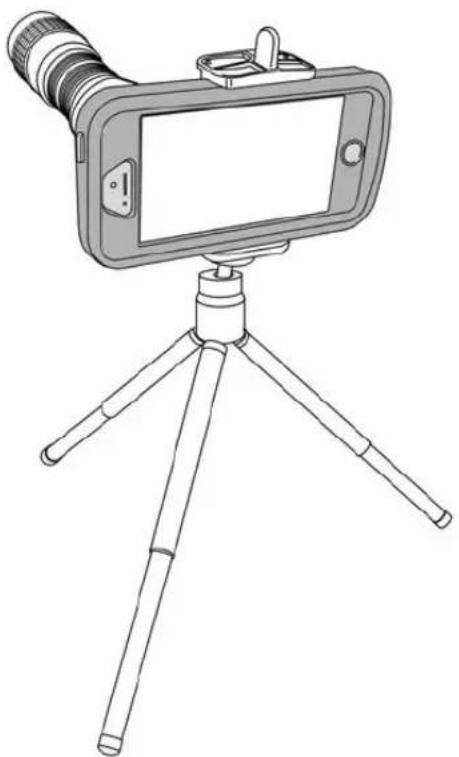
HOLDS PHONES/CASES UP TO 3 1/2" WIDE
natural_image
Line drawing of a smartphone mounted on a tripod with a camera lens (no text or symbols)IC-918
HookUpz™
Inserting Phone and Aligning Lens Bracket
natural_image
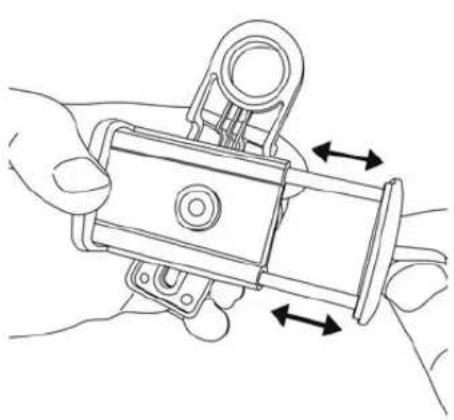
Line drawing of hands holding a mechanical device with directional arrows indicating movement (no text or symbols)Pull open adapter and place phone into it with rotating bracket on the back side of the phone. Note: You do not need to remove your protective case to use this adapter.

natural_image
Illustration of a smartphone with hands holding the screen and a small object inserted, showing no text or symbols.Phone must be placed flush to adapter. Make sure adapter does not interfere with any buttons on the side of phone.

natural_image
Illustration of hands assembling a device into a tray (no text or symbols visible)Loosen locking knob and adjust the telephoto lens bracket so that the camera lens is centered inside the threaded hole.
Aligning Lens Bracket (cont.) and Attaching Telephoto Lens
natural_image
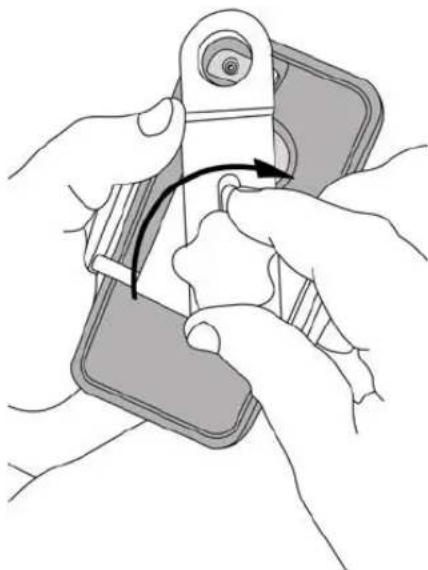
Illustration of hands holding a device with a curved arrow indicating rotation (no text or symbols)Once camera lens is perfectly centered, tighten knob to lock into place.

natural_image
Illustration of two-step camera lens adjustment process, showing hand positioning and eye positioning (no text or symbols)Screw telephoto lens into threaded hole and tighten securely.
Using Included Mini-Tripod
natural_image
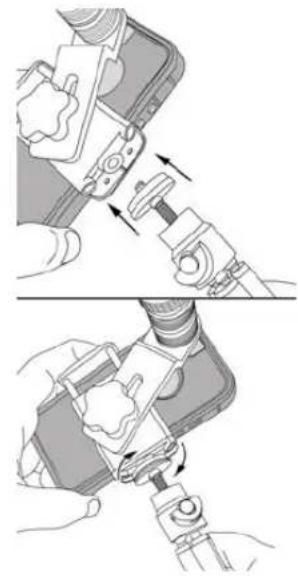
Two-step diagram showing hands using a device to adjust or install a cable, with no visible text or symbols.To use the included mini-tripod, screw the tripod head into the tripod thread on the bottom of the adapter.
natural_image
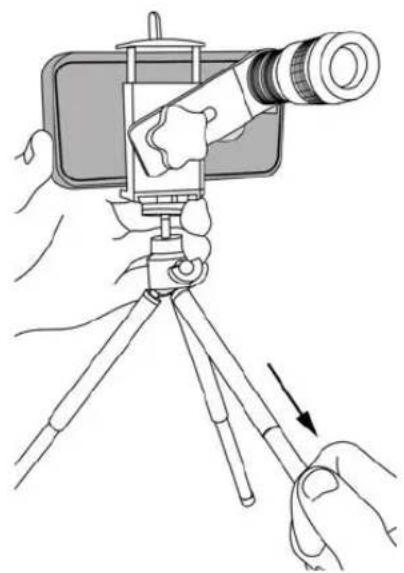
Illustration of a person using a smartphone mounted on a tripod with a magnifying glass, no text or symbols presentExtend each tripod leg out fully to increase stability.

natural_image
Illustration of a hand holding a smartphone mounted on a tripod, with a hand adjusting the cable (no text or symbols present)Turn locking screw to loosen ball joint. Position camera as desired and then re-tighten securely.
Focusing and Enlarging Image Digitally
natural_image
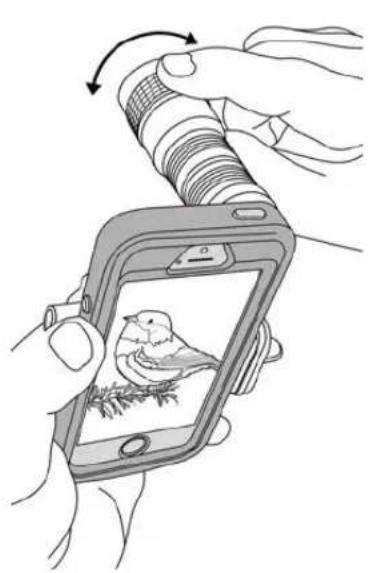
Illustration of hands holding a smartphone with a bird photograph inside, showing the screen and cable (no text or symbols)Turn on your smart phone camera and point telephoto lens at viewing subject.po Focus by turning the focus wheel until image on screen is sharp. Note: you may need to adjust adapter position slightly to perfectly center telephoto lens.

natural_image
Illustration of a hand holding a smartphone displaying a bird's profile (no text or symbols visible)You may notice that the image does not take up the entire screen. This is normal and can be corrected by enlarging the image on the screen digitally.
natural_image
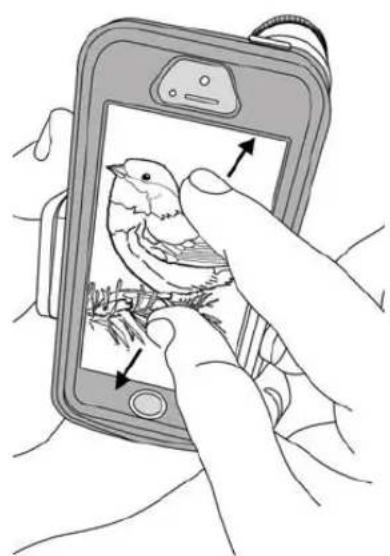
Illustration of hands interacting with a smartphone displaying a bird on screen (no text or symbols visible)To enlarge your image digitally, pinch and enlarge the phone screen until the image fills up your entire screen.
Helpful Usage Tips
Phone Tips:
- For best image switch your smartphone to video mode.
- Long viewing sessions may drain your phone battery. Try a charging case to extend your battery life.
Photography Tips:
- Tap your phone screen on your object of interest to manually force the auto-focus function.
- For videos, you may want to set and lock your focus on your viewing object. For iPhone users, tap and hold the screen where you want to focus and "AE/AF lock" will be shown on the top of your screen.
- External vibrations might cause your screen image to shake. For best results mount your adapter to a tripod or place on a stable surface.
- Many phones have image stabilization features. Check your phone and turn on this feature if available. If not, there are camera Apps with stabilization features.
- If tapping your screen is causing vibration, you can use a remote shutter to take the photo. For Apple phones, if you attach headphones with a volume control, you can use the volume buttons on the headphones to operate the camera shutter.
Storage/Cleaning Information:
• To avoid damage, always store components in protective case when not in use.
- Store in dry area at room temperature.
- Do not leave adapter permanently attached to smart phone as this may weaken the springs over time.
- Adapter and telephoto lens should be cleaned with soft, damp cloth only. Do not use any chemicals or abrasives.
Other Uses:
For remote sharing of your video via FaceTime or an equivalent program.
Specifications
Phones:
- Designed to work with most phone cases. You do not need to remove your phone from its case.
- Holds phones/cases up to 3.5" wide.
- Fits on other similarly sized devices with cameras such as iPods.
Telephoto Lens:
• Magnification: 6x
• Objective Lens Diameter: 18mm
- Prism Type: BK7
• Lens Coating: Coated
• Field of View: 630 feet at 1000 yards
• Eye Relief: 9.8mm
- Close Focus: 6.5 feet
Customer Service:
We will be happy to help you with any problems you may experience with your Telephoto Lens Smartphone Adapter.
Email us at info@carson.com or call toll-free at 1-800-967-8427.
Carson Optical • 2070 5th Avenue • Ronkonkoma, NY 11779
www.carson.com info@carson.com
Tel: 631-963-5000 Fax: 631-427-6749
iPhone® and iPod™ are registered trademarks of Apple, Inc., registered in the U.S. and other countries. Samsung® is a registered trademark of Samsung, registered in the U.S. and other countries.
- Instructions for use
- Inserting Phone and Aligning Lens Bracket
- Aligning Lens Bracket (cont.) and Attaching Telephoto Lens
- Using Included Mini-Tripod
- Focusing and Enlarging Image Digitally
- Helpful Usage Tips
- Phone Tips:
- Photography Tips:
- Storage/Cleaning Information:
- Other Uses:
- Specifications
- Phones:
- Telephoto Lens:
- Customer Service:
Brand : Carson
Model : HookUpz IC-918
Category : Electronic accessory