
LT7028 - Kitchen scale CURTIS - Free user manual and instructions
Find the device manual for free LT7028 CURTIS in PDF.


| Product Type | 7-inch Android Tablet (MID) |
| Model | LT7028 |
| Brand | Curtis |
| Operating System | Android 2.1 (Éclair) |
| Processor | Rockchip RK2818B, ARM Dual CPU (ARM600MHz + DSP550MHz) |
| Display | 7.0-inch TFT touch panel, 800x480 pixels, 160K colors |
| Built-in Memory | 2GB to 8GB flash (expandable via TF card up to 32GB) |
| RAM | 128MB DDR2 (256MB optional) |
| Battery | 3.7V 3500mAh rechargeable lithium-ion |
| Power Adapter | Input: AC 100-240V, 50/60Hz, 0.35A; Output: DC 5V, 2A |
| Wi-Fi | 802.11b/g (Samsung SWL-2480), max 54Mbps, range up to 100m |
| Audio Formats Supported | MP3, WMA, OGG, APE, FLAC, AAC, WAV |
| Video Formats Supported | MKV, AVI, RM, RMVB, MP4, MOV, VOB, DAT, FLV, 3GP (max 1280x720) |
| Photo Formats Supported | JPG, JPEG, BMP, GIF |
| E-book Formats Supported | TXT, LRC, PDF, HTML, HTM, EPUB |
| Connectivity | USB 2.0 (host), mini USB, HDMI output, 3.5mm headphone jack, TF card slot |
| Additional Features | G-sensor orientation, built-in microphone, stereo speaker, recording function |
| Languages Supported | Multi-language (including English, French, German, Spanish, Chinese, Japanese) |
| Certifications | CE, FCC |
| Dimensions (Estimated) | 190 x 120 x 12 mm |
| Weight (Estimated) | 300 g |
Frequently Asked Questions - LT7028 CURTIS
User questions about LT7028 CURTIS
0 question about this device. Answer the ones you know or ask your own.
Ask a new question about this device
Download the instructions for your Kitchen scale in PDF format for free! Find your manual LT7028 - CURTIS and take your electronic device back in hand. On this page are published all the documents necessary for the use of your device. LT7028 by CURTIS.
USER MANUAL LT7028 CURTIS

Contents
- Safety Notices....4
- Ready to use....5
2.1 Packing List....5
2.2 Appearance....6
2.3 Instructions on Keys....6
2.4 Features Overview....7
2.5 Technical Specifications....7
3 Quick Guides....9
3.1 Touch Panel Calibration....9
3.2 Switch On/Off....9
3.3 Orientation Sensor Setting....10
3.4 Battery management and charging....11
3.5 Operation of the function Icon ....11
3.6 WIFI Setting 12
3.7 USB-HOST Function .....16
3.8 HDMI Function .....17
3.9 TF card storage 18
3.10 APK Installer....18
4 Operation Details....20
4.1 Desktop System 1(Multimedia Music/Video/Picture/Recording)......20
4.1.1 Music ....20
4.1.2 Video ......23
4.1.3 Picture ......24
4.1.4 Recording 26
4.1.5 Explorer....26
4.2 Desktop System 2 (Shelves)(E-Book Function)......27
4.2.1 Shelves(E-Book Function)......27
4.3 Desktop System 3(Web Applications)......28
4.3.1IE Browser....28
4.3.2 Email 29
4.3.3 YouTube Online Video 30
4.4 Desktop System 4(Other Functions)....31
4.4.1 Calculator ....31
4.4.2 Alarm Clock 31
4.4.3 APK Installer 32
4.4.4 Device Setting 32
4.4.4.1 Wireless And Network Settings 32
4.4.4.2 Voice and Display Settings 32
4.4.4.3 Location and Security Settings 34
4.4.4.4 Application Program Settings ....35
4.4.4.5 TF Card and Device Storage Settings ....36
4.4.4.6 Language Keyboard Settings ....37
4.4.4.7 Date and Time Settings ....38
4.4.4.8 Touch Screen Calibration 39
4.4.4.9 About the Device ....39
4.5 Desktop Function Icon Settings ....40
4.5.1 Add & Remove Desktop Function Icon....40
4.5.2 Wallpaper Setting....41
4.5.3 Tap icon Shortcut to search engine....41
4.5.4 Shortcut Notification....42
4.5.5 Add, Move or Delete Desktop Icon....42
5 Troubleshooting....43
Safety notices
1) Please keep the device away from strong magnetic field in order to avoid the damage to the product
2) Please do not let the player fall or rub or compact with hard objects during using, or it may cause surface scratch of the player, battery loose, data lose or damages of other hardware.
3) Never let this product expose to the humid environment or rain as the water leaked into could disable it to the extent beyond reparation.
4) Never clean the device with any chemicals and detergent, or it will damage the product surface and corrode the spray paint
5) You are recommended not to use the headset with large volume continuous, please adjust the volume to the size of appropriate security and control the using time to avoid the damage to your hearing, as excessive volume will cause permanent hearing damage.
6 ) Please do not cut off the power abruptly during software update and download, or it may cause data loosing and system error.
7) Over-voltage, power cable strain, bending or squeezing by heavy objects is not allowed to avoid overheating or fire disaster.
8) In order to eliminate the risk of electric shock, do not touch the cable power plug with wet hands
9 ) Some movie, music and picture are under the protection of copyright, unauthorized usage is deemed as an infringement to the laws of copyright
10) Please don't turn on the device in where the wireless equipment is forbidden or when the usage of the device will cause interference and danger
11) All the wireless equipment may be interfered and influenced the performance
12) Please comply with any related restrictions and rules, wireless equipment will influence the flight of the plane; please consult the airline company if you use the device in the plane.
13) Please don't use the device in gas station, nearby the fuel and chemicals
14) Please comply with any related restrictions and rules; don't use the device in where blasting operations are in progress
15) Only qualified maintenance personnel can install or repair the device
16) Please use the original accessories and battery, don't use the incompatible products
17) The device is not waterproof, please keep it dry
18) For the sake of data safety, please back up the important information of the MID or keep a handwritten record.
19) When connecting with other device, please read the user manual for detail safety instruction, please don't connect it with incompatible product
20) If the actual settings and operation method of the product are inconsistent with the user manual for the losing of firmware, please use the software in the CD-ROM and refer to the instruction of the manual to re-update the software
2 Getting your device ready for use
2.1 Packing List
| Components | Quantity |
| MID Device 1 | |
| Handwriting Pen 1 | |
| Charger | 1 |
| Earphone | 1 |
| USB Cable 1 | |
| User Manual 1 | |
| CD-ROM | 1 |
| Warranty Card 1 |
2.2 Product Appearance
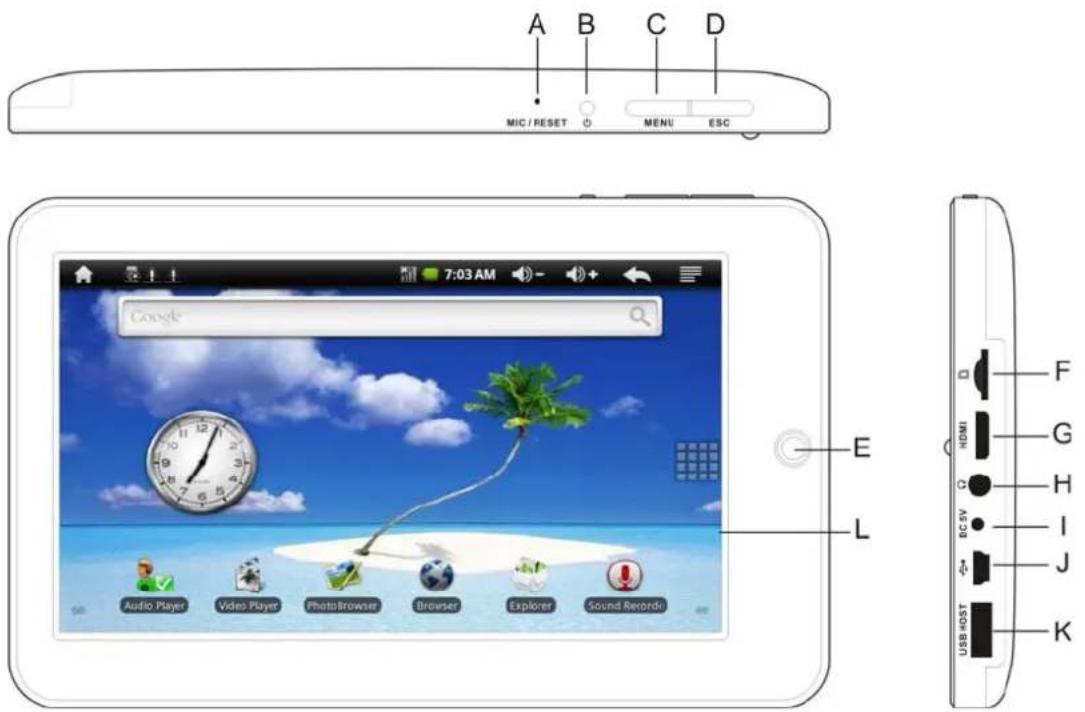
2.3 Instructions on Keys
| Symbol | Name | Description |
| A MIC/ | RESET Press this | button shortly to reset the system when the device is halted. |
| B PO | WER Press this | button shortly to enter sleeping/wake up mode, press long to switch ON/OFF |
| C MENU | Press this button | shortly to enter the submenu |
| D ESC | Press shortly to return, press long to the touch screen calibration | |
| E | Track Ball Navigation/Indicating light | Tracking navigation button, indicating light |
| F TF Card | Slot | Slot |
| G | HDMI | HDMI Jack |
| H | Stereo Earpieces Jack | Stereo Earpieces Jack |
| I | DC Socket | Connect with 5V DC charger |
| J | MINI USB Port | MINI_5 PIN USB Port |
| K | USB Port | Host Port for external USB Driver,3G Dongle, Mouse, etc |
| L Display HD Display area | ||
2.4 Features Overview
■ Adopt the RK2818B as the main chip, ARM embedded Dual CPU Structure (ARM600MHZ+DSP550MHZ), ANDROIED2.1 smart operation system
■ 7" high resolution TFT touch panel LCD display, 800 x 480 pixel resolution
■ Support 2GB-8GB built-in Flash Memory, support 128MB-32GB external TF card
■ Support HD 720P MKV、AVI、RM、RMVB、MP4、MOV、VOB、DAT、FLV、3GP,H.246 etc formats, support Max resolution1280*720
■ Support JPG、JPEG、BMP、GIF etc. picture formats
■ Support MP3、WMA、OGG、APE、FLAC、AAC、WAV audio formats, multi EQ modes
■ Support TXT、LRC、PDF、Html、Htm、EPUB file formats, support auto-browse, zoom, bookmarks, flip over functions
■ Support built-in Wifi, you can connect with the broadband wireless internet and operate various software in the ANDROID 2.1 OS.
■ Support built-in microphone record function(Optional)
■ Support USB-HOST and external U-disk, MP3, MP4, Mouse, etc
■ Support external 3G USB-DONGLE wireless network card(3G card or USB-Dongle should buy separately)
■ Support HDMI output
■ Support G-sensor screen rotation function(Main menu will be shown in horizontally screen only)
■ Support Stereo Earpieces and speaker
■ Supports multiple languages
■ Can be used as USB portable hard disk, driver not needed for WIN2000 or above
■ Power Adaptor Specification:
Model: DNS-050200E
Input: 100-240V\~50/60 Hz 0.35A
Output: 5V = 2000mA

2.5 Technical Specifications
| LCD Display | Size 7.0" TFT touch | panelLCD display,160k color |
| Resolution | 800*480 | |
| PC interface High speed USB2.0(FS) | ||
| Built-in Flash Flash Memory: 2GB~8GB | ||
| Built-in RAM RAM: DDRII 128MB(256MB option) | ||
| Capacity Expansion Support TF Card, capacity 128MB~32GB | ||
| Power Supply | Built-in 3.7V@3500mAh Lithium rechargeable batteryAC charger:Input:AC110V~240V, Output:DC 5V@2A | |
| Music Function | Format | MP3、WMA、OGG、APE、FLAC、AAC、WAV |
| Headset max. output | (L) 5mW+(R) 5mW (32Ohm) | |
| MP3Bit rate 8Kbps ~ 392 Kbps | ||
| WMA、WMV、Bit rate supported | 5Kbps ~ 192 Kbps | |
| Frequency response | 20Hz to 20KHz | |
| SN ratio | 90dB | |
| Distortion | <0.05% | |
| Video Function | Play format | MKV、AVI、RM、RMVB、MP4、MOV、VOB、DAT、FLV、3GP,etc |
| Max.resolutions supported | 1280*720 | |
| Ratio | 4:3、16:9、full screen for optional | |
| Photo browse | JPG、JPEG、BMP、GIF supported | |
| E-book Function | Format Supported | TXT、LRC、PDF、Html、Htm、EPUB, etc |
| Max. capacity | 20M | |
| WI-FI Function | Main chip set | Samsung SWL-2480 , 802.11b/g |
| Transmission rate | Max54Mbps | |
| Transmission Distance | Max100m | |
| Work Frequency | 2.4GHz | |
| HDMI Function | Main chip set | ANX7150(Optional) |
| Resolution 576P, 720P | ||
| Recording function Format supported WAV Format | ||
| Working temperature | -5 ~ 40 °C | |
| Languages | Simplified Chinese、Traditional Chinese, English, Japanese、French、German、Spanish, etc | |
| Operation systems supported | Windows ME/2K/XP | |
3 Quick Guide
3.1 Touch Panel Calibration
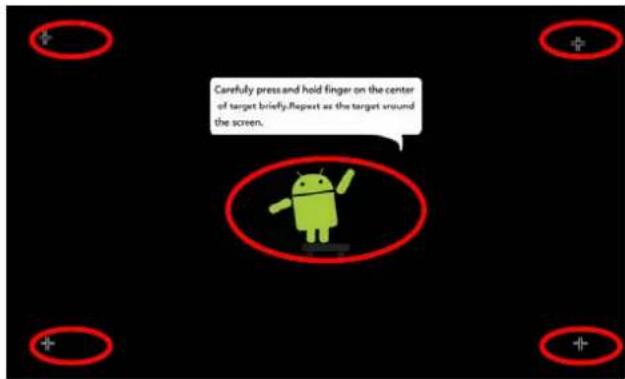
When there are offset and invalid tap on the touch panel, please press and hold the "ESC" key for 3 seconds to log into the interface of the Touch Panel Calibration, tap the center of the "Cross" indicated by the red circle one time, the screen will display "Calibration Successful" message when it is OK, see the figures below
3.2 Switch On/Off
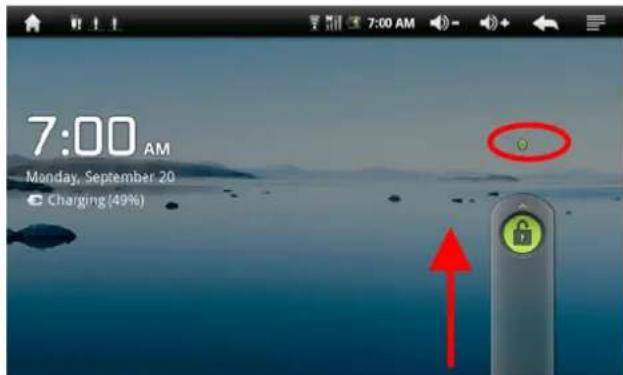
Switch On and Unlock: When the device is in the OFF mode, press and hold “Power” key for 3 seconds to enter the Android startup progress bar, it need about 100 seconds enter to the system desktop, the LCD is under locked mode, please press and pull the 📄 icon to the green point, then the LCD will unlocked automatically, see the figures below,
Power Save Modes and lockscreen: Press the “POWER” key shortly after starting up, system enter to SLEEP power save and lockscreen mode. Press the “POWER” key or tap the touch screen for 3 seconds, system will return to bright in 1 second
Note: The primary operation of the device will not stop under the power save mode, just the LCD is shut and with black screen. For example: playing music, movie, etc
Switch OFF: When the device is in the OFF mode, press and hold
the “POWER” key for 3 seconds, the screen will display the power off interface, choose the power off item to confirm, the system will shut automatically
【Note】When the device with low battery it will alarm continuous and shut automatically without charging. If the device can not start up please check if the battery is low, and try it again after the battery is charged
3.3 Orientation Sensor Setting
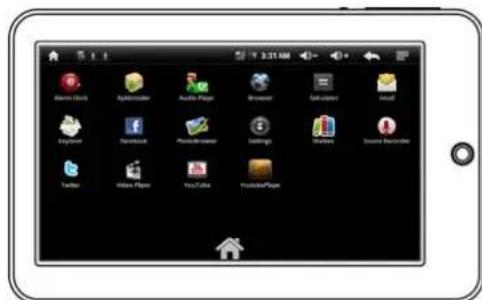
The tablet contains a sensor that will automatically change the orientation of most screens as you rotate the tablet. The sensor works best when the tablet is rotated perpendicular to the ground (i.e., when the tablet is held upright and not flat on its back).
【Note】Main Menu and Application Menu could be only shown in horizontal screen (refer to 3.3.1 and 3.3.2)

3.3.1 Main Menu
3.3.2 Application Menu
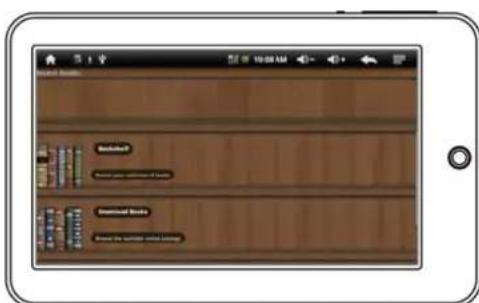
3.3.3 Apps (Horizontal)

3.3.4 Apps (Vertical)
The Orientation sensor can be turned on an off in the Orientation in Sound & Display setting menu.
3.4 Battery management and charging
a. Charge the battery at about 8-12 hours to make sure the battery is fully charged at the first time.
b. Insert the micro port of the battery adaptor into DC slot on the device, and connect the other side with the power socket. Then the Power indicating lamp of the device is in high light blue color, the desktop icon of the battery ☐ keep rolling which shows it is charging, please wait until the battery is fully charged, don't disconnect the power when charging. Once the battery is fully charged, the indicating lamp will change into dark blue, the Icon on the desktop ☐ will stop rolling. When the battery is exhausted completely, please charge at least one minute before start it up
【Note】n order to keep the battery working in best condition, please pay attention as below:
- Please don't charge the power in high temperature.
- No need to release the power for this Li-battery, you can charge the power even there is still some power in the battery, no need to charge the power when the it runs out.
- In order to keep the battery in good condition, Make sure to charge the power once per two weeks if you don't use this device for a long time.
3.5 Operation of the function Icons.
a . Definition of the Function Icons
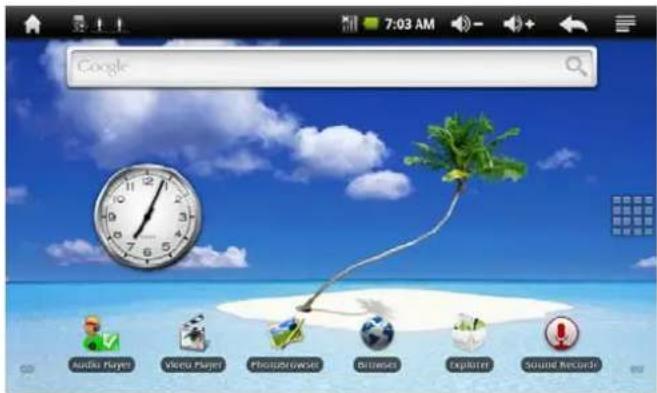
| Icon | Function instruction | Icon | Function instruction |
 | Back to main menu |  | Note when the system finds new devices. |
 | Show current power status |  | Set the alert time |
 | The current system time |  | Reduce the volume |
 | back |  | Louder the volume |
 | menu |  | Menu for Function Block. |
 | Google search |  | Switch the interface |
 | System clock |  | WIFI on/off |
 | Music playing tool bar |  | Update icon for Music/audio inventory |
 | new mail |
3.6 WI-FI Setting
a. Turn on the WIFI setting: Tap the module icon, enter into function menu list; press "setting" enter into the setting interface; press "wireless and network" to setup, just select the WIFI as below:
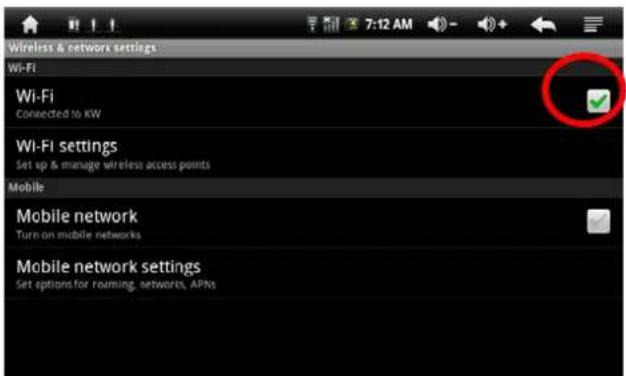
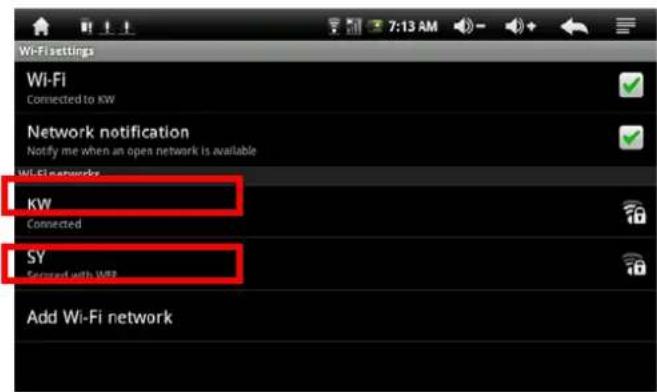
b. Set the WIFI and connect to the network: Press "Wifi setting" to enter into the wifi, the system will find the WIFI name automatically. Please refer to the picture as below, it has found two WIFI network name:
c. IP address setting and connection: There are two setting methods to set the IP address.
1. Distribute IP Address automatically:
Whether it distributes the IP address automatically or not is depended on the WIFI Router's setting, if it distributes the IP address automatically, just press the top right corner of the screen "☐" to enter into "advanced" setting to cancel the selection of the "Use static IP"

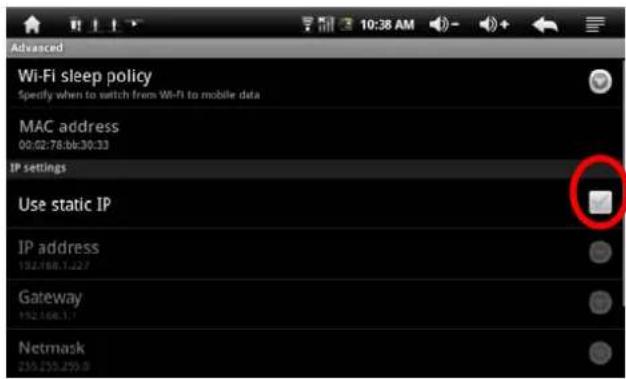
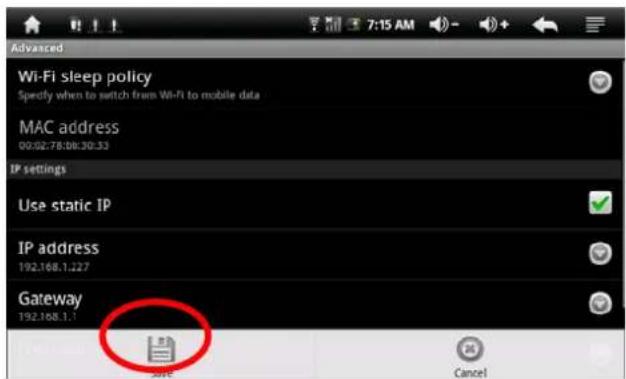
Press the right top menu “☐” on the screen and press “save” when complete this setting, see the figure as below:
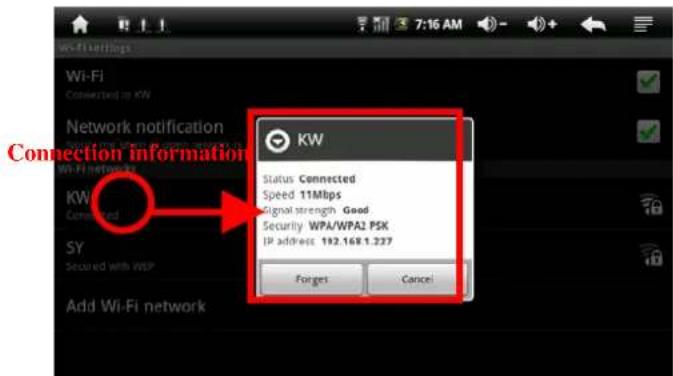
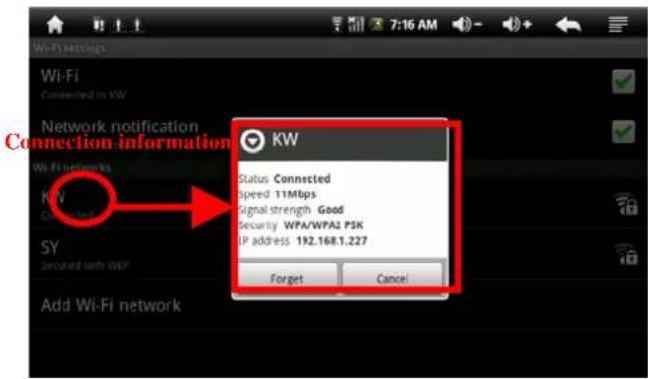
Press back when complete saving, press the WIDI network name, For example, double press "KW", then it will to enter into a interface to ask you input the code. Then input the right code, press "finish". Then the system will connect and distribute IP address automatically, it will show "connected" once the system is completed connection. You can see the network connecting status accordingly when you press the network name, see the figure as below:
2. Manual setup IP address:
Whether Using manual setup IP address or not, it depends on the WIFI Router's setting, if distributing the network name by this way, just press the top right corner of the screen “☐” to enter into “advanced” setting and select the “Use static IP”, then set the IP address as it from the Router. See the figure as below,


Press the ☐ in the right top of the screen to press "save", see the figure as below:

Back to press the WIFI network name when complete saving. For example: press "KW"
Then it will have an interface, asking for input the code, input the right code, and then press the “finish”. Then the system will be connected and will distribute the IP address automatically, it will show “connected” once the system is completed connection. You can see the network connecting status accordingly when you press the network name. There will be a WIFI icon “☐” see the figure as below:
3.7 USB HOST Function:
a. Turn on The USB- HOST:
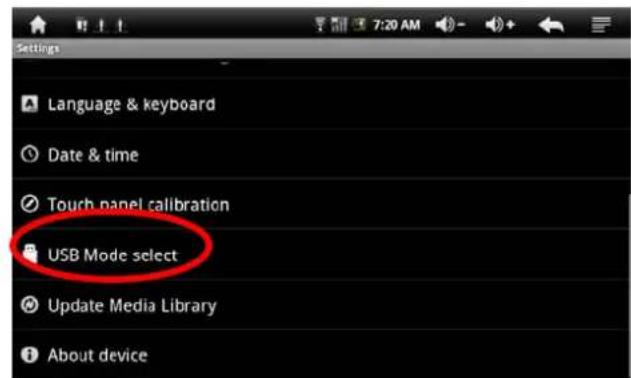
Press menu icon, enter into the function list, press "setting" to enter into setting interface, press "USB Mode select" to select the "HOST MODE" ad it shows in the red circle as below:

b. Read U-disk:
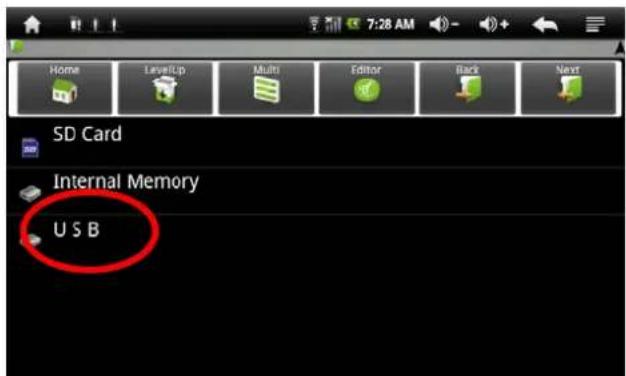
Insert the U-disk into the HOST port, press the "Resource manager" in the desktop, press "USB" enter into u-disk, see the figure as below:
c. External 3G USB Dongle:
Insert the 3G USB- Dongle in to the Host port, connect with the internet directly.
3.8 HDMI Function:
Enjoy the high definition video in the Video player function.
- Connect the TV with the device by the high definition cable, that is, connect the HDMI output Port with the TV input port.
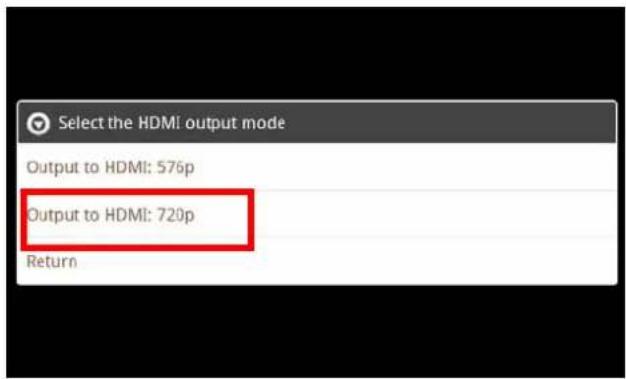
- Press 🐘 in the video play interface, then enter into a popup menu, select "HDMI":
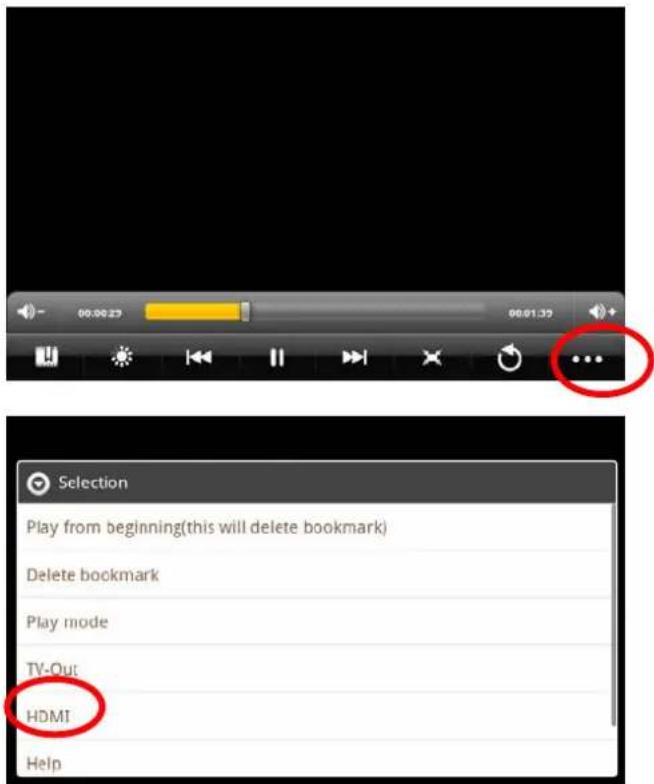
Popup a high definition Mode, select the HDMI 720p, then you can enjoy the high definition videos.
3.9 TF Card Storage
There is a TF card slot in this device, it support reading the files in TF card. Insert the TF card into the card slot in right way, when take it out, just push the TF toward to the inside, then the slot will release the TF card, the TF card will pop out automatically, take it then.
a. Please insert the TF into the card slot in the right side of the device.
b. Don't pull out the card when operating (reading, copying), otherwise, it may cause data error
c. Don't use the TF card under high temperature condition.
d. keep the TF card far from the liquid and erosive materials
3.10 APK Installer
This device supports the third part Application Program based on Android. Many Application Programs
can be got from internet, just copy into the flash of this device or TF card, and then proceed to install and use.
- Press the APK installer “防火墙” and the APK installer interface will popup: Install, Manage, Exit.
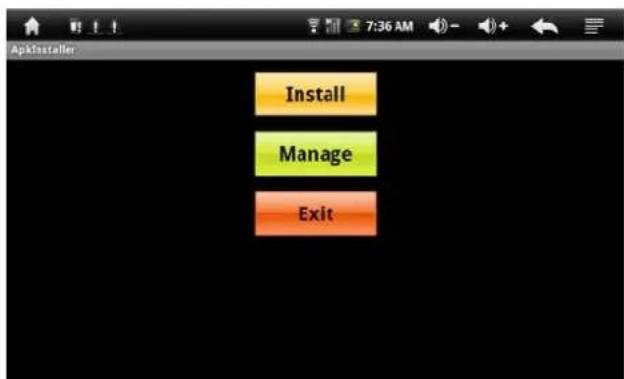
• Install: Press install, enter into the APK installer interface.
Internal Memory means built-in flash, SD card means T-Flash;
After entering, select the APK format setting program in the right side, tap to install, back to the main interface when complete this operation, then it finished the installing, and there is a relevant software menu accordingly.

- Manage : Tap manage and enter into the third part software interface.
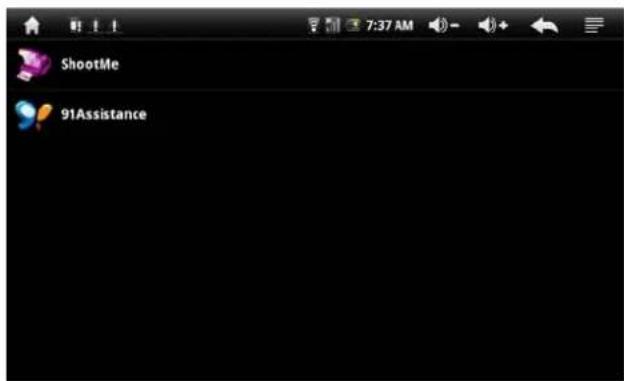
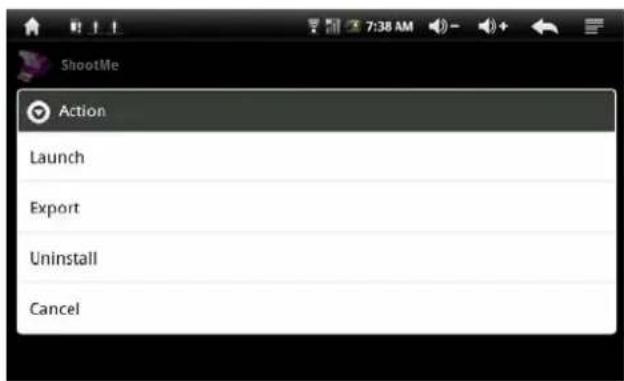
- Startup: run the software.
- Export: export the software to the TF card.
- Uninstall: uninstall the software.
- Search: search the software in the software shops.
- Cancel: cancel the operation.
- Back: back to the main interface.
4 Operation details:
4.1 Desktop System 1(Multimedia Music / Video / Picture / Recording)
4.1.1 Music
Enter the music player : In the programs interface, tap the icon into the main interface of Music Player, Double-click the favorite in the list to play music as shown in the following picture :
Drag the playing progress bar
to adjust the playing process.
Instructions for the buttons in the Music player.
| Button Instruction button Instruction | |||
 | Artist |  | Album |
 | song |  | Playing Music list |
 | Random Play |  | Loop playback |
 | Play the last song |  | Play the next song |
 | Pause |  | play |
Audio player
In the main menu or desktop, click the icon to play the audio
- When no music files in the audio player playlist, the system will automatically load the music files from the card to the audio player playlist after turning on the audio player (the device supported audio file format: mp3, wav, midi, wma). The playlist as shown in the above figure
- If too more songs in the Music playlist area, slide up/down the touch screen to page up/down
- Double-click the favorite in the list to play music as shown in the following picture

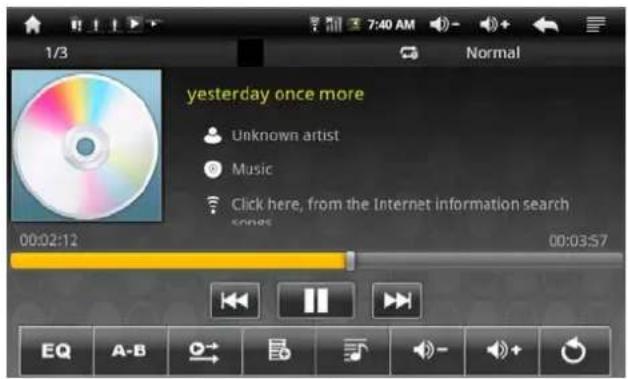
- In the music playing interface, tap list enter the audio playing
- Drag the playback progress bar to adjust audio playback progress
● Audio player buttons description
| button description button description | |||
 | Browse the playlist |  online music searching online music searching | |
 | artist |  | album |
 | other audio |  to view the music files of disc to view the music files of disc | |
 | New Playlist |  | switch to audio playing |
 | quit |  | EQ setting(normal,rock,classical,pop) |
 | A-B repeat |  | Playing order mode |
 | add audio to the playlist |  | pause an audio |
 | raise the volume |  the the | volume |
 | go to previous song |  | skip to next song |
 | play audio | ||
Note: Audio player can play WAV record files.
4.1.2 Video
- In the main menu or desktop, tap the icon 📄 to enter the video player interface, open the video files, Double-click the favorite in the list to play as shown in the following pictures

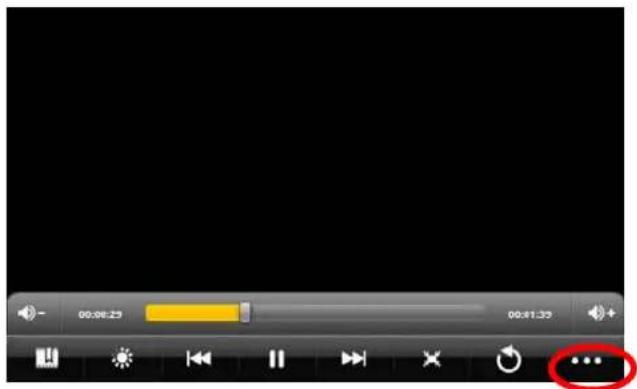
● the device supported audio file format: MKV、AVI、RM、RMVB、MP4、MOV、VOB、DAT、FLV、3GP
- When no video files in the video player playlist, the system will automatically load the video files from the card to the video player playlist after turning on video player
- Drag the playback progress bar to adjust video playback progress
● Video player buttons description:
| button description button description | |||
 | Adding video bookmarks |  | Brightness Adjusting |
 | go to previous chapter |  | skip to next chapter |
 | Play and pause a video |  | Video format 16: 9 /4: 3 |
 | quit |  | menu |
 | lower the volume |  | raise the volume |
- Click this button to set up delete bookmark, play mode, TV-Out, HDMI etc. See the figure as below
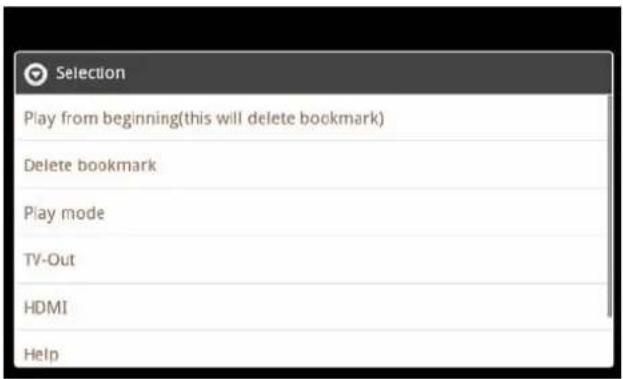
- Tap play mode to select one of play modes: single, repeat one, repeat all, or tap back to A menu.
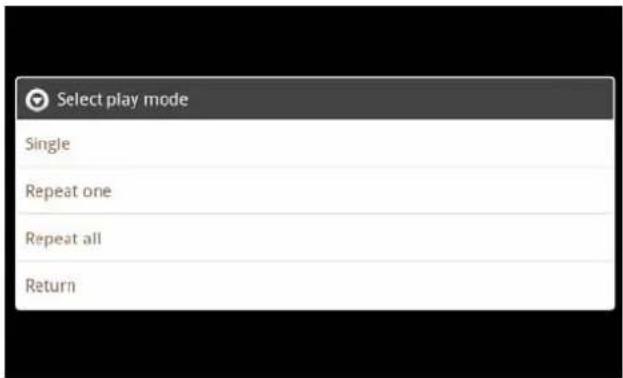
4.1.3 Picture Browsing
- In the main menu or desktop, tap the picture browsing icon to enter the viewing interface


Picture Browser button description:
| button | description | button | description |
| [604W] | Previous image | [372C] | Zoom in |
| [720W] | Next image | [30X7] | Zoom out |
| [1YCH] | Brightness Setup | [20Y5] | Enter the Image Slide mode |
| [CY0H] | Rotate the image 900 clockwise |  | Rotate image 90 degree counterclockwise |
| [CD6S] | Image settings | [4746] | Quit the interface of Image Browser |
- Adding image (supports the format of picture: BMP、JPG、JPEG、PNG、GIF)
When no files in the photo list, the system will automatically load the image files from the card to the photo browsing list after opening the photo browser
Open the corresponding folder, find the image file and add the picture you want
- Tap photo setting button, the photo can be set as wallpaper

4.1.4 Recording function
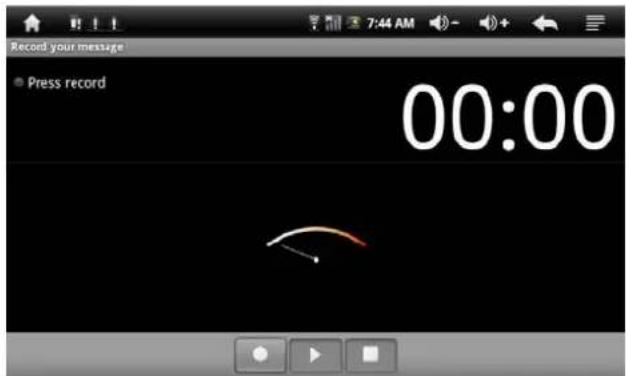
In the main menu or desktop, tap the record icon ⏻ to enter the record interface, tap record button ⚙ to start recording, tap this button ⚙ to stop recording, the system will remind you to use this recording or give up, please select manually.
Recording playing: please select audio player to play the recording, firstly select the record files from the explorer, then click it and playing, further details please refer to 4.1.1(audio player).
4.1.5 Explorer
In the main menu or desktop, tap the explorer icon to enter the Management Interface, tap 【TF Card】、【Internal Memory】or 【USB】 to open their root directory folders to do adding, copy, paste, delete etc, operations. Long press the file or folder to do copy, delete, paste, remove or rename operations options, then tap previous/next folder or a menu to finish the copy, delete, paste, remove or rename to the correct directory. To copy files to other place, click 【Editor】 and press paste to choose the location 【TF card】, 【Internal Memory】 or 【USB】 for selection files

4.2 System desktop 2(Shelves)(E-Book Function)
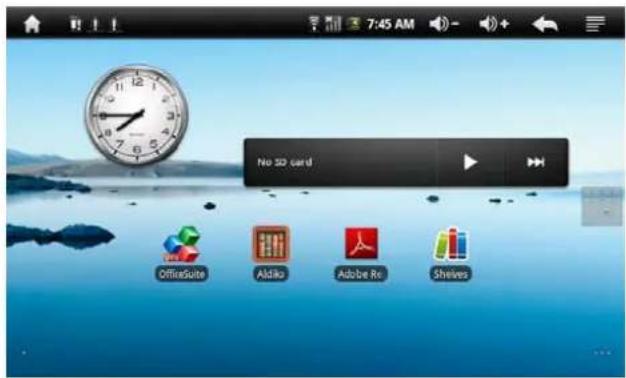
Support formats of E-Book: TXT、LRC、PDF、Html、Htm、EPUB etc., Support automatic browsing, zooming, bookmarks, page etc.
4.2.1 Shelves (E-Book Function)
- In the main menu or desktop, tap Shelves application icon to read the e-book.
- Open the folder and select the text file;
- Double tap E-book files to read, tap the left/right side of touch screen to flip over;


- Zoom the font: click Zoom button to zoom the font, the available font sizes: S、M、L、XL、XXL
- Jump Set: tap the jump button and Pop-up dialog box, input the number of pages you want then click confirm so that it
automatically jump to the specified page.
- Bookmark setting: tap bookmark icon 📄 to add, delete display the Bookmarks.
- Outline: tap the outline icon to view the outline of book
- Book info: tap book info icon to view the book name and information of the author.
4.3 Desktop System 3(Web applications)
4.3.1 IE Browser
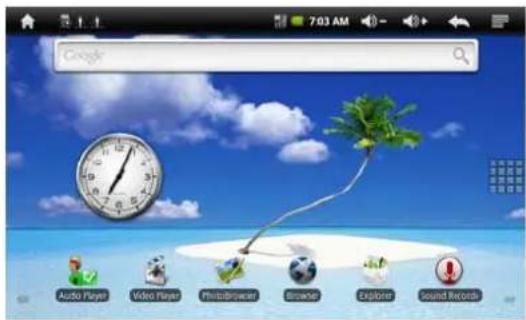
When WIFI connection is in normal(details refer to chapter 3.6 WIFI SETTING), tap the main menu or desktop's IE Browser icon 📄 to enter to the IE interface, click the address bar and input website and click Go to enter a corresponding web page, you can view the corresponding website information.

Note: The IE Explorer uses the popular third-party IE Explorer software, please follow the IE Explorer's standard operating mode
to operate.
4.3.2 Email
Inbox
Auto enter inbox interface when succeed in landing:
This interface shows received E-mails, double click each E-mail, to check, reply to sender, reply to all, etc.
![Get Gmail on your mobile phone - [Image: Access Gmail on your mobile phone] Th... » Gmail Team Import your contacts and old email - You can import your contacts and mail from ... » Gmail Team Customize Gmail with colors and themes - To spice up your inbox with colors and t... » Gmail Team Refresh Co…](/content/2026/06/1211113/images/89f26b02b395ab00ef4213dafad5cdcdce53206f32edd0ebf3391e8a2c0312a0.jpg)
| Button Description Button Description | |||
 | Refresh |  | New Email |
 | Account |  | Check label |
 | Search |  | Setting |
Edit E-mail
Tap taskbar, pop up toolbar, and tap enter Email writing interface.
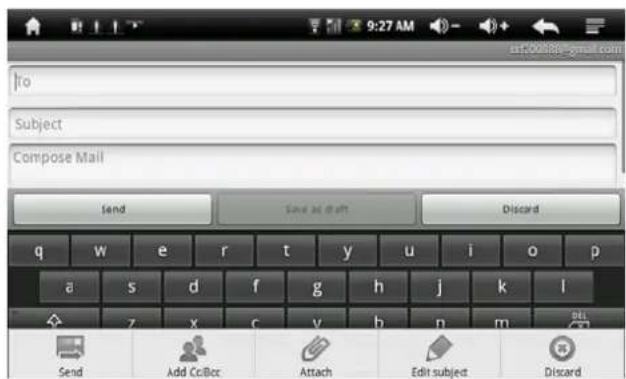
Tap add address Add Cc/Bcc icon to add E-mail Cc/Bcc header;
on the contrary, tap it again to delete.
Tap Attach icon to add E-mail attachment.
Tap Edit Subject icon to enter subject line and edit directly;
Tap Discard icon ✉ to give up writing E-mail;
Input receiver address & relevant information, Tap Send icon to send E-mail;
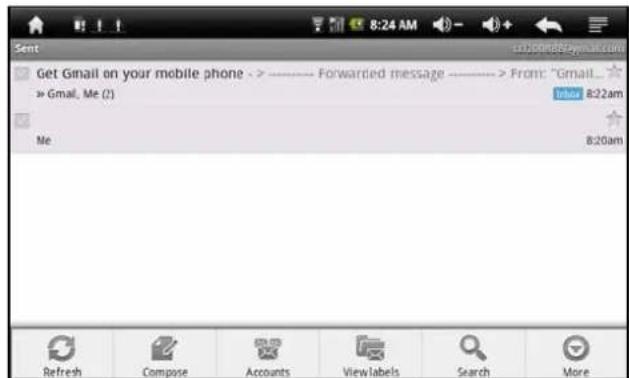
Sent
Tap icon 📋 to choose sent, pop up interface as below:
This interface shows sent E-mails, double click each E-mail , , to check, reply to sender, reply to all, etc.
4.3.3 You Tube online video.
You Tube is the world's leading video website, you can upload and share videos on YouTube. It has become a leader in the same type websites, and created a number of internet celebrities and stimulated creativity on line. You Tube has become the most-visited video cast website of the world.
Tap You Tube icon 📊 on the desktop, enter http://www.youtube.com/ directly, you can enjoy thousands of videos on line.
4.4 Desktop System 4 (other functions)
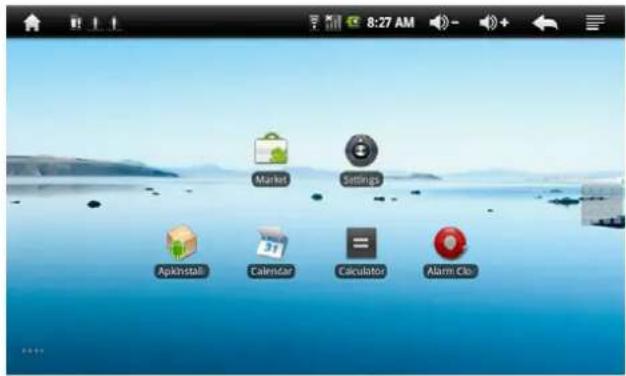
4.4.1 Calculator
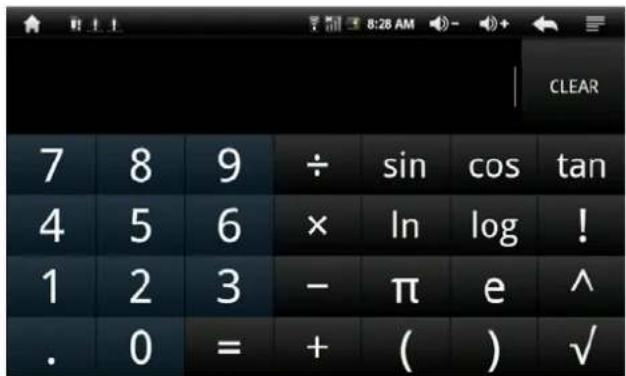
Click Calculator icon = on the desktop to open calculator:
4.4.2 Alarm Clock
Tap Alarm Clock icon enter setting interface, you can select the √ behind the clock time to set three clocks simultaneously, details as below:
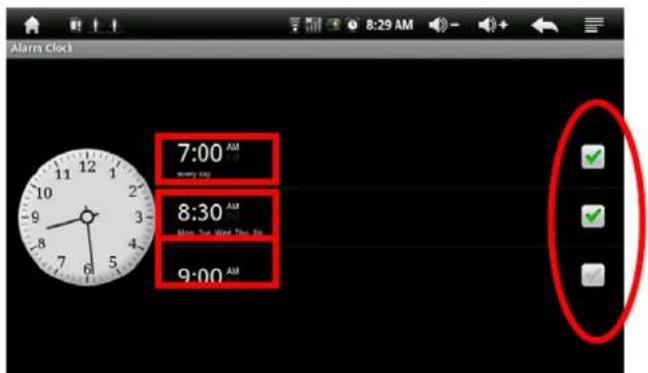
tap any of above clock time to set up: time, bell, vibration, repeating and label.
- Everyday: Setting repeat the bell at the same time everyday
- Monday to Sunday: can choose the days and same time of each day
- No: to set up the bell for one time, no repeating
- Pattern: to choose the bell pattern
4.4.3 APK Installer
Tap APK installer icon 📋 on main menu or desktop enter installing interface, to get details from 3.10 APK chapter.
4.4.4 Device Setting
Tap ③ of main menu or desktop to set wireless and network, sound and backlight, location and safety, application and so on, slide on screen to page up/down
4.4.4.1 Wireless And Network Settings
Details please refer to WIFI setting in Chapter3.6
4.4.4.2 Voice and Display Settings
- Tap 【sound&display】enter to settings interface
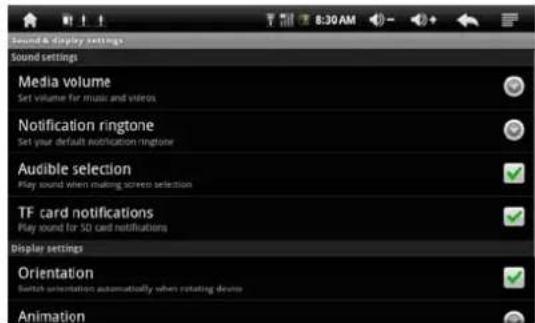
a Media volume settings::
tap 【media volume】to enter setting interface ,then to set up music and video volume

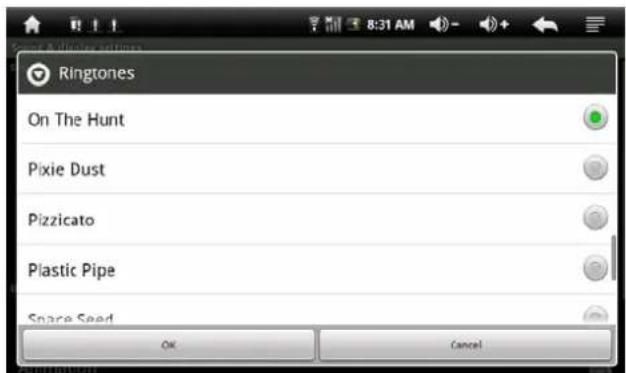
b Ringtones settings
to choose any of defaults ringtones:
c. Set operating sound (screen choo and TF card notifications as optional, tap and tick till highlight displaying.
- Display settings:
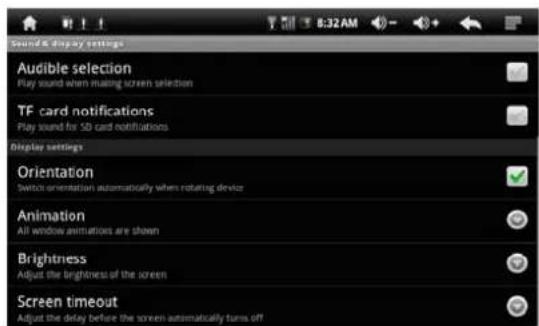
a 【Orientation】
The display screen will change the direction automatically when it rotating
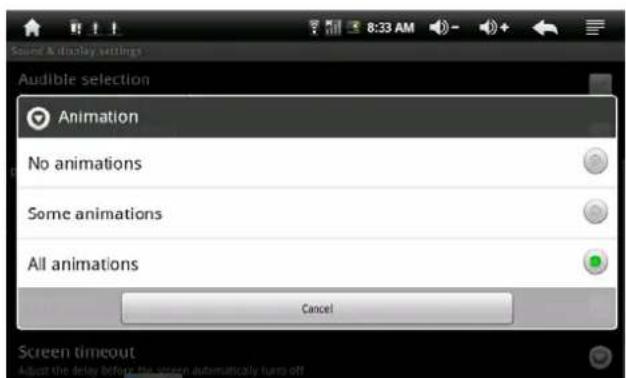
b 【Animation】
Display all animation in all windows
c【Brightness】Drag to adjust brightness, tap "OK" and "back".
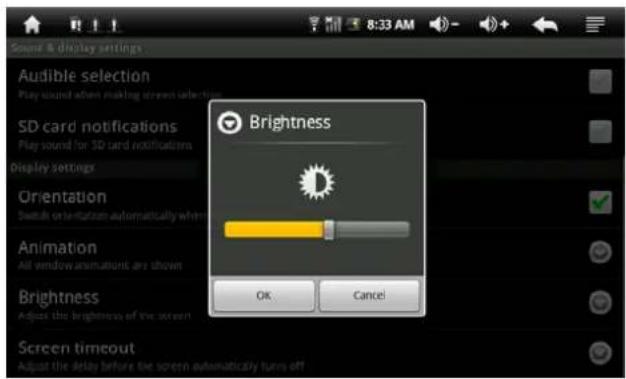
d 【Screen timeout】

4.4.4.3 Location and Security settings
Tap 'Location and Security" to enter the setting interface:
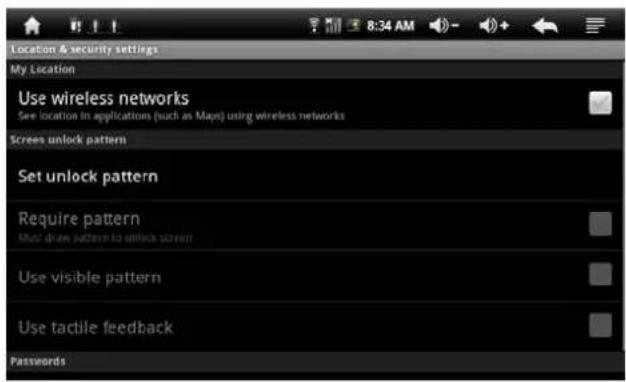
Set unlock pattern
Tap "set unlock pattern", then tap

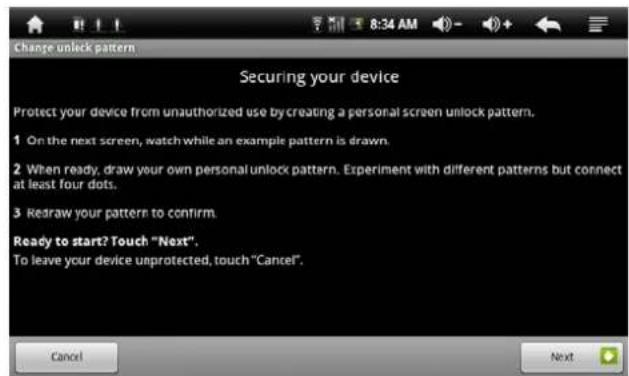
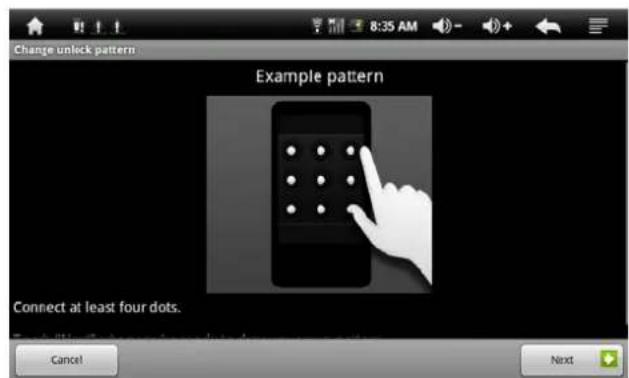
Draw the unlock pattern, at least to connect 4 points, tap "next", then finish.
4.4.4.4 Application Program settings
Tap Application to enter setting interface:
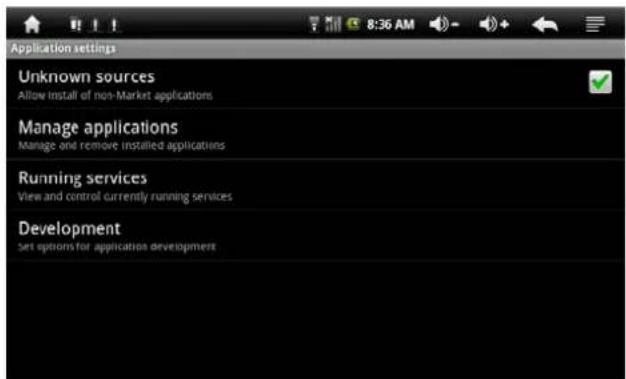
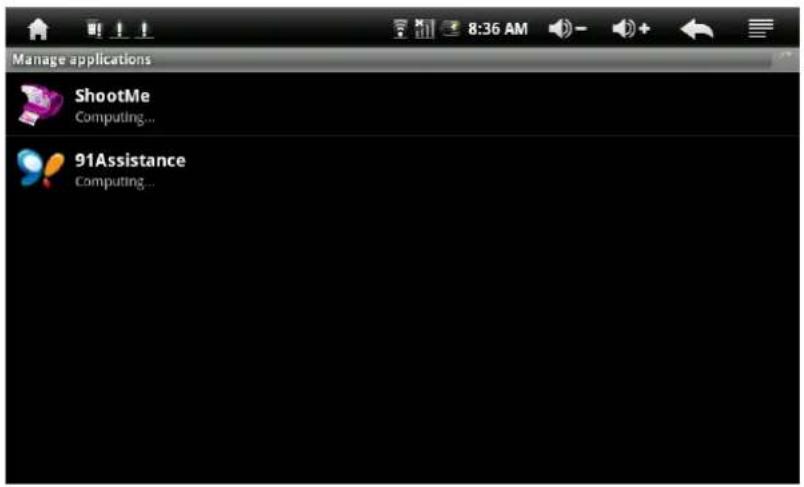
● Manage applications settings:
Tap 【Manage applications】 to manage or delete installed applications
- Running service settings:
Tap【Running service】to see and control the running service

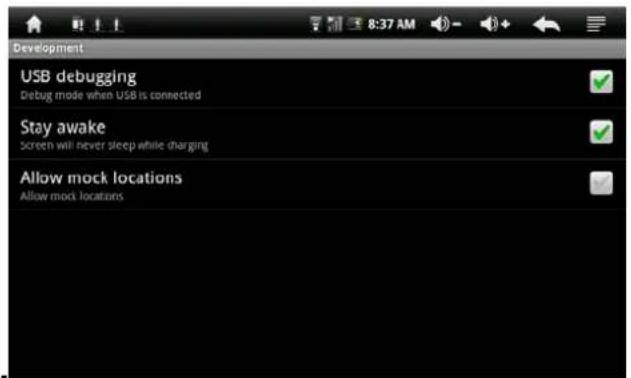
● Development setting: advised to use factory defaults, or any change will make some function not available
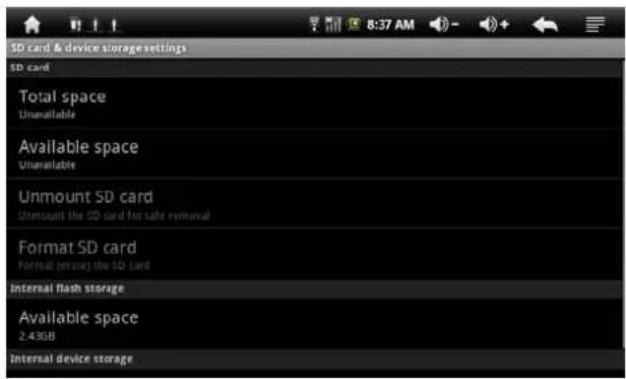
4.4.4.5 TF card & device storage settings
Tap TF card & device storage to enter following to check total space, available space, format TF card, etc
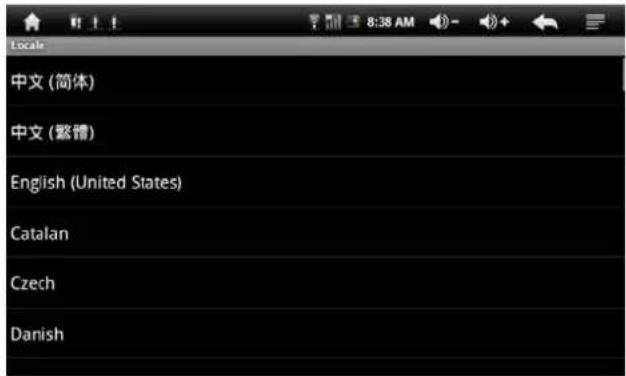
4.4.4.6 Language Keyboard Settings
Tap【Language Keyboard】to enter setting interface

- Language Setting:
The device support multi-languages, you can select operation interface of different languages according to your needs. Select matching language option, tap ↩ to confirm and back
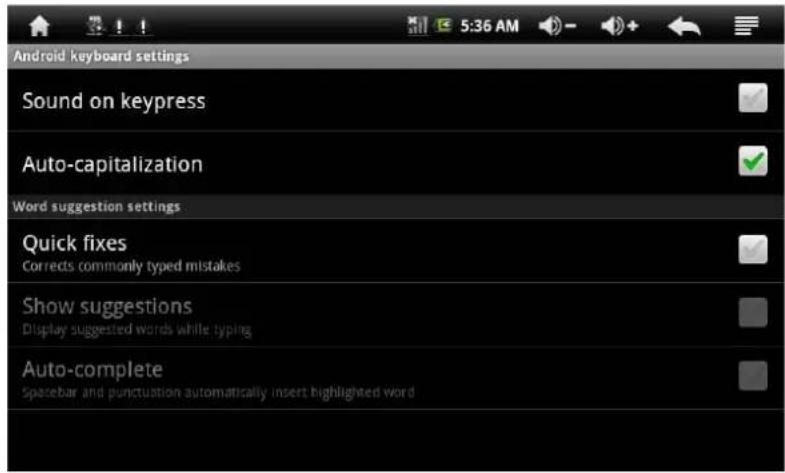
● Android Keyboard setting:
4.4.4.7 Date & Time Setting:
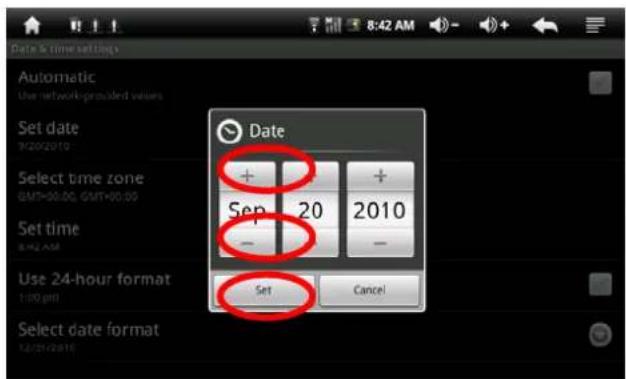
Select Setting Menu > Date and Time into setting interface, select the √ behind the Automatic option, to modify the Date, Time Zone & Time.
Date Setting: :
Tap + to select Day, Month & Year, and tap icon to confirm OK
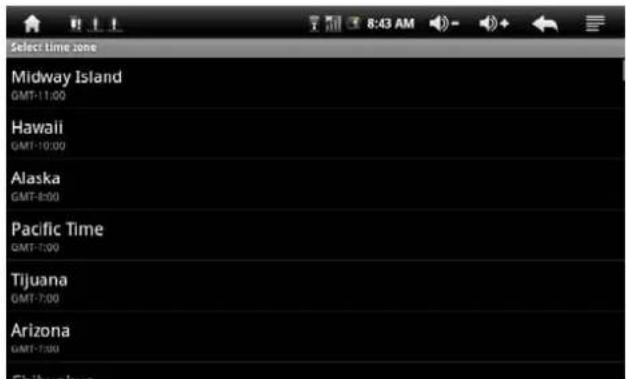
● Time Zone Setting:
Select the time zone you are in and tap:
- Time Setting:
Tap + to select hours & minutes, e.g.: 10:50, and tap icon set to confirm OK。
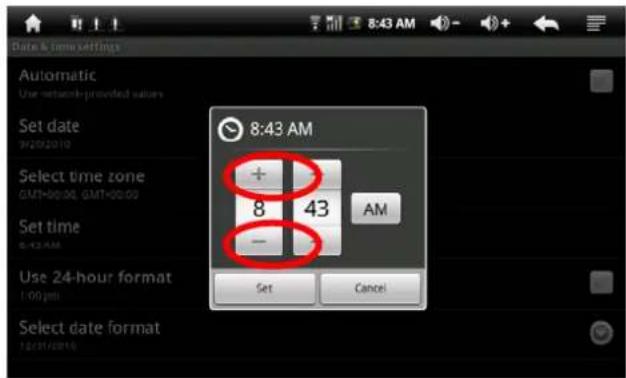
● Date Format Setting:

4.4.4.8 Touch Panel Calibration
Details refer to 3.1 Touch Panel Calibration Section Chapters
4.4.4.9 About the Device
- Check power consumption, legal information, device state & software version, etc.

4.5 Desktop Function Icon Setting
4.5.1 Add & Remove Desktop Function Icon:
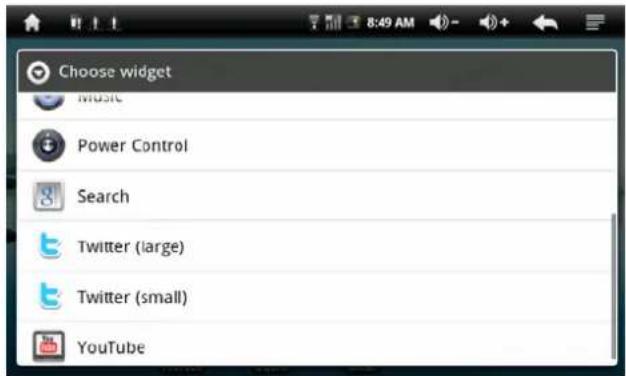
Tap icon ☐ at top-left corner of main interface, into desktop setting interface, you can select wallpaper and add widget, etc.
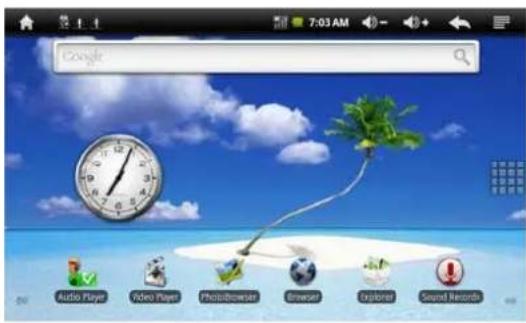
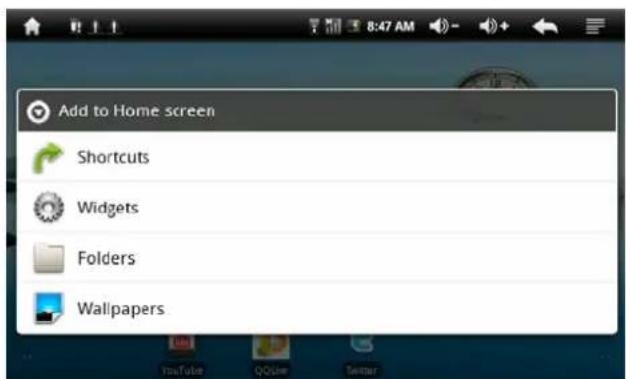
Shortcut Icon:

Tap icon 🧑 into desktop widget interface as follow:
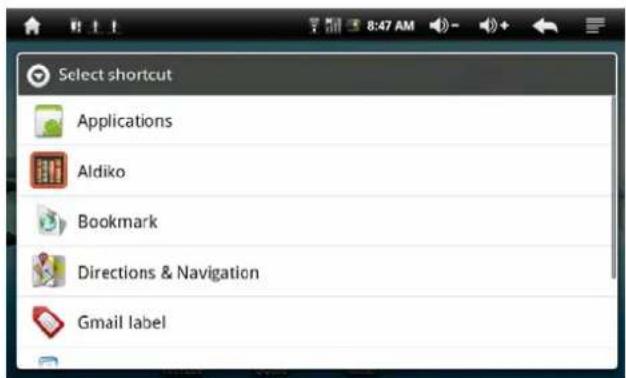
Select shortcut icon to add to main interface, tap the matching option to add.
Select desktop widget to add to main interface, tap Search, Calendar,
etc to add:
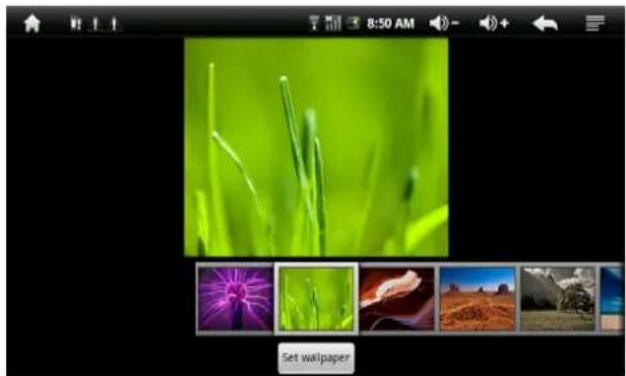
4.5.2 Wallpaper Setting:
Tap icon 📋, to change the wallpaper and select the picture you want, tap Set wallpaper , wallpaper setting succeeded.
4.5.3 Tap icon search shortcut to search engine:

4.5.4 Shortcut Notification
Tap icon Notifications to check the current notification status:

4.5.5 Add, Move or Delete Desktop Icon
Tap icon at the main interface, into function menu list, display all the application icons by pages. Press and drag the application icon to copy to current desktop i.e. set the shortcut on the desktop.
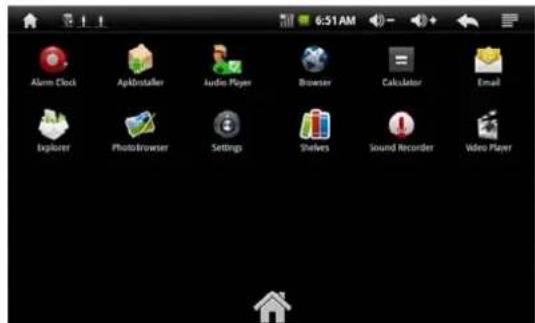

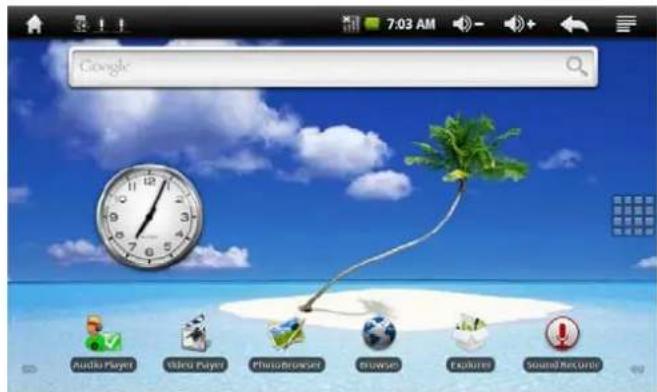
Long press the application icon on the desktop,
enter into editing status and you can move the icon. When you drag the
icon to , it turns to delete function, and release the icon you can delete it.
5. Troubleshooting
- Can not turn on the device.
You can not turn on the device when the is below the critical level, please charge the battery connect to the computer via USB cable or charge via AC charger, try to turn on again while ensuring quantity of electricity.
◆ Press the RESET button on the top of the device and check if the restarting is normal or not.
◆ Check if the charger is connected well or not.
- The stand-by time of the MID is too short.
The duration of the lithium battery varies with environmental temperature changes and the service conditions. If the environment temperature is too low or too high, the duration of the battery will be affected. It is recommended to use this device at normal temperature!
From the usage of the device, larger screen of the device cost more electricity. In addition, affected by the volume increase, sound field special effects, and other factors such as frequent operation, the actual duration may be different from specified one to a certain extent.
- No sound via earphone.
◆ Please check if the volume setting is 0.
◆ Please check if audio file is broken, and try to play other audio files to confirm. If the audio file is broken, it may cause severe noise or staccato
- Can not copy files.
◆ Please check if the device is connected to the computer correctly.
◆ Please check if the memory space is full.
◆ Please check if the USB cable is broken

Specifications are subject to change without notice. No part of this document may be reproduced or transmitted in any form or by any mean, electronics or mechanical including photocopying and recording or translated to another language for any purpose
- CONTENTS
- SAFETY NOTICES
- 2 GETTING YOUR DEVICE READY FOR USE
- 2.1 PACKING LIST
- 2.2 PRODUCT APPEARANCE
- 2.3 INSTRUCTIONS ON KEYS
- 2.4 FEATURES OVERVIEW
- 2.5 TECHNICAL SPECIFICATIONS
- 3 QUICK GUIDE
- 3.1 TOUCH PANEL CALIBRATION
- 3.2 SWITCH ON/OFF
- 3.3 ORIENTATION SENSOR SETTING
- 3.4 BATTERY MANAGEMENT AND CHARGING
- 3.5 OPERATION OF THE FUNCTION ICONS
- DEFINITION OF THE FUNCTION ICONS
- 3.6 WI-FI SETTING
- DISTRIBUTE IP ADDRESS AUTOMATICALLY
- MANUAL SETUP IP ADDRESS
- 3.7 USB HOST FUNCTION
- TURN ON THE USB- HOST
- READ U-DISK
- EXTERNAL 3G USB DONGLE
- 3.8 HDMI FUNCTION
- 3.9 TF CARD STORAGE
- 3.10 APK INSTALLER
- 4.1.1 MUSIC
- AUDIO PLAYER
- 4.1.2 VIDEO
- 4.1.3 PICTURE BROWSING
- 4.1.4 RECORDING FUNCTION
- 4.1.5 EXPLORER
- 4.2 SYSTEM DESKTOP 2(SHELVES)(E-BOOK FUNCTION)
- 4.2.1 SHELVES (E-BOOK FUNCTION)
- 4.3 DESKTOP SYSTEM 3(WEB APPLICATIONS)
- 4.3.1 IE BROWSER
- 4.3.2 EMAIL
- INBOX
- EDIT E-MAIL
- SENT
- 4.3.3 YOU TUBE ONLINE VIDEO
- 4.4 DESKTOP SYSTEM 4 (OTHER FUNCTIONS)
- 4.4.1 CALCULATOR
- 4.4.2 ALARM CLOCK
- 4.4.3 APK INSTALLER
- 4.4.4 DEVICE SETTING
- 4.4.4.1 WIRELESS AND NETWORK SETTINGS
- 4.4.4.2 VOICE AND DISPLAY SETTINGS
- A MEDIA VOLUME SETTINGS
- B RINGTONES SETTINGS
- D 【SCREEN TIMEOUT】
- 4.4.4.3 LOCATION AND SECURITY SETTINGS
- SET UNLOCK PATTERN
- 4.4.4.4 APPLICATION PROGRAM SETTINGS
- ● MANAGE APPLICATIONS SETTINGS
- RUNNING SERVICE SETTINGS
- 4.4.4.5 TF CARD & DEVICE STORAGE SETTINGS
- 4.4.4.6 LANGUAGE KEYBOARD SETTINGS
- LANGUAGE SETTING
- ● ANDROID KEYBOARD SETTING
- 4.4.4.7 DATE & TIME SETTING
- DATE SETTING
- ● TIME ZONE SETTING
- TIME SETTING
- ● DATE FORMAT SETTING
- 4.4.4.8 TOUCH PANEL CALIBRATION
- 4.4.4.9 ABOUT THE DEVICE
- 4.5 DESKTOP FUNCTION ICON SETTING
- 4.5.1 ADD & REMOVE DESKTOP FUNCTION ICON
- 4.5.2 WALLPAPER SETTING
- 4.5.3 TAP ICON SEARCH SHORTCUT TO SEARCH ENGINE
- 4.5.4 SHORTCUT NOTIFICATION
- 4.5.5 ADD, MOVE OR DELETE DESKTOP ICON
- TROUBLESHOOTING
Brand : CURTIS
Model : LT7028
Category : Kitchen scale