
TT-6519PTC - Collaborative Touch Screen Newline - Free user manual and instructions
Find the device manual for free TT-6519PTC Newline in PDF.


| Brand | Newline |
| Model | TT-6519PTC |
| Product Type | Collaborative Touch Screen |
| Screen Size | 65 inches (diagonal) |
| Resolution | 3840 x 2160 (4K UHD) at 60Hz |
| Touch Technology | Infrared touch frame (20-point touch typical) |
| Operating System | Android (dual OS with optional built-in Windows computer) |
| Built-in Computer Slot | Yes, for OPS module (sold separately) |
| Camera | Integrated SoundBar camera (adjustable tilt, 20° down) |
| Microphone | Integrated microphone array |
| SoundBar | Included (Type-C connection, 2 speakers) |
| Remote Control | Yes, with infrared receiver |
| Input Ports | HDMI (2), VGA, Type-C (data/video/power), USB 3.0 (2), USB 2.0 Embedded, MIC, Audio In, WAN, RS232 |
| Output Ports | HDMI Out, Line Out, SPDIF (optical), USB 3.0 (on SoundBar) |
| Touch USB Port | USB 3.0 Type-B (for PC touch control) |
| Power Supply | AC 100-240V, 50/60Hz |
| Power Consumption | Approximately 300W (typical), <0.5W in standby (estimated) |
| Mounting Options | Wall mount (VESA compatible) or mobile stand (by manufacturer) |
| Ventilation Clearance | Left/Right/Top: 100mm, Bottom: 100mm, Back: 100mm |
| Safety Certifications | Complies with international EMI standards; RoHS |
| Hotline | +1 888 233 0868 (North America) |
| Website | https://newline-interactive.com |
Frequently Asked Questions - TT-6519PTC Newline
User questions about TT-6519PTC Newline
0 question about this device. Answer the ones you know or ask your own.
Ask a new question about this device
Download the instructions for your Collaborative Touch Screen in PDF format for free! Find your manual TT-6519PTC - Newline and take your electronic device back in hand. On this page are published all the documents necessary for the use of your device. TT-6519PTC by Newline.
USER MANUAL TT-6519PTC Newline
Collaboration Touch Screen
Quick Start Manual
-V1.0-
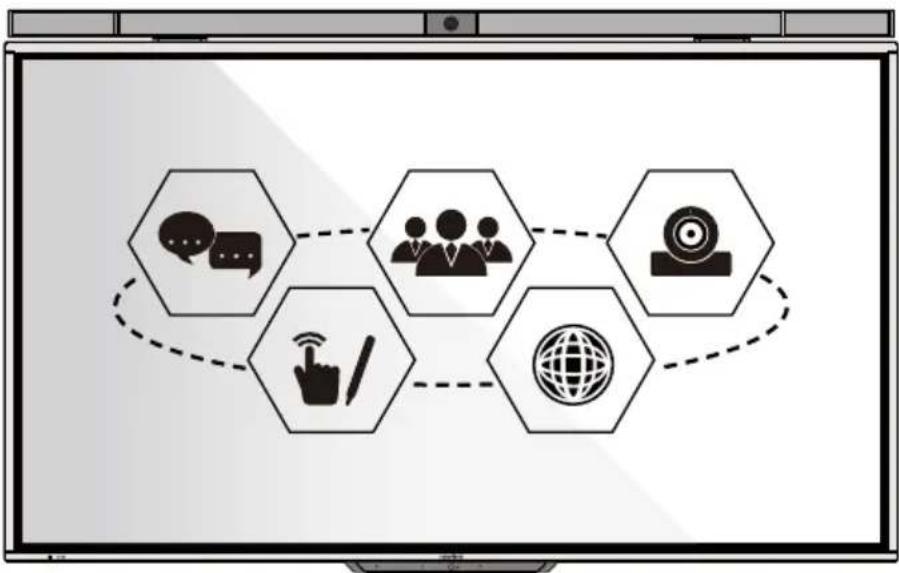
flowchart
graph TD
    A["Communication"] --> B["User Icon"]
    B --> C["Target Icon"]
    C --> D["Global Globe Icon"]
    D --> E["Handprint Icon"]
    E --> F["User Icon"]
    F --> A
newline
Please keep this manual for future reference.
This manual is a general manual, the pictures are for reference only, please refer to the real product.
The symbol of the crossed out wheeled bin indicates this product should not be placed in municipal waste. Instead, dispose of waste equipment by handing it over to a designated collection point for the recycling of electrical and electronic equipment.
natural_image
Symbol of a trash bin crossed with no text or labels, representing environmental restriction (no text present)Symbol Conventions
Symbols are used in this document to indicate operations that need particular attention. The symbols are defined as follows:
 WARNING WARNING | Indicates a hazard with risk that, if not avoided, could result in death or injury. |
 CAUTION CAUTION | Indicates a potentially hazardous situation that, if not avoided, could result in equipment damage, data loss, performance deterioration, or unanticipated results. |
 NOTE NOTE | Provides additional information to supplement operation in the main text. |
Safety Instruction
For your safety, please read the following instructions before you use the product. Improper operations may cause severe injury or property damage. Do not try to repair the product on your own.
| WARNING | |
 | If major failures occur, disconnect the product from power source immediately.Major failures include the following:Smoke, peculiar smell or abnormal sound is discharged from the product.No image or sound is displayed, or the image error occurs.If the above scenarios occur, do not continue using the product. Disconnect power source immediately and contact professional staff for troubleshooting. |
  | Do not drop liquid, metal or anything combustible into the product.If liquid or pieces of metal get into the product, turn off the power and disconnect the power source, then contact professional staff for solutions.Supervise children when they are close to the product.Put the product on a stable surface.An unstable surface includes but is not limited to an inclined surface, a shaky stand, desk or platform, which might cause turnover and damage. |
 | Do not open the cover or modify the product on your own.High voltage components are installed in the product. When you open the cover, high voltage, electric shock, or other dangerous situations may occur.If inspection, adjustment, or maintenance is required, contact the local distributor for help. |
 | Use the specified power source voltage.To prevent the product from being damaged, do not use cables other than the one provided with the product.Use a three-wire socket and ensure that it is properly grounded.Pull out the power plug from the socket if the product is not to be used for a long period. |
| Regularly clean the dust and metal on the power plug.Continued use of this product may cause fire or electric shock if the plug is not clean for a long time.Pull out the power plug before cleaning it with a dried cloth. | |
 | Do not place items on the top of the product.Do not put items, such as a liquid container (a vase, flowerpot, cosmetics or liquid medicine) on the top of the product.If any water or liquid is spilled on the product, a short circuit may occur and cause fire or electric shock.Do not walk on or hang any items on the product. |
 | Do not install the product in an improper place.Do not install the product in humid places, such as the bathroom, the shower room, near windows, or outdoor environments that experience rain, snow or other harsh weather. Avoid installation near hot spring vapor. The preceding environments may cause faults in the product or electric shock under extreme conditions.Do not put exposed fire source, such as an ignited candle, on the product. |
 | Pull out the power plug during thunderstorms.Do not touch the product during a lighting storm to avoid electric shock.Install or place components that supply high enough voltage out of the reach of children. |
 | Do not touch the power cable with wet hands. |
| CAUTION | |
 | Do not install the product in high temperature environments.Do not install the product near a heat source, such as a radiator, a heat reservoir, a stove or other heating products.Do not expose the product to direct sunlight, which may cause high temperatures and subsequent faults in the product. |
 | Transport of the product.Pack the product for transport or maintenance by using the cartons and cushioning material provided with the product.Keep the product vertical during transport. The screen or other components are easily broken if the product is moved inappropriately.Before you move the product, disconnect all external connections and separate all toppling preventing products. Move the product carefully to prevent it from being hit or squeezed, especially the screen, which may cause injury if broken. |
 | Do not cover or block up any vents on the product.Any overheated components may cause fire, damage the product, and shorten the service life.Do not lay the product down where the venting surface will be covered.Do not install the product on a carpet or cloth.Do not use a cloth such as table cloth to cover the product. |
 | Keep away from the product when you use a radio.The product complies with the international EMI standard regarding prevention of radio interference. However, interference may still exist and cause noises to the radio. If noise occurs in the radio, try the following solutions.Adjust the direction of the radio antenna to avoid the interference from the product.Keep the radio away from the product. |
| Do not damage the power cable.Do not damage, change, twist, bend, or forcibly drag the power cable.Do not put weights (such as the product itself) on the power cable.Do not forcibly drag the cable when you pull out the power plug. If the power cable is damaged, please contact the local distributor to repair or replace it.The power cable in the accessory box is for this product only. | |
| [2847] CAUTION | |
 | Do not use it on other products. |
| Correct battery usage.Galvanic corrosion, electric leakage, and even fire may be caused by improper battery usage.It is recommended to use the designated type of battery and install the battery by correct electrodes (positive and negative).Do not use a new battery alongside a used one.Take out the batteries if the remote control is not to be used for a long period.Do not expose the batteries to overheated environments such as sunlight and firing.Dispose of used batteries based on your local regulations. | |
| Suggestions for usage:Use the product in an environment with comfortable lighting. It is harmful to your eyes to watch in a too bright or too dark environment.Rest your eyes after an extended period of usage.Keep sufficient distance from the product to protect your eyes and prevent eyestrain.Adjust the volume to an appropriate level, especially at night.Use amplifier equipment as the audio input source with caution. If you must use amplifier equipment, the input power should not exceed the maximum of speaker power. Otherwise, the speaker can become overpowered and damaged. | |
| Special note:Zero energy consumption can be achieved when the product isn't connected to any external power source. Therefore, it is recommended to shut down the device when not watching.Under the premise of ensuring the display quality, the energy consumption can be reduced by reducing the brightness of the display.This product can be paired with various built-in computers, which can be upgraded or replaced according to your needs. | |
CAUTION
Appearance

CAUTION
The plastic parts at the bottom of the tablet are fragile. To avoid damage to the plastic parts, please pay attention to the following:
- Do not strike the plastic parts at the bottom of the tablet.
- Do not place heavy objects on the plastic parts of the tablet.
- Do not let the plastic parts on the bottom of the tablet touch the ground.
- Avoid bumping the plastic parts at the bottom of the tablet.
- Front View
TT-6519PTC/ TT-7519PTC / TT-8619PTC:

- Rear View
TT-6519PTC/ TT-7519PTC / TT-8619PTC:

1 SoundBar Camera
2 SoundBar Speaker
3 Touch Frame (within the profile cavity)
4 LCD Panel & Tempered Glass
5 Power Button
6 IR Receiver
7 Light sensor
8 Microphone
9 Camera
10 Camera Indicator
11 SoundBar Connector
12 Built-in Computer Port
13 Rear Ports
14 Rear Ports
15 Rocker Switch
16 Power Socket
17 SoundBar Rear Ports
18 SoundBar Top Buttons
19 Bottom Plastic Part (fragile)
NOTE
The angle of the SoundBar camera can be adjusted downward by manually pressing the bottom frame of the camera. The maximum range of adjustment is 20^ downwards.
Front Control Panel
- Front Buttons

natural_image
Gray rectangular button with three circular icons: a power button, two empty circles (no text or symbols)| Button Function description | |
| Power on/off.If the power is on, short press it to enter sleep mode, press and hold for 2 seconds to shut down.If the power is off, short press it to turn on the power. | |
Rear Ports

CAUTION
Output: 5V/2A (Max.). For qualified device use only otherwise may cause electrical shock or fire.

flowchart
graph TD
    A["Device Port 1"] --> B["MIC"]
    A --> C["Audio In"]
    A --> D["VGA In"]
    A --> E["HDMI1 In"]
    A --> F["HDMI2 In"]
    A --> G["Touch USB3.0"]
    A --> H["Type+C"]
    A --> I["USB3.0"]
    A --> J["USB3.0"]
    A --> K["USB2.0 Embedded"]
    L["Device Port 2"] --> M["Line IN"]
    L --> N["SPDIF"]
    L --> O["USB 3.0"]
    L --> P["Type C"]
    L --> Q["DC"]
    R["Network Reset Button"] --> S["WAN"]
    R --> T["R5232"]
    R --> U["HDMI Out"]
    R --> V["Line Out"]
    R --> W["SPDIF"]
| Name Function description | |
| MIC Microphone input port | |
| Audio In Audio input port, used in combination with “VGA Input”. | |
| VGA In | VGA signal input port.Used in combination with “USB 3.0 Touch sensor” to operate the PC in touch mode. |
| HDMI 1 In | HD signal input port 1.Used in combination with “USB 3.0 Touch sensor” to operate the PC in touch mode. |
| HDMI 2 In | HD signal input port 2.Used in combination with “USB 3.0 Touch sensor” to operate the PC in touch mode. |
| Touch USB 3.0 | Connect to the touch port of your PC. |
| Type- C | Connect to devices with Type C interface, such as USB flash drive, MAC, PC, or mobile phone with OTG function. Output 5V 3A power source. Supports data, audio, video, and power charging.The transmission rate is 5Gbps. The maximum resolution of video transmission is 3840 x 2160@60Hz. |
| USB 3.0 | Connect to USB devices such as mobile hard disk, USB flash drive, USB keyboard and mouse. When the interface is Android, the device on the USB is used by Android. When it switches to Windows, the USB device is connected to Windows. |
| USB 2.0 Embedded | For system upgrade |
| WAN Network interface, connecting to RJ45 terminal | |
| Network Reset Button | Press the reset button for 5 seconds with a pinhole object to reset the network settings of the machine to default. |
| RS232 | Serial port signal input interface, which allows inputting serial port settings through a specific serial port control device to control the machine. |
| HDMI Out Connect to an electronic video device with HDMI input. | |
| Line Out Connect to audio output device such as headphone and speaker. | |
| SPDIF | Optical output interface. Connect audio equipment with fiber optic input; such as amplifiers, stereos, and speakers. |
| Bar Port | Dedicated port for SoundBarWarning:This port is dedicated for SoundBar. Do not connect any other device to it, or else the device or interface may be damaged. |
SoundBar rear ports:
| Name Function description | |
| Type C Connect to the machine interface. | |
| USB3.0 Output video source interface. | |
| SPDIF Digital audio input interface. | |
| LINE IN Audio input interface. | |
| DC Power interface. |
Note
Under standard SoundBar configurations, you only need to connect the SoundBar to the Type-C interface of the machine. Other interfaces are used when the SoundBar is not under standard configuration.
SoundBar top buttons

natural_image
Control panel with four circular buttons and speaker icons (no text or labels)| Buttons Function Description | |
| Switch audio input sources | |
| Mute or unmute | |
| Decrease the volume | |
| Increase the volume | |
Remote Control
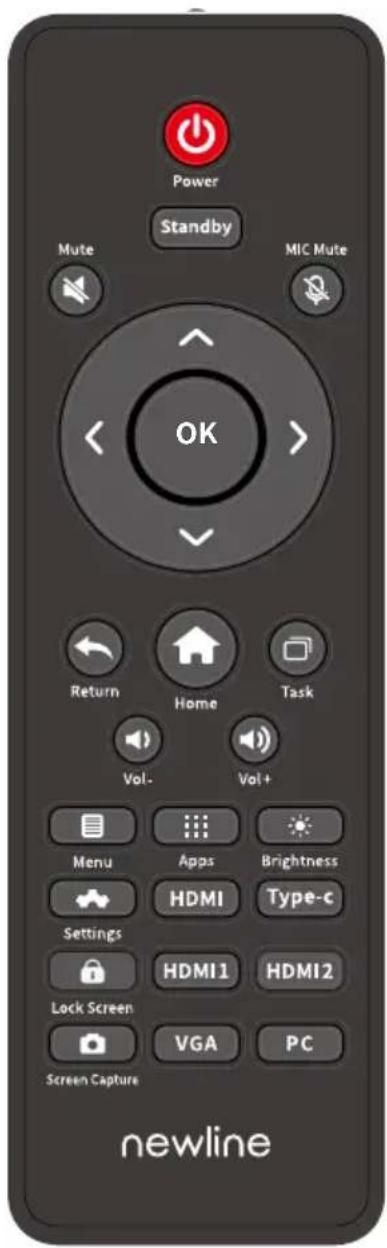
- Remote Control Buttons
| Buttons Function Description | |
| Power On/Off. | |
| Standby | Enter/exit the standby mode |
| Mute or unmute. | |
| Microphone switch. | |
| OK | Confirmation button. |
| Up/Down/Left/Right selection button. | |
| Back to home page. | |
| Press once to return to the previous interface;Press twice to exit the current program.Note: In the setting interface, press once to exit. | |
| Open the task management sidebar. | |
| Decrease the volume. | |
| Increase the volume. | |
| Open the bottom toolbar (no action on the home page and the Apps list interface). | |
| Open the App list interface. | |
| Turn the brightness bar on/off (drag the slider to adjust the brightness). | |
| Enter the Settings interface. | |
| HDMI | Switch to HDMI source. |
| Type-c | Switch to TYPE-C source |
| Lock/unlock screen touch function. | |
| Buttons Function Description | |
| HDMI1 | Switch to HDMI1 source. |
| HDMI2 | Switch to HDMI2 source. |
| Enable screen capture function. | |
| VGA | Switch to VGA source. |
| PC | Switch to the built-in computer source. |
♦ Instructions for Using Remote Control

CAUTION
To avoid potential malfunctions, please read the following instructions and use the remote control appropriately.
- Do not drop or smack the remote control.
- Do not spill liquids on the remote control.
- Do not place the remote control on a wet object.
- Do not expose the remote control directly to the sunlight or any heat source.
Use the remote control within 5m in front of the remote-control receiver and at an approximate 30^ angle from both sides.

Safety Precautions
- Installation Environment


- Installation Direction
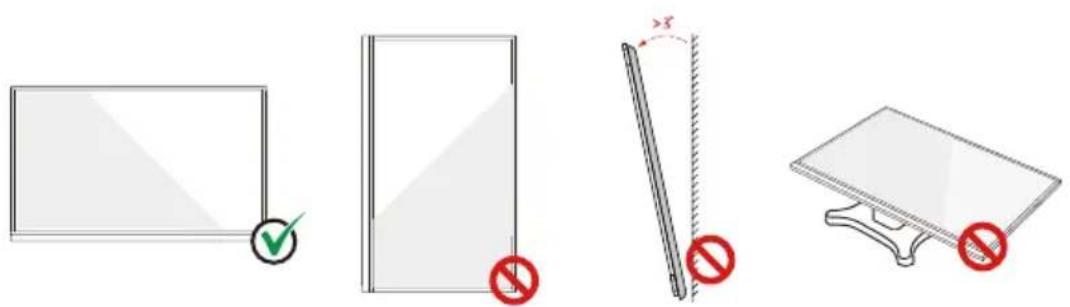
natural_image
Four-panel diagram showing a blank panel, a folded panel with checkmark and no warning symbols, and a flat stand with red prohibition signs (no text or labels)Hang the Product Horizontally No Vertical Installation Do Not Lay Flat Install Tilted
Installation Precautions
- Load Bearing
You can select moveable installation or wall mounting according to your own needs. Wall mounting can help users significantly reduce occupied space.
When using moveable installation, use the mobile stand specified by the manufacturer. If you use a self-made mounting bracket, its carrying capacity should be at least 4 times than the machine weight. The carrying capacity of the support table should be at least 4 times than the machine weight, and the machine shall be stably mounted.
When using wall mounting, the mounting surface carrying the machine should be strong enough to bear at least 4 times than the machine weight. When the mounting surface is the wall or roof of a building, it must be solid brick, concrete or a mounting surface of equivalent strength. If the mounting surface is loose (such as old-style brick walls, wood, solid brick walls, etc.), or a metal or non-metal structure, or if the surface decoration layer is too thick and obviously insufficient in strength, reinforcement and support measures should be implemented to prevent potential safety hazards.
♦ Vertical installation
When installing, please keep it vertical. The acceptable vertical tilt range for wall mounting is ±3^ . Excessive tilt angles may cause the screen glass to fall off or the product to collapse.

Note
- If the large screen glass is damaged, all personnel must stand 3m away from the screen to ensure safety.
- Do not perform installation or removal if the screen glass is damaged.
- For any abnormalities, please contact our service department immediately. We are not responsible for any loss or damage caused by users taking matters into their own hands.
- Ventilation
| Distance from mounting surface (mm) | |||
| Left & right Top | Bottom Back | ||
| 100 100 100 | 100 | ||

CAUTION
- In addition to the above requirements, the area of the bottom, side and top vents shouldn't be less than 50% of the sealing area and good air circulation must be maintained when the machine is embedded in the wall and a cabinet.
- For wall mounting, the depth of wall bolts should be greater than 10mm.

*Refer to the CAS 132-2006 standard.
Built-in Computer Installation

WARNING
Do not perform the following on the built-in computer, or the product may be damaged or end up being unusable!
- Do not plug or unplug the built-in computer with the power connected. Please make sure that the power has been turned off before plugging/unplugging.
- Do not use the built-in computer before the screws have been tightened or if any screws are missing.
Please install the built-in computer according to the following steps:
Step 1: (Optional) Unscrew the screws by hand to remove the internal PC shielding cover.
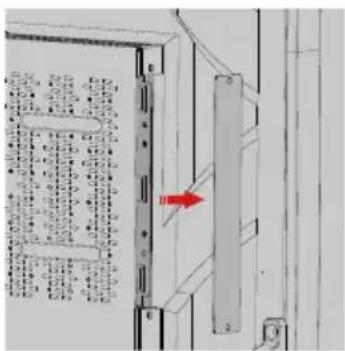

Note
This step is optional and applies to models with shielding cover.
Step 2: Push the built-in computer horizontally into the built-in computer port.

Step 3: Secure the built-in computer to the machine by using the screws.
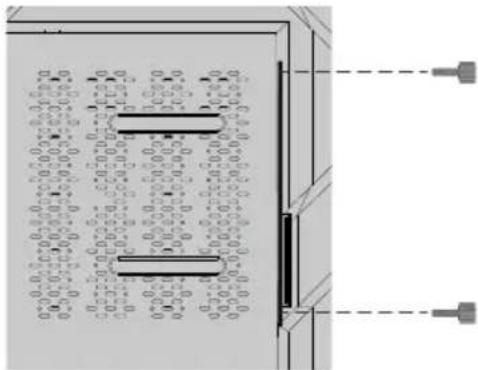
natural_image
Pure electrical circuit lines without any symbols
Note
If the screen fuzzes, flashes or if no signal is received from the built-in computer channel after turning on the power, it means that the built-in computer has not been properly installed. Please check it and re-install.
SoundBar Installation
Please follow the steps below to install the SoundBar:
Step 1: Loosen the four hex screws on the back panel, place the SoundBar bracket in the designated position, and fix it on the tablet with hex screws.

Step 2: Place the SoundBar on the bracket, adjust the left and right sides to make it parallel, and fix it on the bracket with hex screws.

Power On
Step 1: Use AC power (100V\~240V, 50Hz/60Hz) as the machine power source. Make sure the power plug fully inserted and that the ground wire of the outlet is properly connected.
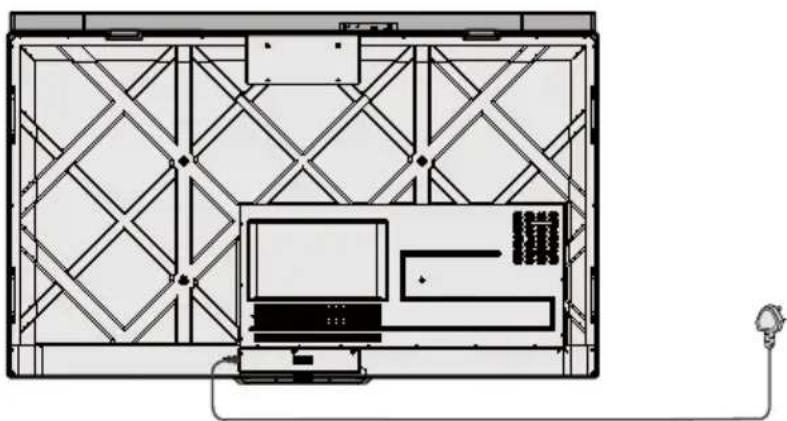
natural_image
Top-down schematic of a device layout with grid pattern, monitor, and connected cables (no text or symbols)Step 2. Turn on the rocker switch (on the rear side of the machine, next to the power socket) after a power source has been connected. The power indicator should be red.

Step 3: Press the “💡” button on the front panel or the “💡” button on the remote control to start the machine (the indicator light turns green).
Power Off
Step 1: Press the “💡” button on the remote control or long press the “💡” button on the front panel to turn the machine power off. The indicator light turns red.
Step 2: If you want to completely turn off the machine, turn off the rocker switch on the rear of the machine (next to the power socket) and unplug the power cord.

CAUTION
- When the machine enters sleep mode or is turned off, the system will first detect whether the built-in computer is turned off. If not, it first turns off the computer and then enters the sleep mode or shutdown.
- Please shut down the machine before disconnecting the power source, or it may damage the machine. Accidental power failure may damage to the machine.
- Do not repeatedly turn the power on & off in a short period of time as it may cause malfunction.
Indicator Status
| Indicator Machine status | |
| Off Shut down or power disconnected | |
| Red Shutdown | |
| Green Screen off/normal | working state |
| Green flashes (every 2 seconds) Sleep mode | |
| Green on, red flashes once every 3 seconds | Locked screen |

Note
- When the machine is turned on, short press the power button on the front panel to enter sleep mode; short press the power button on the front panel again, or press any button on the remote control or tap the screen twice to wake up the screen.
- When the machine is turned on, press the "Lock screen" button on the remote control to lock screen; press the "Lock screen" button on the remote control again, or short press the power button on the front panel, or tap the screen three times in quick succession to resume the touch control.
- When the machine is turned on, press the "Screen off" button on the remote control or hold the screen for more than 3 seconds with 3 fingers to turn screen off; short press the power button on the front panel, or press any button on the remote control or tap the screen to turn screen on.
For more product information, please visit https://newline-interactive.com
National Service Hotline: +1 888 233 0868
The company is committed to product updates and technical improvements. The technical parameters and specifications are subject to change without prior notice. The pictures in this manual are for reference only.
20302-T8JU-001020

- Symbol Conventions
- Safety Instruction
- CAUTION
- Appearance
- - Front View
- - Rear View
- NOTE
- Front Control Panel
- - Front Buttons
- Rear Ports
- SoundBar top buttons
- Remote Control
- ♦ Instructions for Using Remote Control
- Safety Precautions
- Installation Precautions
- - Load Bearing
- ♦ Vertical installation
- - Ventilation
- Built-in Computer Installation
- WARNING
- SoundBar Installation
- Power On
- Power Off
- Indicator Status
Brand : Newline
Model : TT-6519PTC
Category : Collaborative Touch Screen