
HILS86204 - Air conditioner HITACHI - Free user manual and instructions
Find the device manual for free HILS86204 HITACHI in PDF.


| Product Type | Interactive Flat Panel Display (IFPD) |
| Display Diagonal | 85.6 inches (217.4 cm) |
| Resolution | 3840 x 2160 (UHD) |
| Brightness | 400 cd/m² |
| Contrast Ratio | 1300:1 (Typ.) |
| Viewing Angle | 178° H / 178° V |
| Touch Technology | Infrared blocking detection |
| Touch Points | Up to 20 points (Windows) |
| Dimensions (W x H x D) | 1999 x 1226 x 117 mm |
| Weight | 91 kg (200.7 lbs) |
| Power Supply | 100-240 V AC, 50/60 Hz |
| Power Consumption | 450 W (typical), < 0.5 W standby |
| Speaker Output | 20 W + 20 W stereo |
| Connectivity | HDMI (4x), DP, VGA, USB, LAN, RS232 |
| VESA Mount | 600 x 400 mm, M8 screws |
| Glass Front | Tempered glass, 4.8t, anti-glare |
| Operating Temperature | 0 to 40 °C |
| Included Accessories | Remote, batteries, HDMI cable, USB cable, power cable, 2 pens, warranty card, manual |
| Special Features | Drawing/annotation, screen mirroring (Eshare), OPS slot, PC-less writing |
| Cleaning Instruction | Unplug, wipe with soft dry cloth; no liquids or chemicals |
Frequently Asked Questions - HILS86204 HITACHI
User questions about HILS86204 HITACHI
0 question about this device. Answer the ones you know or ask your own.
Ask a new question about this device
Download the instructions for your Air conditioner in PDF format for free! Find your manual HILS86204 - HITACHI and take your electronic device back in hand. On this page are published all the documents necessary for the use of your device. HILS86204 by HITACHI.
USER MANUAL HILS86204 HITACHI
Model: HILS86204 Interactive Flat Panel Display
Contents
- Important safety Instructions.... 3
1.1 Safety precaution.... 5
1.2 Maintenance.... 9
-
Introduction.... 10
-
Product Description.... 11
3.1 Front View.... 11
3.2 Rear View.... 12
3.3 Connection 15
-
Remote Controller.... 17
-
Home Menu Description.... 19
5.1 Menu Overview.... 19
5.2 OPS.... 22
5.3 External Source.... 23
5.4 File Manager.... 24
5.5 Mirroring.... 25
5.6 Drawing.... 30
-
Setup Menu Description.... 42
-
Product Specification.... 49
-
Product Dimensions.... 51
-
Troubleshooting.... 52
9.1 Product Self-Diagnosis.... 52
9.2 Before Requesting Service....52
1. Important Safety instructions
[SAFETY WARNING]
• To reduce the risk of fire or electric shock, do not expose this product to rain or moisture.
• To prevent injury, this product must be securely attached to the floor/wall in accordance with the installation instructions.
• To reduce the risk of electric shock, do not remove the back cover
• Refer to qualified service personnel if needed.
◆ Icons used in this manual
| CAUTION RISK OF ELECTRIC SHOCK. DO NOT OPEN. | The lighting flash and arrowhead within the triangle indicates that there is dangerous voltage Inside the product. |
| The explanation point within the triangle indicates that there are important instructions accompanying the product. |
[WARNING] means,
If you ignore the warning message, you may be seriously injured or there is a possibility of accident or death.
[CAUTION] means,
If you ignore the caution message, you may be slightly injured or the product may be damaged.
[NOTE] means,
The note helps you understand and use the product safely. Please read the note carefully before using the product
This device complies with part 15 of the FCC Rules. Operation is subject to the following two conditions: (1) This device may not cause harmful interference, and (2) this device must accept any interference received, including interference that may cause undesired operation.
CAUTION: Changes or modifications not expressly approved by the party responsible for compliance with the FCC Rules could void the user's authority to operate this equipment.
When moving the product, please grab the handles behind and the bottom of the product as shown below picture.
- The product must keep horizontal and upright position when moving.
- Do not hold the corner of the product when you grab the bottom of the product.
![HITACHI HILS86204 - [SAFETY WARNING] - 1](/content/2026/06/1210761/images/9a6d8f689b6137fd6145dfa725472d89ffc0f43c16a23d68b37c4b673a62c33f.jpg)
natural_image
Two workers holding a rectangular frame with red arrows indicating force or movement (no text or symbols)[Recycling Policy]
(For USA)
Dispose of this product in accordance with applicable environmental laws. For product recycling and disposal information, contact your local government agency or www.eRecycle.org (in California), the TIA at www.ecyclingcentral.com (in the US) or the Electronic Product Stewardship Canada at www.epsc.ca (in Canada). For more information, call 800.HITACHI.
1.1 SAFETY PRECAUTION
Note) The color and design may different by each model and the product specification are subject to change without notice for performance enhancement.
1.1.1 Power
[Warning]
- Do not use damaged power cord, plug nor loose socket. It may cause electric shock or fire.
- Do not connect multiple devices into a single s socket. It may cause fire due to overheating.
- Do not touch with wet hands when remove or plug the power cord to avoid electric shock.
- Insert the power plug into socket firmly. It may cause fire when the connections are unstable.
- Connect the power cord to a grounded wall socket. There is risk of electric shock or injury.
- Do not bend nor pull the power cord and place heavy objects over the power cord. It may occur cord damage and this may result in fire.
- Please clean only with dry cloth when the plug pin or socket are dusty. It may cause fire.
[Caution]
- Do not unplug the power plug while the product is operating. It may damage the product due to electric shock.
- Only a power cord specified by product manufacturer are recommended.
Do not use the power cord from other devices. It may cause electric shock or fire. - Hold the plug itself when unplugging the power plug from the wall socket. If not, there is risk of electric shock or fire.
- Before moving or installing this product, be sure to turn off the power and disconnect the power cord. To turn this product off completely, you must pull the power plug out of the wall socket. Consequently, the power plug must be easily and readily accessible at all times.
1.1.2 Installation
[Warning]
- Do not install near any heat sources such as radiators, or other devices that produce heat. It may cause electric shock or fire.
- When mounting a product on the wall, make sure not to install the product by hanging the power and signal cables on the back of it.
-
Consult with your local dealer or specialized engineer to mount the product on the wall, and use the screws and wall mounts that meet the VESA standard. Any damages or injuries by misuse or using an improper accessory are not covered by the warranty.
-
Leave a 10 cm (4 inches) (minimum) space from the wall for proper ventilation. If not, it may cause fire.
- Keep the packing anti-moisture material or vinyl packing out of the reach of children. Anti-moisture material is harmful if swallowed. If swallowed by mistake, force the patient to vomit and visit the nearest hospital. Additionally, vinyl packing can cause suffocation. Keep it out of the reach of children.
- Please note that the product must be supported on proper stands or installed according to the manufacturer's recommendations. The product that are inappropriately situated on unstable shelves, inclined planes, or vibrating places, etc., may fall over, resulting in injury.
- To reduce the risk of fire or electrical shock, do not expose this product to rain, moisture or other liquids or dust. It may cause electric shock or fire.
- Keep the product away from direct sunlight.
- Keep the product of the reach of children and install on the stable and flat place. NEVER allow children to climb on or play on the product or the furniture and stands on which the product is placed.
[Caution]
- Do not allow an impact shock or any objects to fall into the product, and do not drop anything onto the screen.
- Make sure the product is turned off, unplugged, and all cables have been removed. It may take more than 4 people to than carry.
- Do not press or put stress on the front panel of the product.
- If the product is installed in a place where the operating conditions considerably, a serious quality problem may occur due to the surrounding environment. In this case, install the product only after consulting our dealer about the matter. (Places exposed to microscopic dust, chemicals, too high or low temperature, high humidity, airports or stations where the product is continuously used.)
1.1.3 Cleaning
[Warning]
- Before cleaning the product, unplug the power cord and wipe gently with a soft cloth to prevent scratching.
- Do not spray water or other liquids directly on the product as electric shock may occur.
[Caution]
- Do not push, rub, or hit the surface with your fingernail or a sharp object, as this may result in scratches on the screen and image distortions.
- Do not use any chemicals, such as waxes, benzene, alcohol, thinners, insecticides, air fresheners, or lubricants, as these may damage the screen's finish and cause discoloration.
- Do not spray liquid onto the surface. If water enters the product, it may result in fire, electric shock, or malfunction.
1.1.4 General Usage
[Warning]
- To reduce the risk of electric shock, do not open the cover or back. No user serviceable parts inside. Refer to qualified service personnel.
- Before moving or lifting the product, disconnect the power cord and all cables.
- The route cords and cables connected to the product so that they cannot be tripped over, pulled or grabbed.
- Do not stick metal objects or any other conductive material into the power cord. Do not touch the end of the power cord while it is plugged in. It may result in fire, electric shock.
- Unplug this product during lightning storms or when unused for long periods of time.
- Do not block any ventilation openings. Install in accordance with the manufacturer's instructions.
- To reduce the risk of fire or electrical shock, do not expose this product to rain, moisture or other liquids. Do not touch the product with wet hands. Do not install this product near flammable objects such as gasoline or candles, or expose to direct air conditioning.
- NEVER allow children to climb on or play on the product or the furniture on which it is placed. It may cause severe injury to children.
- Use only with a cart, stand, tripod, bracket, or table specified by the manufacturer, or sold with the product. When a cart is used, be careful when moving the cart/product combination to avoid injury from tip-over.
- Install where it cannot be pushed, pulled over or knocked down.
- It is recommended to move the product in the box or packing material that originally came in.
- When holding the product, the screen should face away from you to avoid damage.
[Caution]
- If a fixed image displays on the screen for a long period of time, it will be imprinted and become a permanent disfigurement on the screen. This is image burn or burn-in and not covered by the warranty.
- Avoid displaying a fixed image on the screen for a long period of time (2 or more hours for LCD) to prevent image burn. Recommend to power off or set the screen saver mode when not in use.
- When watching the screen, take 5 to 15 minute breaks every hour. Viewing screen for a long period of time may cause fatigue or eye strain.
• Take care not to touch the ventilation openings. When watching the screen for a long period, the ventilation openings may become hot. This does not affect the performance of the product or cause defects in the product.
- Do not install this product on a wall if it could be exposed to oil or oil mist. This may damage the product and cause it to fall.
- To install batteries in remote control, open the battery cover, replace batteries matching (+) and (-) ends to the label inside the compartment, and close the battery cover. Failure to match the correct polarities of the battery may cause the battery to burst or leak, resulting in fire, personal injury, or ambient pollution.
- To prevent to swallow the small accessories for children, keep the accessories out of the reach of children.
The product must keep horizontal and upright position when moving. Hold the top and bottom of the frame firmly. Handles are only for the supporting purpose.
When attaching the stand to the set, place the screen facing down on a cushioned table or flat surface to protect the screen from scratches by more than 2 people,
Make sure that the screws are fastened tightly. (If they are not fastened securely enough, it may tilt forward after being installed.)
1.2 MAINTENANCE
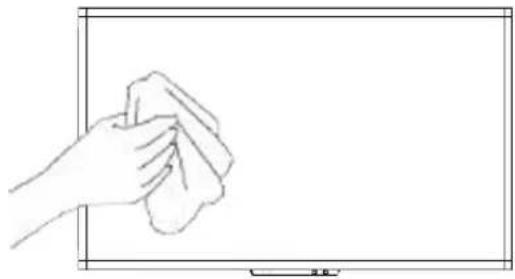
1.2.1 Cleaning
[Warning]
- When cleaning, unplug the power cord and wipe gently with a soft dry cloth to prevent scratching.
- Do not spray water or other liquids directly on the screen as electric shock may occur.
- Do not clean with chemicals such as alcohol, thinners, or benzene.
natural_image
Line drawing of a hand cleaning a whiteboard (no text or symbols)1.2.2 Installation
- Leave a 10 ~cm (4 inches) (minimum) space from the wall for proper ventilation. If not, it may cause fire or malfunction due to the high temperature product inside.
[When attaching the stand] [When mounting on a wall]


1.2.3 Panel
- Avoid displaying a fixed image on the screen for a long period of time (2 or more hours for LCD) to prevent image burn. Recommend to power off or set the power saving mode or screen saver when not in use.
- Due to technological constraints of the Panel manufacturer, the images generated by this product may appear either brighter or darker than normal by appr. 1ppm (parts per million) pixel.
The number of sub-pixels of a panel by size: The number of Sub-Pixels = Max. Horizontal Resolution x Max. Vertical Resolution x 3.
For example, if the maximum resolution is 1920 × 1080 , the number of sub-pixels is 1920 × 1080 × 3 = 6,220,800 .
[Condensation on the glass surface]
- It may occur the dew condensation on the glass surface inside when the product is turn on for the first time or after it has not been used for a long time.
- This is a temporary phenomenon caused by the temperature difference between external and internal of the product, which is not a malfunction.
- If the symptom occurs, it disappears after a certain time (about 1 \~ 3 hours) after turning on the product.
2. Introduction
◆ Check your product box for the following items. If there are any missing accessories, contact the local dealer where you purchased your product.
The illustrations in this manual may differ from the actual product and item.

natural_image
Front view of a black HITACHI television displaying its blank screen (no text or symbols on the screen)LCD/LED Display
| Accessory |  User Manual Warranty Card User Manual Warranty Card |  | |
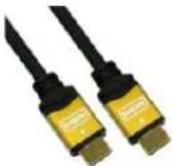 HDMI Cable USB Cable(for TOUCH) Power Cable HDMI Cable USB Cable(for TOUCH) Power Cable |  |  | |
 Remote Controller Remote Controller |  Battery 1.5 V (AAA) Battery 1.5 V (AAA) | 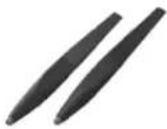 Pen X 2 Pen X 2 | |
3. Product Description
3.1 Front View
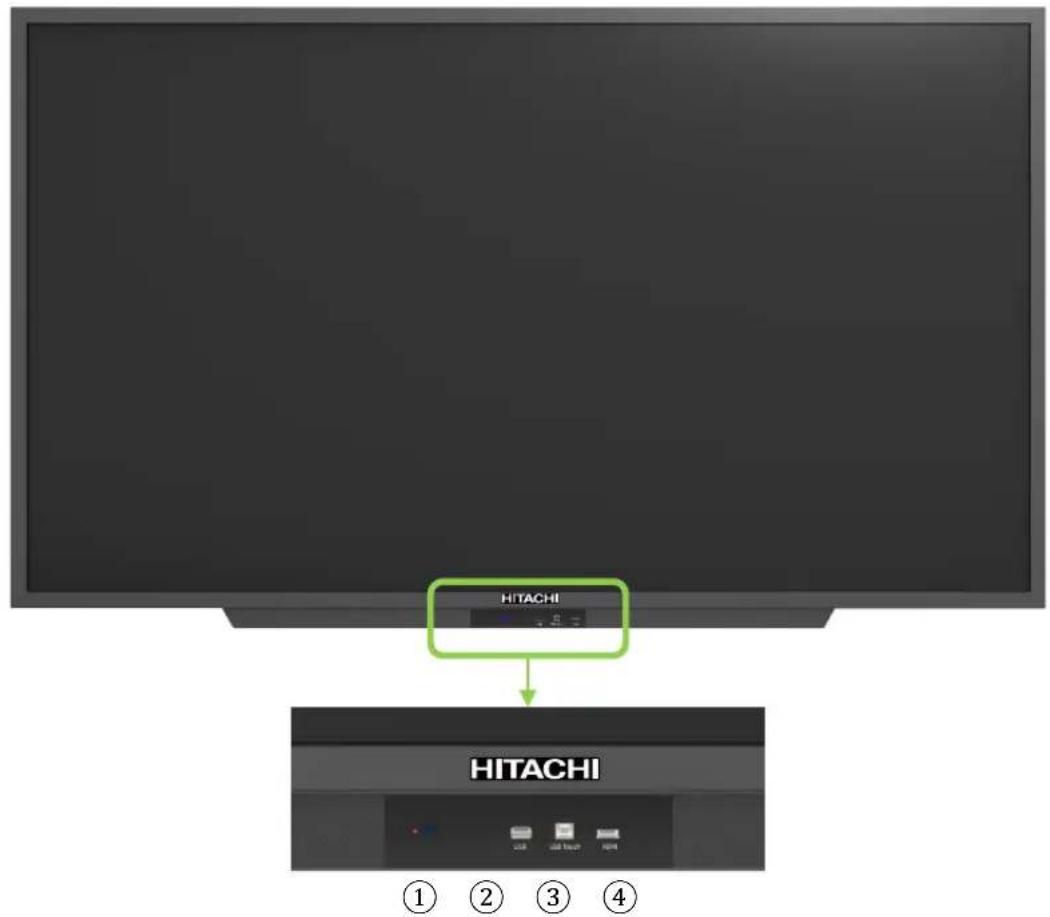
① LED Indicator
- Power ON mode: BLUE
Power OFF(Standby) mode: RED
- Be sure to point the remote control at the remote control sensor on the LED/LCD Display.
② USB for OPS, Front or Rear
③ Touch USB: USB Port is available when Source External is selected.
④ HDMI Input (When connected, it changes to Source External.)
Important Notice
◆ The USB cable (3 m) that Hitachi provides in this accessory box is for use of connection to Touch USB at the back. Therefore, in case of connecting USB cable to Touch USB in front, separate USB cable is required and the length of cable is strongly recommended to be less than 3 m to make sure signal intensity of touch sensor work properly.
3.2 Rear View
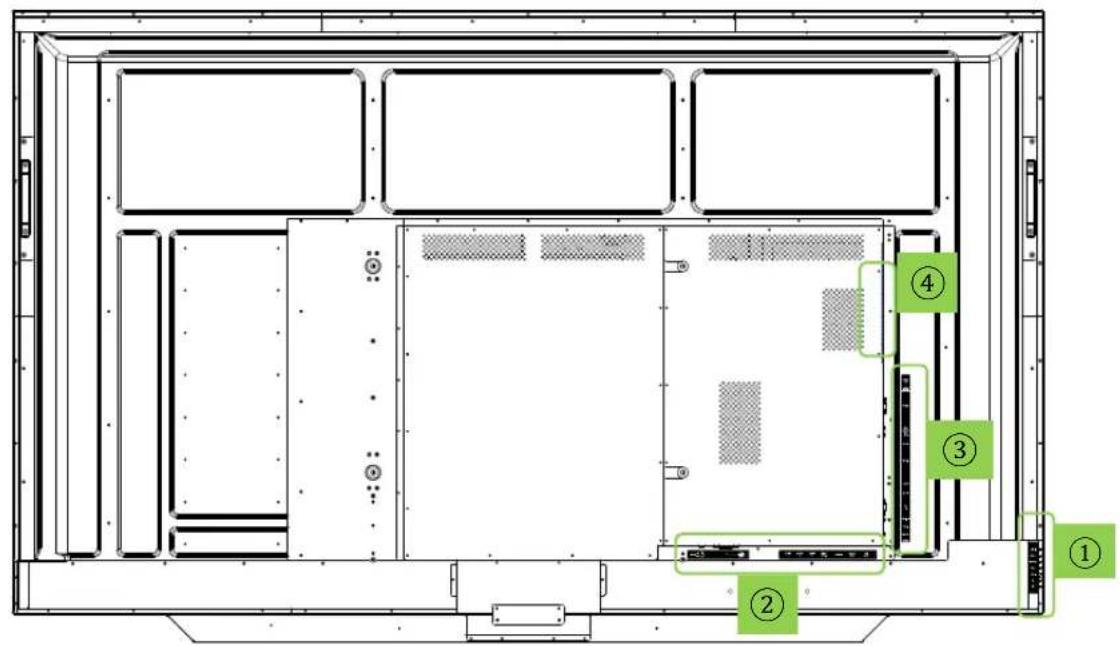
① Button Control

| 1 ON / OFF |
| 2 Display the main screen menu |
| 3 VGA, OPS, EXTERNAL, HDMI 1, HDMI 2, HDMI 3, DP |
| 4 Volume Up (Right) |
| 5 Volume Down (Left) |
| 6 Move Up |
| 7 Move Down |
② Rear Panel Connections

| 1 Power Switch : ON / OFF |
| 2 AC IN : 100V~ 240V, 50/60Hz |
| 3 HDMI 3 Input |
| 4 HDMI 2 Input |
| 5 HDMI 1 Input |
| 6 Display Port |
| 7 HDMI Output |
| 8 USB For Touch |
| 9 RJ45(LAN) |
Note: HDMI 1 has separate USB for Touch located on ③

| 1 RJ45/RS232 SWITCH | |
| 2 | USB FOR TOUCH HDMI1 ONLY |
| 3 R$232C | |
| 4 SPEAKER OUT | |
| 5 USB 2.0(Supports USB cam or camera function) | |
| 6 USB 3.0(Supports USB cam or camera function) | |
| 7 LAN OUT | |
| 8 LAN IN | |
| 9 PC RGB IN | |
| 10 PC AUDIO IN | |
| 11 SPDIF | |
| 12 LINE OUT | |
④ Installing an OPS PC
There is a slot on ④ for OPS PC. When you need to install an OPS PC, remove screws and existing cover first and screw up again after mounting OPS PC in the slot.
⑤ AC cord holder
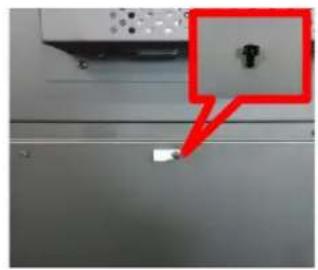
natural_image
Close-up of a metallic door panel with a small white object and a red arrow pointing to a black button (no text or symbols visible)
natural_image
Close-up of a metallic electrical connector with a red circular annotation highlighting a cable or socket (no text or symbols visible)- To prevent the power cable from falling/shaking, you may use the cable holder if necessary. SCREW (4x11)
3.3 Connection
1) HDMI/Display Port Connection
To transmit digital video and audio signals from an external device to the screen, connect the HDMI/Display Port cables as shown in the following illustration.
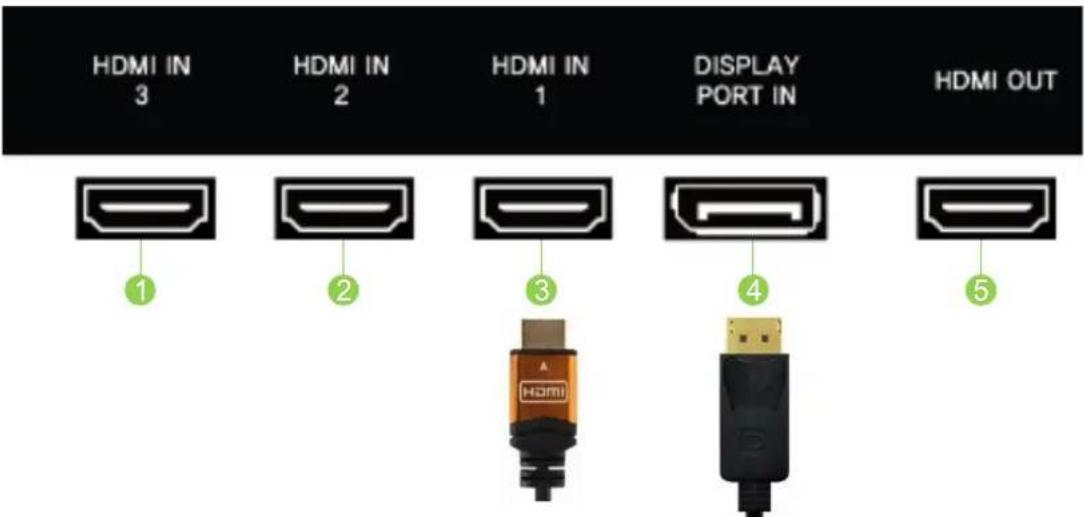
| 1 | HDMI 3 Input – PC/ LAPTOP connect to the HDMI cable |
| 2 | HDMI 2 Input – PC/ LAPTOP connect to the HDMI cable |
| 3 | HDMI 1 Input – PC/ LAPTOP connect to the HDMI cable |
| 4 | DisplayPort Input – PC/ LAPTOP connect to the DisplayPort cable |
| 5 | HDMI Output – Connect the other monitor to transmit video data |
2) VGA Connection
In case of transmission of digital video signal from an external device to the screen, connect the external device and the product with the VGA cable and to transmit an audio signal, connect an audio cable in PC AUDIO IN port separately.
3) Speaker Connection
To utilize an optional external audio system instead of the built-in speaker, connect a ∅3.5 stereo (L/R) cable in the port.
If it is connected to external speakers, internal speakers may not produce sound.
The connection is as below:

※ Note that when using an OPS PC Connection
1) Do not connect touch sensor USB cable to the port. (Touch sensor cable is already connected by internal OPS docking board.)
4) RS232C Connection
HITACHI Models supports two connection methods : RS232C and LAN standard.
Simultaneous connection of two standards is not supported.
Please select RS232C cable or LAN connection.
※ Note
How to select RS232C On/Off switch
RJ45(↑), RS232C(↓)

The RS232C port will not work once RJ45 is being used.
4. Remote Controller

| Key Name Description | |
| ∅/l | Power ON/OFF. |
| SOURCE | Activates OSD menu of input source selecting. N navigates input source downwards. |
| ▲ | Navigates upper menu in main OSD menu. Navigates input source. |
| ▼ | Navigates down menu in main OSD menu. Navigates input source |
| ► | Navigates to next menu in main OSD menu. |
| ◄ | Navigates to previous menu in main OSD menu. |
| OK Select the highlighted menu option. | |
| MENU Activates main OSD menu. | |
| EXIT Closes main OSD menu. | |
| FREEZE | Allows you to capture and freeze an image from a moving image that you are watching. |
| VOL+ Volume UP | |
| VOL- Volume Down | |
| MUTE Toggles sound status of speaker. | |
4.1 How to insert battery
Insert the battery into proper polarities
Battery model: Battery 1.5V(AAA)

BATTERY PRECAUTIONS
These precautions should be followed when using batteries in this device:
- The batteries may last approximately one year depending on how much the remote control is used. Replace batteries when the remote operation becomes erratic.
- Use only the size and type of batteries specified.
- Be sure to follow the correct polarity when installing the batteries as indicated in the battery compartment. Reversed batteries may cause damage to the device.
- Do not mix different types of batteries together (e.g. Alkaline, Carbon-zinc or Rechargeable) or old batteries with fresh ones.
- If the device is not to be used for a long period of time, remove the batteries to prevent damage or injury from possible battery leakage.
- Do not try to recharge batteries not intended to be recharged; they can overheat and rupture. (Follow battery manufacturer's directions.)
- Please use caution when inserting batteries to avoid battery damage. If the spring terminal in the remote control remains in contact with a side of a damaged battery it can cause a short circuit. Never use damaged batteries as they can become very hot and are dangerous.
- Never expose batteries (battery pack or batteries installed) to excessive heat such as sunshine, fire or the like.
5. Home Menu Description
5.1 Menu Overview
In the home screen, you can see the following buttons:

① Setting
Go to the setup
② OPS
Go to the OPS screen.
③ External Source
Go to the External Source screen which is connected through the HDMI Port in front.
④ File Manager
Run, move, copy or delete folders and files.
⑤ Mirroring
Select this button to connect with your smart device.
⑥ Drawing
Select the button to use the Drawing, writing application equipped on Interactive flat panel display.

Home Menu
If you drag the bottom of the screen upwards, the hidden Home Menu pops up. With the Home Menu you can go to Brightness, Volume, Back, Home, Source, Setup.


Home Bar UI Description
| Brightness Adjust the brightness. |
| Volume Adjust the volume |
| Back Move to the previous screen step. |
| Home Go to the home screen. |
| Source Call the external input window. |
| Setting Go to the Setup |
5.2 OPS(Open Pluggable Specification)
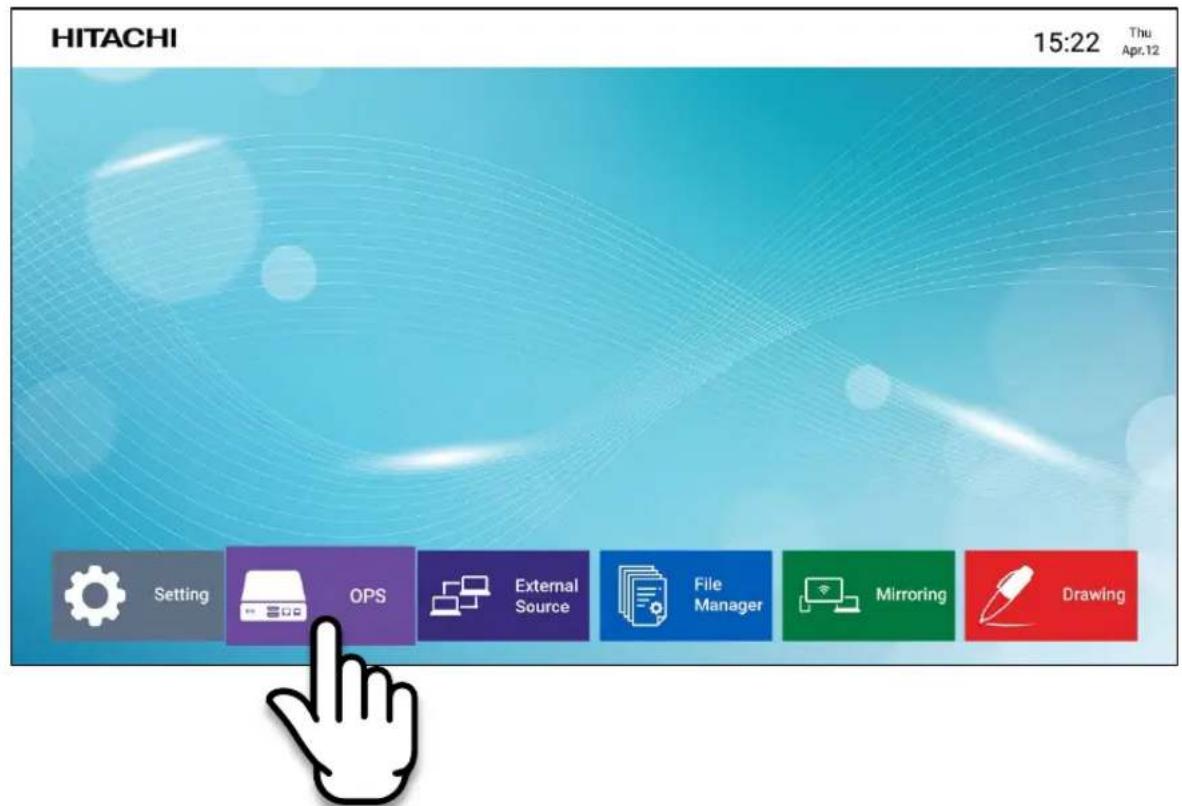
Double Tap
OPS(Open Pluggable Specification)
Computing module plug-in format available for adding computing capability to Flat Panel Display. Computing modules in the OPS format are available on Intel- and ARM-based CPUs, running operating systems including Microsoft Windows and Google Android.
5.3 External Source

Double Tap
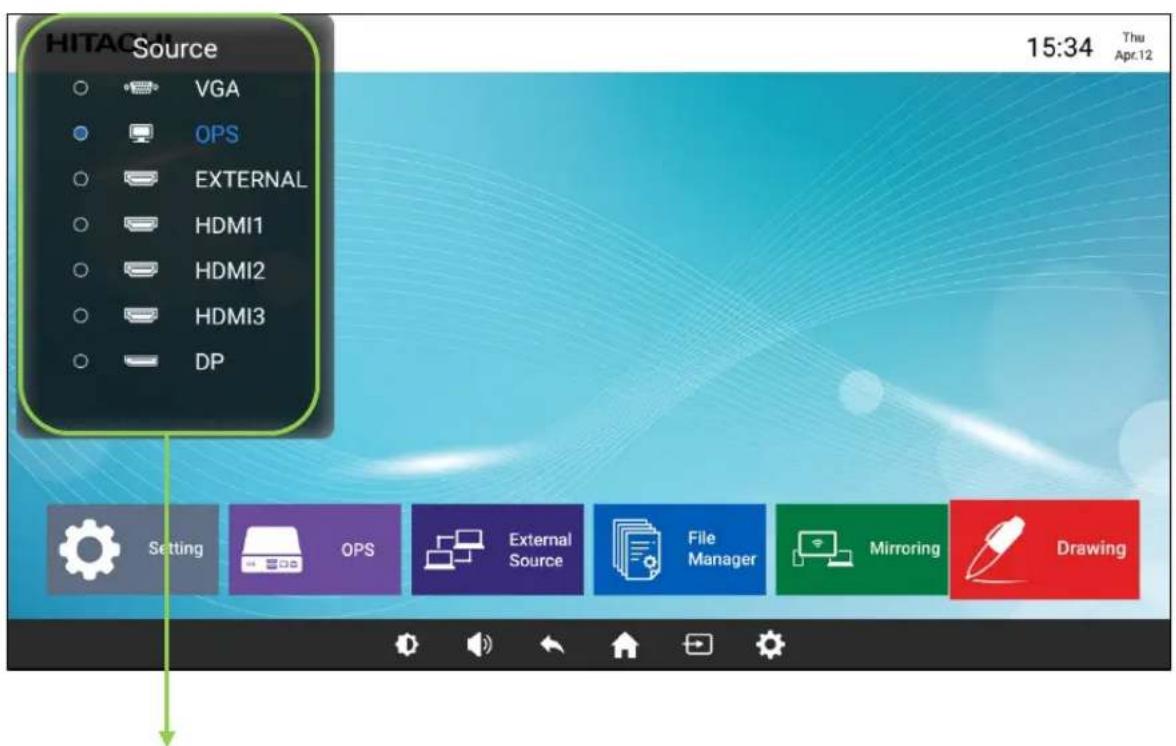
External Source
Double tap to choose a source.
5.4 File Manager
Create, open, copy, delete, and view folders and files

Double Tap

Browse by types
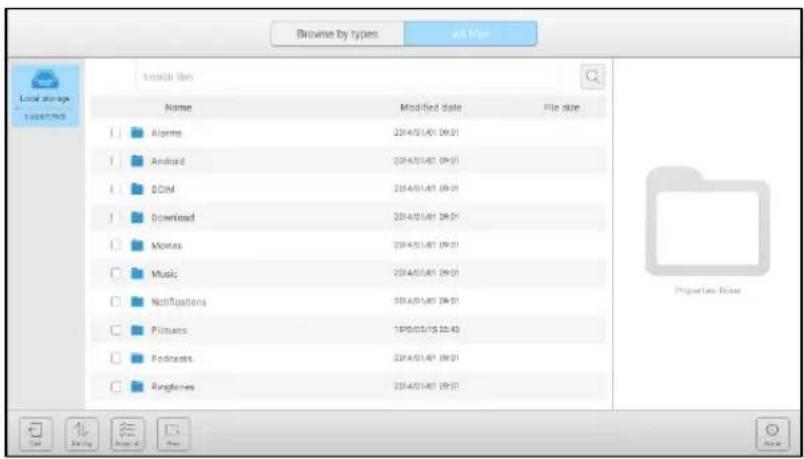
All files
5.5 Mirroring
Synchronize screens with smart devices

Double Tap

5.5.1. Eshare-Mobile users
- Precondition(To interwork, the devices should be in the same network)
- Download the OS executable file from the following site.
http://d.eshare.tech
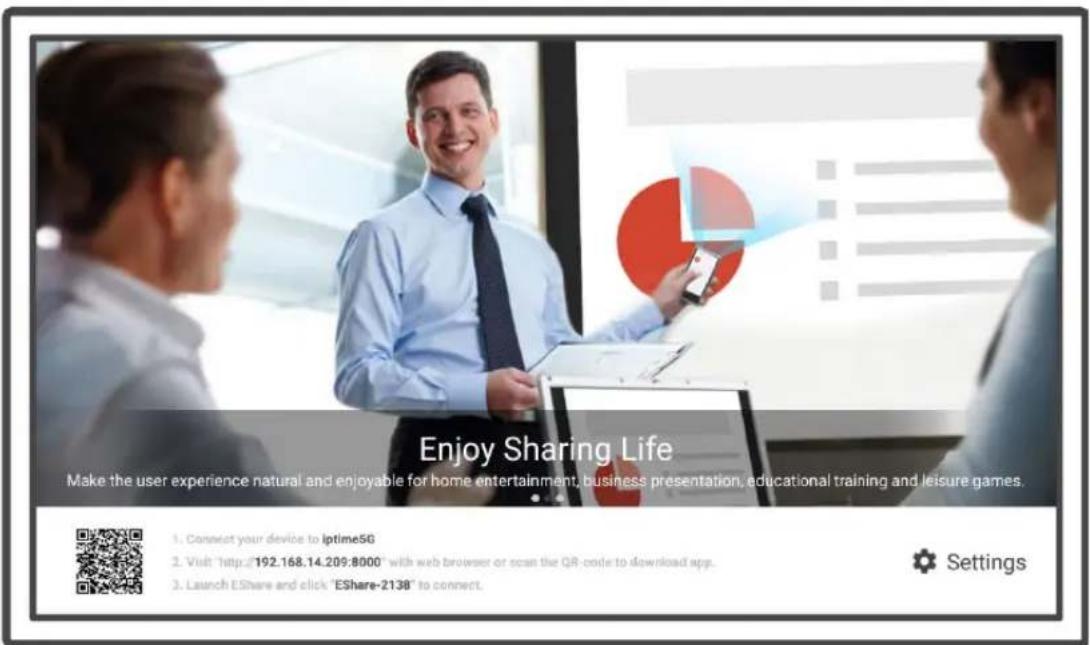
1) Smart phone setting
(1) Open PlayStore
(2) Search EShare App
(3) Download and install EShare App
(4) Execute EShare App

1) EShare(App)

2) Remote mode
(1) Main Screen
① Setting
② Eshare Connect ID
③ Storage
④ Contents category
(Directory, Image, Music, Video, Document)
⑤ Remote mode
⑥ TV Mirror mode
⑦ Mirroring mode
⑧ Camera mode
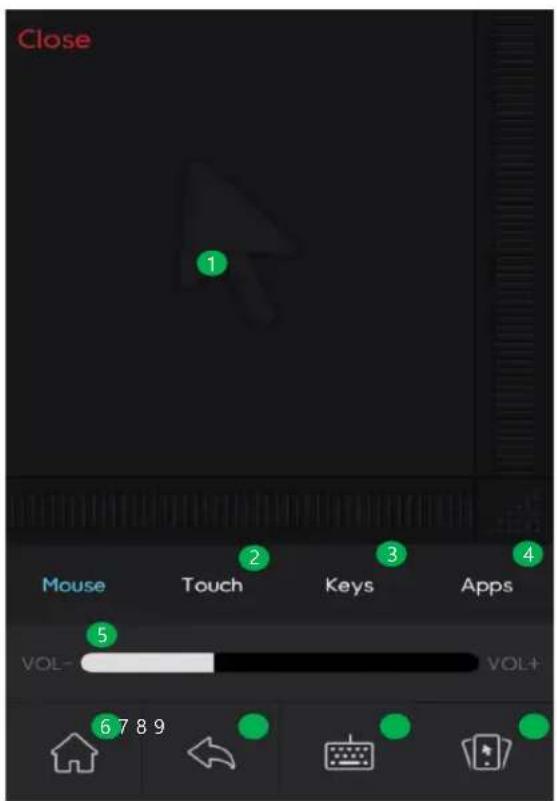
(1) Remote Screen
① Mouse pad
② Virtual touch mode
③ Virtual key mode
④ App mode
⑤ Volume Control
⑥ Move Main screen
⑦ Back
⑧ Keyboard activation
⑨ Motion mode
3) Virtual key mode

(1) Virtual key Screen
① Remote button
② Virtual mouse mode
③ Virtual touch mode
④ App mode
⑤ Volume Control
⑥ Move Main screen
⑦ back
⑧ Keyboard activation
⑨ Haptic mode
4) Camera mode
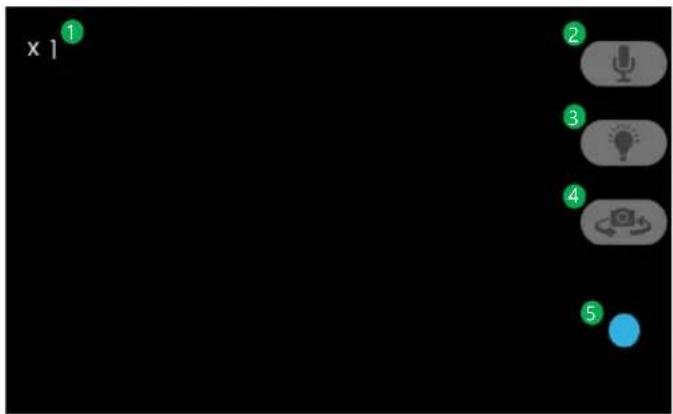
(1) Camera Screen
① Zoom state
② Mic Mute
③ Flash
④ Front/Back Camera selection
⑤ Shutter
5.5.2. Eshare-PC users
- Precondition(To interwork, the devices should be in the same network)
- Download the OS executable file from the following site.
http://d.eshare.tech

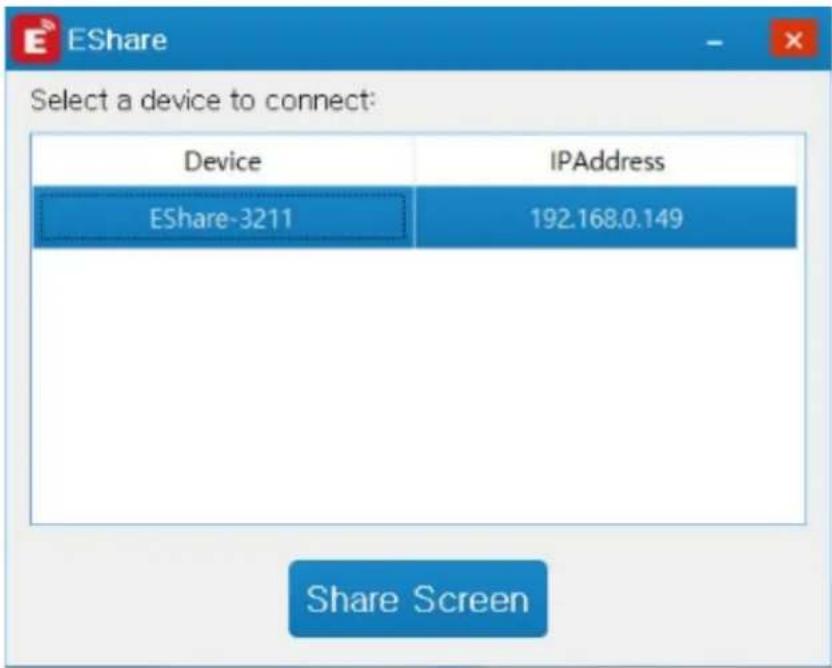
1) Notebook setting
(1) Download and install EShare Client.exe
(2) Execute EShare Client.exe
(3) Share Notebook screen
(4) Allows you to control your notebook screen with an interactive LED/LCD
5.6 Drawing
Allows the user to write on screen. Can be used for lectures and presentations.
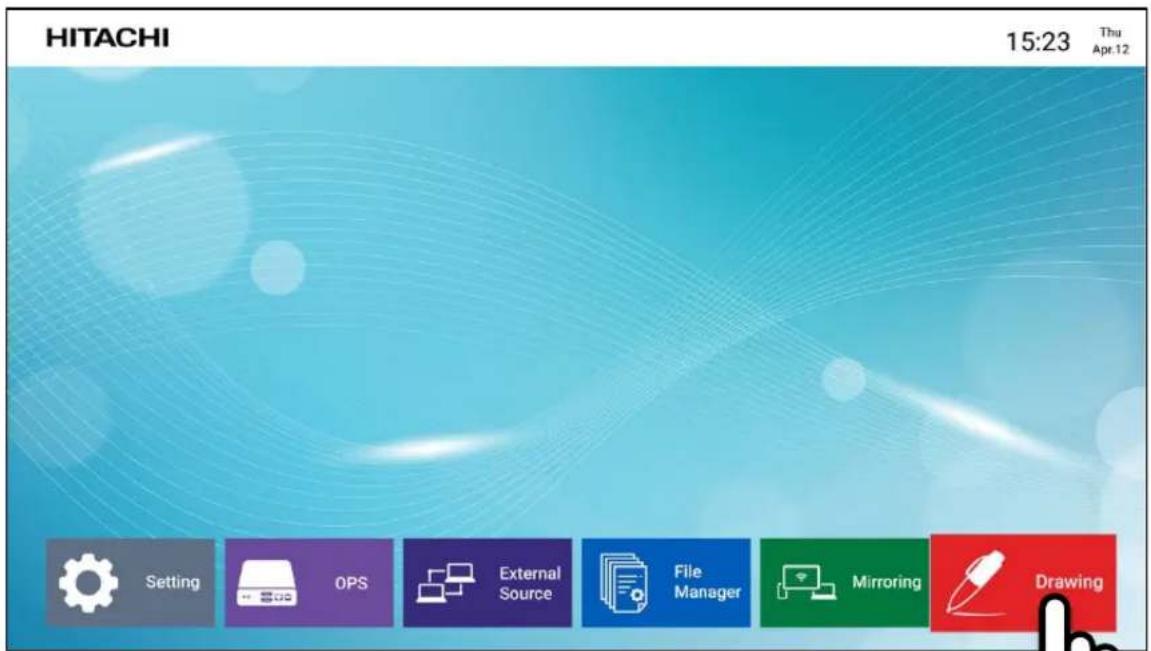

Double Tap
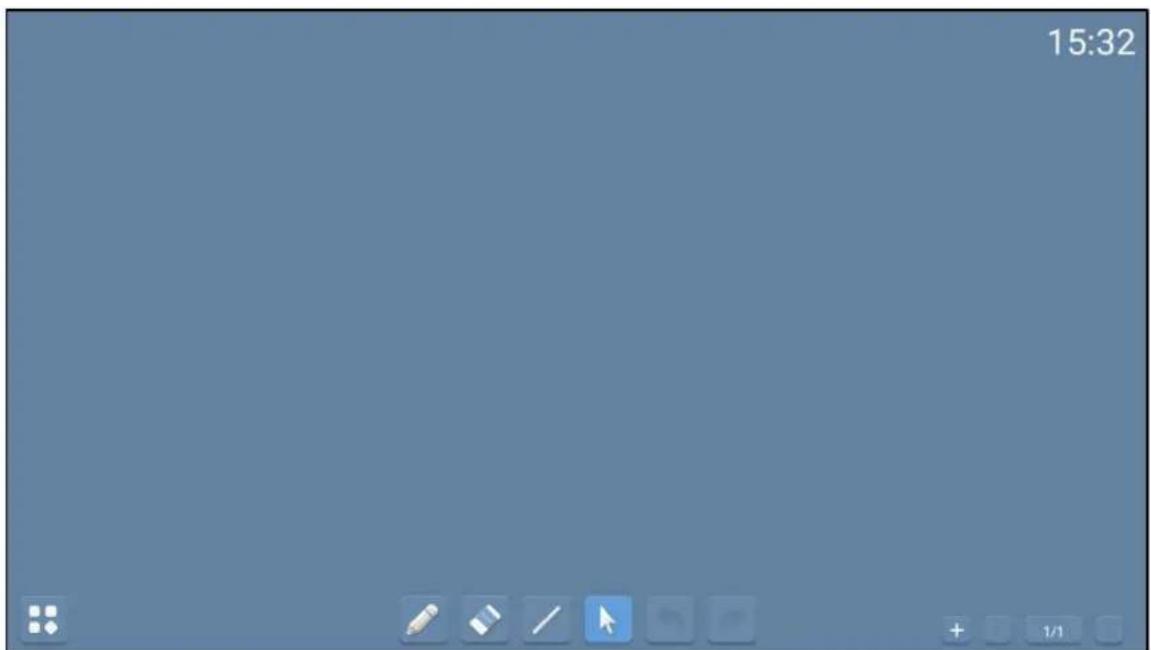
Gestures
1) 1 point : draw


natural_image
Hand reaching toward a large red spiral shape on a plain white background (no text or symbols)2) 2 point : zoom in/out, adjust the size.



natural_image
Hand holding a small photo on a whiteboard, no visible text or symbols
| Icon Name Description | ||
 | Start menu Menu with extra options | |
 | Pen Pen with customizable line weight, transparency, and color | |
 | Eraser | Erase entire page or choose precision eraser |
 | Line Line with customizable and figure | |
 | Pointer Selects a certain content. | |
 | Undo Undo the most recent action. | |
 | Redo Redo the most recent action. | |
 | Add content Add images saved on the device. | |
 | Previous page Move to the previous page. | |
 | Next page | Move to the next page. |
 | Page | Current page / Total page |
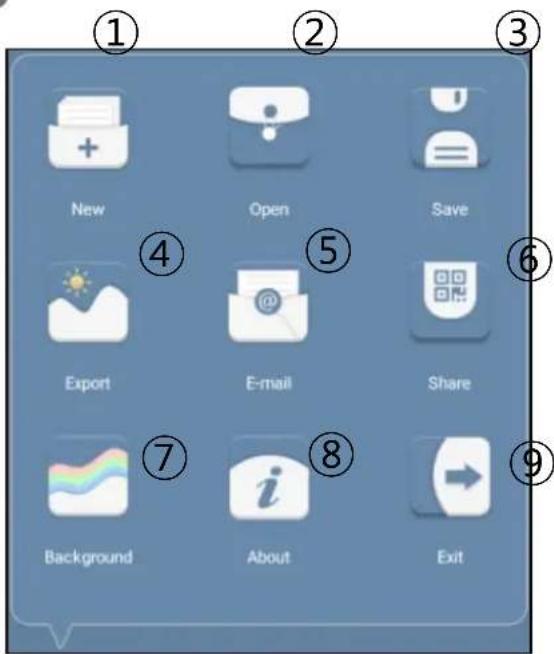
| Option Description | ||
| 1 | New New Task | |
| 2 | Open | Open *.zip file from a folder where it was previously saved.  |
| 3 | Save | Save the content on the page. (By default the content is saved in *.zip format. This file can be opened only in Drawing.) |
| 4 | Export Export as Image file(*.png) | |
| 5 | Send to E-mail | |
| 6 | Share QR scan provide images. | |
| 7 | Background Choose the background | |
| 8 | About View information about the program | |
| 9 | Exit Close the program | |

| Option Description | ||
| 1 | Line weight | Move the slider to increase or decrease the thickness of the line left by pen. |
| 2 | Color | Choose one the 9 available colors red, white, black, purple, dark blue, sky blue, green, yellow, orange. |
| 3 | Pen | The pen can be used immediately with preset line weight and color. |
| 4 | Preview You can preview the changes as you're making them. | |
| 5 | Marker Pen | The marker pen can be used immediately with preset line weight and color. |

②
| Option Description | ||
| 1 | Eraser | Erases the content you touch. |
| 2 | Object Eraser | Select the object and remove |
| 3 | Sliding Screen | Remove all contents by sliding. |
①

flowchart
graph LR
    A["②"] --> B["→"]
    B --> C["③"]
    C --> D["○"]
    D --> E["✓"]
    E --> F["□"]
    F --> G["□"]
    G --> H["□"]
    H --> I["□"]
    I --> J["□"]
    J --> K["□"]
    K --> L["□"]
    L --> M["□"]
    M --> N["□"]
    N --> O["□"]
    O --> P["□"]
    P --> Q["□"]
    Q --> R["□"]
    R --> S["□"]
    S --> T["□"]
    T --> U["□"]
    U --> V["□"]
    V --> W["□"]
    W --> X["□"]
    X --> Y["□"]
| Option Description | ||
| 1 | Line Weight | Move the slider to increase or decrease the thickness of the line. |
| 2 | Preview You can preview the changes as you're making them. | |
| 3 | Shape | Choose one of the preset shapes: circle, triangle, square, octagon. You can choose between shape outline or filled solid shape. Also 2 line options available: solid and dotted. |
| 4 | Color | Choose one of the 9 colors(red, white, black, purple, dark blue, sky blue, green, yellow, orange) |
Operation issues
- Handwriting is too thick
▶ Click the pen icon and move the slider to reduce line weight.
- Can't load a file
▶ Check if the file extension is *.zip
1) 2-point long touch : Execute the floating annotation.

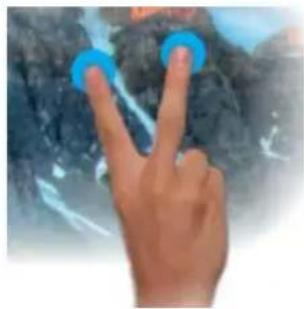
natural_image
Hand making a peace sign gesture with two blue circular buttons on a rocky cliff background (no text or symbols visible)
natural_image
Circular icons representing camera, photo editing, and other tools (no text or symbols)| Icon Name Description | ||
 | E-board Switch to drawing program | |
 | Capture | Screen Capture (Make .bmp file) |
 | Eraser Delete selected object | |
 | All Clear Delete All | |
 | Pen Switch to Pen Menu | |
 | Zoom in/out | Screen Zoom In and Zoom out(100%~400%) |
 | Exit Close Annotation | |
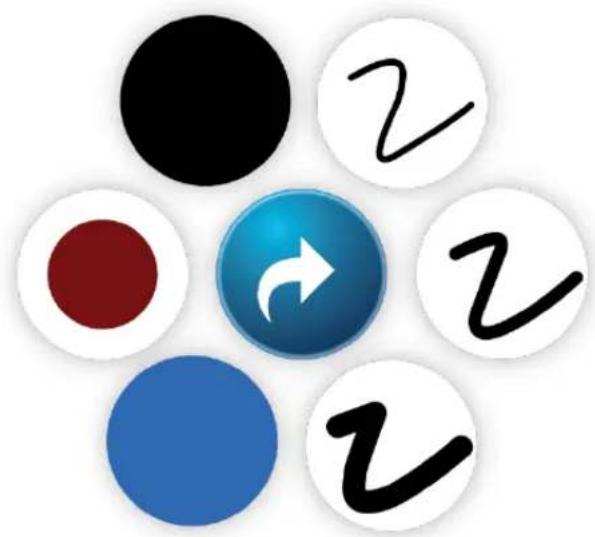
natural_image
Abstract circular design with six colored circles and a central blue circle containing a white arrow (no text or symbols)| Icon Name Description | ||
 | Black color Switch pen color to black | |
 | Red color Switch pen color to Red | |
 | Blue color Switch pen color to Blue | |
 | thin Line Switch line thickness to thin | |
 | Middle Line Switch line thickness to middle | |
 | Thick Line Switch line thickness to thick | |
 | Back Return to Annotation Menu | |

natural_image
Four circular icons with white symbols: left-turn arrow, plus sign, minus sign, and 100% zoom bar (no text or numbers)| Icon Name Description | ||
 | Back Return to Floating annotation menu | |
 | Zoom in Screen | Zoom in (maximum 400%) |
 | Zoom out Screen | Zoom out (minimum 100%) |
 | Zoom 100% | Screen Zoom 100% / Return to normal size |
6. Setup Menu Description
6.1 Menu Overview
Go to the Setup Menu through one of the following ways:

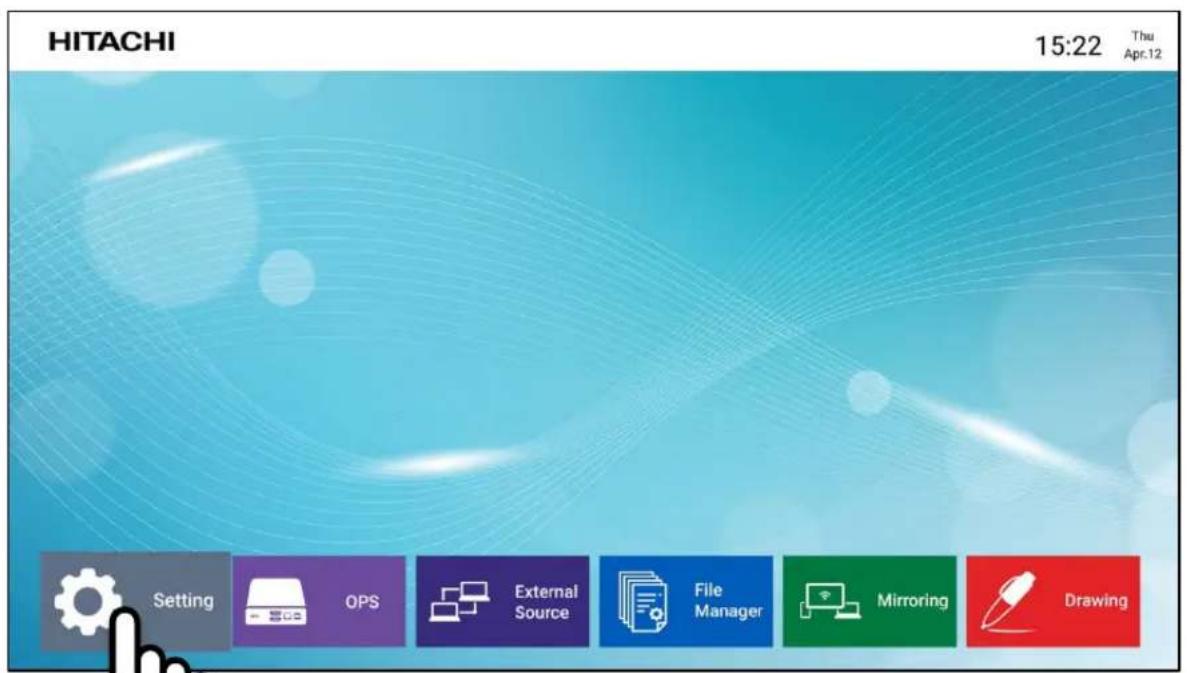

Double Tap
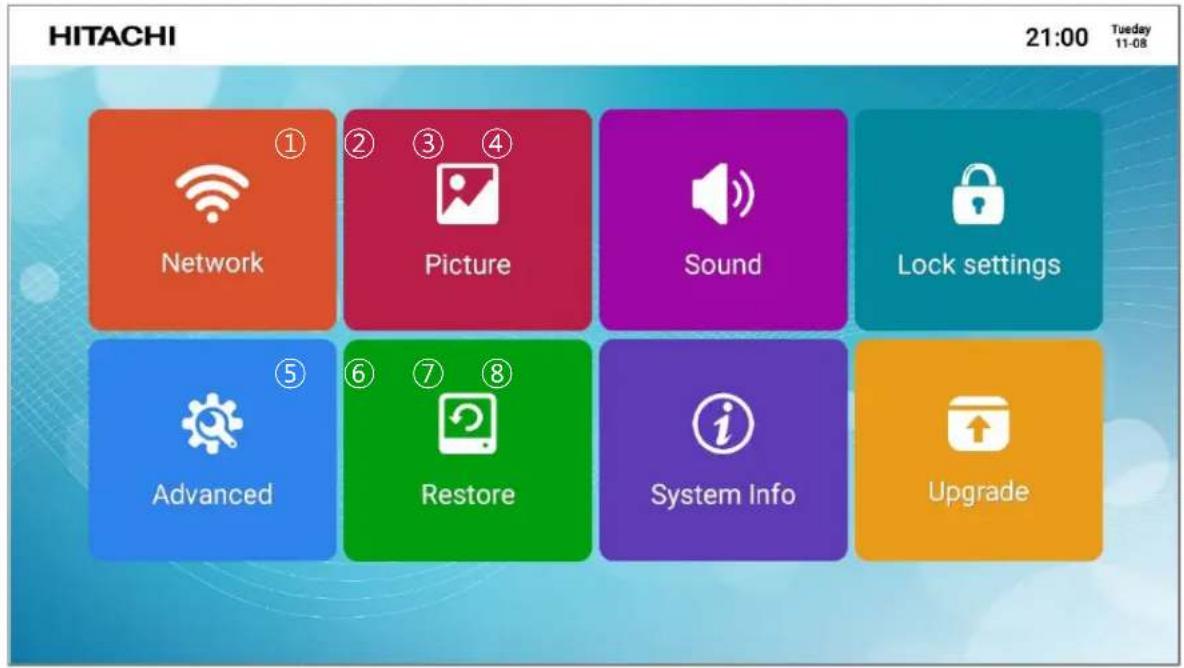
① Network: to setup up network connection
② Picture : to setup the Backlight mode
③ Sound : to setup the sound features
④ Lock settings : to setup the lock style, unlock password
⑤ Advanced : to setup Power option and background image
⑥ Restore : to reset the system
⑦ System info : to check the system information
⑧ Upgrade : to upgrade system F/W
6.2 Network
HITACHI
22:45
Sun Feb.15

- Ethernet Setting
Set up detailed features of Ethernet.
● WiFi Setting Set up detailed features of WiFi.
● Network State Show network status.
6.3 Picture

- Backlight Mode : User can set the Backlight Mode .There are Standard, Energy saver, Auto, and Custom Mode. Users can adjust each value in Custom Mode.
- Backlight : (less) 0 to 100 (more) of the Backlight
6.4 Sound

- Sound Mode : User can set the Sound Mode .There are Standard, Movie, Meeting, Classroom, Custom Mode. Users can adjust each value in Custom Mode:
• Bass : (less) 0 to 100 (more) of bass sound
- Treble : (less) 0 to 100 (more) of treble sound
These values can be changed in all modes:
• Balance : (left) 0 to 100 (right) of the speaker volume balance
• Volume : (less) 0 to 100 (more) of the volume
6.5 Lock Setting

Lock Style: Through selecting the photo you want, you can configure the lock screen.
Unlock password: You can set a 4-digit password.
Automatic locking: You can set the time for the locked screen. (No, 10min, 15min, 30min, 45min, user defined)
6.6 Advanced

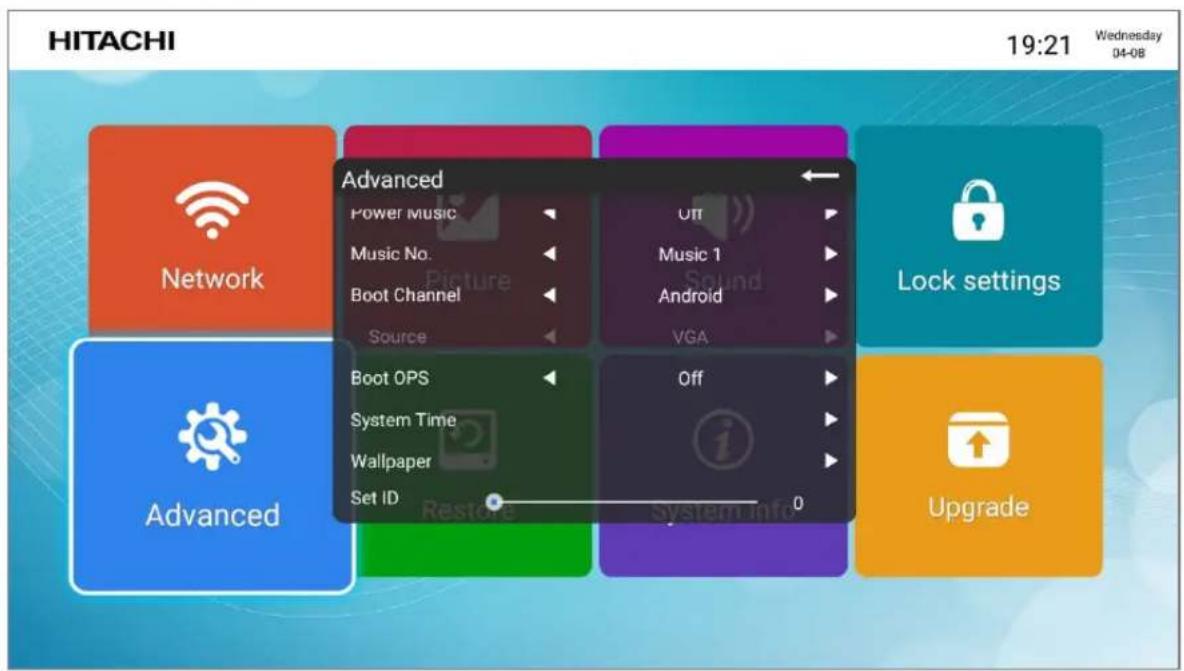
Advanced : to setup the advanced function.
- Language : User can set the OSD menu language.
- Input Method : User can set Keyboard type (AOSP and IME Type)
- Sleep Off : User can set time for automatic shutdown. (Off, 15, 30, 45, 60, 90, 120, 240 minutes)
- Touch Tone : User can set the touch sound (on/off)
- Power Music : User can set the sound when booting.
- Music No.: User can set the power music (Music 1, Music 2)
- Boot Channel : User can set the start screen when the system powers on.(Home, Force Input Source, Remember Input Source)
- Source : when select the Force Input Source, user can change the Source (VGA, OPS, EXTERNAL, HDMI 1, 2, 3, DP)
- Boot OPS : User can set up whether the OPS automatically powers on when the IFPD powers on.
- System Time : User can set up System time and date, time zone, etc.
- Wallpaper : User can set the wallpaper of the Home screen.
- Set ID: For RS232 communication, set ID from 0 to 99.
6.7 Restore


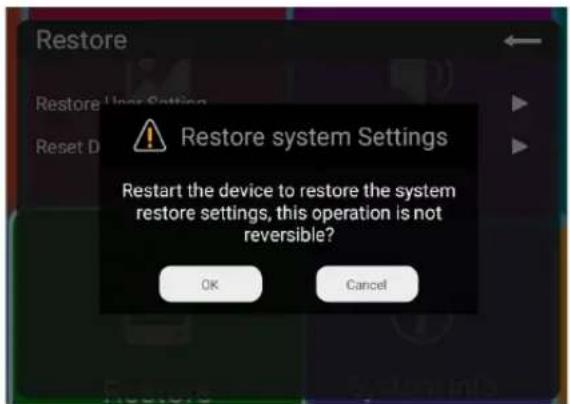
Restore : To reset the system
- Restore user Setting: to reset to user setting
- Restore Default: to reset to factory setting
6.8 System Info

System Info :
To check the system information (CPU, GPU, Memory, Storage, Android Version and Software Version)
6.9 Upgrade
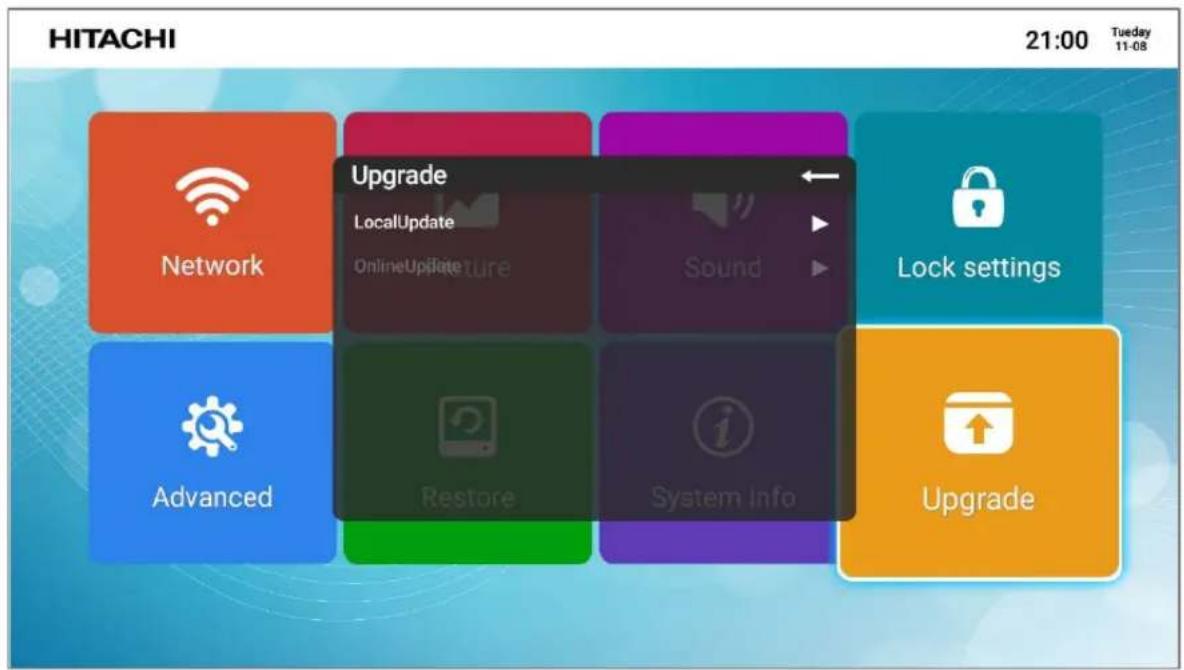
Local Update :
To upgrade F/W, insert the USB with the firmware on the back side "Bracket for F/W update" and then select Local Update.
7. Product Specification
| LED PANEL | ||
| Diagonal Size 85.60 "/217.4(cm) | ||
| Display Resolution (Max.) 3840 x 2160 (UHD) | ||
| Brightness (Average) 400cd/ | m2 | |
| Viewing Angle | H: 178° / V: 178° | |
| Contrast Ratio 1300:1 (Typ.) | ||
| Supported Colors 1.07B Colors (10bit) | ||
| Response Time 8 ms (GTG) | ||
| Display Frame Rate 60Hz (Actual) | ||
| Installation Landscape Orientation | ||
| TOUCH | ||
| Detect Area 1895.04(H) x 1065.96(V) mm | ||
| Detection Method Infrared blocking detection method | ||
| Touch Tool Hand or other solid object(except sharpness) | ||
| Accuracy ±2mm | ||
| Response Time | 1 ~ 14point : ≤10ms, 15 ~ 20 point : 10ms ~ 20ms | |
| Available Touch Point | 20 Points (Windows) | |
| 4 Points (Mac with driver software) | ||
| 1 Point (Mac without driver software) | ||
| Operating Systems | Windows 7, 8, 10 / Mac 10.10-10.12 | |
| PC Connector | USB | |
| SIGNAL CONNECTIVITY | ||
| Connector | Front | HDMI x1 |
| USB-B (for touch) x1 | ||
| USB-A (2.0ver) x1 | ||
| Rear | HDMI(2.0ver) x4 ( Rear x3, Inside OPS x1) | |
| DP x1 | ||
| USB-B(for touch)x2 | ||
| USB-A(2.0ver)x1 | ||
| USB-A (3.0ver)x1 | ||
| HDMI Out(HDMI Pass-Through) | ||
| VGA x1 | ||
| Audio Out / In Speaker out (R/L) , Line out, VGA Audio in | ||
| Communication Port | RS-232C (D-sub 9-pin) or LAN(RJ45) | |
| OPS Slot | 1 | |
| MECHANICAL | |
| Dimensions Landscape | 1999 x 1226 x 117 mm |
| Weight | 91 kg (200.7 lbs) |
| VESA Mount | 600 x 400 (mm), M8 Screw |
| Front Glass | Tempered Glass 4.8t (Anti-glare Type) |
| SOFTWARE & MIRRORING | |
| PC-less writing | Yes-Windows, Mac |
| Annotation | Yes-Windows, Mac |
| Eshare(Screen mirroring) | Yes-Windows, Mac, Chrome, Android, iOS |
| ELECTRICAL | |
| Power Requirement | 100 - 240V AC, 50/60 Hz |
| Power Consumption | 450W |
| Power Consumption (Standby) | < 0.5W |
| Speaker Output | 20W + 20W Stereo (8-ohms) |
| ENVIRONMENTAL | |
| Operating Temperature | 0 ~ 40 °C (32 ~104 °F) |
| Storage Temperature | - 20 ~ 60 °C (-4 ~ 140 °F) |
| Operating Humidity | 20% to 80% RH (no condensation) |
| OSD FUNCTIONS | |
| OSD Language Function | English / Français / Deutsch / Spanish / Português / Italiano / Danish / Swedish / Norwegian / Suomi / Russian / Polish / Turkish / Hungarian / Chesky / Korean / Japanese / Chinese / Greek / Dutch / Arabic |
| OSD Key Lock Function | Support |
8. Product Dimensions

9. Troubleshooting
9-1. Product Self-Diagnosis
- You can check if the product is working properly using the Self-Diagnosis function.
- If a blank screen is displayed and the Power LED blinks even if the product and the PC are properly connected, perform the self-diagnosis function according to the procedures below.
Turn the product and the PC off.
Remove the D-Sub cable from the product.
Turn the product on.
If the product is working properly, the
In this case, if a blank screen is displayed again, make sure that there is no problem with the PC and the connection.
9-2 Before Requesting Service
- Please check the following before requesting After-Sales service.
If the problem continues, please contact your nearest Service Center.
1) PROBLEMS RELATED TO SCREEN.
- Screen is blank and power indicator is off.
» Ensure that the power cord is firmly connected and the monitor is on.
Message.
» Check the maximum resolution and the frequency of the video adapter.
» Compare these values with the data in the Standard Signal Mode Table.
- Picture rolls vertically.
» Check if the signal cable is securely connected. Connect it again securely.
- Image is not clear. Picture is blurred.
» Run frequency
» Turn on again after removing all accessories(video extension cable, etc.) Set resolution and frequency to the recommended ranges.
- The image is too light or too dark.
» Adjust the
- Screen is blank and the power indicator light blinks every 0.5 or 1 seconds.
» The monitor is using its power management system. Press a key on the keyboard.
2) PROBLEMS RELATED TO AUDIO.
- No sound
» Ensure that the audio cable is firmly connected to both the audio-in port on your monitor and the audio-out port on your sound card.
- The sound level is too low.
» Check the volume level. If the volume is still too low after turning the control to its maximum, check the volume control on the computer sound card or software program.
-
PROBLEMS RELATED TO REMOTE CONTROL.
-
The remote control buttons do not respond.
» Check the battery polarities(+/-).
» Check if the batteries have been exhausted.
» Check if the power is on.
» Check if the power cord is securely connected.
» Check if a special fluorescent or neon lamp is on in the vicinity.
10. History
| Date Corrections | |
| 2018.11.22 | p13 RS232/RJ45 SWITCH ==> RJ45/RS232 SWITCHp16 Setting > Advance Setting > RS232C/RJ45 select ==>DeleteP16 Add==>How to select RS232C On/Off switch RJ45(↑), RS232C(↓)p46 RS232/RJ45 : Choose the desired connection. ==>Delete |
| 2018.11.30 | P46 (VGA, OPS, EXTERNAL, HDMI 1, 2, 3, DP,AV, YPBR) ==> (VGA, OPS, EXTERNAL, HDMI 1, 2, 3, DP) |
- Model: HILS86204 Interactive Flat Panel Display
- Contents
- Important Safety instructions
- [SAFETY WARNING]
- SAFETY PRECAUTION
- Power
- [Warning]
- [Caution]
- Installation
- Cleaning
- General Usage
- MAINTENANCE
- Cleaning
- Installation
- Panel
- Introduction
- Product Description
- Front View
- Important Notice
- Rear View
- Connection
- 1) HDMI/Display Port Connection
- 2) VGA Connection
- 3) Speaker Connection
- 4) RS232C Connection
- ※ Note
- Remote Controller
- How to insert battery
- BATTERY PRECAUTIONS
- Home Menu Description
- Menu Overview
- Home Menu
- OPS(Open Pluggable Specification)
- OPS(Open Pluggable Specification)
- External Source
- External Source
- File Manager
- Mirroring
- Eshare-Mobile users
- 1) Smart phone setting
- 1) EShare(App)
- 2) Remote mode
- Main Screen
- Remote Screen
- 3) Virtual key mode
- Virtual key Screen
- 4) Camera mode
- Camera Screen
- Eshare-PC users
- 1) Notebook setting
- Drawing
- Gestures
- Operation issues
- Setup Menu Description
- Menu Overview
- Network
- Picture
- Sound
- Lock Setting
- Advanced
- Restore
- System Info
- Upgrade
- Product Specification
- Product Dimensions
- Troubleshooting
- 9-1. Product Self-Diagnosis
- 9-2 Before Requesting Service
- History
Brand : HITACHI
Model : HILS86204
Category : Air conditioner